Quick answer
In Claude, click Customize, then Skills, click + Add and choose Create with Claude. Send the first message, attach your logo and describe your colors, fonts, logo placement and voice. When Claude drafts the SKILL.md, read it and click Save skill. Keep Code execution and file creation on in Settings, Capabilities, then ask for a document the way you normally would.
Last updated · Last checked
Updated . Built against the tool’s current screens and checked step by step. How we check this lesson
Every time you ask Claude for a proposal, a flyer or a post, you would normally have to explain your colors, fonts and tone all over again, and the results still drift. A brand skill writes those rules down once. In this free, interactive tutorial you look at Anthropic's own brand-guidelines example skill, then build a brand skill for a small flower shop by chatting with Claude, save it, and ask for a one-page proposal and an Instagram post. Both come out in the shop's colors, fonts and voice, with the logo where the skill says it goes.
At a glance
| Question | Answer |
|---|---|
| What you build | Build a brand skill for a small flower shop by chatting with Claude: colors, fonts, logo placement and voice. Then ask for a proposal and a social post and watch both come out on brand. |
| Tools | Claude |
| Time | About 7 minutes, 32 steps in 4 parts |
| Level | Beginner, no coding needed |
| Cost | Free |
| Ways to learn it | Practice it step by step |
The 4 parts, in short
- What a brand skill is: Open Customize, Search for brand, Open brand-guidelines, Look inside it, and 1 more step.
- Create your brand skill: Open the + Add menu, Choose Create with Claude, Send the first message, Open the + menu, and 9 more steps.
- A proposal on brand: Look inside the skill, Close Settings, Start a new chat, Click the message box, and 5 more steps.
- A social post on brand: Click the reply box, Ask for a social post, Send it, Open the post, and 1 more step.
Start here first: How to Find Skills in Claude: What Claude Skills Are and How to Turn One On (module 1 of Claude Skills)
In the course: Part 4 · Claude for Everyday Work (Module 60 of the full course)
Part of: AI for Consulting & Agencies (step 9 of 40). Next up: Plan a Week of Social Posts in One Sitting using SocialBee
Part of: AI for Marketing Teams (step 30 of 55). Next up: DomoAI: Turn a Product Photo into a Short Video for Social
Part of: Give AI Your Company Knowledge (step 6 of 15). Next up: Give Your Voice Agent Knowledge: A Price List and FAQ in ElevenLabs
What a brand skill is, and why it matters
A Claude skill is a folder with a SKILL.md file inside: a short name, a description of when Claude should use it, and instructions in plain Markdown. A brand skill is a skill whose instructions are your brand: which colors to use and where, which fonts go on headings and body text, where the logo sits, and how your business sounds. It can also carry files, such as the logo itself.
The point is consistency without re-explaining. Once the skill is saved and switched on, Claude reads it whenever a request matches its description, so a proposal, a price sheet and a social post all come out looking like they came from the same business. Anthropic's help center uses brand guidelines as its own example of what to put in a skill: brand colors, typography, logo usage rules and when to apply them.
Start from Anthropic's example
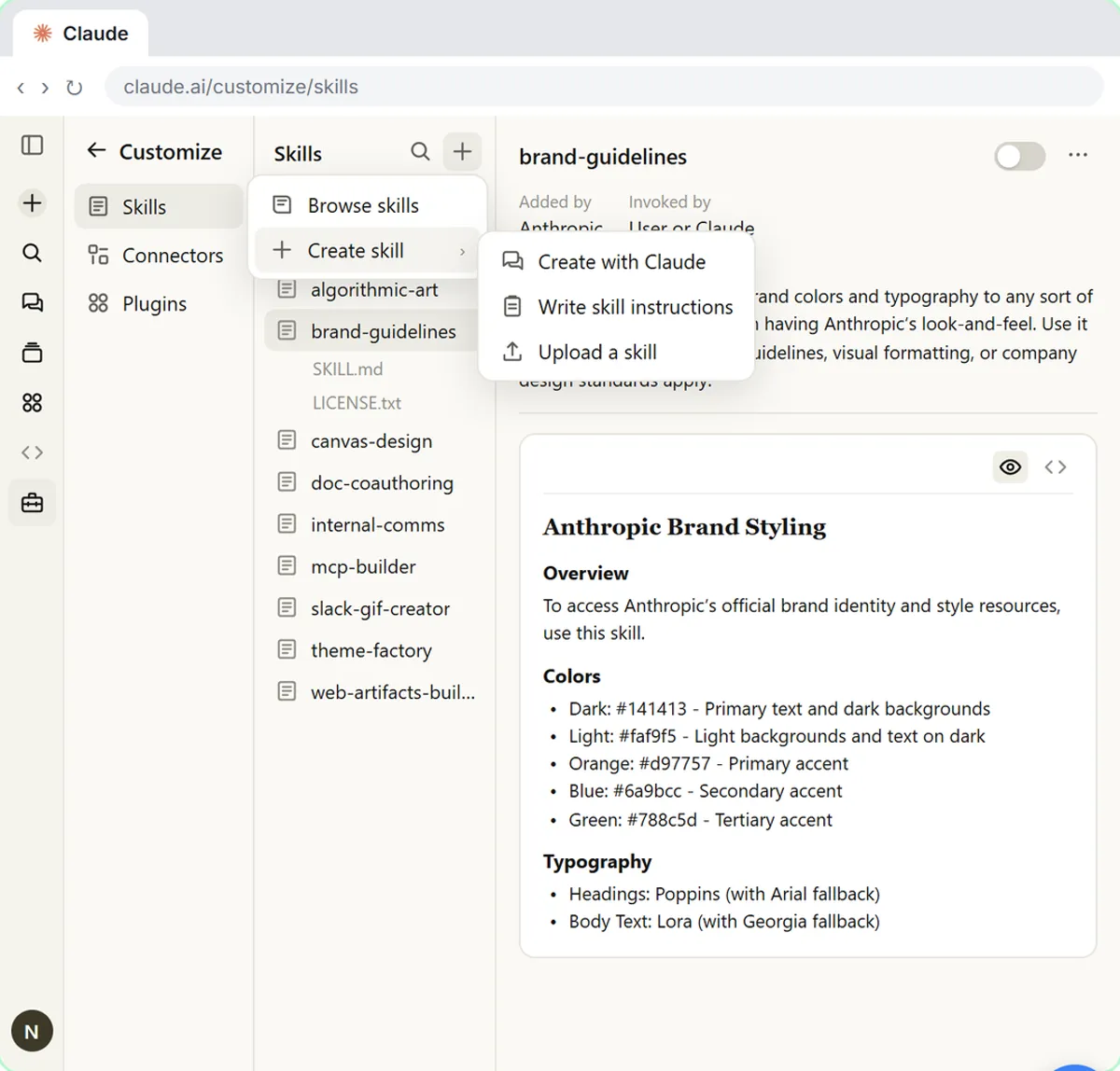
Anthropic publishes example skills, and one of them is called brand-guidelines. In Claude, click Customize in the left sidebar. It opens on Skills, in Discover, a store of ready-made skills. Type brand in Search, click the skill named brand-guidelines (don't click Add), and open its Contents tab to read the SKILL.md. Its instructions list exact color codes (a dark and a light color, plus orange, blue and green accents) and two fonts: Poppins for headings and Lora for body text, each with a fallback font in case it isn't installed. The same file is public in Anthropic's skills repository on GitHub.
It's a good pattern, but it is Anthropic's own brand, not yours. Switching it on would make your documents look like Anthropic's. So in the lesson you make your own, following the same shape.
Create your brand skill with Claude
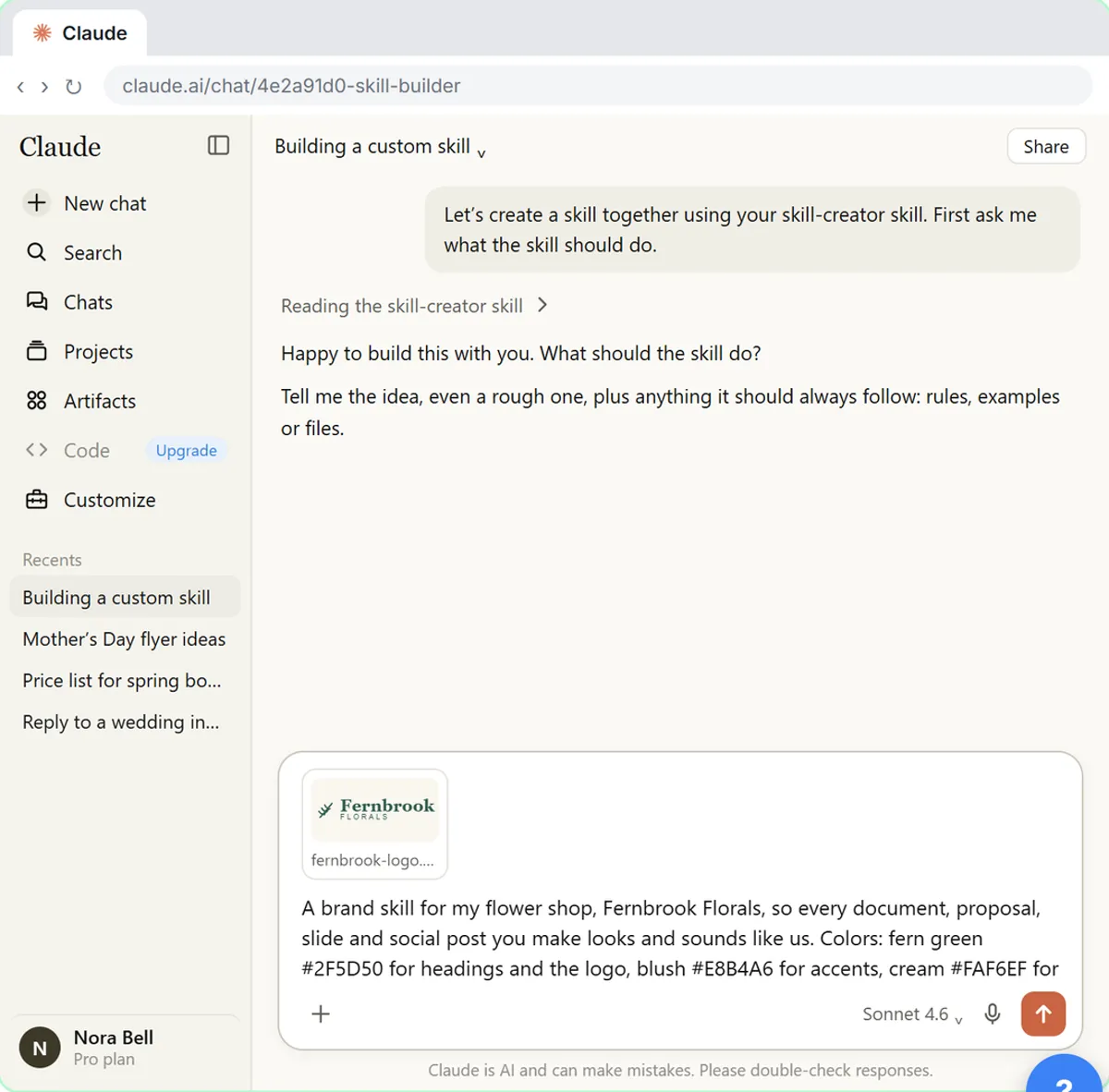
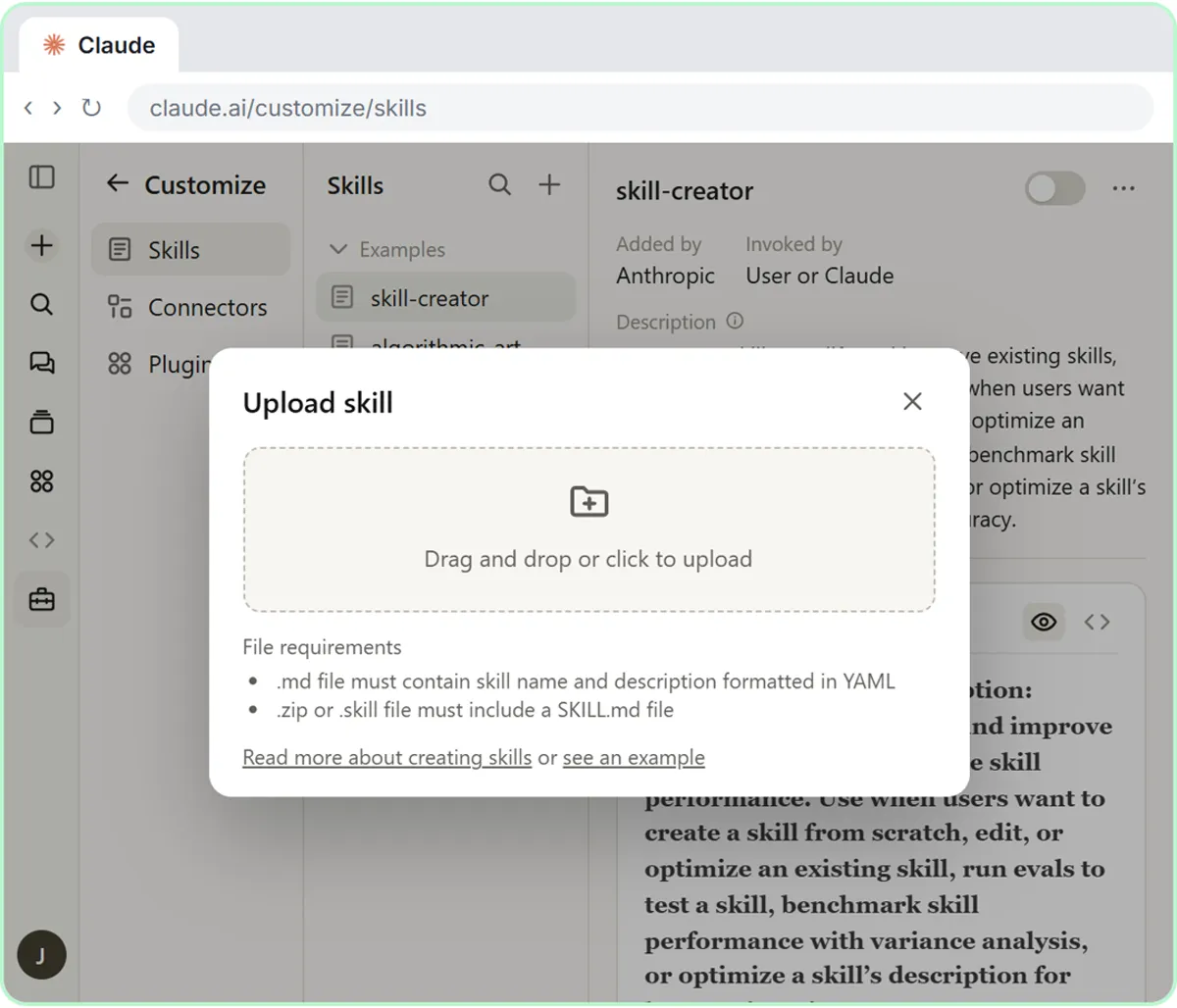
Go back to the search results, click the black + Add button at the top right, and choose Create with Claude. The menu also has Upload skill and Create a skill, a form where you write it yourself. (If someone already made your brand skill as a .zip file, choose Upload skill instead; module 2 of this course covers that.) Create with Claude opens a new chat with the first message already in the box, asking Claude to create a skill together using its skill-creator skill and to first ask what the skill should do. You send it. Claude loads the skill-creator skill and asks.
Attach your logo with the plus button in the message box and Upload or add files, then describe your brand. The lesson's made-up flower shop, Fernbrook Florals, gives four colors with a job for each (fern green for headings and the logo, blush for accents, cream for backgrounds, charcoal for text), two fonts (Playfair Display for headings, Lato for body text), logo placement (top left on documents, bottom right on slides and social posts, never stretched or recolored) and a voice (warm, plain and confident, short sentences, at most one exclamation mark, and a set sign-off). For your own business, swap in your details.
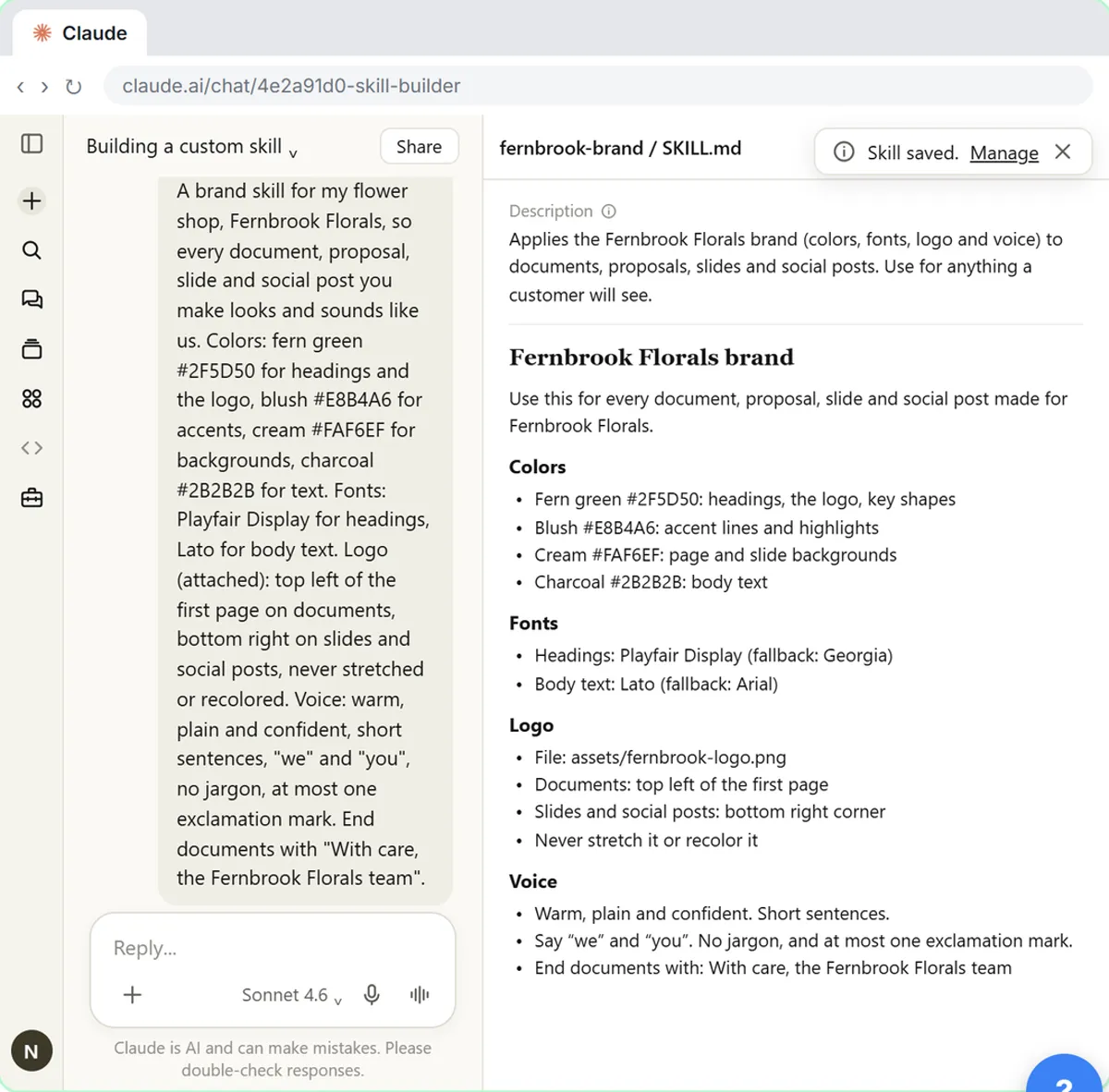
Claude drafts the skill and opens the SKILL.md on the right by itself. On a real run it may ask a question or two first, or offer to test the skill; answer, or tell it the draft is good and to create the skill. Read the SKILL.md: the description says to use it for anything a customer will see, followed by sections for colors, fonts, logo and voice. If anything is off, ask Claude to change it. When it looks right, click Save skill at the top right of the file. A notice at the bottom right says Skill saved, with a Manage link that opens the skill in the Settings window.
Check it's on
Manage shows your skill marked New. Its switch at the top right is what lets Claude use it by itself when a request fits; you can also call it by name. Click the Contents tab for its files: SKILL.md, and an assets folder with your logo. If the logo isn't there, go back to the chat and ask Claude to add it to the skill.
A proposal and a social post, both on brand
Start a new chat and ask the way you normally would. Name your shop, but you don't have to say "use my brand skill": Claude matches the request to the skill's description. In the lesson the request is a one-page Word proposal from Fernbrook Florals to a local office, Ashford Realty: a fresh arrangement for the front desk every Monday at $85 a week, starting Monday, November 2, with a free vase swap each month. Claude's work summary above the reply lists Loaded skill lines for the brand skill and the built-in Word (docx) skill. Claude writes that summary itself, so the wording changes from run to run.
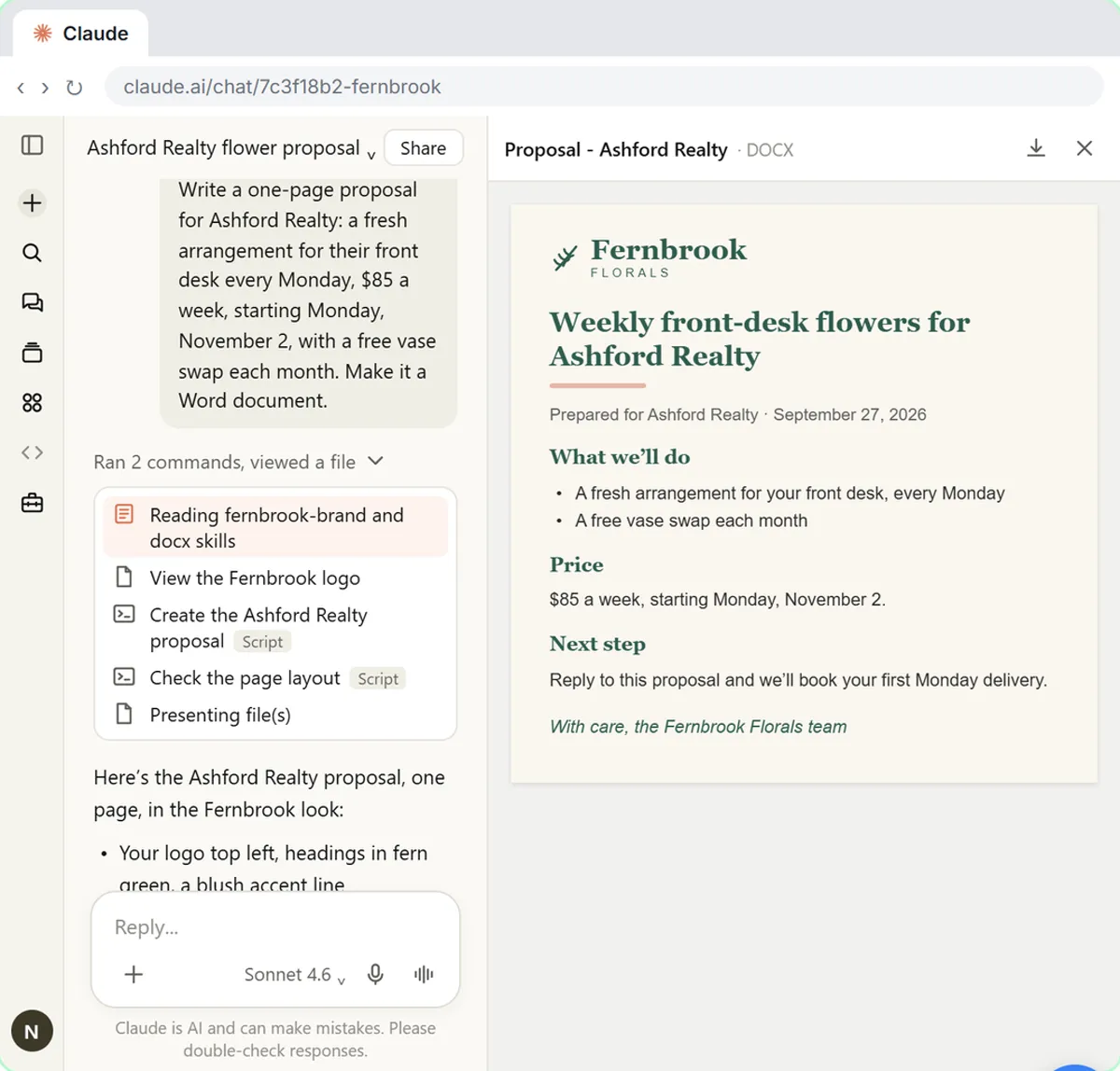
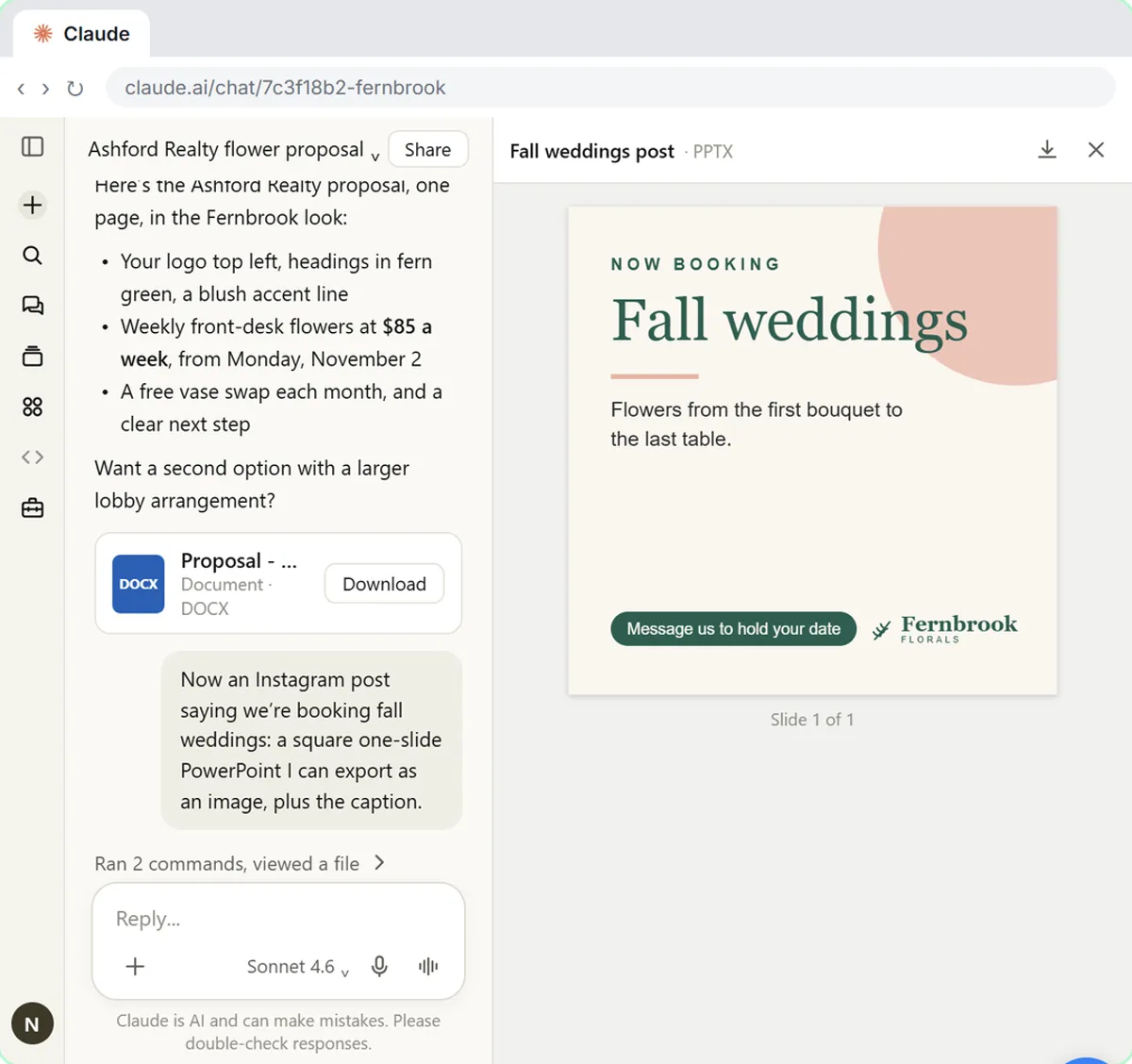
The proposal opens in a preview panel: logo top left, headings in fern green, a blush accent line, a cream page and the shop's sign-off. Then, in the same chat, ask for an Instagram post announcing fall wedding bookings, as a square one-slide PowerPoint you can export as an image, plus a caption. The caption comes back in the shop's voice, and the slide uses the same colors and fonts, with the logo bottom right, as the skill says for social posts. Download it, and every file you ask for from now on follows the same rules. For something customers can click and use, like a price calculator, see How to Create Artifacts in Claude: Build a Price Calculator You Can Share.
Tips for your own brand skill
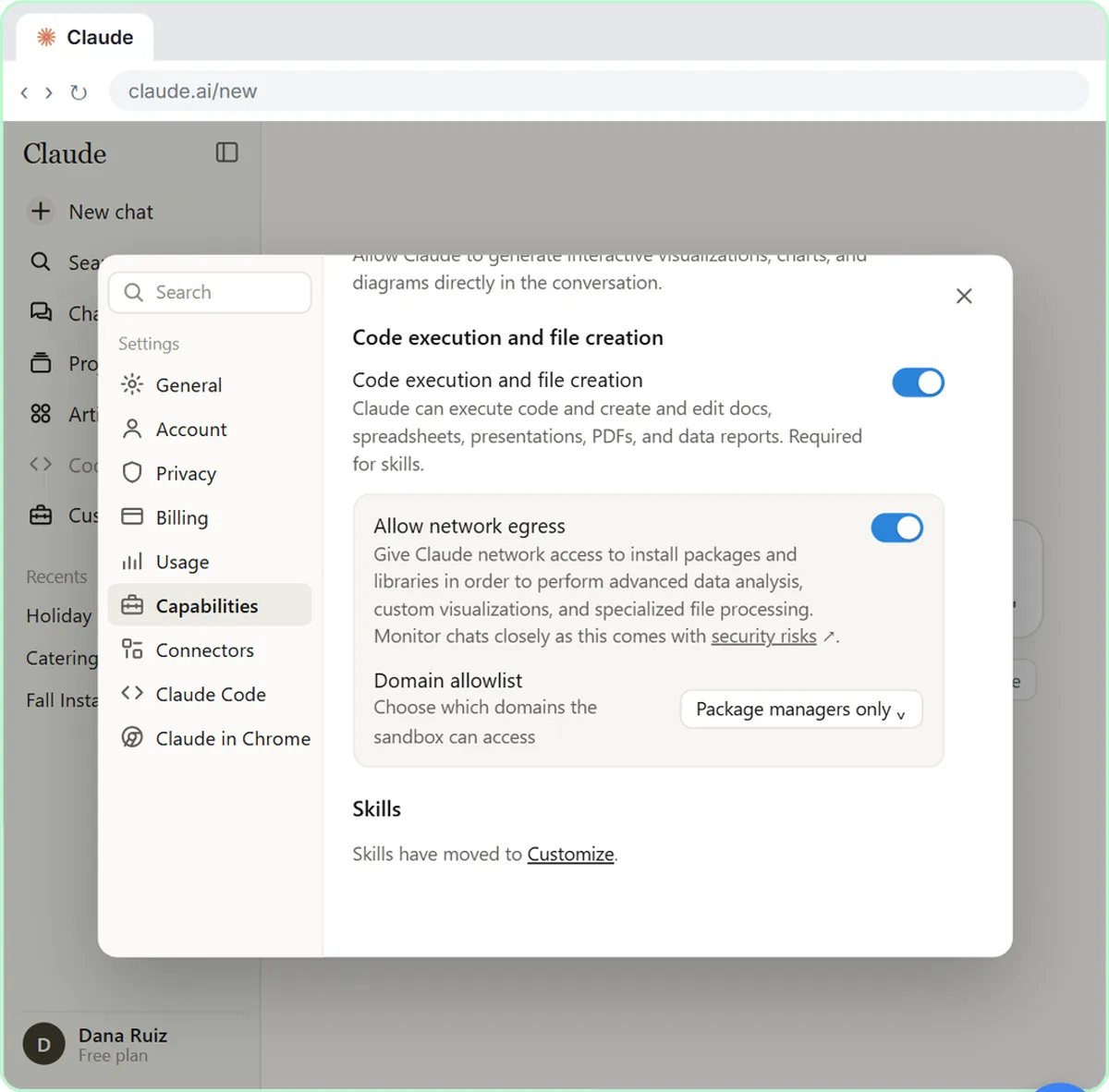
Give every color a job, not just a hex code, so Claude knows where each one goes. Name a fallback font for each brand font: Word and PowerPoint files only show your fonts on computers that have them installed. Write the voice as short rules with an example sign-off. Keep the description focused on when to use the skill, since that is how Claude decides. If Claude ever skips the skill, type a slash in the message box and pick it by name, and consider making the description more specific. Skills need Code execution and file creation switched on in Settings, Capabilities, and on Team and Enterprise plans you can share a brand skill so the whole team's documents match.
Try it yourself, free
Reading the steps is a start. Doing them is how it sticks. The interactive module walks you through every click in a practice copy of Claude, checks each step, and never touches your real accounts.
Start “How to Create a Skill in Claude: A Brand Guidelines Skill for On-Brand Docs”Step by step: How to Create a Skill in Claude: A Brand Guidelines Skill for On-Brand Docs
All 32 steps of the interactive module, in order. In the module you watch each one, then do it yourself in a practice copy that checks your work.
1. What a brand skill is
- Open Customize. A brand skill holds your colors, fonts, logo rules and tone of voice, so every document Claude makes looks and sounds like your business, without you explaining it each time. Anthropic ships an example. Click Customize in the left sidebar.
A brand skill is a Claude skill that holds the rules for your business's look and voice: your colors, your fonts, where your logo goes, and how you sound. Once it's saved, every document Claude makes for you comes out on brand, and you never have to explain it again. Anthropic has an example of one.
- Search for brand. Customize opens on Skills, in Discover, a store of ready-made skills. Anthropic’s own brand skill is in there. Paste in the brand to type brand in the Search box at the top.
Customize opens right on Skills, in Discover. It's a store of ready-made skills, and Anthropic's own brand skill is in there.
- Open brand-guidelines. The results mix connectors, plugins and skills. Click the Skill named brand-guidelines, by Anthropic. Don’t click Add.
The results mix connectors, plugins and skills. Don't click Add.
- Look inside it. The Overview shows what it’s for. Click the Contents tab to read its SKILL.md.
The Overview says what it is for.
- Go back to the results. Exact color codes, and a font for headings and one for body text. It’s a good pattern, but it’s Anthropic’s brand, not yours. You’ll make your own. Click Search at the top left to go back.
Look at what's inside: exact color codes, and a font for headings and one for body text. It's a good pattern, but it's Anthropic's own brand, not yours. So you'll make your own, for a flower shop called Fernbrook Florals.
2. Create your brand skill
- Open the + Add menu. Click the black + Add button at the top right.
- Choose Create with Claude. Three ways in: Upload skill (a .zip, Module 2), Create a skill (a form where you write it yourself) and Create with Claude (by chatting). Click Create with Claude.
There are three ways in. Upload skill takes a zip file, like in module two. Create a skill is a form where you write it yourself.
- Send the first message. A new chat opens with the first message already in the box: create a skill together using the skill-creator skill. It waits for you to send it. Click the send arrow.
A new chat opens, and the first message is written for you: let's create a skill together using your skill creator skill. It waits in the box until you send it.
- Open the + menu. Claude reads that skill and asks what yours should do. First, attach your logo: click the + in the message box.
Claude reads that skill, then asks what your skill should do. Start by attaching your logo.
- Upload or add files. Click Upload or add files.
- Pick the logo. Your computer’s file window opens. Click fernbrook-logo.png.
Your computer's file window opens on Pictures.
- Open it. Click Open.
- Click the message box. The logo sits in the message box. Now describe your brand. Click the message box.
The logo is attached. Now tell Claude about your brand.
- Describe your brand. Paste in the brand details: what the skill is for, your four colors and where each goes, your heading and body fonts, where the logo goes, and your voice. For your own business, swap in your details.
It covers the four things a brand skill needs: your colors and where each one goes, your two fonts, where the logo sits on documents and on slides and posts, and how you sound, down to the sign-off. For your own business, you'd swap in your details.
A brand skill for my flower shop, Fernbrook Florals, so every document, proposal, slide and social post you make looks and sounds like us. Colors: fern green #2F5D50 for headings and the logo, blush #E8B4A6 for accents, cream #FAF6EF for backgrounds, charcoal #2B2B2B for text. Fonts: Playfair Display for headings, Lato for body text. Logo (attached): top left of the first page on documents, bottom right on slides and social posts, never stretched or recolored. Voice: warm, plain and confident, short sentences, "we" and "you", no jargon, at most one exclamation mark. End documents with "With care, the Fernbrook Florals team".
- Send it. Click the send arrow.
- Open the skill. Claude drafts the skill and shows it as a card. (A real run may ask you a few questions first, or offer to test the skill. Answer them, or say “This is good. Create the skill.”) Click the fernbrook-brand card.
Claude drafts your skill and hands it back as a card. On a real run, Claude may ask you a question or two first, or offer to test it. Just answer, or tell it: this is good, create the skill.
- Save the skill. This is the SKILL.md: the description tells Claude when to use it, then Colors, Fonts, Logo and Voice. Check it matches your brand. Click Save skill. (Real Claude also opens the file on the right by itself, with Save skill at its top right.)
This is the skill file. The description at the top tells Claude when to use it: anything a customer will see. Below are your colors, fonts, logo rules and voice. Read it over, and if anything's off, just ask Claude to change it. When it looks right, click Save skill.
- Go to your skill. A notice at the bottom right says Skill saved. Click Manage.
A notice says Skill saved.
3. A proposal on brand
- Look inside the skill. Manage opens your skill in the Settings window, marked New, with its switch on, so Claude can use it by itself. Click the Contents tab: SKILL.md and the logo in assets. (If the logo isn’t there, ask Claude in the builder chat to add it to the skill.)
Manage opens your skill in the Settings window, with its switch on, so Claude can use it by itself. Its files are the skill file, and your logo in the assets folder.
- Close Settings. Close the window with the X at the top right.
- Start a new chat. Now put it to work. Click + New at the top of the left sidebar for a new chat.
Now put it to work.
- Click the message box. Ask the way you normally would, and name your shop. You don’t have to say “use my brand skill”. Click the message box.
Ask for a proposal the way you normally would, and name your shop. You don't have to say use my brand skill.
- Ask for a proposal. Paste in the prompt to ask for a one-page proposal from Fernbrook Florals to Ashford Realty.
Ask for a one-page proposal from Fernbrook Florals to Ashford Realty: fresh flowers for their front desk every Monday.
Write a one-page proposal from Fernbrook Florals to Ashford Realty: a fresh arrangement for their front desk every Monday, $85 a week, starting Monday, November 2, with a free vase swap each month. Make it a Word document.
- Send it. Click the send arrow.
- Open Claude's work details. Click Created a file, shared a file, and 3 more steps above the reply. (Claude writes this line itself, so the wording changes from run to run.)
Claude gets to work.
- Open the proposal. Find Loaded skill fernbrook-brand and Loaded skill docx in the list (on a real run they are separate lines). Claude picked your brand skill by itself, plus the built-in Word skill. (If it ever doesn’t, type / and pick your skill.) Click the file card. (Real Claude often opens it on the right by itself.)
Look at the first line: Claude read your brand skill by itself, along with the built-in Word skill. If it ever skips it, type a slash in the message box and pick your skill by name.
- Close the preview. Logo top left, fern-green headings in Playfair Display, a blush accent line, a cream page and your sign-off. Close the preview with the X.
There it is, on brand. Your logo sits top left, the headings are fern green in your heading font, there's a blush accent line, and it ends with your sign-off. You didn't mention any of that. Close the preview with the X.
4. A social post on brand
- Click the reply box. Now something different: a social post. Click the reply box.
Now try something completely different: a social media post.
- Ask for a social post. Paste in the prompt to ask for an Instagram post about fall weddings, as a square one-slide PowerPoint plus a caption.
Ask for an Instagram post saying you’re booking fall weddings: a square slide you can save as an image, plus the caption.
- Send it. Click the send arrow.
- Open the post. The caption is in your voice: warm, short, no hype. Click the Fall weddings post card.
Read the caption: short, warm and plain, just how Fernbrook sounds.
- Download the post. Same colors and fonts, and this time the logo sits bottom right, just as the skill says for social posts. Click the download icon at the top of the preview.
Same colors, same fonts, and this time the logo sits bottom right, exactly where your skill says it goes on social posts. From now on, everything you ask for comes out on brand.
Screenshots
Frequently asked questions
- How do I build a skill in Claude without writing it myself?
- Choose Create with Claude from the + Add menu in Customize, Skills. Claude loads its skill-creator skill, asks what the skill should do and writes the SKILL.md for you. Create a skill opens a form if you would rather write it, and Upload skill adds a ready-made .zip.
- Can I use Anthropic's brand-guidelines skill for my own business?
- Not as it is: its colors and fonts are Anthropic's own. Use it as a pattern and make your own brand skill with your colors, fonts, logo rules and voice, either with Create with Claude or by uploading a skill .zip.
- How do I create a brand skill in Claude?
- In Customize, Skills, click + Add, then Create with Claude. Describe your colors, fonts, logo placement and voice, attach your logo, and when Claude drafts the skill, click Save skill.
- Do I have to tell Claude to use my brand skill every time?
- No. When the skill is on and your request matches its description, Claude uses it by itself. You can also type a slash in the message box and pick the skill by name.
- Can a skill include my logo?
- Yes. A skill folder can hold extra files, such as a logo, fonts or reference documents, and SKILL.md can say where the logo goes.
- Is this course really free?
- Yes. Stepthrough is completely free, and the practice copy needs no accounts. To do it for real you need your own Claude account. Skills work on Claude's Free, Pro, Max, Team and Enterprise plans.
More in Claude Skills
 How to Find Skills in Claude: What Claude Skills Are and How to Turn One On
Learn what a Claude skill is, switch on the setting skills need, turn on an example skill in Customize, and watch Claude use its Excel and Word skills on its own.
Free · Live ~7 min Beginner
 How to Install a Custom Skill in Claude (Upload a Skill .zip)
Upload your own skill to Claude as a .zip, check that it’s switched on, see what’s inside its SKILL.md, and watch Claude use it to write a landscaping quote your way.
Free · Live ~6 min Beginner
 Build Your Own Claude Skill with the Skill Creator: A Weekly Report Template
Turn a report you make every week into a skill. Claude’s skill creator interviews you, drafts the skill, tests it and packages it. Then you use it on a real week…
Free · Live ~8 min Intermediate
All 6 modules in Claude Skills
More Claude tutorials
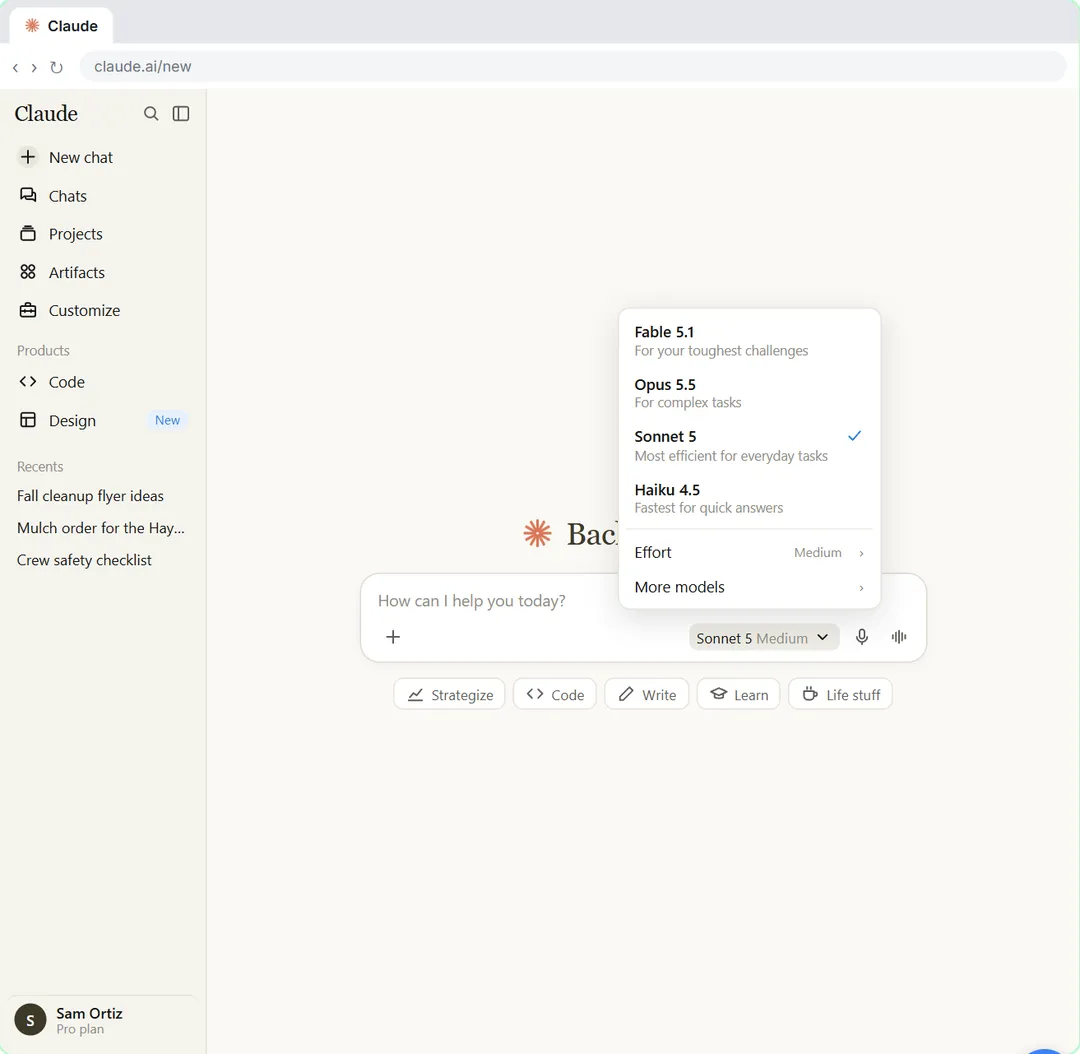 Your First Chat with Claude: Models, Files and a Great First Prompt
Pick a model, attach a customer's complaint email with the + menu, write a four-part prompt, read Claude's reply, ask a follow-up, then pin and rename the chat.
Free · Live ~7 min Beginner
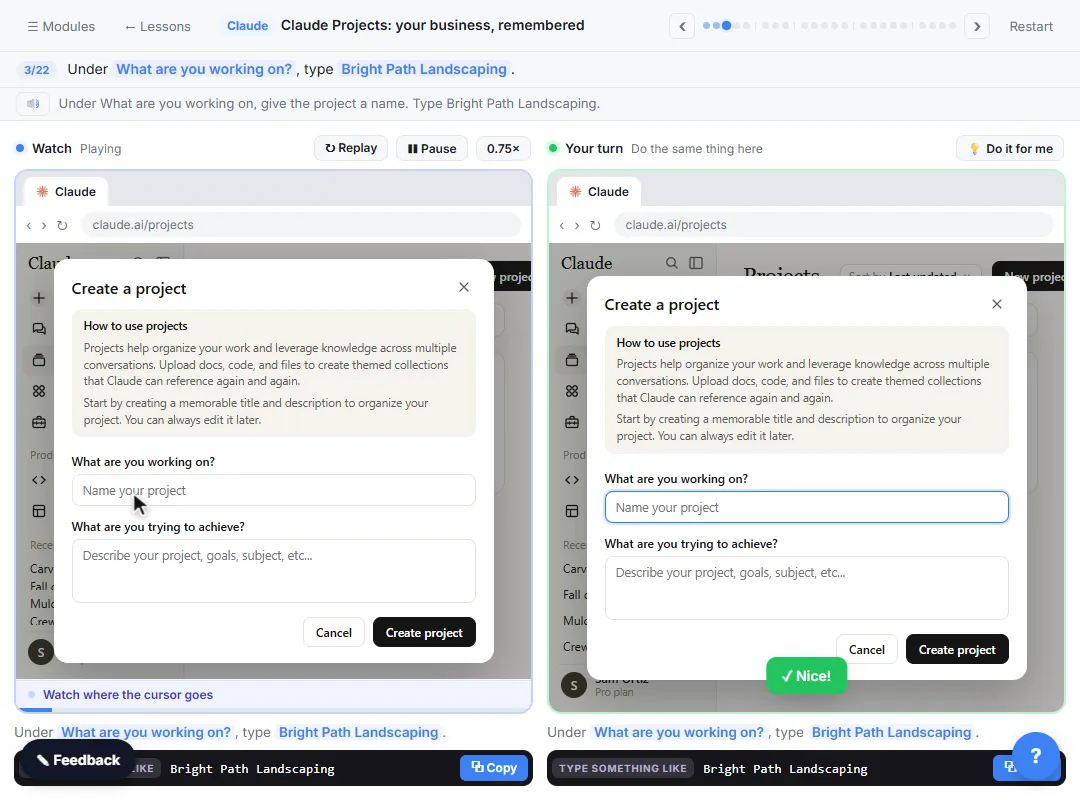 Claude Projects for Your Business: Instructions, Knowledge and Quotes
Create a project for your business, give it instructions for tone and policies, add your price sheet and warranty as project knowledge, and get a customer quote that…
Free · Live ~8 min Beginner
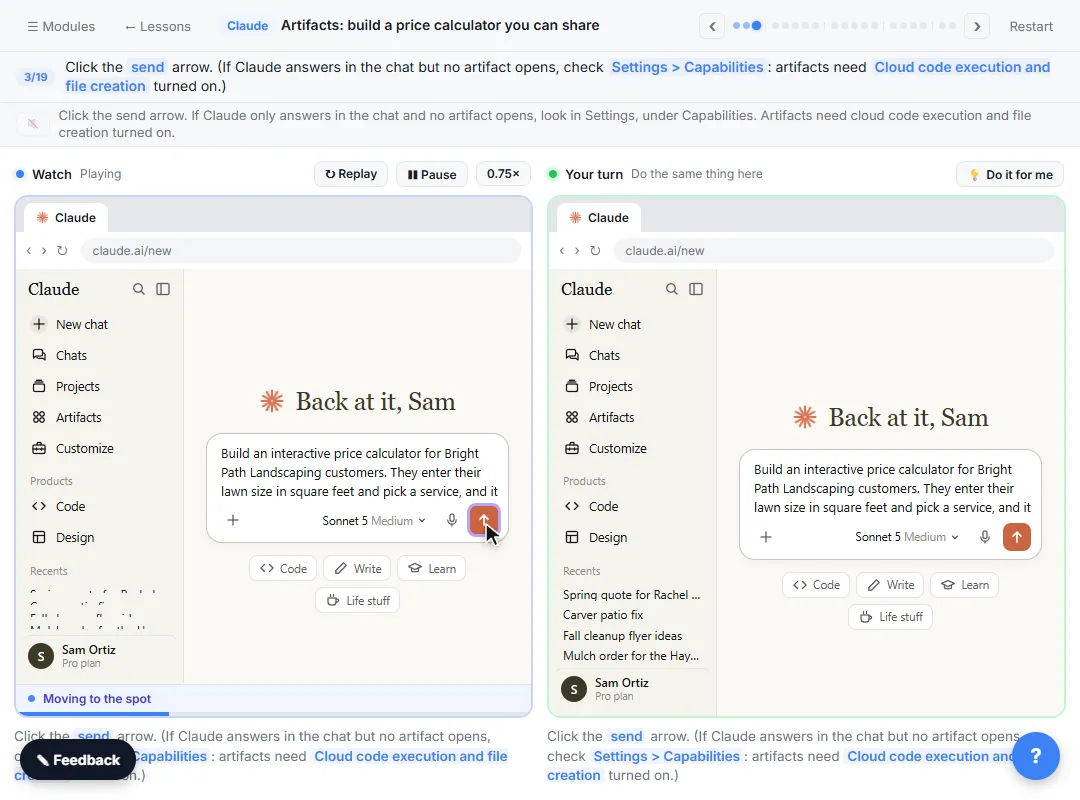 How to Create Artifacts in Claude: Build a Price Calculator You Can Share
Have Claude build an interactive lawn price calculator, try it in the artifact panel, ask for a change, and share it with a link.
Free · Live ~7 min Beginner
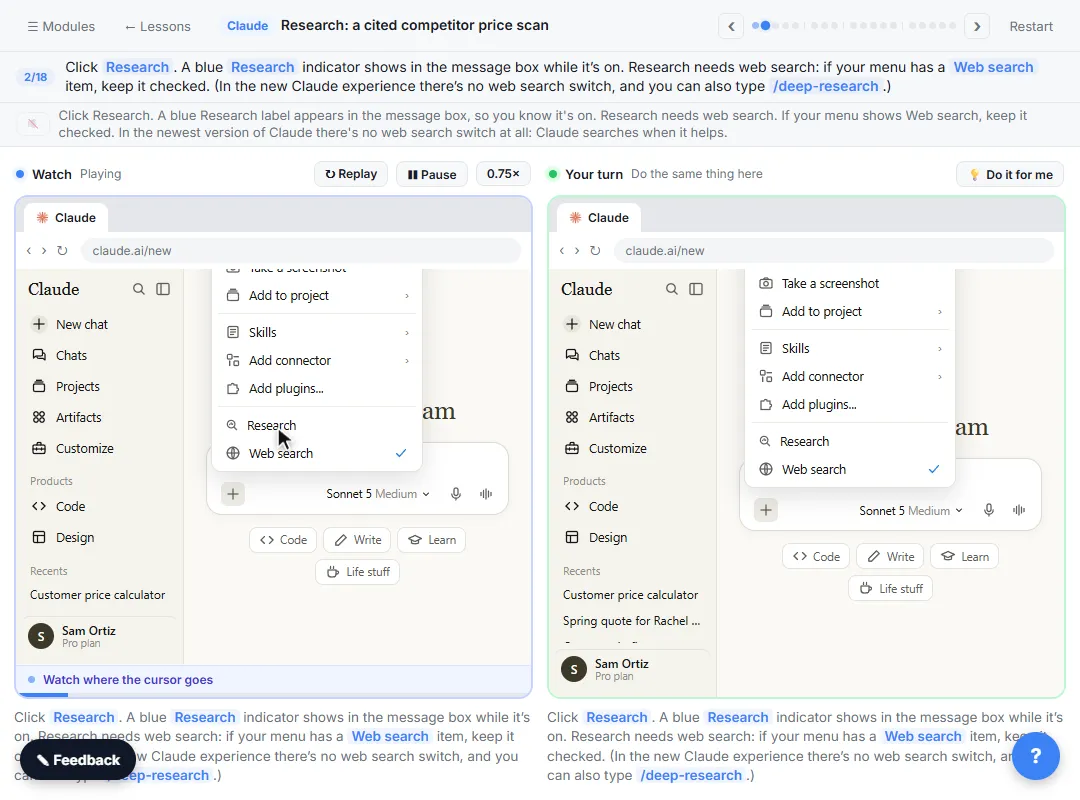 How to Do Research in Claude: A Cited Competitor Price Scan
Turn on Research, have Claude check what nearby competitors charge, read the cited report, check a source and ask a follow-up.
Free · Live ~7 min Beginner
 How to Connect Gmail to Claude, Plus Google Drive and Google Calendar
Connect Google Drive, Gmail and Google Calendar to Claude, then find your price sheet, summarize a customer's email thread and check your week, approving each tool as…
Free · Live ~8 min Intermediate
 How to Create a Project in Claude That Checks Contracts for Red Flags
Upload a vendor contract, get it in plain English, find the risky clauses with the exact words quoted, draft questions for the vendor, and save the review as a project…
Free · Live ~11 min Beginner
From the blog
Terms in this lesson
Plain-English definitions, each with an example from a free lesson.
Related prompts
- Brand skill brief prompt: A copy-ready prompt that gives Claude your colors, fonts, logo placement and voice so it drafts a brand skill that keeps…