Updated . Built against the tool’s current screens and checked step by step. How we check this lesson
DomoAI is a third-party AI video platform, and its Image to Video tool animates a still picture. In this free lesson you use a practice copy of it to make a short vertical clip for a made-up candle company, with no video shoot. You open Image to Video from the Create menu, upload one product photo, pick a model and a 9:16 size, write a motion prompt that says what moves and what must stay the same, then generate, watch, compare two versions and download the better one.
At a glance
| Question | Answer |
|---|---|
| What you build | Open Image to Video in DomoAI, upload one product photo, pick a model and a vertical size, write a motion prompt that keeps the product the same, compare two versions and download the better one. |
| Tools | DomoAI |
| Time | About 6 minutes, 12 steps in 3 parts |
| Level | Beginner, no coding needed |
| Cost | Free |
| Ways to learn it | Practice it step by step, read the guide with screenshots |
The 3 parts, in short
- Open Image to Video: Open the Create menu, Pick Image to Video.
- Set up the shot: Upload your product photo, Pick DomoAI 2.5, Choose 9:16, Keep it short, and 1 more step.
- Generate and compare: Generate, Watch the whole clip, Make a second version, Compare the two, and 1 more step.
Start here first: How to Use n8n in Marketing: An AI Agent That Plans Your Content Calendar (module 1 of AI Automation for Marketing)
In the course: Part 13 · AI Apps Worth Knowing (Module 185 of the full course)
Part of: AI for Marketing Teams (step 31 of 55). Next up: How to Get Started with Lovable: Build a Landing Page from One Prompt
Part of: AI Apps Worth Knowing (step 22 of 186). Next up: Flova: Plan a Promo Video from a Script Before You Spend a Credit
Part of: AI Video & Audio for Marketing (step 6 of 10). Next up: Plan a Week of Social Posts in One Sitting using SocialBee
DomoAI: Turn a Product Photo into a Short Video for Social: step-by-step guide with screenshots
About the screenshots. They come from Stepthrough’s simulated practice environment (a practice copy of DomoAI), not the live tool, so no real account appears. The buttons and labels match the real screens the lesson was built against. Practice it yourself free at ynteractive.com.
- Tools: DomoAI
- Time: about 6 minutes, 12 steps in 3 parts
- Level: beginner, no coding needed
Part 1: Open Image to Video
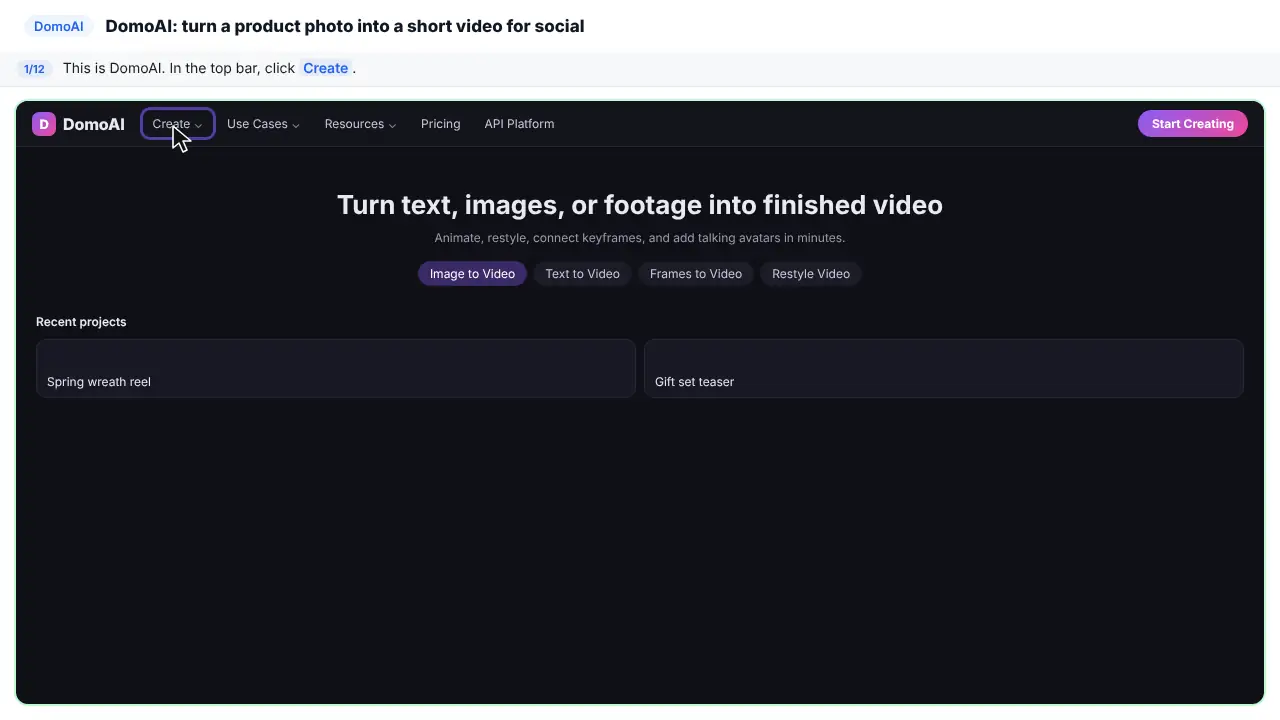
Step 1: Open the Create menu
This is DomoAI. It turns pictures and text into short videos.
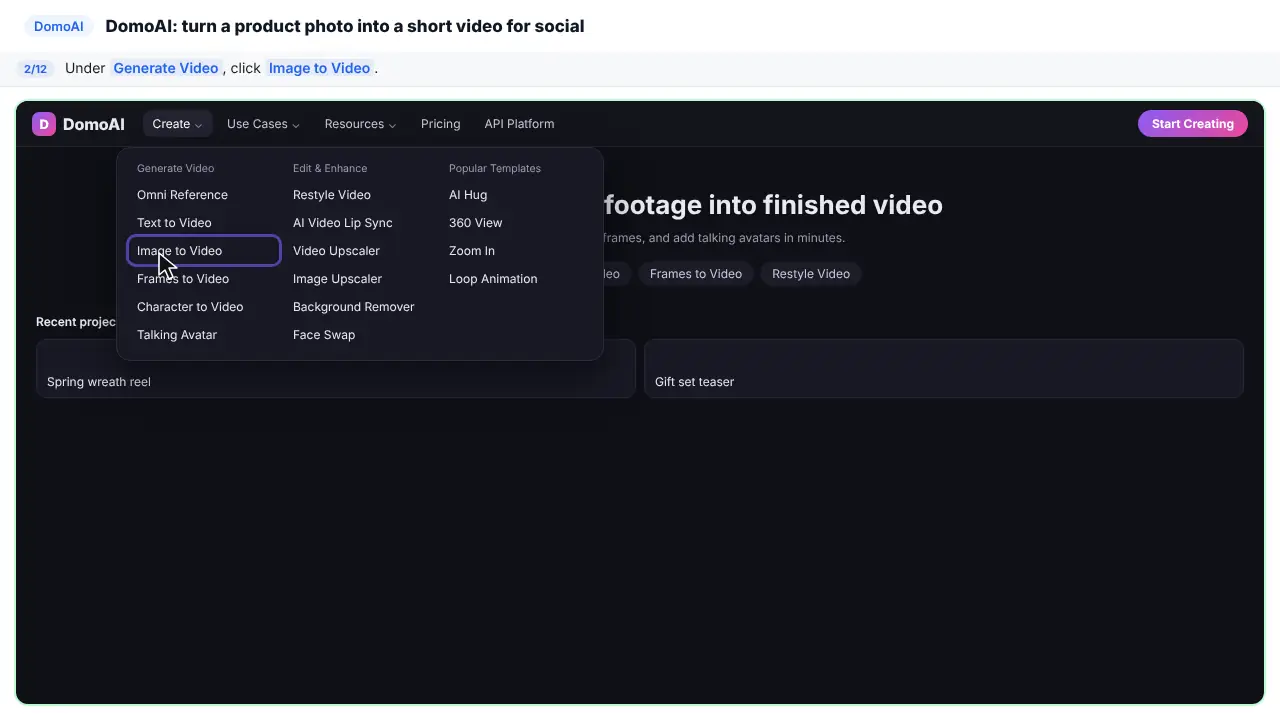
Step 2: Pick Image to Video
Under Generate Video, click Image to Video. It animates one still picture.
Part 2: Set up the shot
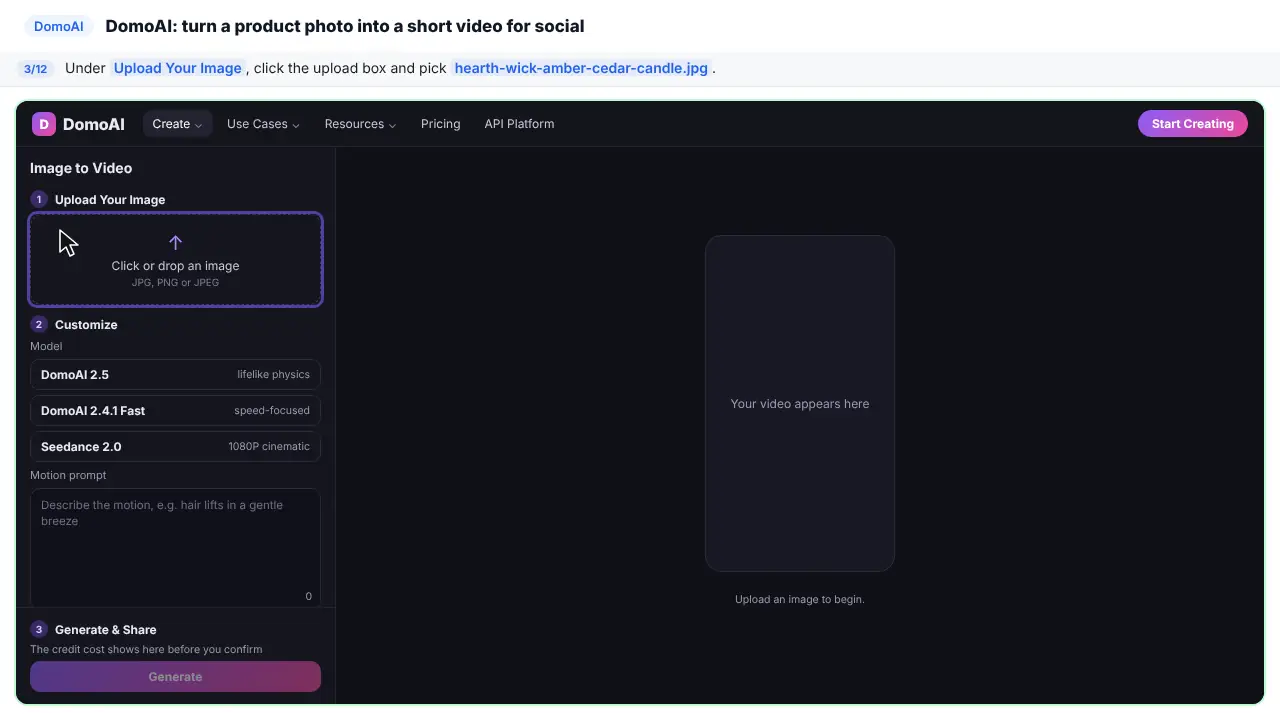
Step 3: Upload your product photo
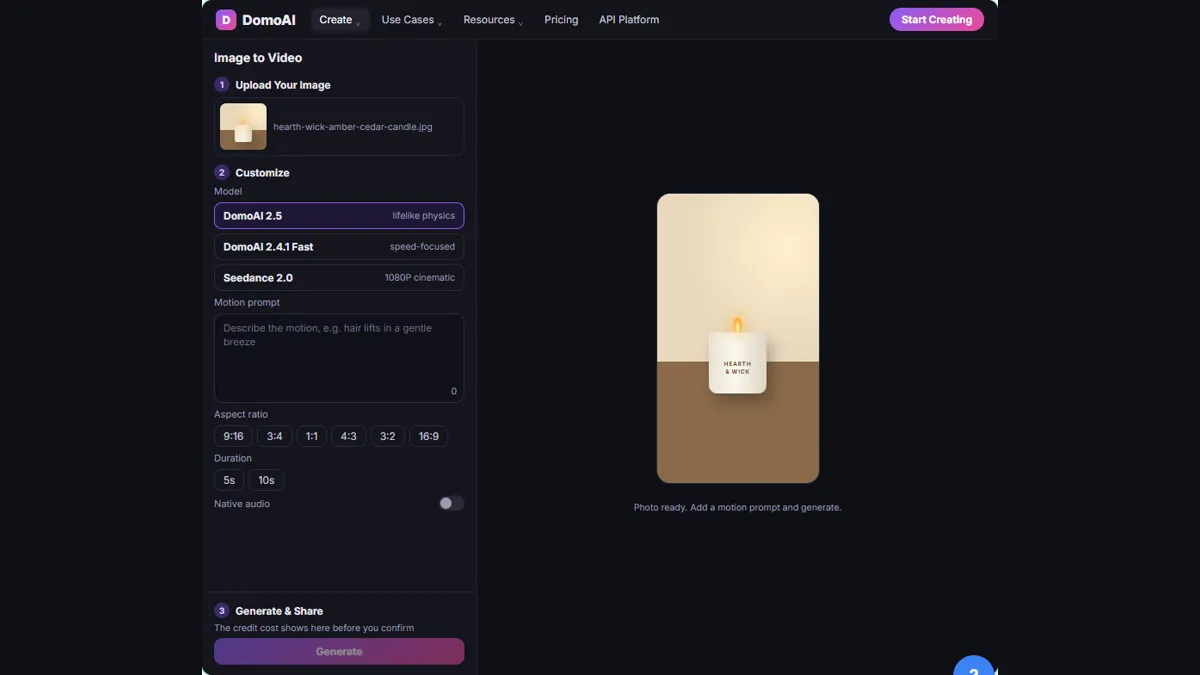
Upload a clean, sharp photo of your product. A busy or blurry picture gives worse motion.
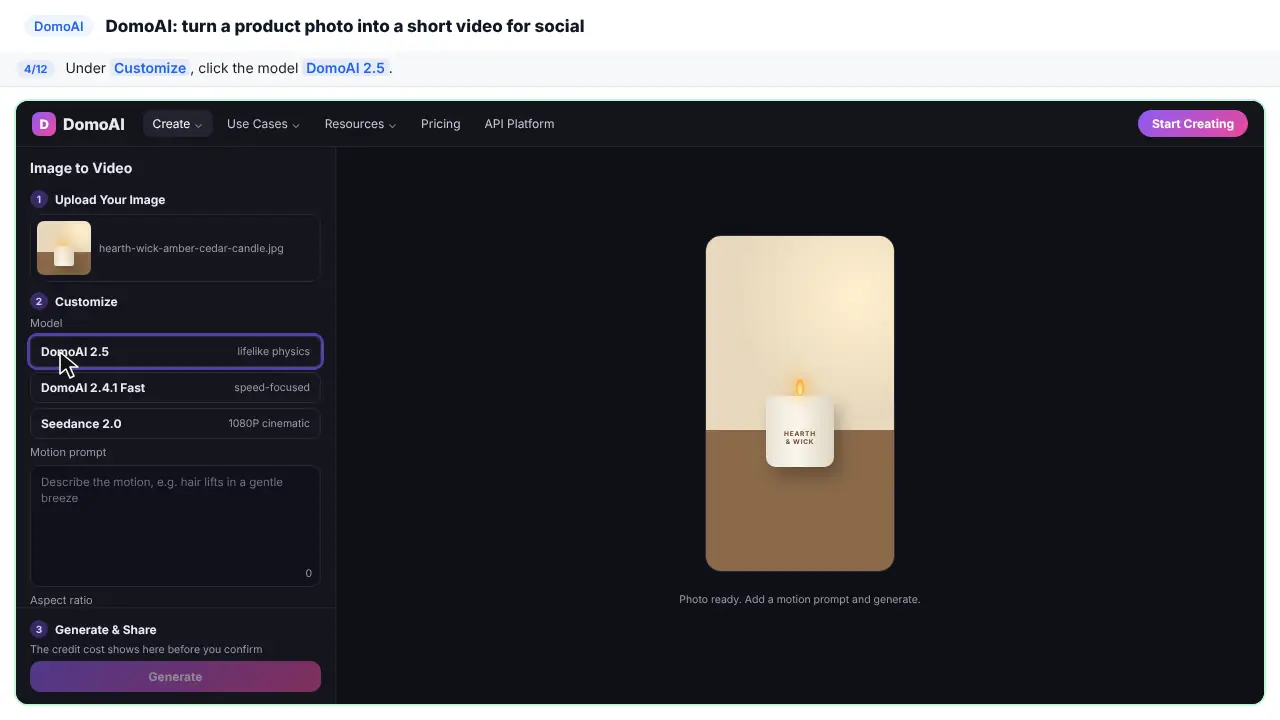
Step 4: Pick DomoAI 2.5
Now customize. First, the model. Pick DomoAI two point five.
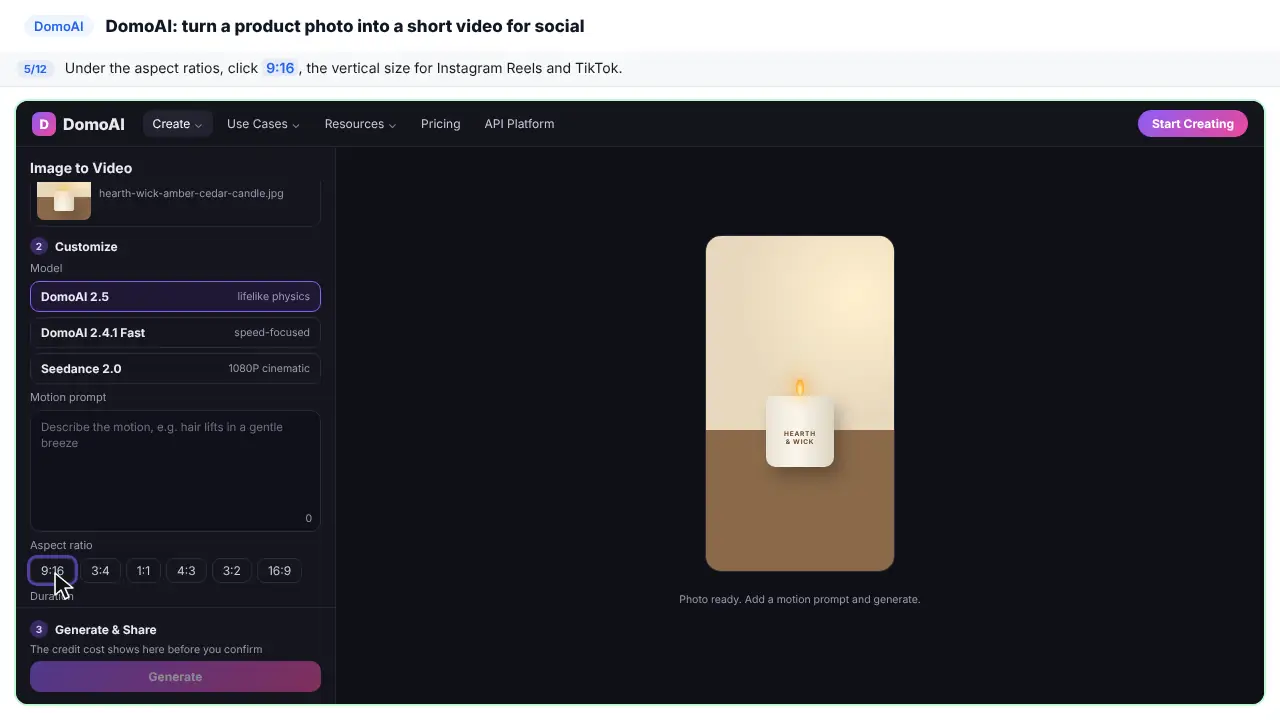
Step 5: Choose 9:16
Pick the shape. Nine by sixteen is tall, for Reels and TikTok.
Step 6: Keep it short
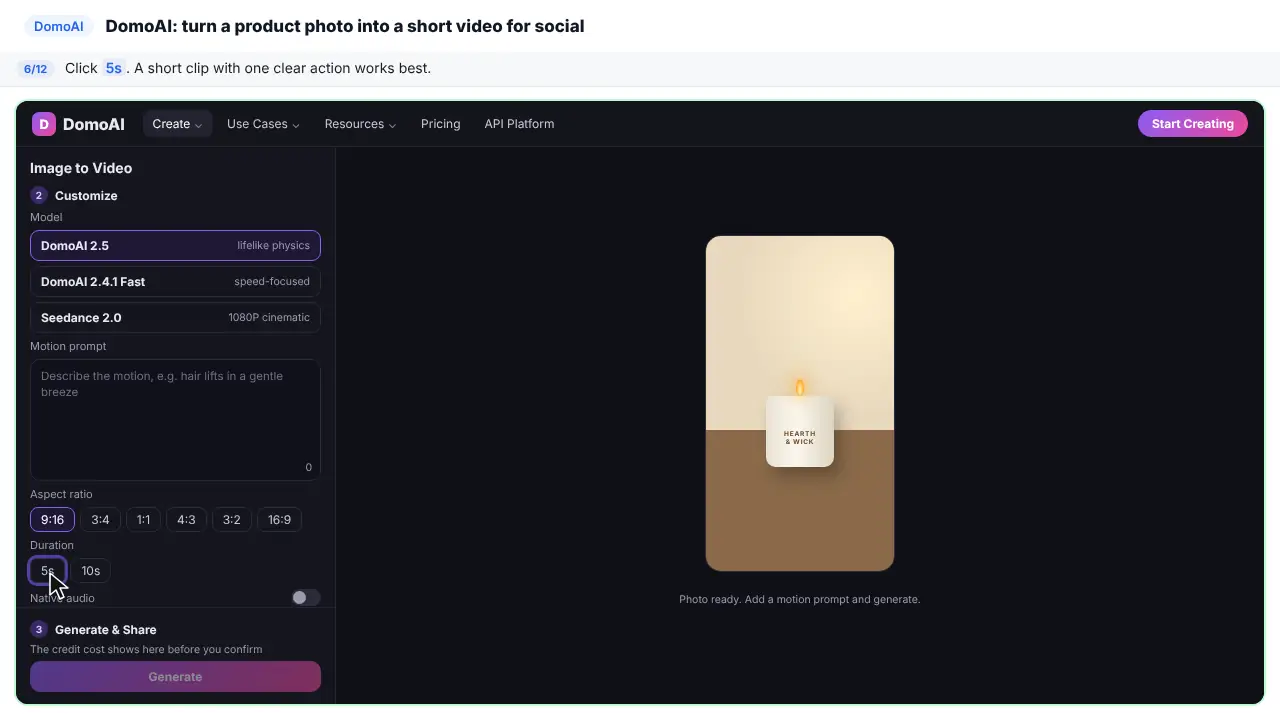
Keep the clip short. One clear action works best.
Step 7: Write the motion prompt
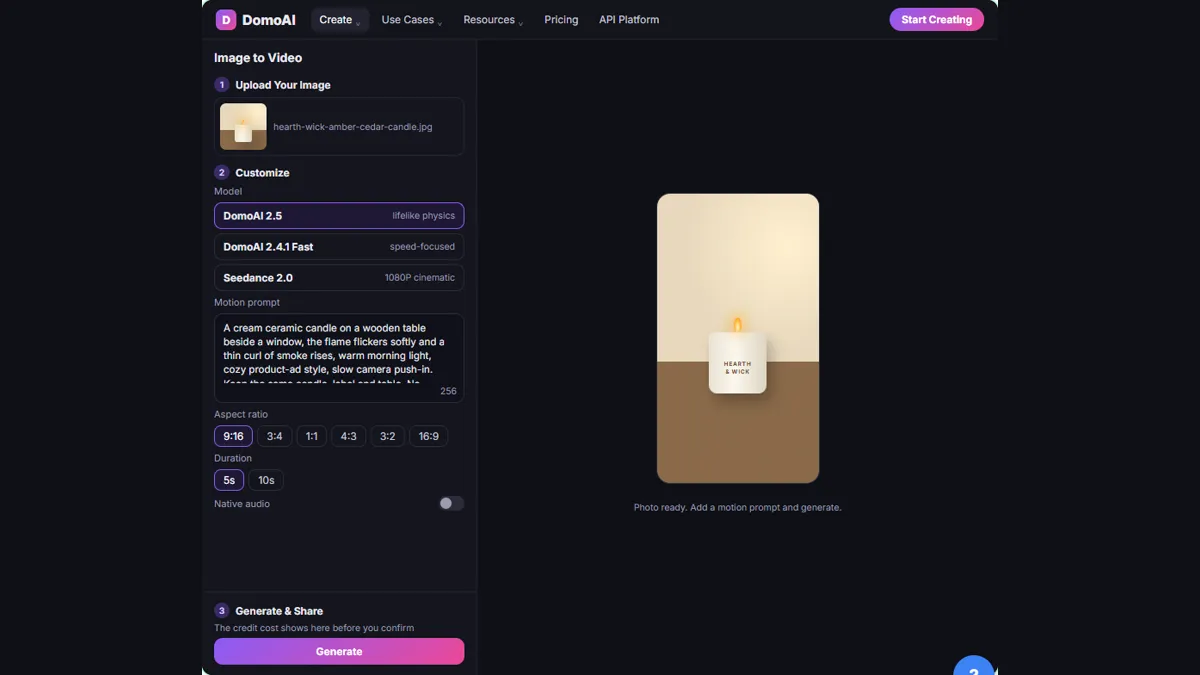
Now say what should move. Name the subject, one action, the setting, the style, and the camera. Then say what must not change.
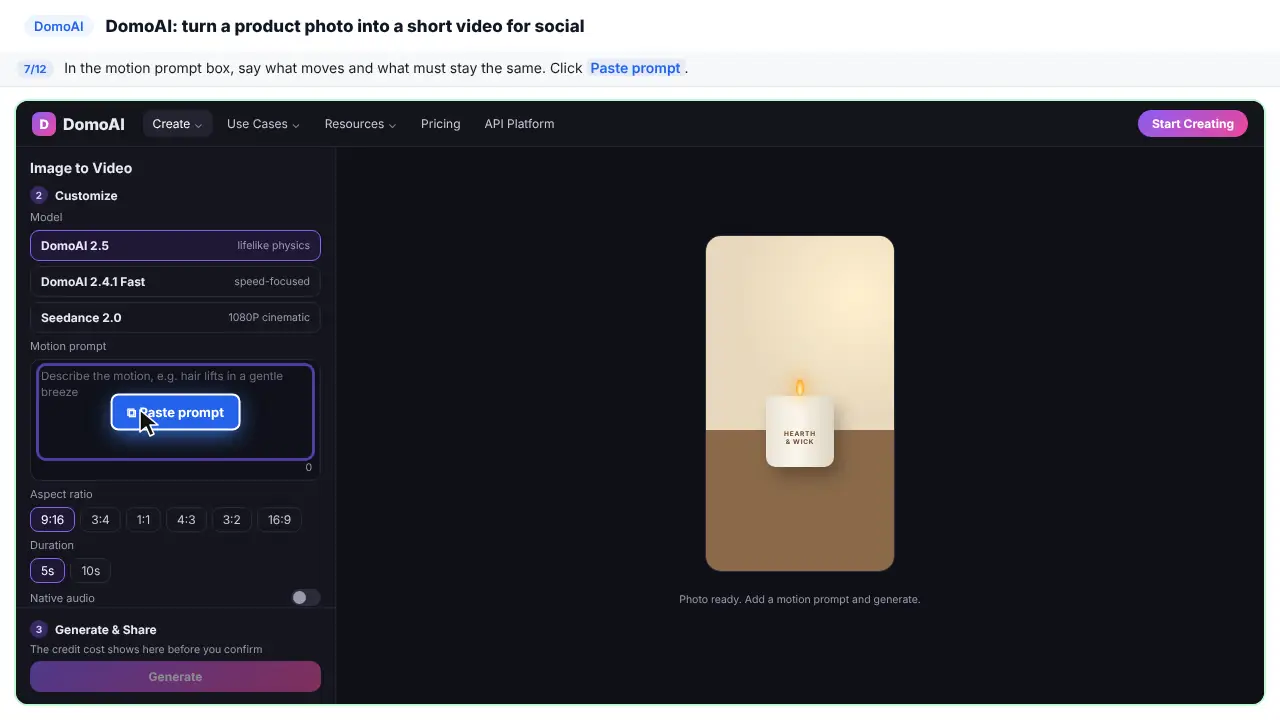
A cream ceramic candle on a wooden table beside a window, the flame flickers softly and a thin curl of smoke rises, warm morning light, cozy product-ad style, slow camera push-in. Keep the same candle, label and table. No people, no extra objects, no text.
Part 3: Generate and compare
Step 8: Generate
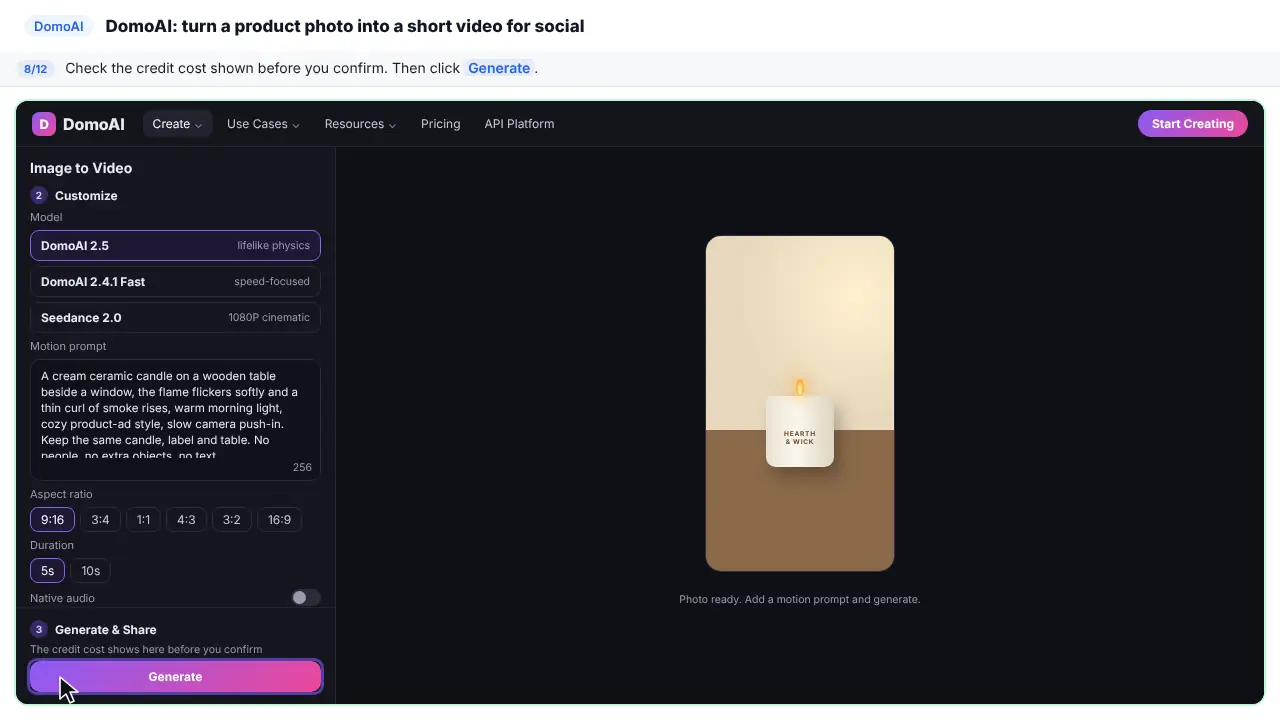
The credit cost shows before you confirm. Check it.
Step 9: Watch the whole clip
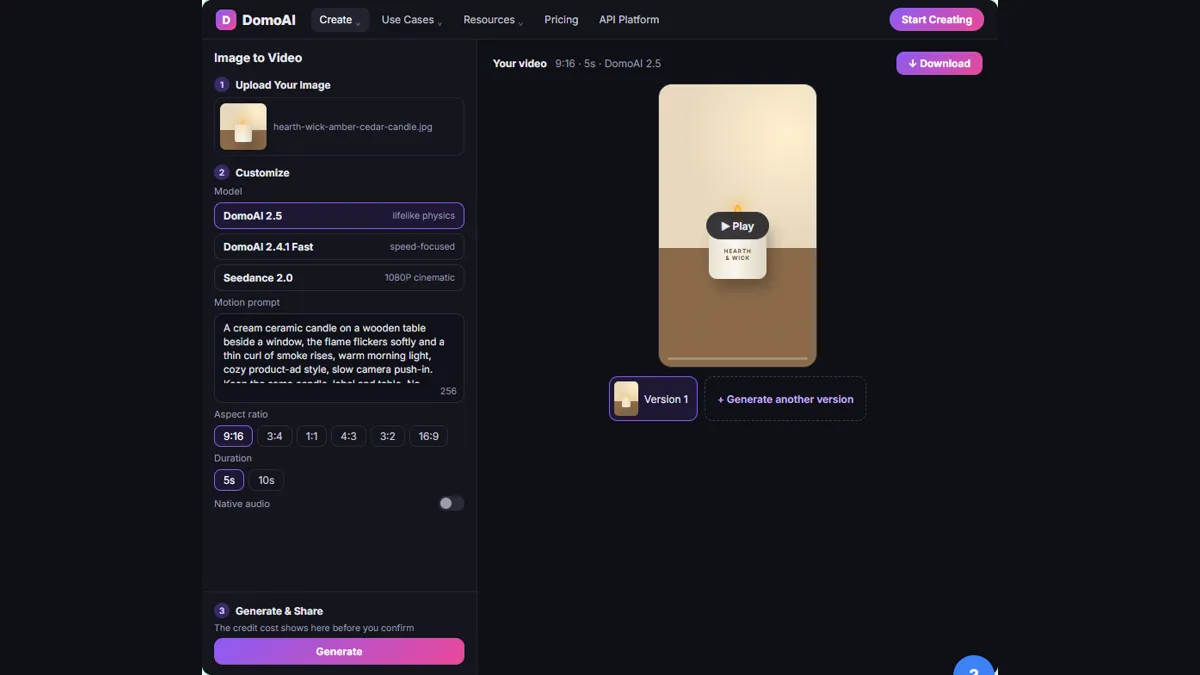
Does the candle look the same? Is the label still right? Only the flame and the camera should move.
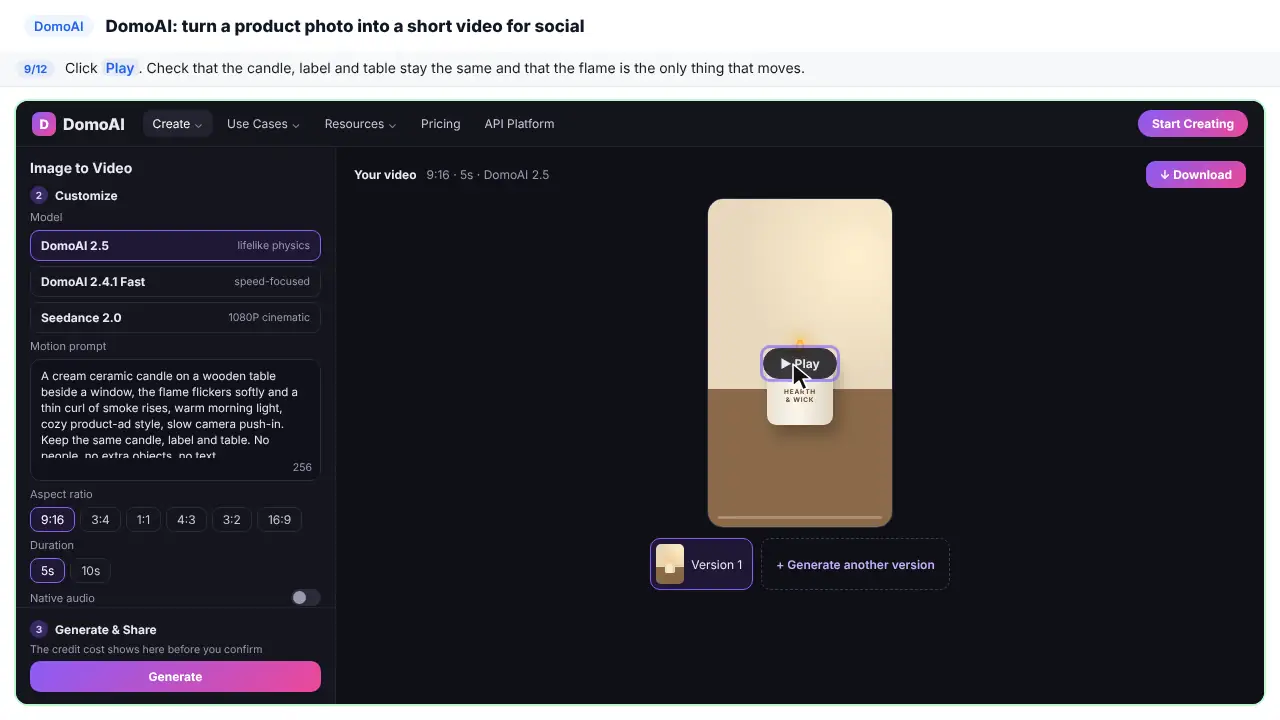
Step 10: Make a second version
One take is a guess. Make a second version, to compare.
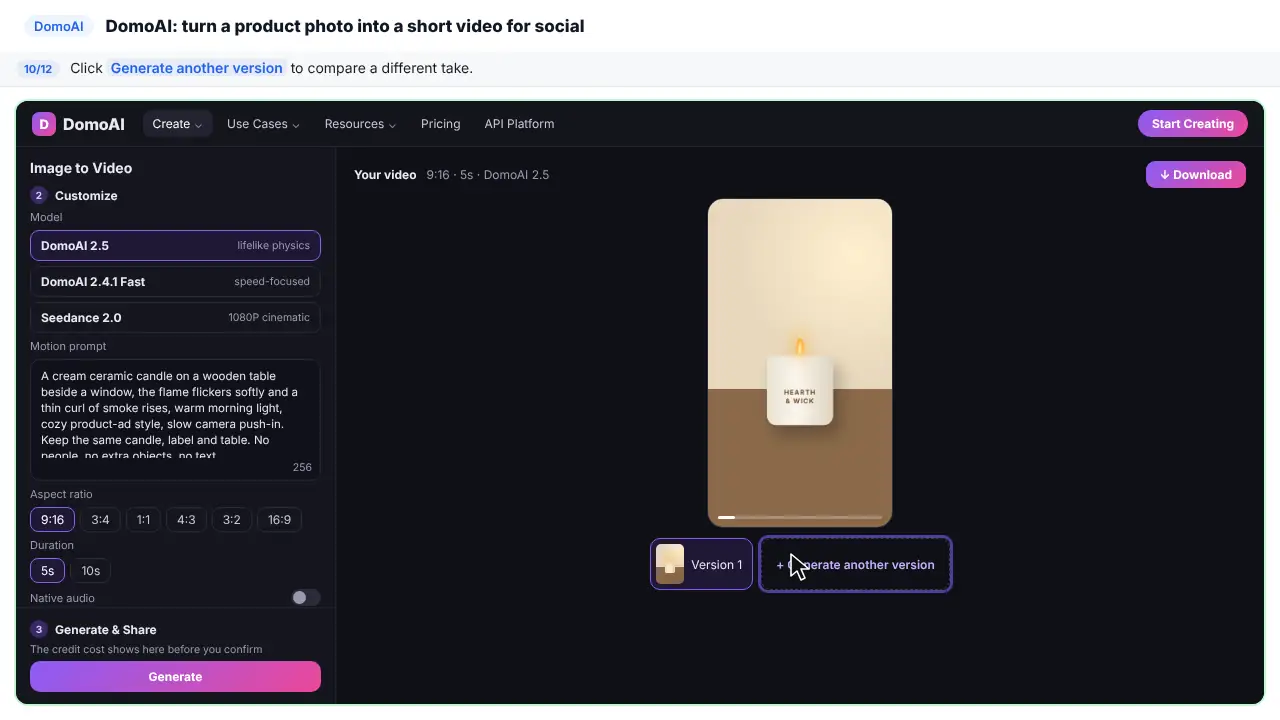
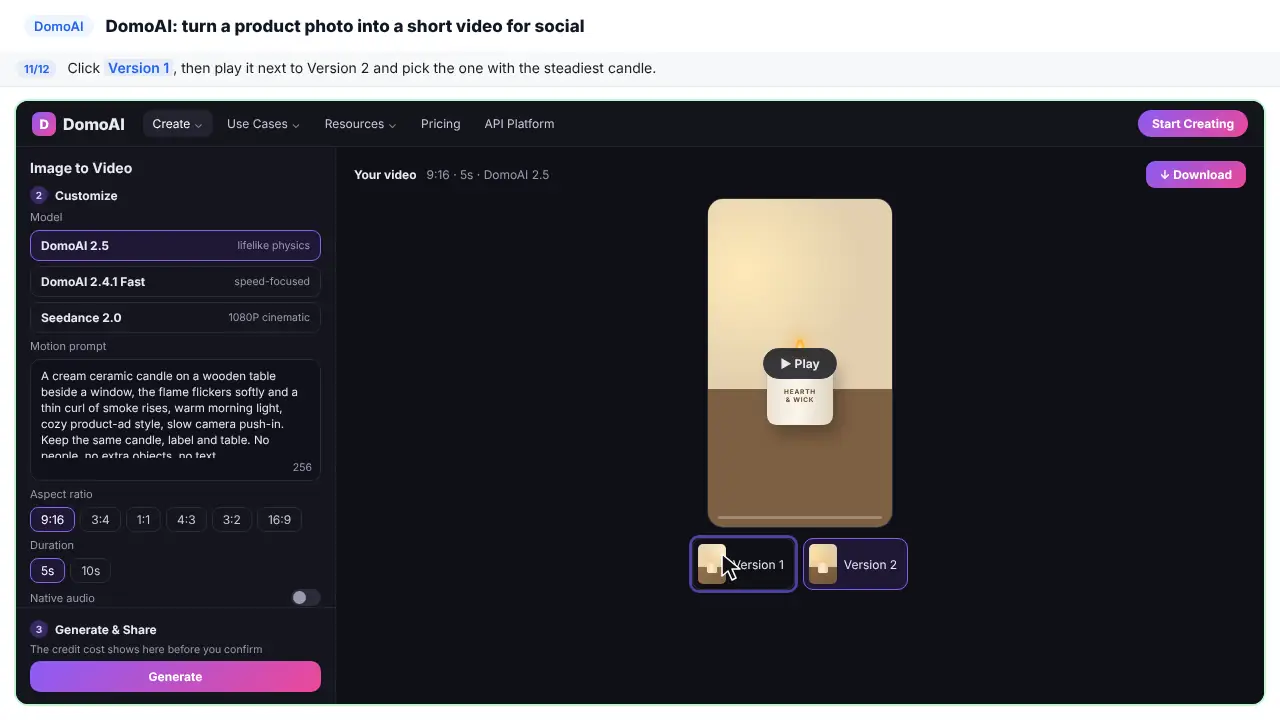
Step 11: Compare the two
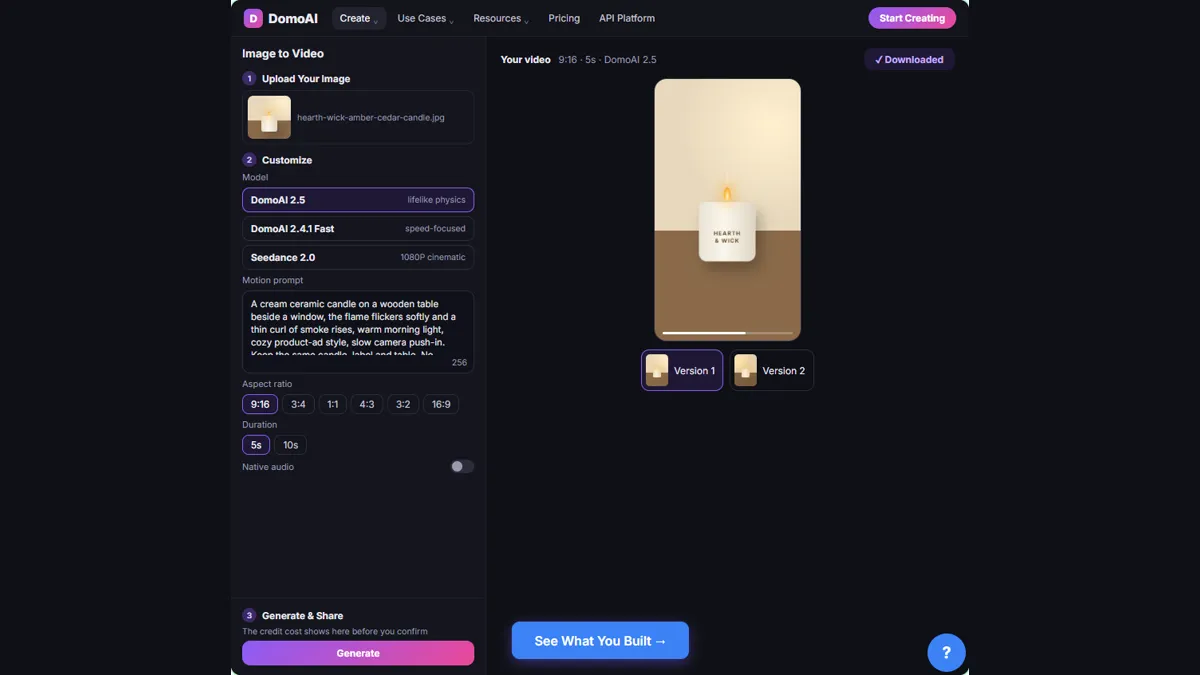
Now compare. Pick the one where the candle stays steady.
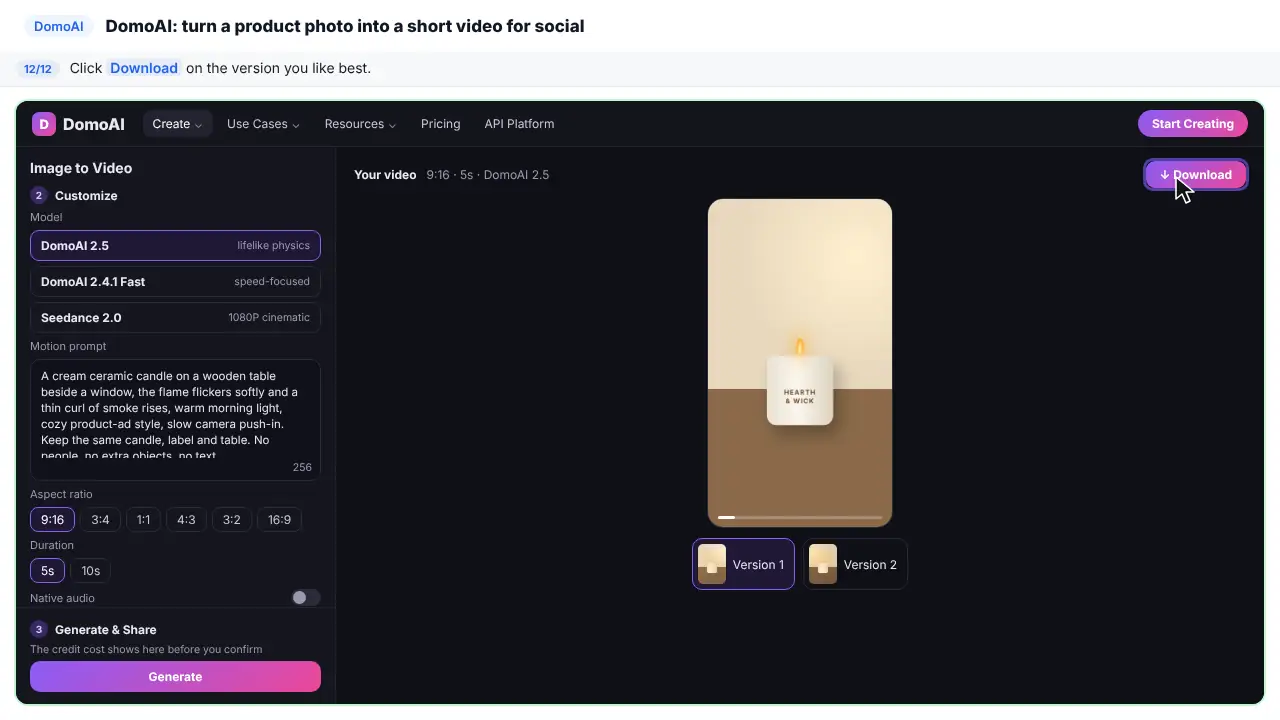
Step 12: Download the better one
Pick your favorite. Then watch the file once more, before you post it.
Part of these free courses: AI Video & Audio for Marketing
Now do it yourself, free
Reading the steps is a start. Doing them is how it sticks. The interactive lesson puts you in a practice copy of DomoAI: you do every step yourself, it checks your work, and “Do it for me” finishes any step you get stuck on. Nothing touches your real accounts.
Practice “DomoAI: Turn a Product Photo into a Short Video for Social” step by step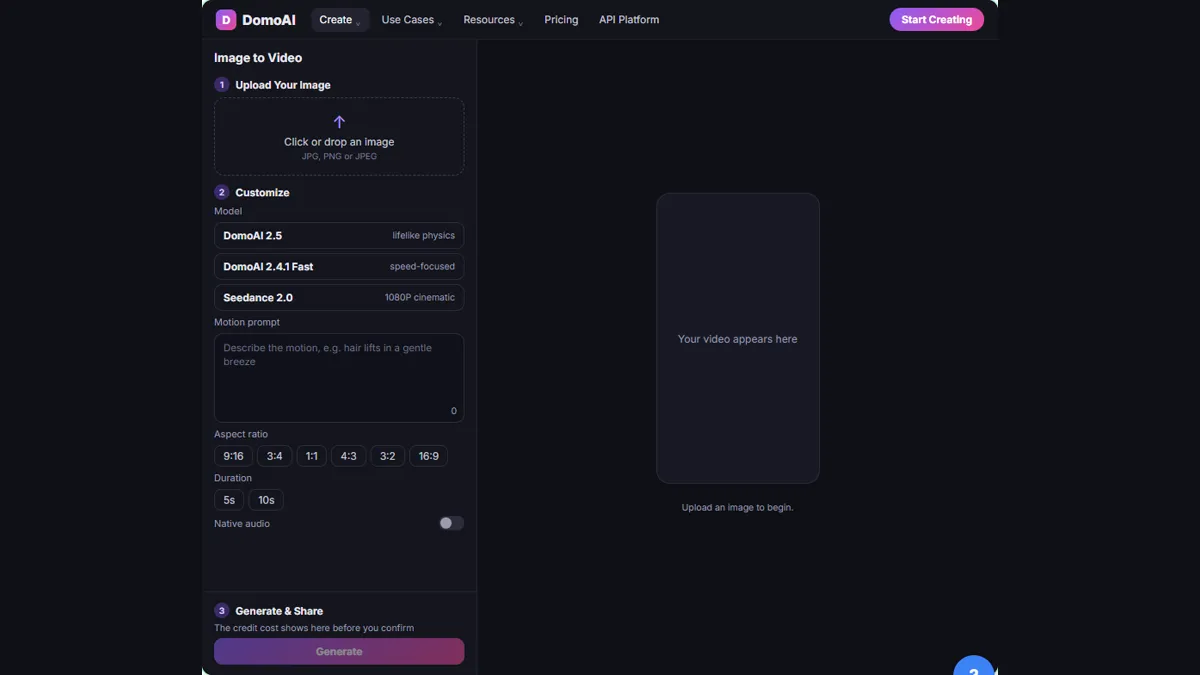
What you will do: one product photo, one short video
You are Nora, who runs marketing at Hearth & Wick Candle Co., a made-up candle company launching the Amber Cedar candle. Instagram Reels and TikTok both want video, and there is no budget for a shoot. All Nora has is one clean product photo.
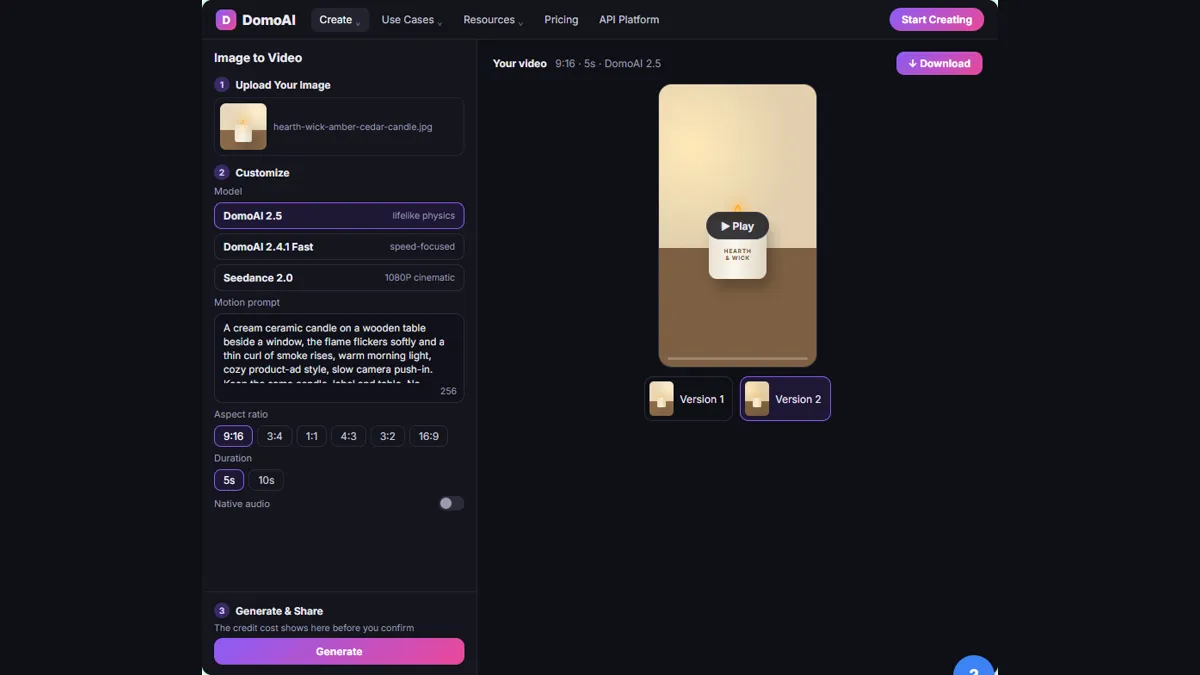
In the practice copy you open the Create menu and choose Image to Video under Generate Video. You upload the photo, pick the DomoAI 2.5 model, choose the tall 9:16 size and a short duration, and paste a motion prompt. Then you click Generate, play the clip, make a second version, compare the two and download the one where the candle stays steady.
Who this is for
Marketers, shop owners and office managers who need a little motion for a post, an ad or an email header and have photos but no video. You do not need any video or AI experience. The lesson is a practice copy, so nothing is uploaded, no credits are used, and you do not need a DomoAI account to take it.
How DomoAI Image to Video works
DomoAI's help center describes the tool in four steps: upload an image, choose a motion type, generate and review, then download. For the motion you can pick a ready-made template (DomoAI lists ones such as Kiss, Dance and Zoom in) or write a text prompt that describes the movement.
On the tool page the steps are Upload Your Image, Customize and Generate & Share. The page lists models (DomoAI 2.5, DomoAI 2.4.1 Fast and ByteDance's Seedance 2.0), a motion prompt, a choice of duration, six aspect ratios from 9:16 vertical to 16:9 widescreen, and a native audio switch. It says the credit cost is shown before you generate, and that you can start with a free trial.
Step 1: start from a clean photo and set up the shot
DomoAI's own guide says your first image sets the ceiling for the video: a clean, high-resolution source usually gives better motion than a busy or low-quality one. Upload a sharp product photo with a clear subject.
Pick a model, then the shape. For Reels and TikTok choose the vertical 9:16 ratio. Keep the clip short. The guide advises one clear action per shot rather than several competing ones.
Step 2: write the motion prompt
DomoAI's guide gives a simple formula: subject, action, environment, style, camera movement and constraints. The lesson's prompt follows it: a cream ceramic candle (subject), the flame flickers and a thin curl of smoke rises (action), on a wooden table beside a window (environment), warm morning light in a cozy product-ad style (style), slow camera push-in (camera).
The last part matters most for product shots. The guide's example ends with a line that says what to keep, and the lesson's prompt does the same: keep the same candle, label and table, with no people, no extra objects and no text. Telling the tool what must not change is how you keep a logo or label from drifting.
Step 3: generate, watch the whole clip and compare
Click Generate. The tool shows the credit cost before it starts. The help center says a 5 to 10 second clip typically finishes within a minute or a few minutes. Play the whole clip and check the product: the shape, the label and the colors should match the real one, and only the things you asked to move should move.
One result is a guess. DomoAI's help center suggests generating two or three versions to compare different motion. In the lesson you make a second version, play both and keep the steadier one. The guide also says to review the motion first and use the Video Upscaler as the final polish, only after you know the clip works.
Mistakes to avoid
- A busy or blurry source photo. Start with a sharp product photo and a clear subject.
- Asking for many things at once. One clear action per shot gives steadier results.
- Forgetting the 'keep the same' line. Say what must stay unchanged, such as the label, logo and colors.
- Posting the first take. Watch the whole clip, compare a second version, and check the product against the real one.
- Upscaling before the motion works. Polish last.
Credits, watermarks and rights
Each generation uses DomoAI credits, and the cost is shown before you generate. DomoAI lists a free trial and paid plans, and says watermark-free output is a paid-plan feature; check domoai.app/pricing for current numbers, since plans change. DomoAI's site says you keep commercial rights to what you generate, but read its terms for your plan before you use a clip in an ad, and do not upload photos of customers or anything your company's AI policy does not allow.
Links
- DomoAI Image to Video help article: DomoAI's own steps: upload an image, choose a template or write a motion prompt, generate and review, then download. It is a separate product with its own account, credits and plans.
- DomoAI photo to video tool page: the tool this lesson teaches: models, motion prompt, duration, aspect ratios and the credit cost shown before you generate.
- DomoAI guide: the prompt formula (subject, action, environment, style, camera movement, constraints) and the advice to upscale only after the motion works.
- DomoAI Help Center: subscriptions, credits, refunds and account questions.
Try it yourself, free
Reading the steps is a start. Doing them is how it sticks. The interactive module walks you through every click in a practice copy of DomoAI, checks each step, and never touches your real accounts.
Start “DomoAI: Turn a Product Photo into a Short Video for Social”Screenshots
Frequently asked questions
- How does the interactive lesson work?
- Each step is shown to you first (Watch). Then you do it yourself in a practice copy that checks every click (Your turn). If you get stuck, press Do it for me. It is a practice copy, so no video is made and no DomoAI account is touched.
- Is DomoAI part of Stepthrough?
- No. DomoAI is a separate, third-party product from domoai.app. This lesson is free and was built from DomoAI's public site and help pages; it has not been tested in the real app, so a screen on your account may look a little different. To use DomoAI for real you need your own account; check domoai.app for its current plans.
- What file types does DomoAI Image to Video accept?
- DomoAI's help center says it accepts JPEG, PNG and JPG files, and recommends high-resolution images with a clear subject. Another DomoAI page lists WEBP as well, so check the upload box in your account.
- How do I write a good motion prompt for DomoAI?
- DomoAI's guide suggests this order: subject, action, environment, style, camera movement and constraints. Keep to one clear action, and add a line that says what must stay the same, such as the face, outfit or background.
- Can I use a DomoAI video in a business ad?
- DomoAI's site says users keep commercial rights to what they generate, and that paid plans remove the watermark. Check its terms and pricing page for your plan, and check the finished clip against your real product before you post it.
More in AI Automation for Marketing
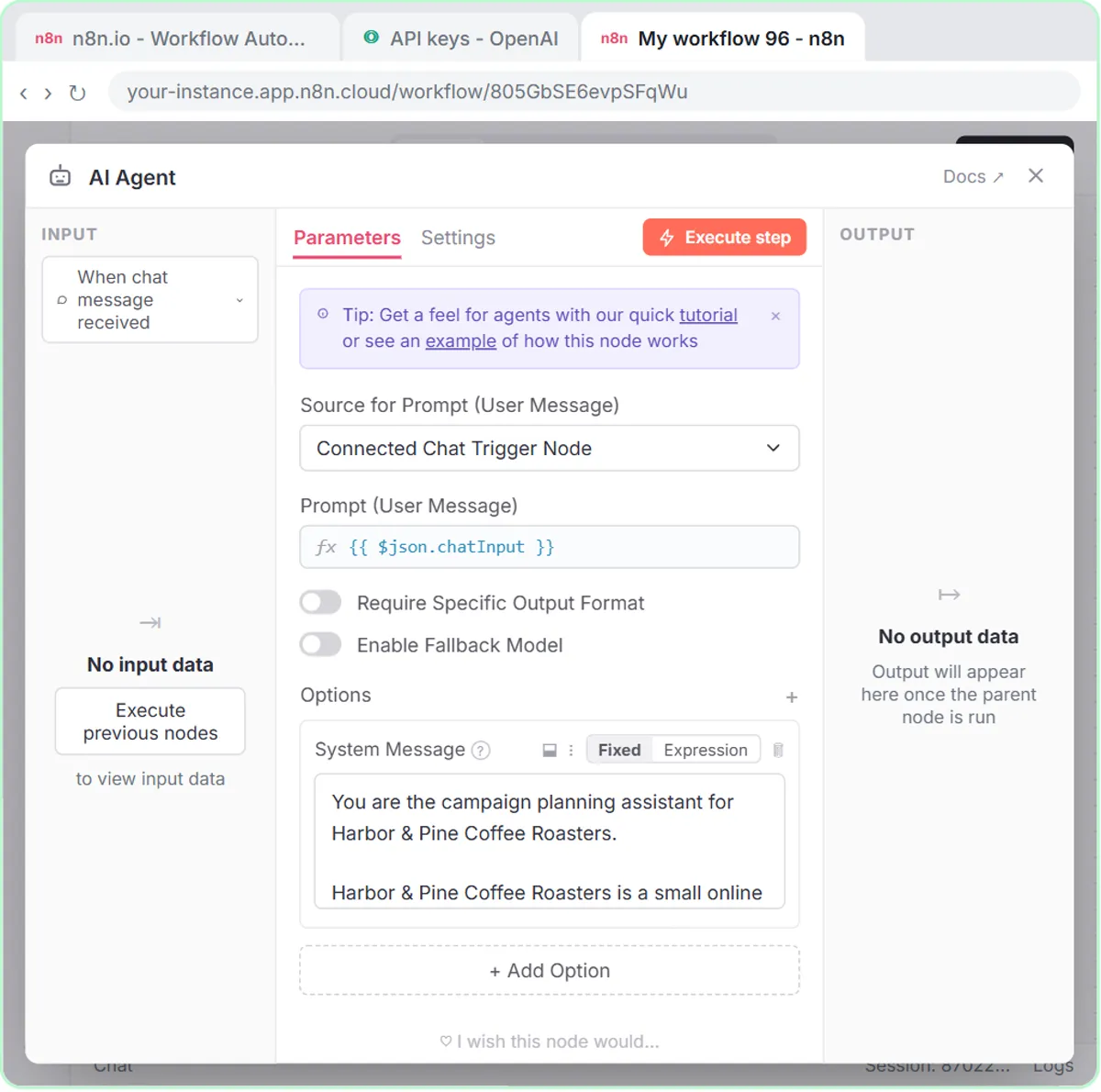 How to Use n8n in Marketing: An AI Agent That Plans Your Content Calendar
Build an AI agent for Harbor & Pine Coffee Roasters that turns one campaign theme into a two-week email and content calendar in Google Sheets — chat trigger, AI Agent…
Free · Live ~12 min Intermediate
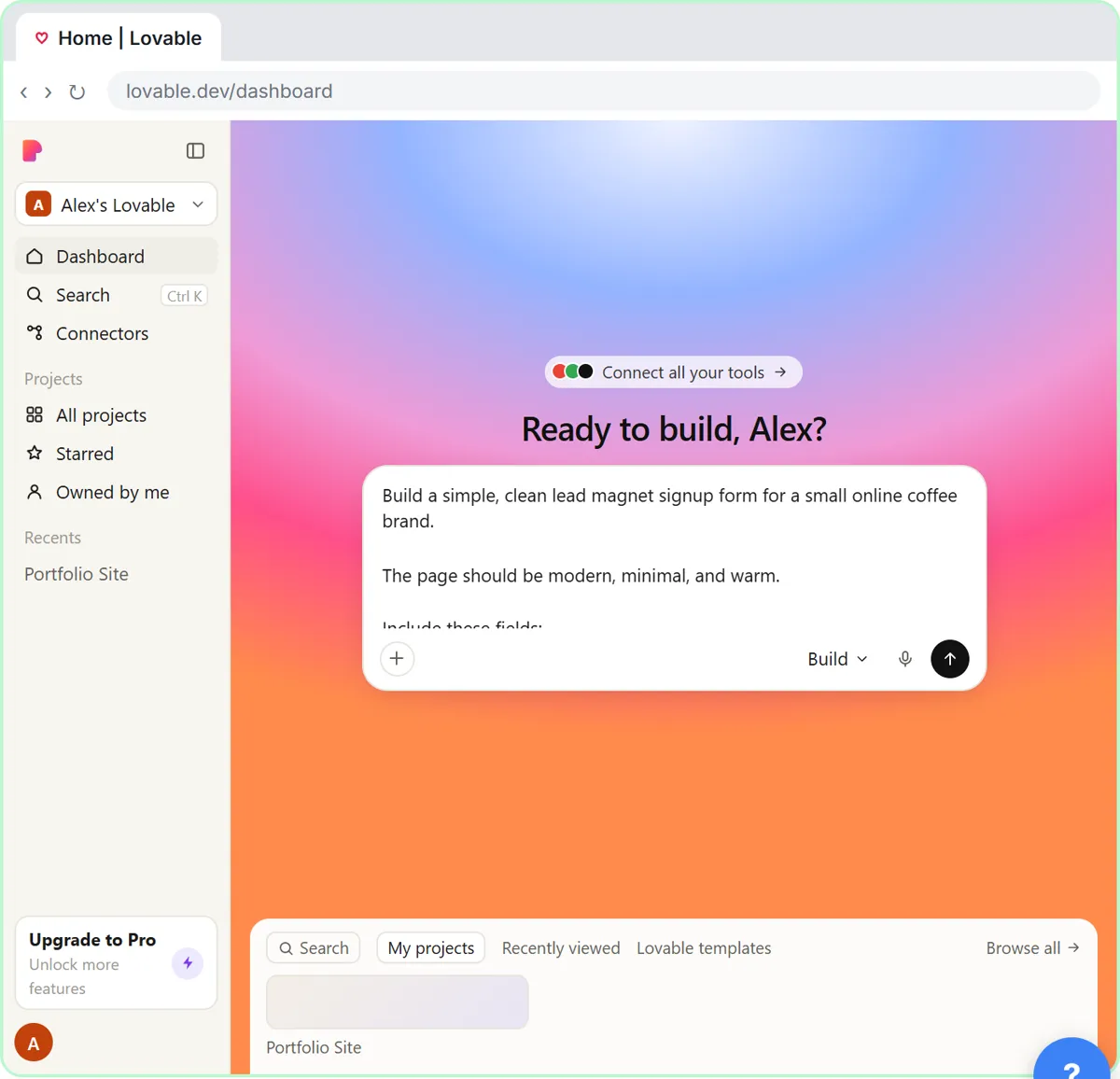 Build a Lead Magnet Signup Form with an AI Welcome Email
Build a "Get the free guide" signup form in Lovable for Harbor & Pine Coffee Roasters and connect it to n8n — the AI agent tags each lead by interest, saves it to…
Free · Live ~15 min Advanced
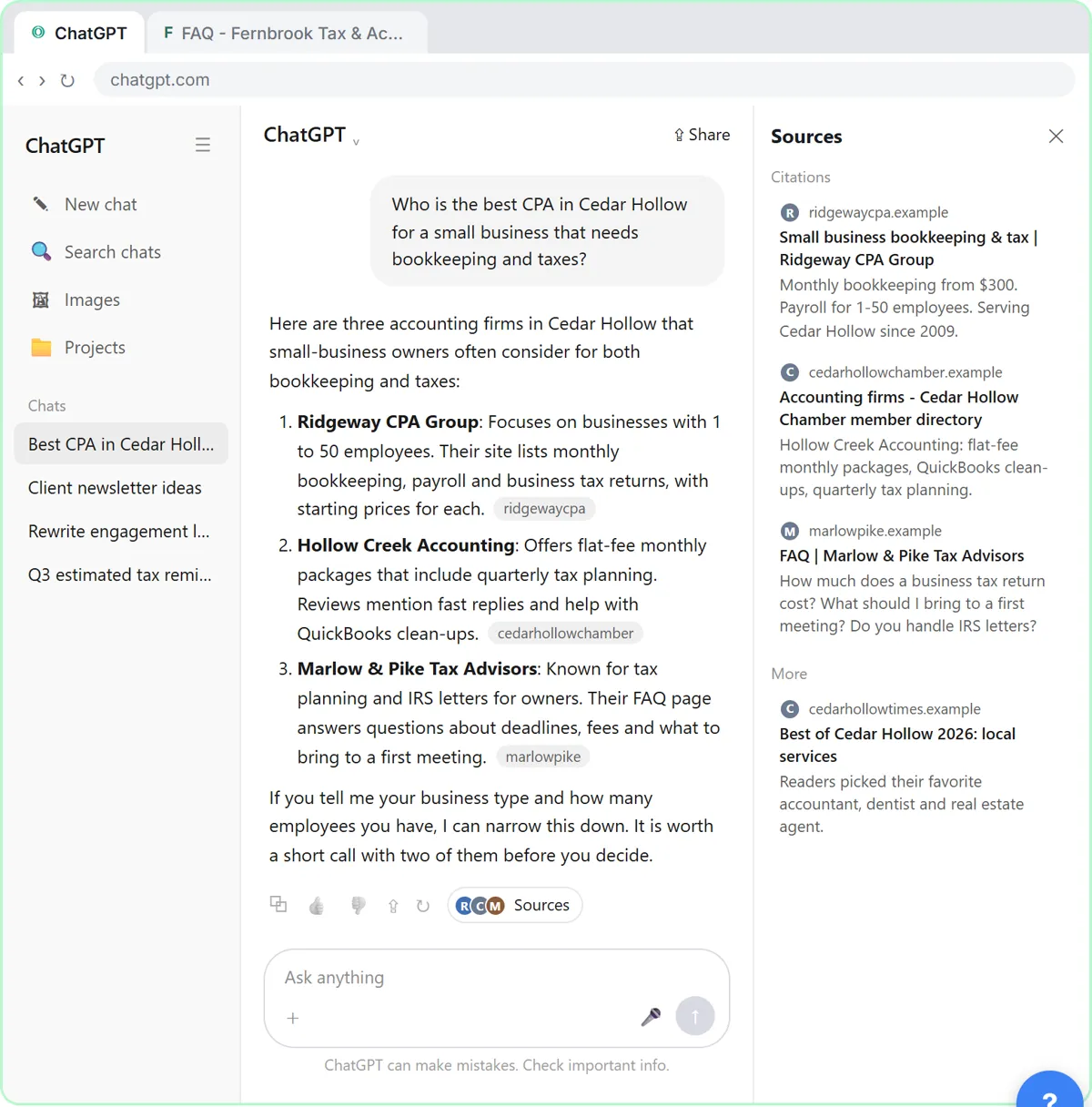 Get Your Business Recommended by ChatGPT
Ask ChatGPT who it recommends in your town, see which pages it trusts, then use it to write an FAQ page and Business Profile copy that answer real customer questions.
Free · Live ~10 min Intermediate
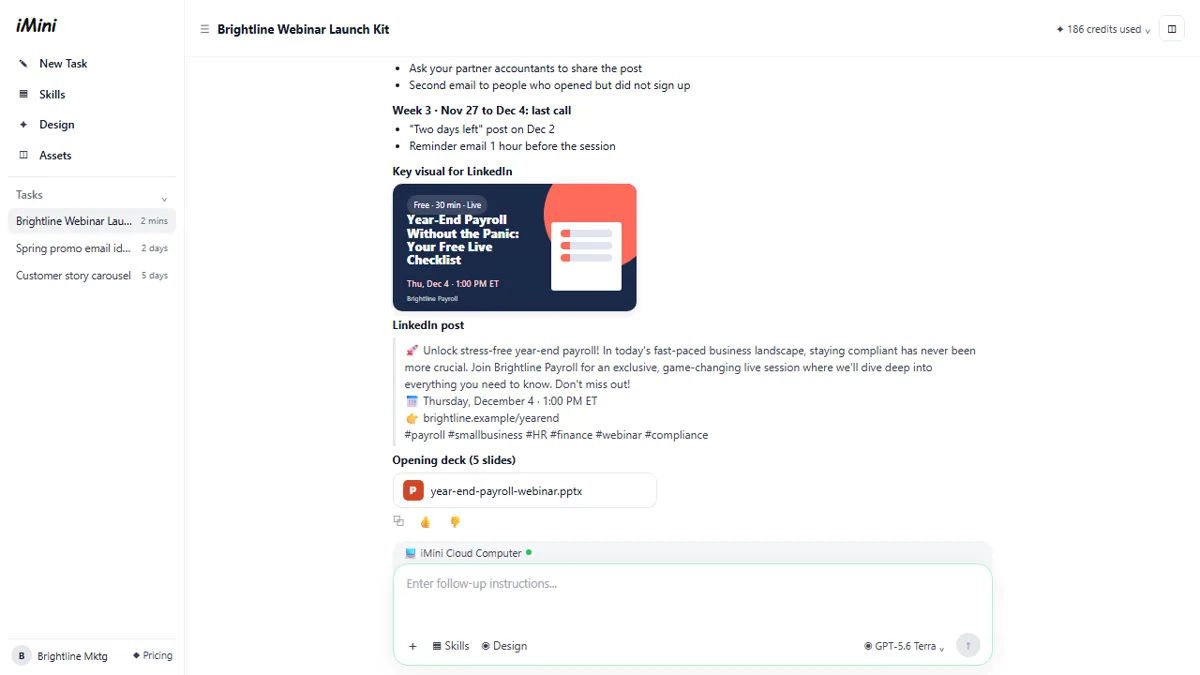 iMini AI Agent: Turn a Rough Idea into a Launch Kit
Brief the iMini Creative Agent once and get a launch plan, a LinkedIn visual, a post and a 5-slide deck, then fix the visual and humanize the post with follow-ups.
Free · Live ~8 min Beginner
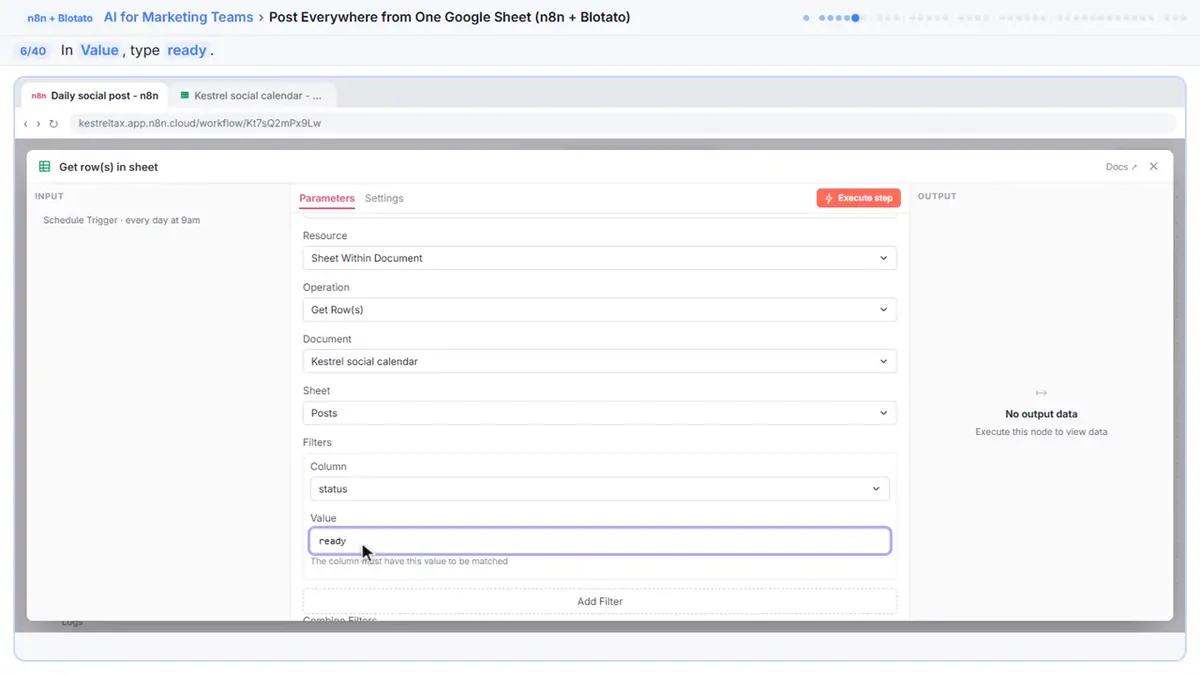 Post to Every Channel Daily from One Sheet using n8n + Blotato
Copying the same post into every social app can take half an hour a day, and on busy days nothing goes out. Plan a week of posts in one Google Sheet; every morning n8n…
Free · Live ~14 min Advanced
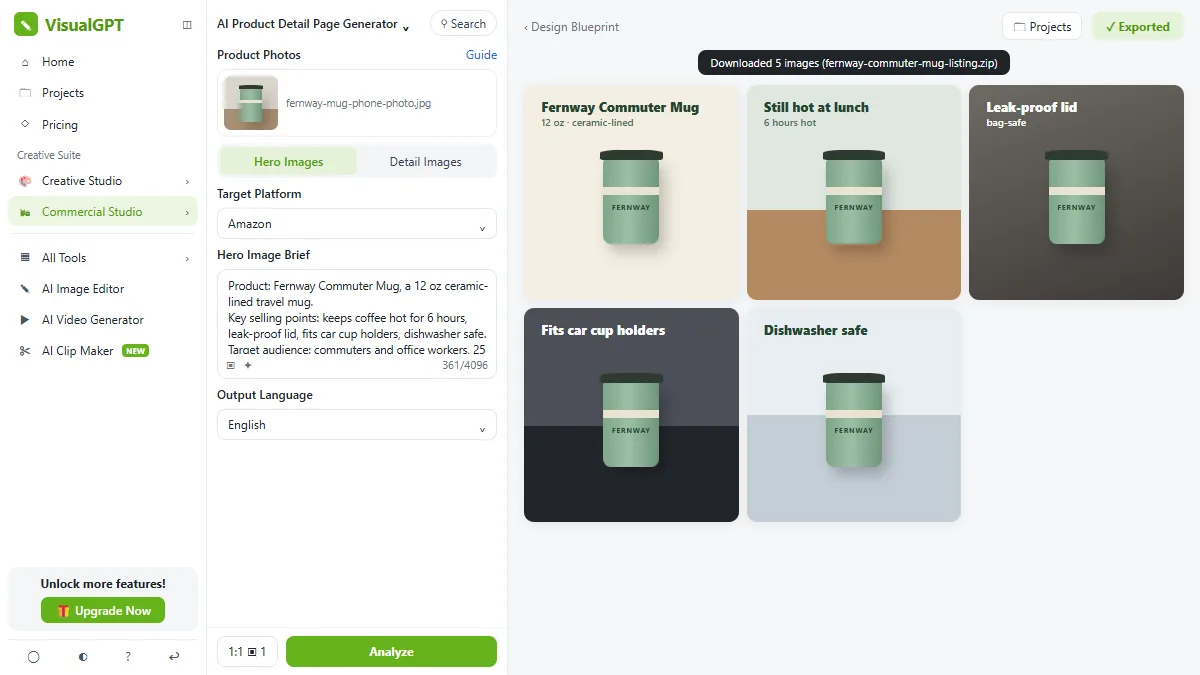 VisualGPT: Product Photos, Listing Images and Ads from One Phone Photo
Turn one phone photo into a lifestyle product shot, a five-image Amazon listing set and three launch ads in VisualGPT's Commercial Studio, checking the plan and every…
Free · Live ~8 min Beginner
All 33 modules in AI Automation for Marketing
Visual guide
This lesson’s key ideas as quick visual guides: swipe through the slides, or read the same guide as text.
Terms in this lesson
Plain-English definitions, each with an example from a free lesson.
Related prompts
- Product photo motion prompt: Write the motion prompt for an image-to-video tool: one clear action, the setting, style and camera move, and what must stay…