Quick answer
With your Instagram professional account connected to Manychat, open Automation, click New Automation and start from a blank canvas. Click New Trigger, choose Post or Reel Comments, pick one post and add a keyword such as GUIDE. Write the DM in the Send Message step, add a button to your booking link, click Preview, and click Set Live only after testing with your own account.
Last updated · Last checked
Updated . Built against the tool’s current screens and checked step by step. How we check this lesson
Small accounting, consulting and coaching practices post useful tips on Instagram, and the people who comment 'GUIDE' or 'how much for a consult?' are warm leads. The problem is the reply: it happens when someone remembers, often a day later, and by then the person has moved on. Manychat is a chat automation tool that replies to a keyword comment with a direct message in seconds. In this free lesson you use a practice copy to price what unanswered comments cost, then build the automation: a trigger on one post, a message with a booking button and a checklist button, a tag for the people who want a call, and a preview. Everything is left as a draft that is switched off, and the lesson ends there.
At a glance
| Question | Answer |
|---|---|
| What you build | Price what unanswered Instagram comments cost a small firm, then build a Manychat automation: someone comments GUIDE, gets a direct message with a booking button and a checklist button, and is tagged so you can follow up. Preview it, and leave it as a draft that is switched off. |
| Tools | Manychat |
| Time | About 18 minutes, 41 steps in 9 parts |
| Level | Beginner, no coding needed |
| Cost | Free |
| Ways to learn it | Practice it step by step, read the guide with screenshots |
The 9 parts, in short
- The cost of unanswered comments: Count the comments nobody answered, Put a price on it, Meet Manychat.
- Start an automation: Open Automation, Click New Automation, Choose Start From Scratch, Start from a blank canvas.
- Name it and set the trigger: Rename the automation, Give it a clear name, Add the trigger, Pick Post or Reel Comments, and 6 more steps.
- Write the DM: Open the Send Message step, Write the message, Add a button, Name the button, and 2 more steps.
- Tag the interested people: Turn on Additional actions, Click Done, Open the Actions step, Click + Action, and 4 more steps.
- Add the checklist button: Go back to the message, Add the second button, Name it, Choose Open website, and 2 more steps.
- Preview it, never live: Click Preview.
- Before you go live: When you are ready.
- What this saves you: Read what this saves you, See the next business case.
Part of: AI for Real Estate (step 8 of 18)
Part of: AI for Marketing Teams (step 19 of 55)
Part of: AI Apps Worth Knowing (step 8 of 186). Next up: How to Use Manychat with TikTok to Turn DMs into Booked Calls
How to Use Manychat with Instagram to Turn Comments into Booked Calls: step-by-step guide with screenshots
About the screenshots. They come from Stepthrough’s simulated practice environment (a practice copy of Manychat), not the live tool, so no real account appears. The buttons and labels match the real screens the lesson was built against. Practice it yourself free at ynteractive.com.
- Tools: Manychat
- Time: about 18 minutes, 41 steps in 9 parts
- Level: beginner, no coding needed
Part 1: The cost of unanswered comments
Step 1: Count the comments nobody answered
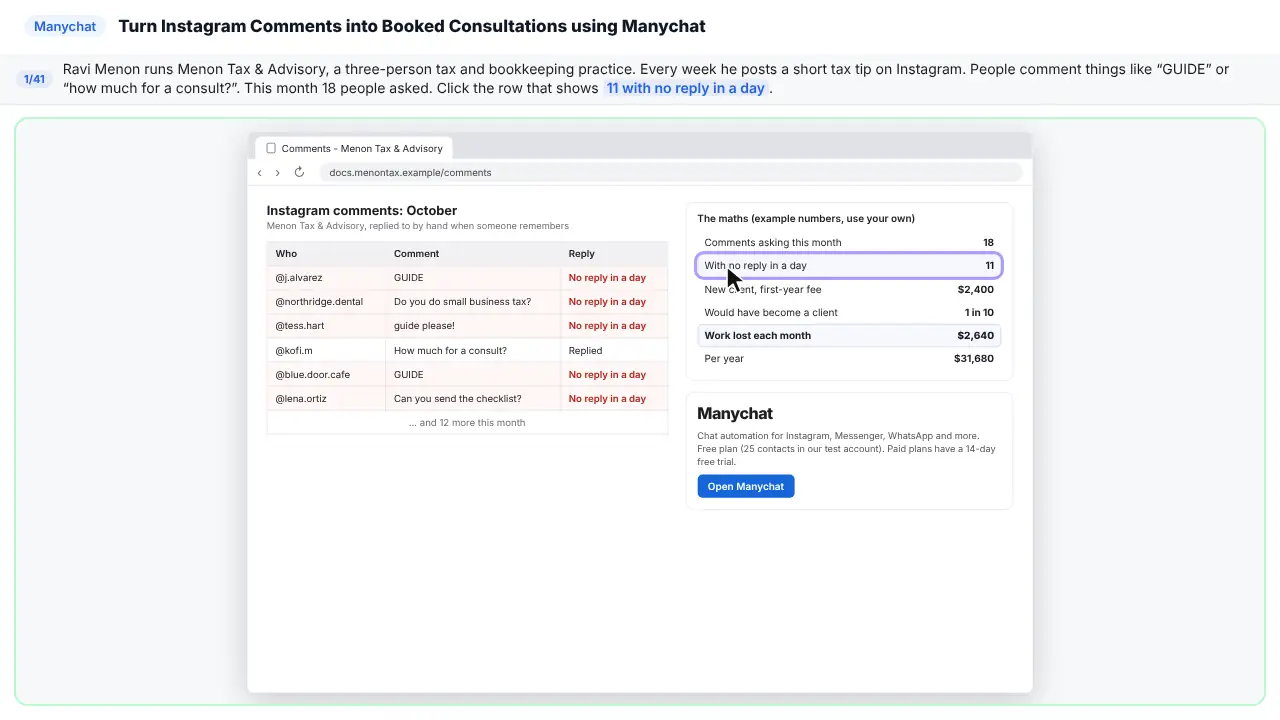
Ravi runs a three person tax practice. Every week he posts a short tax tip on Instagram. People comment, asking for the checklist, or asking for a price. This month, eighteen people asked. Eleven of them got no reply for a full day.
Step 2: Put a price on it
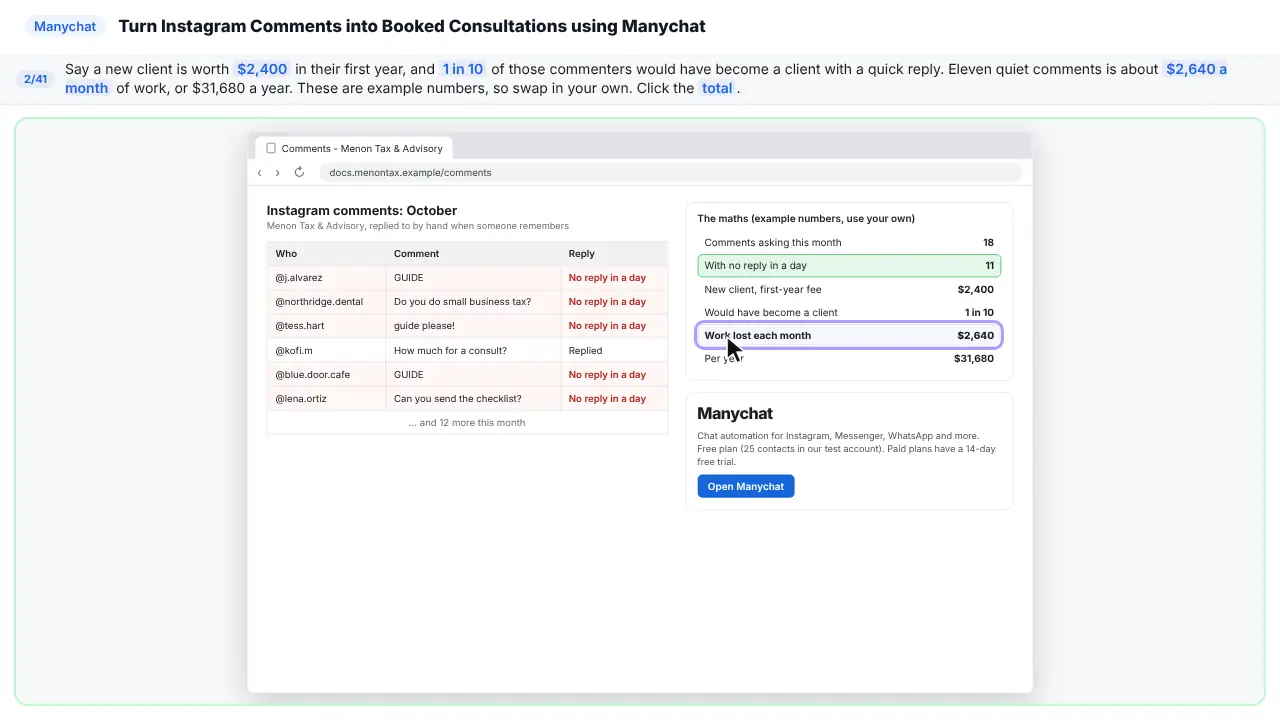
Say a new client is worth twenty four hundred dollars in the first year. And one in ten of those people would have become a client, if someone had replied fast. Eleven quiet comments is about twenty six hundred forty dollars of work, every month. That is thirty one thousand dollars a year. These are example numbers, so use your own.
Step 3: Meet Manychat
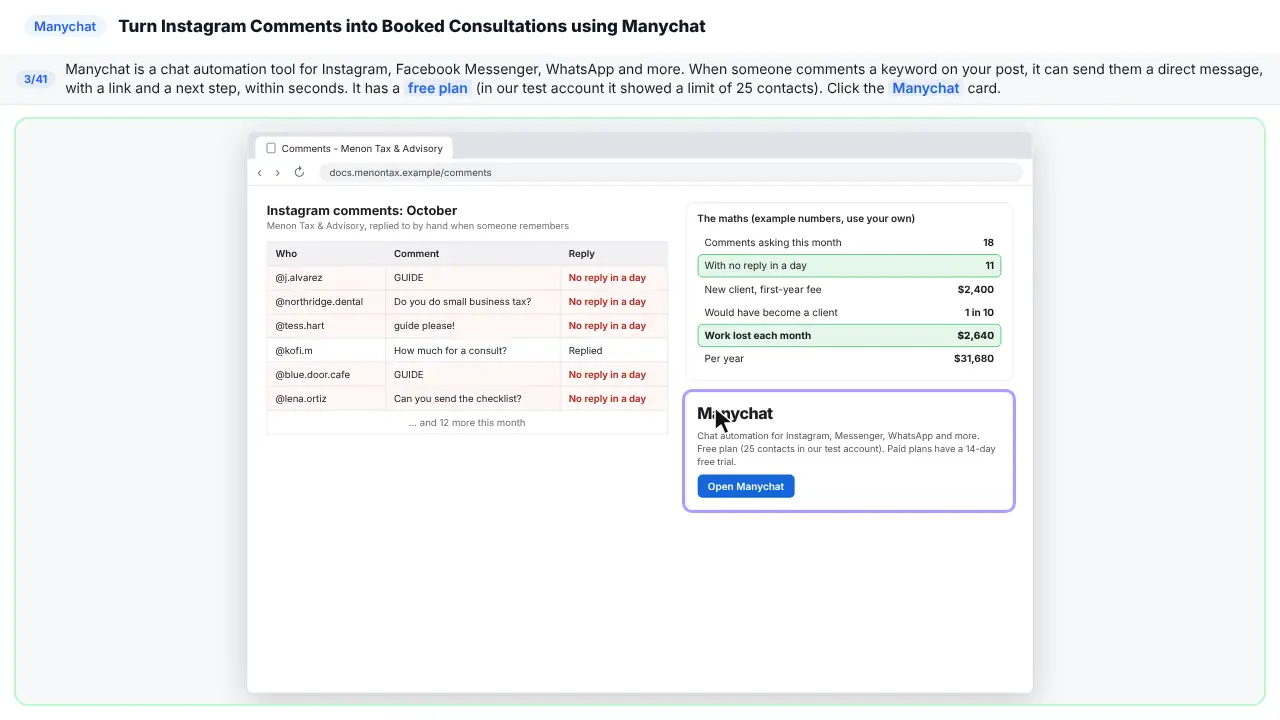
Manychat answers comments for you. Someone comments a keyword on your post, and Manychat sends them a direct message in seconds. It works with Instagram, Messenger, WhatsApp and more. It has a free plan. In our test account, the free plan showed a limit of twenty five contacts.
Part 2: Start an automation
Step 4: Open Automation
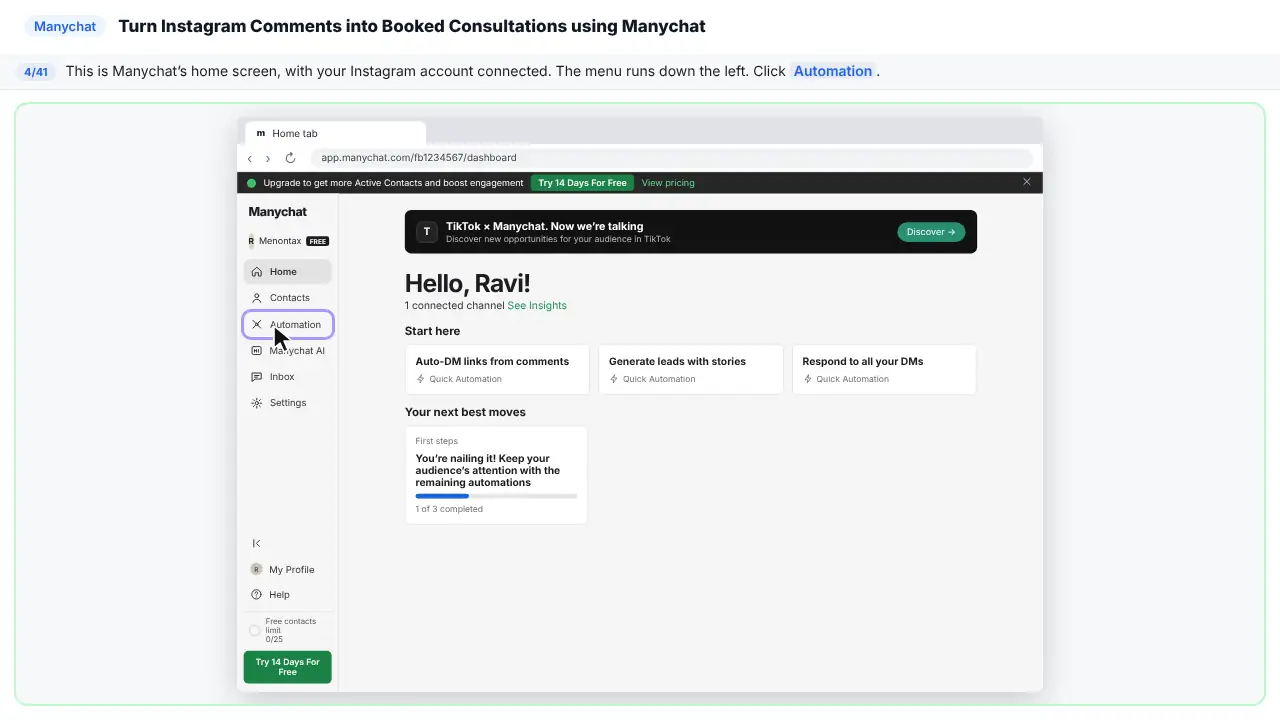
This is the Manychat home screen. Your Instagram account is already connected. The menu runs down the left.
Step 5: Click New Automation
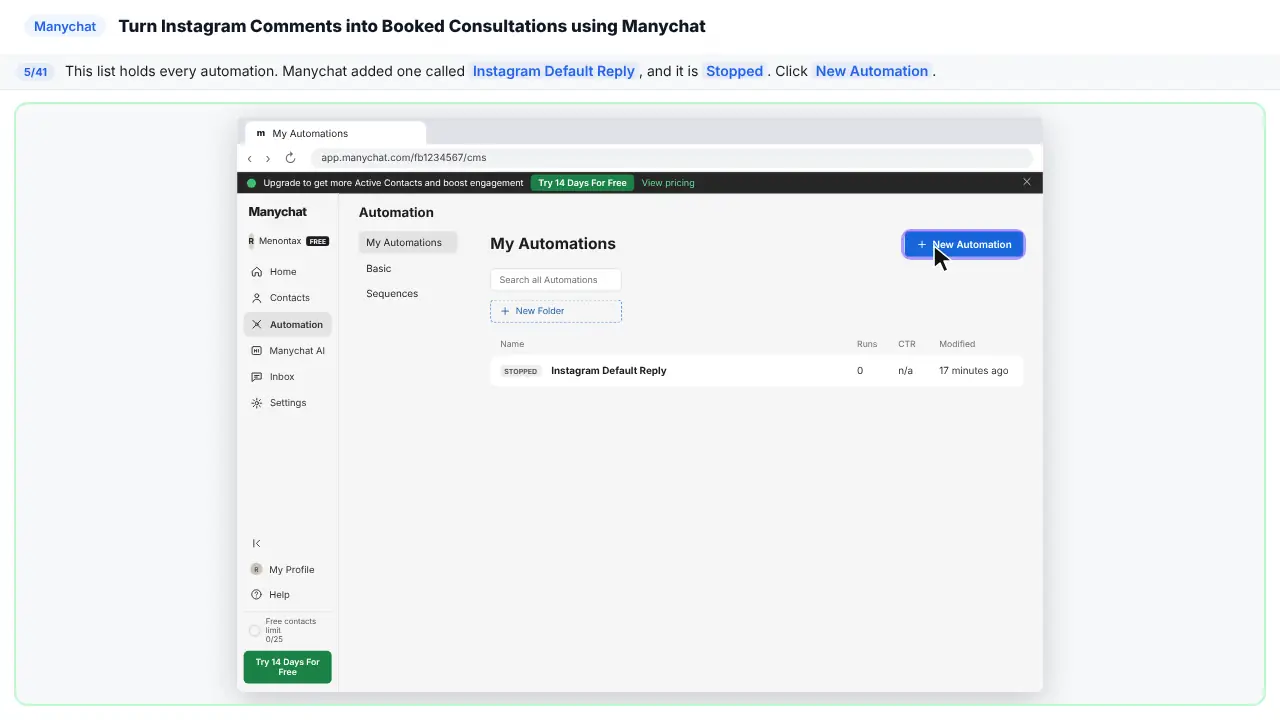
This list holds all your automations. Manychat already made one, called Instagram Default Reply. It is stopped.
Step 6: Choose Start From Scratch
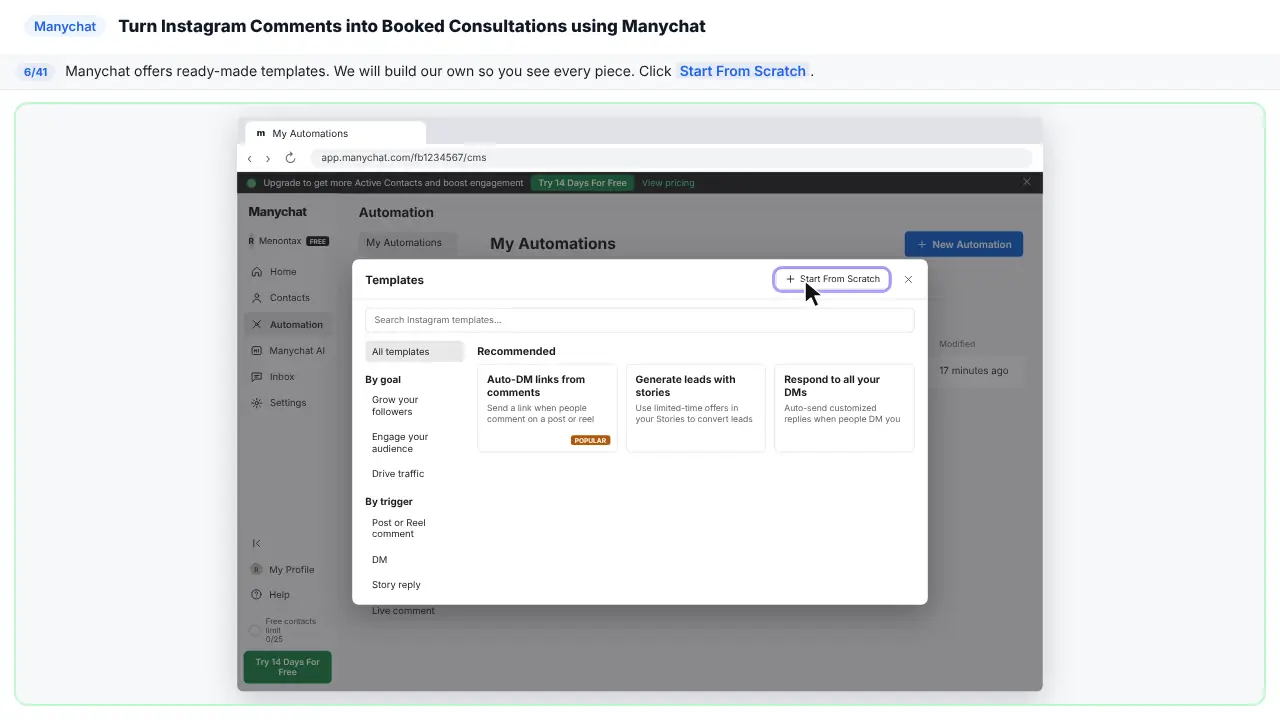
Manychat offers ready made templates. We will build our own, so you see every piece.
Step 7: Start from a blank canvas
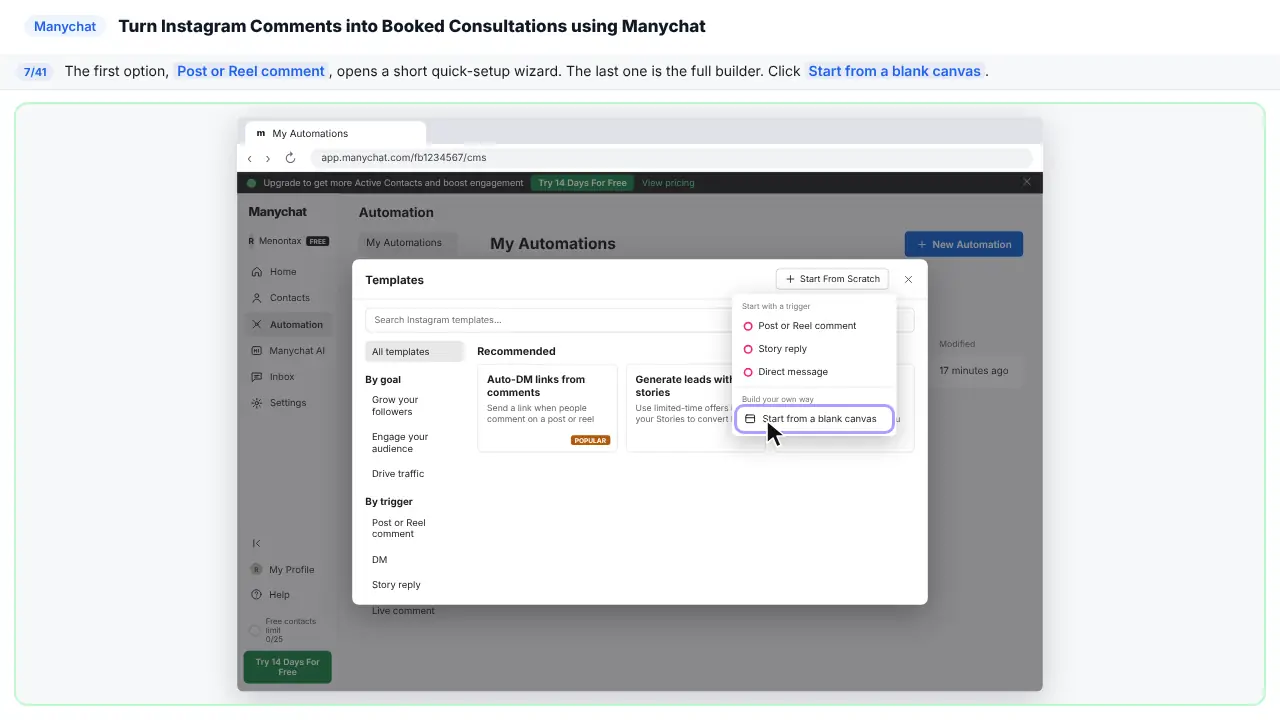
The first choices open a short wizard. We want the full builder.
Part 3: Name it and set the trigger
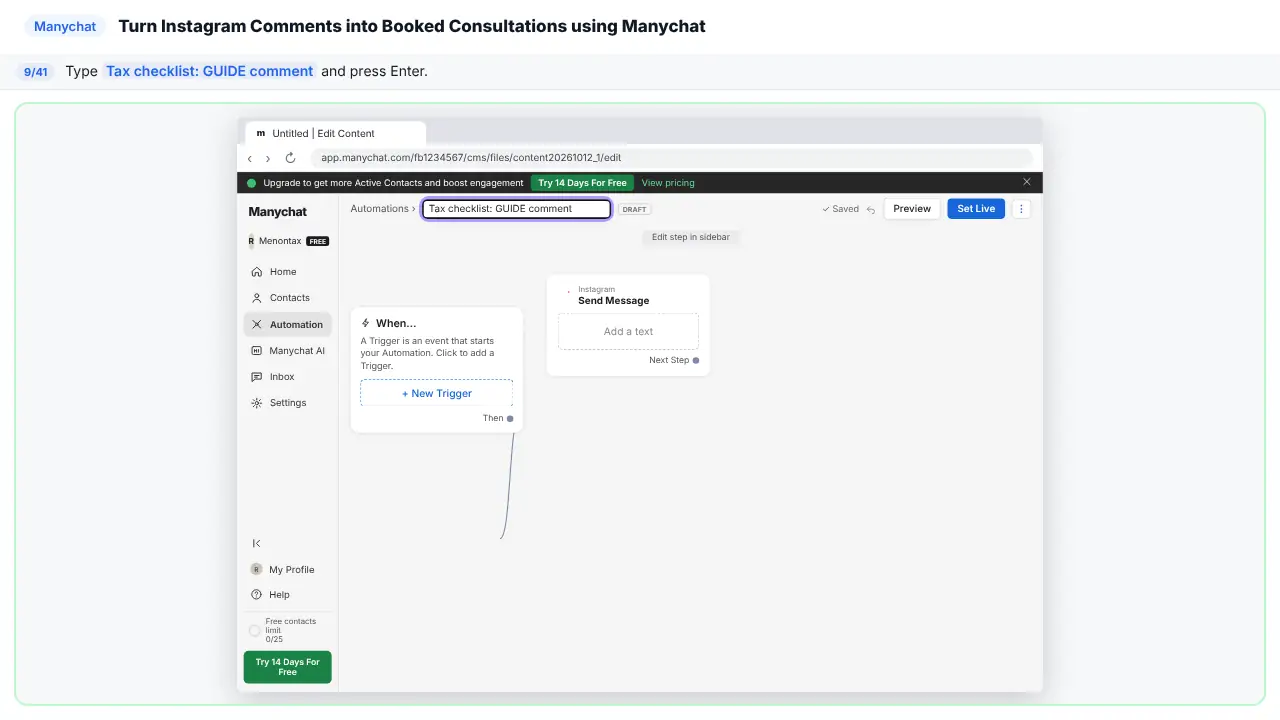
Step 8: Rename the automation
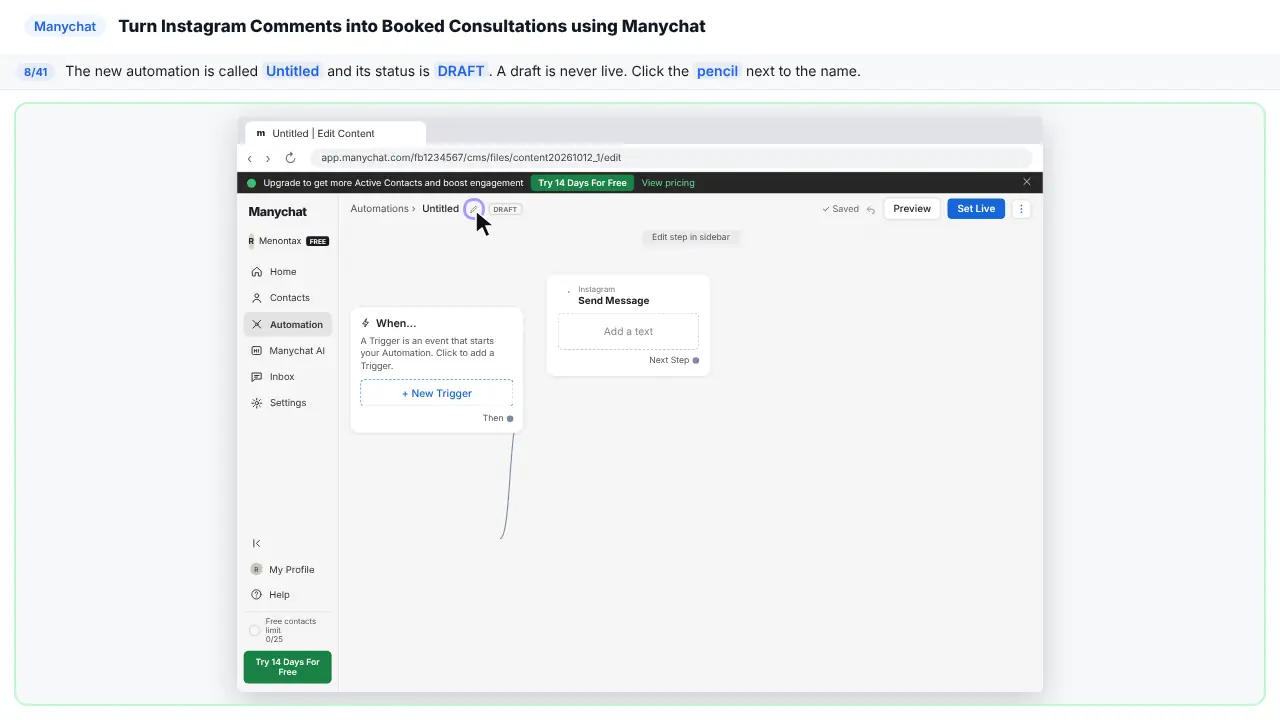
The new automation is called Untitled, and its status is Draft. A draft never sends anything.
Step 9: Give it a clear name
Tax checklist, colon, GUIDE comment.
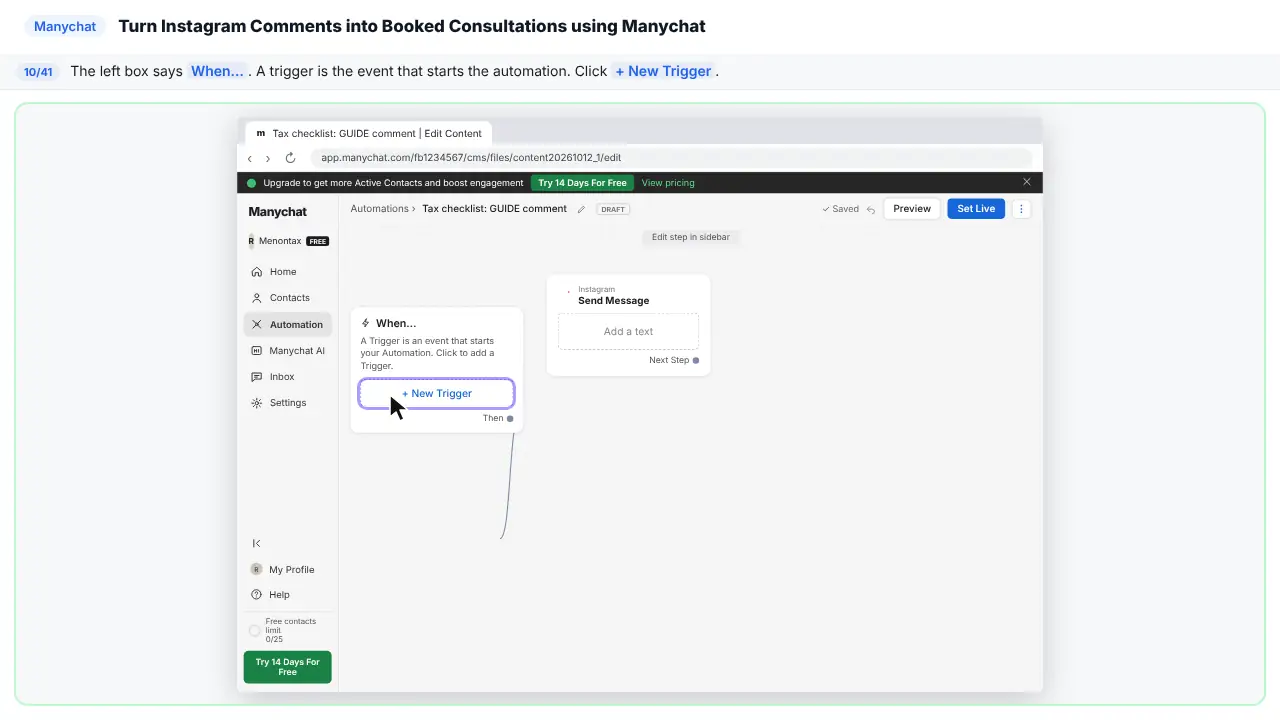
Step 10: Add the trigger
The left box says, When. A trigger is the event that starts the automation.
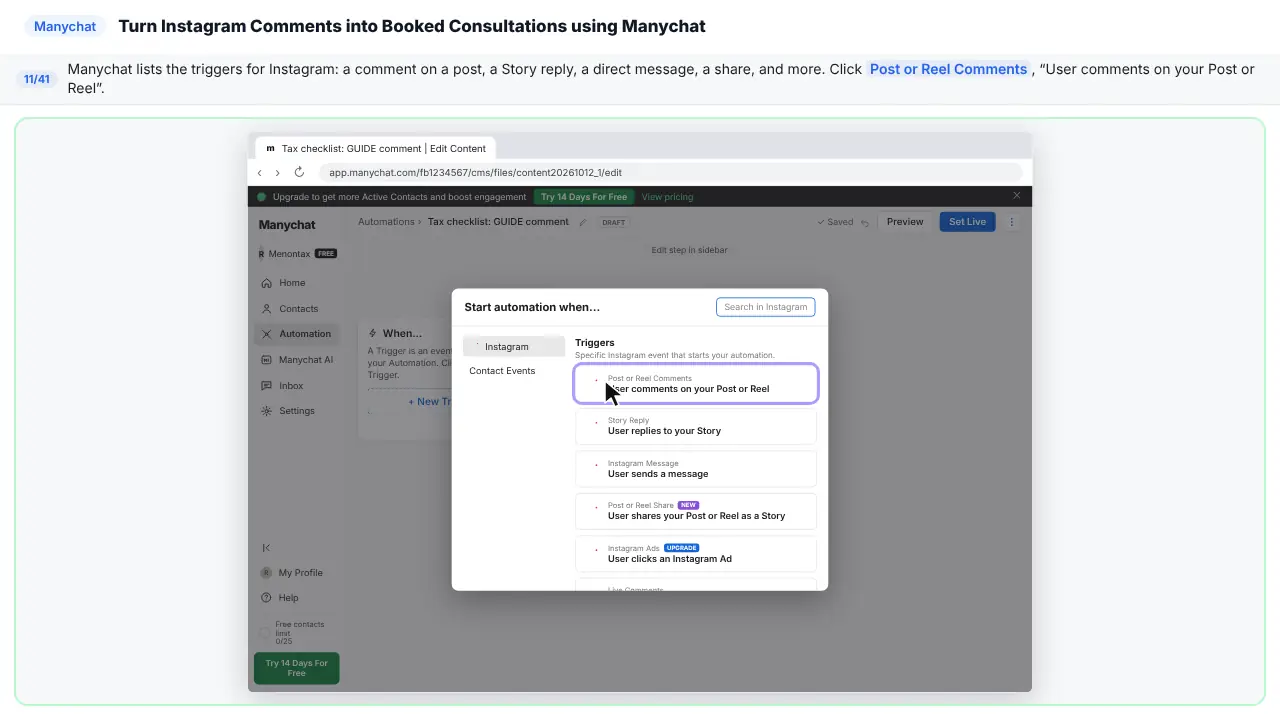
Step 11: Pick Post or Reel Comments
Manychat lists the triggers for Instagram. A comment, a story reply, a direct message, and more. User comments on your post or reel.
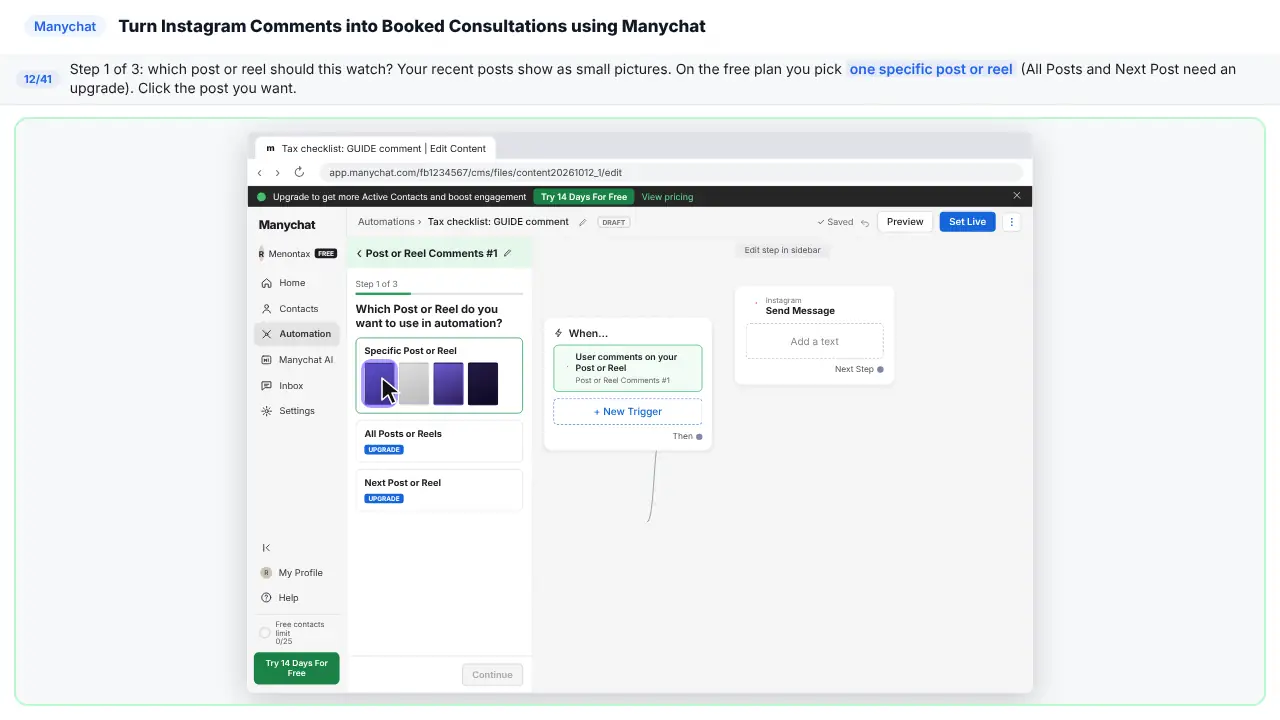
Step 12: Pick the post
Step one of three. Which post should this watch? Your recent posts show as small pictures. On the free plan you pick one specific post.
Step 13: Continue
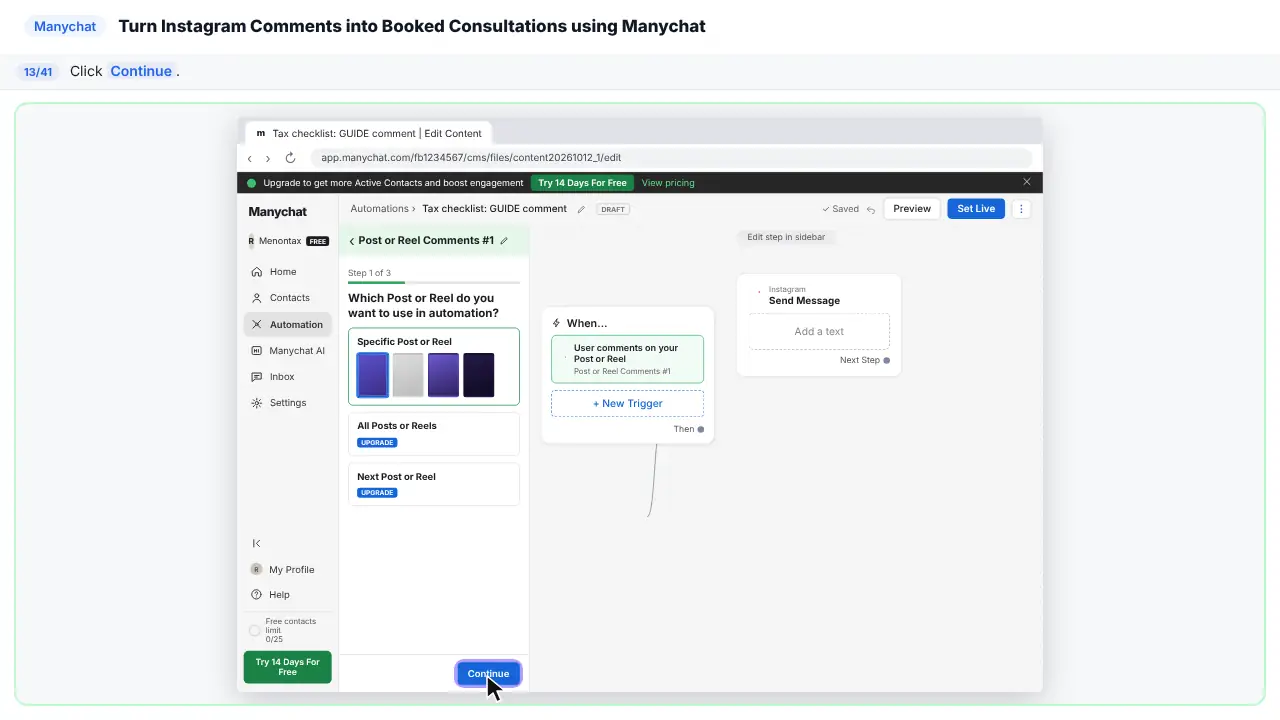
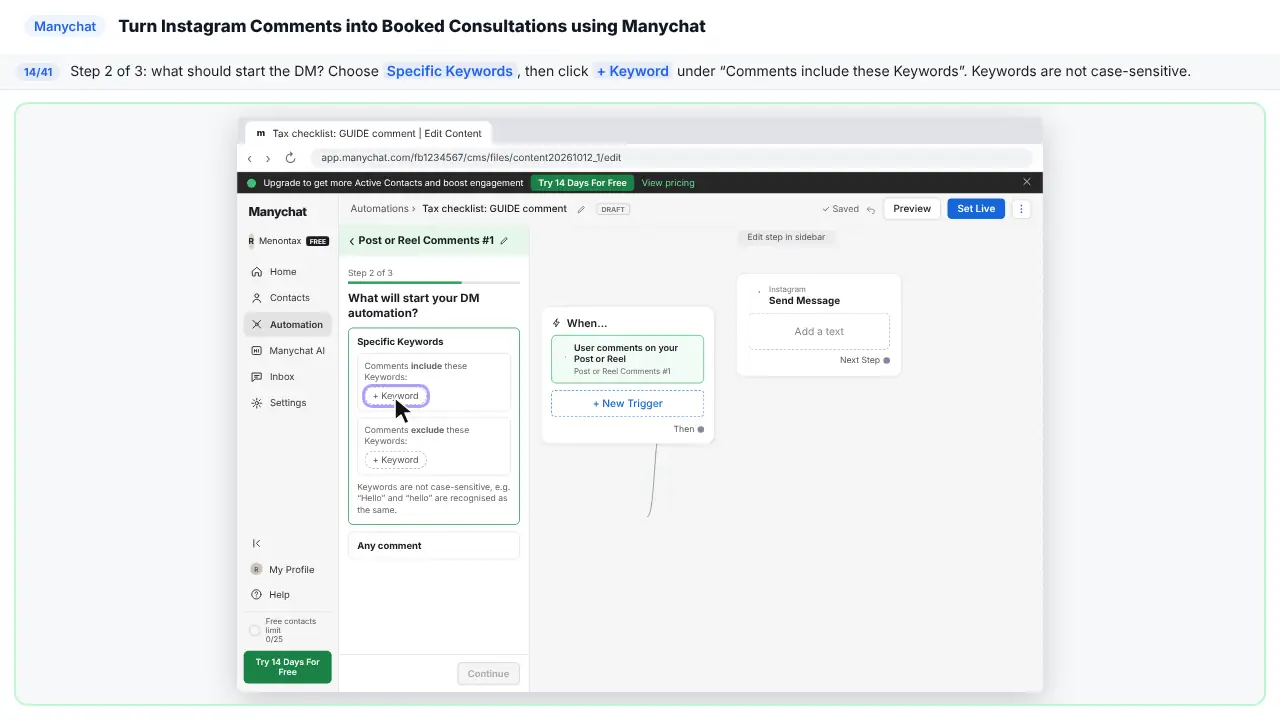
Step 14: Add a keyword
Step two of three. What should start the message? Keywords are not case sensitive.
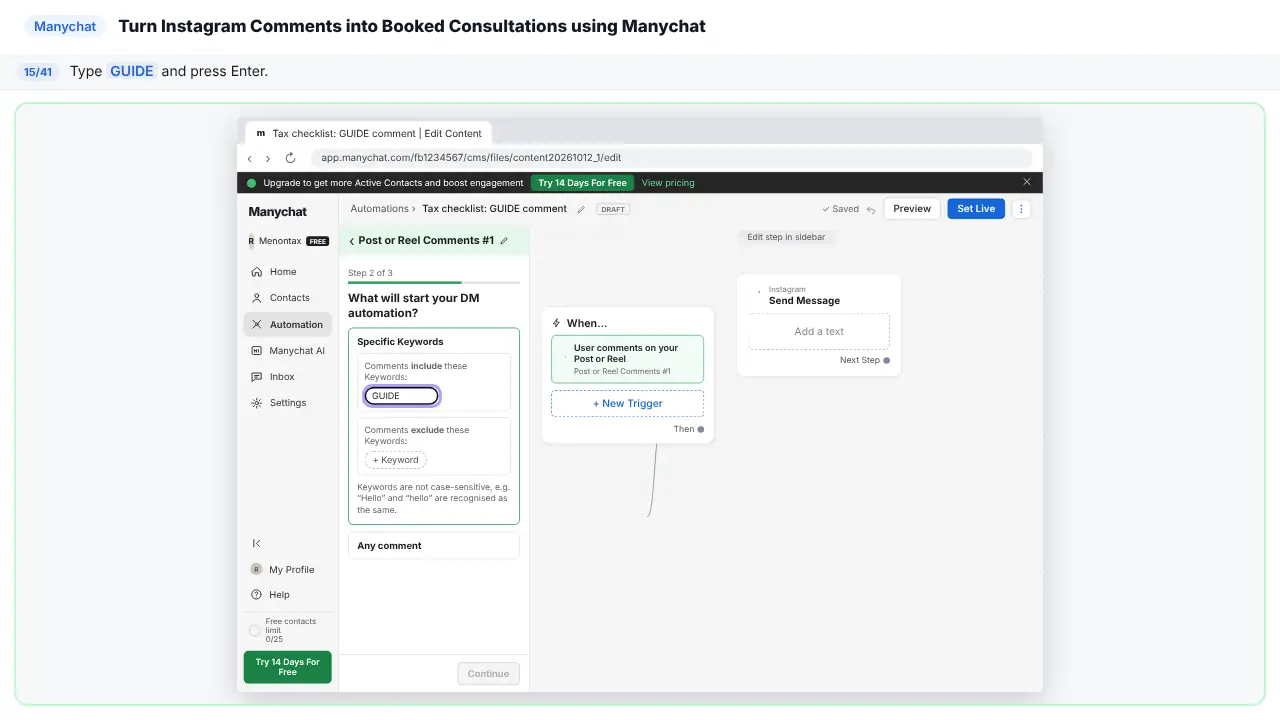
Step 15: Type the keyword
GUIDE. This is the word your followers will comment.
Step 16: Continue
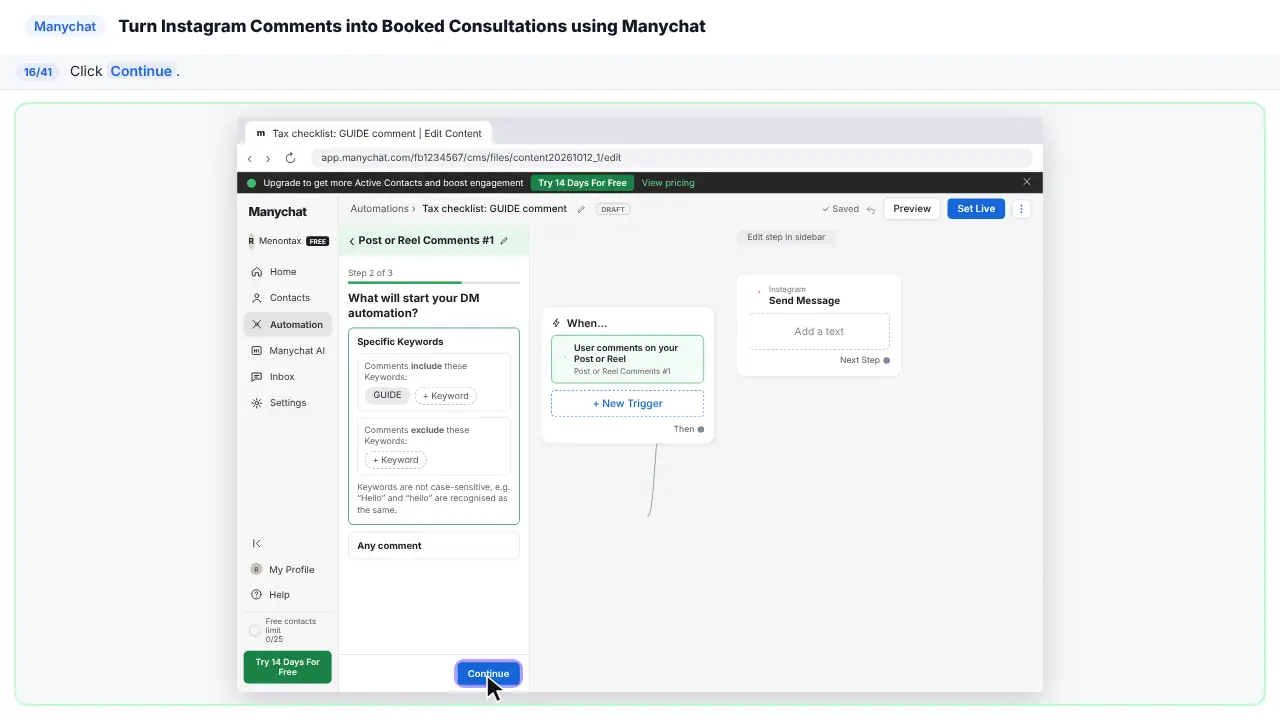
Step 17: Keep the public reply and Save
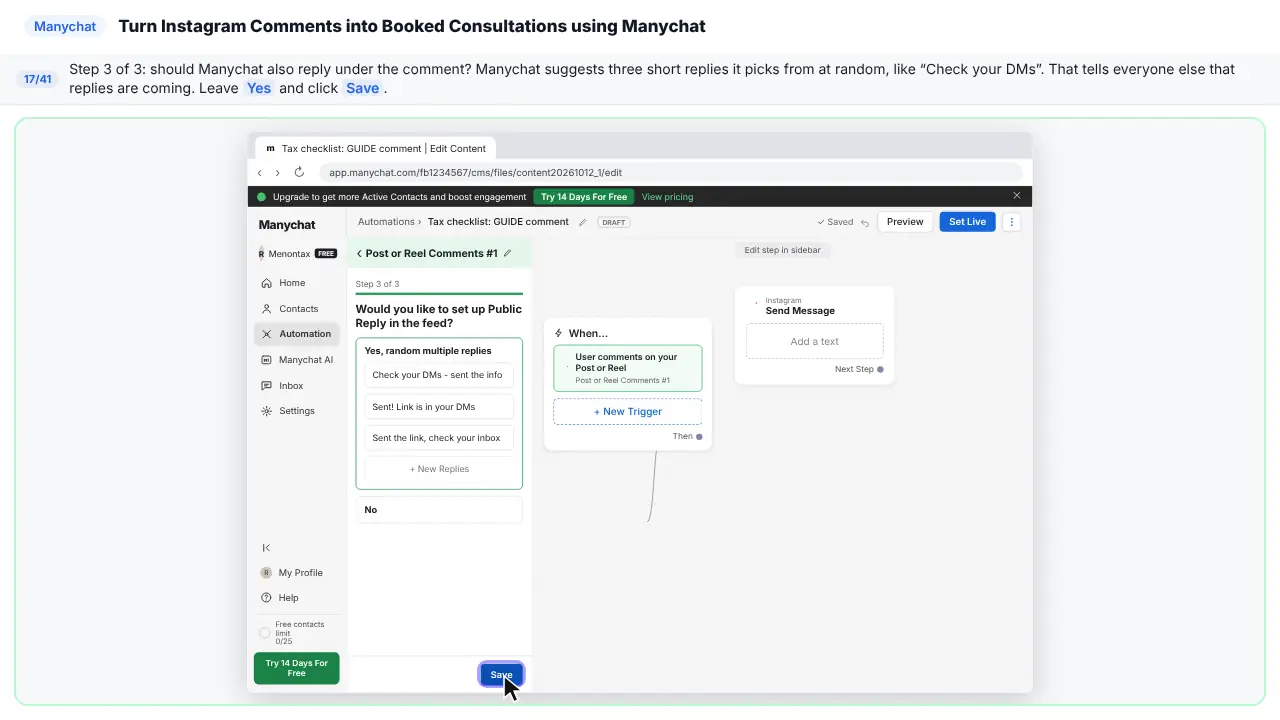
Step three of three. Should Manychat also reply under the comment? It suggests three short replies, like, check your D Ms. That tells everyone else a reply is coming. Leave it on yes, and click Save.
Part 4: Write the DM
Step 18: Open the Send Message step
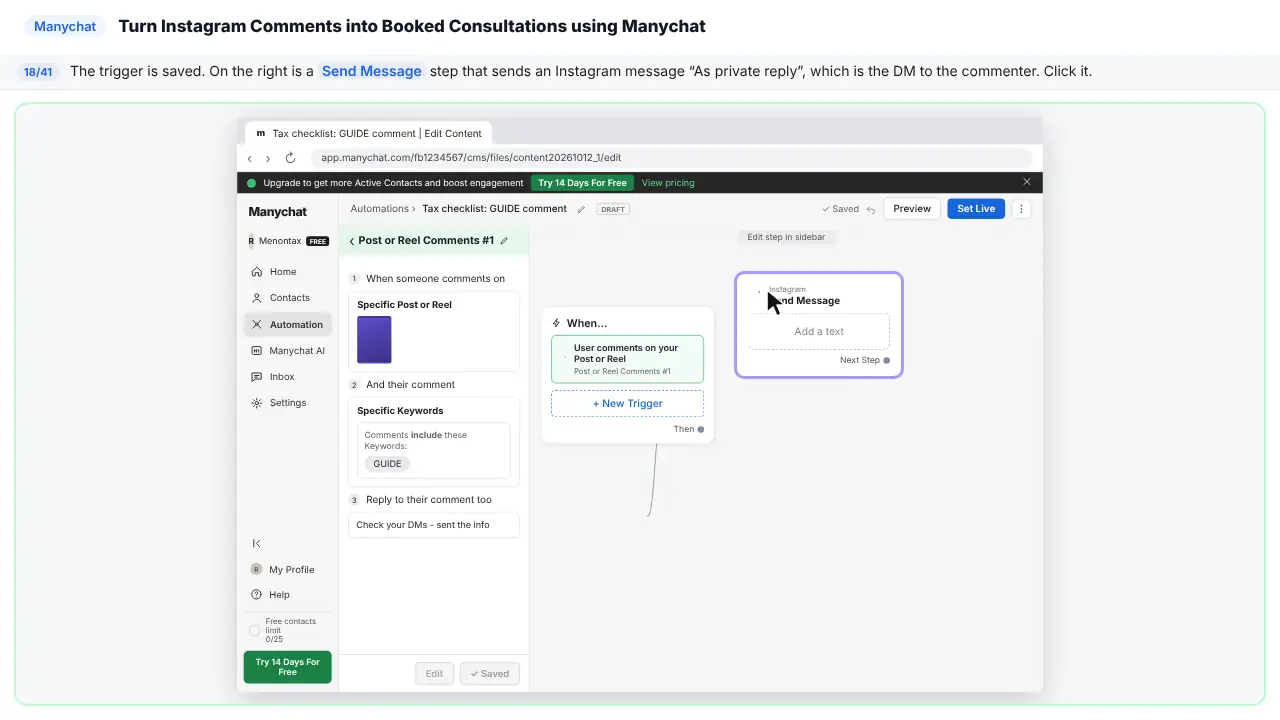
The trigger is saved. On the right is a Send Message step. It sends the message as a private reply, which is a direct message to the person who commented.
Step 19: Write the message
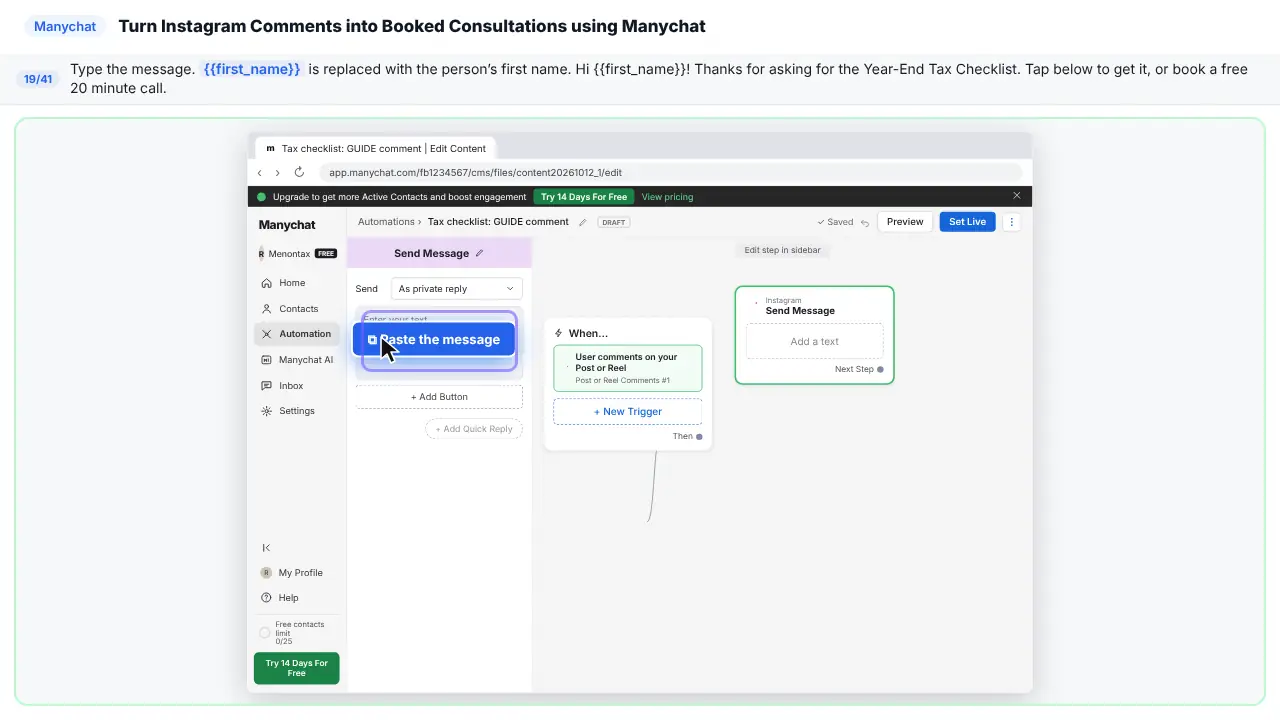
Write the message. Say hello with their first name, say what you are sending, and give them two choices.
Step 20: Add a button
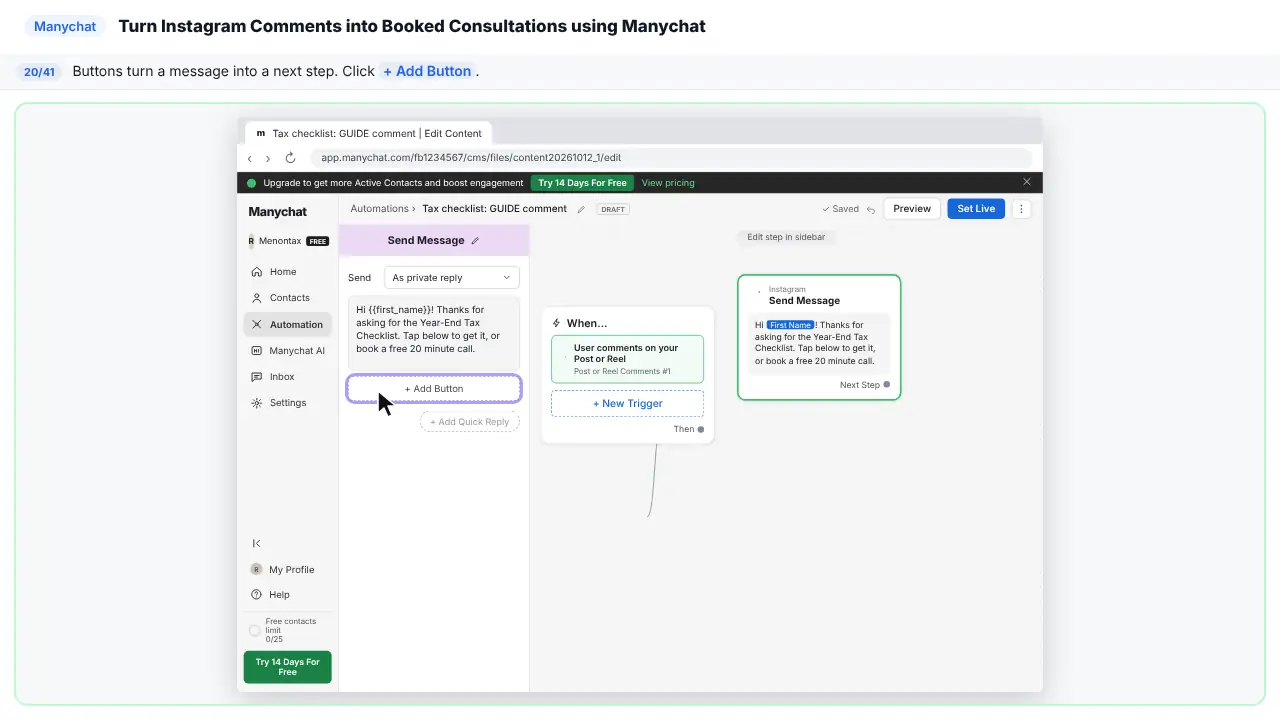
Buttons turn a message into a next step.
Step 21: Name the button
Name the button. Book a free call.
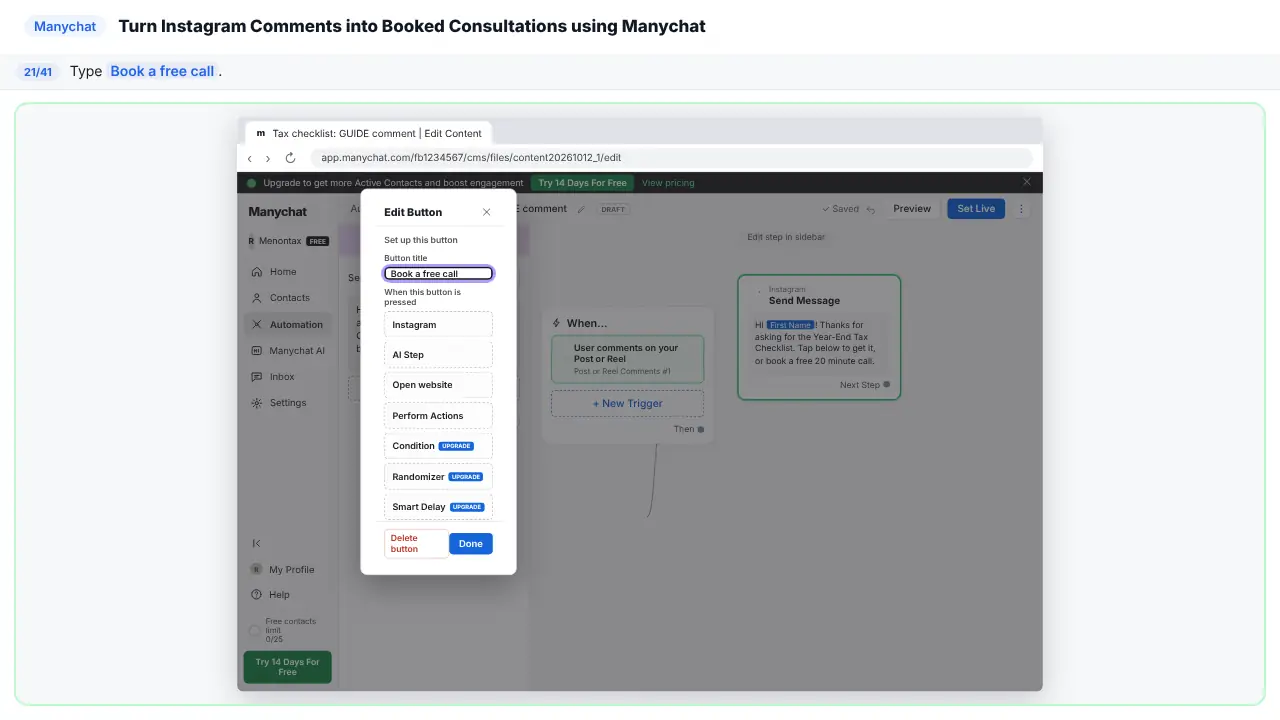
Step 22: Choose Open website
When the button is pressed, Manychat offers a list. Condition, randomizer, and smart delay need an upgrade.
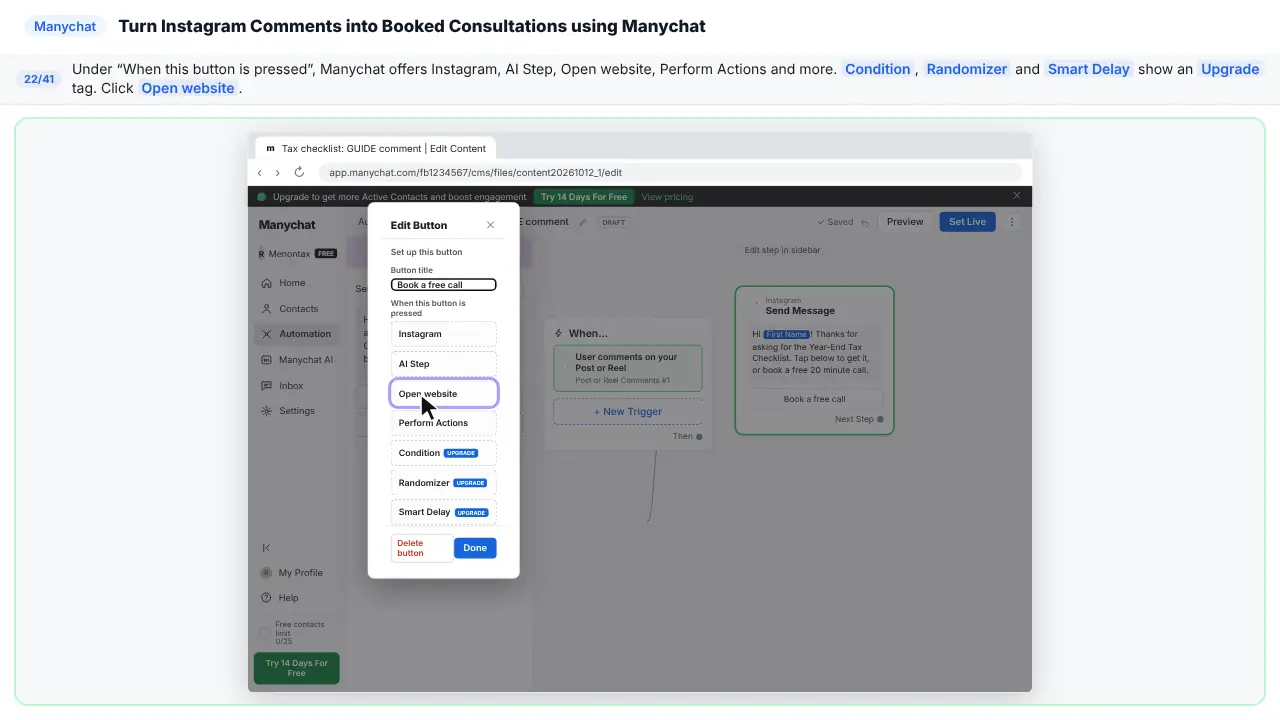
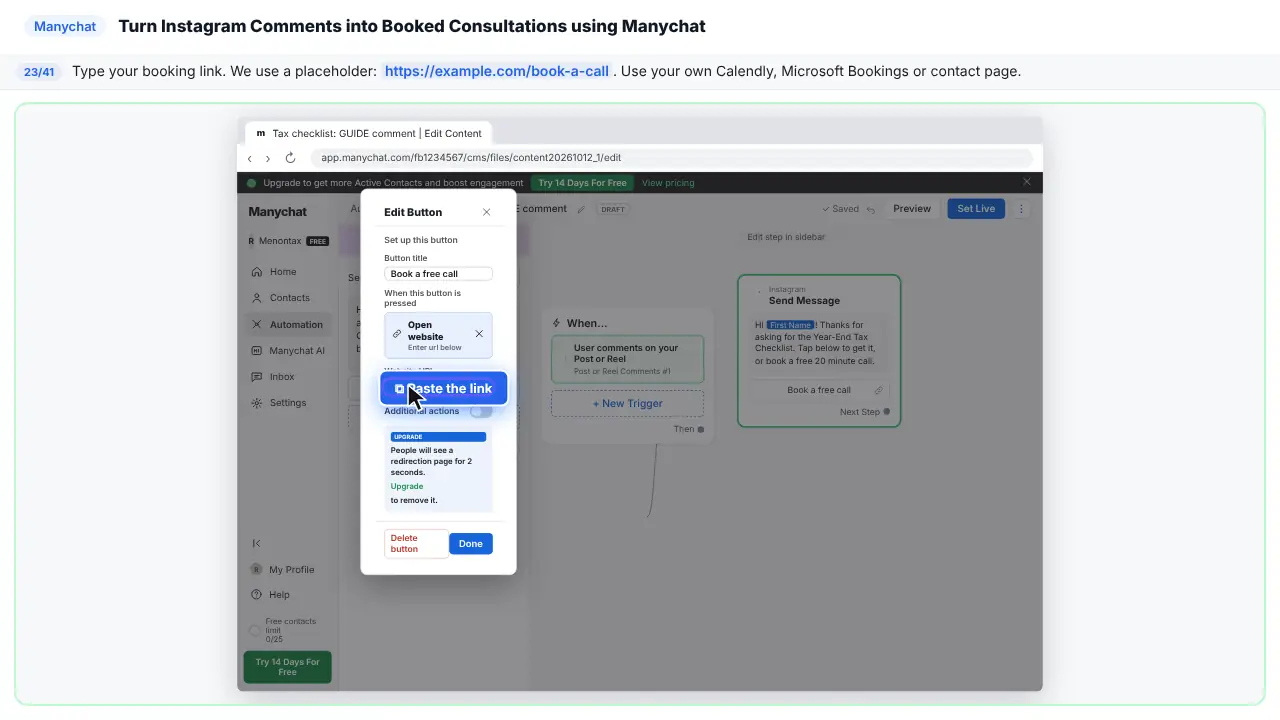
Step 23: Paste your booking link
Now the booking link. Use your own scheduling page. For the lesson, a placeholder is fine.
Part 5: Tag the interested people
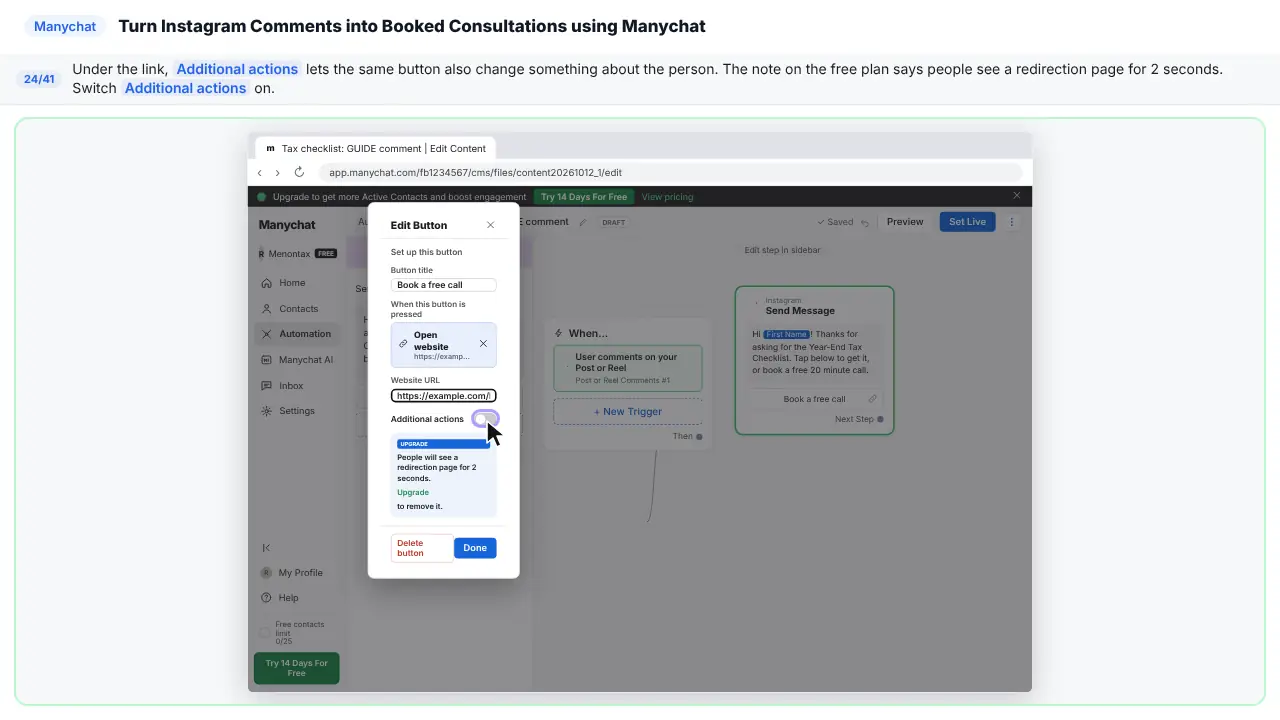
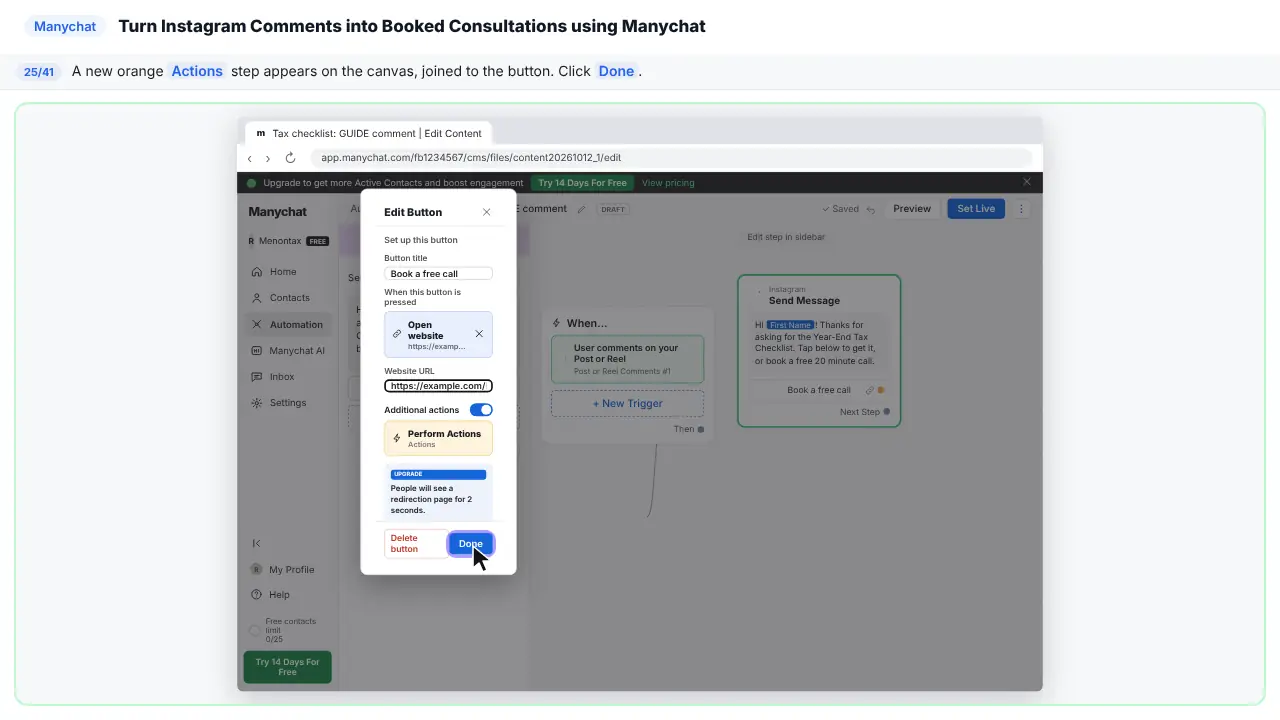
Step 24: Turn on Additional actions
Under the link, there is a switch called additional actions. It lets the same button also do something to the contact, like add a tag. On the free plan, people see a short redirect page for two seconds. Switch it on.
Step 25: Click Done
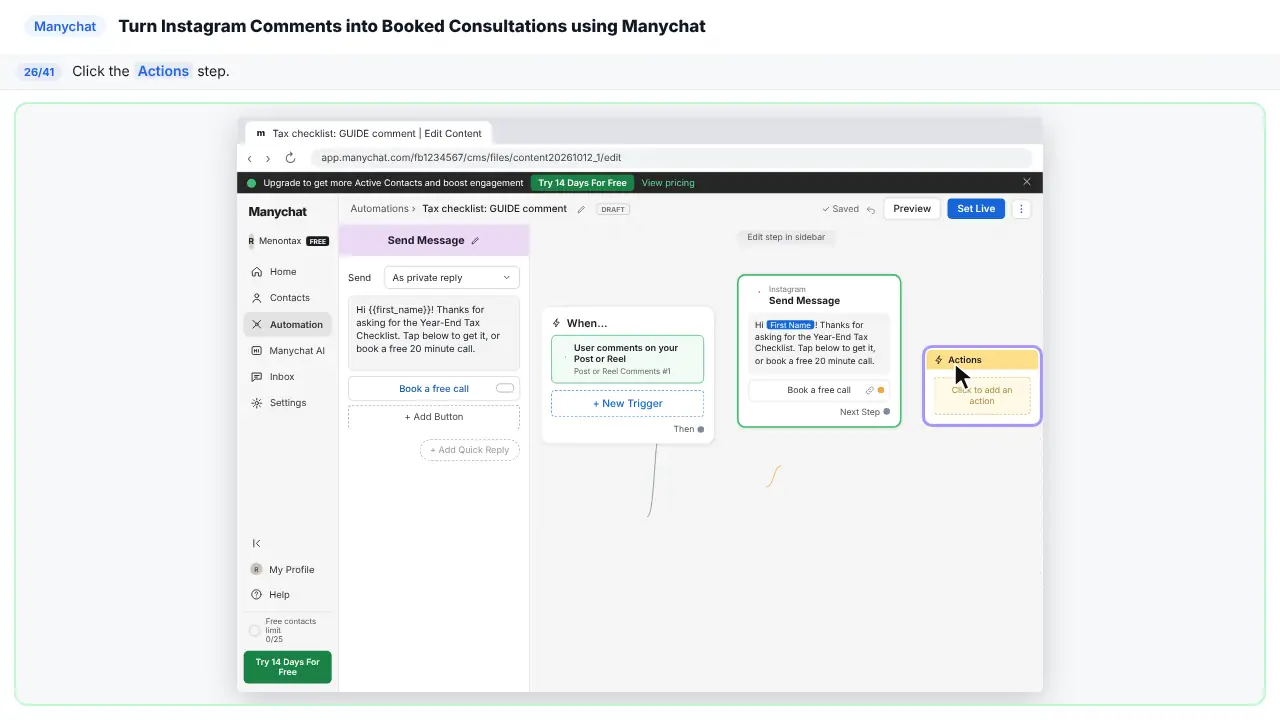
A new orange Actions step appears on the canvas, joined to the button.
Step 26: Open the Actions step
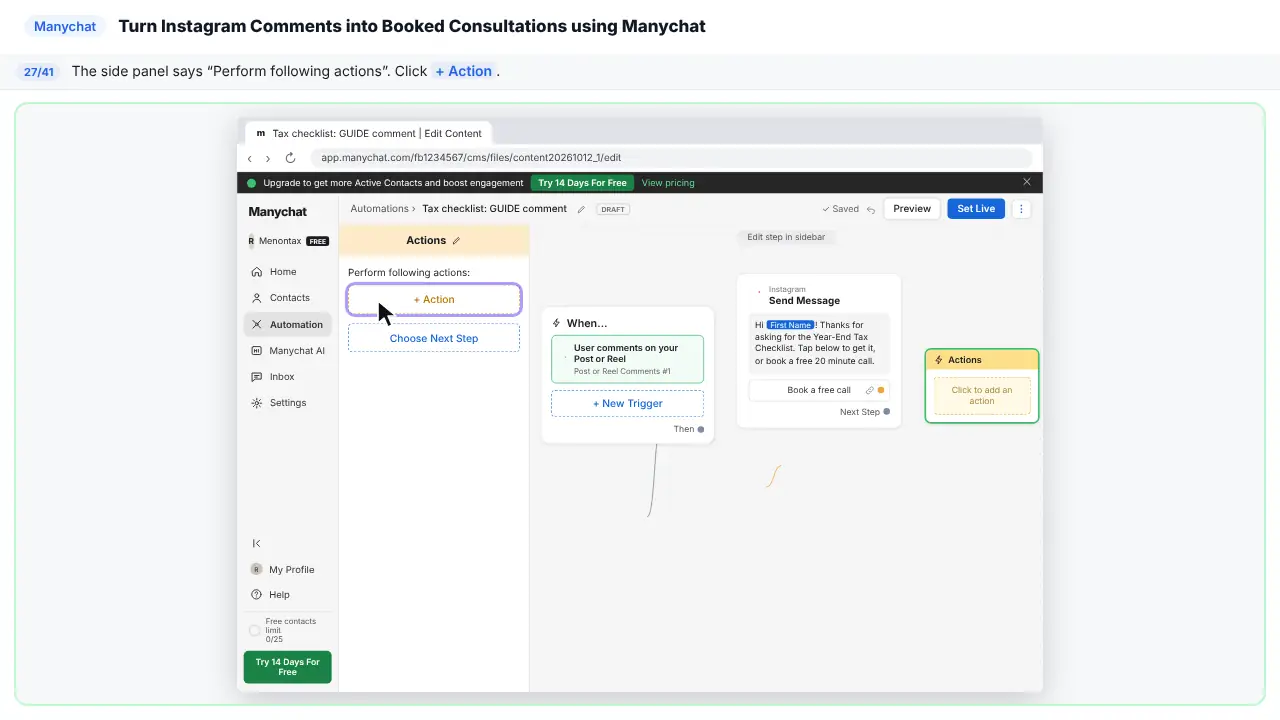
Step 27: Click + Action
The side panel says, perform following actions.
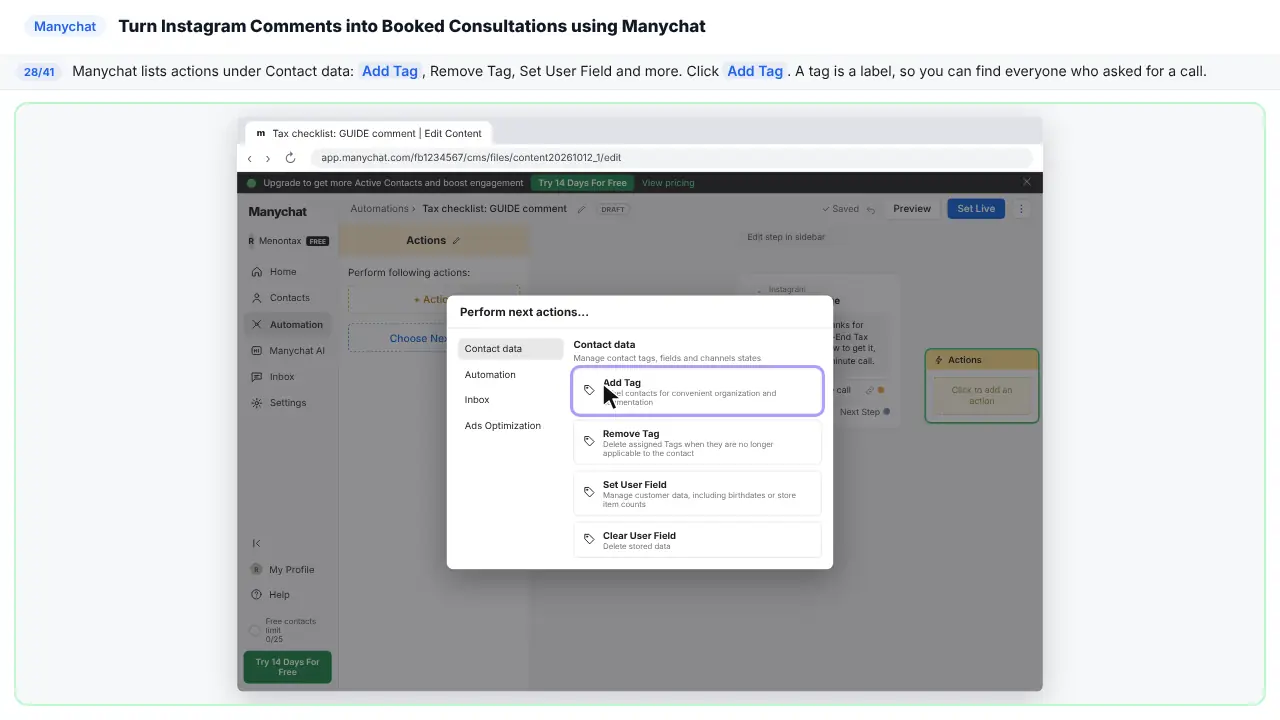
Step 28: Choose Add Tag
Under contact data, Manychat lists the actions. Add tag, remove tag, set user field, and more. A tag is a label. It lets you find everyone who asked for a call.
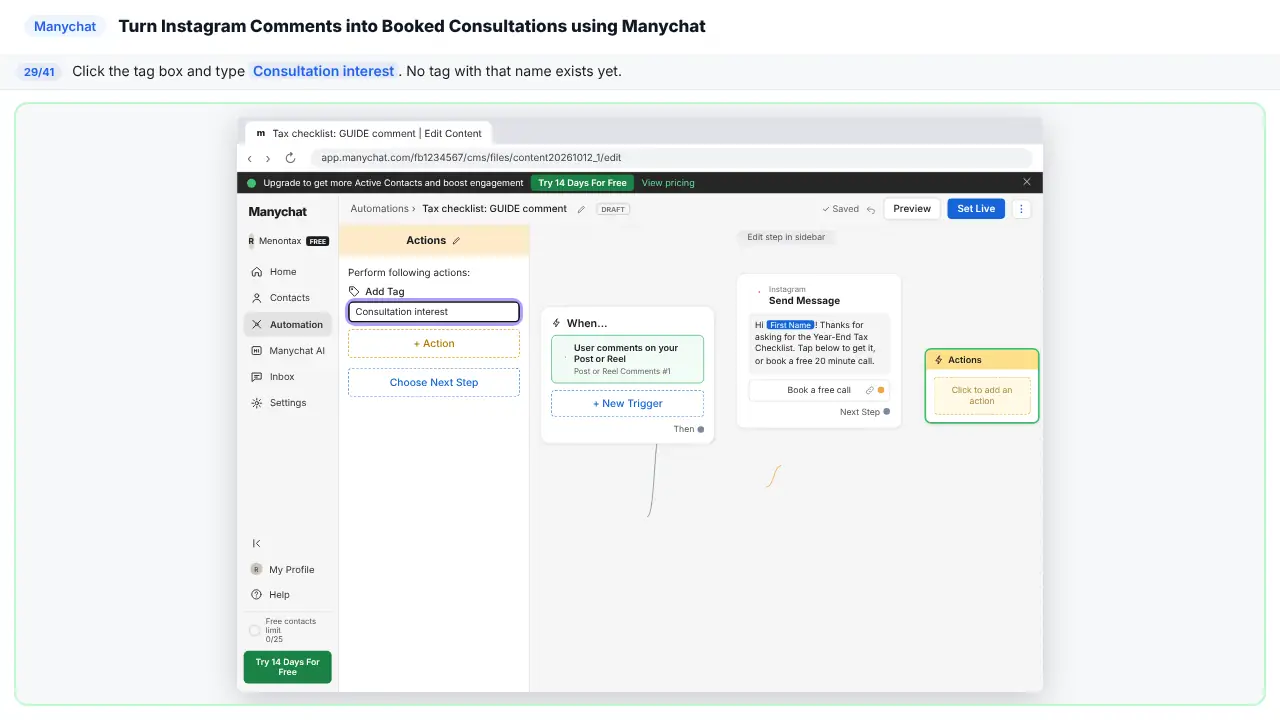
Step 29: Type a new tag name
Consultation interest. No tag with that name exists yet.
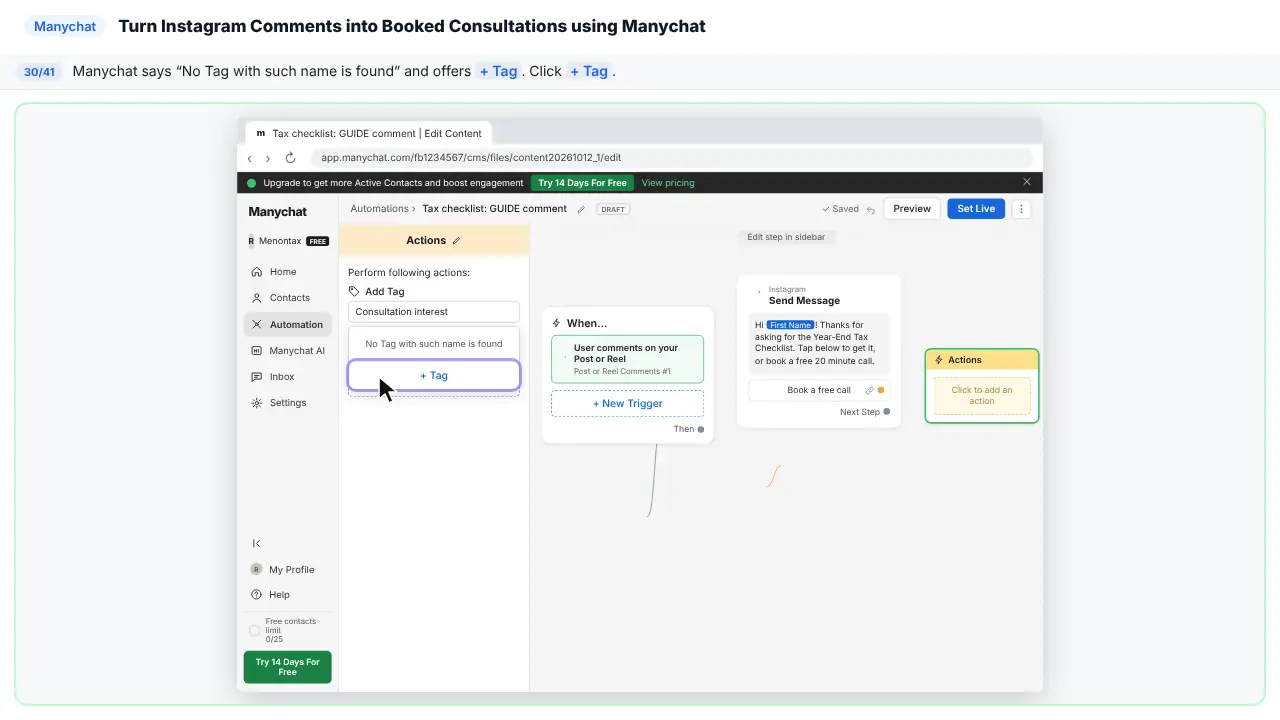
Step 30: Click + Tag
Manychat says no tag with that name is found, and offers Plus Tag.
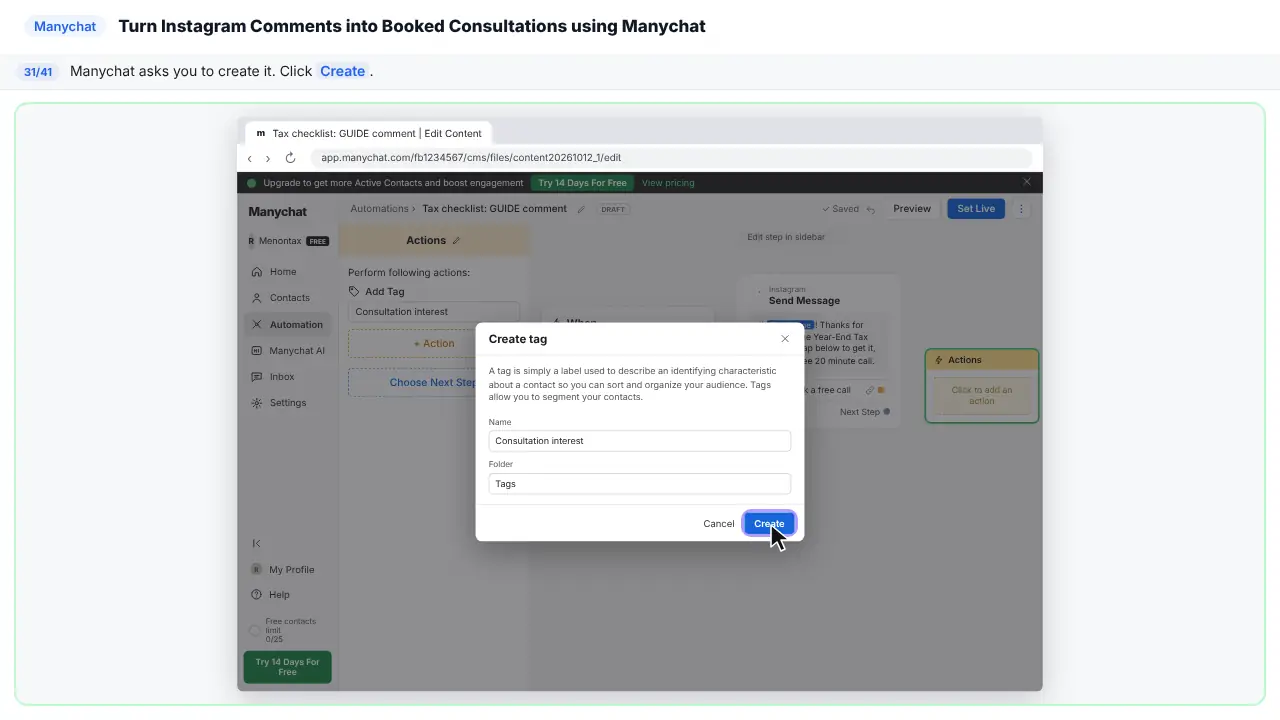
Step 31: Create the tag
Manychat asks you to create the tag.
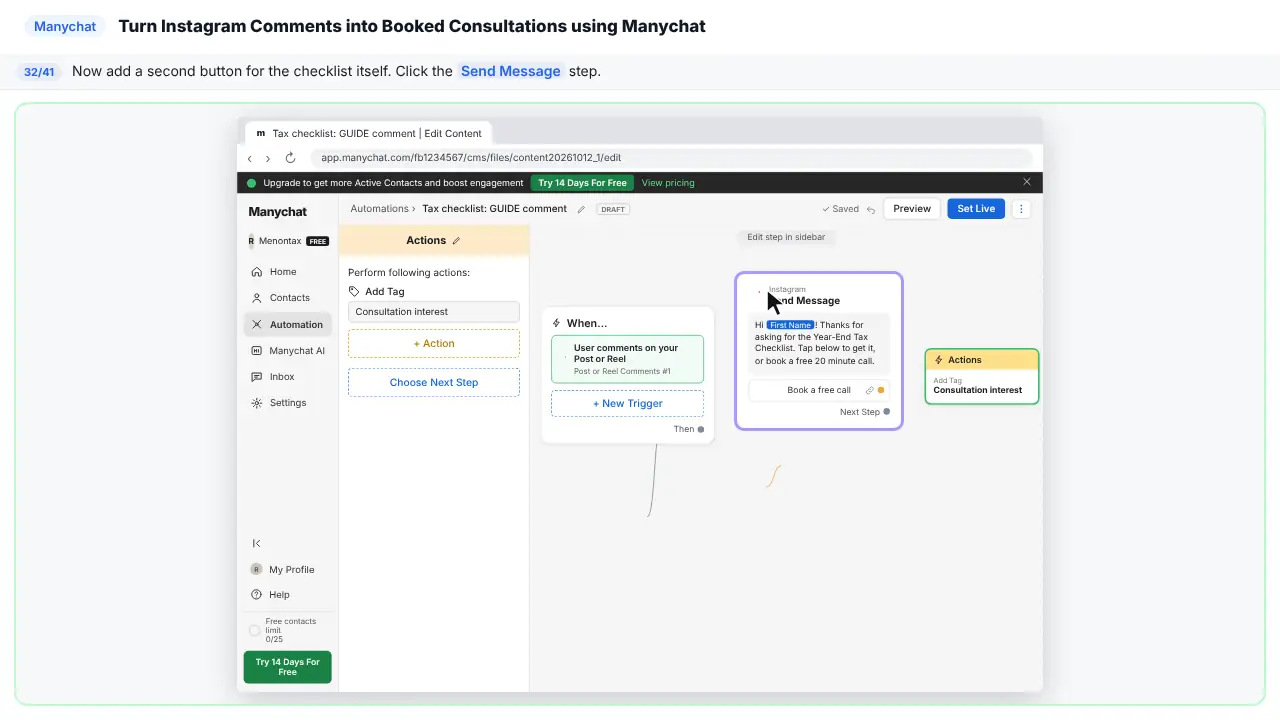
Part 6: Add the checklist button
Step 32: Go back to the message
Now a second button, for the checklist itself.
Step 33: Add the second button
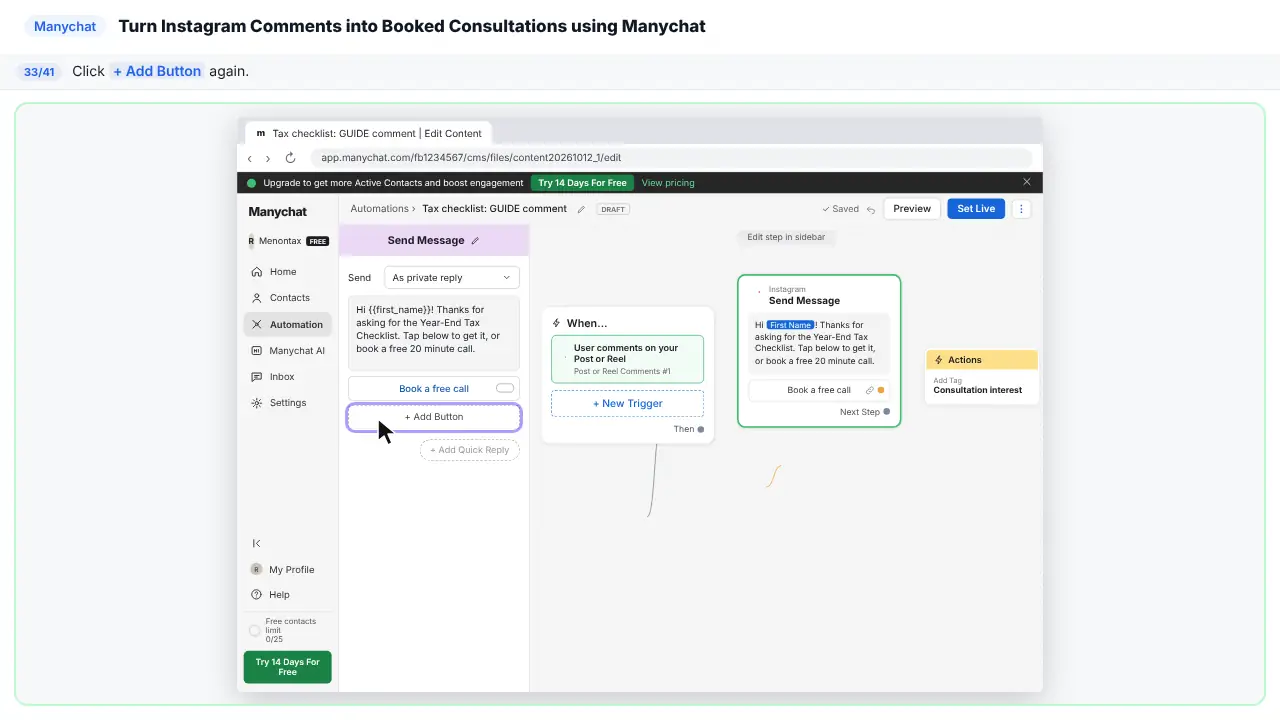
Step 34: Name it
Name it. Get the checklist.
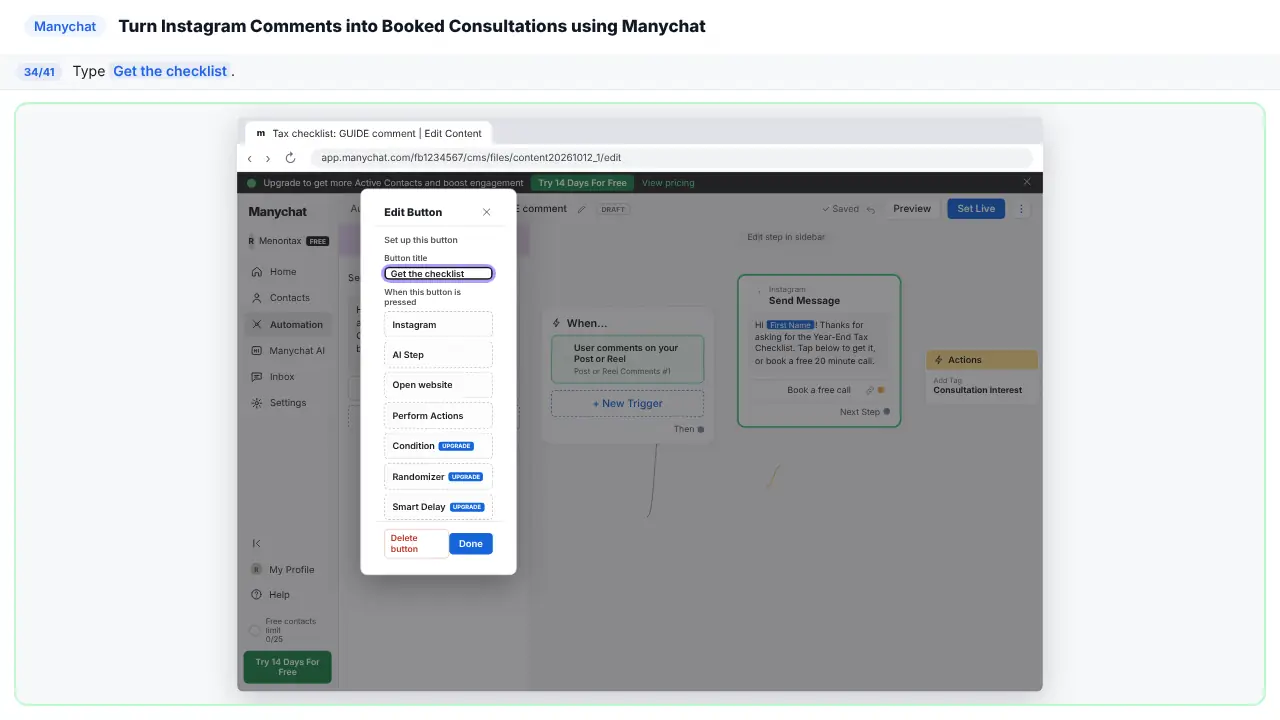
Step 35: Choose Open website
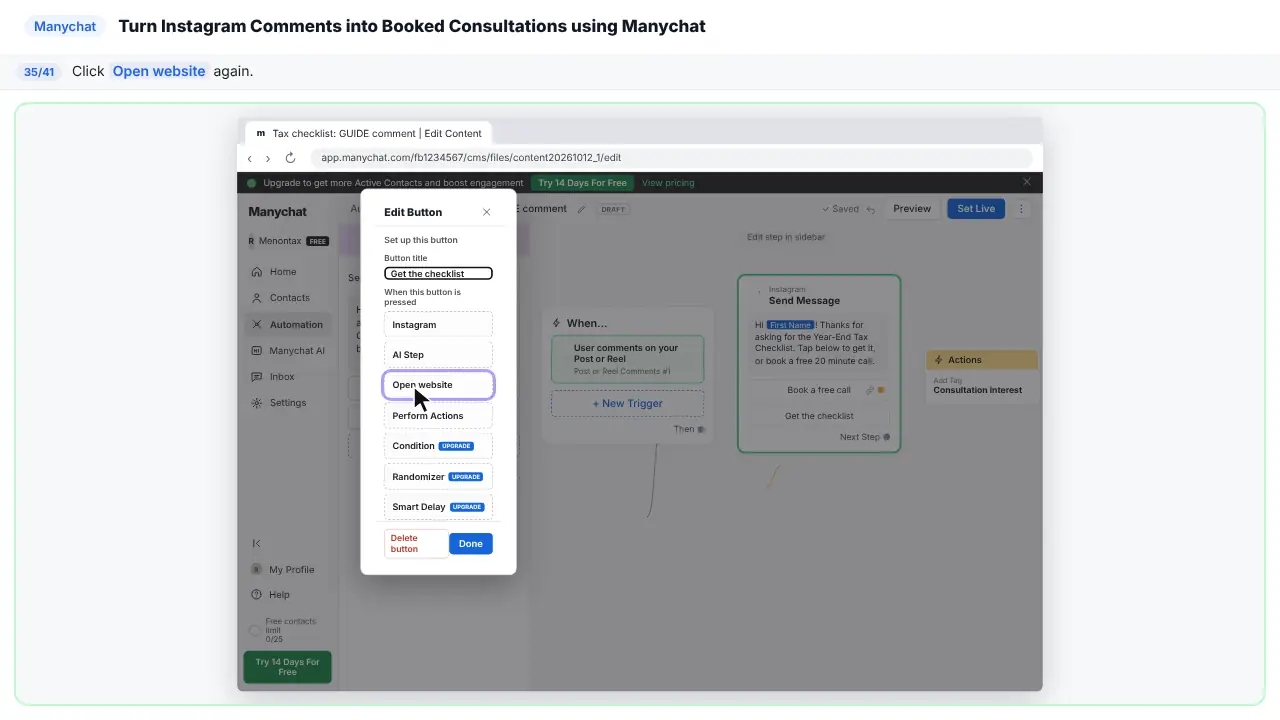
Step 36: Paste the checklist link
A placeholder is fine for now.
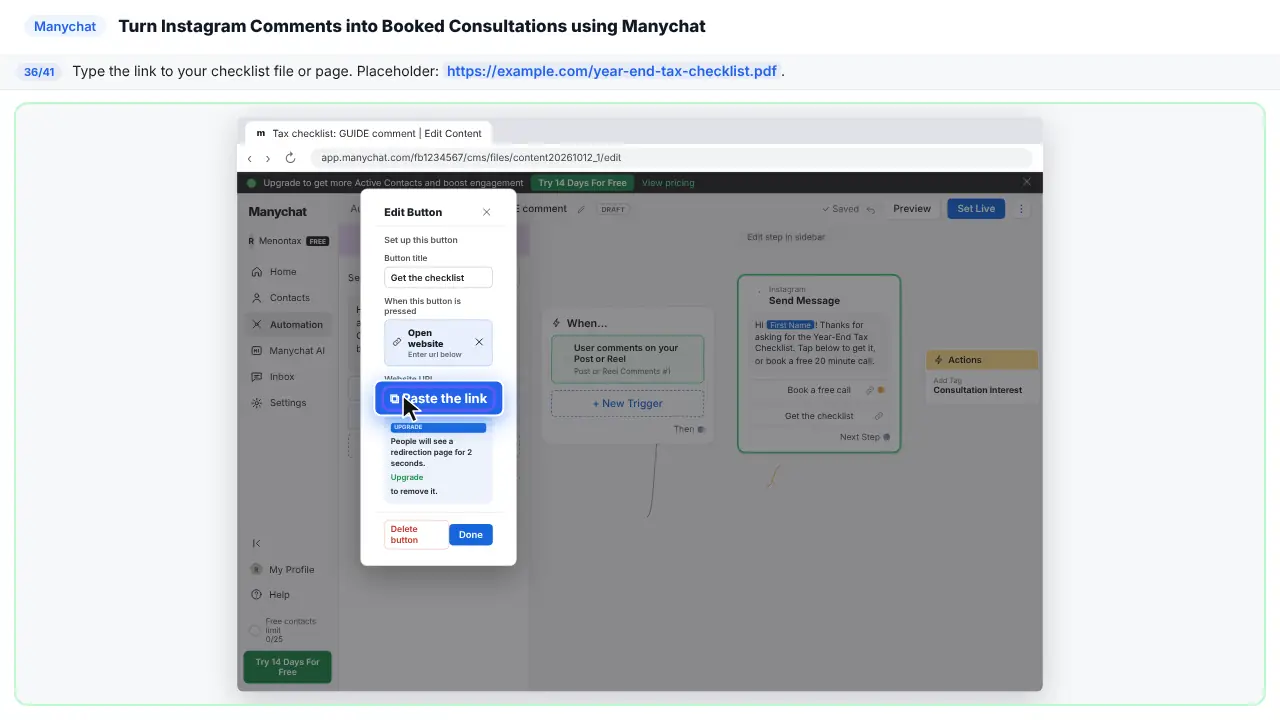
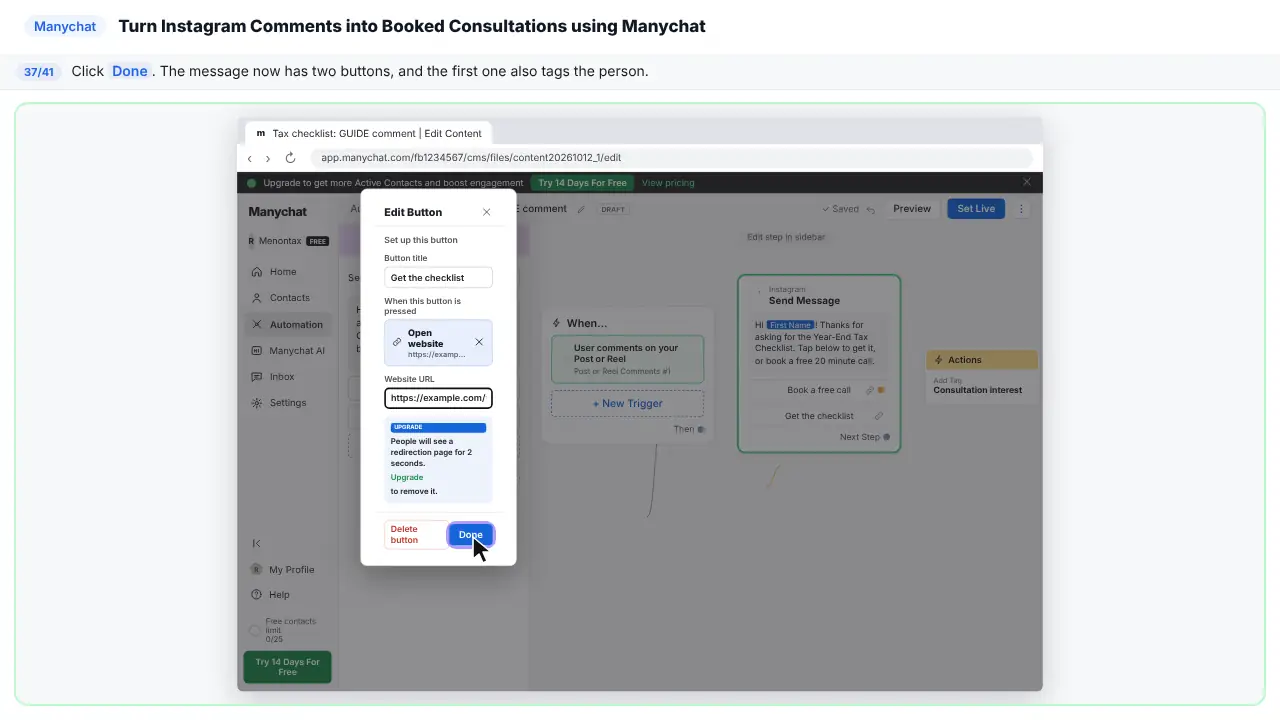
Step 37: Click Done
The message now has two buttons. The first one also tags the person.
Part 7: Preview it, never live
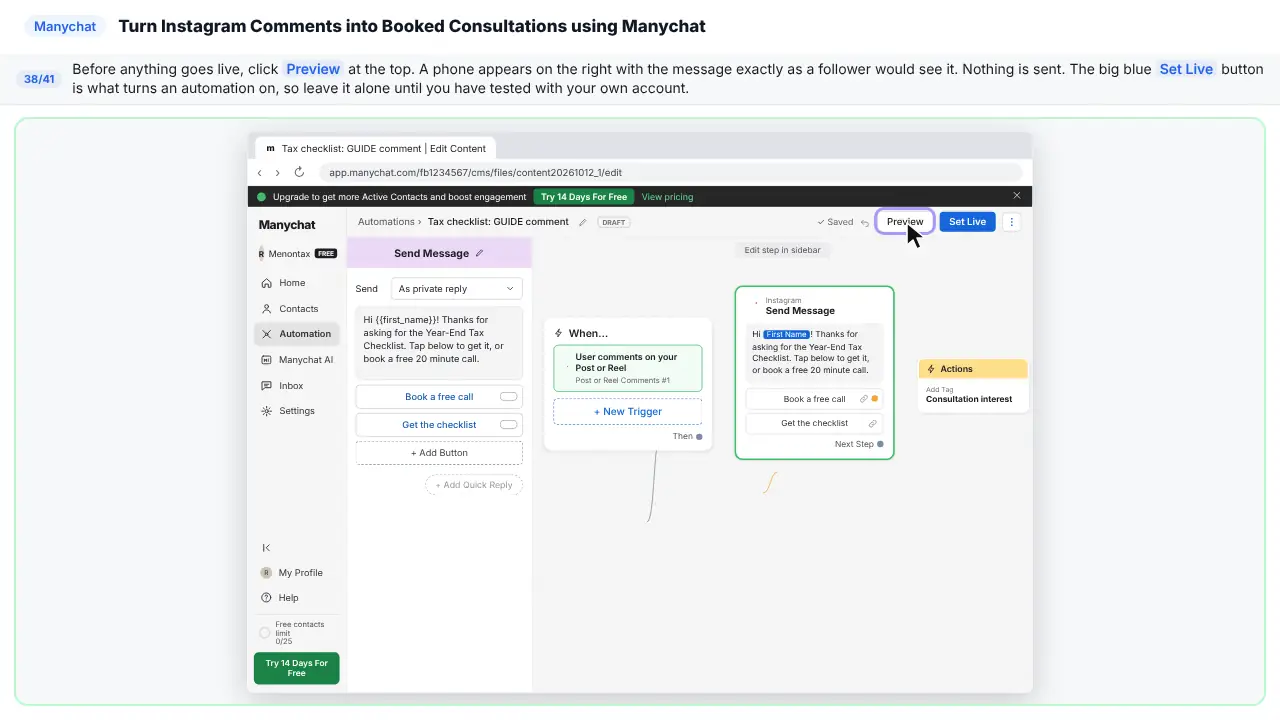
Step 38: Click Preview
Before anything goes live, click Preview. A phone appears on the right, with your message as a follower would see it. Nothing is sent. The blue Set Live button is what turns an automation on. Leave it alone, until you have tested with your own account.
Part 8: Before you go live
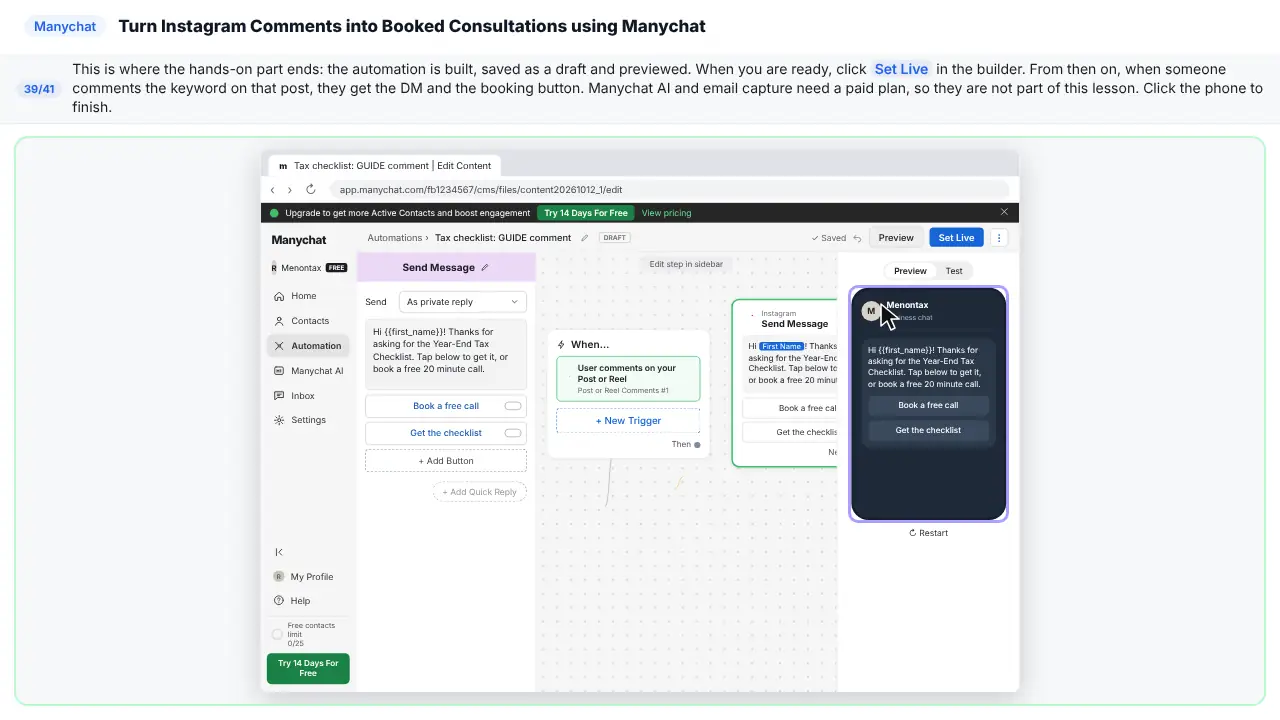
Step 39: When you are ready
This is where the hands on part ends. The automation is built, saved as a draft, and previewed. When you are ready, click Set Live in the builder. From then on, when someone comments the keyword on that post, they get the message and the booking button. Manychat A I, and email capture, need a paid plan, so they are not part of this lesson.
Part 9: What this saves you
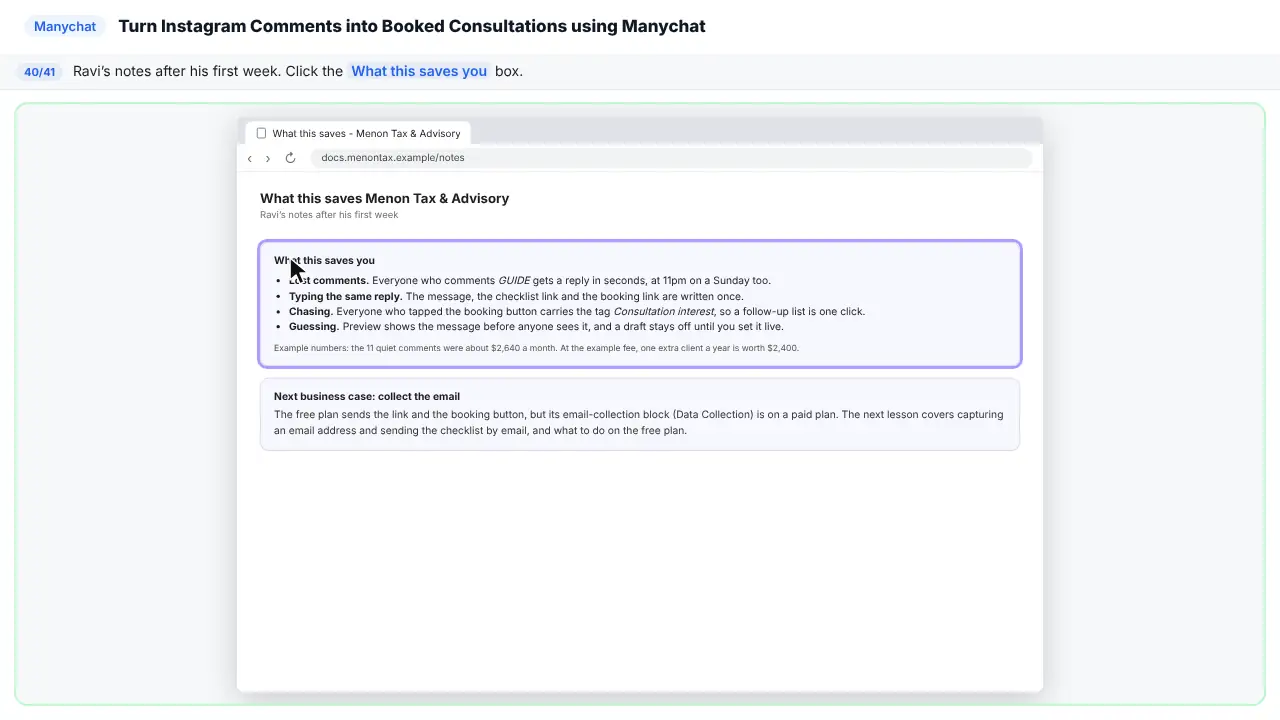
Step 40: Read what this saves you
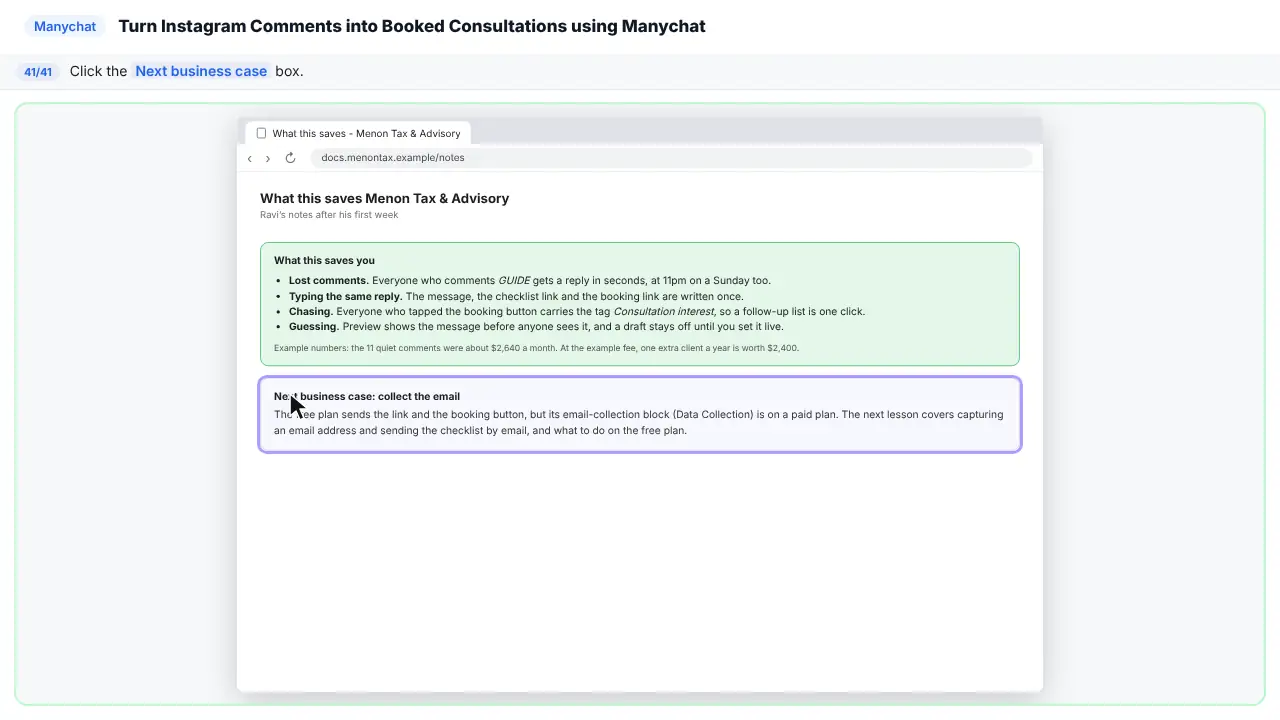
Here are Ravi’s notes after his first week.
Step 41: See the next business case
And the next business case.
Part of these free courses: AI Apps Worth Knowing, AI for Real Estate, AI for Marketing Teams
Now do it yourself, free
Reading the steps is a start. Doing them is how it sticks. The interactive lesson puts you in a practice copy of Manychat: you do every step yourself, it checks your work, and “Do it for me” finishes any step you get stuck on. Nothing touches your real accounts.
Practice “How to Use Manychat with Instagram to Turn Comments into Booked Calls” step by stepThe business case: what unanswered comments cost a small firm
Picture Ravi, who runs Menon Tax & Advisory, a made-up three-person tax and bookkeeping practice. Every week he posts a short tax tip on Instagram. People comment 'GUIDE' to get a checklist, or ask 'how much for a consult?'. In October, 18 people asked and 11 got no reply for a full day. Nobody decided to ignore them. It was a busy week, and a comment is easy to miss.
Here is the arithmetic, with example numbers you should replace with your own. Say a new client is worth $2,400 in the first year, and one in ten of those commenters would have become a client if they had been answered quickly. Eleven quiet comments is then about 1.1 clients, or roughly $2,640 of work every month, and $31,680 a year. The firm did not need more attention on Instagram. It needed a reliable first reply to the attention it already had.
Manychat gives that first reply. When someone comments a keyword on your post, it sends them a direct message, with a link and a next step, within seconds. You decide what the message says and what the buttons do.
Who this is for, and what you need to start
Owners and partners of small accounting, tax, consulting, coaching and design practices who post on Instagram and want comments to lead to booked calls. You need an Instagram professional account connected to Manychat. You do not need any technical background.
Manychat has a free plan. In the Free account we tested, the dashboard showed a free contacts limit of 25. On that plan, the comment trigger works on one specific post or reel, while the All Posts and Next Post options, the Condition, Randomizer and Smart Delay steps, Instagram Ads triggers, the Data Collection block (for collecting emails and phone numbers) and AI Step all showed an Upgrade tag. Link buttons show people a redirection page for two seconds on the free plan. Manychat's pricing changes, so check its pricing page before you plan around any one feature.
Triggers, keywords and the public reply
A trigger is the event that starts an automation. For Instagram, Manychat lists a comment on a post or reel, a Story reply, a direct message, a share of your post as a Story, an ad click, and a comment on a live video. This lesson uses a comment on one specific post.
Keywords are not case-sensitive, so 'guide' and 'GUIDE' both start the automation. You can also list words to exclude. Manychat suggests three short public replies it picks from at random, such as 'Check your DMs'. They tell everyone else reading the comments that replies are coming. You can turn them off.
Manychat also has a short quick-setup wizard for a comment-to-DM automation, reached from the Templates window. The wizard is faster, but the free plan locks its 'ask for their email' option, and the full builder shows every piece, so the lesson uses a blank canvas.
Buttons, tags and the booking link
A button turns a message into a next step. In the lesson, the first button opens a booking page, which can be Calendly, Microsoft Bookings or a contact page on your site, and the second opens your checklist. The lesson uses placeholder addresses, so use your own.
A tag is a label on a contact. By adding the tag when someone taps the booking button, you can later filter your contacts for everyone who asked for a call, and follow up by hand. On the free plan, the booking page itself is where the person gives their email address, because Manychat's Data Collection block is on a paid plan.
Manychat AI and email capture: paid features, not in this lesson
Manychat AI (beta for Instagram) can reply to follow-up questions in DMs, reply to nice comments in your tone, and steer replies toward a goal. In the Free account we tested, AI Step showed an Upgrade tag, and Manychat AI starts from a Get Manychat AI button. The lesson does not cover it. Check Manychat's pricing before you plan around it, and always read what an AI writes before you let it talk to real people.
Email capture (the Data Collection block) also showed an Upgrade tag, so the lesson sends people to a booking page that asks for their email.
What this saves you
- Lost comments: everyone who comments the keyword gets a reply in seconds, including at 11pm on a Sunday. In the example, the quiet comments were worth about $2,640 a month.
- Typing the same reply: the message, the checklist link and the booking link are written once.
- Chasing: everyone who tapped the booking button carries a tag, so a follow-up list is one filter.
- Guessing: Preview shows the message before anyone sees it, and a draft stays off until you set it live.
- What it does not do: it does not book the call for you, it does not collect an email on the free plan, and it does not replace reading what the AI writes.
What we checked in a real account
Every step in the lesson was done in a real Manychat Free account with Instagram connected, on 12 October 2026: the Templates window, the blank canvas, the Post or Reel Comments trigger with a keyword, the Send Message step with two buttons, the Actions step with a new tag, and Preview. The automation was saved as a draft and was never set live. The lesson stops there on purpose. It does not teach a live DM, the public reply, the tag on a real contact or the Test tab, because they were not tested. Test it with your own account before you click Set Live.
Next business case: collect the email address
Once comments get a reply, the next gap is capturing the email address of the people who are not ready to book a call, so you can send the checklist and follow up by email. For TikTok, see How to Use Manychat with TikTok, which adds a Data Collection block that asks for the email. Manychat's Data Collection block is built for that and is on a paid plan. A lesson on capturing an email, and what to do on the free plan, is the natural next step.
Links
- Manychat (affiliate link): the chat automation tool this lesson teaches. It has a free plan, and our test account showed a limit of 25 contacts. Check Manychat's pricing page for current limits.
- Manychat pricing: current plans and limits. Check which plan includes each feature before you rely on it.
- Manychat help centre: Manychat's own guides for triggers, buttons, tags and Instagram setup.
Disclosure: links marked "affiliate link" are partner links. If you sign up through one, Stepthrough may earn a commission at no extra cost to you. The lesson is free either way and does not depend on it.
Try it yourself, free
Reading the steps is a start. Doing them is how it sticks. The interactive module walks you through every click in a practice copy of Manychat, checks each step, and never touches your real accounts.
Start “How to Use Manychat with Instagram to Turn Comments into Booked Calls”Frequently asked questions
- How do I create tags in Manychat?
- In this lesson you add the tag from a button. Turn on Additional actions for the button, open the Actions step, choose Add Tag, type a name such as Consultation interest and click Create. Everyone who taps that button then carries the tag, so you can filter for them later.
- What is Manychat?
- Manychat is a chat automation tool for Instagram, Facebook Messenger, WhatsApp and other channels. It can reply to a comment or a direct message automatically, for example by sending a link when someone comments a keyword.
- Is Manychat free?
- Manychat has a free plan. In the Free account we tested, the dashboard showed a free contacts limit of 25. Some features, such as the All Posts trigger, Condition steps and the Data Collection block, showed an Upgrade tag. Check manychat.com/pricing for current limits.
- How do I send a DM when someone comments a keyword on Instagram?
- In Manychat, open Automation, click New Automation, start from a blank canvas, add a Post or Reel Comments trigger, pick the post, add the keyword, then write the Send Message step. The automation stays a draft until you click Set Live.
- Can I test a Manychat automation without messaging real followers?
- Yes. A new automation is a draft and does not run. The Preview button shows the message on a phone mockup without sending it. Manychat also has a Test tab, which messages a connected account, so use your own account. Click Set Live only after testing.
- Can I collect an email address with Manychat on the free plan?
- In the Free account we tested, the Data Collection block and the 'ask for their email' option in the quick setup both showed an Upgrade tag. On the free plan you can send a button to a booking page or form that asks for the email.
- Does Manychat have AI?
- Manychat AI is in beta for Instagram and can answer questions in DMs. In our free account AI Step showed an Upgrade tag, and the lesson does not cover it. Check Manychat's pricing before you plan around it, and read what any AI writes before you rely on it.
- Is this lesson free, and has it been tested in the real Manychat app?
- The lesson is free and the practice copy needs no account. Every step was done in a real Manychat Free account with Instagram connected, and the automation was left as an unpublished draft. The lesson ends there, so it does not teach a live DM, the public reply or the tag on a real contact.
Visual guide
This lesson’s key ideas as quick visual guides: swipe through the slides, or read the same guide as text.
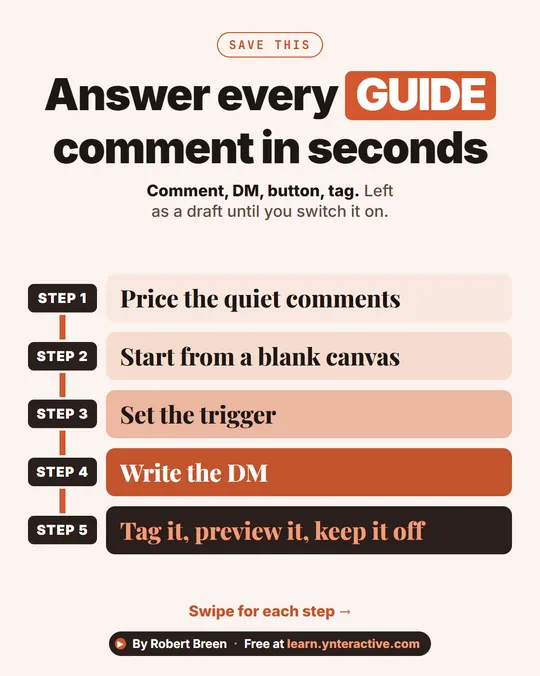 Instagram Comment to DM with Manychat in 5 Steps
A step-ladder guide: turn Instagram GUIDE comments into a DM with a booking button and a tag using Manychat, left as a draft, in 5 steps.
Step-by-step guide 7 slides
Terms in this lesson
Plain-English definitions, each with an example from a free lesson.