Updated . Built against the tool’s current screens and checked step by step. How we check this lesson
Most small professional firms do not have a social media problem, they have a consistency problem. Someone posts a flurry before a deadline, then nothing goes out for three weeks, and every post that does go out starts from a blank page. SocialBee is a third-party social media scheduler with an AI Copilot that proposes a posting plan from a few answers about your business. In this free lesson you use a practice copy of it, as the marketing coordinator of a made-up tax and advisory firm, to plan a week of posts in one sitting: answer six questions, let Copilot propose five categories and a first draft of each, sort them, add one more post with the AI post generator and see the week on the calendar. The lesson ends with the week drafted, sorted and slotted, waiting for your review.
At a glance
| Question | Answer |
|---|---|
| What you build | Stop posting in bursts. Let SocialBee’s AI Copilot plan a week of posts for a small firm, sort them into content categories and lay them out on the calendar, with every post held as a draft until you read it. |
| Tools | SocialBee |
| Time | About 12 minutes, 32 steps in 4 parts |
| Level | Beginner, no coding needed |
| Cost | Free |
| Ways to learn it | Practice it step by step, read the guide with screenshots |
The 4 parts, in short
- Let Copilot plan the week: Open the Social media copilot, Skip the website, Company name, Motto, and 8 more steps.
- Review and sort the posts: Open your content categories, Add your own category, Name the category, Create it.
- Add one more with the AI post generator: Create a post, Open the AI menu, Generate captions, Describe one post, and 10 more steps.
- See the week on the calendar: Open the Scheduler, Switch to Calendar.
Part of: AI for Consulting & Agencies (step 10 of 40)
Part of: AI for Real Estate (step 7 of 18)
Part of: AI for Marketing Teams (step 20 of 55). Next up: How to Use SocialBee to Run an Evergreen TikTok Queue of Patient FAQs
Part of: AI Apps Worth Knowing (step 6 of 186). Next up: How to Use SocialBee to Run an Evergreen TikTok Queue of Patient FAQs
Part of: AI Video & Audio for Marketing (step 7 of 10)
How to plan a Week of Social Posts in One Sitting using SocialBee: step-by-step guide with screenshots
About the screenshots. They come from Stepthrough’s simulated practice environment (a practice copy of SocialBee), not the live tool, so no real account appears. The buttons and labels match the real screens the lesson was built against. Practice it yourself free at ynteractive.com.
- Tools: SocialBee
- Time: about 12 minutes, 32 steps in 4 parts
- Level: beginner, no coding needed
Part 1: Let Copilot plan the week
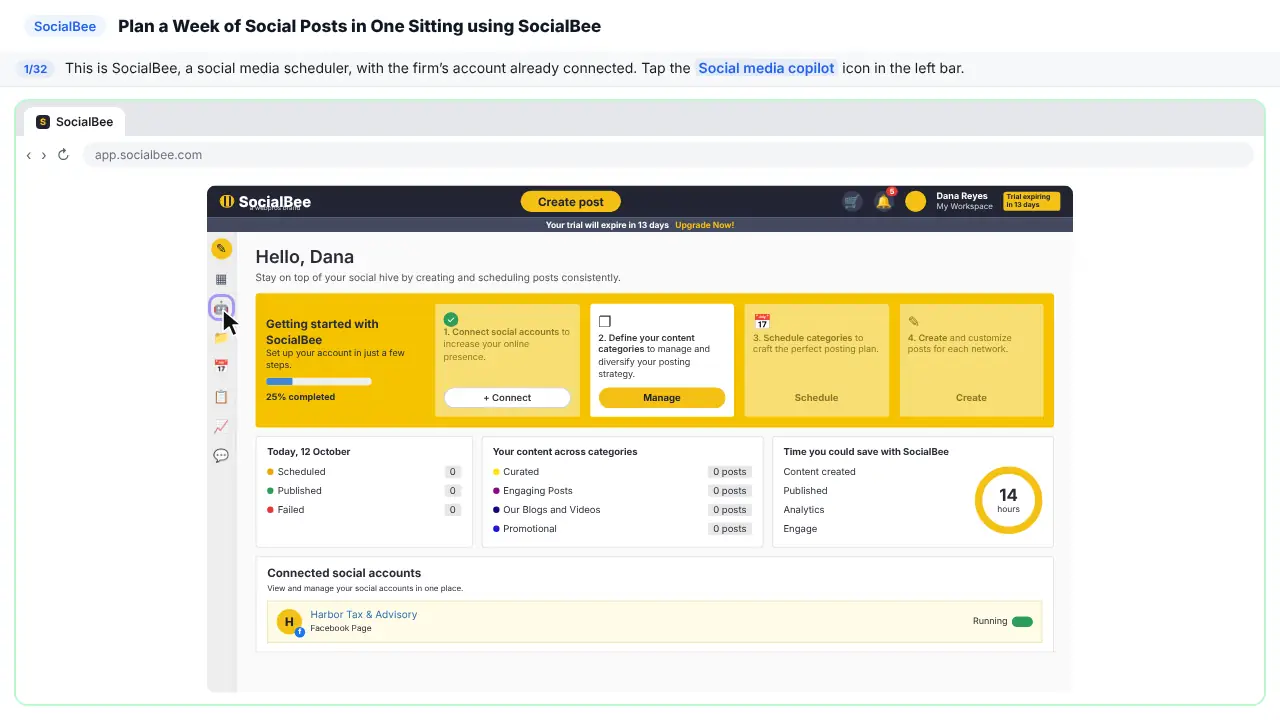
Step 1: Open the Social media copilot
This is SocialBee, a scheduler for social media. Dana's problem: Harbor Tax posts in bursts, then goes quiet for weeks. The Social media copilot can plan a whole week from a few answers.
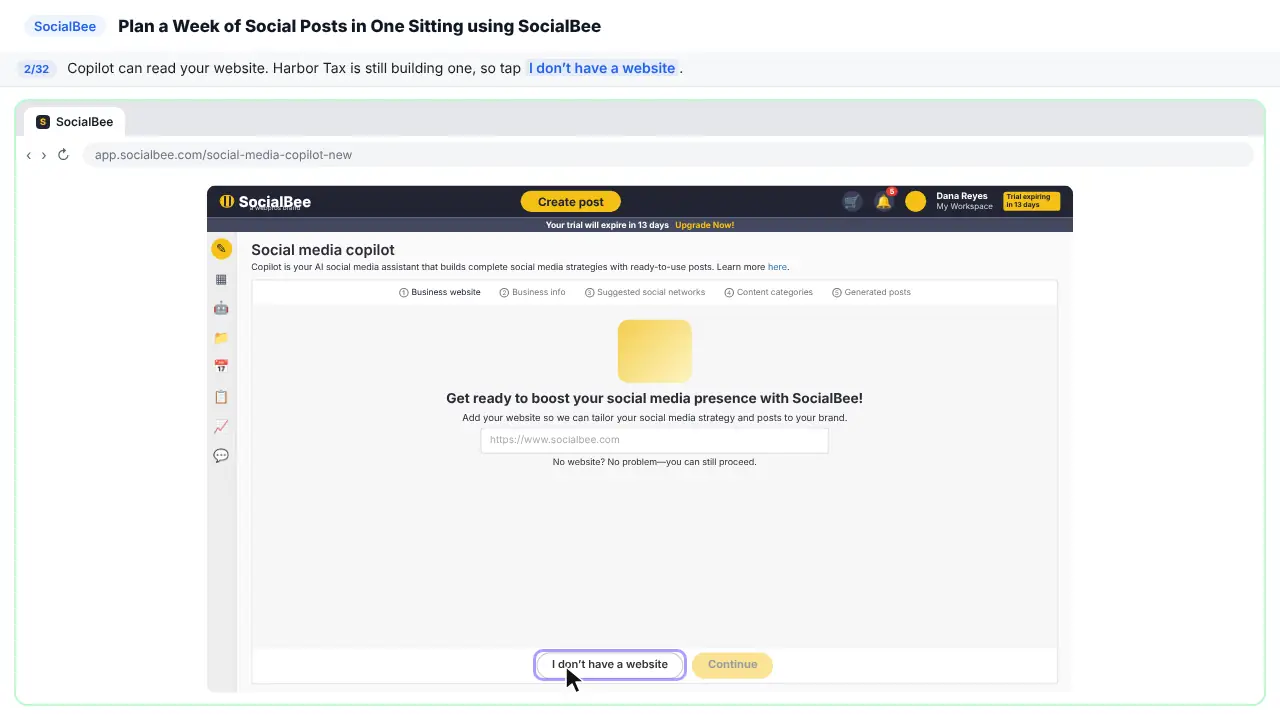
Step 2: Skip the website
Copilot can read your website to learn your business. If you have one, paste it here. Harbor Tax doesn't yet, so tap, I don't have a website.
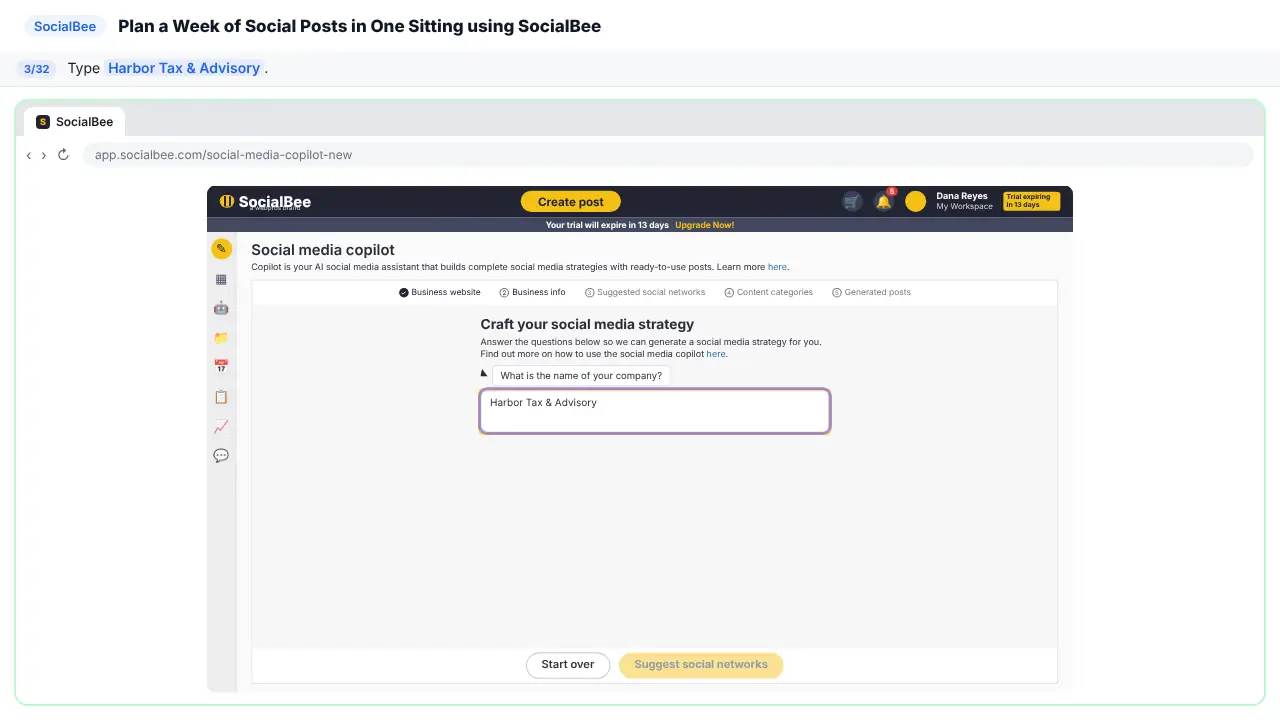
Step 3: Company name
Copilot asks six quick questions. First, the company name.
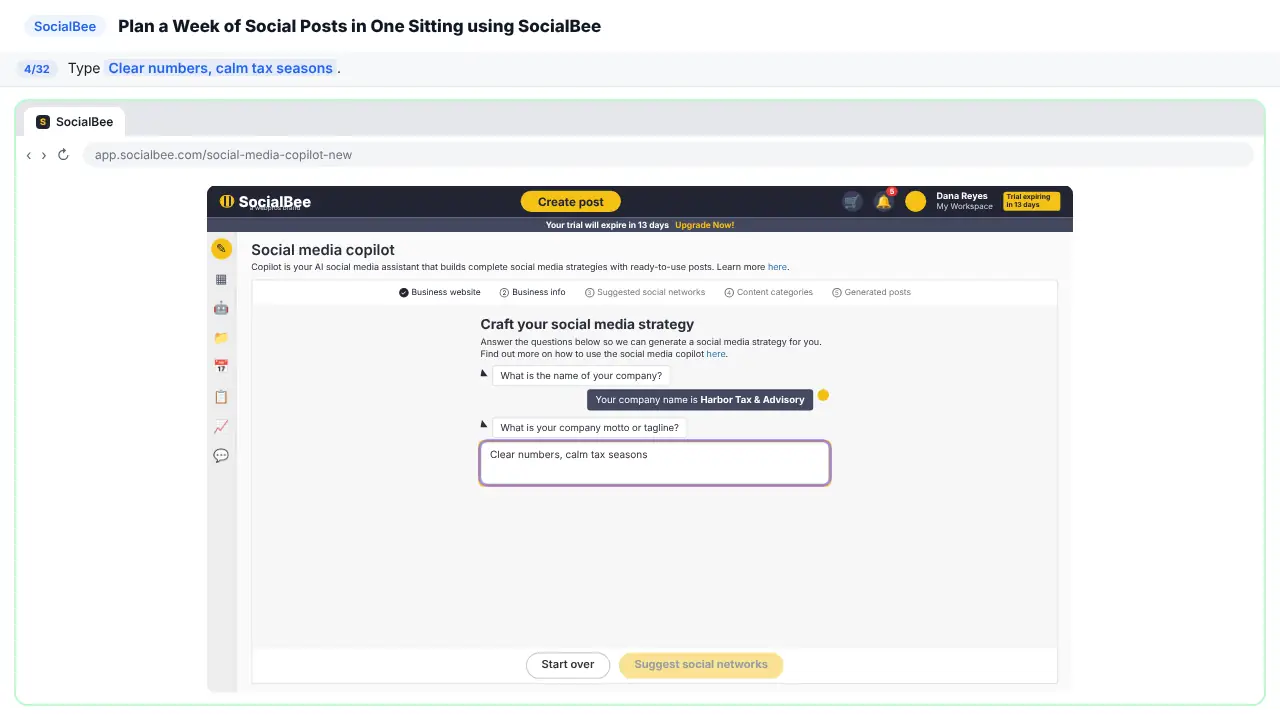
Step 4: Motto
Next, a motto.
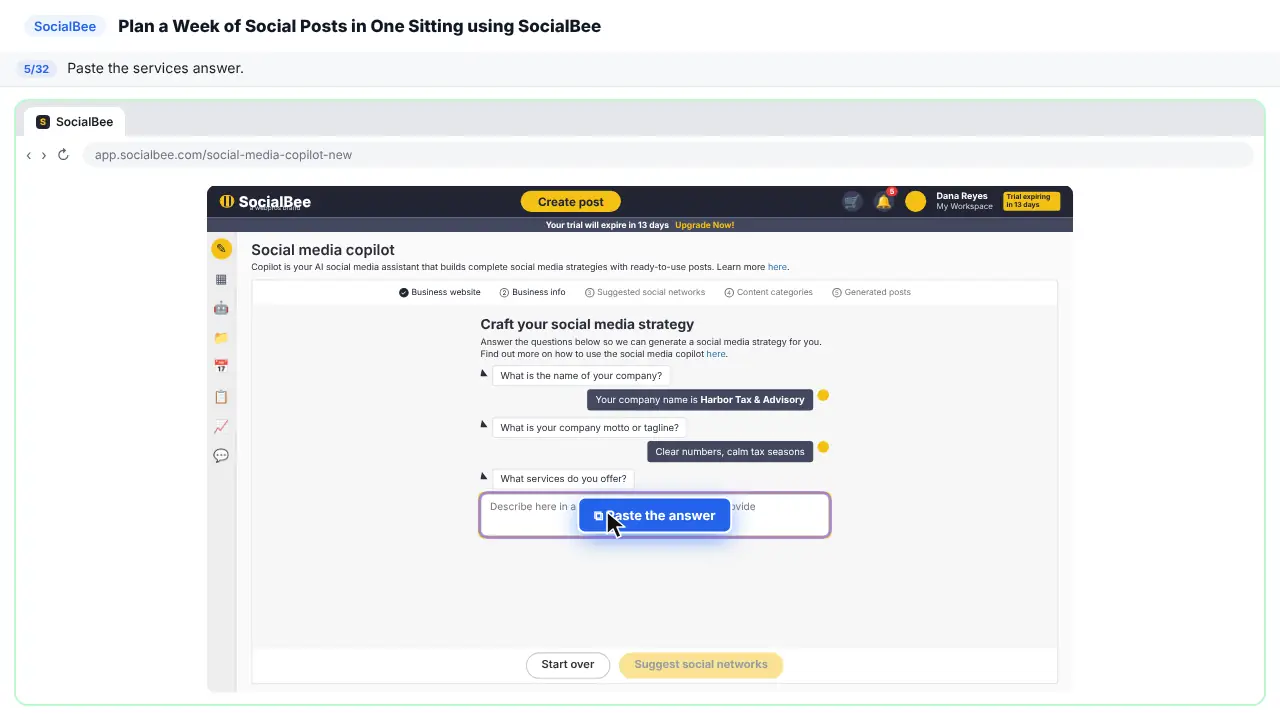
Step 5: Services
Then what you offer. Say it in a few plain words.
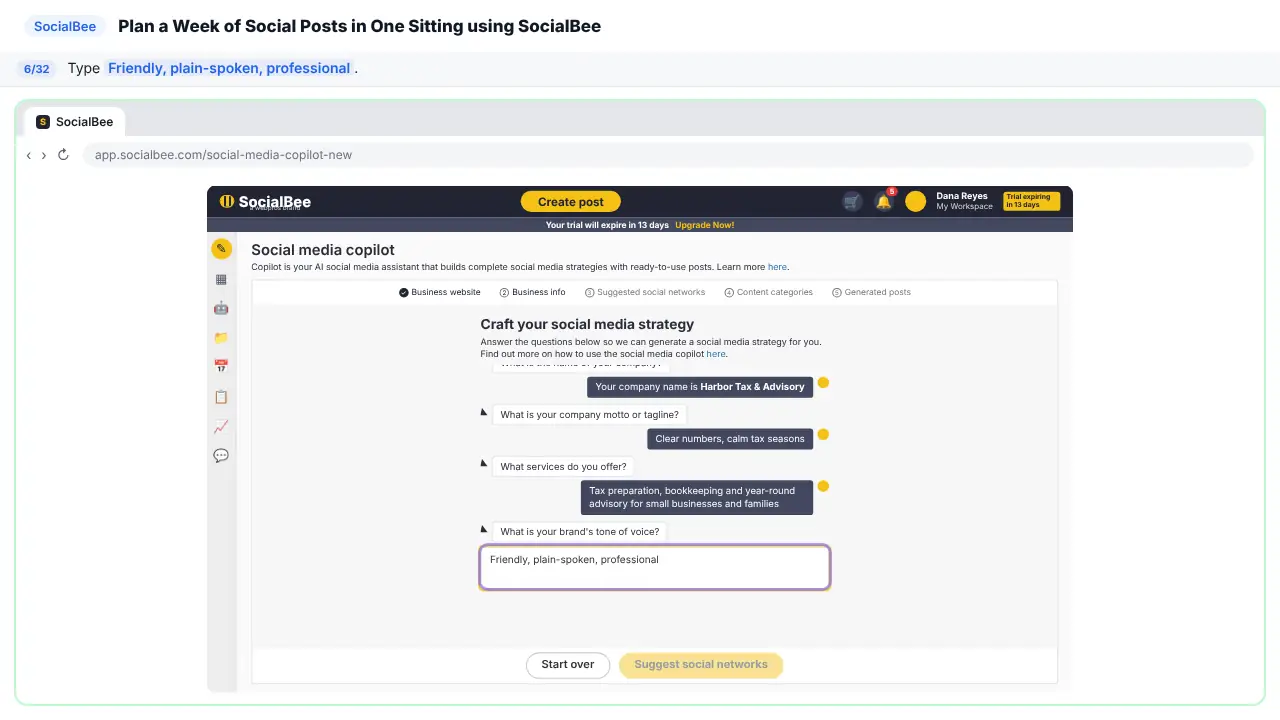
Step 6: Tone of voice
Now your tone of voice. This is how the posts will sound.
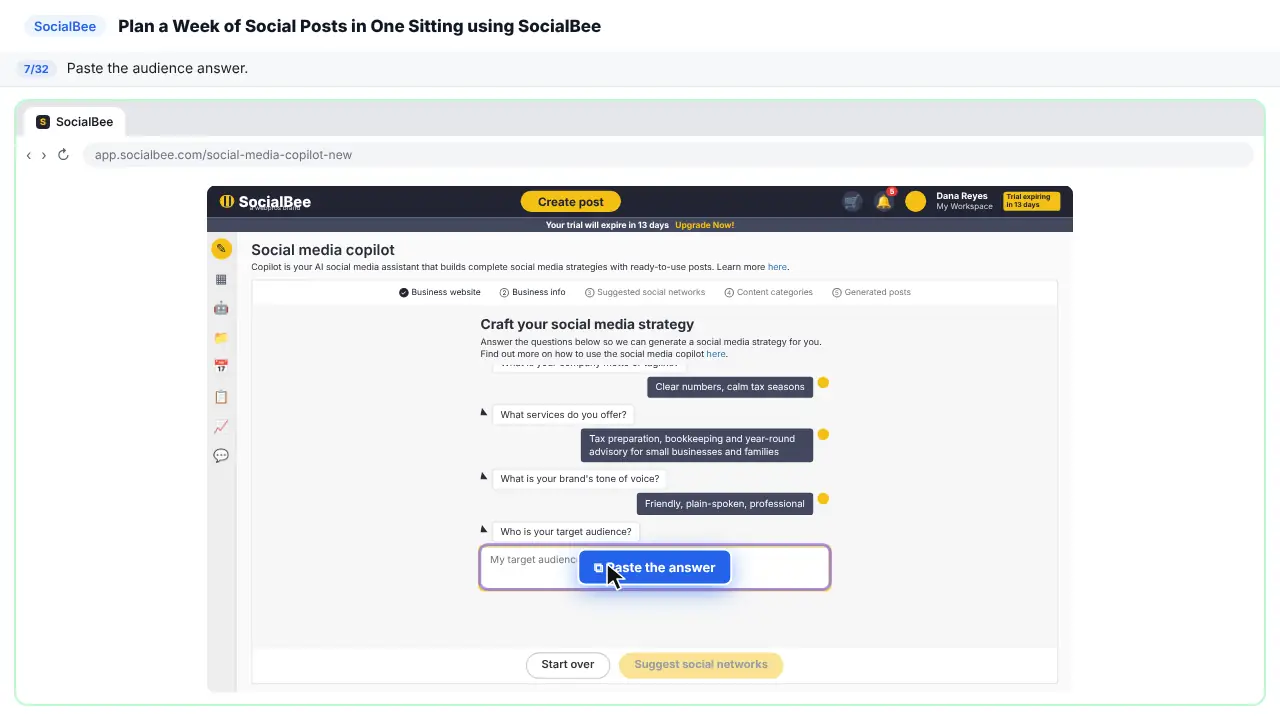
Step 7: Target audience
Then who you want to reach.
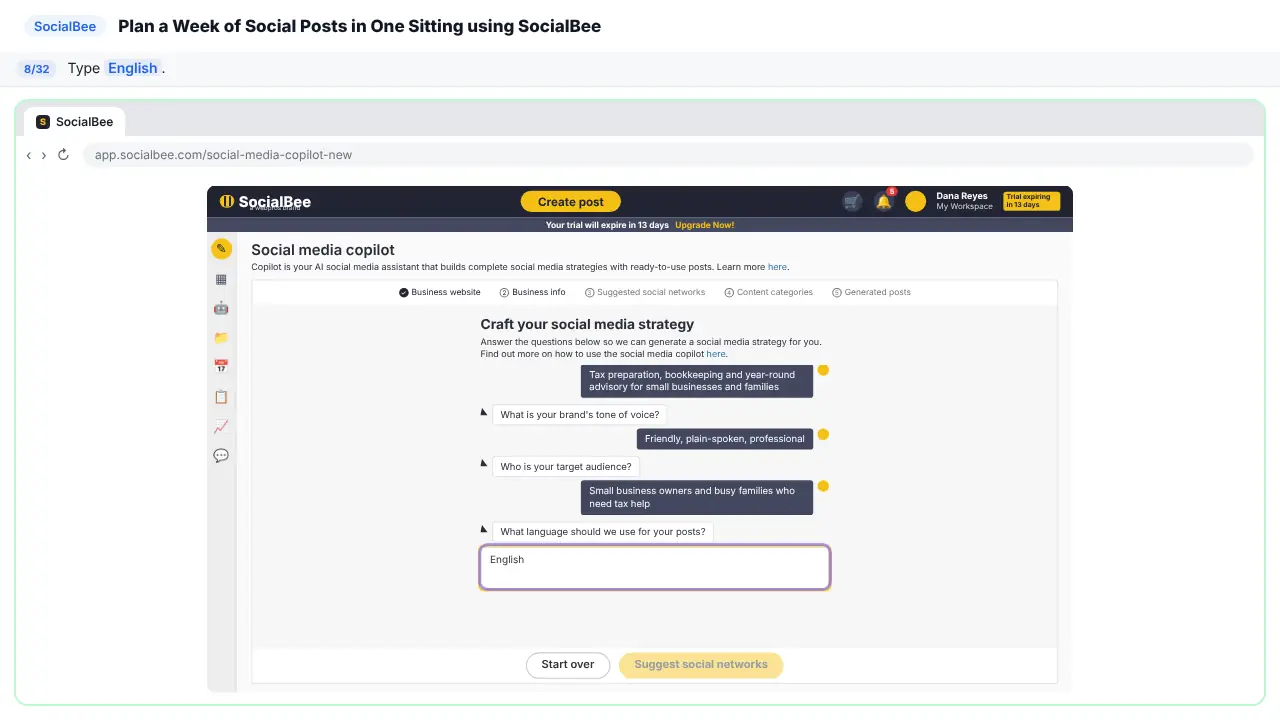
Step 8: Language
Last question. The language for the posts.
Step 9: Suggest social networks
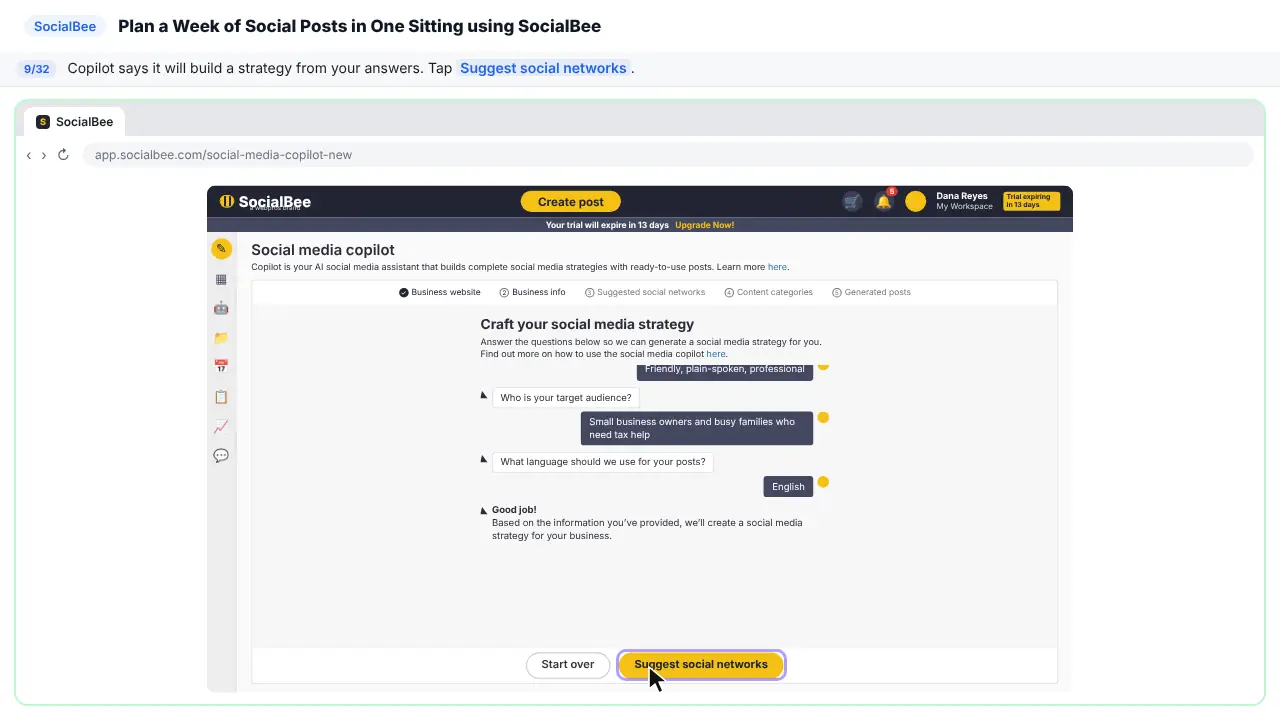
Copilot has what it needs.
Step 10: Generate content categories
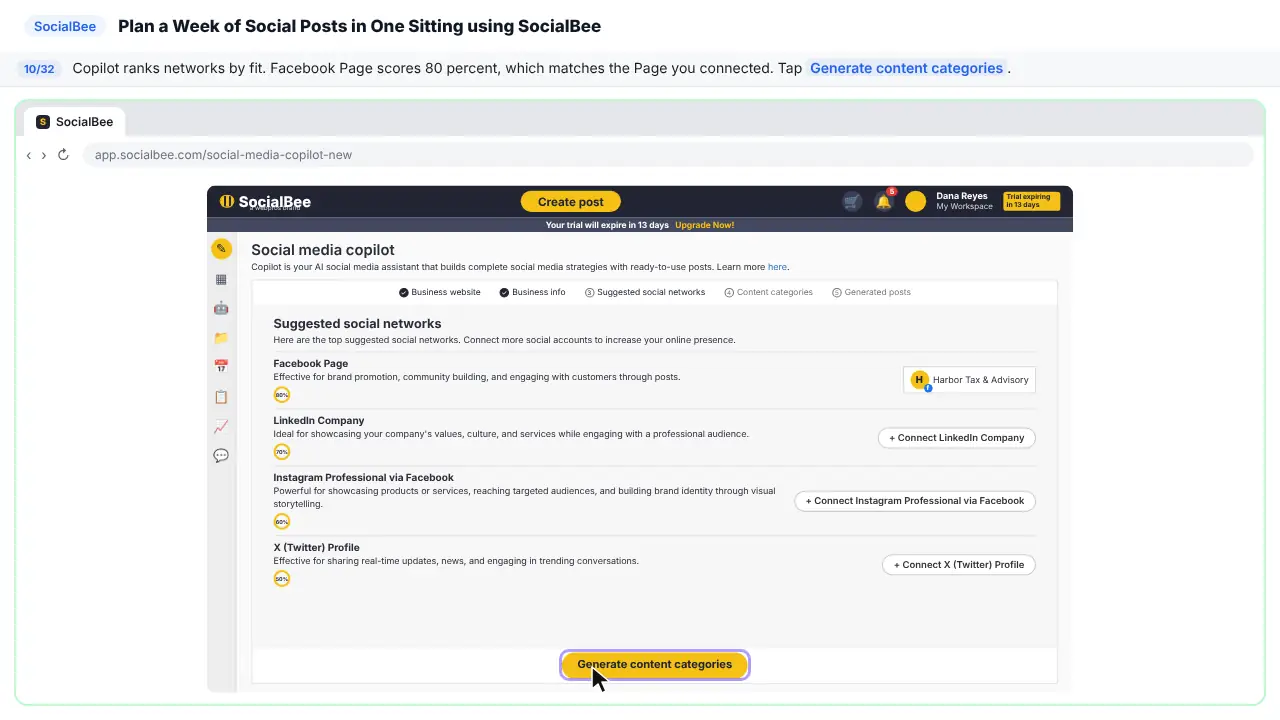
Copilot ranks the networks by fit for your business. Facebook Page is at eighty percent. That's the one you connected.
Step 11: Generate posts
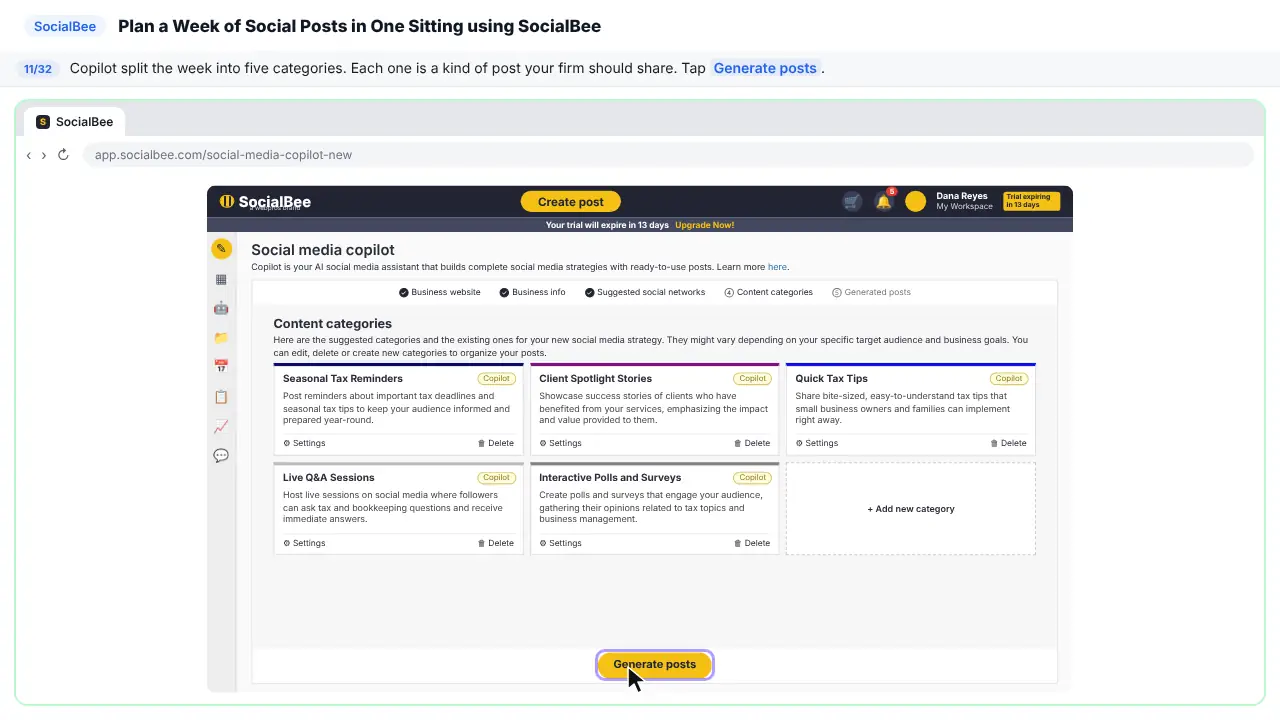
Here is the useful part. Copilot split the week into five kinds of post. Deadline reminders, client stories, quick tips, live questions, and polls. That mix is what keeps a feed from sounding like an ad.
Step 12: See and approve posts
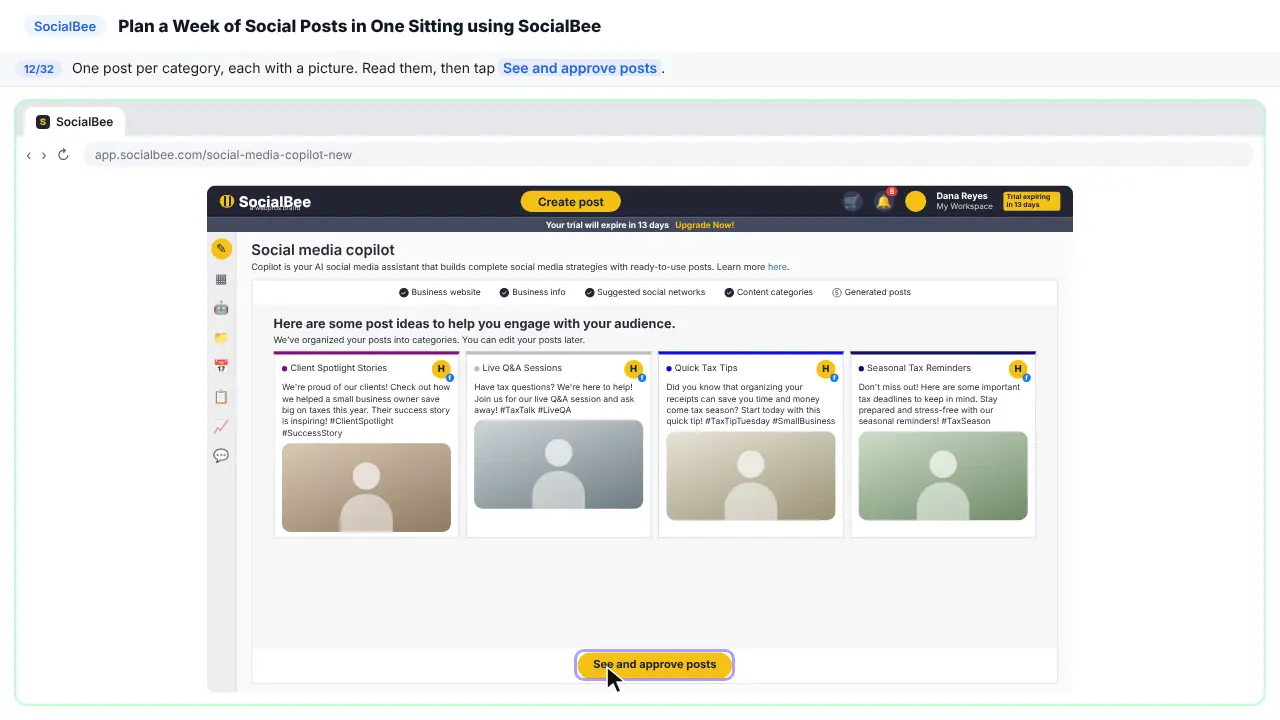
One post for each kind, with a picture. Read them. One picture failed to load in our test. If that happens, you can swap it later.
Part 2: Review and sort the posts
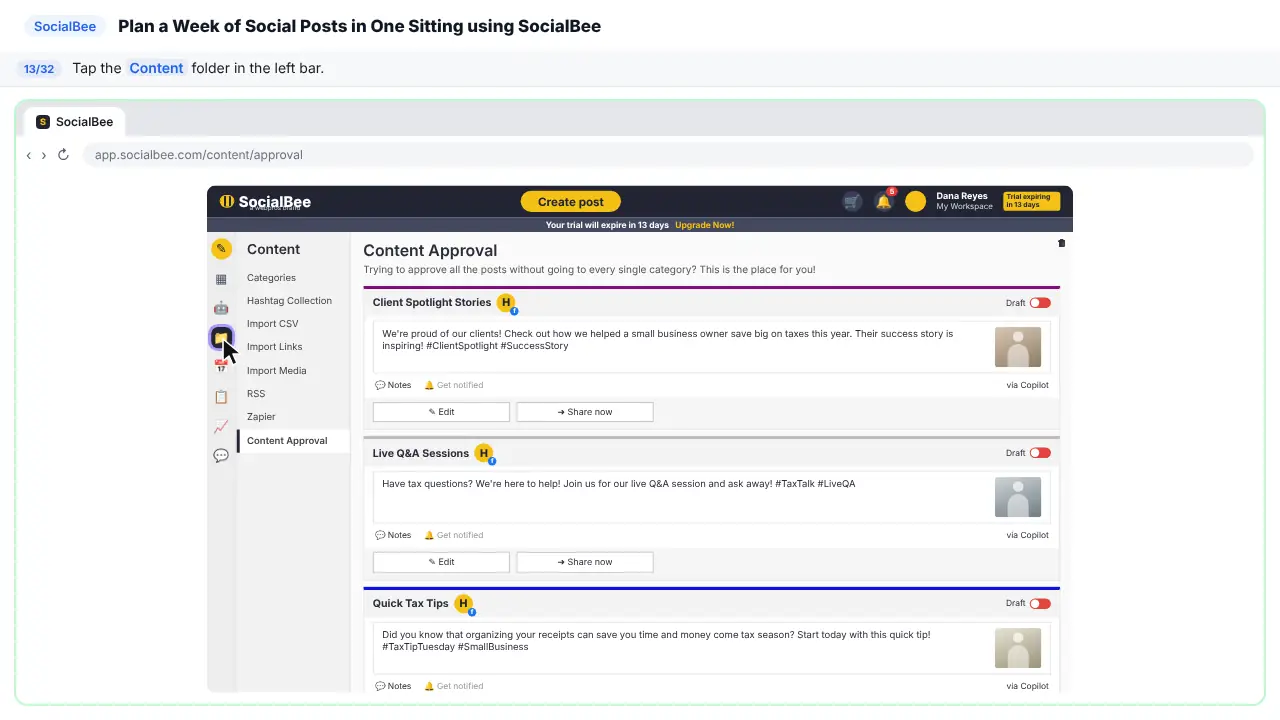
Step 13: Open your content categories
Now see where the posts went.
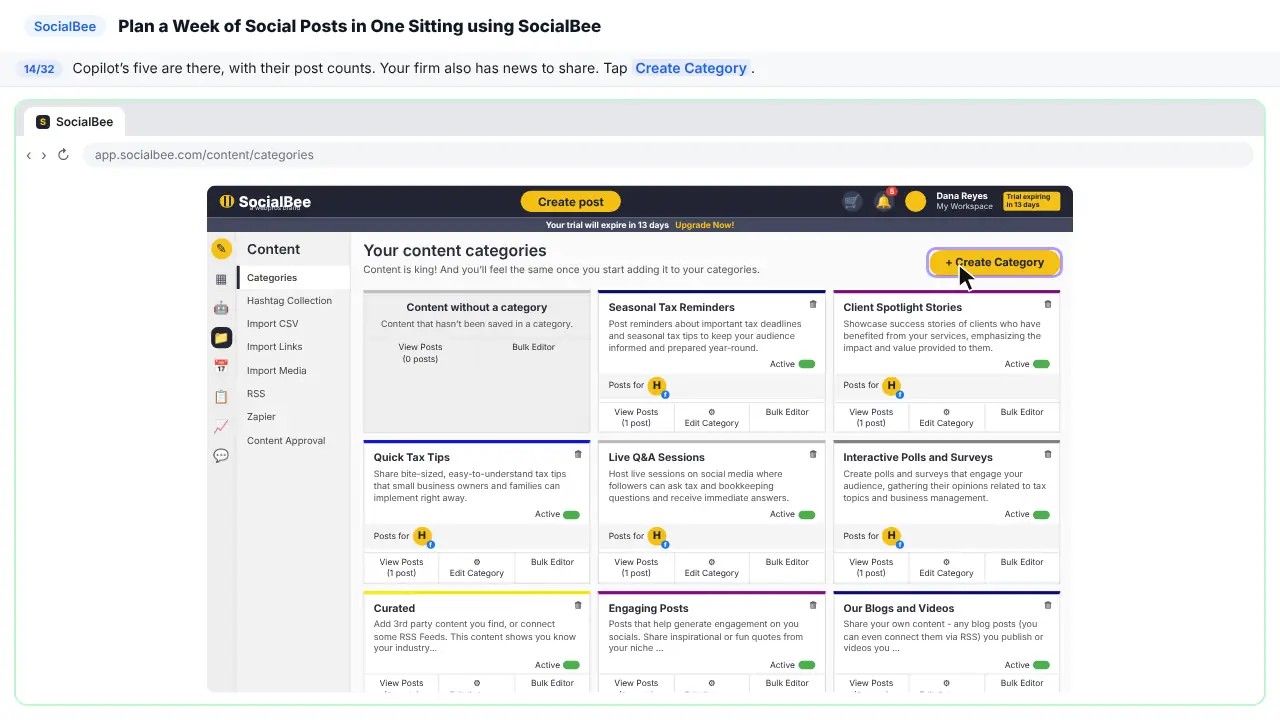
Step 14: Add your own category
Copilot's five categories are here, each with its posts. Your firm also has news, like a new hire or a holiday closing. Give that its own bucket.
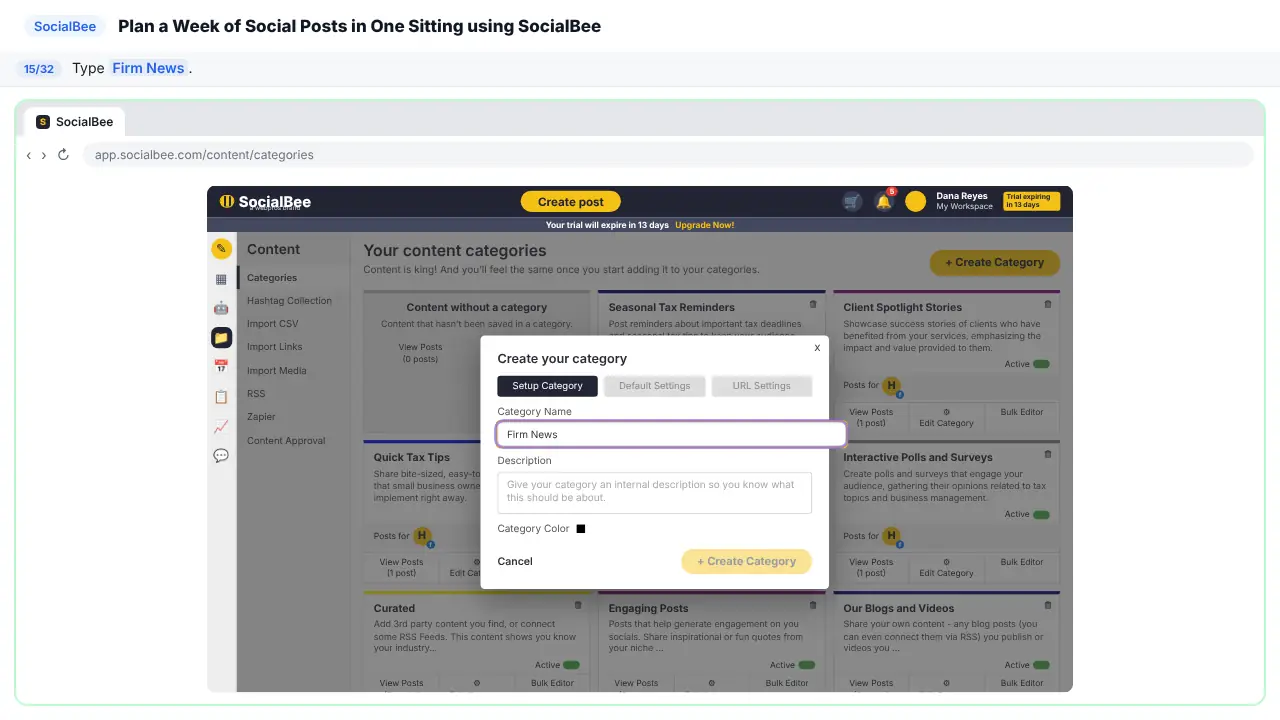
Step 15: Name the category
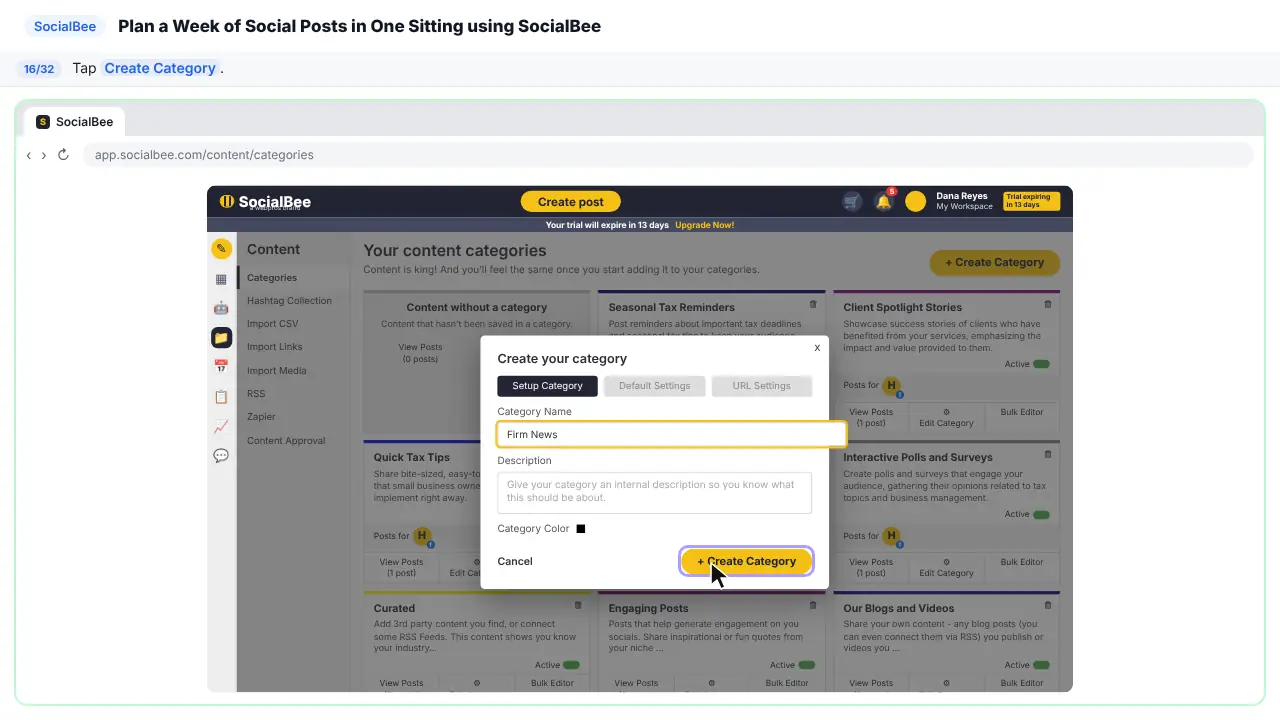
Step 16: Create it
A category is just a bucket. Later you schedule the bucket, not each post.
Part 3: Add one more with the AI post generator
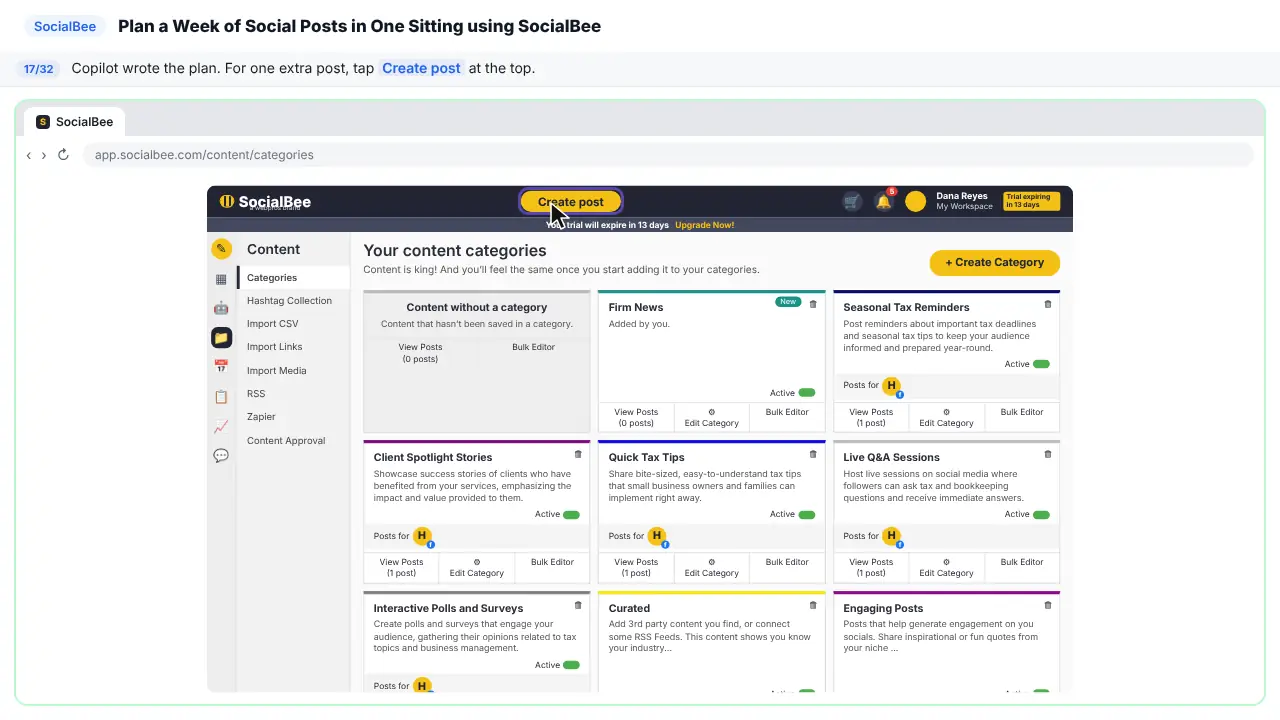
Step 17: Create a post
Copilot wrote the week. But tax season has its own needs. Say you want one more tip, about receipts.
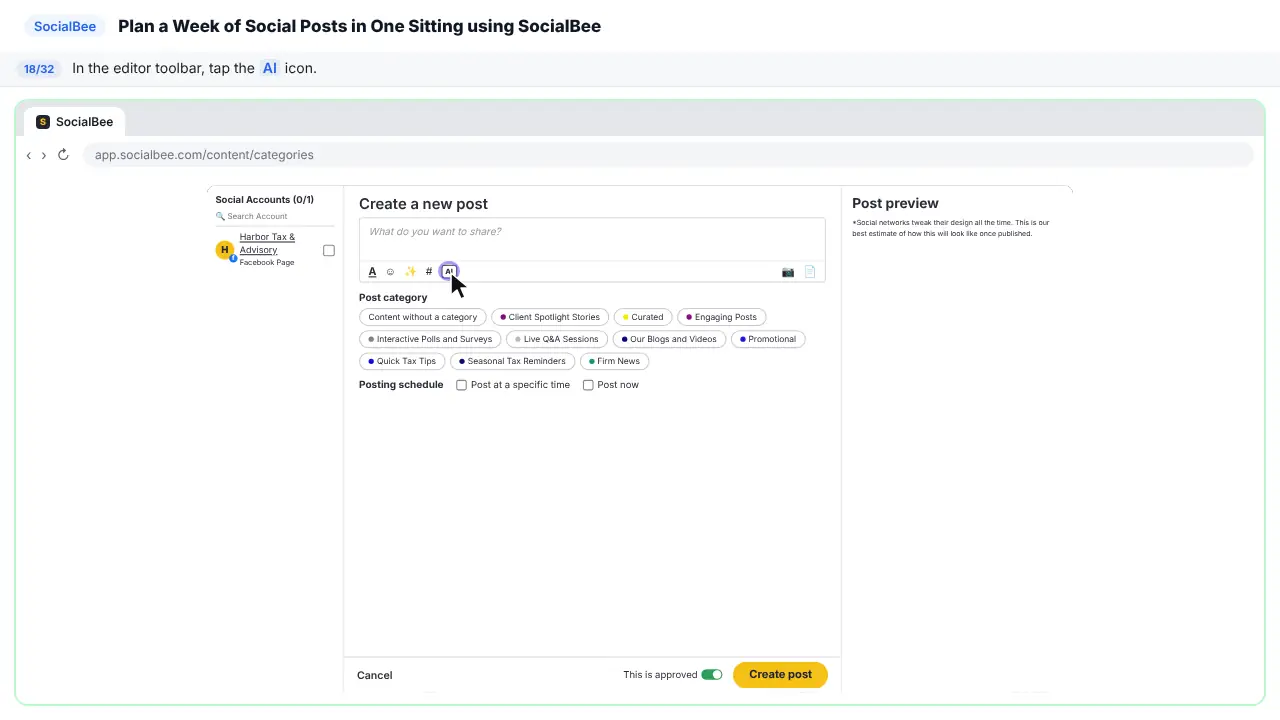
Step 18: Open the AI menu
The editor has an AI helper.
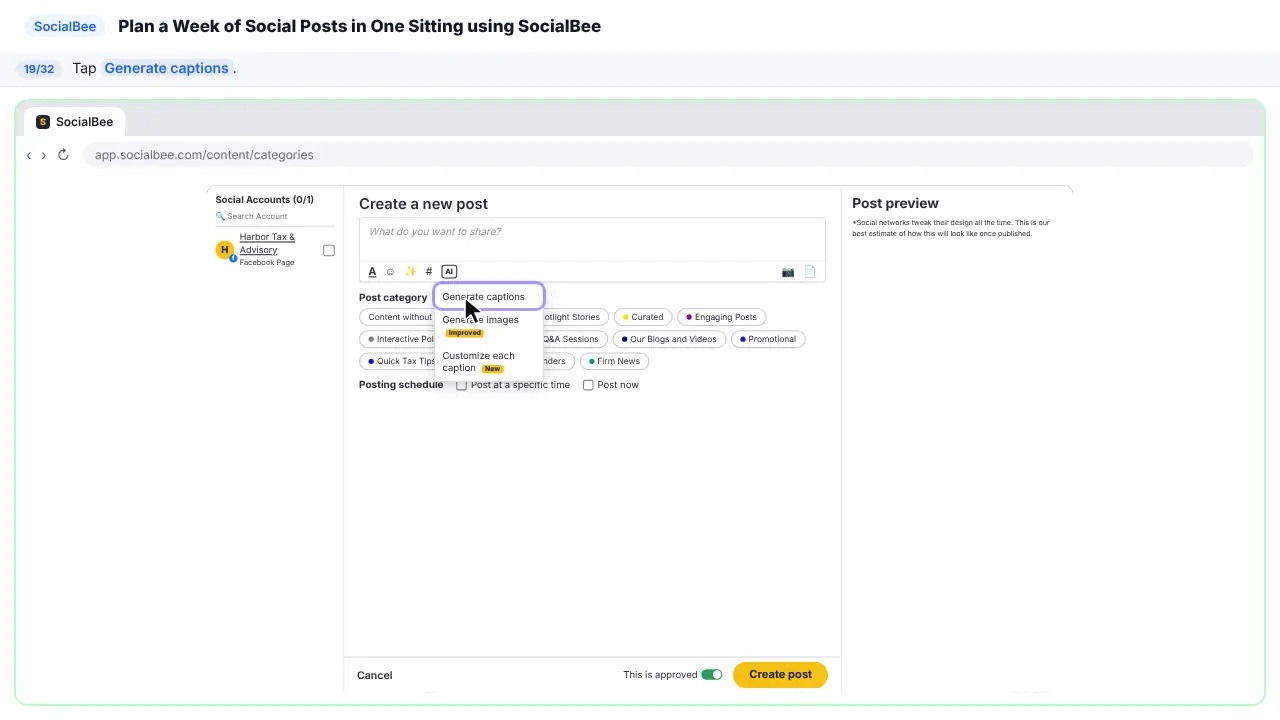
Step 19: Generate captions
Step 20: Describe one post
Ask for one post at a time. When we asked for five posts in one prompt, each result came back with three posts glued together. So one prompt, one post.
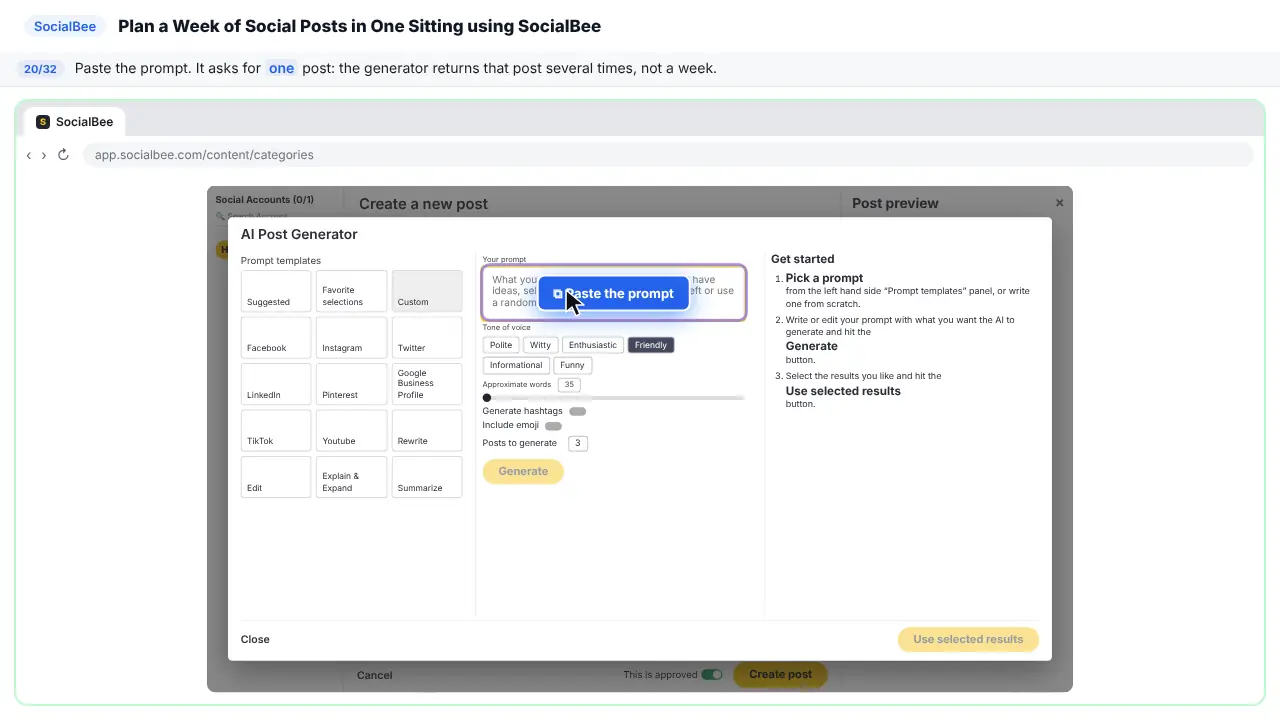
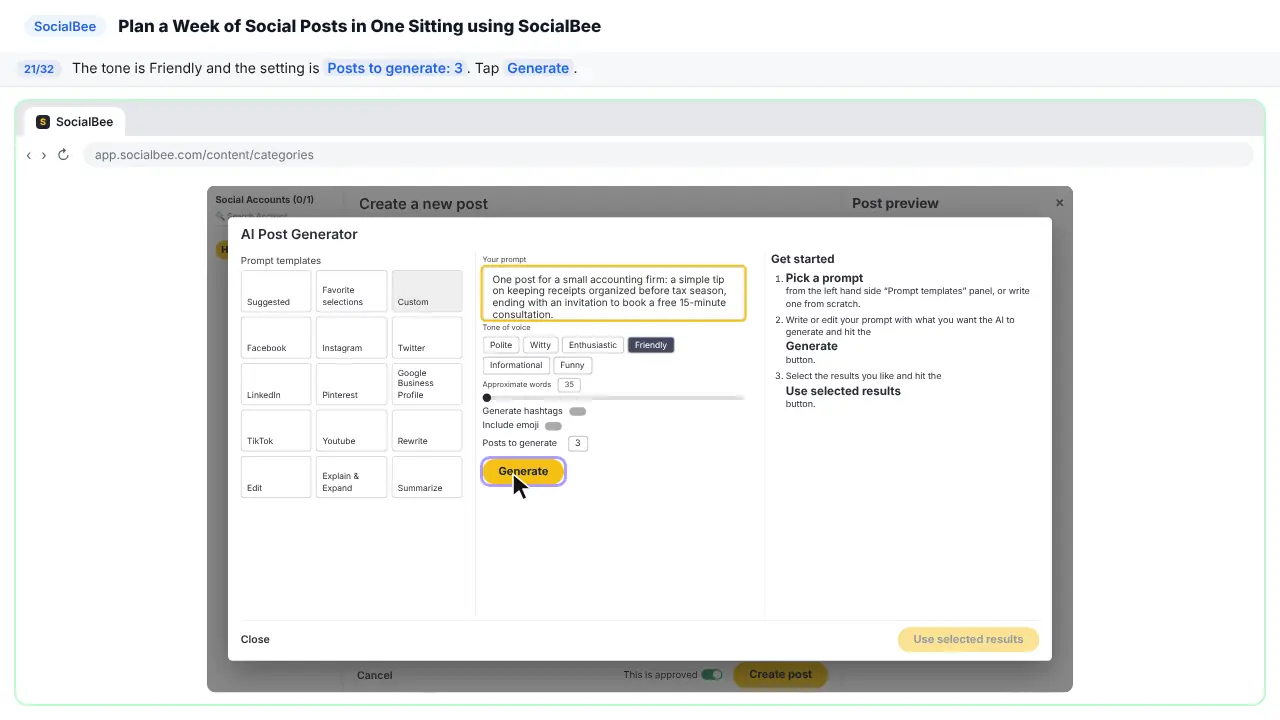
One post for a small accounting firm: a simple tip on keeping receipts organized before tax season, ending with an invitation to book a free 15-minute consultation.
Step 21: Generate
Tone is friendly. Posts to generate is three. That gives you three versions of the same post to pick from.
Step 22: Pick the best version
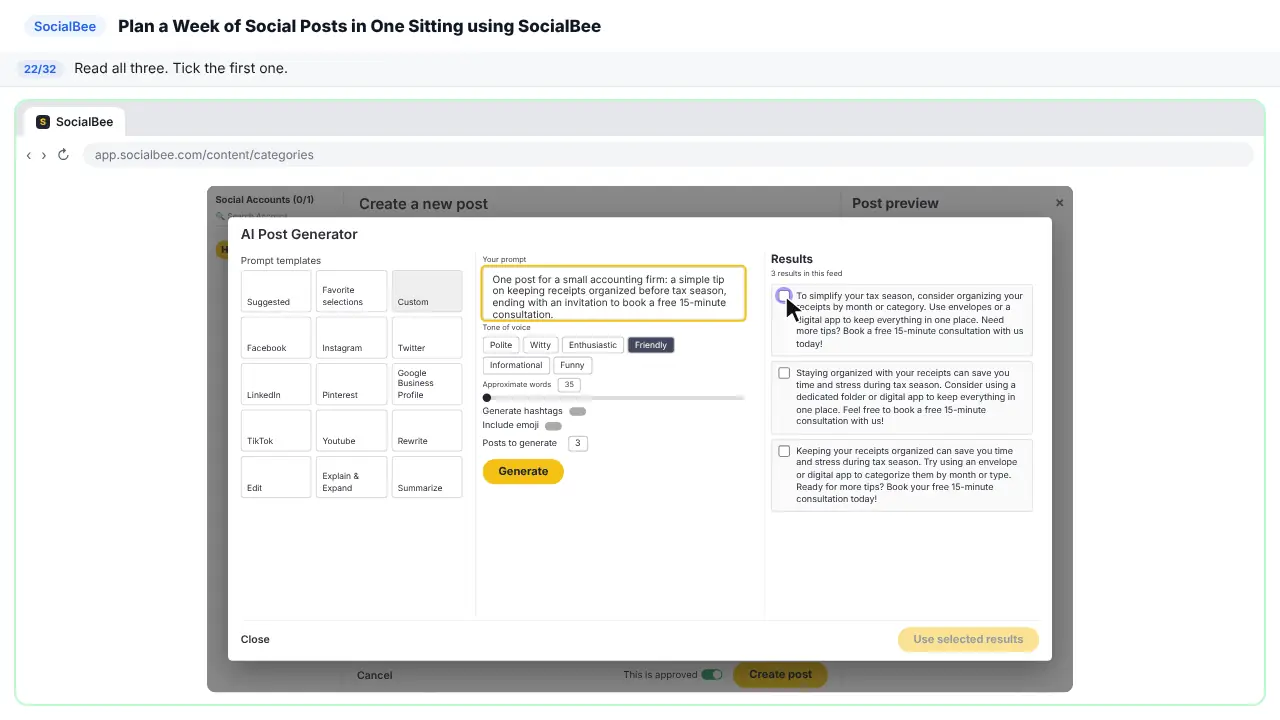
Read all three. They say nearly the same thing. Pick the one that sounds most like your firm. Tick the first one.
Step 23: Use it
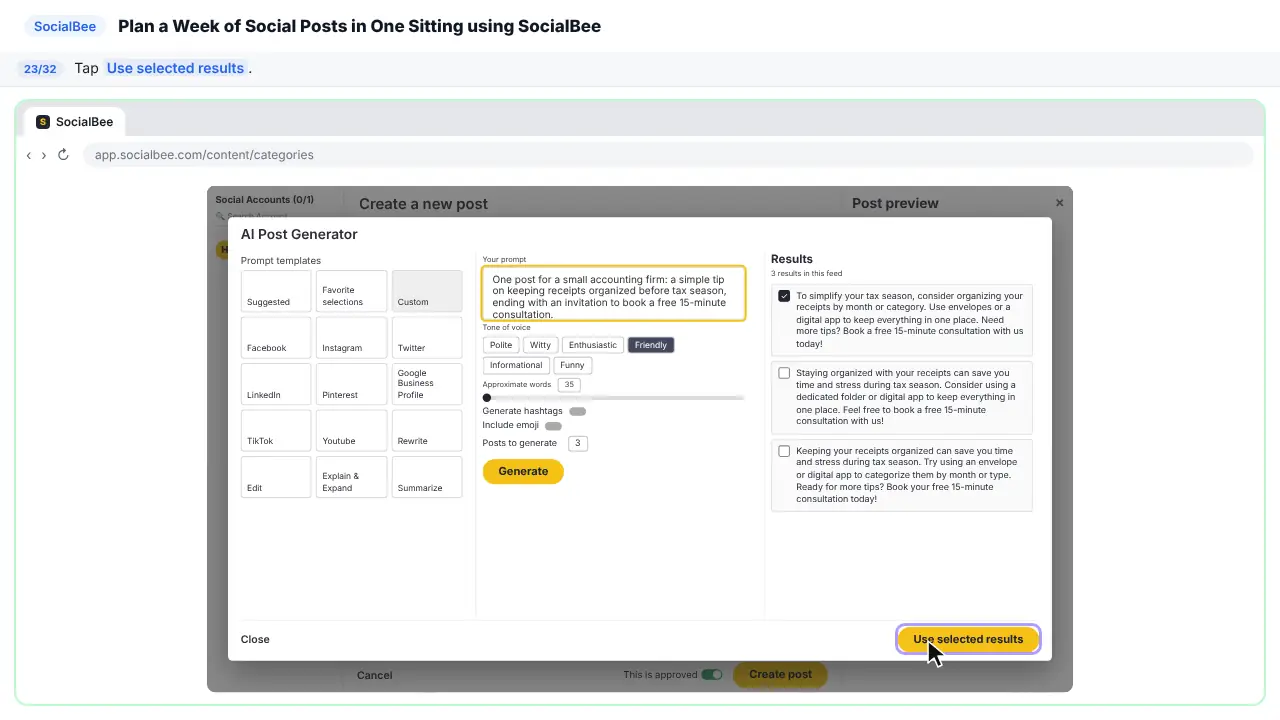
The text drops into the post.
Step 24: Choose where it posts
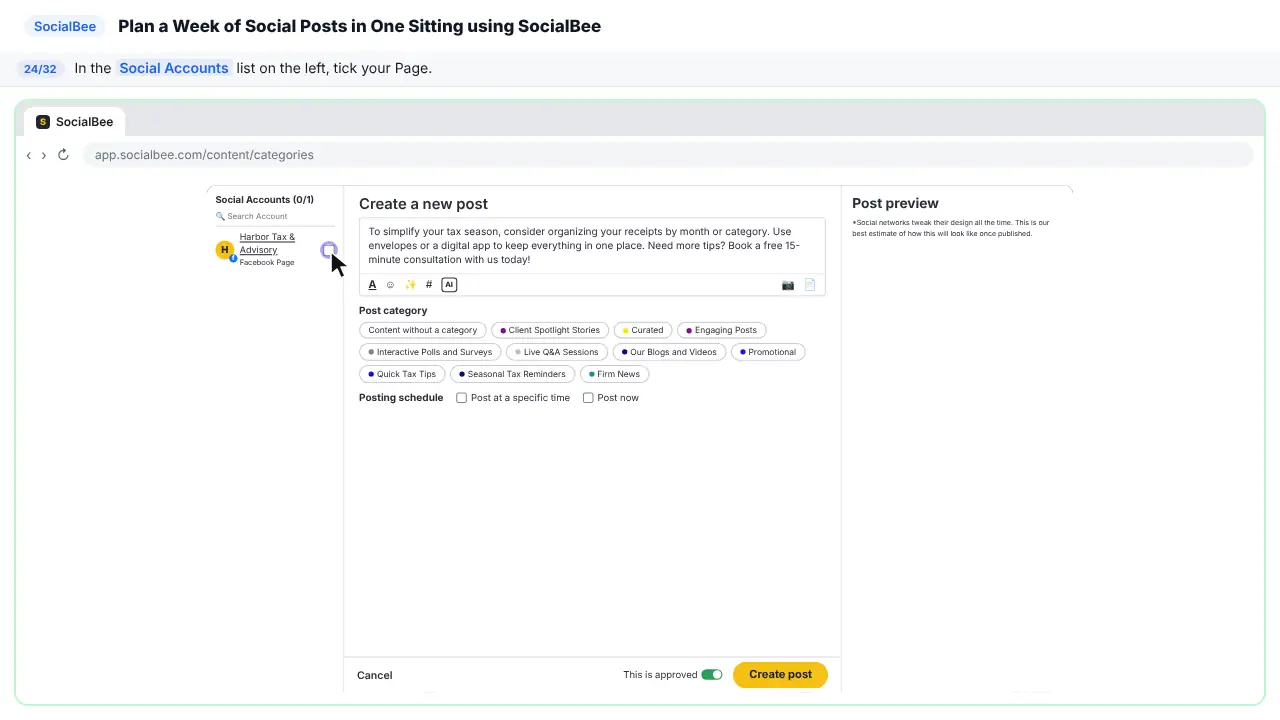
Tick your Page, in the list on the left.
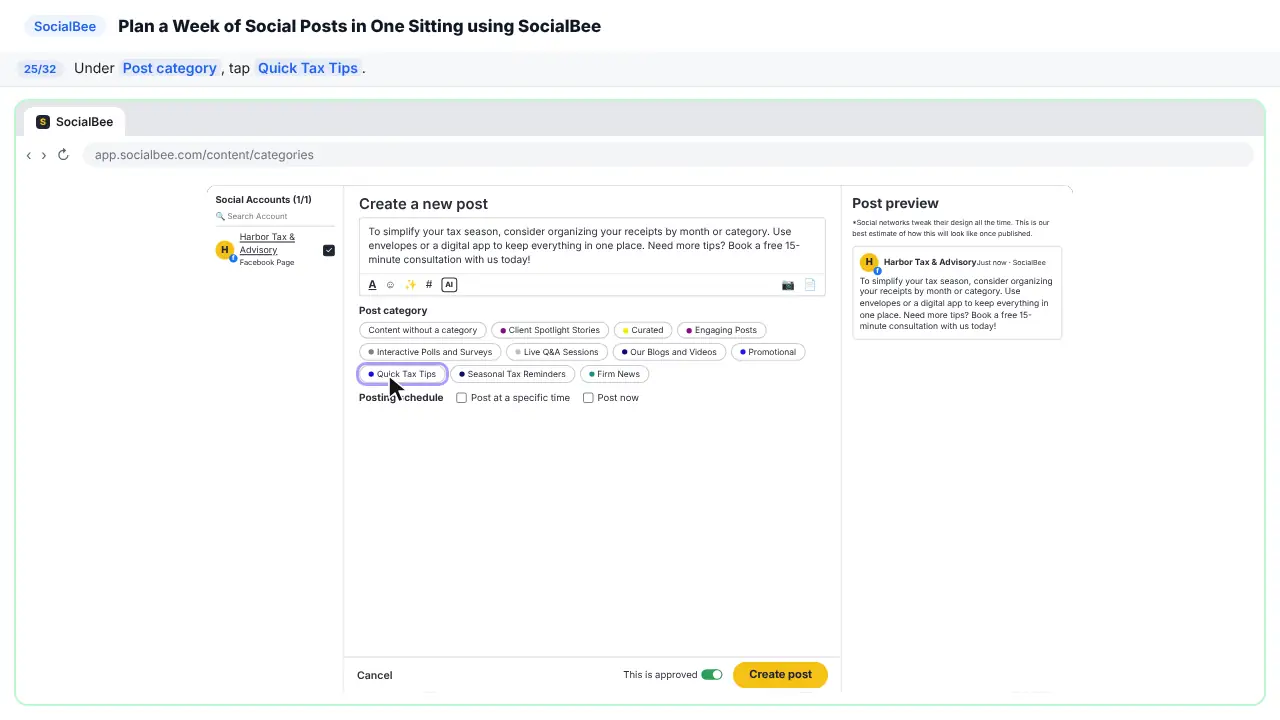
Step 25: Pick a category
Under Post category, tap Quick Tax Tips. This tip joins that bucket, and rides its weekly time slots.
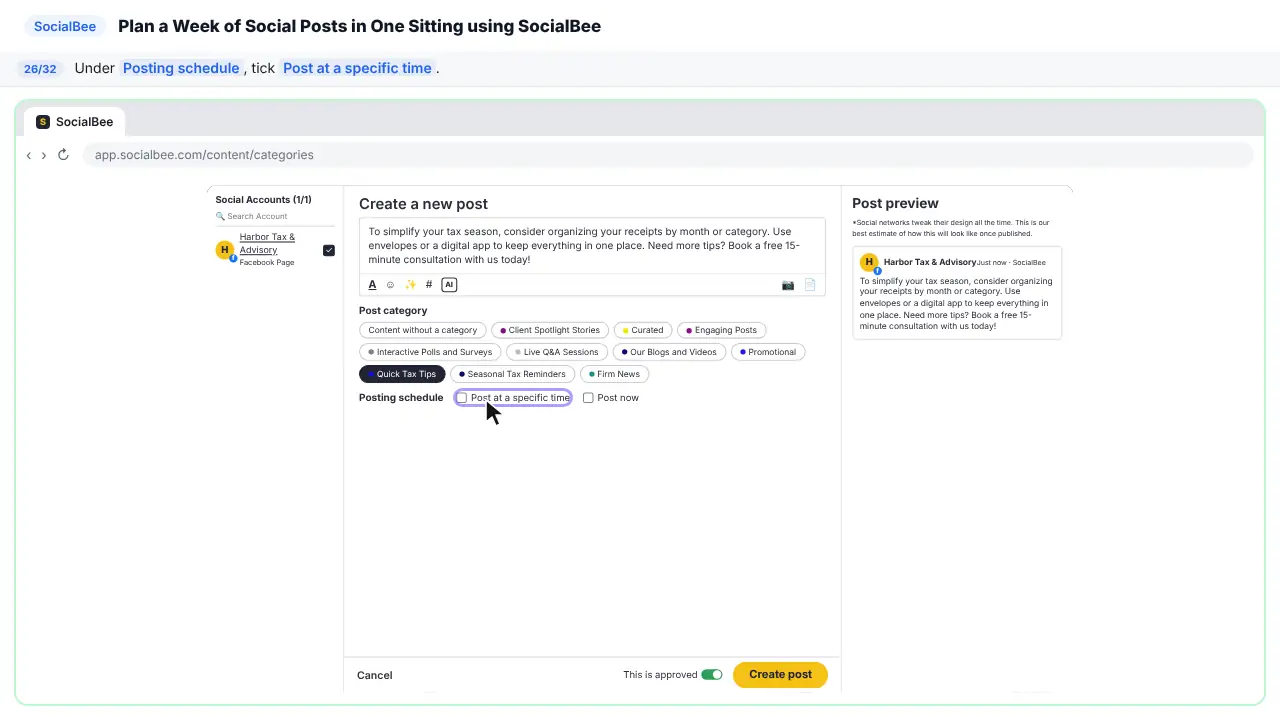
Step 26: Pick a specific time
You can leave it to the category schedule. Or pick a day for this one. Tick, Post at a specific time.
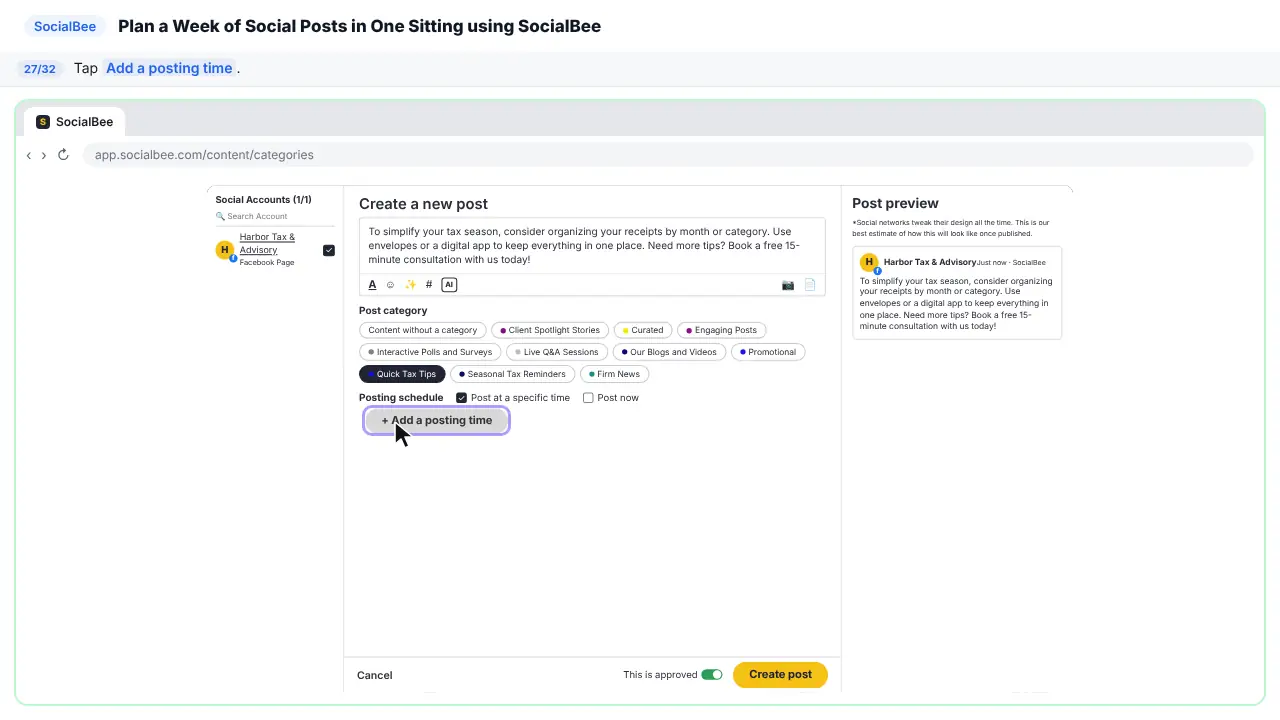
Step 27: Add a posting time
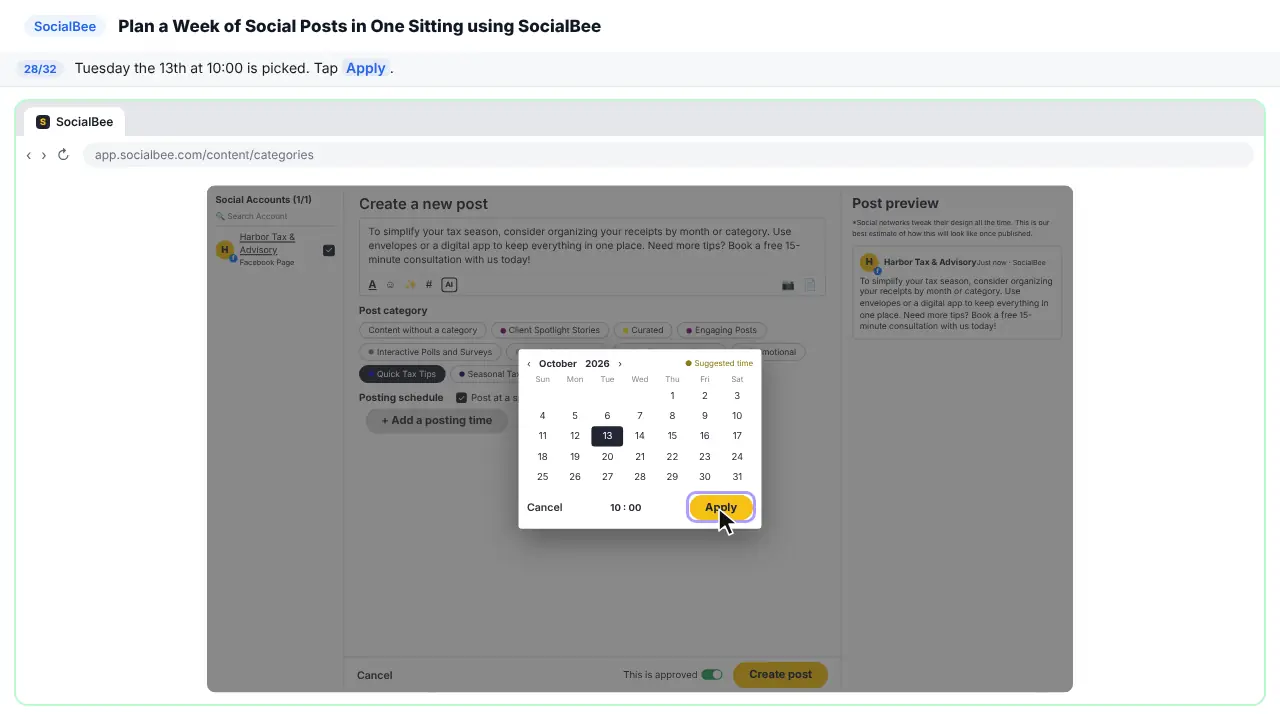
Step 28: Apply the time
Pick the day on the calendar, and set the time. Ten in the morning on Tuesday works.
Step 29: Keep it a draft
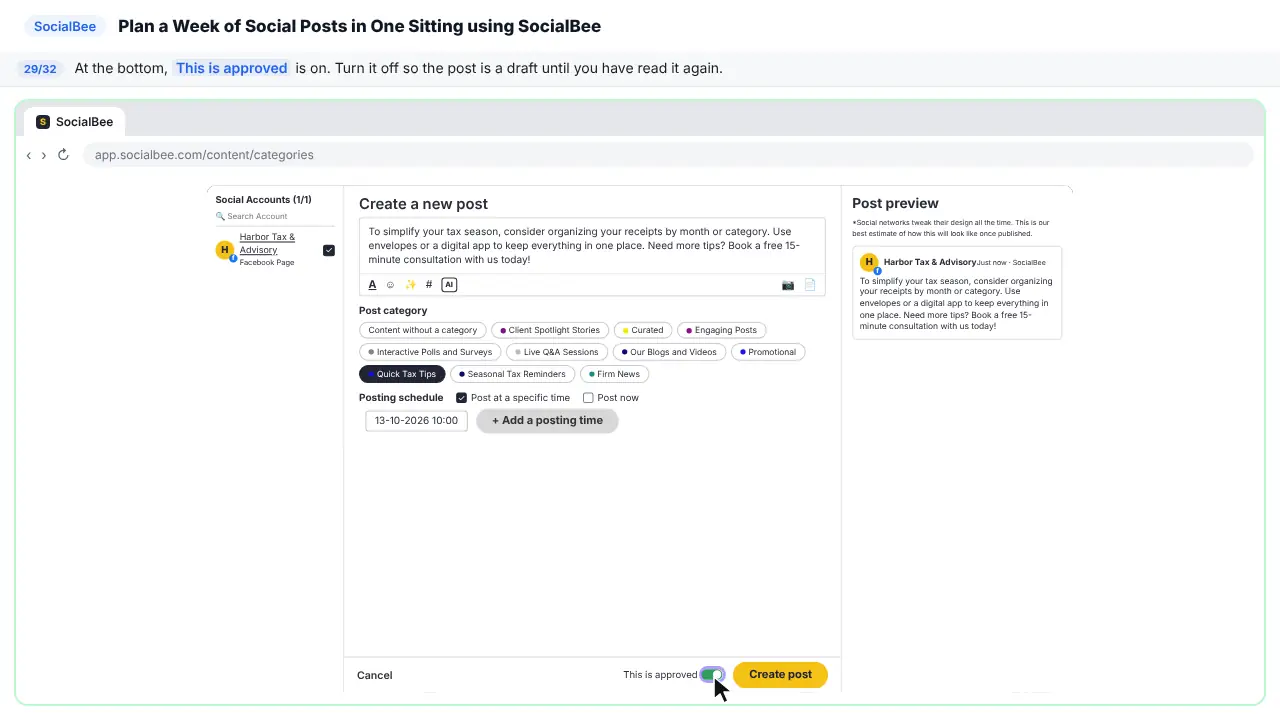
At the bottom, there is a switch, this is approved. Turn it off. Now it's a draft, and nothing goes out until you approve it.
Step 30: Create the post
Part 4: See the week on the calendar
Step 31: Open the Scheduler
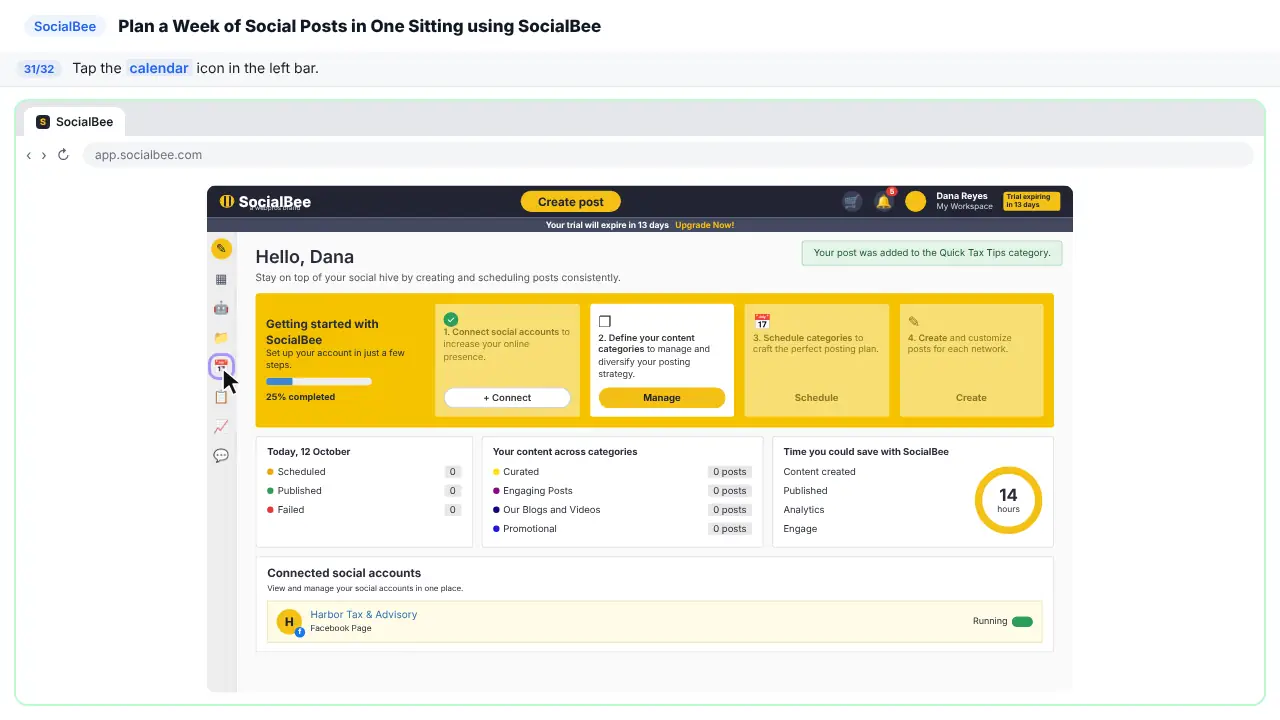
Last, see the week. This is the Scheduler.
Step 32: Switch to Calendar
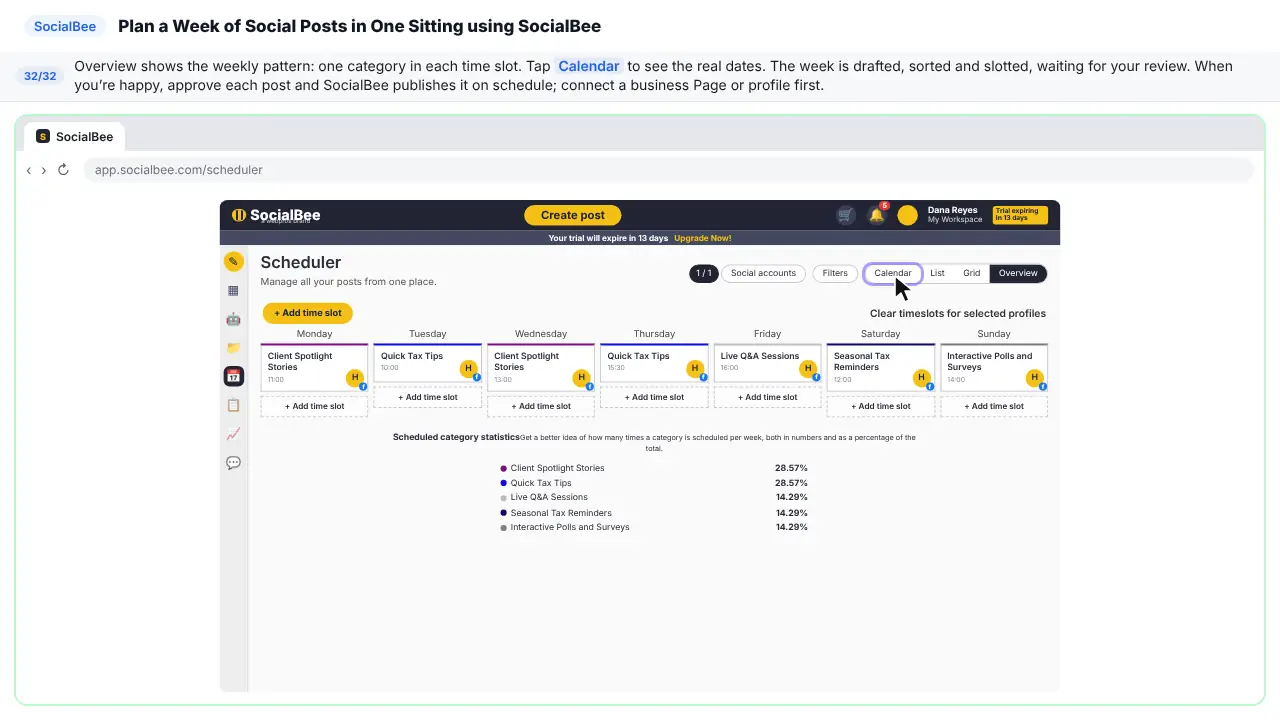
Overview shows the weekly pattern. One kind of post in each slot, Monday to Sunday. That's your week, drafted, sorted and slotted, waiting for review. When you're happy, approve each post, and SocialBee publishes it on schedule. Connect a business Page or profile first.
Part of these free courses: AI Apps Worth Knowing, AI for Real Estate, AI for Marketing Teams, AI Video & Audio for Marketing
Now do it yourself, free
Reading the steps is a start. Doing them is how it sticks. The interactive lesson puts you in a practice copy of SocialBee: you do every step yourself, it checks your work, and “Do it for me” finishes any step you get stuck on. Nothing touches your real accounts.
Practice “Plan a Week of Social Posts in One Sitting using SocialBee” step by stepThe business problem: posting in bursts, and hours lost to blank pages
Dana Reyes is the marketing coordinator at Harbor Tax & Advisory, a made-up 12-person firm. The partners agree social media matters, because clients and referral partners check a firm out before they call. But posting only happens when someone remembers. There is a burst before the filing deadline, then silence, and every post means deciding what to say, writing it, finding a picture and picking a time.
That has two costs. The hours go into starting from nothing each time, and the gaps send the wrong signal: a feed that has been quiet for a month looks like a firm that is not paying attention. The fix is not posting more. It is deciding the mix once, drafting it in one sitting, and letting a schedule carry it between deadlines.
What changes: one sitting, five kinds of post, a weekly pattern
In the lesson Dana answers six questions in SocialBee's AI Copilot: company name, motto, services, tone of voice, target audience and post language. Copilot proposes social networks ranked by fit, then five content categories (in our test: Seasonal Tax Reminders, Client Spotlight Stories, Quick Tax Tips, Live Q&A Sessions and Interactive Polls and Surveys) and one draft post with a picture for each. In our test the Scheduler then showed a weekly pattern with one category in a time slot each day.
That is the useful idea behind SocialBee: you schedule categories, not individual posts. A category is a bucket of posts. Each time slot on the calendar belongs to a category, and an approved post from that bucket fills it. Dana's job shifts from writing every post to reading, correcting and approving them.
Who this is for
Marketing coordinators, office managers and owners at small professional firms (accounting, law, insurance, consulting, property management) who are responsible for social media on top of another job. You do not need any AI experience, and the lesson is a practice copy, so you need no SocialBee account and nothing is connected or posted.
Step 1: let the Copilot plan the week
Connect a network first: SocialBee's features stay locked until at least one social profile is connected (for a business, a Facebook Page can publish directly, while a personal profile only sends you mobile reminders). Then open the Social media copilot from the left bar. It can read your website, or you can continue without one. Then it asks the six questions. Short, concrete answers work best, especially for tone of voice and audience, because they shape every post it writes.
Copilot then suggests networks with a fit percentage, proposes five content categories, and generates one post per category. In our test one of the generated pictures failed to load; if that happens, the post is still there and you can replace the picture when you edit it.
Step 2: review and sort
Generated posts land on the Content Approval page as drafts. Nothing is published while a post is a draft. Read each as the owner would. In our test the Client Spotlight draft talked about a client who saved on taxes: that is a placeholder, so only post a client story from a client who has agreed to it.
On the Categories page you see Copilot's five categories with their post counts, plus the ones SocialBee ships with (Curated, Engaging Posts, Our Blogs and Videos, Promotional). Create Category adds your own, such as Firm News for hires, awards and holiday closings. To make a category that re-posts its videos in an evergreen cycle, see How to Use SocialBee for an Evergreen TikTok Queue. Be careful with Share now on an approval card: it posts immediately.
Step 3: add one more post with the AI post generator
In the post editor, the AI icon opens Generate captions. Ask for one post at a time: when we asked for five posts in one prompt, each result came back as three posts stuck together. With Posts to generate set to 3 you get three versions of the same post, tick the one that sounds most like your firm and choose Use selected results.
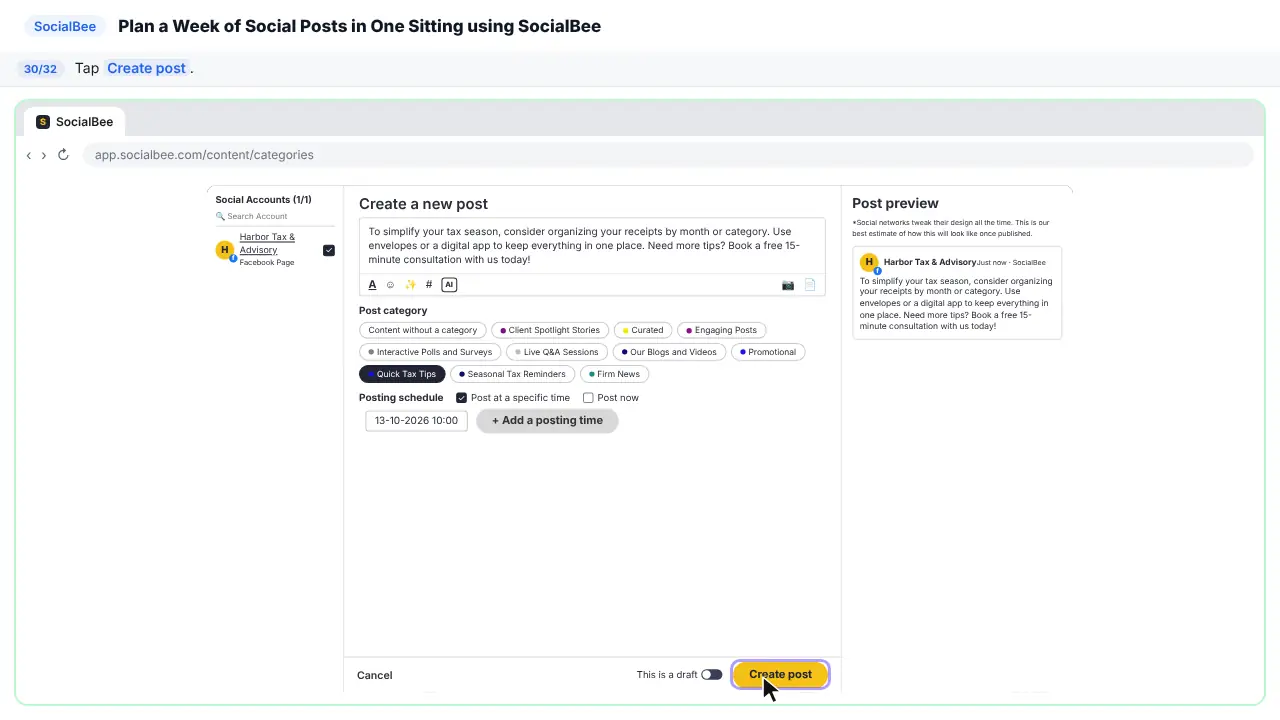
Then pick the account, pick a post category, and either leave timing to the category's weekly slots or tick Post at a specific time and choose a date. Turn off This is approved to keep the post a draft, then Create post.
Step 4: check the week on the calendar
The Scheduler has an Overview of the weekly pattern (one category per time slot, Monday to Sunday) and a Calendar with real dates. Slots with no approved post show No posts. When you are happy with the drafts, approving a post is what lets SocialBee publish it in the next slot of its category, so connect a business Page or profile first.
What this saves you, and what it does not
The saving is mostly blank-page time: the plan and a first draft of every category come out of one sitting, so your time goes into reading and fixing. SocialBee's own dashboard shows an estimate of hours you could save; treat that as marketing and measure your own. It does not replace judgement: the AI writes generic posts, so add a real detail from your firm to each one, check every number and deadline, and keep a person responsible for what goes out.
Mistakes to avoid
- Approving without reading. Every post should sound like your firm and be true.
- Posting a made-up client story. Use a real one with permission or change the category.
- Packing a week into one AI prompt. Ask for one post per prompt and pick a version.
- Tapping Share now when you only meant to review. It publishes at once.
- Connecting a personal profile when the business has a Page. Posts go out from the Page.
Plans, data and what to check
SocialBee offers a free trial; check socialbee.com for current plans, limits and AI features, since they change. Connecting a network gives SocialBee access to that account, so use a login you control, review the permissions each network shows, and check your firm's social media policy first.
Links
- SocialBee (affiliate link): the social media scheduler this lesson teaches. It has its own account, plans and a free trial.
Disclosure: links marked "affiliate link" are partner links. If you sign up through one, Stepthrough may earn a commission at no extra cost to you. The lesson is free either way and does not depend on it.
Try it yourself, free
Reading the steps is a start. Doing them is how it sticks. The interactive module walks you through every click in a practice copy of SocialBee, checks each step, and never touches your real accounts.
Start “Plan a Week of Social Posts in One Sitting using SocialBee”Frequently asked questions
- How does the interactive lesson work?
- Each step is shown to you first (Watch). Then you do it yourself in a practice copy that checks every click (Your turn). If you get stuck, press Do it for me. It is a practice copy, so nothing is connected, no AI credits are used and nothing is posted.
- Is SocialBee part of Stepthrough?
- No. SocialBee is a separate, third-party product from socialbee.com. This lesson is free and teaches the steps as they appear in SocialBee's own app. To use it for real you need your own SocialBee account; check socialbee.com for its current trial and plans.
- Will SocialBee post anything by itself?
- Only posts you approve. Copilot's posts arrive as drafts on the Content Approval page, and a draft is never published. Approving a post queues it for its category's time slots, so read it first.
- Why one prompt per post in the AI post generator?
- The generator returns several versions of what you ask for. When we asked for a week of posts in one prompt, each result contained several posts stuck together. One prompt per post gives you clean alternatives to choose from.
- Do I need a website for the Copilot?
- No. Copilot can read your website to learn your business, but you can skip it and answer its questions instead.
Terms in this lesson
Plain-English definitions, each with an example from a free lesson.
More prompts on this topic
- Promotional text message prompt: Write a promotional text for customers who opted in: one offer, the real end date, who it's from and how to opt out, short…