Updated . Built against the tool’s current screens and checked step by step. How we check this lesson
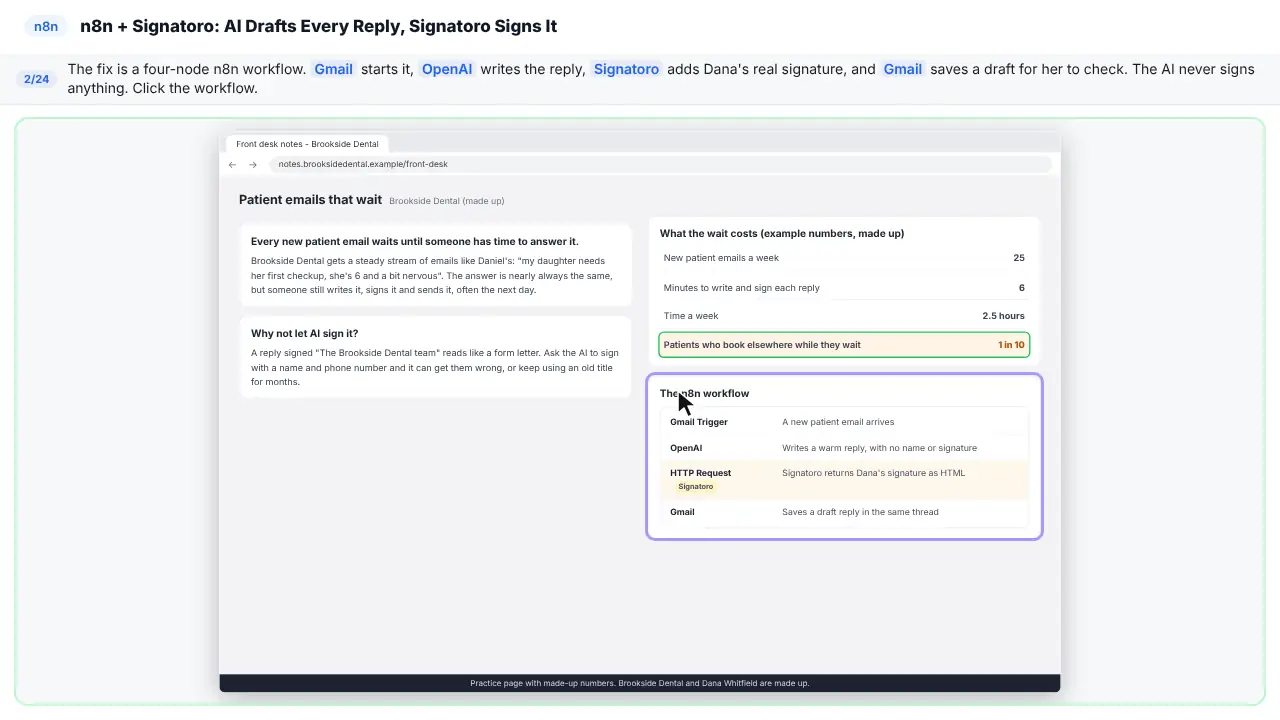
Every client email that waits for a reply is a client who might go elsewhere. In this free n8n tutorial you set up a four-node workflow that drafts the reply before anyone opens the email: a Gmail Trigger starts it, OpenAI writes a warm reply from the client's own words, one HTTP Request node fetches the sender's real, current signature from Signatoro's API, and Gmail saves the reply as a draft in the same thread for a person to check. The AI writes the message and never signs it, so every reply carries the right name, title and phone number. The workflow is a free download with no credentials in it. This is my own lesson, not an official Signatoro course.
At a glance
| Question | Answer |
|---|---|
| What you build | Stop leaving client emails waiting. A Gmail Trigger starts it, OpenAI writes a personal reply, one HTTP Request node fetches the sender's real signature from Signatoro, and Gmail saves a draft reply for a person to check. |
| Tools | n8n |
| Time | About 10 minutes, 24 steps in 8 parts |
| Level | Intermediate |
| Cost | Free |
| Ways to learn it | Practice it step by step, read the guide with screenshots |
The 8 parts, in short
- Why let Signatoro sign it: See what the wait costs, Let n8n draft every reply.
- Save the signature in Signatoro: Save the signature, Make an API key for n8n.
- Gmail starts the workflow: Open the Gmail Trigger, Check every minute, Turn Simplify off.
- AI writes the reply: Pick your OpenAI credential, Read the prompt, See the reply.
- Signatoro adds the signature: Call Signatoro, Choose Generic Credential Type, Choose Bearer Auth, Open the credential, and 3 more steps.
- Gmail saves a draft reply: Save a draft, not an email, Reply, then signature, Keep it in the thread.
- Test it: Test it, keep it off.
- What it saves: Read the draft, See what it saves, Get the workflow.
Start here first: n8n: What Is n8n? Build Your First Workflow (module 1 of n8n Automation Toolkit)
In the course: Part 9 · n8n Automation Toolkit (Module 109 of the full course)
Part of: AI for Medical & Dental Office Admin (step 12 of 25). Next up: How to Use n8n Tools in an AI Agent: Check Google Calendar, Book and Log It
Part of: Email on Autopilot (step 7 of 18). Next up: n8n AI Email Responder: Draft Gmail Replies Automatically
Part of: Business Automations with n8n (step 20 of 23). Next up: n8n + Felo: A Monday Research Brief With a Source for Every Answer
Part of: n8n Jump Start (step 24 of 27). Next up: n8n + Felo: A Monday Research Brief With a Source for Every Answer
Part of: AI Apps Worth Knowing (step 80 of 186). Next up: n8n + Felo: A Monday Research Brief With a Source for Every Answer
n8n + Signatoro: AI Drafts Every Reply, Signatoro Signs It: step-by-step guide with screenshots
About the screenshots. They come from Stepthrough’s simulated practice environment (a practice copy of n8n), not the live tool, so no real account appears. The buttons and labels match the real screens the lesson was built against. Practice it yourself free at ynteractive.com.
- Tools: n8n
- Time: about 10 minutes, 24 steps in 8 parts
- Level: intermediate
Part 1: Why let Signatoro sign it
Step 1: See what the wait costs
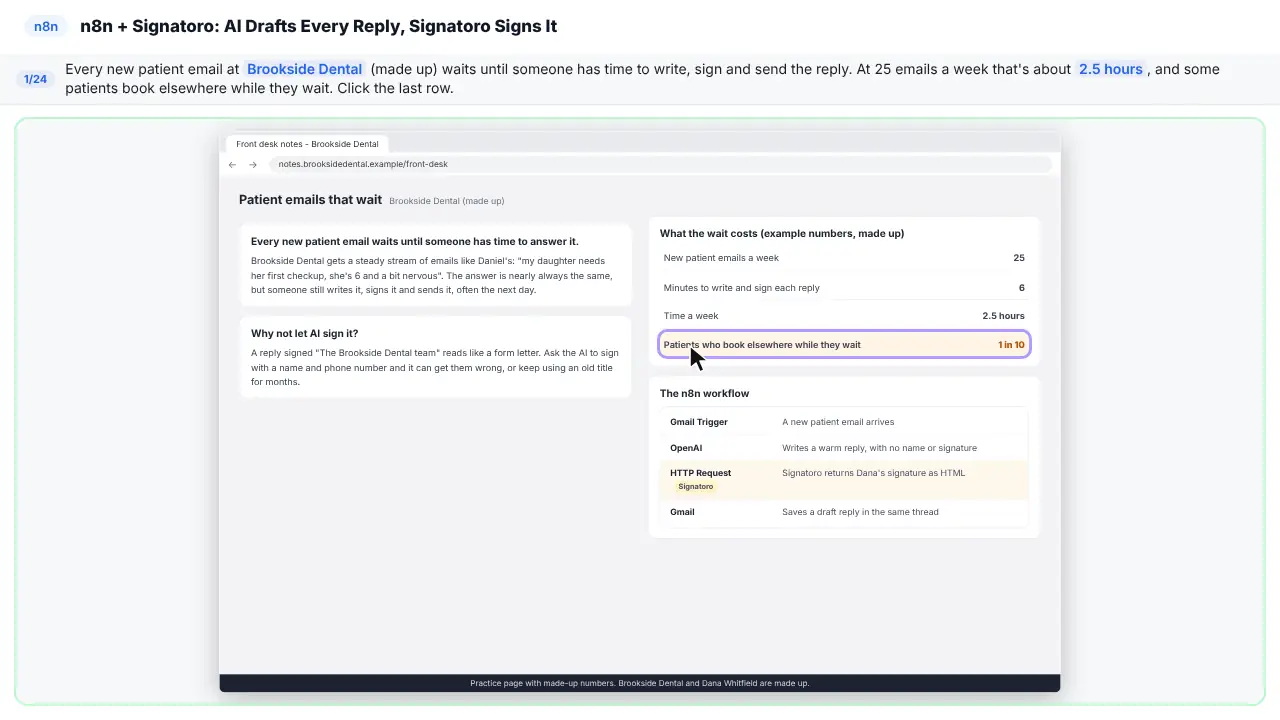
At Brookside Dental, every new patient email waits. Someone has to write it, sign it, and send it. That's hours a week.
Step 2: Let n8n draft every reply
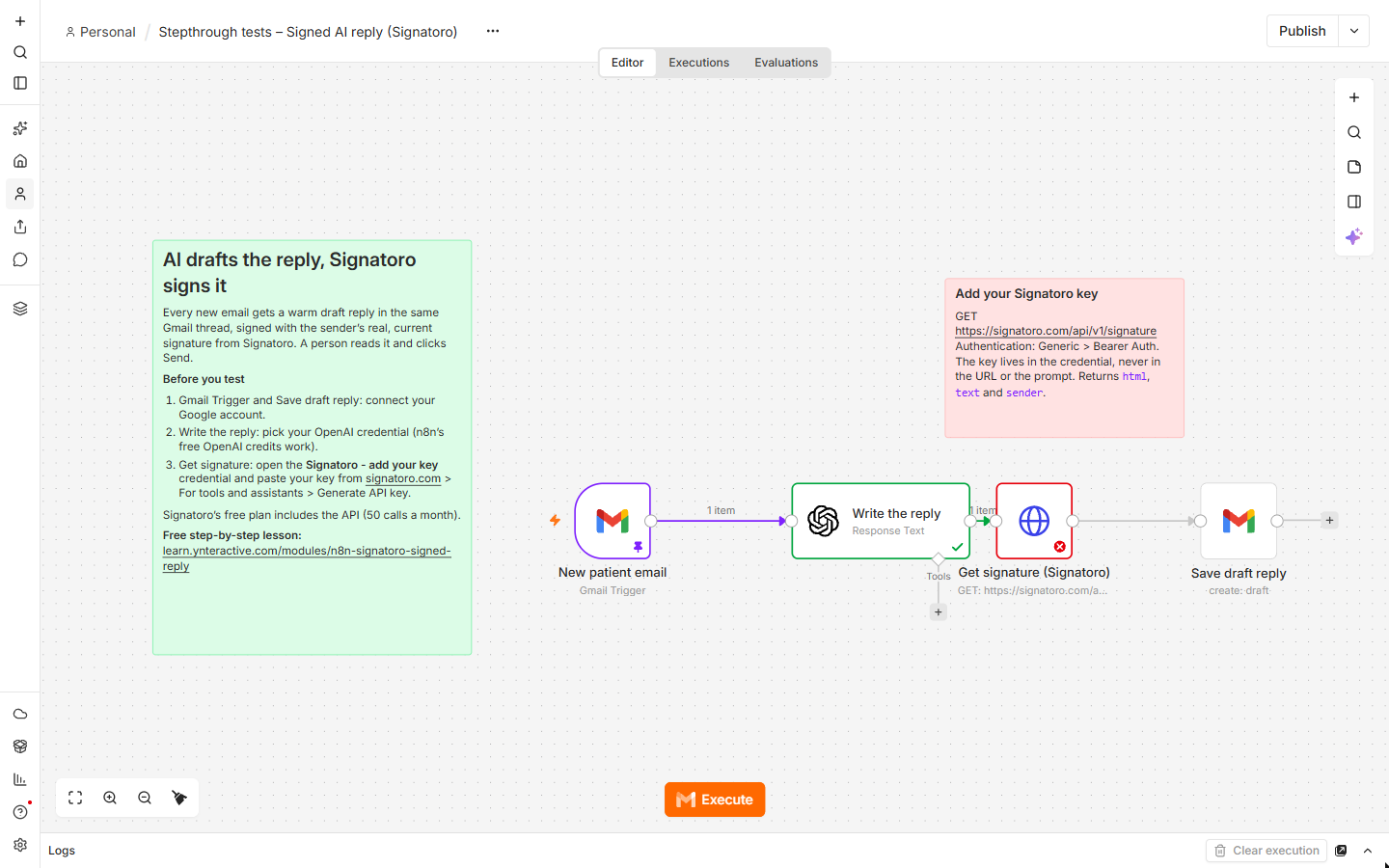
Here's the fix. Gmail starts the workflow. A I writes the reply. Signatoro adds Dana's real signature. And Gmail saves a draft.
Part 2: Save the signature in Signatoro
Step 3: Save the signature
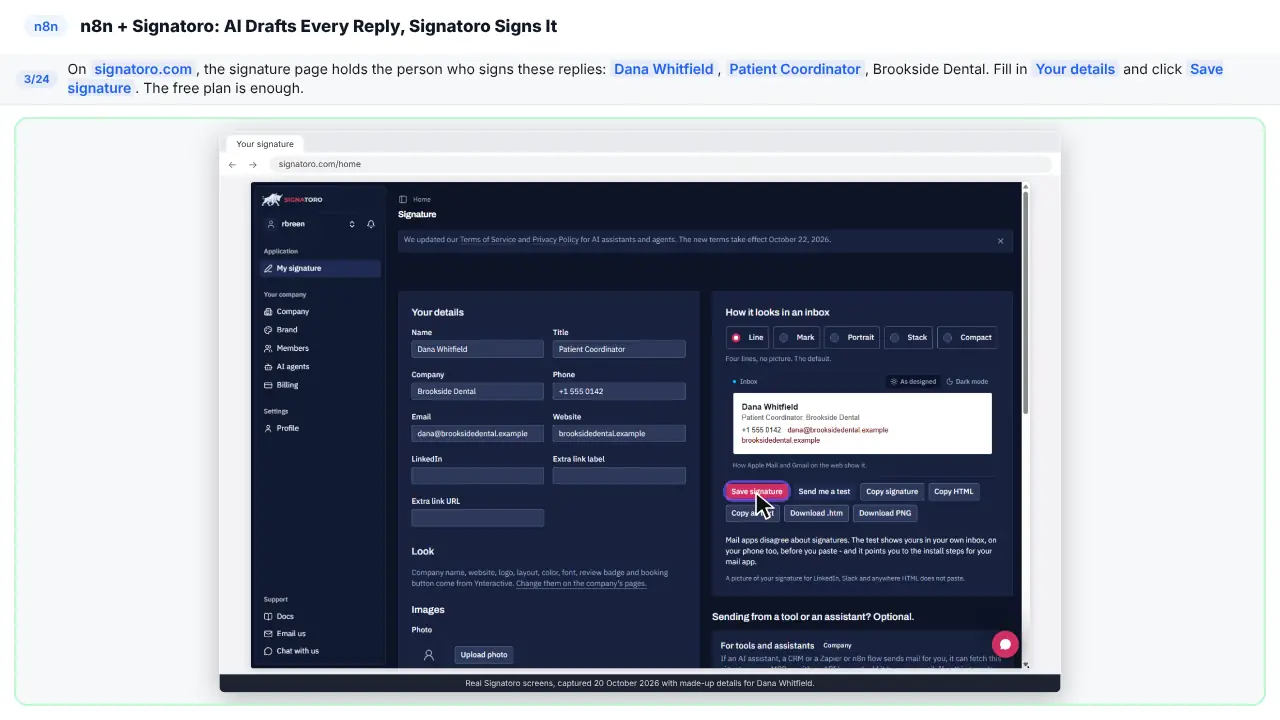
First, the signature. On Signatoro, fill in the person who signs. Here it's Dana.
Step 4: Make an API key for n8n
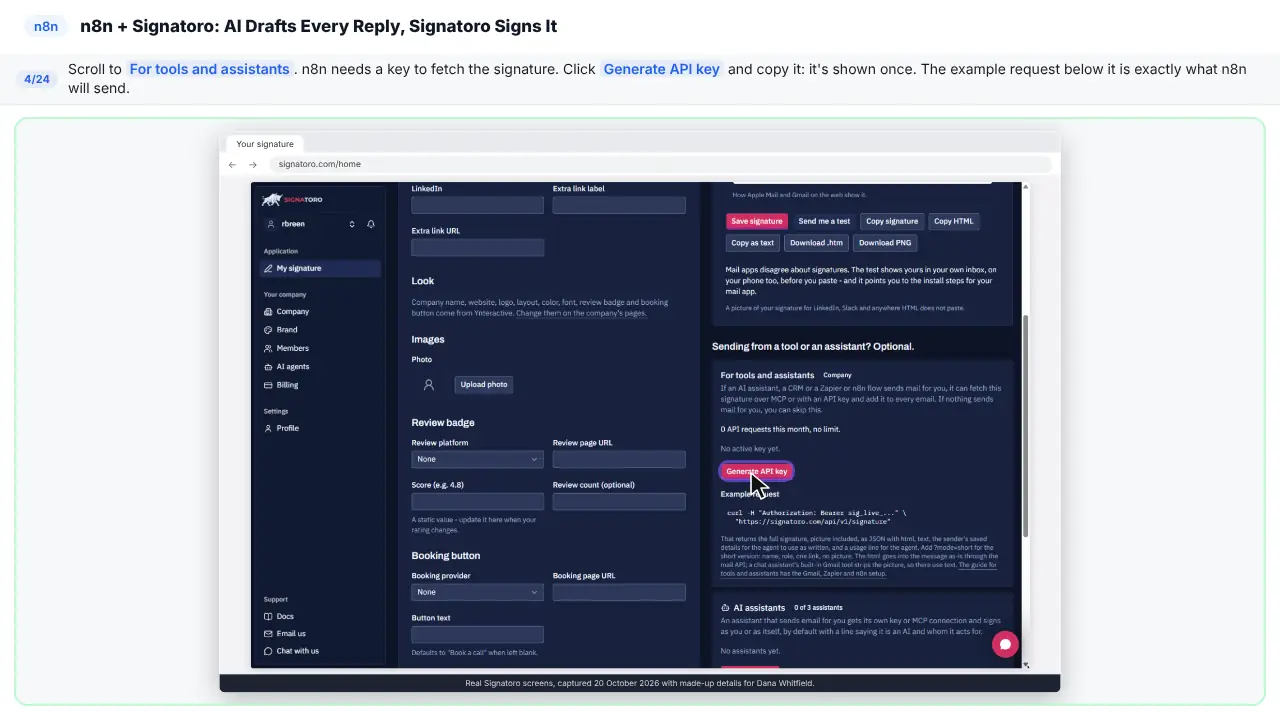
n8n needs a key to fetch this signature. It's shown only once.
Part 3: Gmail starts the workflow
Step 5: Open the Gmail Trigger
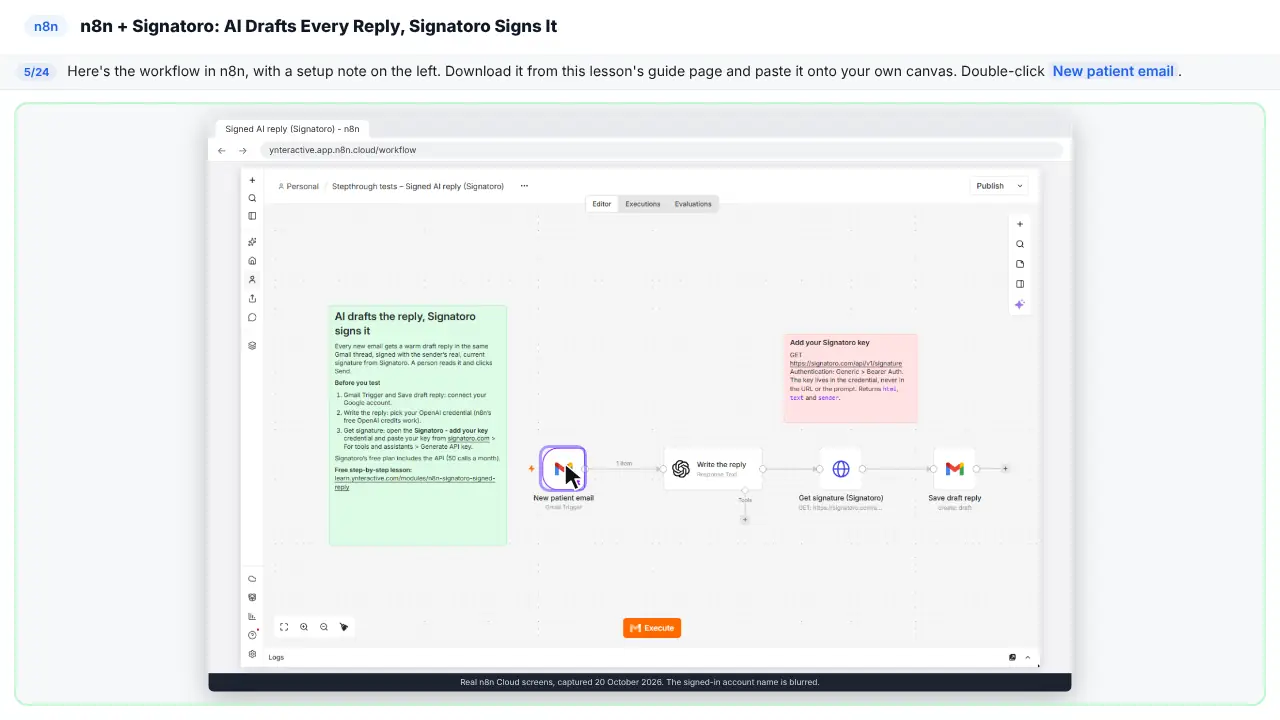
Here's the workflow in n8n. You can download it from the guide page. Double click New patient email.
Step 6: Check every minute
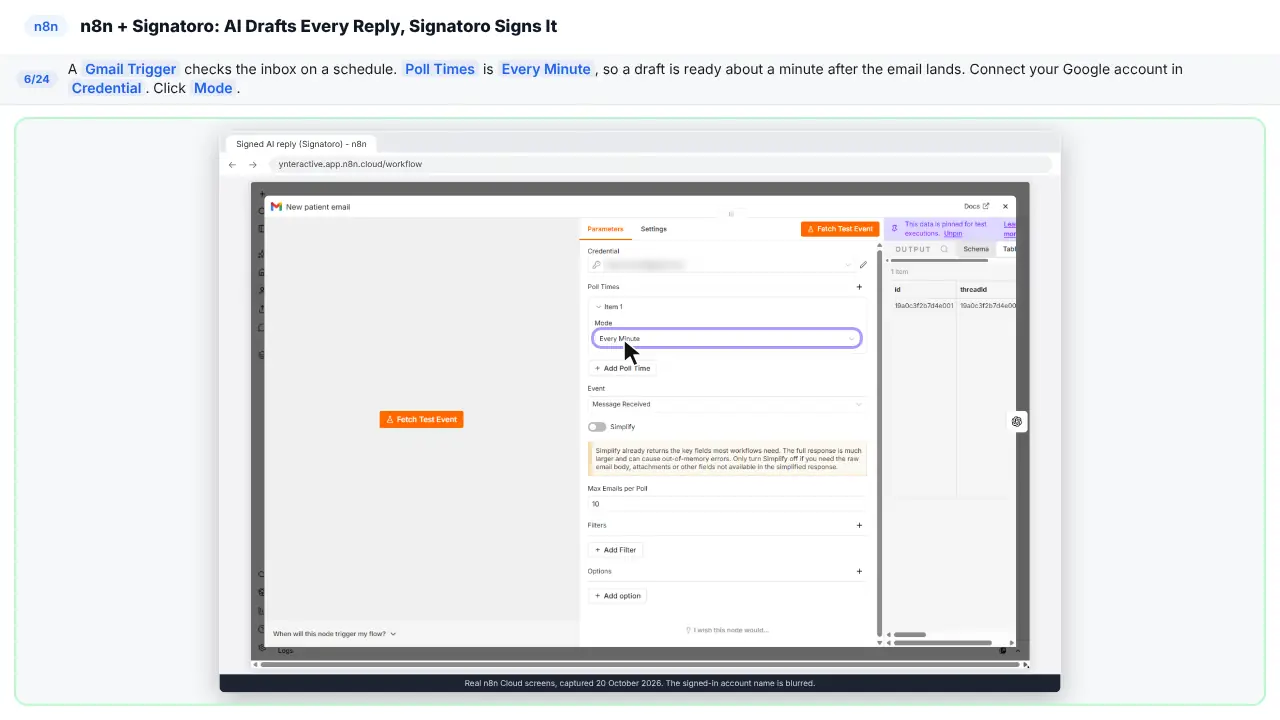
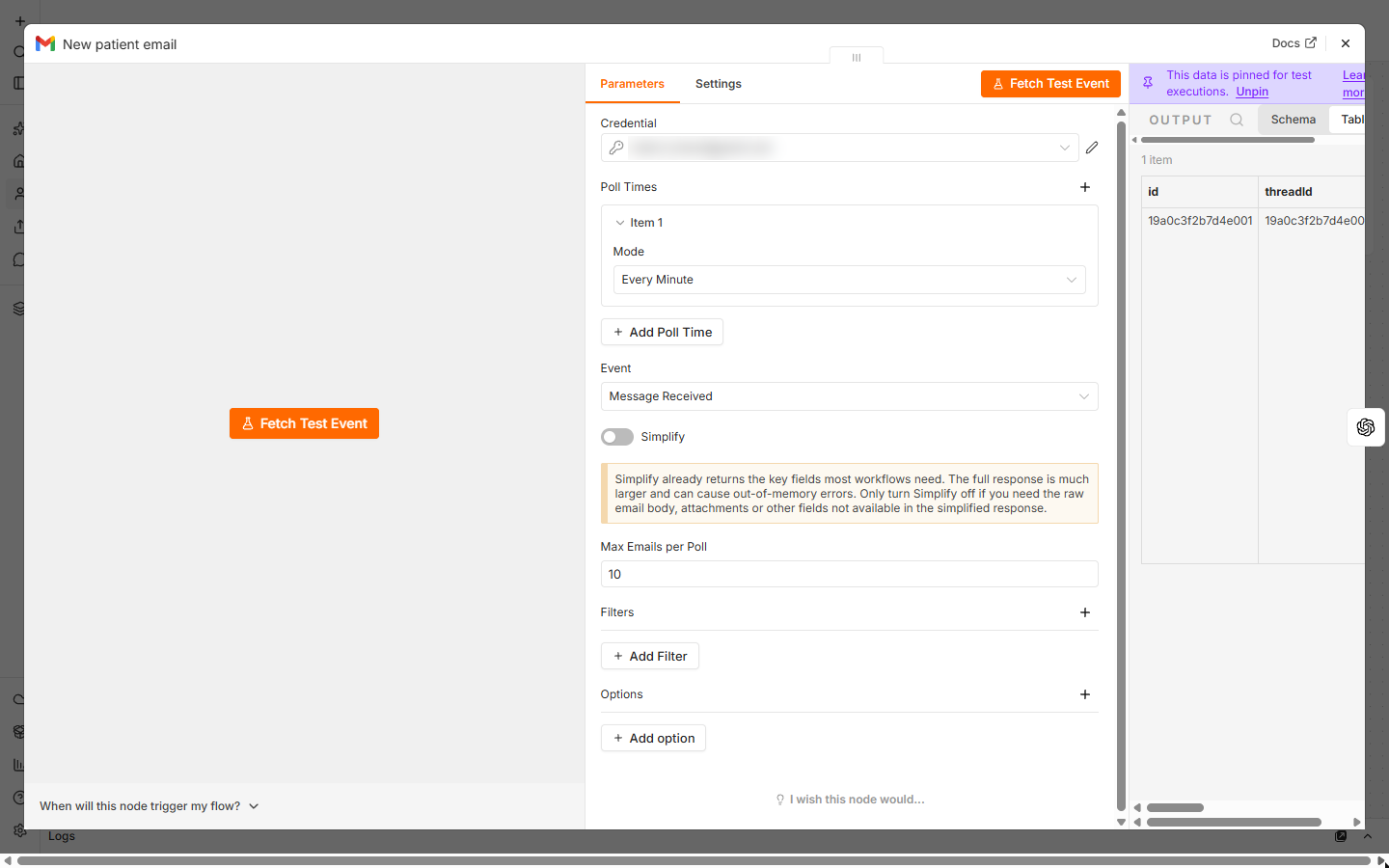
The Gmail trigger checks the inbox every minute. Connect your own Google account here.
Step 7: Turn Simplify off
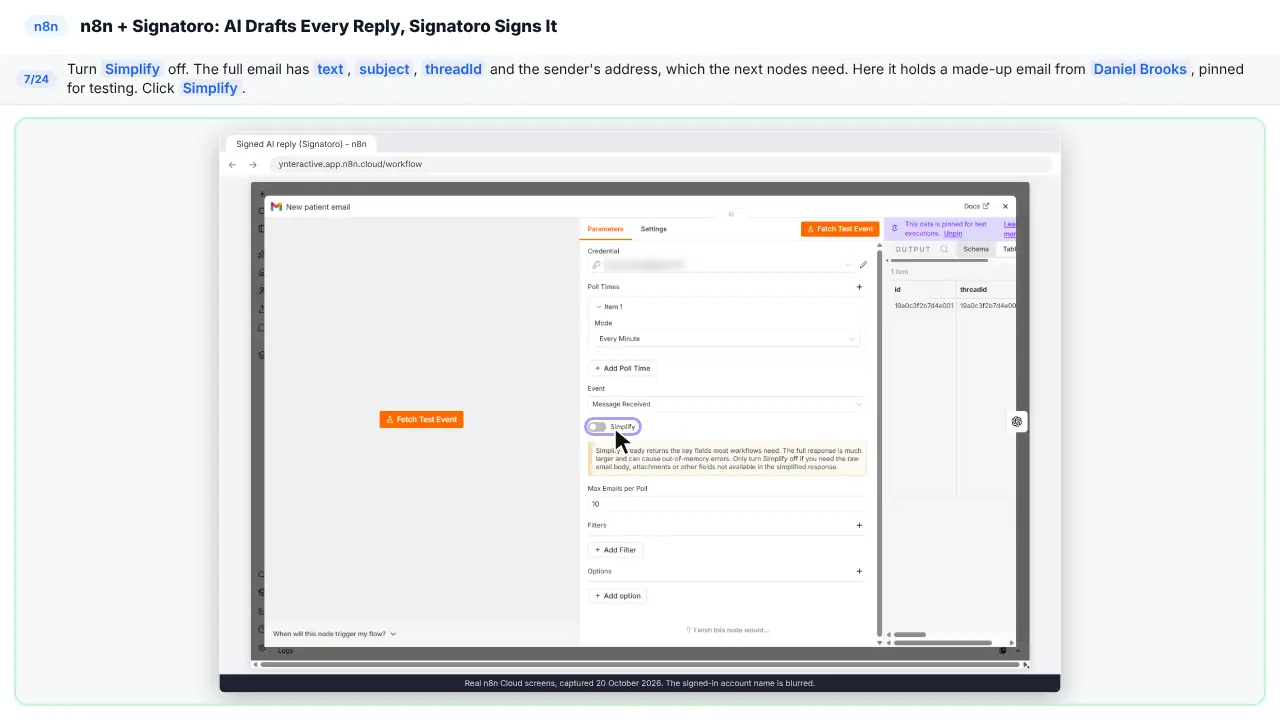
Turn Simplify off, so you get the whole email. Here it's a made up test email from Daniel.
Part 4: AI writes the reply
Step 8: Pick your OpenAI credential
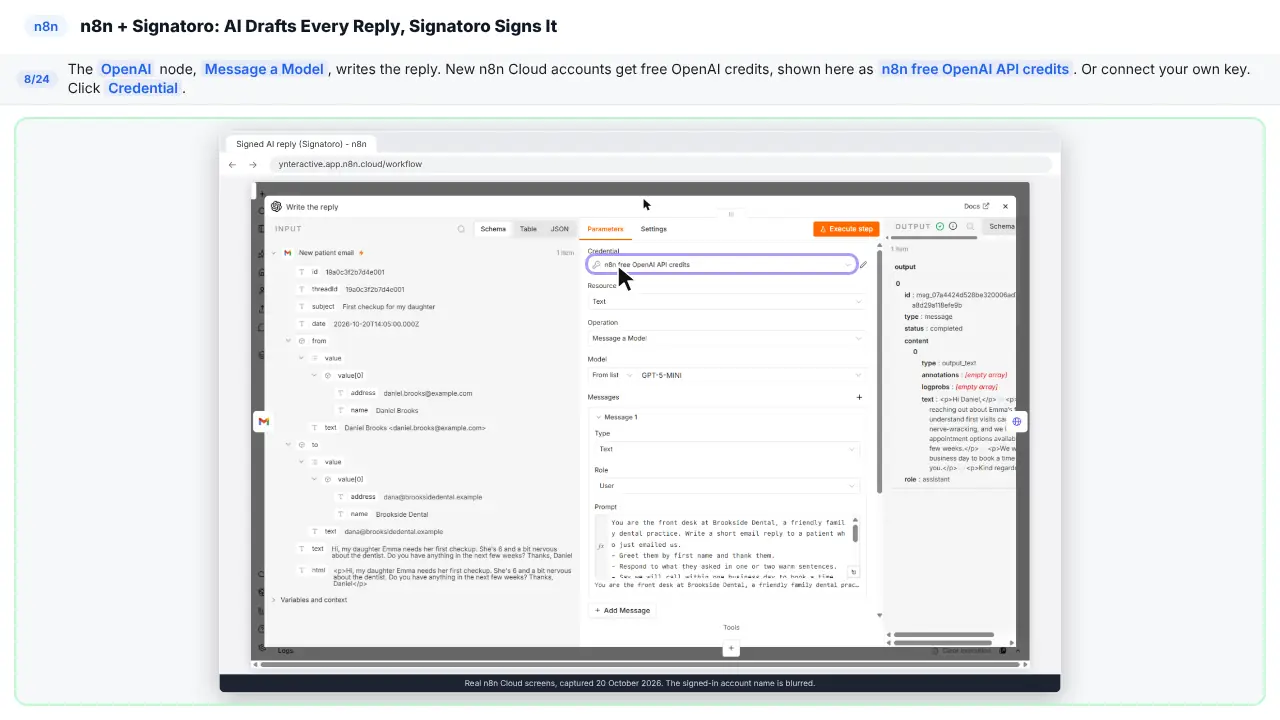
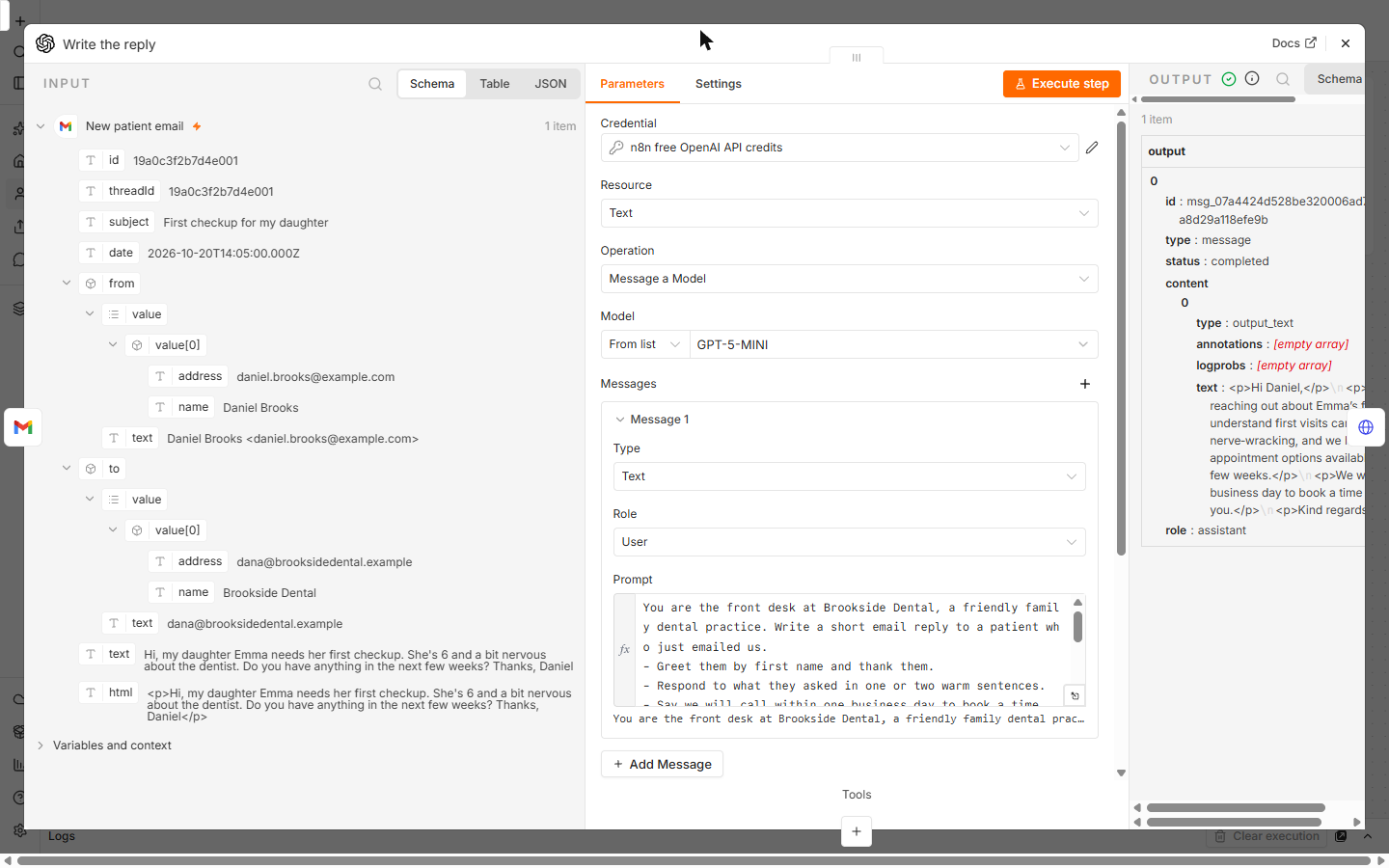
The OpenAI node writes the reply. n8n Cloud gives you free OpenAI credits to start.
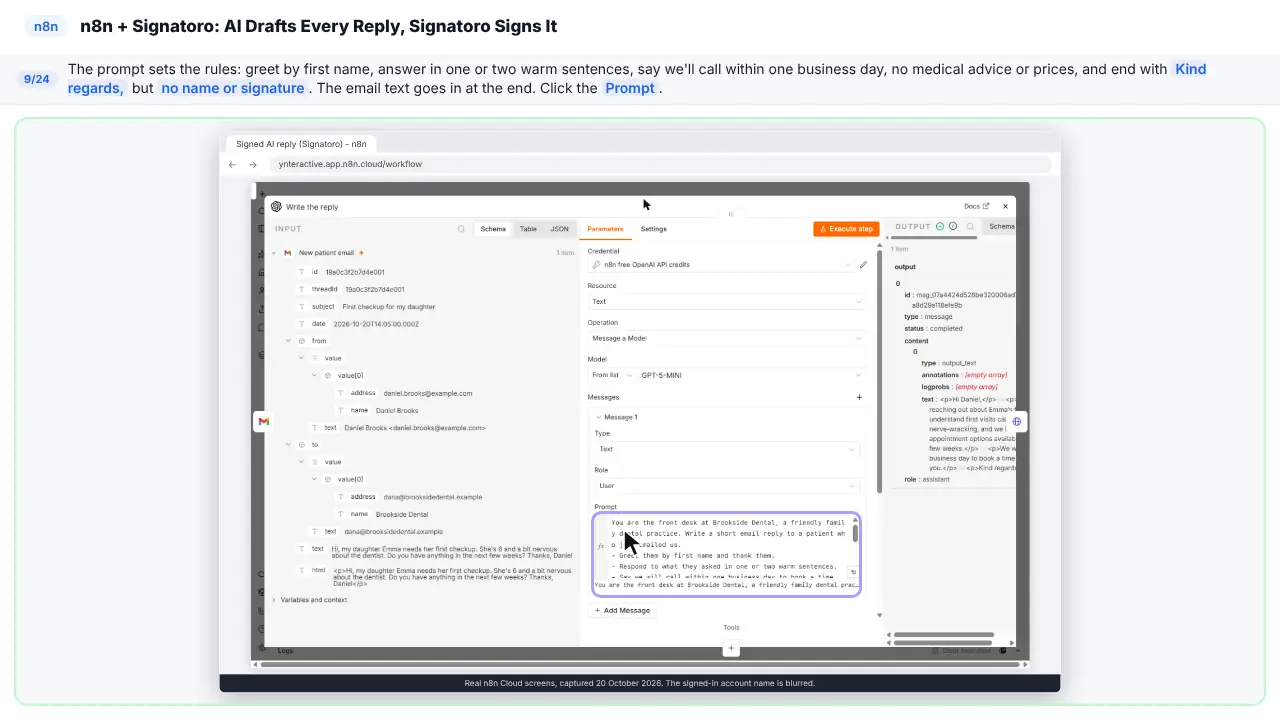
Step 9: Read the prompt
The prompt sets the rules. Be warm. No medical advice. And end with Kind regards, but no name. The signature comes later.
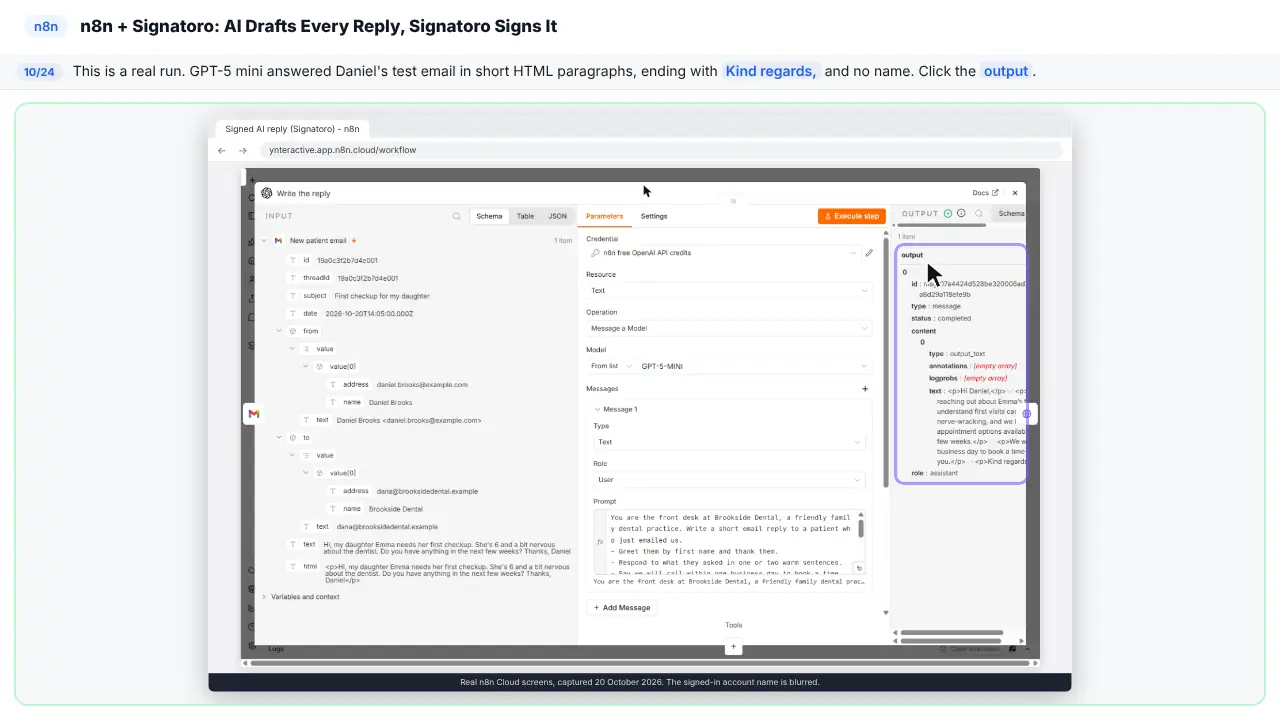
Step 10: See the reply
This is a real run. The reply is warm, short, and ends with Kind regards. No name.
Part 5: Signatoro adds the signature
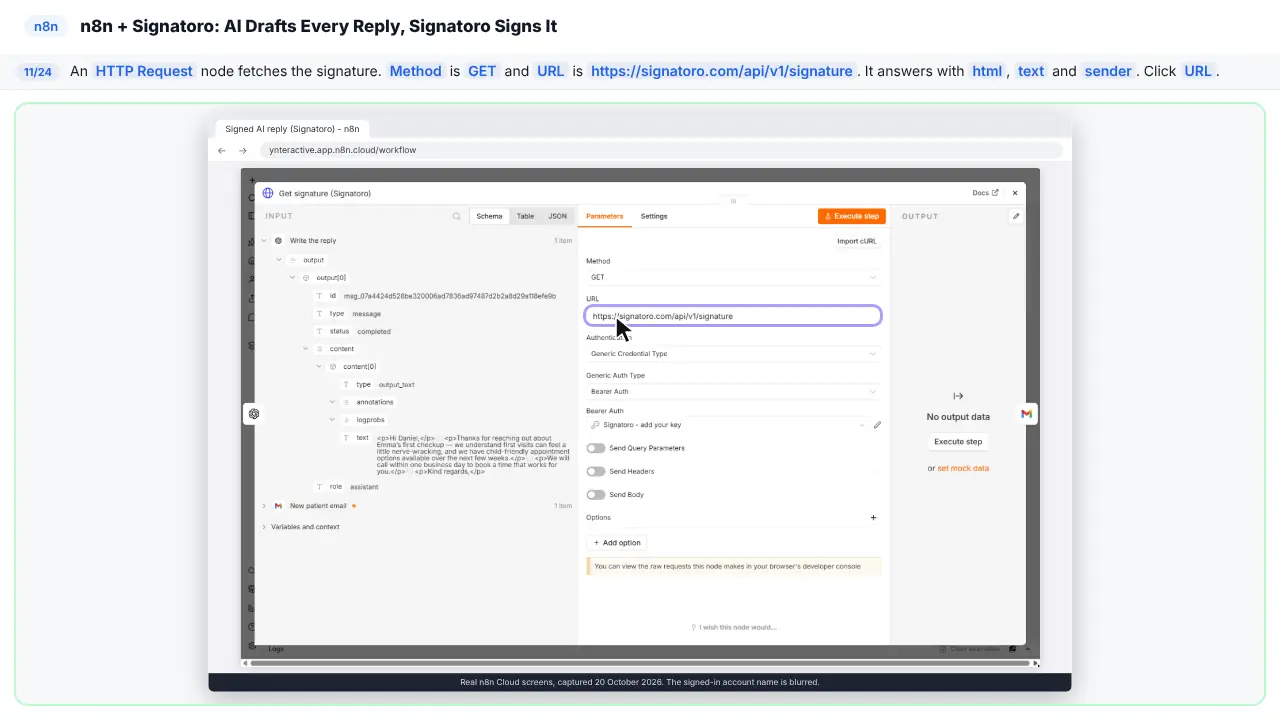
Step 11: Call Signatoro
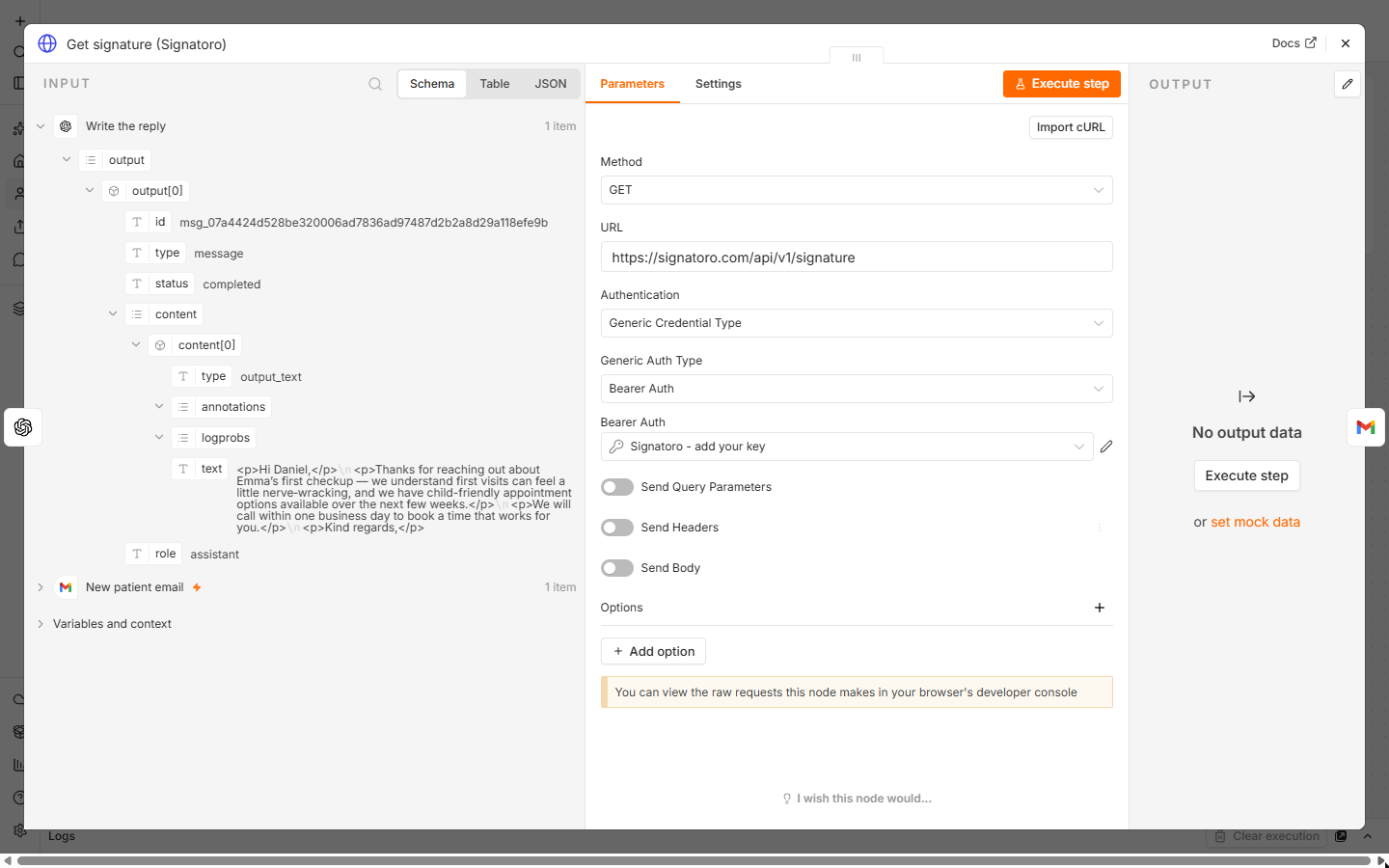
An H T T P Request node fetches the signature. Method GET. And the Signatoro signature U R L.
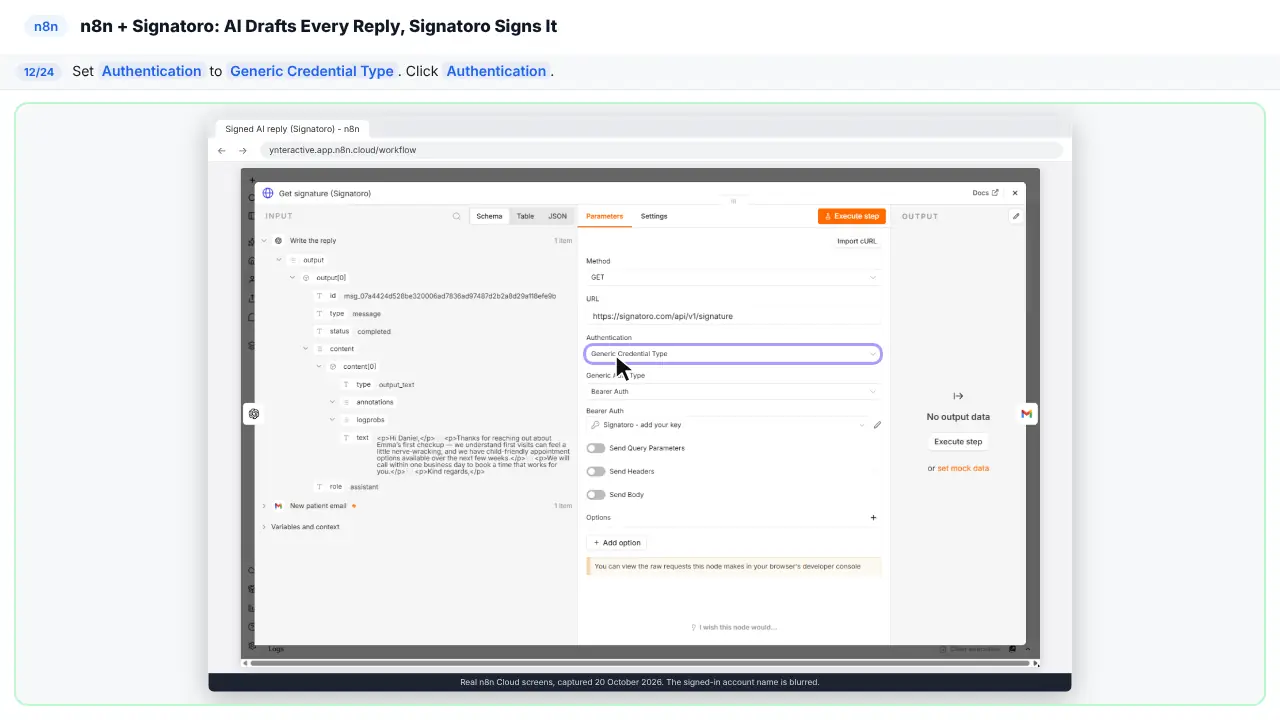
Step 12: Choose Generic Credential Type
Set Authentication to Generic Credential Type.
Step 13: Choose Bearer Auth
Set Generic Auth Type to Bearer Auth.
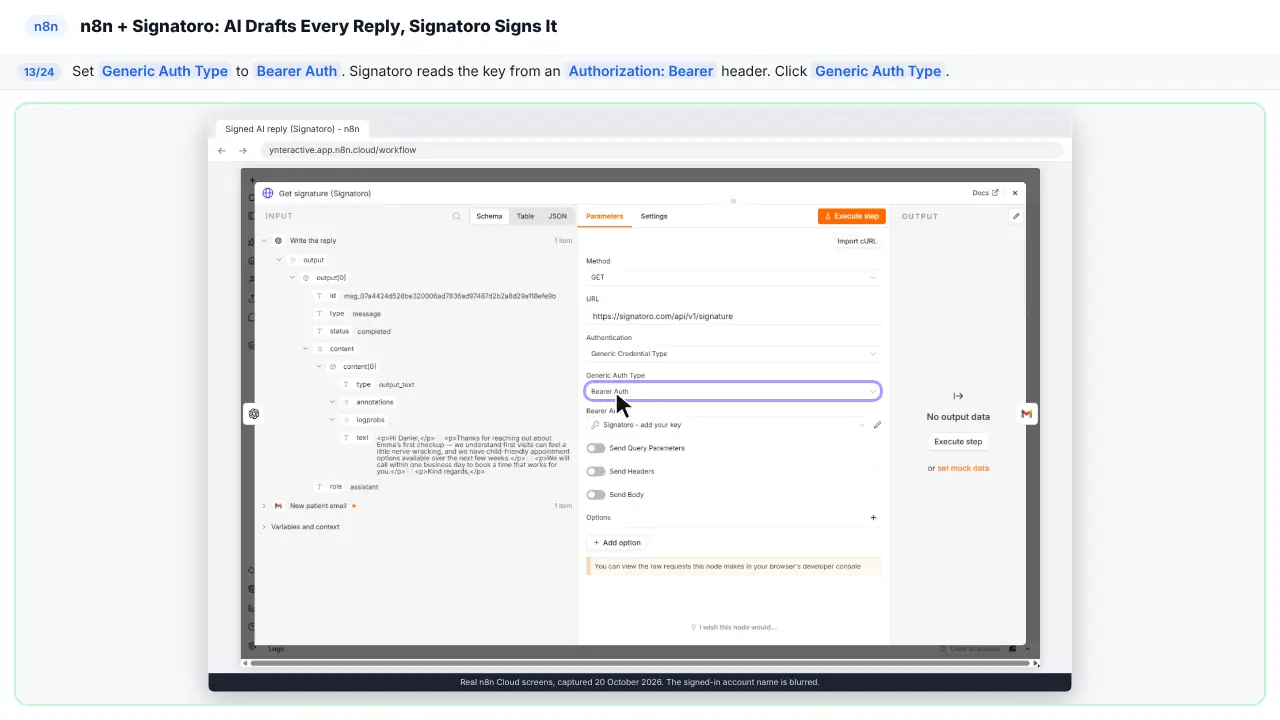
Step 14: Open the credential
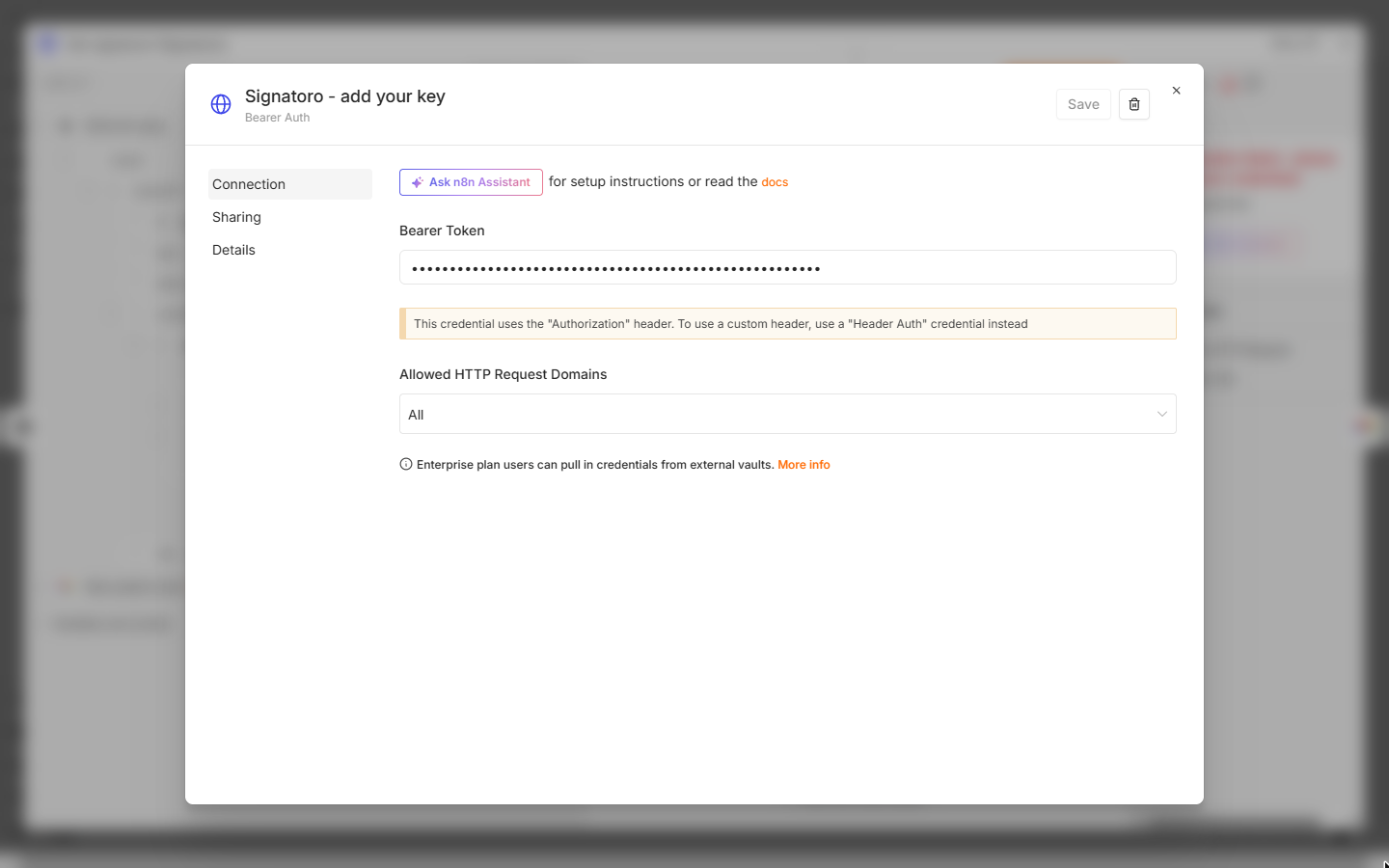
Create a Bearer Auth credential. Give it a clear name.
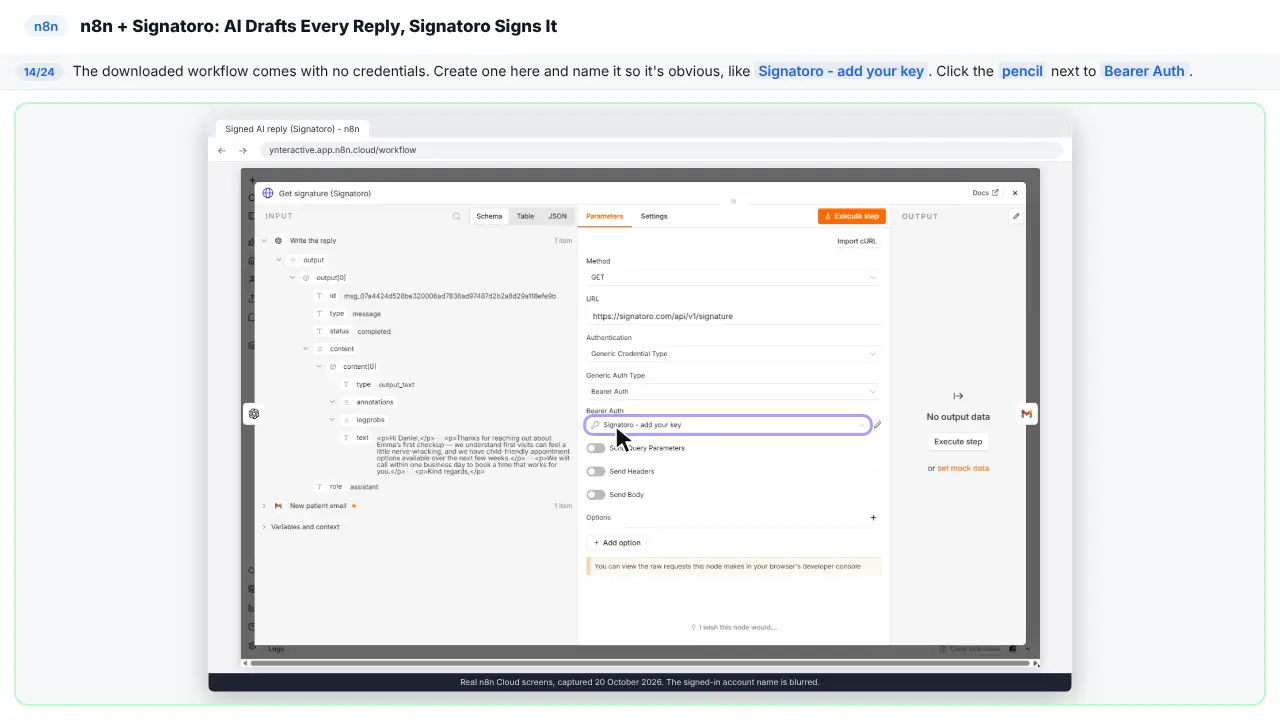
Step 15: Paste your key
n8n keeps it encrypted.
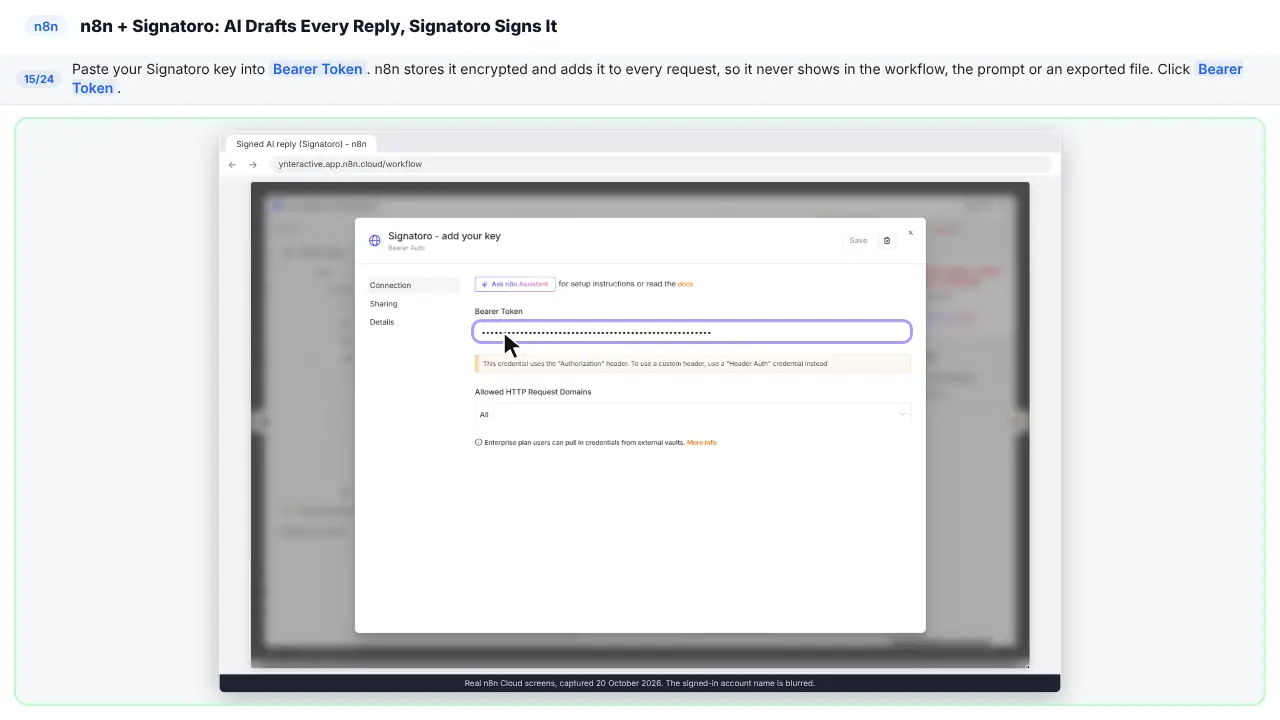
Step 16: Save the credential
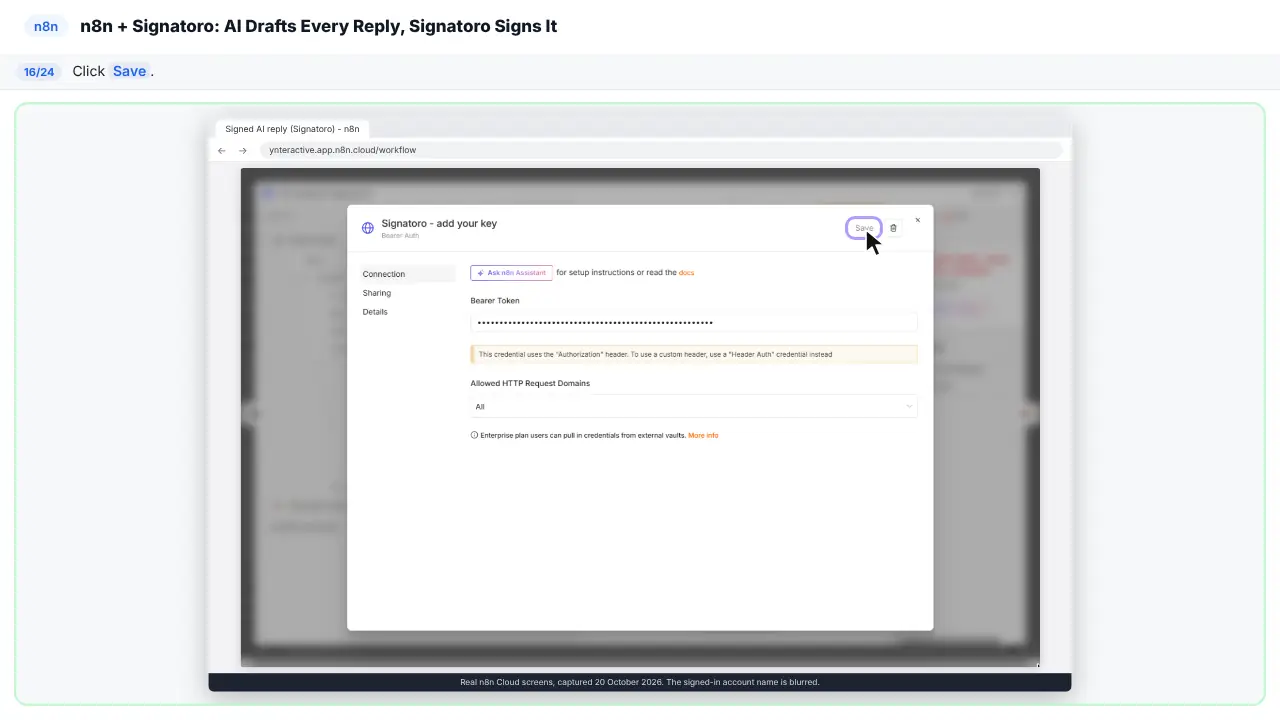
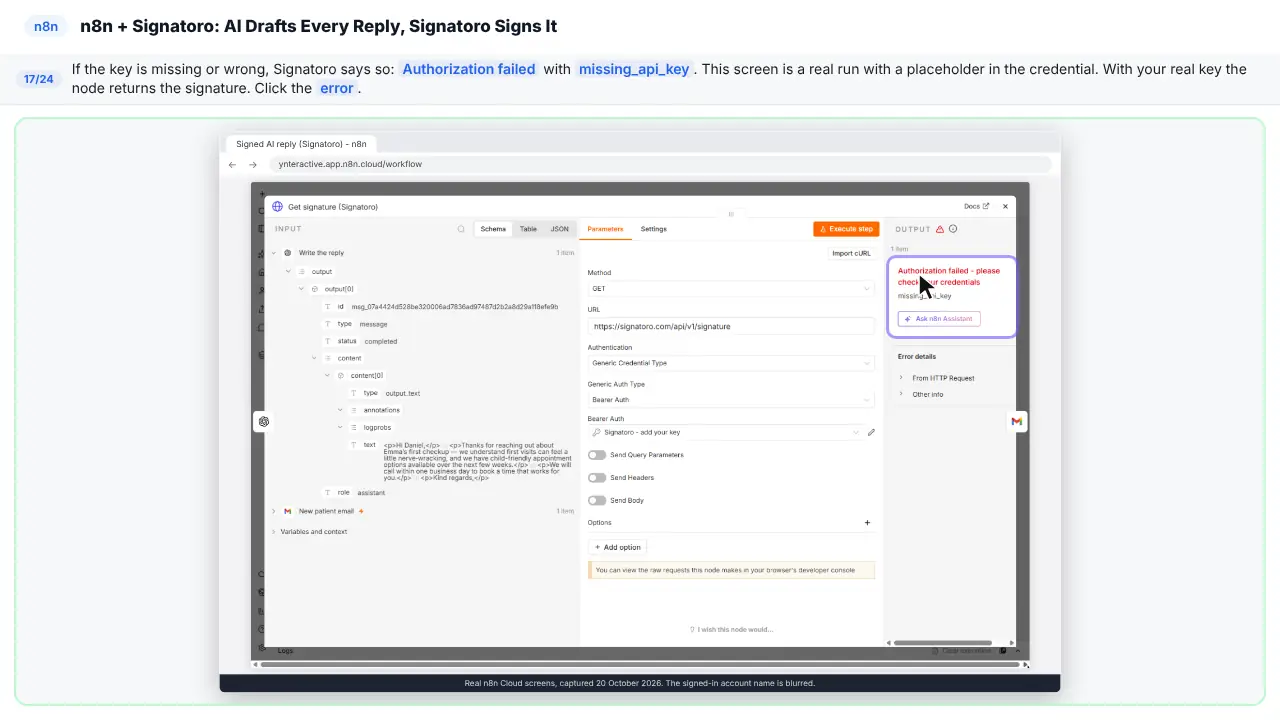
Step 17: Know the key error
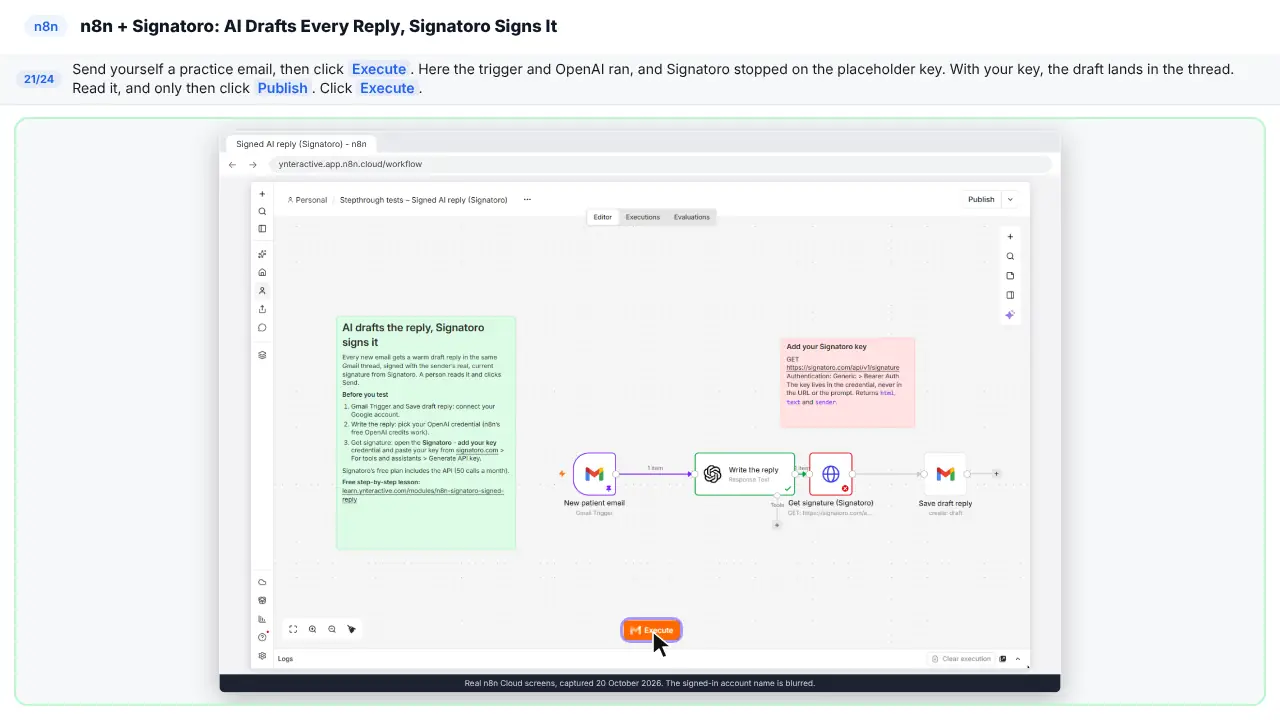
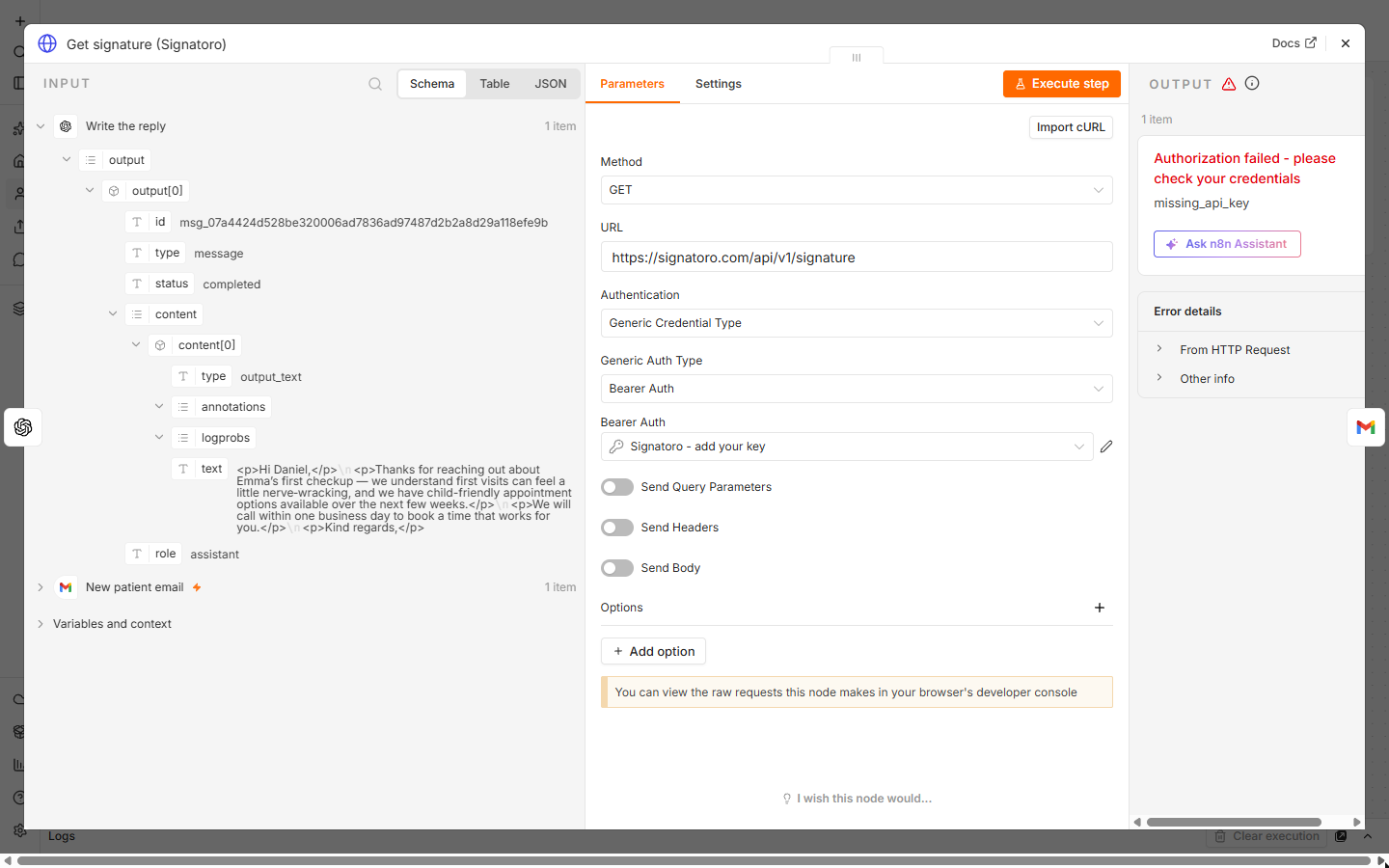
If the key is missing, Signatoro tells you. Authorization failed. This test used a placeholder. With your real key, you get the signature.
Part 6: Gmail saves a draft reply
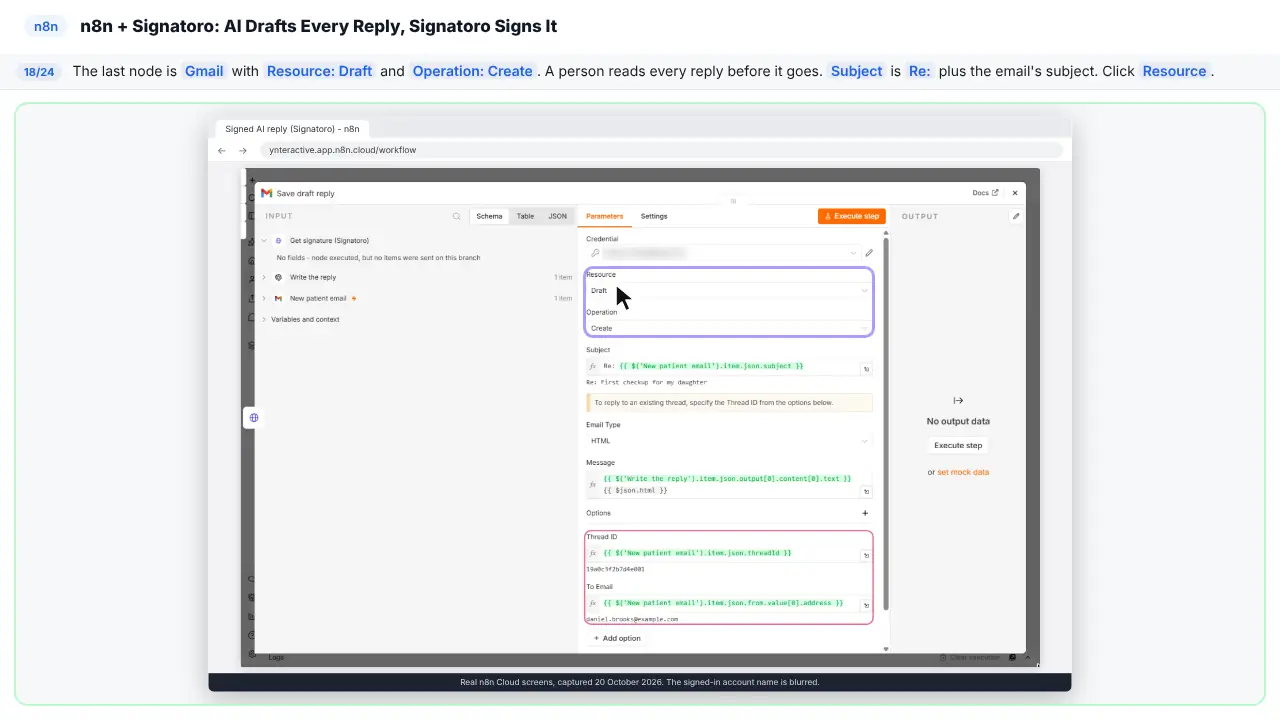
Step 18: Save a draft, not an email
The last node saves a Gmail draft. Not a sent email. A person still reads every reply.
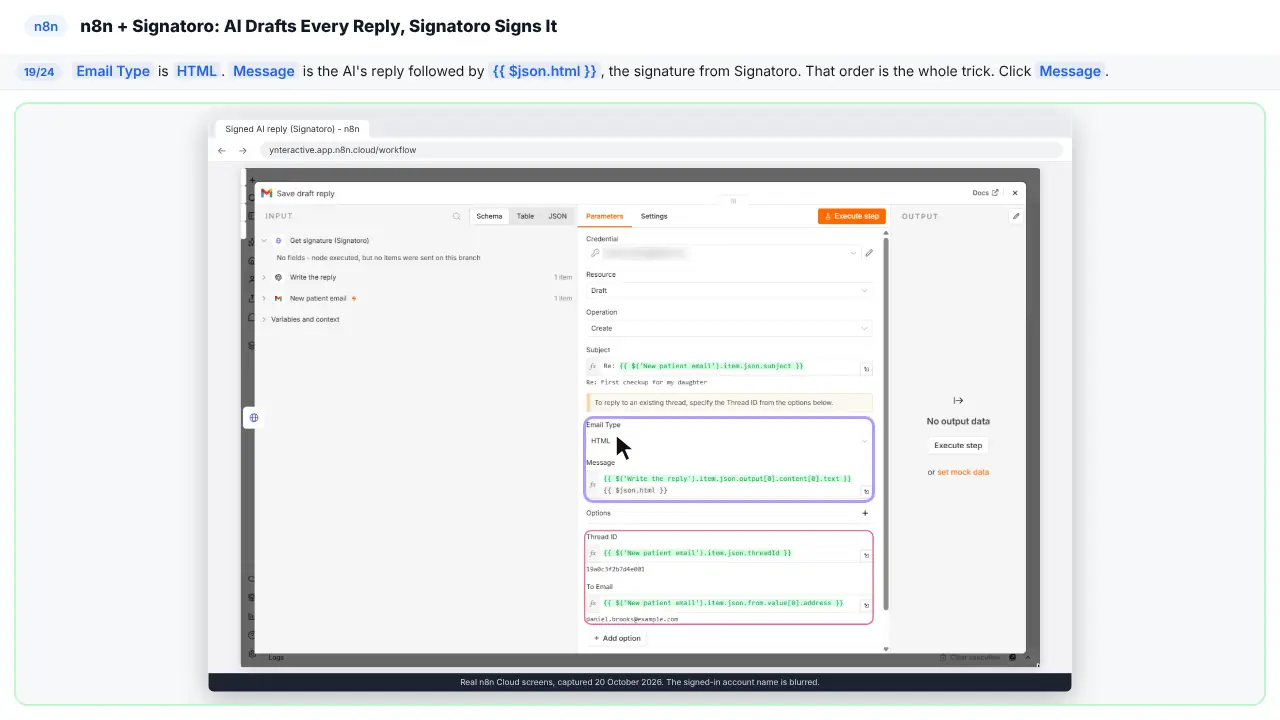
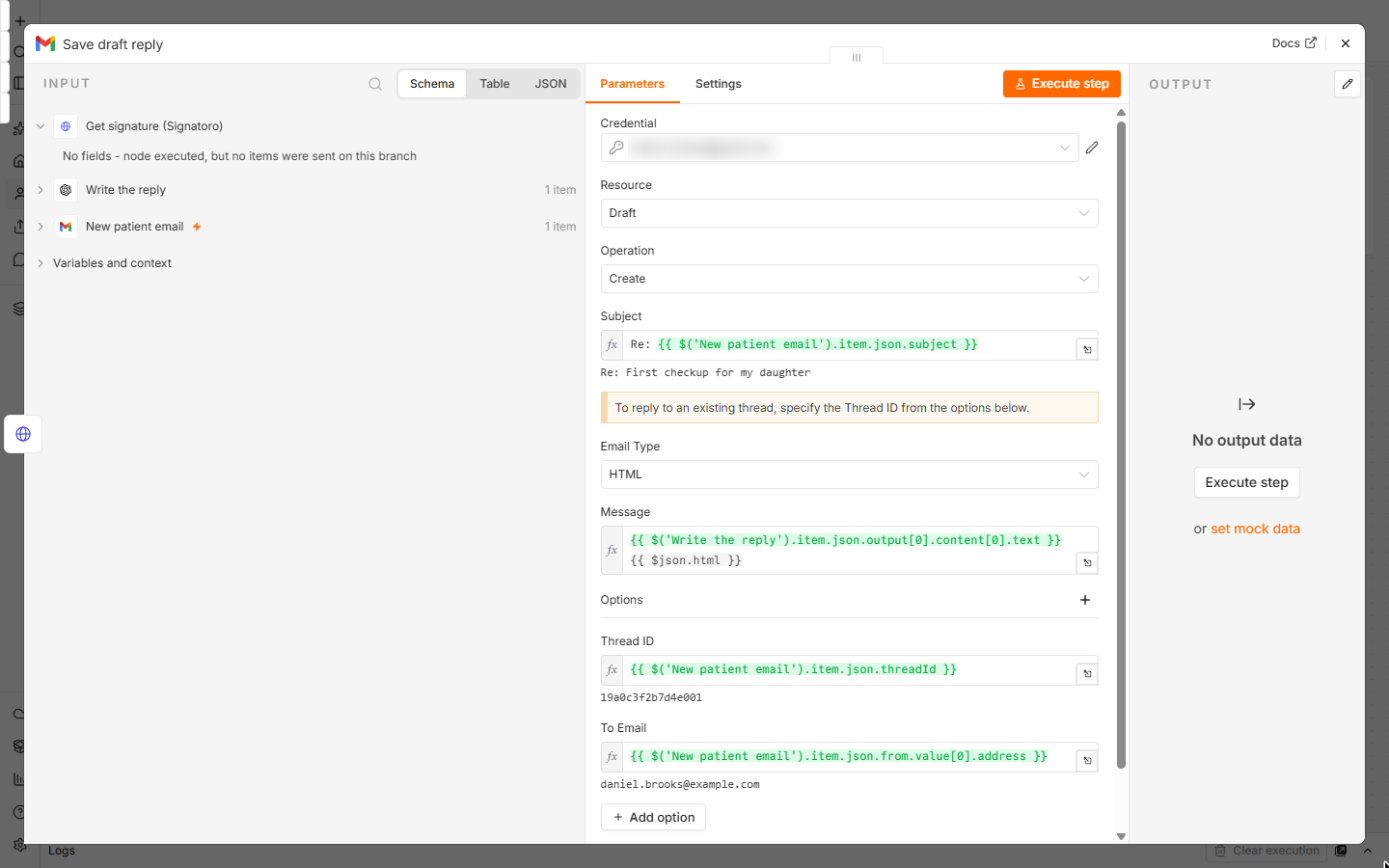
Step 19: Reply, then signature
Email type is HTML. The message is the A I reply, then the signature from Signatoro.
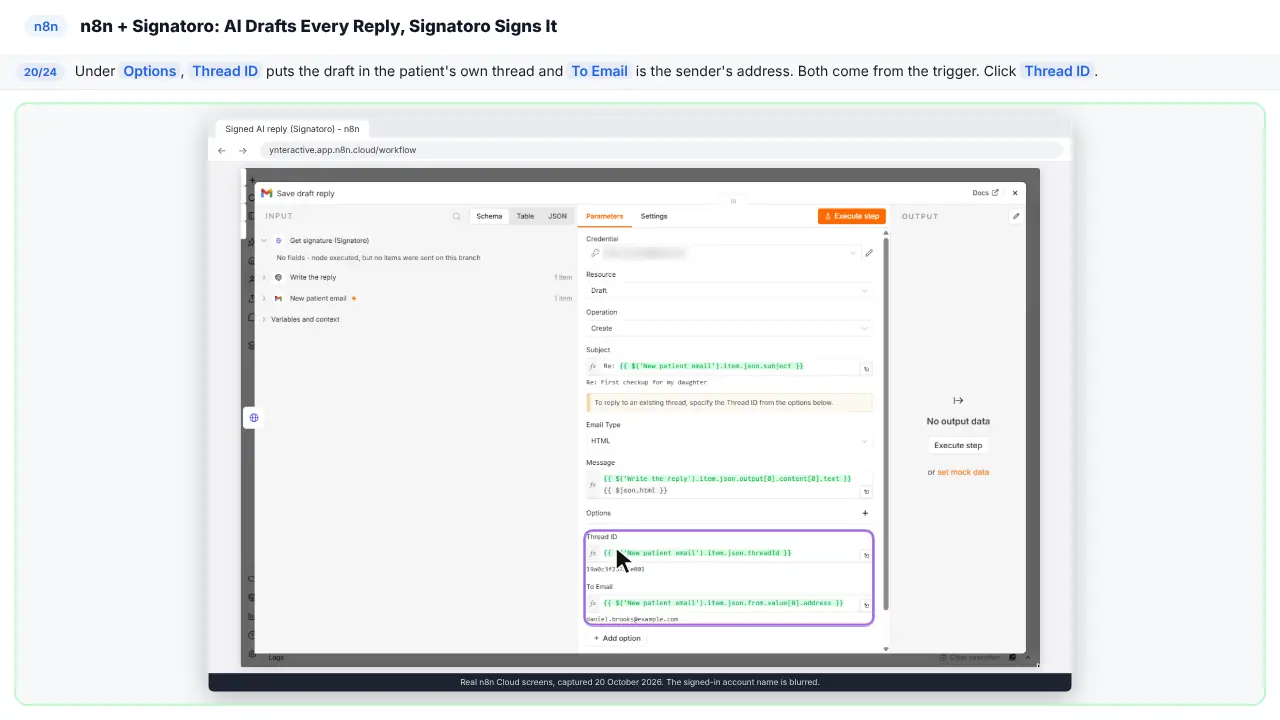
Step 20: Keep it in the thread
Thread I D keeps the draft in the patient's own thread. To Email is the sender.
Part 7: Test it
Step 21: Test it, keep it off
Send yourself a practice email, and click Execute. Read the draft before you publish anything.
Part 8: What it saves
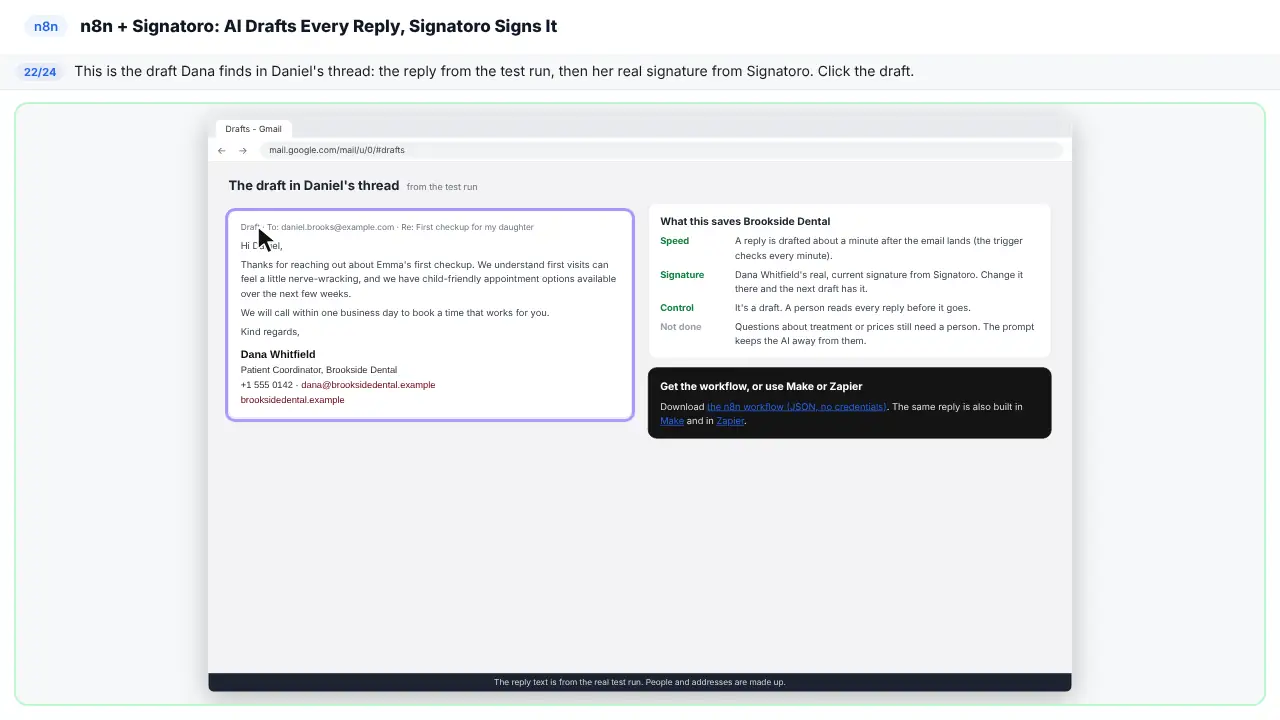
Step 22: Read the draft
Here's the draft in Daniel's thread. The reply, then Dana's real signature.
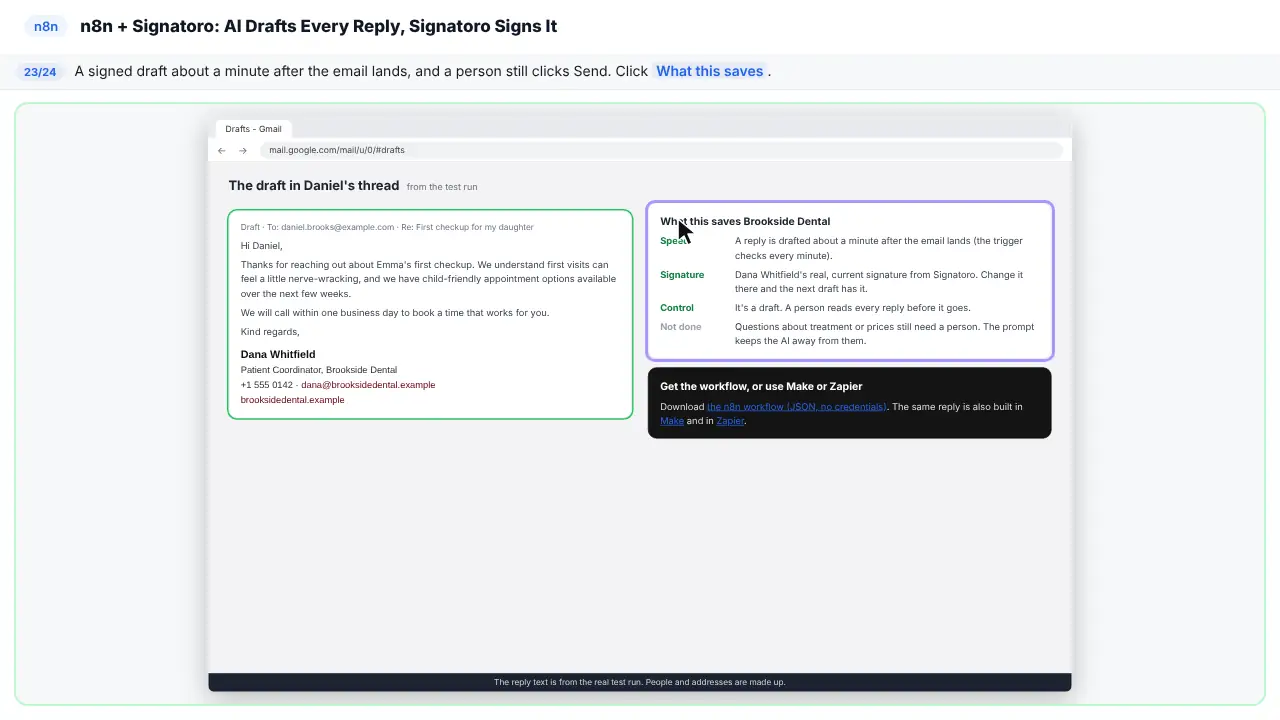
Step 23: See what it saves
A signed draft within a minute, and a person still clicks send.
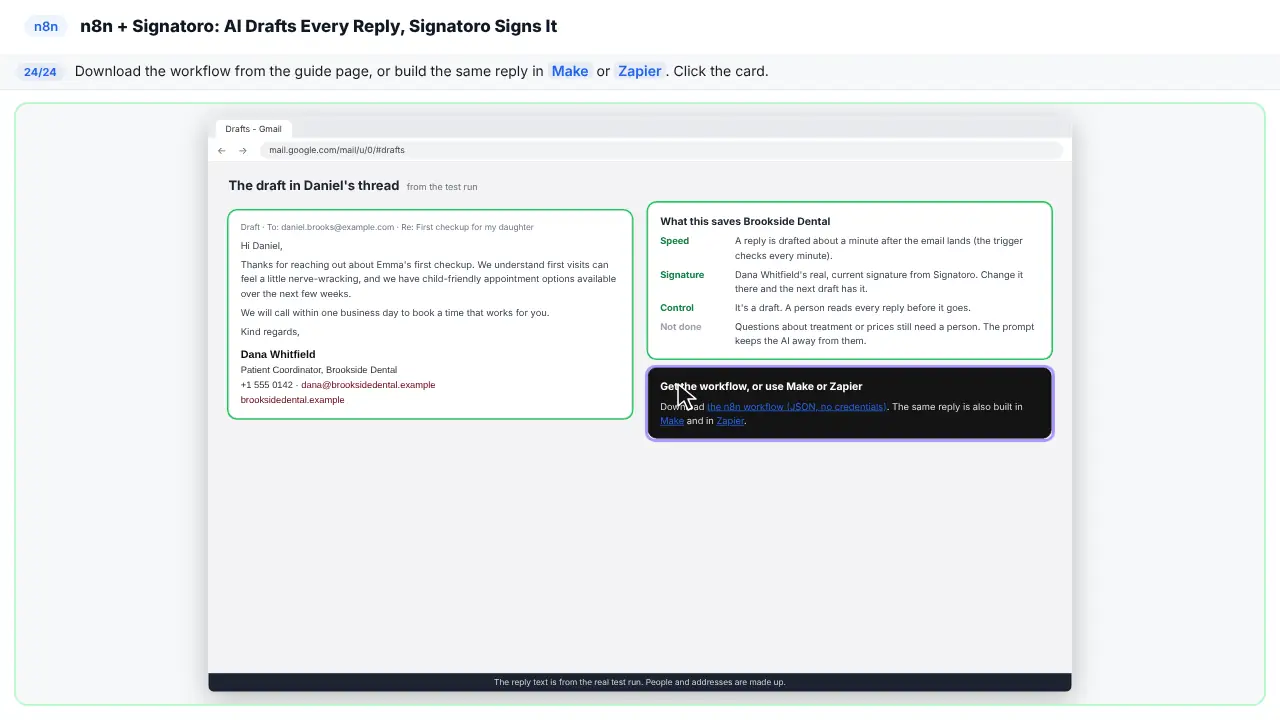
Step 24: Get the workflow
Download the workflow, or build the same thing in Make or Zapier.
Part of these free courses: n8n Jump Start, AI Apps Worth Knowing, AI for Medical & Dental Office Admin, Signatoro Tutorial: Signatoro Jump Start
Now do it yourself, free
Reading the steps is a start. Doing them is how it sticks. The interactive lesson puts you in a practice copy of n8n: you do every step yourself, it checks your work, and “Do it for me” finishes any step you get stuck on. Nothing touches your real accounts.
Practice “n8n + Signatoro: AI Drafts Every Reply, Signatoro Signs It” step by step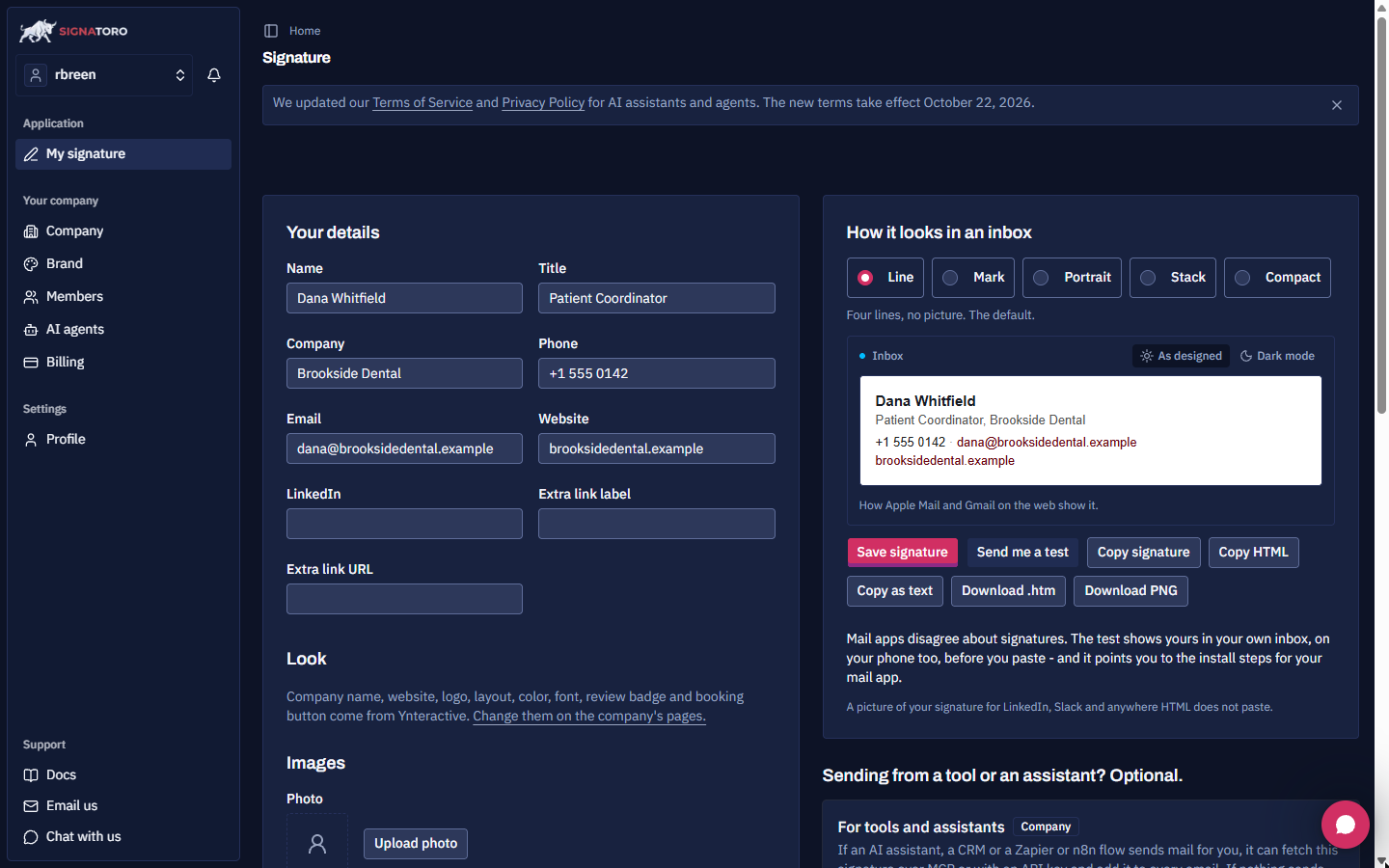
The n8n workflow
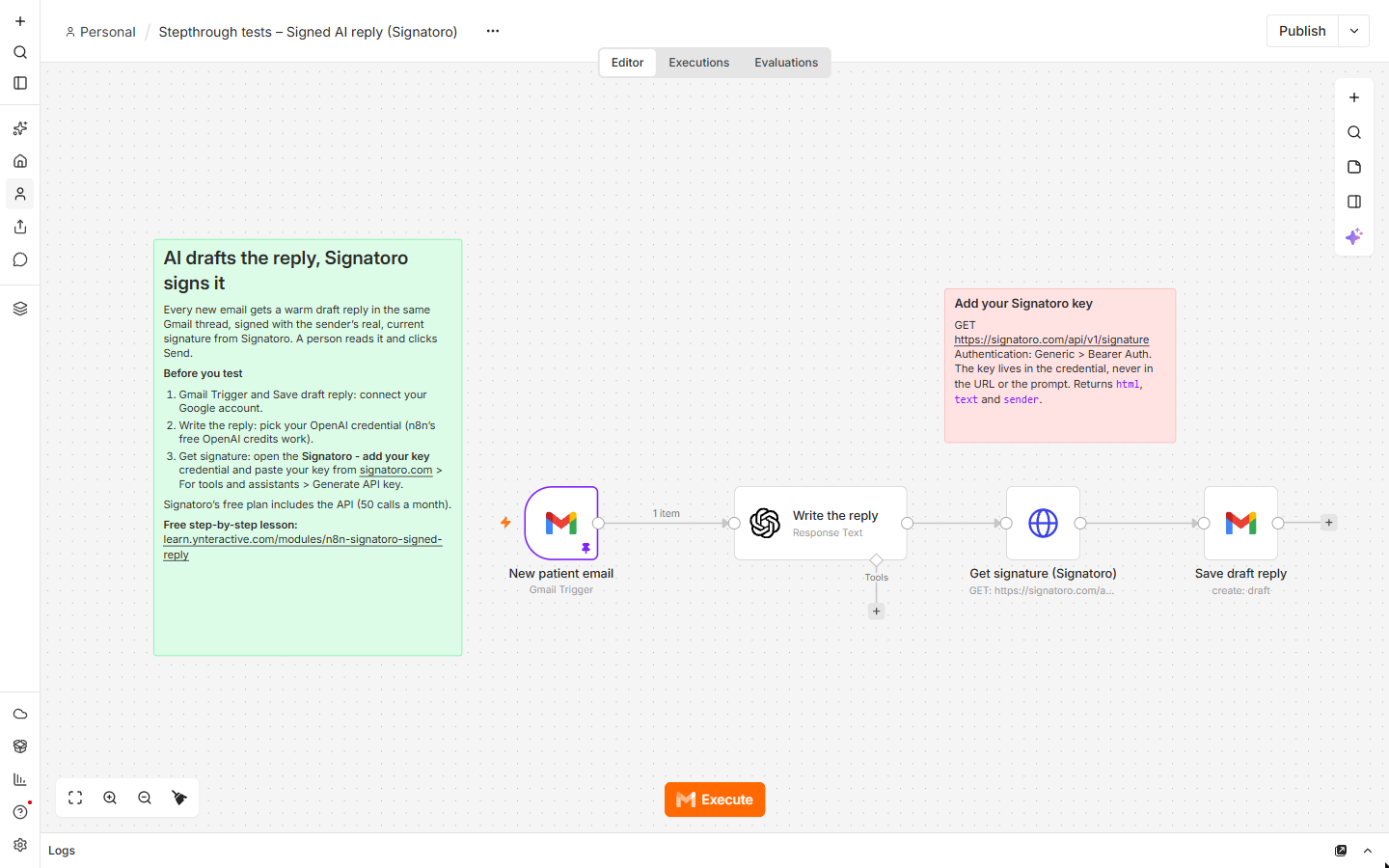
The four-node workflow from this lesson, with setup notes on the canvas. It has no credentials: connect Google and OpenAI, and create a Bearer Auth credential with your Signatoro key after you paste it onto your canvas.
Download the n8n workflow (JSON)
The business case: replies that wait
The example is Brookside Dental, a made-up family dental practice, and Dana Whitfield, its made-up patient coordinator. About 25 new patient emails arrive a week, and each one waits until someone has time to write, sign and send the answer: around 6 minutes each, or 2.5 hours a week, and some patients book somewhere else while they wait. These are example numbers, so use your own.
Letting AI write the reply is the easy part. Letting it sign is where it goes wrong: a reply signed "The Brookside team" reads like a form letter, and a model asked for a name and phone number can get them wrong or keep an old title for months. So the AI writes the message, and Signatoro, which owns the signature, adds it on every run.
What you need
- An n8n account (n8n Cloud's trial is enough). New n8n Cloud accounts get free OpenAI credits, which this workflow can use.
- A Google account for the Gmail Trigger and the Gmail draft.
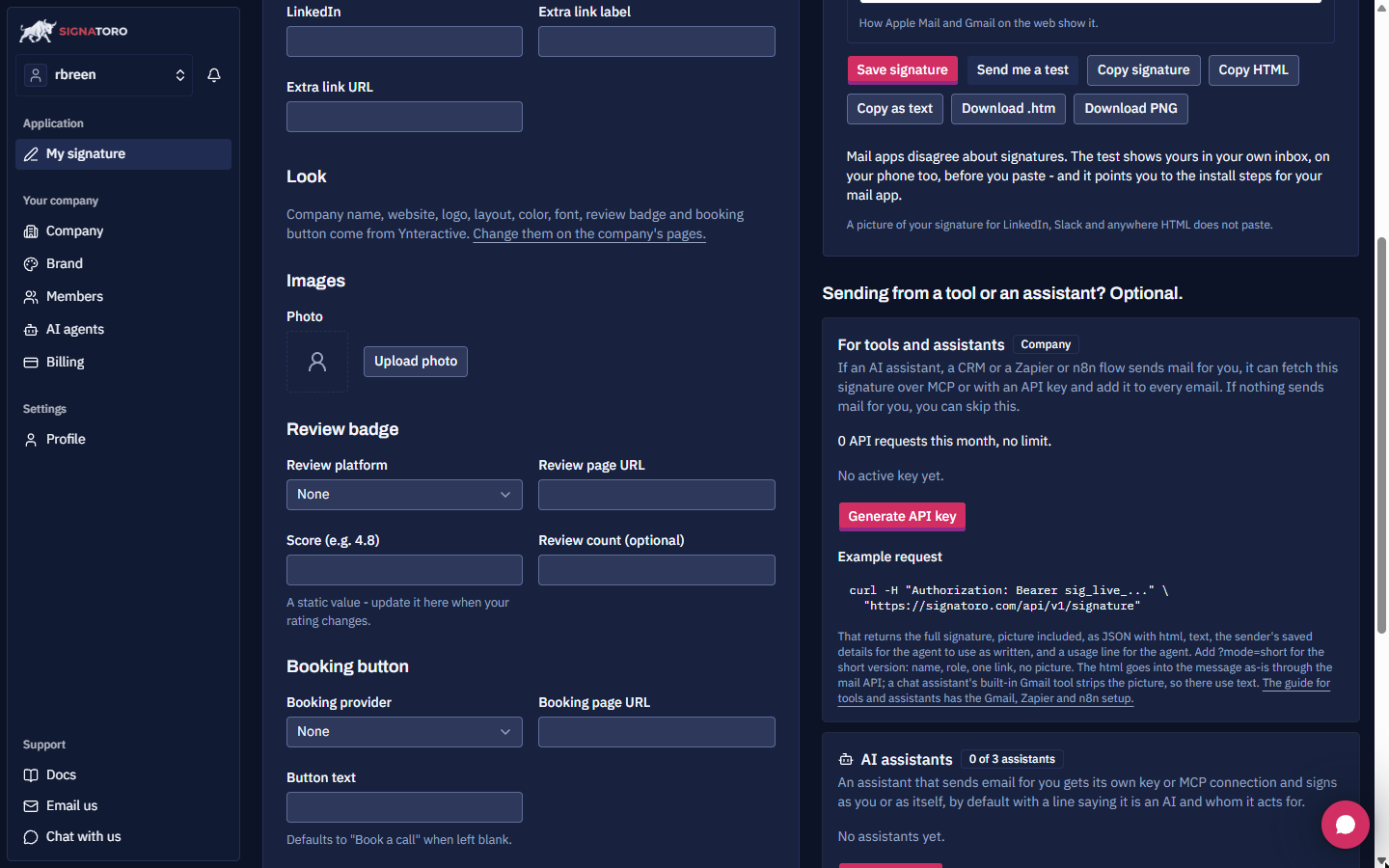
- A free Signatoro account with a saved signature and an API key from Generate API key, under For tools and assistants. The free plan includes the API, with a monthly limit (the docs show 50 requests).
Step 1: save the signature and make a key in Signatoro
On signatoro.com, fill in Your details (Name, Title, Company, Phone, Email, Website) and click Save signature. Scroll to For tools and assistants and click Generate API key. Copy the key: it's shown once. The example request under it is exactly what n8n sends.
Step 2: the Gmail Trigger
Download the workflow below, open the file, copy everything and paste it onto an n8n canvas. Open New patient email: it's a Gmail Trigger with Poll Times set to Every Minute. Connect your Google account and turn Simplify off, so the email's text, subject, threadId and sender address all reach the next nodes. While you test, pin a sample email as pinned data so you don't wait for real mail.
Step 3: OpenAI writes the reply, with no name
Write the reply is OpenAI's Message a Model node with GPT-5 mini. The prompt: greet the patient by first name and thank them, answer in one or two warm sentences, say we will call within one business day to book a time, give no medical advice, prices or promises, and end with a short closing line such as "Kind regards," with no name or signature. Write only the email body, as simple HTML. The email's text is added at the end with {{ $json.text }}.
In the test run it answered the sample email in three short paragraphs ending in "Kind regards,". The reply is at output[0].content[0].text, which the last node uses.
Step 4: Signatoro adds the signature
Get signature (Signatoro) is an HTTP Request node: Method GET, URL https://signatoro.com/api/v1/signature. Set Authentication to Generic Credential Type and Generic Auth Type to Bearer Auth, create a credential and paste your Signatoro key into Bearer Token. n8n sends it as a bearer token and keeps it out of the workflow and any export.
Signatoro answers with html (the signature as HTML), text and sender (name, title, company, email, phone, website). Add ?mode=short to the URL for a shorter signature: name, role and one link. If the key is missing or wrong, the node stops with Authorization failed and missing_api_key or invalid_api_key, which is what the lesson's test run shows with a placeholder key.
Step 5: Gmail saves a draft reply
Save draft reply is a Gmail node with Resource Draft and Operation Create. Subject is Re: plus the trigger's subject, Email Type is HTML, and Message is the AI's reply followed by {{ $json.html }}, the signature. Under Options, Thread ID is the trigger's threadId, so the draft sits in the patient's own thread, and To Email is the sender's address.
Send yourself a practice email and click Execute. Read the draft in Gmail, and only then Publish the workflow. Keep it as a draft step until you trust every reply.
Using Make or Zapier instead?
The same reply, with the same practice and prompt rules, is built in [Make](/content/make-com-chatgpt-gmail-personalized-reply) with an HTTP module and in [Zapier](/content/zapier-chatgpt-gmail-reply-signatoro-signature) with Signatoro's Get Signature step.
Mistakes to avoid
- Pasting the Signatoro key into the URL or the prompt. Keep it in the Bearer Auth credential.
- Leaving Simplify on in the Gmail Trigger. The simplified email has no full text or thread for the reply.
- Asking the model to sign. It writes the closing line only; Signatoro signs.
- Sending instead of drafting. Start with drafts and let a person click Send.
Links
- Signatoro: the email signature platform this lesson uses. The free plan includes the API, with a monthly request limit.
- Signatoro signature API: GET /api/v1/signature, the Bearer key, mode=short and the response fields (html, text, sender).
- Signatoro with n8n, Zapier and Make: Signatoro's own setup notes for automations.
- Signatoro in the AI tools directory: what it does, what it costs, and every Stepthrough lesson that uses it.
- n8n Gmail node: the Draft resource and its Thread ID option.
Try it yourself, free
Reading the steps is a start. Doing them is how it sticks. The interactive module walks you through every click in a practice copy of n8n, checks each step, and never touches your real accounts.
Start “n8n + Signatoro: AI Drafts Every Reply, Signatoro Signs It”
November 2026 spotlight
Signatoro
One email signature for your whole team, your Make, n8n and Zapier automations and every AI agent you connect, saved once and fetched everywhere. Made by the Blastra team.
Screenshots
Frequently asked questions
- Is this an official Signatoro course?
- No. This is my own lesson. Signatoro is a separate, third-party product from signatoro.com.
- Does Signatoro's free plan include the API?
- Yes. Signatoro's docs (read 20 October 2026) say every plan includes the API and the MCP server, and free accounts have a monthly request limit; the docs' example shows 50. Each draft in this workflow is one request.
- Do I need an OpenAI key?
- Not to start. New n8n Cloud accounts get free OpenAI credits, which the OpenAI node can use. After that, connect your own OpenAI API key, billed by OpenAI.
- Why does the test run show Authorization failed?
- The lesson's run used a placeholder key on purpose, so no real key was made. The error proves n8n reached Signatoro with the right URL and header. Paste your real key into the credential and the node returns your signature.
- Can it send the reply automatically?
- It can, by switching the Gmail node to send a reply, but start with drafts. A person reading every reply is what makes an AI reply safe to use with clients.
More in n8n Automation Toolkit
 n8n: What Is n8n? Build Your First Workflow
What n8n is and how it thinks, then your first workflow: a client inquiry form that catches every request and writes a one-line summary. No code, no accounts to connect.
Free · Live ~8 min Beginner
 How to Do n8n Automation for Beginners: Sort Inquiries and Draft Replies with AI
AI workflow automation for beginners: a form catches each client inquiry, an AI step sorts it and drafts the reply, and an If rule flags the urgent ones. Real n8n, free…
Free · Live ~12 min Beginner
 n8n: Items, JSON and Expressions, Explained by Doing
See how n8n holds data: pin five fake invoices, read them as items, Table and JSON, then write one reminder per invoice and a late fee with drag-and-drop expressions.
Free · Live ~9 min Beginner
 n8n: Run a Workflow on a Schedule (Every Monday at 8am)
Use the n8n Schedule Trigger to run a workflow by itself: every Monday at 8am, a timesheet reminder. Set the interval, test it now, and check the time zone.
Free · Live ~6 min Beginner
 n8n: Send Form Answers Straight to Google Sheets
Build a consultation request form in n8n (required fields, email, dropdown), test it, and add every answer as a new row in Google Sheets. No webhook, no form tool to…
Free · Live ~10 min Beginner
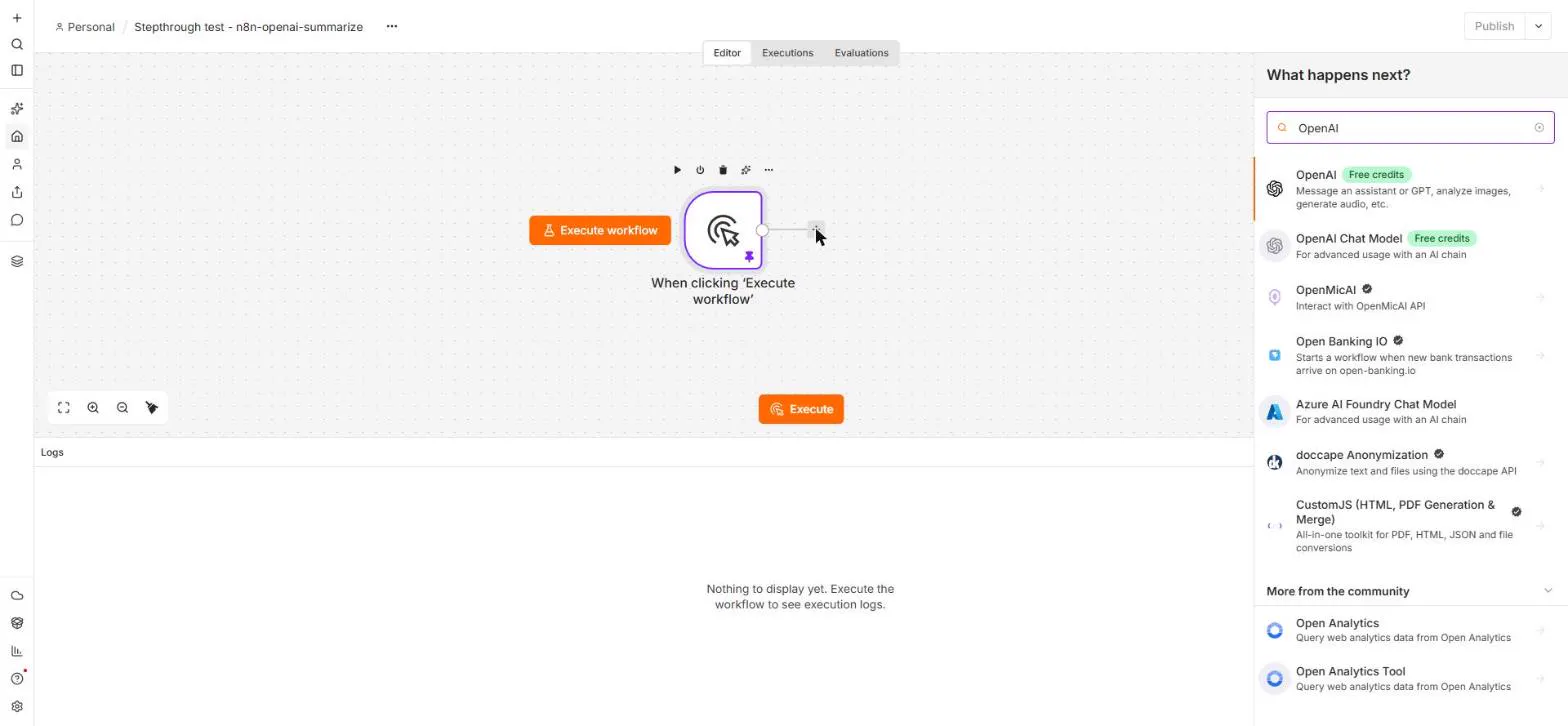 n8n: Summarize Customer Emails with OpenAI
Your first AI step in n8n: send each customer email to OpenAI with one prompt and get a one-line summary plus the next step. No agent needed, about a cent of API use.
Free · Live ~9 min Beginner
All 28 modules in n8n Automation Toolkit
More n8n tutorials
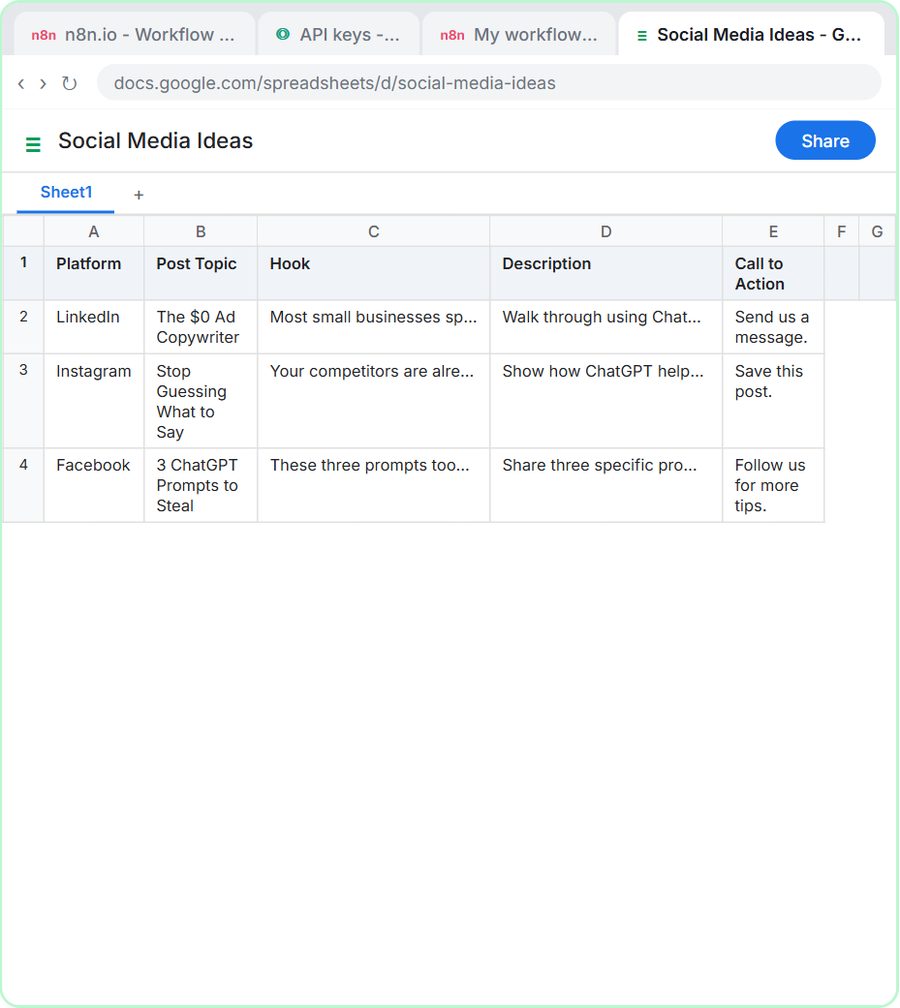 How to Create an AI Agent in n8n That Saves Ideas to Google Sheets
Build an AI agent for BrightPath Marketing that generates social media post ideas and saves them to Google Sheets — chat trigger, AI Agent, system prompt, model…
Free · Live ~12 min Intermediate
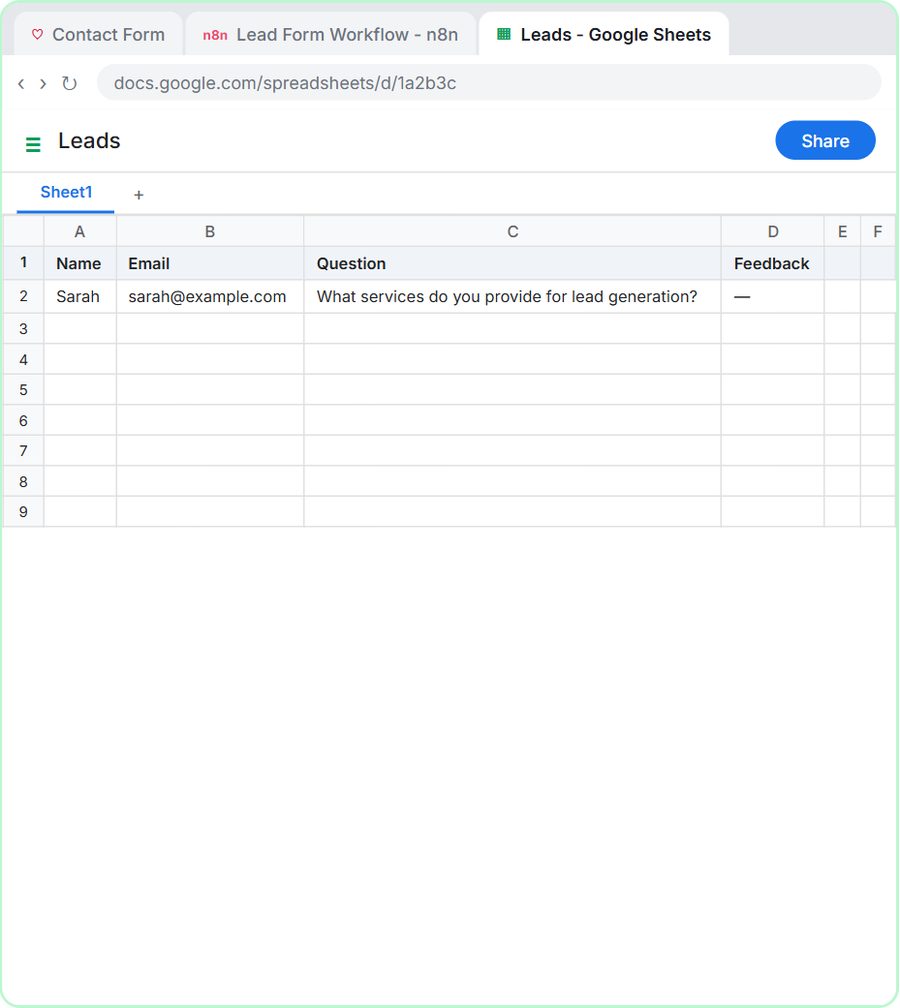 How to Build in Lovable: A Web App with an n8n AI Backend
Build a contact form in Lovable and connect it to an n8n workflow — webhook trigger, AI Agent, Google Sheets, Gmail, and a Respond node that ties it all together.
Free · Live ~15 min Advanced
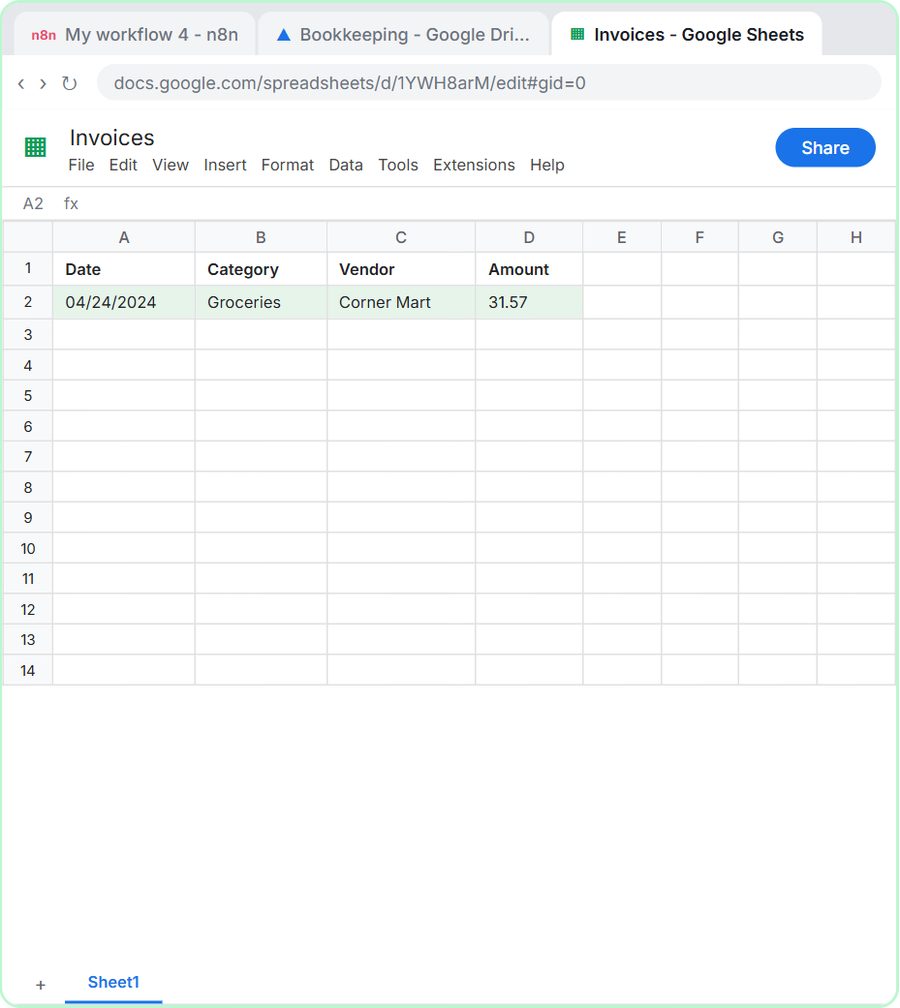 How to Do OCR in n8n: Read Receipt Photos into Google Sheets with AI
Drop a photo of a receipt into an n8n chat. An AI agent reads it, pulls out the date, vendor and amount, picks a category, and adds a row to Google Sheets.
Free · Live ~12 min Intermediate
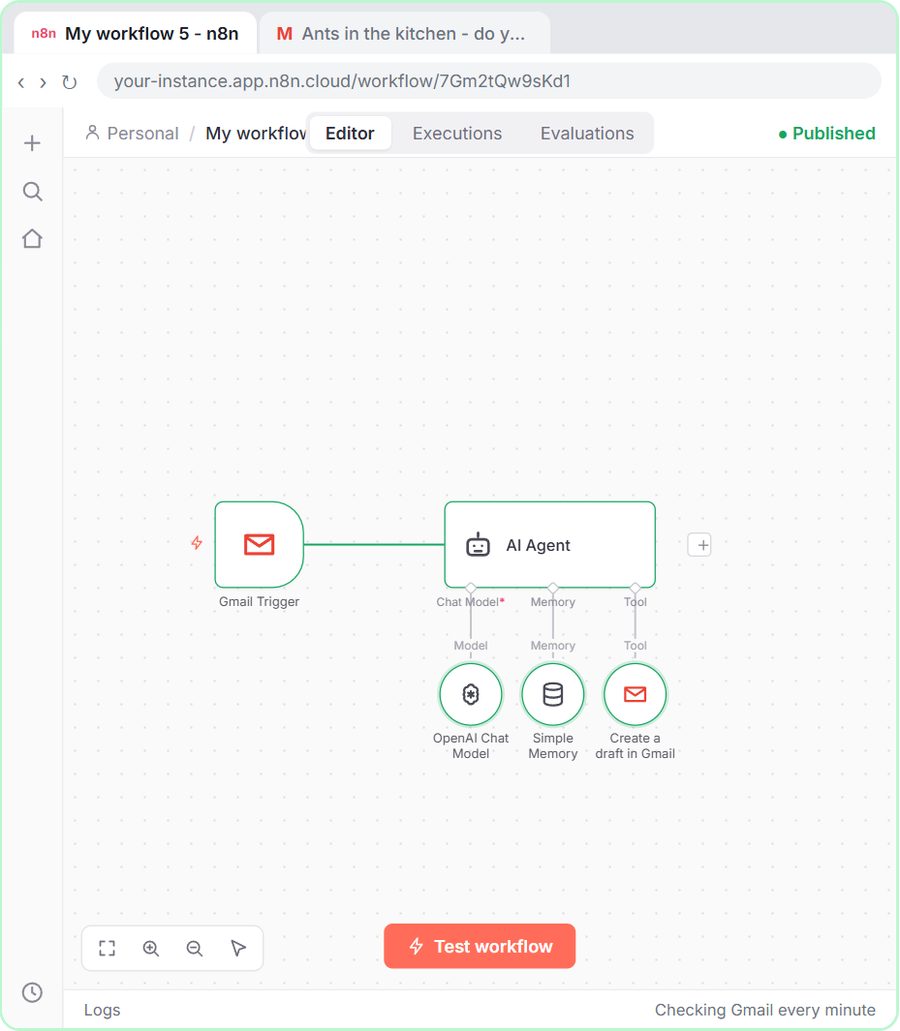 n8n AI Email Responder: Draft Gmail Replies Automatically
Build an n8n agent that watches your Gmail, reads each new customer email, and writes a reply as a draft in the same thread, ready for you to check and send.
Free · Live ~12 min Intermediate
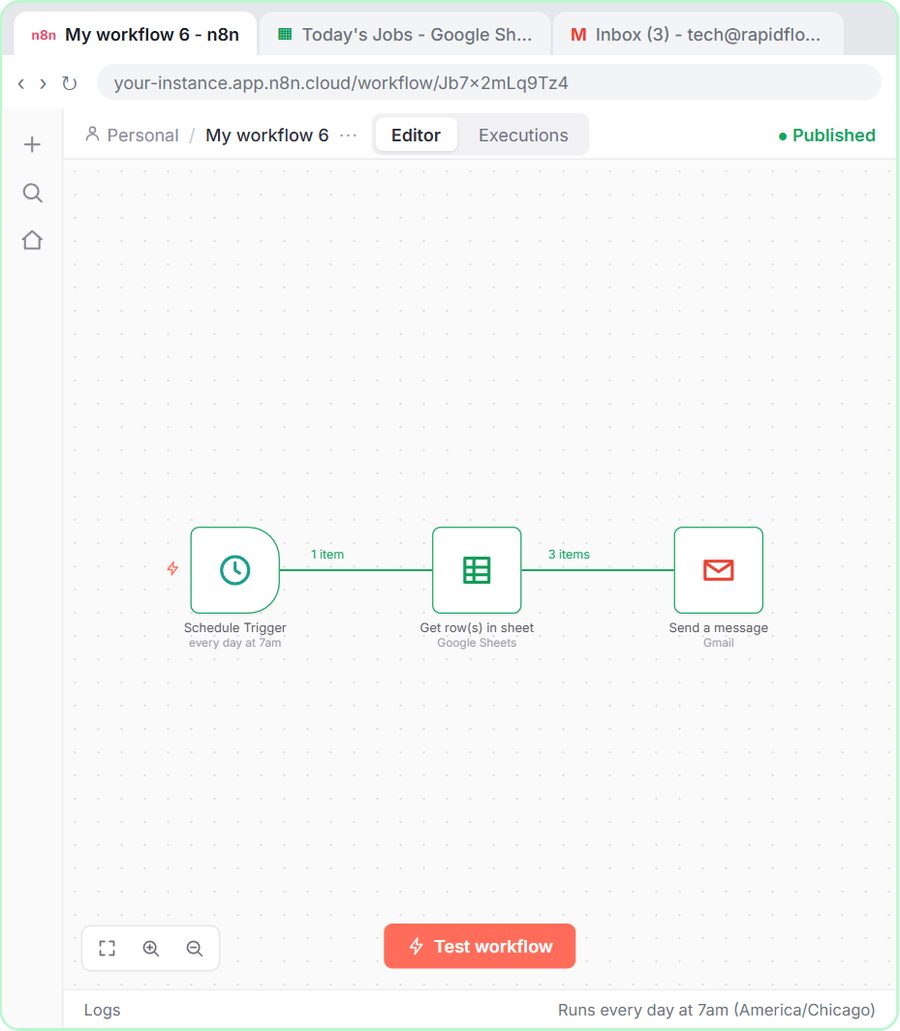 How to Make an n8n Workflow That Emails Each Tech Their Jobs from Sheets
Every morning at 7, n8n reads a plumbing company's jobs sheet, skips anything not assigned yet, and emails each job to the tech it's assigned to — customer, address…
Free · Live ~10 min Intermediate
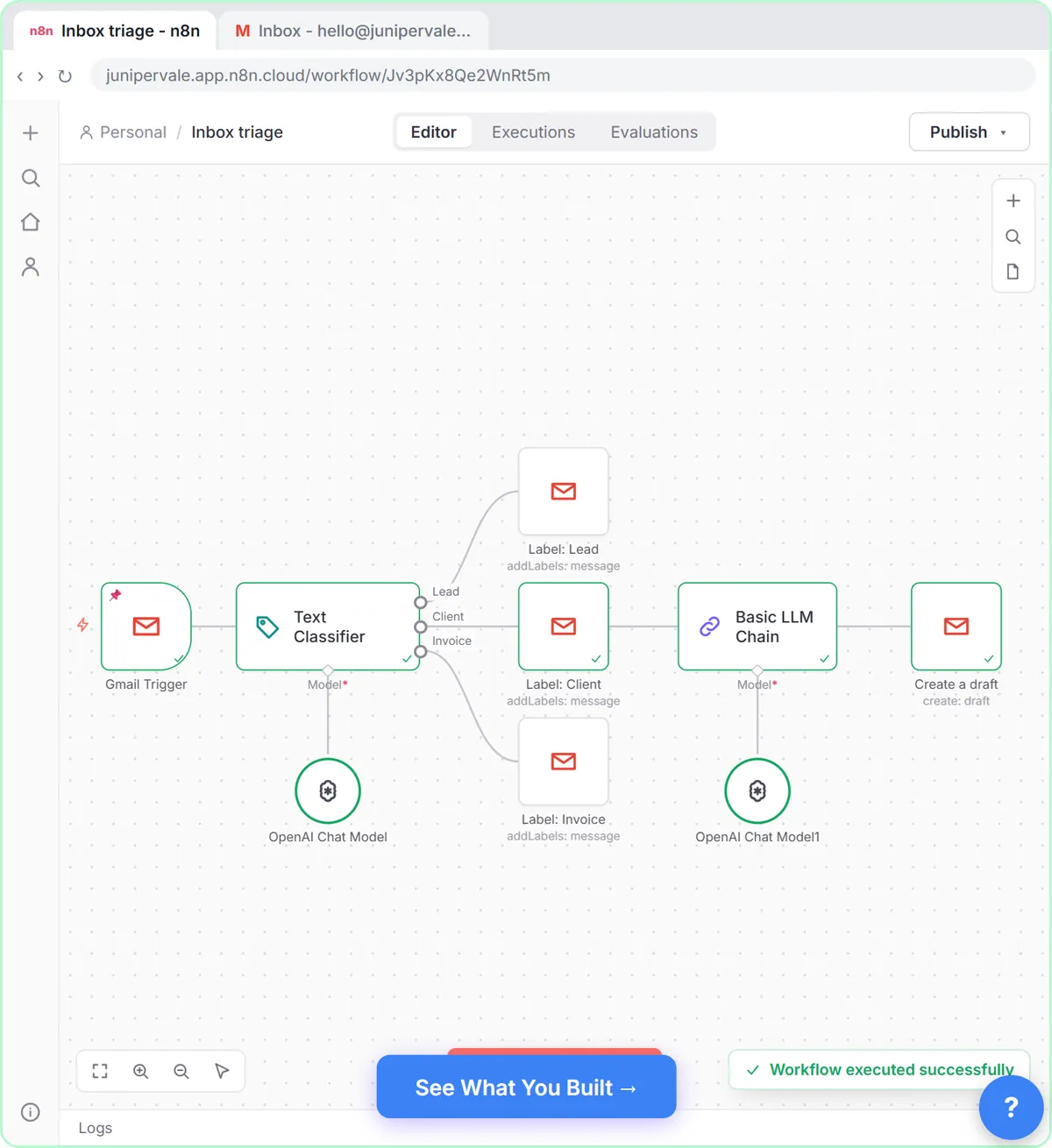 Gmail AI Triage: Auto-Label Every Email and Draft Replies
Build an n8n workflow that reads each new email, sorts it as a lead, a client or an invoice with a Text Classifier, adds the matching Gmail label, and drafts a reply to…
Free · Live ~18 min Advanced
Terms in this lesson
Plain-English definitions, each with an example from a free lesson.