Updated . Built against the tool’s current screens and checked step by step. How we check this lesson
n8n can host a form for you and send every answer straight into a Google Sheet. In this free lesson a made-up bookkeeping firm builds a consultation request form with n8n's On form submission trigger: a required Name, an Email element and a Service dropdown. You send a test request, then add Google Sheets > Append row in sheet, pick the document and sheet, and map each column by dragging. All of it happens in a practice copy of n8n, the form and the sheet.
At a glance
| Question | Answer |
|---|---|
| What you build | Build a consultation request form in n8n (required fields, email, dropdown), test it, and add every answer as a new row in Google Sheets. No webhook, no form tool to pay for. |
| Tools | n8n |
| Time | About 10 minutes, 41 steps in 3 parts |
| Level | Beginner, no coding needed |
| Cost | Free |
| Ways to learn it | Practice it step by step |
The 3 parts, in short
- Build the form: Add the first step, On form submission, Form Title, First question, and 17 more steps.
- Send a test request: Test the form, Name, Email, Open Service, and 4 more steps.
- Add the row to a sheet: Add a step, Search for Sheets, Google Sheets, Append row in sheet, and 8 more steps.
Start here first: n8n: What Is n8n? Build Your First Workflow (module 1 of n8n Automation Toolkit)
In the course: Part 9 · n8n Automation Toolkit (Module 102 of the full course)
Part of: n8n for Beginners: Your First Automations (step 8 of 12). Next up: How to Add an n8n Template: Find, Import, Connect and Publish It
The sheet to make first
Row 1 holds the headings n8n maps to. Add a Service column too if you want it, then use Refresh Column List in the node.
| Name | |
|---|---|
| Priya Shah | priya@example.com |
Build the form
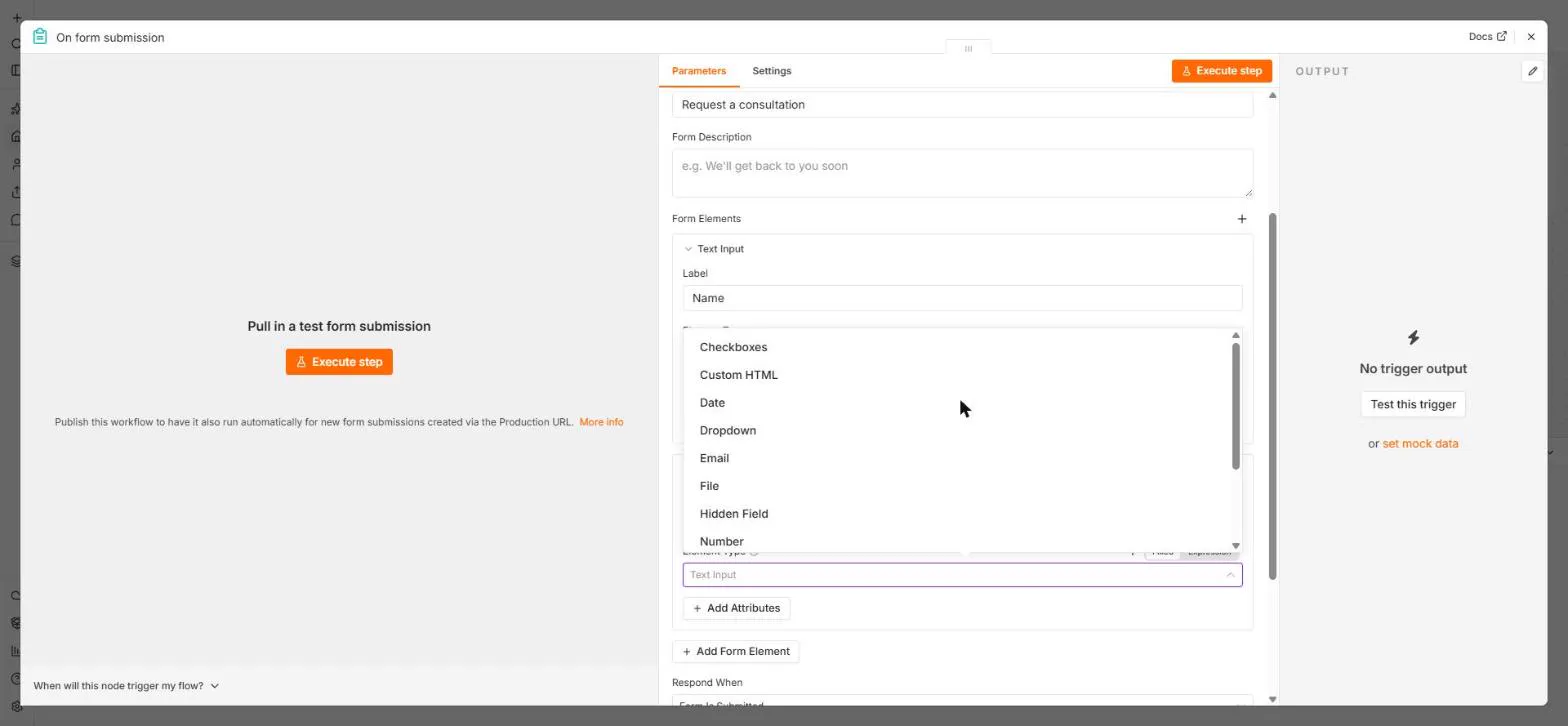
Start with On form submission, type a Form Title and use Add Form Element for each question. Element Type offers Text Input, Email, Number, Date, Dropdown, Checkboxes, File and more. + Add Attributes > Required Field adds a switch that makes the question compulsory; a Dropdown gets its choices under Field Options.
Test it
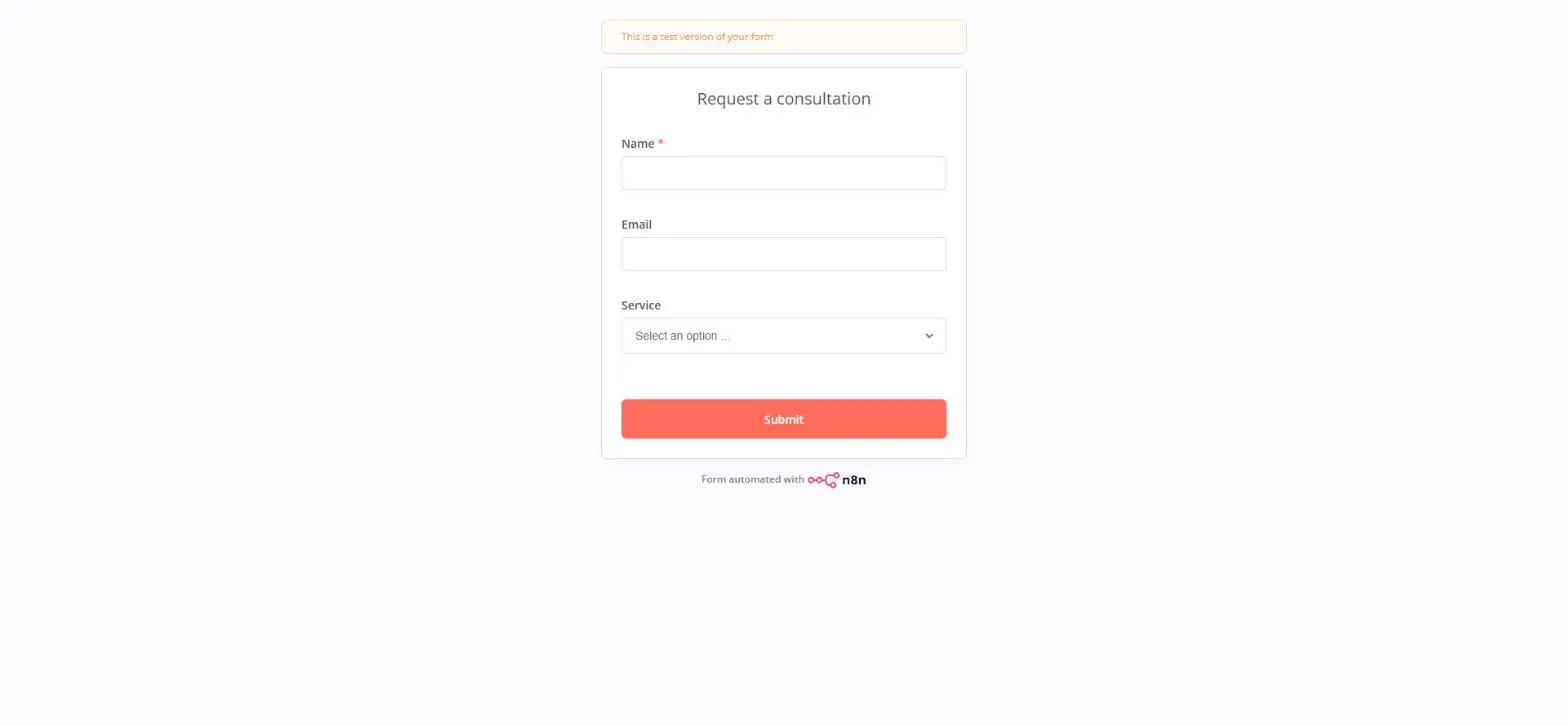
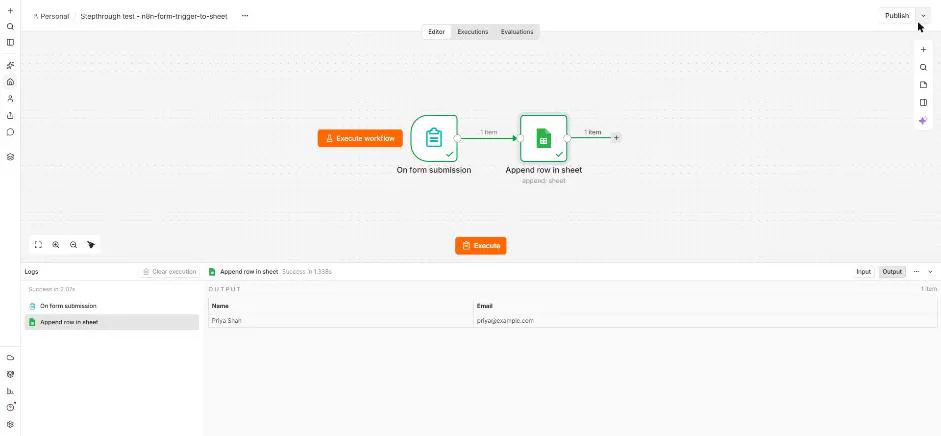
Execute step opens the test form in a new tab. Submit it and the trigger outputs 1 item with a field per question, plus submittedAt and formMode. To catch entries from your own website too, see How to Create a Webhook in n8n and a Form That Saves to Google Sheets.
Append the row
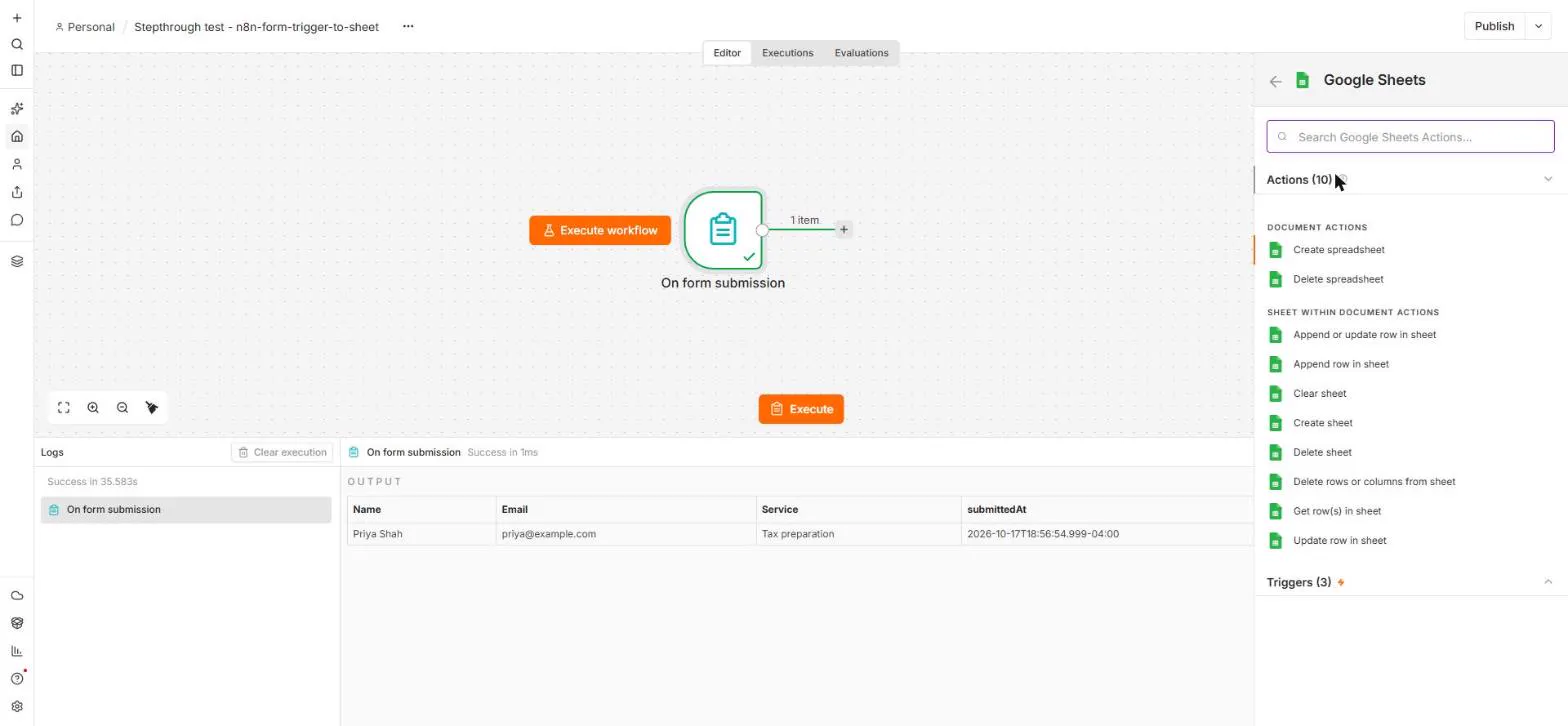
Click the +, search sheets, choose Google Sheets and then Append row in sheet. To start from a ready-made form, Sheets and Gmail workflow instead, see How to Add an n8n Template: Find, Import, Connect and Publish It. Pick your Google credential (or create one with Sign in with Google), choose the Document and the Sheet, and n8n lists the sheet's headings under Values to Send. Drag each form field onto its column and click Execute step. To read, update and de-duplicate rows as well, see How to Connect n8n to Google Sheets: Read, Add and Update Rows with AI. To log Google Forms responses to a sheet with Zapier instead, see How to Create a Zap in Zapier: Log Google Forms Inquiries in Sheets.
Links
- n8n (affiliate link): the workflow tool this lesson teaches (free trial, no credit card).
- n8n docs: Google Sheets node: every Google Sheets action.
Disclosure: links marked "affiliate link" are partner links. If you sign up through one, Stepthrough may earn a commission at no extra cost to you. The lesson is free either way and does not depend on it.
Try it yourself, free
Reading the steps is a start. Doing them is how it sticks. The interactive module walks you through every click in a practice copy of n8n, checks each step, and never touches your real accounts.
Start “n8n: Send Form Answers Straight to Google Sheets”Step by step: n8n: Send Form Answers Straight to Google Sheets
All 41 steps of the interactive module, in order. In the module you watch each one, then do it yourself in a practice copy that checks your work.
1. Build the form
- Add the first step. Clearview Bookkeeping retypes every consultation request from email into a Google Sheet. You will make a form that adds the row by itself. Click Add first step....
Clearview Bookkeeping retypes every consultation request, from email into a Google Sheet. You'll make a form that adds the row by itself.
- On form submission. Click On form submission.
- Form Title. In Form Title, type Request a consultation.
Give it a title. Request a consultation.
- First question. Click Add Form Element.
- Name. In Label, type Name.
Label it Name.
- Add Attributes. A request without a name is useless, so make it required. Click + Add Attributes.
A request with no name is no use. Make it required.
- Required Field. The list has Custom Field Name, Placeholder, Default Value and Required Field. Choose Required Field.
- Turn it on. A Required Field switch appears, off. Turn it on.
A switch appears, and it's off. Turn it on.
- Second question. Click Add Form Element again.
Add another element.
- Email. Label it Email.
- Element Type. Open Element Type (it says Text Input).
It says text input.
- Email. The list runs from Checkboxes to Text Input. Choose Email, so the form checks it looks like an address.
There's a type for everything. Dates, files, numbers, dropdowns.
- Third question. Click Add Form Element.
One more. Add Form Element.
- Service. Label it Service.
- Element Type. Open its Element Type.
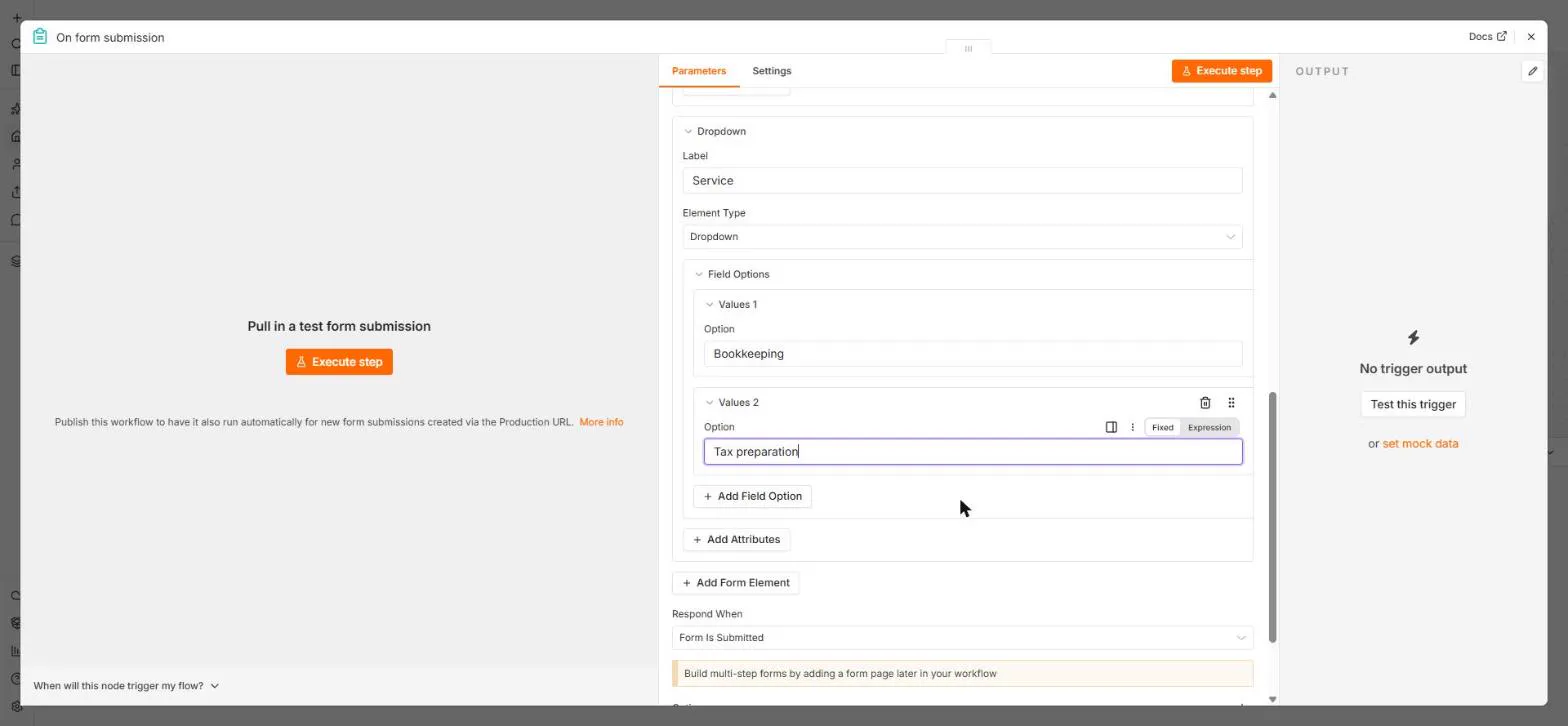
- Dropdown. Choose Dropdown: clients pick from your list instead of typing.
Clients pick from your list, so the answers stay clean.
- First option. Under Field Options, Values 1, type Bookkeeping in Option.
Under field options, type Bookkeeping.
- Add Field Option. Click + Add Field Option.
- Second option. Type Tax preparation.
- One more option. Click + Add Field Option again.
And one more.
- Third option. Type Payroll.
2. Send a test request
- Test the form. Click Execute step. Your test form opens in a new tab.
Test it. The form opens in a new tab.
- Name. Name has a red star: required. Type Priya Shah.
Name has a red star. It's required.
- Email. Type priya@example.com.
- Open Service. Open Service (it says Select an option ...).
- Tax preparation. Choose Tax preparation.
- Submit. Click Submit.
Submit it.
- Back to n8n. Switch back to the n8n tab.
Go back to n8n.
- Close the node. One item: Name, Email, Service: Tax preparation, submittedAt and formMode. Close the node.
One item. Name, email, service, and the time. Close the node.
3. Add the row to a sheet
- Add a step. Click the + after the trigger.
Now send it to the sheet.
- Search for Sheets. Type sheets.
- Google Sheets. Click Google Sheets.
- Append row in sheet. Ten actions, from Create spreadsheet to Update row in sheet. Click Append row in sheet: add one new row at the bottom.
Ten actions. You want to add one new row at the bottom.
- Pick the spreadsheet. Credential is already filled in: a saved Google login. (No credential yet? Pick Create new credential and Sign in with Google.) Open Document.
Credential is already filled in. That's your saved Google login. If you don't have one yet, choose create new credential, and sign in with Google.
- Consultation requests. Choose Consultation requests. Make this sheet first, with Name and Email in row 1.
Make that sheet first, with Name and Email as the headings in row one.
- Pick the tab. Open Sheet.
- Sheet1. Choose Sheet1.
- Map the name. n8n read row 1: Values to Send lists Name and Email. Drag Name from the INPUT onto the Name box (here, click it).
n8n read your headings. Values to send lists Name and Email. Here, click it.
- Map the email. Drag Email onto the Email box.
Then Email onto Email.
- Add the row. Click Execute step. This really adds the row to your sheet.
This really adds the row to the sheet.
- Done. OUTPUT: 1 item, Priya Shah, priya@example.com: the row it wrote. Close the node.
The output shows the row it wrote. Priya Shah, and her email. Close the node.
Screenshots
Frequently asked questions
- Does n8n have its own form builder?
- Yes. The On form submission trigger hosts a form with the elements you add and passes each answer to the workflow.
- How do I send n8n form data to Google Sheets?
- Add Google Sheets > Append row in sheet after the form trigger, choose the document and sheet, and drag each form field onto its column.
- Why is a column missing in Append row in sheet?
- n8n reads the headings in row 1. Add the heading to the sheet, then choose Refresh Column List in the menu next to Values to Send.
More in n8n Automation Toolkit
 n8n: What Is n8n? Build Your First Workflow
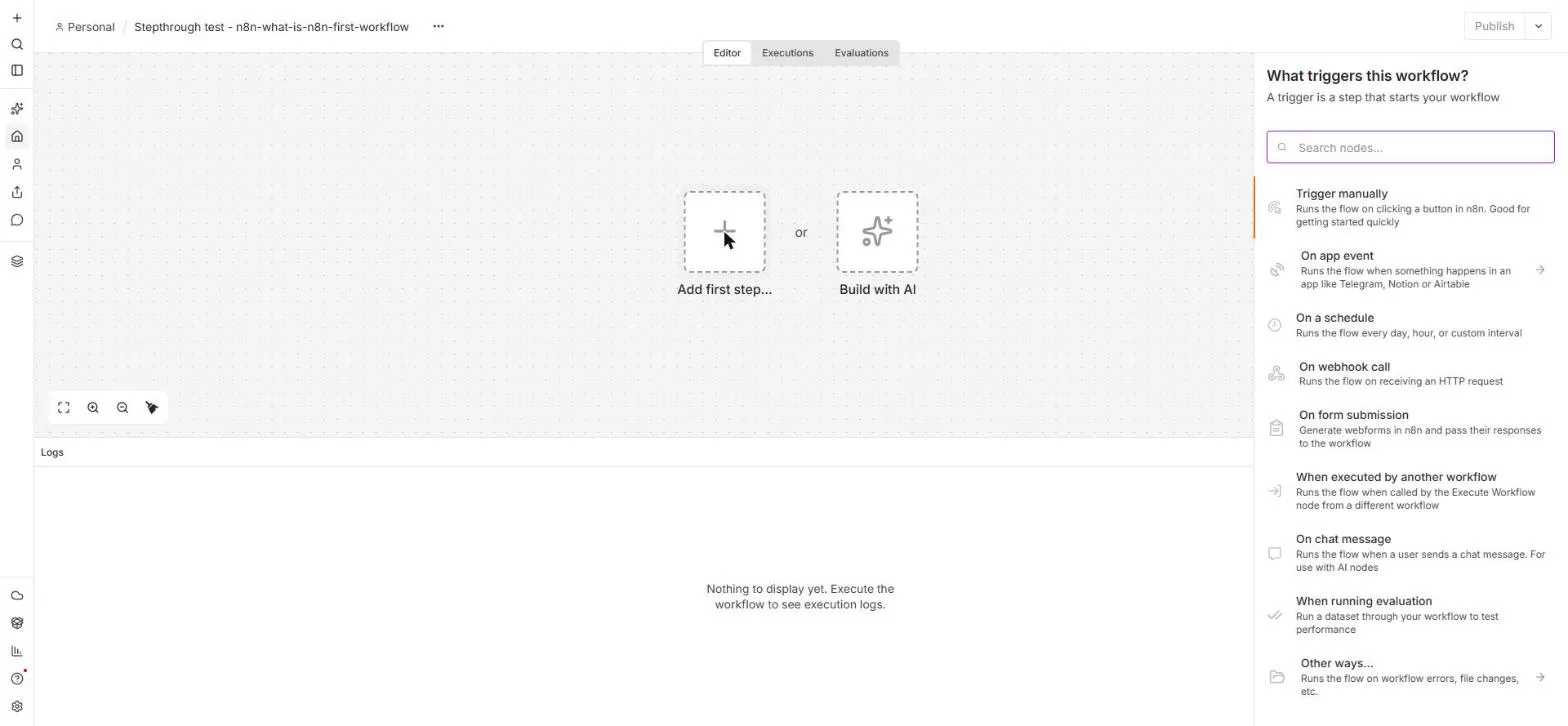
What n8n is and how it thinks, then your first workflow: a client inquiry form that catches every request and writes a one-line summary. No code, no accounts to connect.
Free · Live ~8 min Beginner
 How to Do n8n Automation for Beginners: Sort Inquiries and Draft Replies with AI
AI workflow automation for beginners: a form catches each client inquiry, an AI step sorts it and drafts the reply, and an If rule flags the urgent ones. Real n8n, free…
Free · Live ~12 min Beginner
 n8n: Items, JSON and Expressions, Explained by Doing
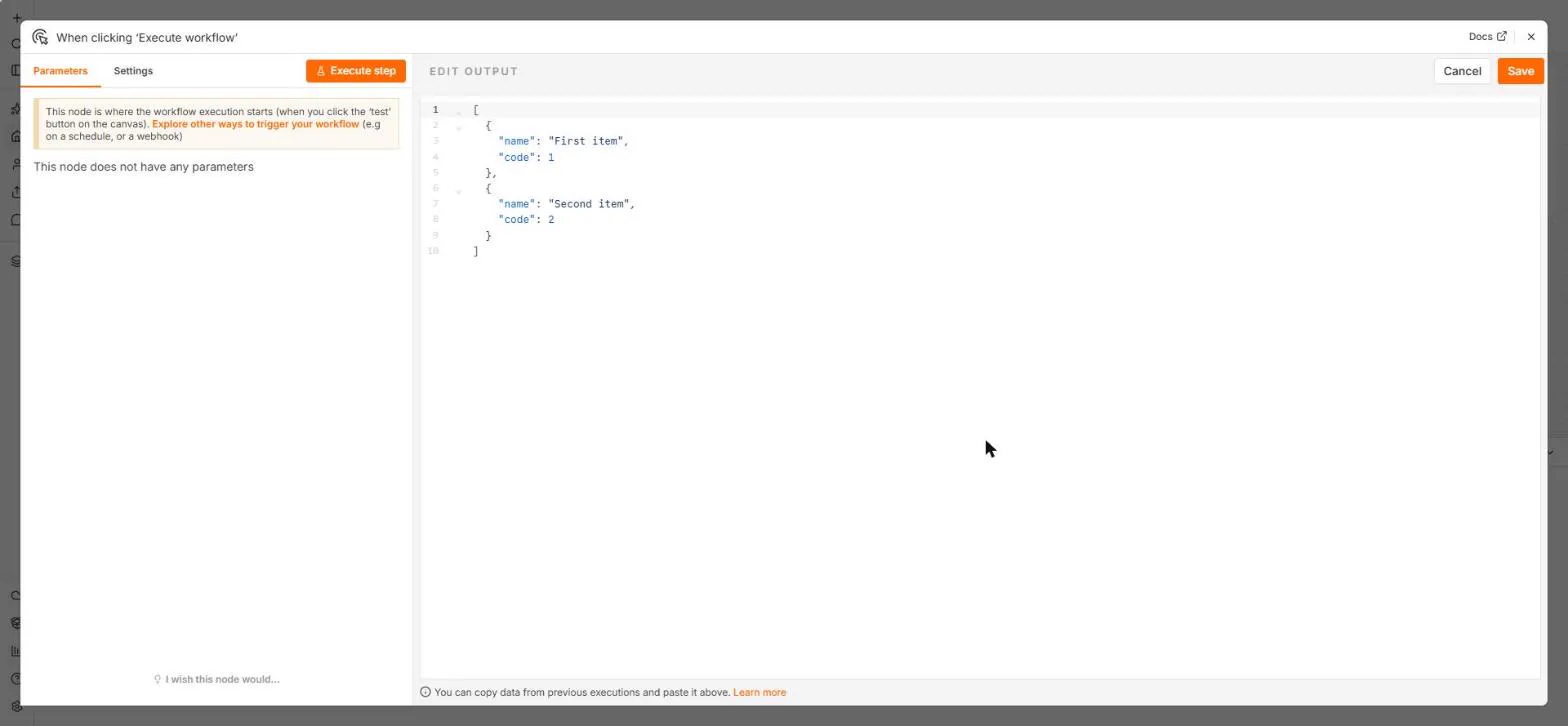
See how n8n holds data: pin five fake invoices, read them as items, Table and JSON, then write one reminder per invoice and a late fee with drag-and-drop expressions.
Free · Live ~9 min Beginner
◷n8n: Reply to a Web Form Instantly with Respond to WebhookUse the n8n Respond to Webhook node to answer a website form in the same second: catch the request, build a confirmation with Edit Fields, and send it back with a 200.
Free · Live ~8 min Intermediate
◷n8n: Keep Only the Rows That Matter with Filter and Edit FieldsUse the n8n Filter node to keep only the items that pass your rules, then Edit Fields (Set) to keep three clean fields: a lease list becomes a renewal to-do list.
Free · Live ~7 min Beginner
◷n8n: Run JavaScript or Python in the Code Node (Total Hours by Client)Use the n8n Code node to do what no ready-made node does: total timesheet hours per client in eight lines of JavaScript, then run the same job in Python.
Free · Live ~6 min Intermediate
All 28 modules in n8n Automation Toolkit
More n8n tutorials
 How to Create an AI Agent in n8n That Saves Ideas to Google Sheets
Build an AI agent for BrightPath Marketing that generates social media post ideas and saves them to Google Sheets — chat trigger, AI Agent, system prompt, model…
Free · Live ~12 min Intermediate
 How to Build in Lovable: A Web App with an n8n AI Backend
Build a contact form in Lovable and connect it to an n8n workflow — webhook trigger, AI Agent, Google Sheets, Gmail, and a Respond node that ties it all together.
Free · Live ~15 min Advanced
 How to Do OCR in n8n: Read Receipt Photos into Google Sheets with AI
Drop a photo of a receipt into an n8n chat. An AI agent reads it, pulls out the date, vendor and amount, picks a category, and adds a row to Google Sheets.
Free · Live ~12 min Intermediate
 n8n AI Email Responder: Draft Gmail Replies Automatically
Build an n8n agent that watches your Gmail, reads each new customer email, and writes a reply as a draft in the same thread, ready for you to check and send.
Free · Live ~12 min Intermediate
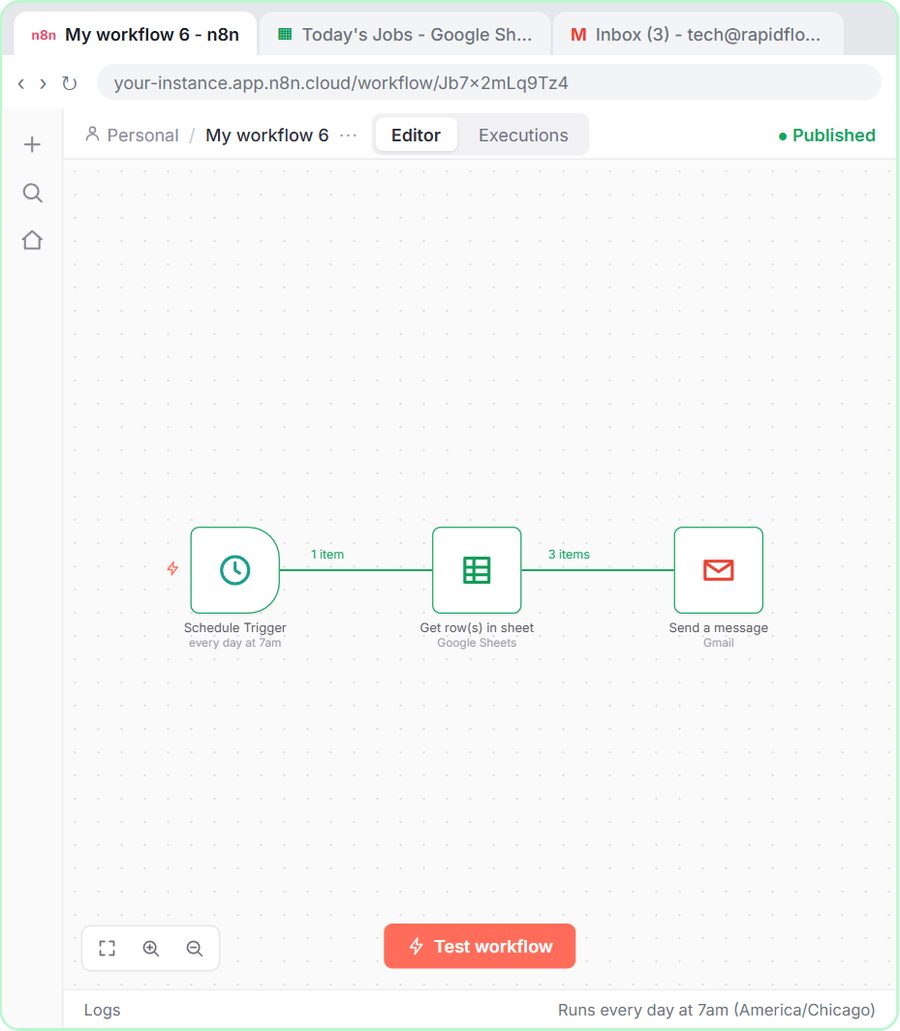 How to Make an n8n Workflow That Emails Each Tech Their Jobs from Sheets
Every morning at 7, n8n reads a plumbing company's jobs sheet, skips anything not assigned yet, and emails each job to the tech it's assigned to — customer, address…
Free · Live ~10 min Intermediate
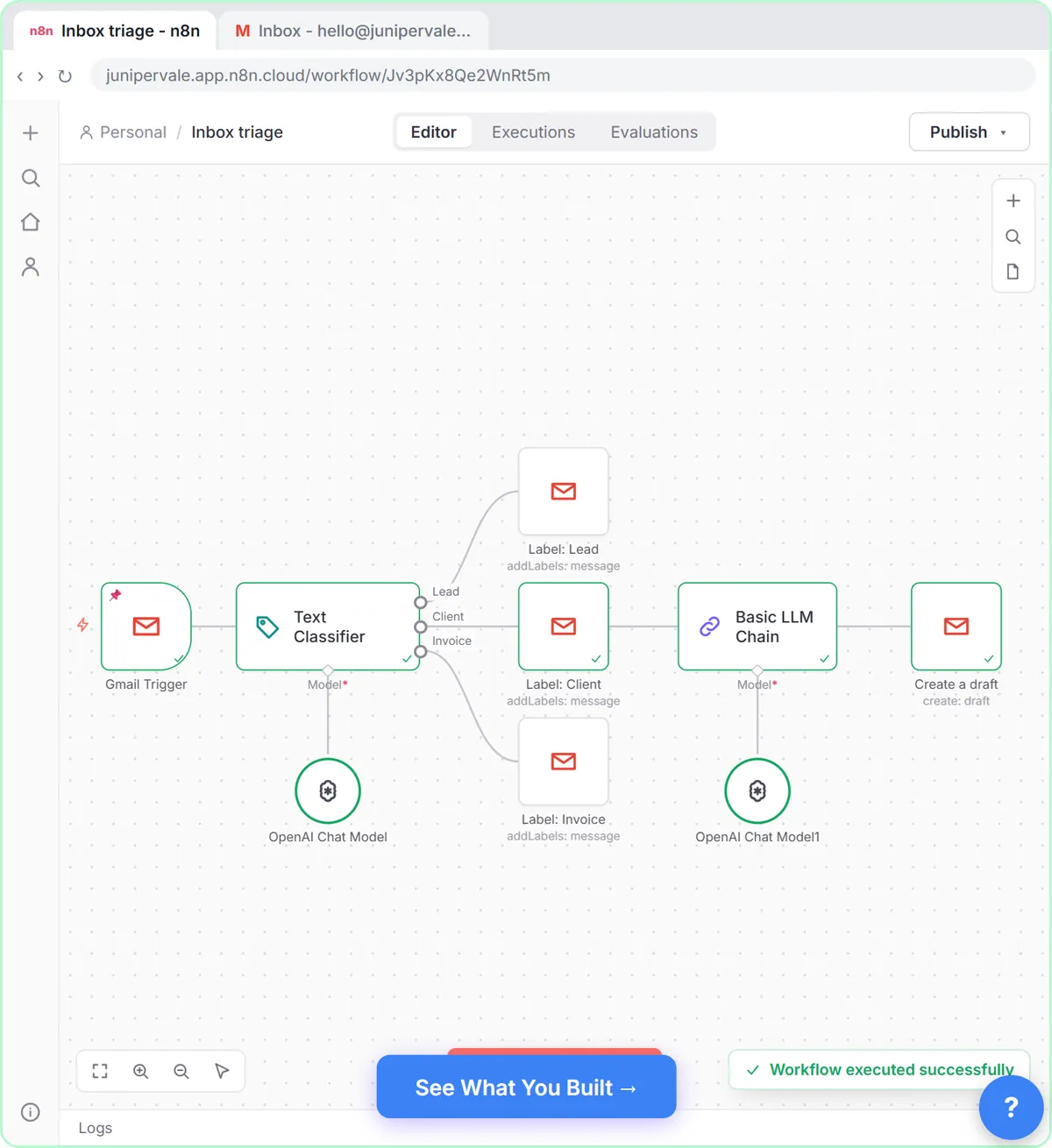 Gmail AI Triage: Auto-Label Every Email and Draft Replies
Build an n8n workflow that reads each new email, sorts it as a lead, a client or an invoice with a Text Classifier, adds the matching Gmail label, and drafts a reply to…
Free · Live ~18 min Advanced
Free cheat sheet
Print it or save the PDF: the key steps and checks from this lesson on one page, free.
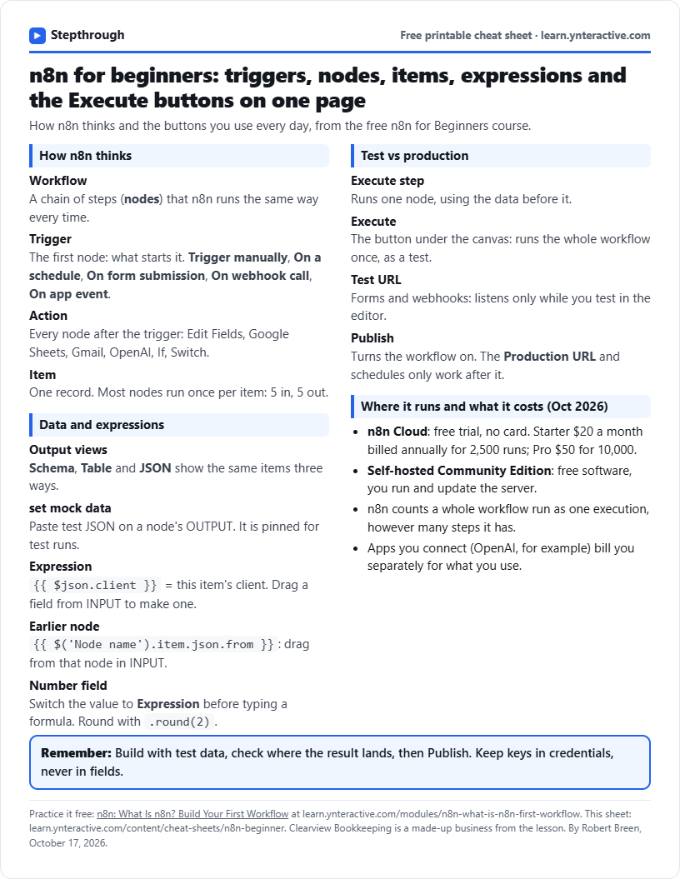
All free printable cheat sheets
Terms in this lesson
Plain-English definitions, each with an example from a free lesson.