Updated . Built against the tool’s current screens and checked step by step. How we check this lesson
An n8n AI agent that drafts client emails saves real time, right up to the moment it sends one with the wrong amount. You cannot unsend an email, so most owners end up checking every draft by hand. Guardian (guardian-safety-gate.com) sits in front of the step that cannot be undone and answers Allowed, Needs approval or Denied before your workflow acts. In this free lesson you turn three plain lines into a Guardian policy for a made-up bookkeeping firm: team emails go out alone, client emails wait for a person, and deletes are never allowed. You build the rule, test a team email and a client email, save it, and see where the Guardian node and the Approval Inbox fit in n8n. The Guardian screenshots are the real app, taken while building this exact policy. This is my own lesson, not an official Guardian course.
Stepthrough partner. Guardian links to our Guardian lesson from its n8n page. We were not paid for these pages.
At a glance
| Question | Answer |
|---|---|
| What you build | A business case for a small firm whose n8n agent drafts client emails: turn "team emails go out alone, client emails wait for a person, deletes never happen" into a Guardian policy, test it, and see where the Guardian node and the approval inbox fit in n8n. |
| Tools | Guardian |
| Time | About 14 minutes, 33 steps in 9 parts |
| Level | Intermediate |
| Cost | Free |
| Ways to learn it | Practice it step by step, read the guide with screenshots |
The 9 parts, in short
- An agent that can send can also get it wrong: Meet the agent, Put a price on it, Write the three lines, Meet Guardian.
- Start a policy: Click New Policy, Name the policy, Type the action type, Tick the project.
- Write the rule: Pick Only allow specific values, Check the recipient, List the safe addresses, Keep Require Approval, and 2 more steps.
- Test it before you save: Run a test, Team email: ALLOW, Try a client email, Client email: REQUIRE APPROVAL, and 1 more step.
- Save it and test again: See what your workflow sends, Open the tester again, Run Test on the saved policy.
- Deletes are never allowed: Deny unmatched actions.
- Put Guardian in your n8n workflow: Install the Guardian node, Set it up, connect Allowed to the send, Needs Approval waits, Add the Guardian credential.
- Approve, or fix it first: Open the Approval Inbox, Open a waiting request, Fix the email if needed, Click Edit & Approve.
- What it saves, what it costs: What this saves you, Check the price.
Start here first: n8n: What Is n8n? Build Your First Workflow (module 1 of n8n Automation Toolkit)
In the course: Part 9 · n8n Automation Toolkit (Module 108 of the full course)
Part of: AI for Accounting & Bookkeeping Firms (step 32 of 42). Next up: How to Do n8n Automation for Beginners: Sort Inquiries and Draft Replies with AI
Part of: AI for Finance Teams (step 19 of 24)
Part of: Business Automations with n8n (step 18 of 23). Next up: How to Do n8n Automation for Beginners: Sort Inquiries and Draft Replies with AI
Part of: n8n Jump Start (step 22 of 27). Next up: How to Do n8n Automation for Beginners: Sort Inquiries and Draft Replies with AI
Part of: AI Agents 101 (step 13 of 18). Next up: How to Do n8n Automation for Beginners: Sort Inquiries and Draft Replies with AI
Part of: Safe AI Agents: Approvals, Guardrails and Audit Trails (step 7 of 11). Next up: How to Put PDF Invoices in Google Sheets with n8n, AI and an Approval Step
Part of: AI Apps Worth Knowing (step 62 of 186). Next up: n8n + Signatoro: AI Drafts Every Reply, Signatoro Signs It
Part of: n8n Intermediate: Real Business Workflows (step 18 of 20). Next up: Truquence: Catch an n8n Run That Says Success but Gets It Wrong
Guardian: Make Your n8n AI Agent Ask Before It Emails a Customer: step-by-step guide with screenshots
About the screenshots. They come from Stepthrough’s simulated practice environment (a practice copy of Guardian), not the live tool, so no real account appears. The buttons and labels match the real screens the lesson was built against. Practice it yourself free at ynteractive.com.
- Tools: Guardian
- Time: about 14 minutes, 33 steps in 9 parts
- Level: intermediate
Part 1: An agent that can send can also get it wrong
Step 1: Meet the agent
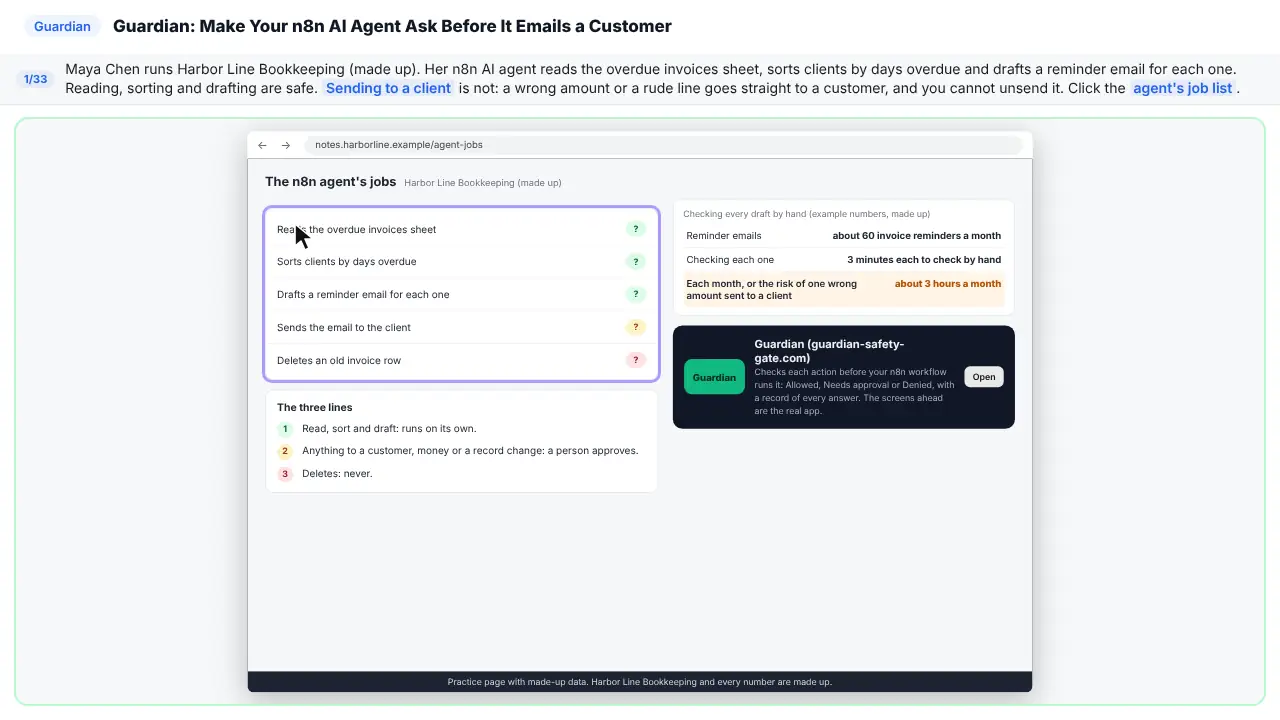
Meet Maya. She runs a small bookkeeping firm. Her n8n agent reads the overdue invoices, sorts them, and drafts a reminder for each client. Reading and drafting are safe. Sending to a client is not. You can't unsend an email.
Step 2: Put a price on it
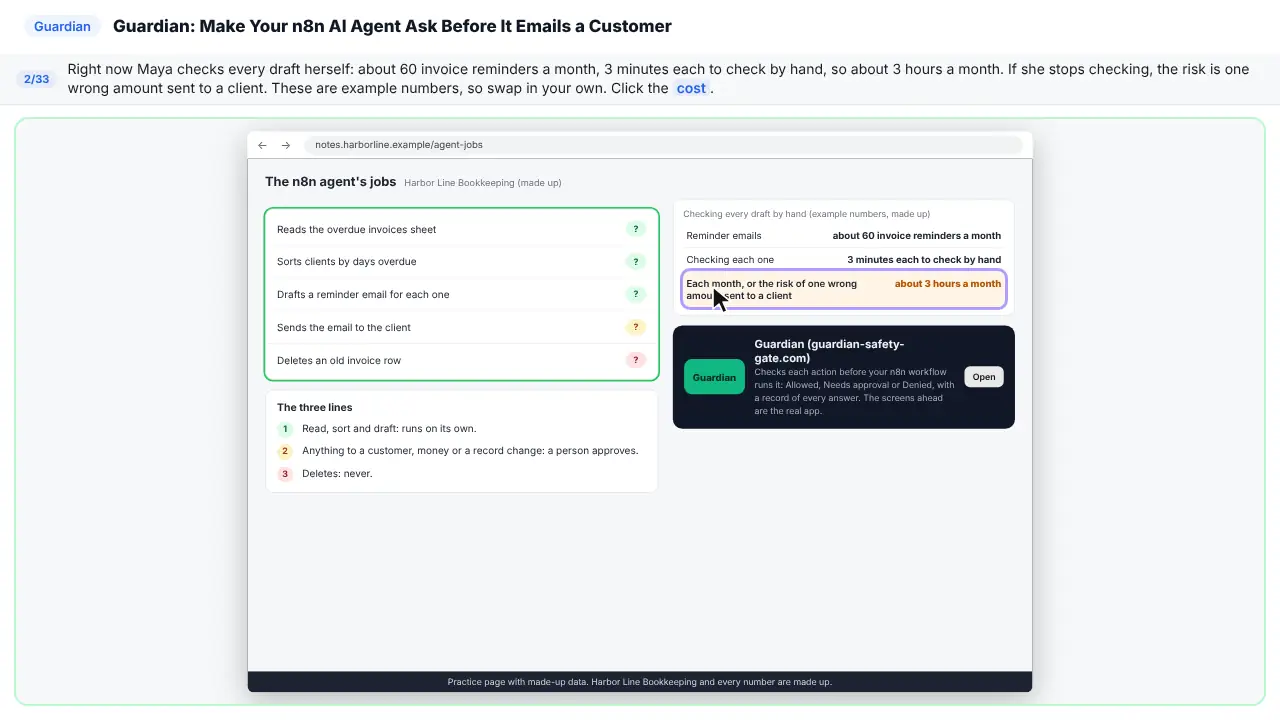
Right now, Maya checks every draft by hand. Sixty a month, three minutes each. That's three hours a month. And if she stops checking, one wrong amount goes to a client. Use your own numbers here.
Step 3: Write the three lines
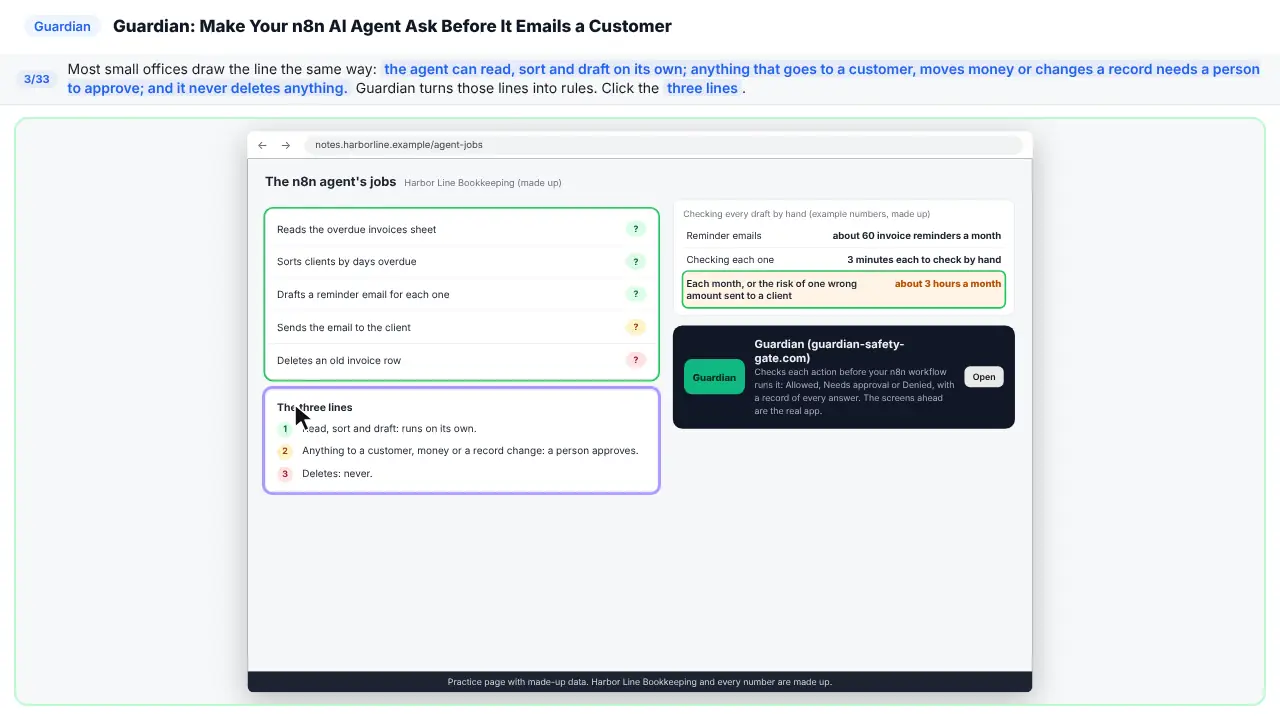
Most small offices draw the line the same way. The agent can read, sort and draft on its own. Anything that goes to a customer waits for a person. And it never deletes anything. Guardian turns those lines into rules.
Step 4: Meet Guardian
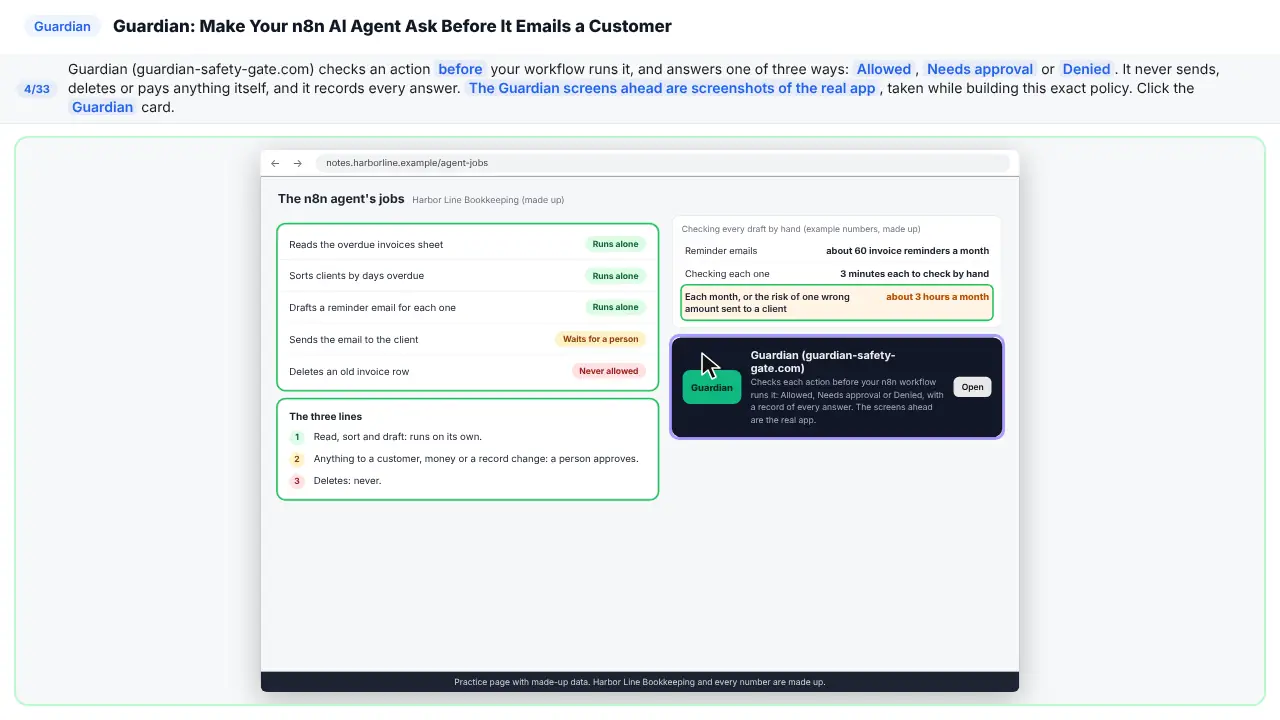
Guardian checks an action before your workflow runs it. It answers one of three ways. Allowed. Needs approval. Or denied. It never sends anything itself, and it keeps a record of every answer. The screens ahead are the real app.
Part 2: Start a policy
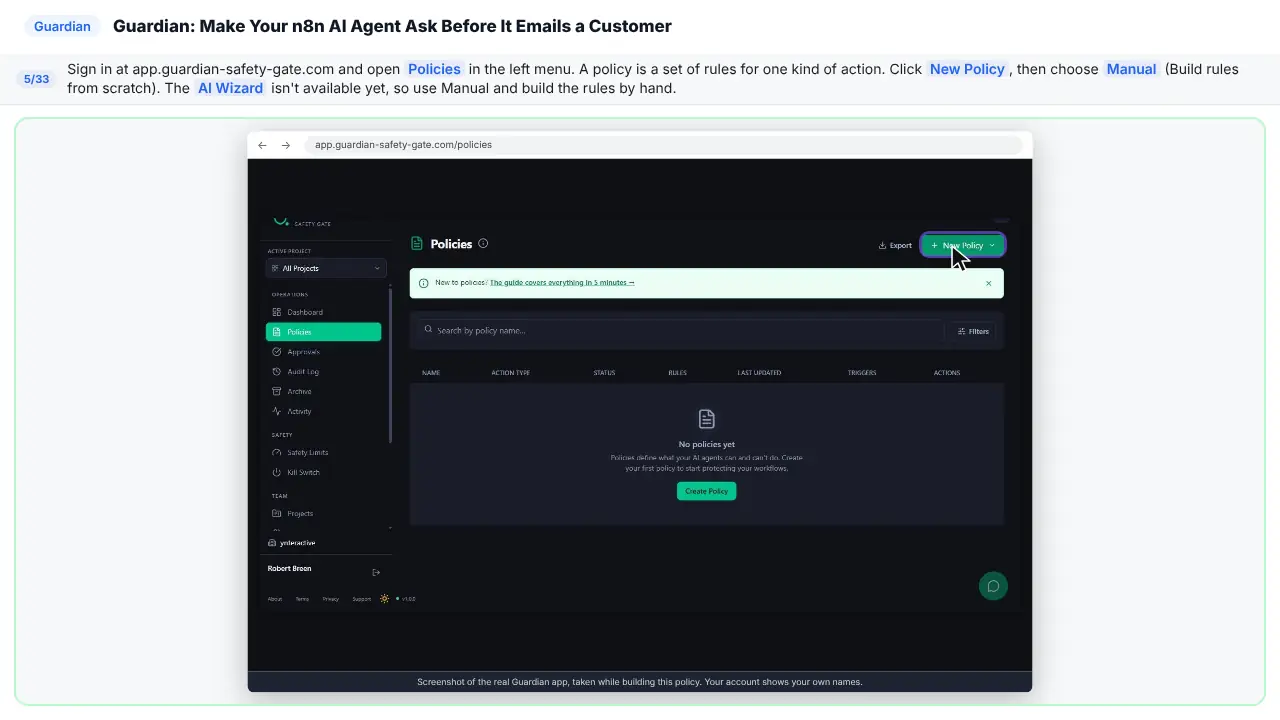
Step 5: Click New Policy
Sign in to Guardian, and open Policies. A policy is a set of rules for one kind of action.
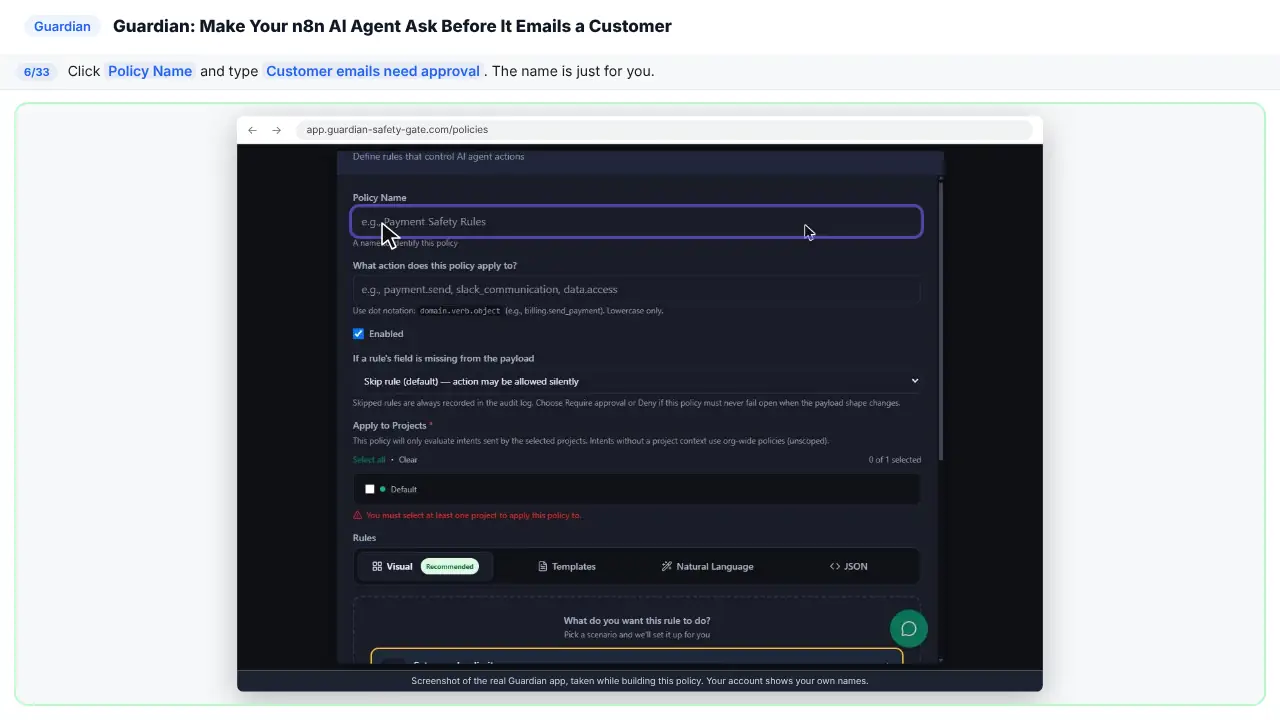
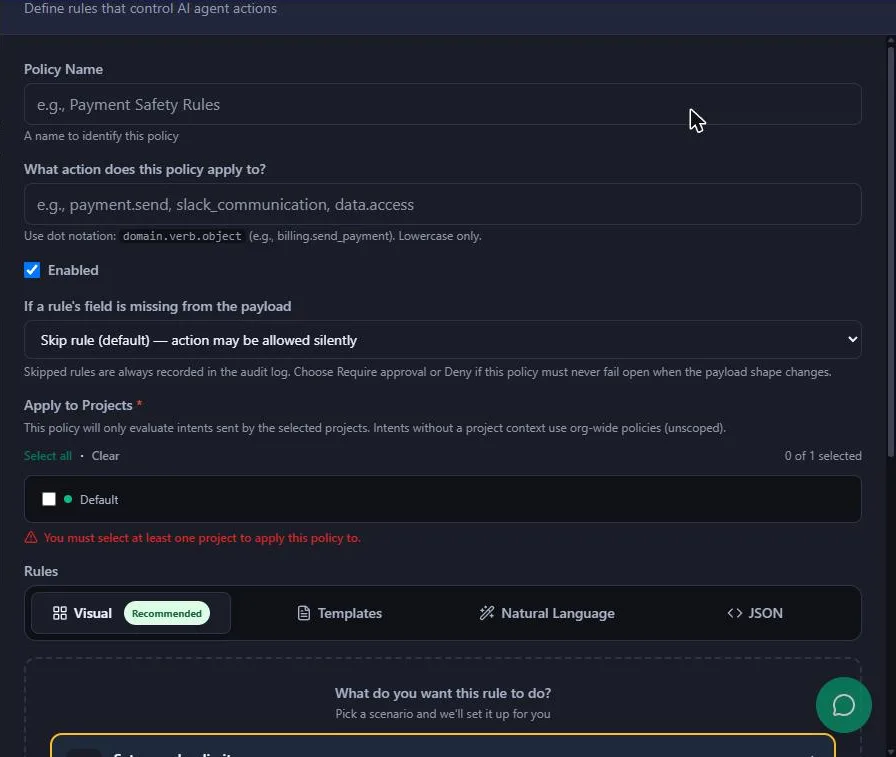
Step 6: Name the policy
Give it a name you'll recognize. Customer emails need approval.
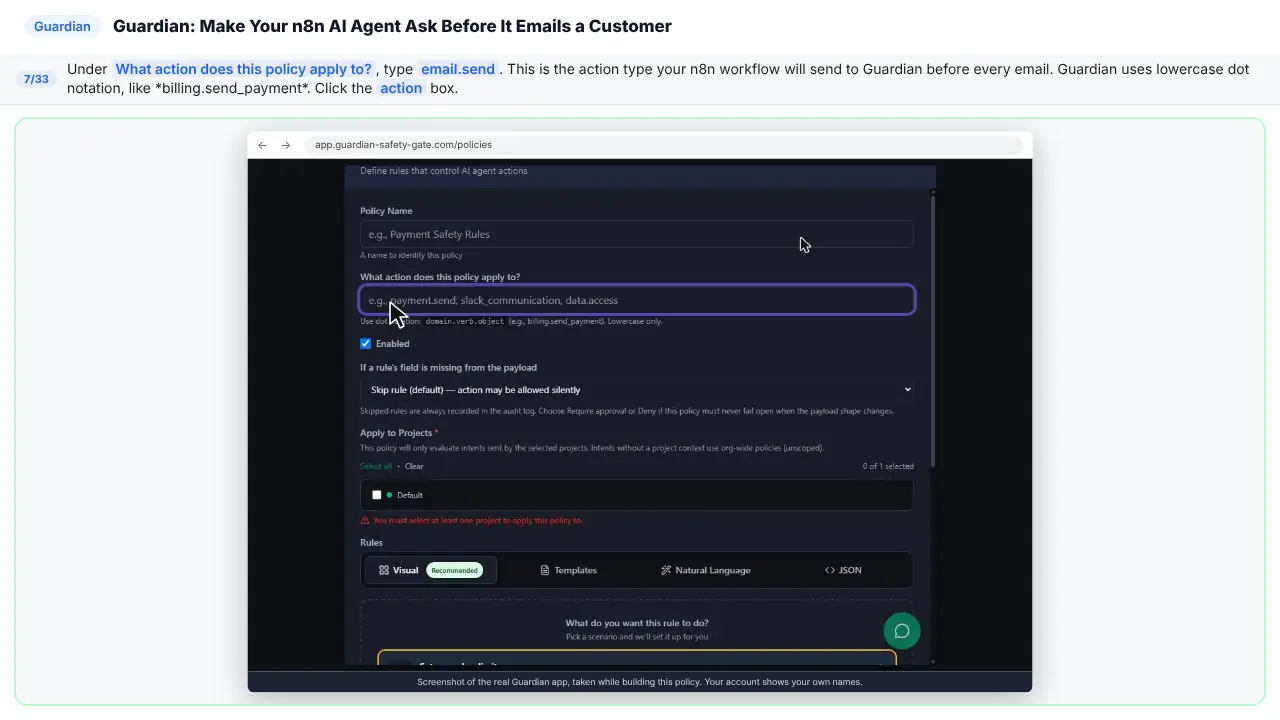
Step 7: Type the action type
Under what action does this apply to, type email dot send. Your n8n workflow will send that same name before every email.
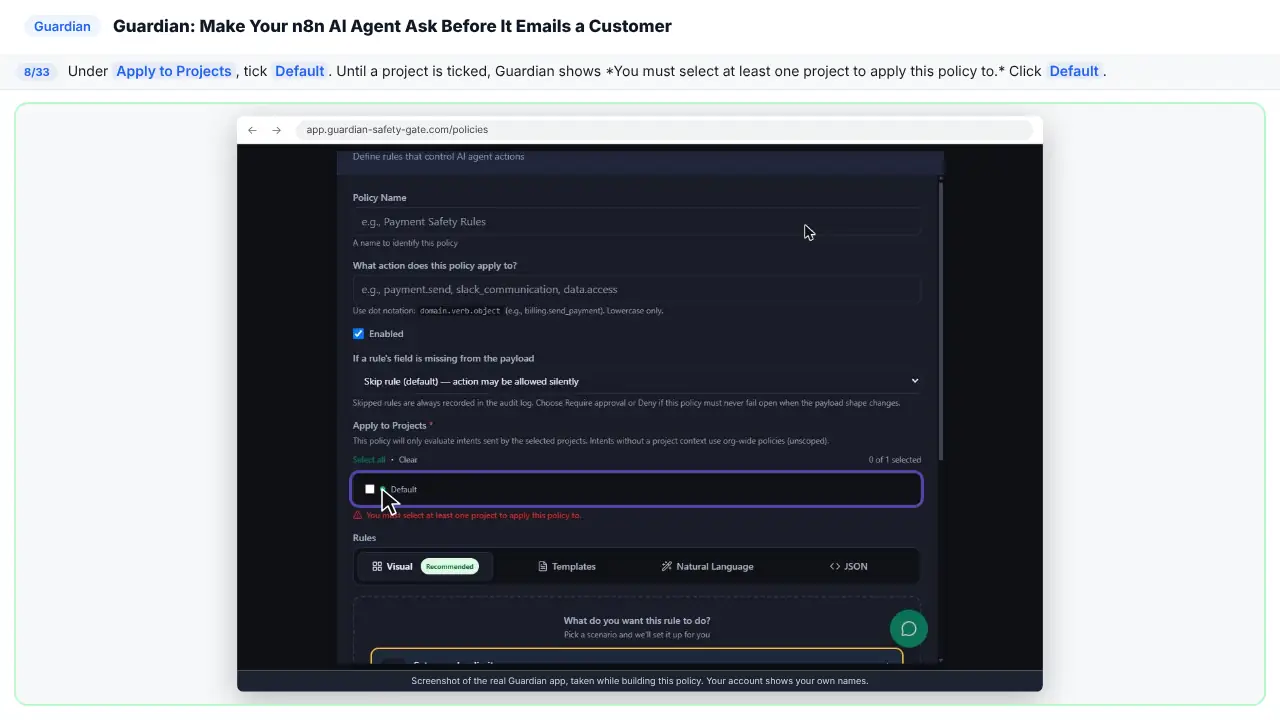
Step 8: Tick the project
Under Apply to Projects, tick Default. The policy needs at least one project.
Part 3: Write the rule
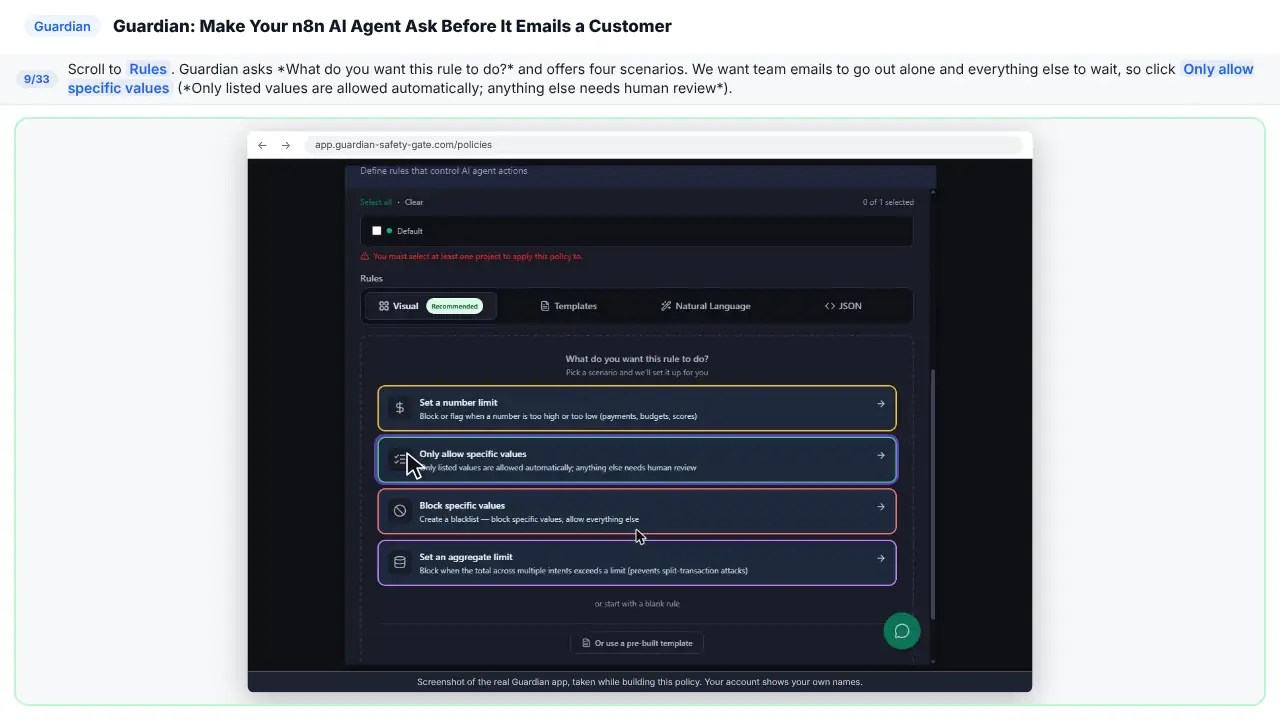
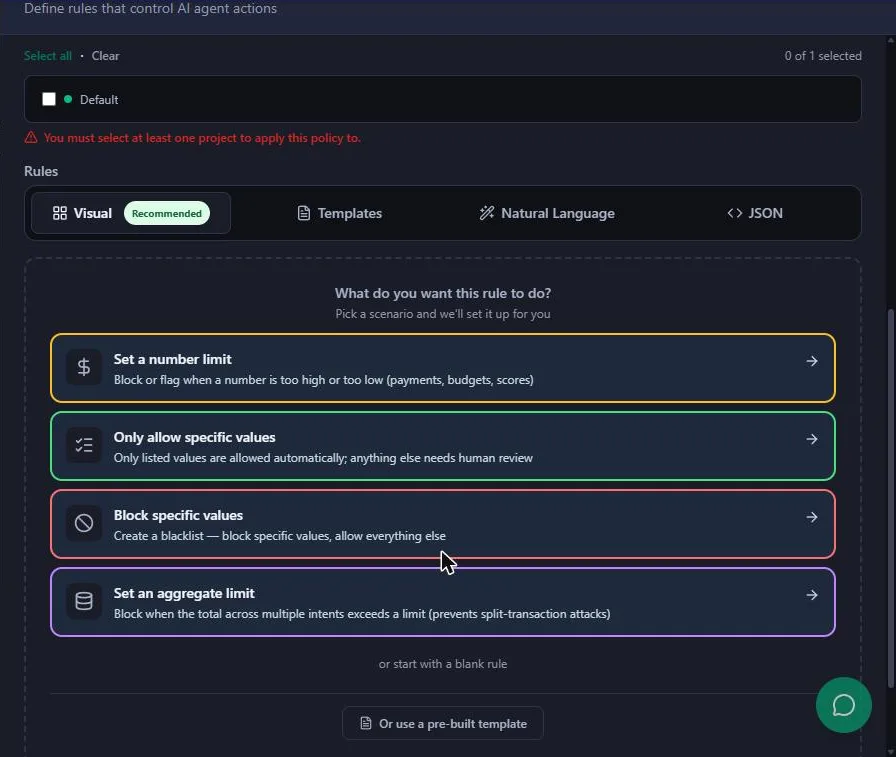
Step 9: Pick Only allow specific values
We want team emails to go out alone, and everything else to wait.
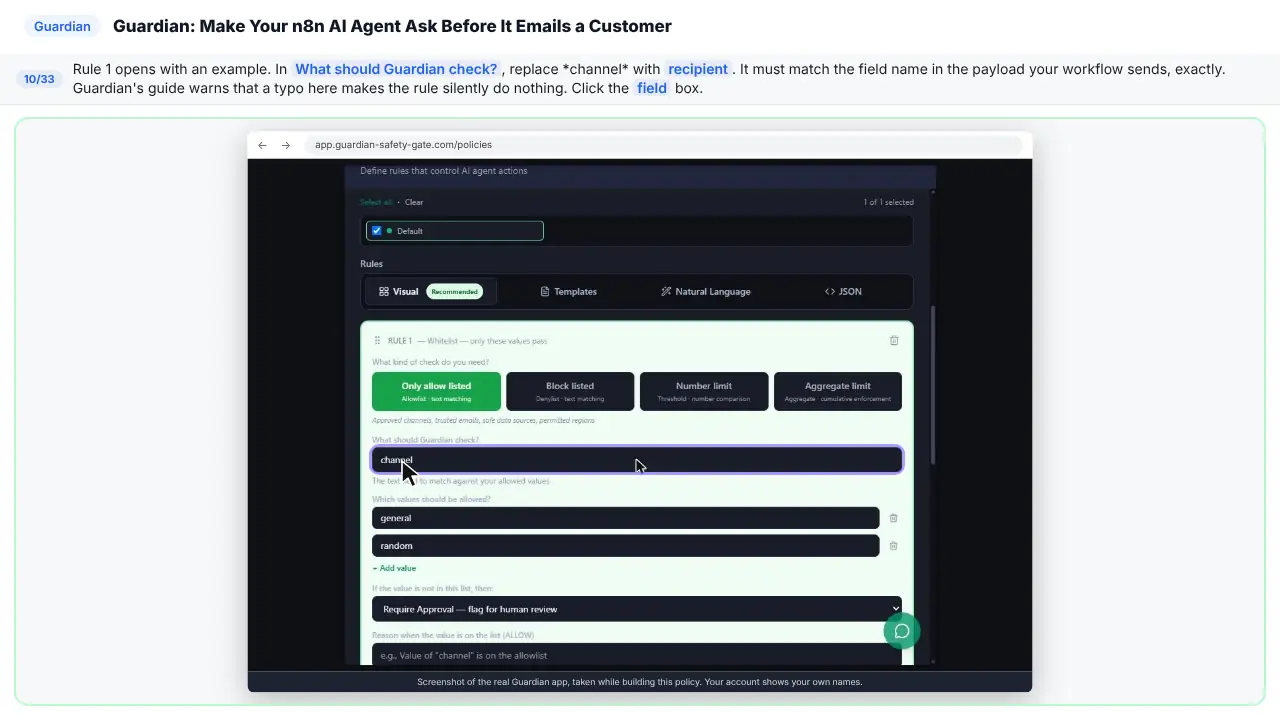
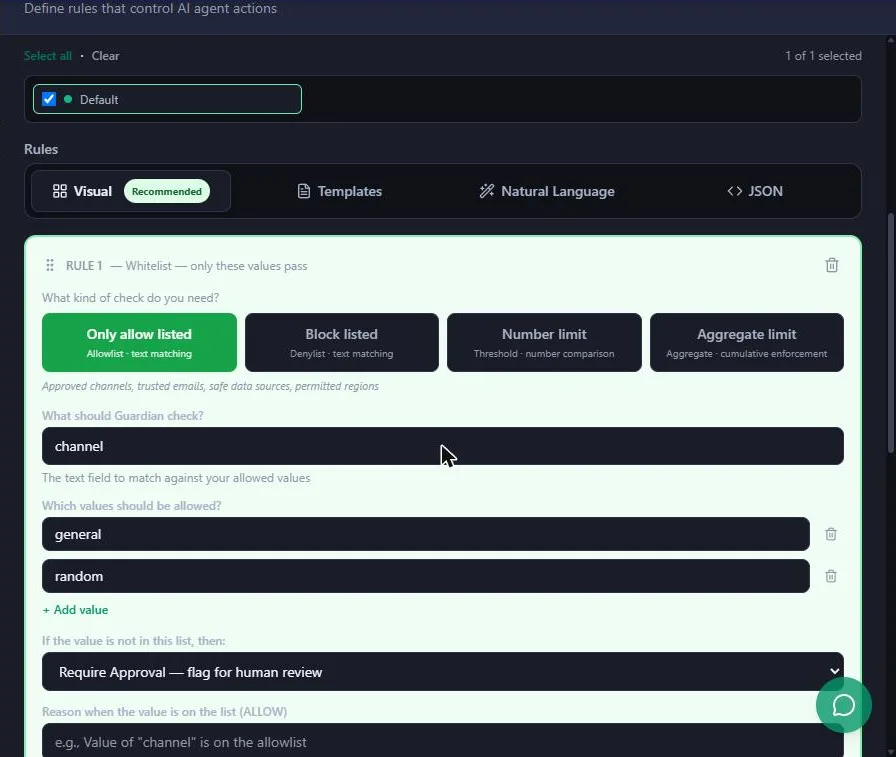
Step 10: Check the recipient
In what should Guardian check, type recipient. It has to match the field your workflow sends, exactly. A typo here means the rule never fires.
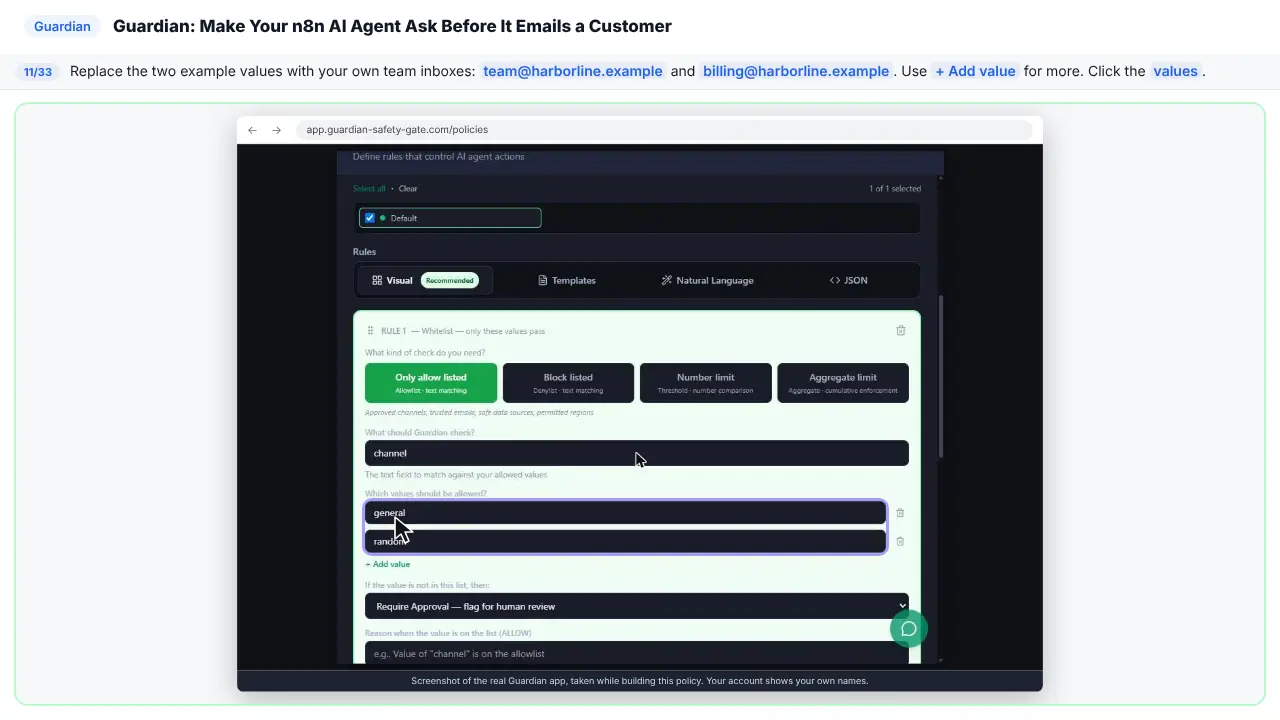
Step 11: List the safe addresses
Replace the examples with your own team inboxes. Team at, and billing at, your own domain.
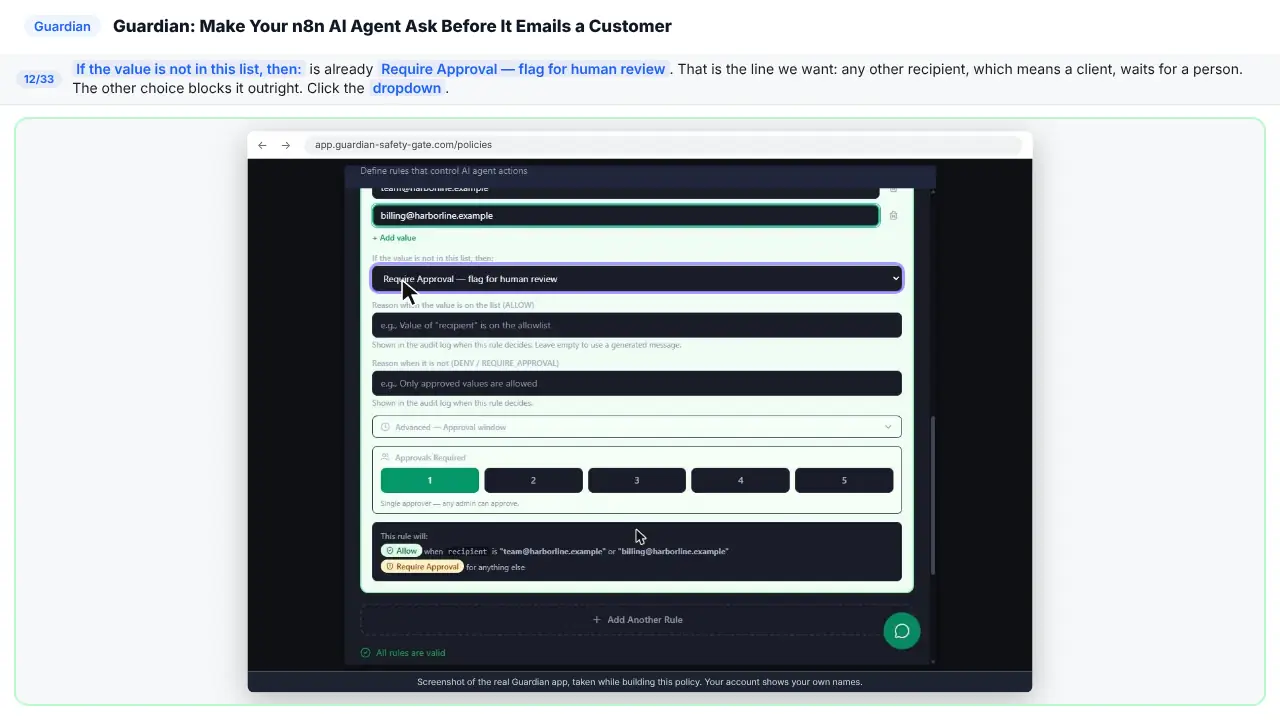
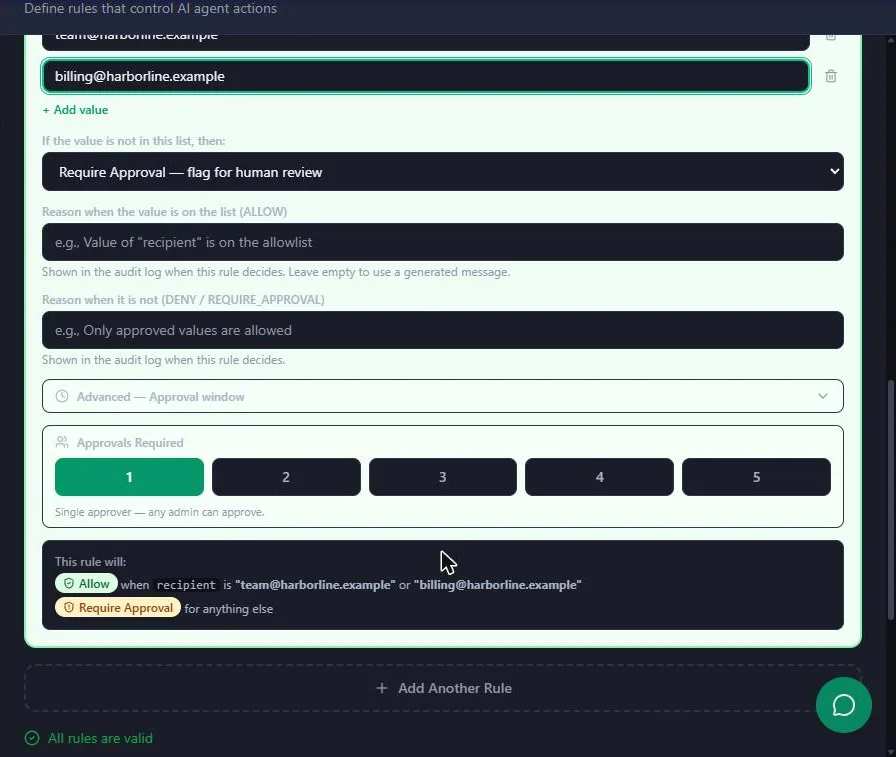
Step 12: Keep Require Approval
If the value isn't on the list, it's already set to Require Approval. That's our line. Any other recipient means a client, and a client email waits for a person.
Step 13: Write the reason
Emails to customers wait for a person to approve. The approver sees it, so they know why it's waiting. Leave approvals required at one.
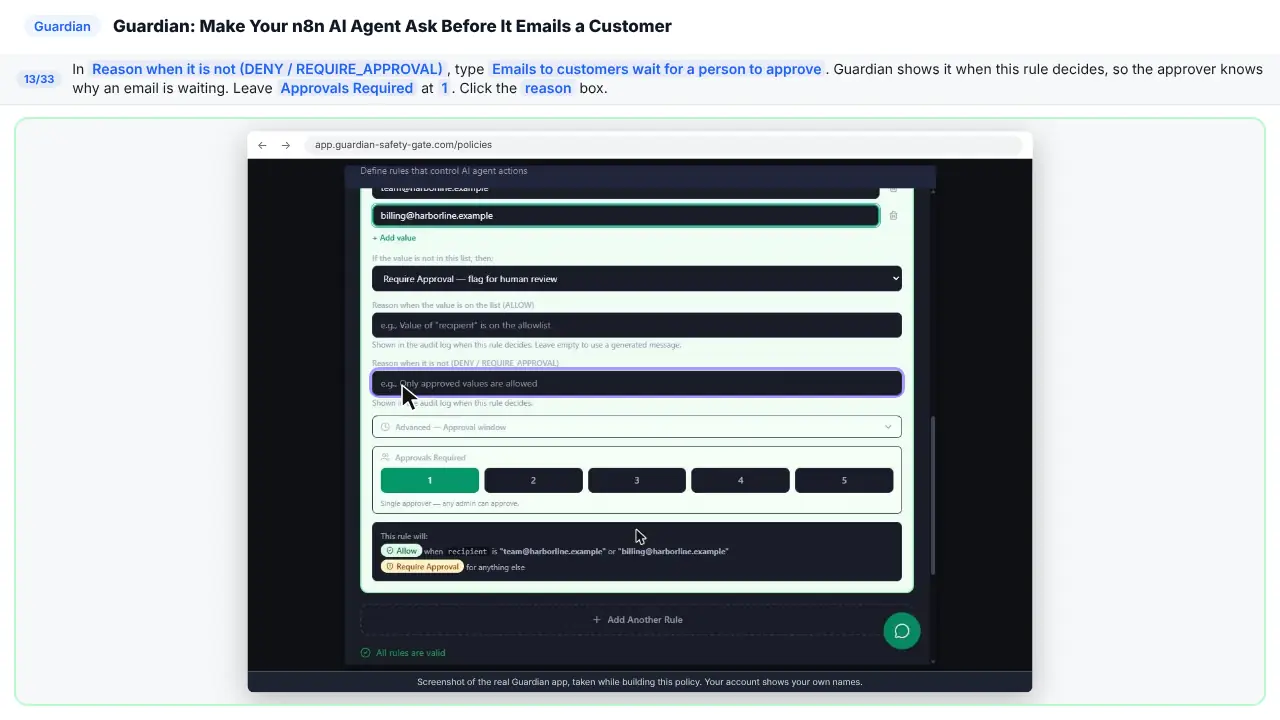
Step 14: Read it back
Guardian reads it back in plain words. Allow when the recipient is your team. Require approval for anything else.
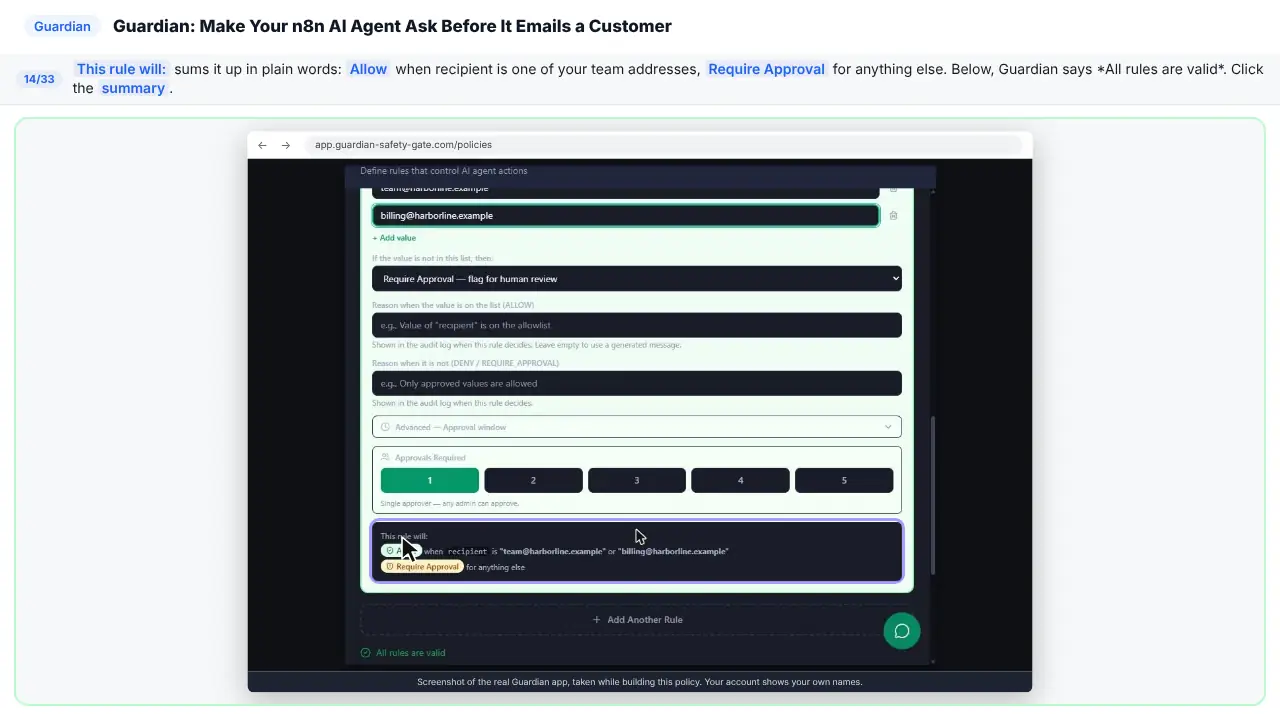
Part 4: Test it before you save
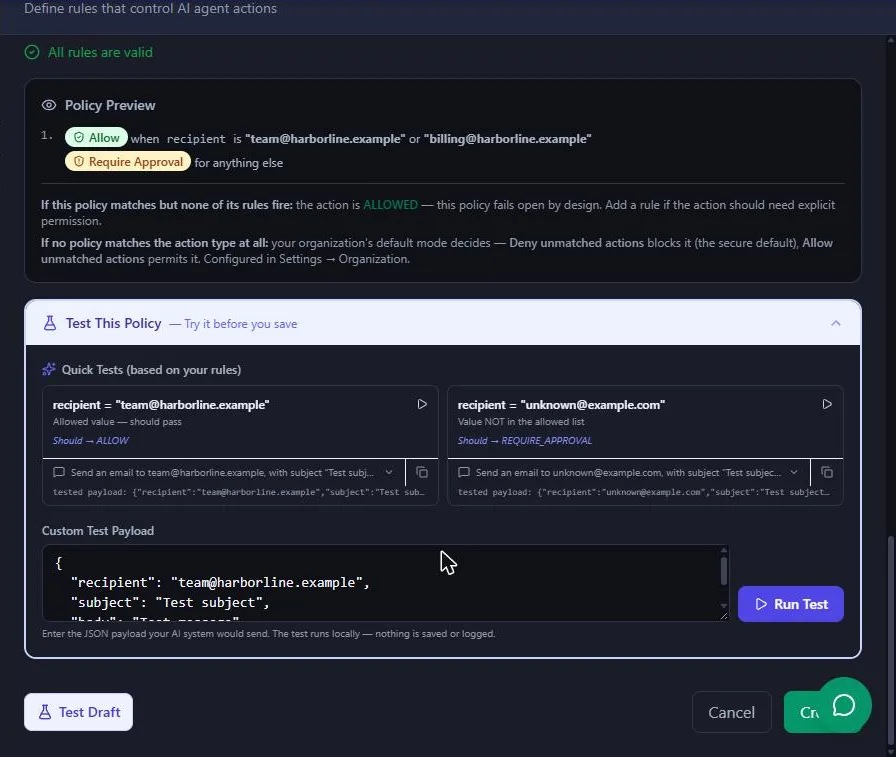
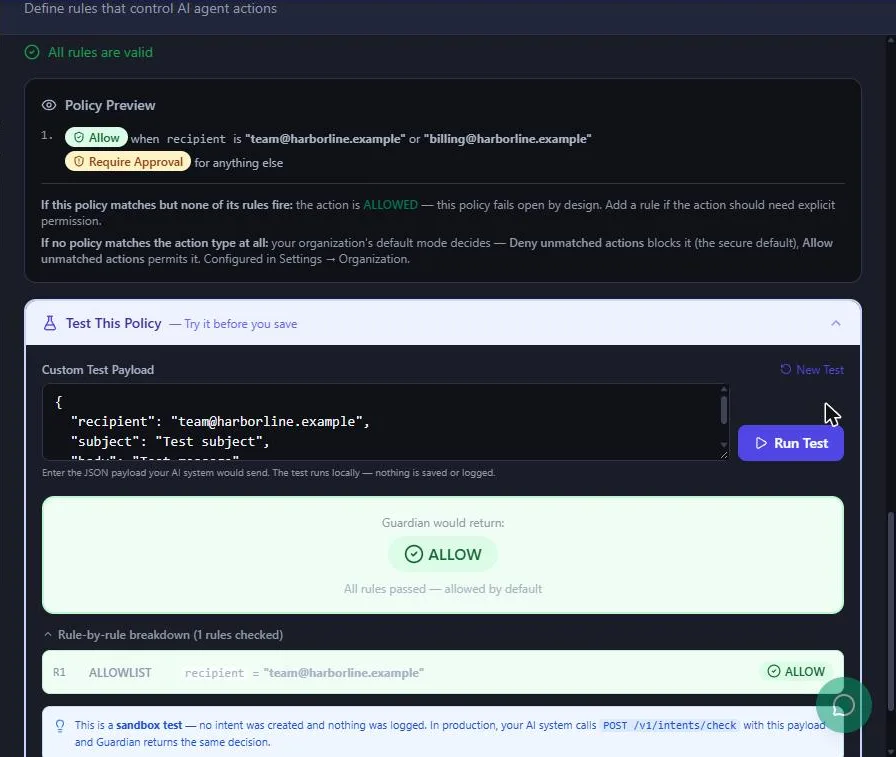
Step 15: Run a test
Guardian fills in a test payload for you. That's what your workflow would send. It starts with your team address.
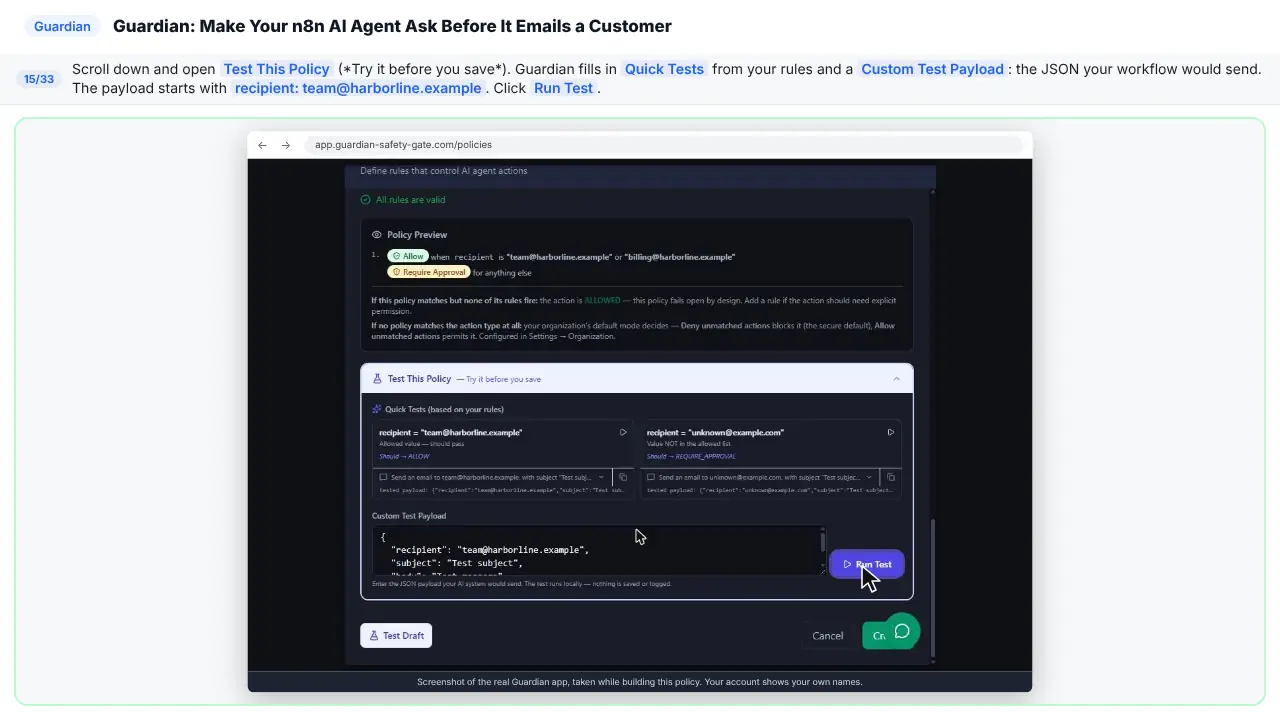
Step 16: Team email: ALLOW
Guardian would return allow. An email to your own team goes straight out. And this is a sandbox test, so nothing is saved.
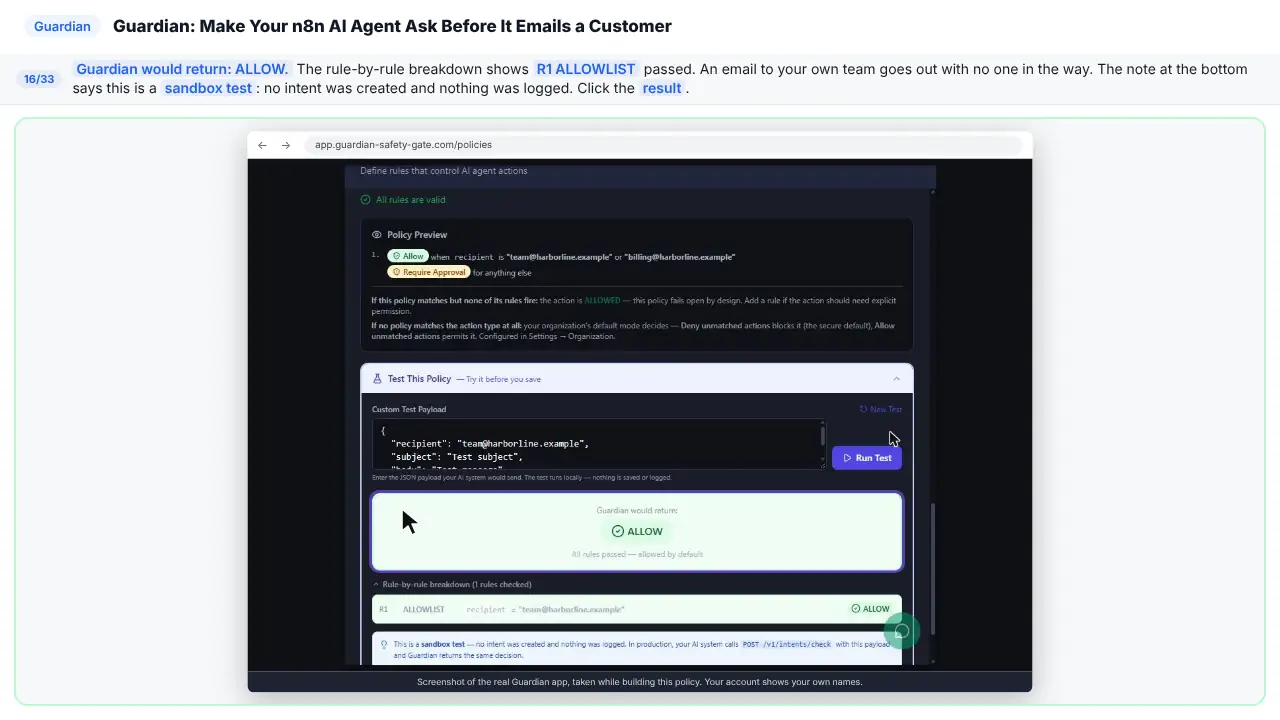
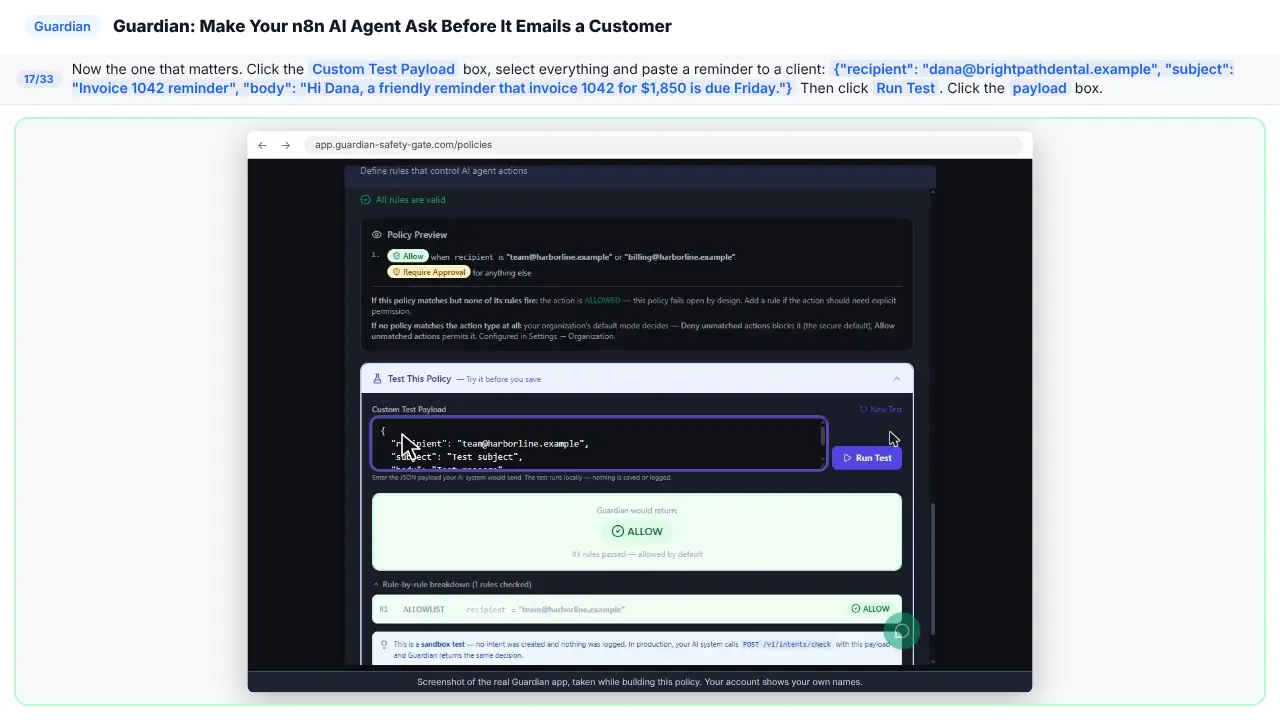
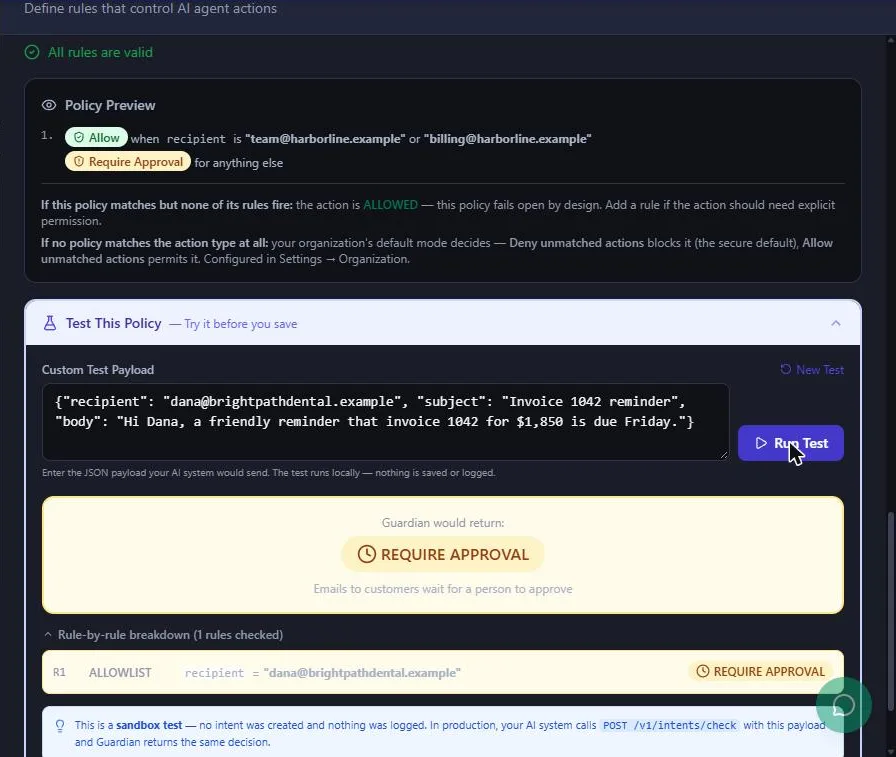
Step 17: Try a client email
Now the one that matters. Replace the payload with a reminder to a client. Dana, at Brightpath Dental.
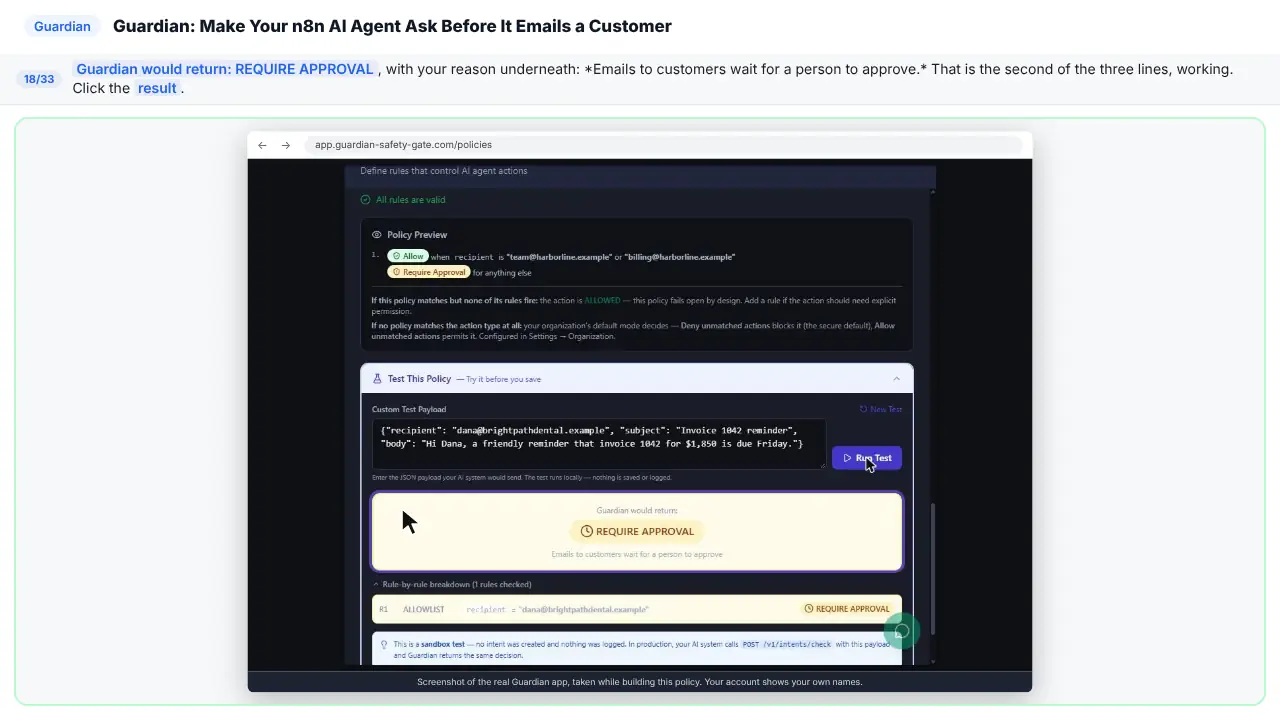
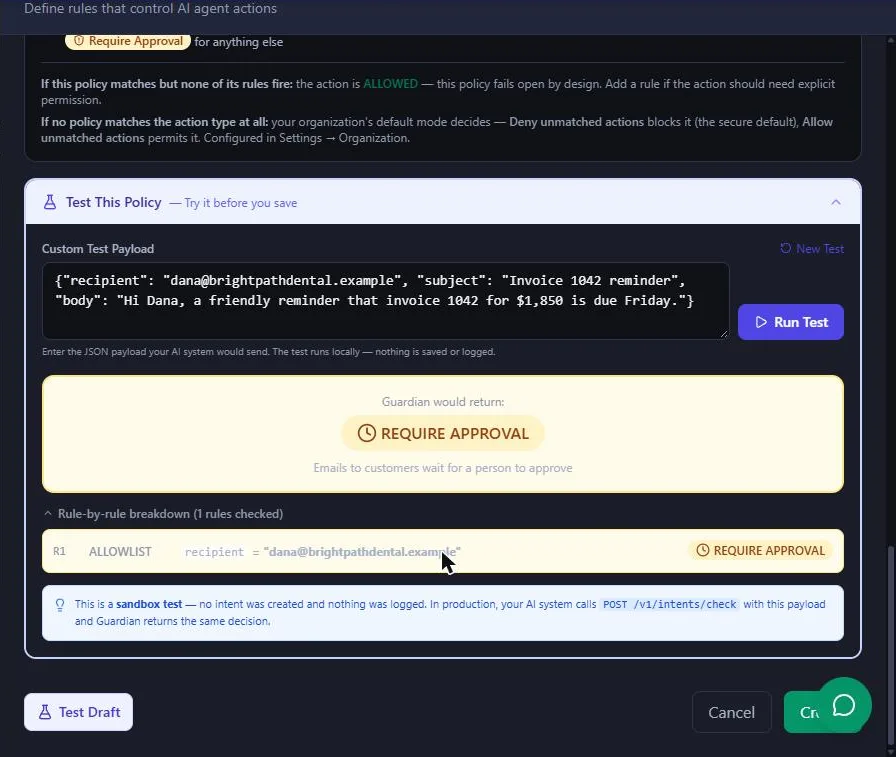
Step 18: Client email: REQUIRE APPROVAL
Require approval. With your reason underneath. Emails to customers wait for a person. That's the line, working.
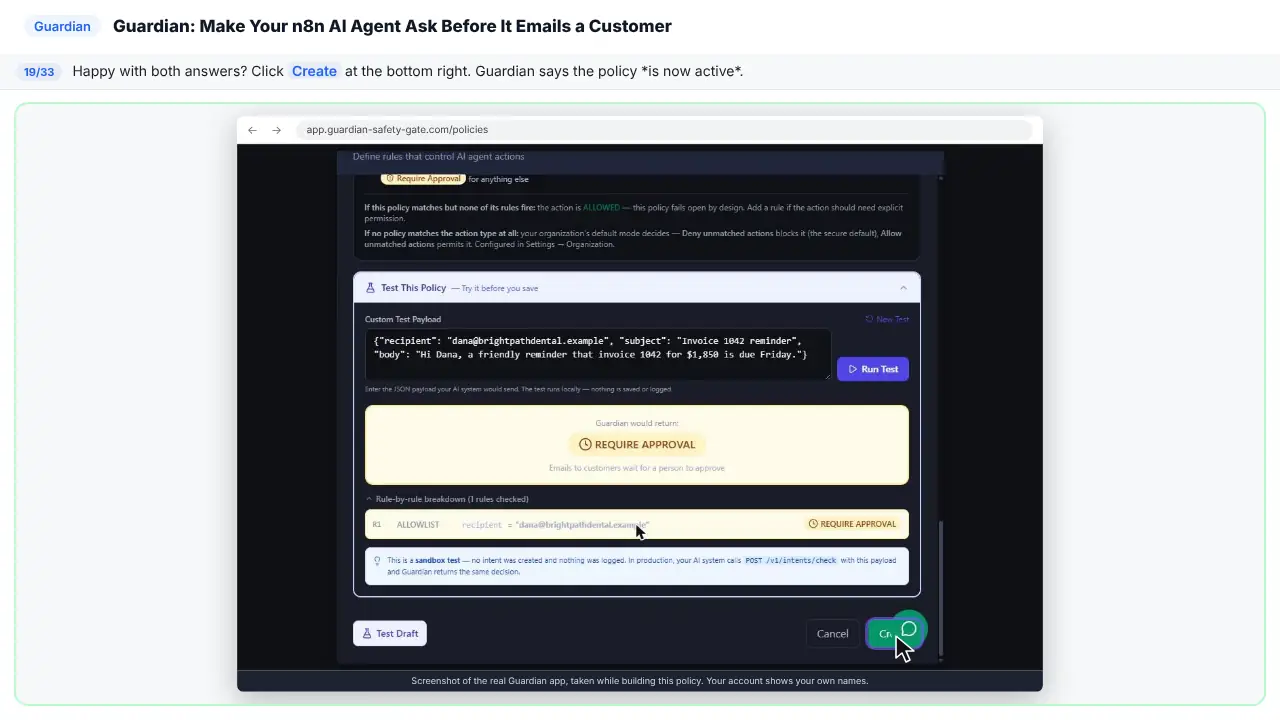
Step 19: Click Create
Happy with both answers?
Part 5: Save it and test again
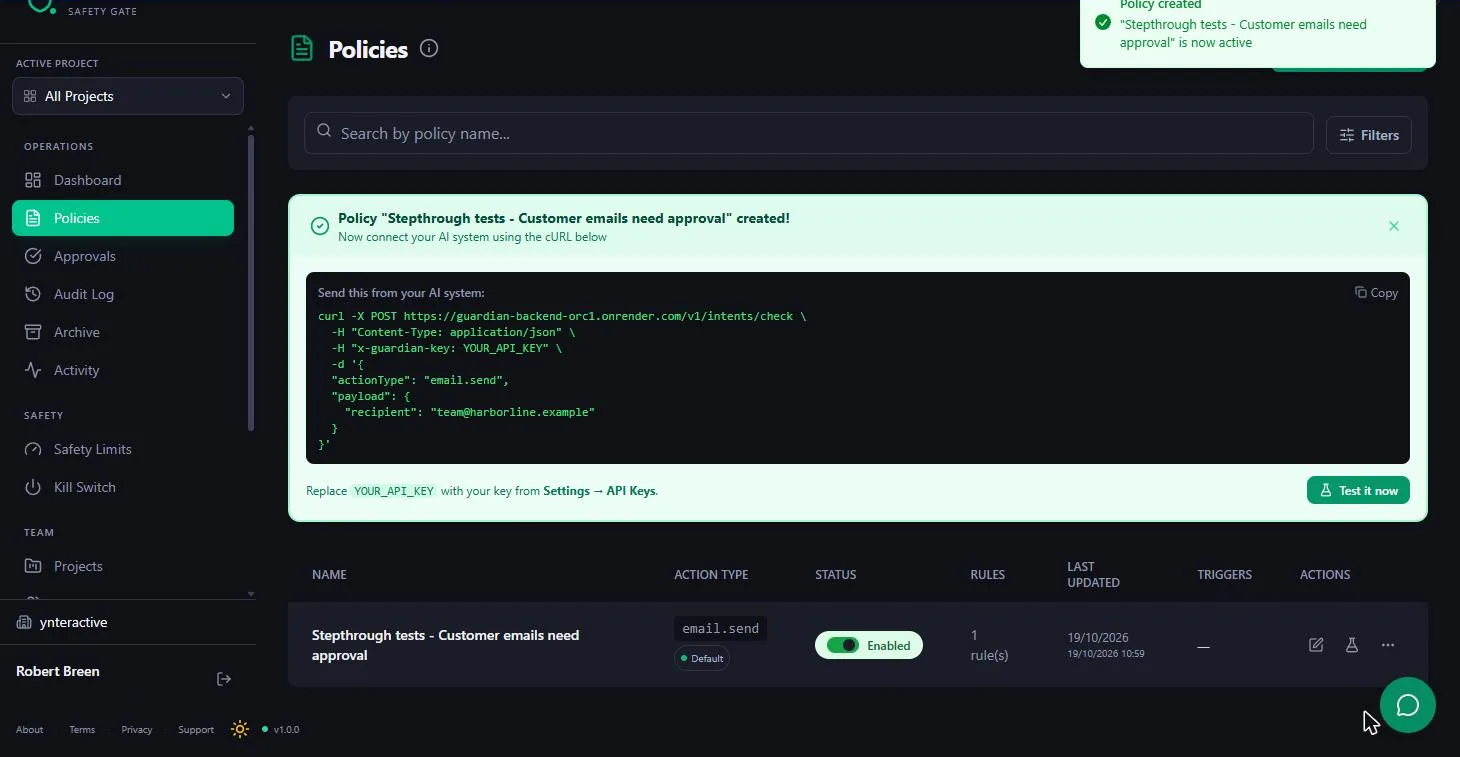
Step 20: See what your workflow sends
Guardian shows the request your workflow will send. Action type, email dot send, and the payload. In n8n, the Guardian node sends it for you. The API key comes from Settings. Keep it private.
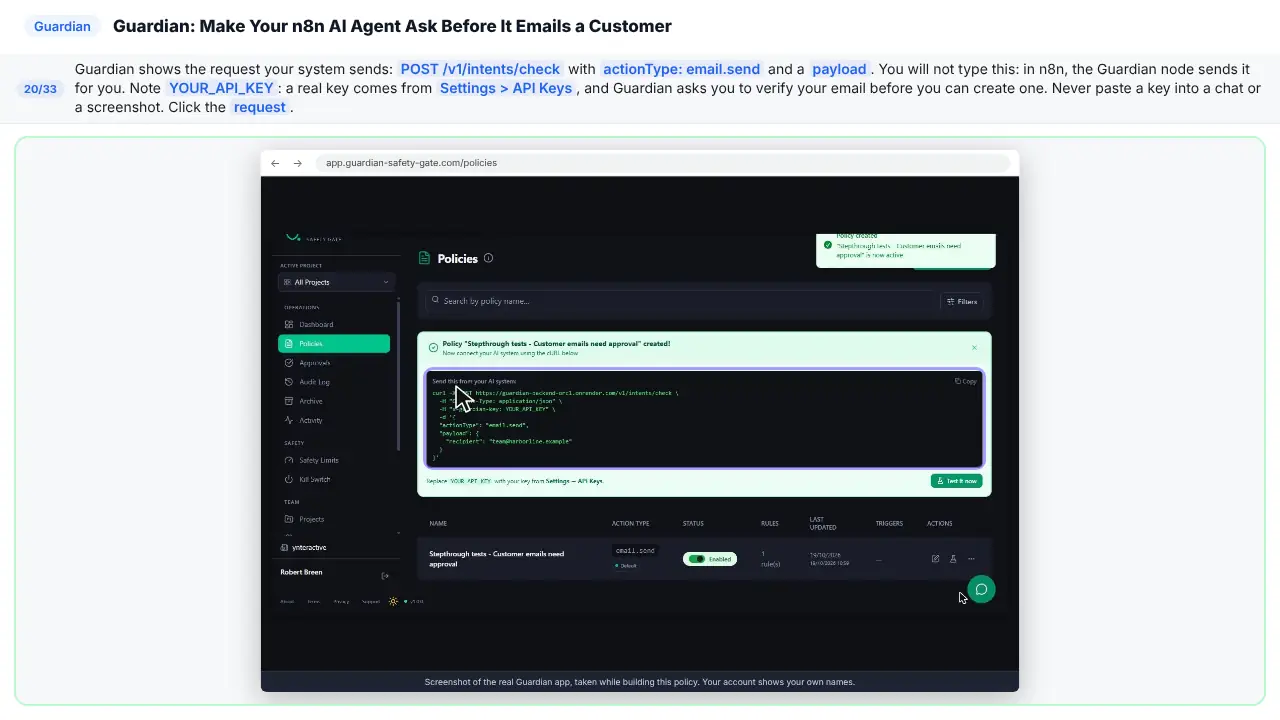
Step 21: Open the tester again
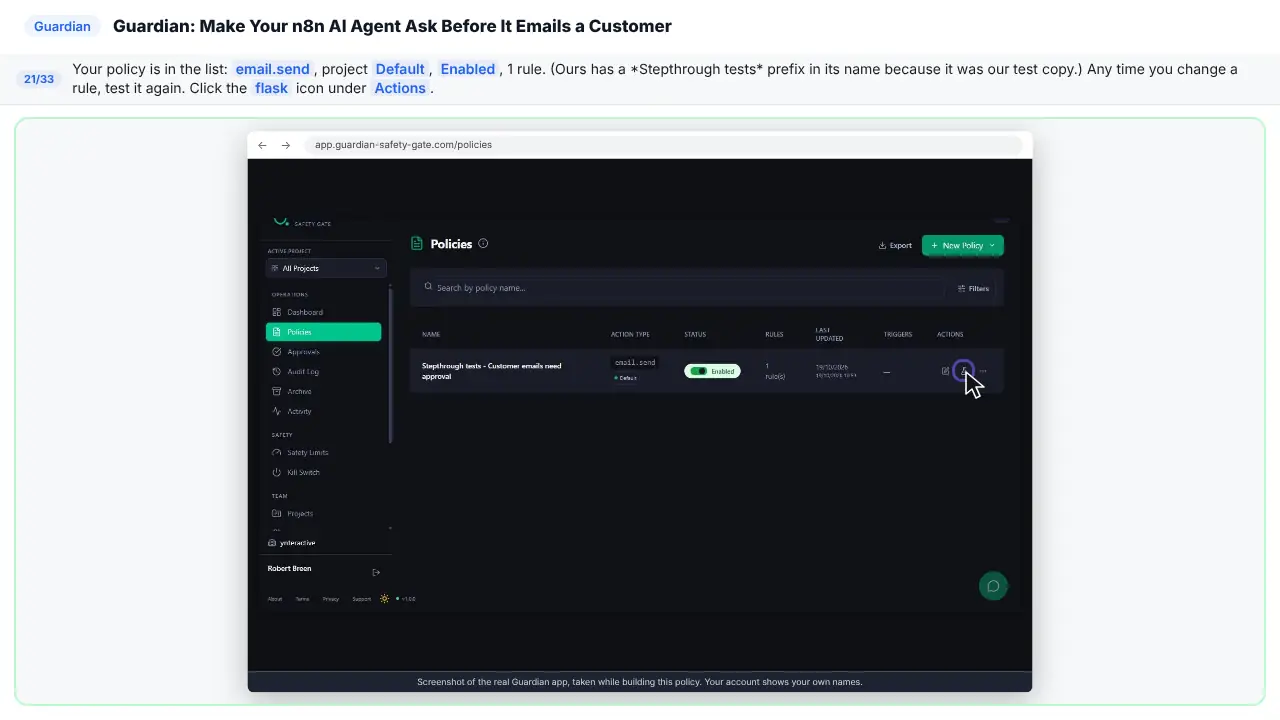
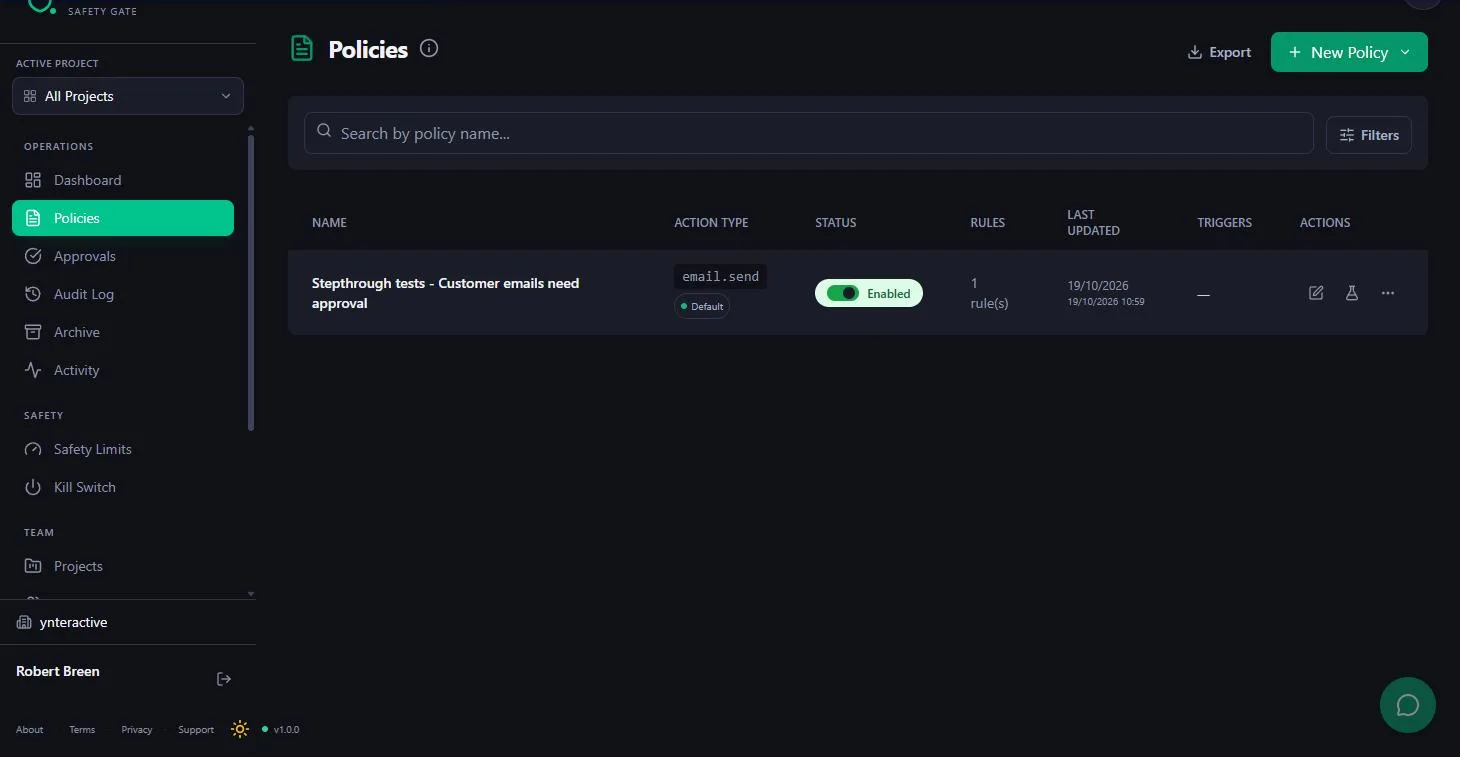
Your policy is in the list, and it's enabled. Any time you change a rule, test it again.
Step 22: Run Test on the saved policy
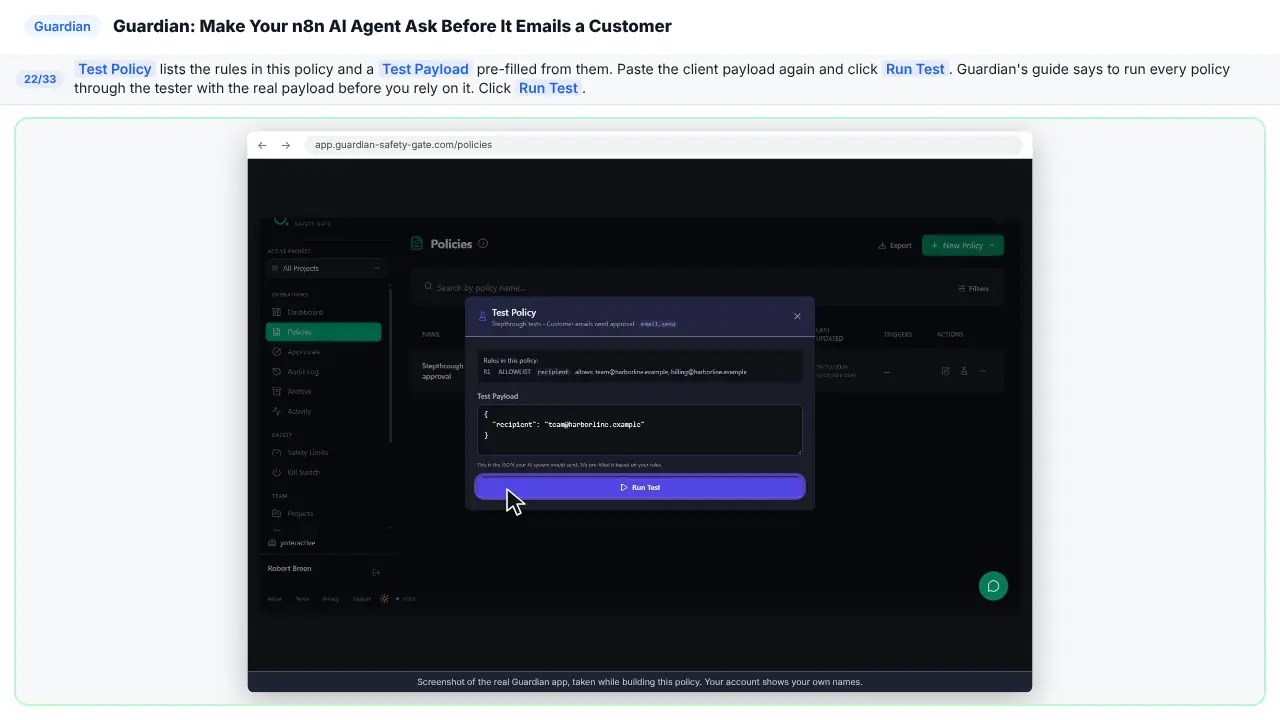
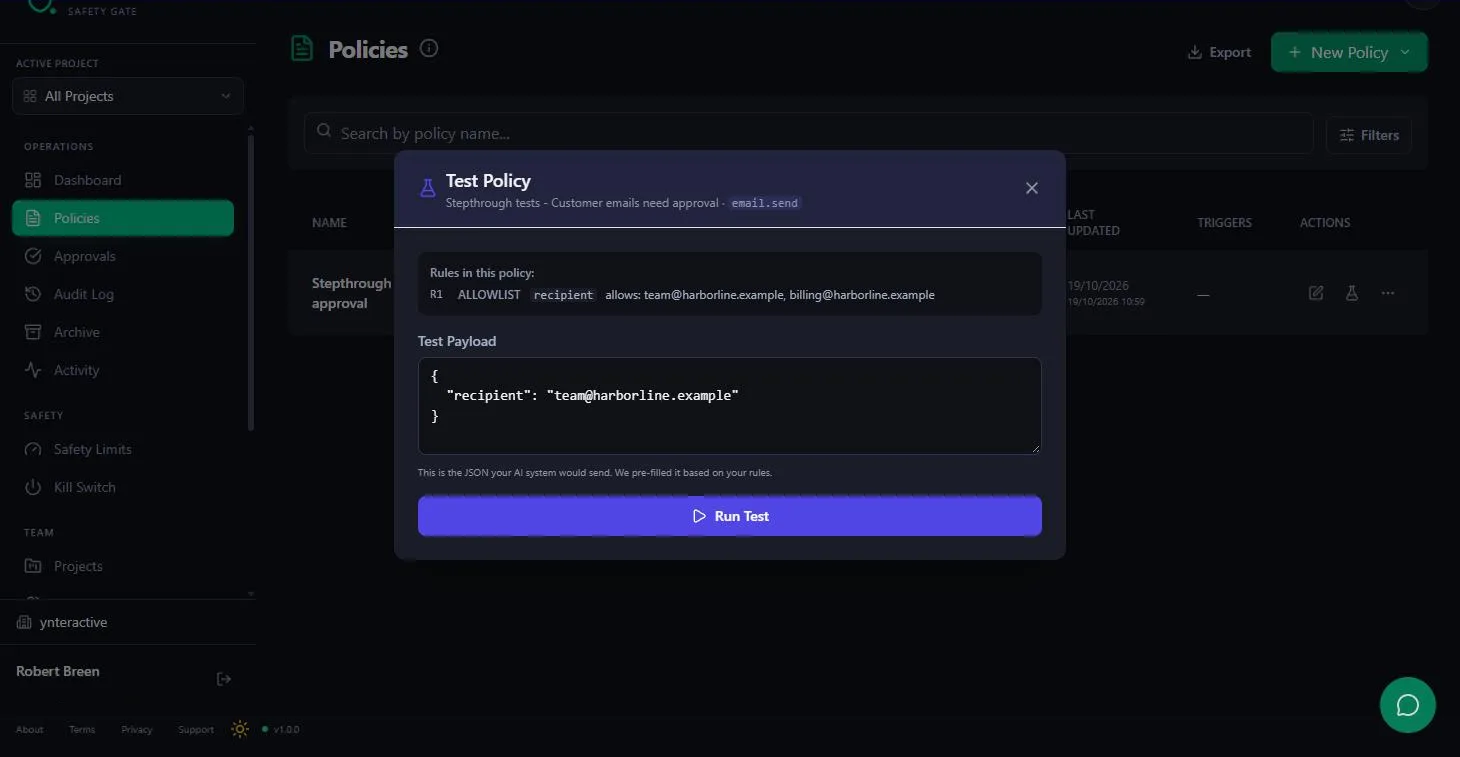
The tester shows your rule and a test payload. Test every policy with a real payload before you rely on it.
Part 6: Deletes are never allowed
Step 23: Deny unmatched actions
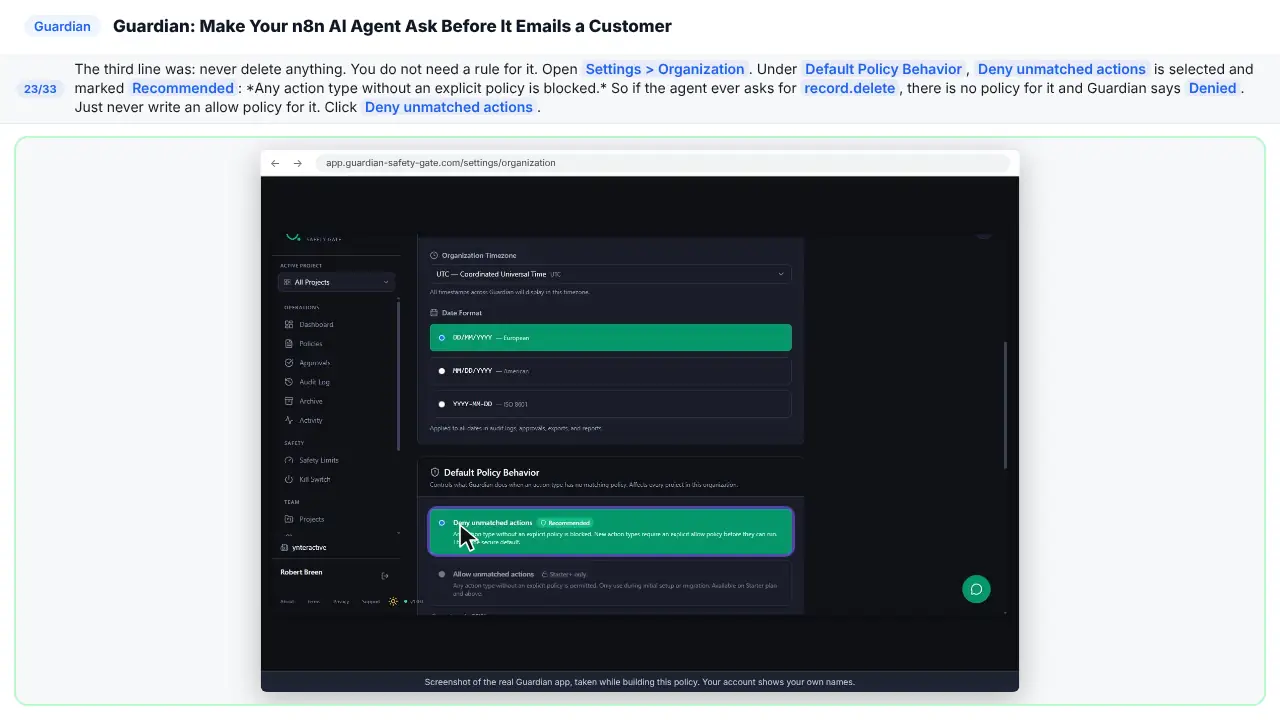
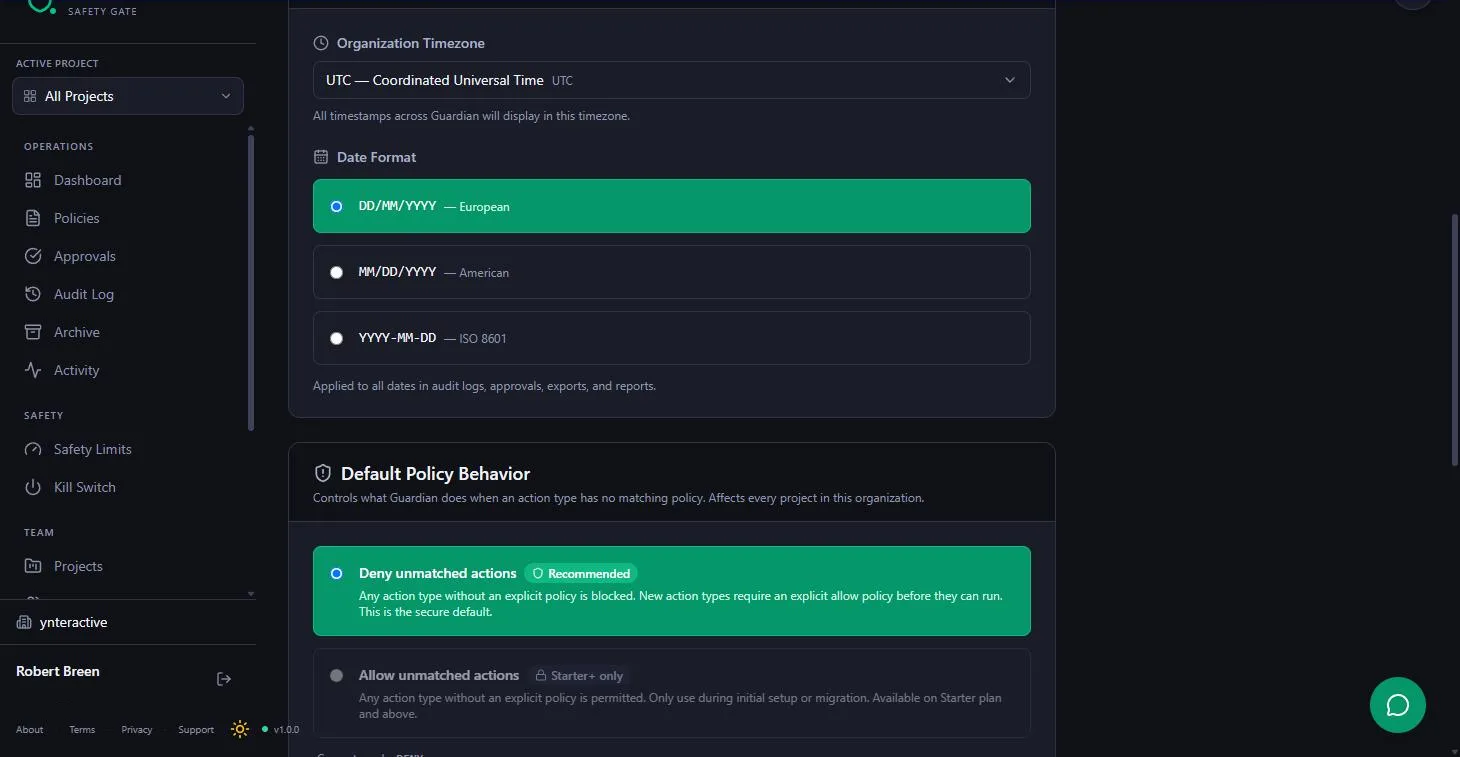
The last line was, never delete anything. You don't need a rule for that. In Organization settings, deny unmatched actions is on. Any action without a policy is blocked. So a delete is denied. Just never write a policy that allows it.
Part 7: Put Guardian in your n8n workflow
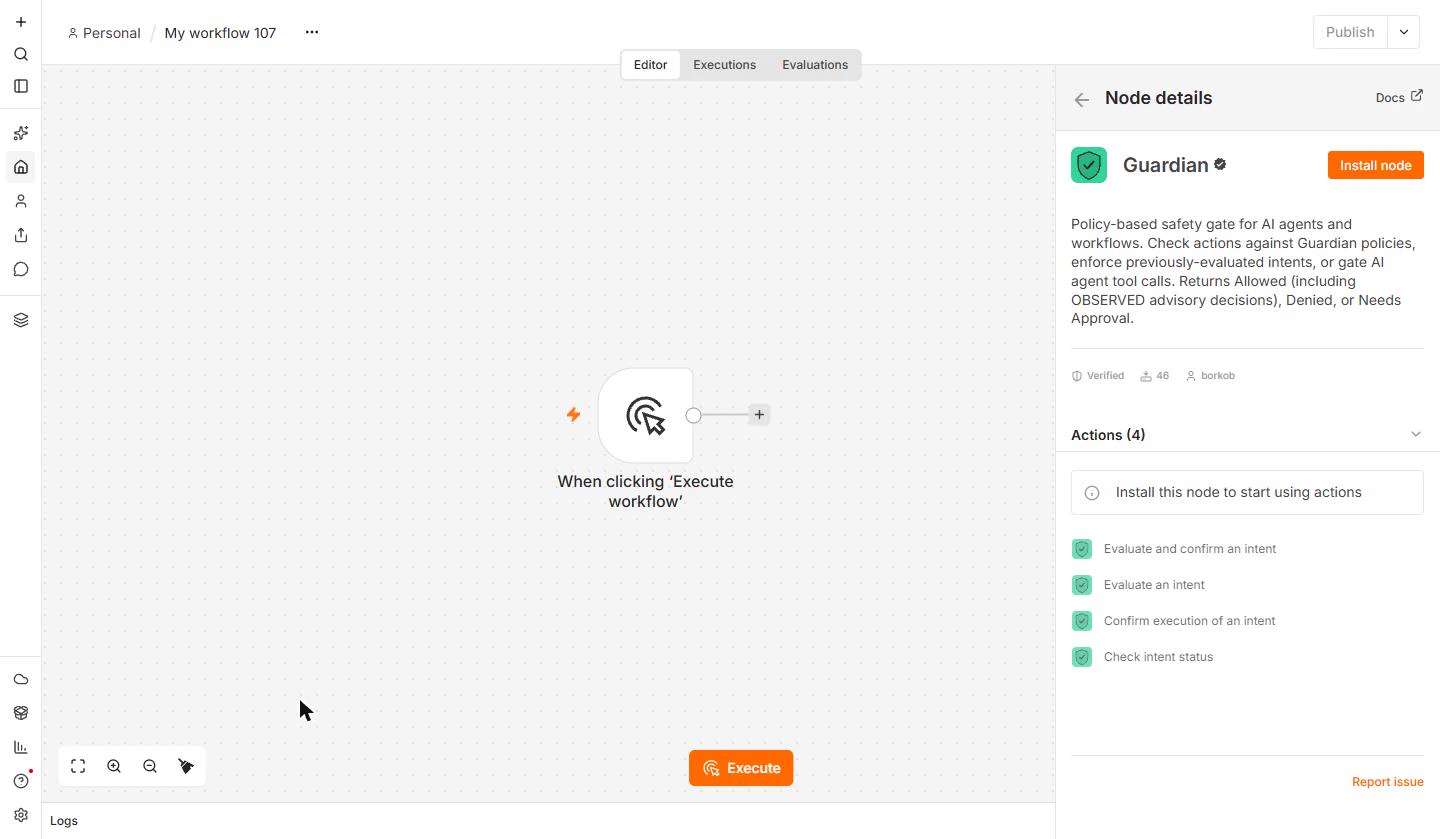
Step 24: Install the Guardian node
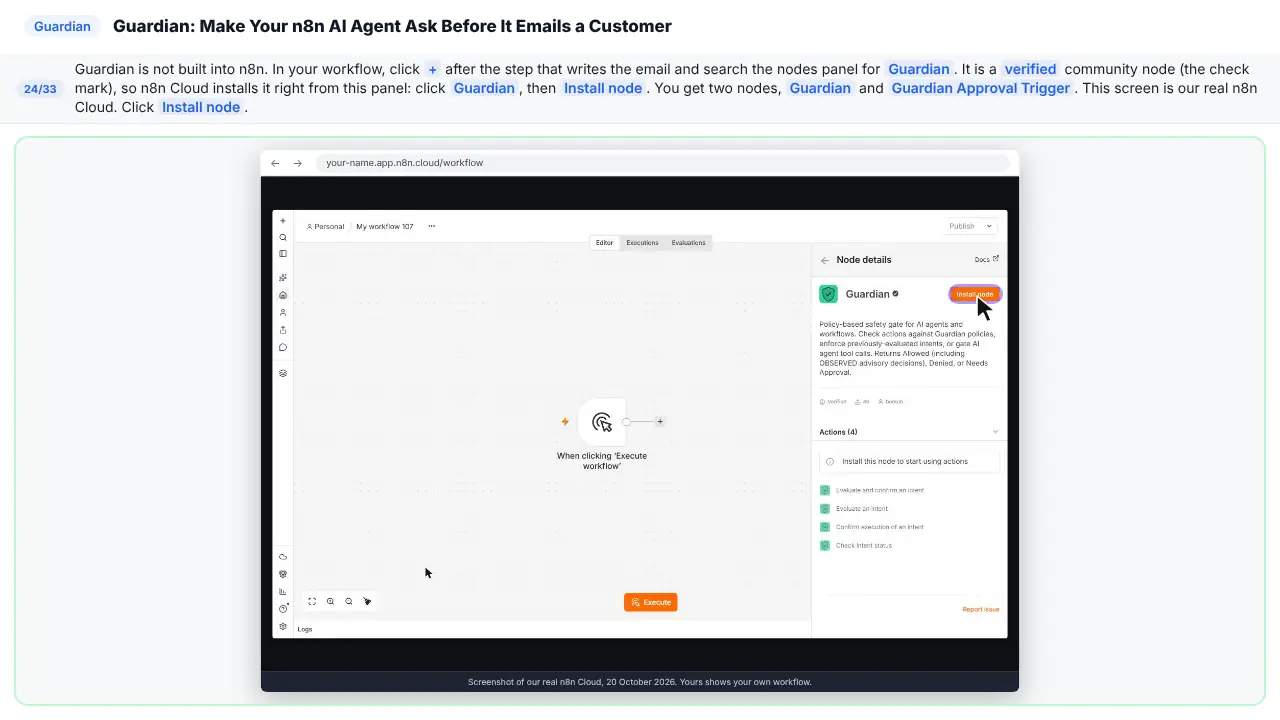
Guardian isn't built into n8n. It's a verified community node, so n8n installs it right here.
Step 25: Set it up, connect Allowed to the send
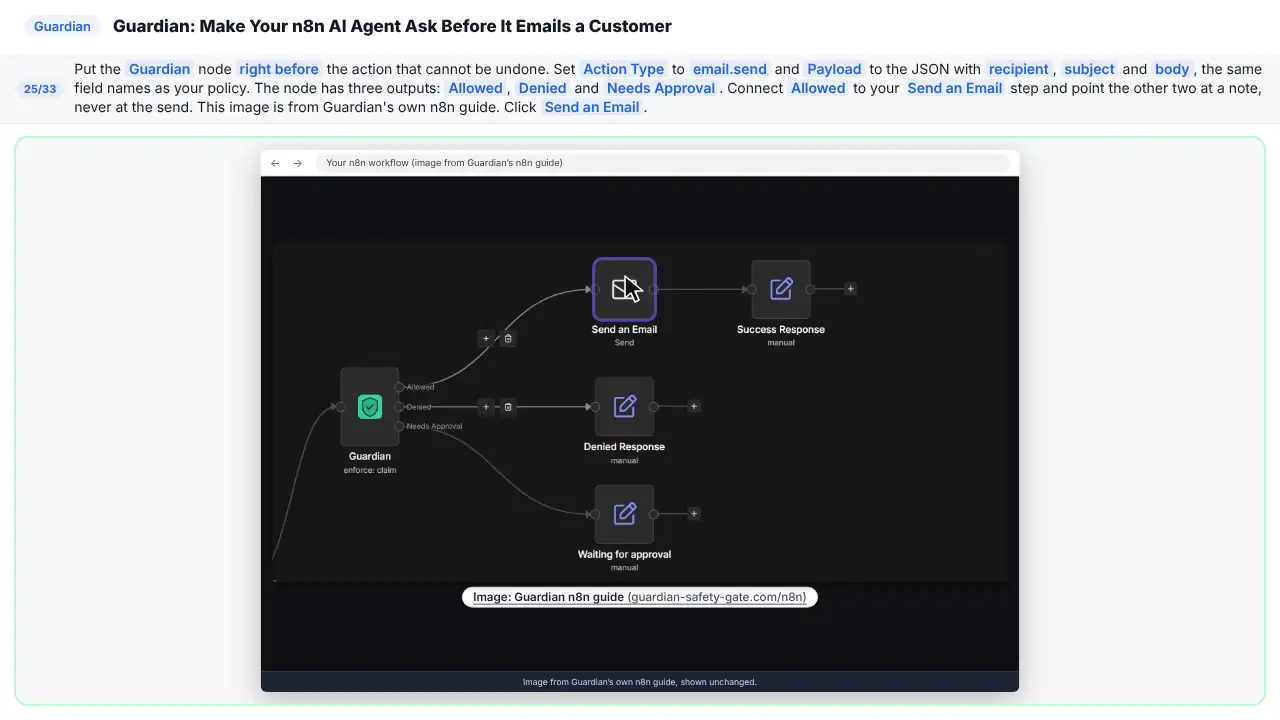
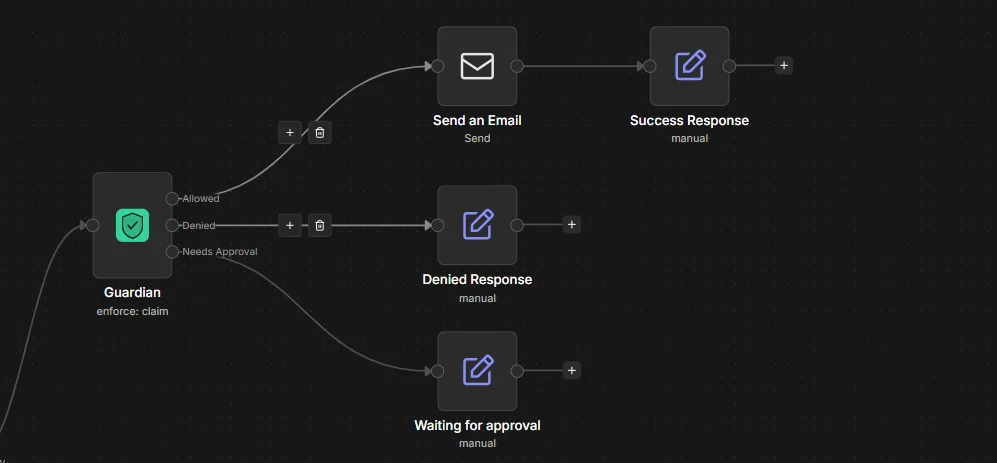
Put the Guardian node right before the send. Set the action type to email dot send, and the payload to recipient, subject and body. The same names as your policy. It has three outputs. Only Allowed goes to Send an Email. The other two never touch the send.
Step 26: Needs Approval waits
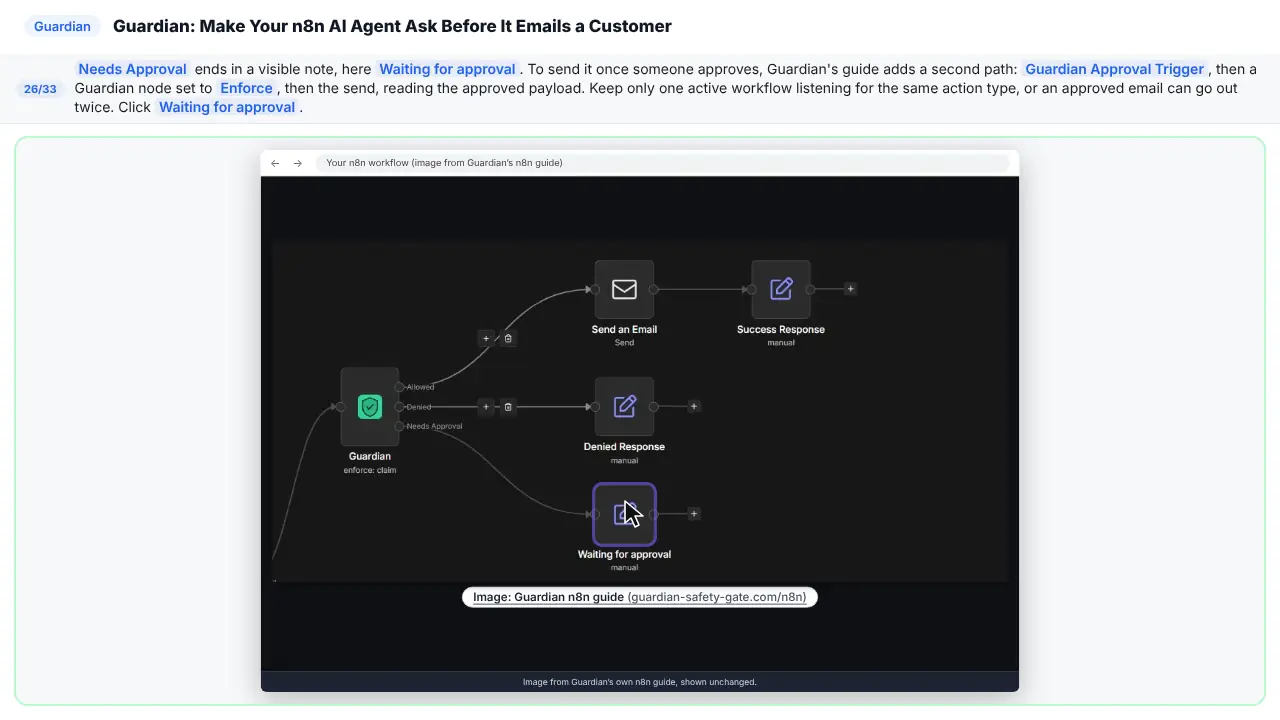
Needs approval ends in a note that says it's waiting. Once someone approves, a second path sends it. Guardian approval trigger, then Guardian set to enforce, then the send. Keep one active workflow per action type, or it can send twice.
Step 27: Add the Guardian credential
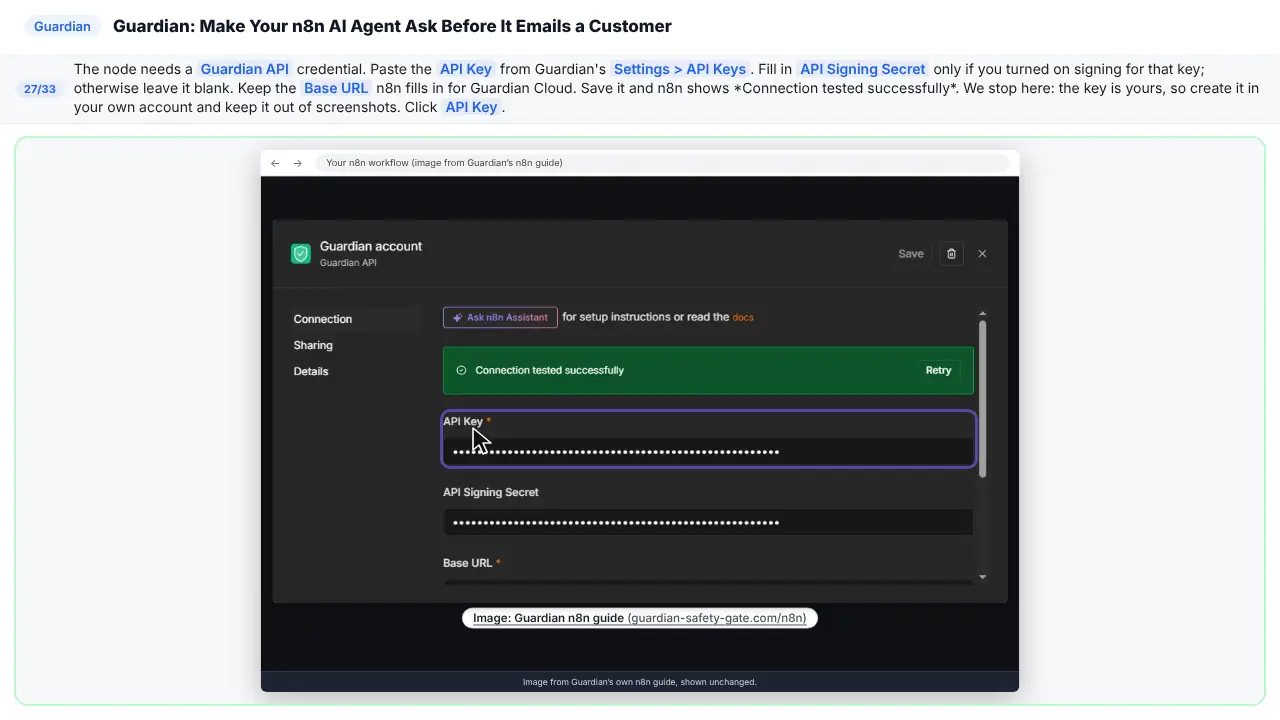
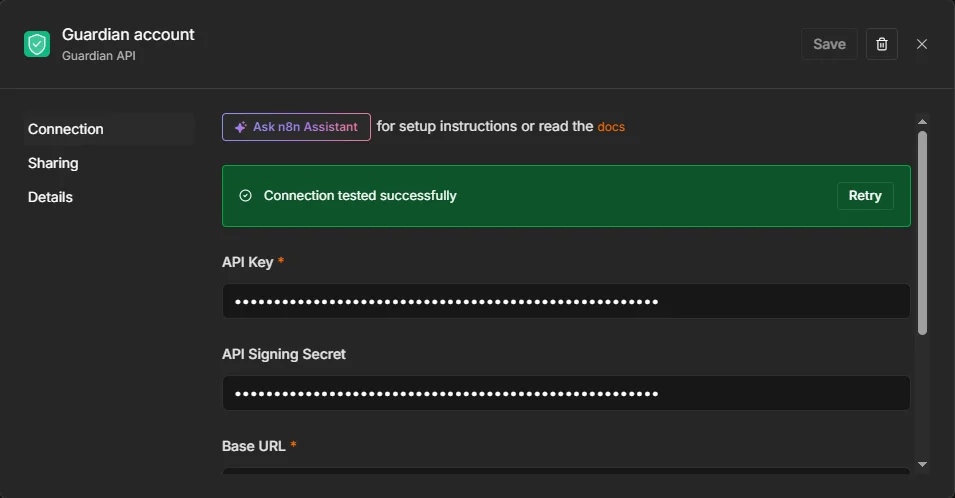
The node needs a Guardian credential. The signing secret is only for keys with signing turned on. And keep the base URL it fills in. When it connects, n8n says so. Create the key in your own account, and keep it private.
Part 8: Approve, or fix it first
Step 28: Open the Approval Inbox
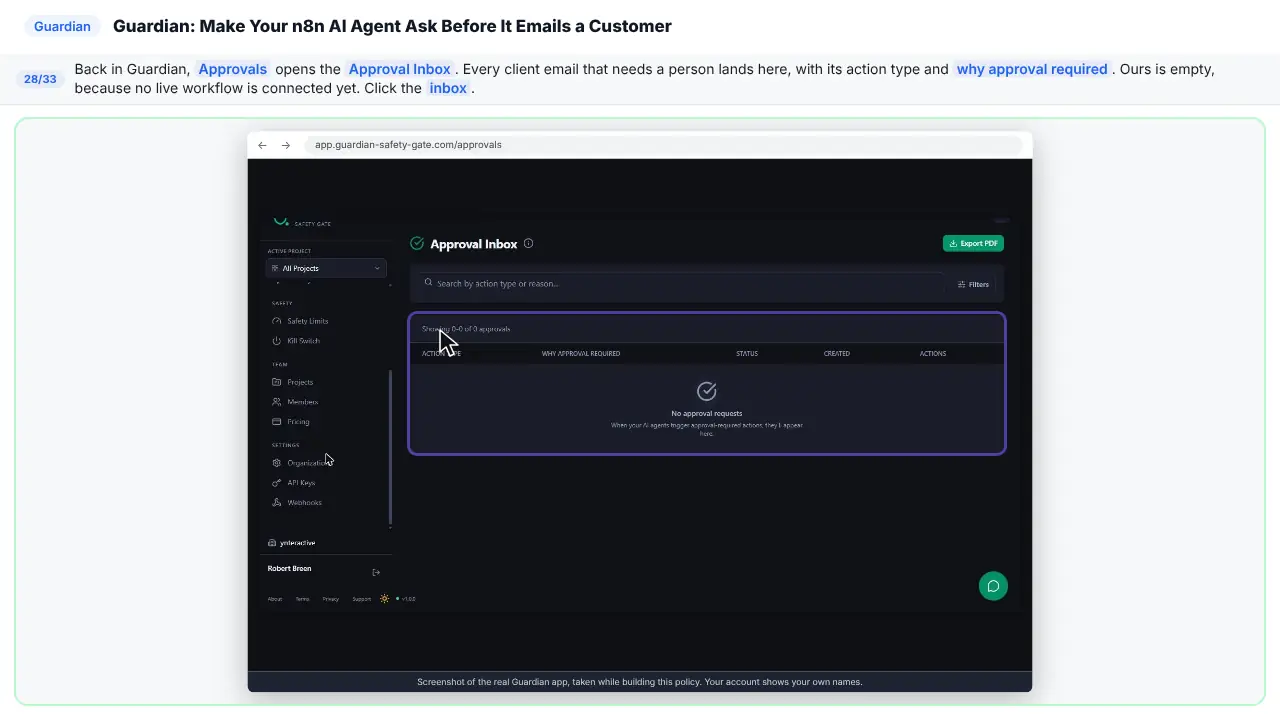
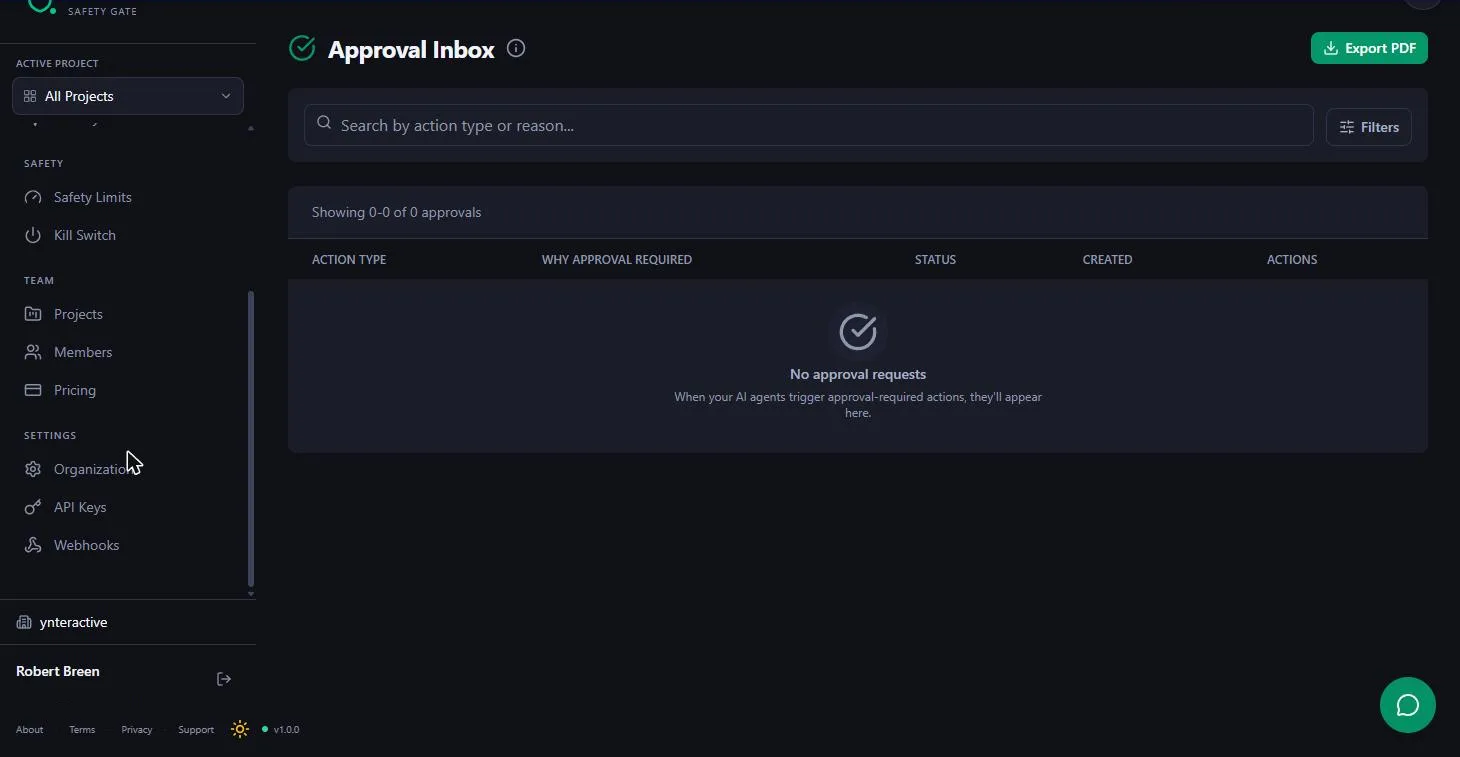
Back in Guardian, open Approvals. Every client email that needs a person lands here, with the reason why. Ours is empty, because nothing's connected yet.
Step 29: Open a waiting request
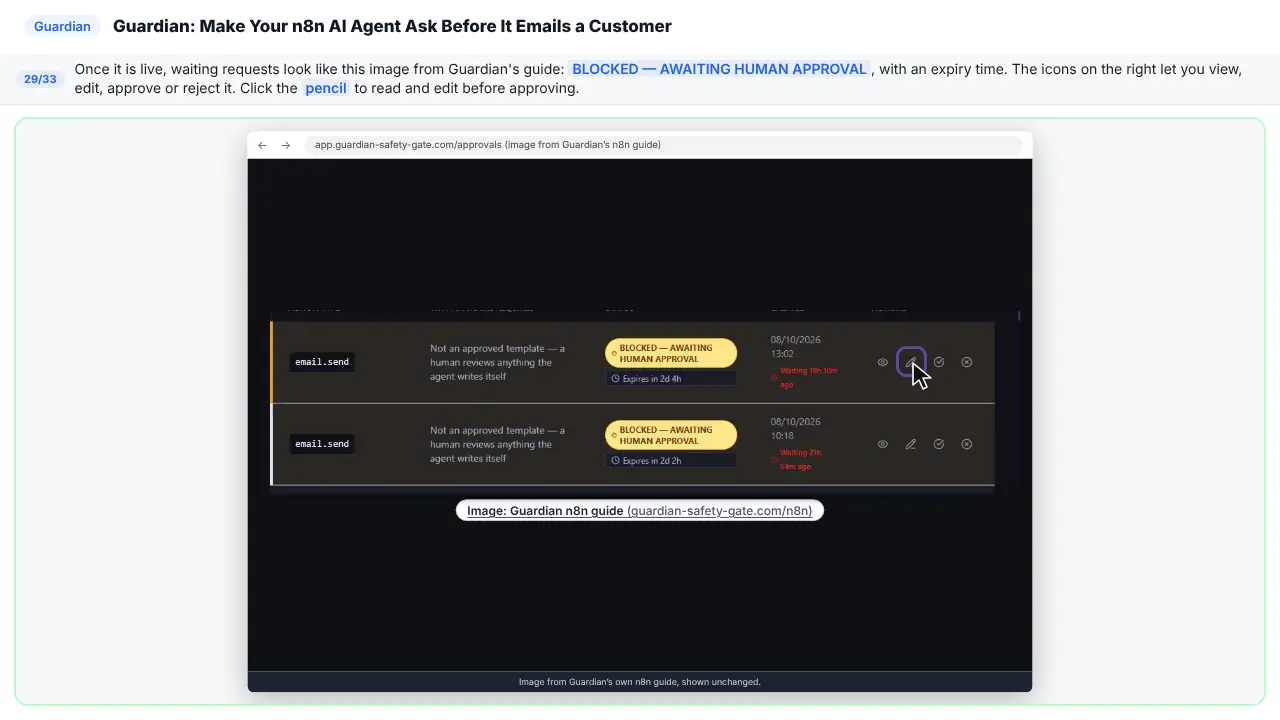
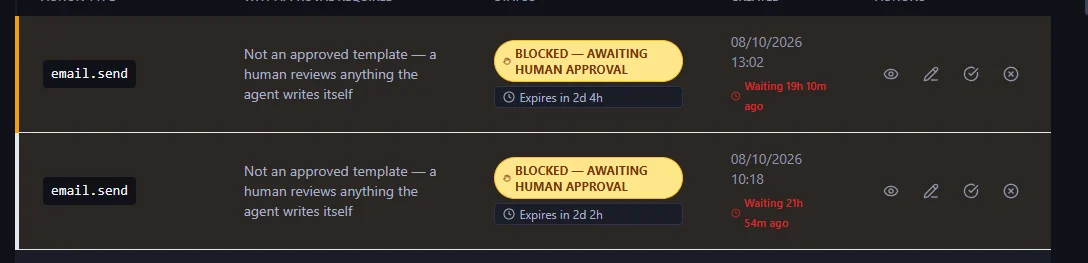
Once it's live, waiting requests look like this. Blocked, awaiting human approval. With a time limit.
Step 30: Fix the email if needed
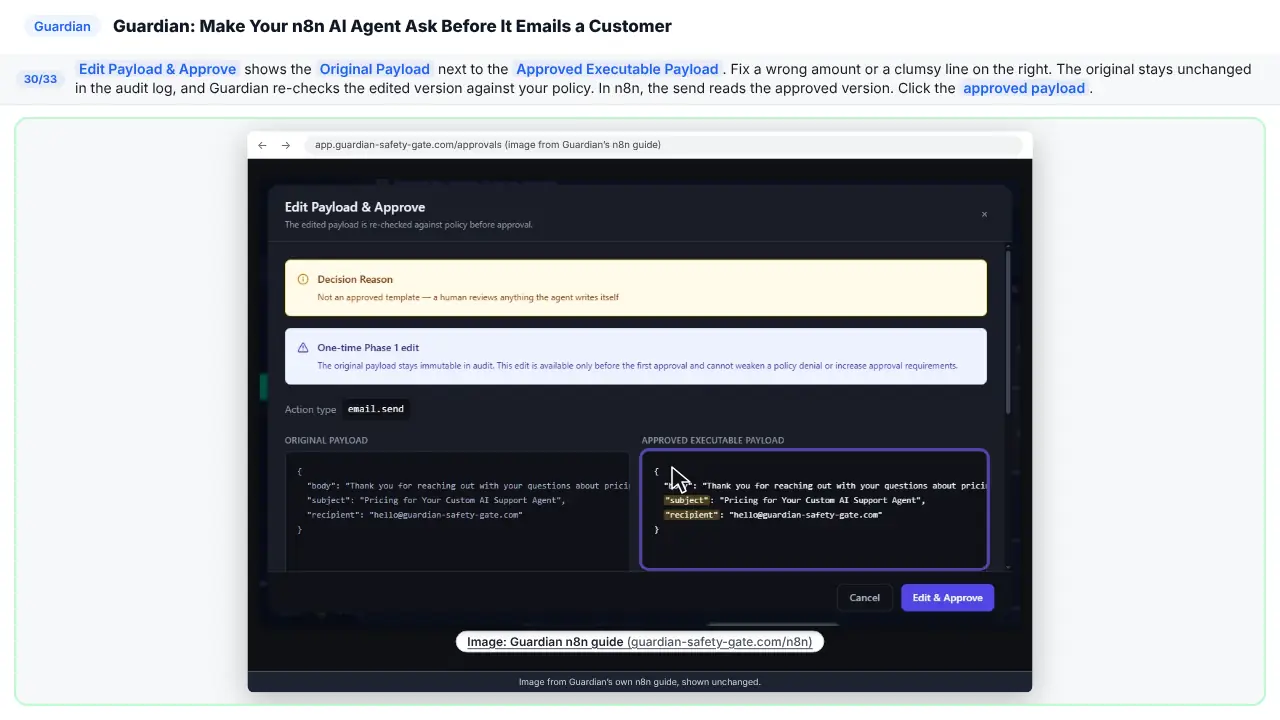
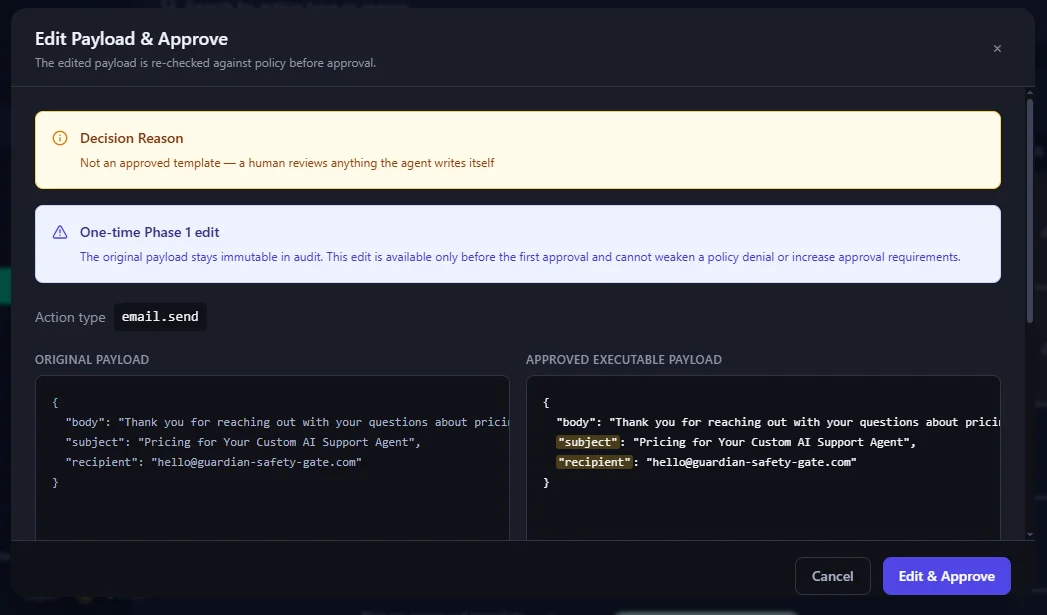
Edit and approve shows the original email next to the one that will go out. Fix a wrong amount on the right. The original stays on record, and the send uses your fixed version.
Step 31: Click Edit & Approve
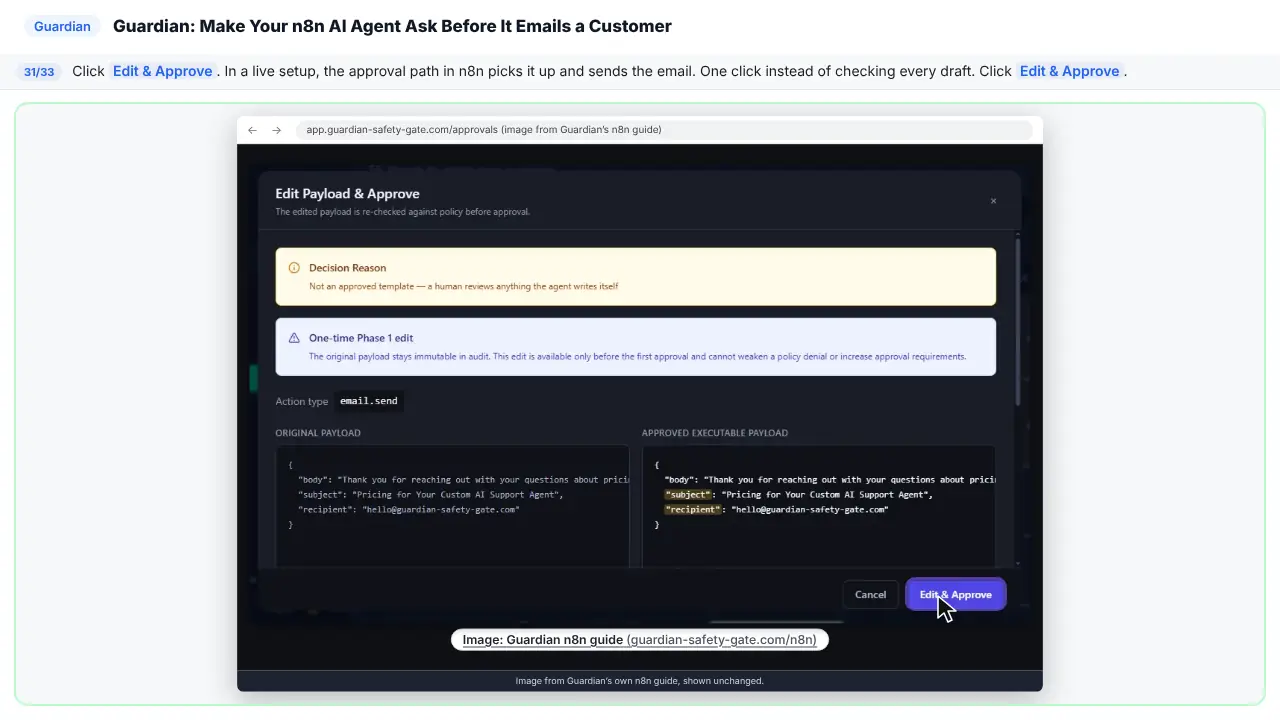
n8n picks it up, and sends it. One click, instead of checking every draft.
Part 9: What it saves, what it costs
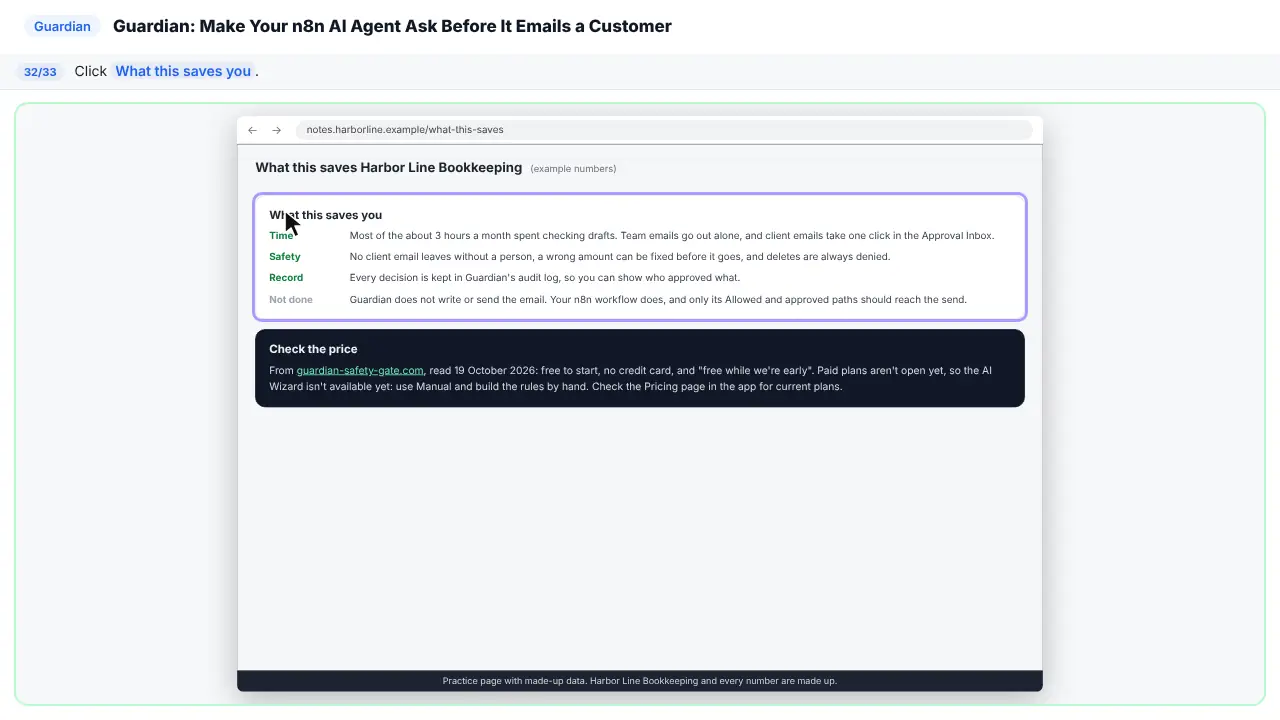
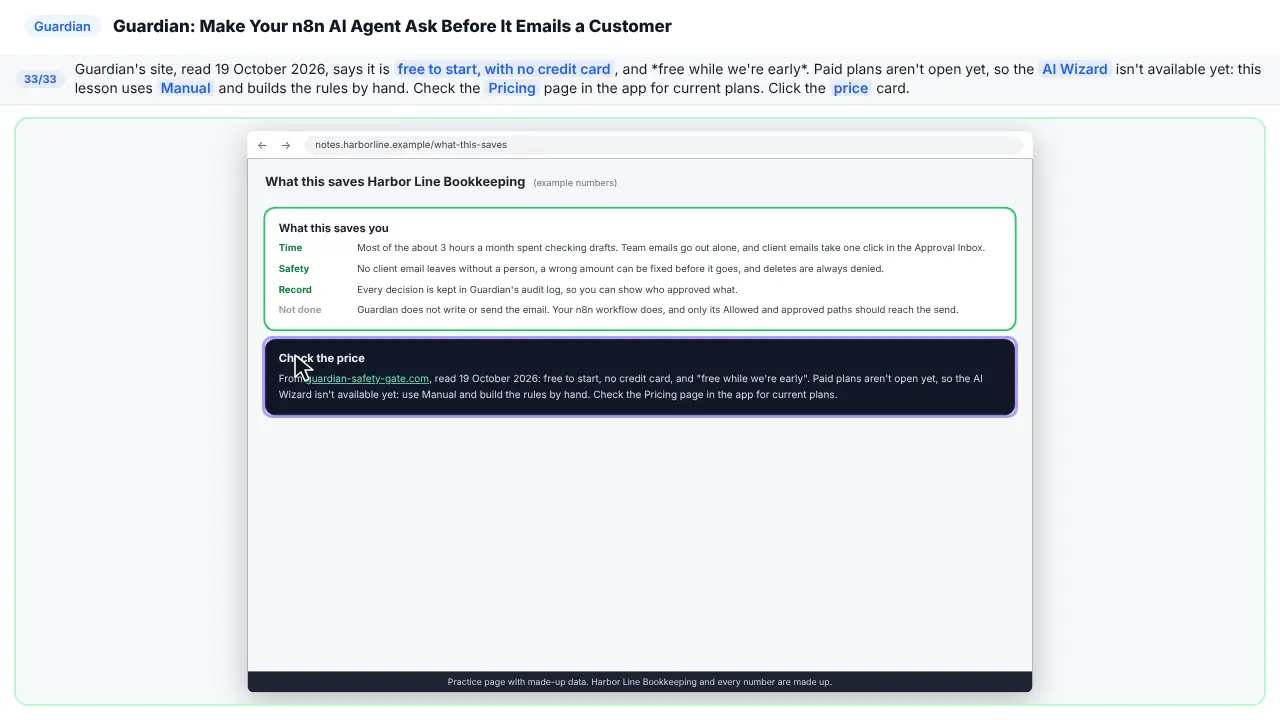
Step 32: What this saves you
Step 33: Check the price
On cost. Guardian's site says it's free to start, with no credit card, while it's early. Paid plans aren't open yet, so you build the rules by hand. Check the pricing page in the app.
Part of these free courses: n8n Jump Start, AI Agents 101, AI Apps Worth Knowing, AI Governance for Small Business, Guardian Tutorial: Guardian Jump Start, Safe AI Agents: Approvals, Guardrails and Audit Trails, AI Automation with n8n: From First Workflow to AI Agents, Stop Losing Requests: Run Office Operations with AI Apps and Document Tools, Intro to AI Automation, Part 2, Build Your First AI Agent in n8n, Automate Your Inbox with AI: Sort Every Email and Draft the Reply with Gmail, n8n, Make and Zapier
Now do it yourself, free
Reading the steps is a start. Doing them is how it sticks. The interactive lesson puts you in a practice copy of Guardian: you do every step yourself, it checks your work, and “Do it for me” finishes any step you get stuck on. Nothing touches your real accounts.
Practice “Guardian: Make Your n8n AI Agent Ask Before It Emails a Customer” step by step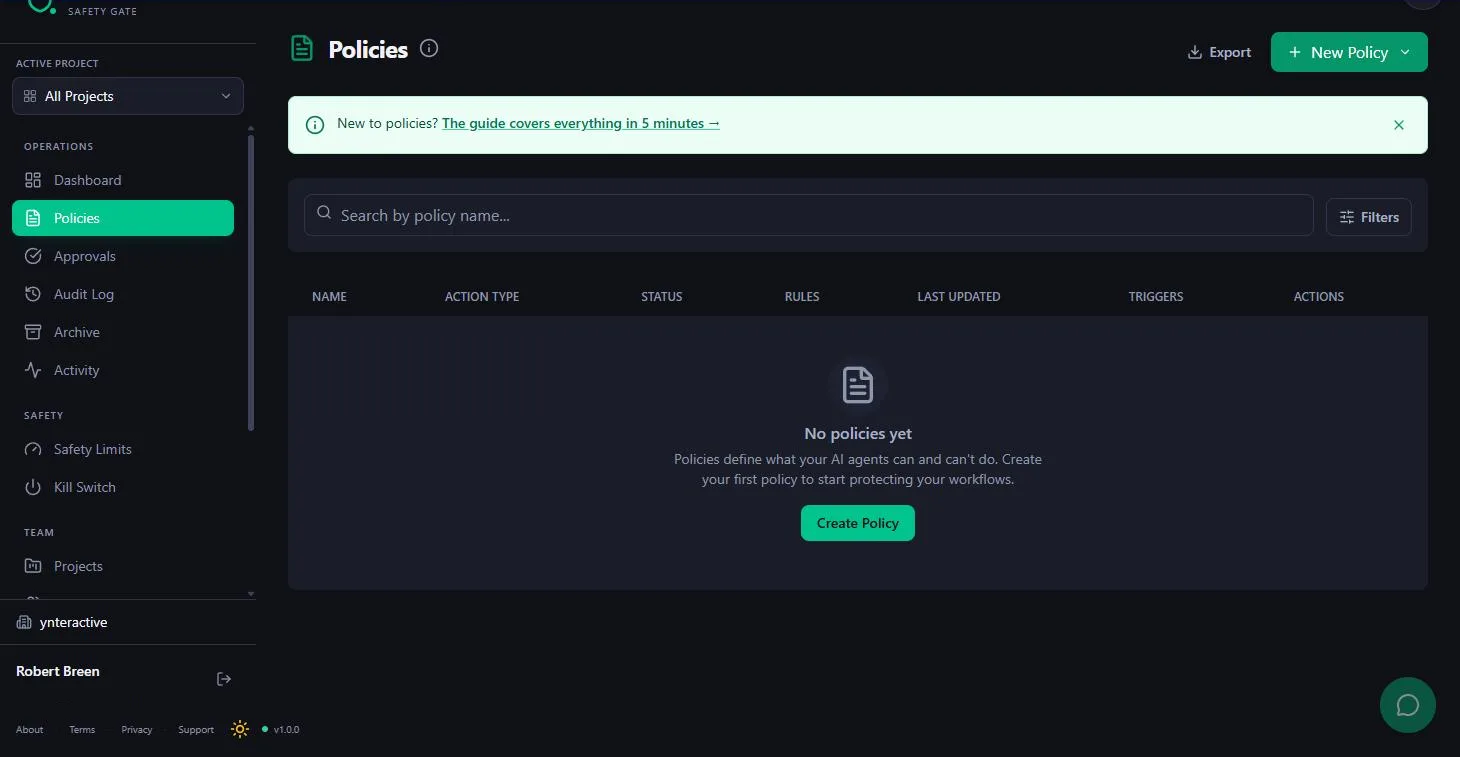
The business case: let the agent draft, not send
Picture Maya Chen, who runs Harbor Line Bookkeeping, a made-up firm. Her n8n agent reads the overdue invoices sheet, sorts clients by days overdue and drafts a reminder email for each one. She checks every draft before it goes, about 60 a month at 3 minutes each, so about 3 hours a month. If she stops checking, one wrong amount reaches a client. These are example numbers, so use your own.
Most small offices draw the line the same way: the agent can read, sort and draft on its own; anything that goes to a customer, moves money or changes a record waits for a person; and it never deletes anything. Guardian turns those lines into rules the workflow cannot skip.
Step 1: start a policy for email.send
In Guardian, open Policies, click New Policy and choose Manual (Build rules from scratch). The AI Wizard isn't available yet, so use Manual and build the rules by hand. Name the policy Customer emails need approval, and under What action does this policy apply to? type email.send. Guardian uses lowercase dot notation, and your n8n workflow will send the same action type before every email. Under Apply to Projects, tick Default; Guardian will not save a policy without a project.
Step 2: allow only your team addresses
Under Rules, pick Only allow specific values: only listed values are allowed automatically, and anything else needs human review. In What should Guardian check? type recipient, the exact field name your workflow sends. List your team inboxes, for example team@ and billing@ your own domain. Keep If the value is not in this list, then: Require Approval, and write a reason such as Emails to customers wait for a person to approve. Leave Approvals Required at 1. The This rule will box reads it back: Allow when recipient is a team address, Require Approval for anything else.
Step 3: test it before you save
Open Test This Policy. Guardian pre-fills a Custom Test Payload from your rules. Run it with a team address and Guardian would return ALLOW. Paste a reminder to a client, such as dana@brightpathdental.example, and it returns REQUIRE APPROVAL with your reason underneath. Both are sandbox tests: no intent is created and nothing is logged. Then click Create, and Guardian says the policy is now active.
After saving, the flask icon in the policy list opens Test Policy for the saved version. Guardian's guide says to run every policy through the tester with the real payload before you rely on it, because a rule whose field name differs from the payload, even by a typo, silently never fires.
Step 4: deletes are denied by default
You do not need a rule for never delete. Under Settings > Organization, Default Policy Behavior has Deny unmatched actions selected and marked Recommended: any action type without an explicit policy is blocked. So if the agent ever asks for record.delete, Guardian answers Denied. Just never write an allow policy for it. Allow unmatched actions is Starter+ only.
Step 5: put the Guardian node in your n8n workflow
From Guardian's n8n guide: place the Guardian node right before the action node, after the step that writes the email. Set Action Type to email.send and Payload to the JSON with recipient, subject and body, the same field names as the policy. The node has three outputs: connect Allowed to the send, and point Denied and Needs Approval at a note. Never connect all three to the action.
The node needs a Guardian API credential: an API key from Guardian's Settings > API Keys (Guardian asks you to verify your email first), the signing secret and the base URL it asks for. For the approval path, add a Guardian Approval Trigger, then a Guardian node set to Enforce, then the send, reading the approved payload. Keep only one active workflow listening for the same action type, or an approved email can go out twice.
Step 6: approve, or fix it first
Waiting requests land in Guardian's Approval Inbox with the action type and why approval was required, shown as Blocked, awaiting human approval, with an expiry time. Edit Payload & Approve shows the original payload next to the approved one, so you can fix a wrong amount before you approve. The original stays in the audit log, and the edited version is checked against your policy again.
Mistakes to avoid
- Connecting all three Guardian outputs to the send. Only Allowed goes there.
- A field name in the rule that does not match the payload. Test with the real payload.
- Writing an allow policy for deletes. Deny unmatched actions already blocks them.
- Running a first test against a live send step. Disable it (select it and press D) or use Listen Mode, which records what Guardian would have decided without blocking.
- Two active workflows listening for the same action type, which can send an approved email twice.
- Pasting your API key into a chat, a screenshot or a shared workflow.
Links
- Guardian: the approval and audit layer this lesson teaches. Free to start, no credit card (read 19 October 2026).
- Integrating Guardian into an n8n workflow: Guardian's own n8n guide: the node, its three outputs, the credential, the approval path, Listen Mode and troubleshooting.
Try it yourself, free
Reading the steps is a start. Doing them is how it sticks. The interactive module walks you through every click in a practice copy of Guardian, checks each step, and never touches your real accounts.
Start “Guardian: Make Your n8n AI Agent Ask Before It Emails a Customer”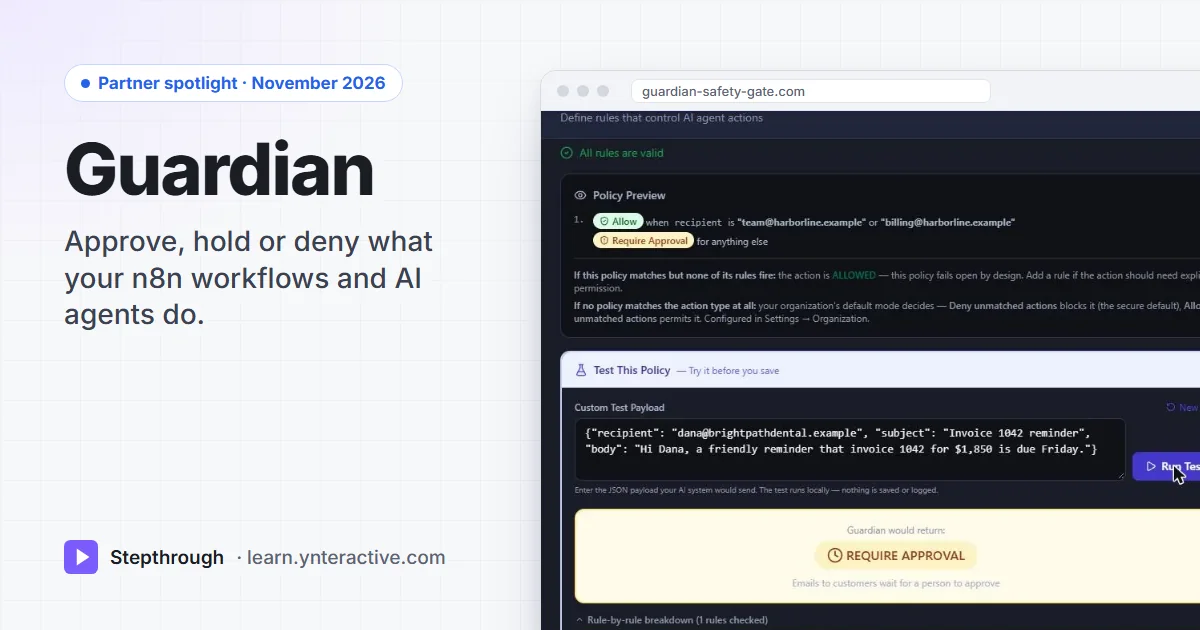
November 2026 spotlight
Guardian
An approval and audit layer for n8n workflows and AI agents: each action is checked against your policy and allowed, held for a person or denied, with a record.
Screenshots
Frequently asked questions
- Is this an official Guardian course?
- No. This is my own lesson. Guardian is a separate, third-party product from guardian-safety-gate.com. The app screenshots were taken in my own Guardian account, and the n8n images come from Guardian's own guide, credited under each one.
- Does Guardian send the email?
- No. Guardian only answers Allowed, Needs approval or Denied, and records the decision. Your n8n workflow does the sending, and only its Allowed and approved paths should reach the send step.
- Is Guardian free?
- Guardian's site, read 19 October 2026, says it is free to start with no credit card, and free while it is early. Paid plans aren't open yet, so the AI Wizard isn't available yet: use Manual and build the rules by hand. Check the Pricing page in the app for current plans.
- What happens to an action with no policy?
- With Deny unmatched actions, the recommended default, any action type without an explicit policy is blocked. That is how this lesson keeps deletes from ever running.
- Can I fix an email before I approve it?
- Yes. Edit Payload & Approve shows the original payload next to the one that will run. You can change it before approving, the original stays in the audit log, and Guardian checks the edited version against your policy again.
- How do I test without blocking a live workflow?
- Use Test This Policy or the flask icon for sandbox tests. For a real run, Guardian's guide suggests disabling the send step and turning on Listen Mode under the Organization tab, which records every request and what Guardian would have decided, without blocking anything.
More in n8n Automation Toolkit
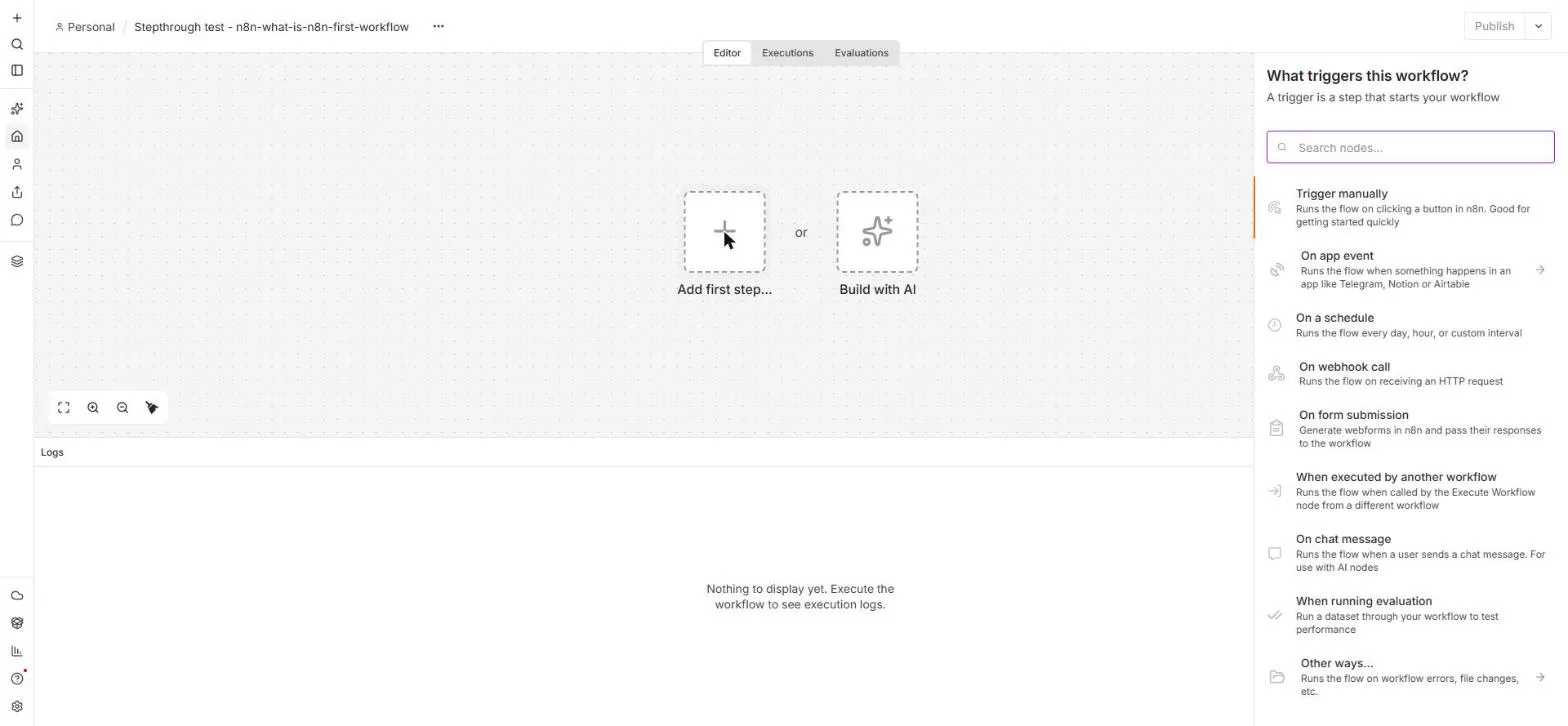 n8n: What Is n8n? Build Your First Workflow
What n8n is and how it thinks, then your first workflow: a client inquiry form that catches every request and writes a one-line summary. No code, no accounts to connect.
Free · Live ~8 min Beginner
 How to Do n8n Automation for Beginners: Sort Inquiries and Draft Replies with AI
AI workflow automation for beginners: a form catches each client inquiry, an AI step sorts it and drafts the reply, and an If rule flags the urgent ones. Real n8n, free…
Free · Live ~12 min Beginner
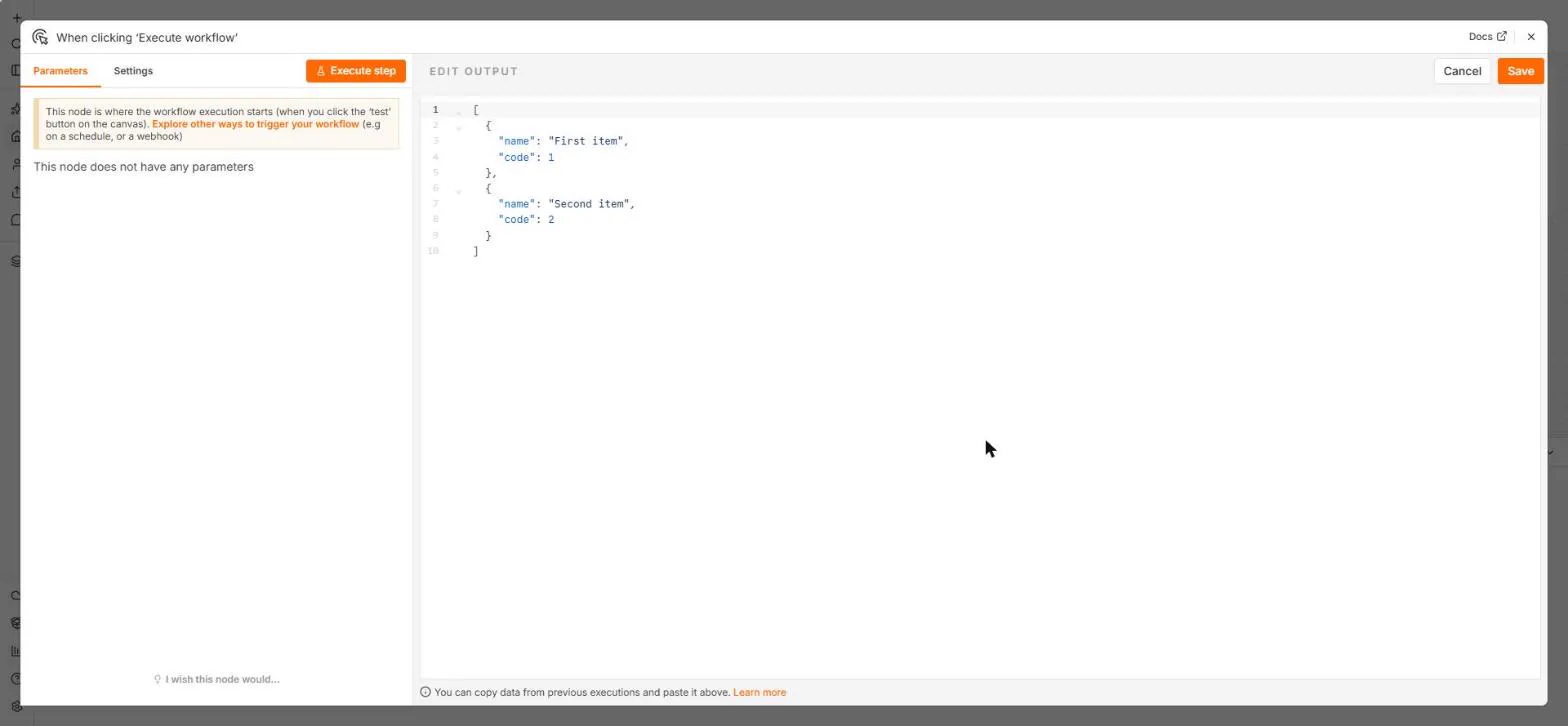 n8n: Items, JSON and Expressions, Explained by Doing
See how n8n holds data: pin five fake invoices, read them as items, Table and JSON, then write one reminder per invoice and a late fee with drag-and-drop expressions.
Free · Live ~9 min Beginner
 n8n: Run a Workflow on a Schedule (Every Monday at 8am)
Use the n8n Schedule Trigger to run a workflow by itself: every Monday at 8am, a timesheet reminder. Set the interval, test it now, and check the time zone.
Free · Live ~6 min Beginner
 n8n: Send Form Answers Straight to Google Sheets
Build a consultation request form in n8n (required fields, email, dropdown), test it, and add every answer as a new row in Google Sheets. No webhook, no form tool to…
Free · Live ~10 min Beginner
 n8n: Summarize Customer Emails with OpenAI
Your first AI step in n8n: send each customer email to OpenAI with one prompt and get a one-line summary plus the next step. No agent needed, about a cent of API use.
Free · Live ~9 min Beginner
All 28 modules in n8n Automation Toolkit
From the blog
Guardian AI Approval Gates: Use Cases by Office RoleWhere an office puts a Guardian approval gate in an n8n workflow, role by role: bookkeepers, account managers, ops, HR, sales and executive assistants.
Oct 20, 2026 5 min read
Guardian for n8n FAQ: Policies, Approvals and CostPlain answers about Guardian for n8n: what a policy is, how Allowed, Needs approval and Denied work, testing, the Approval Inbox and what's free.
Oct 20, 2026 4 min read
Guardian for n8n: 8 Approval Gate Mistakes to AvoidThe mistakes that break a Guardian approval gate in n8n, from wiring all three outputs to the send to a rule field typo, and how to fix each one.
Oct 20, 2026 5 min read
Terms in this lesson
Plain-English definitions, each with an example from a free lesson.