Updated . Built against the tool’s current screens and checked step by step. How we check this lesson
Plenty of small businesses keep their day in a spreadsheet and spend 20 minutes every evening adding it up by hand, or skip it and find out how the week went too late. n8n can do that for you on a clock. In this free n8n Schedule Trigger tutorial you build a workflow that runs every day at 5pm, reads only today's rows from a Google Sheet, adds up the revenue with the Summarize node and emails the total with Gmail. You also set the workflow's time zone, the one setting that makes most schedules fire at the wrong hour.
At a glance
| Question | Answer |
|---|---|
| What you build | Stop spending 20 minutes every evening adding up the day by hand. In n8n, a Schedule Trigger runs at 5pm, Google Sheets pulls today's jobs, Summarize totals the revenue and Gmail emails it to you. |
| Tools | n8n |
| Time | About 9 minutes, 40 steps in 5 parts |
| Level | Intermediate |
| Cost | Free |
| Ways to learn it | Practice it step by step |
The 5 parts, in short
- Run it every day at 5pm: Add the first step, On a schedule, Pick the hour, 5pm, and 1 more step.
- Set the time zone: Open the workflow menu, Settings, Choose the time zone, Save.
- Get today's jobs: Add the next step, Search for Google Sheets, Google Sheets, Get row(s) in sheet, and 10 more steps.
- Add up the revenue: Add the next step, Search for Summarize, Summarize, Choose the math, and 4 more steps.
- Email the total: Add the email, Search for Gmail, Gmail, Send a message, and 5 more steps.
Start here first: n8n: What Is n8n? Build Your First Workflow (module 1 of n8n Automation Toolkit)
In the course: Part 9 · n8n Automation Toolkit (Module 85 of the full course)
Part of: Reports That Build Themselves (step 3 of 8). Next up: n8n + Felo: A Monday Research Brief With a Source for Every Answer
Part of: n8n Jump Start (step 8 of 27). Next up: How to Create a Webhook in n8n and a Form That Saves to Google Sheets
Part of: n8n Intermediate: Real Business Workflows (step 2 of 20). Next up: n8n: Keep Only the Rows That Matter with Filter and Edit Fields
What you will build
You will build a daily report for Pine Ridge Lawn Care, a small lawn care business in Denver. Its crews log every finished job in a Google Sheet called Pine Ridge Job Log, on a tab called Jobs, with four columns: Date, Customer, Job and Amount. The owner wants one email at the end of each day with the day's revenue, without opening the sheet. To build the same kind of daily digest in Make.com, see How to Add a Scheduler in Make.com: Daily Summary Email from Google Sheets.
The finished workflow has four steps in a row: a Schedule Trigger, a Google Sheets step called Get row(s) in sheet, a Summarize step and a Gmail step called Send a message. Once it is published, it runs by itself every day at 5pm Denver time.
Who this n8n daily report tutorial is for
This module is for business owners, office managers and anyone who already tracks work in Google Sheets and wants a report without building one by hand. If the numbers live in another sheet or a CRM, see Pull Live Pipeline Data into Google Sheets with Coefficient to bring them in on a daily refresh. You do not need to write code. There is one short expression to paste, and the lesson explains every part of it. You do not need an n8n account to practice.
The Schedule Trigger and the workflow time zone
The Schedule Trigger can run every few seconds, minutes, hours, days, weeks or months, or on a Custom (Cron) expression. For a daily report, Days with Trigger at Hour and Trigger at Minute is all you need. Add Rule lets one trigger fire at more than one time.
The hour you pick is read in the workflow's time zone, not your computer's. A new workflow uses the instance default, so a 5pm schedule on a New York default fires at 3pm in Denver. Set it once under the three-dot menu, Settings, Timezone. The same time zone is used by $today and $now in expressions, which is why the date filter and the schedule always agree.
A schedule only runs after you publish the workflow. While you build, you can test the whole thing at any time with Execute workflow on the canvas. To send each row to a different person instead of one report, see How to Make an n8n Workflow That Emails Each Tech Their Jobs from Sheets.
Filtering Google Sheets rows by today's date
Get row(s) in sheet returns every row unless you add a filter. A filter has a Column and a Value, and the column must have that value to be matched. By default n8n reads dates the way the sheet shows them, so write the Date column in a fixed format like 2026-09-28 and build the same text with $today.toFormat('yyyy-MM-dd'). Keep Amount as plain numbers: Summarize only adds up real numbers.
Summarize: totals without code
The Summarize node works like a spreadsheet total across items. Its aggregations are Append, Average, Concatenate, Count, Count Unique, Max, Min and Sum. Each result gets a name made of the aggregation and the field, such as sum_Amount or count_Job. Click Add Field to add another result, for example a Count of jobs, and use Fields to Split By to get one total per crew or per service.
How the interactive lesson works
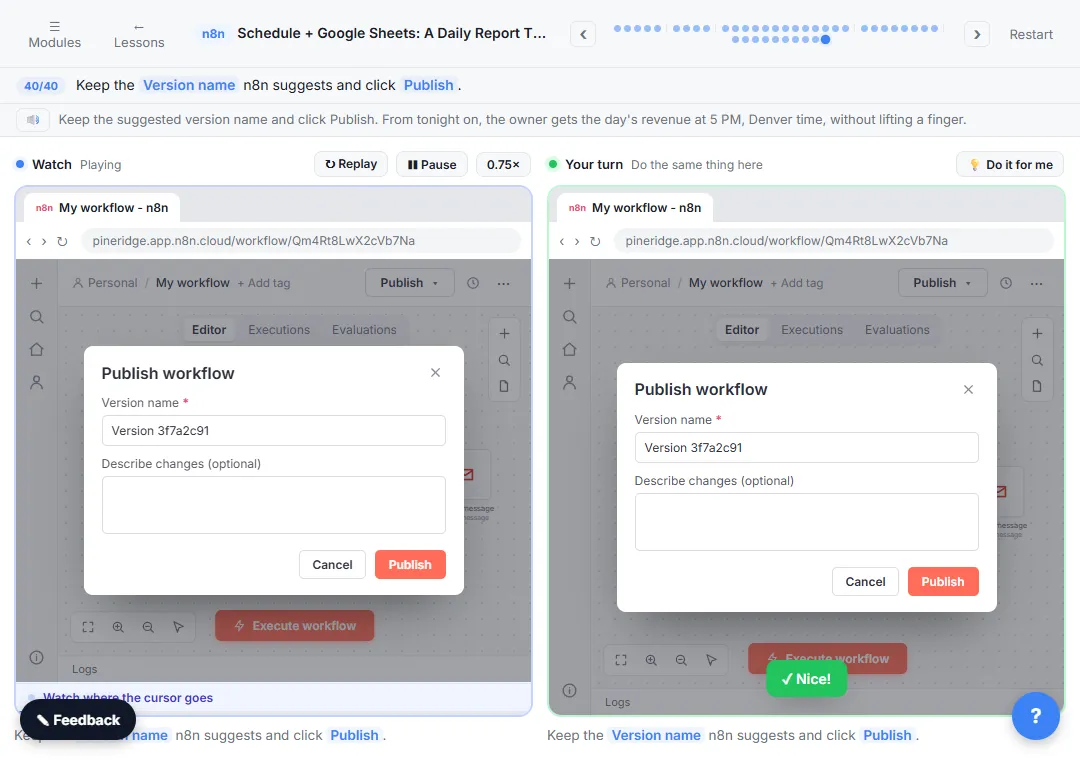
Every step is shown first on the left, in the Watch panel, with a short voice-over. Then you do it yourself on the right, in Your turn, on a practice copy of n8n. If you get stuck, press Do it for me. No sheet is read, no email is sent and nothing is published, so you can practice freely and then build it for real.
Try it yourself, free
Reading the steps is a start. Doing them is how it sticks. The interactive module walks you through every click in a practice copy of n8n, checks each step, and never touches your real accounts.
Start “Get Your Daily Revenue Total by Email, Automatically, using n8n”Step by step: Get Your Daily Revenue Total by Email, Automatically, using n8n
All 40 steps of the interactive module, in order. In the module you watch each one, then do it yourself in a practice copy that checks your work.
1. Run it every day at 5pm
- Add the first step. This is a new, empty workflow. Click Add first step….
Every evening, Pine Ridge's owner adds up the day's jobs by hand. Let's hand that job to a workflow. It starts with a trigger.
- On a schedule. Under What triggers this workflow?, choose On a schedule: *Runs the flow every day, hour, or custom interval*.
Nobody clicks anything to start this report. It runs on a clock.
- Pick the hour. Trigger Interval is already Days, and Days Between Triggers is 1: once a day. Open Trigger at Hour.
The defaults already say every day: Trigger Interval, Days, and one day between triggers. What time?
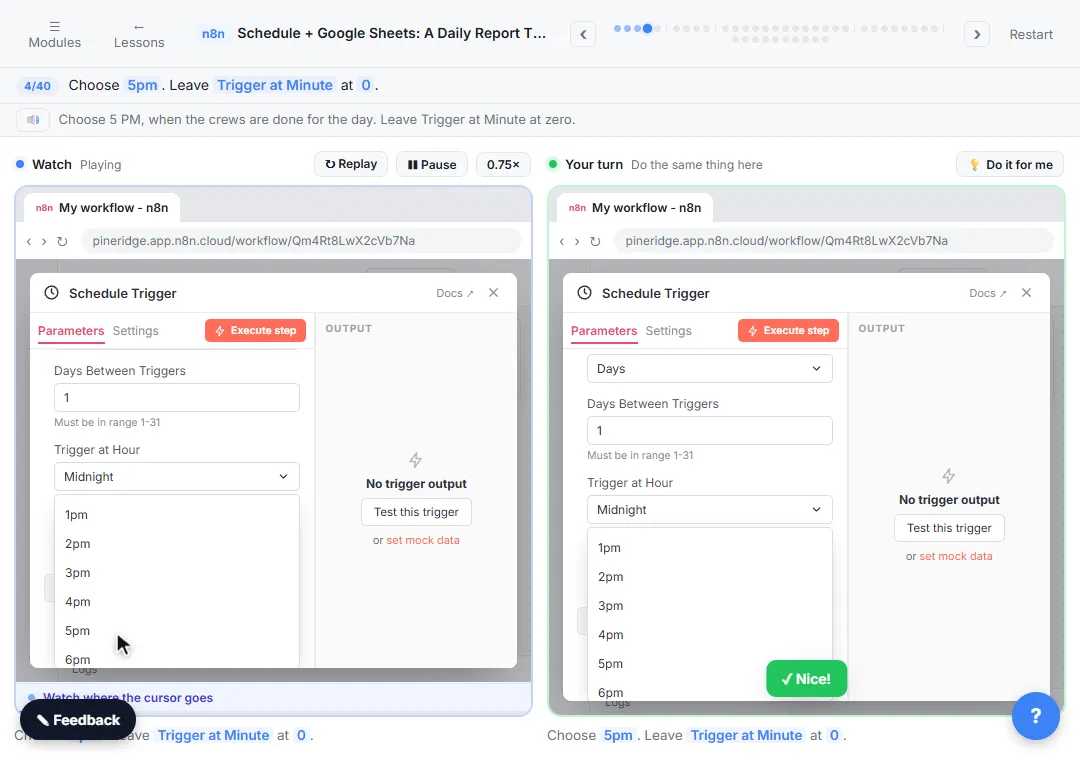
- 5pm. Choose 5pm. Leave Trigger at Minute at 0.
Leave Trigger at Minute at zero.
- Close the node. The schedule is set. Close the node with the × at the top right.
Five PM, every day. But five PM where? Close the node.
2. Set the time zone
- Open the workflow menu. The schedule follows the workflow's time zone. Click the ⋯ menu next to the workflow name, at the top left.
A schedule runs on the workflow's time zone, and a new workflow starts on a default one. Pine Ridge is in Denver, so check it.
- Settings. Choose Settings.
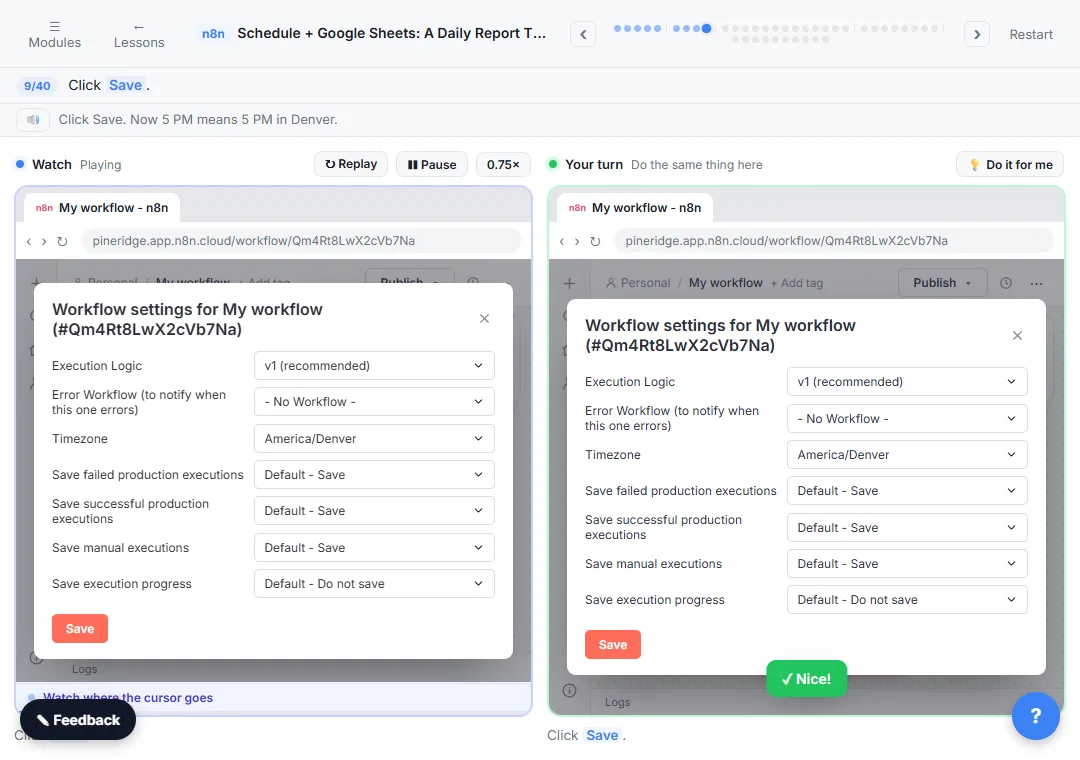
- Choose the time zone. Timezone shows the default, here Default - America/New York. Click it, type denver and choose America/Denver.
Here the default is New York, so Pine Ridge would get its report at three in the afternoon.
- Save. Click Save.
Now 5 PM means 5 PM in Denver.
3. Get today's jobs
- Add the next step. Click the + on the right of Schedule Trigger.
Next, read the job log.
- Search for Google Sheets. In Search nodes..., type sheets.
Search for sheets.
- Google Sheets. Click Google Sheets.
- Get row(s) in sheet. Under Sheet Within Document Actions, click Get row(s) in sheet.
This time we read rows instead of adding them.
- Choose the spreadsheet. If you connected Google Sheets before, Google Sheets account is already picked (if not, create the credential and sign in with Google). Open the Document list.
Your Google Sheets account is already connected here. If yours isn't, create it and sign in with Google.
- Pick the job log. Pick Pine Ridge Job Log.
Pick Pine Ridge Job Log. The crews add a row for every job they finish.
- Choose the tab. Open the Sheet list.
- Jobs. Choose Jobs.
Without a filter, this step would return every row in the log, from every day.
- Add a filter. Under Filters, click Add Filter.
You only want today's jobs. Under Filters, click Add Filter.
- Choose the column. Open the Column list.
It shows the headers from your sheet.
- Date. Choose Date. In this sheet, dates are written year-month-day, like 2026-09-28.
In this sheet, dates are written year, month, day.
- Switch Value to Expression. Point at the Value field and click Expression at its top right (next to Fixed).
The value is today's date, which changes every day, so it has to be an expression. Point at the Value field and click Expression, at its top right.
- Match today's date. In the Value box (now marked fx), paste {{ $today.toFormat('yyyy-MM-dd') }}. It is today's date, in the same format as the sheet. Under the box, n8n shows today's date.
Dollar today is today, in the workflow's time zone, and toFormat writes it year, month, day, like the sheet. Under the box, n8n shows today's date.
- Close the node. Close the node with the ×.
The sheet step now only returns rows where Date is today. Close the node.
4. Add up the revenue
- Add the next step. Click the + on the right of Get row(s) in sheet.
Each job comes out as its own item. For the report you want one number: the total.
- Search for Summarize. In Search nodes..., type summarize.
Search for summarize.
- Summarize. Choose Summarize: *Sum, count, max, etc. across items*.
It works like a spreadsheet total across all the items. No code needed.
- Choose the math. Under Fields to Summarize, Aggregation starts at Count. Open it.
Under Fields to Summarize, Aggregation starts on Count. You want a total, so open it.
- Sum. Choose Sum.
It adds the numbers together.
- Which field?. In Field, type Amount: the column to add up. (*Enter the field name as text.*)
In Field, type Amount. That is the column to add up. The name goes in as plain text, just like the hint says.
- Test it. Click Execute step. n8n runs the steps before it too, so it reads the sheet first.
It runs the steps before it too. On the left, the sheet step returned five rows, only today's. On the right, one item: sum underscore Amount, 545.
- Close the node. The output field is called sum_Amount. Close the node with the ×.
Remember that name, sum underscore Amount. You will use it in the email. Close the node.
5. Email the total
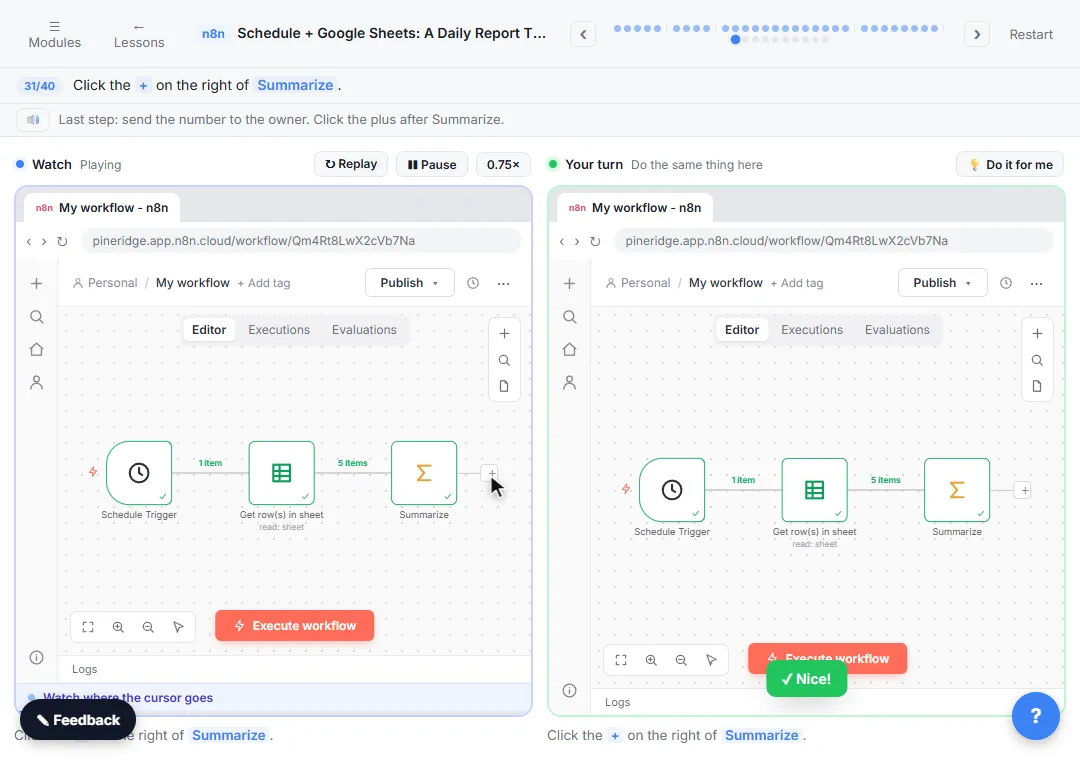
- Add the email. Click the + on the right of Summarize.
Last step: send the number to the owner.
- Search for Gmail. In Search nodes..., type gmail.
Search for Gmail.
- Gmail. Click Gmail.
- Send a message. Under Message Actions, click Send a message.
Your Gmail account is already connected, like the sheet.
- To. In To, type the owner's address: owner@pineridge-lawn.example.
In To, type the owner's email address.
- Subject. In Subject, type Pine Ridge daily report.
Give it a subject, like Pine Ridge daily report.
- Switch Message to Expression. Point at the Message field and click Expression at its top right.
The message pulls in the total, so it has to be an expression too. Point at the Message field and click Expression.
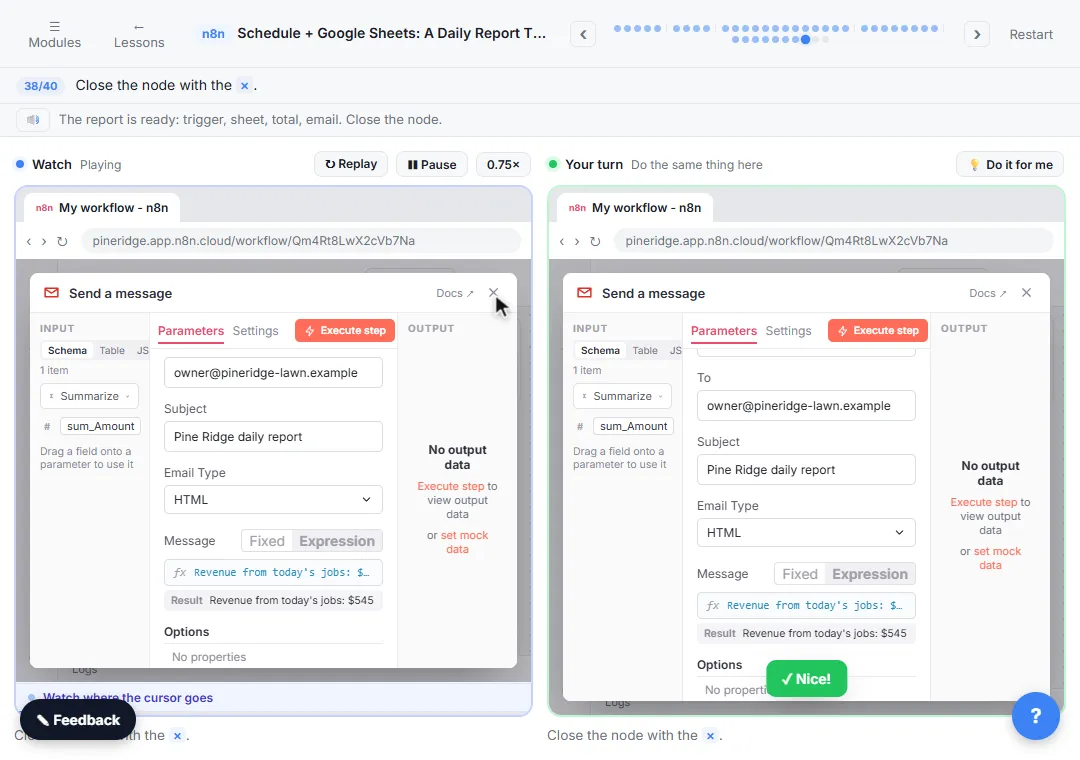
- Message. In the Message box (now marked fx), paste Revenue from today's jobs: ${{ $json.sum_Amount }}. The part in curly braces is the total from Summarize. Below the field, n8n shows the result: Revenue from today's jobs: $545.
The part in curly braces pulls in sum underscore Amount from Summarize. Underneath, the result shows the real email line: 545 dollars.
- Close the node. Close the node with the ×.
The report is ready: trigger, sheet, total, email. Close the node.
Screenshots
Frequently asked questions
- Why does my n8n schedule run at the wrong time?
- Usually the workflow time zone. Open the three-dot menu, choose Settings and set Timezone to your own zone, then save and publish again.
- Does the Schedule Trigger run before I publish?
- No. It only fires on its own once the workflow is published. Use Execute workflow to test it while you build.
- What happens on a day with no rows?
- The sheet step returns no items, and n8n stops the workflow there, so no email is sent. If you want a "no jobs today" email instead, look at the Always Output Data setting on the sheet step.
- Is this course really free?
- Yes. Stepthrough is completely free, and the practice copy needs no accounts. To build it for real you need your own n8n and Google accounts, and some of those cost money once you use them for real work.
More in n8n Automation Toolkit
 n8n: What Is n8n? Build Your First Workflow
What n8n is and how it thinks, then your first workflow: a client inquiry form that catches every request and writes a one-line summary. No code, no accounts to connect.
Free · Live ~8 min Beginner
 How to Do n8n Automation for Beginners: Sort Inquiries and Draft Replies with AI
AI workflow automation for beginners: a form catches each client inquiry, an AI step sorts it and drafts the reply, and an If rule flags the urgent ones. Real n8n, free…
Free · Live ~12 min Beginner
 n8n: Items, JSON and Expressions, Explained by Doing
See how n8n holds data: pin five fake invoices, read them as items, Table and JSON, then write one reminder per invoice and a late fee with drag-and-drop expressions.
Free · Live ~9 min Beginner
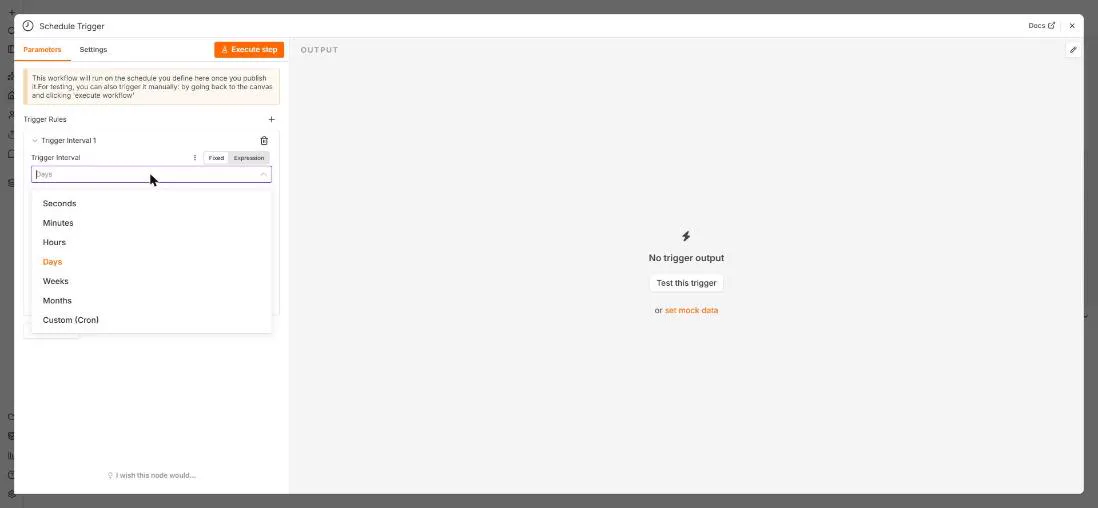 n8n: Run a Workflow on a Schedule (Every Monday at 8am)
Use the n8n Schedule Trigger to run a workflow by itself: every Monday at 8am, a timesheet reminder. Set the interval, test it now, and check the time zone.
Free · Live ~6 min Beginner
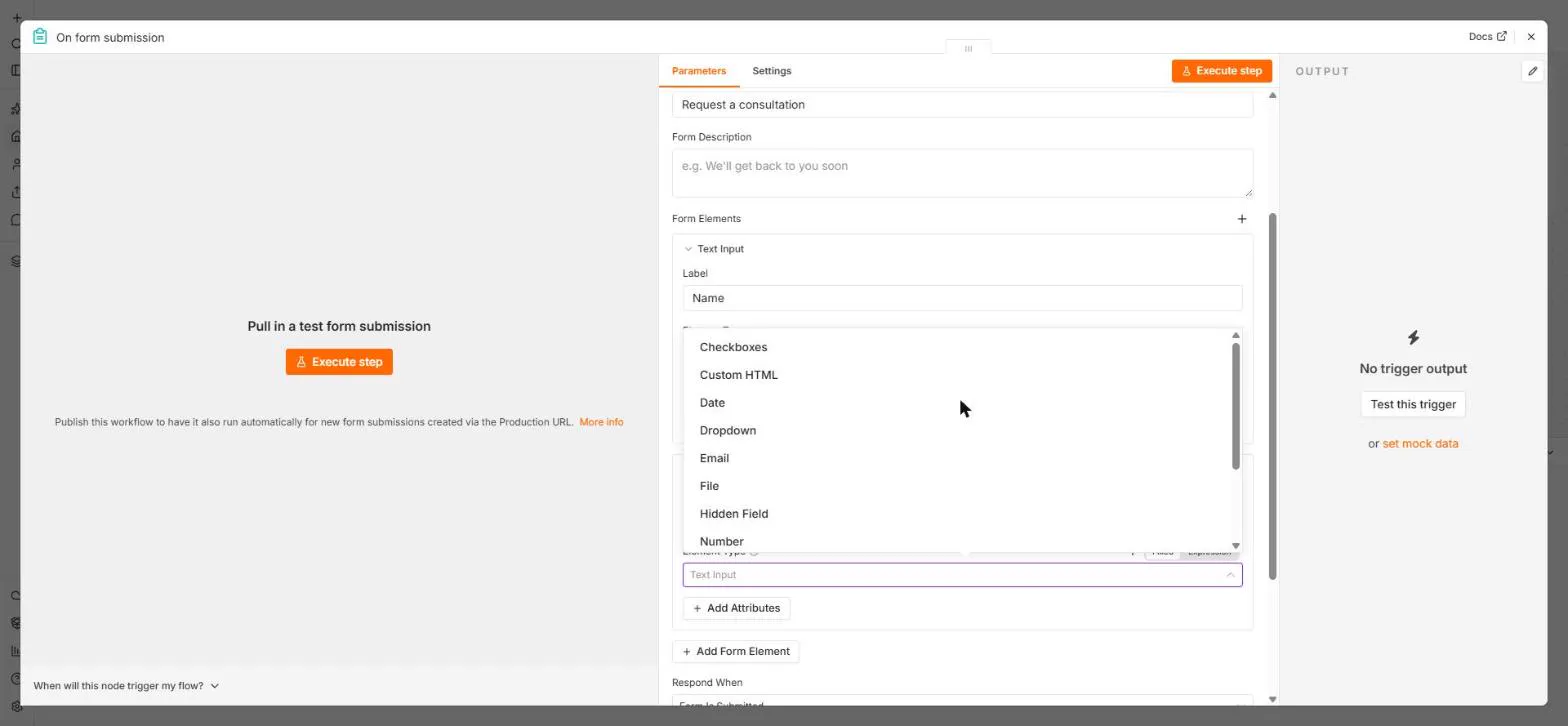 n8n: Send Form Answers Straight to Google Sheets
Build a consultation request form in n8n (required fields, email, dropdown), test it, and add every answer as a new row in Google Sheets. No webhook, no form tool to…
Free · Live ~10 min Beginner
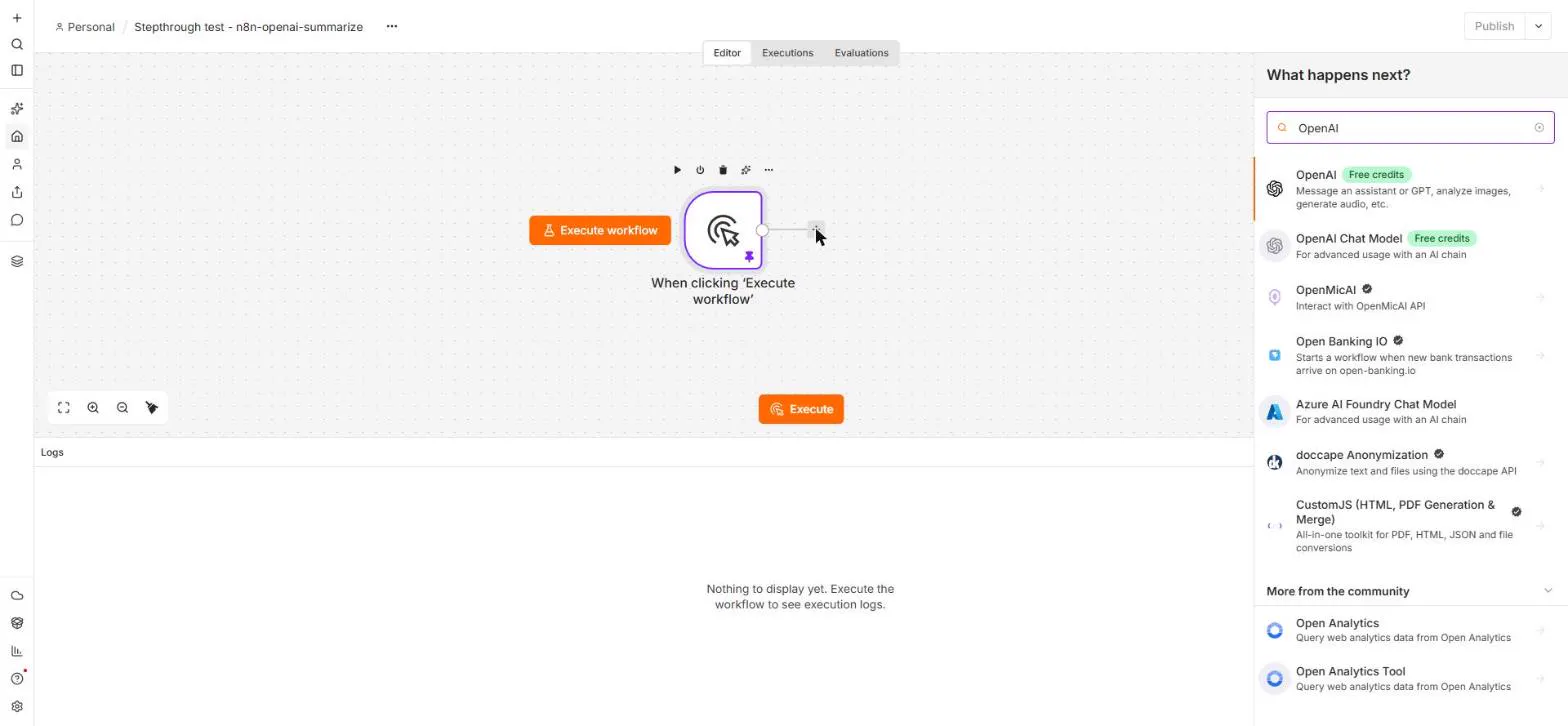 n8n: Summarize Customer Emails with OpenAI
Your first AI step in n8n: send each customer email to OpenAI with one prompt and get a one-line summary plus the next step. No agent needed, about a cent of API use.
Free · Live ~9 min Beginner
All 28 modules in n8n Automation Toolkit
More n8n tutorials
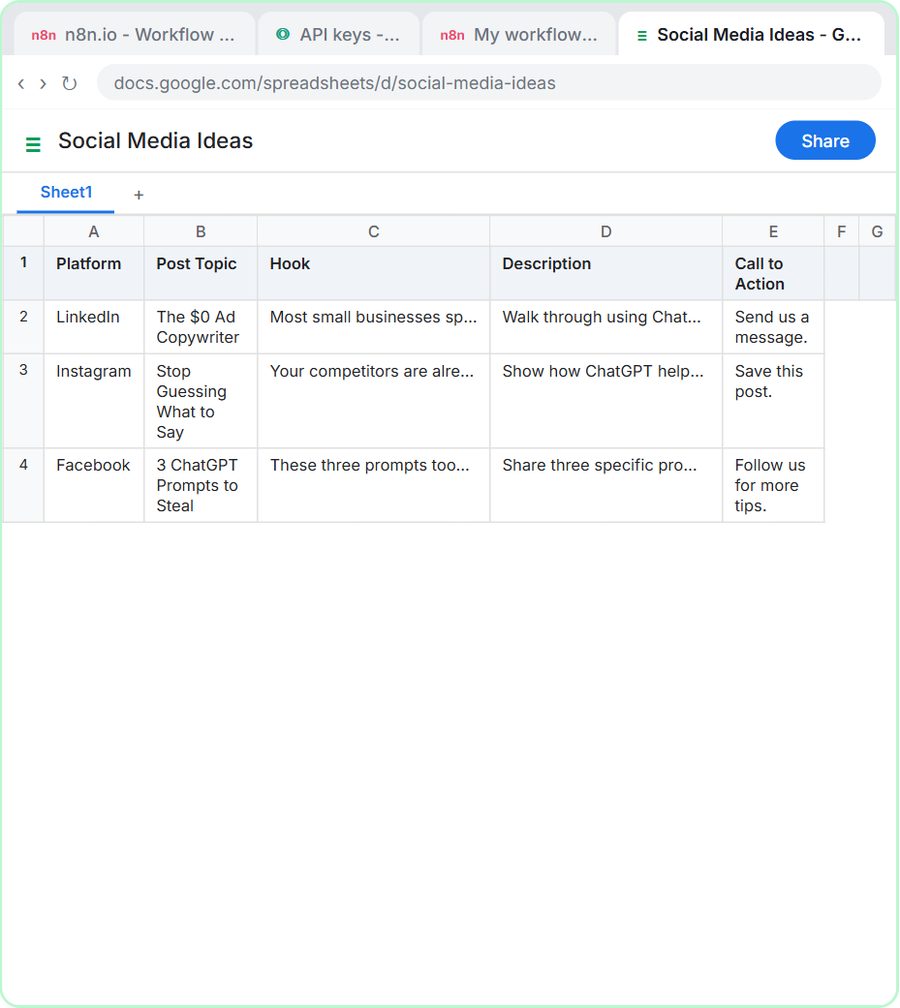 How to Create an AI Agent in n8n That Saves Ideas to Google Sheets
Build an AI agent for BrightPath Marketing that generates social media post ideas and saves them to Google Sheets — chat trigger, AI Agent, system prompt, model…
Free · Live ~12 min Intermediate
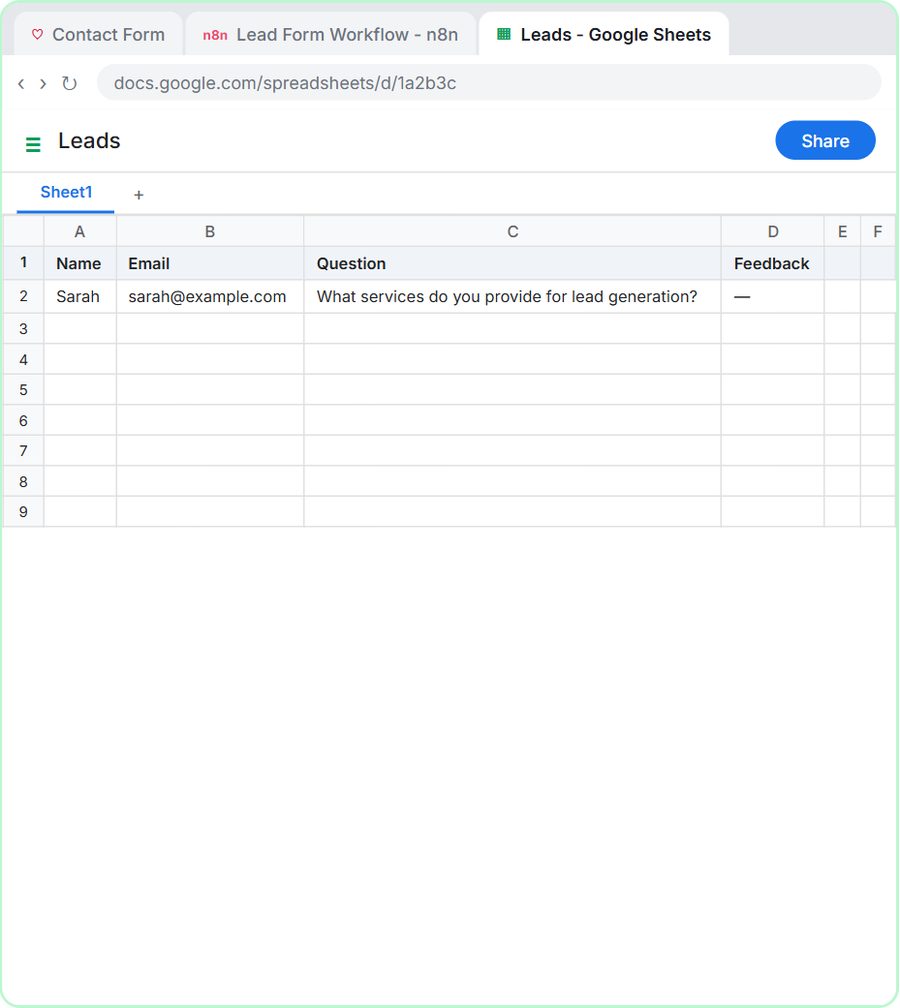 How to Build in Lovable: A Web App with an n8n AI Backend
Build a contact form in Lovable and connect it to an n8n workflow — webhook trigger, AI Agent, Google Sheets, Gmail, and a Respond node that ties it all together.
Free · Live ~15 min Advanced
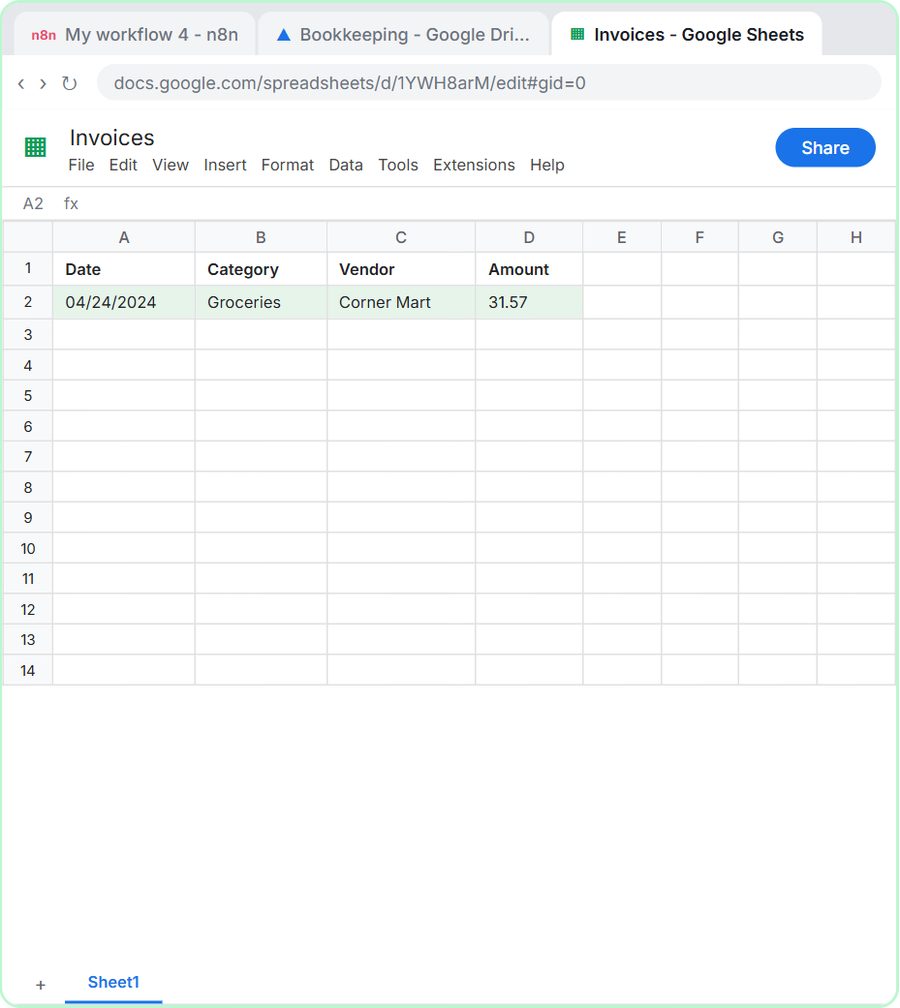 How to Do OCR in n8n: Read Receipt Photos into Google Sheets with AI
Drop a photo of a receipt into an n8n chat. An AI agent reads it, pulls out the date, vendor and amount, picks a category, and adds a row to Google Sheets.
Free · Live ~12 min Intermediate
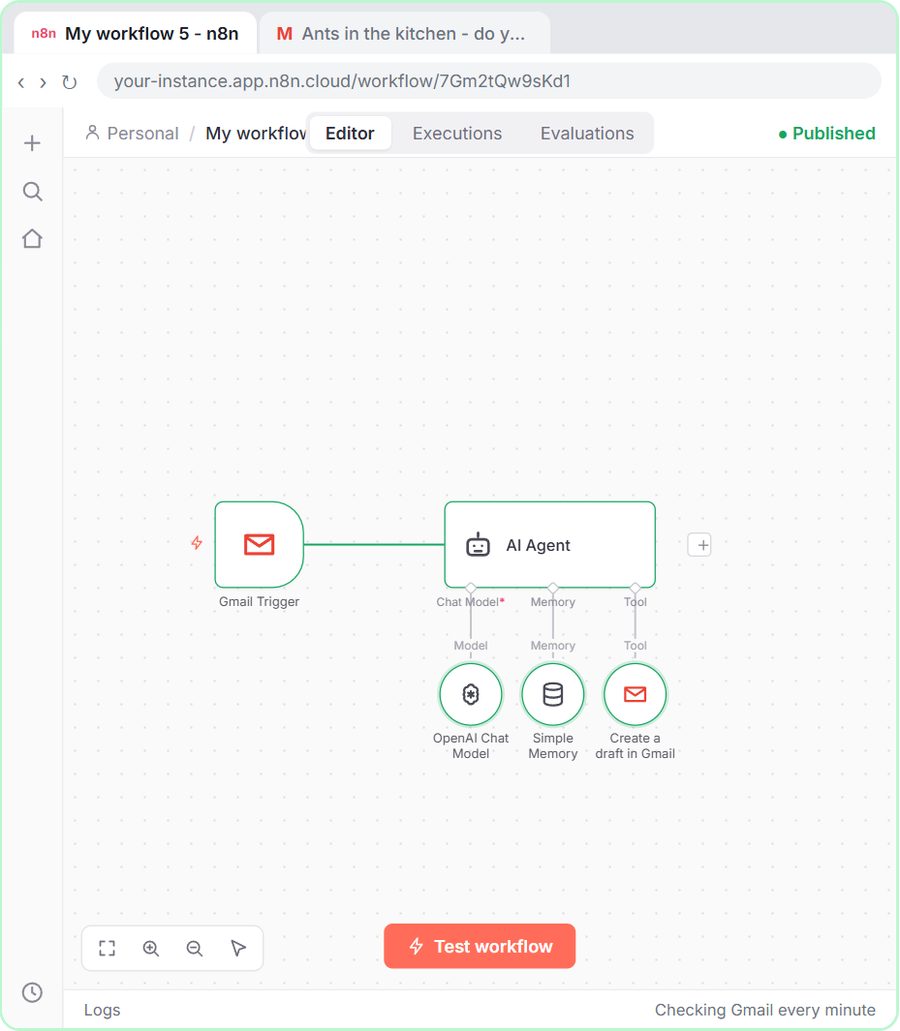 n8n AI Email Responder: Draft Gmail Replies Automatically
Build an n8n agent that watches your Gmail, reads each new customer email, and writes a reply as a draft in the same thread, ready for you to check and send.
Free · Live ~12 min Intermediate
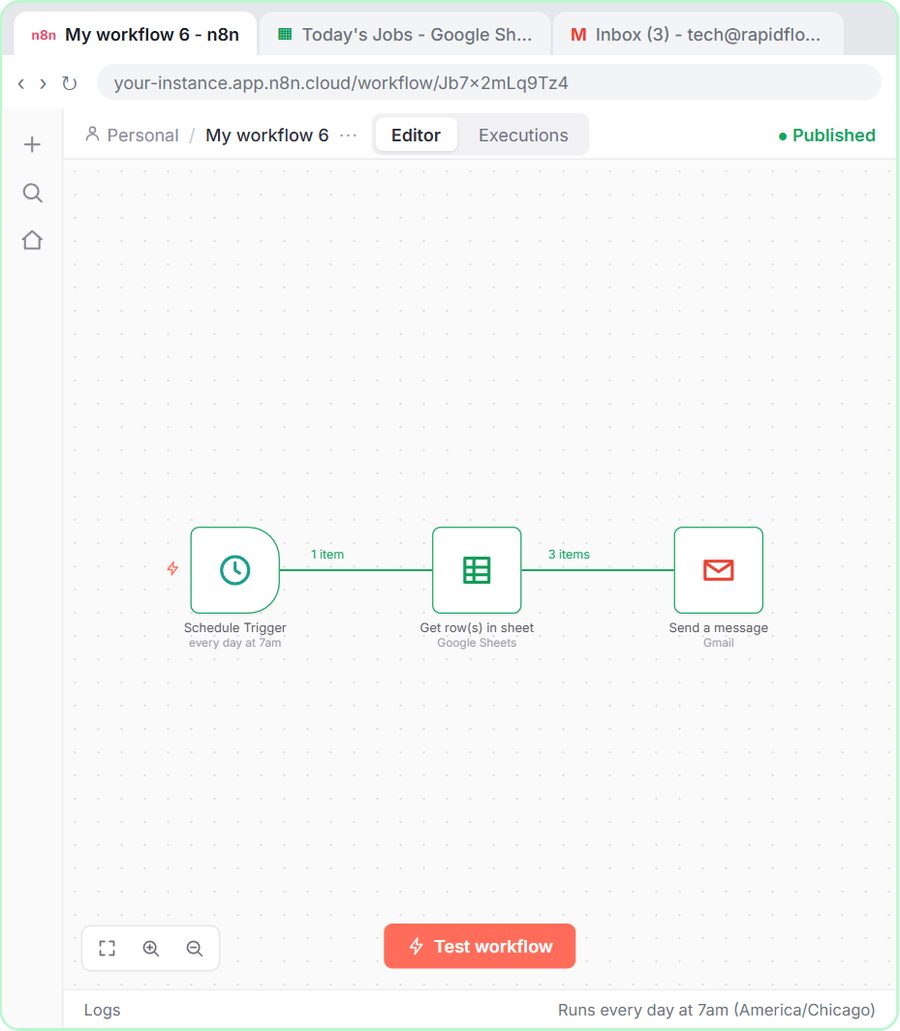 How to Make an n8n Workflow That Emails Each Tech Their Jobs from Sheets
Every morning at 7, n8n reads a plumbing company's jobs sheet, skips anything not assigned yet, and emails each job to the tech it's assigned to — customer, address…
Free · Live ~10 min Intermediate
 Gmail AI Triage: Auto-Label Every Email and Draft Replies
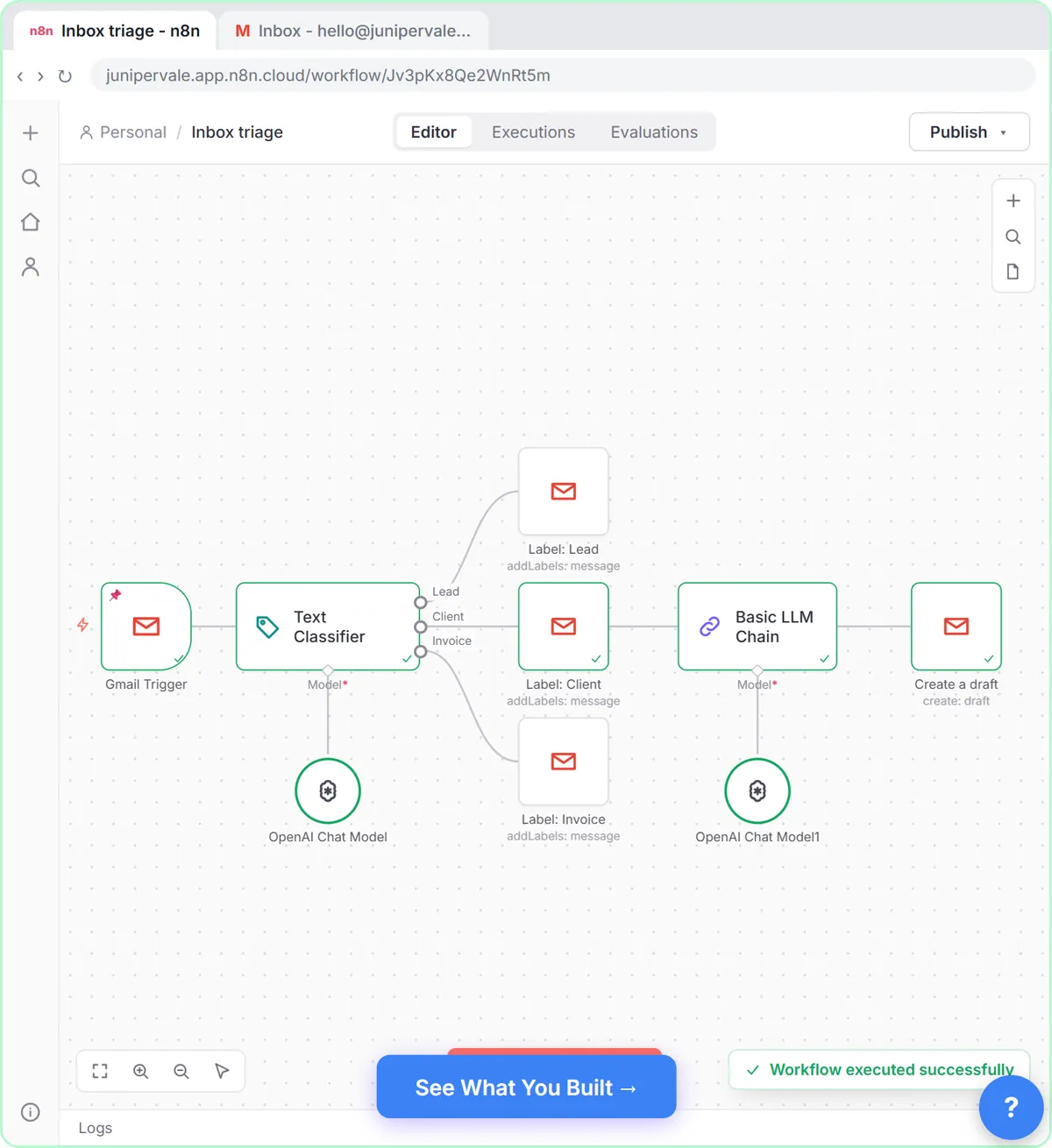
Build an n8n workflow that reads each new email, sorts it as a lead, a client or an invoice with a Text Classifier, adds the matching Gmail label, and drafts a reply to…
Free · Live ~18 min Advanced
From the blog
Automate Weekly Reporting with AI: 12 Questions AnsweredHow to schedule a report in n8n, filter a sheet to today, total a column, set the time zone and draft client updates with AI. Answers from free lessons.
Oct 20, 2026 4 min read
n8n Tutorial for Beginners: How to Use n8n Step by StepAn n8n tutorial for beginners: how to use n8n to build your first workflow, a daily report from a Google Sheet emailed at 5pm. Free practice lesson.
Oct 16, 2026 6 min read
Free cheat sheet
Print it or save the PDF: the key steps and checks from this lesson on one page, free.
 n8n Intermediate Cheat Sheet: APIs, Webhooks, Errors
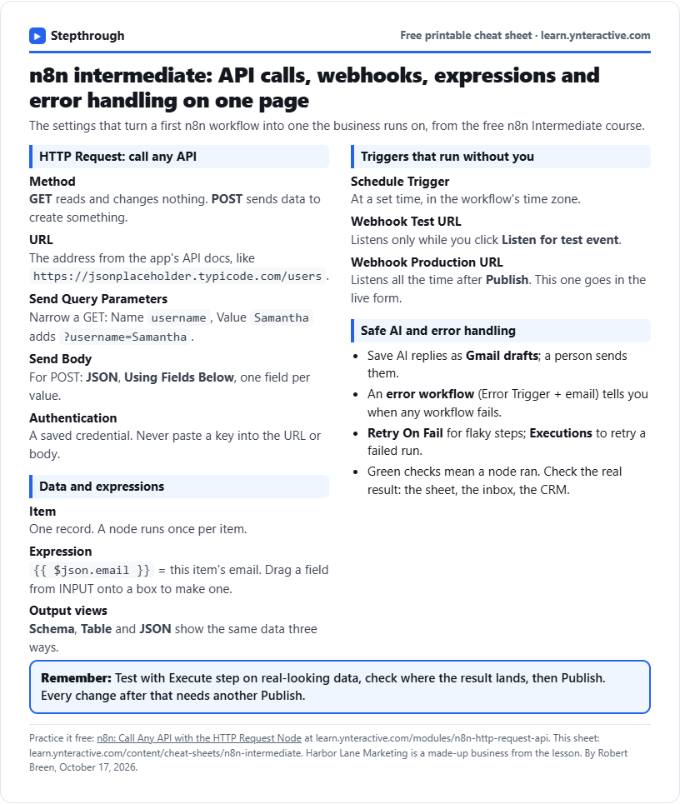
A free one-page n8n intermediate cheat sheet: HTTP Request settings, GET vs POST, webhook URLs, expressions, items, AI approval and error handling.
Tool cheat sheet Free PDF
All free printable cheat sheets
Terms in this lesson
Plain-English definitions, each with an example from a free lesson.
Related prompts
- End of day report prompt: An end of day report template as a ChatGPT prompt: paste rough notes and get a short EOD report for your manager with done…