Updated . Built against the tool’s current screens and checked step by step. How we check this lesson
A vendor agreement arrives on the morning of the call, and nobody has an hour to read it. In this free lesson you use the AI Chatbot in KDAN PDF (formerly KDAN PDF Reader) to get a summary, ask for the fees, renewal and exit deadlines with section numbers, check the renewal clause yourself with Explain This, and save the answer as a note on page 1 of the contract. The lesson is built from KDAN's published docs: every app screenshot comes from KDAN's own help center and is credited under it. It is a first read, not legal advice.
At a glance
| Question | Answer |
|---|---|
| What you build | A vendor agreement arrives with a call booked the same afternoon. Open it in KDAN PDF, ask the AI Chatbot for the fees, renewal and exit deadlines with section numbers, check the renewal clause yourself and save the answer as a note on the contract. |
| Tools | KDAN |
| Time | About 8 minutes, 13 steps in 6 parts |
| Level | Beginner, no coding needed |
| Cost | Free |
| Ways to learn it | Practice it step by step, read the guide with screenshots |
The 6 parts, in short
- The 2:00 PM call: Read the message, Put a price on a missed clause, Meet KDAN PDF.
- Open the AI Chatbot: Open AI Chatbot.
- Ask for the key terms: Start with a summary, Ask for the money terms and deadlines.
- Check one clause yourself: Explain the renewal clause.
- Keep the answer in the PDF: Copy the answer, Switch to Annotation, Pick Note, Paste and save the note.
- What it saves and costs: What this saves you, Check what it costs.
Start here first: Build an AI Vendor Follow-Up Agent in n8n (module 1 of AI Automation for Operations)
Part of: AI for Operations Teams (step 30 of 45). Next up: Price a New Service in 10 Minutes, with a Source for Every Number, using Felo
Part of: AI Apps Worth Knowing (step 61 of 186). Next up: Guardian: Make Your n8n AI Agent Ask Before It Emails a Customer
Part of: AI That Reads Your Documents (step 3 of 10). Next up: AI Contract Review in 10 Minutes using Foxit AI
KDAN: Get a Vendor Contract's Key Terms with AI Chatbot: step-by-step guide with screenshots
About the screenshots. They come from Stepthrough’s simulated practice environment (a practice copy of KDAN), not the live tool, so no real account appears. The buttons and labels match the real screens the lesson was built against. Practice it yourself free at ynteractive.com.
- Tools: KDAN
- Time: about 8 minutes, 13 steps in 6 parts
- Level: beginner, no coding needed
Part 1: The 2:00 PM call
Step 1: Read the message
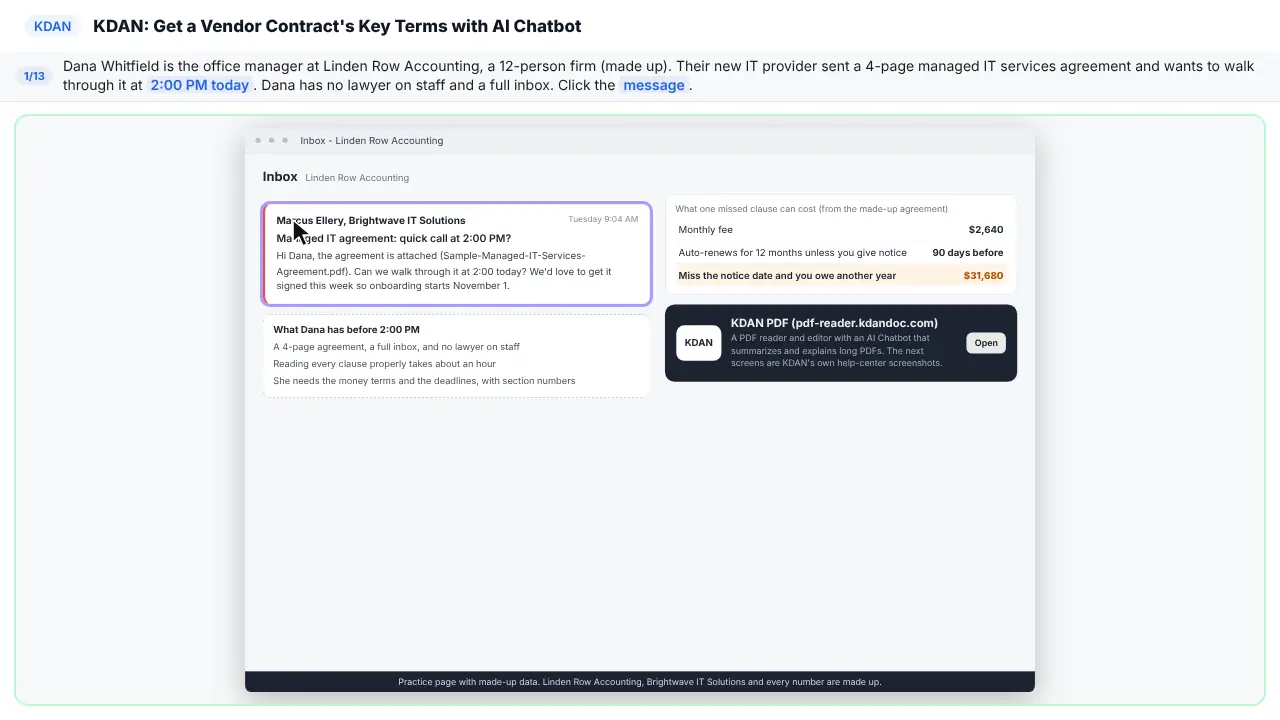
Meet Dana. She runs the office at a small accounting firm. Their new I T provider sent a four page agreement. They want to talk it through at two o'clock today. Dana has no lawyer on staff.
Step 2: Put a price on a missed clause
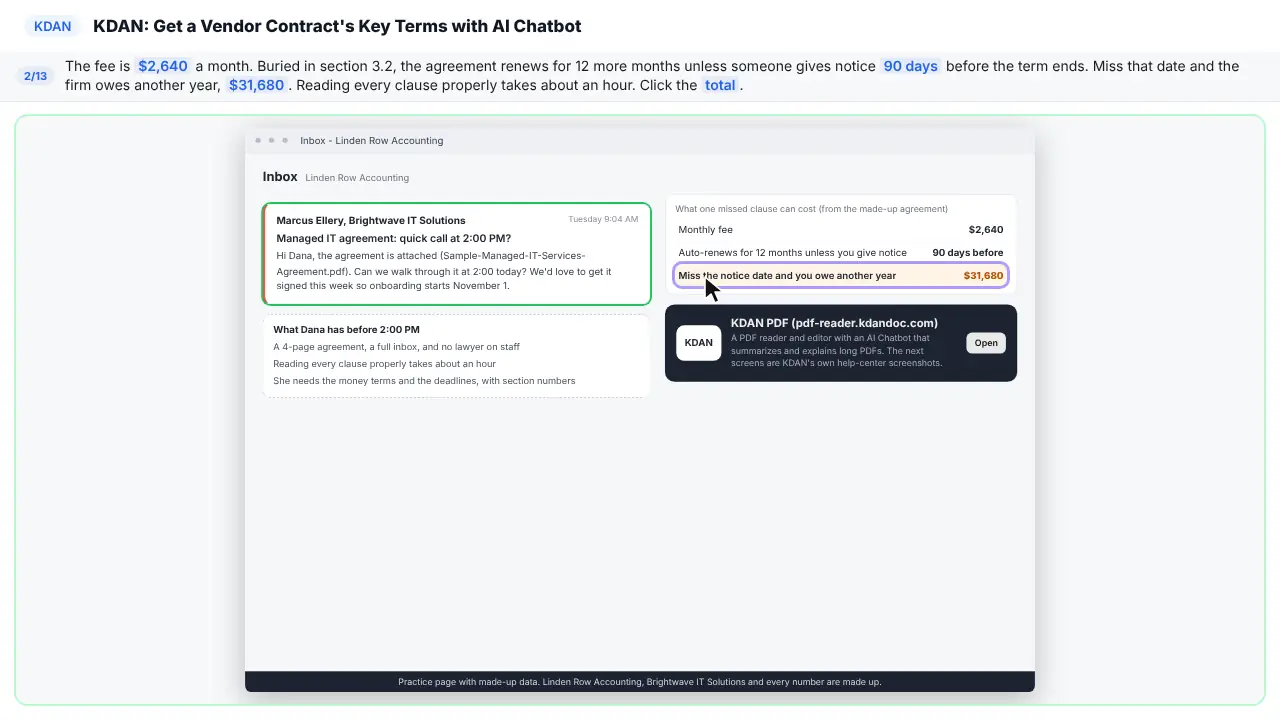
Here's what's at stake. The fee is twenty six forty a month. And the contract renews for another year, unless someone gives notice ninety days before it ends. Miss that date, and that's about thirty one thousand dollars.
Step 3: Meet KDAN PDF
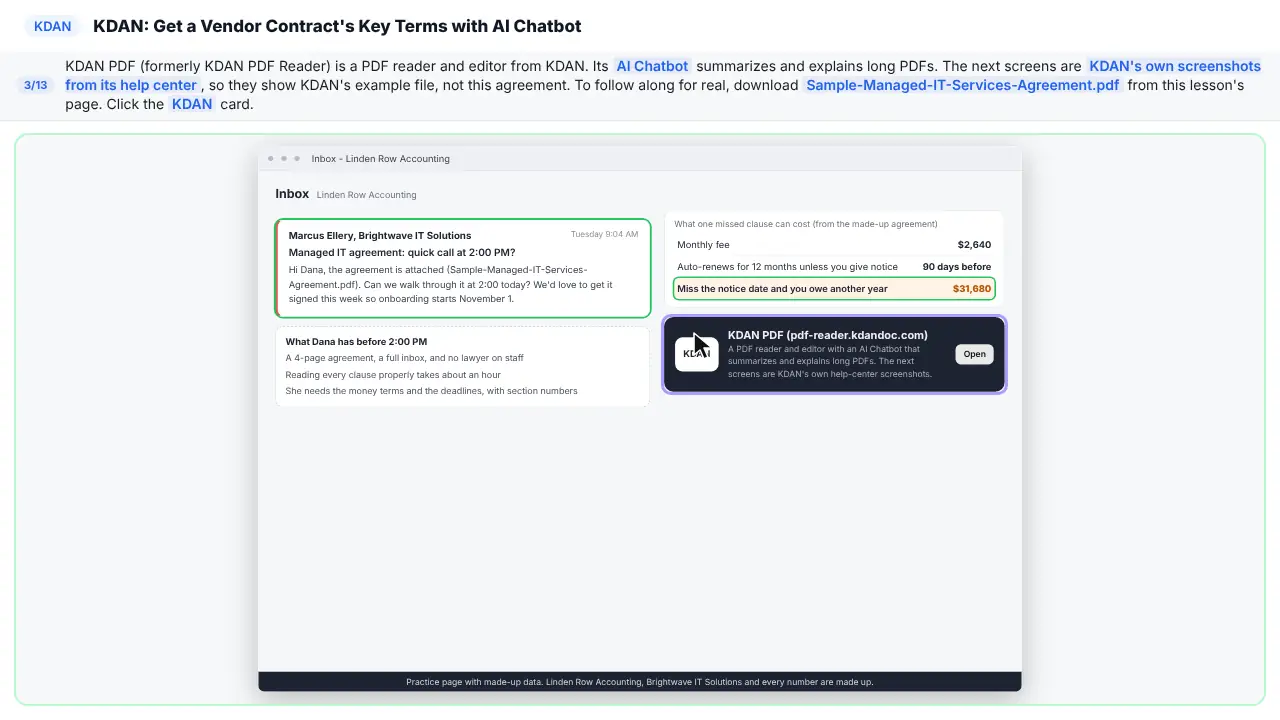
KDAN PDF is a P D F reader and editor, with an A I Chatbot that summarizes long files. The next screens are KDAN's own screenshots, from its help center. So they show KDAN's example file, not our agreement.
Part 2: Open the AI Chatbot
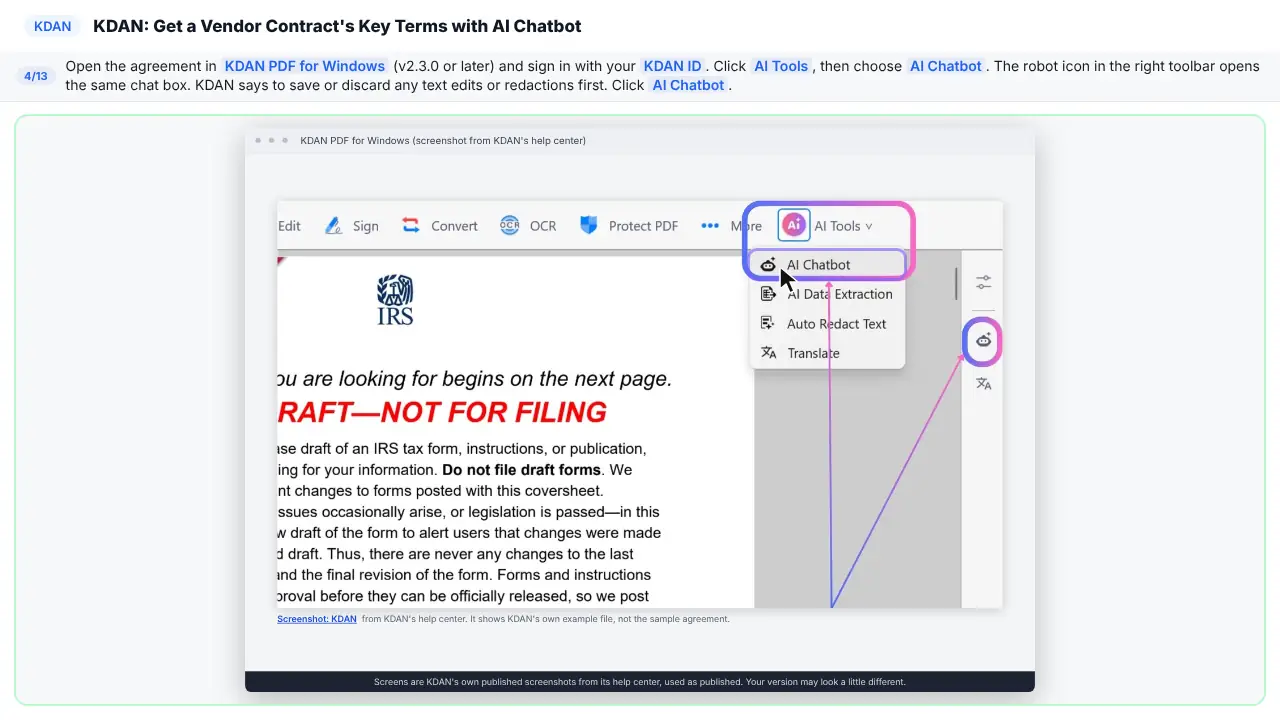
Step 4: Open AI Chatbot
The robot icon on the right does the same thing.
Part 3: Ask for the key terms
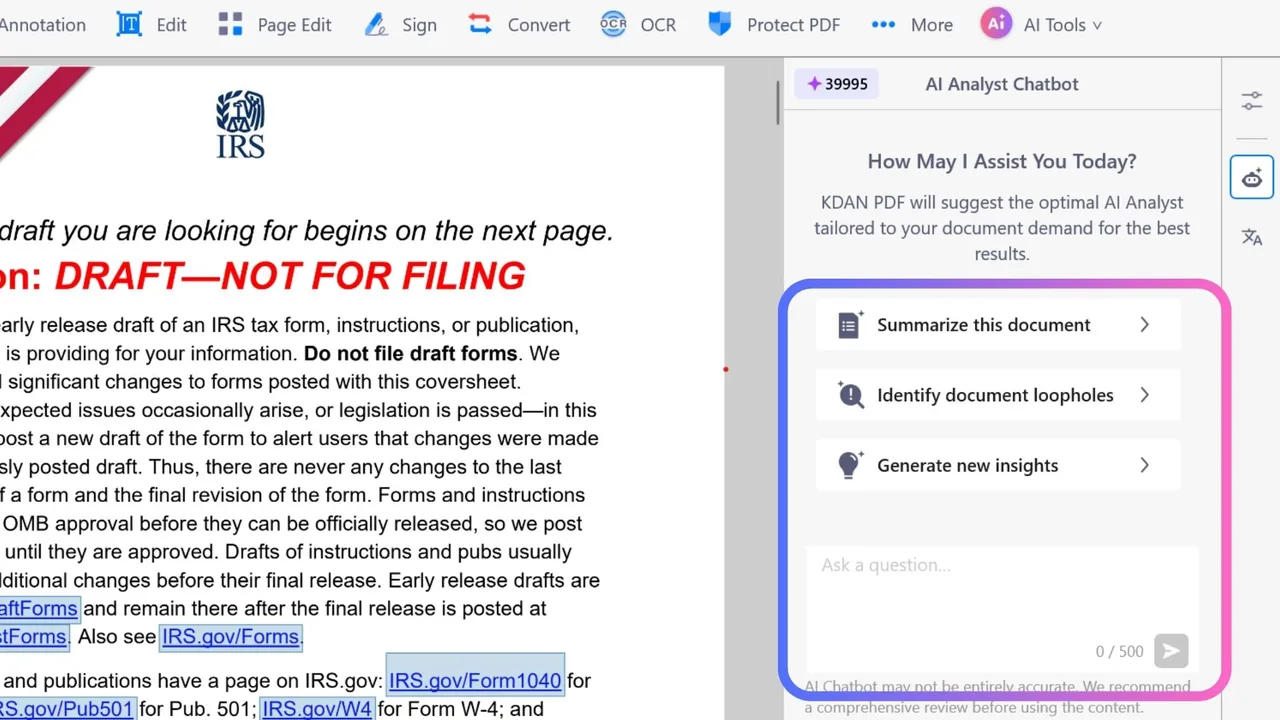
Step 5: Start with a summary
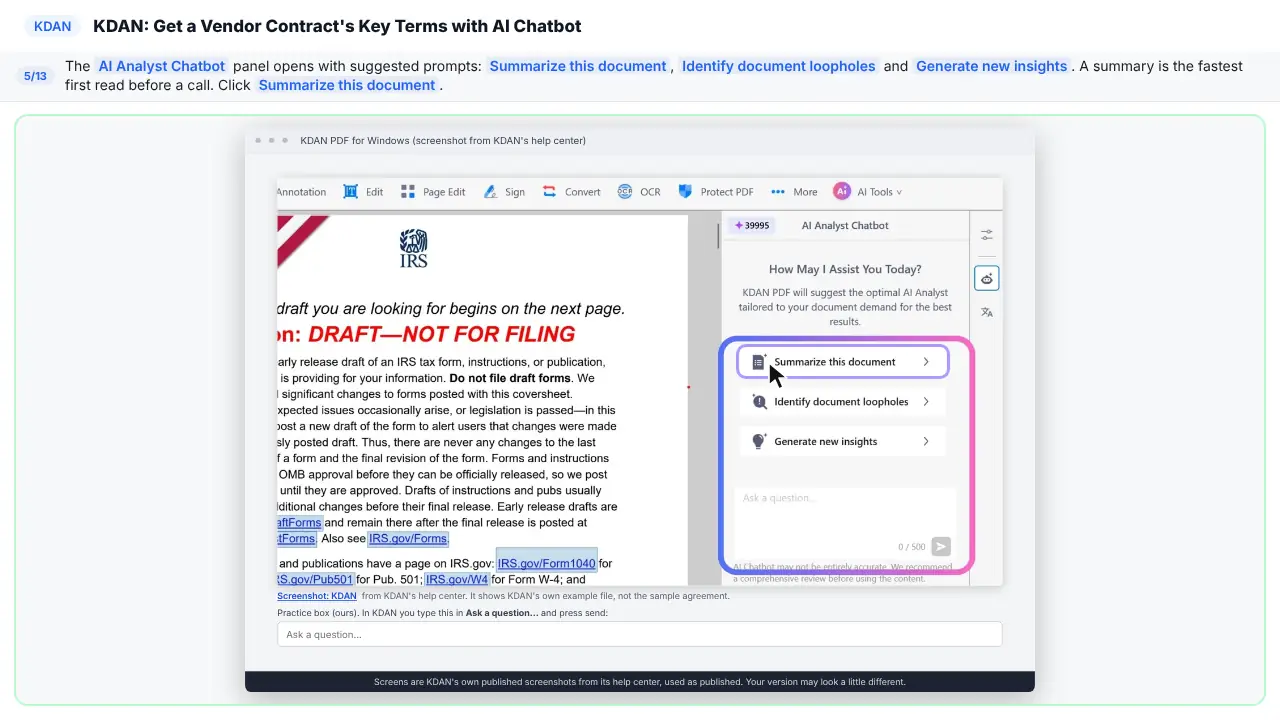
The chatbot panel opens with three suggestions. Summarize this document is the fastest first read before a call.
Step 6: Ask for the money terms and deadlines
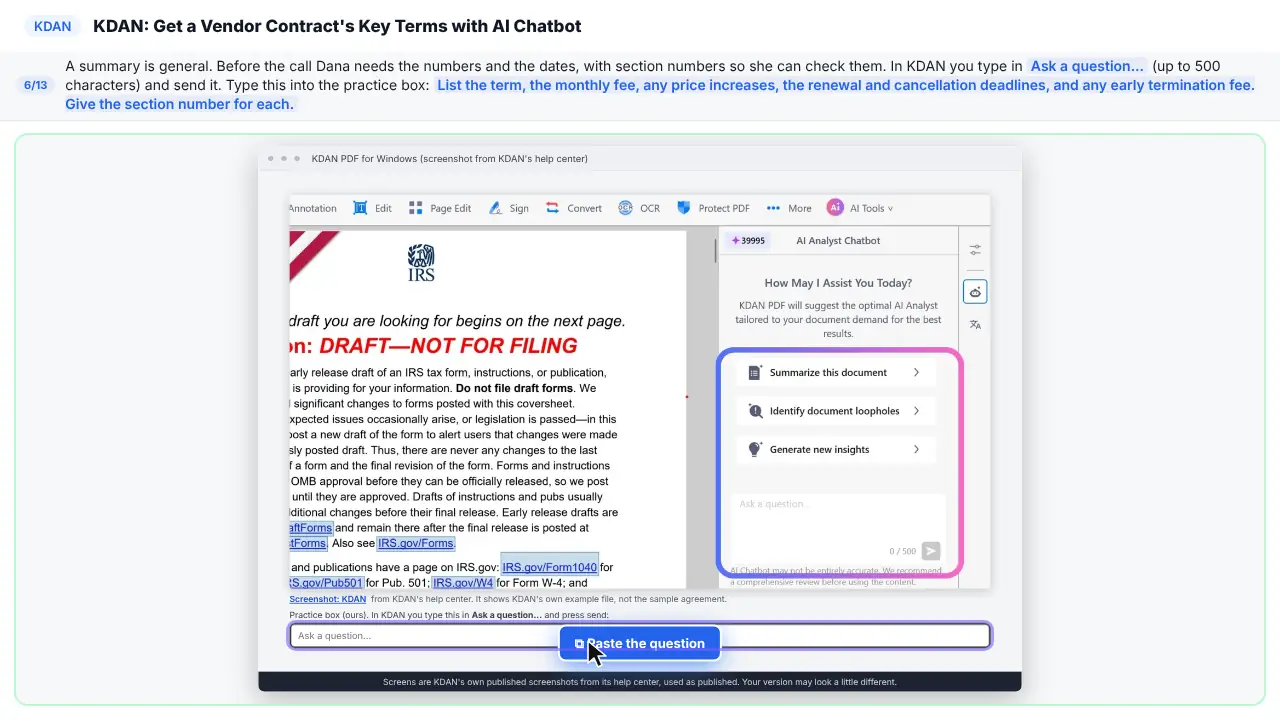
A summary is general. Dana needs the numbers and the dates, with section numbers, so she can check them. In KDAN it goes in Ask a question.
Part 4: Check one clause yourself
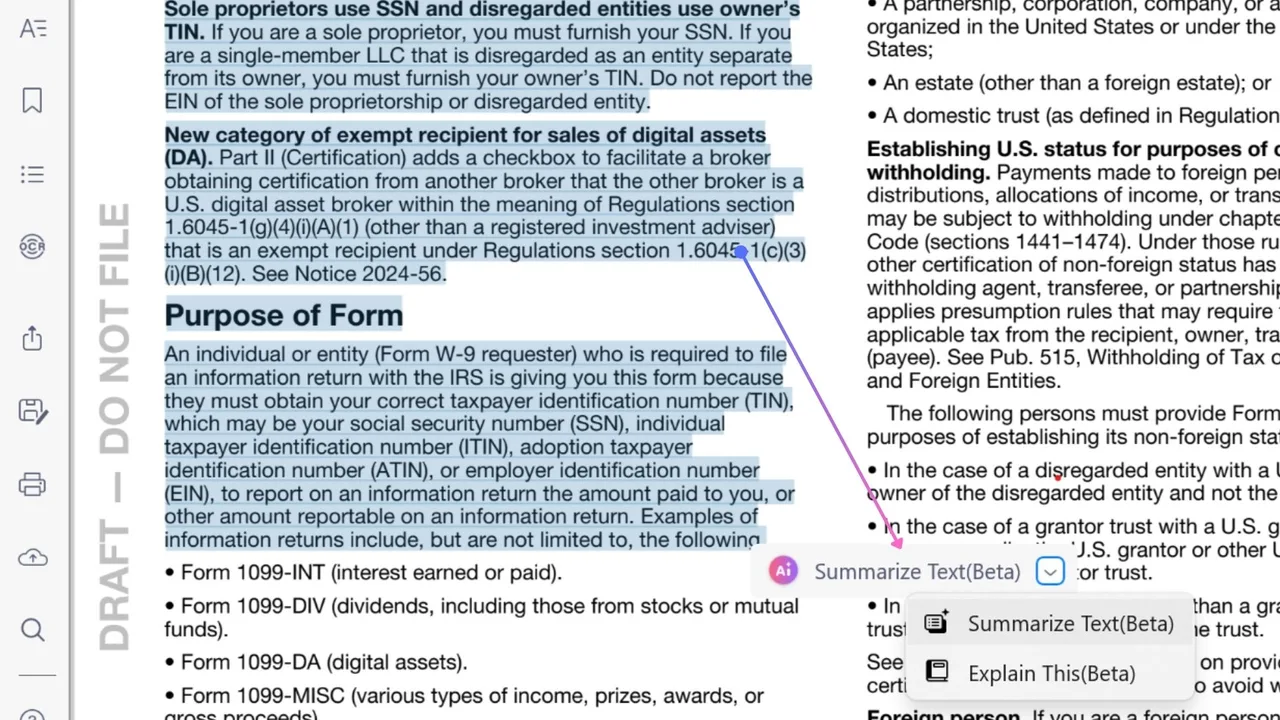
Step 7: Explain the renewal clause
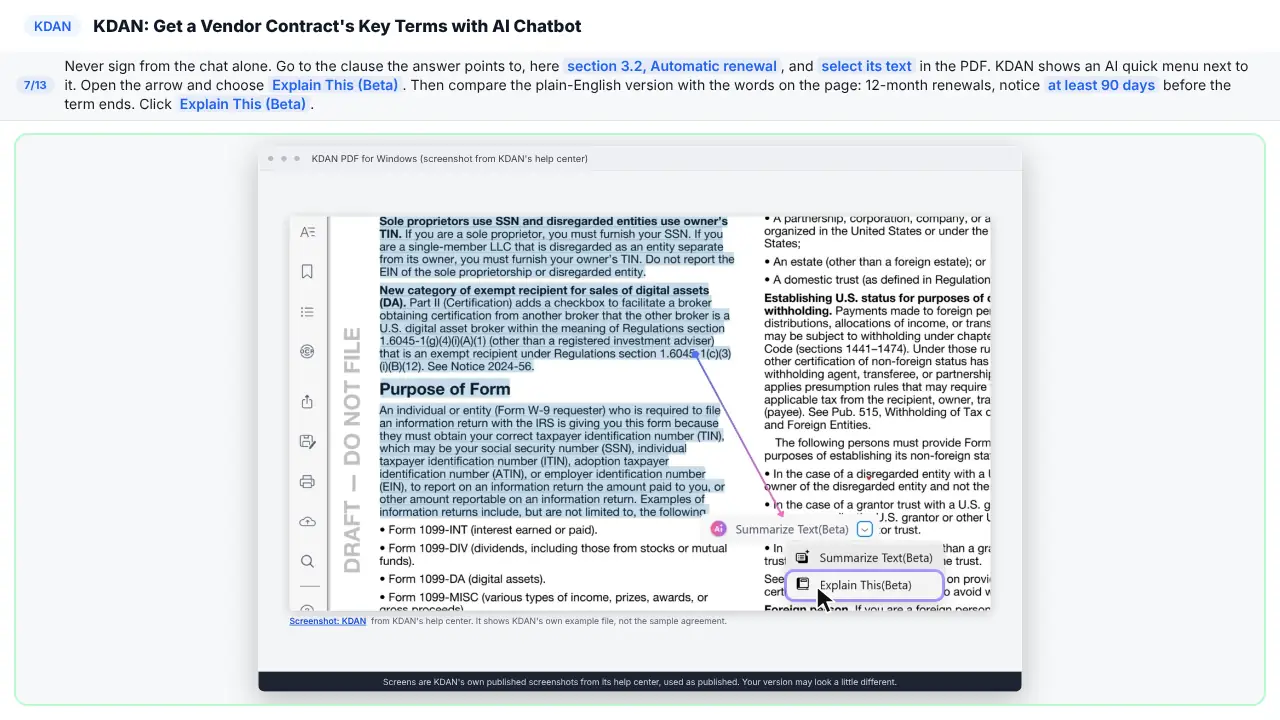
Never sign from the chat alone. Go to the renewal clause, section three point two, and select its text. A quick menu appears. Then read the clause yourself, and check the ninety days.
Part 5: Keep the answer in the PDF
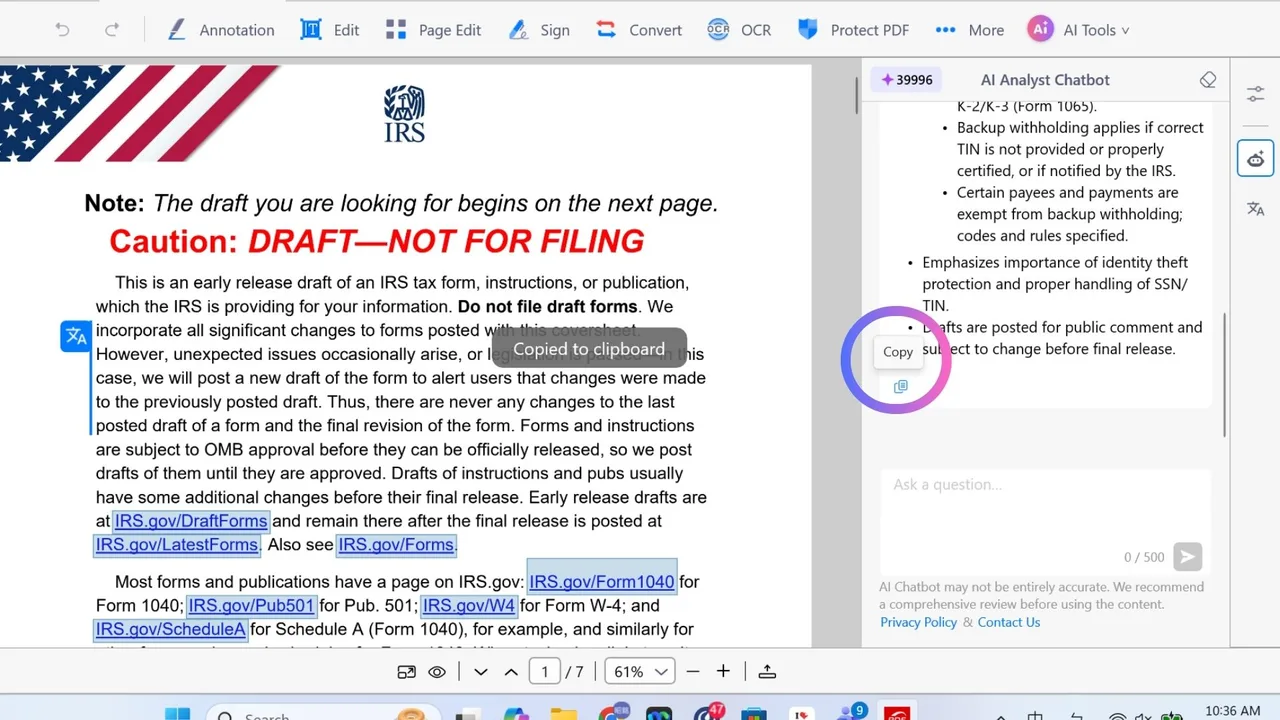
Step 8: Copy the answer
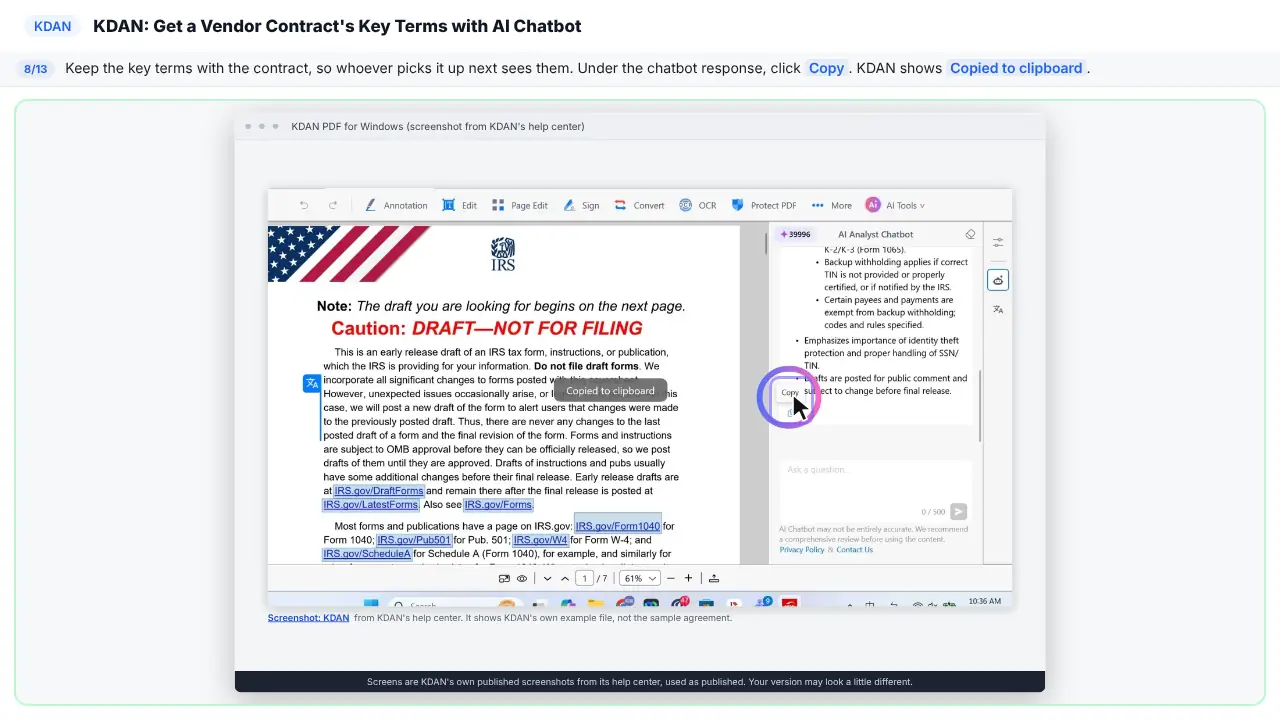
Now keep the answer with the contract. Under the response, click Copy.
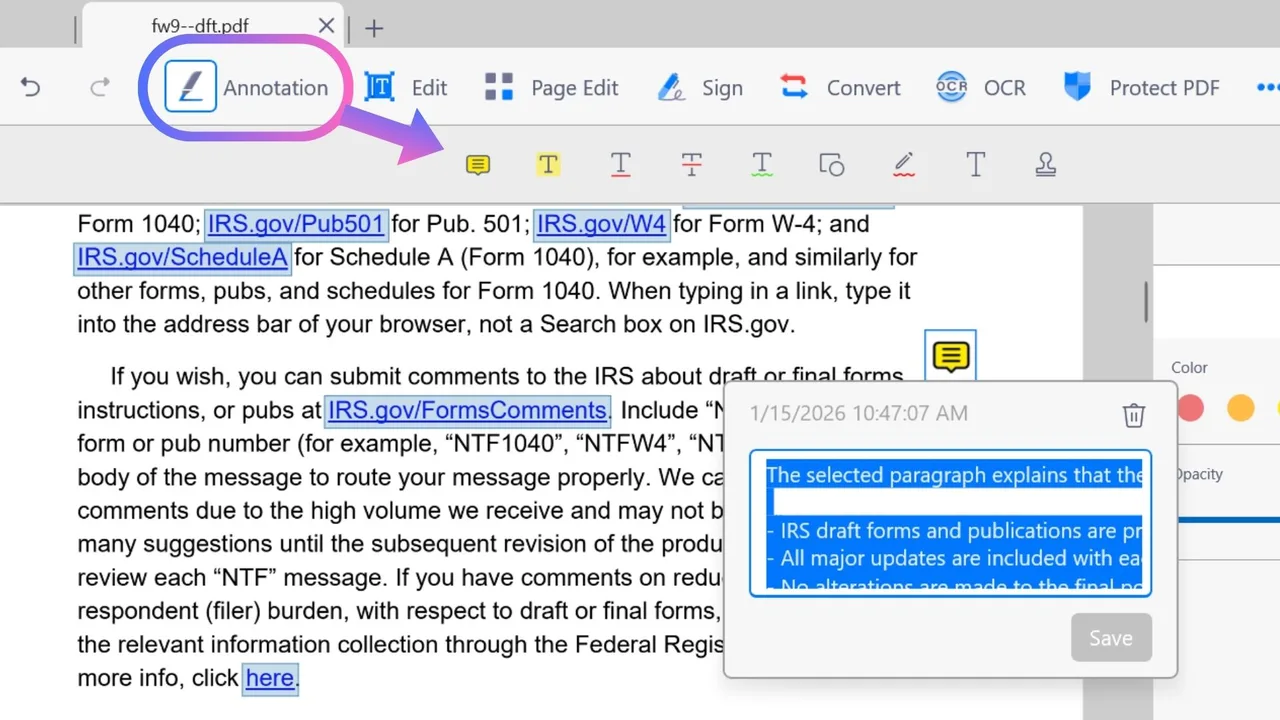
Step 9: Switch to Annotation
In the top toolbar, click Annotation.
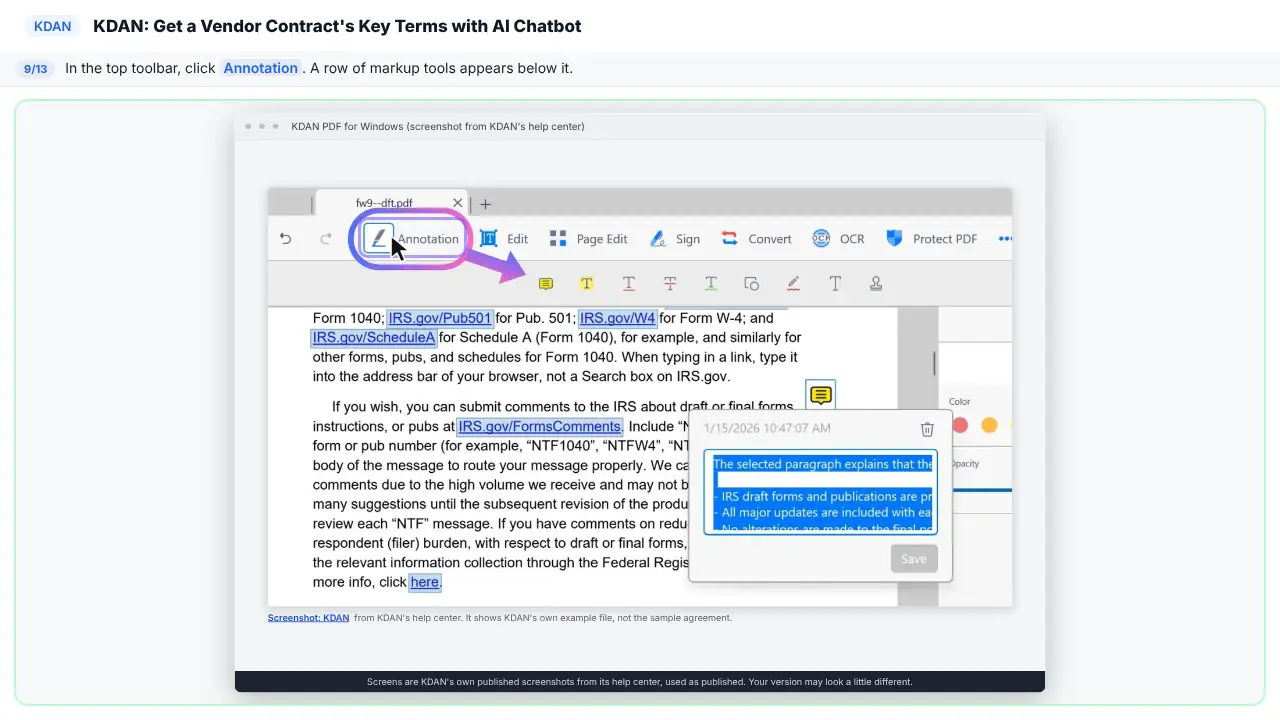
Step 10: Pick Note
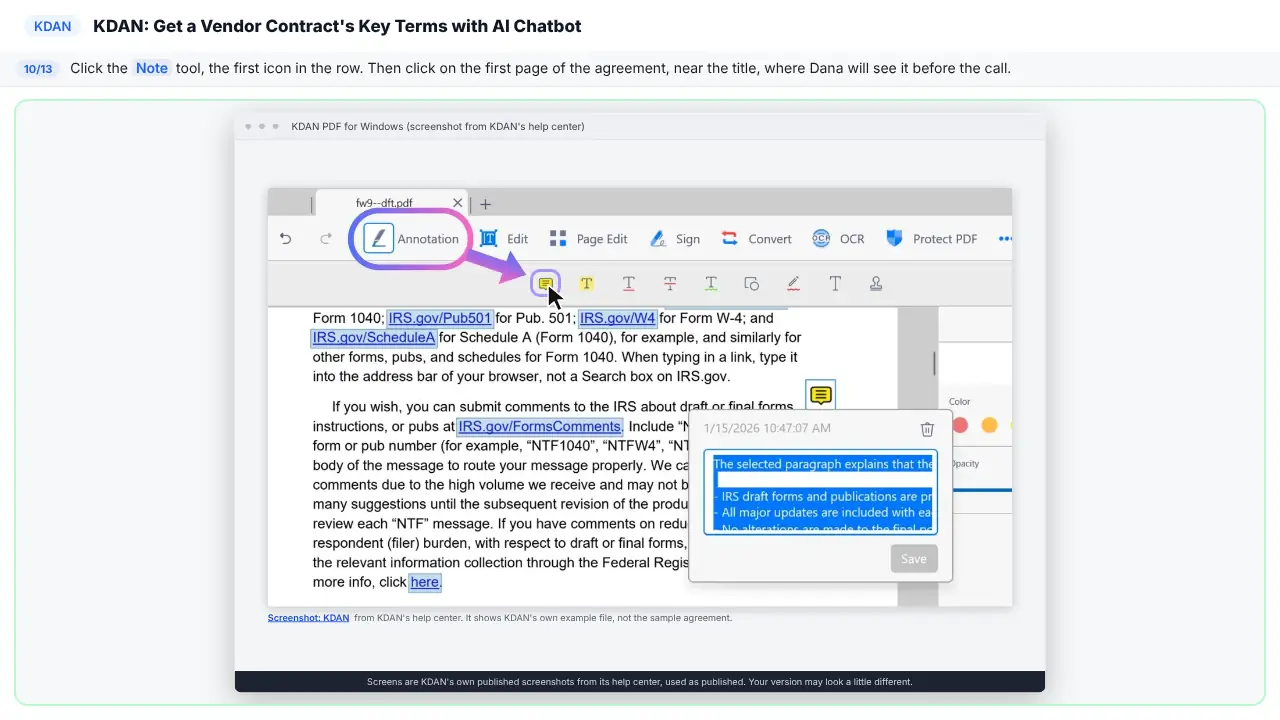
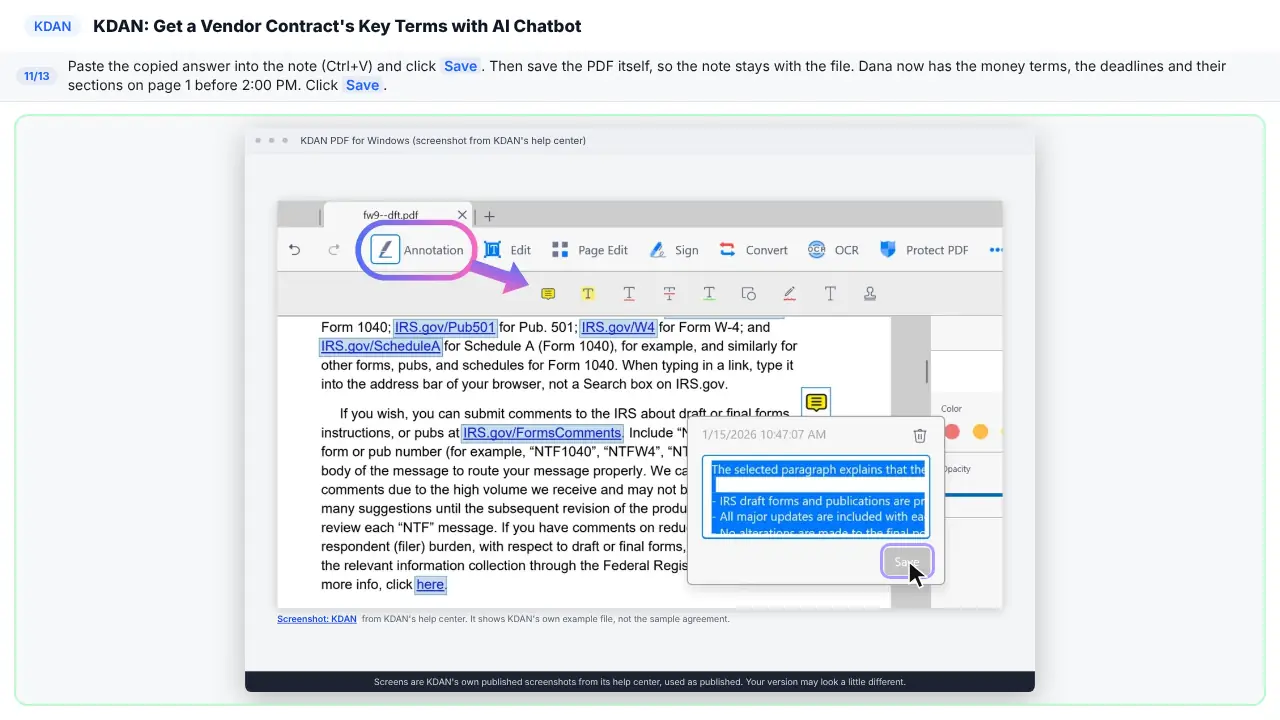
Step 11: Paste and save the note
Then save the P D F, so the note stays with it.
Part 6: What it saves and costs
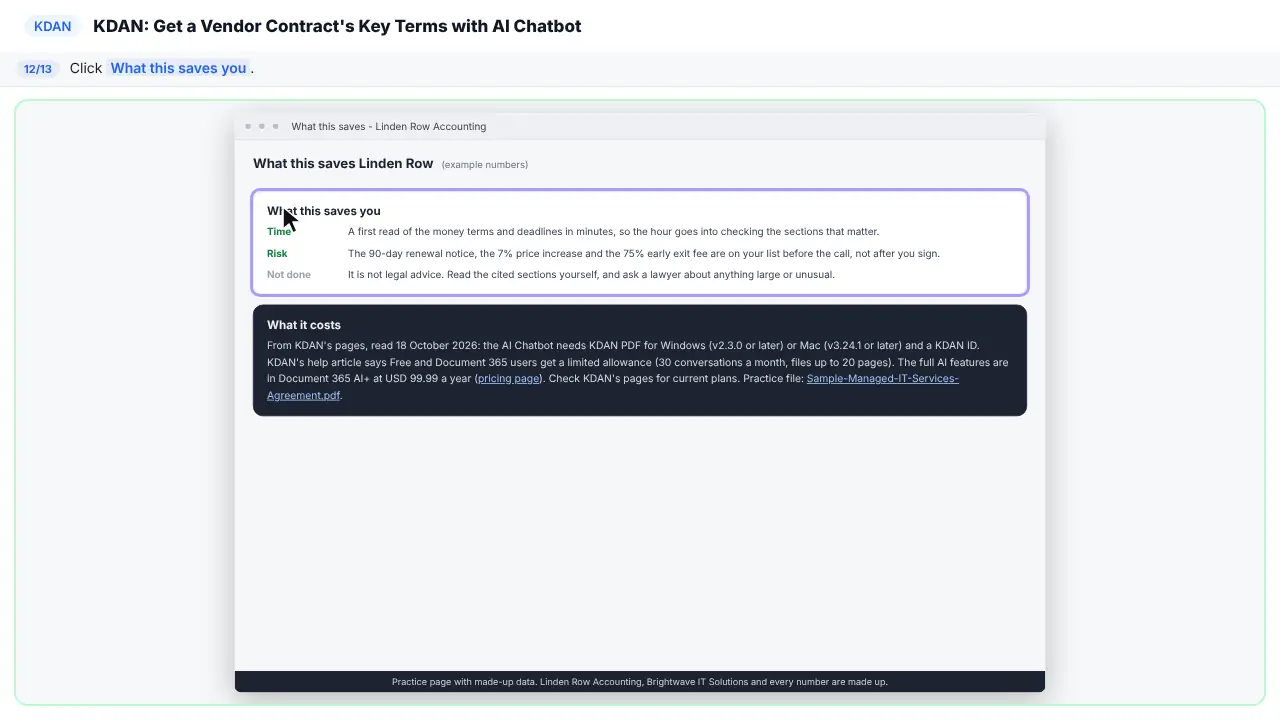
Step 12: What this saves you
Here's what it saves.
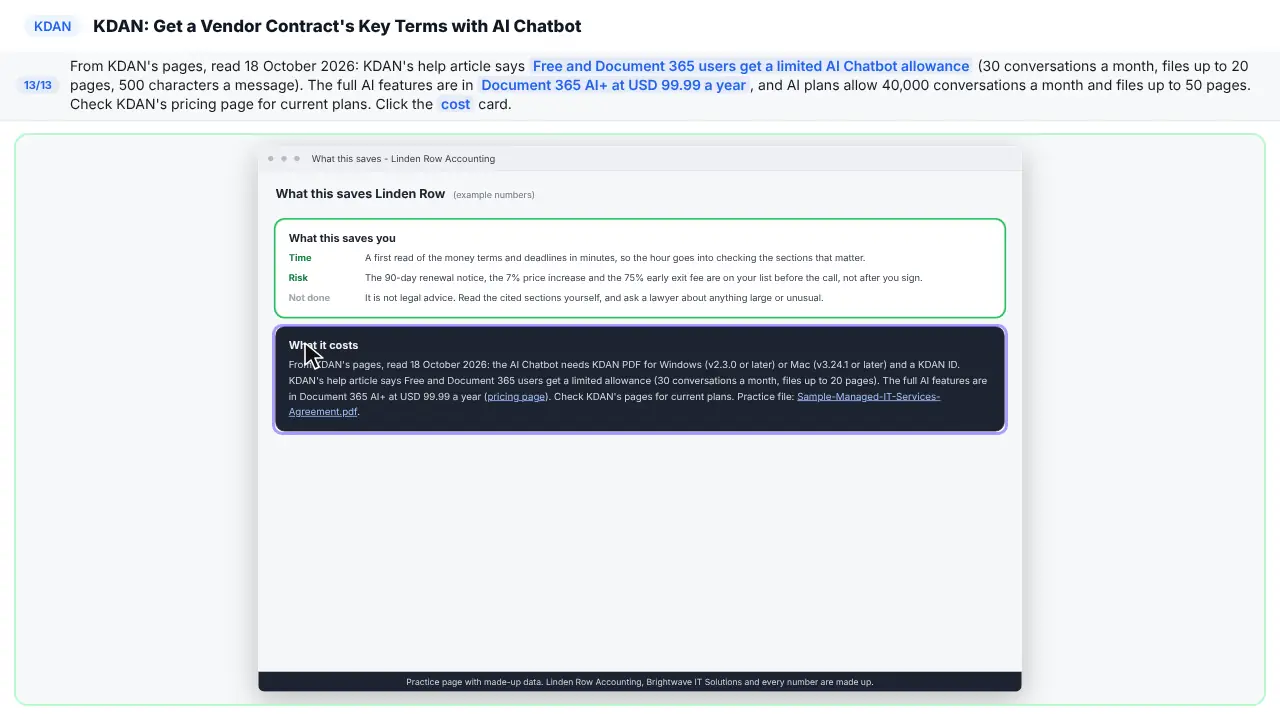
Step 13: Check what it costs
Here's the cost, from KDAN's own pages. Free and Document three sixty five users get a small chatbot allowance, thirty conversations a month. The full A I features are in Document three sixty five A I plus, at ninety nine dollars and ninety nine cents a year. Check KDAN's pricing page before you rely on it.
Part of these free courses: AI Apps Worth Knowing, AI for Operations Teams, AI That Reads Your Documents
Now do it yourself, free
Reading the steps is a start. Doing them is how it sticks. The interactive lesson puts you in a practice copy of KDAN: you do every step yourself, it checks your work, and “Do it for me” finishes any step you get stuck on. Nothing touches your real accounts.
Practice “KDAN: Get a Vendor Contract's Key Terms with AI Chatbot” step by step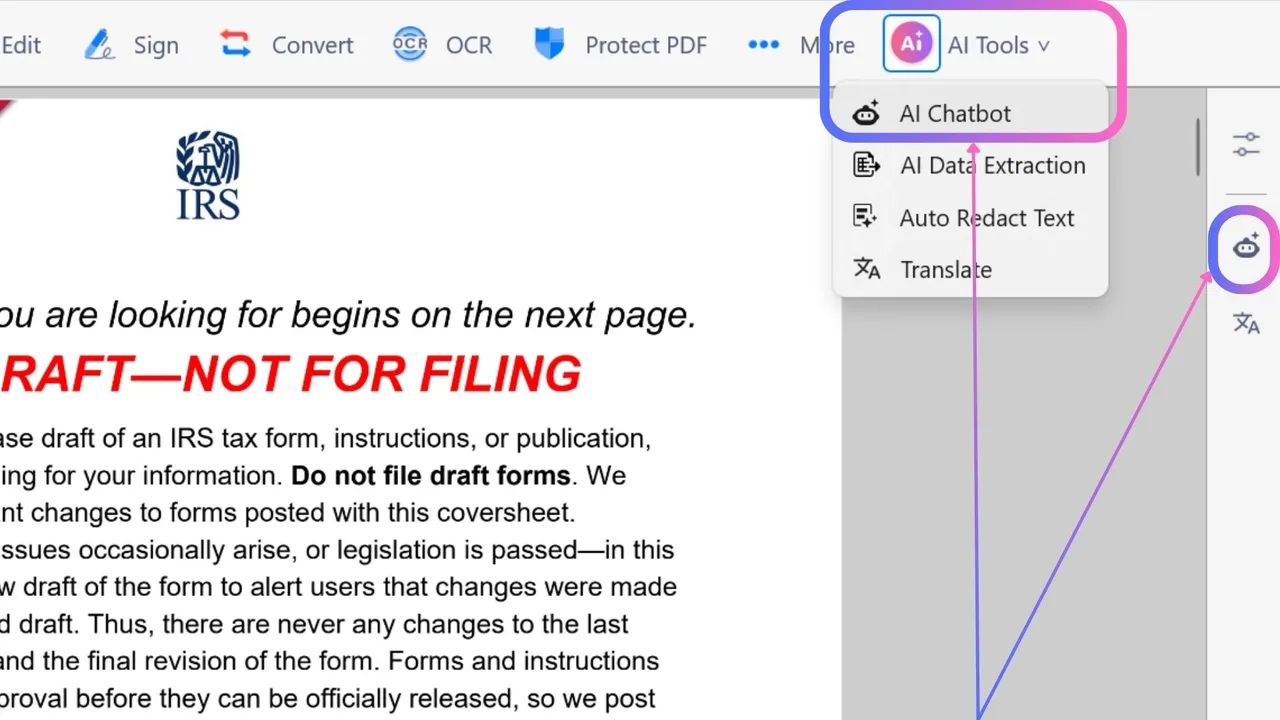
The business case: one missed clause costs a year
Picture Dana Whitfield, the office manager at Linden Row Accounting, a made-up 12-person firm. Their new IT provider sends a managed IT services agreement at 9:04 AM and asks to walk through it at 2:00 PM so it can be signed this week. Dana has no lawyer on staff and a full inbox, so the agreement would normally get a quick skim.
The skim is where the money goes. The fee is $2,640 a month. In section 3.2 the agreement renews for another 12 months unless someone gives notice at least 90 days before the term ends. Miss that date and the firm owes another year: $31,680. The same 4 pages also allow a 7% yearly price increase and charge 75% of the remaining fees if the firm leaves early. None of it is hidden. It is just in the middle of a page.
What changes: KDAN PDF's AI Chatbot reads the open PDF and answers questions about it. Dana asks for the money terms and the deadlines with section numbers, checks the renewal clause herself, and walks into the call knowing what to negotiate.
The example agreement, and how to follow along
The sample is a fictional 4-page Managed IT Services Agreement between Brightwave IT Solutions LLC and Linden Row Accounting LLC. It has the clauses real ones have: a 24-month term, automatic 12-month renewals with a 90-day notice window, a $1,800 non-refundable onboarding fee, a 7% yearly increase cap with 60 days' notice, a 1.5% monthly late charge, a 75% early termination fee, paid offboarding at $150 an hour and a three-month liability cap.
Download it and open it in KDAN PDF: Sample-Managed-IT-Services-Agreement.pdf. It is a plain text PDF with made-up companies, so it is safe to use, and at 4 pages it fits the 20-page limit KDAN lists for plans without AI.
About the screenshots
This lesson is built from KDAN's published documentation, not from a test account. Every screenshot comes from KDAN's help center article How to start a conversation with AI Chatbot (Windows) and is shown as published, with a "Screenshot: KDAN" link under it. Because they are KDAN's screenshots, they show KDAN's example file (an IRS form), not the sample agreement. The steps go only as far as that article shows them.
Who this lesson is for
Office managers, operations coordinators, bookkeepers and owners of small firms who sign vendor, client and service agreements without a legal department. You don't need a KDAN account to practise here.
What it costs
From KDAN's own pages, read 18 October 2026. KDAN's AI Chatbot help article says Free users and Document 365 subscribers can use AI Chatbot with a limited monthly allowance at no extra cost: 30 conversations a month, files up to 20 pages and 25 MB, and 500 characters a message. AI plans (Document 365 AI+, Document 365 AI+ & eSign and KDAN AI) allow 40,000 conversations a month and files up to 50 pages.
The pricing page lists KDAN PDF Free, Document 365 at USD 59.99 a year and Document 365 AI+ at USD 99.99 a year, and it lists reviewing, exploring and summarizing content as a Document 365 AI+ feature. KDAN's AI FAQ (last updated July 2025) mentions a 7-day free trial of the AI plans for new users. Check the pricing page for current plans before you rely on any of this.
Mistakes to avoid
- Signing from the chat alone. KDAN's panel itself says AI Chatbot may not be entirely accurate and recommends a comprehensive review. Read the sections the answer points to.
- Asking five things in one long message. KDAN's tips say ask one specific question at a time, and each message is capped at 500 characters.
- Opening a password-protected or restricted PDF. KDAN says AI Chatbot is not available for encrypted or restricted files.
- Uploading personal or sensitive data you don't need to. KDAN's article says input is encrypted and deleted after 24 hours, and still advises against entering personal or sensitive information.
- Leaving the answer in the chat. Paste it into a note on the contract so the renewal date doesn't depend on one person's memory.
Links
- KDAN PDF: the PDF reader and editor this lesson teaches, for Windows, Mac, iOS and Android. The AI Chatbot is in the Windows and Mac apps.
- KDAN help: How to start a conversation with AI Chatbot (Windows): KDAN's own step-by-step article, the source of every screenshot in this lesson. It also lists the usage limits per plan.
- KDAN PDF pricing: current plans. On 18 October 2026 it listed KDAN PDF Free, Document 365 at USD 59.99 a year and Document 365 AI+ at USD 99.99 a year.
Try it yourself, free
Reading the steps is a start. Doing them is how it sticks. The interactive module walks you through every click in a practice copy of KDAN, checks each step, and never touches your real accounts.
Start “KDAN: Get a Vendor Contract's Key Terms with AI Chatbot”Screenshots
Frequently asked questions
- Is KDAN's AI Chatbot free?
- KDAN's help article says Free and Document 365 users get a limited monthly allowance at no extra cost (30 conversations a month, files up to 20 pages). The full AI features are in Document 365 AI+, listed at USD 99.99 a year on 18 October 2026. Check KDAN's pricing page for current plans.
- Where are the screenshots from?
- From KDAN's own help center article on AI Chatbot for Windows. The lesson is built from KDAN's published docs, and every screenshot is credited with a link to that page. They show KDAN's example file, not the sample agreement.
- Does it work on Mac?
- Yes. KDAN has a separate help article for AI Chatbot in KDAN PDF for Mac, version 3.24.1 or later. The steps in this lesson follow the Windows article.
- Is this legal advice?
- No. The chatbot gives a first read. Check the cited sections yourself and ask a lawyer about anything large or unusual.
- How does the interactive lesson work?
- Each step is shown to you first on the left (Watch). Then you do it yourself on the right (Your turn), and every click is checked. If you get stuck, press Do it for me. It is a practice copy, so no real accounts are touched.
More in AI Automation for Operations
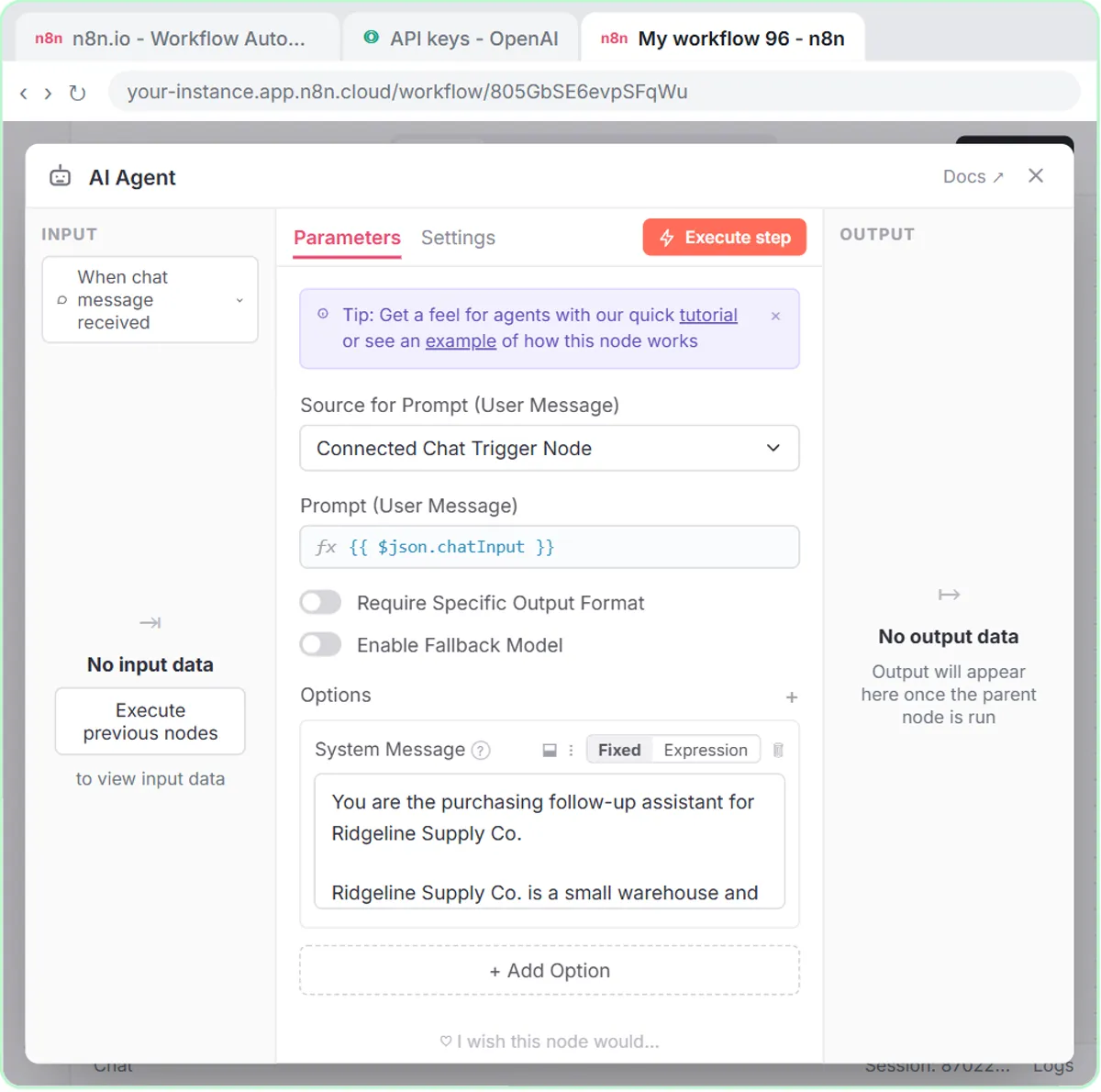 Build an AI Vendor Follow-Up Agent in n8n
Build an AI agent for Ridgeline Supply Co. that writes follow-up messages for late or pending purchase orders and saves them to Google Sheets — chat trigger, AI Agent…
Free · Live ~12 min Intermediate
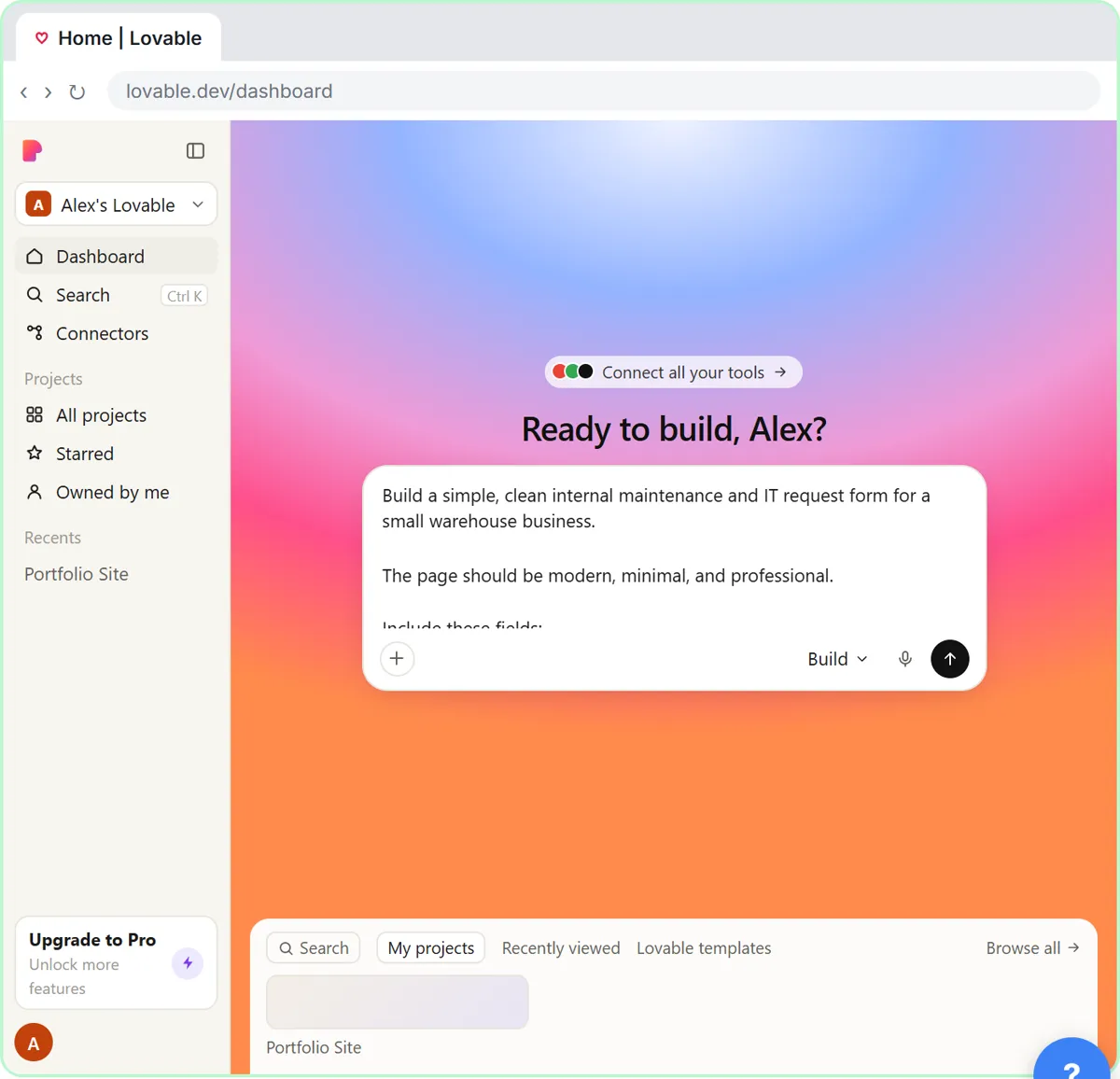 Build an AI Maintenance and IT Request Form
Build an internal maintenance and IT request form in Lovable for Ridgeline Supply Co. and connect it to n8n — the AI agent sets the priority, assigns a team, saves the…
Free · Live ~15 min Advanced
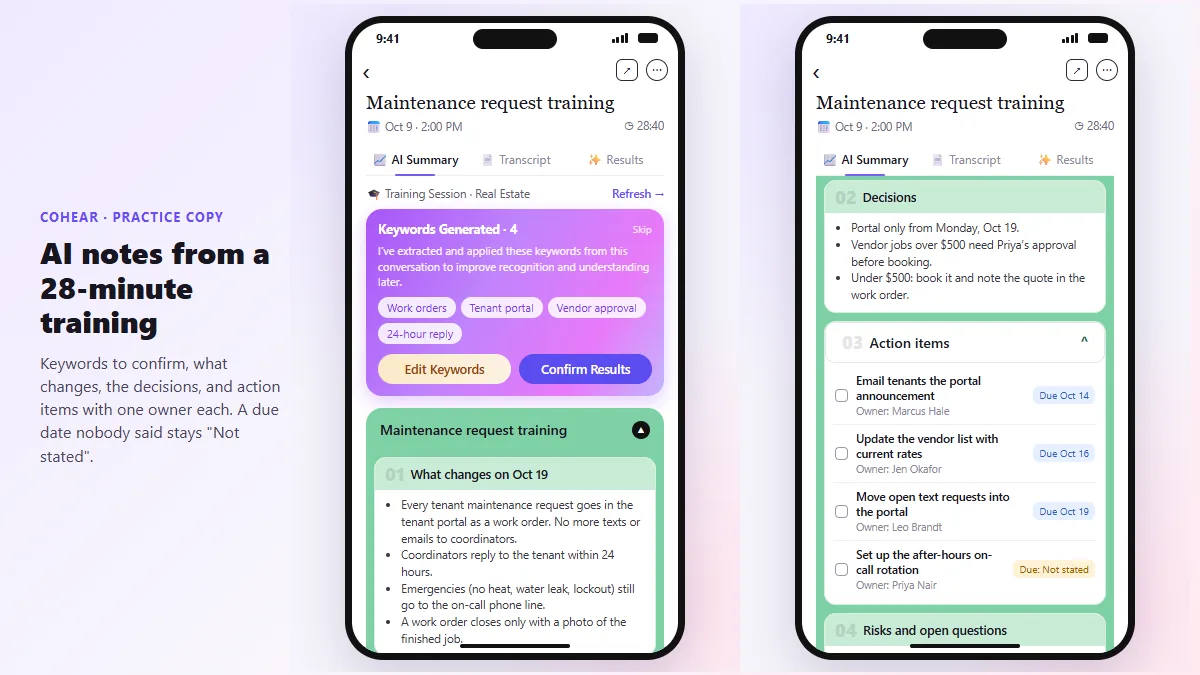 CoHear: AI Meeting Notes from a Team Training Session
Record a team training session on your iPhone with CoHear, check the AI notes and action items against the transcript, make a one-page handout and share it behind a…
Free · Live ~8 min Intermediate
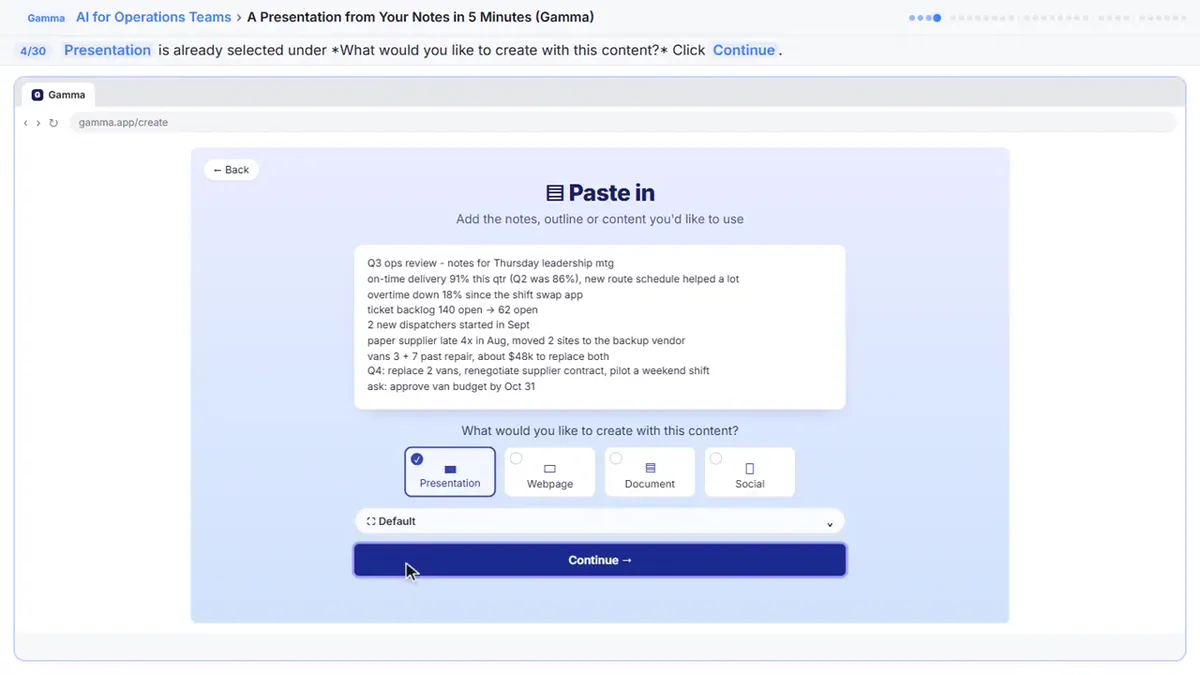 How to Use Gamma to Create a PowerPoint Presentation from Notes
Paste rough meeting notes into Gamma, pick a theme, fix one slide by chatting with its AI, and export the deck to PowerPoint and PDF.
Free · Live ~9 min Intermediate
◷Airia for Beginners: What an AI Agent Is Made OfA five-minute map of Airia before you build: the four parts of an agent (model and instructions, data sources, Playground, Publish), three office jobs that suit one…
Free · Live ~5 min Beginner
◷How to Use Foxit: Workspace, AI Assistant and PDF Editor for BeginnersA five-minute map of Foxit before you use it: Foxit Workspace, the PDF AI Assistant and PDF Editor, which one fits a contract review, a revised contract, a flat form or…
Free · Live ~5 min Beginner
All 39 modules in AI Automation for Operations
More KDAN tutorials
From the blog
Terms in this lesson
Plain-English definitions, each with an example from a free lesson.