Quick answer
ChatGPT data controls are in Settings: click your name at the bottom left, choose Settings, then Data controls. Switch off Improve the model for everyone so new chats are not used to train OpenAI's models. Then click Manage next to Shared links to delete old links, and use Export data before anyone clicks Delete all chats.
Last updated · Last checked
Updated . Built against the tool’s current screens and checked step by step. How we check this lesson
Quick answer: ChatGPT data controls are under your name, then Settings, then Data controls. Switch off Improve the model for everyone and new chats stay out of OpenAI's training. Now the harder part. A client emails your firm: do our files ever go into ChatGPT, and what settings do you use? If nobody can answer in a sentence, you have a client confidentiality problem, not an AI problem. In this free, hands-on lesson you play the office manager of a six-person bookkeeping firm, set the ChatGPT controls that matter in about ten minutes, and finish with a one-page team AI policy you can copy.
At a glance
| Question | Answer |
|---|---|
| What you build | A client asks if their files go into ChatGPT. Answer with confidence: set the data controls, memory, Temporary Chat and shared links, then hand your team a one-page AI policy. |
| Tools | ChatGPT |
| Time | About 10 minutes, 16 steps in 3 parts |
| Level | Beginner, no coding needed |
| Cost | Free |
| Ways to learn it | Practice it step by step, watch the video, read the guide with screenshots |
The 3 parts, in short
- The business case: Read the client’s question, Read Priya’s note to herself.
- Set the controls: Open ChatGPT, Open your account menu, Open Settings, Turn off Improve the model for everyone, and 8 more steps.
- Write the team policy: Open the team policy, Copy the policy.
Start here first: Start Here: How Stepthrough Works (module 1 of AI Basics)
In the course: Part 3 · ChatGPT for Everyday Work (Module 18 of the full course)
Part of: AI at Work: Start Here (step 3 of 20). Next up: Clear Client Data Out of ChatGPT Before It Becomes a Problem: Delete Chats, Clear Memory and Use Temporary Chat
Part of: Master ChatGPT for Work (step 1 of 17). Next up: ChatGPT Projects vs Chats: The Difference, and a Project for Each Client
Part of: AI for Accounting & Bookkeeping Firms (step 11 of 42). Next up: Clear Client Data Out of ChatGPT Before It Becomes a Problem: Delete Chats, Clear Memory and Use Temporary Chat
Part of: AI for Law Firms (step 4 of 15). Next up: Clear Client Data Out of ChatGPT Before It Becomes a Problem: Delete Chats, Clear Memory and Use Temporary Chat
Part of: AI for Insurance Agencies (step 4 of 18). Next up: ChatGPT Projects vs Chats: The Difference, and a Project for Each Client
Part of: AI for Recruiting & HR (step 7 of 29). Next up: Roll Out a Team AI Policy in One Afternoon using Claude
Part of: AI for Medical & Dental Office Admin (step 2 of 25). Next up: Answer Patient Billing Emails Clearly using ChatGPT
Part of: AI for Operations Teams (step 2 of 45). Next up: Roll Out a Team AI Policy in One Afternoon using Claude
ChatGPT Data Controls: How to Turn Off Training and Protect Client Data: step-by-step guide with screenshots
About the screenshots. They come from Stepthrough’s simulated practice environment (a practice copy of ChatGPT), not the live tool, so no real account appears. The buttons and labels match the real screens the lesson was built against. Practice it yourself free at ynteractive.com.
- Tools: ChatGPT
- Time: about 10 minutes, 16 steps in 3 parts
- Level: beginner, no coding needed
Part 1: The business case
Step 1: Read the client’s question
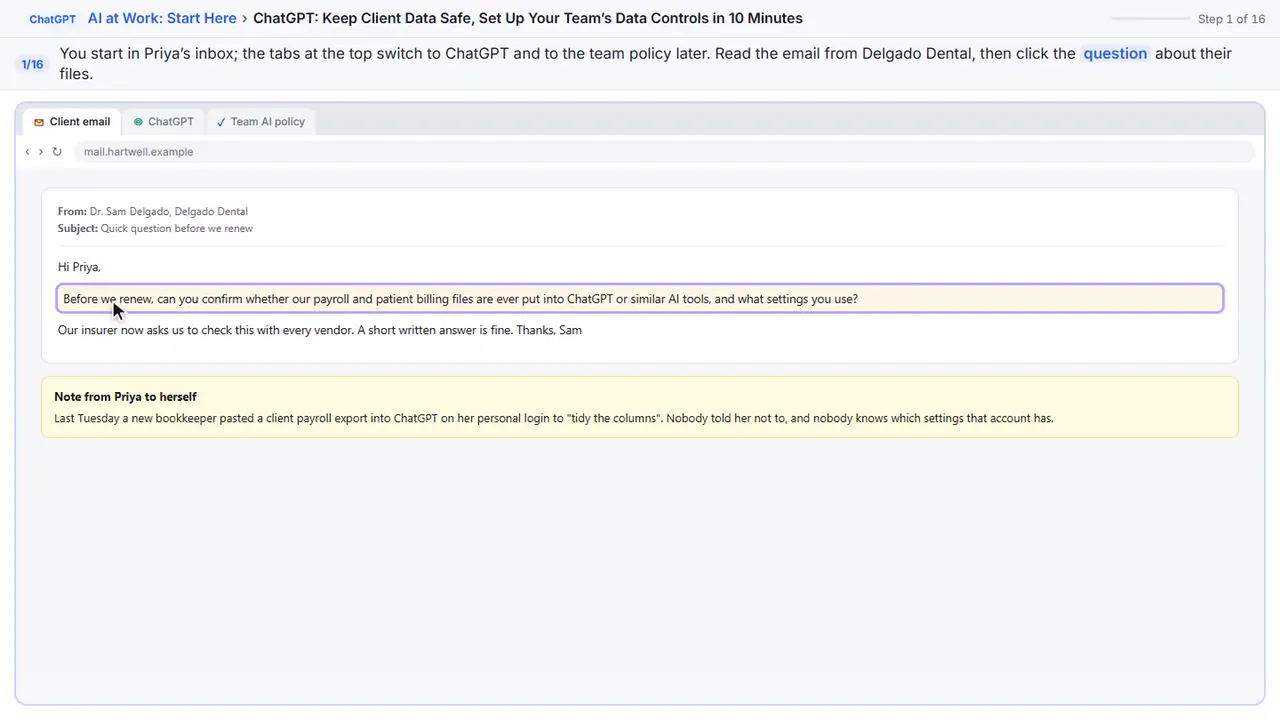
Priya runs the office at Hartwell Bookkeeping, a six-person firm. A client, Delgado Dental, has just asked in writing: are our payroll and patient billing files ever put into ChatGPT, and what settings do you use? Their insurer is asking them to check.
Step 2: Read Priya’s note to herself
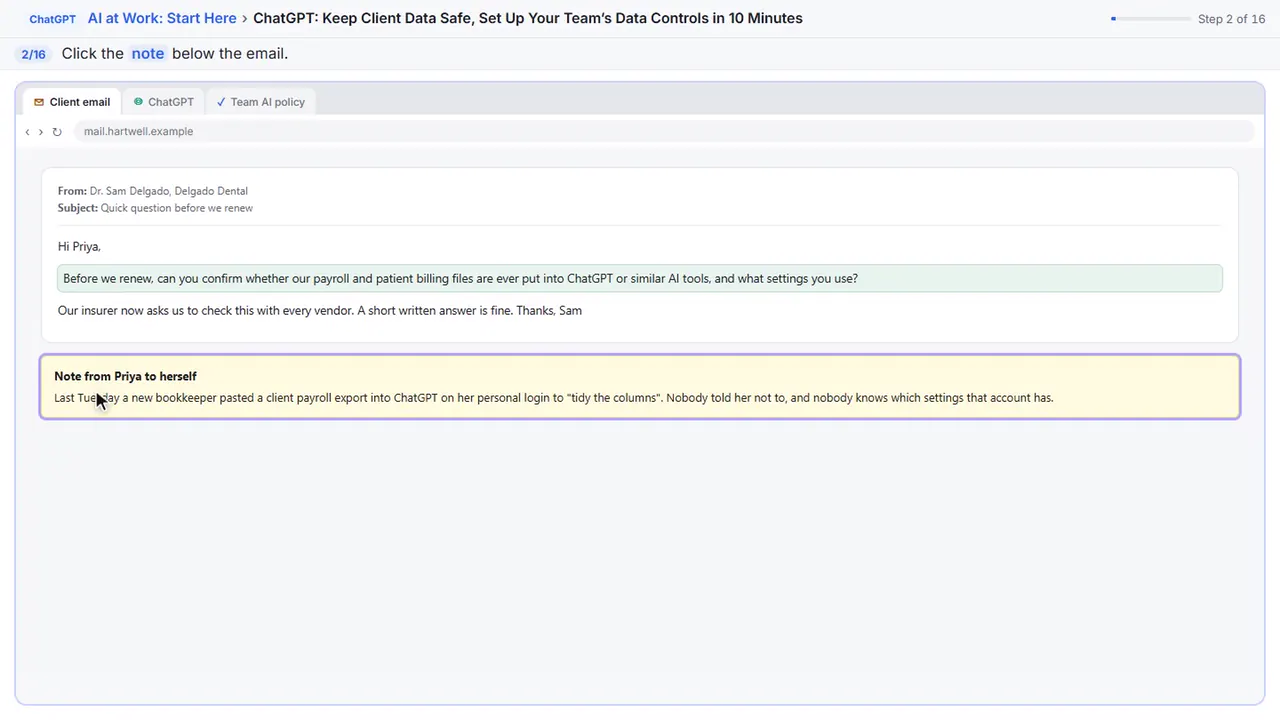
And here's why Priya's stomach drops. Last Tuesday a new bookkeeper pasted a client payroll export into ChatGPT, on her personal login. Nobody had told her not to, and nobody knows which settings that account has. A wrong answer to the client could cost you the renewal, or worse. A right answer takes about ten minutes.
Part 2: Set the controls
Step 3: Open ChatGPT
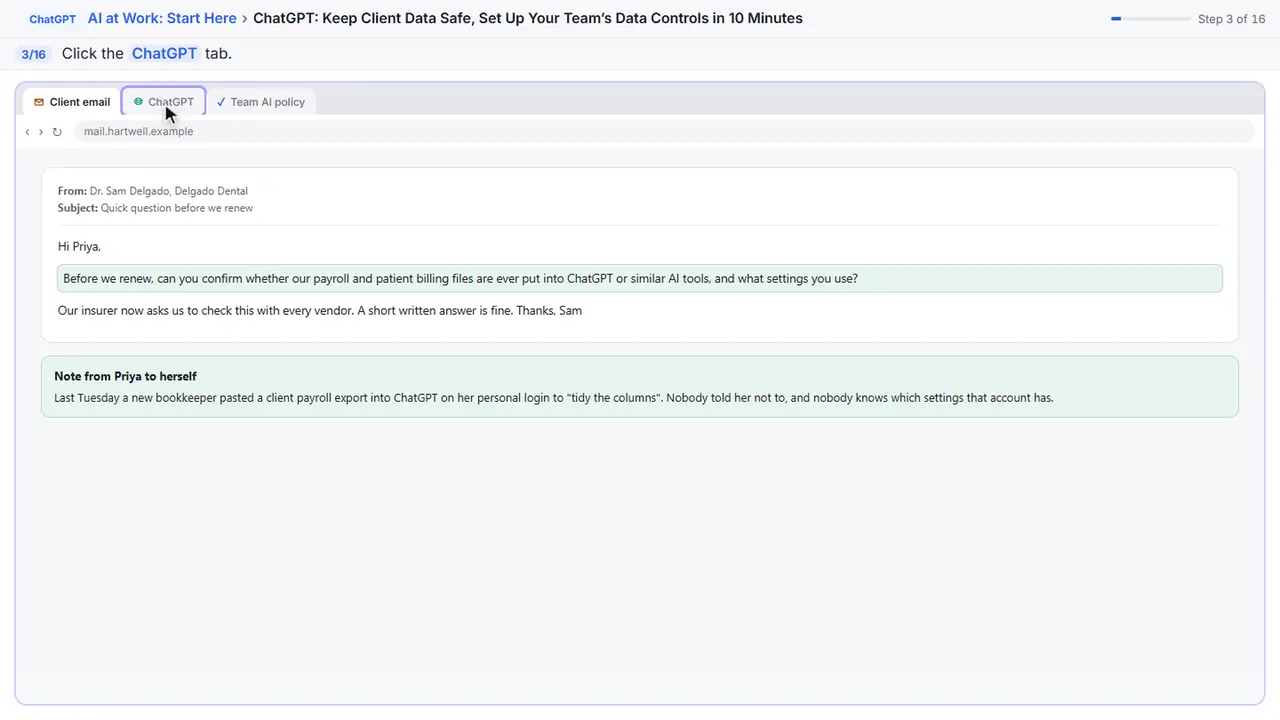
Let's set it up. In real life, do this on the account your firm approves, signed in as the person who manages it.
Step 4: Open your account menu
Step 5: Open Settings
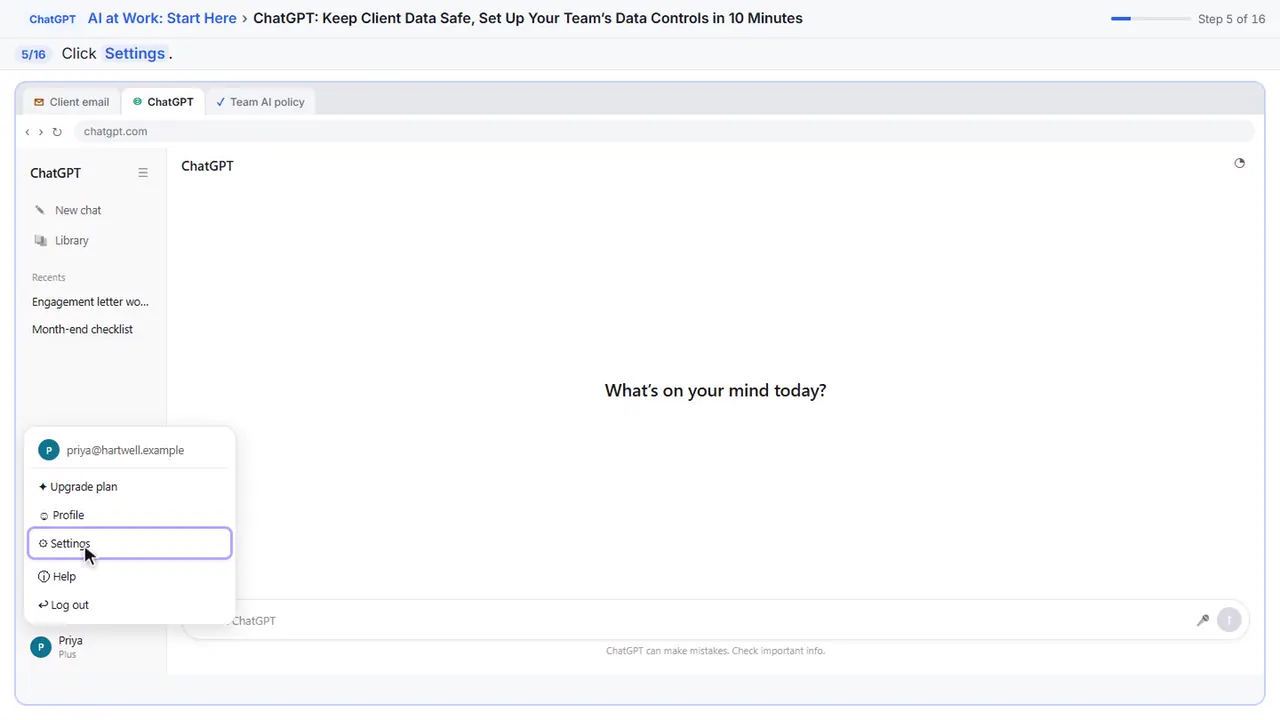
Step 6: Turn off Improve the model for everyone
Settings opens on Data controls. The first control that matters is Improve the model for everyone. On personal plans it decides whether your chats can be used to train OpenAI's models. Do this on every account anyone uses for work. Business plans don't train on your data by default, which is one reason firms pay for them.
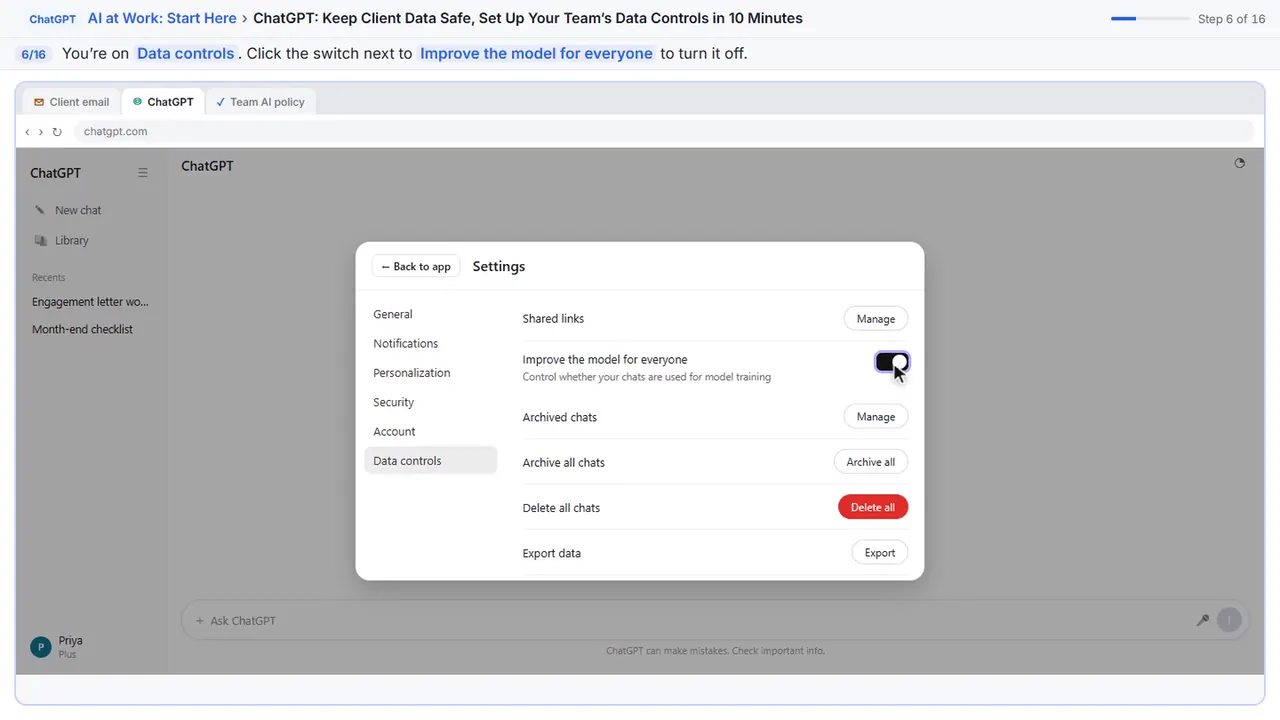
Step 7: Look at your Shared links
Next, Shared links. When someone shares a chat, anyone with the link can read it. That's handy for a team, but a link to a client conversation can sit there for months.
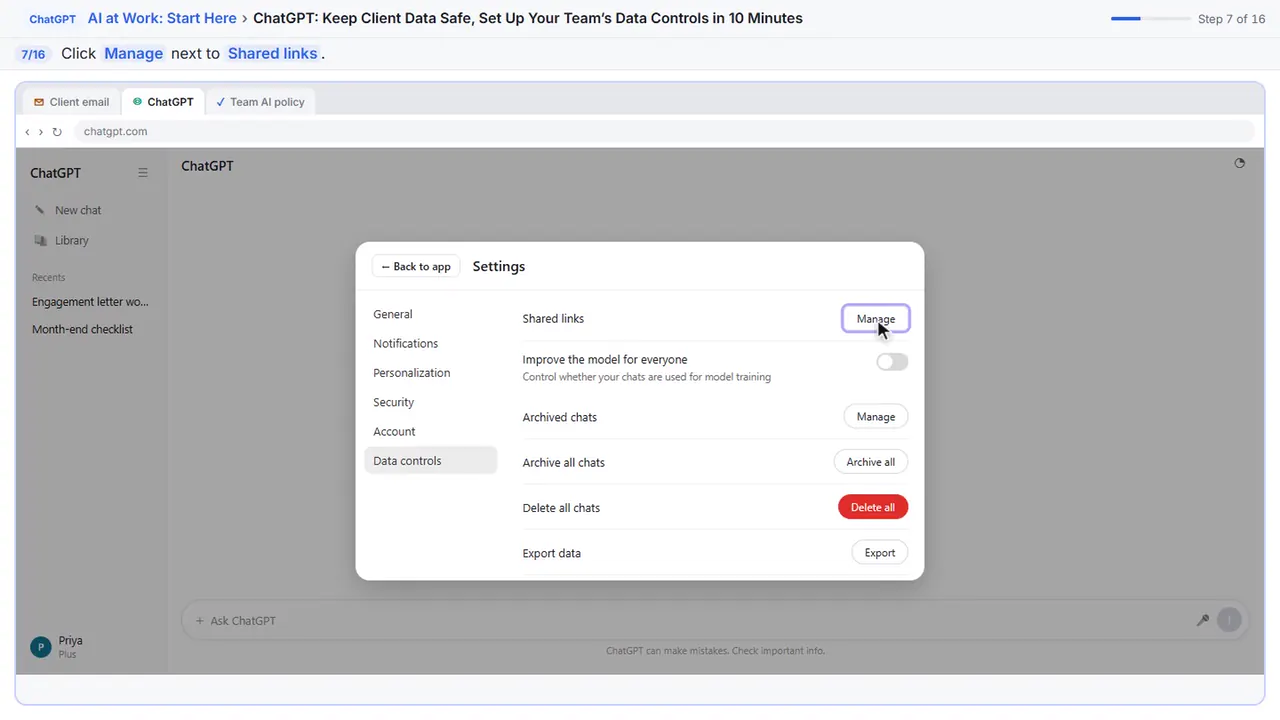
Step 8: Close the list
Notice what the window says. Deleting a shared link stops others viewing it, but it doesn't delete your original chat. Put a monthly check in the calendar: open this list, and delete any link nobody needs. Close it.
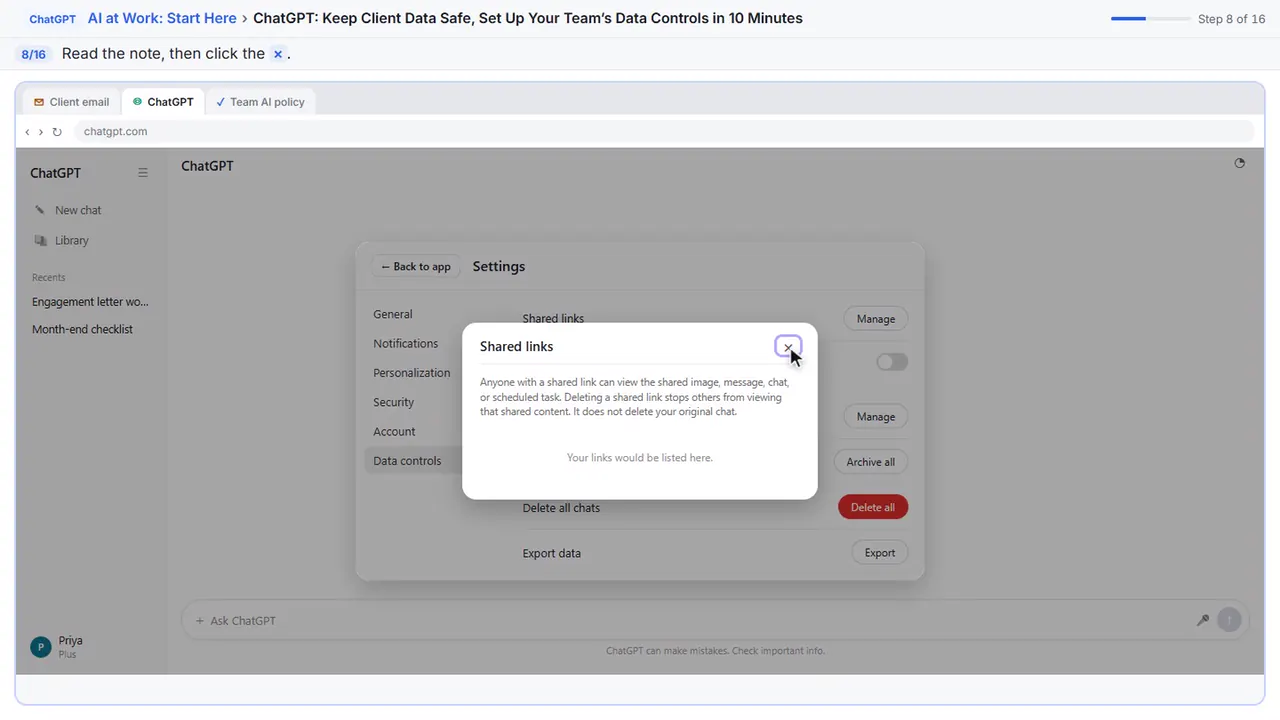
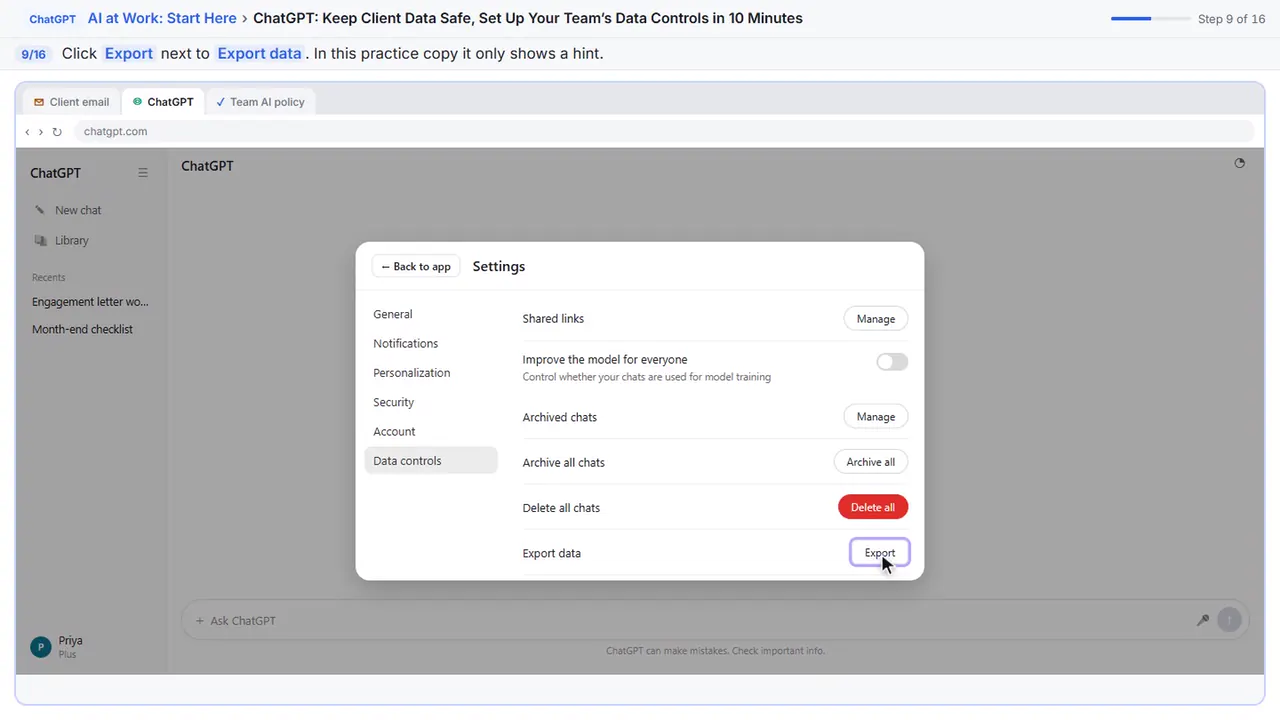
Step 9: Find Export data
Two buttons further down are for record keeping. Export data emails you a file of your chat history. Delete all chats removes everything. The firm's rule: export first if you might need a record, and never use delete all without a reason. In the practice copy, Export only shows a hint.
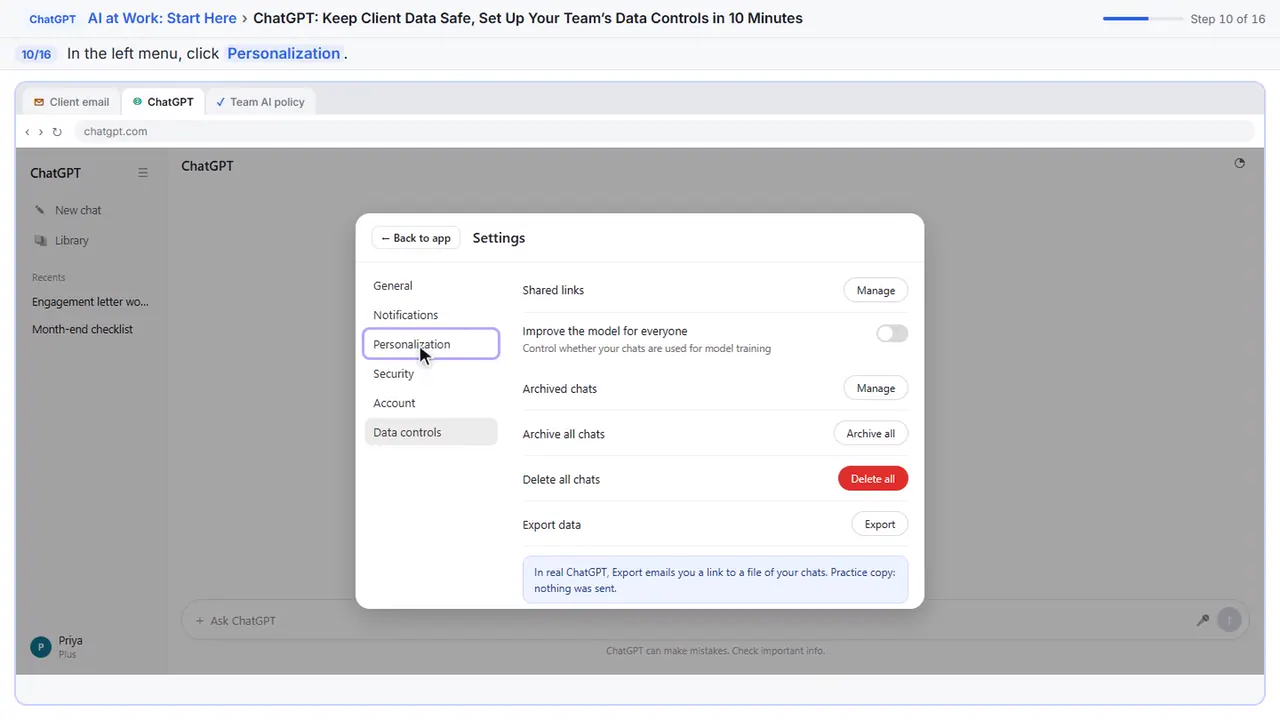
Step 10: Open Personalization
Now memory, which lives under Personalization.
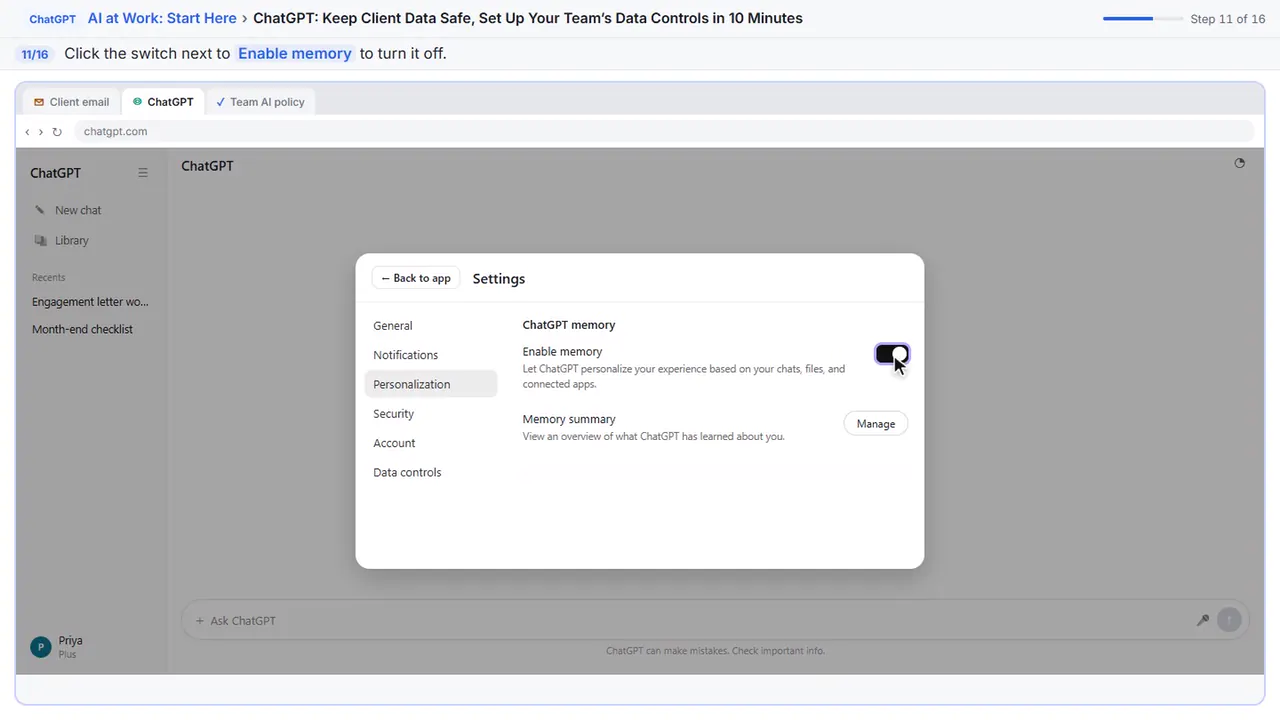
Step 11: Turn off Enable memory
Enable memory lets ChatGPT personalize answers from your past chats. On a personal login that's useful. On a shared work login it's a risk: one client's details could resurface in another client's chat. So for shared logins, the firm turns it off. Underneath, Memory summary has a Manage button, to see or clear what ChatGPT has kept.
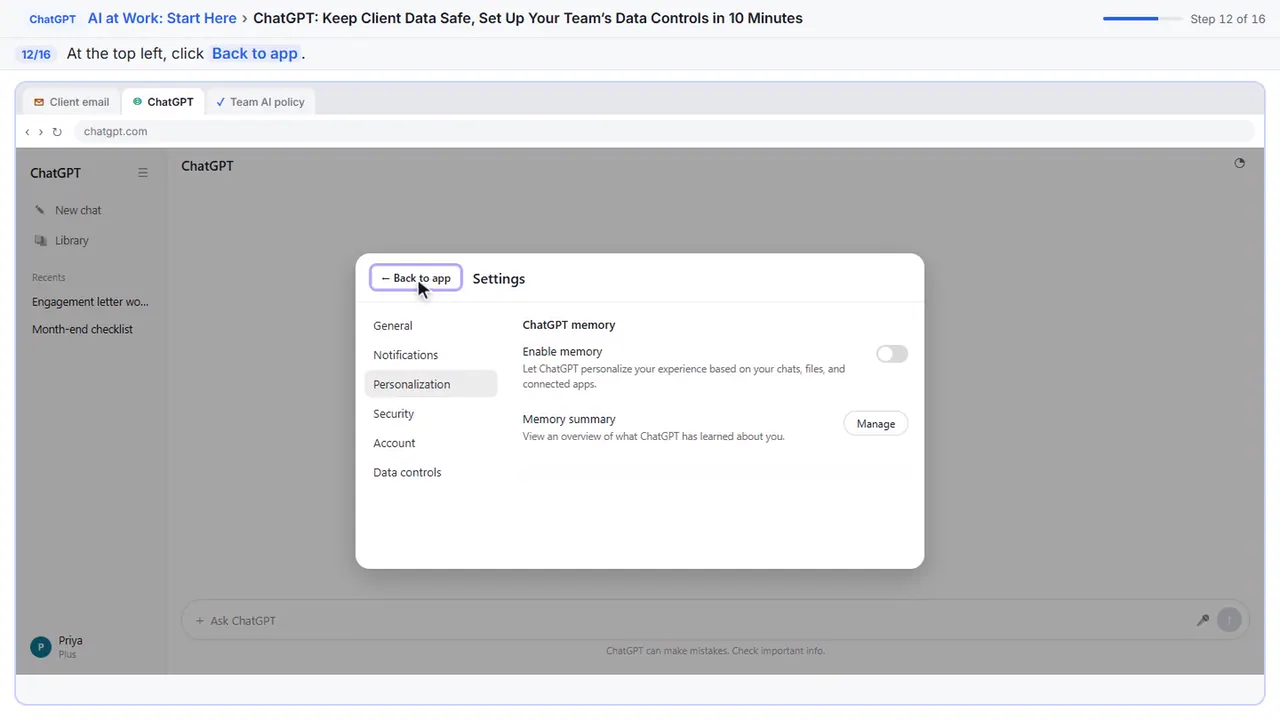
Step 12: Back to the chat
That's the account settings done. Go back to the chat.
Step 13: Try Temporary Chat
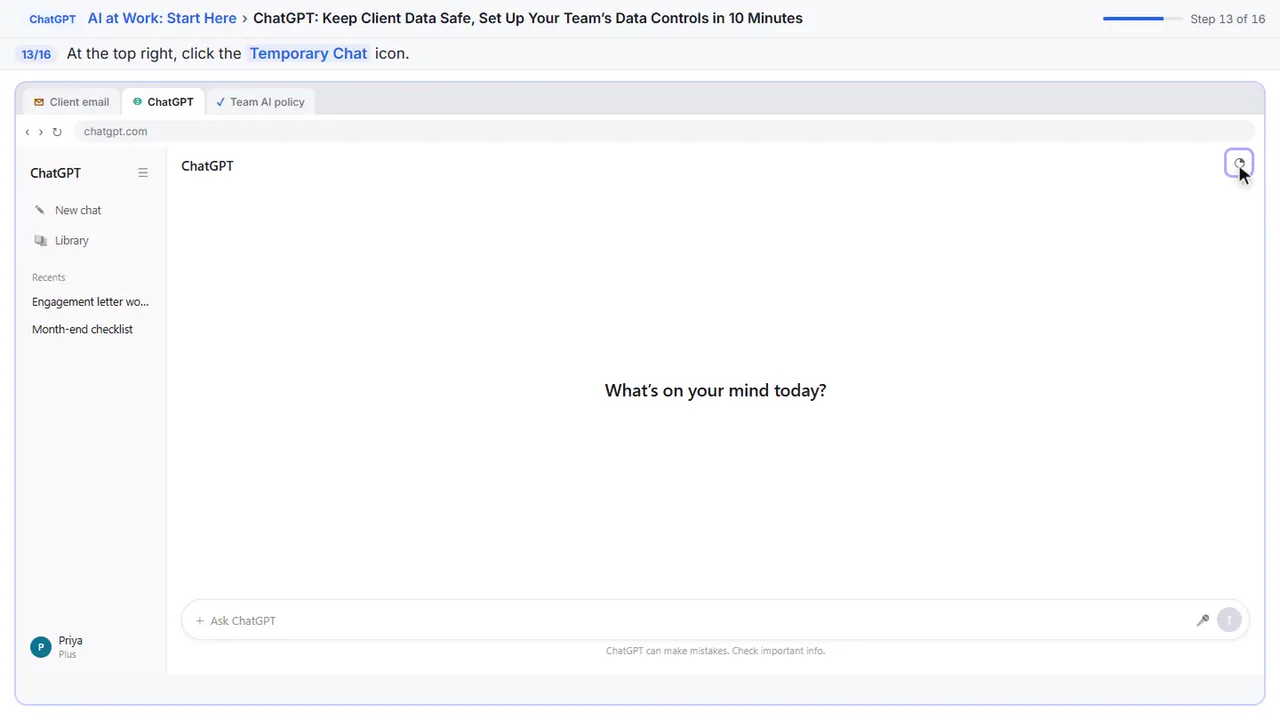
One more tool, for the moment you do have to work on something sensitive. At the top right is Temporary Chat.
Step 14: Read what it promises
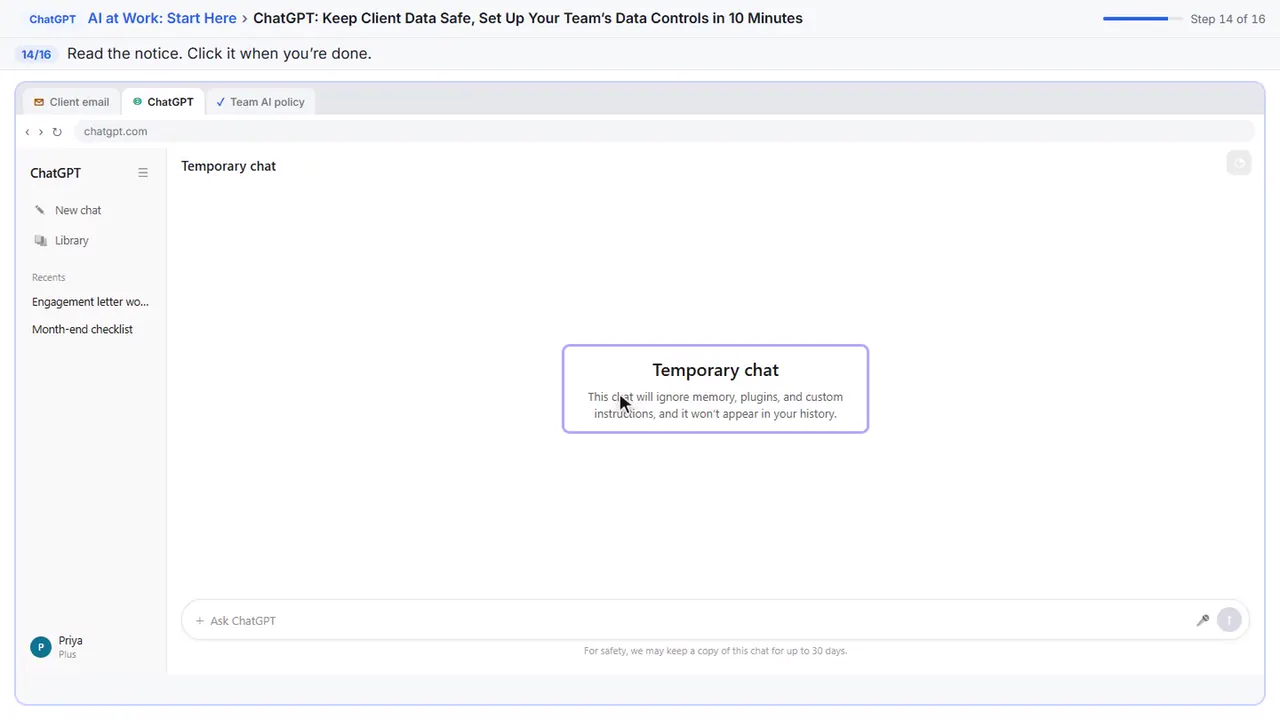
Read the notice carefully. A temporary chat ignores memory, plugins and custom instructions, and it won't appear in your history. But look at the line at the bottom: for safety, OpenAI may keep a copy for up to thirty days. So it's safer, not secret. It still doesn't replace taking out names and numbers first.
Part 3: Write the team policy
Step 15: Open the team policy
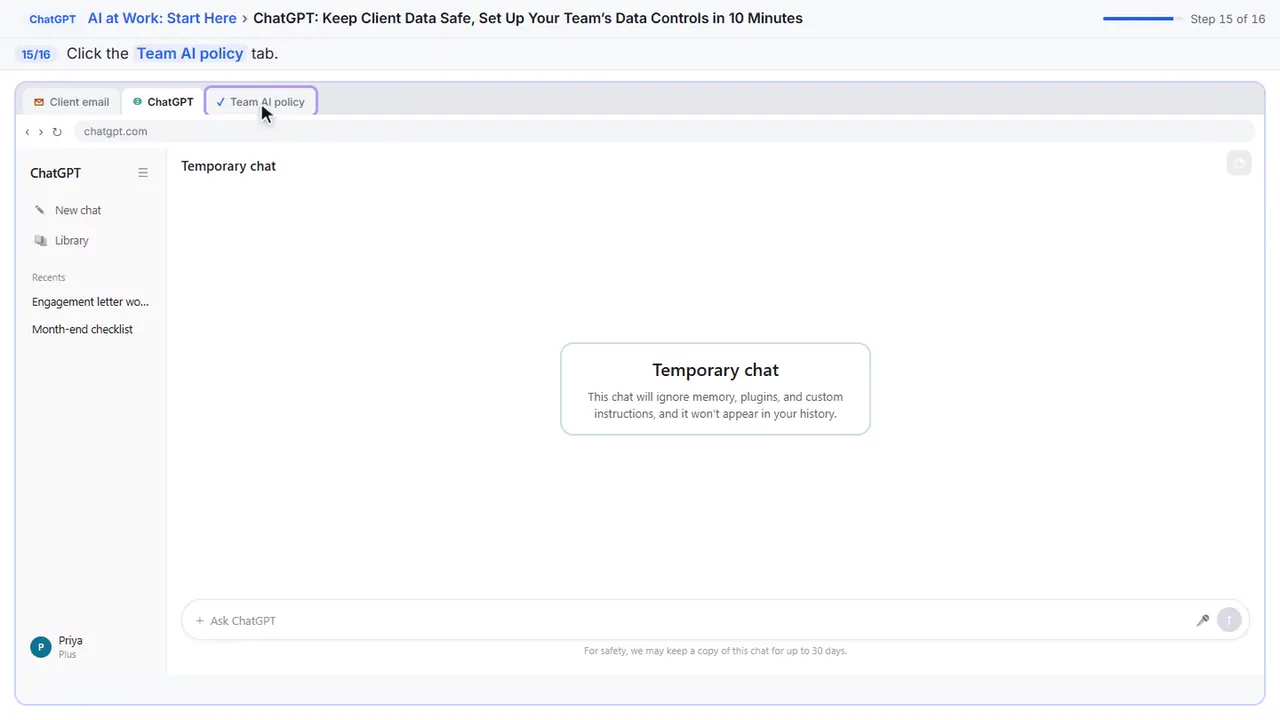
Settings only work if everyone follows the same ones. So write them down.
Step 16: Copy the policy
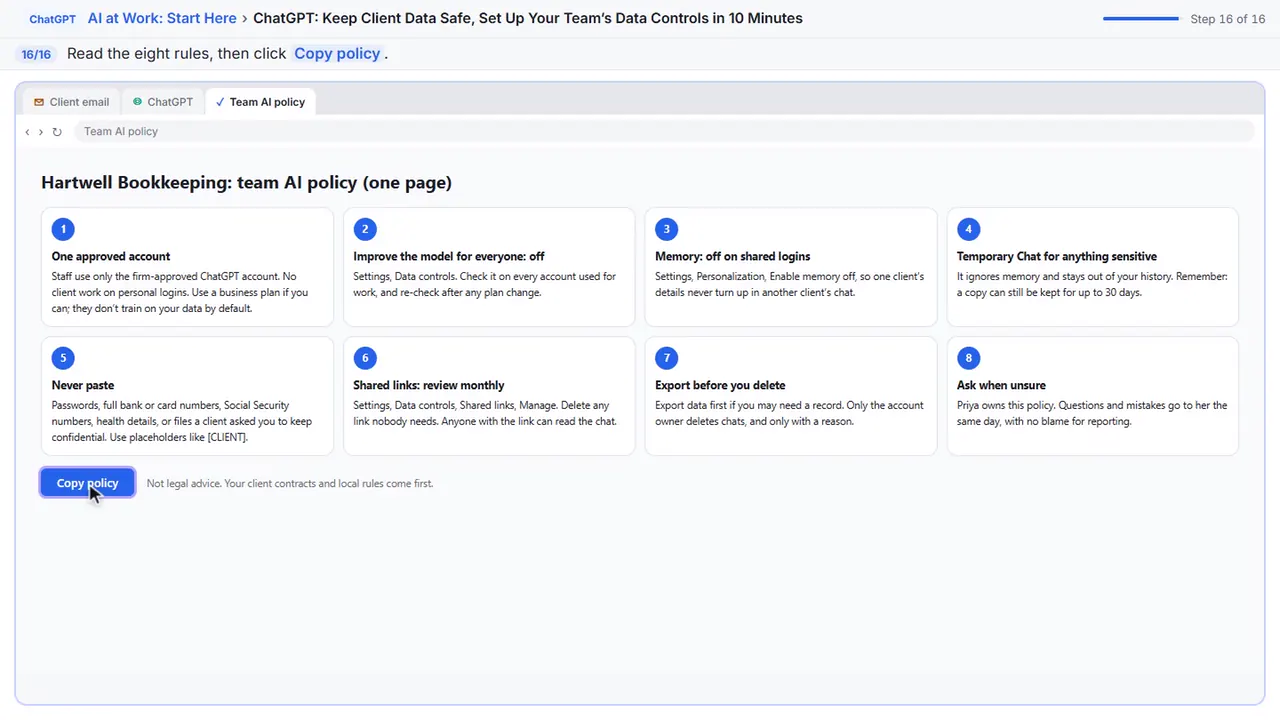
Eight short rules: one approved account, training off, memory off on shared logins, Temporary Chat for sensitive work, never paste the dangerous things, review shared links monthly, export before you delete, and ask when unsure. Then reply to Dr. Delgado with it. For what not to paste, see the Safe AI at Work lesson.
Part of these free courses: AI at Work: Start Here, Master ChatGPT for Work, AI for Law Firms, AI for Insurance Agencies, AI for Medical & Dental Office Admin, AI Governance for Small Business, AI for Small Business Owners: Your First 30 Days with ChatGPT, a CRM and One Automation
Now do it yourself, free
Reading the steps is a start. Doing them is how it sticks. The interactive lesson puts you in a practice copy of ChatGPT: you do every step yourself, it checks your work, and “Do it for me” finishes any step you get stuck on. Nothing touches your real accounts.
Practice “ChatGPT Data Controls: How to Turn Off Training and Protect Client Data” step by stepChatGPT Data Controls: How to Turn Off Training and Protect Client Data: video walkthrough
The whole lesson in 3:05, narrated step by step.
Simulated practice environment. Recorded in Stepthrough’s simulated practice environment, not the live tool. Practice it yourself free at ynteractive.com.
Chapters
Click a chapter to jump the video there.
Now do it yourself, free
Watching is the warm-up. The interactive lesson puts you in a practice copy of ChatGPT: you do every step yourself, it checks your work, and “Do it for me” finishes any step you get stuck on. Nothing touches your real accounts.
Practice “ChatGPT Data Controls: How to Turn Off Training and Protect Client Data” step by stepFull transcript
The business case
0:00 Priya runs the office at Hartwell Bookkeeping, a six-person firm. A client, Delgado Dental, has just asked in writing: are our payroll and patient billing files ever put into ChatGPT, and what settings do you use? Their insurer is asking them to check. Click the question.
0:15 And here's why Priya's stomach drops. Last Tuesday a new bookkeeper pasted a client payroll export into ChatGPT, on her personal login. Nobody had told her not to, and nobody knows which settings that account has. A wrong answer to the client could cost you the renewal, or worse. A right answer takes about ten minutes. Click the note.
Set the controls
0:36 Let's set it up. In real life, do this on the account your firm approves, signed in as the person who manages it. Click the ChatGPT tab.
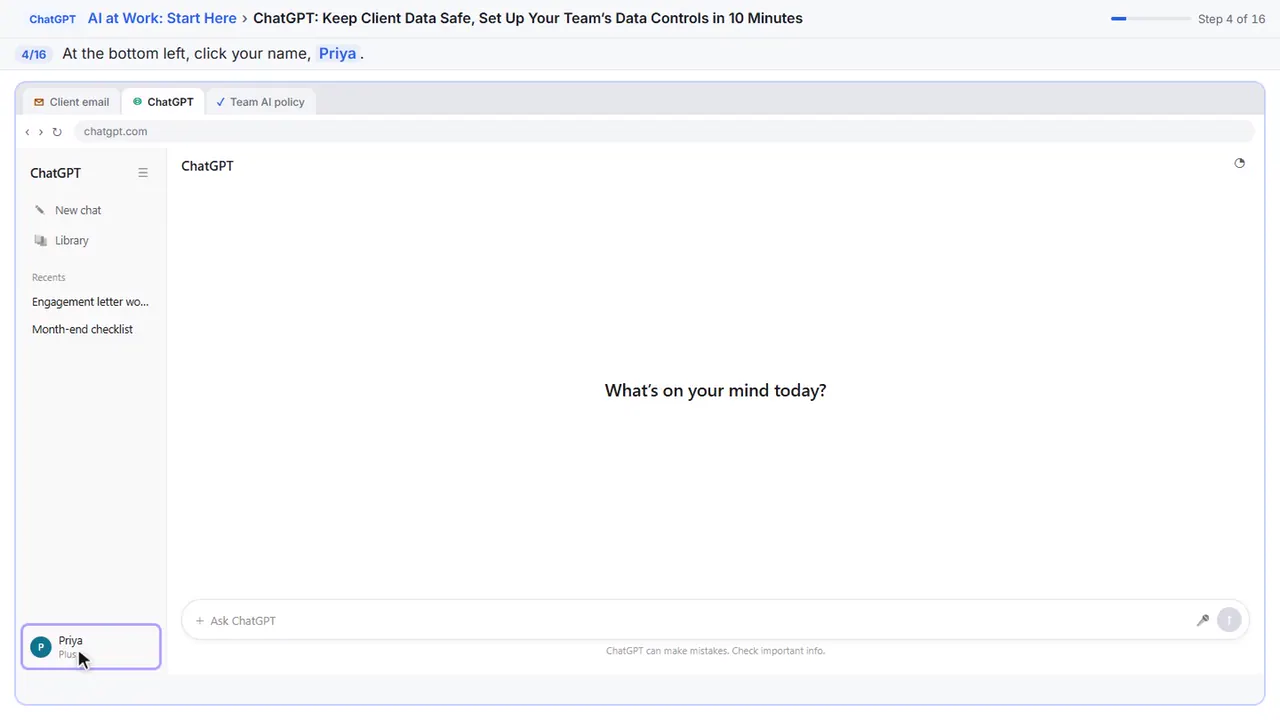
0:43 Click your name at the bottom left.
0:45 Click Settings.
0:47 Settings opens on Data controls. The first control that matters is Improve the model for everyone. On personal plans it decides whether your chats can be used to train OpenAI's models. Click the switch to turn it off. Do this on every account anyone uses for work. Business plans don't train on your data by default, which is one reason firms pay for them.
1:05 Next, Shared links. When someone shares a chat, anyone with the link can read it. That's handy for a team, but a link to a client conversation can sit there for months. Click Manage to see them.
1:15 Notice what the window says. Deleting a shared link stops others viewing it, but it doesn't delete your original chat. Put a monthly check in the calendar: open this list, and delete any link nobody needs. Close it.
1:27 Two buttons further down are for record keeping. Export data emails you a file of your chat history. Delete all chats removes everything. The firm's rule: export first if you might need a record, and never use delete all without a reason. In the practice copy, Export only shows a hint. Click it.
1:43 Now memory, which lives under Personalization. Click Personalization in the left menu.
1:48 Enable memory lets ChatGPT personalize answers from your past chats. On a personal login that's useful. On a shared work login it's a risk: one client's details could resurface in another client's chat. So for shared logins, the firm turns it off. Underneath, Memory summary has a Manage button, to see or clear what ChatGPT has kept. Click the switch.
2:08 That's the account settings done. Go back to the chat.
2:11 One more tool, for the moment you do have to work on something sensitive. At the top right is Temporary Chat. Click it.
2:17 Read the notice carefully. A temporary chat ignores memory, plugins and custom instructions, and it won't appear in your history. But look at the line at the bottom: for safety, OpenAI may keep a copy for up to thirty days. So it's safer, not secret. It still doesn't replace taking out names and numbers first.
Write the team policy
2:33 Settings only work if everyone follows the same ones. So write them down. Click the Team AI policy tab.
2:39 Eight short rules: one approved account, training off, memory off on shared logins, Temporary Chat for sensitive work, never paste the dangerous things, review shared links monthly, export before you delete, and ask when unsure. Click Copy policy, paste it into your own handbook, and change the names. Then reply to Dr. Delgado with it. For what not to paste, see the Safe AI at Work lesson.
The business case: one paste can cost you a client
Hartwell Bookkeeping is a made-up six-person firm. Its client, Delgado Dental, asks in writing whether payroll and patient billing files are ever put into ChatGPT, because their insurer now asks every vendor. At the same time, the office manager knows that last week a new bookkeeper pasted a client payroll export into ChatGPT on a personal login, and nobody knows which settings that account has.
That is the pattern in most small firms: no malice, no policy, and personal accounts with default settings. A vague answer can cost a renewal. A clear one takes about ten minutes of settings and one page of rules. This lesson covers the settings. For what should never be pasted in the first place, start with Safe AI at Work.
Step 1: turn off Improve the model for everyone
Click your name at the bottom left, choose Settings, and Data controls is the page you want. The first real decision is the switch next to Improve the model for everyone, described on screen as "Control whether your chats are used for model training". On personal plans, switching it off stops new chats from being used to train OpenAI's models. For the two habits that go with it, see How to Make ChatGPT Private at Work. Do this on every account anyone uses for work. OpenAI says business plans such as ChatGPT Business and Enterprise do not train on your business data by default, so confirm the terms for your plan. See also ChatGPT data controls in the glossary.
Turning it off does not delete your history and does not make chats secret. They are still processed to give you an answer, so the habit of removing names and numbers still matters.
Step 2: review Shared links, Export data and Delete all chats
On the same page, Shared links has a Manage button. Its dialog says anyone with a shared link can view the shared chat, and that deleting a link stops others from viewing it but does not delete your original chat. A link to a client conversation can sit there for months, so put a monthly review in the calendar.
Lower down are Archived chats, Archive all chats, Delete all chats and Export data. Export data is how you keep a record, and Delete all chats removes everything. A sensible firm rule: export before you delete, and only the account owner deletes. Your page may show extra rows depending on your plan.
Step 3: decide on memory
Under Settings, Personalization, Enable memory lets ChatGPT personalize answers from your chats, files and connected apps, and Memory summary has a Manage button to see what it has kept. On a personal login that is useful. On a shared work login it can carry one client's details into another client's chat, so most firms turn it off for shared accounts and review the memory summary on any account that stays on.
Step 4: use Temporary Chat for sensitive work
At the top right is the Temporary Chat icon. The notice says a temporary chat ignores memory, plugins and custom instructions and won't appear in your history. The line at the bottom adds that, for safety, OpenAI may keep a copy for up to 30 days. So it is safer, but not secret: it does not replace removing names, account numbers and other personal details first. See Temporary Chat.
Step 5: write the one-page team AI policy
Settings only work if everyone follows the same ones. The lesson ends with a copyable one-page policy: one approved account (a business plan if you can); training off; memory off on shared logins; Temporary Chat for sensitive work; never paste passwords, full bank or card numbers, Social Security numbers, health details or confidential client files; review shared links monthly; export before you delete; and ask the policy owner when unsure. Adapt the names and your own contract terms. This is not legal advice, and your client contracts and local rules come first.
What this saves you
About ten minutes of setup replaces an open-ended scramble every time a client, insurer or auditor asks how you use AI. You get one approved account, a written answer you can send the same day, and a team that knows the rules. Next business case: reply to client emails faster in ChatGPT, with these settings already in place.
What to do next
Training off only covers new chats. If client details are already sitting in old chats or in memory, the next lesson, Clear Client Data Out of ChatGPT, walks through deleting chats, clearing memory and using Temporary Chat. Then set the ground rules with Safe AI at Work, or take the whole AI at Work course in order.
How the interactive lesson works
Each step is shown in the Watch panel with a short explanation, then you do it yourself in Your turn on a practice copy of ChatGPT. No account is needed, no setting is changed and nothing is sent. The firm, the client and the email are made up.
Links
- OpenAI Help Center: OpenAI's own help pages for data controls, Temporary Chat and memory. Plans and options change, so check your own screen.
Try it yourself, free
Reading the steps is a start. Doing them is how it sticks. The interactive module walks you through every click in a practice copy of ChatGPT, checks each step, and never touches your real accounts.
Start “ChatGPT Data Controls: How to Turn Off Training and Protect Client Data”Frequently asked questions
- What settings are in ChatGPT data controls?
- The Data controls page has Improve the model for everyone, Shared links with a Manage button, Archived chats, Archive all chats, Delete all chats and Export data. Your page may show extra rows depending on your plan. Memory is on a different page, under Settings, Personalization.
- How do I get to ChatGPT settings?
- Click your name at the bottom left of ChatGPT and choose Settings. Data controls and Personalization, where memory lives, are both pages in that window.
- Where is data control in ChatGPT?
- On the web, click your name at the bottom left, choose Settings, then Data controls. On the iPhone or Android app, open the sidebar, tap your profile icon, then Data controls. Accounts managed by an admin can show fewer options.
- How do I stop ChatGPT from training on my chats?
- In Data controls, switch off Improve the model for everyone. Signed in, it applies to the whole account on every device, so check every account your staff use for work. OpenAI notes that a thumbs up or down on an answer can still send that chat for training.
- Is Temporary Chat private?
- Safer, not secret. A temporary chat stays out of your history, creates no memories and is not used for training, but OpenAI says it may keep a copy for up to 30 days for safety.
- ChatGPT Business vs Plus: which one trains on my data?
- On personal plans (Free, Go, Plus and Pro) chats can be used for training until you switch it off. OpenAI says it does not train on ChatGPT Business or Enterprise content by default, and the workspace owner handles exports. Confirm the terms for your plan.
- Should I turn ChatGPT memory off at work?
- On shared work logins, most firms do, so one client's details never surface in another client's chat. On a personal login, review the Memory summary and decide.
- What should a small firm's AI policy say?
- At minimum: which account to use, which settings must be on or off, what must never be pasted, who owns the policy and who to ask. The lesson ends with a one-page version to copy.
More in AI Basics
Try the practice in under two minutes: watch a step, click, type, get unstuck with Do it for me, and finish.
Free · Live ~2 min Beginner
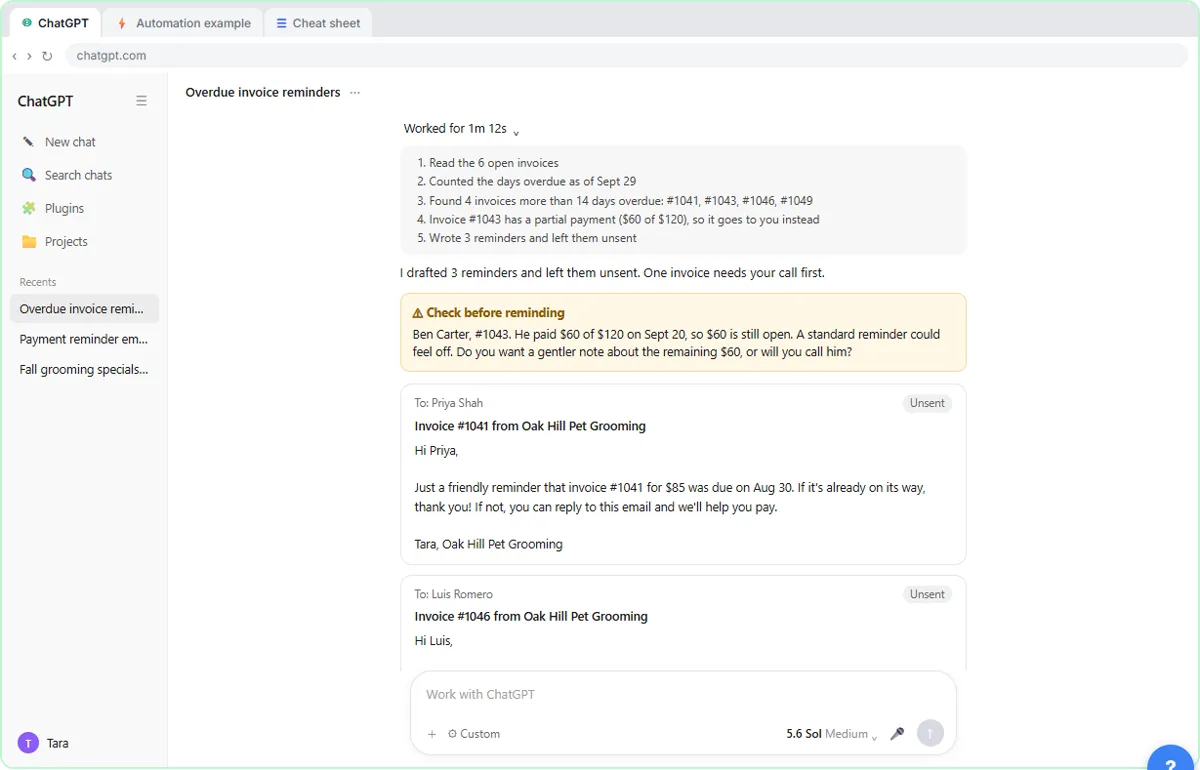 How to Get ChatGPT in Agent Mode: AI Agent vs Chatbot vs Automation
Chase six unpaid invoices three ways: a chatbot writes a template, an automation follows a rule, and an AI agent works out the steps and flags the tricky one.
Free · Live ~7 min Beginner
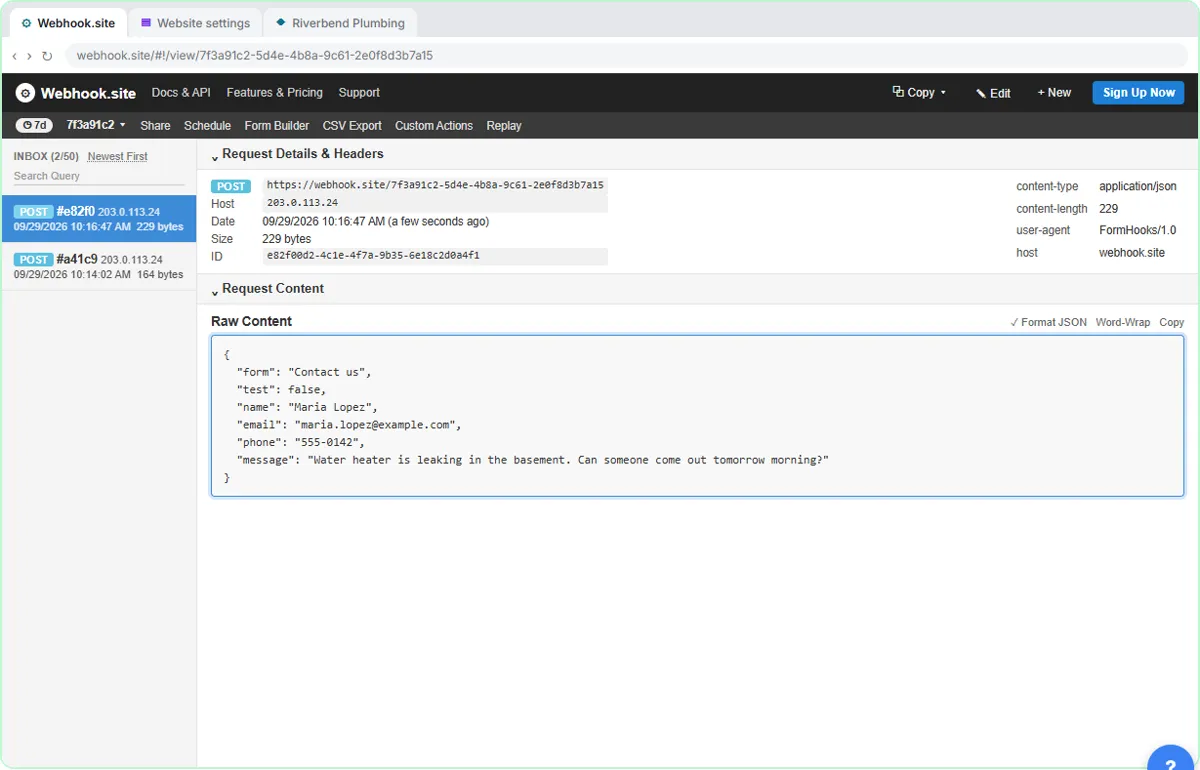 What Is a Webhook? Send a Test and Watch the Data Arrive
Point a plumber's website contact form at a free webhook tester, send a test and a real message, and watch the data arrive the moment it's sent.
Free · Live ~6 min Intermediate
◷Automation Basics: Triggers, Actions and Data MappingLearn the three ideas behind every n8n workflow, Make scenario and Zap: a trigger starts it, actions do the jobs, and data mapping carries the details. Fix the classic…
Free · Live ~6 min Beginner
◷When to Add AI to an Automation (n8n, Make or Zapier)Sort six office jobs into plain rules, AI steps and human decisions, then see the safe shape of an AI automation and how n8n, Make and Zapier each add the AI step.
Free · Live ~6 min Beginner
◷Your First AI Automation: Pick the Right Job and Test It Before It RunsMost first automations fail because people pick the wrong job or switch it on untested. Score four repeat jobs, pick the one to automate first, add one small AI step…
Free · Live ~7 min Beginner
More ChatGPT tutorials
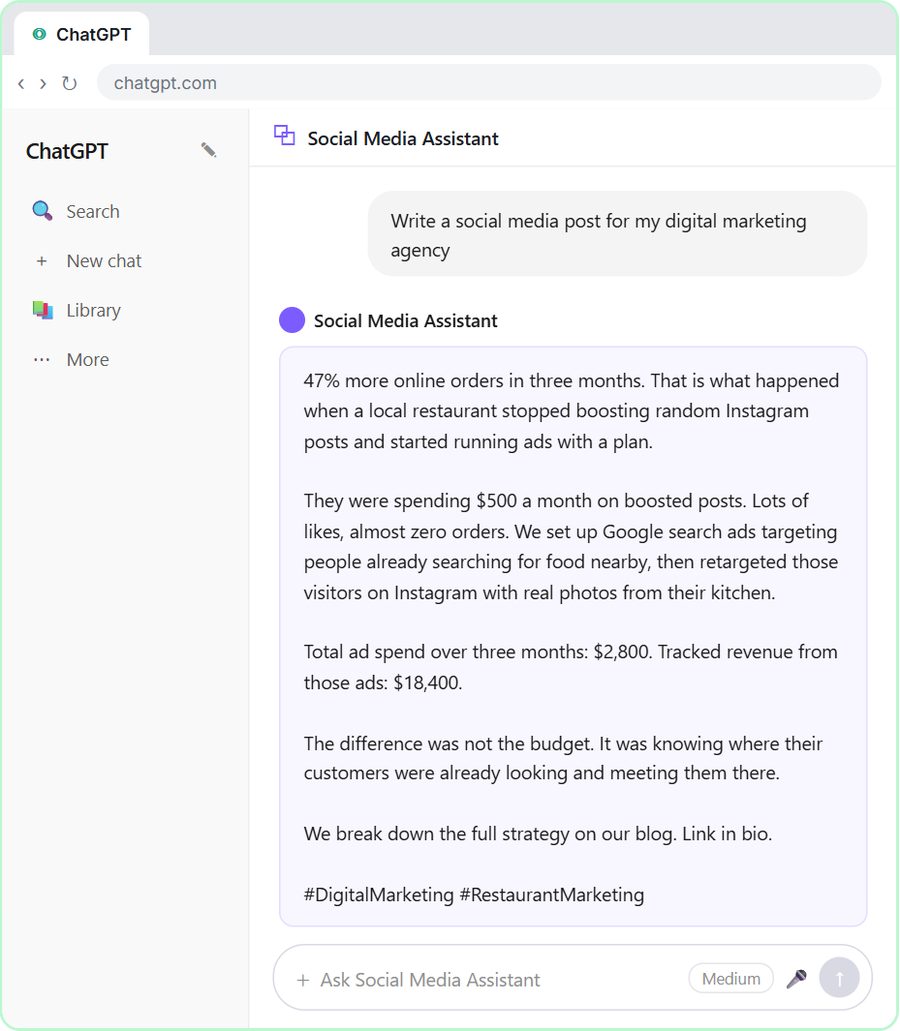 Get On-Brand Social Posts Every Time using a ChatGPT Custom GPT
See why generic prompts give generic results, then build a Custom GPT loaded with your brand voice and watch the output transform.
Free · Live ~8 min Beginner
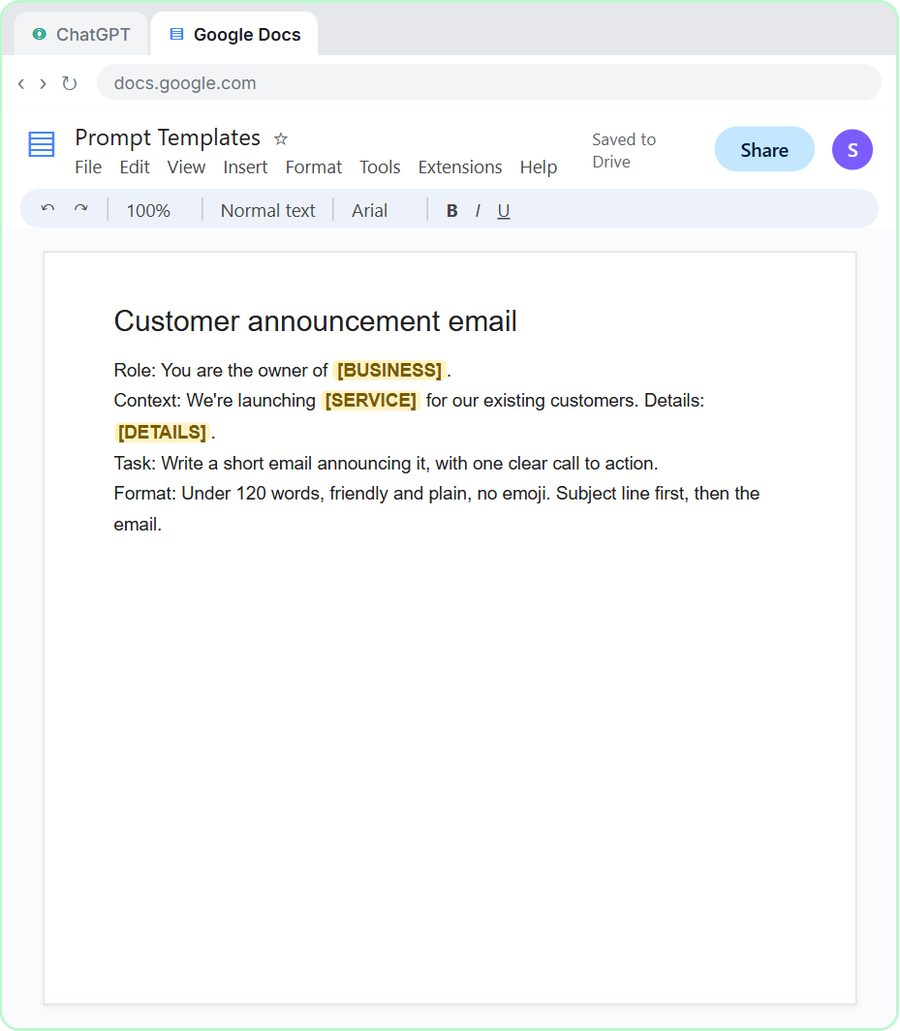 Prompt Writing 101: Role, Context, Task, Format
Ask ChatGPT for the same customer email twice, once vaguely and once with a four-part prompt, and see exactly why structure gets a better answer.
Free · Live ~8 min Beginner
◷Send a Same-Day Follow-up After Every Discovery Call using ChatGPTTurn a discovery call transcript into the decisions, the next steps with owners and dates, deal notes for your CRM, and a follow-up email the prospect gets the same…
Free · Live ~7 min Beginner
◷Hold Your Price When a Prospect Asks for a Discount using ChatGPTA prospect wants 30% off and a free month to sign this week. Give ChatGPT the thread and your pricing rules, catch the discount you can't approve, and send a reply that…
Free · Live ~9 min Beginner
 Get Your Business Recommended by ChatGPT
Ask ChatGPT who it recommends in your town, see which pages it trusts, then use it to write an FAQ page and Business Profile copy that answer real customer questions.
Free · Live ~10 min Intermediate
◷Run a Weekly Ops Review Where Every Task Has an Owner using ChatGPTTurn a weekly operations and vendor review into the decisions, the next steps with owners and dates, the risks to watch and a team recap, without turning a vendor's…
Free · Live ~7 min Beginner
From the blog
 How to Choose a Private AI Tool for Your Business
How to choose the right private AI solution: business plans vs self-hosted models, five questions for vendors, and what major plans say about training.
Oct 21, 2026 4 min read
 ChatGPT Custom Instructions for Coding: 8 Rules to Copy
Stop retyping "only show what changed" in every chat. Eight short ChatGPT custom instructions for people who write code at work, and where they go.
Oct 21, 2026 5 min read
ChatGPT Data Controls Settings: What to Change for WorkChatGPT data controls settings for work: training, memory, shared links, export data and Temporary Chat. Where each one is and which to change.
Oct 16, 2026 5 min read
Visual guides
This lesson’s key ideas as quick visual guides: swipe through the slides, or read the same guide as text.
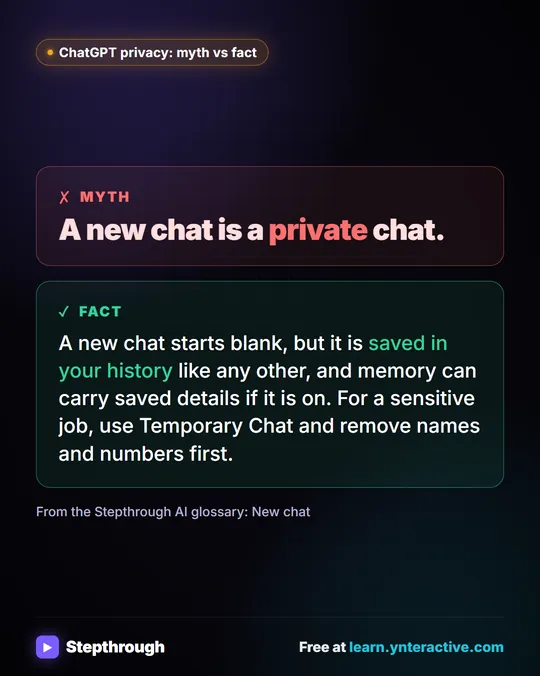 Myth: A New ChatGPT Chat Is a Private Chat
Myth vs fact: a new ChatGPT chat is saved like any other and memory can carry details. For a sensitive job, use Temporary Chat and remove names first.
Myth vs fact One graphic
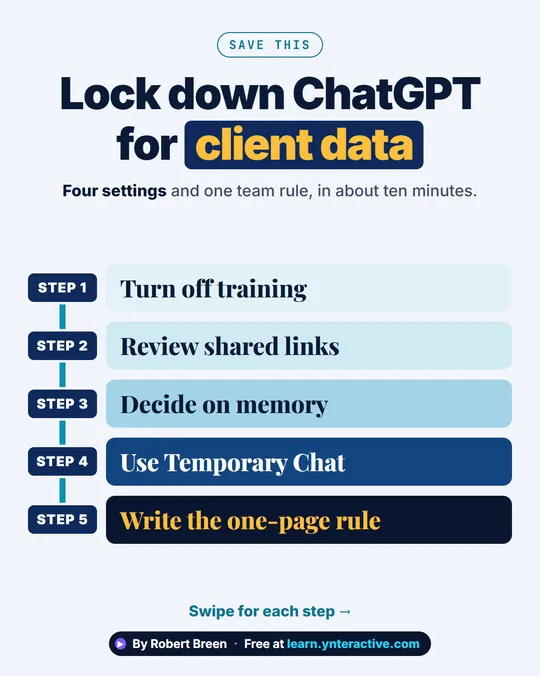 ChatGPT Data Controls for Client Data in 5 Steps
A step-ladder guide: turn off training, review shared links, decide on memory, use Temporary Chat and write the one-page rule, in 5 steps.
Step-by-step guide 7 slides
Terms in this lesson
Plain-English definitions, each with an example from a free lesson.
Related prompts
- ChatGPT memory sort prompt: Paste your ChatGPT saved memories and sort each one: keep it, move it to custom instructions, or delete it because it holds…
- IT incident report prompt: An IT incident report template as a ChatGPT prompt: paste your log and get a timeline, what was affected, containment steps and…