This guide is for owners and office managers who want a teammate to see ChatGPT work without handing over more than they meant to. Facts below come from OpenAI's Help Center as of October 2026. Sharing options vary by plan and workspace settings.
What does a shared chat link show?
A single conversation. From a private project, OpenAI says you can share one chat, and people with the link can view only that chat, not the project's other chats, files, instructions or history. For personal accounts, the link includes the content available when the link was created or updated. OpenAI also notes that your custom instructions aren't shared with shared-link viewers, and that Memory Sources are not included.
If you share a chat from a shared project, the recipient can't see that chat until they join the project.
What does a shared project show?
Much more. OpenAI says project members can view the project's chats, files and member list, and all members can view and download files added to the project. Members can create new chats and branch existing ones. You pick the access level for each person:
- Chat access: see and use the project's chats, files and instructions, but not invite others.
- Edit access: update instructions, upload or remove files and invite others (but not remove existing members).
In a shared project, deleting a file removes it for everyone, though it can be added again later.
How do I share a project, and who can join?
Select Share in the project. Depending on your plan, you can invite people individually or share a link. On personal plans you can choose Only those invited or Anyone with a link. With Anyone with a link, any logged-in ChatGPT user who has the link can join, so use it with care. Business, Enterprise and Edu workspaces can also invite groups and share a workspace link.
Collaboration limits depend on your plan, per OpenAI: Free is up to 5 files and 5 collaborators, Plus and Go up to 25 files and 10 collaborators, and Pro up to 40 files and 100 collaborators.
What happens to memory and custom instructions?
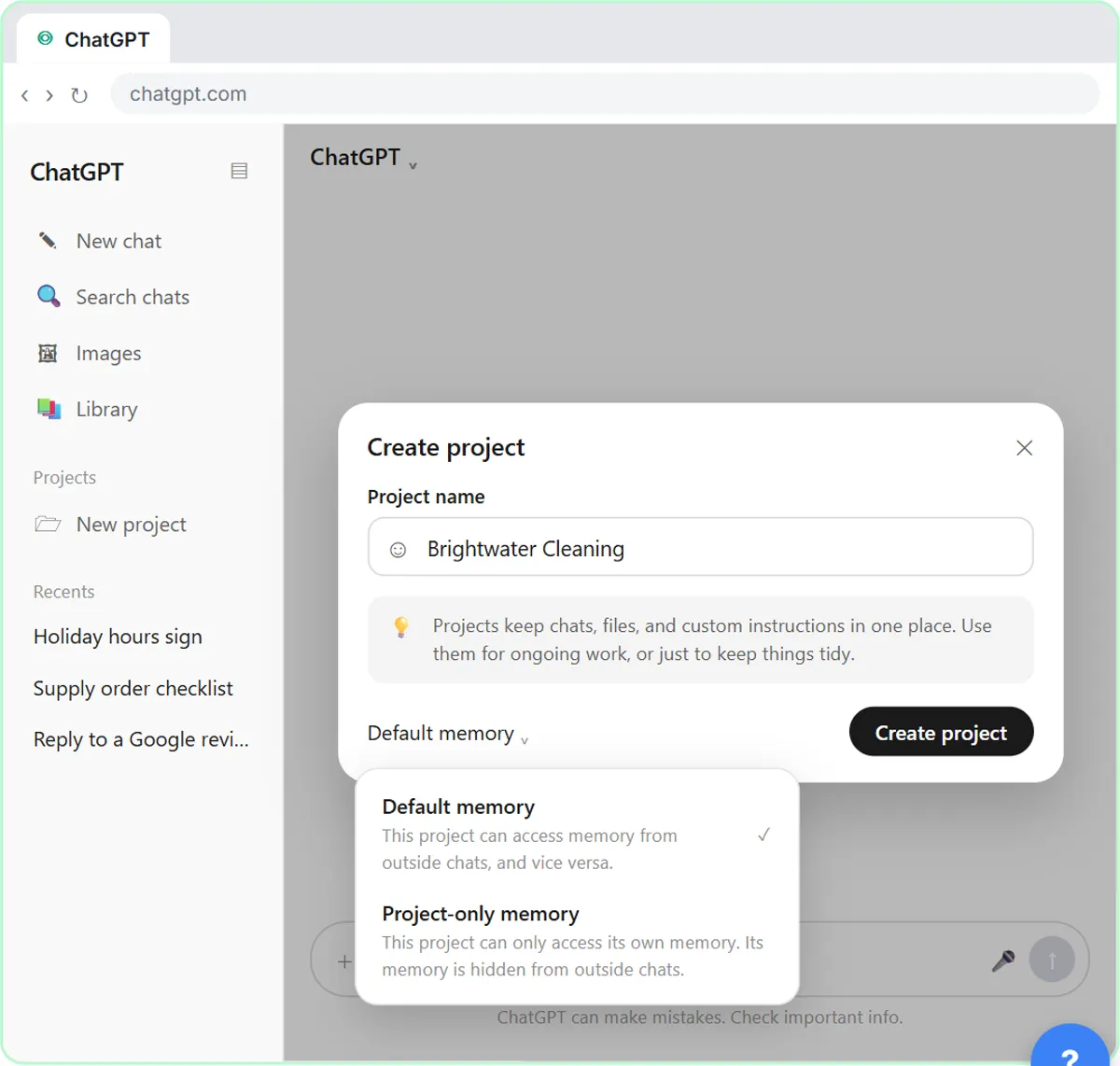
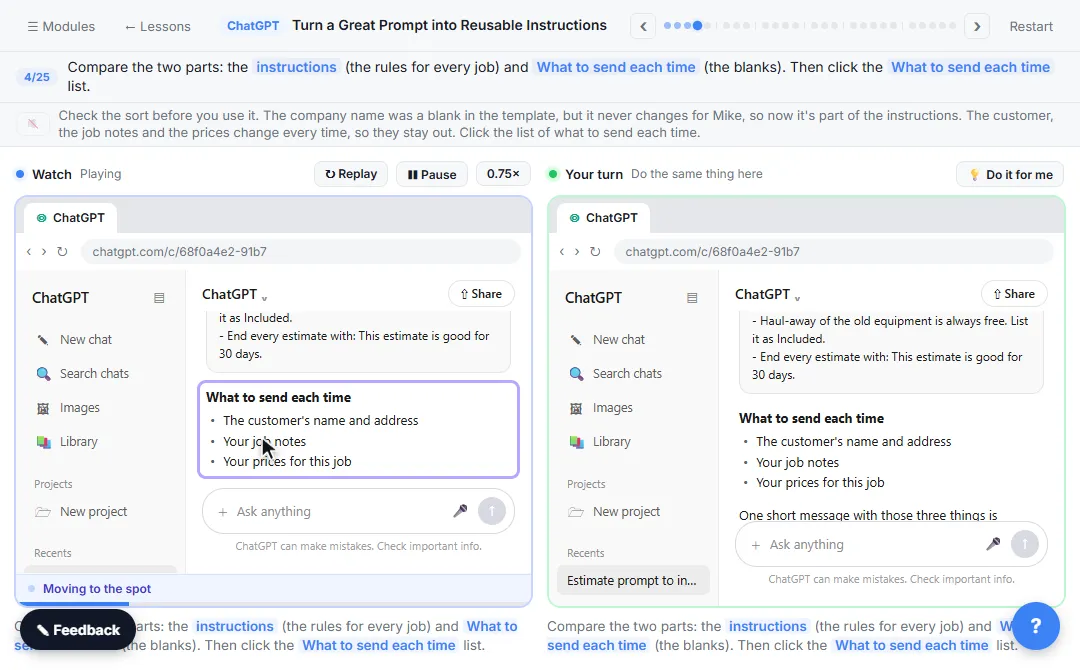
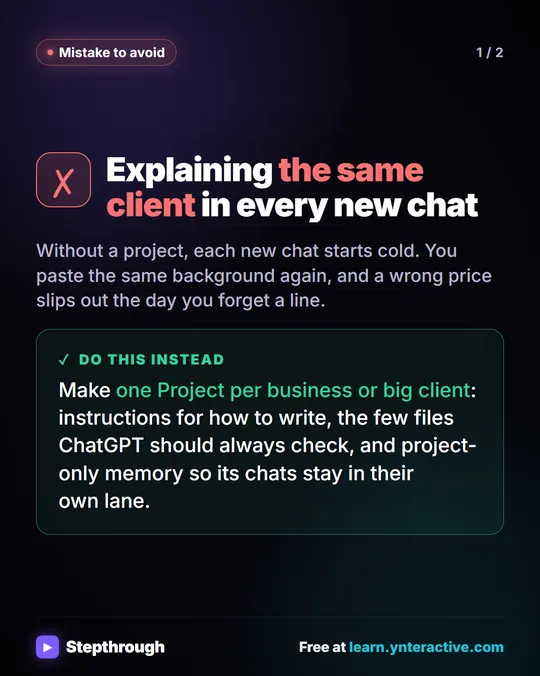
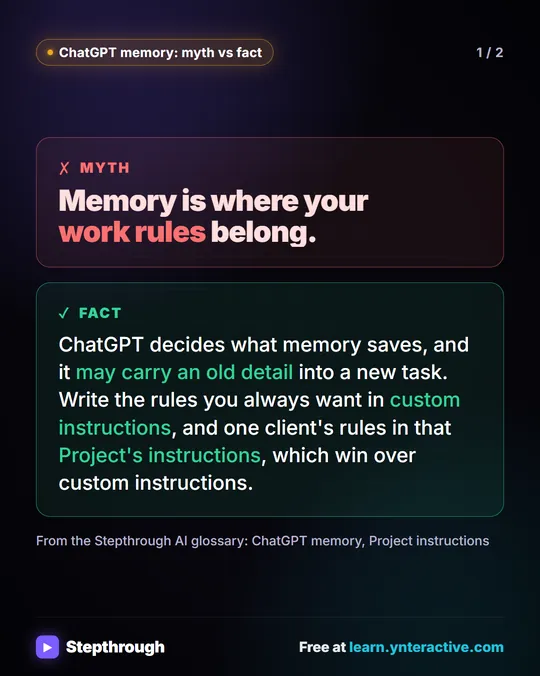
Shared projects automatically use project-only memory and can't be switched back. They don't have access to an individual member's memories, custom instructions or context from outside the project. That keeps your personal details out, but it also means the project's own instructions matter. Learn how to write them in Turn a Great Prompt into Reusable Instructions, and compare the settings in ChatGPT memory vs custom instructions.
Which should I use?
- A recap for your boss: a shared chat link.
- A teammate who will keep adding to the work: a shared project, with chat access unless they need to edit.
- A client: neither, unless you have checked what is in the files, chats and instructions. Remove anything private first.
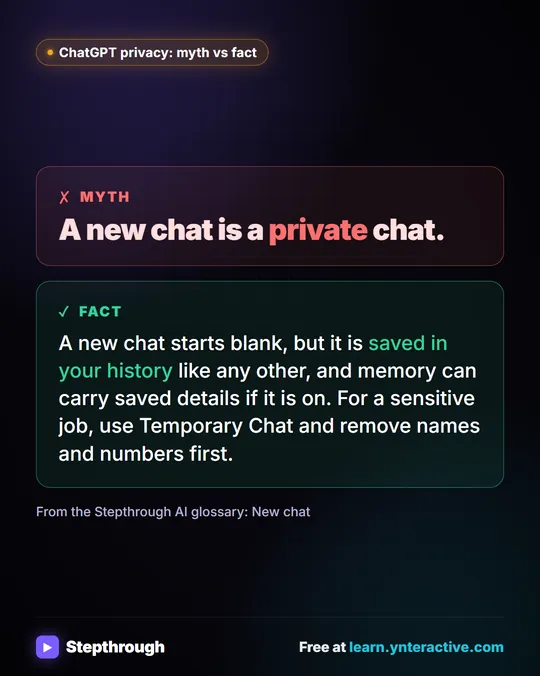
Before sharing anything, read what the chat or project contains and leave out what the task doesn't need: card numbers, account numbers and health details. The ChatGPT Data Controls lesson covers the privacy settings.
Try it free, step by step
How to Create a Project in ChatGPT for Your Brand Voice and Files. Set up a ChatGPT Project with your brand voice instructions, your price list and your style guide, so every new chat already knows your business. You do every step yourself in a practice copy of ChatGPT, it checks your work as you go, and “Do it for me” finishes any step you get stuck on. Free, and nothing touches your real accounts.
Start the free lessonKey takeaways
- A shared chat link shows one conversation only.
- A shared project shows chats, files and members, and lets people add chats.
- "Anyone with a link" lets any logged-in ChatGPT user join, so prefer invite-only.
- Shared projects use project-only memory and ignore members' personal memories.
- Check the contents before you share either one.
Frequently asked questions
- Can someone see my other chats if I share one chat link?
No. OpenAI says a shared conversation link gives recipients that conversation only, not the rest of the project or your history.
- Can people edit a shared ChatGPT project?
Only if you give them edit access. Chat access lets members use the project's chats, files and instructions without inviting others. Edit access lets them update instructions and files.
- Does a shared project use my personal memory?
No. OpenAI says shared projects use project-only memory and can't access an individual member's memories or custom instructions from outside the project.
- Can a Free account share a project?
OpenAI lists project sharing on Free, Go, Plus, Pro, Business, Enterprise and Edu, with limits that depend on your plan.
- What is a ChatGPT share link?
A web address for one conversation. You create it with Share in that chat, and the people you send it to can read that conversation, but not your other chats, files or projects.