Updated . Built against the tool’s current screens and checked step by step. How we check this lesson
A small team runs 5 customer interviews or sales calls, and nobody has time to listen to them again. Speak AI (speakai.co) transcribes each recording, labels the speakers, pulls out keywords and tone, and answers questions about it in AI Chat. In this free business-case lesson you use a practice copy built from real Speak AI screenshots, captured 18 October 2026 in my trial account with a made-up 3-minute interview you can download: upload it, read the transcript, scan the keywords, people and sentiment, ask AI Chat for a summary with quotes and fixes, and export the transcript to Word. Results differ per recording. This is my own lesson, not an official Speak AI course.
At a glance
| Question | Answer |
|---|---|
| What you build | A business case for any small team that runs customer interviews or sales calls: upload the recording to Speak AI, read the transcript, keywords and tone, ask AI Chat for a summary with quotes and fixes, and export it to Word. |
| Tools | Speak AI |
| Time | About 10 minutes, 32 steps in 7 parts |
| Level | Beginner, no coding needed |
| Cost | Free |
| Ways to learn it | Practice it step by step, read the guide with screenshots |
The 7 parts, in short
- Five interviews, no time to re-listen: Five interviews, nobody has time, Compare the time, Meet Speak AI.
- Upload the recording: Check your trial, Click Upload, Drop in the recording, Read the cost, and 3 more steps.
- Read the transcript: See that it is done, Find the speakers, Read a key answer, Open Insights.
- Keywords, people and tone: Read the quick facts, Open Keywords, Scan the keywords, Check people and brands, and 3 more steps.
- Ask AI Chat about it: Open AI Chat, Ask for a summary, quotes and fixes, Read the summary, Read the problems, quotes and fixes.
- Export the transcript: Click Export, Choose Word, Check the options, Click Export.
- Check it, then share it: Check one quote, What this gives you, Check the pricing.
Start here first: Speak AI for Beginners: Transcripts, Themes and AI Chat Explained (module 1 of AI Automation for Operations)
Part of: AI Apps Worth Knowing (step 58 of 186). Next up: Speak AI for Beginners: Transcripts, Themes and AI Chat Explained
Part of: AI for Meetings (step 10 of 20). Next up: Speak AI for Beginners: Transcripts, Themes and AI Chat Explained
Part of: Turn Talk Into Work: Voice and Meetings AI (step 4 of 9)
Speak AI: Turn Customer Interviews into Themes and Quotes: step-by-step guide with screenshots
About the screenshots. They come from Stepthrough’s simulated practice environment (a practice copy of Speak AI), not the live tool, so no real account appears. The buttons and labels match the real screens the lesson was built against. Practice it yourself free at ynteractive.com.
- Tools: Speak AI
- Time: about 10 minutes, 32 steps in 7 parts
- Level: beginner, no coding needed
Part 1: Five interviews, no time to re-listen
Step 1: Five interviews, nobody has time
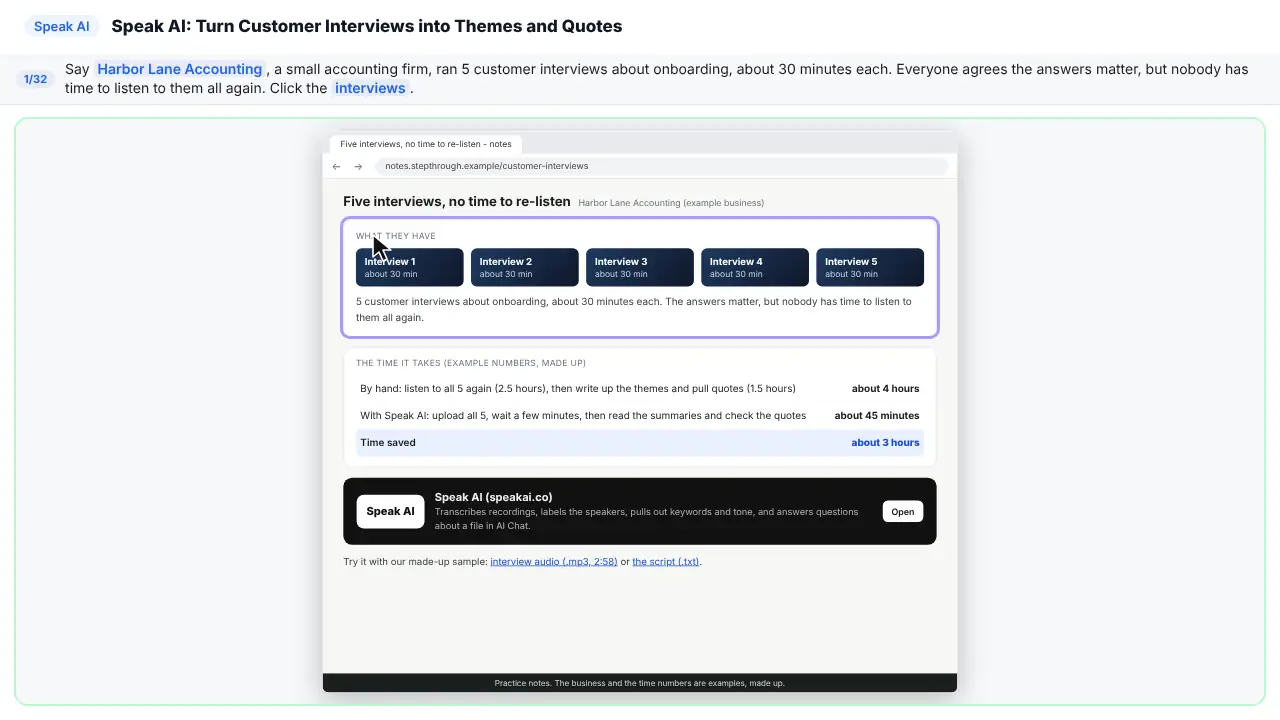
A small accounting firm ran five customer interviews. Nobody has time to listen to them all again.
Step 2: Compare the time
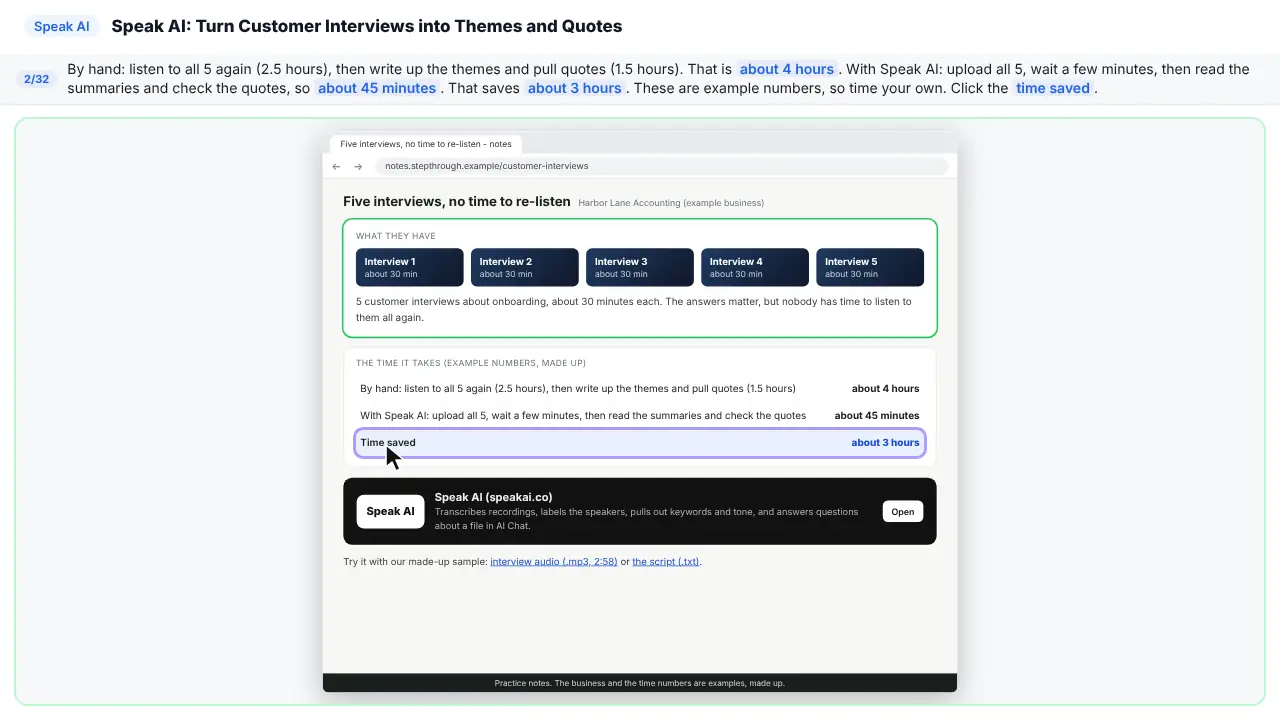
By hand, that is about four hours. With Speak AI, about forty five minutes. Those are example numbers.
Step 3: Meet Speak AI
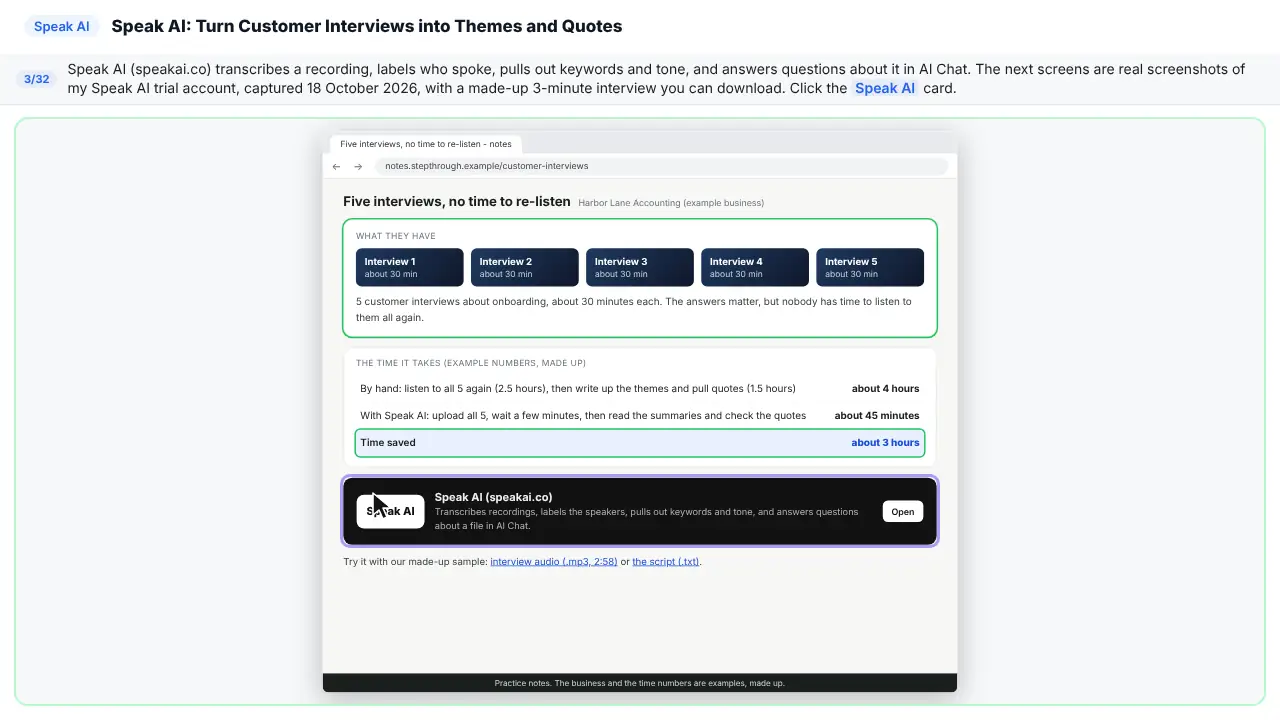
Speak AI turns a recording into a transcript, keywords and answers. Here are the real screens.
Part 2: Upload the recording
Step 4: Check your trial
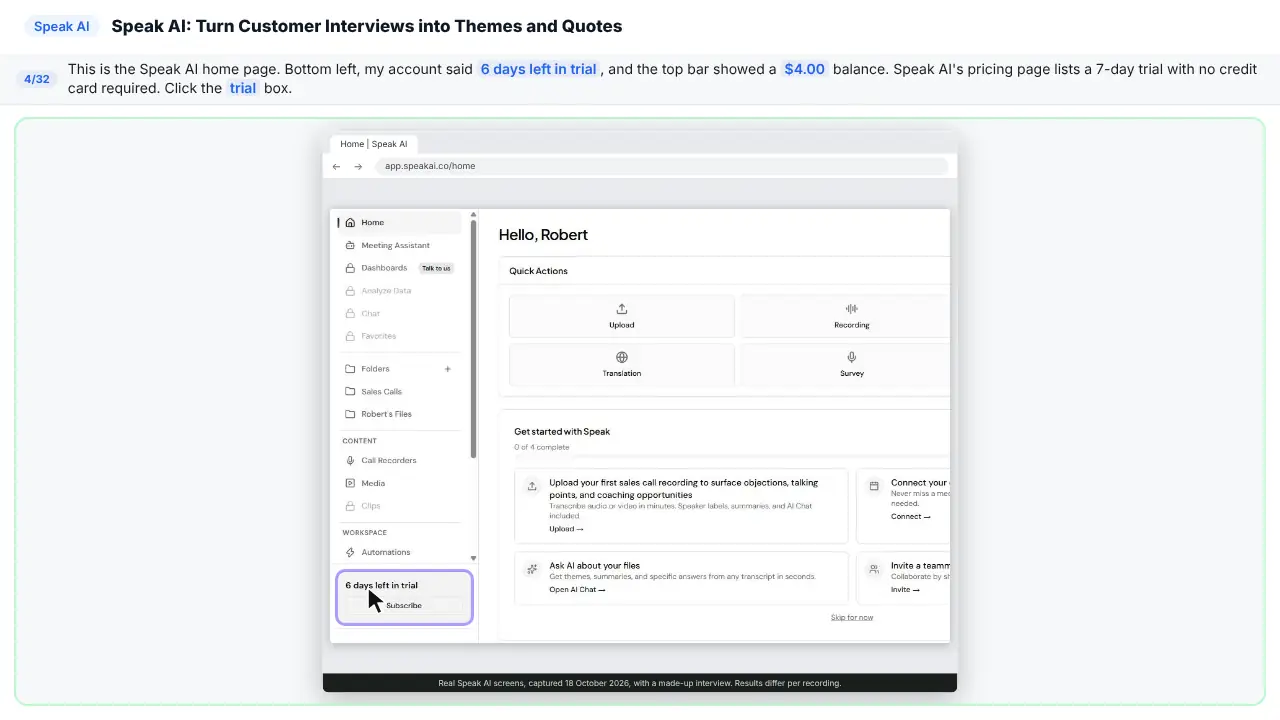
Bottom left, it shows how many days are left in your trial.
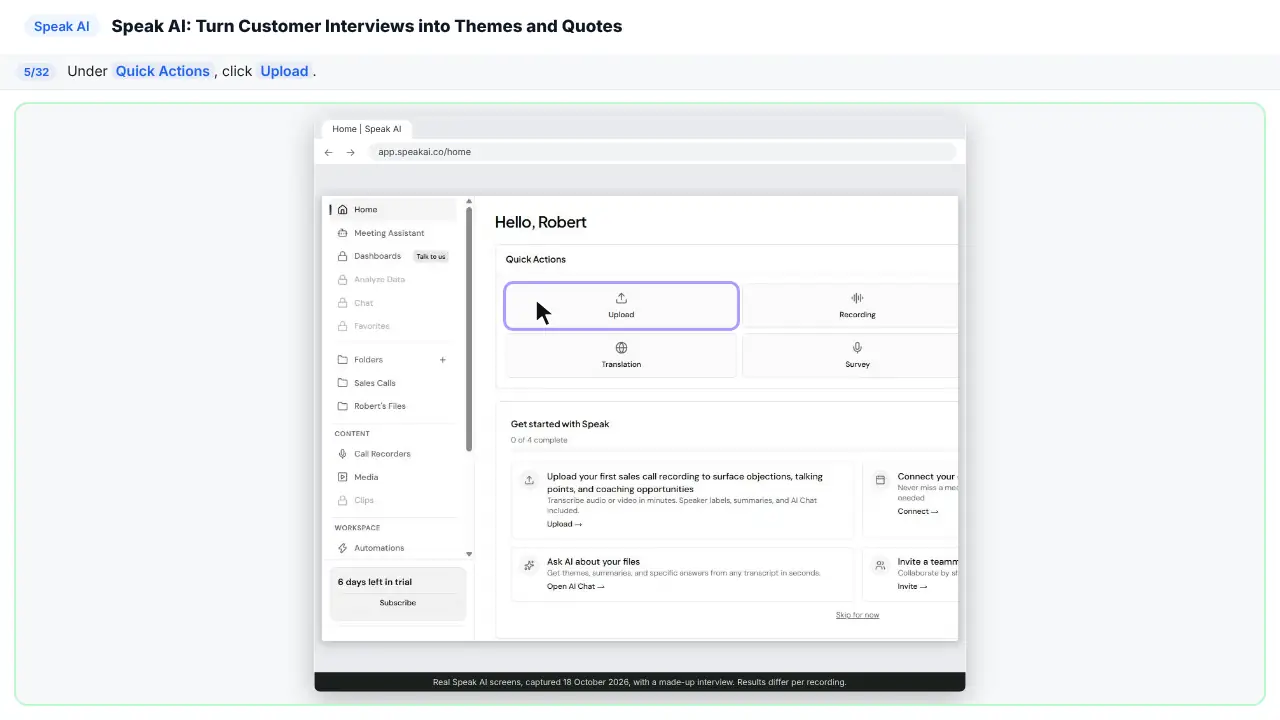
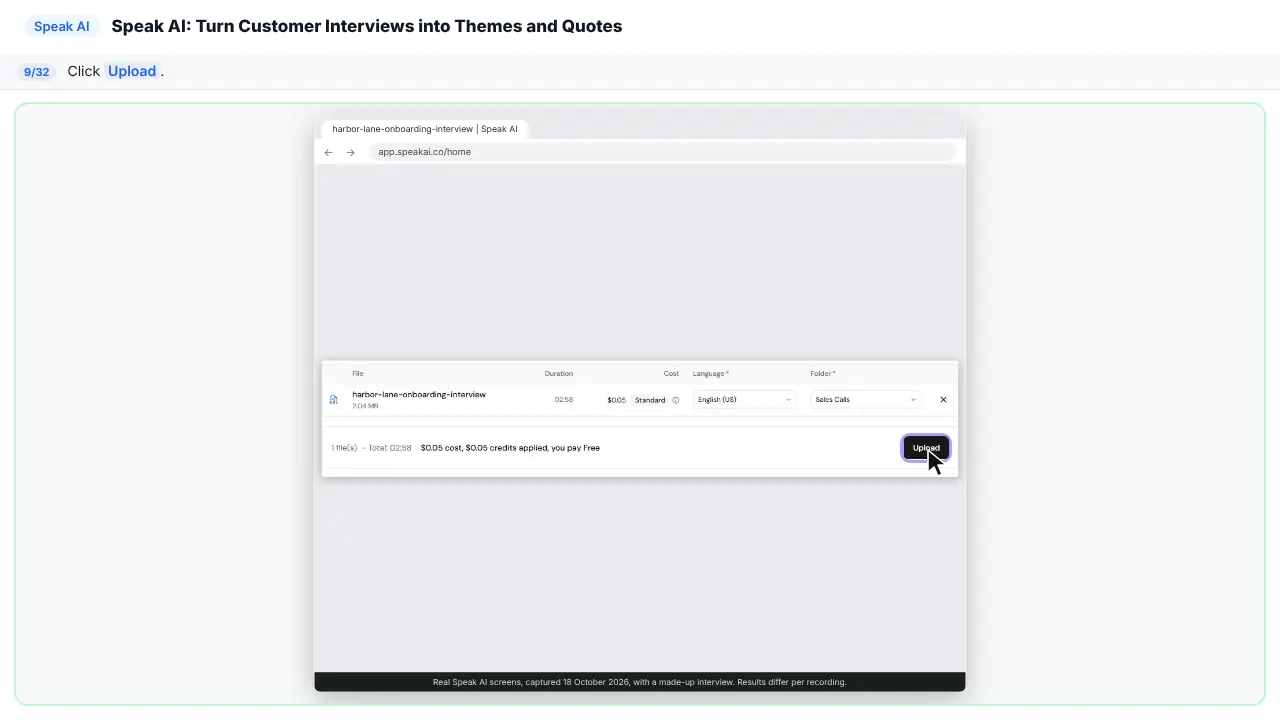
Step 5: Click Upload
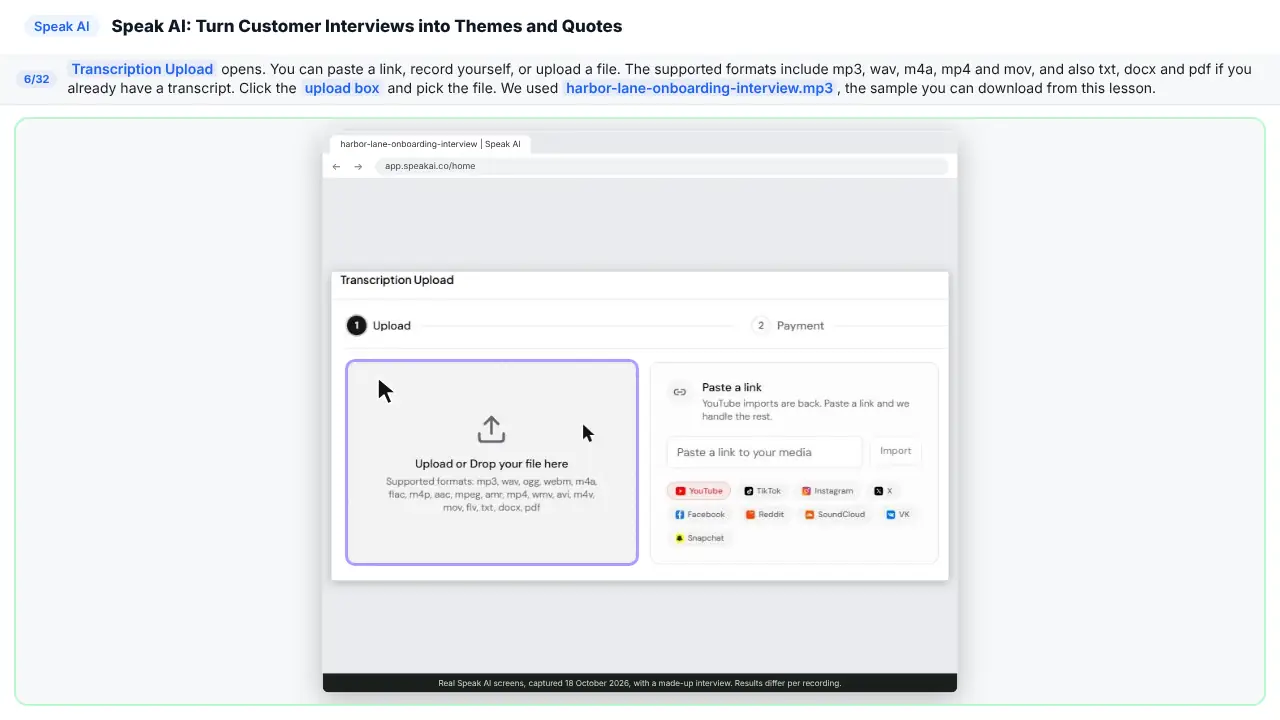
Step 6: Drop in the recording
We used the sample interview from this lesson.
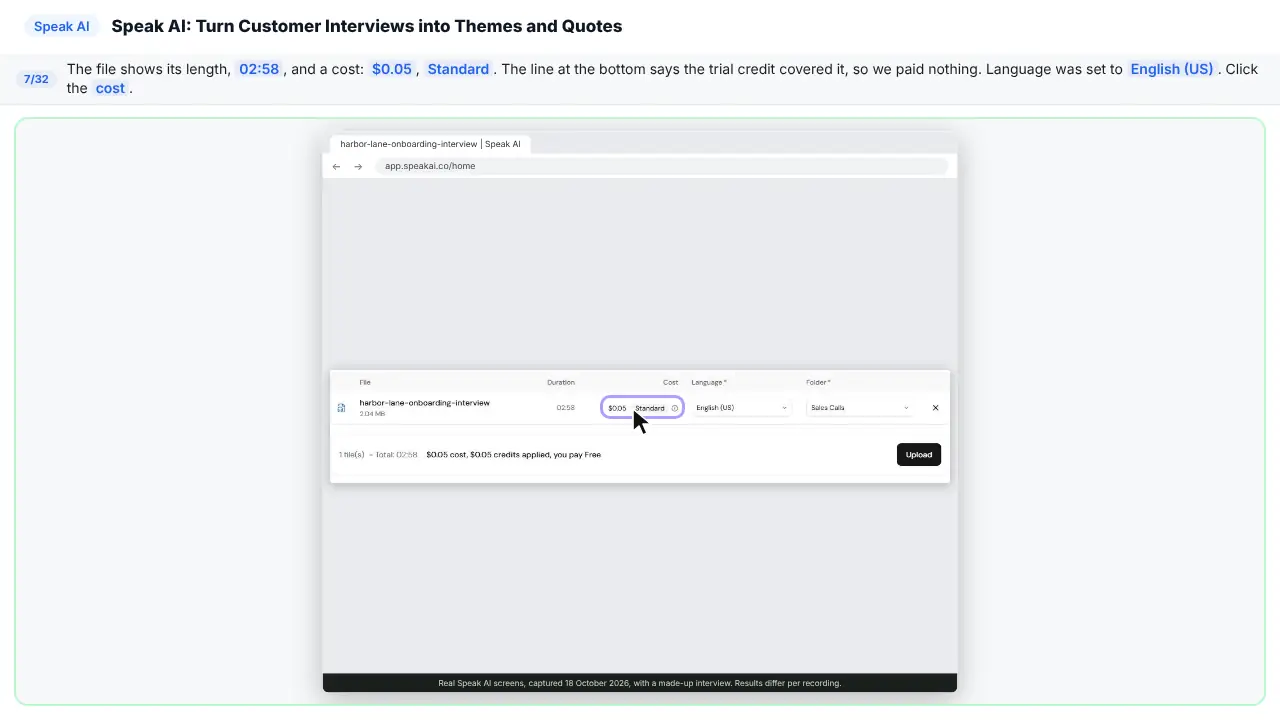
Step 7: Read the cost
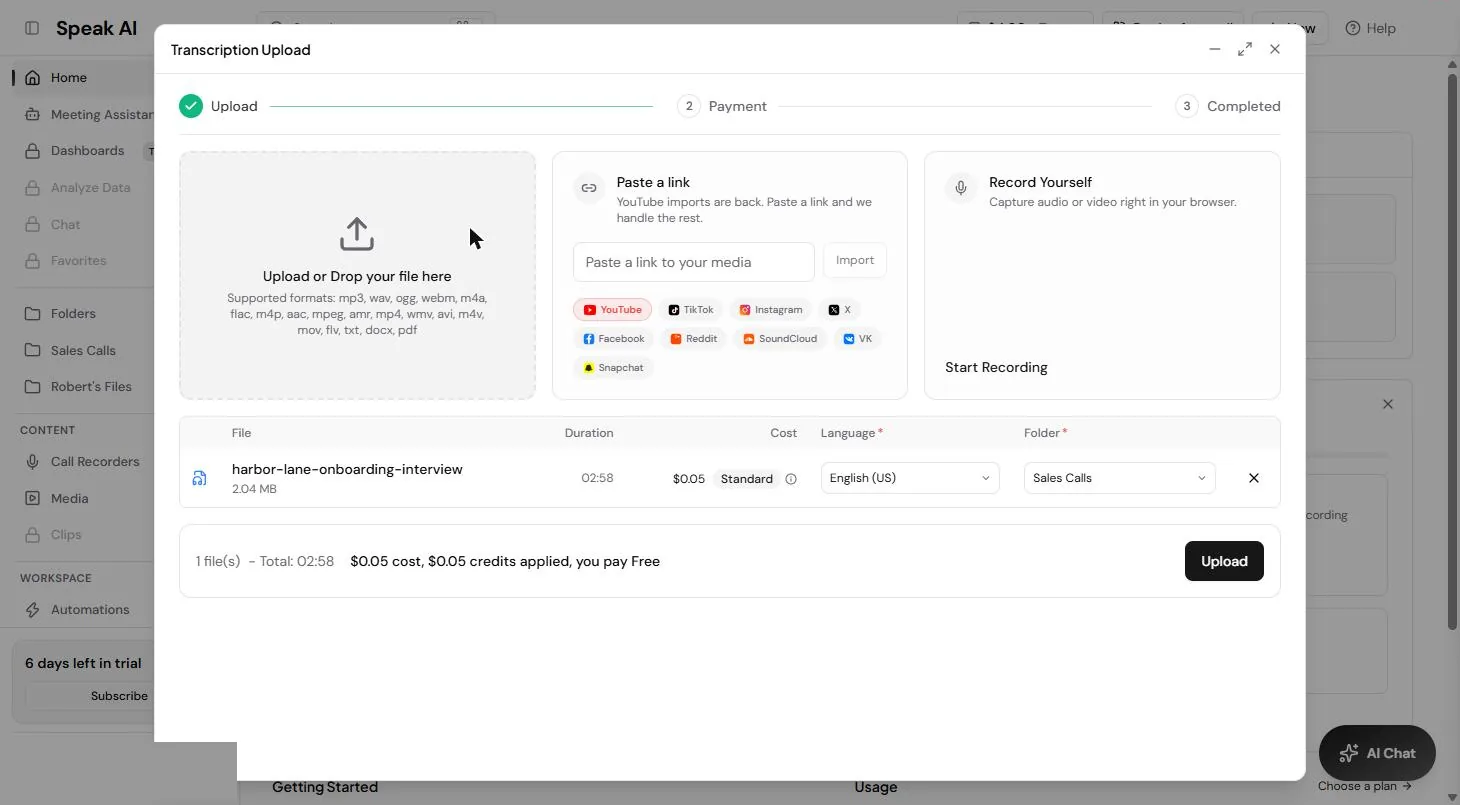
It shows the length and the cost. Ours was five cents, covered by the trial credit.
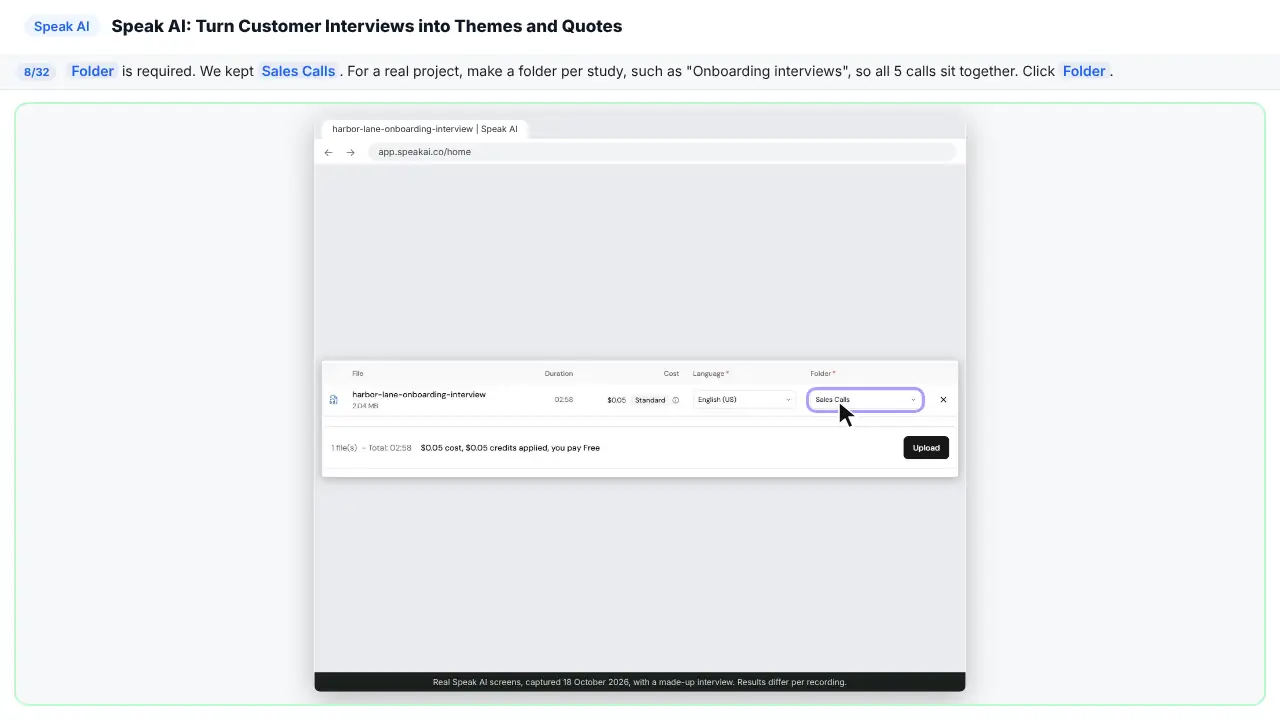
Step 8: Pick a folder
Pick a folder, so all five interviews sit together.
Step 9: Click Upload
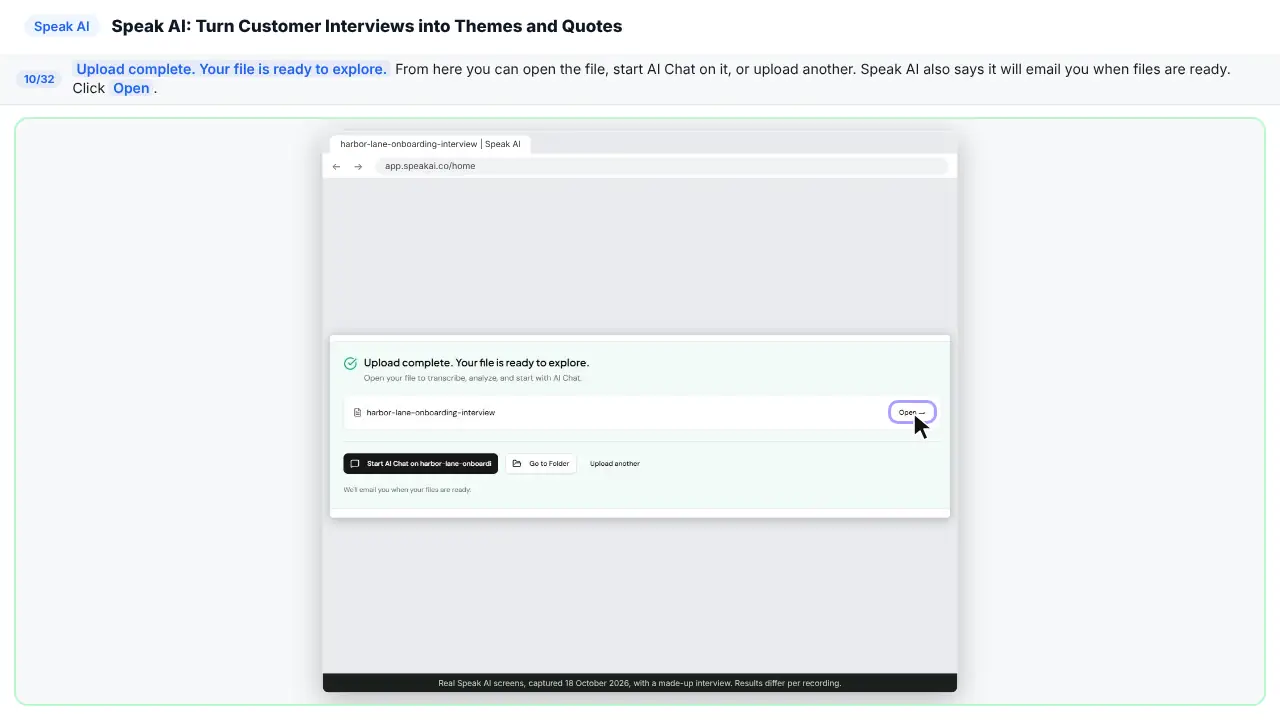
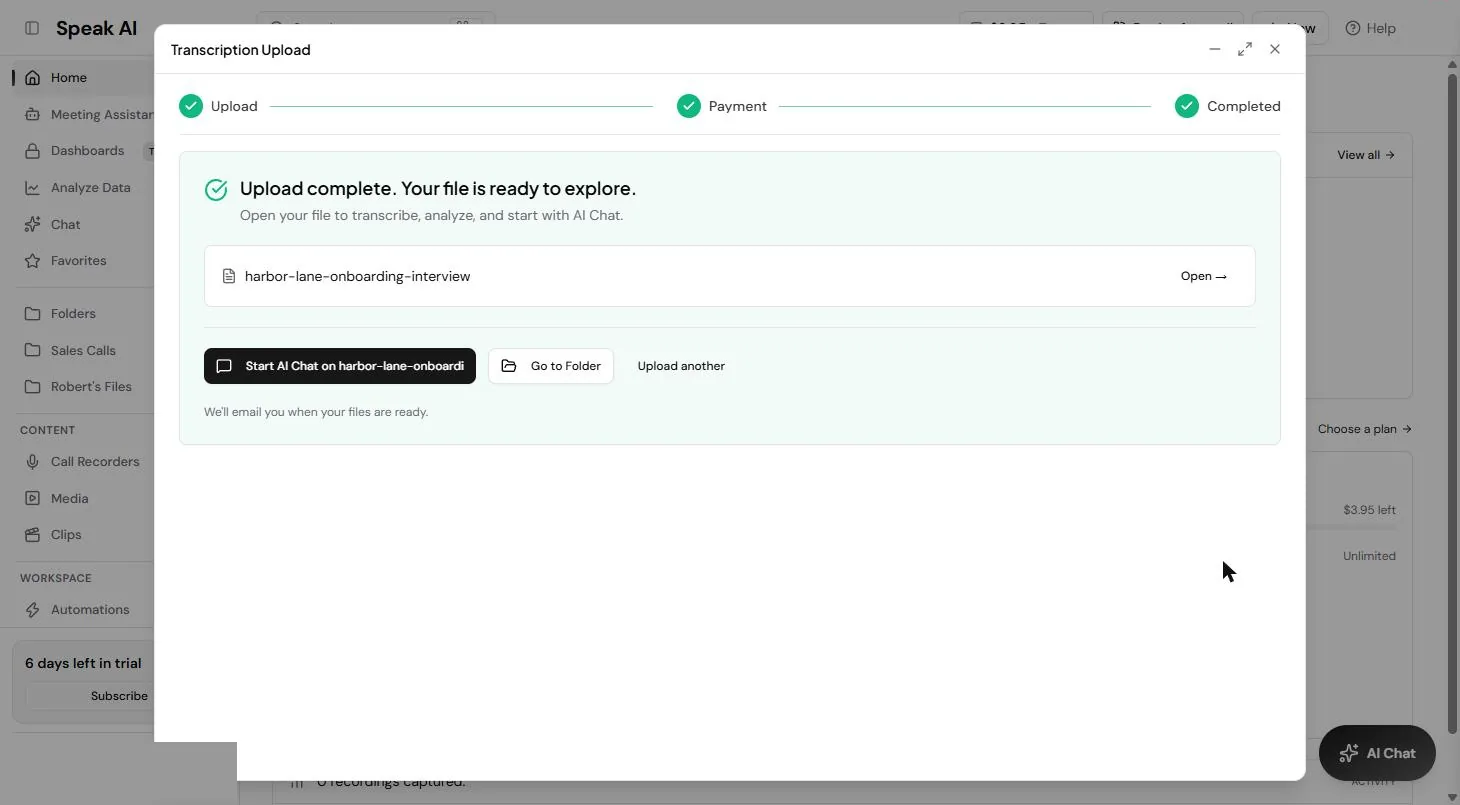
Step 10: Open the file
Upload complete.
Part 3: Read the transcript
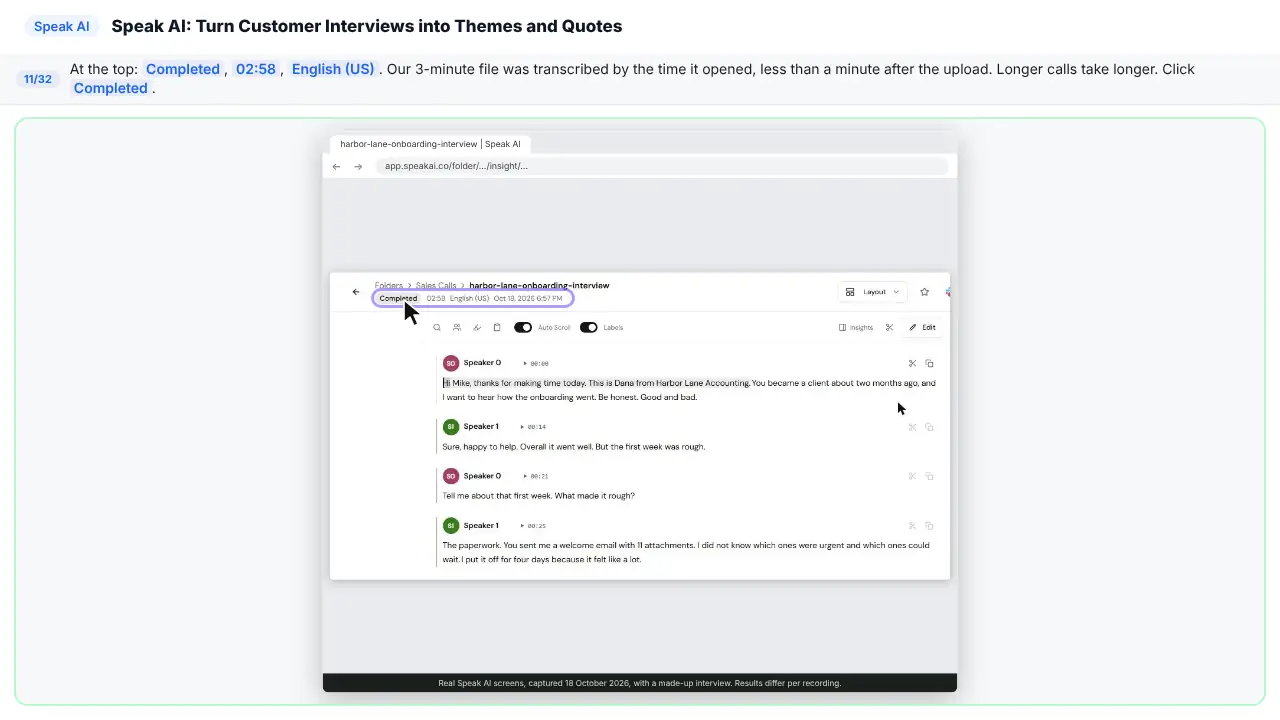
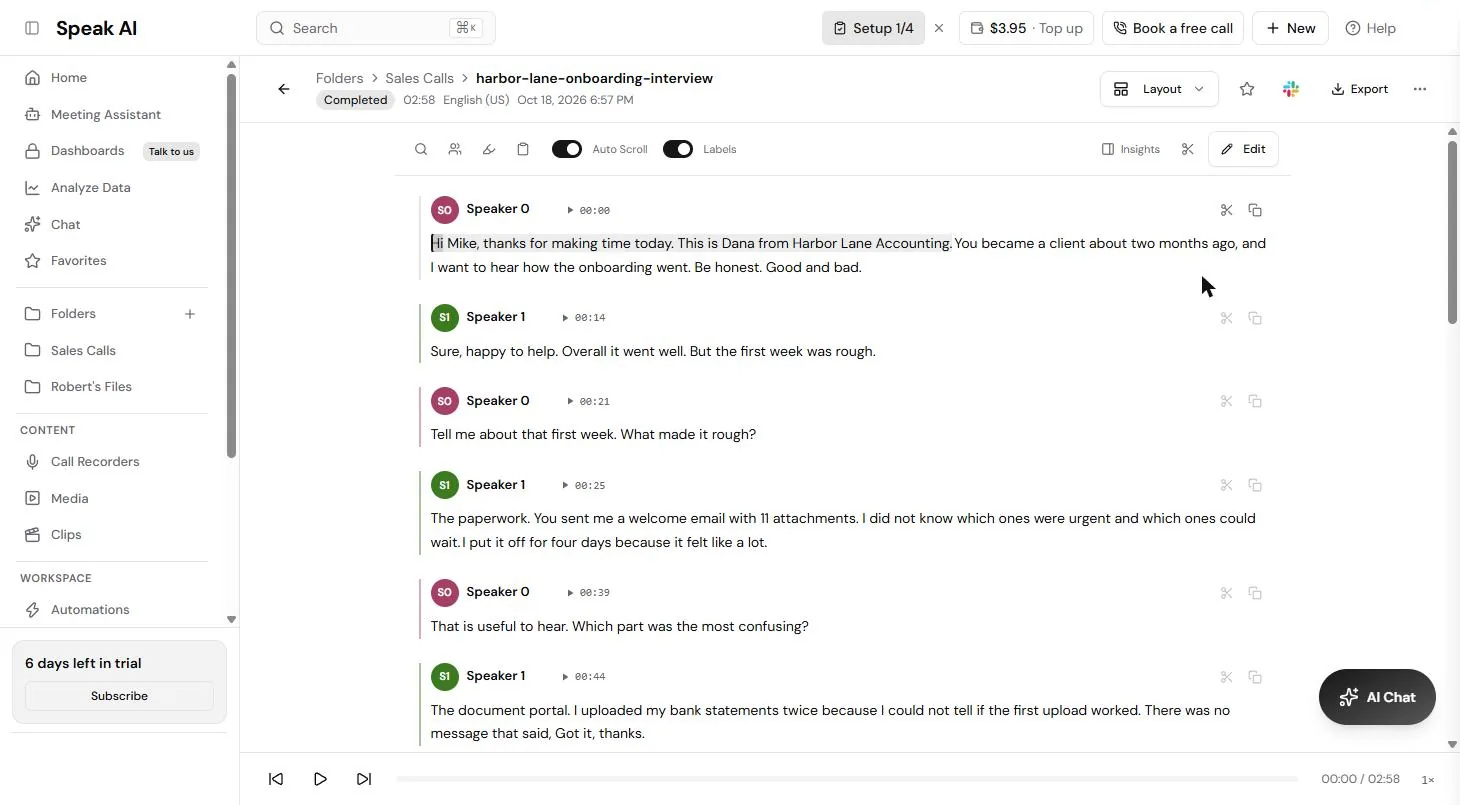
Step 11: See that it is done
It says Completed. Our three minute file was ready in under a minute.
Step 12: Find the speakers
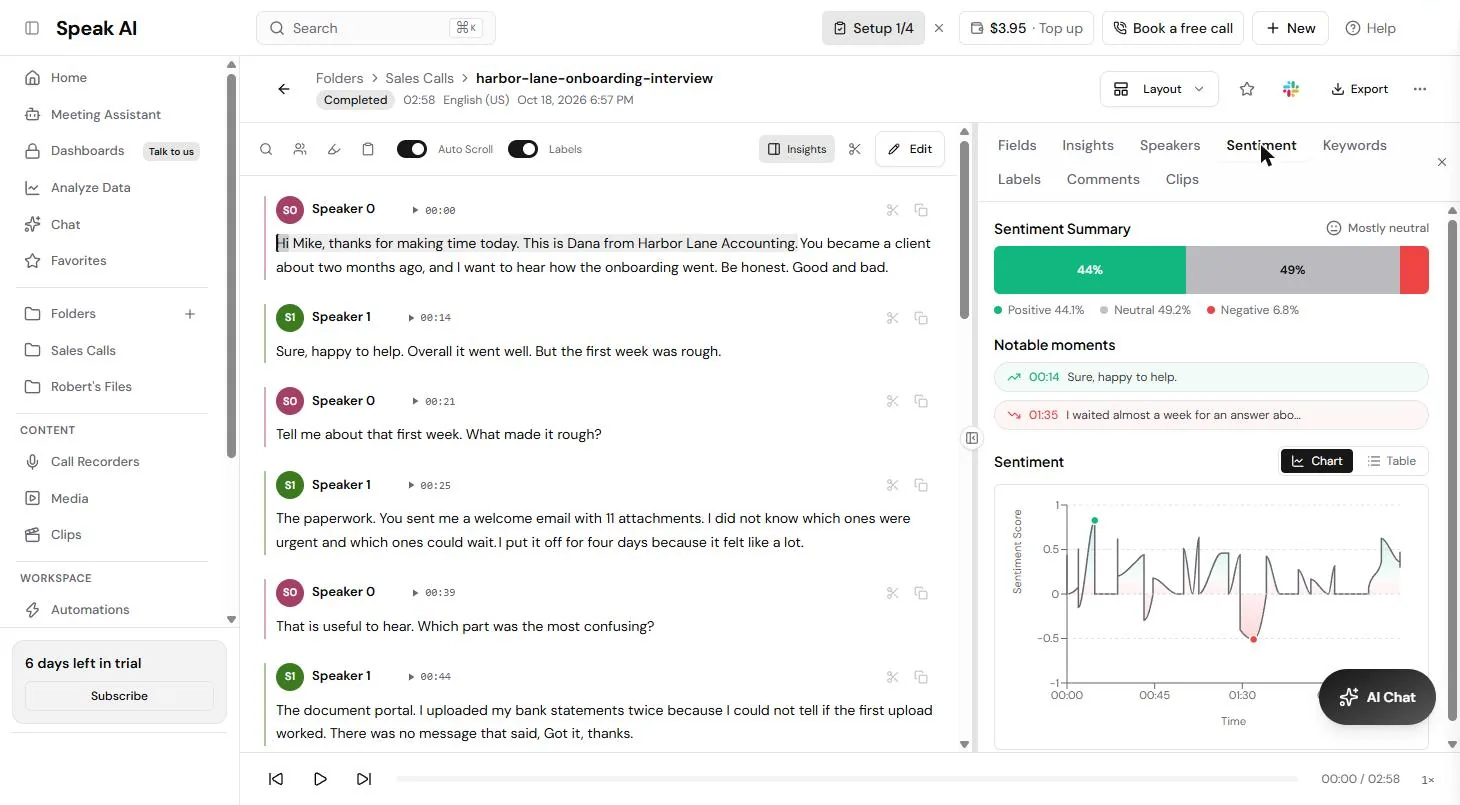
It split the call into Speaker zero and Speaker one, with a time on every turn.
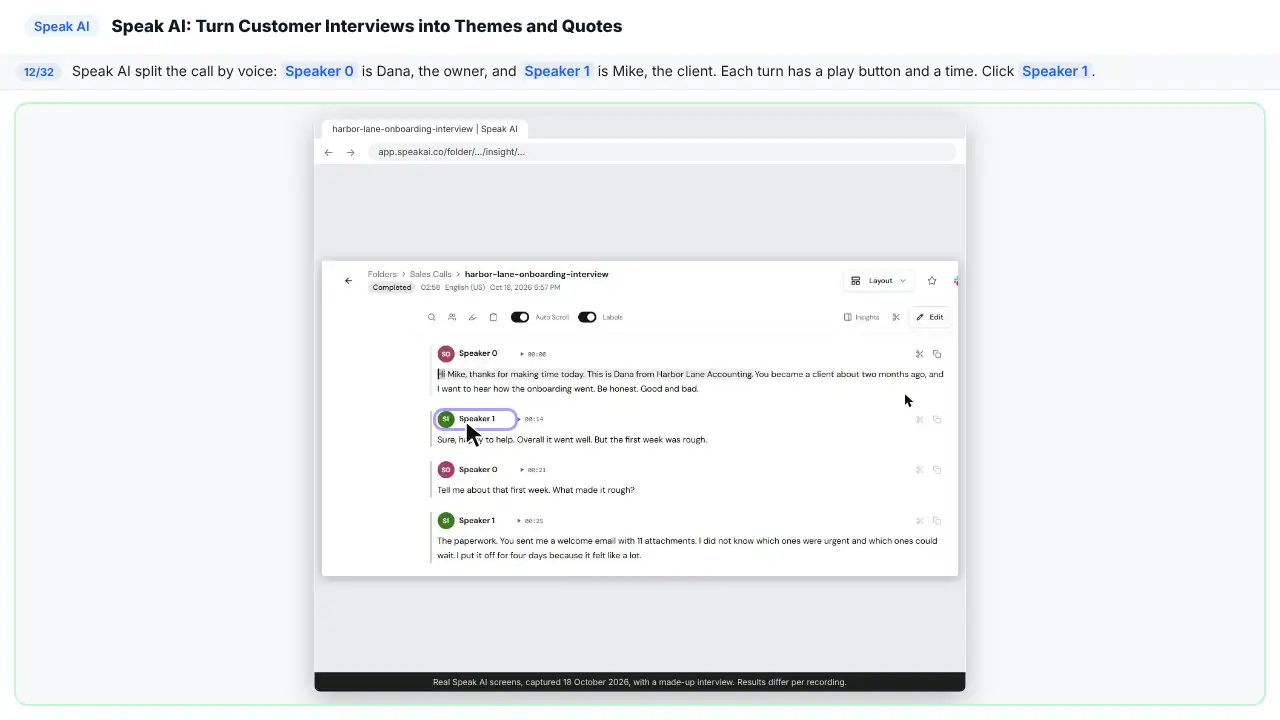
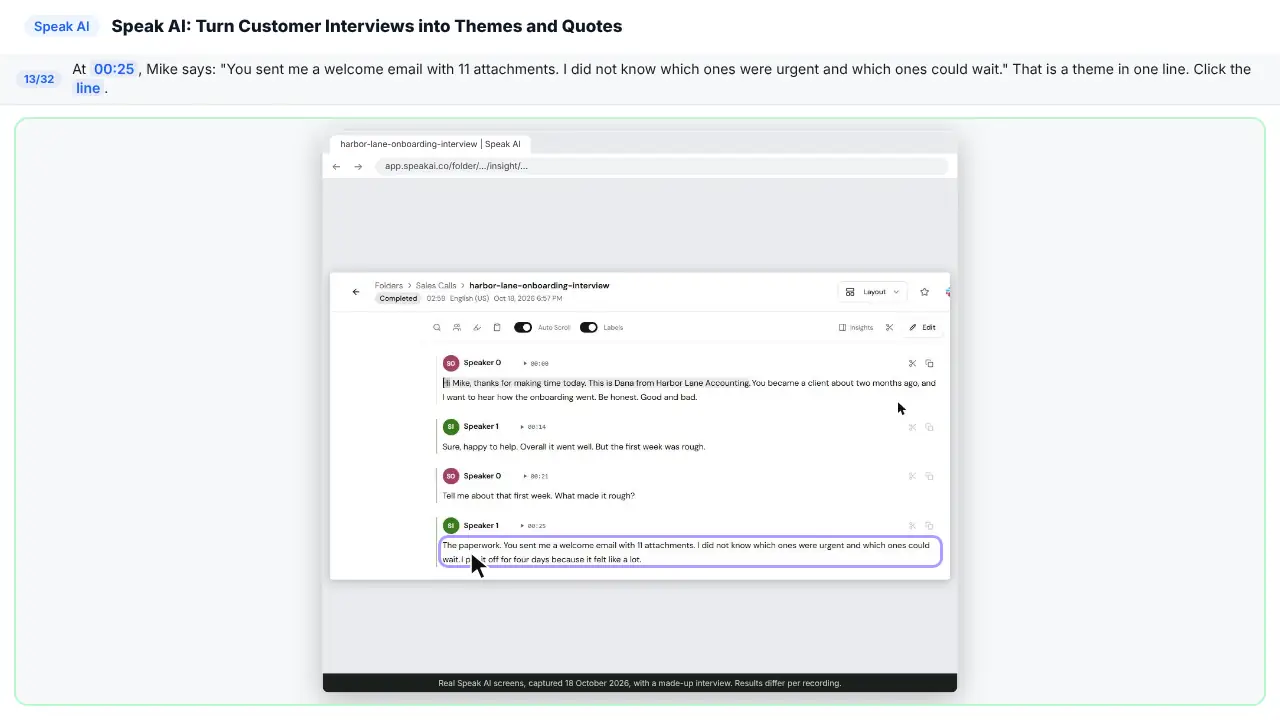
Step 13: Read a key answer
Here is a key answer. Eleven attachments, and he did not know which were urgent.
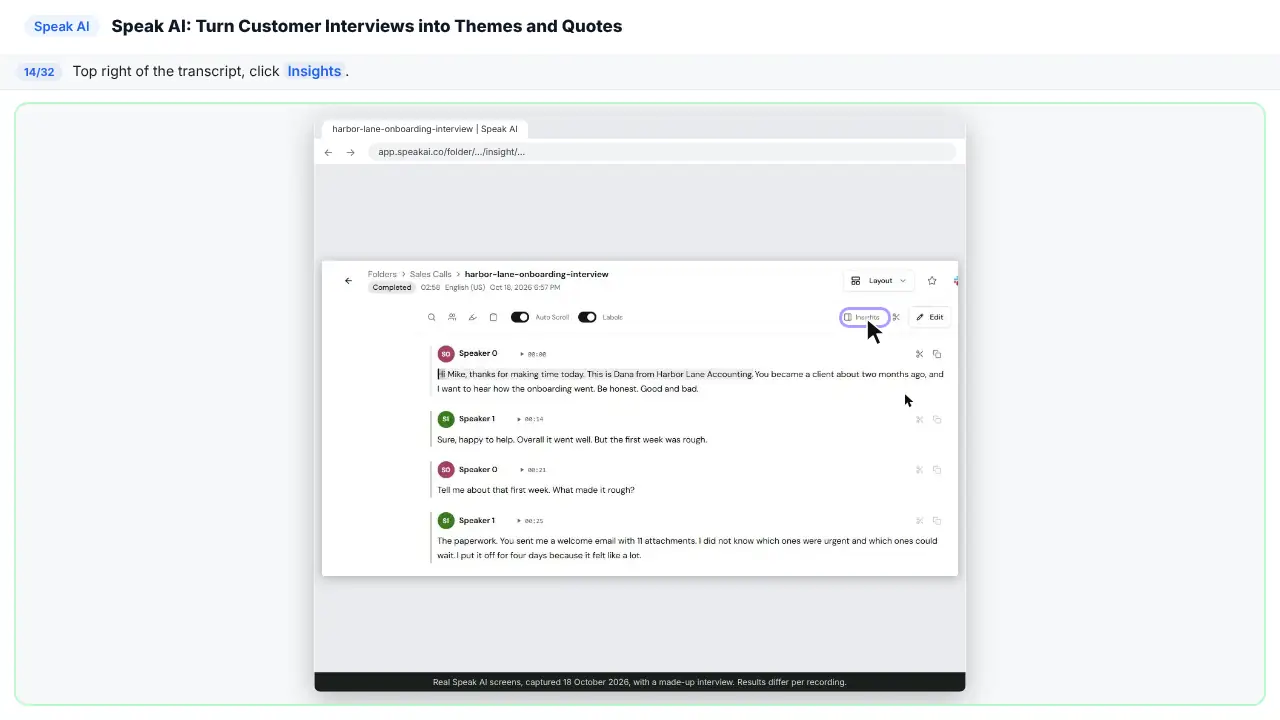
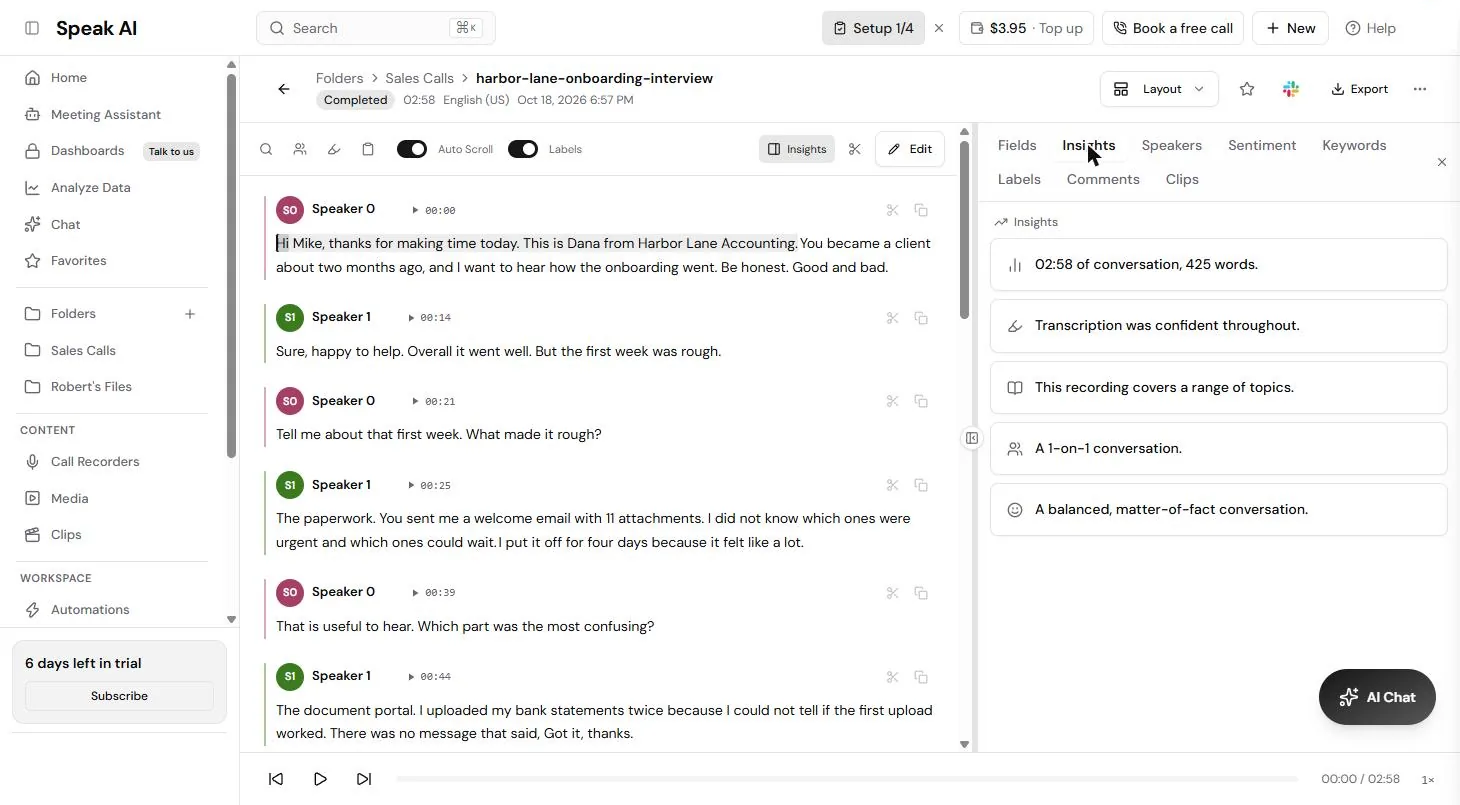
Step 14: Open Insights
Part 4: Keywords, people and tone
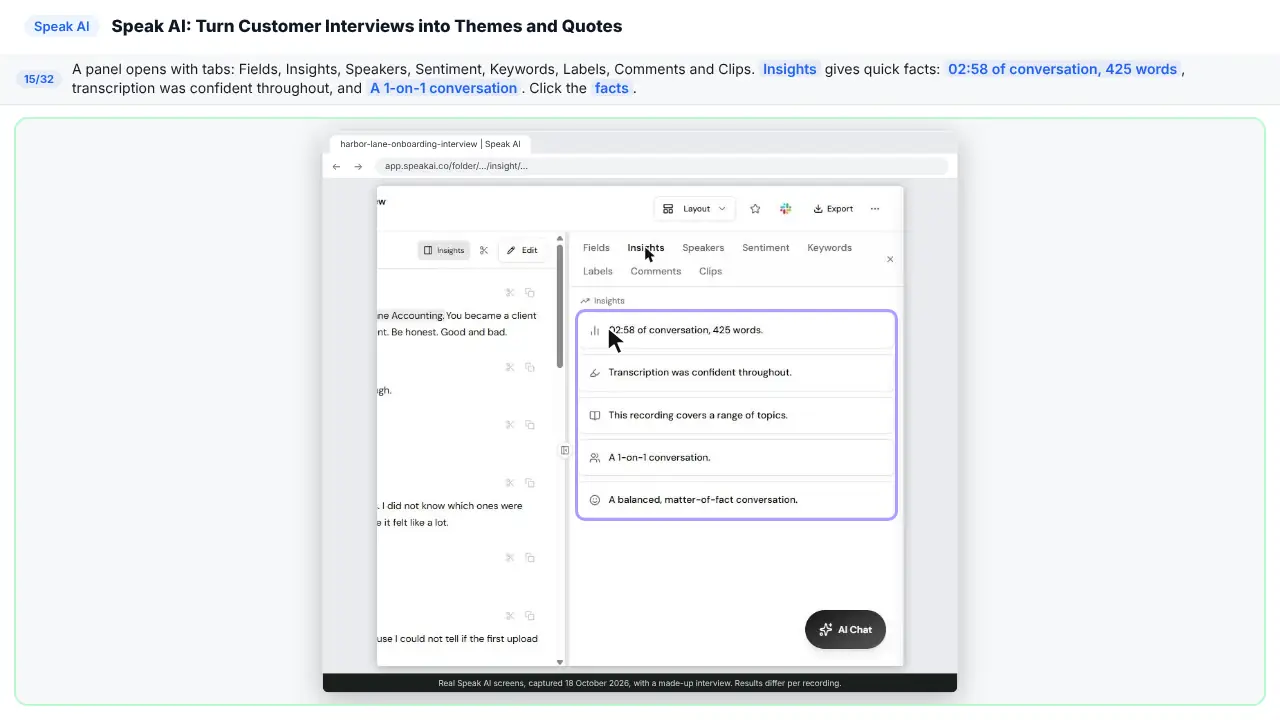
Step 15: Read the quick facts
Insights gives quick facts. Three minutes, four hundred twenty five words, a one on one conversation.
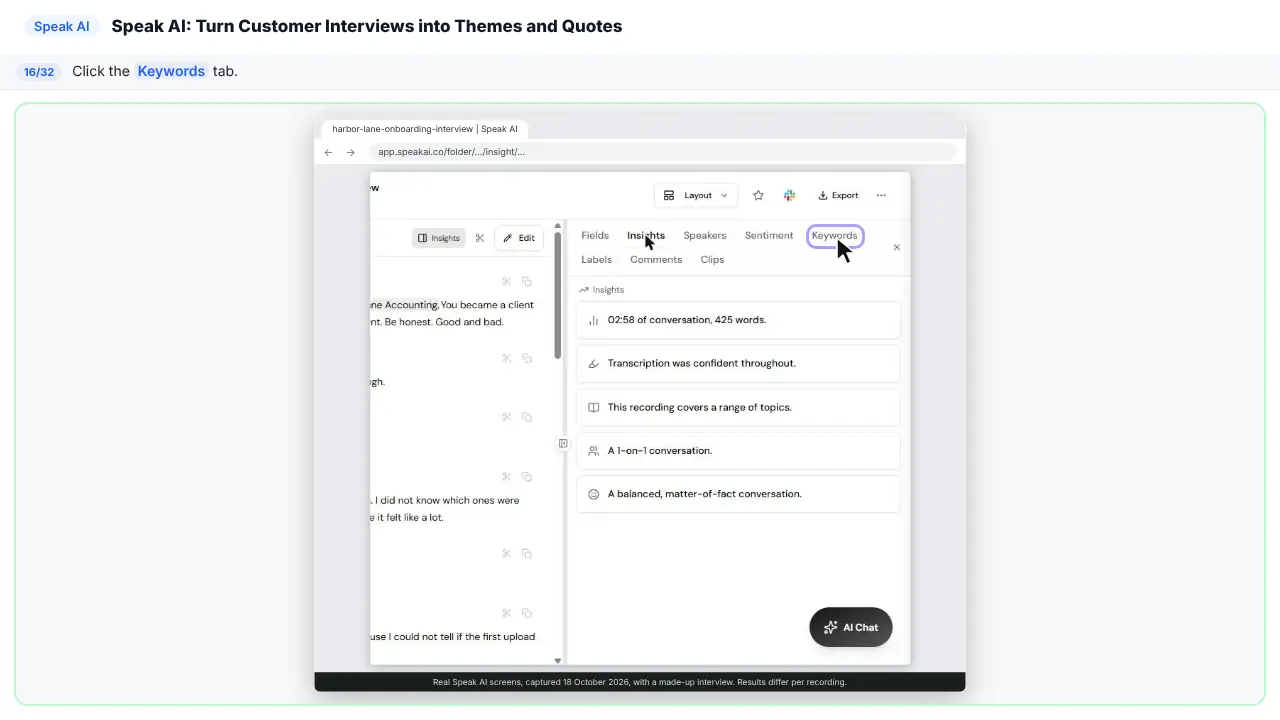
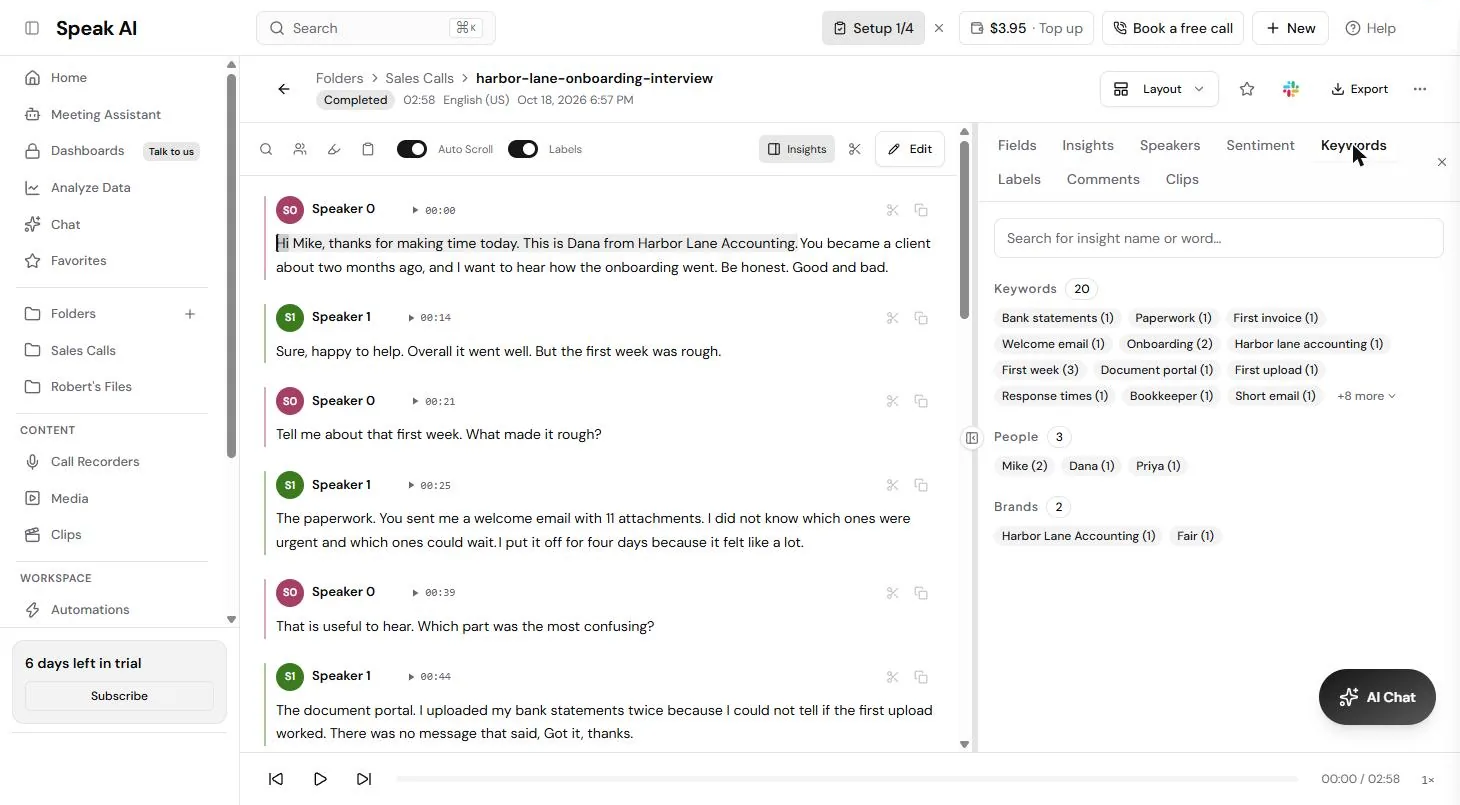
Step 16: Open Keywords
Step 17: Scan the keywords
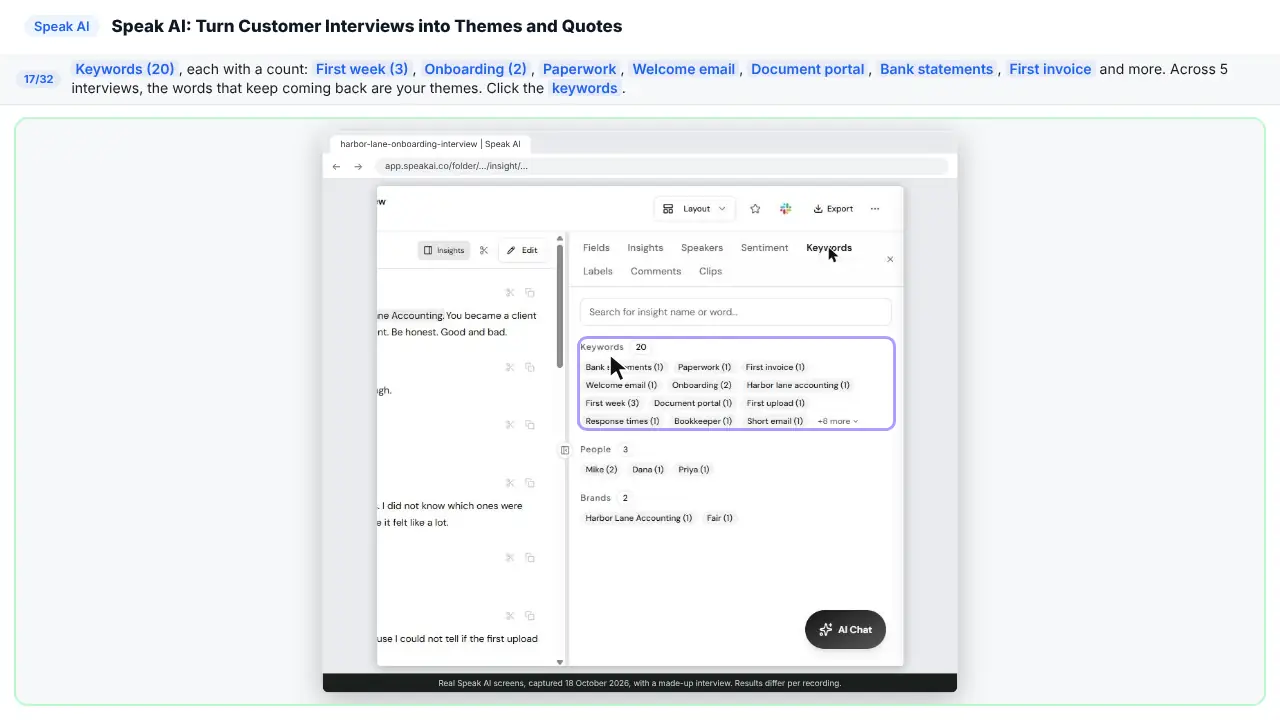
Keywords, with a count. First week came up three times. Across five calls, repeats are your themes.
Step 18: Check people and brands
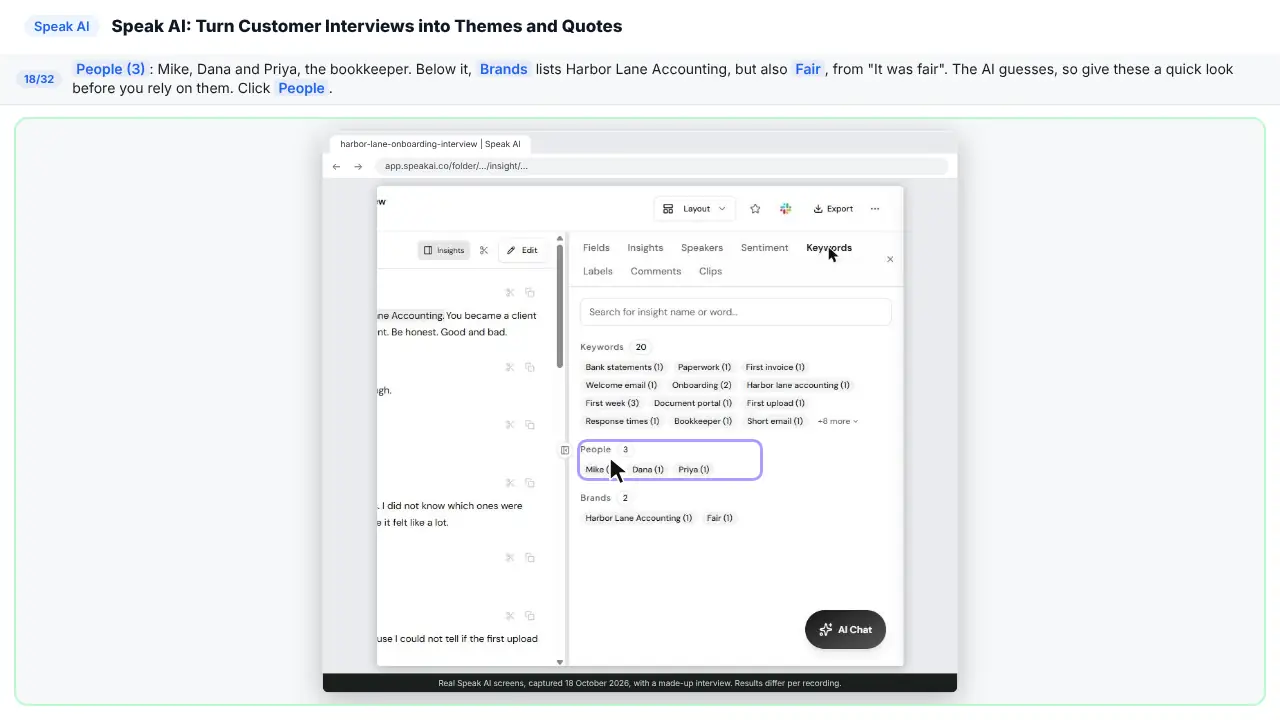
It found the people. It also tagged the word fair as a brand, so check what it finds.
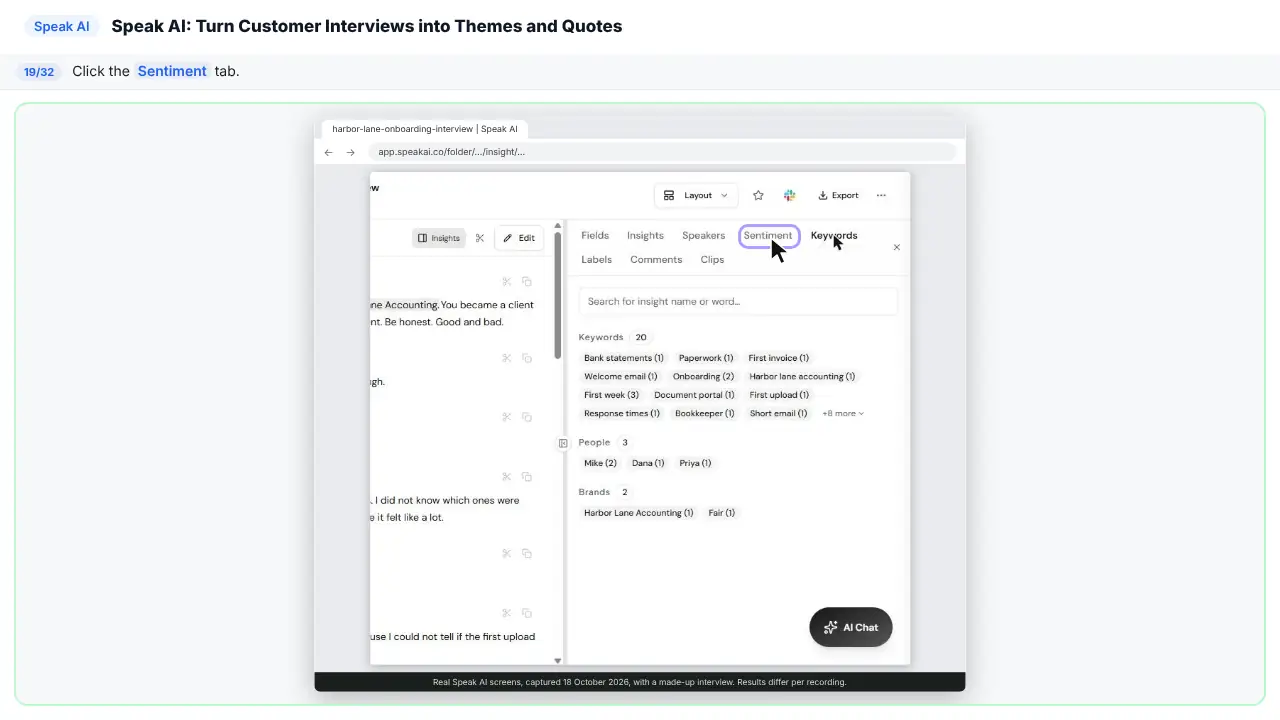
Step 19: Open Sentiment
Step 20: Read the tone
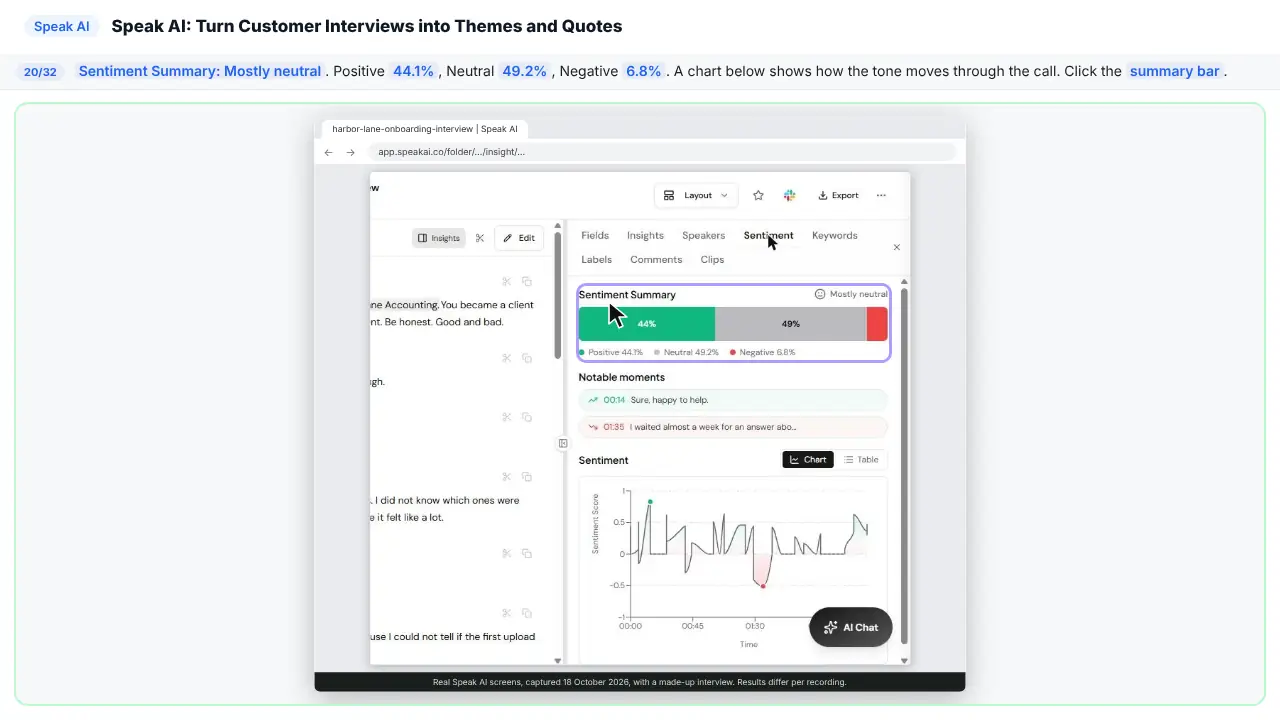
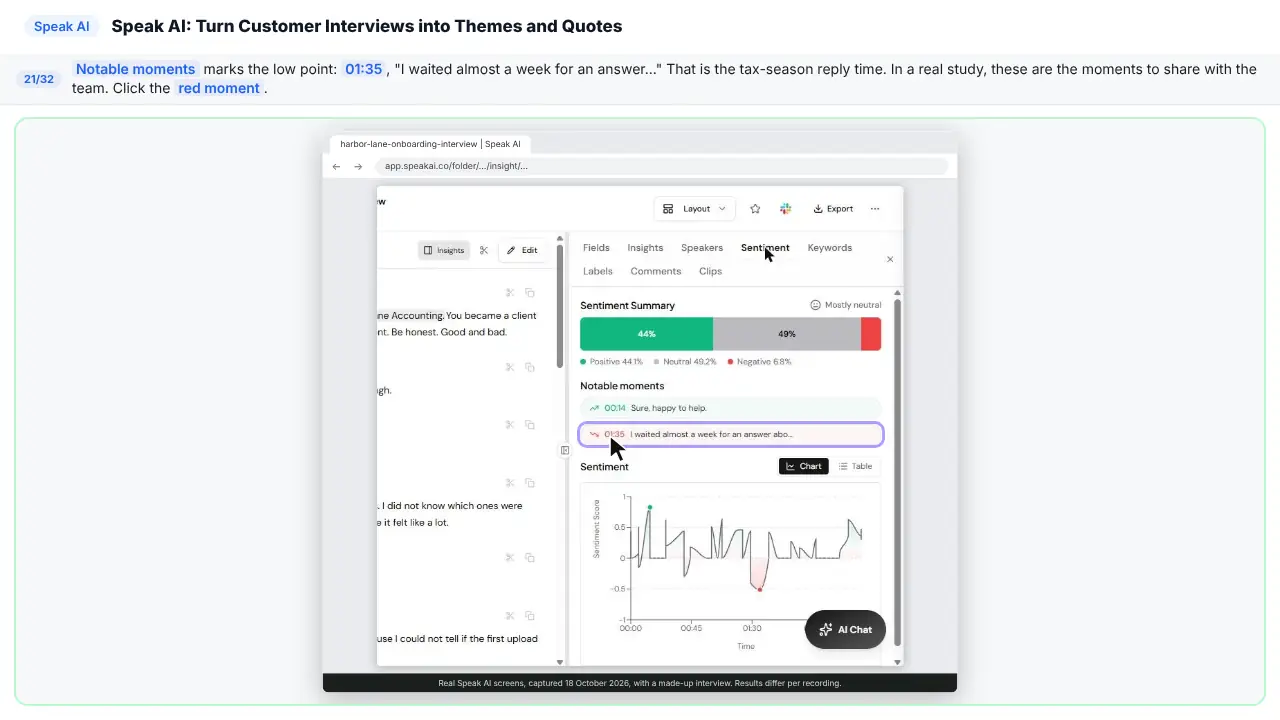
The tone was mostly neutral. Forty four percent positive, under seven percent negative.
Step 21: Jump to the low point
Notable moments shows the low point. A week waiting for an answer in tax season.
Part 5: Ask AI Chat about it
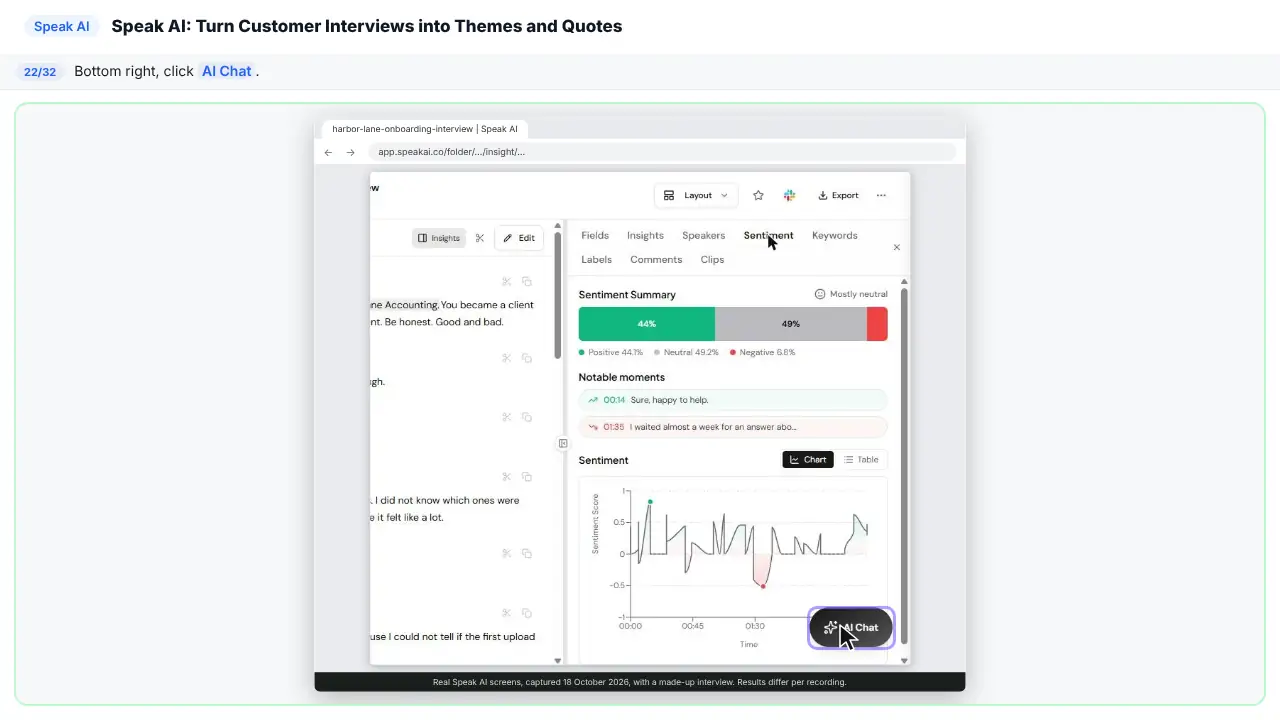
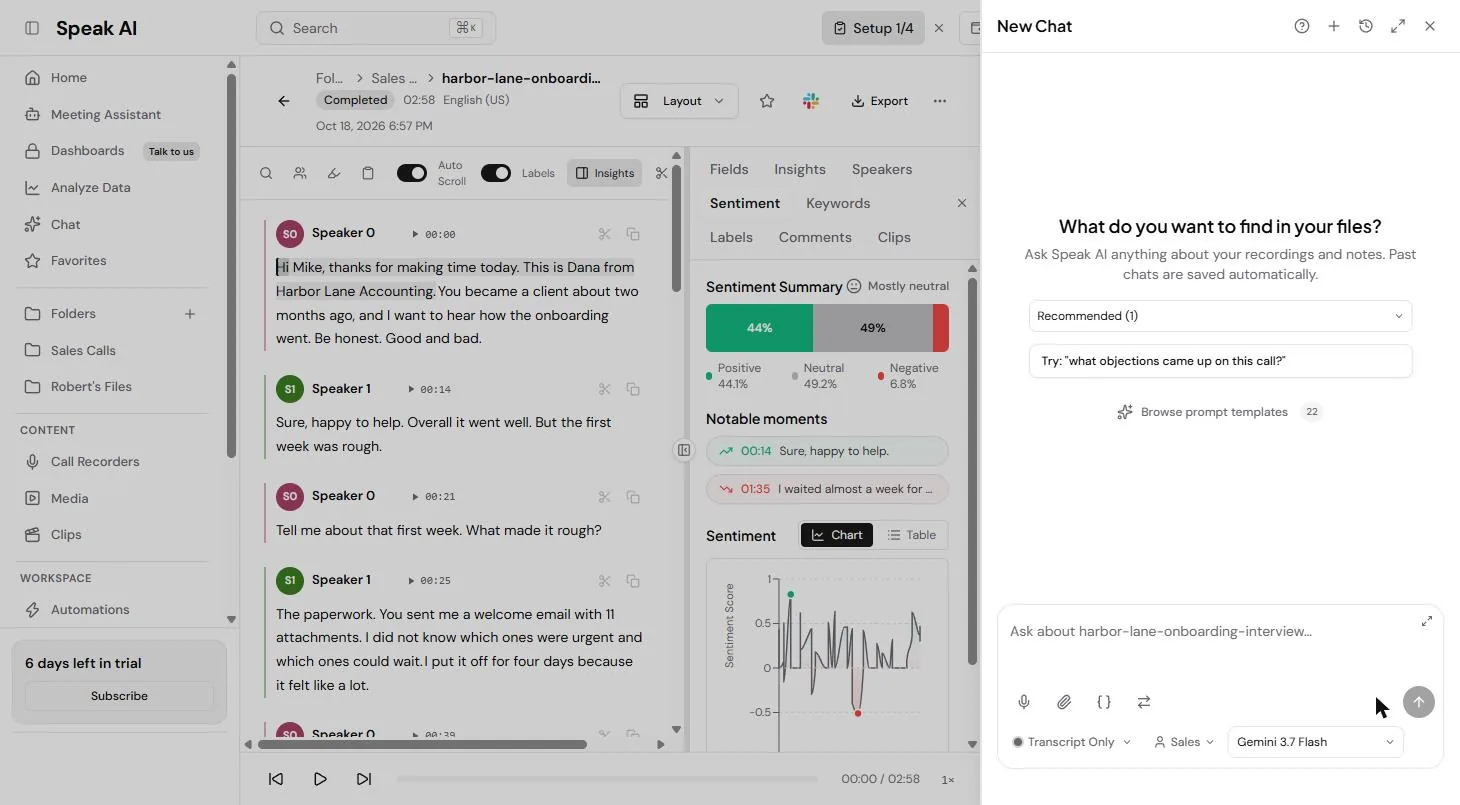
Step 22: Open AI Chat
Step 23: Ask for a summary, quotes and fixes
Ask for a three bullet summary, the top three problems with a short quote for each, and one fix for each.
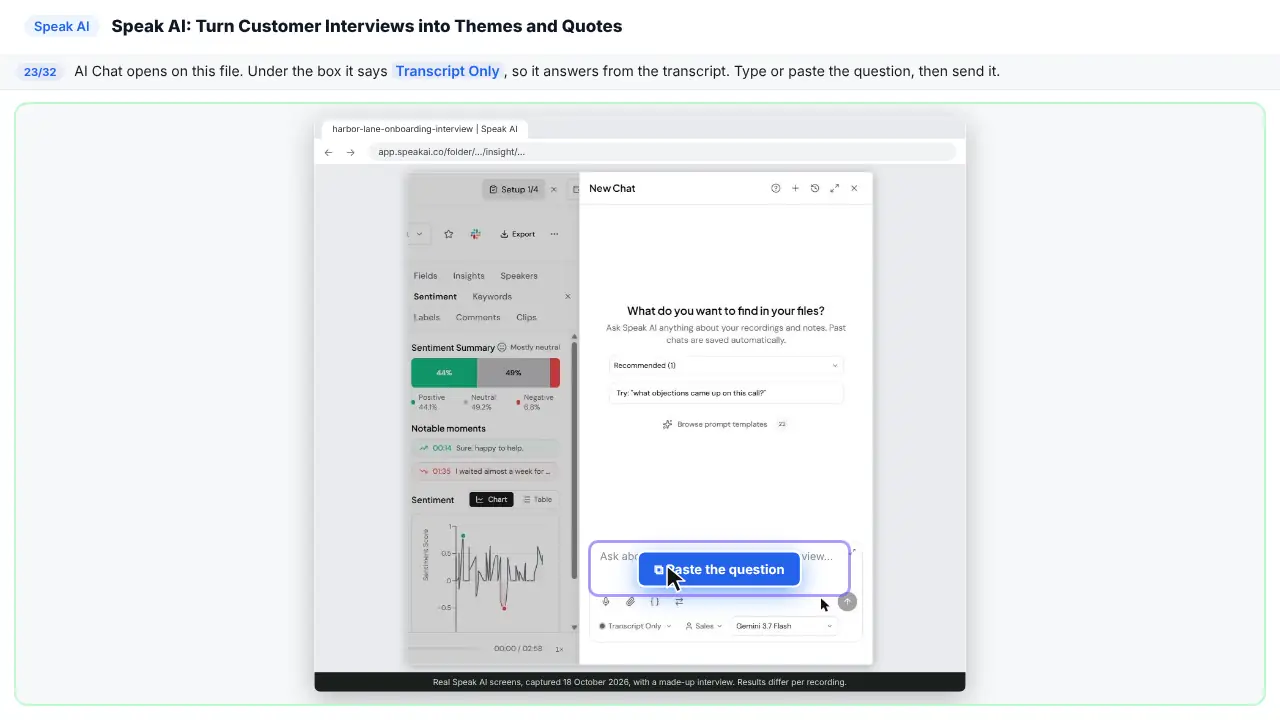
Summarize this interview in 3 bullets. Then list the top 3 problems the customer had with onboarding, with a short quote for each, and one fix for each.
Step 24: Read the summary
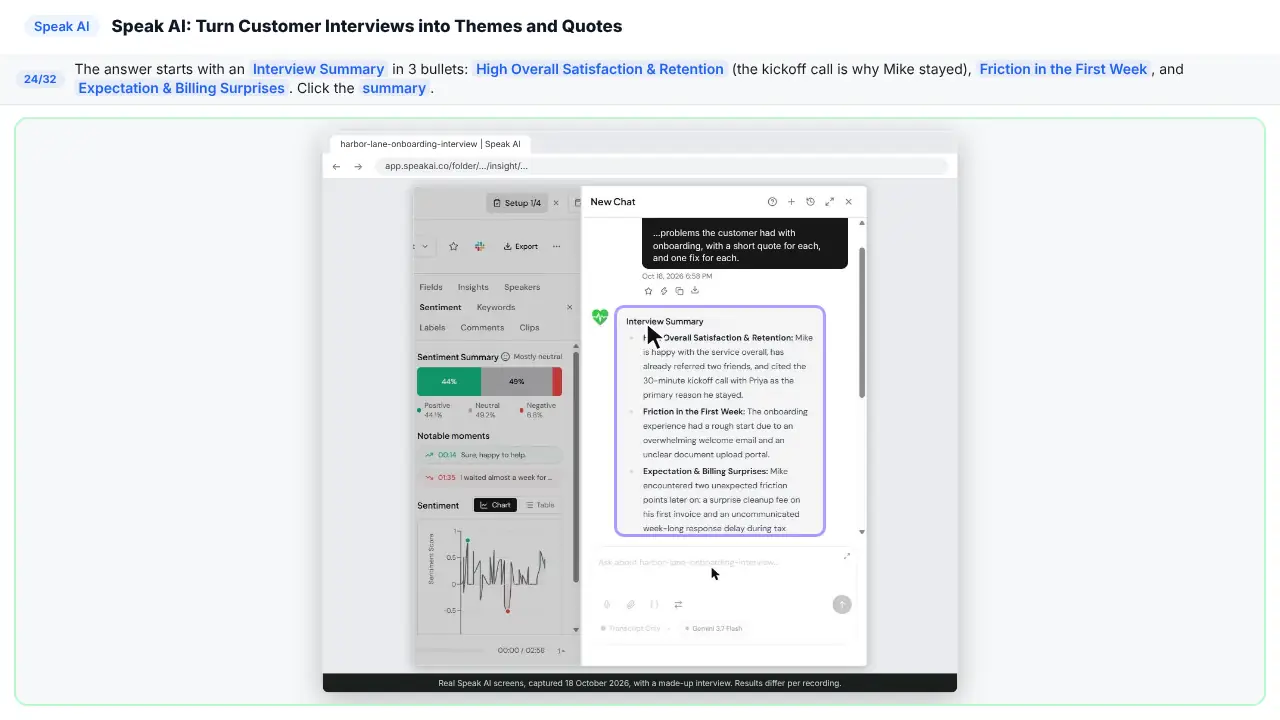
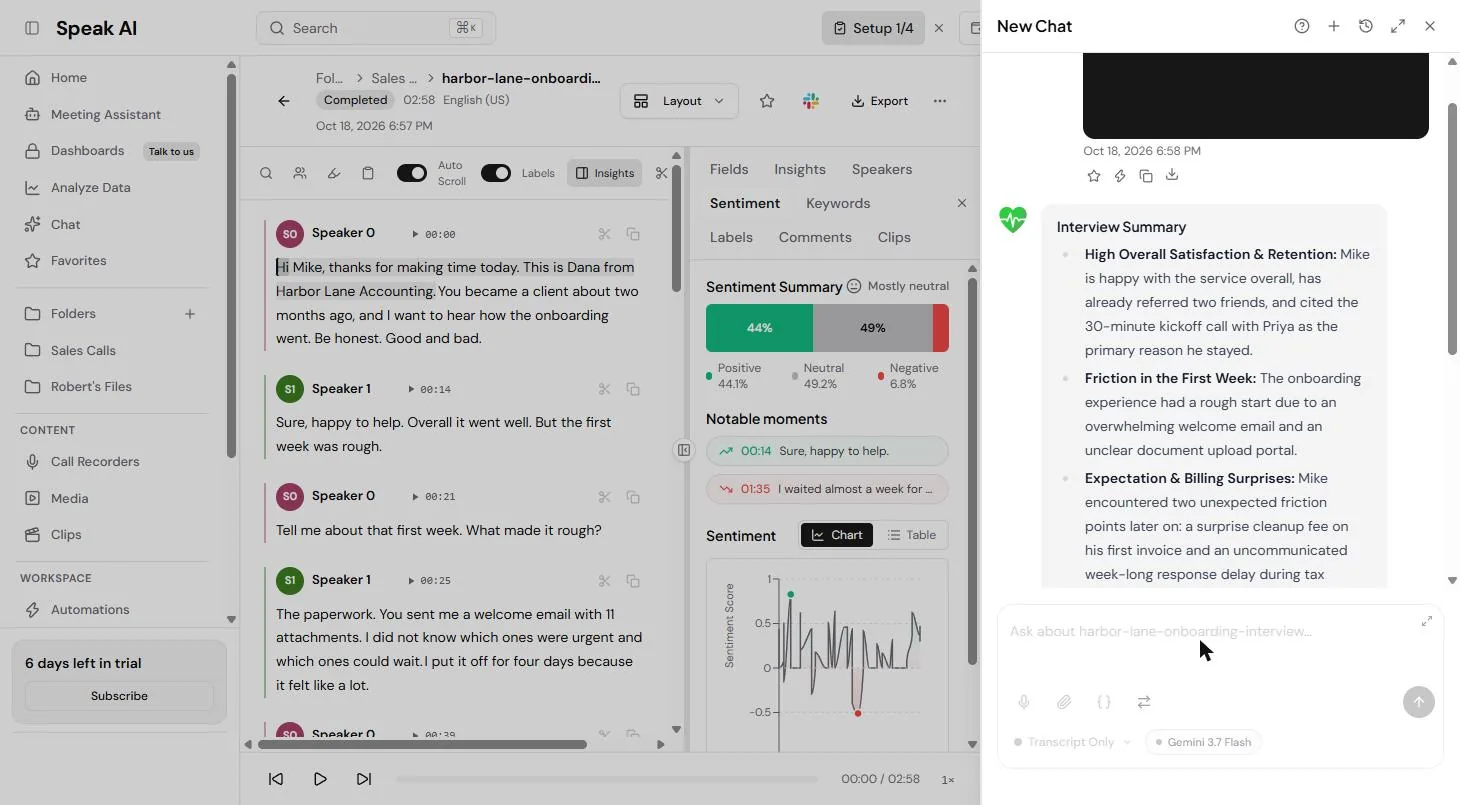
First, a three bullet summary. Mike is happy, the first week was rough, and there were billing surprises.
Step 25: Read the problems, quotes and fixes
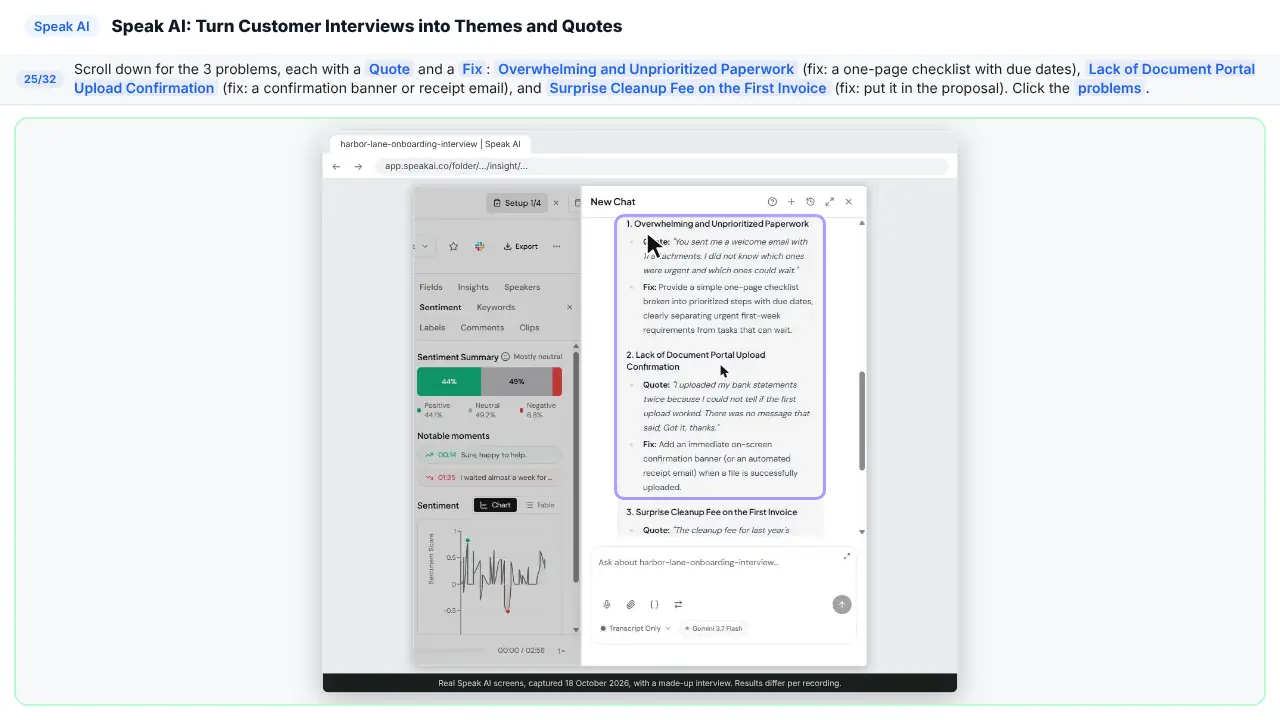
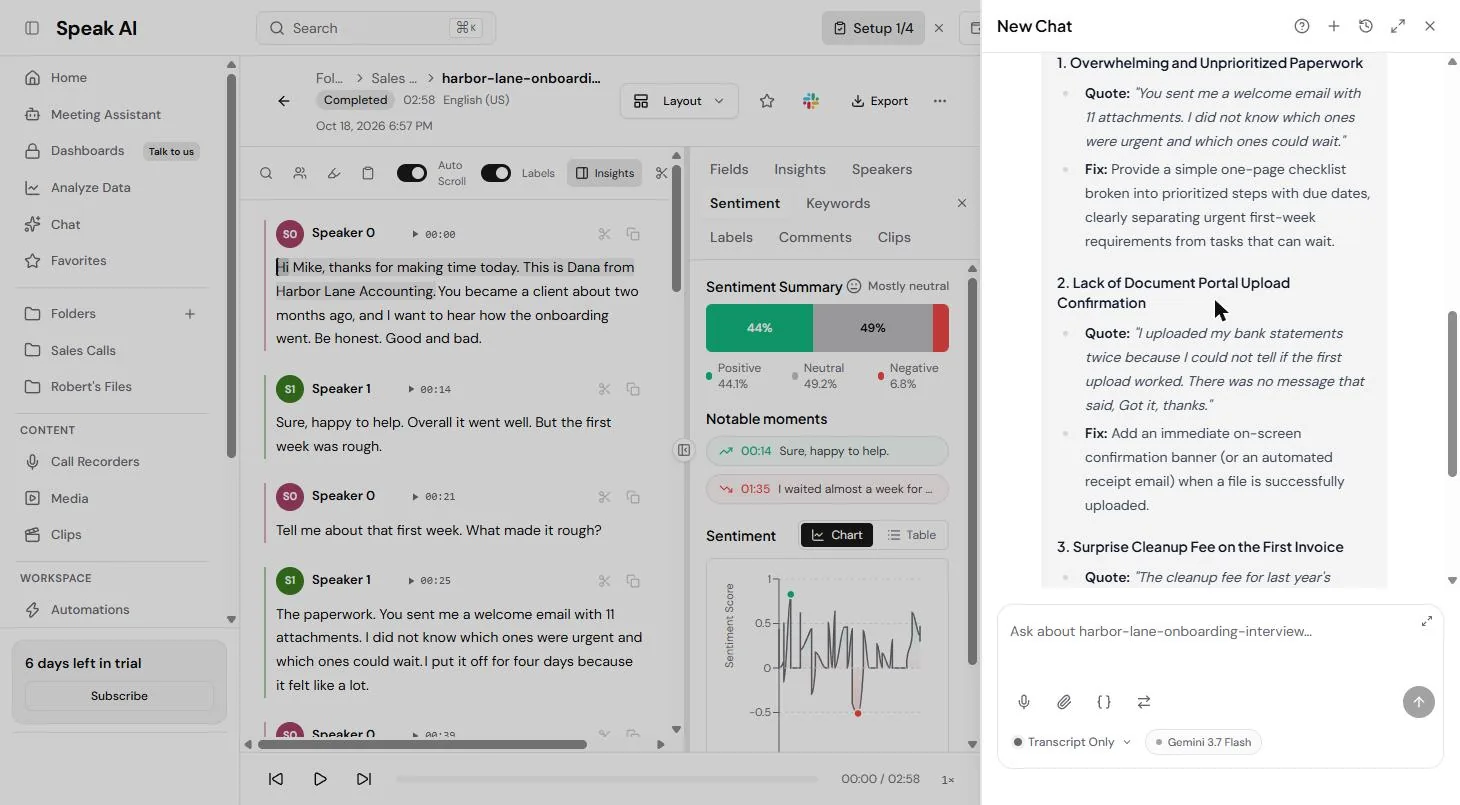
Then three problems, each with a quote and a fix. Paperwork, the upload portal, and a surprise fee.
Part 6: Export the transcript
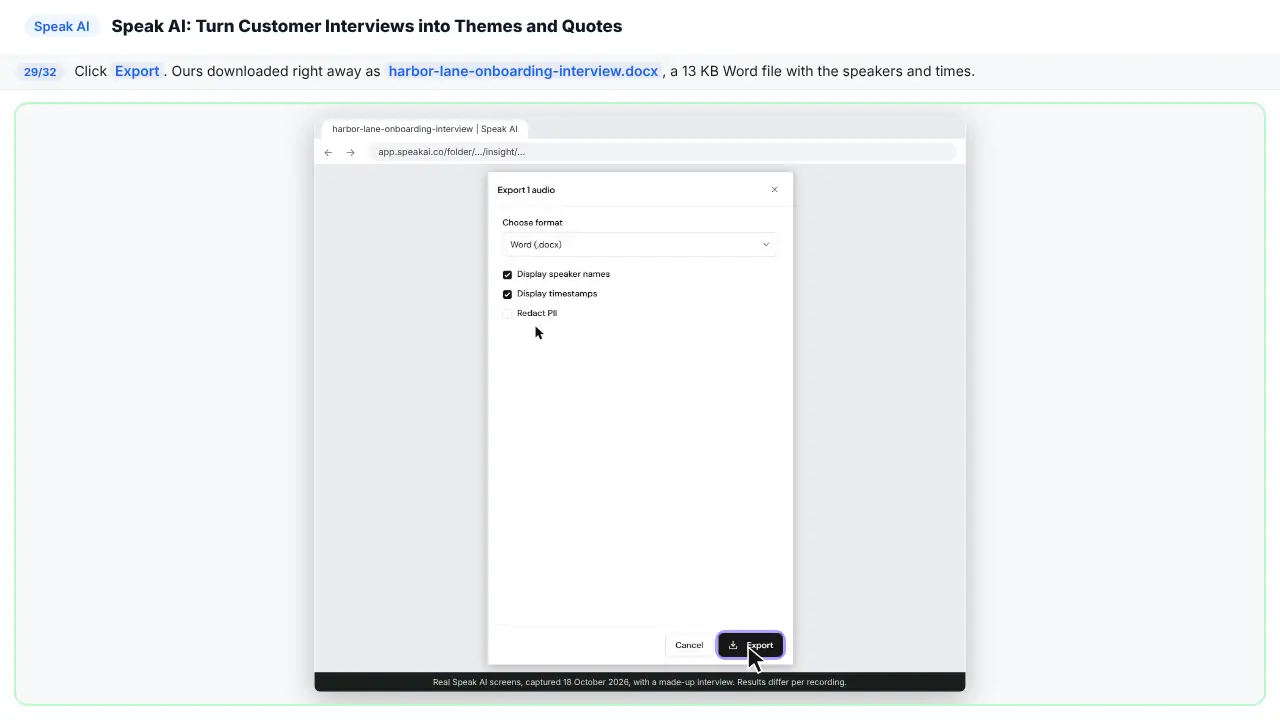
Step 26: Click Export
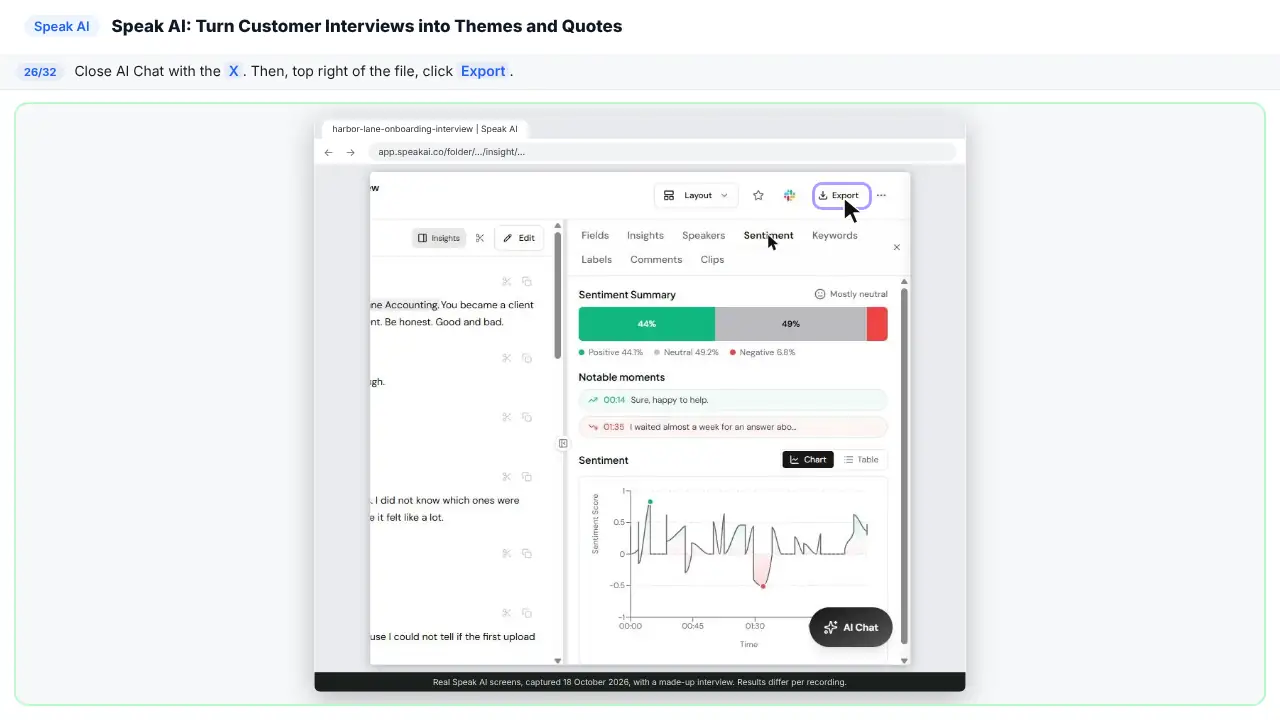
Close the chat, then click Export.
Step 27: Choose Word
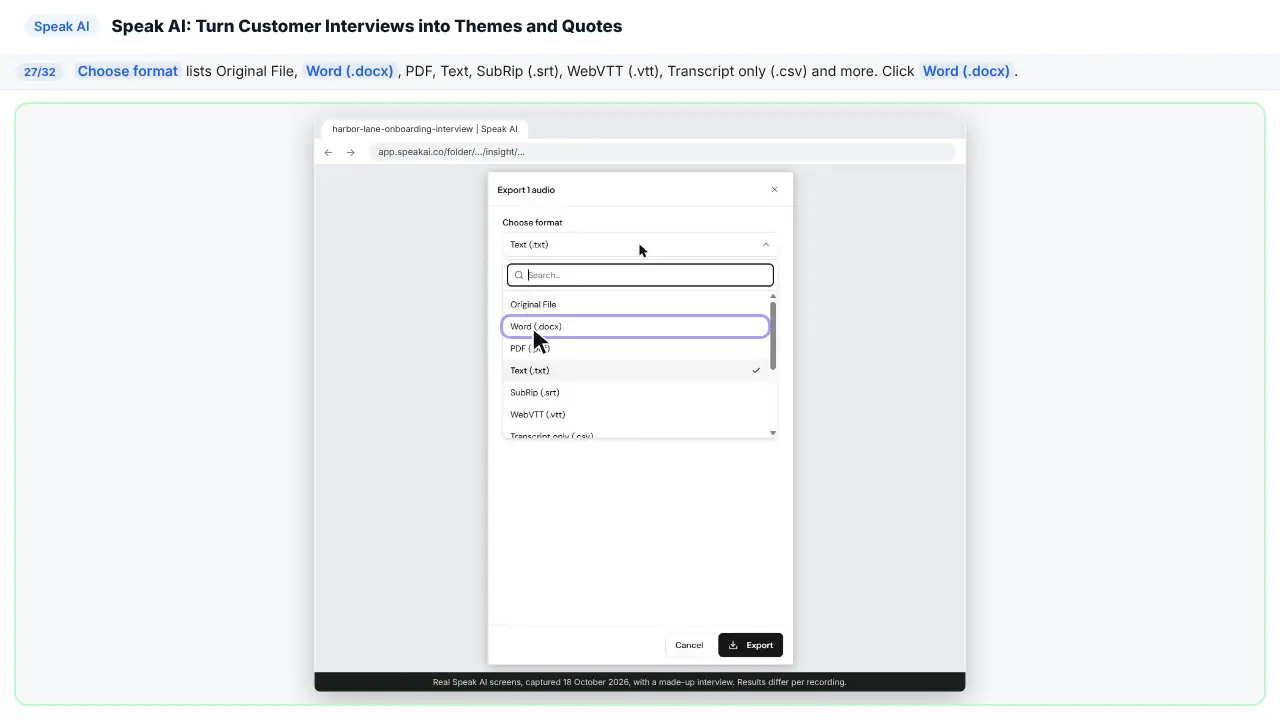
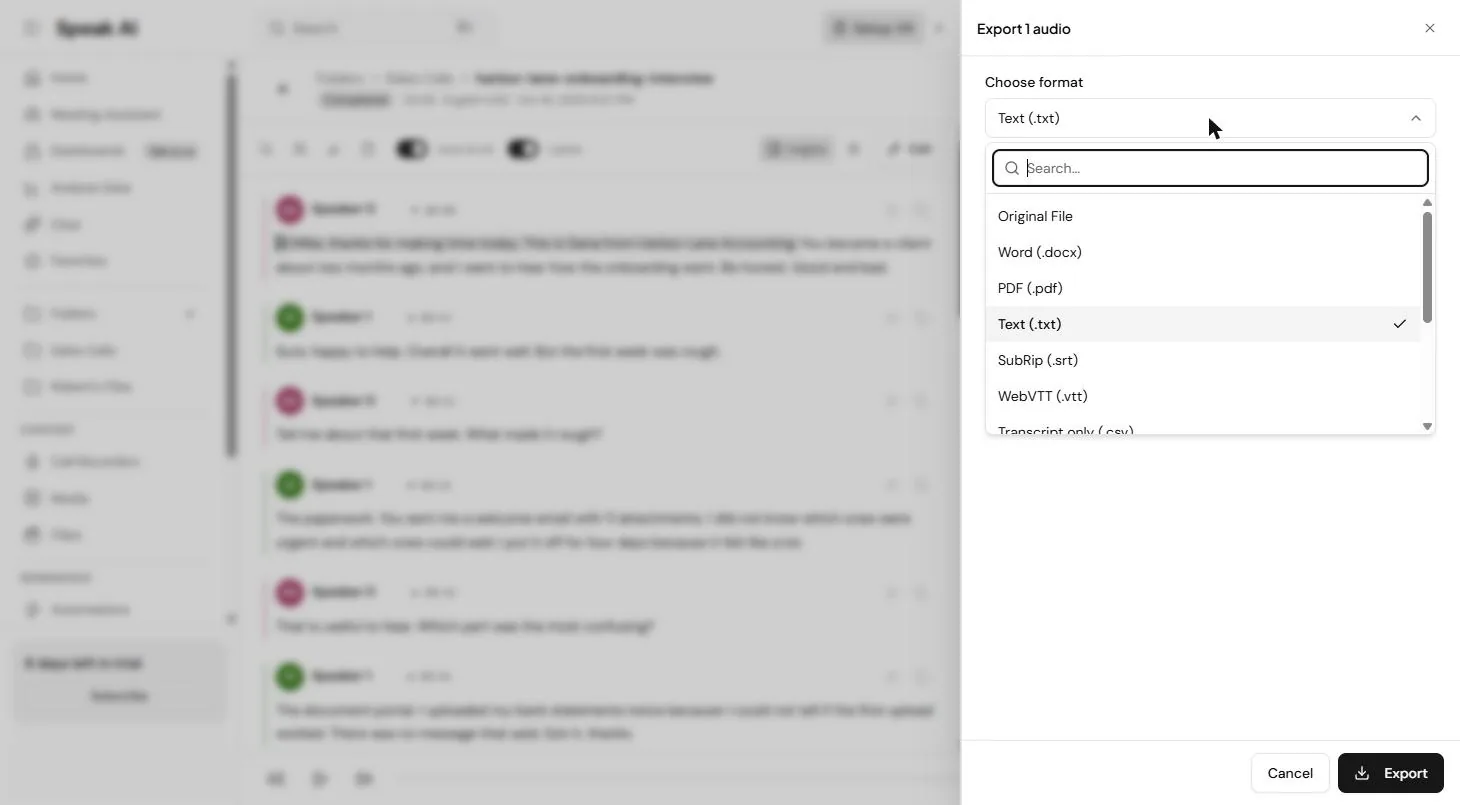
Pick a format. We chose Word.
Step 28: Check the options
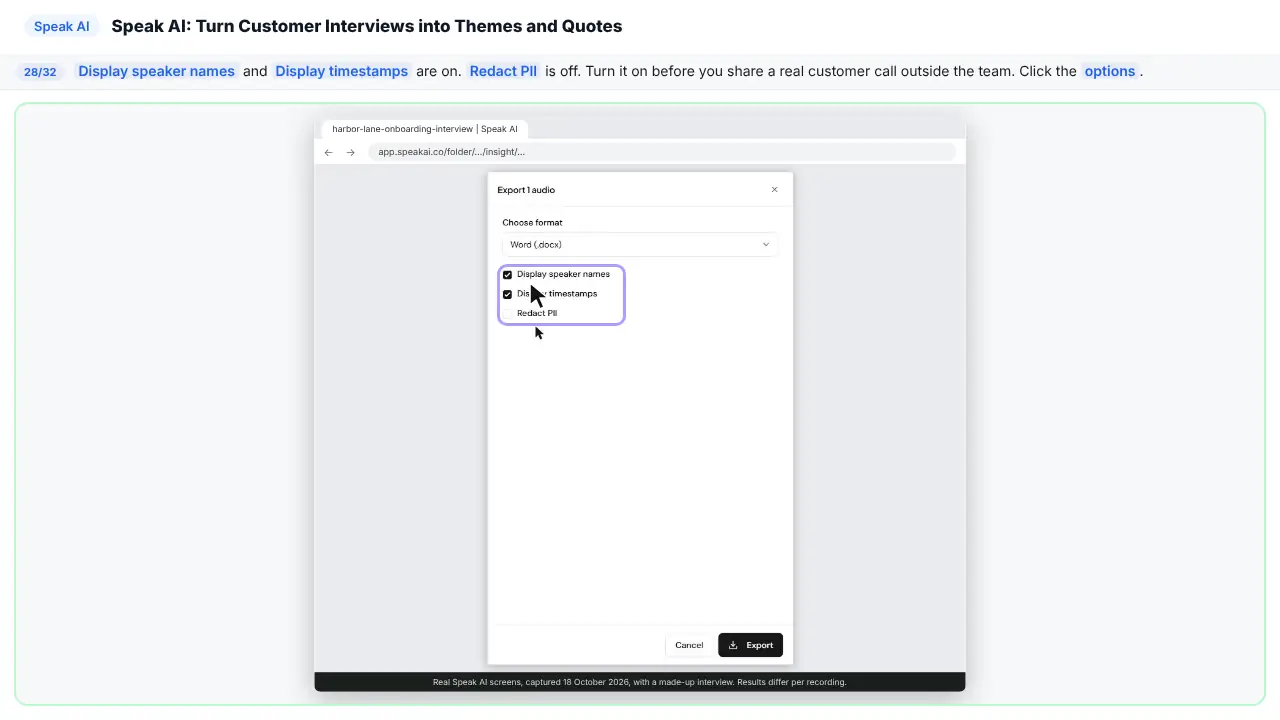
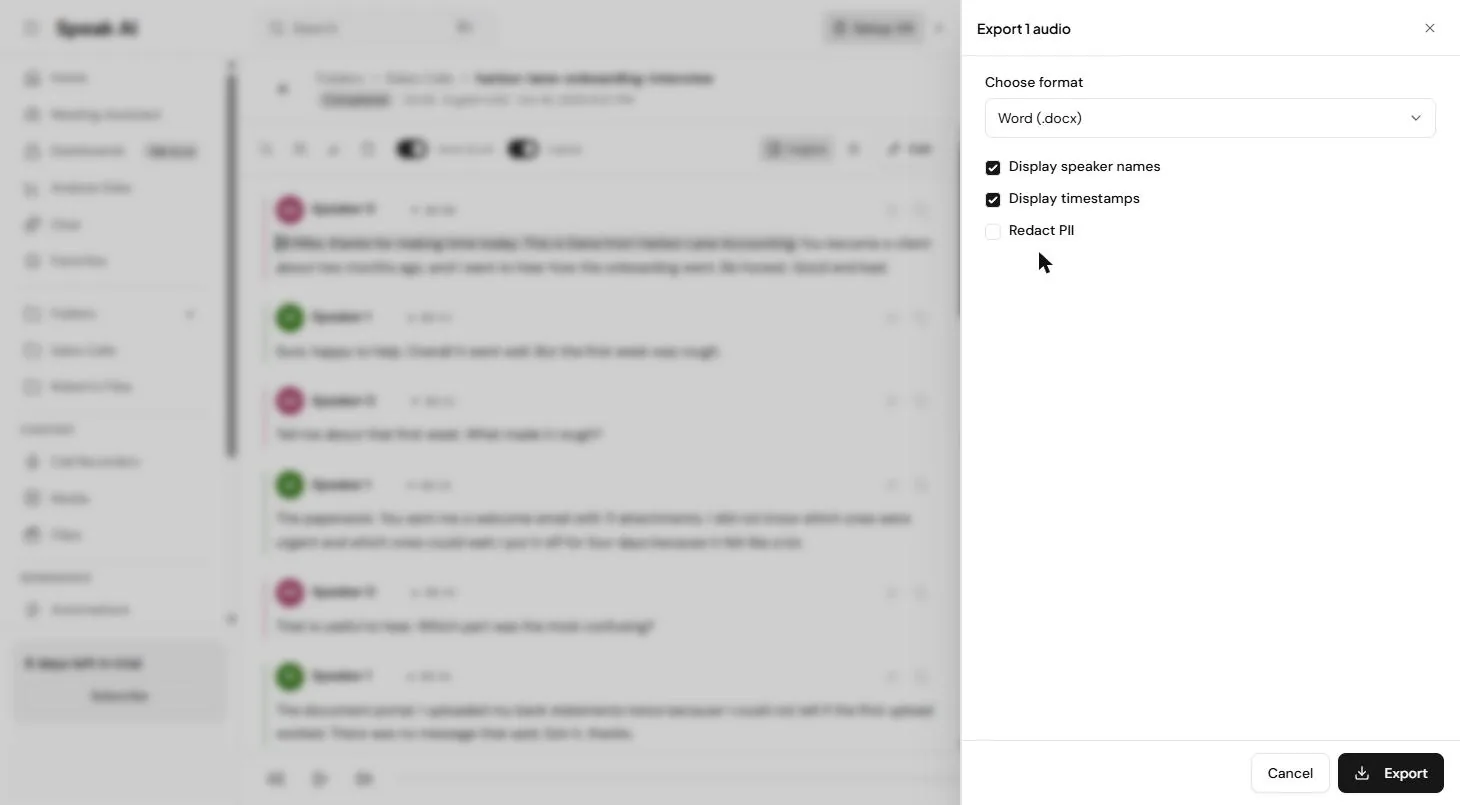
Speaker names and timestamps are on. Turn on Redact P I I before you share a real call.
Step 29: Click Export
It downloads a Word file with the speakers and times.
Part 7: Check it, then share it
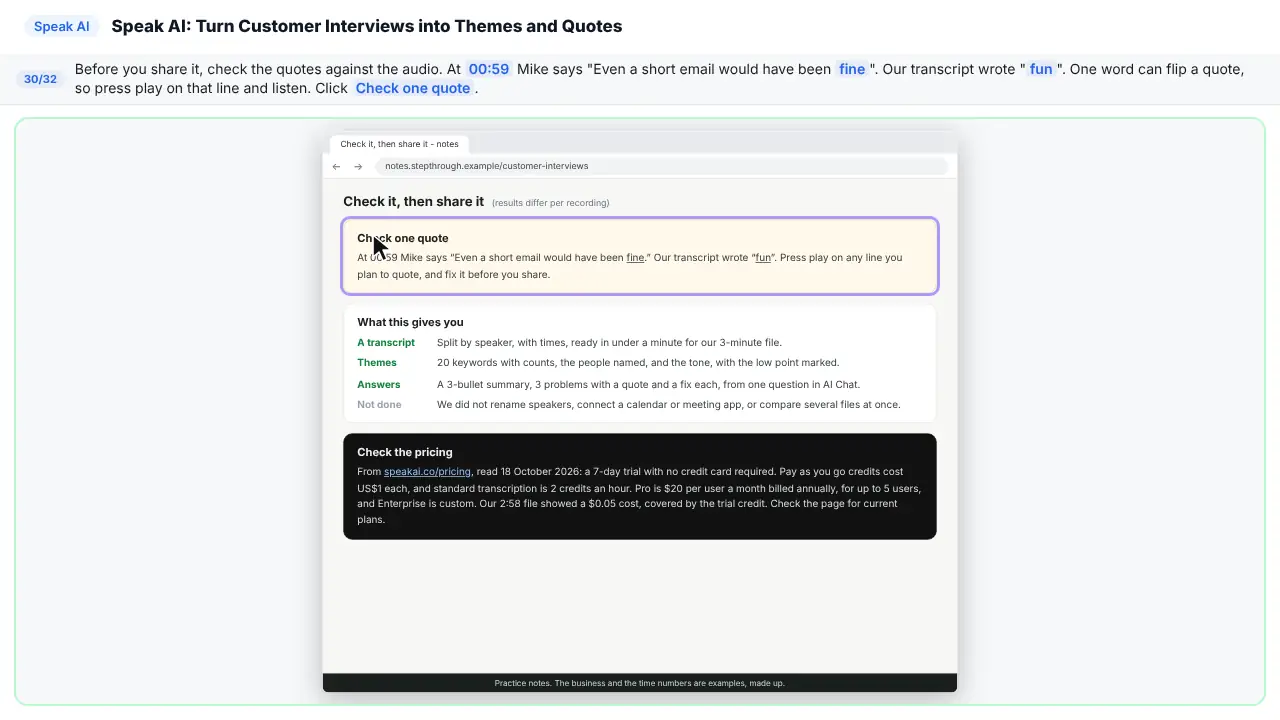
Step 30: Check one quote
Check quotes against the audio. Our transcript wrote fun where Mike said fine.
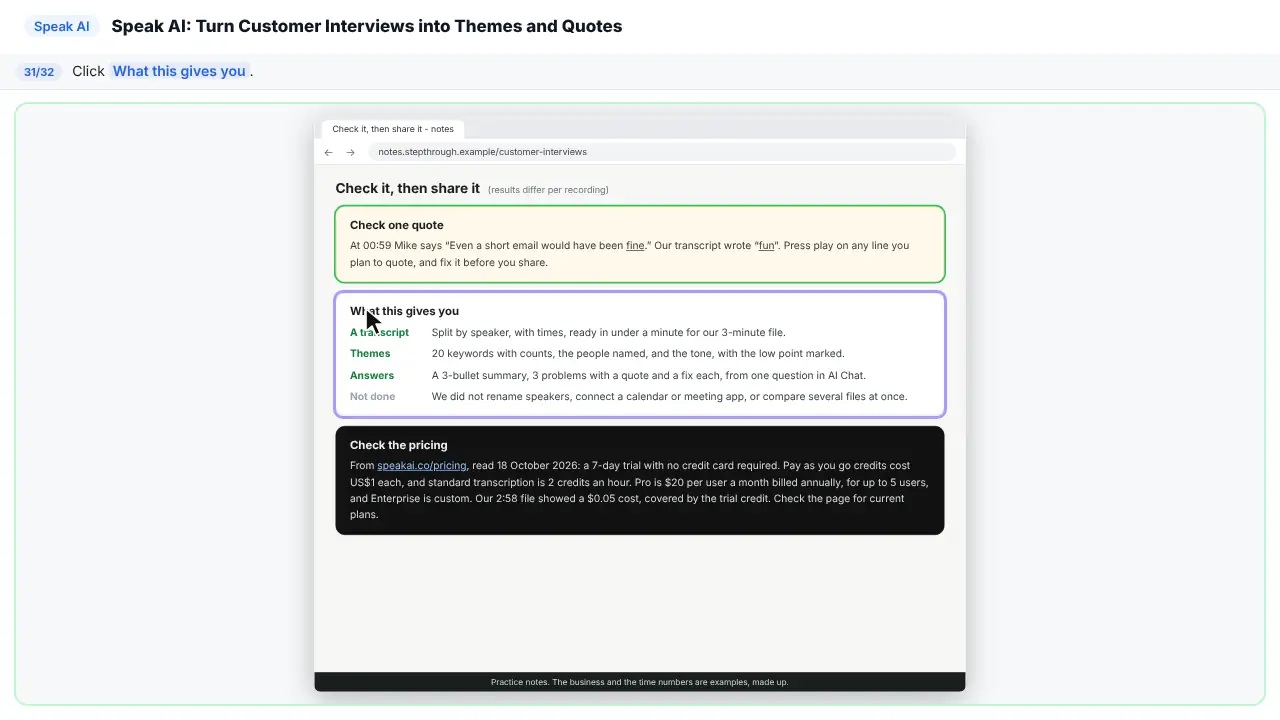
Step 31: What this gives you
Here is what you get, and what we did not test.
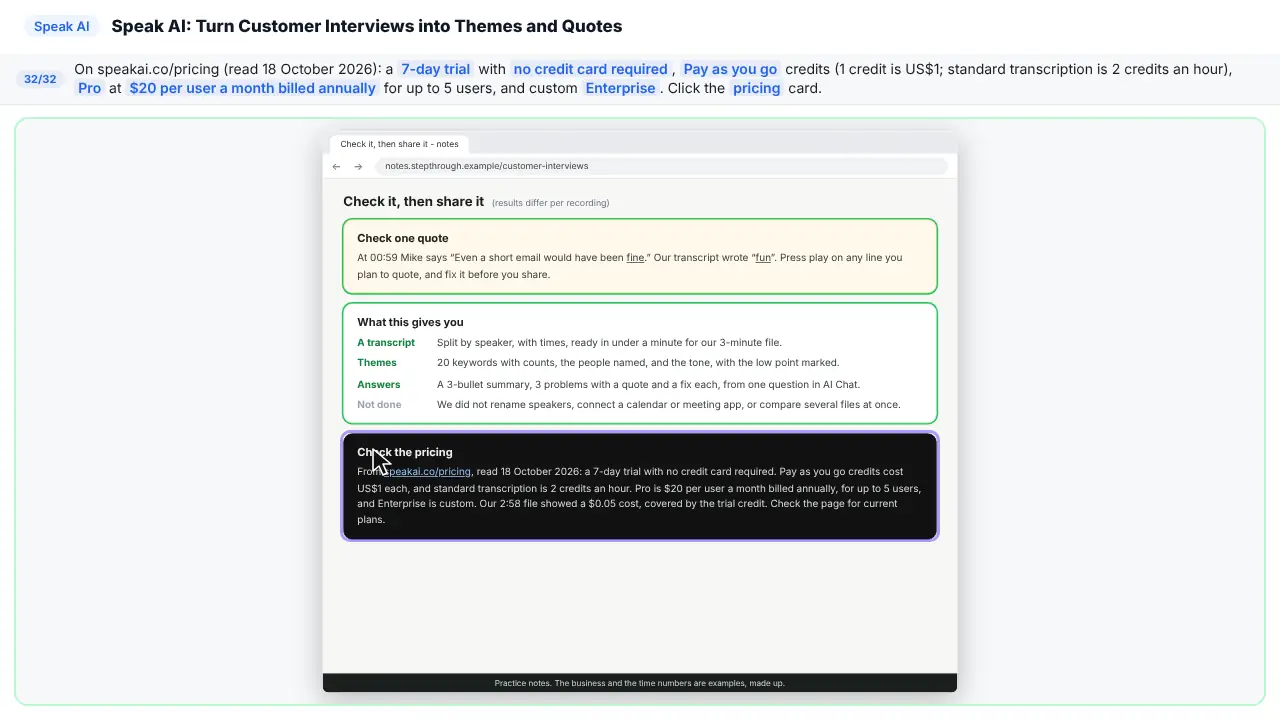
Step 32: Check the pricing
There is a seven day trial with no credit card. Pro is twenty dollars per user a month, billed yearly. Check speak a i dot co slash pricing.
Part of these free courses: AI Apps Worth Knowing, AI for Meetings, Turn Talk Into Work: Voice and Meetings AI
Now do it yourself, free
Reading the steps is a start. Doing them is how it sticks. The interactive lesson puts you in a practice copy of Speak AI: you do every step yourself, it checks your work, and “Do it for me” finishes any step you get stuck on. Nothing touches your real accounts.
Practice “Speak AI: Turn Customer Interviews into Themes and Quotes” step by step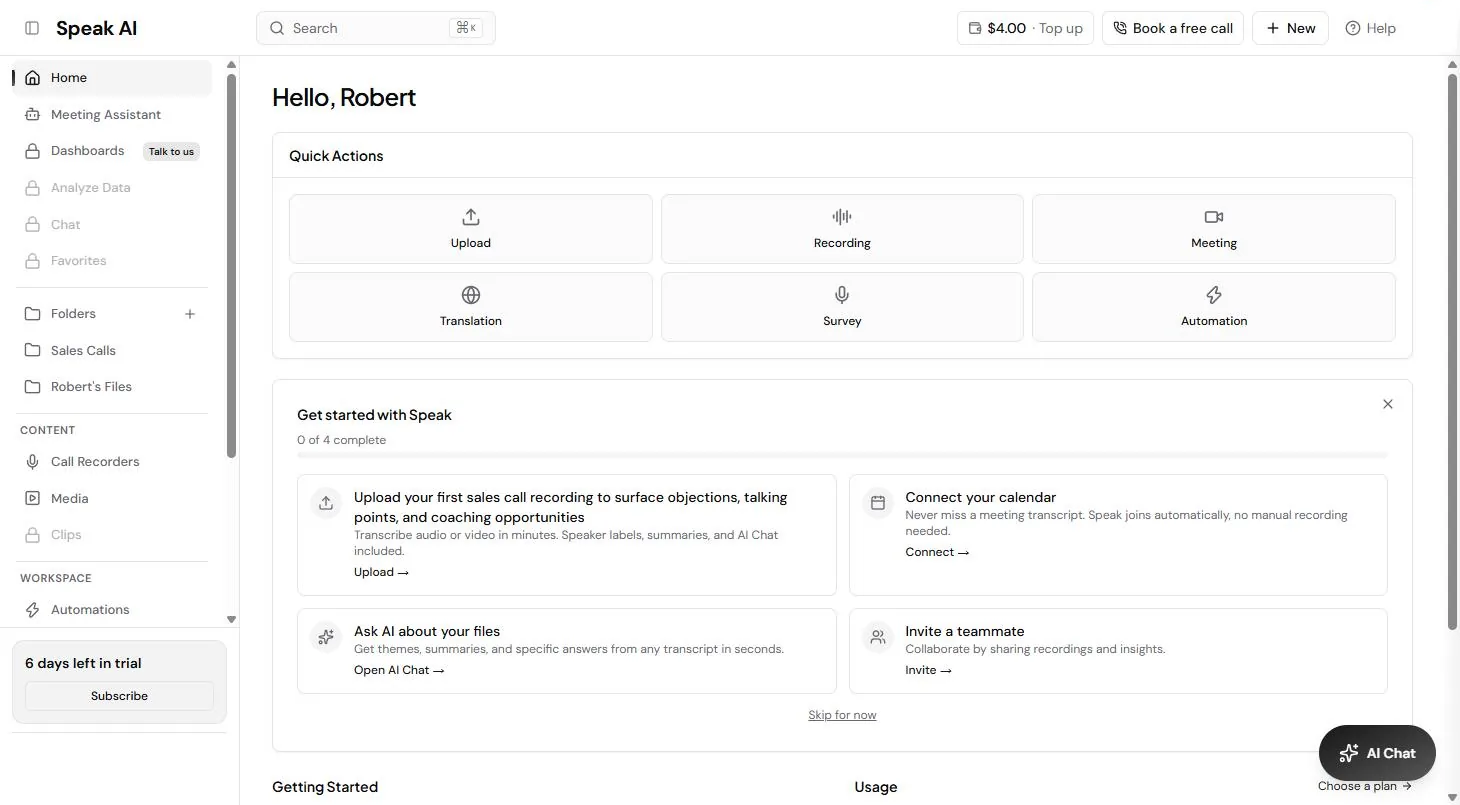
The business case: interviews nobody has time to re-listen to
Customer interviews and sales calls are where people tell you what is wrong. The trouble is time. Once the call ends, the recording sits in a folder, and the problems the customer named never reach the people who could fix them.
Here is the arithmetic, using example numbers you should replace with your own. Say a small accounting firm runs 5 onboarding interviews of about 30 minutes each. Listening to all 5 again takes about 2.5 hours, and writing up the themes and pulling quotes takes about 1.5 more, so about 4 hours. With Speak AI, it is an upload, a few minutes of processing and about 45 minutes reading the summaries and checking quotes. That saves about 3 hours.
We ran Speak AI on a made-up 2:58 interview on 18 October 2026. It was transcribed in under a minute, found 20 keywords and 3 people, and AI Chat returned 3 problems, each with a quote and a fix. Your recordings will give different results.
Who this is for, and what you need
Owners, account managers, researchers and sales leads who record customer interviews or calls and want the themes without replaying them. To follow along you need nothing: the lesson is a practice copy built from real screenshots. To do it for real you need a Speak AI account and a recording. Download our sample interview if you do not have one you can share.
Get permission before you record or upload anyone. Our sample is made up and read by two computer voices, so nobody real is on it.
Step 1: upload the recording
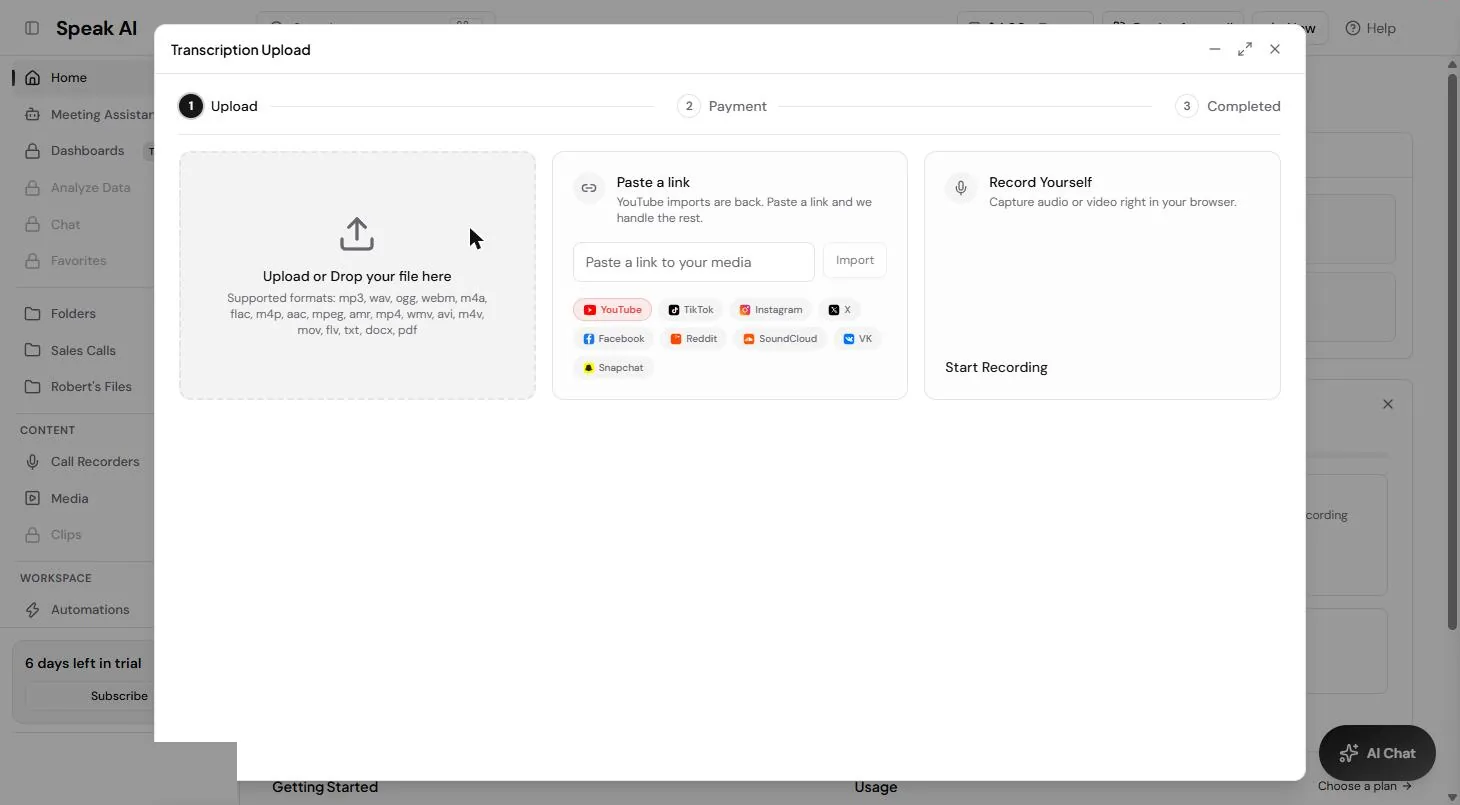
On the Speak AI home page, click Upload under Quick Actions. Transcription Upload lets you drop in a file, paste a link or record yourself. The supported formats include mp3, wav, m4a, mp4 and mov, and also txt, docx and pdf if you already have a transcript.
After you pick the file, Speak AI shows its length, a cost, the language and a folder. Our 2:58 file showed a $0.05 cost at the Standard rate, covered by the trial credit. Make one folder per study so all your interviews sit together, then click Upload and Open.
Step 2: read the transcript
The file opens with Completed, the length and the language at the top. The transcript is split by voice into Speaker 0 and Speaker 1, with a play button and a time on every turn. In our sample, at 00:25 the client says the welcome email had 11 attachments and he did not know which were urgent. That is a theme in one line.
Step 3: scan the keywords, people and tone
Click Insights to open a panel with tabs. Insights gives quick facts: 02:58 of conversation, 425 words, and a 1-on-1 conversation. Keywords lists 20 keywords with counts, such as First week (3), Onboarding (2), Paperwork, Document portal and First invoice. It also lists the people named and brands. Ours tagged the word "fair" as a brand, so check what it finds.
Sentiment showed Mostly neutral: 44.1% positive, 49.2% neutral and 6.8% negative, with a chart over time. Notable moments marked the low point at 01:35, when the client waited almost a week for an answer in tax season.
Step 4: ask AI Chat for a summary, quotes and fixes
Click AI Chat. It opens on the file, set to Transcript Only. We asked: "Summarize this interview in 3 bullets. Then list the top 3 problems the customer had with onboarding, with a short quote for each, and one fix for each."
The answer started with an Interview Summary: high overall satisfaction (the kickoff call is why the client stayed), friction in the first week, and billing surprises. Then the 3 problems, each with a quote and a fix: too much paperwork with no priorities (a one-page checklist with due dates), no confirmation after a portal upload (a confirmation banner or receipt email), and a cleanup fee first seen on the invoice (put it in the proposal).
Step 5: export the transcript and check one quote
Close AI Chat and click Export. Choose format lists Original File, Word (.docx), PDF, Text, SubRip (.srt), WebVTT (.vtt), Transcript only (.csv) and more. Display speaker names and Display timestamps were on, and Redact PII was off. We chose Word and clicked Export, and a 13 KB Word file downloaded.
Before you share anything, check the quotes. At 00:59 the client says a short email would have been "fine". Our transcript wrote "fun". Press play on every line you plan to quote.
Mistakes to avoid
- Sharing an AI Chat quote without checking it against the audio. One wrong word can flip the meaning.
- Uploading a call without the other person's permission.
- Sending a real customer transcript outside the team with Redact PII off.
- Reading one interview as a trend. Look for keywords that repeat across all of them.
- Treating the example numbers in this lesson as yours. Time your own interviews.
Links
- Speak AI: the transcription and analysis tool this lesson teaches.
- Speak AI pricing: current plans. A 7-day trial with no credit card required; pay as you go credits at US$1 each, with standard transcription at 2 credits an hour; Pro at $20 per user a month billed annually, for up to 5 users; Enterprise is custom (read 18 October 2026).
- Speak AI in the AI tools directory: how it compares with other meeting and notes tools.
- Sample customer interview (.mp3, 2:58): a made-up interview between an accounting firm owner and a client, read by two computer voices, safe to upload to your own Speak AI account.
- The interview script (.txt): the same interview as text, to compare with the transcript Speak AI writes.
Try it yourself, free
Reading the steps is a start. Doing them is how it sticks. The interactive module walks you through every click in a practice copy of Speak AI, checks each step, and never touches your real accounts.
Start “Speak AI: Turn Customer Interviews into Themes and Quotes”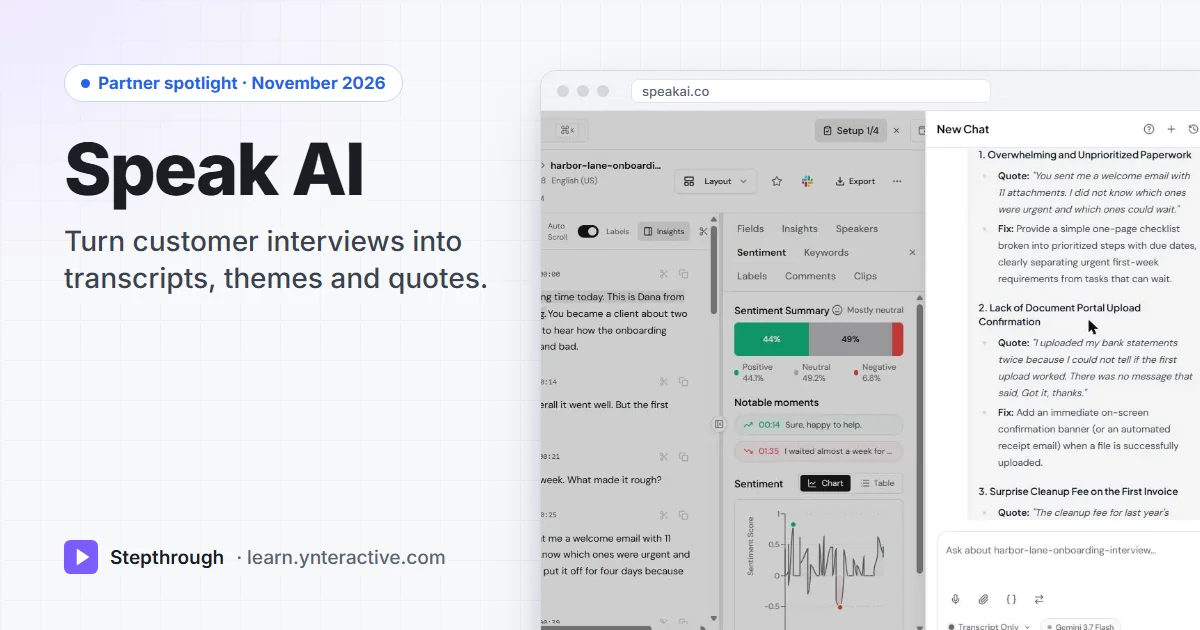
November 2026 spotlight
Speak AI
Transcribes customer interviews, sales calls and meetings with speaker labels, pulls out keywords and tone, and answers questions in AI Chat, so a team gets the themes and quotes without replaying the recordings.
Screenshots
Frequently asked questions
- Is this an official Speak AI course?
- No. This is my own lesson. Speak AI is a separate, third-party product from speakai.co, and the screens are real Speak AI screenshots captured 18 October 2026 in my trial account, with a made-up interview.
- What does Speak AI cost?
- From speakai.co/pricing on 18 October 2026: a 7-day trial with no credit card required. Pay as you go credits cost US$1 each, and standard transcription is 2 credits an hour. Pro is $20 per user a month billed annually, for up to 5 users, with 25 credits per user a month. Enterprise is custom. Our 2:58 file showed a $0.05 cost, covered by the trial credit. Check the page for current plans.
- Can Speak AI pull quotes from an interview?
- Yes. Ask AI Chat for them. We asked for the top 3 problems with a short quote and one fix for each, and it returned all three. Check each quote against the audio, because the transcript can get a word wrong.
- Can I upload a transcript instead of audio?
- The upload screen lists txt, docx and pdf among the supported formats, next to audio and video files. We tested an mp3 only.
- Will my results look like these?
- No. The keywords, sentiment and AI Chat answer here come from our made-up interview. Your recordings will get their own.
Terms in this lesson
Plain-English definitions, each with an example from a free lesson.