Updated . Built against the tool’s current screens and checked step by step. How we check this lesson
A "your payroll password expires today" email lands at the front desk. Check the link without opening it, score the shared password, and generate a strong replacement, with three free browser tools.
At a glance
| Question | Answer |
|---|---|
| What you build | A "your payroll password expires today" email lands at the front desk. Check the link without opening it, score the shared password, and generate a strong replacement, with three free browser tools. |
| Tools | Anwaar Digital |
| Time | About 6 minutes, 12 steps in 3 parts |
| Level | Beginner, no coding needed |
| Cost | Free |
| Ways to learn it | Practice it step by step |
The 3 parts, in short
- Check the link without opening it: Search for the link checker, Open Phishing URL Checker, Paste the link, do not click it, Check it, and 1 more step.
- Test the old password: Next: the shared password, Test the old password, Score it, Two days is not good enough.
- Make a new one: Make it 20 characters, Generate it, Copy it into your password manager.
Start here first: Build an AI Vendor Follow-Up Agent in n8n (module 1 of AI Automation for Operations)
Part of: AI for Medical & Dental Office Admin (step 25 of 25)
Part of: AI for Operations Teams (step 43 of 45). Next up: Mermaid: Turn a Purchase Approval Policy into a Flowchart with ChatGPT
Part of: AI Apps Worth Knowing (step 172 of 186). Next up: Anwaar Digital: Send a Client One Small, Signed Engagement Packet for Consulting & Agencies
Part of: Anwaar Digital Free Tools Jump Start (step 4 of 5). Next up: Anwaar Digital: Send a Client One Small, Signed Engagement Packet for Consulting & Agencies
What you'll build
You manage the office at Maplewood Family Dental, a made-up four-chair practice with nine staff and one shared front-desk login. This morning an email says the payroll password expires today, with a link, and someone may have clicked it. In this lesson you use three free tools on Free Privacy Tools by Anwaar Digital: Phishing URL Checker reads the link without opening it, Password Strength Checker scores the old shared password, and Password Generator makes a new one. The pages say all three run in your browser and send nothing. The screens are real; the link and the old password are made-up examples.
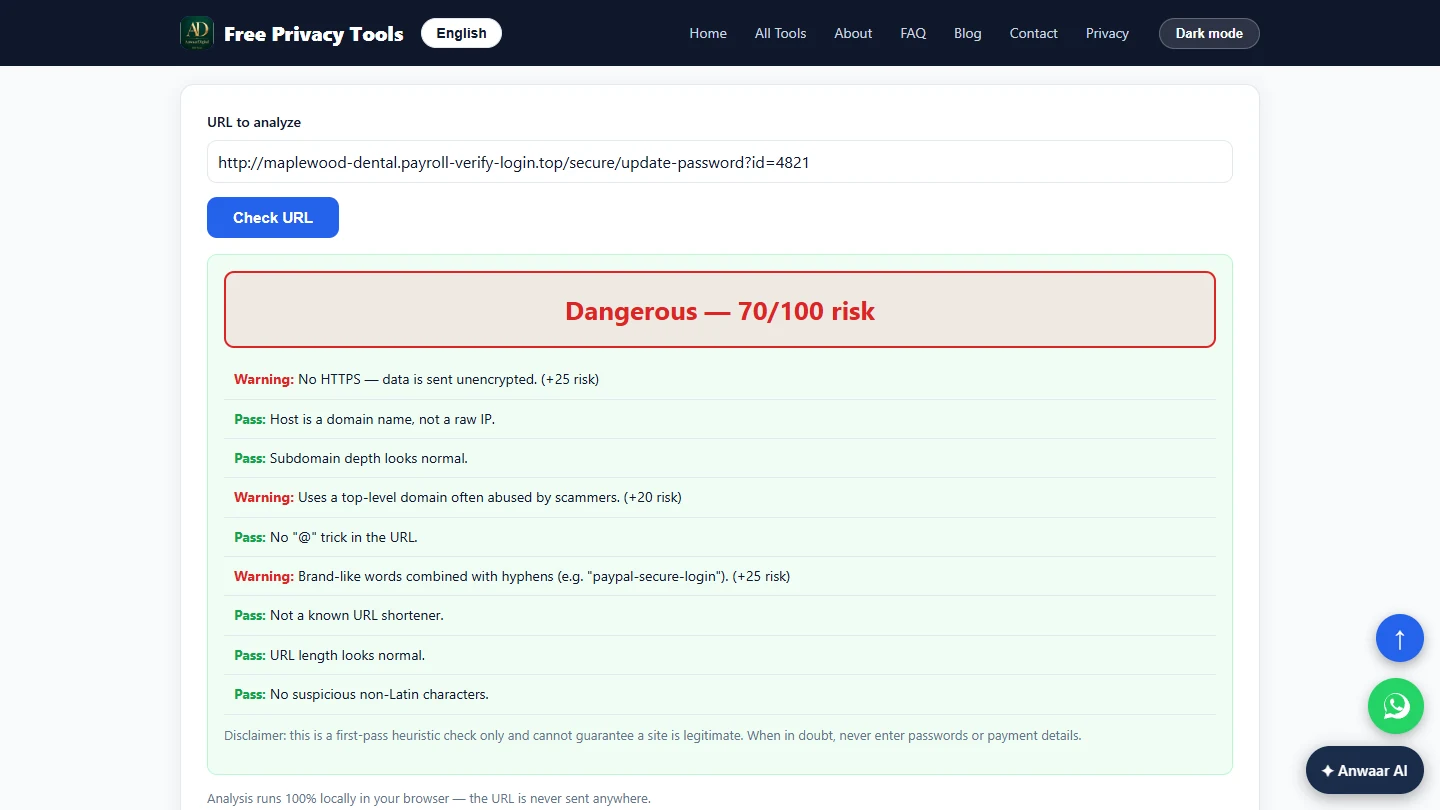
You checked the payroll link without opening it (Dangerous, 70/100: no HTTPS, a .top domain, the practice name glued to someone else's domain), scored the old shared password (Good, 72/100, about two days to crack) and generated a 20-character replacement to paste into the system and your password manager. These checks are heuristics: a "Safe" result never means "click it", and a high score never means "share it by email". Next, report the email to your IT provider, and turn on two-step sign-in for any shared login that offers it.
- Tools: Anwaar Digital
- Time: about 6 minutes, 12 steps in 3 chapters
- Level: beginner, no coding needed
- Price: free
Practice first, then build it for real
Practice copy built from real Free Privacy Tools screens (freetools.anwaardigital.com), captured 14 November 2026. The link is a made-up look-alike that was never opened, and the old password is a made-up example. Maplewood Family Dental is made up. To build it for real you need your own Anwaar Digital account, and some services charge once you use them for real work, so check each tool's current pricing.
Try it yourself, free
Reading the steps is a start. Doing them is how it sticks. The interactive module walks you through every click in a practice copy of Anwaar Digital, checks each step, and never touches your real accounts.
Start “Anwaar Digital: Check a Suspicious Payroll Link, Then Replace a Weak Shared Password for Operations”Step by step: Anwaar Digital: Check a Suspicious Payroll Link, Then Replace a Weak Shared Password for Operations
All 12 steps of the interactive module, in order. In the module you watch each one, then do it yourself in a practice copy that checks your work.
1. Check the link without opening it
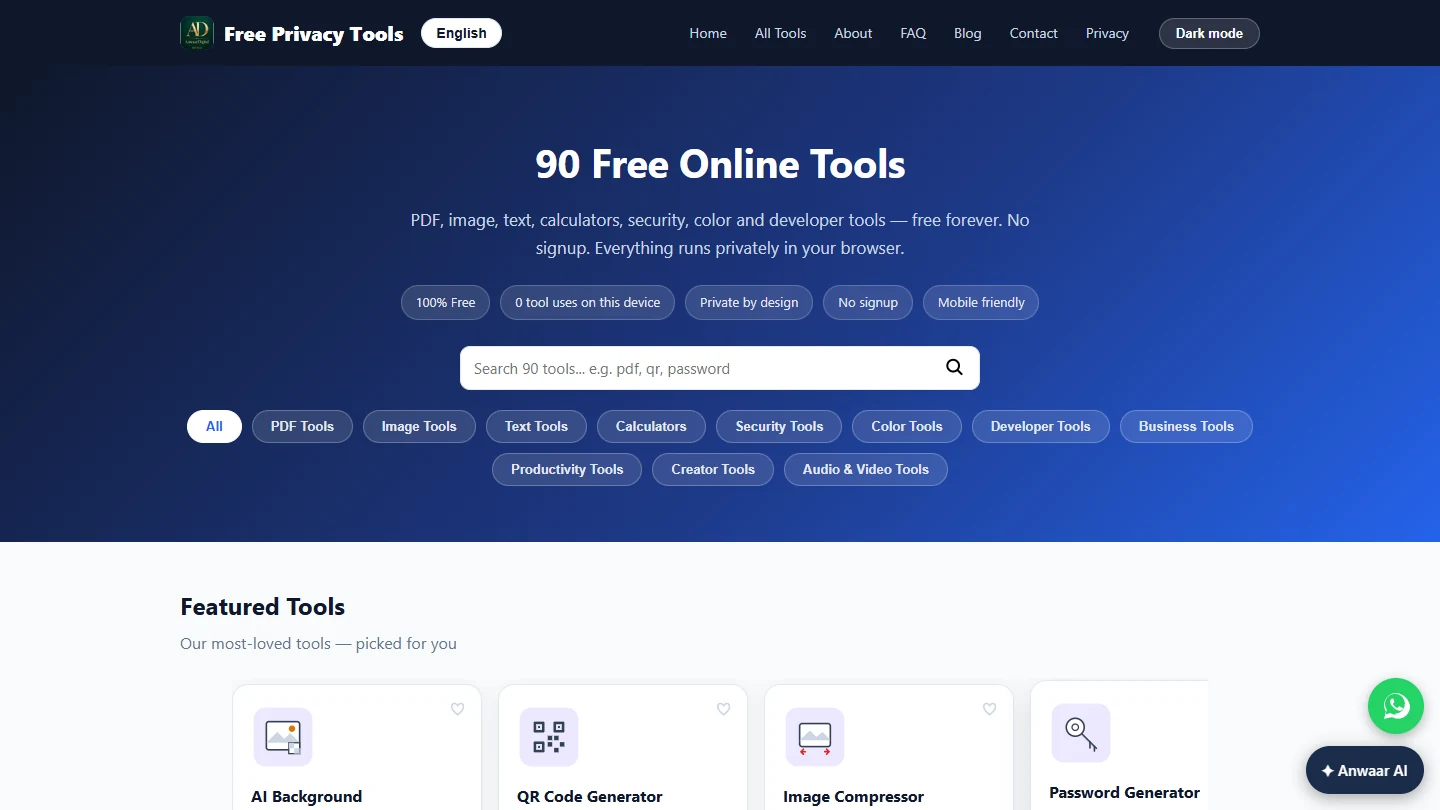
- Search for the link checker. You manage the office at Maplewood Family Dental (made up), four chairs and nine staff. At 8:40 the front desk forwards an email: "Your payroll password expires today, update it here", with a link. Someone may already have clicked it. You check the link without opening it, then replace the shared front-desk password. Type phishing in the search box.
A payroll email says a password expires today. Check the link without opening it.
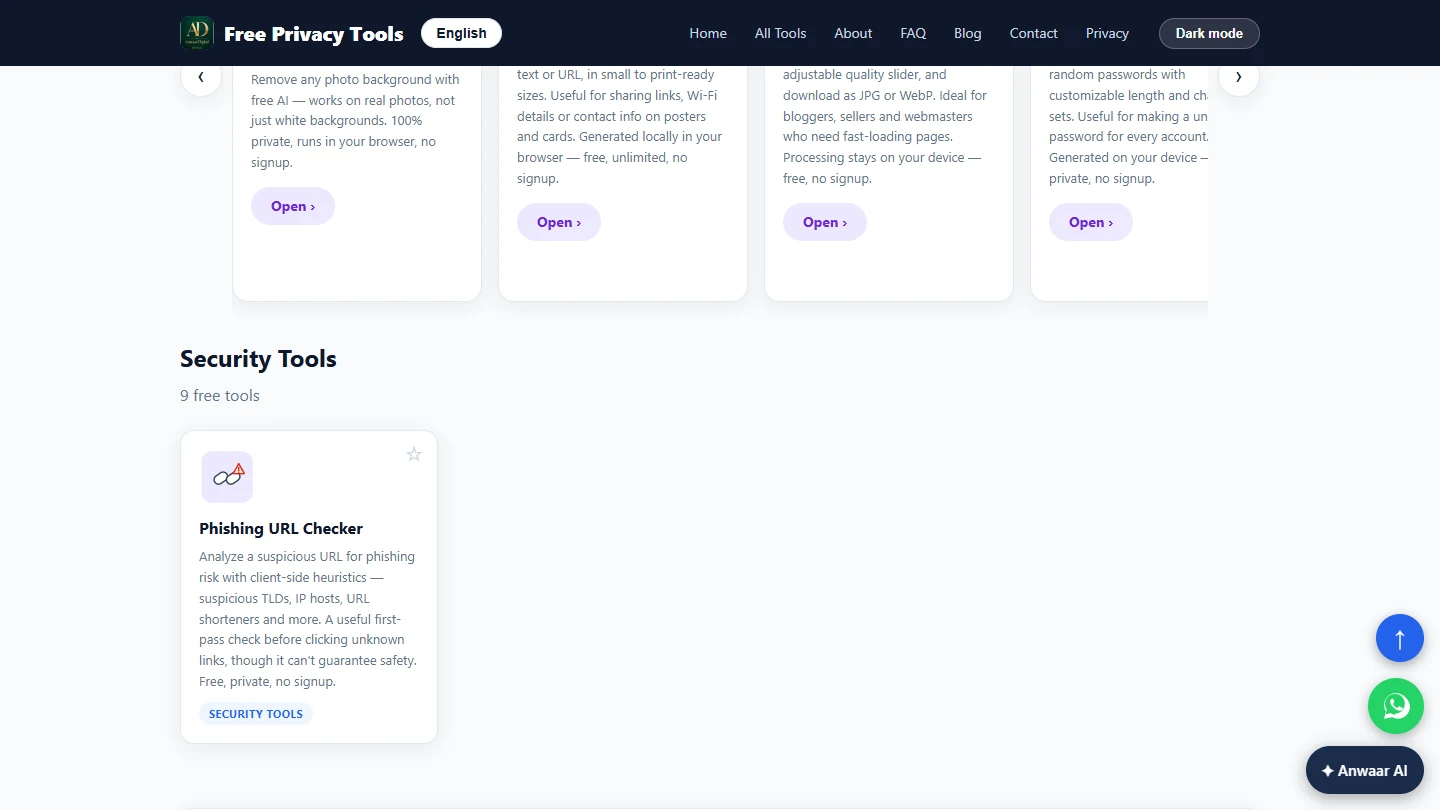
- Open Phishing URL Checker. Click the Phishing URL Checker card.
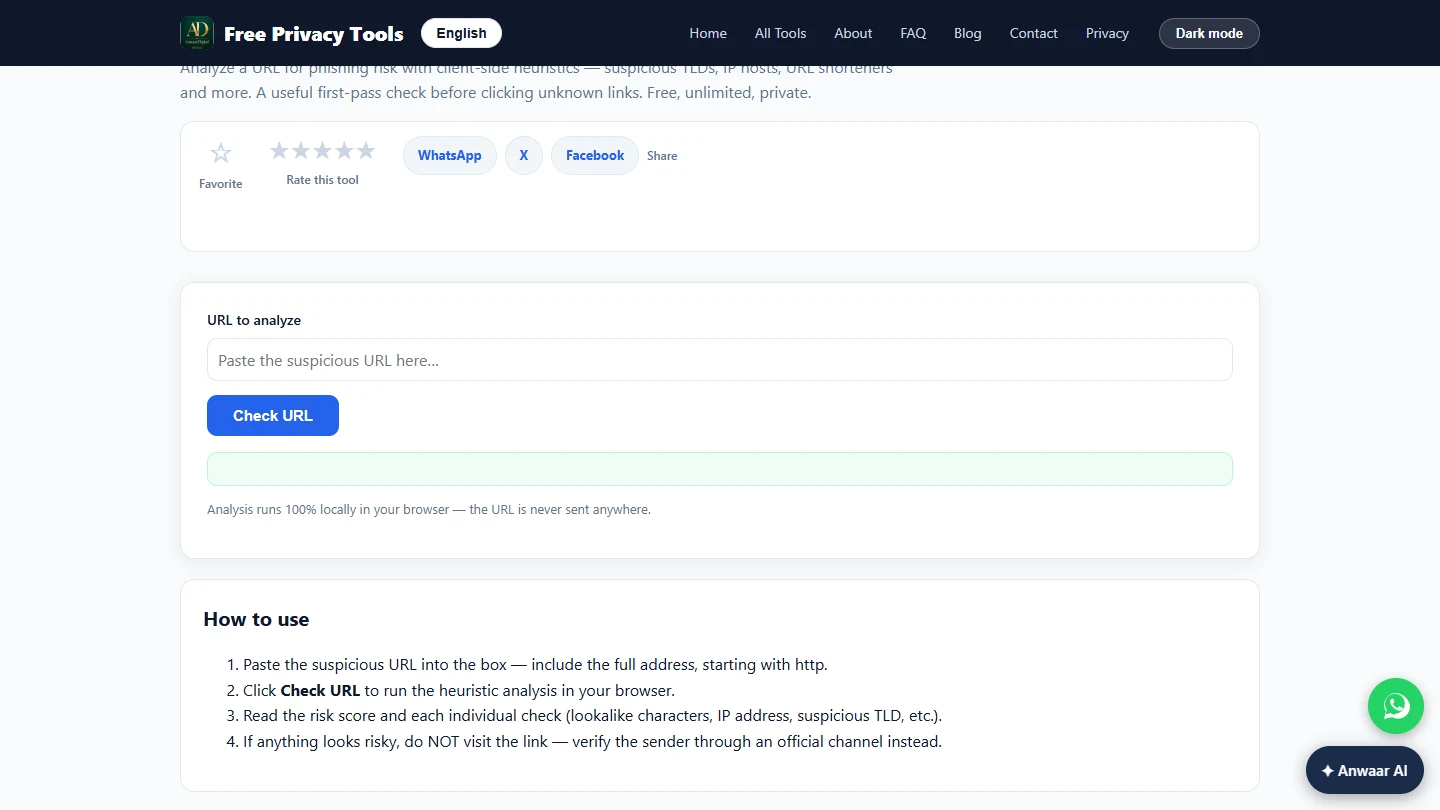
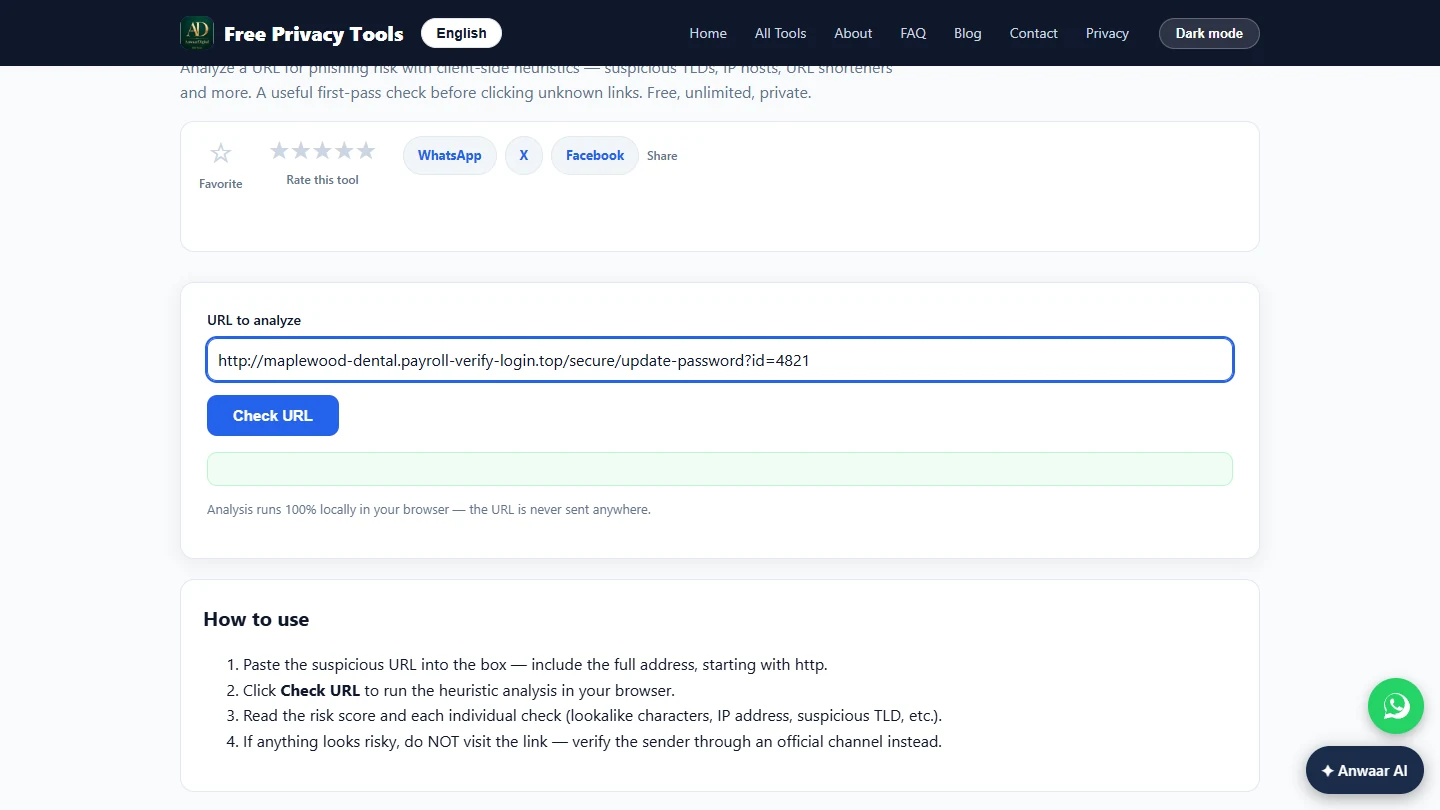
- Paste the link, do not click it. In the email, right-click the link and choose Copy link address, so you never open it. Paste it into URL to analyze. Ours is a made-up look-alike.
Right-click the link and copy its address, so you never open it.
- Check it. Click Check URL. The page says the analysis runs in your browser and the URL is never sent anywhere; in our test it made no network request.
It runs in your browser.
- Dangerous: three warnings. Dangerous, 70/100 risk. Three warnings: no HTTPS, a top-level domain often abused by scammers (.top), and brand-like words joined with hyphens (maplewood-dental, payroll-verify-login). The real business name sits in front of someone else's domain. Do not reply or click; report it to your IT provider and delete it. The disclaimer is honest: a heuristic can miss a clever fake, so "Safe" never means "click it". Click the verdict to continue.
Dangerous, seventy out of a hundred. No H T T P S, a scam-prone domain, and your name glued to someone else's. Report it and delete it.
2. Test the old password
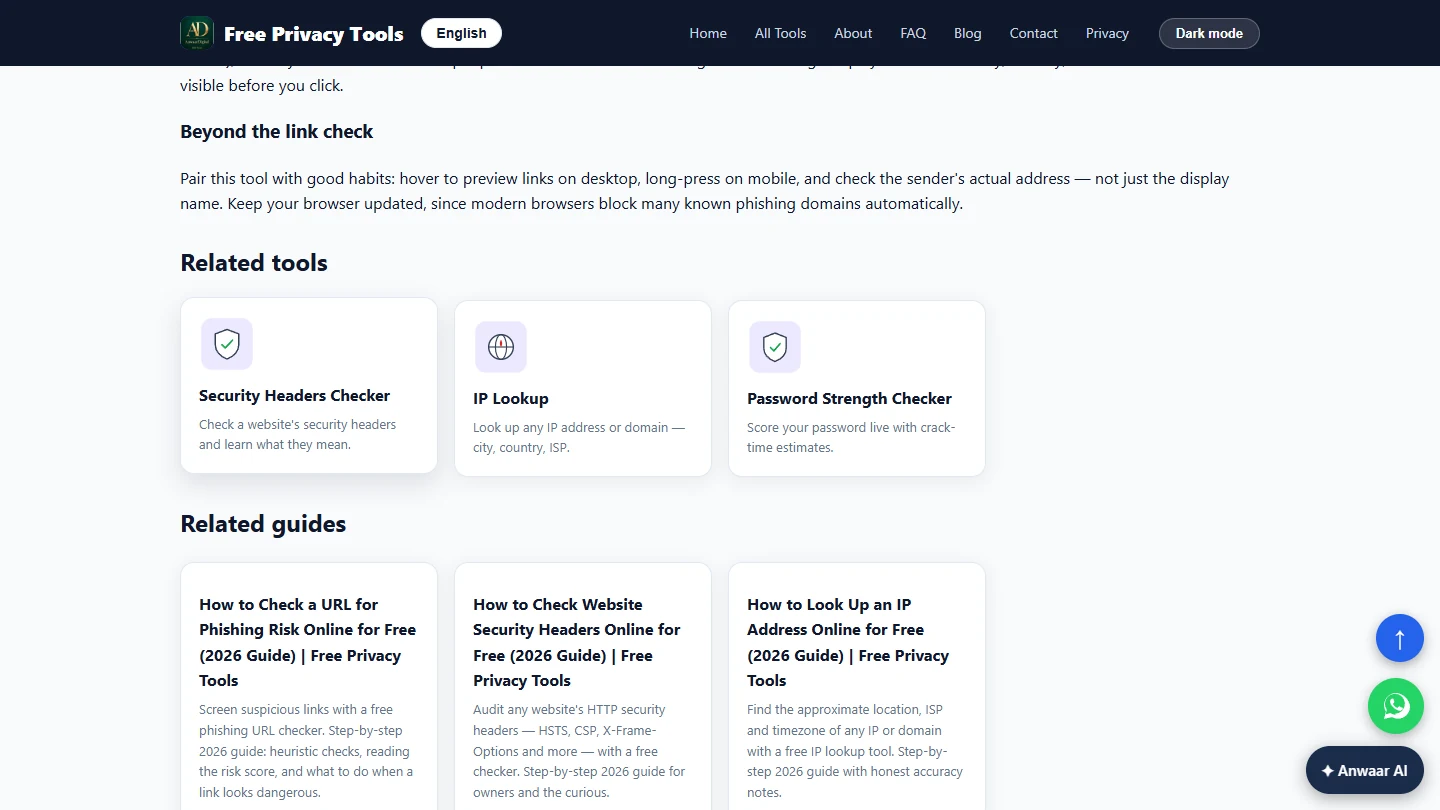
- Next: the shared password. The front desk shares one login for the scheduling system, and someone may have typed it into that page. Scroll down to Related tools and click Password Strength Checker.
Someone may have typed the shared password into that page. In Related tools, click Password Strength Checker.
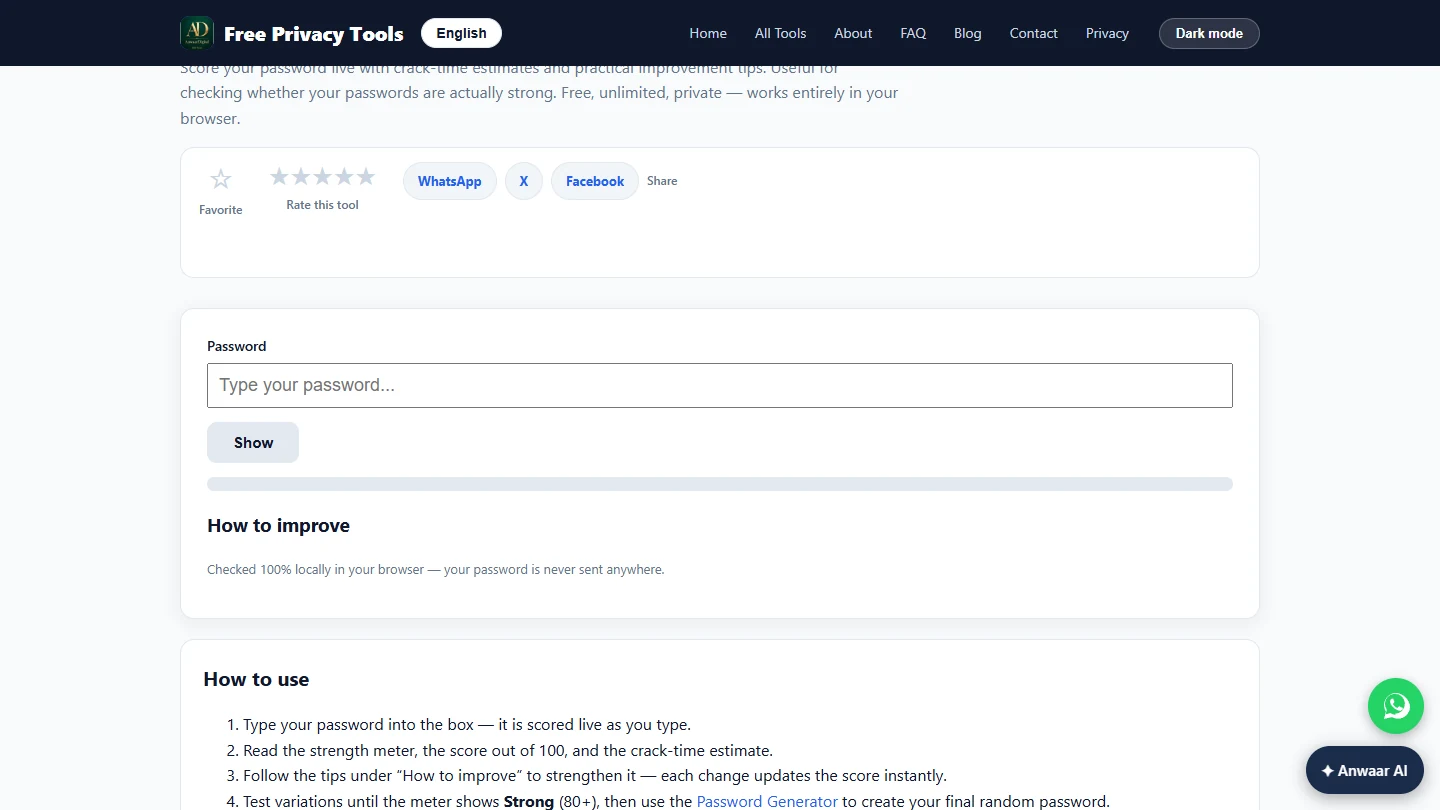
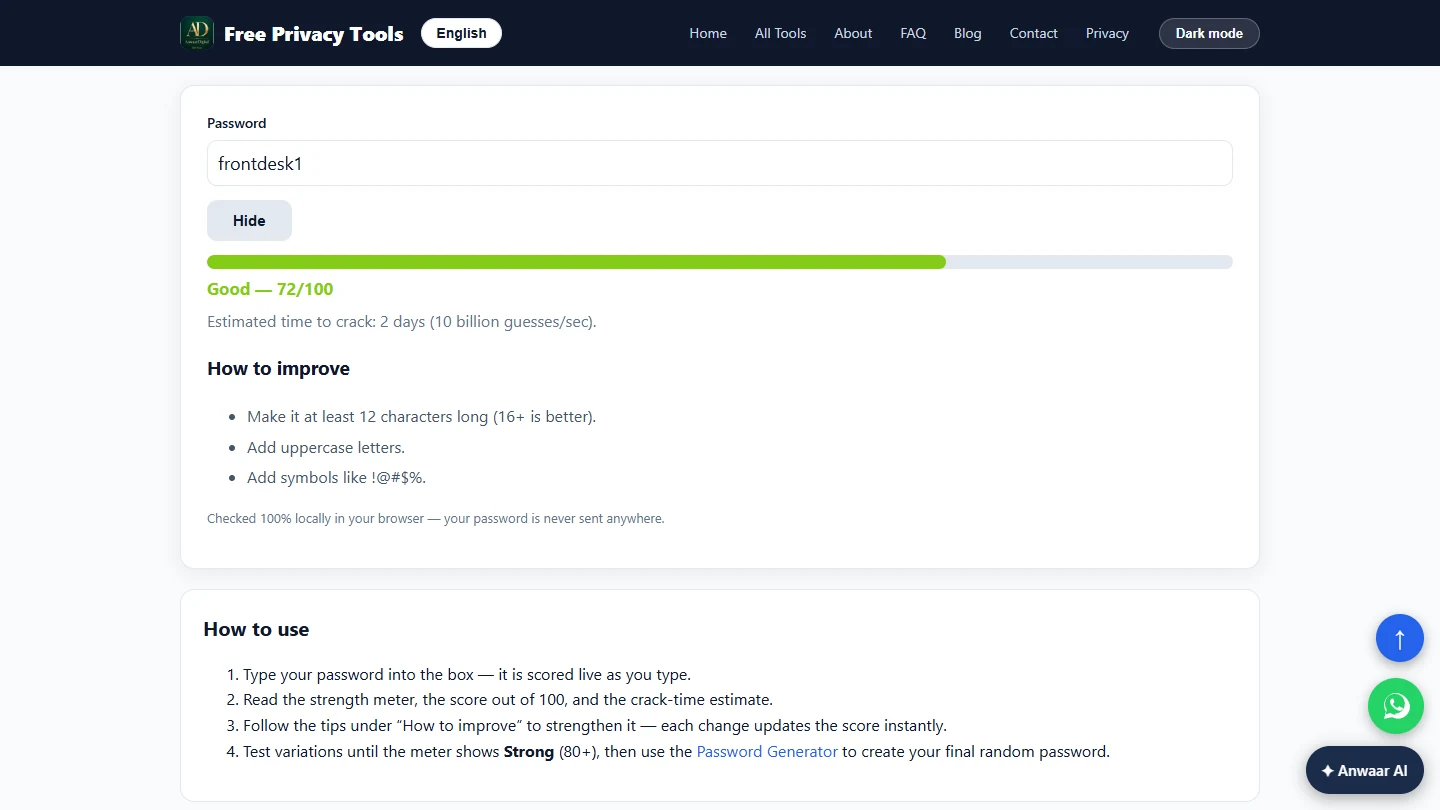
- Test the old password. Type the old password, frontdesk1 (made up). The page says it is checked in your browser and never sent; even so, many offices test a look-alike of the pattern rather than a live password.
It is checked in your browser.
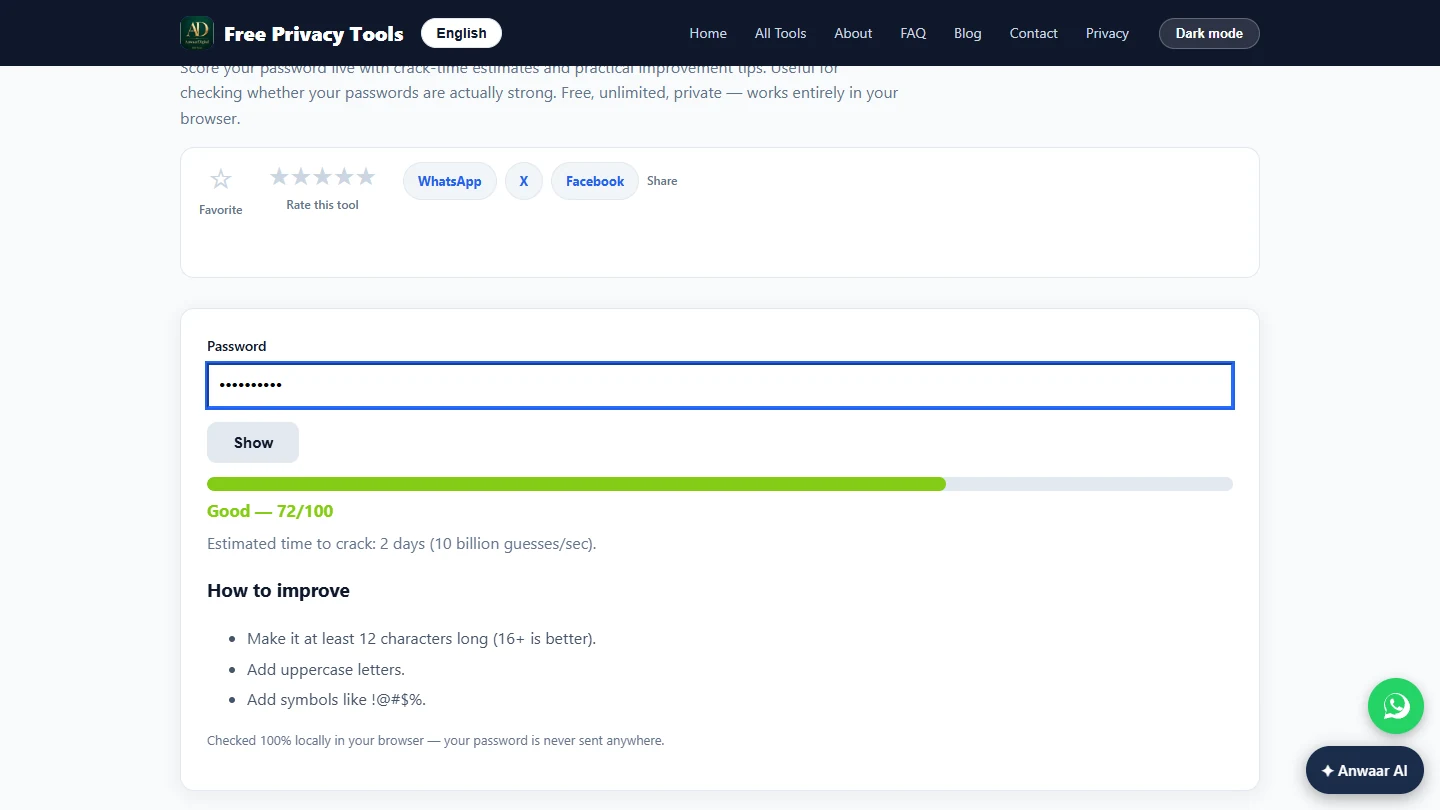
- Score it. The score updates as you type: Good, 72/100, and about 2 days to crack by guessing. Click Show to check what you typed.
Seventy two out of a hundred, about two days to crack.
- Two days is not good enough. How to improve: at least 12 characters (16+ is better), uppercase letters, symbols. And whatever the score, a password that may have been typed into a phishing page must be changed today. The checker scores length and character mix; it cannot know a password is shared or was leaked. Under How to use, click the Password Generator link.
Make it longer, with capitals and symbols. A password that may have leaked must change today anyway.
3. Make a new one
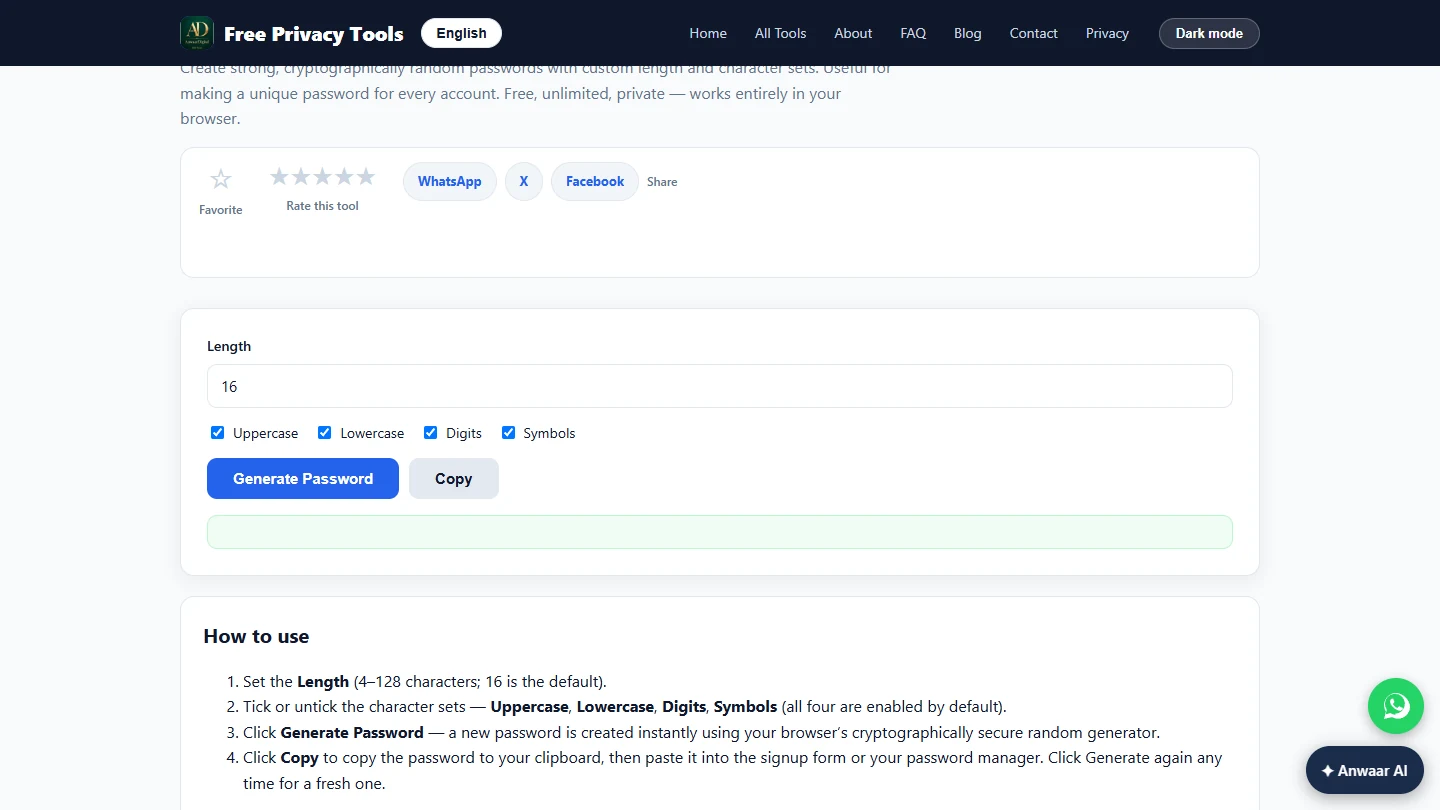
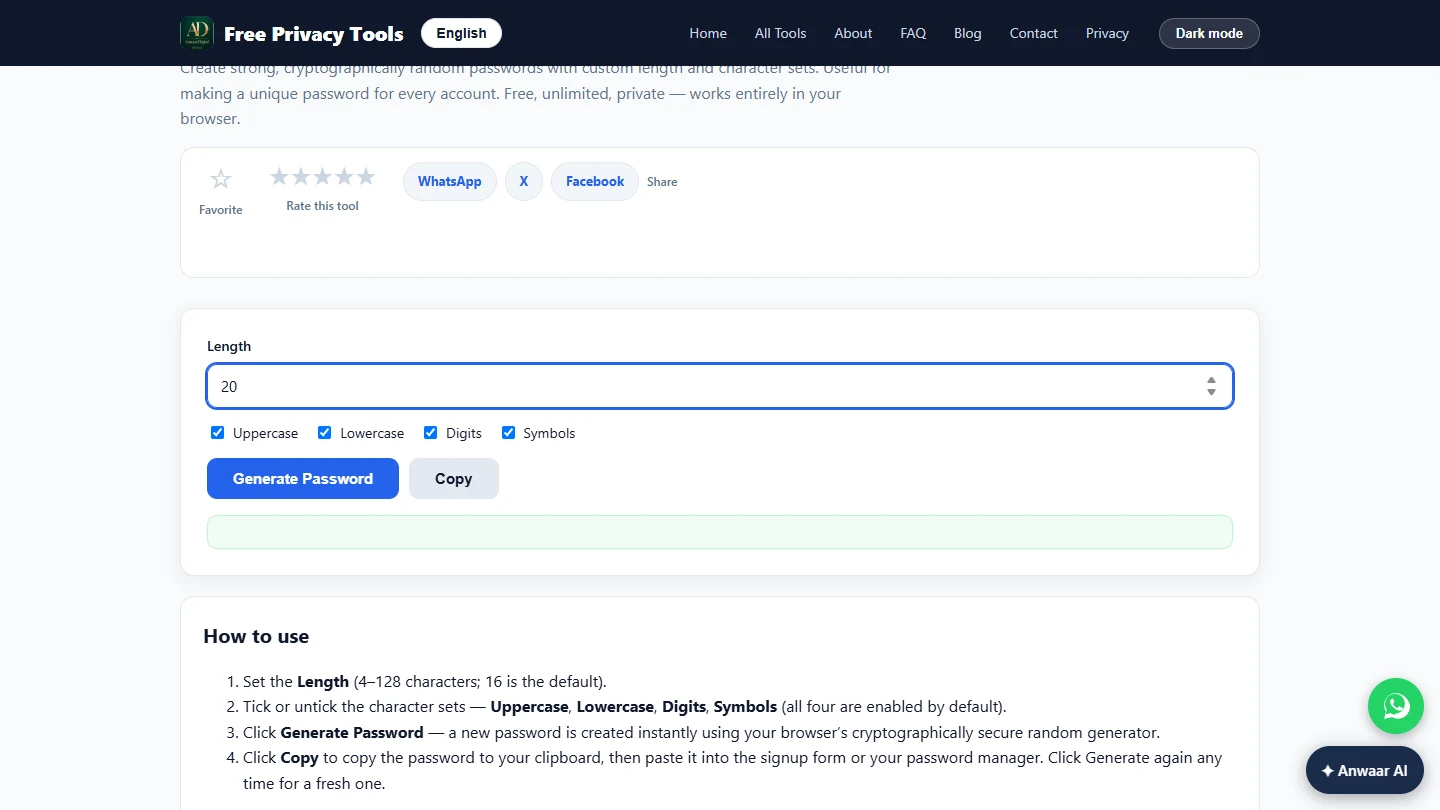
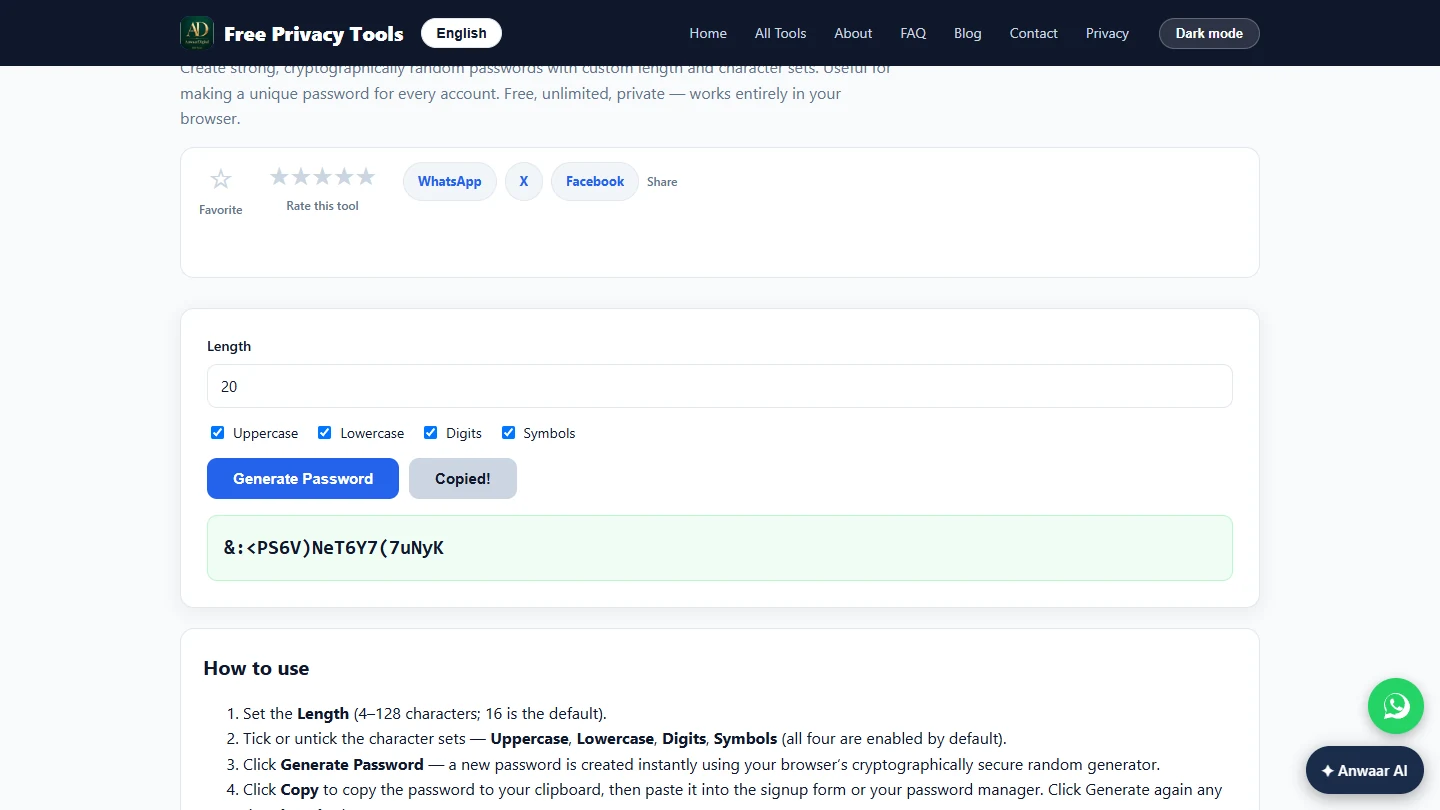
- Make it 20 characters. Uppercase, Lowercase, Digits and Symbols are all ticked. Length starts at 16. A shared login is worth more, so set it to 20.
All four character sets are ticked. Set the length to twenty.
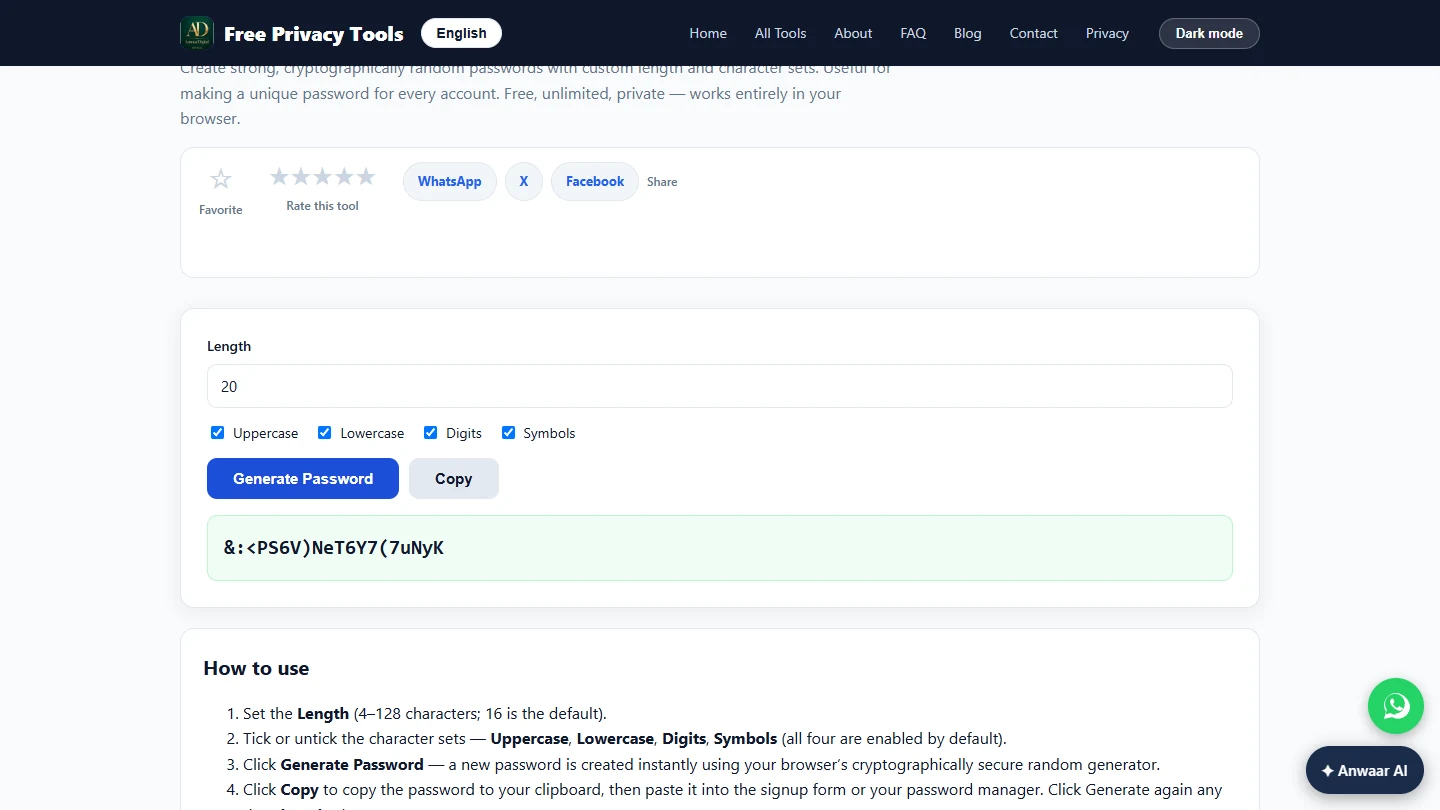
- Generate it. Click Generate Password. It uses your browser's cryptographically secure random generator.
- Copy it into your password manager. A 20-character password appears (ours started rG-J7!). Click Copy and paste it straight into the scheduling system's change-password page and your team password manager. Share it through the password manager, never by email or a sticky note, and turn on two-step sign-in if the system has it.
Never share it by email.
Screenshots
More in AI Automation for Operations
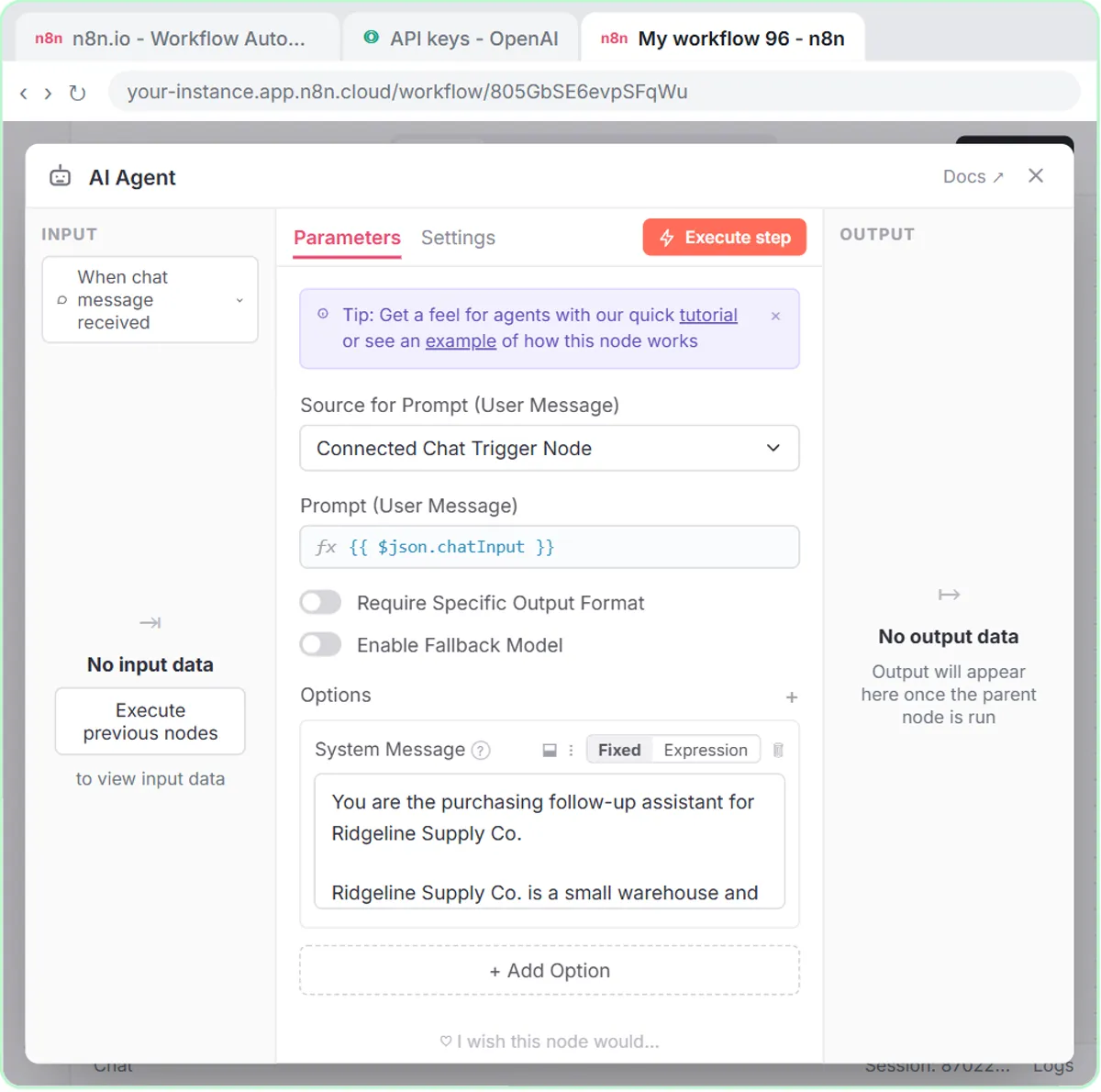 Build an AI Vendor Follow-Up Agent in n8n
Build an AI agent for Ridgeline Supply Co. that writes follow-up messages for late or pending purchase orders and saves them to Google Sheets — chat trigger, AI Agent…
Free · Live ~12 min Intermediate
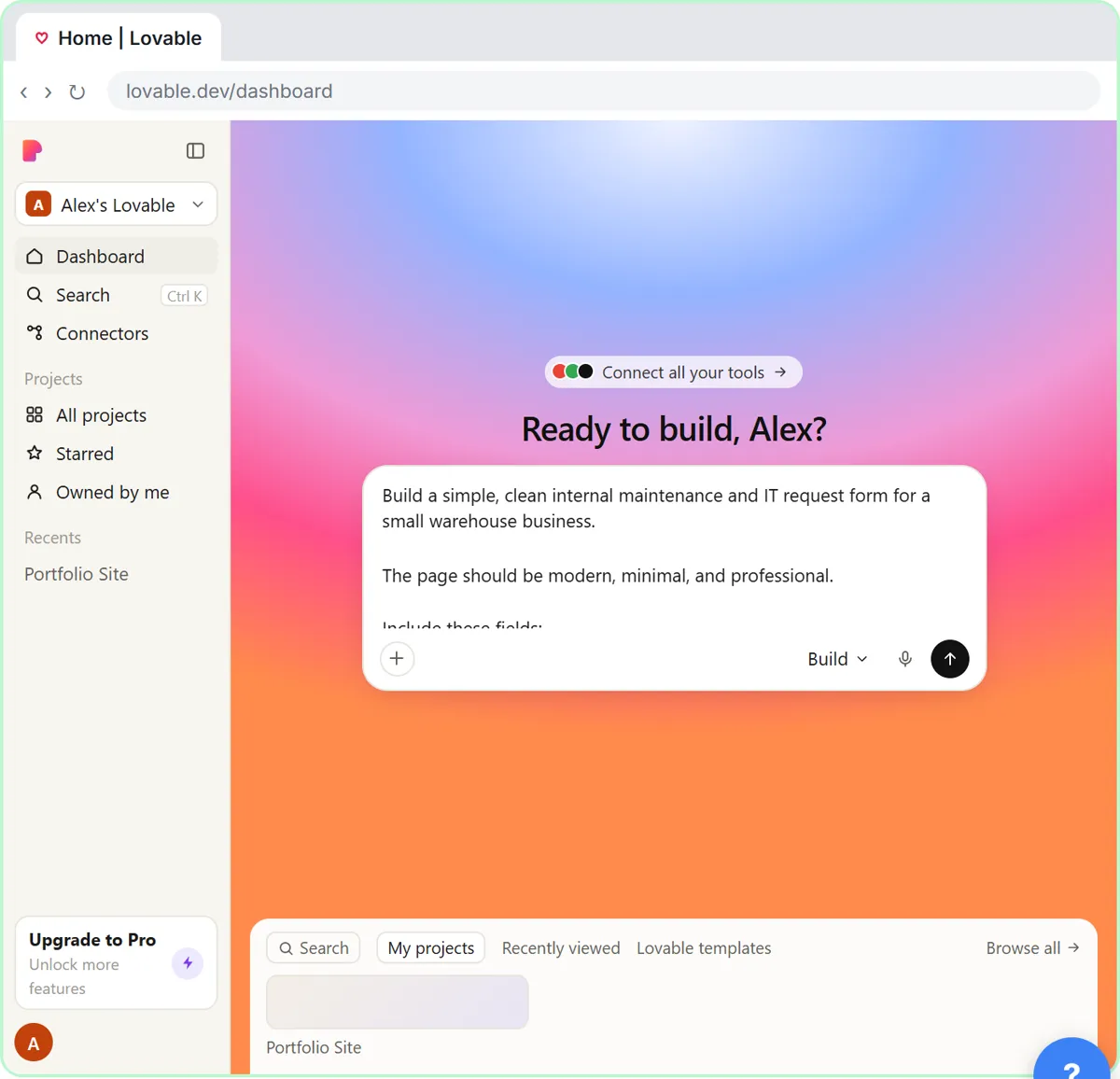 Build an AI Maintenance and IT Request Form
Build an internal maintenance and IT request form in Lovable for Ridgeline Supply Co. and connect it to n8n — the AI agent sets the priority, assigns a team, saves the…
Free · Live ~15 min Advanced
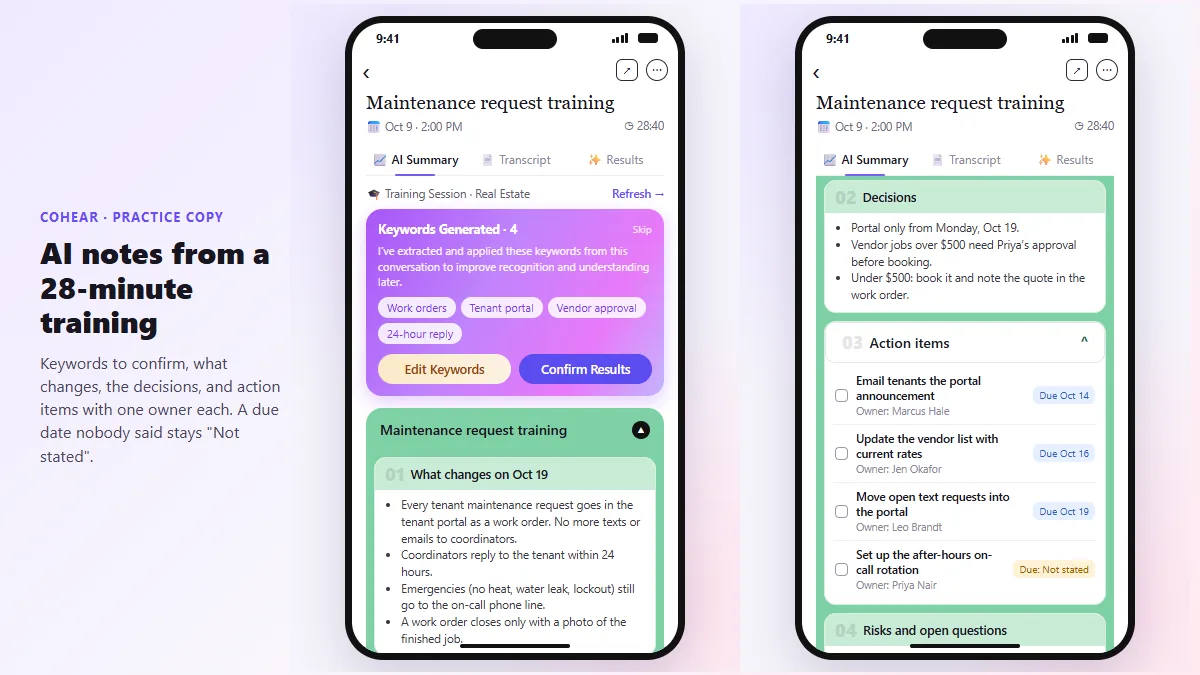 CoHear: AI Meeting Notes from a Team Training Session
Record a team training session on your iPhone with CoHear, check the AI notes and action items against the transcript, make a one-page handout and share it behind a…
Free · Live ~8 min Intermediate
 How to Use Gamma to Create a PowerPoint Presentation from Notes
Paste rough meeting notes into Gamma, pick a theme, fix one slide by chatting with its AI, and export the deck to PowerPoint and PDF.
Free · Live ~9 min Intermediate
◷Airia for Beginners: What an AI Agent Is Made OfA five-minute map of Airia before you build: the four parts of an agent (model and instructions, data sources, Playground, Publish), three office jobs that suit one…
Free · Live ~5 min Beginner
◷How to Use Foxit: Workspace, AI Assistant and PDF Editor for BeginnersA five-minute map of Foxit before you use it: Foxit Workspace, the PDF AI Assistant and PDF Editor, which one fits a contract review, a revised contract, a flat form or…
Free · Live ~5 min Beginner
All 39 modules in AI Automation for Operations
More Anwaar Digital tutorials
 Anwaar Digital: Prepare an Event Flyer for Print, Social and Email
One flyer, three formats, no designer. Make a print-size sign-up QR code, resize the flyer for Instagram and check the PDF before you email it, with the free QR Code…
Free · Live ~6 min Beginner
 Anwaar Digital: Pull the Signature Pages Out of a 12-Page Lease for Real Estate
Send a new tenant only the three pages they must sign, and put the rent, deposit and notice terms in the email, with PDF Splitter and PDF to Text. Free, no sign-up…
Free · Live ~5 min Beginner
 Anwaar Digital: Get a Listing Photo Website-Ready (Resize, Watermark, Compress) for Real Estate
Turn a 5.6 MB phone photo into a 142 KB, branded, website-sized listing photo with three free browser tools: Image Resizer, Watermark Adder and Image Compressor. No…
Free · Live ~7 min Beginner
 Anwaar Digital: Clean a Messy Volunteer Email List Before You Import It for Marketing
Trim stray spaces, lowercase every address and remove duplicate sign-ups before the list goes into your email tool, then check a text reminder fits in one message. Four…
Free · Live ~6 min Beginner
 Anwaar Digital: Send a Client One Small, Signed Engagement Packet for Consulting & Agencies
Turn a client's 3.3 MB phone photo of a signed page into one small PDF packet, letter, scope and signature in order, with Image Compressor, Images to PDF and PDF…
Free · Live ~7 min Beginner
 Anwaar Digital: Send a New Hire One Small Onboarding PDF Instead of Five Attachments
New hires open two attachments and skip the page they must sign. Turn the welcome letter into a PDF, merge the packet in reading order and check it before you send…
Free · Live ~5 min Beginner
Terms in this lesson
Plain-English definitions, each with an example from a free lesson.