Updated . Built against the tool’s current screens and checked step by step. How we check this lesson
A shared office inbox fills with newsletters, receipts and cold pitches long before the emails that matter. Town is an AI work assistant, your "Townie", that connects to Gmail, Calendar and Drive, labels mail, drafts replies and runs routines. In this free lesson on real Town screens, the office manager at a made-up architecture firm checks what her Townie may do, makes every send wait for her approval, and sets up the Auto-inbox routine so labels and draft replies are waiting for review. 12 steps, about eight minutes, no account needed to practice.
At a glance
| Question | Answer |
|---|---|
| What you build | The shared office inbox gets 150 emails a day. In the real Town app, check what your AI assistant may do, make every send wait for your approval, and set up Auto-inbox to label mail and draft replies you send yourself. |
| Tools | Town |
| Time | About 8 minutes, 12 steps in 3 parts |
| Level | Beginner, no coding needed |
| Cost | Free |
| Ways to learn it | Practice it step by step |
The 3 parts, in short
- Meet your Townie: Open your Townie's settings, Know its address.
- Make sending ask first: Read the outbound warning, Open the email tools, Find Send Thread Email, Choose Ask each time, and 2 more steps.
- Check Auto-inbox before it runs: Open Auto-inbox, Check the labels, Keep draft replies on, Turn Smart scheduling off.
Start here first: Build an AI Vendor Follow-Up Agent in n8n (module 1 of AI Automation for Operations)
The business case: start the day with the inbox already sorted
Picture Maya, office manager at Linden & Park Architects, a made-up 25-person firm. The office inbox gets 150 emails a day: client questions, consultant updates, invoices, product newsletters and cold pitches. She spends the first hour of every day sorting it and writing the same kinds of replies.
With Town, her assistant labels new mail as it arrives and drafts replies when an email clearly needs one. The drafts wait in Gmail for her to review, and because approvals are set to Strict and sending is set to Ask each time, nothing goes out without her.
Who this is for, and what you need
Office managers, executive and team assistants, and small business owners who handle a busy Gmail inbox. The practice runs in your browser with no account. To do it for real you need a Town account and a Google account; Google is Town's core integration. Live new-email triggers need the Pro plan or higher, and there is a 7-day Pro trial.
What we found on a brand-new account
On our new trial account, the approval default was Auto, Send Thread Email (which sends a drafted reply to everyone on a thread) was on in Auto mode, and Town showed its own Outbound tool risk warning. Four routines were already switched on: Morning Briefing, Meeting Briefing, Loose-Ends Sweep and Auto-inbox, with Smart scheduling on, which books meetings and sends invites without an approval step. Setting Ask each time on sending tools, Strict as the approval default and Smart scheduling off means labels and drafts still happen on their own, while anything other people would see waits for you.
What the docs say about cost, data and safety
Town's Free plan includes 30 messages to your Townie over the past 30 days and the Weekly Briefing. Starter is $15 a month with 2 custom routines on daily triggers; Pro is $49 a month billed annually with all trigger types. Town says data is encrypted in transit and at rest, hosted in the US, never sold, and that AI training on your data is off by default, with Google data never used for training. It is not zero-knowledge encryption: Town's systems process your content to do the work.
What this saves you
- Sorting newsletters, receipts, promotions and cold pitches by hand.
- Writing every routine first draft yourself.
- What it does not do: it does not know your fees, dates or promises. Fill every placeholder and check every figure before you send.
How this lesson was built
Every practice screen is a capture of the real Town web app, taken on 20 November 2026 on a new trial account with Google connected. We only looked: no setting was changed, no routine was run and no email was read, labeled or sent, so the screens show Town's defaults, and there are no drafts to show. The owner's name, address and Town's inbox-based suggestions are blurred. Plans and data handling come from Town's public docs. The firm is made up.
Links
- Town docs: how it works: naming your Townie, connecting accounts, routines, threads and integrations.
- Auto-inbox: the default labels, draft replies, scheduling settings and what still needs approval.
- Modes & Approvals: Auto, Balanced and Strict, Human in the Loop, and per-tool approval modes.
- Trust & Security: training, encryption, hosting, who can see your data and deletion.
- Plans & Pricing: Free, Starter, Pro and team plans, credits and which triggers each allows.
- Town in the AI tools directory: our directory listing.
Try it yourself, free
Reading the steps is a start. Doing them is how it sticks. The interactive module walks you through every click in a practice copy of Town, checks each step, and never touches your real accounts.
Start “Town: Let an AI Assistant Sort the Inbox and Draft Replies, Asking First”Step by step: Town: Let an AI Assistant Sort the Inbox and Draft Replies, Asking First
All 12 steps of the interactive module, in order. In the module you watch each one, then do it yourself in a practice copy that checks your work.
1. Meet your Townie
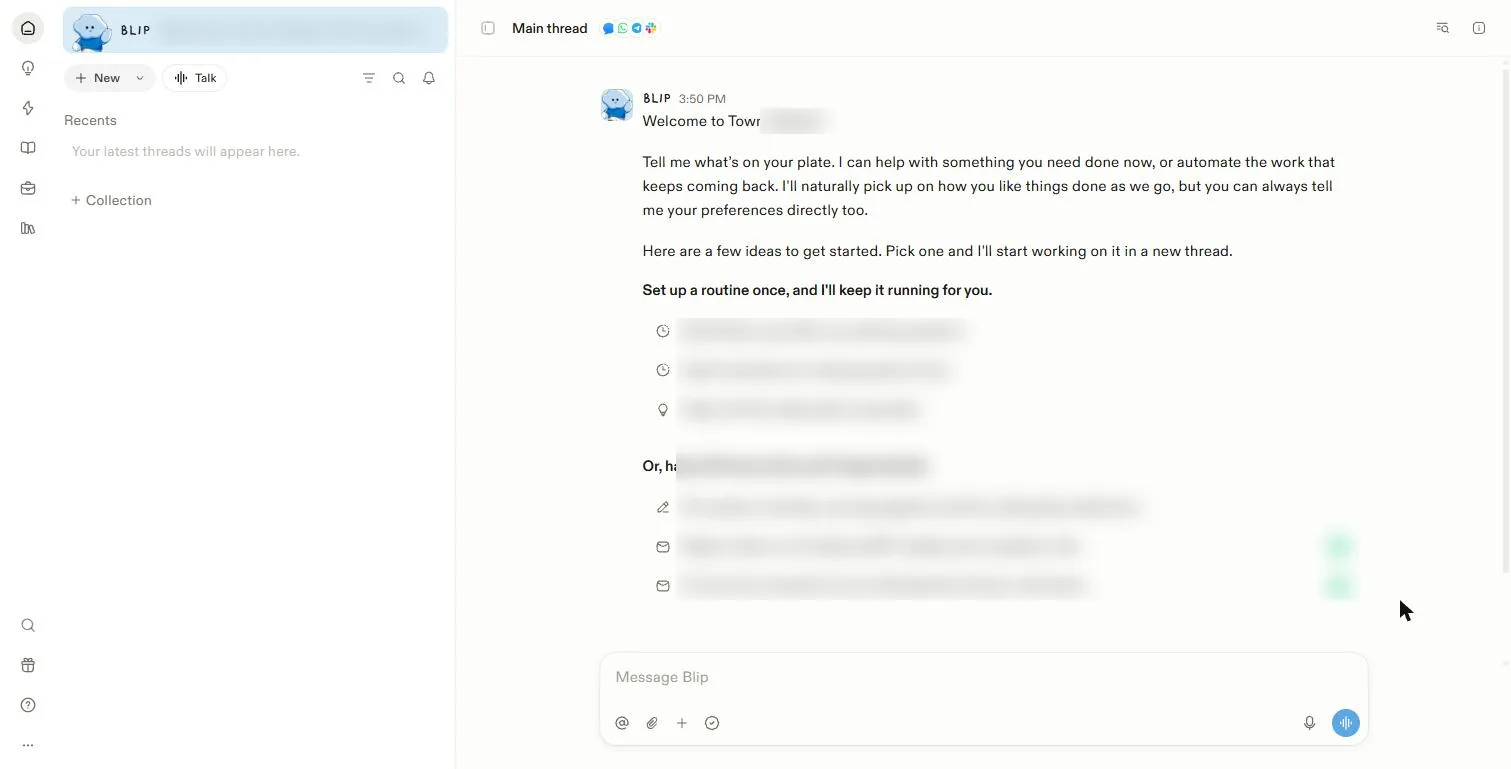
- Open your Townie's settings. You are Maya, office manager at Linden & Park Architects, a made-up 25-person firm whose shared inbox gets about 150 emails a day. You signed up for Town with Google, and your assistant, your Townie, greets you in the Main thread with ideas built from your own inbox (blurred here). Before you hand it any work, check what it is allowed to do. Click the ... menu at the bottom left, then Settings, then Townie.
You run a busy office inbox. Town gave you an assistant, called your Townie. Before you give it work, check what it may do.
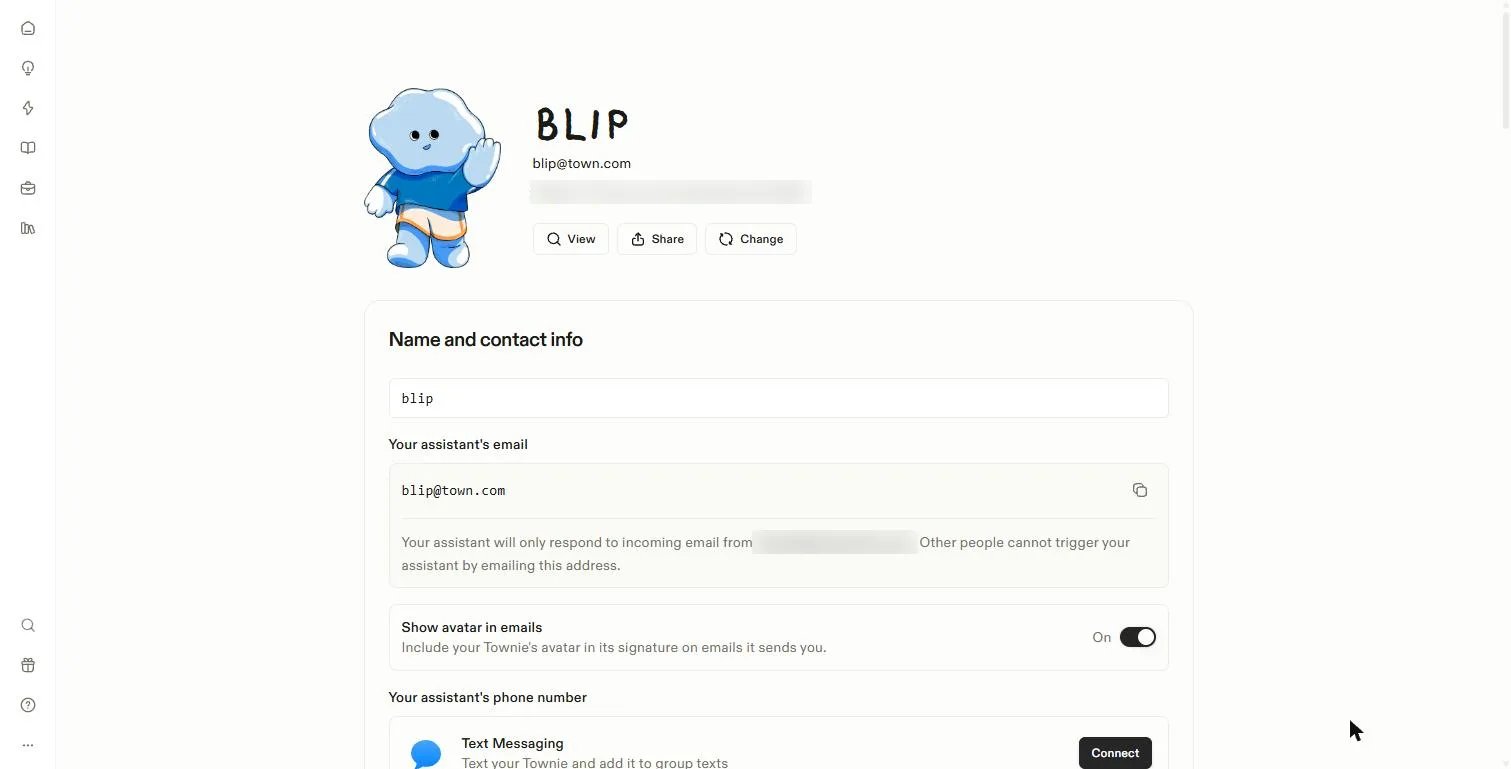
- Know its address. Our Townie is called Blip and has its own address, blip@town.com. Town says it will only respond to incoming email from your own address, so other people cannot give it instructions by emailing it. Click the address box, then scroll down to Capabilities & behavior.
Your Townie has its own email address, and it only takes instructions from your address.
2. Make sending ask first
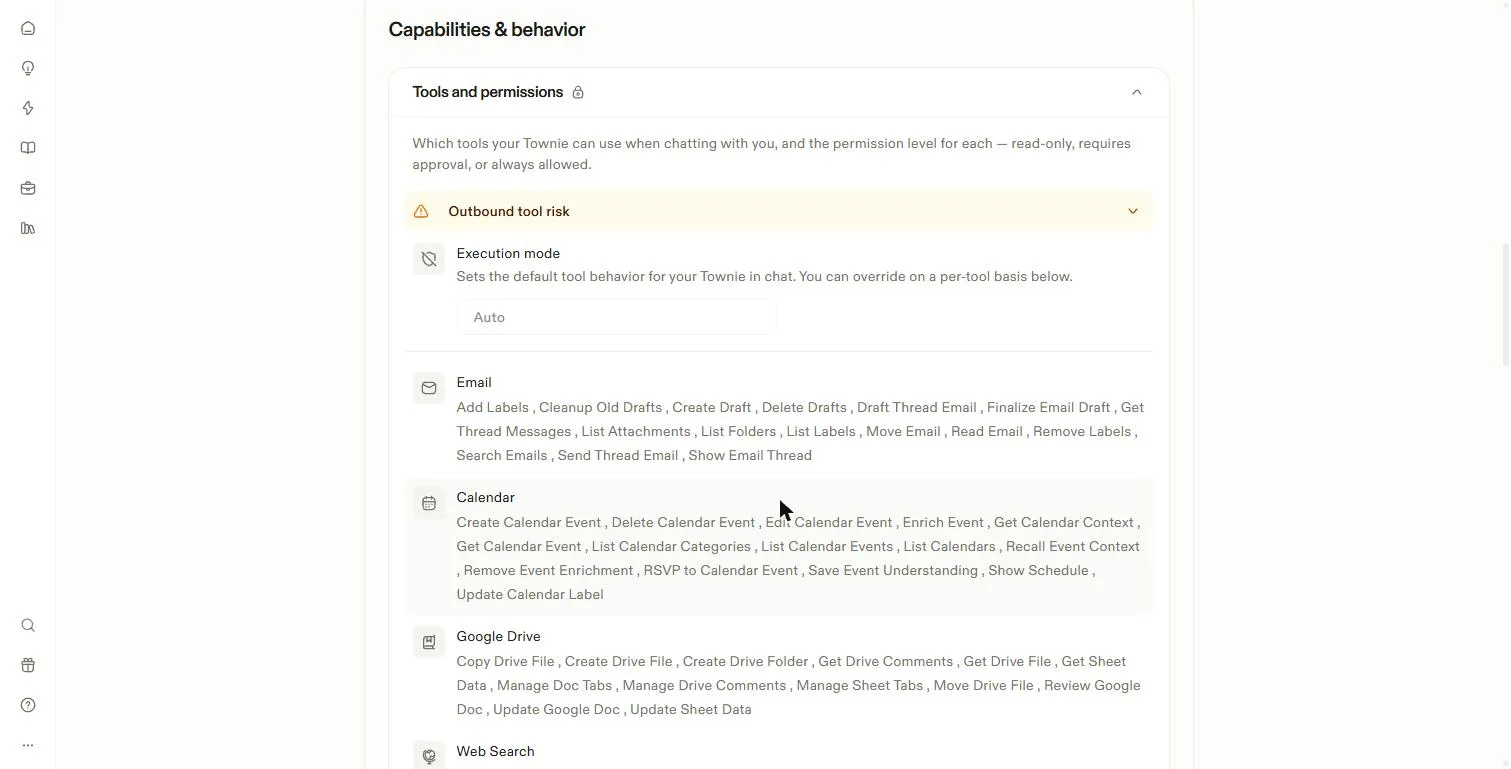
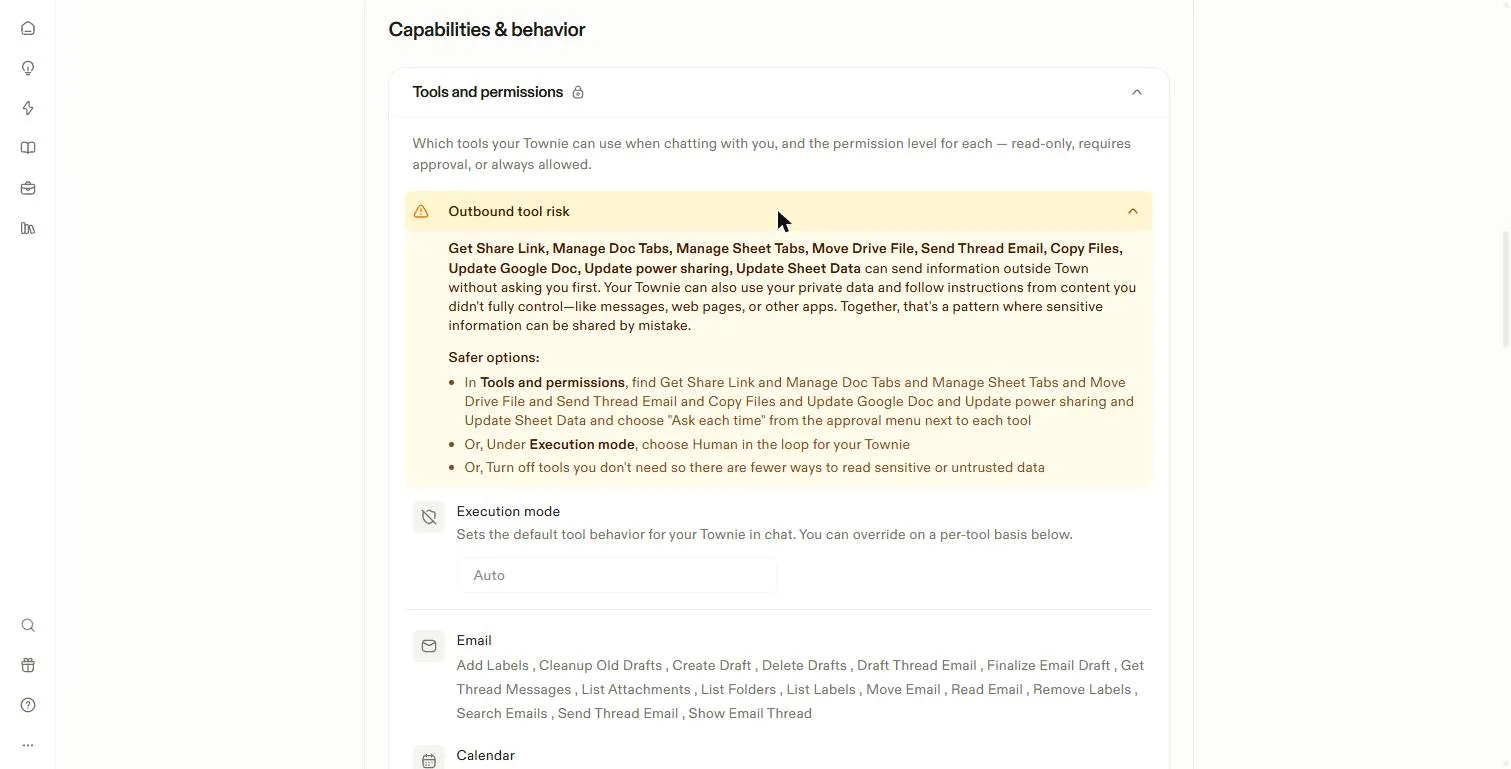
- Read the outbound warning. Tools and permissions lists what the Townie can use in chat, and the permission level for each: read-only, requires approval, or always allowed. On our new account the Execution mode was Auto and greyed out (maintained by Town), and an orange Outbound tool risk bar was showing. Click it.
Tools and permissions shows what your Townie can use. Execution mode was Auto.
- Open the email tools. Town flags its own default: tools like Send Thread Email and Update Google Doc "can send information outside Town without asking you first", and your Townie can follow instructions hidden in emails or web pages. Its safer options: set those tools to Ask each time, use Human in the loop, or turn off tools you don't need. Click Email.
Town warns that some tools can send things out without asking. Its advice: set them to ask each time.
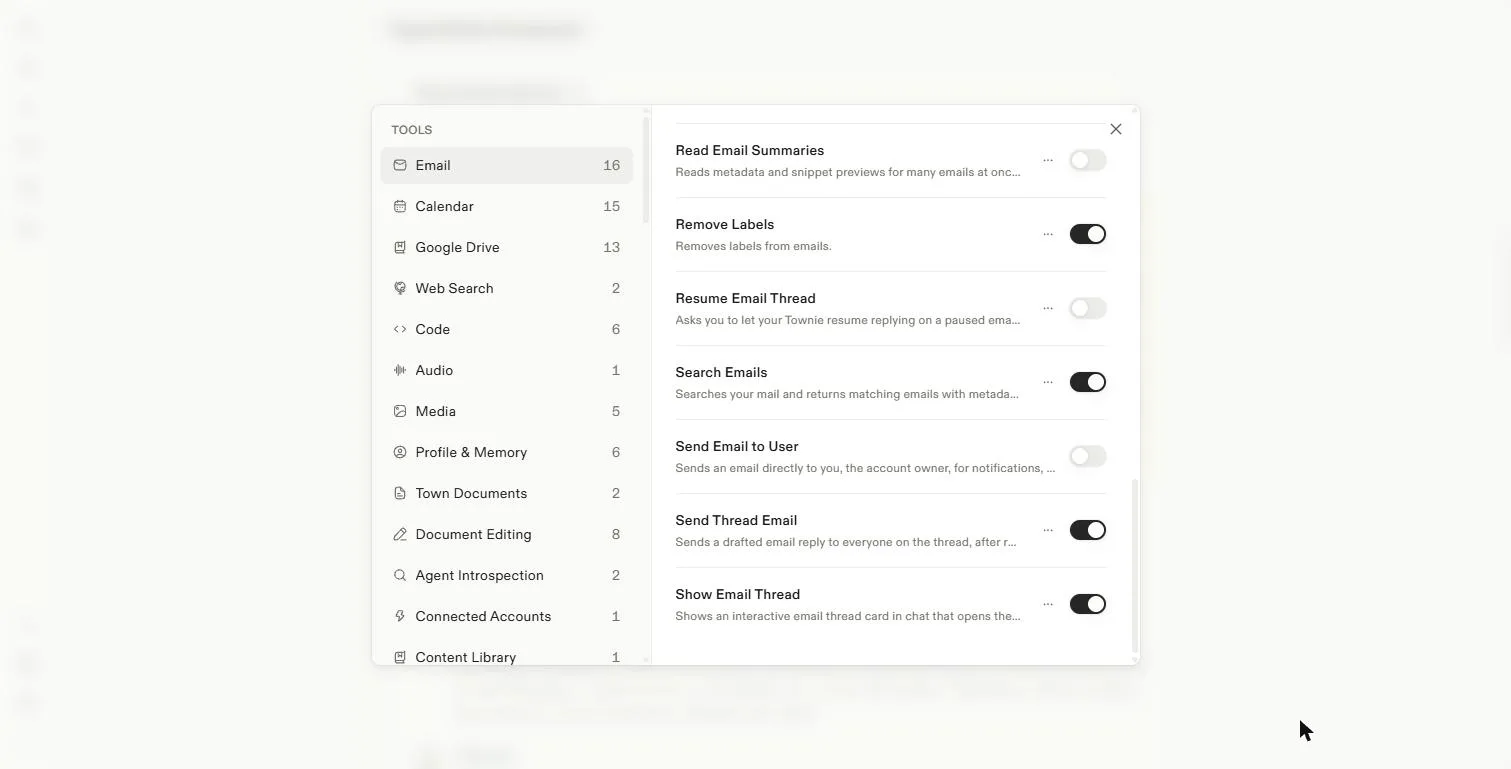
- Find Send Thread Email. The Email list has 16 tools, each with an on/off switch and a ... menu. Most stay inside your inbox (labels, drafts, search). Send Thread Email "sends a drafted email reply to everyone on the thread", and it was on. Click its ... menu.
Most email tools stay inside your inbox. Send Thread Email sends replies to everyone on a thread, and it was on.
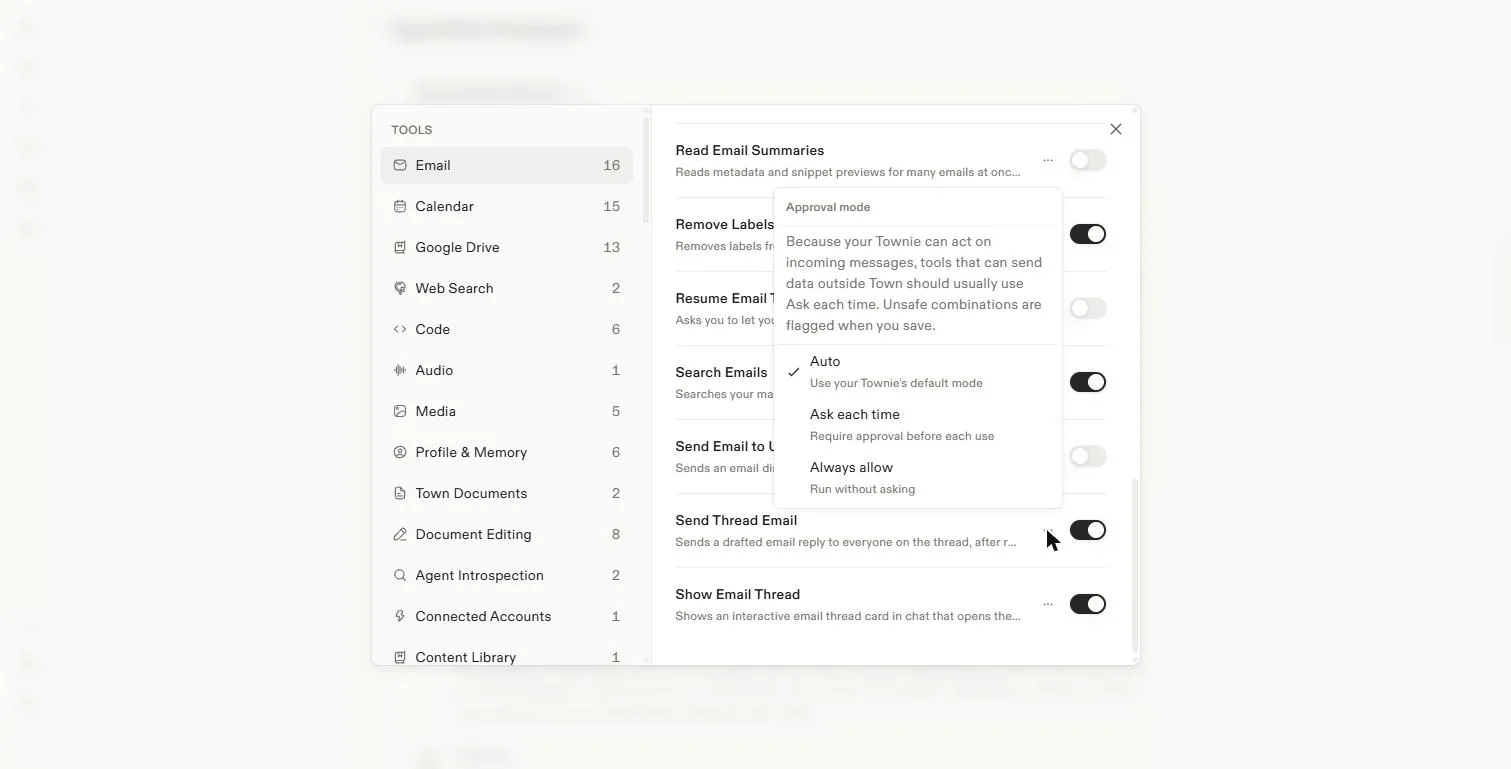
- Choose Ask each time. The Approval mode menu says tools that can send data outside Town should usually use Ask each time, and that unsafe combinations are flagged when you save. It was set to Auto. Choose Ask each time ("Require approval before each use"). Do the same for the other tools the warning named. If you never want the Townie to send, turn the switch off instead.
Do the same for the other tools in the warning.
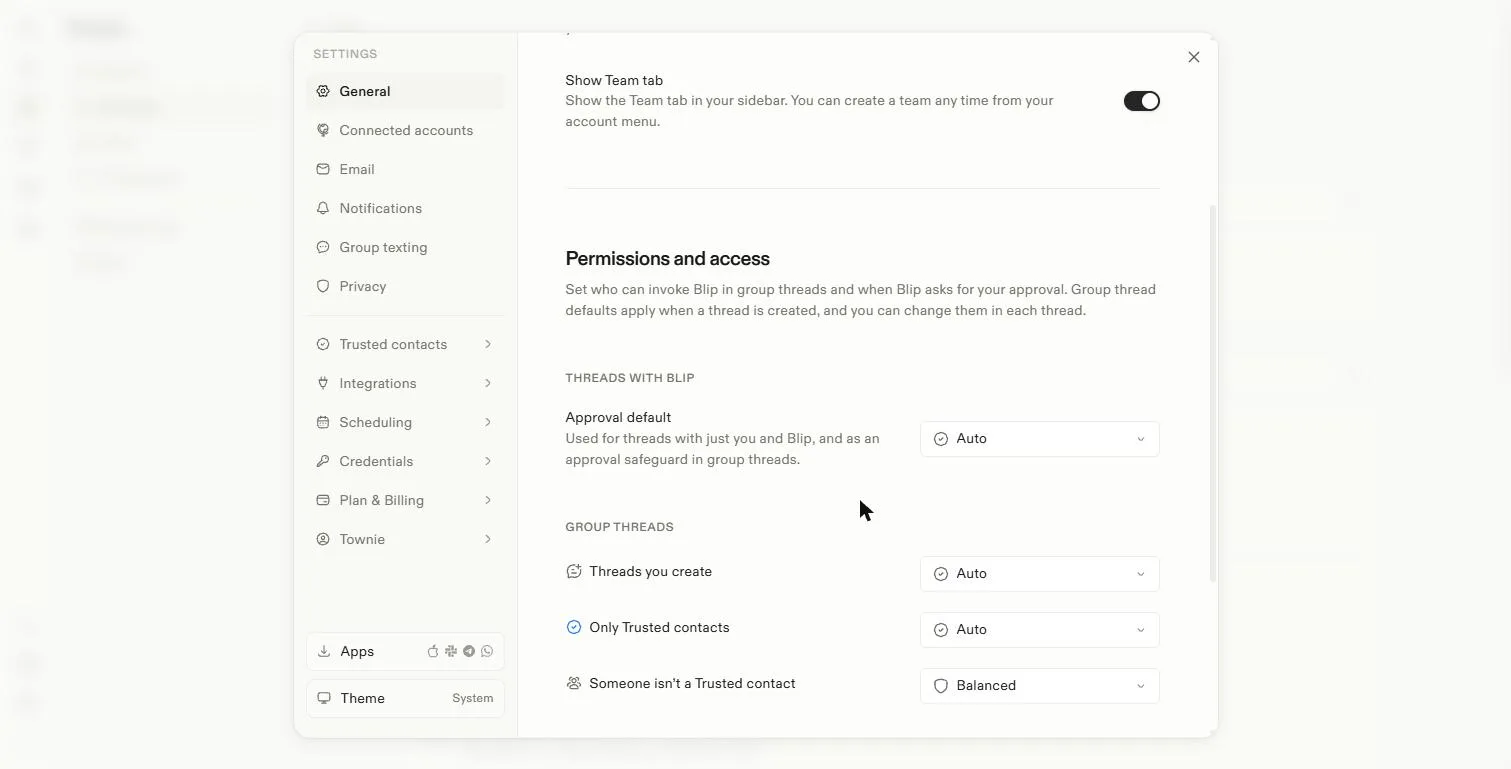
- Open the approval default. Next, the default for everything else. In Settings > General, scroll to Permissions and access. Approval default is used in your threads with the Townie and as a safeguard in group threads. Ours was Auto. Click it.
Now the default for everything else. In Settings, General, open Approval default. Ours was Auto.
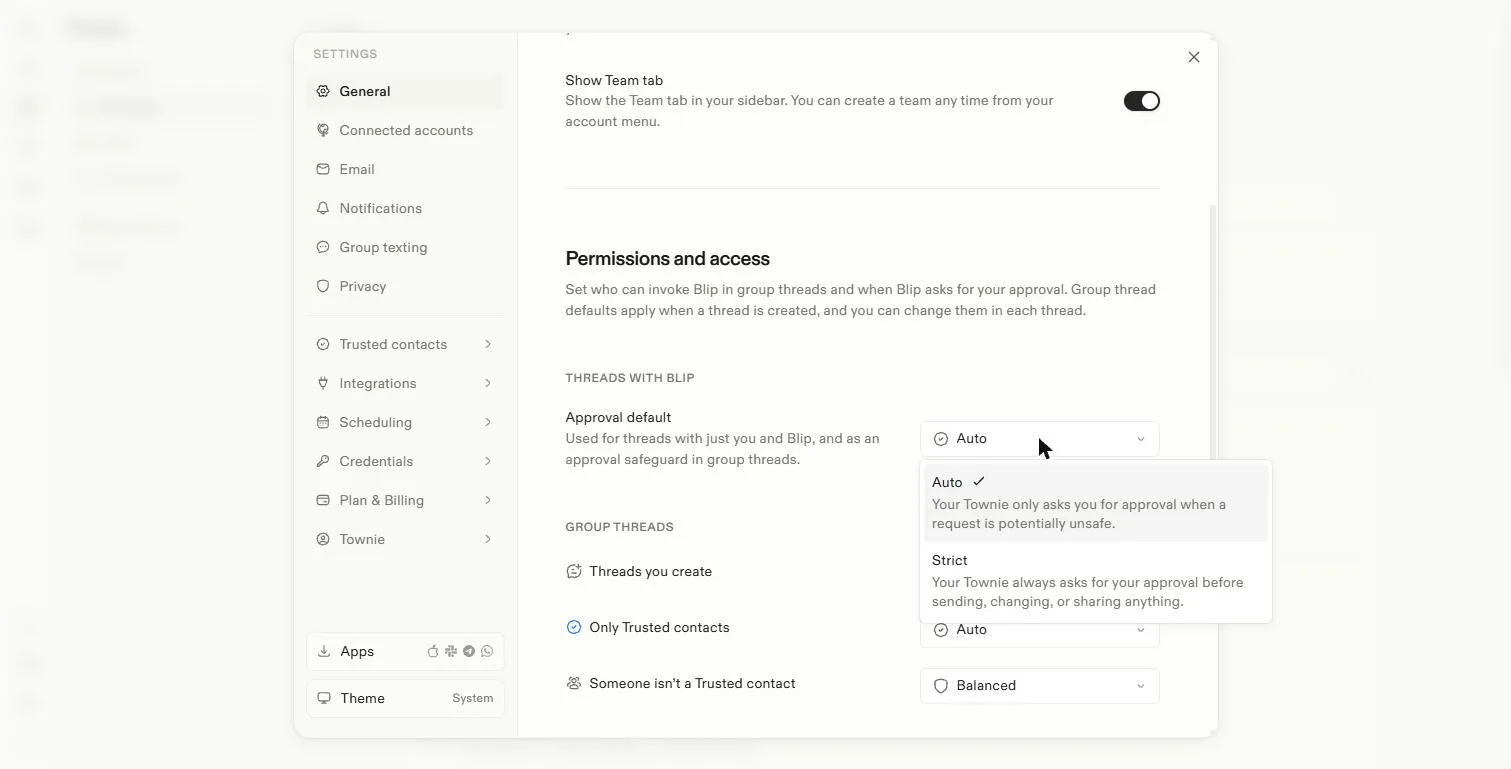
- Choose Strict. Auto: your Townie only asks for approval when a request is potentially unsafe. Strict: it always asks for your approval before sending, changing, or sharing anything. Client and consultant email carries fees, dates and promises, so start on Strict. Click Strict.
Auto only asks when something looks unsafe. Strict always asks before it sends, changes or shares anything.
3. Check Auto-inbox before it runs
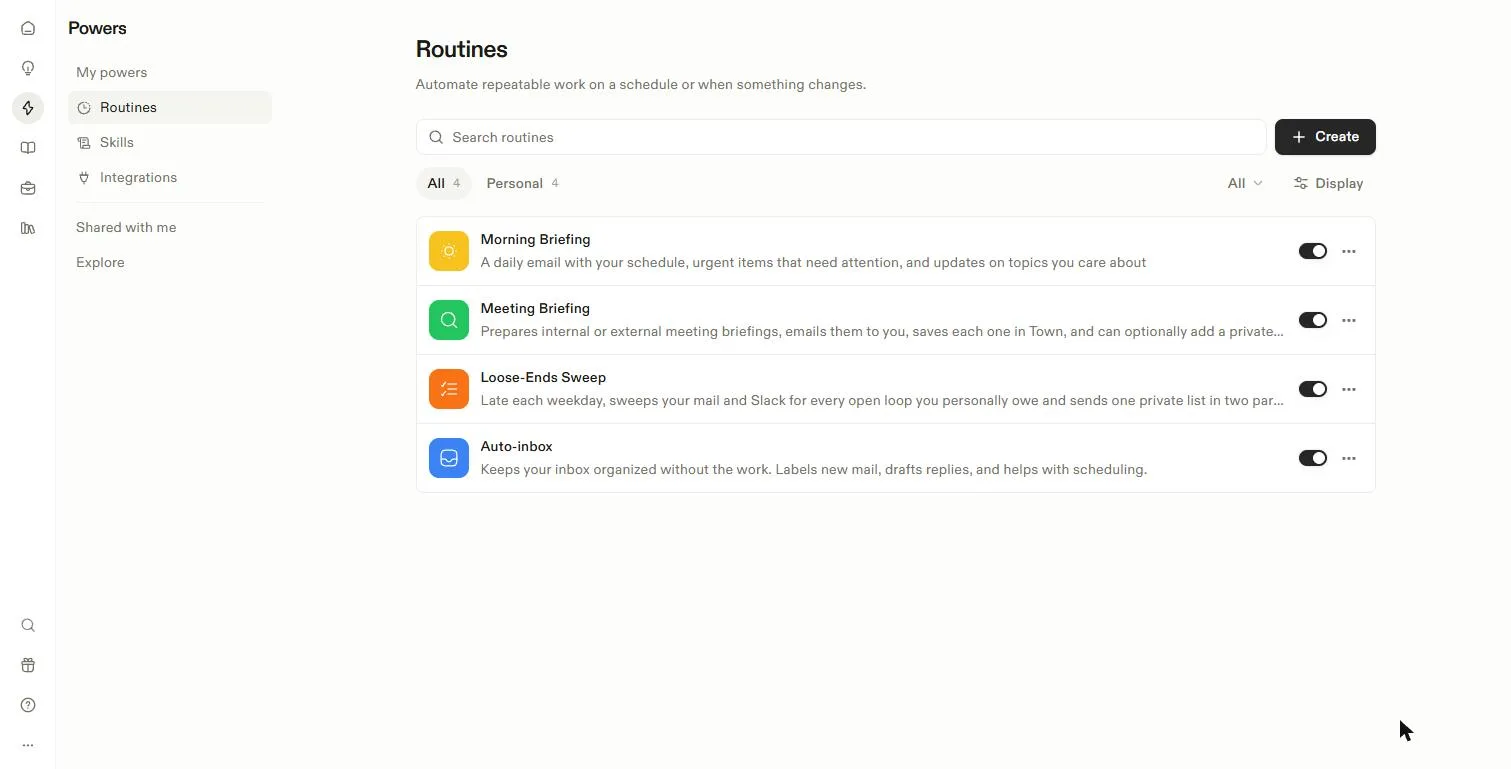
- Open Auto-inbox. Routines run without you asking. Under Powers > Routines, our new account already had four, all switched on: Morning Briefing, Meeting Briefing, Loose-Ends Sweep and Auto-inbox. Auto-inbox "labels new mail, drafts replies, and helps with scheduling", and it starts on incoming email. Click Auto-inbox.
Our new account already had four routines switched on, including Auto-inbox.
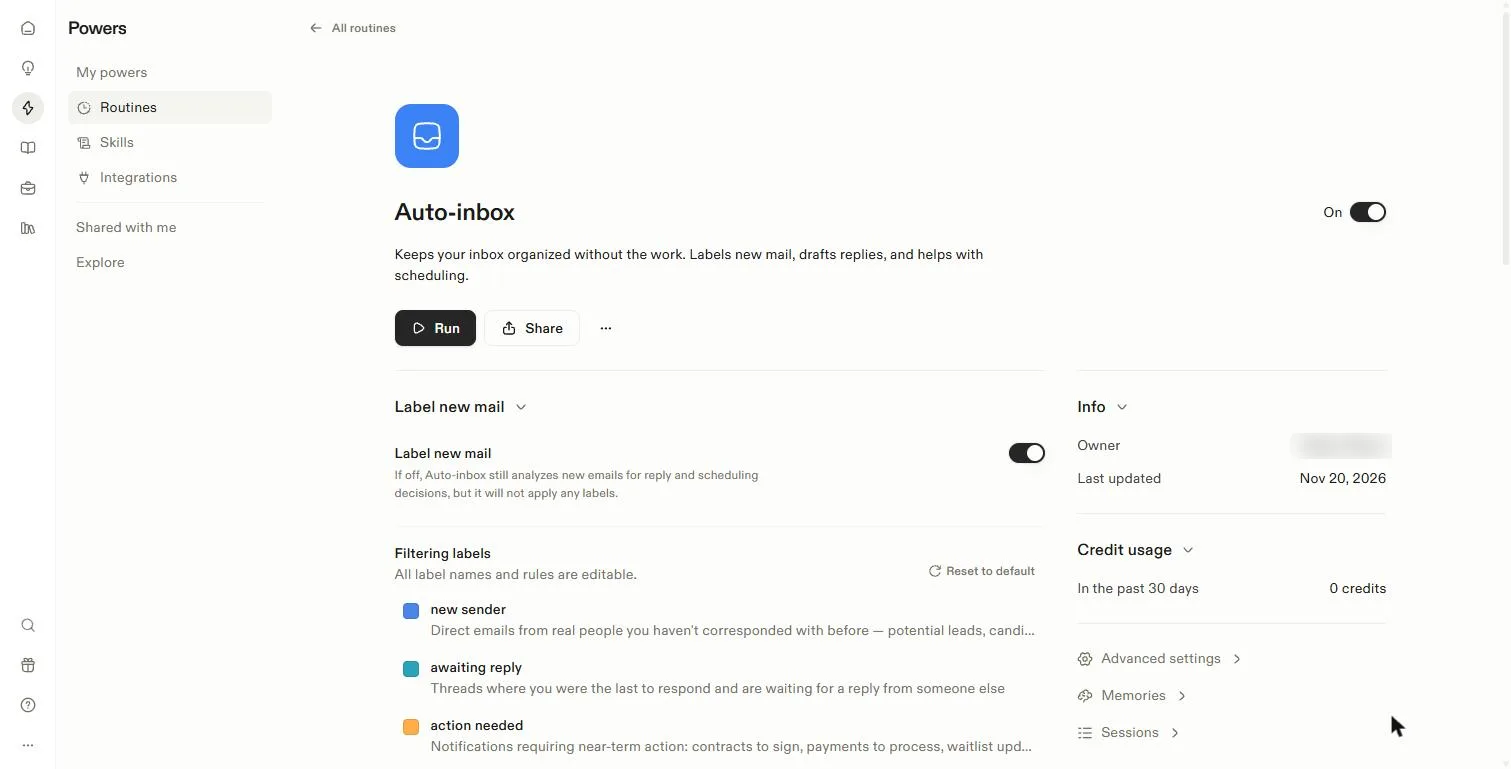
- Check the labels. Auto-inbox is On and Label new mail is on. The filtering labels are new sender, awaiting reply, action needed, newsletters, promotional, orders, travel and updates, all editable, and you can prefix them Town/ in Gmail. Labels only you see are low risk. Under Advanced settings, its email tools are add labels, archive, read and search: no send. Click the labels, then scroll to Draft Replies.
It labels new mail with eight editable labels, like action needed and newsletters. Only you see labels.
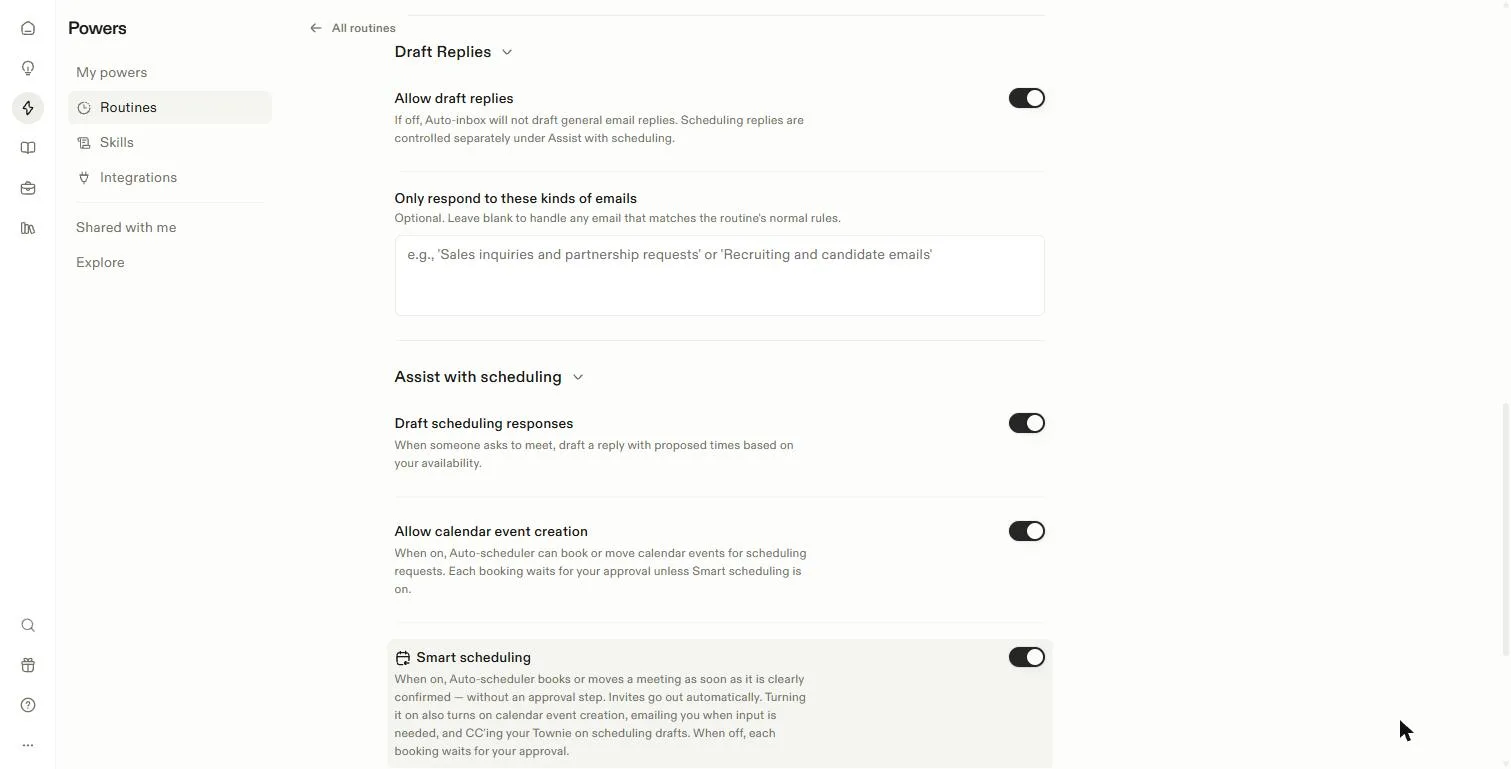
- Keep draft replies on. Allow draft replies is on: Auto-inbox writes replies as Gmail drafts and you send them yourself. Only respond to these kinds of emails narrows which emails get drafts; for Maya, for example, "client and consultant questions about active projects". Leave the switch on and look at Assist with scheduling below.
Draft replies wait in Gmail until you send them. You can limit which emails get drafts. Now look at scheduling.
- Turn Smart scheduling off. Smart scheduling was on by default. It books or moves a meeting "as soon as it is clearly confirmed, without an approval step", and invites go out automatically. Turn it off so each booking waits for your approval. Then, after a day, check the labels and open each draft in Gmail before you send it. We captured these screens without changing anything or running the routine, so we have no drafts to show.
Smart scheduling books meetings and sends invites without asking. Turn it off. Then review the labels and drafts in Gmail before you send.
Screenshots
Frequently asked questions
- What is Town?
- An AI work assistant, called your Townie, that connects to Gmail, Calendar, Drive and many other tools, works in threads, runs routines like Auto-inbox and Morning Briefing, and has its own email address.
- What does Town's Auto-inbox do?
- It labels new mail (for example action needed, new sender, newsletters, promotional, orders), drafts replies when something clearly needs a response, and helps with scheduling. Drafts wait in your inbox for review.
- Can Town send email without my approval?
- On our new account it could: the approval default was Auto and Send Thread Email was allowed. Set Send Thread Email (and the other tools Town's Outbound tool risk warning names) to Ask each time, set the approval default to Strict, and turn Smart scheduling off.
- How much does Town cost?
- There is a Free plan and a 7-day Pro trial. Starter is $15 a month and Pro is $49 a month billed annually; team plans start at $59 per seat a month.
- Does Town train AI on my email?
- Town says training on your data is off by default, its model providers are configured not to train on your inputs, and Gmail, Calendar and Drive data is never used for training.
- Was this lesson made in the real app?
- Yes. Every screen is a capture of the real Town app from 20 November 2026, taken without changing settings or touching any email, so Town's labels may move as the app changes.
More in AI Automation for Operations
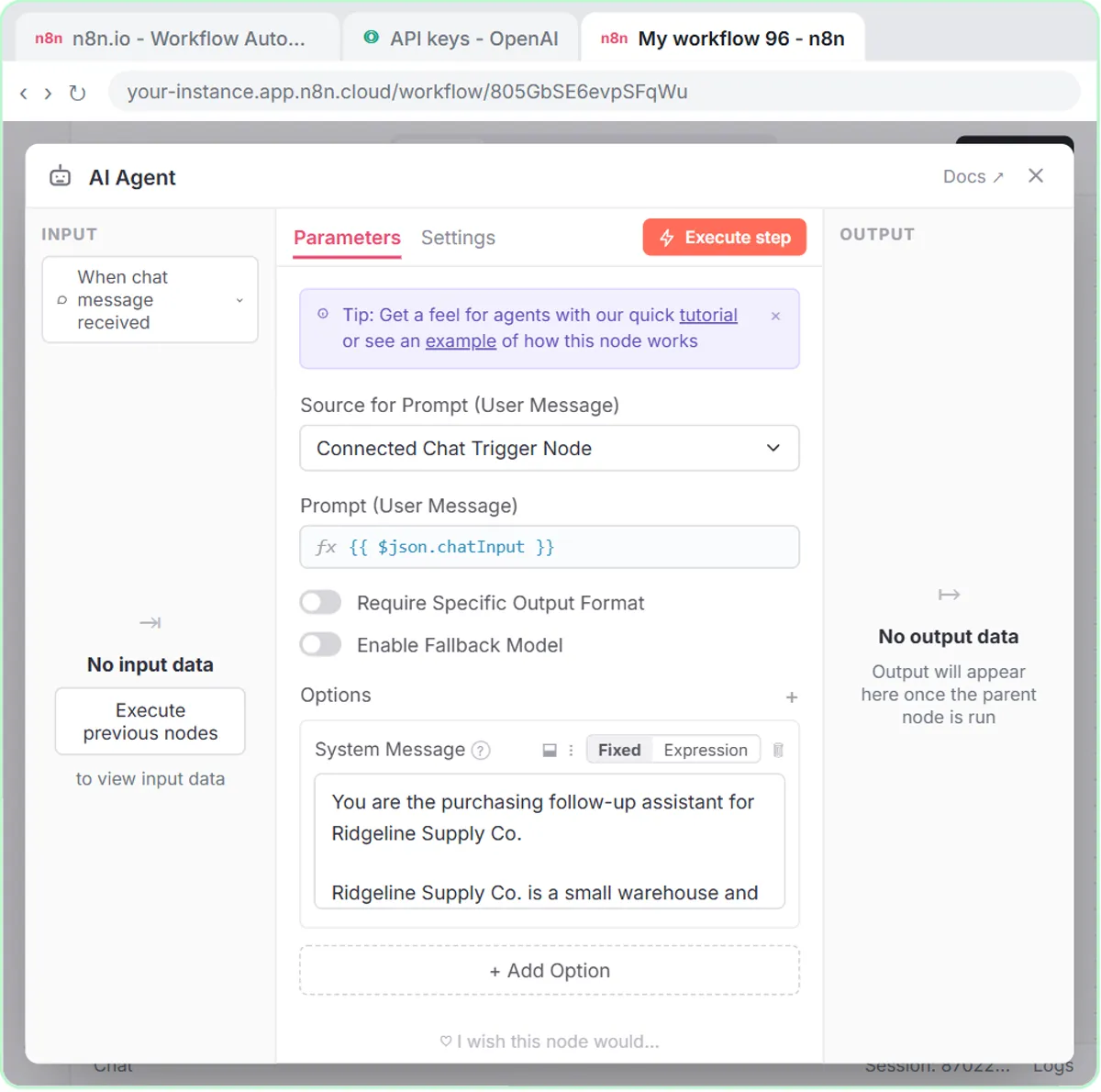 Build an AI Vendor Follow-Up Agent in n8n
Build an AI agent for Ridgeline Supply Co. that writes follow-up messages for late or pending purchase orders and saves them to Google Sheets — chat trigger, AI Agent…
Free · Live ~12 min Intermediate
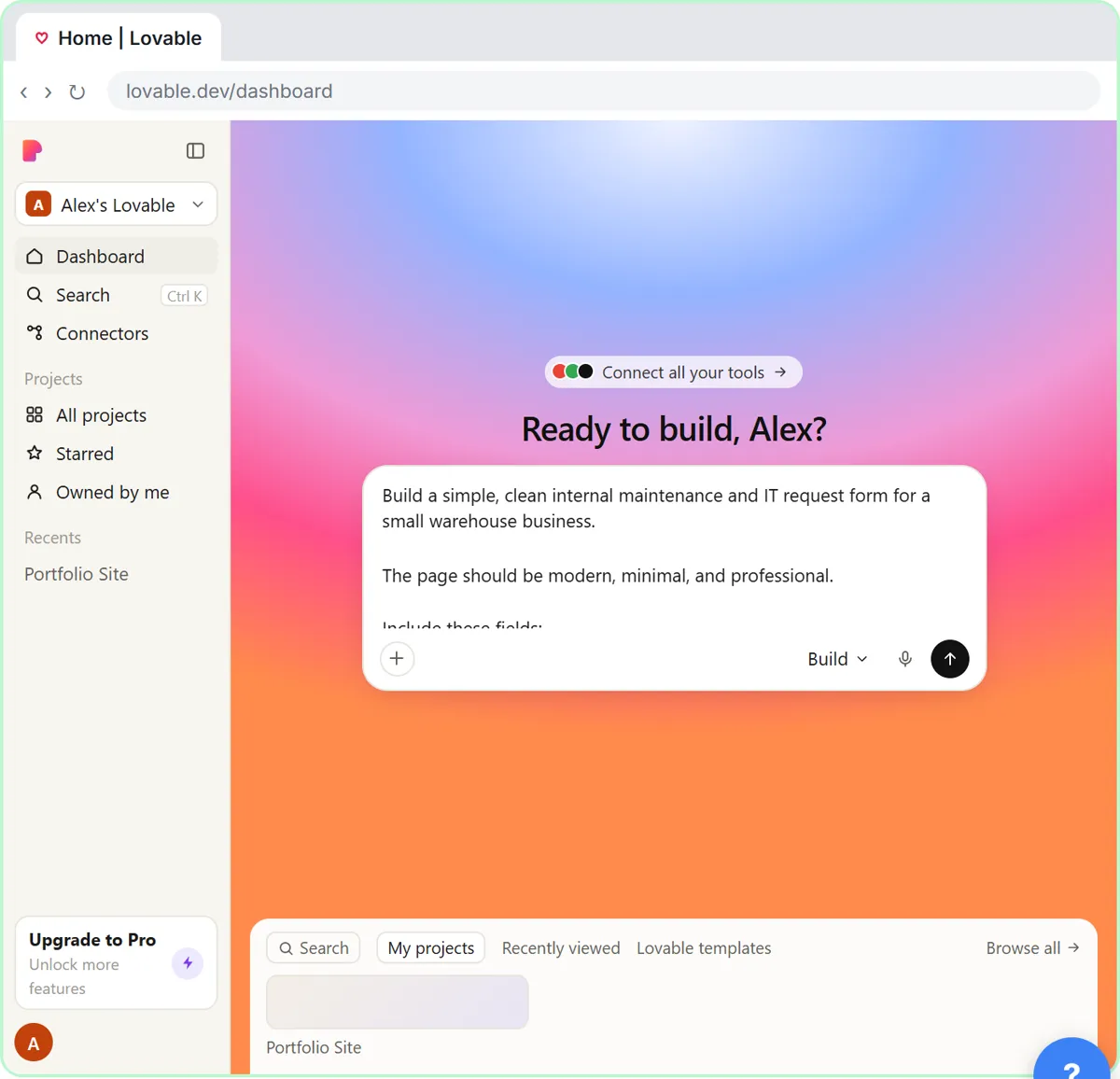 Build an AI Maintenance and IT Request Form
Build an internal maintenance and IT request form in Lovable for Ridgeline Supply Co. and connect it to n8n — the AI agent sets the priority, assigns a team, saves the…
Free · Live ~15 min Advanced
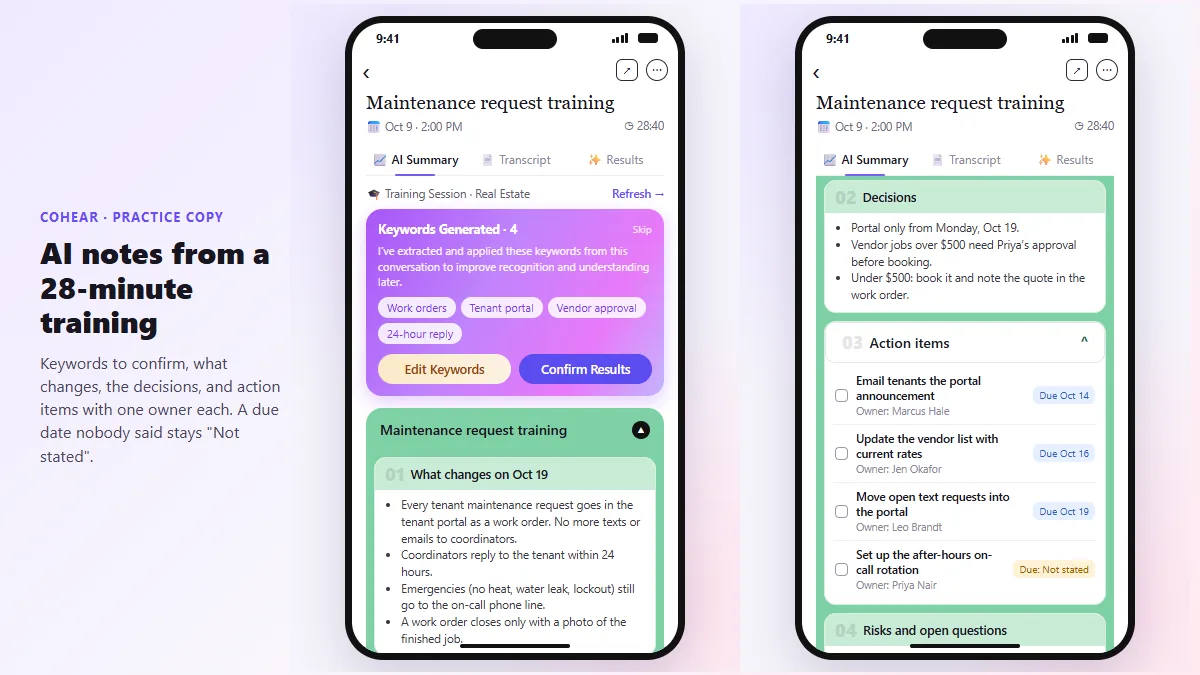 CoHear: AI Meeting Notes from a Team Training Session
Record a team training session on your iPhone with CoHear, check the AI notes and action items against the transcript, make a one-page handout and share it behind a…
Free · Live ~8 min Intermediate
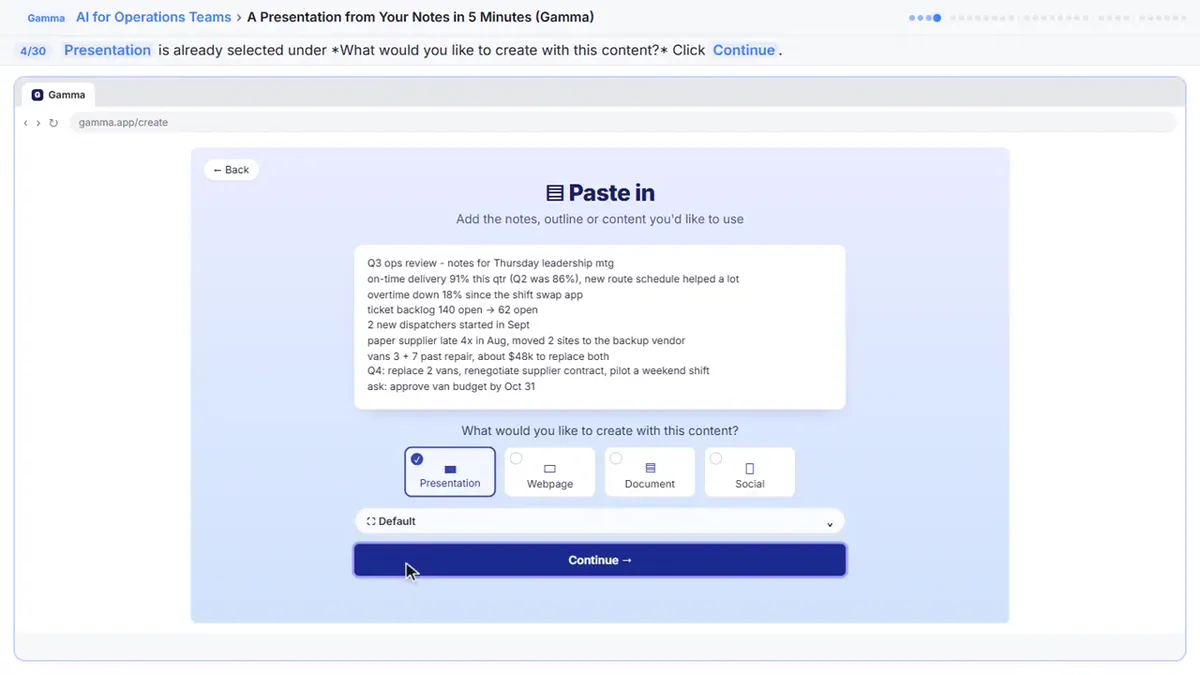 How to Use Gamma to Create a PowerPoint Presentation from Notes
Paste rough meeting notes into Gamma, pick a theme, fix one slide by chatting with its AI, and export the deck to PowerPoint and PDF.
Free · Live ~9 min Intermediate
◷Airia for Beginners: What an AI Agent Is Made OfA five-minute map of Airia before you build: the four parts of an agent (model and instructions, data sources, Playground, Publish), three office jobs that suit one…
Free · Live ~5 min Beginner
◷How to Use Foxit: Workspace, AI Assistant and PDF Editor for BeginnersA five-minute map of Foxit before you use it: Foxit Workspace, the PDF AI Assistant and PDF Editor, which one fits a contract review, a revised contract, a flat form or…
Free · Live ~5 min Beginner
All 39 modules in AI Automation for Operations
Terms in this lesson
Plain-English definitions, each with an example from a free lesson.