Updated . Built against the tool’s current screens and checked step by step. How we check this lesson
Docparser, Smallpdf, KDAN, Foxit and n8n invoice workflows all read documents for you, and they all rely on the same three steps. In this free, hands-on explainer you help Kestrel Design Studio, a made-up eight-person design firm, with two vendor invoices: a PDF from billing software and a phone scan. You see what OCR does to the scan and the two mistakes it makes, compare parsing rules with AI extraction, and open the four checks that make extracted data safe to use.
At a glance
| Question | Answer |
|---|---|
| What you build | Follow two vendor invoices, one digital and one scanned, through OCR, parsing rules vs AI extraction, and the four checks that stop a misread total from reaching your books. |
| Tools | Stepthrough |
| Time | About 7 minutes, 20 steps in 4 parts |
| Level | Beginner, no coding needed |
| Cost | Free |
| Ways to learn it | Practice it step by step |
The 4 parts, in short
- Is there text in the file?: Open the digital PDF, Open the scanned PDF, OCR step 1: find the text, OCR step 2: recognize letters, and 2 more steps.
- Parse the fields: Go to parsing, Method 1: rules, Method 2: AI extraction, Check the blank field.
- Check before it counts: Go to the checks, Check 1: the math, Check 2: duplicates, Check 3: blanks, and 1 more step.
- Cheat sheet: Open the cheat sheet, Read and summarize, Extract fields, Compare versions, and 1 more step.
Start here first: Start Here: How Stepthrough Works (module 1 of AI Basics)
Part of: AI for Finance Teams (step 12 of 24). Next up: How to Do OCR in n8n: Read Receipt Photos into Google Sheets with AI
Part of: AI Back Office for Small Business (step 2 of 22). Next up: How to Do OCR in n8n: Read Receipt Photos into Google Sheets with AI
Part of: AI That Reads Your Documents (step 1 of 10). Next up: Smallpdf: Get the Key Points of a 25-Page PDF in 5 Minutes
What you will do
You start by telling a digital PDF from a scanned one, then open the three steps of OCR: finding the text areas, recognizing each character with a confidence score, and producing searchable text. On the courier receipt's OCR output you spot two errors: a zero read as the letter O, and a total with its comma and period swapped.
Next you parse an invoice two ways, with rules that read the text after a label and with AI extraction that asks for each field by name, and see why a missing due date is left blank instead of guessed. Then you open four checks (totals, duplicates, blanks and approval limits) and a cheat sheet that maps each document job to a tool.
OCR, parsing and extraction in plain words
OCR, optical character recognition, turns a picture of a page into text. A PDF made by software already contains text and skips it; a scan or a photo needs it. To have AI read receipt photos straight into a sheet, see How to Do OCR in n8n. The result is often a searchable PDF: the original image with invisible text laid over it.
Document parsing turns that text into named fields such as vendor, invoice number, date and total. Parsing rules work when a layout never changes. AI data extraction works across layouts, as long as it is told not to guess. Either way, simple checks catch the few mistakes that would otherwise cost money.
Where document AI slips
OCR errors cluster on numbers, two-column layouts and tables, and blurry photos or stamps lower accuracy. AI summaries occasionally leave an item out of a list. That is why every step you automate should end with a check a person can see: totals that add up, no duplicate invoice numbers, a review list for blanks, and approval over a limit.
How the interactive lesson works
Every step is shown first in the Watch panel, then you do it yourself in Your turn on an explainer board of diagrams and documents. Each click is checked, and Do it for me helps if you get stuck. There is no account and no real app: Kestrel Design Studio and its invoices are made up.
Try it yourself, free
Reading the steps is a start. Doing them is how it sticks. The interactive module walks you through every click in a practice copy of Stepthrough, checks each step, and never touches your real accounts.
Start “How AI Reads a PDF: OCR, Document Parsing and Field Extraction”Step by step: How AI Reads a PDF: OCR, Document Parsing and Field Extraction
All 20 steps of the interactive module, in order. In the module you watch each one, then do it yourself in a practice copy that checks your work.
1. Is there text in the file?
- Open the digital PDF. Click the Digital PDF card.
Sam runs the office at a small design studio, and about sixty vendor invoices arrive every month. This one came from billing software. The words are stored as text, so any AI tool can read it.
- Open the scanned PDF. Click the Scanned PDF card.
This one is a scan. It is a picture of a page, with no text inside. Before anything can read it, it needs OCR.
- OCR step 1: find the text. Under OCR, click Find.
OCR stands for optical character recognition. First it finds where the text sits on the page, and what order to read it in.
- OCR step 2: recognize letters. Click Recognize.
Then it turns each shape into a letter or number, with a confidence score. Blurry photos and stamps lower the score.
- OCR step 3: searchable text. Click Output.
The result is text you can search and copy. Often it sits invisibly over the original picture. That is a searchable PDF.
- Spot the OCR mistakes. Click Spot the OCR mistakes.
Here is what OCR read from the receipt. Look closely. A zero became the letter O, and the total swapped its comma and period. Numbers on scans are where small mistakes hide.
2. Parse the fields
- Go to parsing. Click the 2 Find the fields tab.
Text is not data yet. Sam needs five fields from every invoice.
- Method 1: rules. Click Method 1: rules.
The first way is rules. The invoice number is whatever follows the words, invoice number. It is exact and cheap, when every invoice looks the same. Docparser works like this.
- Method 2: AI extraction. Click Method 2: AI extraction.
The second way is AI extraction. You ask a model for the fields by name, and it finds them in any layout. Flexible, but it has to be told not to guess.
- Check the blank field. Click the Due date card.
Here are the fields. The invoice has no due date, so the field is blank. That is correct. A blank you can see beats a guess you cannot.
3. Check before it counts
- Go to the checks. Click the 3 Check before it counts tab.
Before a row lands in the bills sheet, it passes a few checks.
- Check 1: the math. Click Check 1.
Check one. Do the lines add up to the total? This would have caught the courier receipt.
- Check 2: duplicates. Click Check 2.
Check two. Have we seen this invoice number before? Vendors resend bills, and you do not want to pay twice.
- Check 3: blanks. Click Check 3.
Check three. Any blank required field goes to a short review list, not the sheet.
- Check 4: approval. Click Check 4.
And check four. Anything over the approval limit waits for the owner. Software reads the invoice. A person still decides to pay it.
4. Cheat sheet
- Open the cheat sheet. Click the 4 Cheat sheet tab.
Last, which tool fits which job.
- Read and summarize. Click Read and summarize.
To read a long PDF fast, an AI PDF tool summarizes it and answers questions with the page number. Always click through to check.
- Extract fields. Click Extract fields.
To turn many documents into a spreadsheet, use rules when the layout never changes, and AI extraction when it does. Either way, add the checks.
- Compare versions. Click Compare versions.
To see what changed in a new version, a compare tool marks every change, so a quiet fee increase cannot hide.
- Fill and sign. Click Fill and sign.
And to close the loop, fill and sign tools let you sign a flat PDF without printing it.
Frequently asked questions
- What is OCR?
- Optical character recognition: software that turns a picture of text, such as a scanned page or a phone photo, into real text you can search, copy and process.
- What is document parsing?
- Turning the text of a document into named fields, such as the vendor, invoice number, date and total on an invoice, so it can go into a spreadsheet or another system.
- Parsing rules or AI extraction: which is better?
- Rules are exact and cheap when every document from a sender looks the same. AI extraction handles varied layouts. Many teams use rules for their regular vendors and AI for the rest, with the same checks on both.
- Why does my scanned invoice come out with wrong numbers?
- OCR misreads shapes that look alike, such as 0 and O or 1 and l, and can swap number formats. Clear scans help, and a totals check catches most errors.
- Is this lesson free?
- Yes. Stepthrough is free, and this explainer needs no account and no setup.
More in AI Basics
Try the practice in under two minutes: watch a step, click, type, get unstuck with Do it for me, and finish.
Free · Live ~2 min Beginner
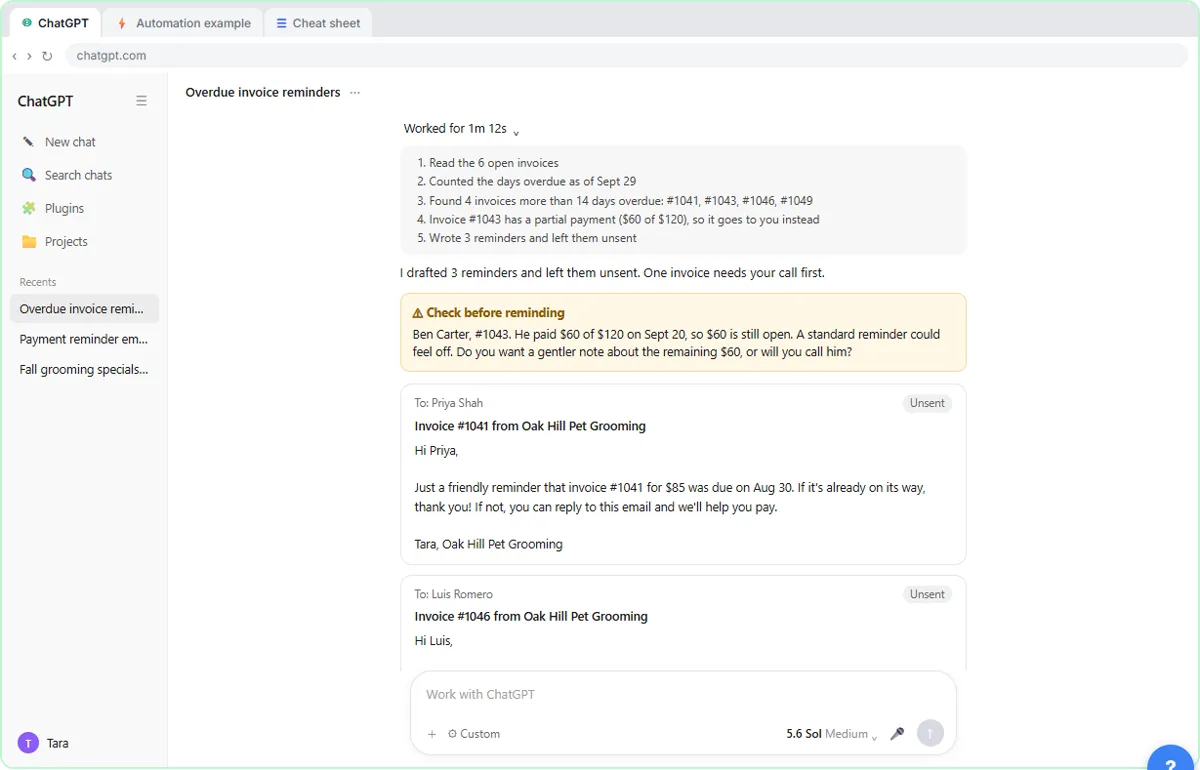 How to Get ChatGPT in Agent Mode: AI Agent vs Chatbot vs Automation
Chase six unpaid invoices three ways: a chatbot writes a template, an automation follows a rule, and an AI agent works out the steps and flags the tricky one.
Free · Live ~7 min Beginner
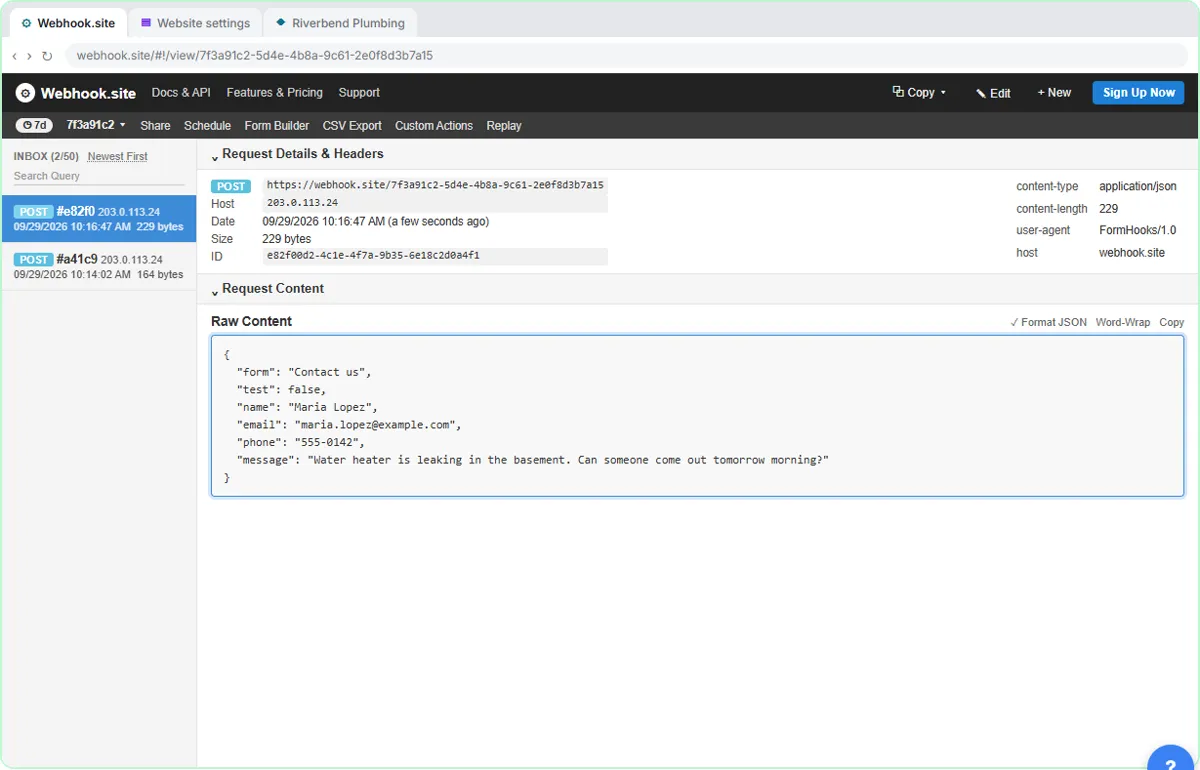 What Is a Webhook? Send a Test and Watch the Data Arrive
Point a plumber's website contact form at a free webhook tester, send a test and a real message, and watch the data arrive the moment it's sent.
Free · Live ~6 min Intermediate
◷Automation Basics: Triggers, Actions and Data MappingLearn the three ideas behind every n8n workflow, Make scenario and Zap: a trigger starts it, actions do the jobs, and data mapping carries the details. Fix the classic…
Free · Live ~6 min Beginner
◷When to Add AI to an Automation (n8n, Make or Zapier)Sort six office jobs into plain rules, AI steps and human decisions, then see the safe shape of an AI automation and how n8n, Make and Zapier each add the AI step.
Free · Live ~6 min Beginner
◷Your First AI Automation: Pick the Right Job and Test It Before It RunsMost first automations fail because people pick the wrong job or switch it on untested. Score four repeat jobs, pick the one to automate first, add one small AI step…
Free · Live ~7 min Beginner
More Stepthrough tutorials
Follow one customer question through a support bot: files cut into chunks, a search by meaning, the AI told to answer only from what it found, and a safe fallback when…
Free · Live ~7 min Beginner
◷Safe AI Agents: Least Privilege, Approvals and Audit TrailsSet up the safety around a firm's inbox agent: strip the access it doesn't need, send client emails to a person, write rules a prompt can't talk past, and read the log.
Free · Live ~8 min Beginner
◷APIs vs Scraping vs RSS: Pick the Right Way to Get Web DataCompare the four ways web data gets into an automation, read the five parts of an HTTP request, and pick the right source for news, CRM data and competitor prices.
Free · Live ~7 min Beginner
◷Bearer Tokens, Pagination and Rate Limits, in Plain WordsRead an example API doc before you build: put the key in a bearer token credential, follow pagination past page one, and know what to do with a 401, 429 or 500.
Free · Live ~8 min Intermediate
◷Prompting for Slides: Outline, Brand Kit, Check the NumbersFour habits for any AI slide tool: a prompt with audience, message, source and shape, an outline you fix first, a brand kit, and a check of every number against your…
Free · Live ~7 min Beginner
From the blog
Seven mistakes when AI reads invoices and PDFs: skipping OCR on scans, trusting scanned numbers, rules on changing layouts, guessed fields and no checks.
Oct 20, 2026 3 min read
✎OCR and Document Parsing FAQ: How AI Reads a PDFWhat is OCR, how is it different from parsing, when do rules beat AI extraction, and which checks make extracted invoice data safe? Plain answers.
Oct 20, 2026 4 min read
Terms in this lesson
Plain-English definitions, each with an example from a free lesson.