Quick answer
Keep going in the same chat when your next request builds on the last answer, such as a new headcount: type only the change. When you switch customers or tasks, click New chat, click the plus button, choose Add photos & files and attach that customer's fact sheet. If a long chat starts mixing things up, ask for a ten-line summary, check it and paste it into a new chat.
Last updated · Last checked
Updated . Built against the tool’s current screens and checked step by step. How we check this lesson
Start a new ChatGPT chat when you switch customers or tasks, and keep going in the same chat when your next request builds on the last answer. The cost of getting this wrong is real: re-pasting the same facts all day, sending a quote with last week's headcount, or arguing with a long chat that has lost the plot. In this free, interactive lesson you give ChatGPT one customer's facts, change the headcount in the same chat without pasting anything again, then start a fresh chat with a file for the next customer and check that nothing leaked across.
At a glance
| Question | Answer |
|---|---|
| What you build | Quote a customer in one ChatGPT chat, change the numbers without re-pasting anything, then start a clean chat for the next customer so their details never mix. |
| Tools | ChatGPT |
| Time | About 9 minutes, 24 steps in 5 parts |
| Level | Beginner, no coding needed |
| Cost | Free |
| Ways to learn it | Practice it step by step |
The 5 parts, in short
- Copy the facts: Open the Edit menu, Select all, Open the Edit menu again, Copy it.
- Ask for the quote: Switch to ChatGPT, Click the message box, Paste your request, Paste the facts, and 1 more step.
- Keep going in the same chat: Check the numbers, Click the message box, Fill in the gaps, Send it.
- Use the same chat for the next ask: Click the message box, Ask for the follow-up email, Send it, Copy the text.
- Start fresh for the next customer: Start a new chat, Open the plus menu, Add photos & files, Pick the facts file, and 3 more steps.
Start here first: Summarize a Meeting Transcript with ChatGPT. This ChatGPT for Everyday Work version follows the same build with its own example business, Harbor Street Bakery.
In the course: Part 3 · ChatGPT for Everyday Work (Module 20 of the full course)
Part of: ChatGPT Jump Start (step 6 of 15). Next up: Analyze a Spreadsheet with ChatGPT: Upload a CSV, Get a Chart and Three Takeaways
Part of: Master ChatGPT for Work (step 3 of 17). Next up: Prompt Writing 101: Role, Context, Task, Format
Part of: AI for Insurance Agencies (step 6 of 18). Next up: Gemini in Gmail: Summarize a Thread and Draft the Reply
Part of: AI for Real Estate (step 5 of 18). Next up: Gemini in Gmail: Summarize a Thread and Draft the Reply
Part of: AI for Sales Teams (step 6 of 30). Next up: Analyze a Spreadsheet with ChatGPT: Upload a CSV, Get a Chart and Three Takeaways
The business problem: re-pasting, mix-ups and wrong quotes
Picture the office manager at Harbor Street Bakery, a made-up small bakery. Catering quotes come in all day. If she opens a new chat for every message, she re-types the same prices again and again, and sooner or later she forgets one. If she keeps everything in one long chat, ChatGPT can carry the last customer's headcount, menu or deadline into the next quote, and a wrong number goes out under the bakery's name.
A quote with the wrong total costs money or a customer. Ten minutes of re-pasting, several times a day, costs more than most small businesses notice. The fix is a simple rule about when a chat is the right container for the job, and this lesson makes that rule a habit.
What you will do
You quote Oakwood Library for a staff breakfast, then Pine Ridge Rotary for a club breakfast, in two separate chats. You copy the library's facts from a Google Doc, ask for a short, friendly quote reply that uses only those facts, and check the numbers: 80 guests at $5.20 each plus $30 delivery is $446, and the 50% deposit is $223.
Then the library calls: it is 100 guests now. You type that one line in the same chat. ChatGPT already has the prices, the date and the menu, so it redoes the quote ($550, deposit $275) and then writes a two-sentence text to Sam with the new headcount. Nothing is pasted twice. Finally, for the Rotary, you click New chat, attach their facts file with Add photos & files and ask for the quote. The answer shows 40 guests, pastries and coffee, pickup and nothing about the library.
Who this is for
Owners, office managers and anyone who answers customers with ChatGPT every day. It builds on Prompt Writing 101 (the request has a role, facts, a task and a format) and sits next to the Summarize a Meeting Transcript lesson, which shows the same keep-going habit with a meeting. No technical skills needed.
The rule of thumb
Same customer, same task, building on the last answer: stay in the chat. New customer, new task, or a bad start you want to forget: click New chat and give it only the facts for that job. Within one chat, ChatGPT can see everything already written, so a correction or a follow-up needs only the new information. Across chats, don't count on it remembering. ChatGPT may carry some details over if memory is on, but facts like prices and dates belong in the chat you are using.
What you need before you start
- A ChatGPT account. A free account at chatgpt.com is enough to start; limits depend on your plan.
- A fact sheet for one customer: the date, headcount, what they ordered, prices and the deposit. A Google Doc or a Word file works.
- Leave out anything private the quote does not need, such as card numbers, and follow your company's rules on AI tools.
How to use this in your business
Keep one fact sheet per customer and one chat per customer. When a number changes, type the change in that customer's chat. When a new customer arrives, click New chat and attach their sheet. Always check the totals against the fact sheet before a quote goes out. If a chat gets long and starts mixing things up, ask for a ten-line summary, check it, and paste it into a new chat.
How the interactive lesson works
Every step is shown first, with a short voice-over, then you do it yourself on a practice copy of Google Docs and ChatGPT. Each click is checked, long text goes in with one Paste button, and Do it for me finishes a step if you get stuck. Nothing touches a real account. Real ChatGPT may format the quote as an email card with an Email heading and a Connect email button, and its wording will differ from the practice copy.
Try it yourself, free
Reading the steps is a start. Doing them is how it sticks. The interactive module walks you through every click in a practice copy of ChatGPT, checks each step, and never touches your real accounts.
Start “New Chat in ChatGPT or Keep Going? How to Stop Losing Context”Step by step: New Chat in ChatGPT or Keep Going? How to Stop Losing Context
All 24 steps of the interactive module, in order. In the module you watch each one, then do it yourself in a practice copy that checks your work.
1. Copy the facts
- Open the Edit menu. This is a Google Doc: the menu bar (File, Edit, View) sits above the page, and the page is the one-page fact sheet for Oakwood Library's breakfast. Click Edit in the menu bar.
This is a Google Doc. The menu bar, File, Edit, View, sits above the page. Oakwood Library wants a quote for a staff breakfast, and the page holds all the facts: the date, the headcount, the menu, the price and the deposit. You'll give ChatGPT these facts once. Let's copy them.
- Select all. Click Select all.
On a keyboard, that's Control A.
- Open the Edit menu again. The whole transcript is highlighted. Click Edit again.
The whole transcript is highlighted.
- Copy it. Click Copy.
That's Control C. The transcript is now on your clipboard.
2. Ask for the quote
- Switch to ChatGPT. Click the ChatGPT tab at the top.
Now switch over to ChatGPT.
- Click the message box. Click the message box.
Before you paste the facts, tell ChatGPT what you want out of them. Otherwise you'll get a vague note.
- Paste your request. Paste in the request. It asks for a short, friendly quote reply using only the facts, with the total and deposit, and says to write Not stated if a fact is missing.
Here's the request. You're the office manager, you want a short friendly reply with a quote, and you tell ChatGPT to use only the facts you're about to paste, show the total and the deposit, and write not stated if something is missing.
You're the office manager at Harbor Street Bakery. Write a short, friendly reply to Oakwood Library with a quote for their breakfast. Use only the facts below. Show the total and the deposit. If a fact is missing, write "Not stated". Under 120 words.
- Paste the facts. Now paste the facts under the request. Paste in the facts. (In real ChatGPT, press Shift+Enter for a new line first, then Ctrl+V. Plain Enter would send the message.)
In real ChatGPT, press Shift and Enter to start a new line first, because Enter on its own sends the message. Then Control V to paste.
1
Customer: Oakwood Library

2
Event: Staff breakfast, Tuesday, October 20, delivered at 8:00 AM

3
Guests: 80

4
Menu: Pastries, fruit and coffee

5
Price: $5.20 per person (pastries $2.40, fruit $1.60, coffee $1.20)

6
Delivery: $30 flat fee

7
Deposit: 50% due when the order is confirmed
- Send it. Click Send.
Request on top, facts below.
3. Keep going in the same chat
- Check the numbers. Read the quote and check it against your facts: 80 guests times $5.20 is $416, plus $30 delivery. Click the quote.
There's the quote, built from your facts. Before you send anything, check the numbers against your fact sheet: eighty guests at five dollars twenty is four hundred sixteen, plus thirty dollars delivery.
- Click the message box. The library just called with a change. Click the message box.
The library just called with a change. You were not planning to start over, and you do not have to.
- Fill in the gaps. Type the change (or Paste in the change): The library just told us it is 100 guests now, not 80.
Tell it the one thing that changed: the library now has a hundred guests, not eighty.
- Send it. Click Send.
4. Use the same chat for the next ask
- Click the message box. The quote is updated and nothing was pasted twice. Click the message box.
Notice what you did not do: you did not paste the facts again. Everything in this chat is context for the next answer, so you just ask for the next thing.
- Ask for the follow-up email. Paste in the request to ask for a short text message to Sam, in this same chat.
Now ask for the next thing, in this same chat: a short text message to Sam.
- Send it. Click Send.
- Copy the text. Read the text. It uses the new headcount. Then click the Copy button under it.
There's the text for Sam. It already has the new headcount of a hundred, because the change happened in this same chat. Copy it, then paste it into your messages.
5. Start fresh for the next customer
- Start a new chat. A different customer is next. Click New chat.
Now a different customer needs a quote. This is where people go wrong: they keep typing in the library's chat. The library's headcount, menu and prices would all be sitting there, ready to leak into the next answer. Start a clean chat instead.
- Open the plus menu. Click the + button on the left of the message box.
- Add photos & files. Click Add photos & files.
- Pick the facts file. Click Pine Ridge Rotary - breakfast facts.docx.
Your file browser opens.
- Open it. Click Open.
The file attaches to the message box. You can also just drag a file onto the chat.
- Ask for the quote. Paste in the request: the same four things, in one line.
Now the same kind of request as before, in one line, for the new customer.
Write a short, friendly reply to Pine Ridge Rotary with a quote, using only the facts in this file. Show the total and the deposit. If a fact is missing, write "Not stated". Under 120 words.
- Send it. Click Send.
Look at the quote: forty guests, pastries and coffee, pickup. Nothing about the library came along. One customer, one chat. Either way, check the numbers against the fact sheet before it goes out.
Frequently asked questions
- What is a ChatGPT handoff prompt?
- It is a short summary you carry from a long chat into a new one. Ask ChatGPT for a ten-line summary of the facts and decisions so far, check it against your own notes, then paste it into a new chat and keep working from there.
- Should I start a new chat in ChatGPT for each customer?
- Yes. One chat per customer keeps their prices, dates and names from slipping into another customer's reply, and it makes each conversation easy to find later.
- When should I keep going in the same chat?
- When your next request builds on the last answer: changing a number, shortening a draft, turning a quote into a text message. ChatGPT can see everything earlier in the same chat, so you do not paste anything again.
- Does ChatGPT remember a customer's details in a new chat?
- Do not count on it. A new chat starts blank, and memory, if it is on, is loose. Put the facts you need in the chat you are using, for example by attaching a fact sheet.
- How do I start a new chat with a file in ChatGPT?
- Click New chat, click the plus button in the message box, choose Add photos & files, pick the file and click Open, then type one line saying what you want.
- Is this lesson really free?
- Yes. Stepthrough is completely free, and the practice copy needs no accounts. To do it for real you need your own ChatGPT account (a free plan works to start, within its limits).
More in ChatGPT for Everyday Work
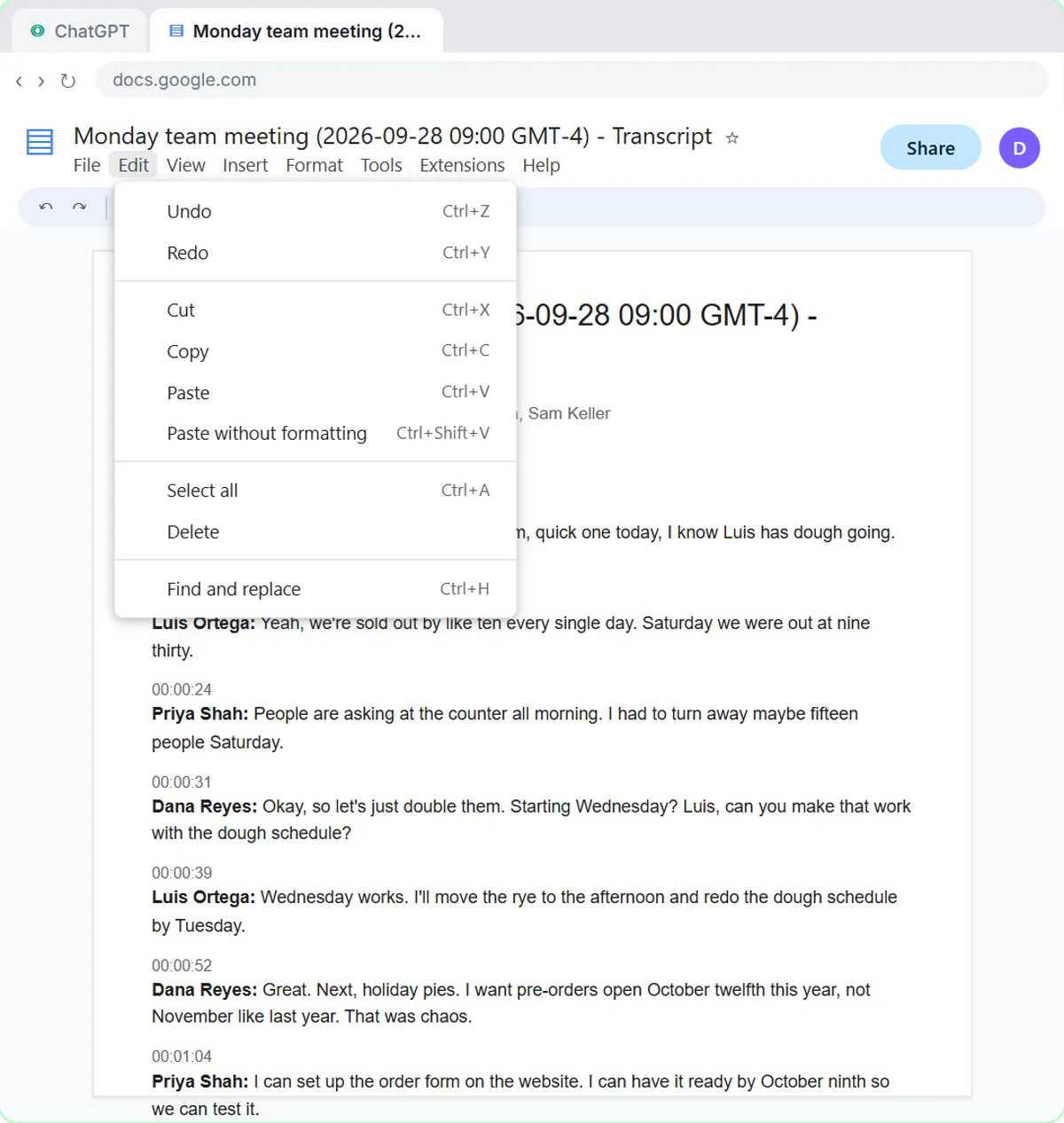 Summarize a Meeting Transcript with ChatGPT
Paste a long meeting transcript into ChatGPT and get the decisions, an action items table with owners and due dates, and a follow-up email ready to send.
Free · Live ~9 min Beginner
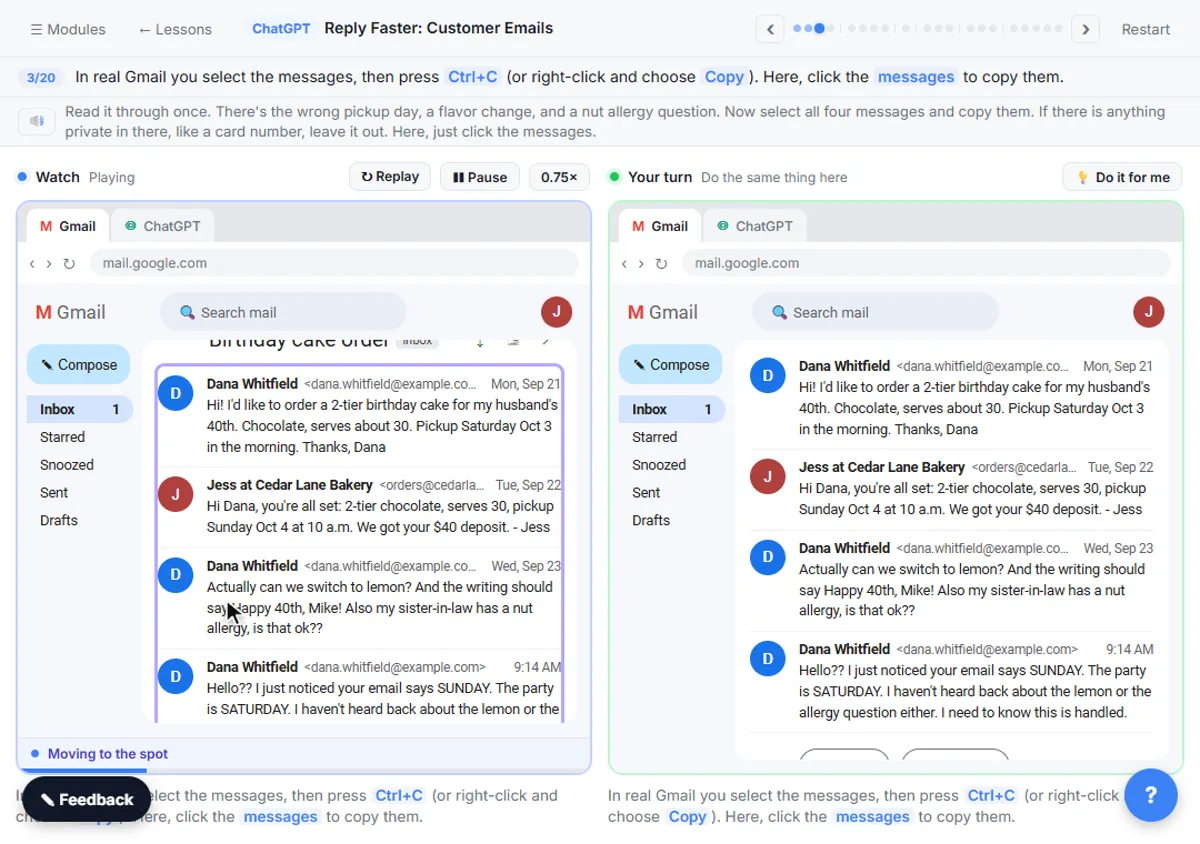 Reply Faster: Turn a Messy Customer Email Thread into a Clear, Friendly Reply
Turn a messy customer email thread into a clear, friendly reply: give ChatGPT the thread and your facts, check every promise, fix the tone, and send it from Gmail.
Free · Live ~9 min Beginner
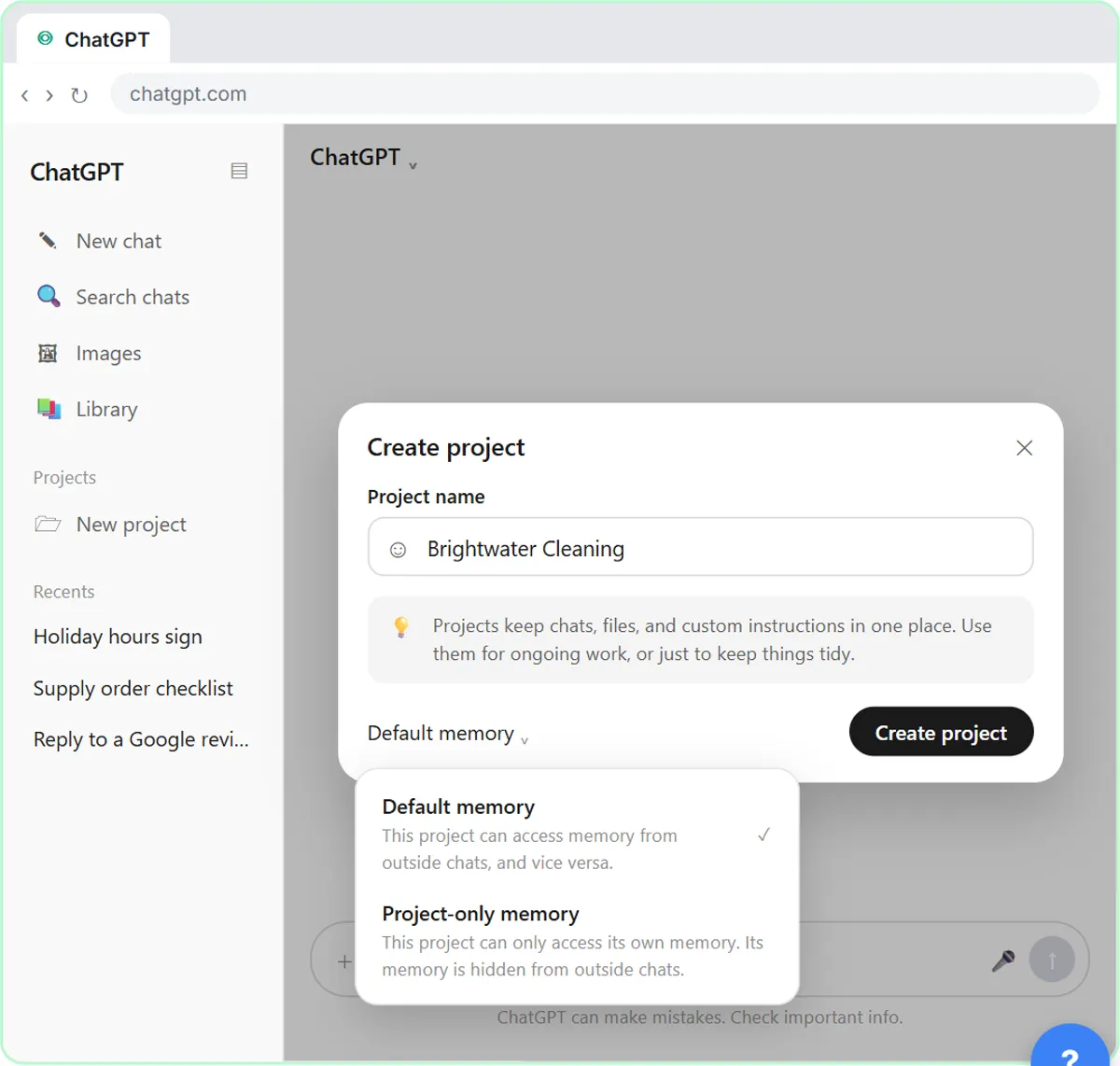 How to Create a Project in ChatGPT for Your Brand Voice and Files
Set up a ChatGPT Project with your brand voice instructions, your price list and your style guide, so every new chat already knows your business.
Free · Live ~9 min Beginner
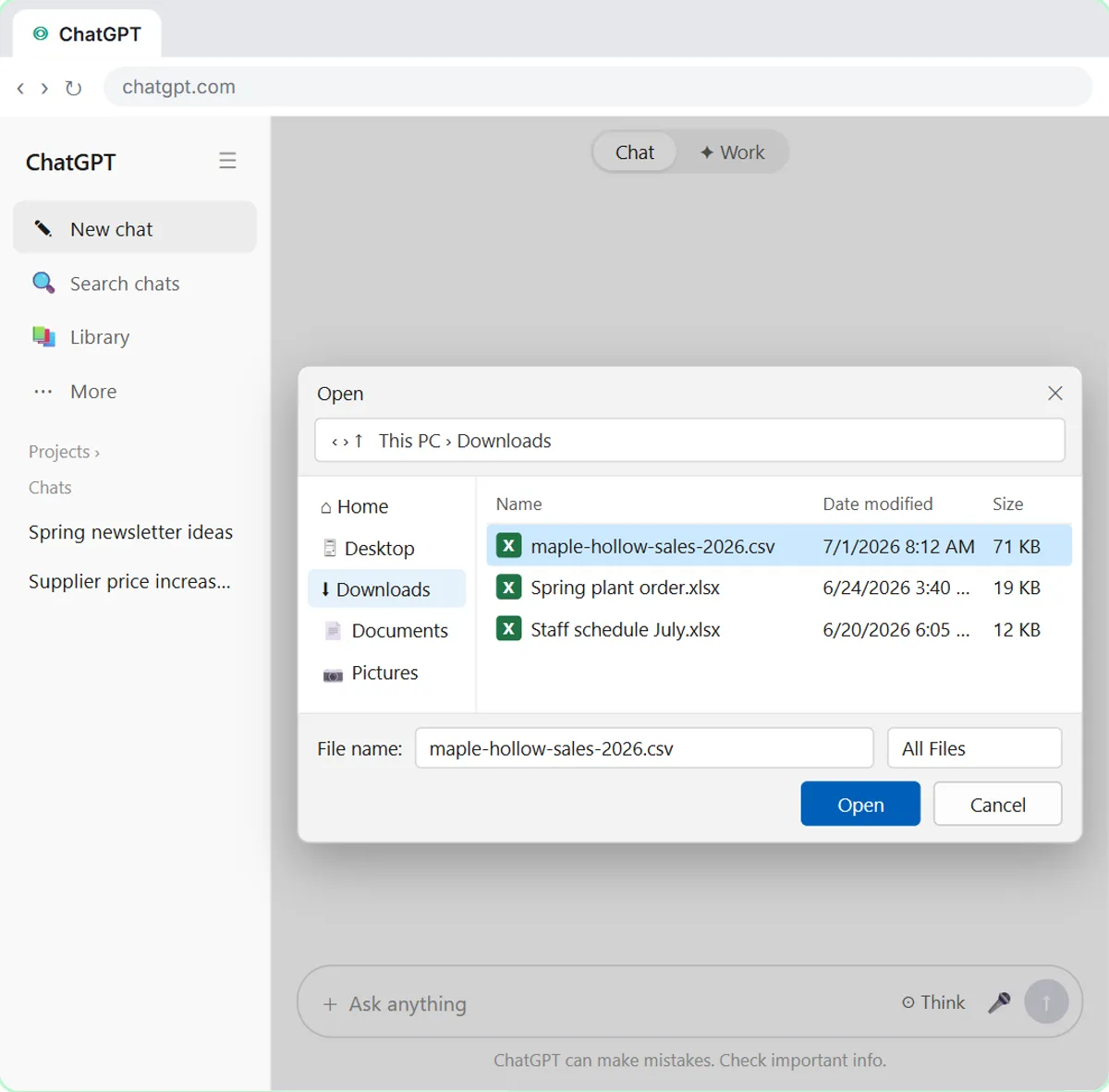 Analyze a Spreadsheet with ChatGPT: Upload a CSV, Get a Chart and Three Takeaways
Upload a CSV of sales to ChatGPT, have it check the data first, ask your questions, get a chart you can download, and finish with the three takeaways that matter.
Free · Live ~10 min Beginner
 ChatGPT Work: Have ChatGPT Do a Multi-Step Task
Switch ChatGPT to Work, hand it a real job (compare three suppliers into a spreadsheet), approve the sites it opens, skip a login, answer its question, check the file…
Free · Live ~8 min Intermediate
◷Get a Morning Invoice Summary in Slack using ChatGPT DotsSet up a ChatGPT dot to check Gmail for new invoice emails and post one summary to Slack every weekday morning. A 7-step practice based on OpenAI's published screens.
Free · Live ~4 min Intermediate
All 32 modules in ChatGPT for Everyday Work
More ChatGPT tutorials
 Get On-Brand Social Posts Every Time using a ChatGPT Custom GPT
See why generic prompts give generic results, then build a Custom GPT loaded with your brand voice and watch the output transform.
Free · Live ~8 min Beginner
 Prompt Writing 101: Role, Context, Task, Format
Ask ChatGPT for the same customer email twice, once vaguely and once with a four-part prompt, and see exactly why structure gets a better answer.
Free · Live ~8 min Beginner
◷Send a Same-Day Follow-up After Every Discovery Call using ChatGPTTurn a discovery call transcript into the decisions, the next steps with owners and dates, deal notes for your CRM, and a follow-up email the prospect gets the same…
Free · Live ~7 min Beginner
◷Hold Your Price When a Prospect Asks for a Discount using ChatGPTA prospect wants 30% off and a free month to sign this week. Give ChatGPT the thread and your pricing rules, catch the discount you can't approve, and send a reply that…
Free · Live ~9 min Beginner
 Get Your Business Recommended by ChatGPT
Ask ChatGPT who it recommends in your town, see which pages it trusts, then use it to write an FAQ page and Business Profile copy that answer real customer questions.
Free · Live ~10 min Intermediate
◷Run a Weekly Ops Review Where Every Task Has an Owner using ChatGPTTurn a weekly operations and vendor review into the decisions, the next steps with owners and dates, the risks to watch and a team recap, without turning a vendor's…
Free · Live ~7 min Beginner
From the blog
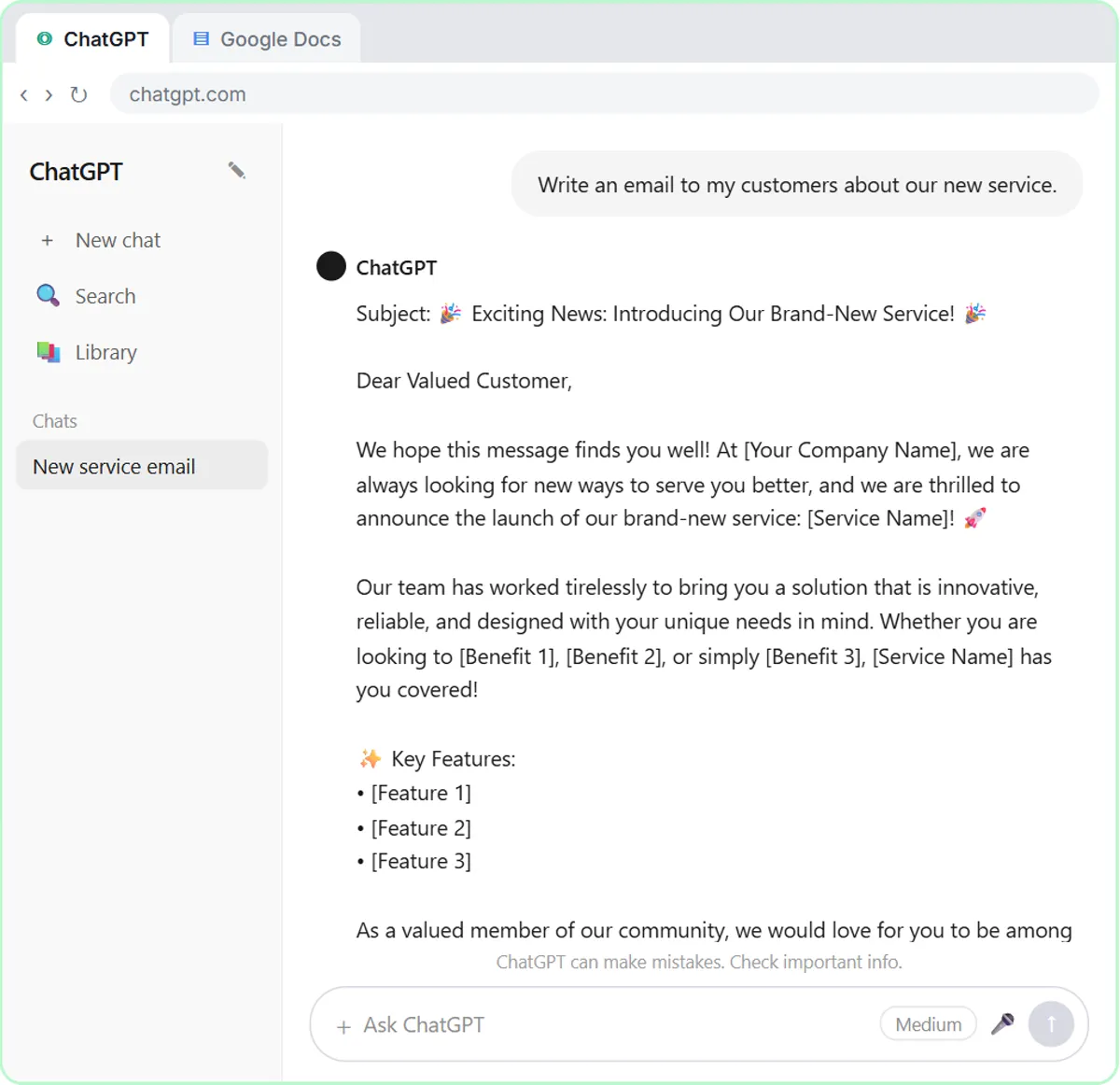 What Does "Branch in New Chat" Mean in ChatGPT?
Branch in new chat copies a ChatGPT conversation up to one message into a new chat, so you can try another direction while the original stays as it was.
Oct 21, 2026 4 min read
ChatGPT Projects: One Home per Client, Set Up OnceStop re-explaining each client to ChatGPT. Give every client one Project with instructions, files and project-only memory. Setup steps and upkeep.
Oct 17, 2026 5 min read
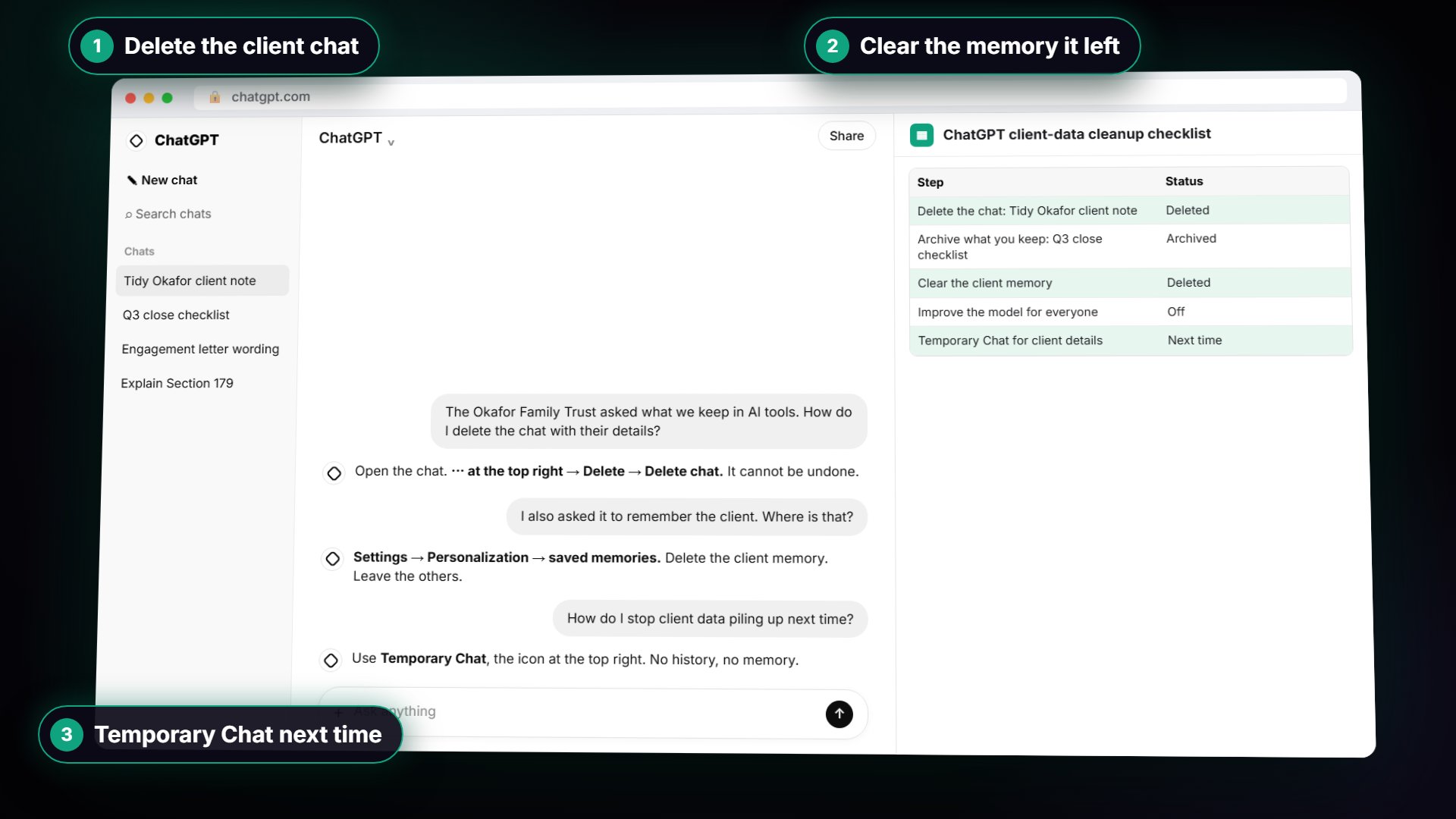 Does ChatGPT Remember Other Chats? Chat History vs Memories
ChatGPT can remember other chats through saved memories and the Reference chat history setting. What each one does, and how to control both at work.
Oct 17, 2026 7 min read
Visual guides
This lesson’s key ideas as quick visual guides: swipe through the slides, or read the same guide as text.
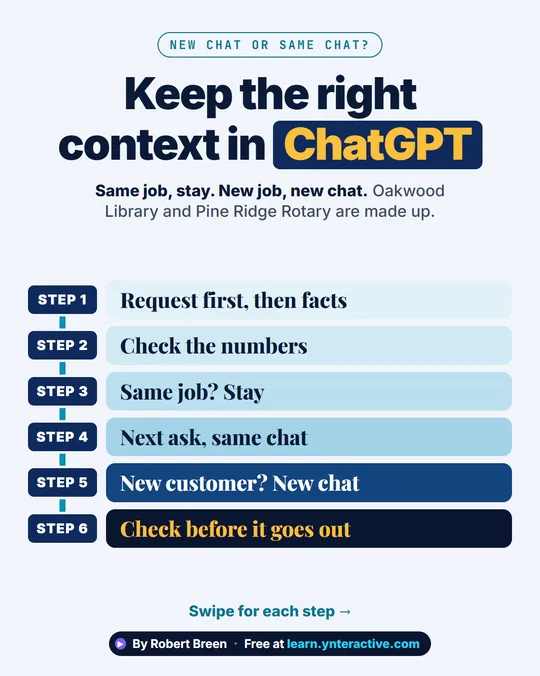 ChatGPT: New Chat or Same Chat? Decide in 6 Steps
A step-ladder guide to ChatGPT context: stay in the same chat when the job is the same, start a new chat for a new customer, and check the numbers.
Step-by-step guide 8 slides
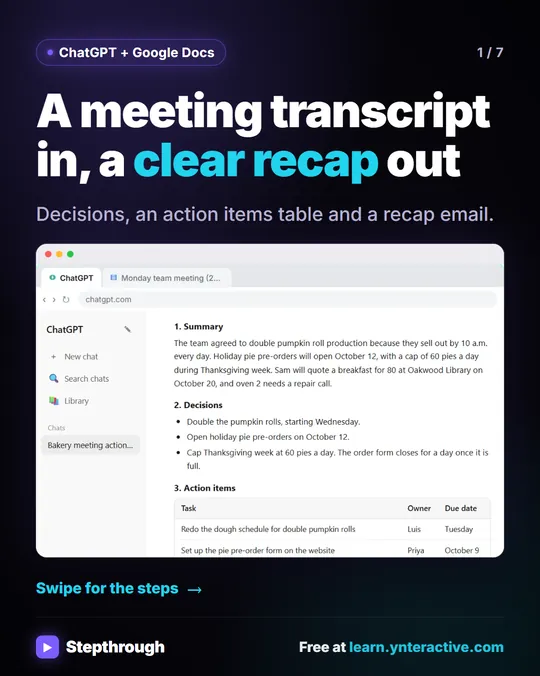 Summarize a meeting transcript with ChatGPT
A meeting transcript is useful for about five minutes, and then nobody reads it again.
Step-by-step guide 7 slides
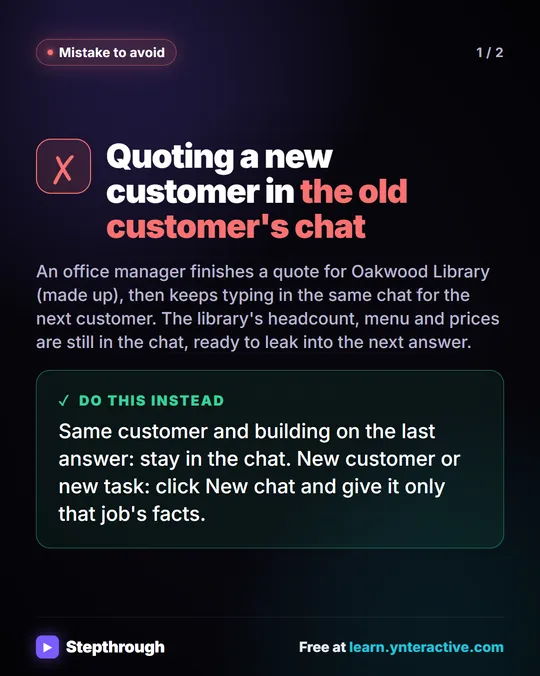 Mistake: One ChatGPT Chat for Every Customer
A visual guide to a common ChatGPT mistake: quoting a second customer in the first customer's chat. Start a new chat for each customer.
Mistake to avoid 2 slides
Free cheat sheets
Print it or save the PDF: the key steps and checks from this lesson on one page, free.
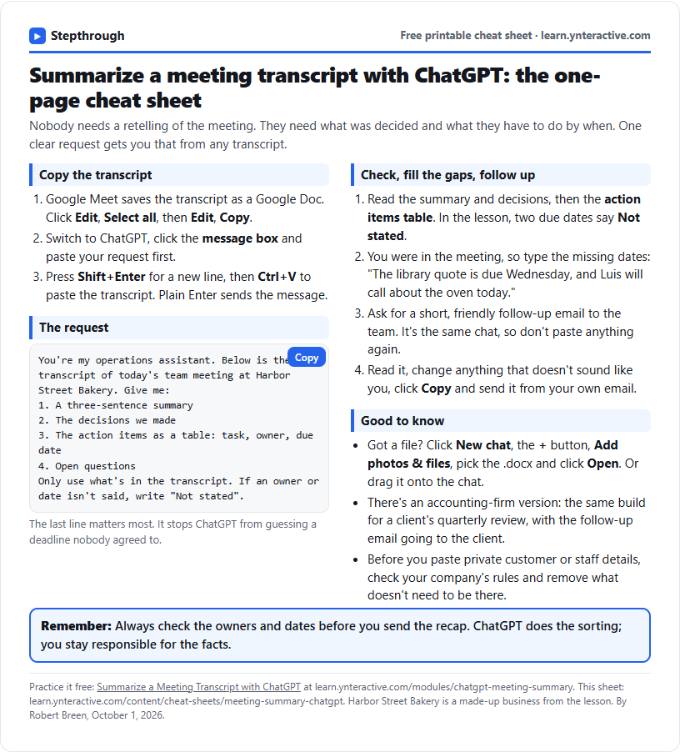 Summarize a Meeting with ChatGPT Cheat Sheet
A free one-page cheat sheet: turn a meeting transcript into decisions, an action items table with owners and dates, and a follow-up email.
Lesson cheat sheet Free PDF
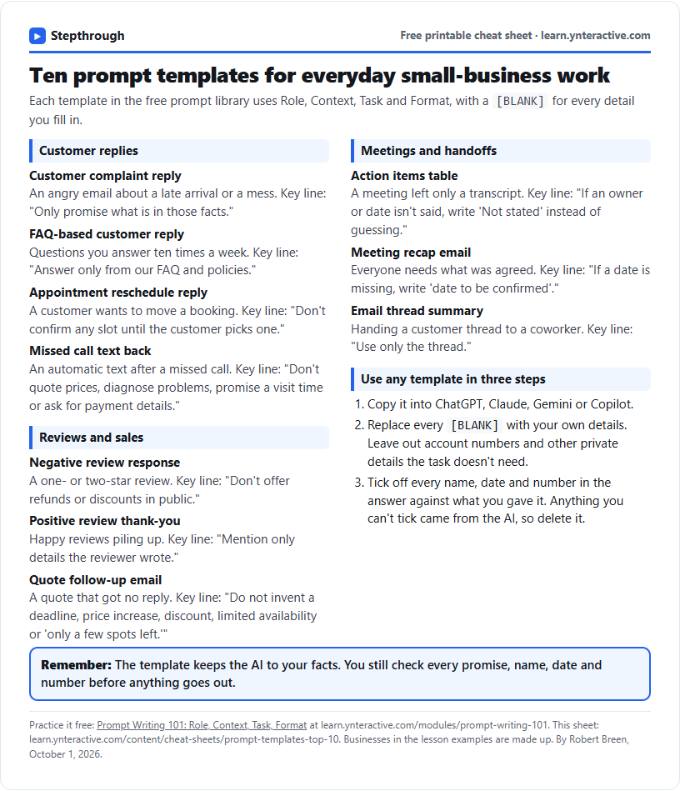 Top 10 Prompt Templates for Small Business: Cheat Sheet
A free one-page cheat sheet of ten copy-ready AI prompt templates: customer replies, reviews, quote follow-ups, meeting recaps and handoffs.
Topic cheat sheet Free PDF
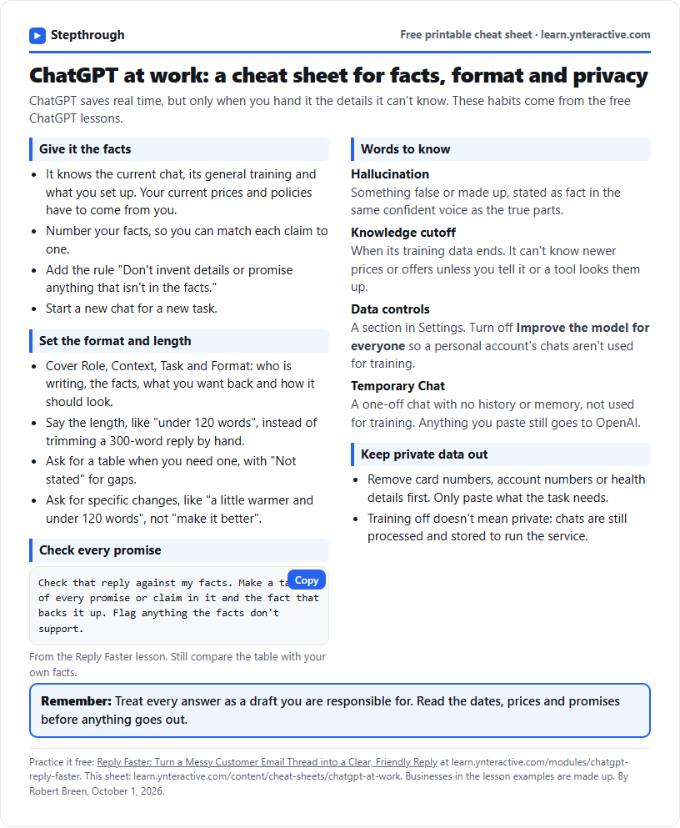 ChatGPT at Work Cheat Sheet: Facts, Format, Privacy
A free one-page cheat sheet for ChatGPT at work: give it facts, set the format and length, check every promise and keep private data out.
Tool cheat sheet Free PDF
All free printable cheat sheets
Terms in this lesson
Plain-English definitions, each with an example from a free lesson.
Related prompts
- Action items table prompt: Paste a meeting transcript or rough notes and get a table of every task, owner and due date, with "Not stated" wherever nobody…
- Change one fact, show what moved prompt: A follow-up prompt for a ChatGPT chat that tells the AI one new fact, then asks it to redo the work and list exactly which…
- Feedback conversation script prompt: Plan a short, direct feedback talk with a teammate: the specific moment, why it mattered, a question to hear their side and one…
- Meeting agenda prompt: Turn a list of topics into a timed meeting agenda where every item has an owner, a question to settle and minutes that add up to…