Why this matters
After a walk, the superintendent turns photos and scribbled notes into a punch list for the owner. It takes hours after a long day, and items without a location or a trade get missed or argued about.
Hardline files every photo and note to the active project, then builds the punch list from your own captures in the format you ask for, and says which capture each item came from.
Practice
Do every step yourself in a practice copy of the real tool. It checks your work, and “Do it for me” finishes any step you get stuck on.
What you’ll build
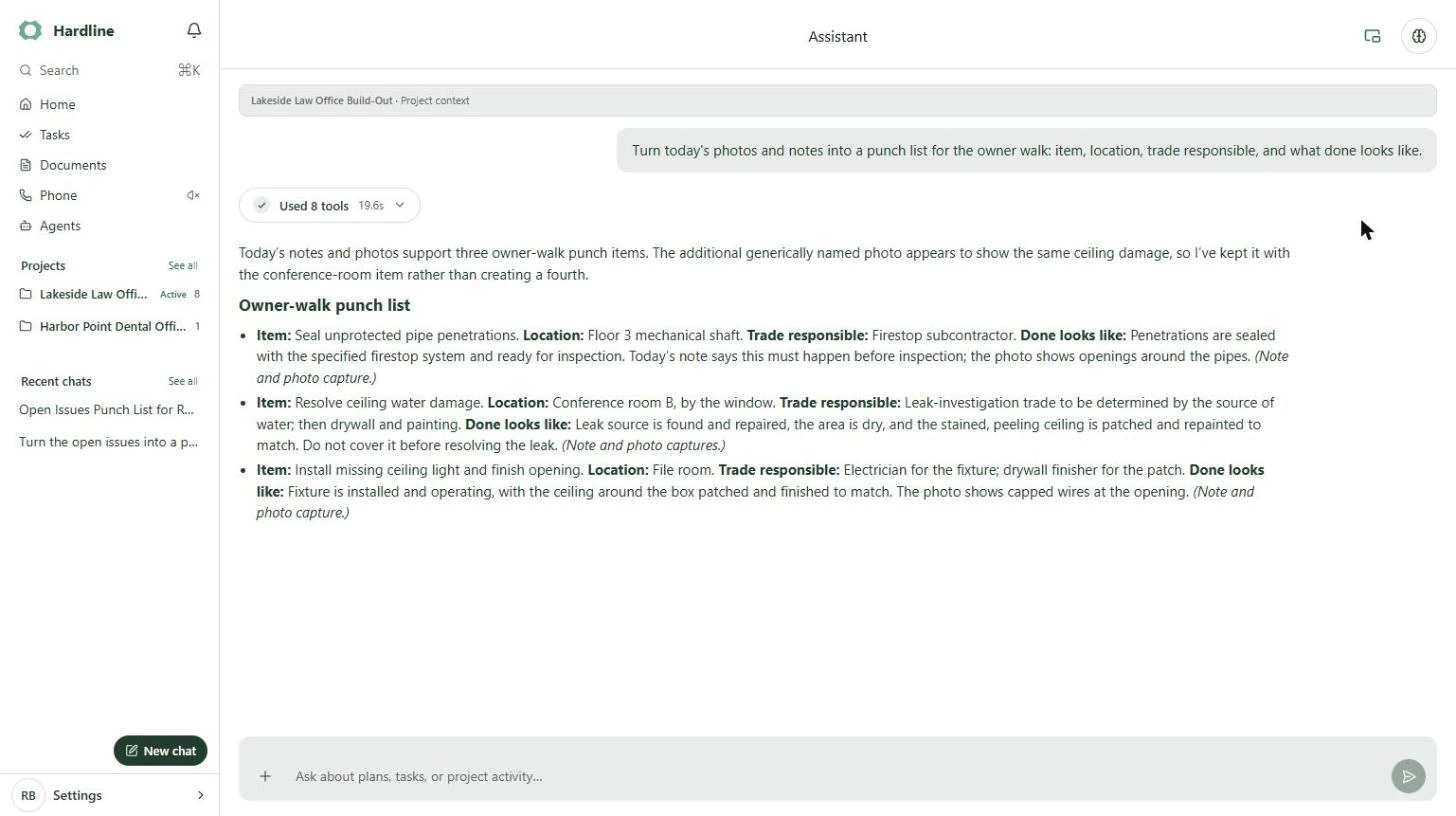
You are the superintendent on a made-up office fit-out. You capture three issues as a photo with one line each, then ask Hardline for an owner-walk punch list.
Each item comes back with location, trade responsible and what done looks like. The screens are real screenshots from my own Hardline account, captured November 2026.
What you need
- Nothing to start the practiceThe lesson is a practice copy. The project is made up.
- A Hardline account, to capture your own siteHardline runs on iPhone, Android, Mac and the web, with a free trial.
Concepts
The active project
Make active project sends every new note and task to that project until you stop or switch.
Set it before the walk, and nothing lands in the wrong job.
A photo plus one line
The photo shows the problem. One line says the room, the trade and what has to happen first.
A clear file name, like conf-room-b-ceiling-stain.jpg, helps you and Hardline match photos to items later.
Ask for the format the walk needs
Ask about this project turned the captures into an owner-walk punch list in about 20 seconds: item, location, trade responsible and what done looks like.
It noted which capture each item came from, and kept a duplicate photo with the right item instead of adding a fourth.
Do it for real
Now repeat it in your own account. Tick each step as you go.
Quick check
3 questions to check you’ve got it.
1. Why make the project active before the walk?
- So every photo and note you capture lands in that project
- To invite the owner
- To start a timer
Show the answer
So every photo and note you capture lands in that project. New notes and tasks go to the active project until you stop or switch.
2. What does a one-line note add to a photo?
- Where it is, who fixes it and what has to happen first
- A higher photo resolution
- Nothing; the photo is enough
Show the answer
Where it is, who fixes it and what has to happen first. A photo shows the problem; the note makes it an item nobody argues about.
3. What should you do with the punch list before the walk?
- Check each item against your photos and fix anything wrong
- Send it unread
- Delete the photos
Show the answer
Check each item against your photos and fix anything wrong. You will defend every line with the owner, so it has to match what you saw.