Updated . Built against the tool’s current screens and checked step by step. How we check this lesson
Every patient email that waits for a reply is a patient who might book somewhere else. In this free Zapier tutorial you build a four-step Zap that drafts the reply before anyone opens the email: Gmail New Email starts it, ChatGPT Conversation writes a warm reply from the patient's own words, Signatoro's Get Signature step adds the sender's real, current signature, and Gmail Create Draft Reply saves it in the patient's thread for a person to check and send. The AI writes the message and never signs it, so every reply carries the right name, title and phone number.
Stepthrough partner. Signatoro links to our Make lesson from its docs and gave Stepthrough a free plan to build its lessons. We were not paid for these pages.
At a glance
| Question | Answer |
|---|---|
| What you build | Stop leaving patient emails waiting. Build a Zap where Gmail starts it, ChatGPT writes a personal reply, Signatoro's Get Signature step adds the sender's real signature, and Gmail saves a draft reply for a person to check. |
| Tools | Zapier |
| Time | About 12 minutes, 35 steps in 8 parts |
| Level | Intermediate |
| Cost | Free |
| Ways to learn it | Practice it step by step, read the guide with screenshots |
The 8 parts, in short
- Why sign it with Signatoro: See what the wait costs, Let a Zap draft every reply.
- Save the signature in Signatoro: Save the signature, Make an API key for Zapier.
- Gmail starts the Zap: Start a new Zap, Open the trigger, Search for Gmail, Pick Gmail, and 2 more steps.
- ChatGPT writes the reply: Add the AI step, Search for ChatGPT, Pick ChatGPT (OpenAI), Open Action event, and 2 more steps.
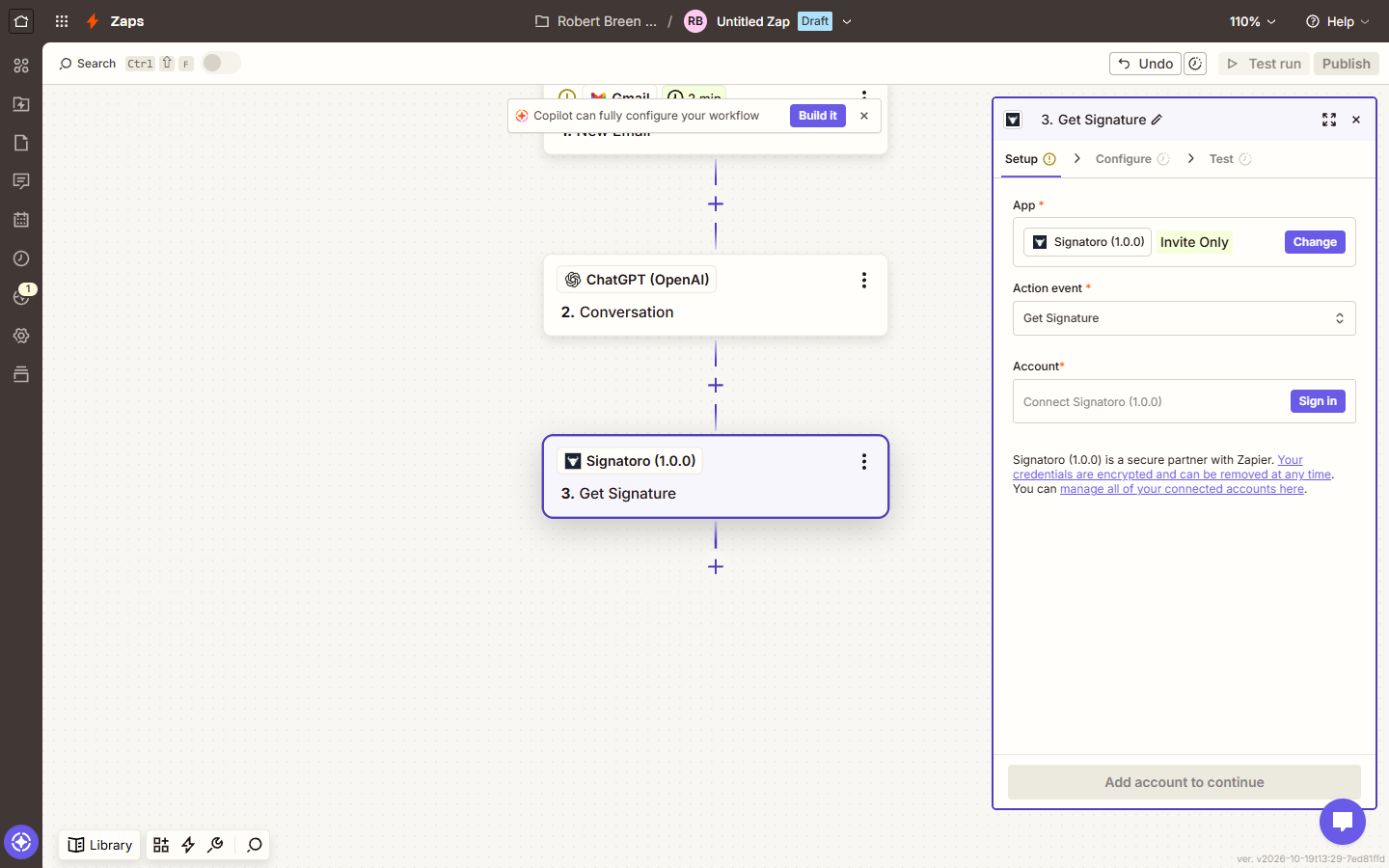
- Signatoro adds the signature: Add a step, Search for Signatoro, Pick Signatoro, Open Action event, and 1 more step.
- Gmail saves a draft reply: Add the last step, Search for Gmail, Pick Gmail, Open Action event, and 2 more steps.
- Connect and fill in: Connect your accounts, Write the prompt, Add the signature, Fill in the draft, and 1 more step.
- What it saves: Read the draft, See what it saves, Using Make instead?.
Start here first: How to Create a Zap in Zapier: Log Google Forms Inquiries in Sheets (module 1 of Zapier Automation Basics)
In the course: Part 7 · Zapier Automation Basics (Module 75 of the full course)
Part of: AI for Medical & Dental Office Admin (step 16 of 25). Next up: End Every Email Claude Drafts With Your Saved Signature using Claude and Signatoro
Part of: Email on Autopilot (step 5 of 18). Next up: Add AI to Make.com: ChatGPT Writes a Personal Reply, Gmail Sends It
Part of: Zapier Jump Start (step 4 of 4)
Part of: AI Apps Worth Knowing (step 63 of 186). Next up: Add AI to Make.com: ChatGPT Writes a Personal Reply, Gmail Sends It
Part of: Signatoro Tutorial: Signatoro Jump Start (step 1 of 2). Next up: Add AI to Make.com: ChatGPT Writes a Personal Reply, Gmail Sends It
Zapier: ChatGPT Drafts Every Reply, Signatoro Signs It: step-by-step guide with screenshots
About the screenshots. They come from Stepthrough’s simulated practice environment (a practice copy of Zapier), not the live tool, so no real account appears. The buttons and labels match the real screens the lesson was built against. Practice it yourself free at ynteractive.com.
- Tools: Zapier
- Time: about 12 minutes, 35 steps in 8 parts
- Level: intermediate
Part 1: Why sign it with Signatoro
Step 1: See what the wait costs
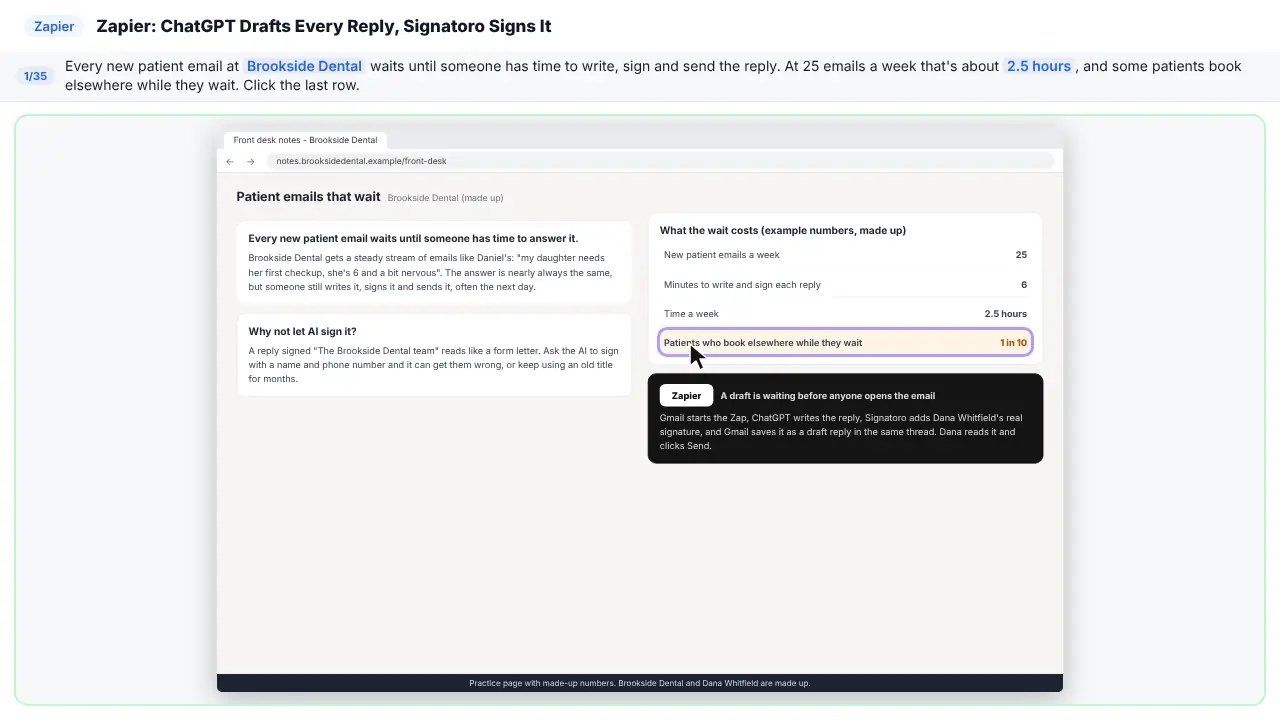
At Brookside Dental, every new patient email waits until someone has time to answer it. That's hours a week, and some patients book somewhere else while they wait.
Step 2: Let a Zap draft every reply
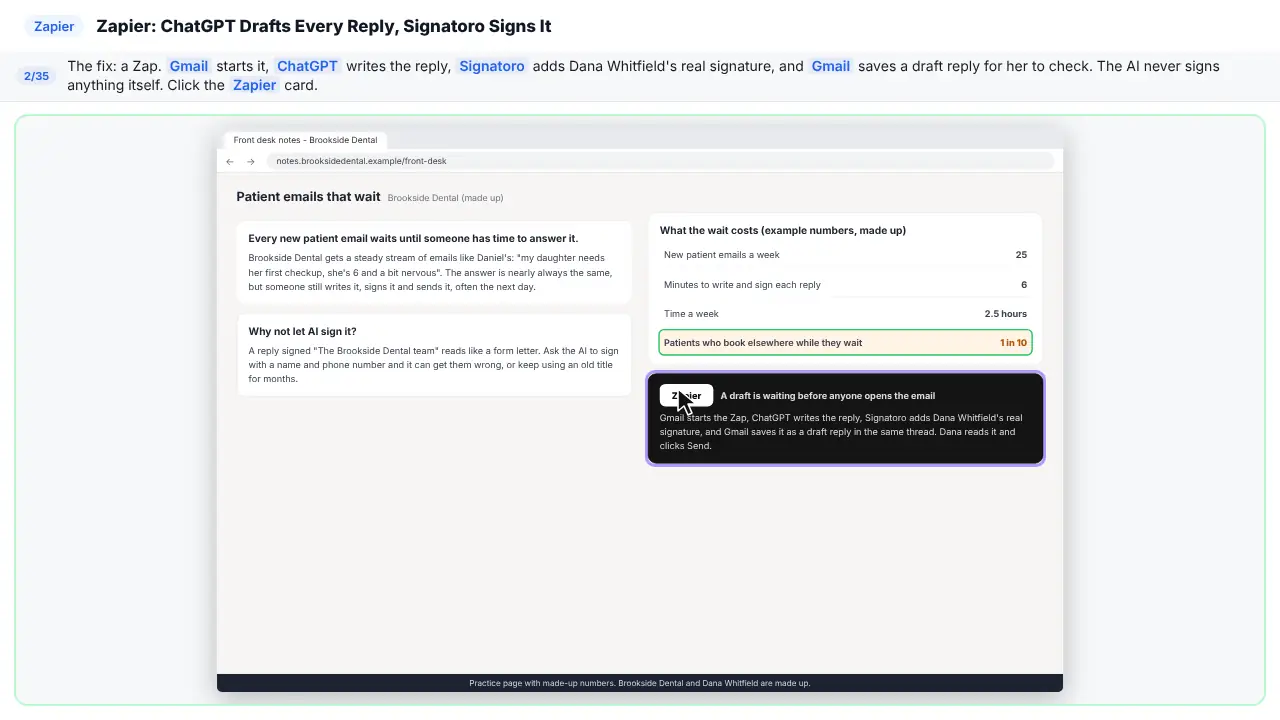
Here's the fix. Gmail starts a Zap, ChatGPT writes the reply, Signatoro adds Dana's real signature, and Gmail saves it as a draft for her to check.
Part 2: Save the signature in Signatoro
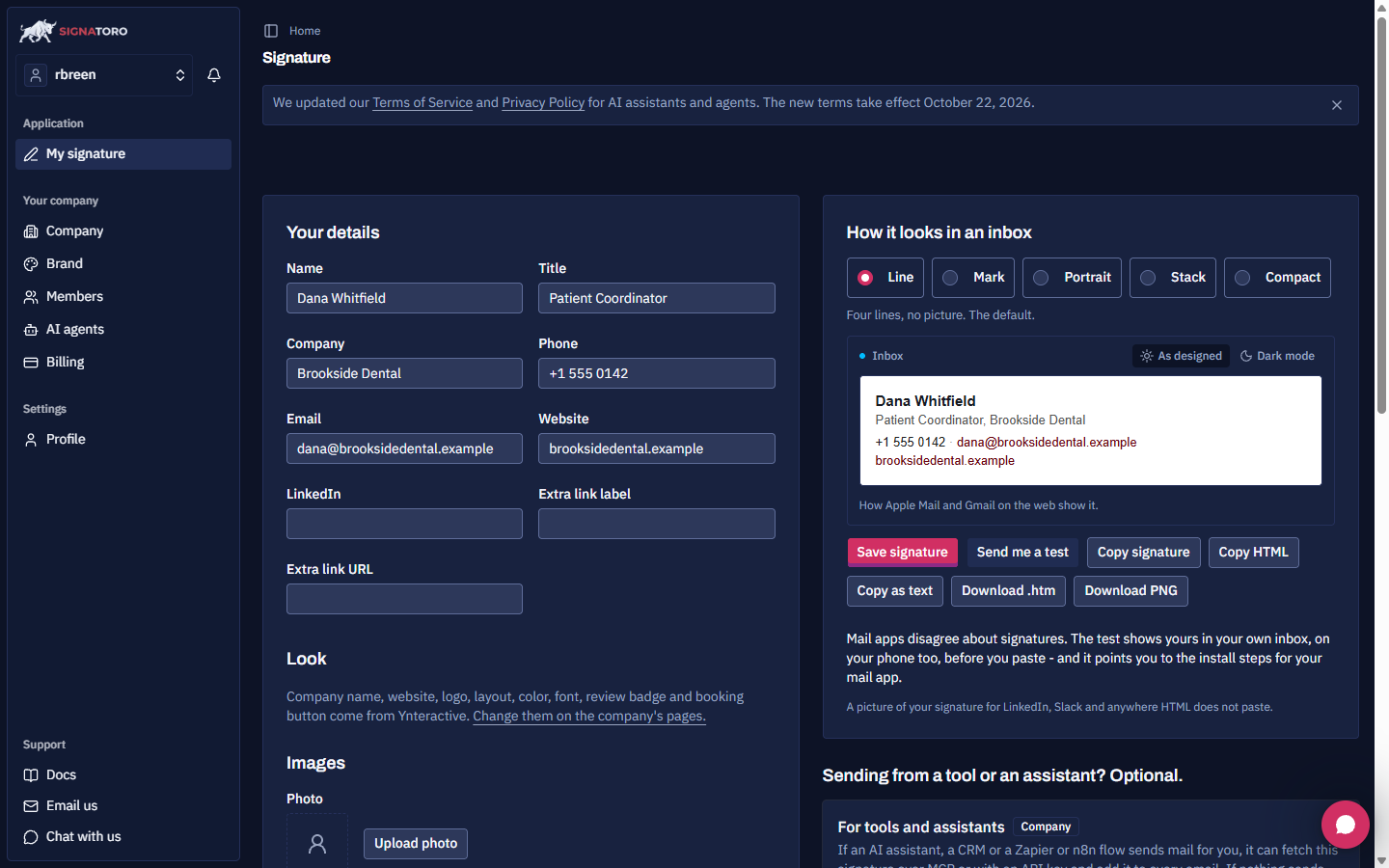
Step 3: Save the signature
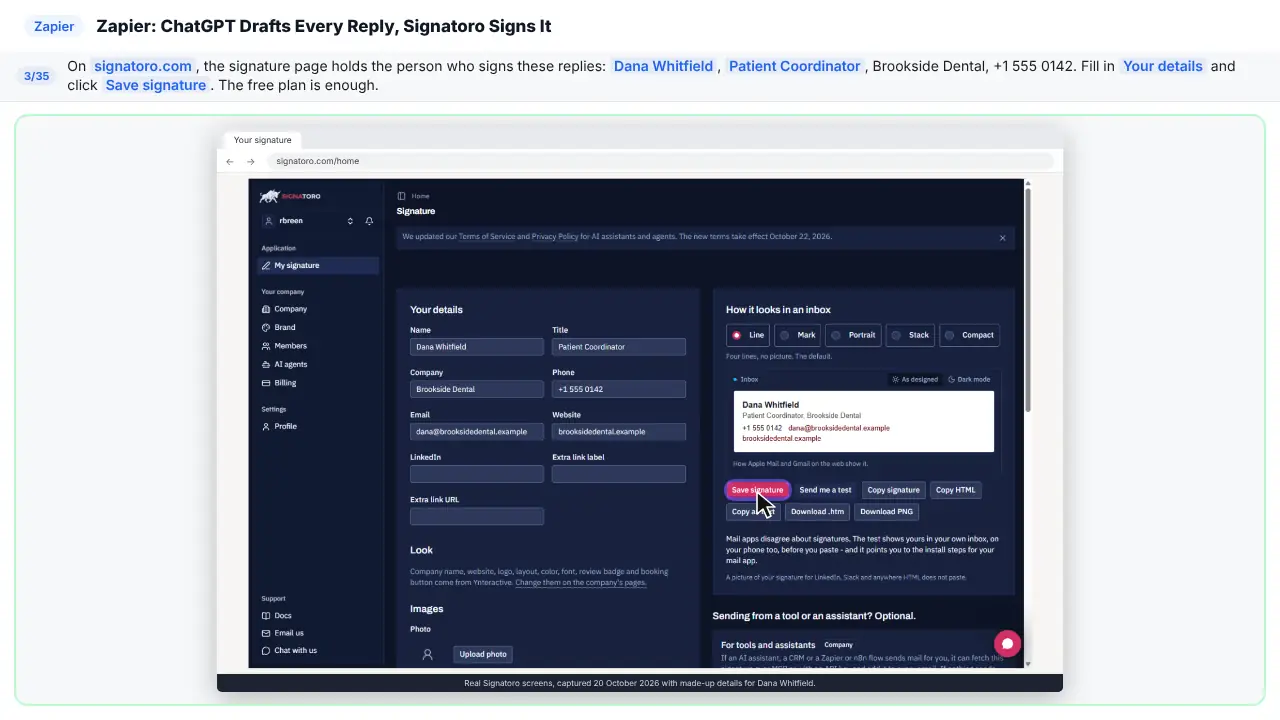
First, the signature. On Signatoro, fill in the person who signs these replies. Here it's Dana Whitfield, patient coordinator.
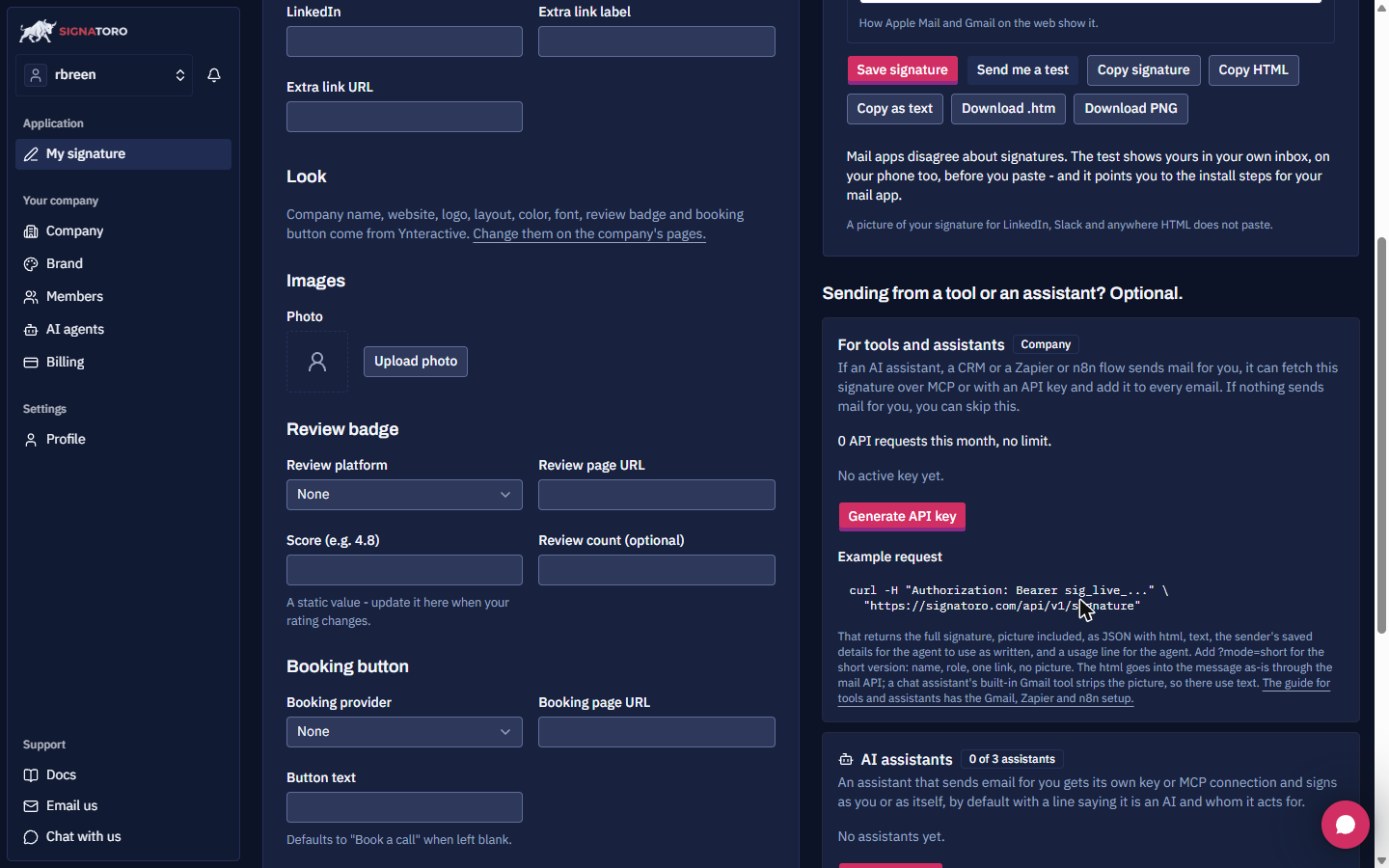
Step 4: Make an API key for Zapier
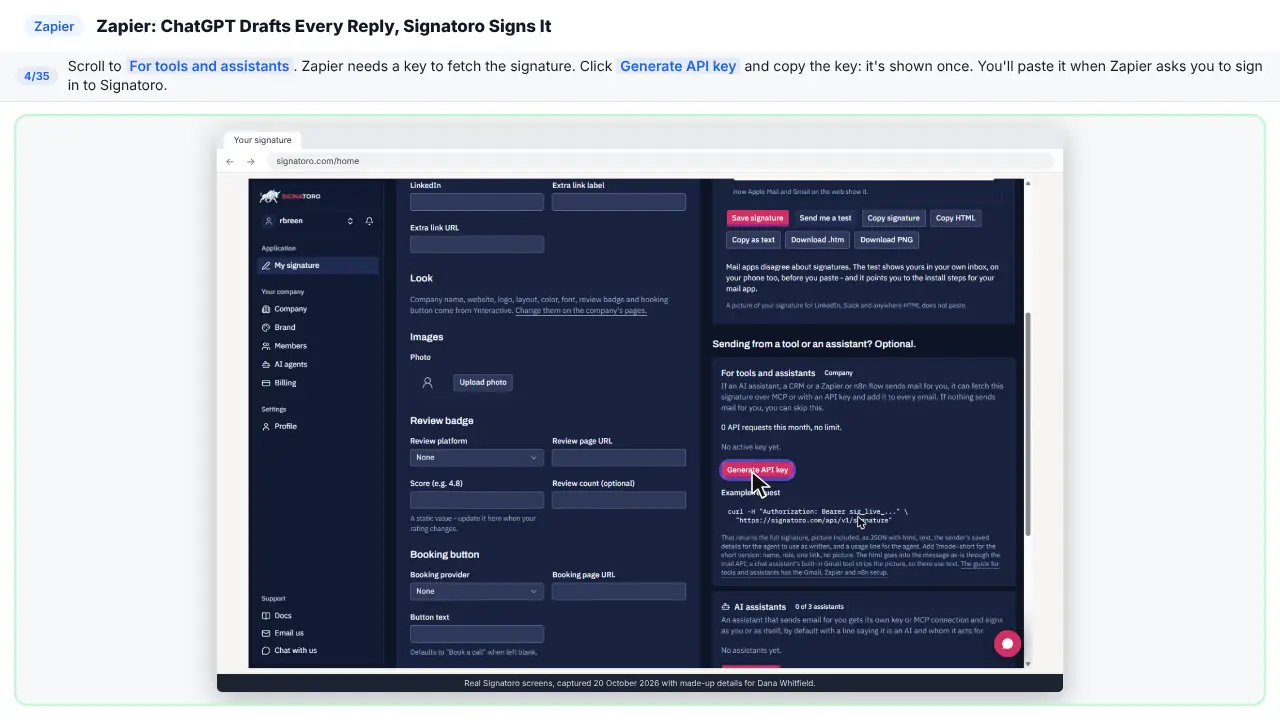
Zapier needs a key to fetch this signature. It's shown only once.
Part 3: Gmail starts the Zap
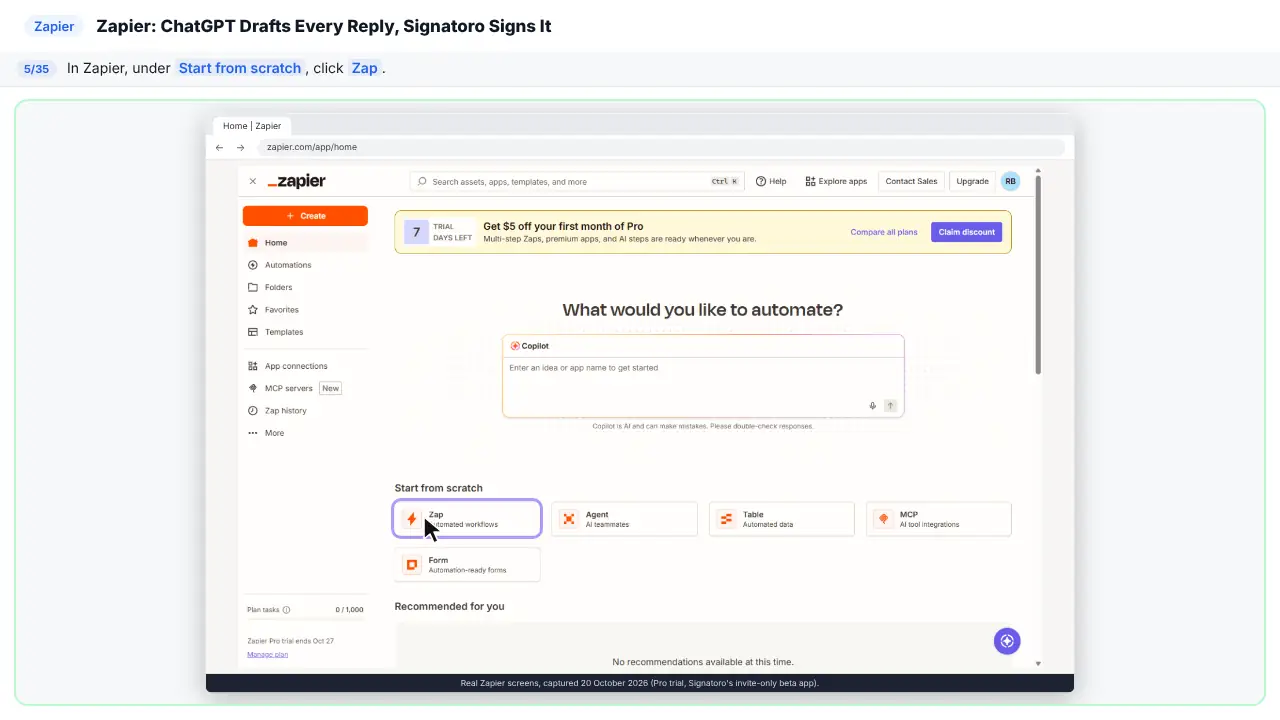
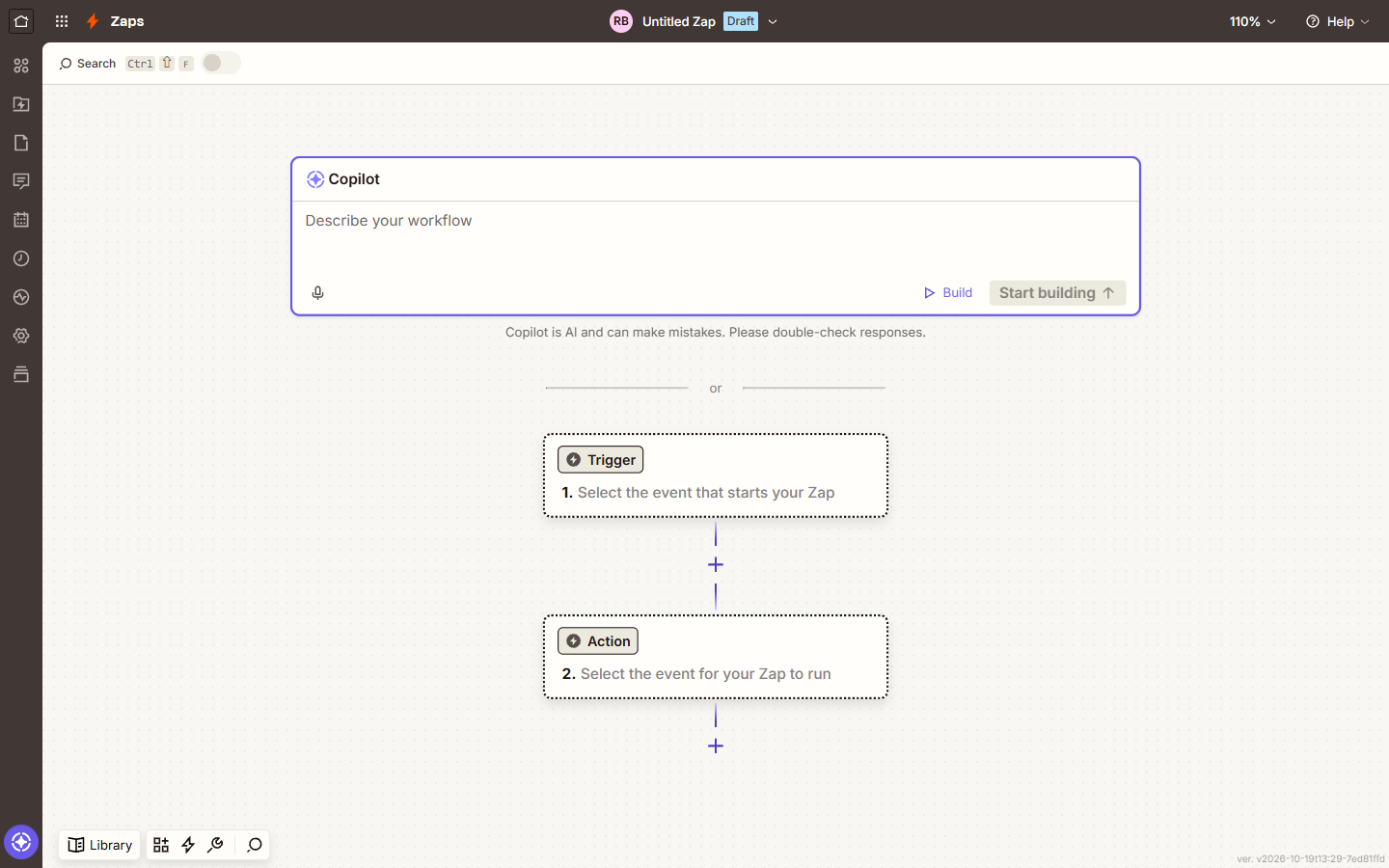
Step 5: Start a new Zap
Under start from scratch, click Zap.
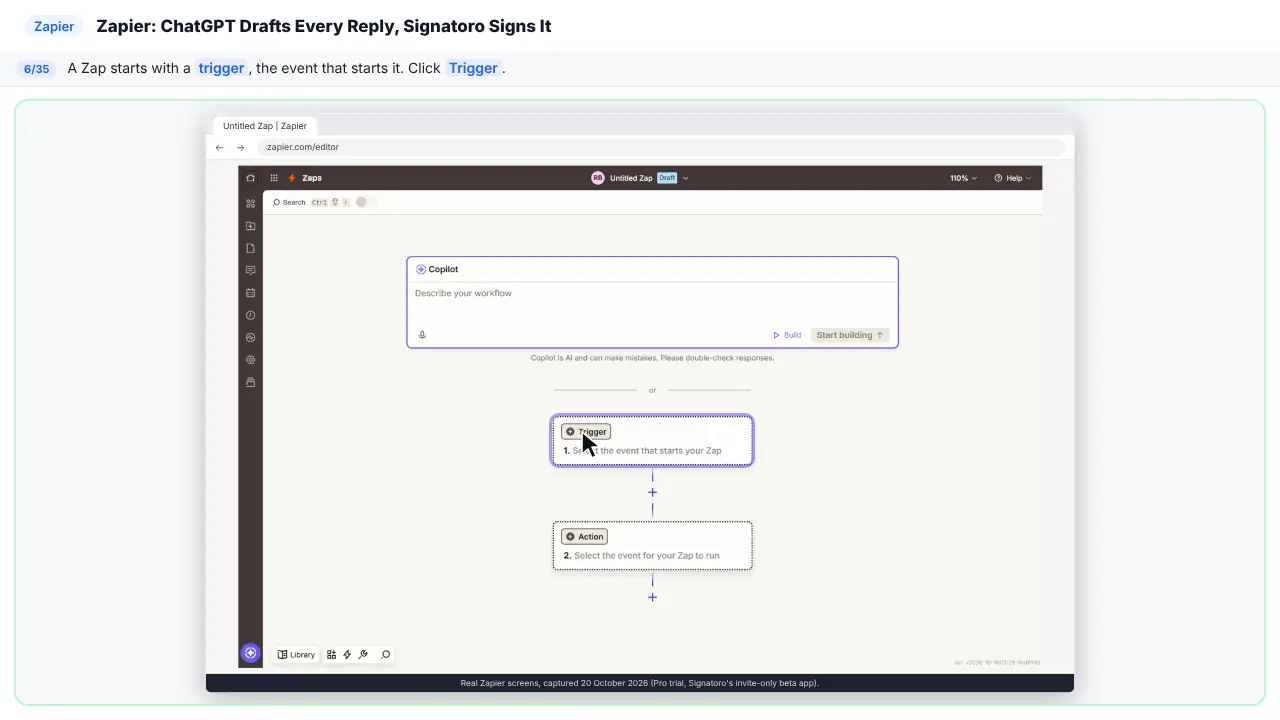
Step 6: Open the trigger
Every Zap starts with a trigger: the event that starts it.
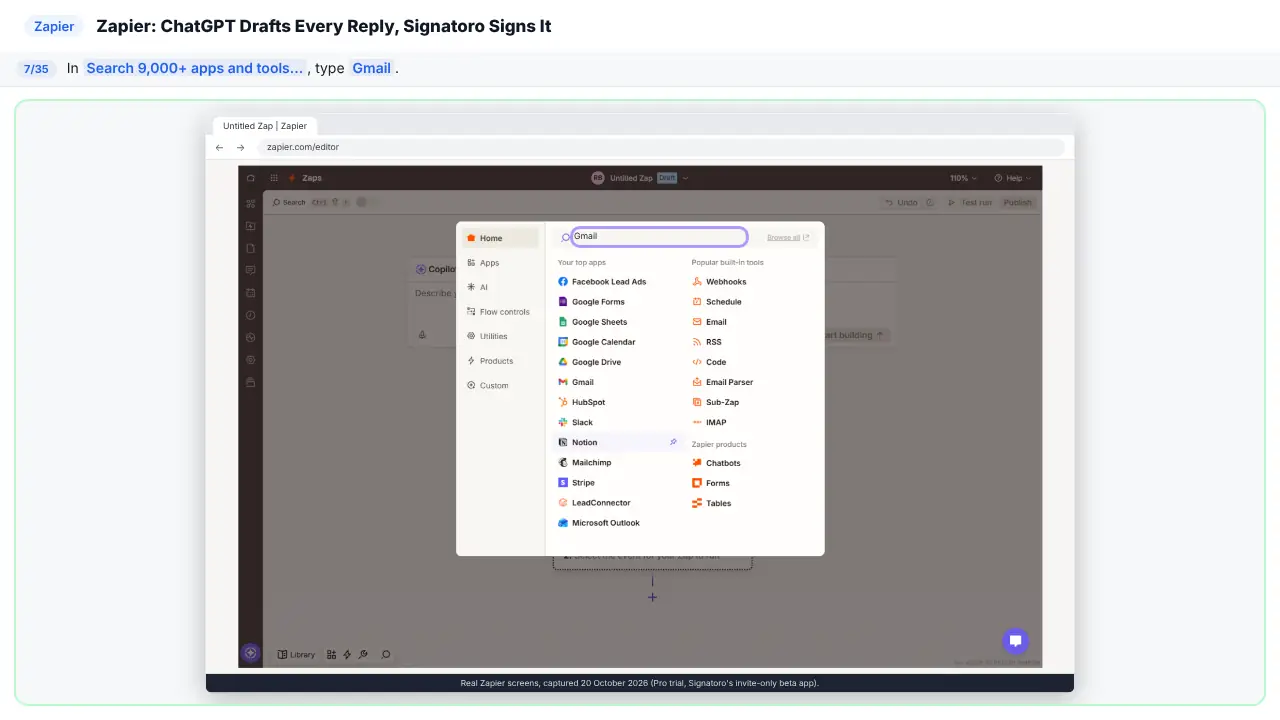
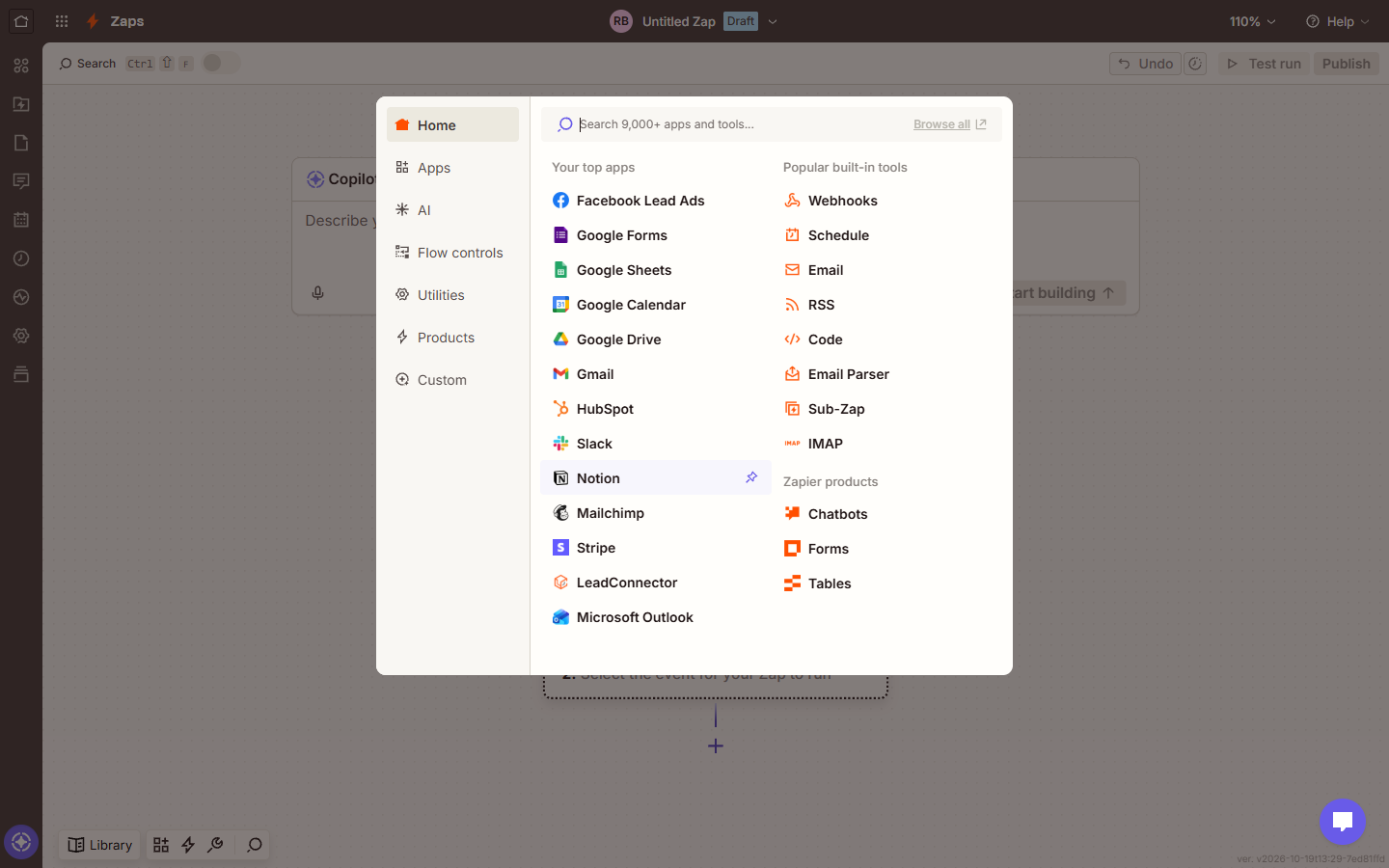
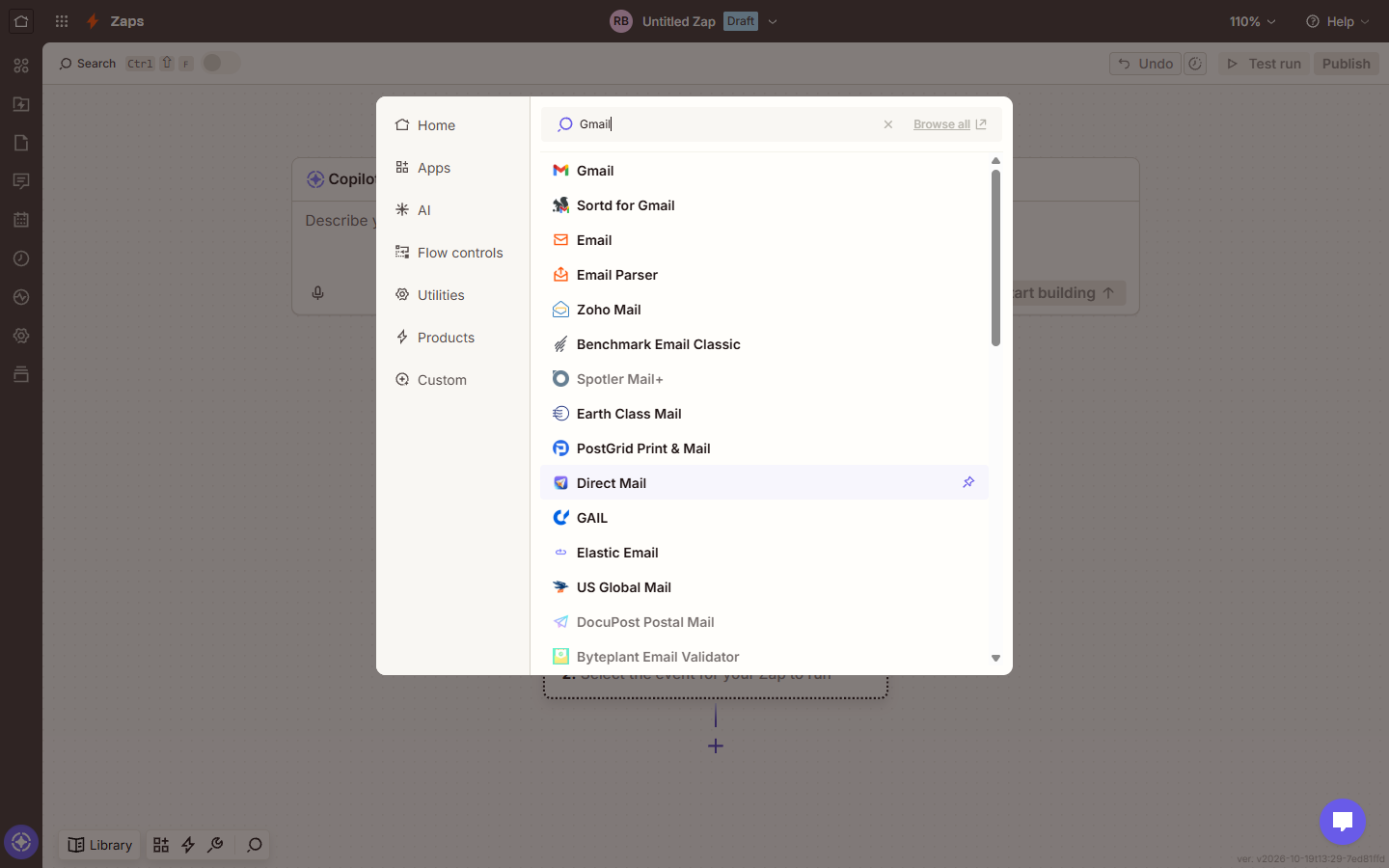
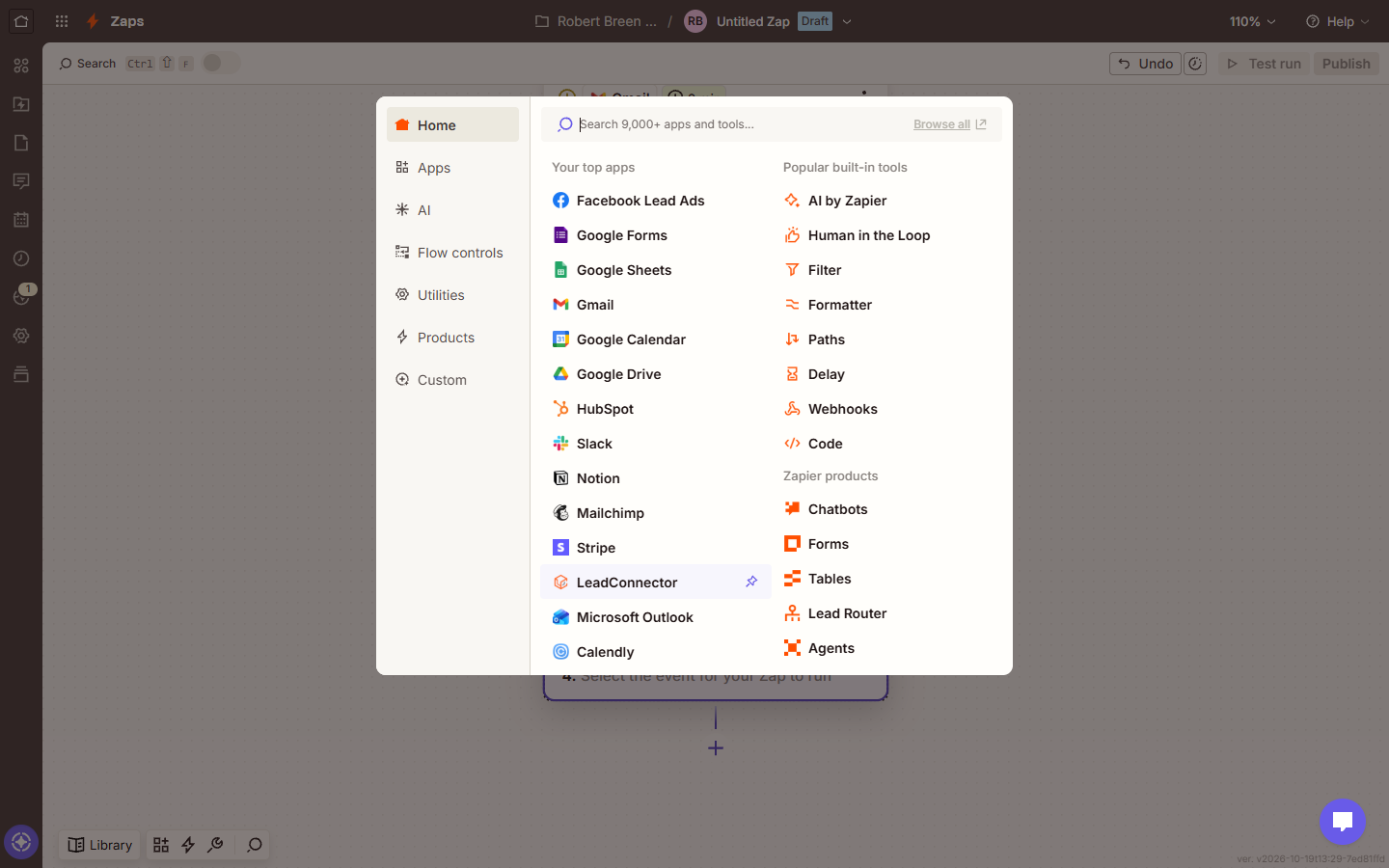
Step 7: Search for Gmail
Search for Gmail.
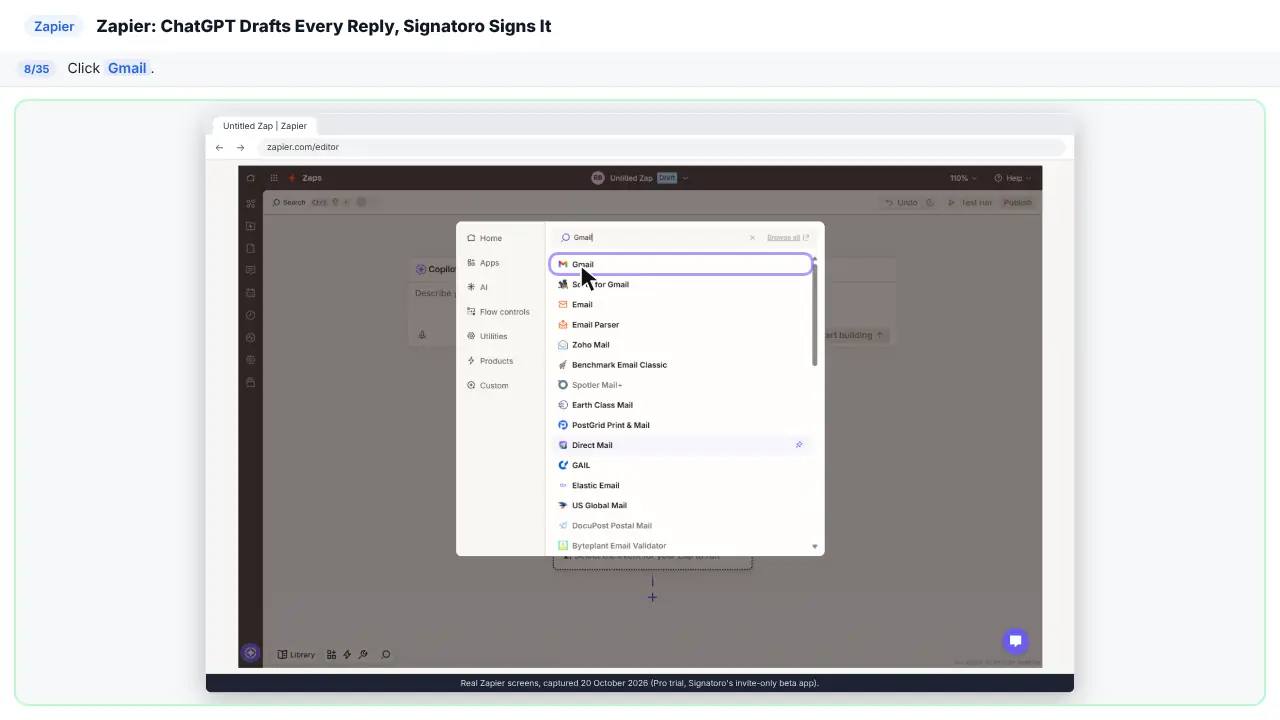
Step 8: Pick Gmail
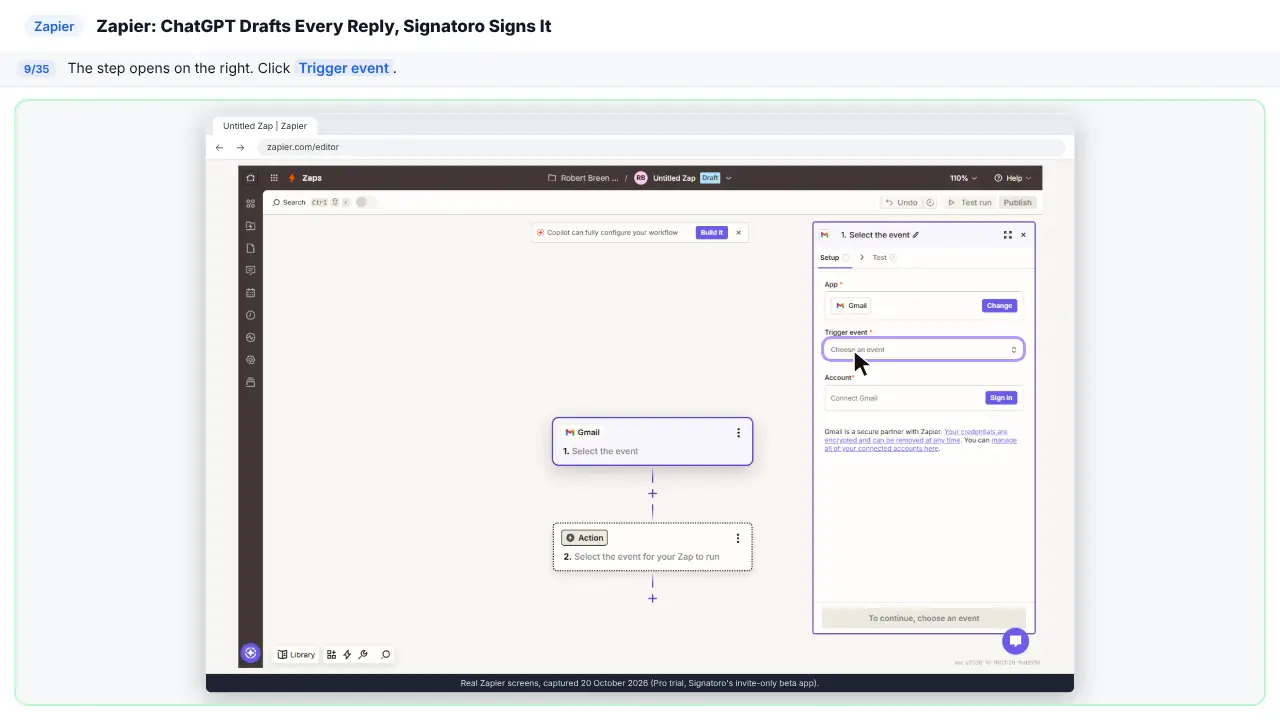
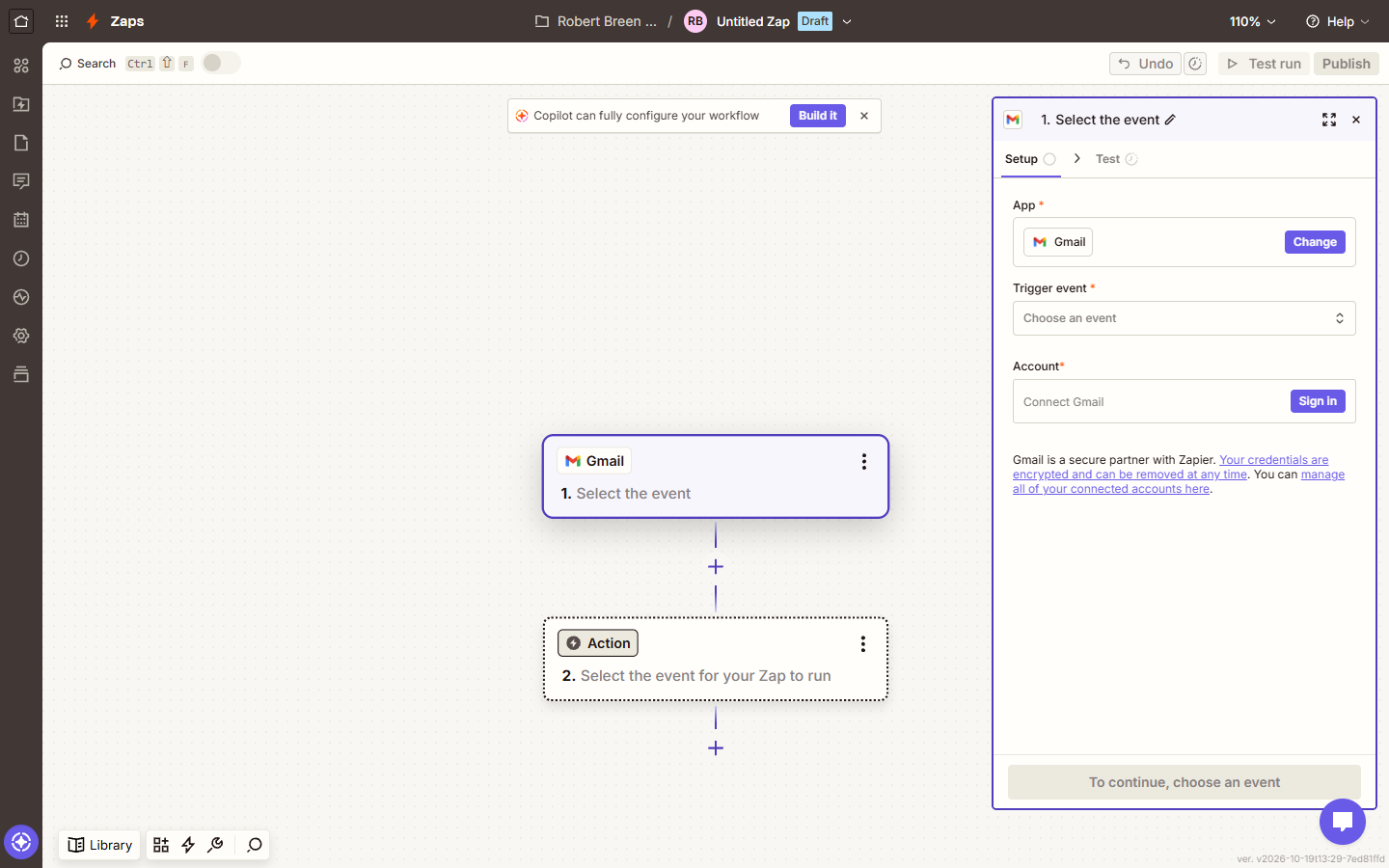
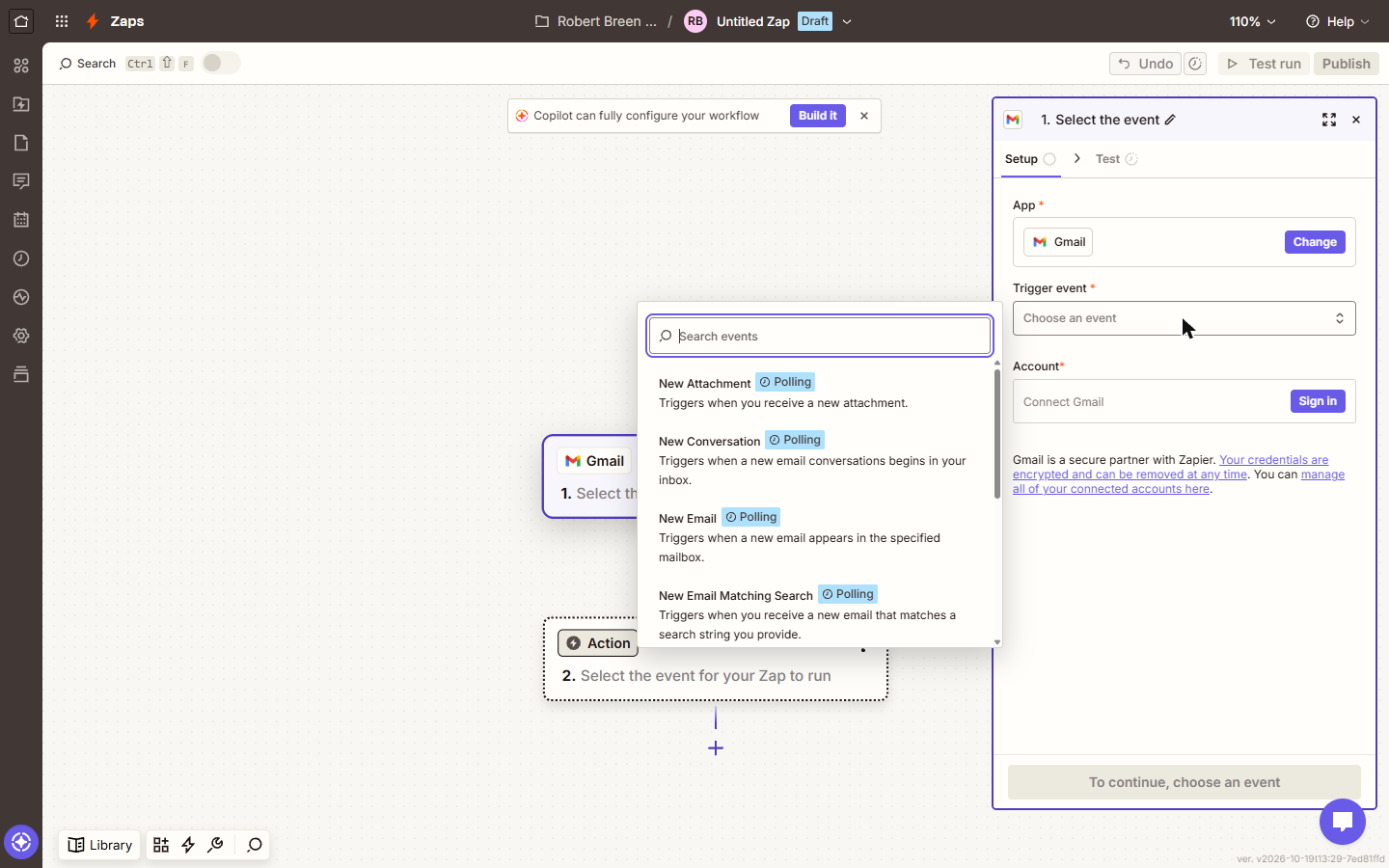
Step 9: Open Trigger event
The step opens on the right.
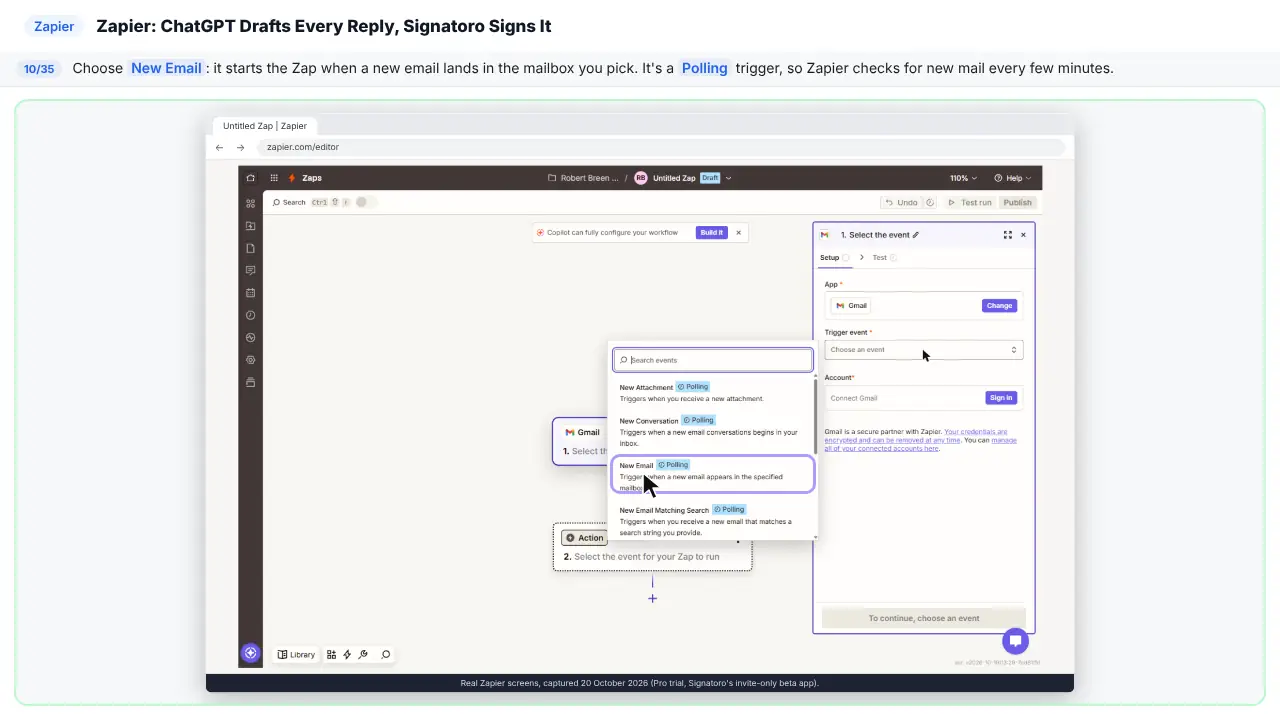
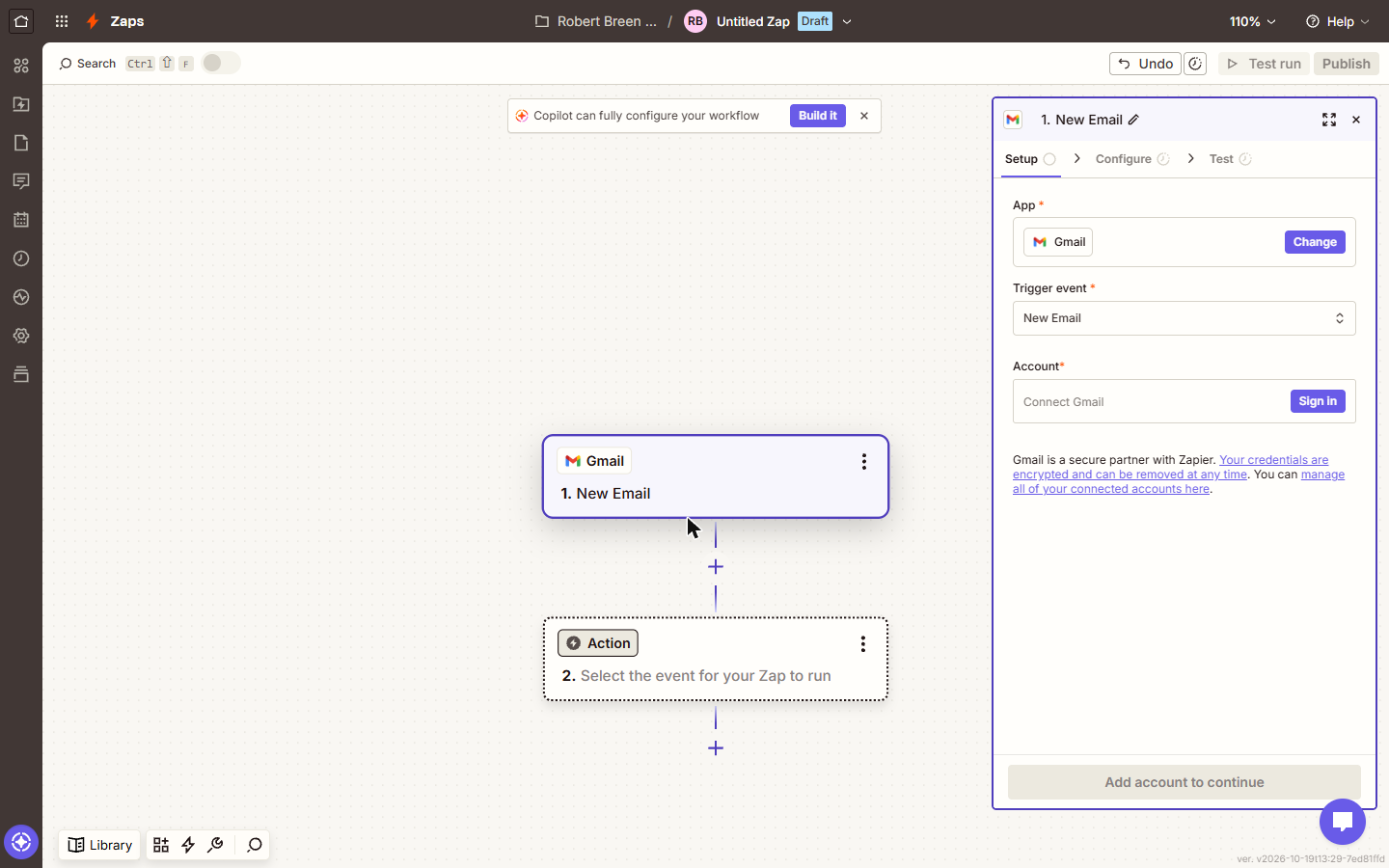
Step 10: Choose New Email
Zapier checks the inbox every few minutes, and starts the Zap when a new email lands.
Part 4: ChatGPT writes the reply
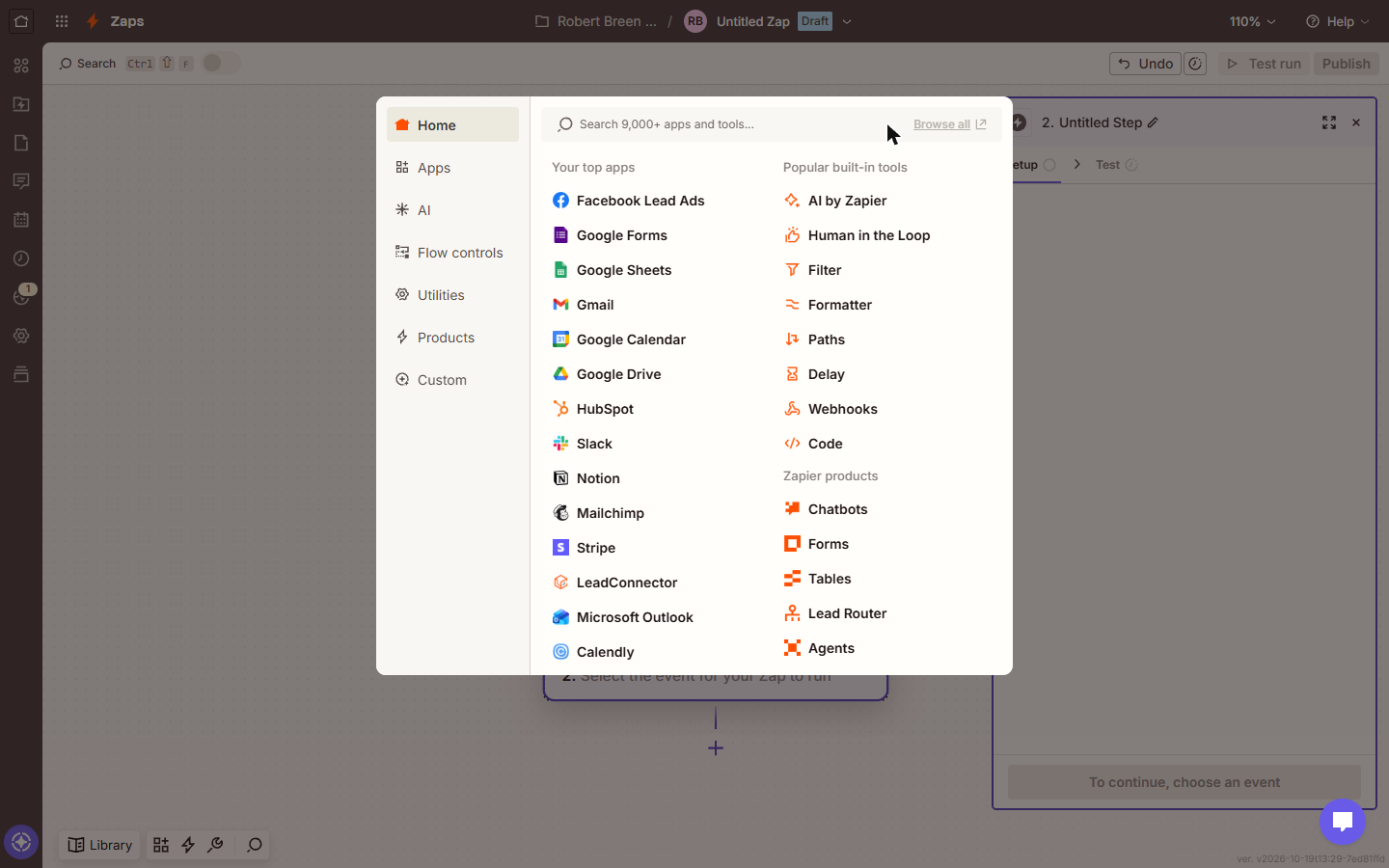
Step 11: Add the AI step
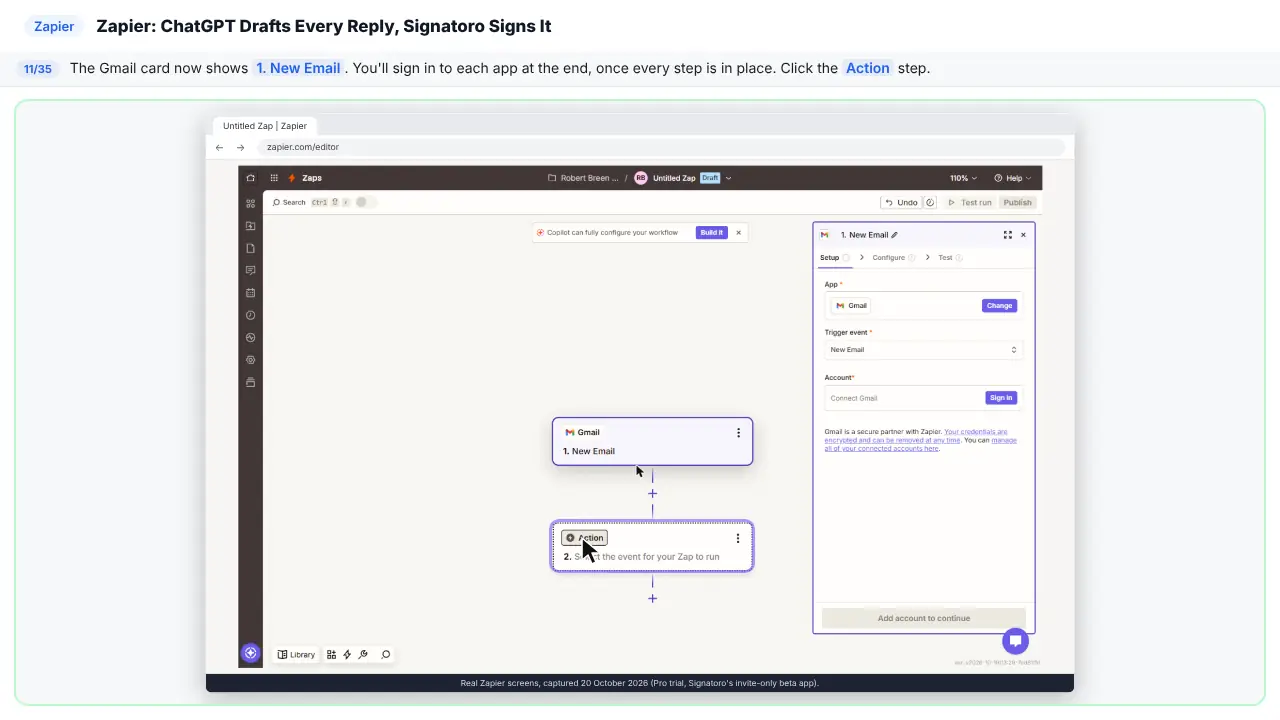
The trigger is set. You'll sign in to each app at the end.
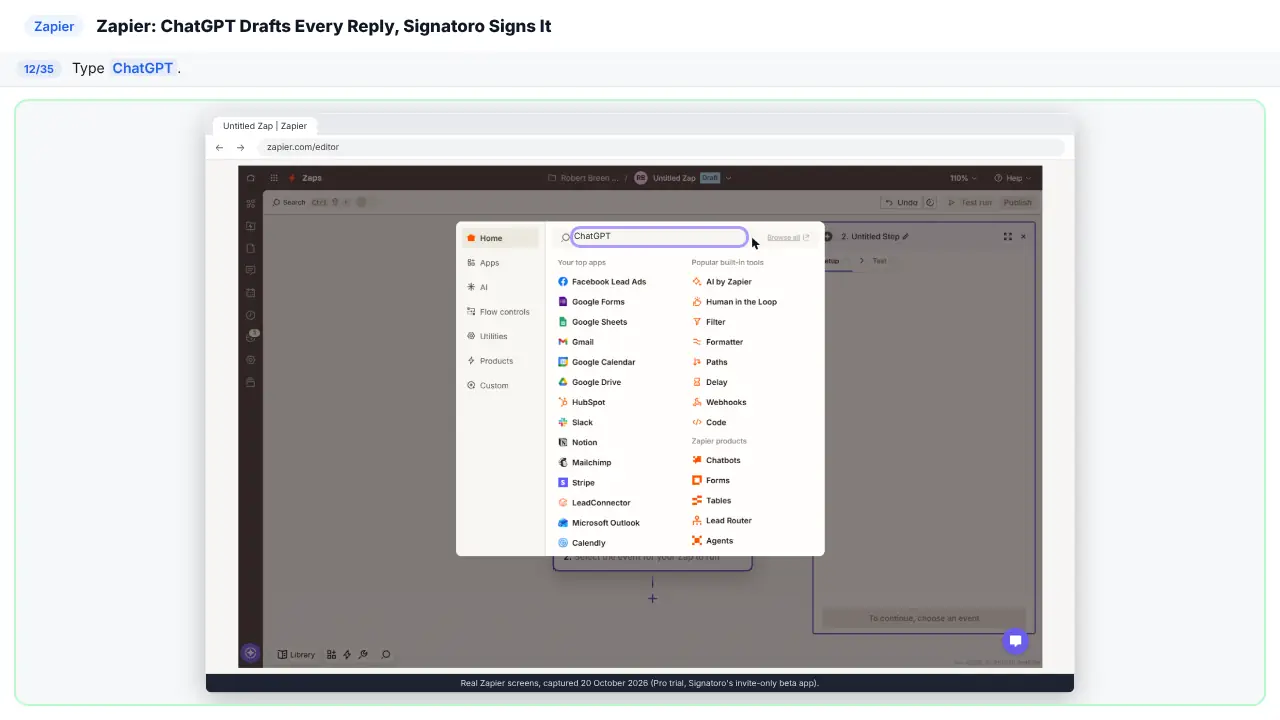
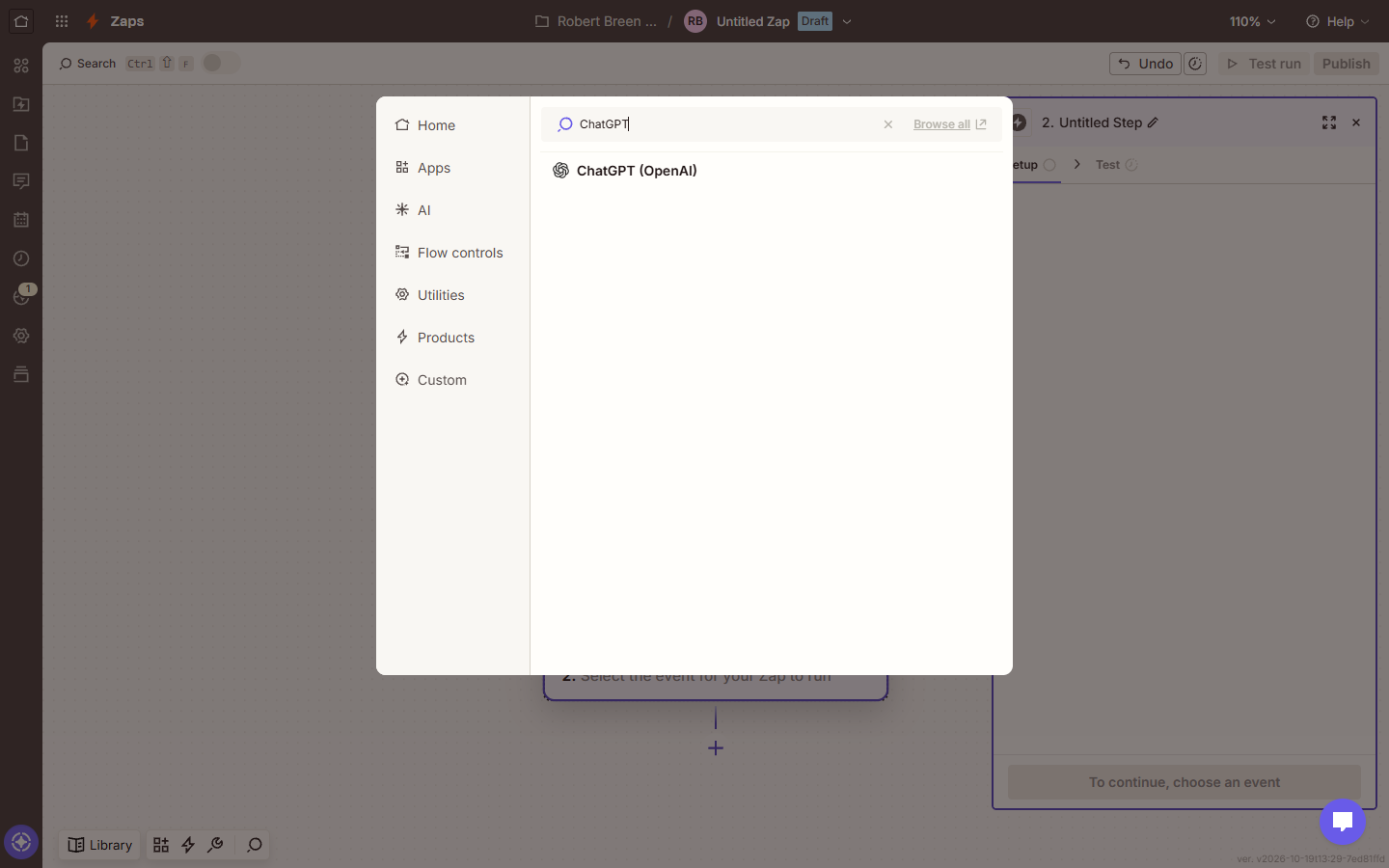
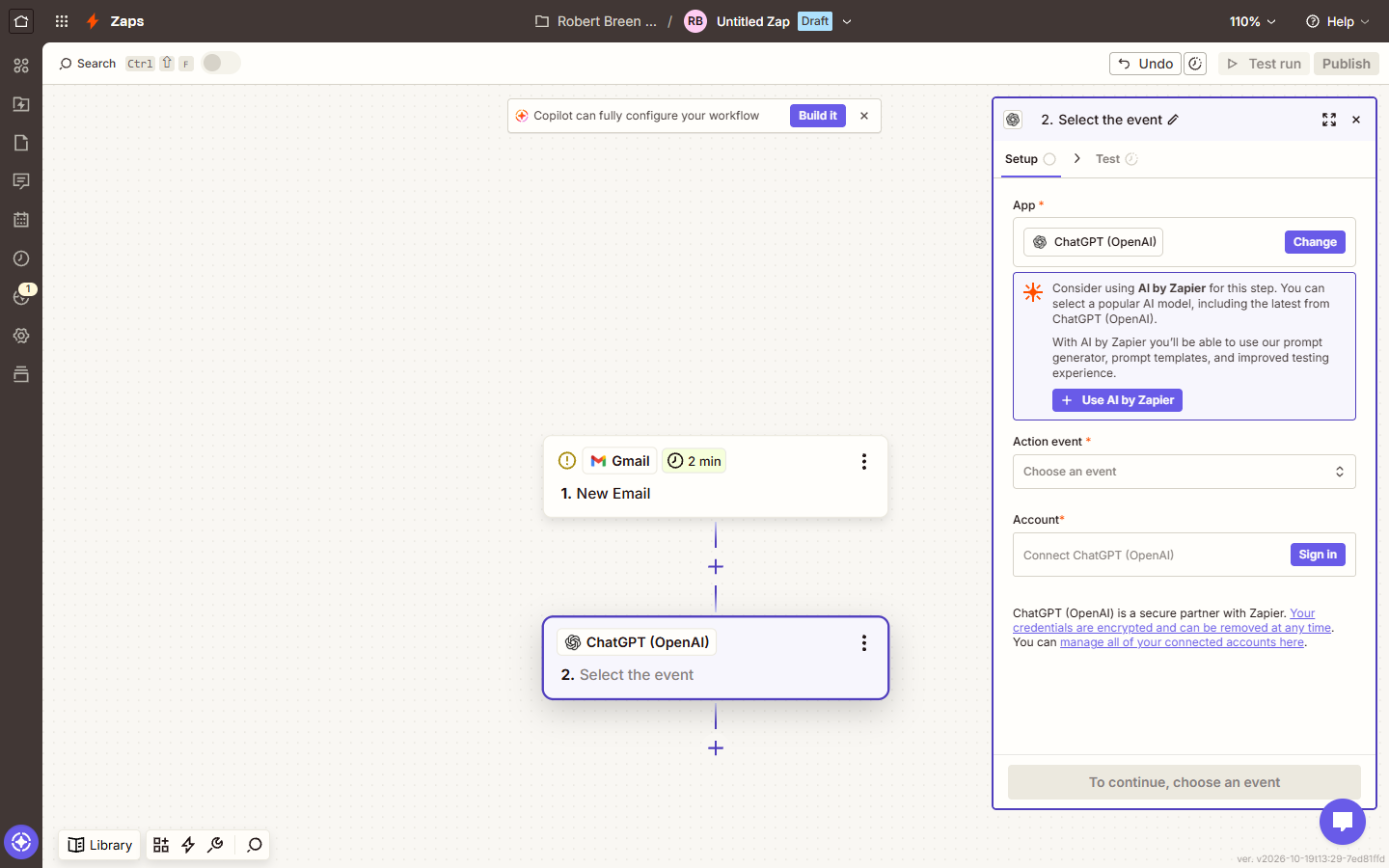
Step 12: Search for ChatGPT
Step 13: Pick ChatGPT (OpenAI)
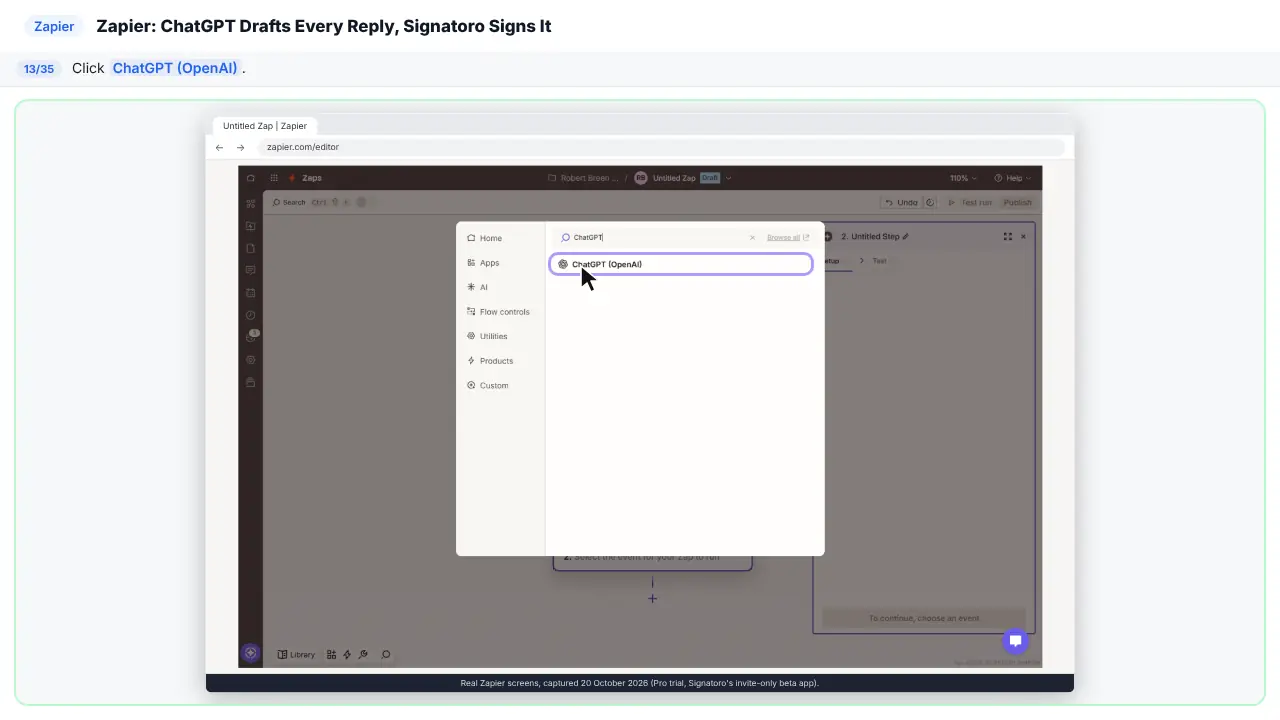
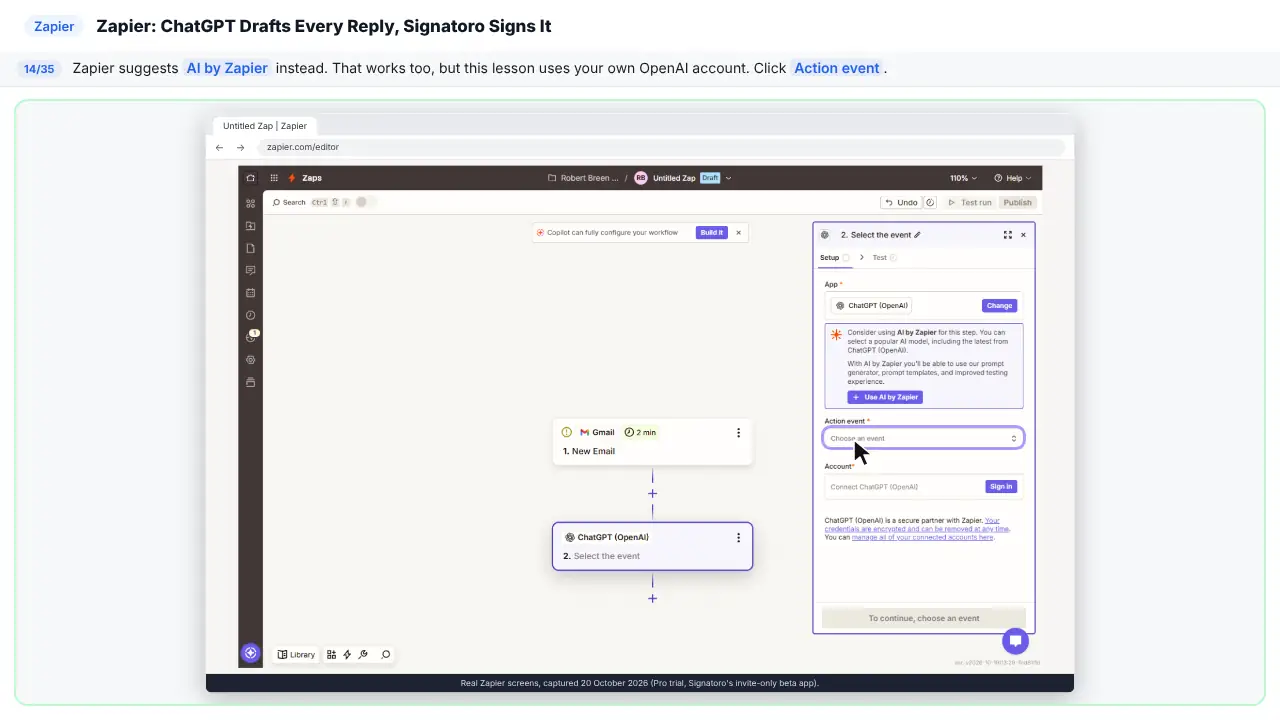
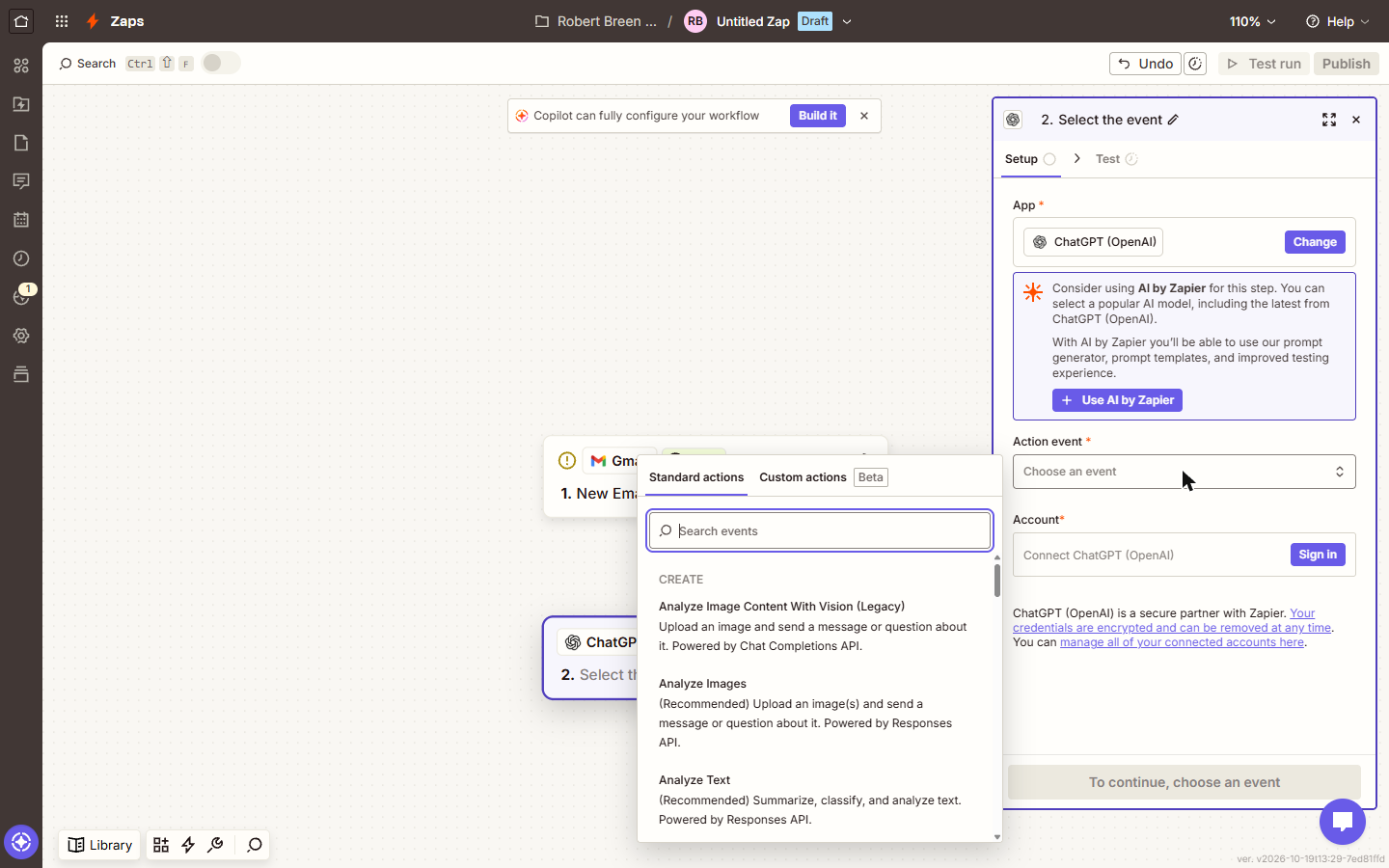
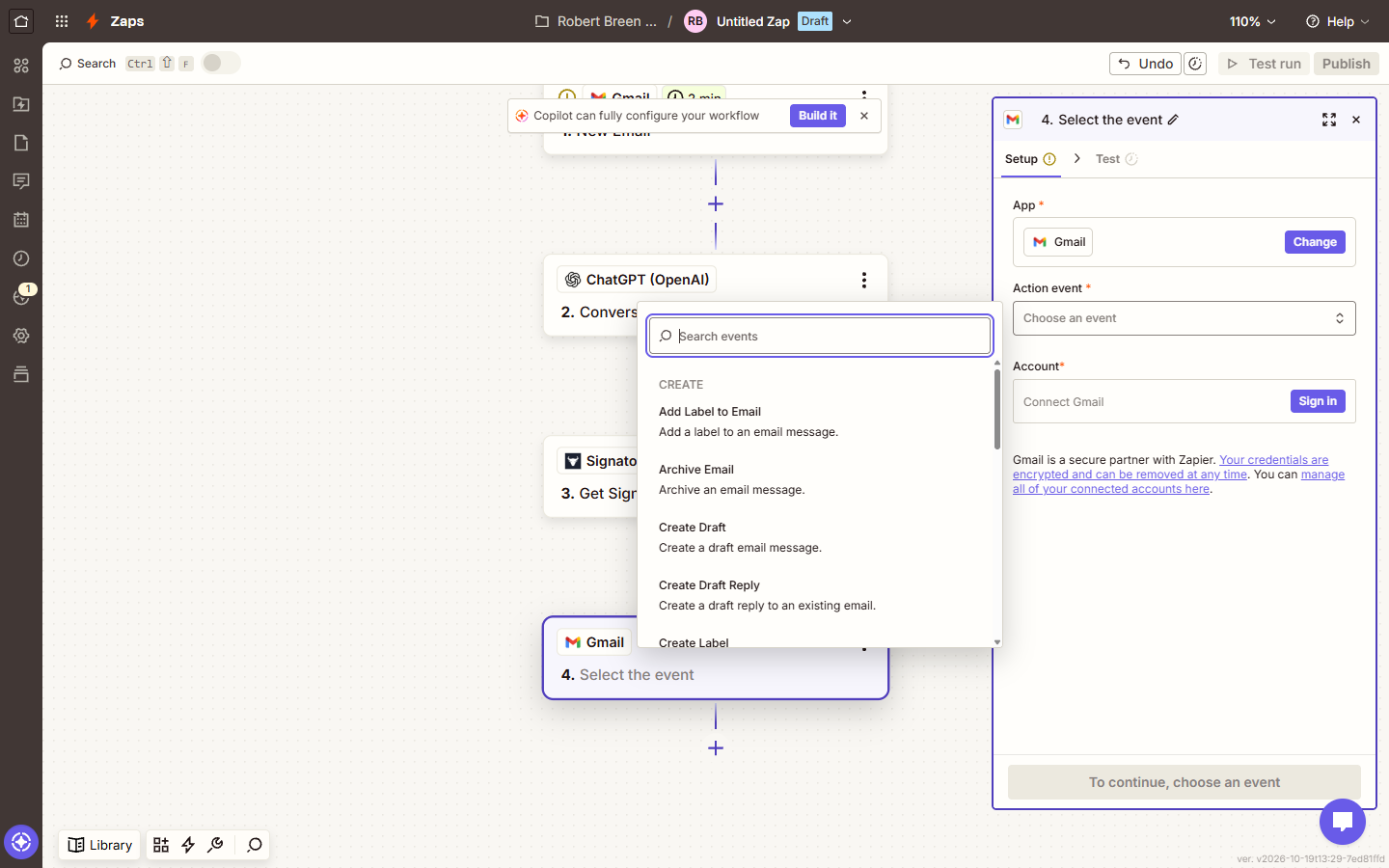
Step 14: Open Action event
Zapier suggests its own AI step. That works too, but we'll use your OpenAI account.
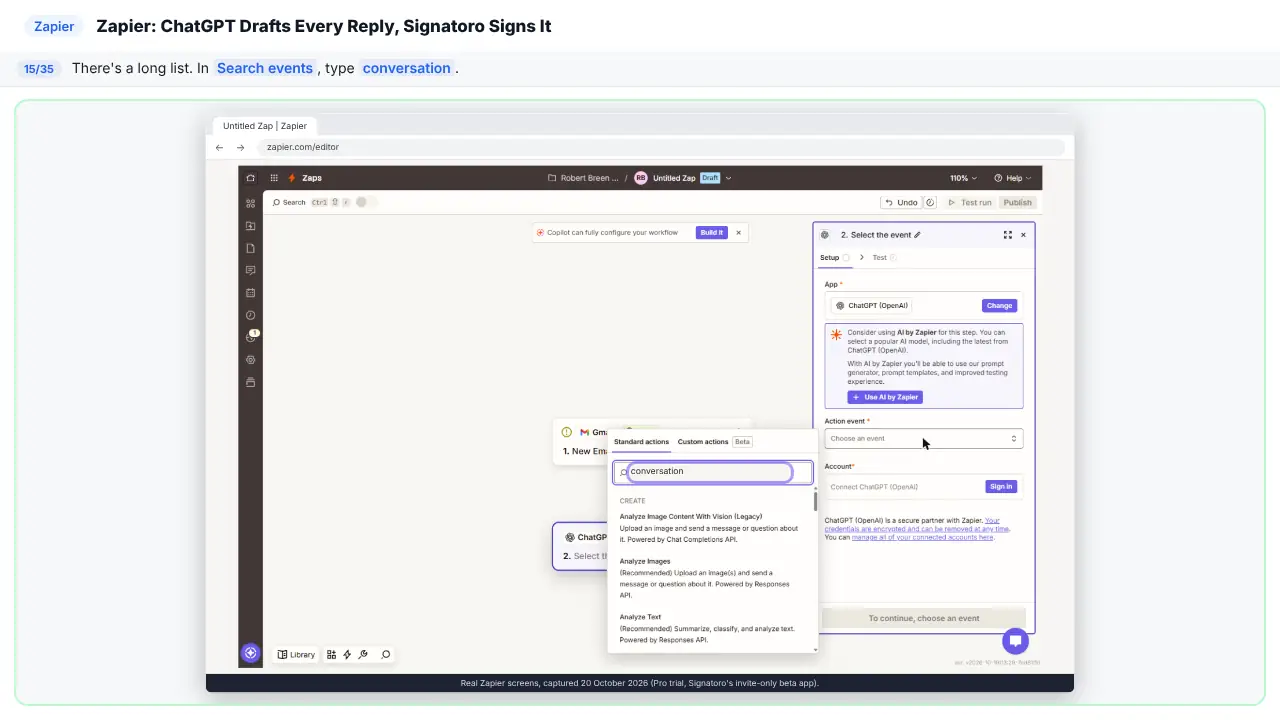
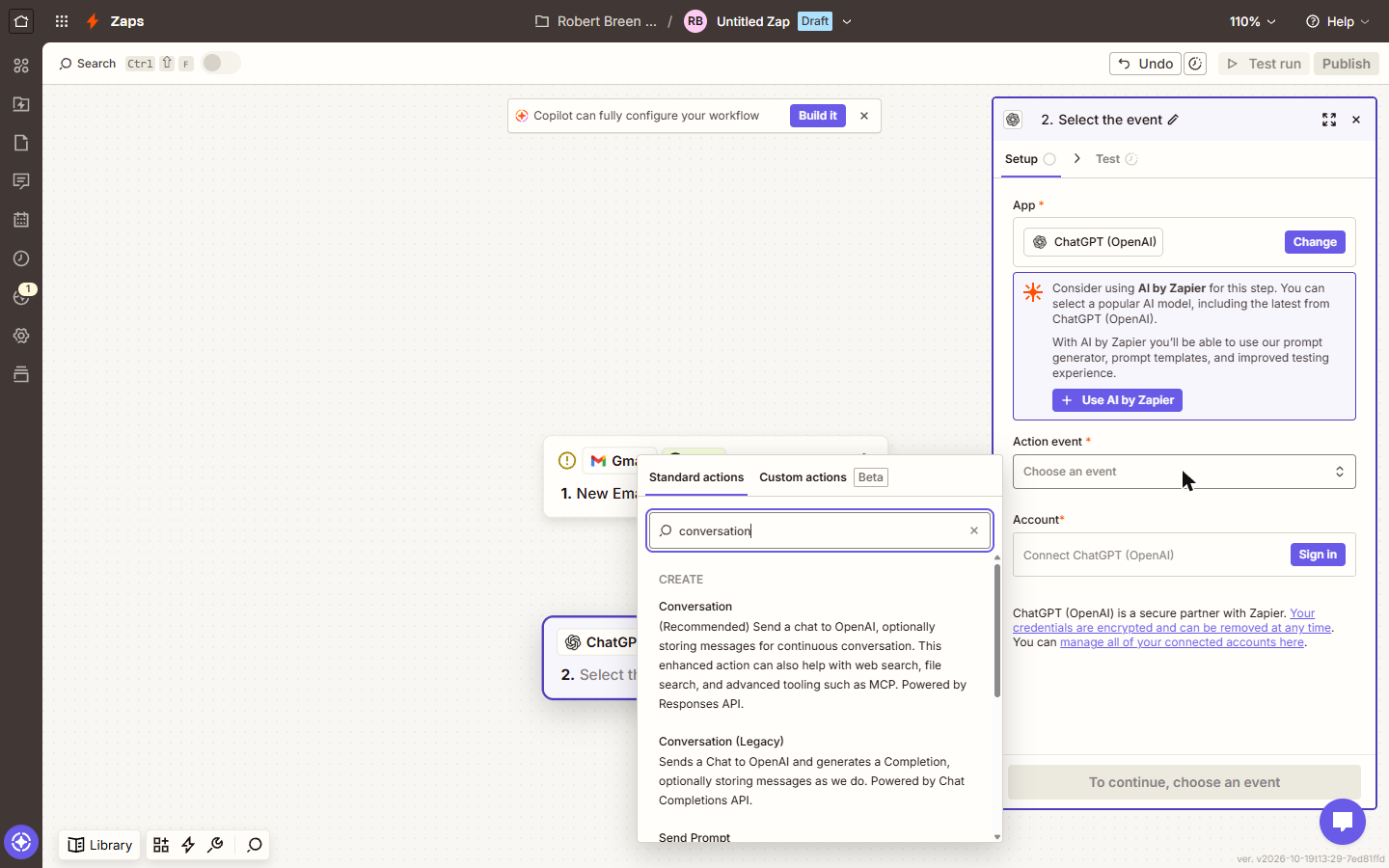
Step 15: Find Conversation
The list is long. Search for conversation.
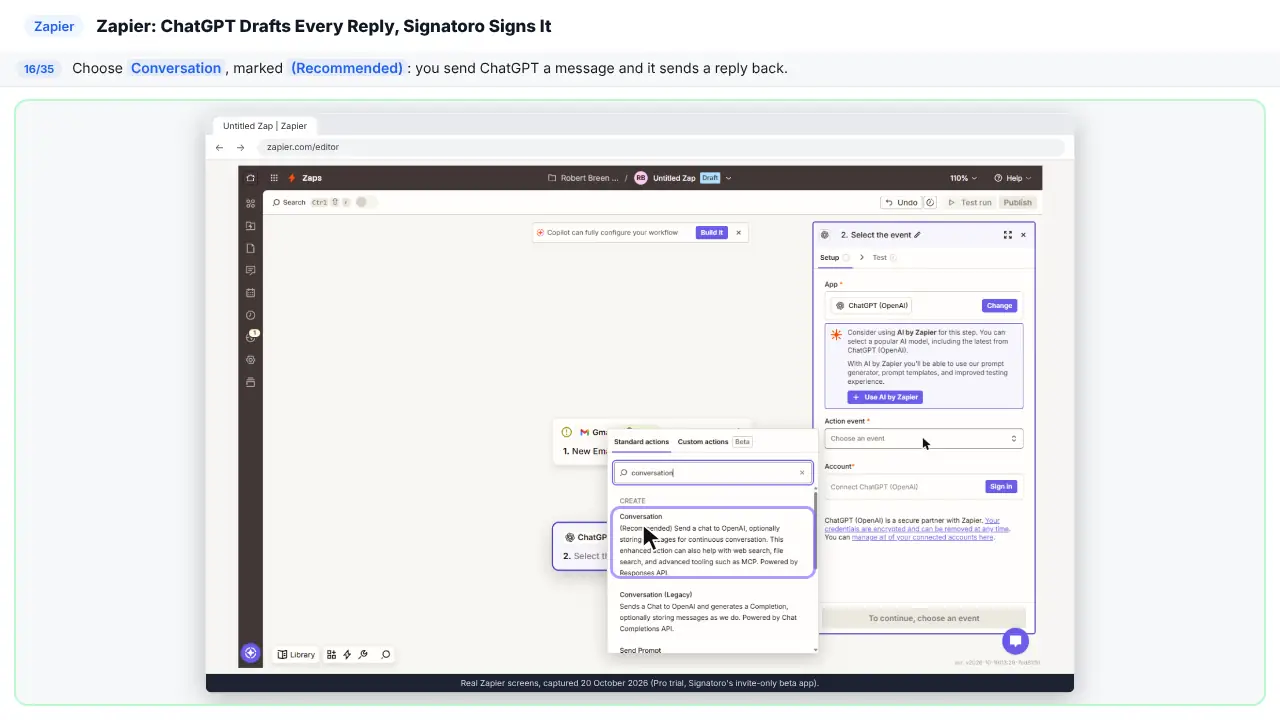
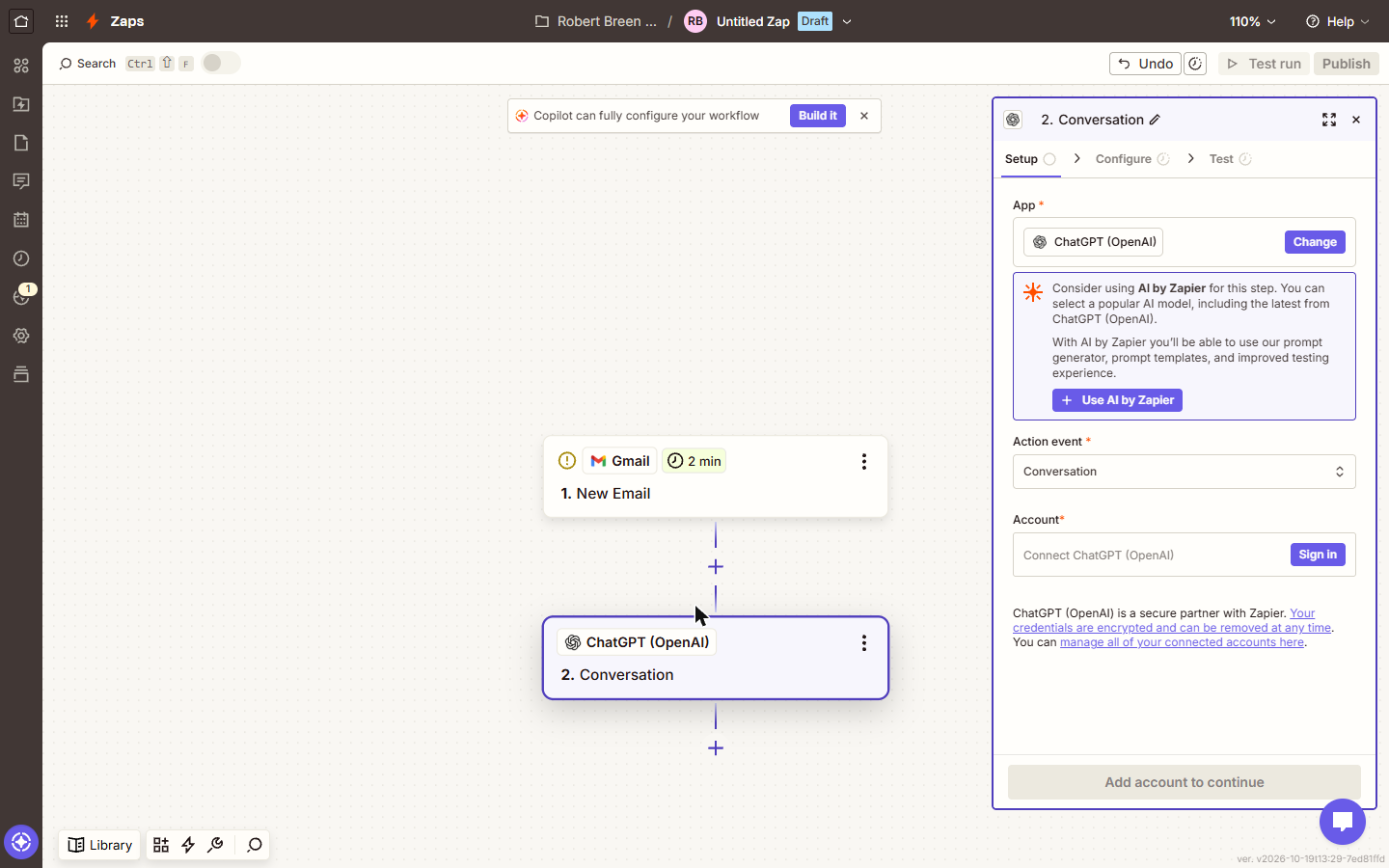
Step 16: Choose Conversation
You send ChatGPT a message, and it writes back.
Part 5: Signatoro adds the signature
Step 17: Add a step
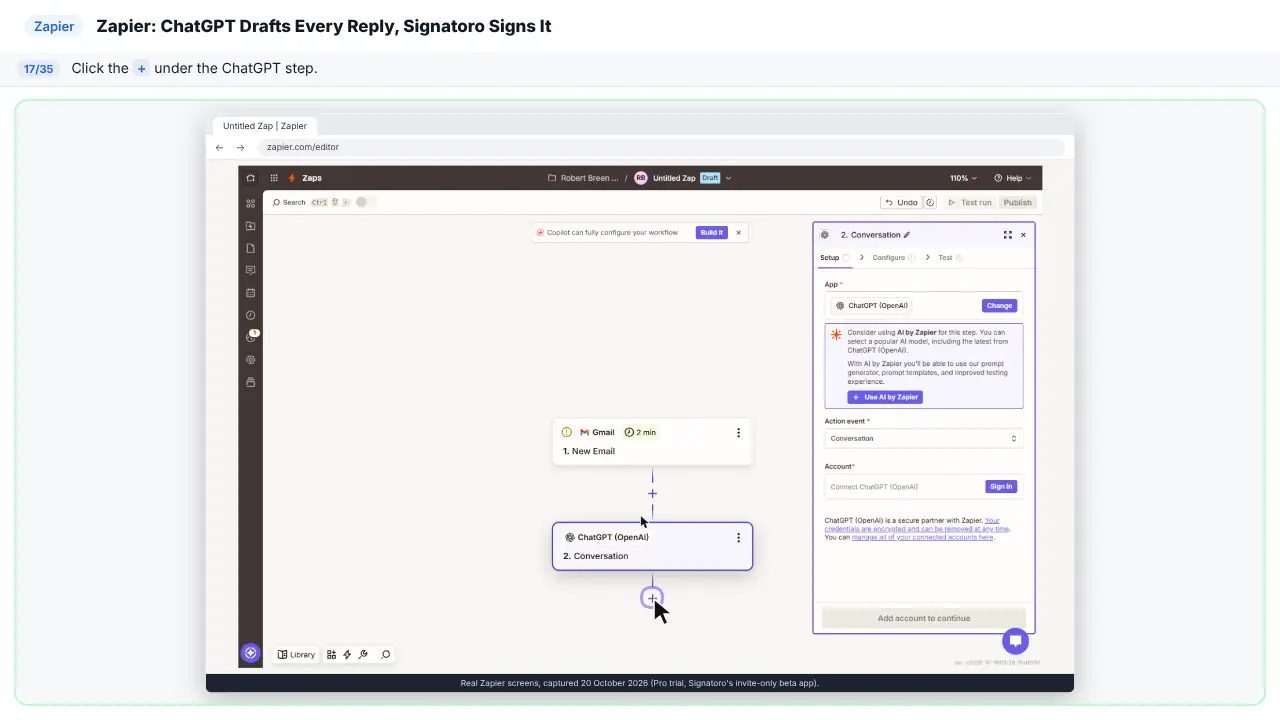
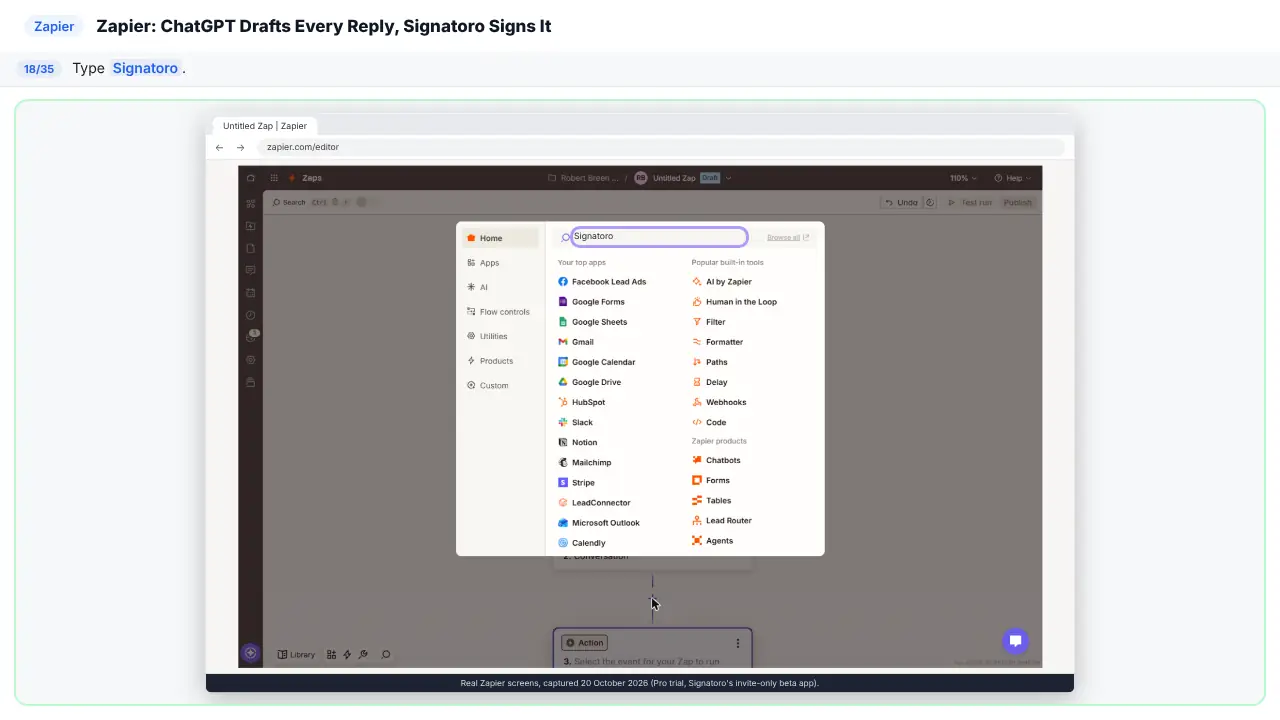
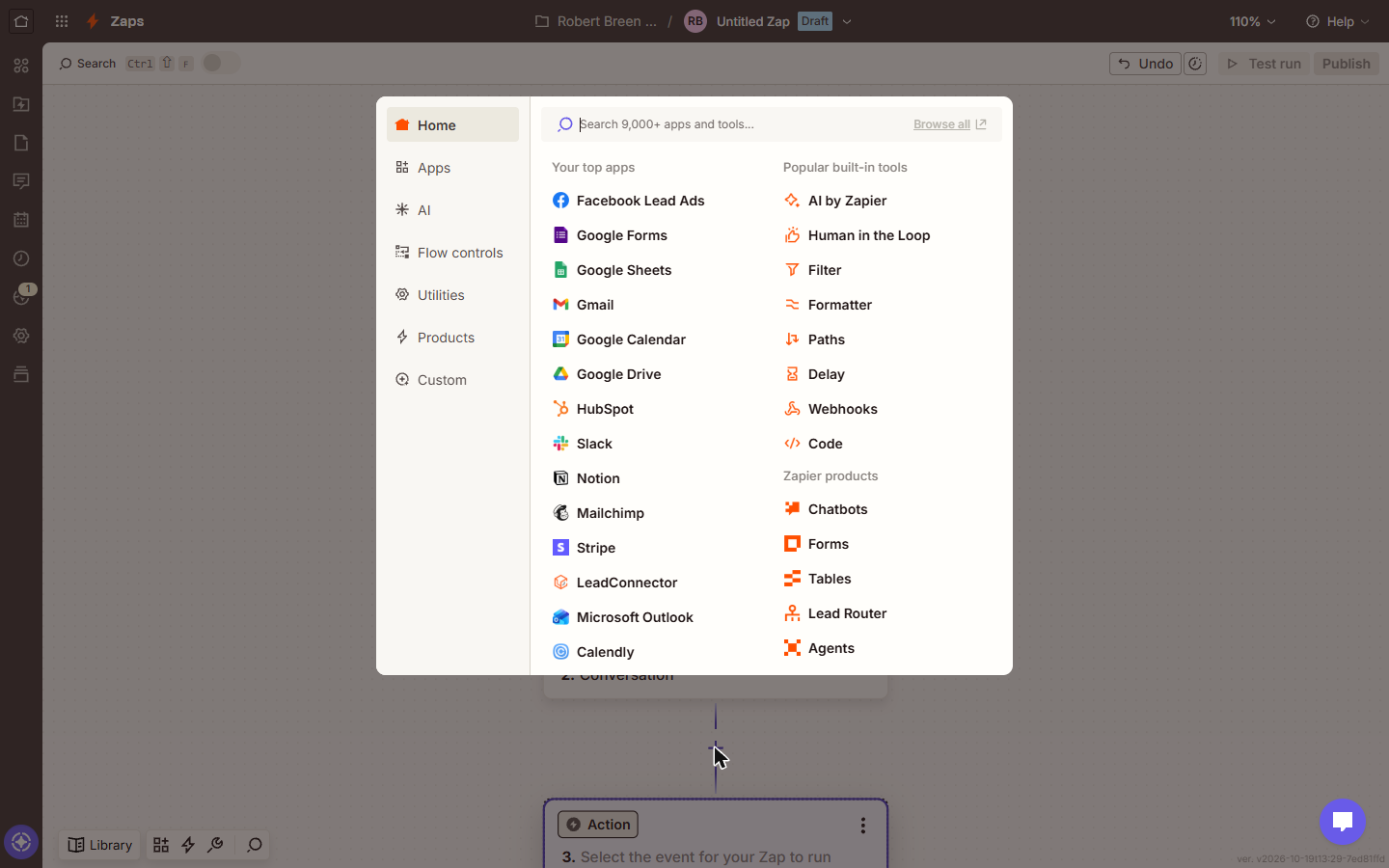
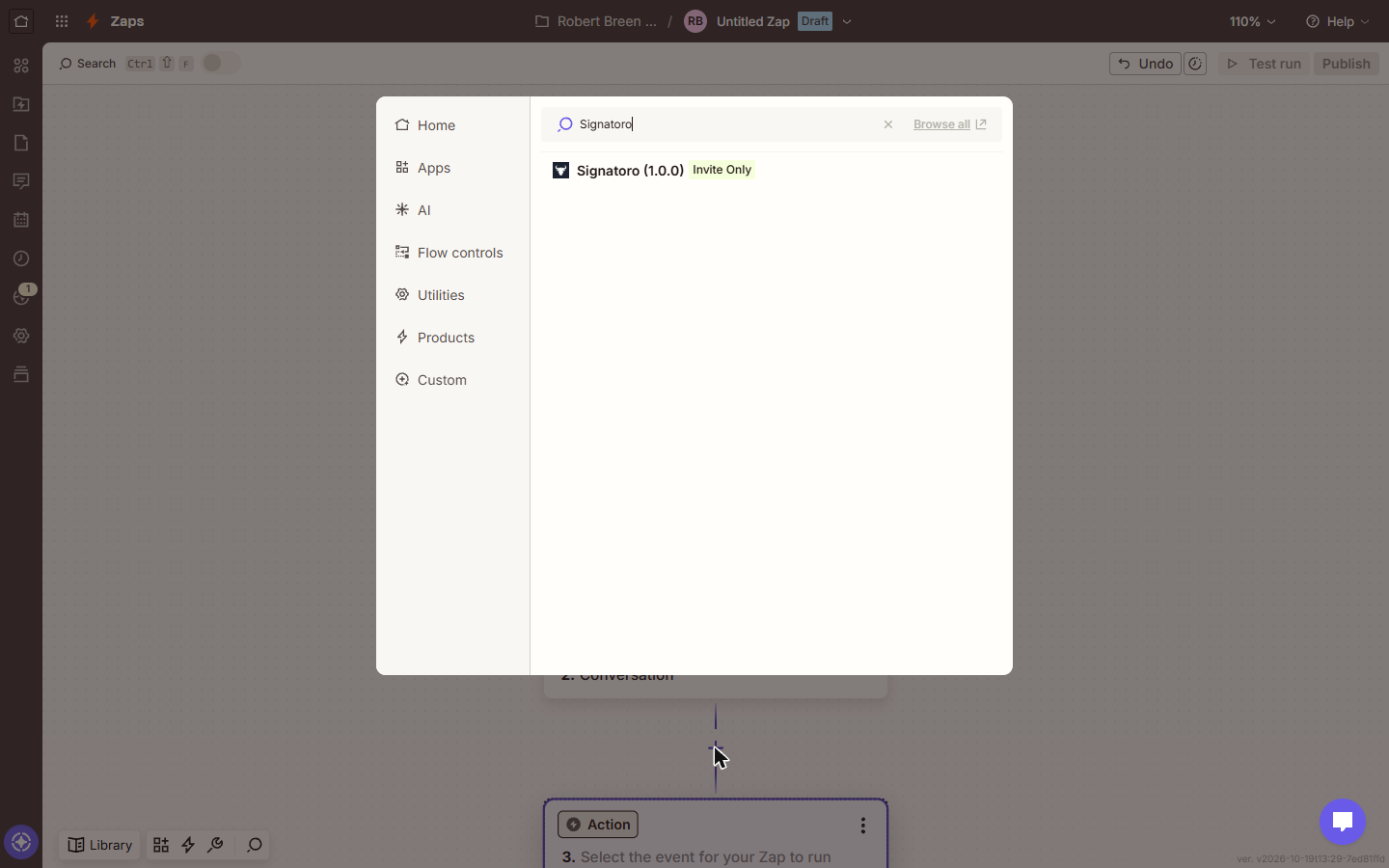
Step 18: Search for Signatoro
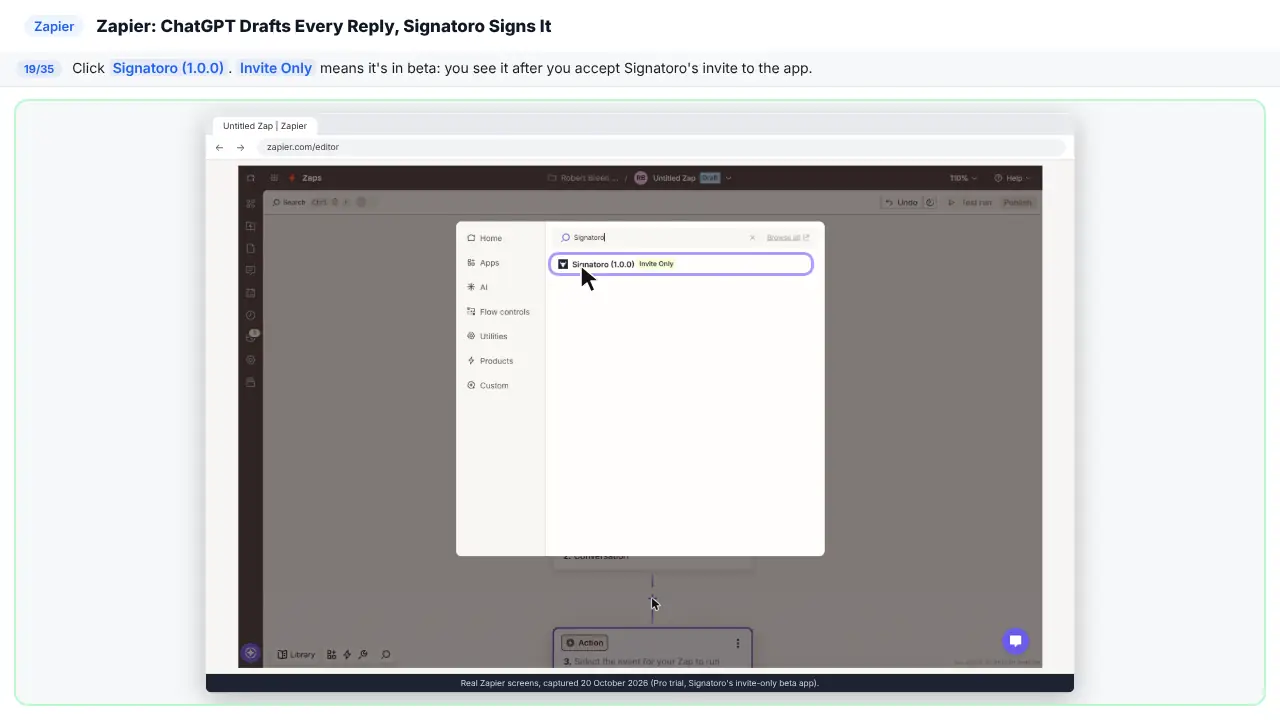
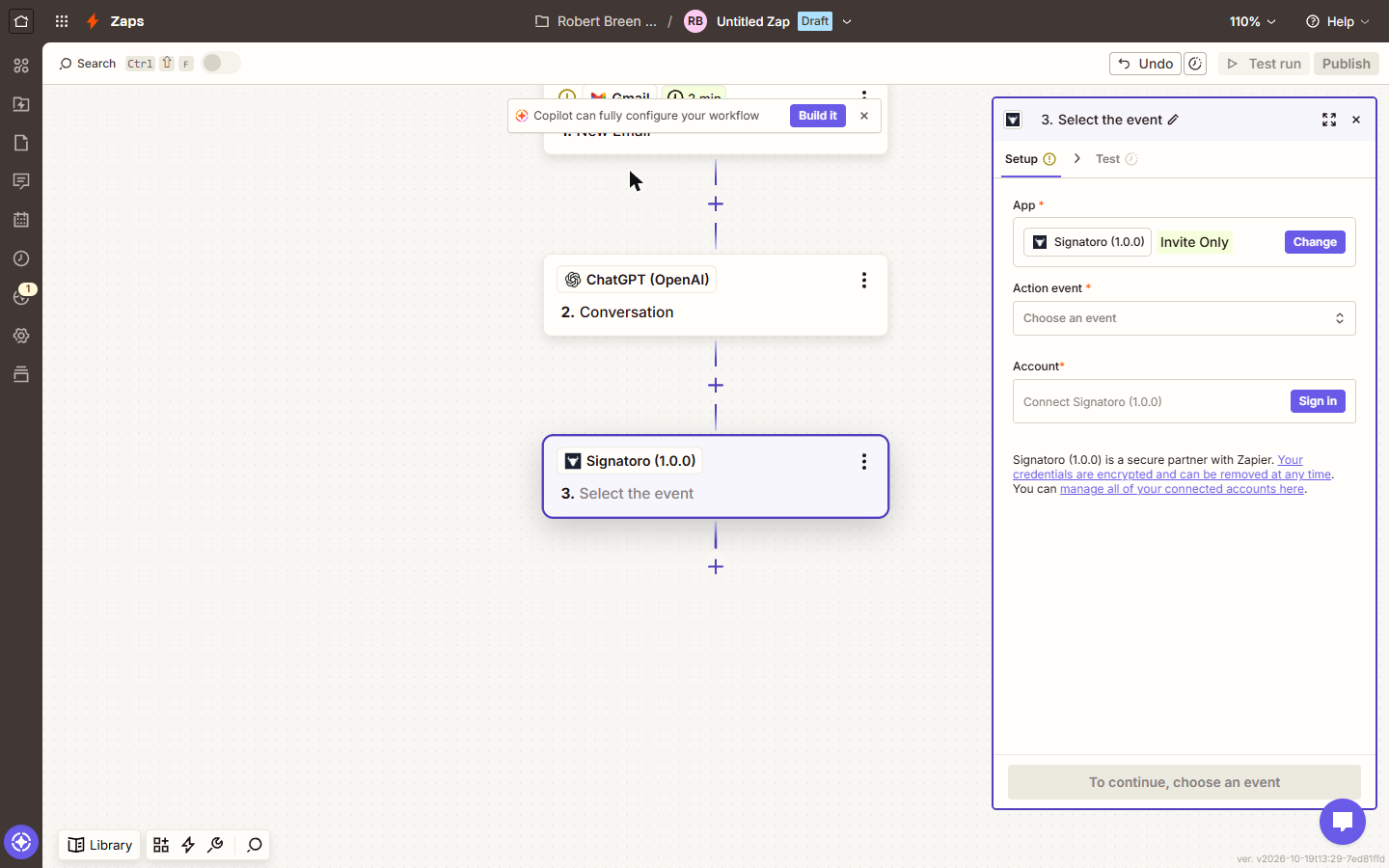
Step 19: Pick Signatoro
It's invite only while it's in beta, so you'll see it once you've joined the beta.
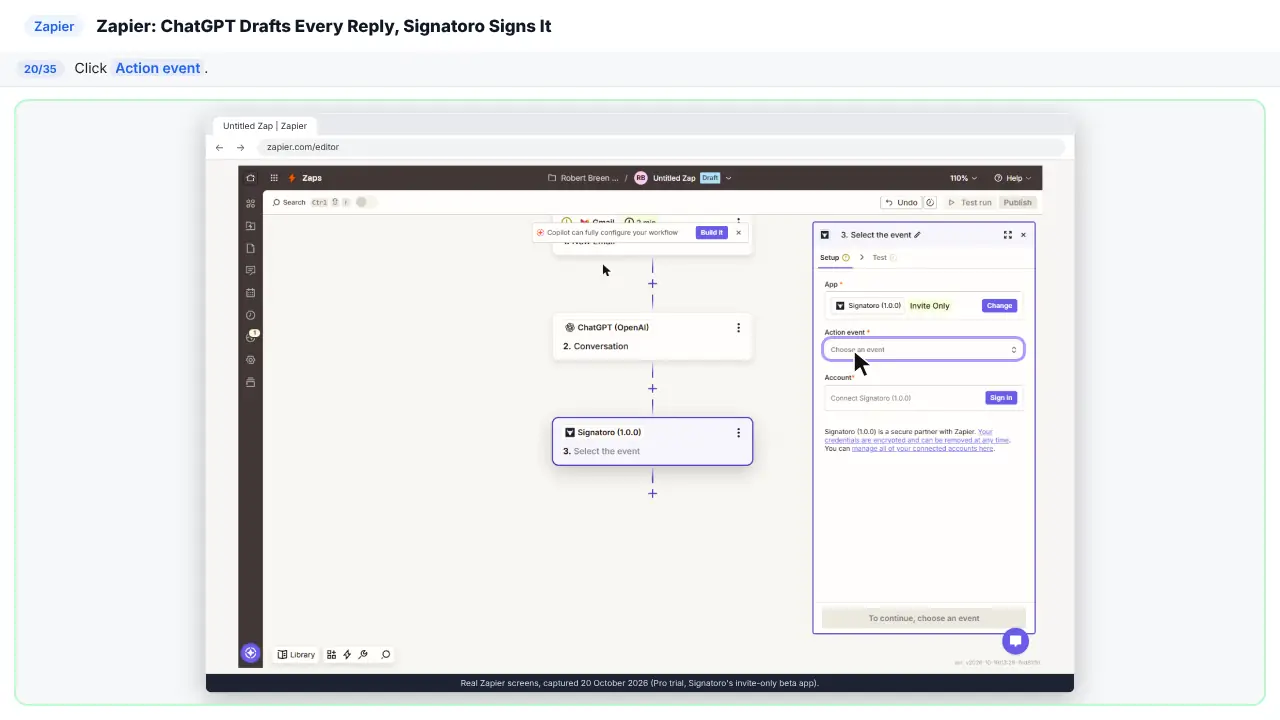
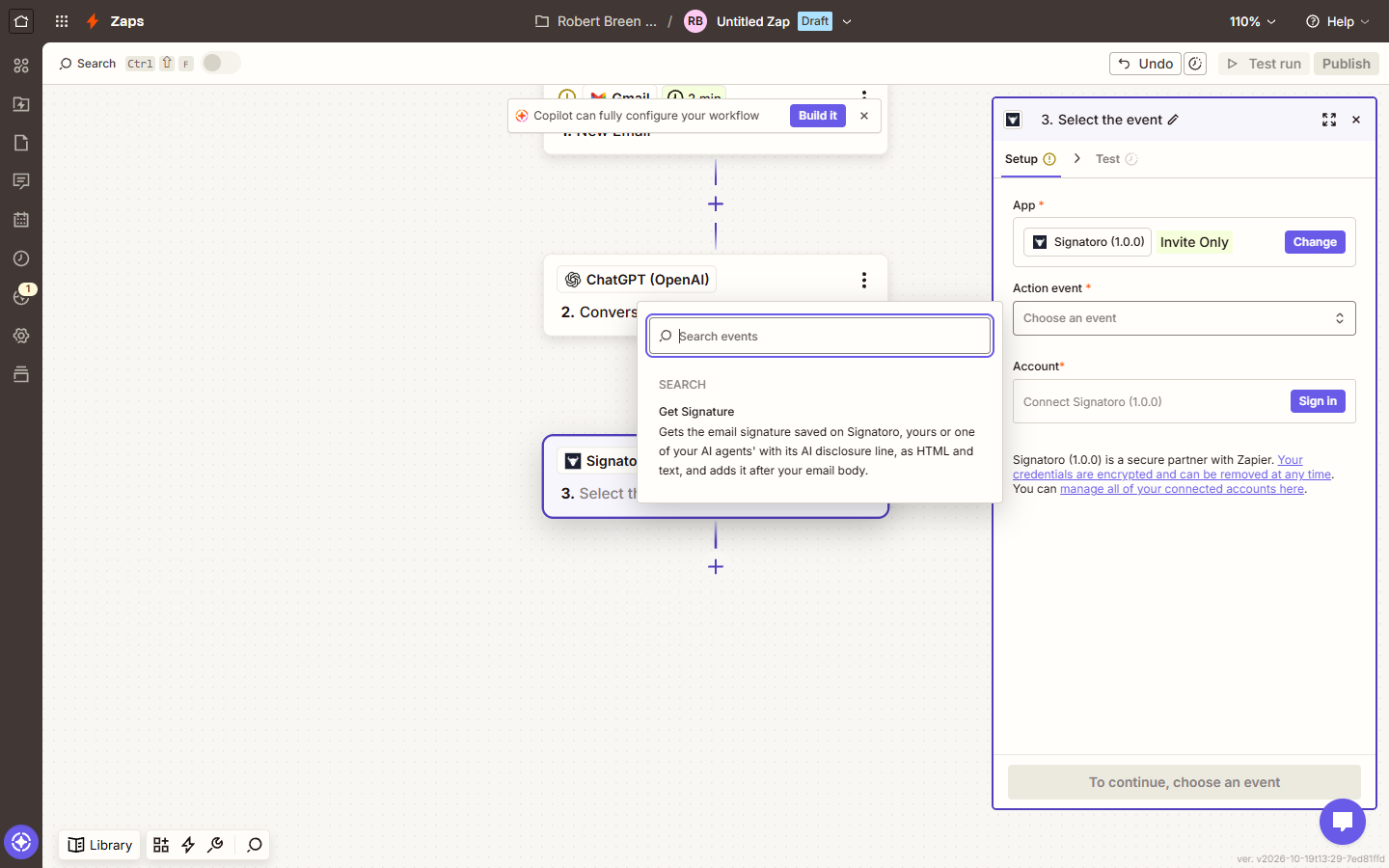
Step 20: Open Action event
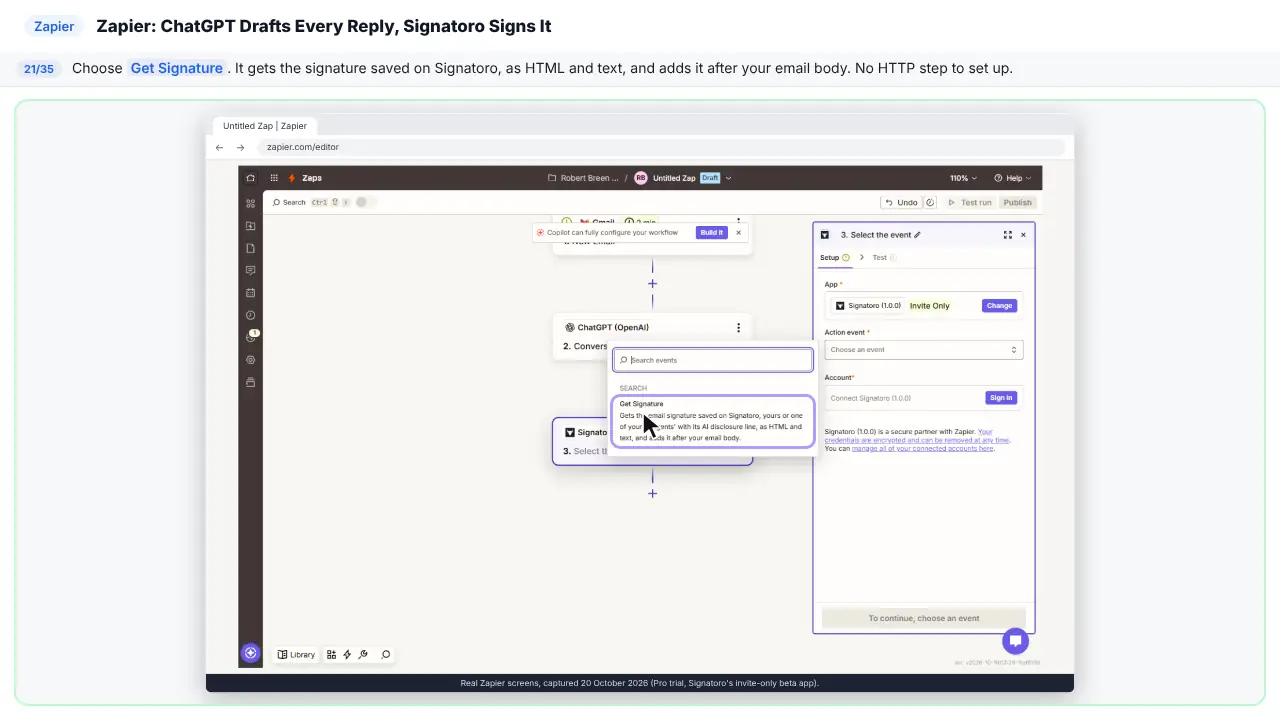
Step 21: Choose Get Signature
It fetches the saved signature and adds it after your email body. No web request to set up.
Part 6: Gmail saves a draft reply
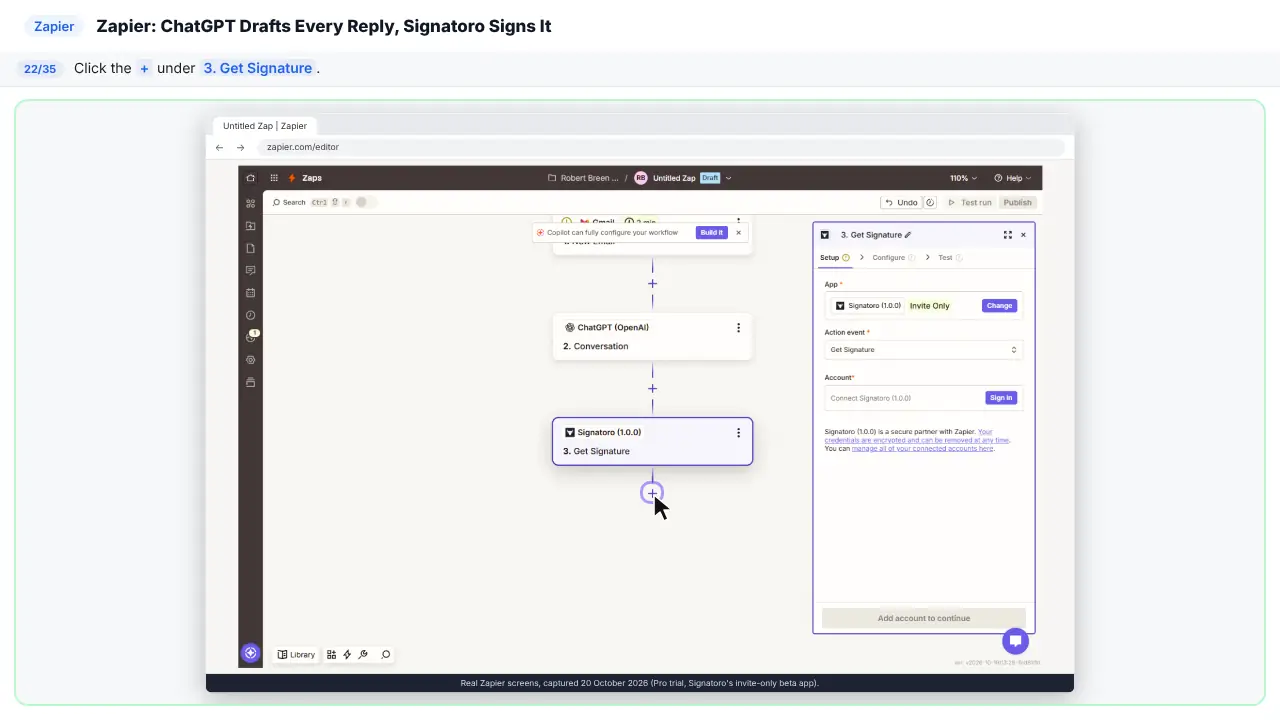
Step 22: Add the last step
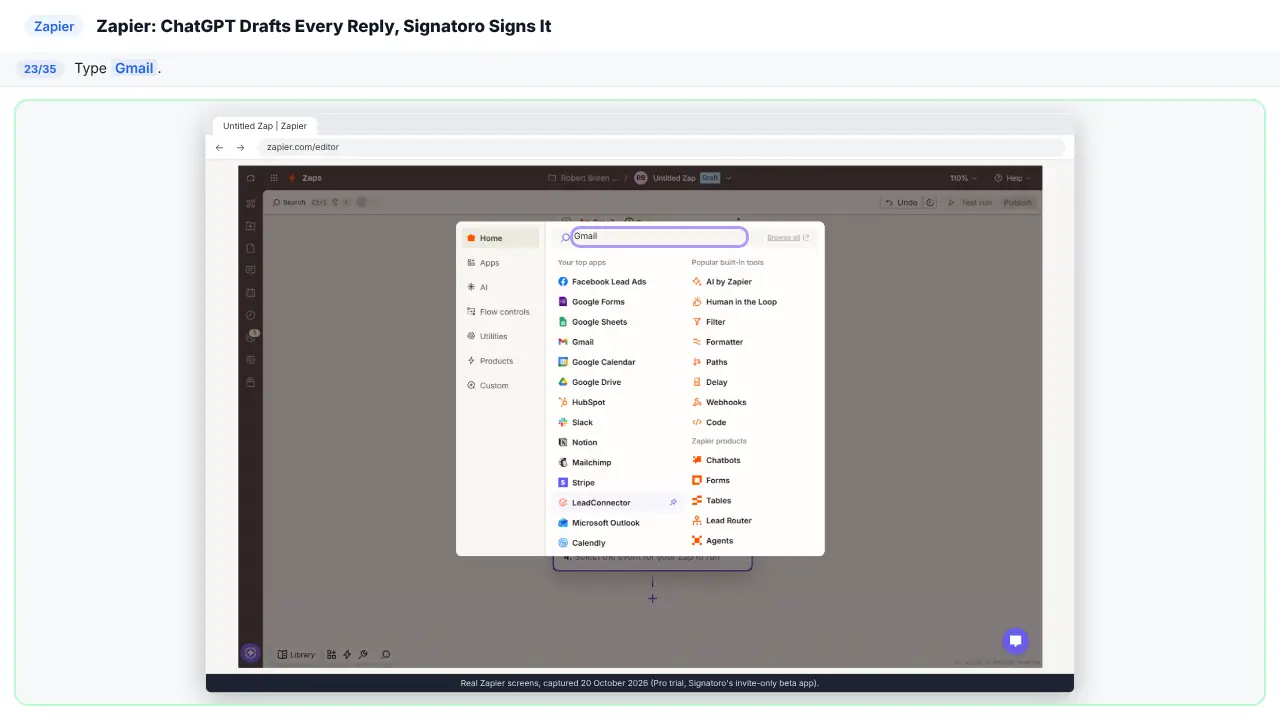
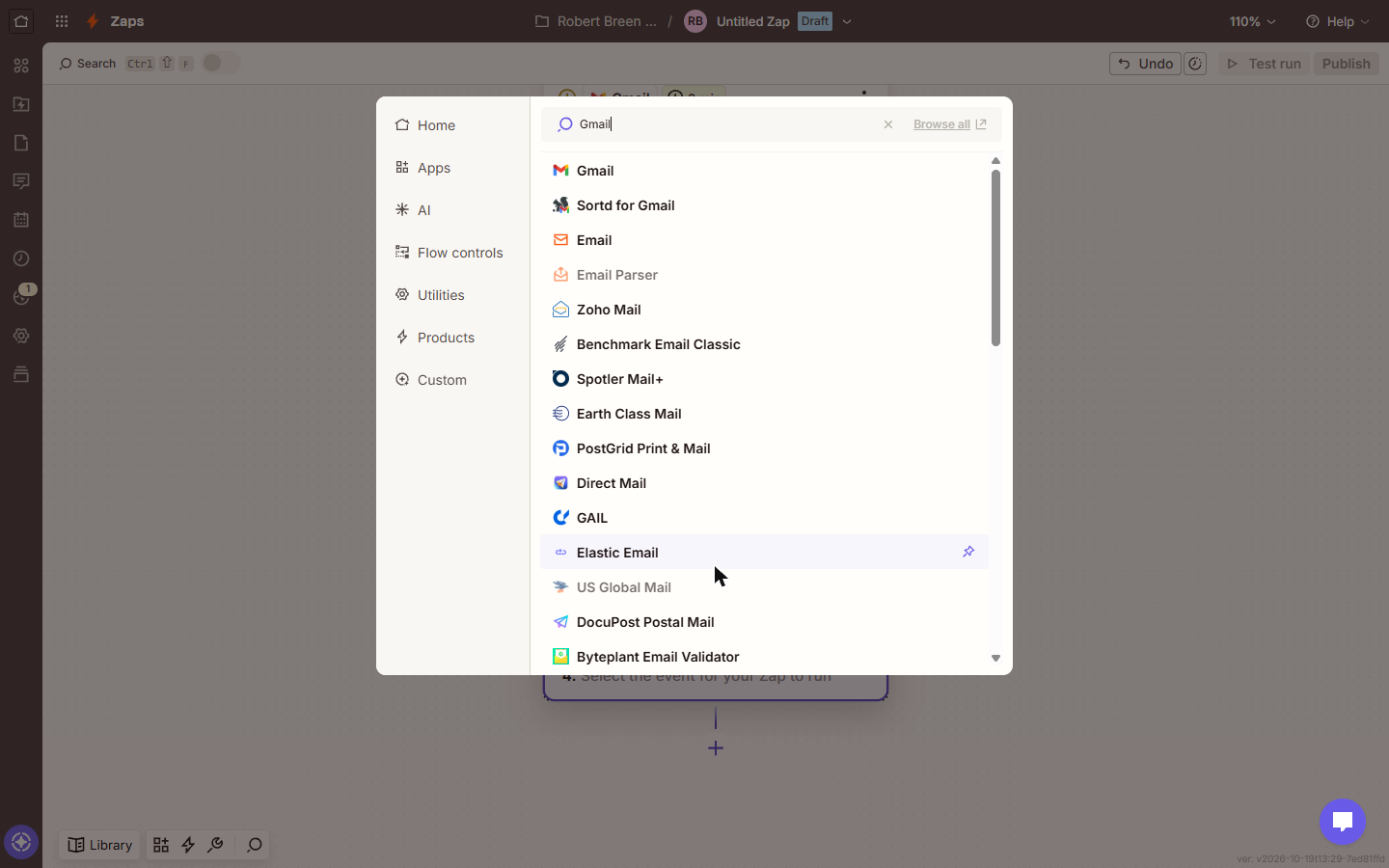
Step 23: Search for Gmail
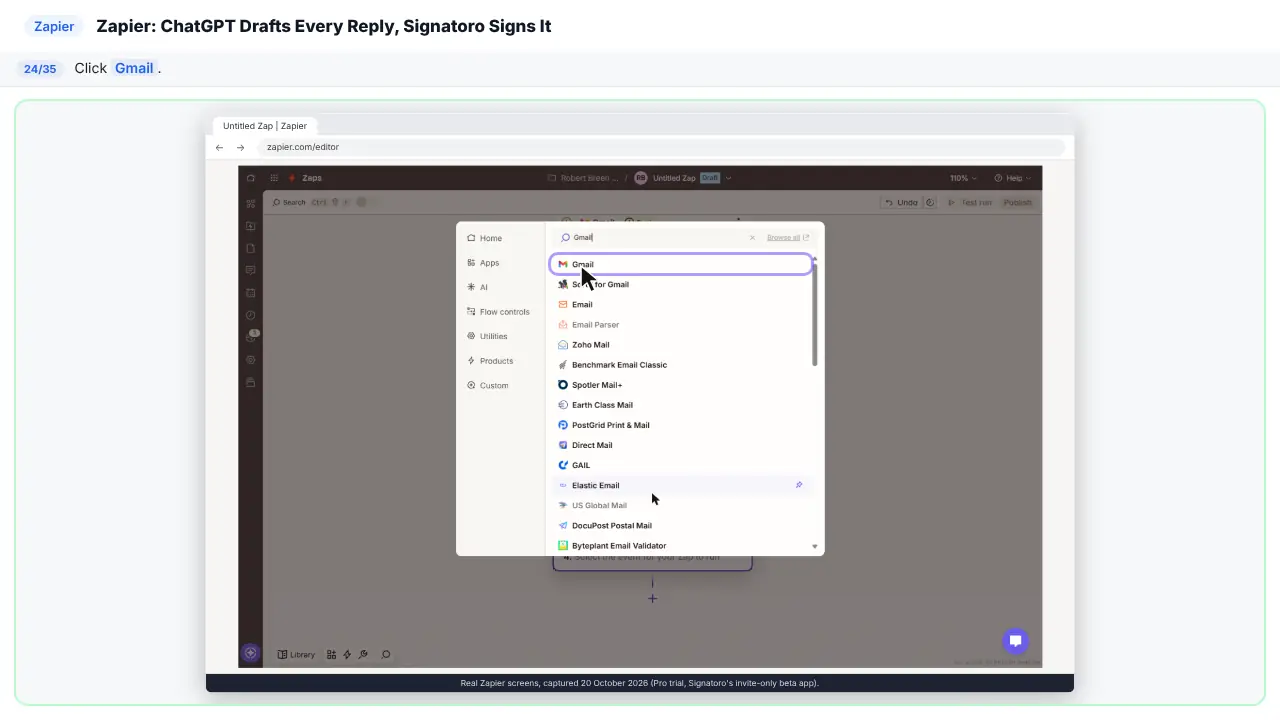
Step 24: Pick Gmail
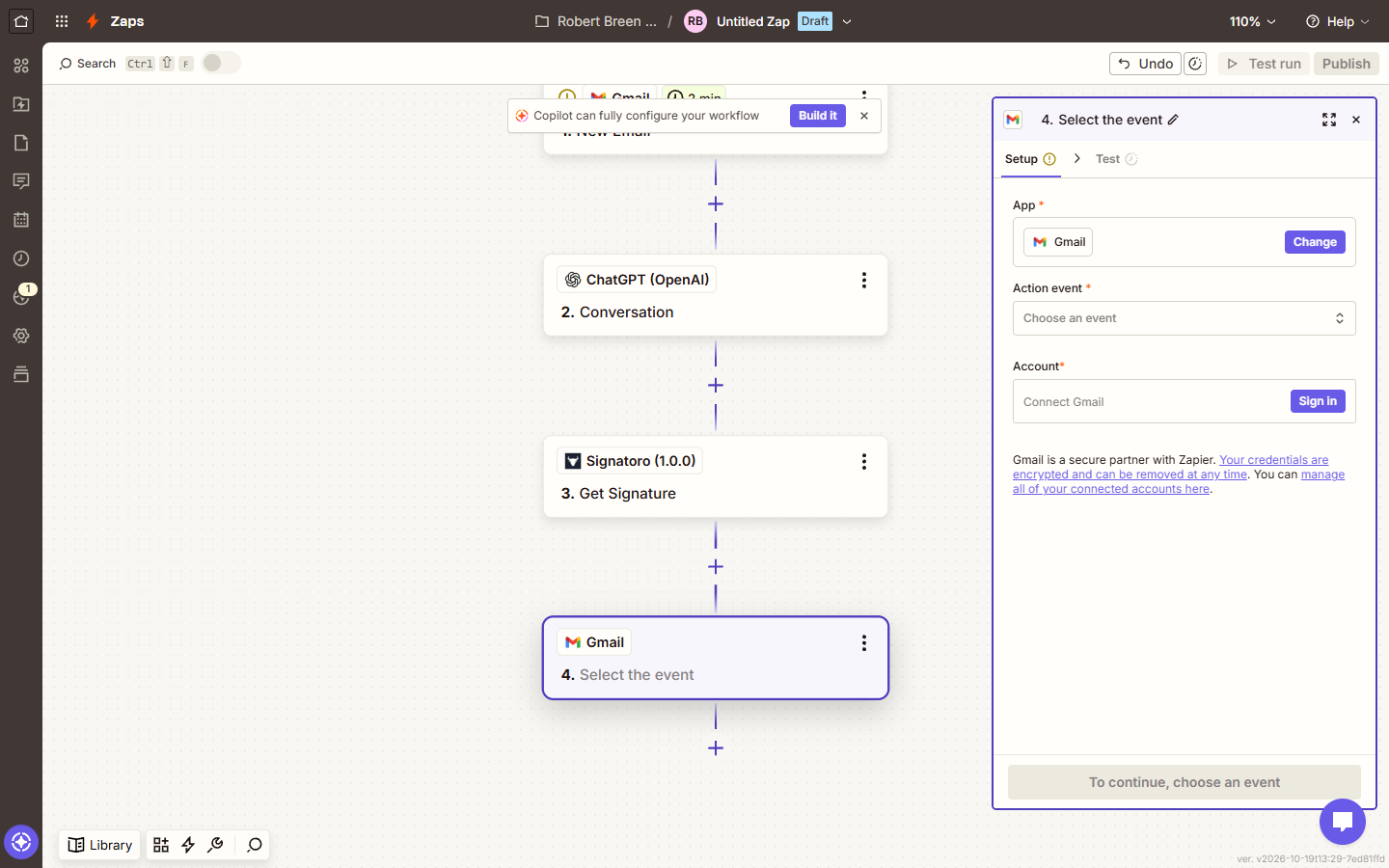
Step 25: Open Action event
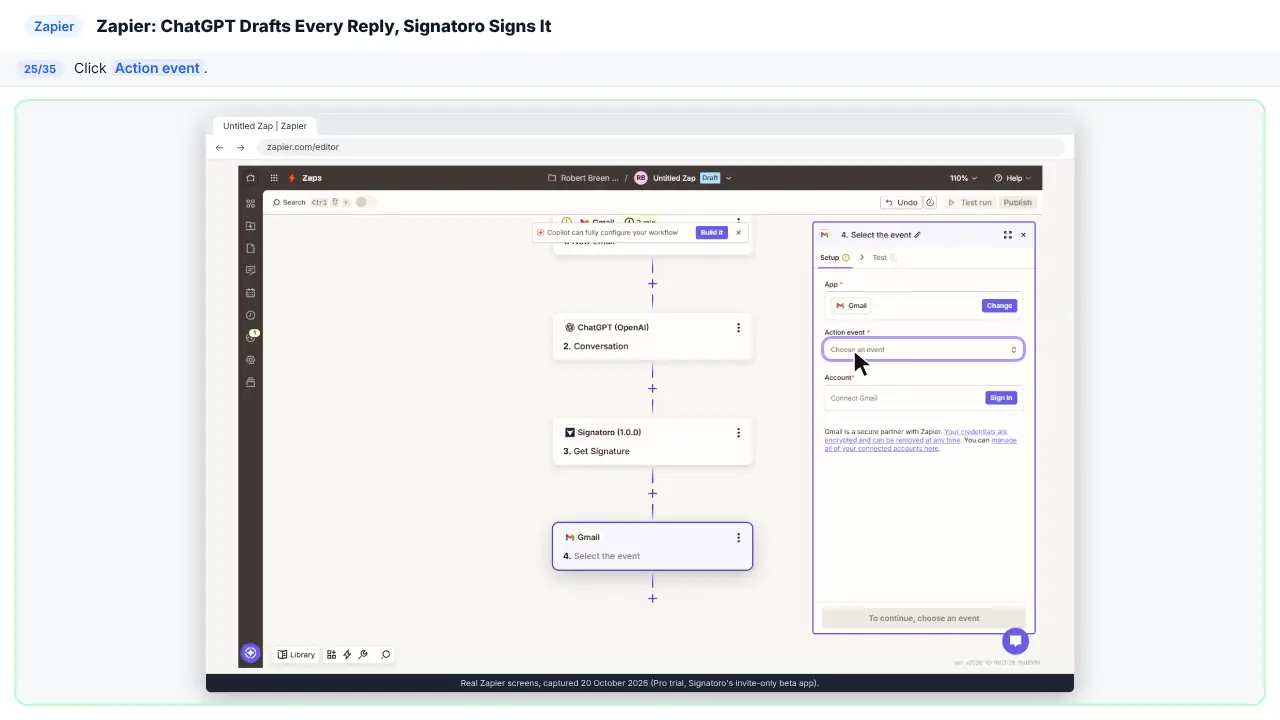
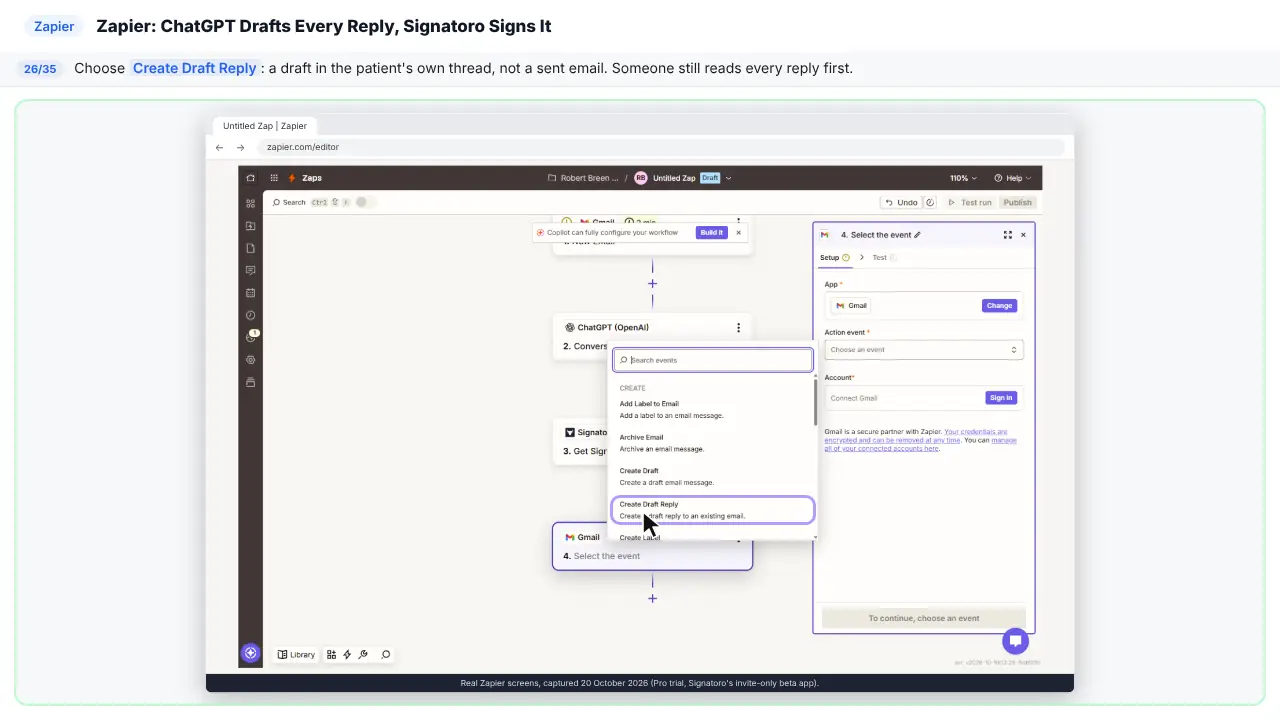
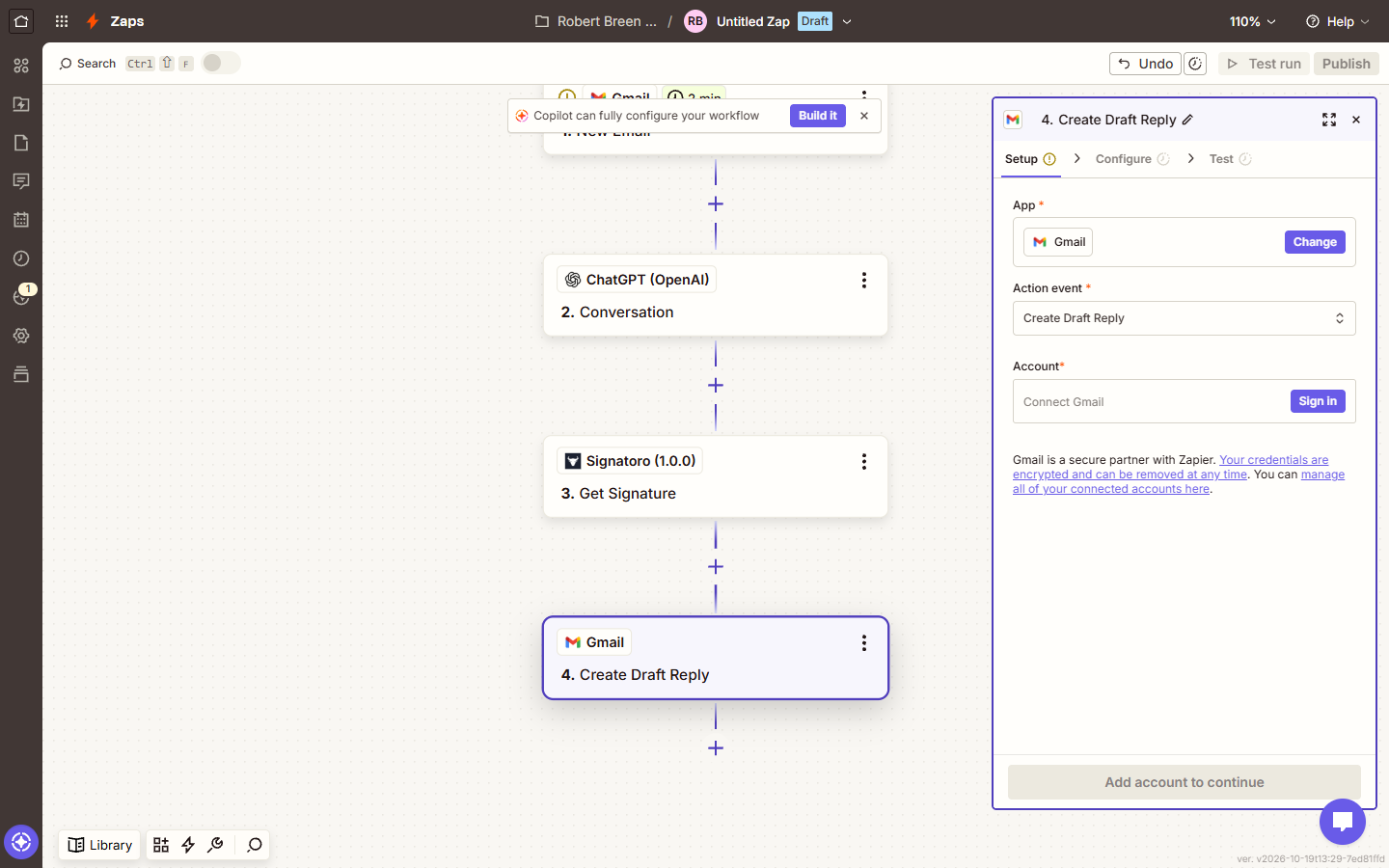
Step 26: Choose Create Draft Reply
It saves a draft in the patient's thread, so a person checks it before it goes.
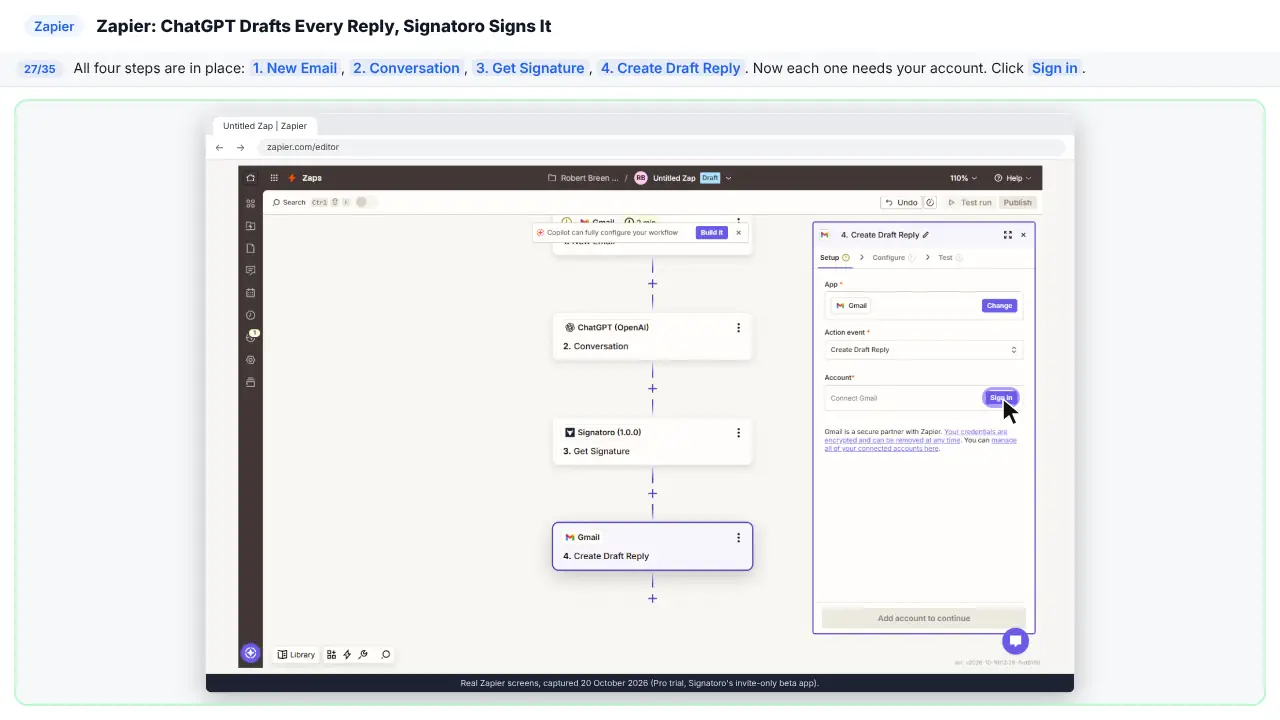
Step 27: Sign in
All four steps are in place. Now each one needs your account.
Part 7: Connect and fill in
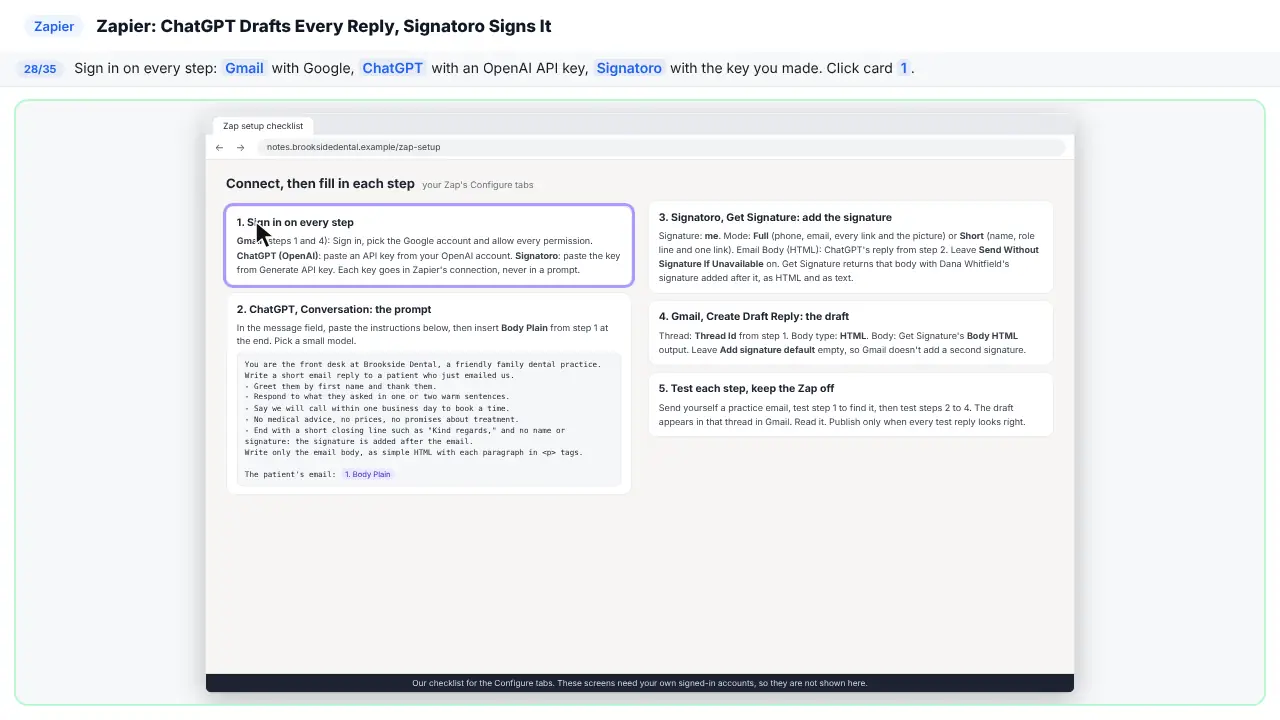
Step 28: Connect your accounts
Sign in on every step. Gmail with Google, ChatGPT with an OpenAI key, and Signatoro with the key you just made.
Step 29: Write the prompt
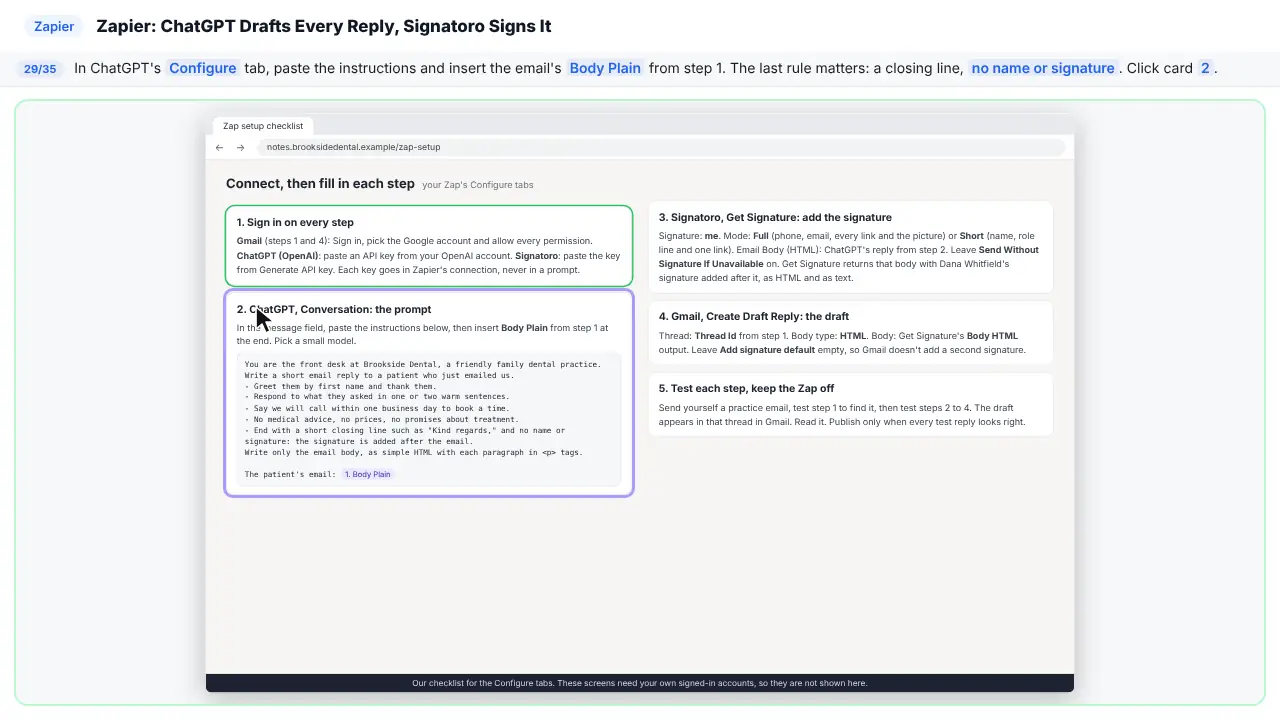
In the ChatGPT step, paste the instructions, then insert the email from step one. The last rule matters: no name, and no signature.
Step 30: Add the signature
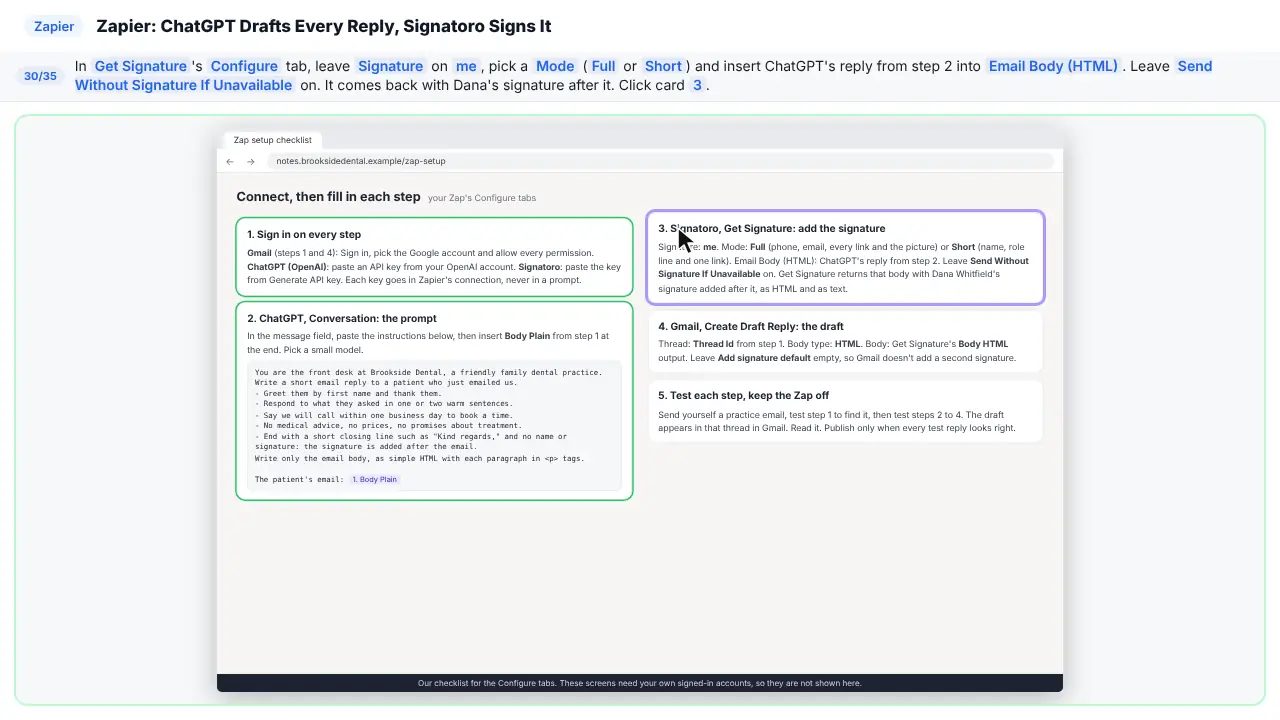
In Get Signature, insert ChatGPT's reply. It comes back with Dana's signature added.
Step 31: Fill in the draft
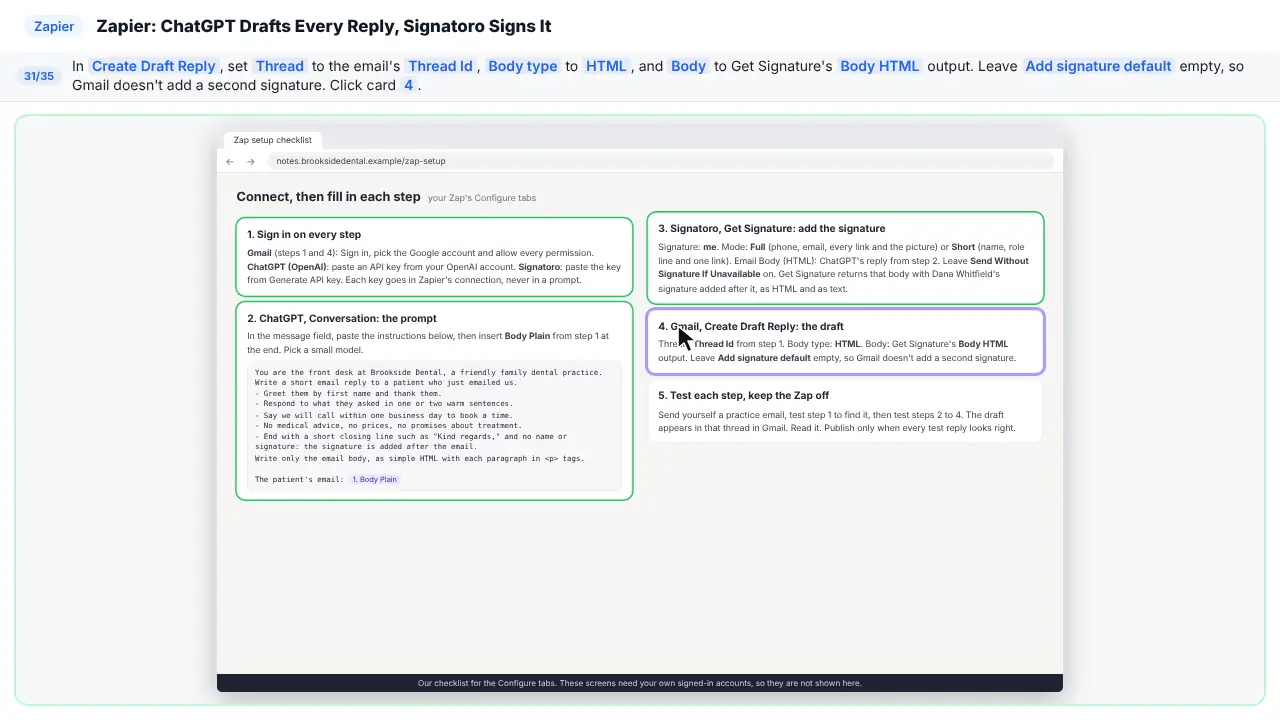
In Create Draft Reply, pick the email's thread, set body type to HTML, and use the signed body from step three.
Step 32: Test it, keep it off
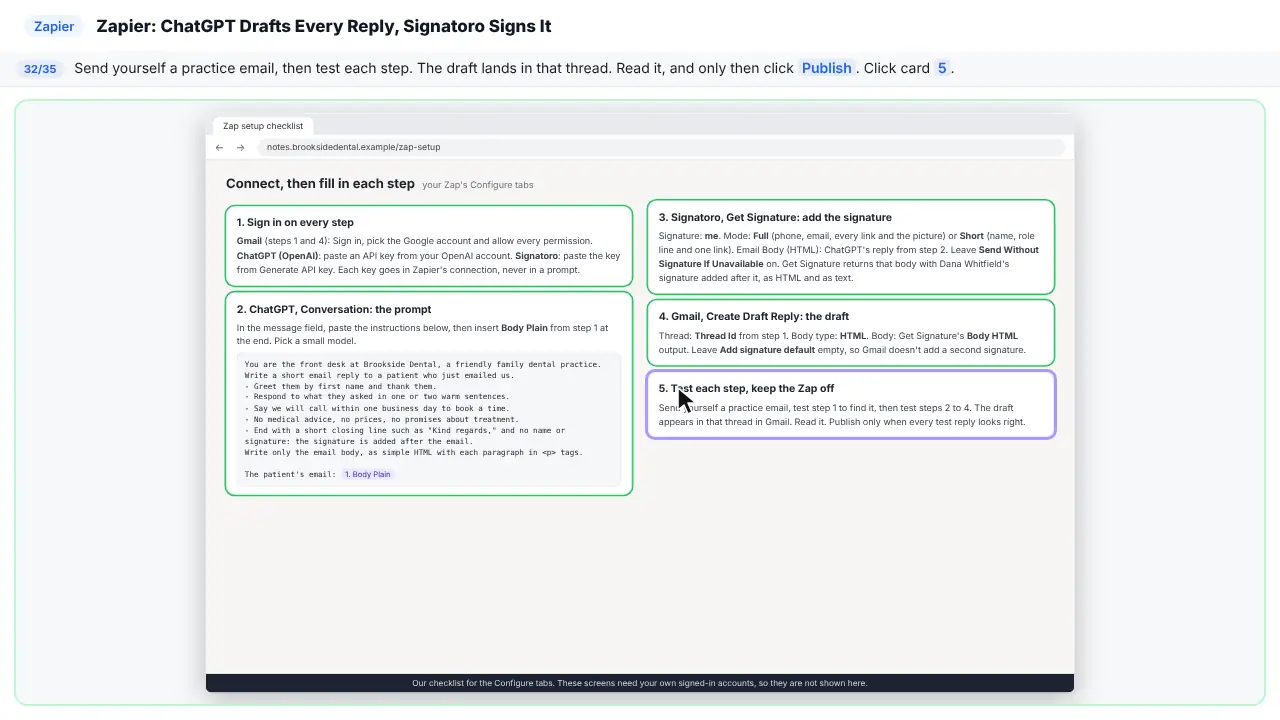
Send yourself a practice email and test each step. Read the draft. Only publish when every reply looks right.
Part 8: What it saves
Step 33: Read the draft
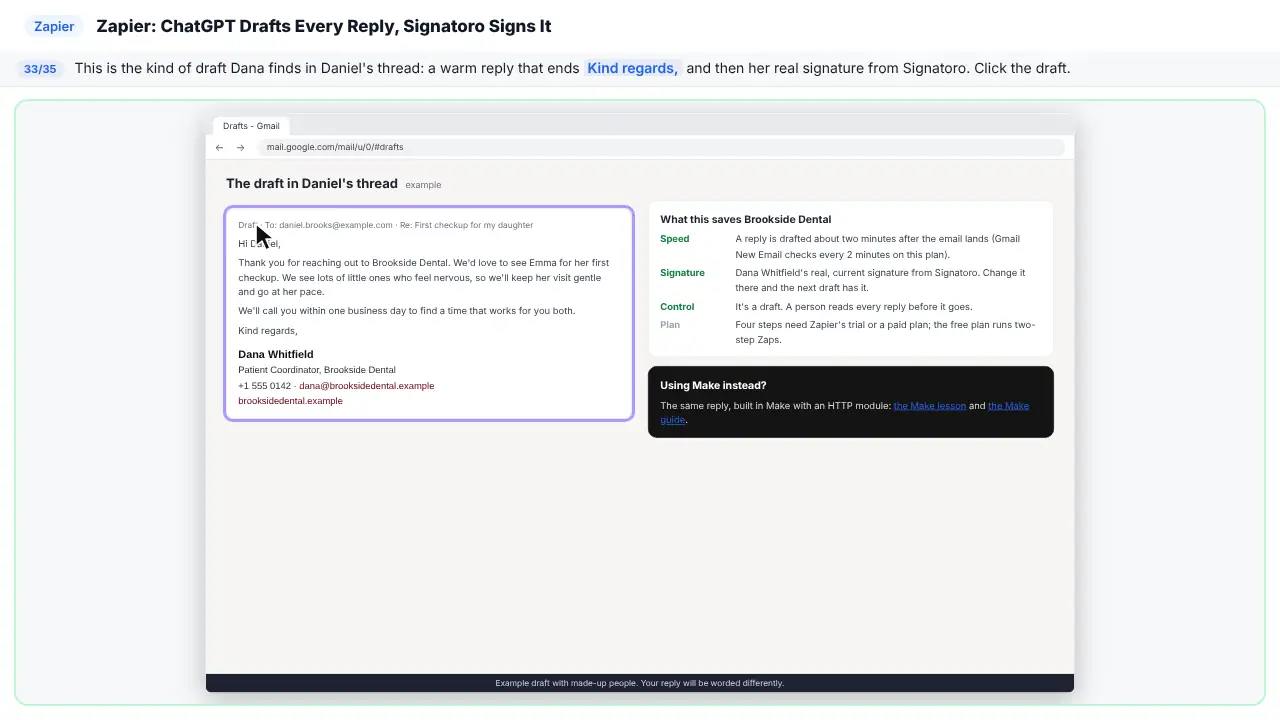
Here's the draft in Daniel's thread. A warm reply, then Dana's real signature from Signatoro.
Step 34: See what it saves
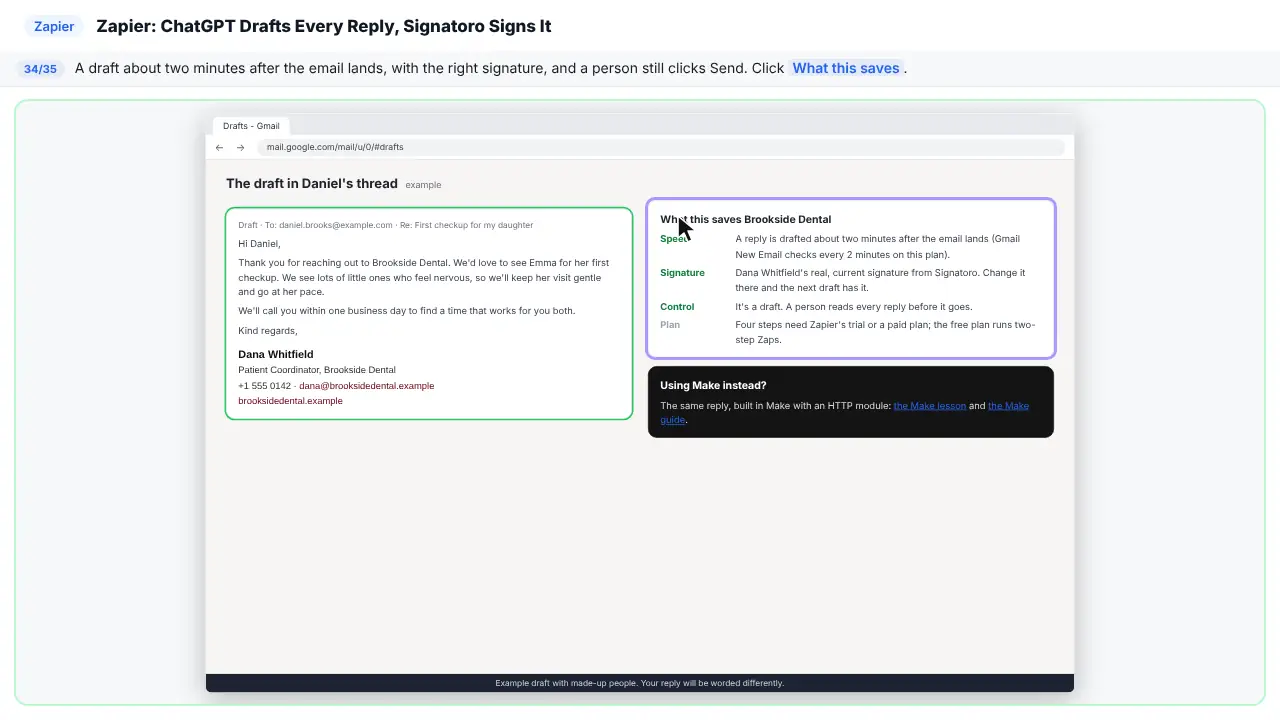
A draft within minutes, with the right signature, and a person still clicks send.
Step 35: Using Make instead?
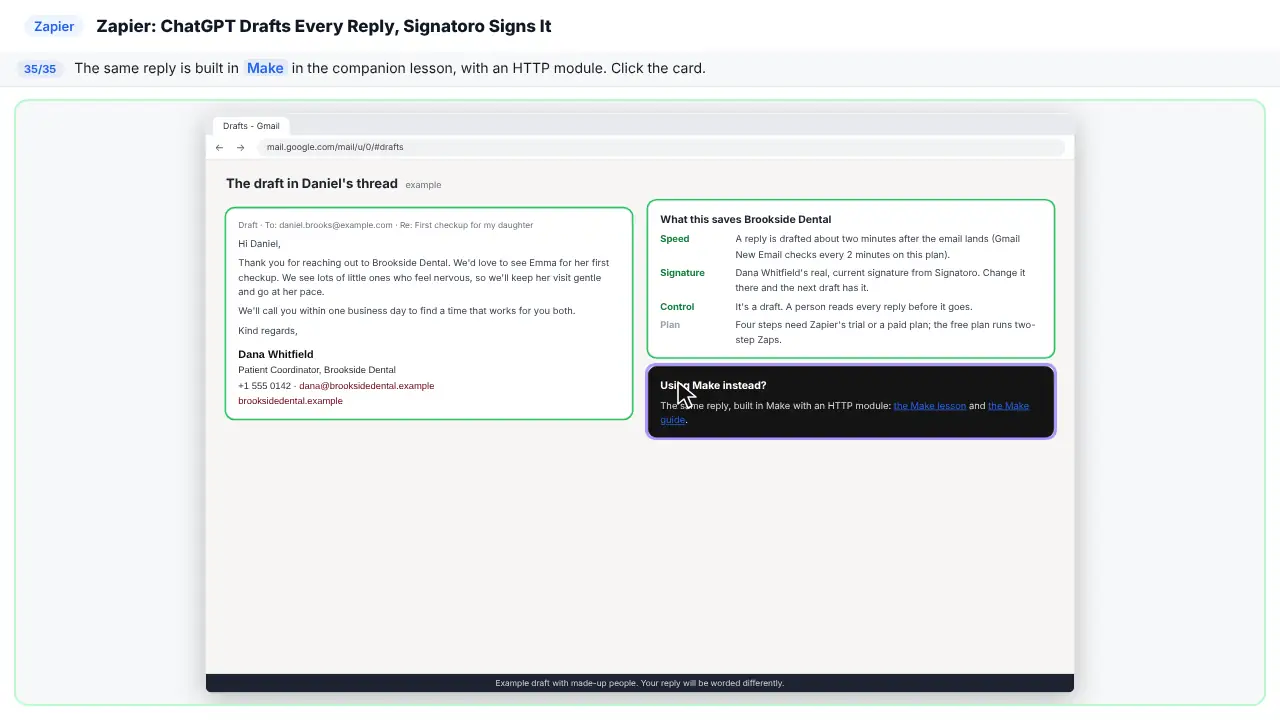
Using Make instead? The same reply is in the Make lesson.
Part of these free courses: Signatoro Tutorial: Signatoro Jump Start, AI Automation with Make, AI Automation with Zapier, Intro to AI Automation, Part 2, Automate Your Inbox with AI: Sort Every Email and Draft the Reply with Gmail, n8n, Make and Zapier
Now do it yourself, free
Reading the steps is a start. Doing them is how it sticks. The interactive lesson puts you in a practice copy of Zapier: you do every step yourself, it checks your work, and “Do it for me” finishes any step you get stuck on. Nothing touches your real accounts.
Practice “Zapier: ChatGPT Drafts Every Reply, Signatoro Signs It” step by step
What you will build
The example is Brookside Dental, a made-up family dental practice, and Dana Whitfield, its made-up patient coordinator. A parent emails the practice: their 6-year-old needs a first checkup and is nervous about the dentist. A Zap picks the email up, has ChatGPT write a short, warm reply, adds Dana's signature from Signatoro and leaves a draft in the same Gmail thread.
The four steps are: 1. New Email in Gmail (a polling trigger that checks the inbox every few minutes), 2. Conversation in ChatGPT (OpenAI), 3. Get Signature in Signatoro (1.0.0), and 4. Create Draft Reply in Gmail. Signatoro's Zapier app is invite-only while it's in beta, so you join it from Signatoro's invite first.
Who this Zapier tutorial is for
Practice managers, office managers and front-desk teams who answer the same kind of email many times a week and want the first draft written for them, with a person still checking every reply. No coding is needed. It's the Zapier version of the Make.com lesson [Add AI to Make.com: ChatGPT Writes a Personal Reply, Gmail Sends It](/content/make-com-chatgpt-gmail-personalized-reply), with the same practice and the same prompt rules.
What you need to build it for real
- A Zapier account on the free trial or a paid plan. Zapier's free plan runs two-step Zaps, and this one has four.
- An OpenAI account with API credit for the ChatGPT (OpenAI) step. You paste an API key when you sign in; OpenAI bills it separately from a ChatGPT subscription.
- A free Signatoro account with a saved signature, and an API key from Generate API key under For tools and assistants. The free plan includes the API (50 requests a month on 20 October 2026).
- Access to Signatoro's Zapier app. It shows up in Zapier's app search as Signatoro (1.0.0), Invite Only, once you accept the invite.
The prompt
Put the rules first and the email last, so every run gets the same instructions with a different patient. The last rule is the one that makes the signature work: the model ends with a closing line and no name.
You are the front desk at Brookside Dental, a friendly family dental practice. Write a short email reply to a patient who just emailed us. Greet them by first name and thank them. Respond to what they asked in one or two warm sentences. Say we will call within one business day to book a time. No medical advice, no prices, no promises about treatment. End with a short closing line such as "Kind regards," and no name or signature: the signature is added after the email. Write only the email body, as simple HTML with each paragraph in p tags. The patient's email: (insert Body Plain from step 1).
Why the signature comes from Signatoro, not the prompt
A reply signed "The Brookside Dental team" reads like a form letter, and a model asked to sign with a name and phone number can get them wrong. Signatoro keeps each person's signature in one place. The Get Signature step fetches the current version on every run and adds it after the reply, so when Dana's title or number changes, she updates it on Signatoro and the next draft has it, with nothing to edit in the Zap.
Keep the Signatoro and OpenAI keys in Zapier's connections, never in the prompt or a note. For a team on Zoho Mail, Signatoro installs the signature with one click instead: see How to Create a Signature in Zoho Mail for Your Whole Team with Signatoro. If you also fill in "Add signature default" in Create Draft Reply, the reply is signed twice, so leave that empty.
Make or Zapier?
Both build the same reply. In Make, an HTTP Make a request module calls Signatoro's API with a bearer token and you map its html after ChatGPT's Result: see the [Make.com version](/content/make-com-chatgpt-gmail-personalized-reply) and its [interactive lesson](/modules/make-add-ai). In Zapier, Signatoro's own app does that work in one Get Signature step, and Create Draft Reply keeps a person in the loop.
Links
- Signatoro: the email signature platform this lesson uses; the forever-free plan includes the API. Thanks to Katya Rozenoer, Signatoro's founder and CEO, who built the Zapier app and invited us to its beta.
- Add your email signature to emails n8n, Zapier and Make send (Signatoro docs): Signatoro's own Make, n8n and Zapier steps.
- The Make.com version of this lesson: the same reply with Make's OpenAI and HTTP modules, plus a downloadable blueprint.
Try it yourself, free
Reading the steps is a start. Doing them is how it sticks. The interactive module walks you through every click in a practice copy of Zapier, checks each step, and never touches your real accounts.
Start “Zapier: ChatGPT Drafts Every Reply, Signatoro Signs It”Screenshots
Frequently asked questions
- Does Zapier add my Gmail signature automatically?
- No. Zapier sends through the Gmail API, so the signature in Gmail's settings isn't added unless you pick it in the step. This lesson adds the sender's signature with Signatoro's Get Signature step instead, so it's the same in every tool.
- Where do I find the Signatoro app in Zapier?
- Search for Signatoro in the app picker. While it's in beta it shows as Signatoro (1.0.0), Invite Only, and you only see it after you accept Signatoro's invite to the app.
- Can I build this on Zapier's free plan?
- Not as a four-step Zap: Zapier's free plan runs two-step Zaps. Build and test it on the free trial, or use a paid plan.
- Why a draft reply and not Send Email?
- So a person reads every reply before it goes. Once the drafts have been right for a few weeks, you can switch step 4 to Reply to Email.
- Should I use ChatGPT (OpenAI) or AI by Zapier?
- Either works. ChatGPT (OpenAI) uses your own OpenAI API key and is billed by OpenAI. AI by Zapier needs no OpenAI account and lets you pick a model inside Zapier. The prompt is the same.
- Is Signatoro free?
- Yes. Signatoro has a forever-free plan that includes the API, capped at 50 requests a month on 20 October 2026. The Company plan lifts the limit for everyone.
- How does the interactive lesson work?
- Each step is shown first with a short voice-over, then you do it yourself on real Zapier and Signatoro screens, and every click is checked. Nothing touches your accounts.
Same business, other tools
Brookside Dental shows up in these modules too, built with different tools.
Build your first Make.com scenario: every new Google Forms response becomes a new row in Google Sheets. Trigger, connection, mapping, Run once and a schedule.
Free · Live ~12 min Intermediate
◷Filters and Routers in Make.com: Send Urgent Requests One Way, Routine Ones AnotherAdd a router to your Make scenario, email the front desk about urgent requests with a filter, and send everything else to Google Sheets with a fallback route.
Free · Live ~12 min Intermediate
◷Add AI to Make.com: ChatGPT Writes a Personal Reply, Gmail Sends ItConnect OpenAI to your Make scenario, have ChatGPT write a personal reply from each patient's form answers, add the sender's real Signatoro signature, and send it with…
Free · Live ~18 min Intermediate
◷How to Add a Scheduler in Make.com: Daily Summary Email from Google SheetsBuild a Make scenario that runs every day at 5 PM, finds today's rows in Google Sheets, combines them with a Text aggregator and emails one summary with Gmail.
Free · Live ~12 min Intermediate
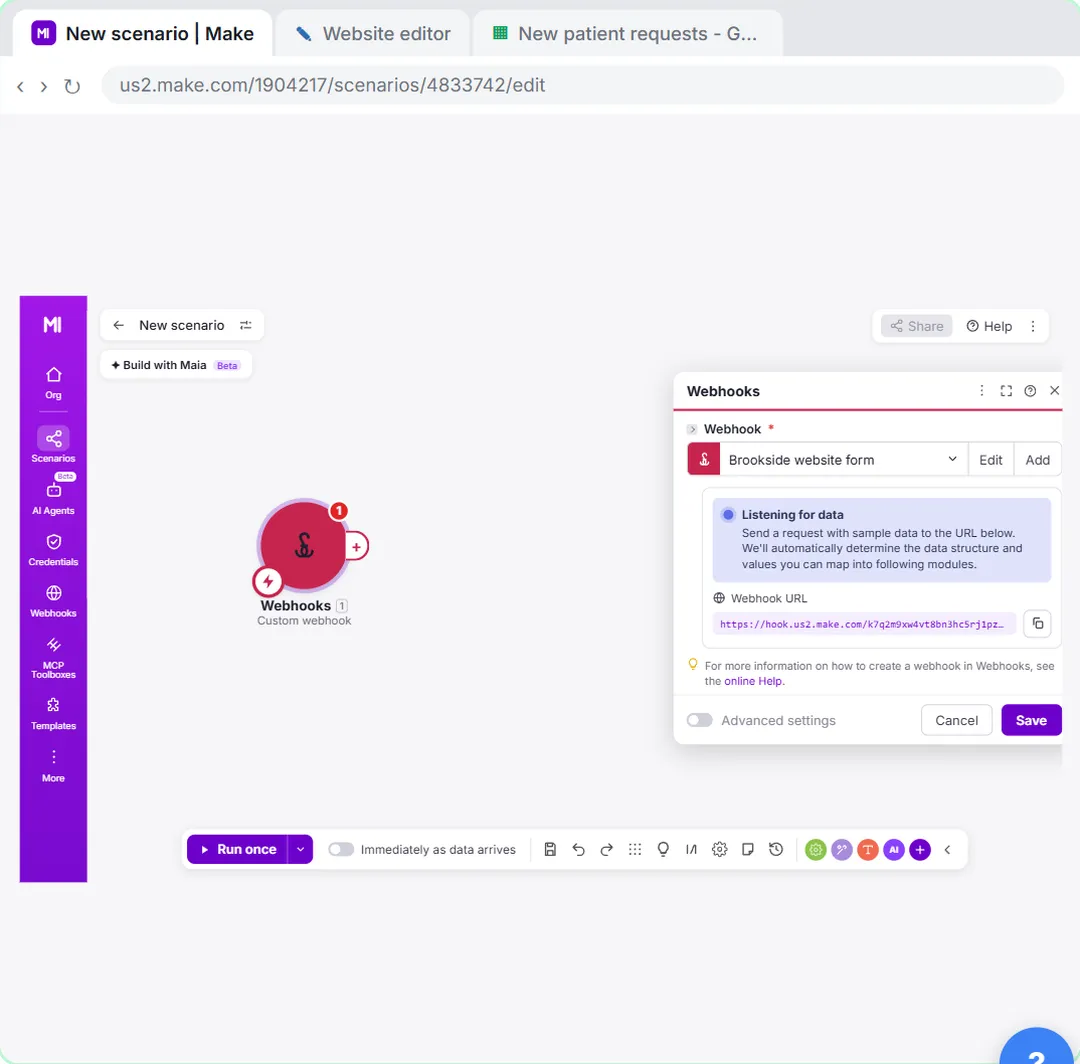 Webhooks: Connect a Website Form to Make.com
Start a Make scenario with a Custom webhook, paste its URL into your website form's webhook setting, send a test so Make learns the fields, and save every request to…
Free · Live ~12 min Advanced
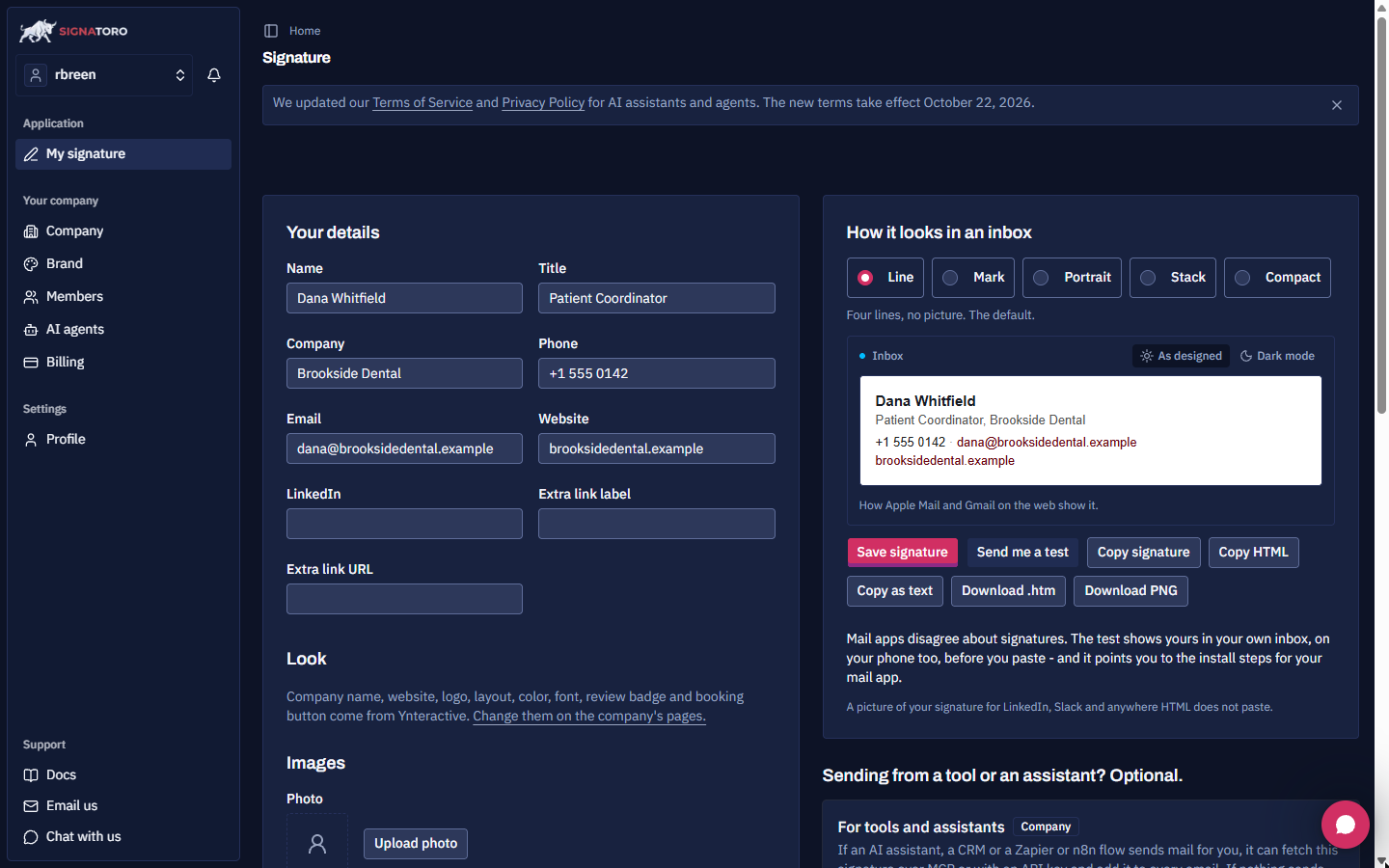 n8n + Signatoro: AI Drafts Every Reply, Signatoro Signs It
Stop leaving client emails waiting. A Gmail Trigger starts it, OpenAI writes a personal reply, one HTTP Request node fetches the sender's real signature from Signatoro…
Free · Live ~10 min Intermediate
From the blog
 How to Learn Zapier: A 5-Step Path for Beginners
How to learn Zapier as a beginner: triggers and actions first, one real Zap, testing, then filters and an AI step. Free lessons and official resources.
Oct 21, 2026 4 min read
Signatoro Use Cases: Signed AI Replies for Office TeamsHow office managers, coordinators, client service, recruiting, sales and agencies use Signatoro so AI-drafted emails carry the right signature.
Oct 20, 2026 5 min read
Signatoro FAQ: Signatures for AI Emails in Make and ZapierAnswers about Signatoro for automated emails: why tools skip your Gmail signature, the API, the free plan, Make vs Zapier setup and what to check.
Oct 20, 2026 4 min read
Terms in this lesson
Plain-English definitions, each with an example from a free lesson.