Updated . Built against the tool’s current screens and checked step by step. How we check this lesson
Most office workers spend hours a day typing replies and prompts they already have in their heads. Wispr Flow (wisprflow.ai) is a voice dictation app: you hold a key, talk, and it types clean text wherever your cursor is. In this free business-case lesson you price the typing for a made-up office manager, find the Flow key, speak a messy client reply into Gmail and a long prompt into ChatGPT, and check what comes out. The Flow screens are real screenshots from my own Flow on Windows, captured October 2026. Gmail and ChatGPT are practice copies. This is my own lesson, not an official Wispr Flow course.
At a glance
| Question | Answer |
|---|---|
| What you build | For office workers who type replies and prompts all day: hold one key in Wispr Flow, speak an email and a ChatGPT prompt, then check the clean text. |
| Tools | Wispr Flow |
| Time | About 10 minutes, 29 steps in 9 parts |
| Level | Beginner, no coding needed |
| Cost | Free |
| Ways to learn it | Practice it step by step, read the guide with screenshots |
The 9 parts, in short
- Typing is the slow part: See the typing pile, Put a price on it, Meet Wispr Flow.
- Open Flow and find the key: Find your dictation key, Try Flow in another app.
- Pick what to try first: Choose Draft an email, Watch the short demo, See what came out, Try it yourself, and 2 more steps.
- Reply to a client email by voice: Open the client email, Click Reply, Hold Caps Lock and talk, Let go and see the text, and 2 more steps.
- Speak a ChatGPT prompt: Click into the prompt box, Hold Caps Lock and describe the job, Let go, Send the prompt.
- No text box? Copy it: When there is no text box, Copy it and paste it.
- Teach it your words: Open the Dictionary.
- Check your numbers: Read your numbers, Find past dictations, Look in Insights.
- What it saves, and doing it for real: What this saves you, Do it for real.
In the course: Part 2 · Better Prompts (Module 13 of the full course)
Part of: AI at Work: Start Here (step 13 of 20)
Part of: AI Apps Worth Knowing (step 56 of 186)
Part of: Turn Talk Into Work: Voice and Meetings AI (step 2 of 9)
Wispr Flow: Answer Emails and Write AI Prompts by Voice: step-by-step guide with screenshots
About the screenshots. They come from Stepthrough’s simulated practice environment (a practice copy of Wispr Flow), not the live tool, so no real account appears. The buttons and labels match the real screens the lesson was built against. Practice it yourself free at ynteractive.com.
- Tools: Wispr Flow
- Time: about 10 minutes, 29 steps in 9 parts
- Level: beginner, no coding needed
Part 1: Typing is the slow part
Step 1: See the typing pile
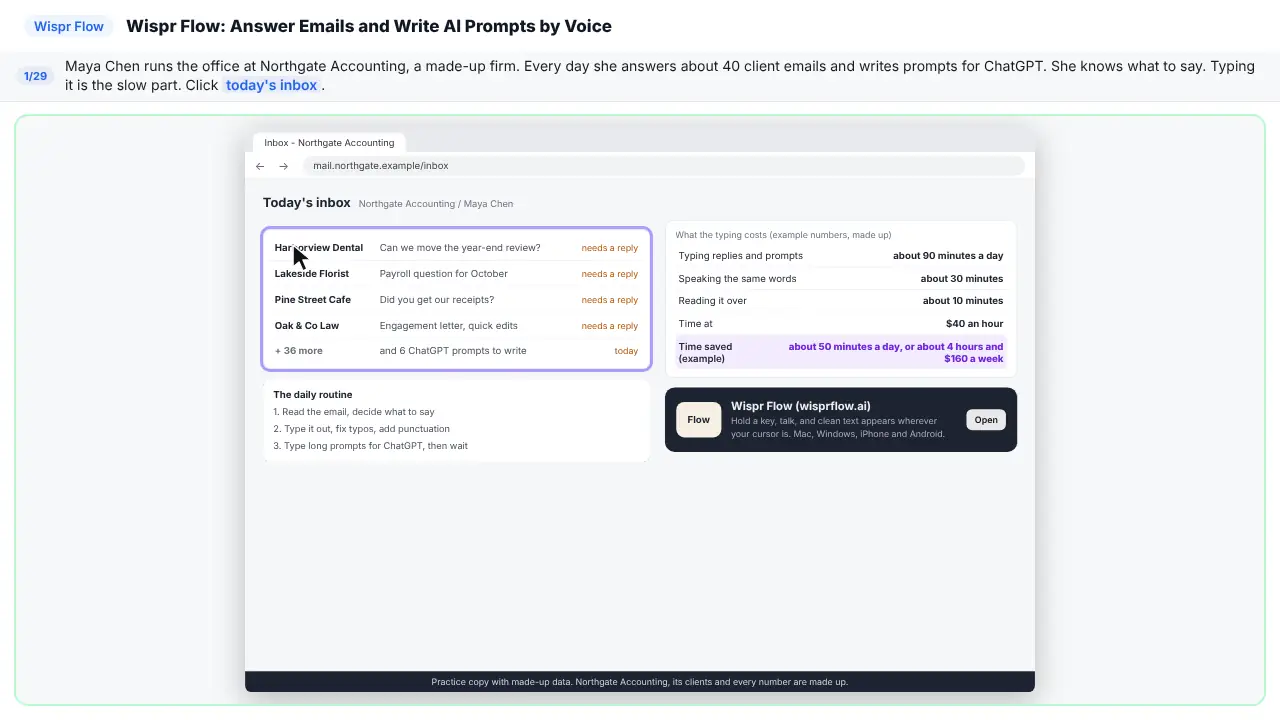
Meet Maya. She runs the office at a small accounting firm. Every day she answers about forty client emails, and writes prompts for ChatGPT. She knows what to say. Typing it is the slow part.
Step 2: Put a price on it
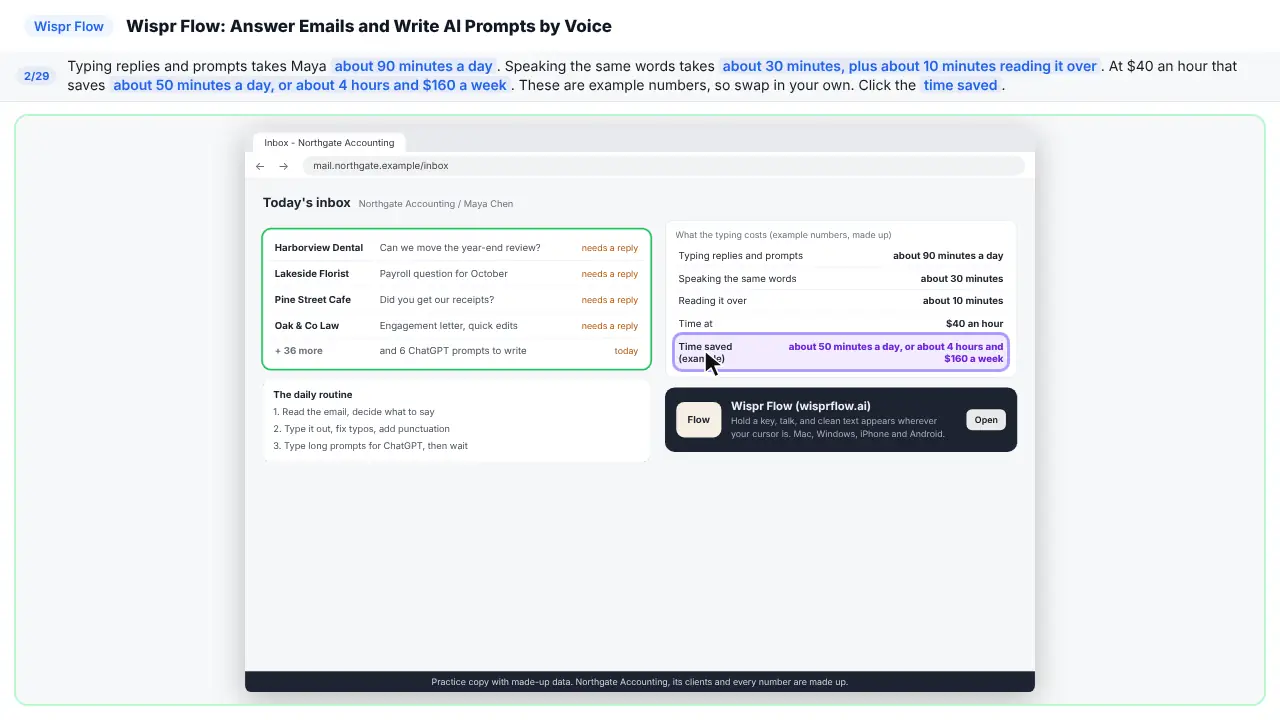
Let's put a price on that. About ninety minutes a day of typing. Speaking the same words takes about thirty, plus ten to read it over. That's close to an hour back, every day. These are example numbers. Use your own.
Step 3: Meet Wispr Flow
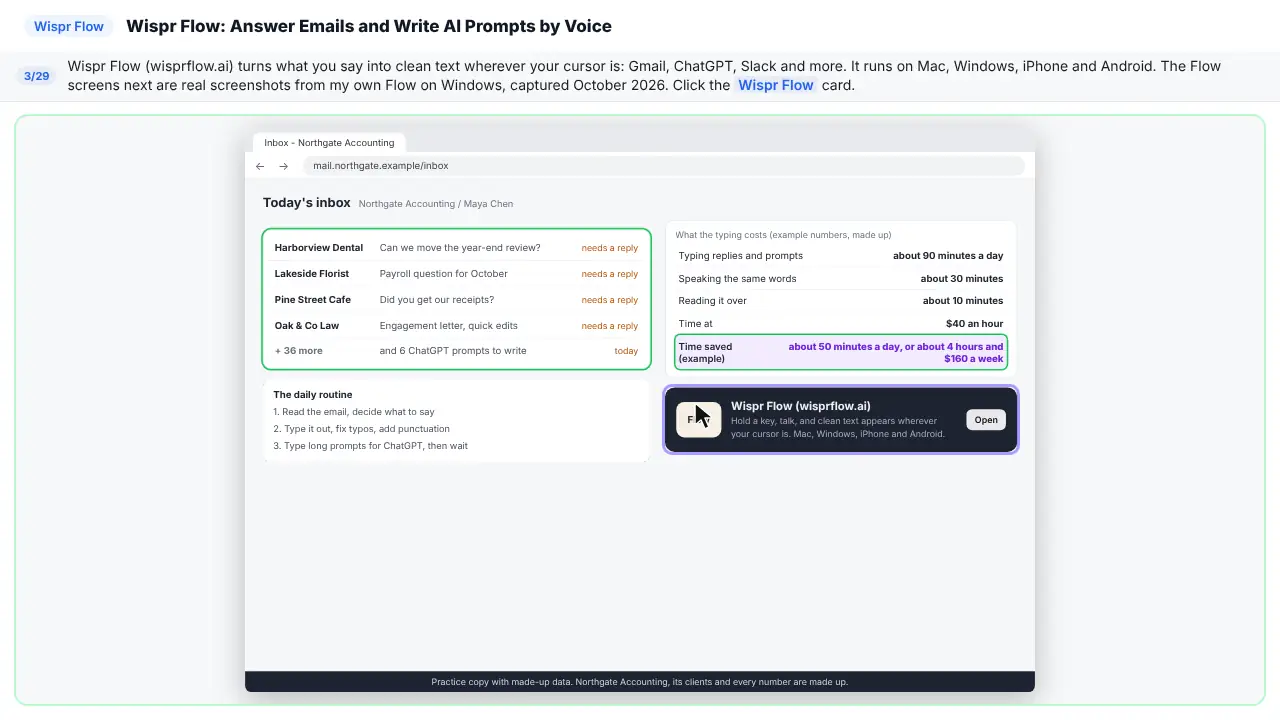
This is Wispr Flow. You talk, and it types clean text wherever your cursor is. These are real screens from my own Flow, on Windows.
Part 2: Open Flow and find the key
Step 4: Find your dictation key
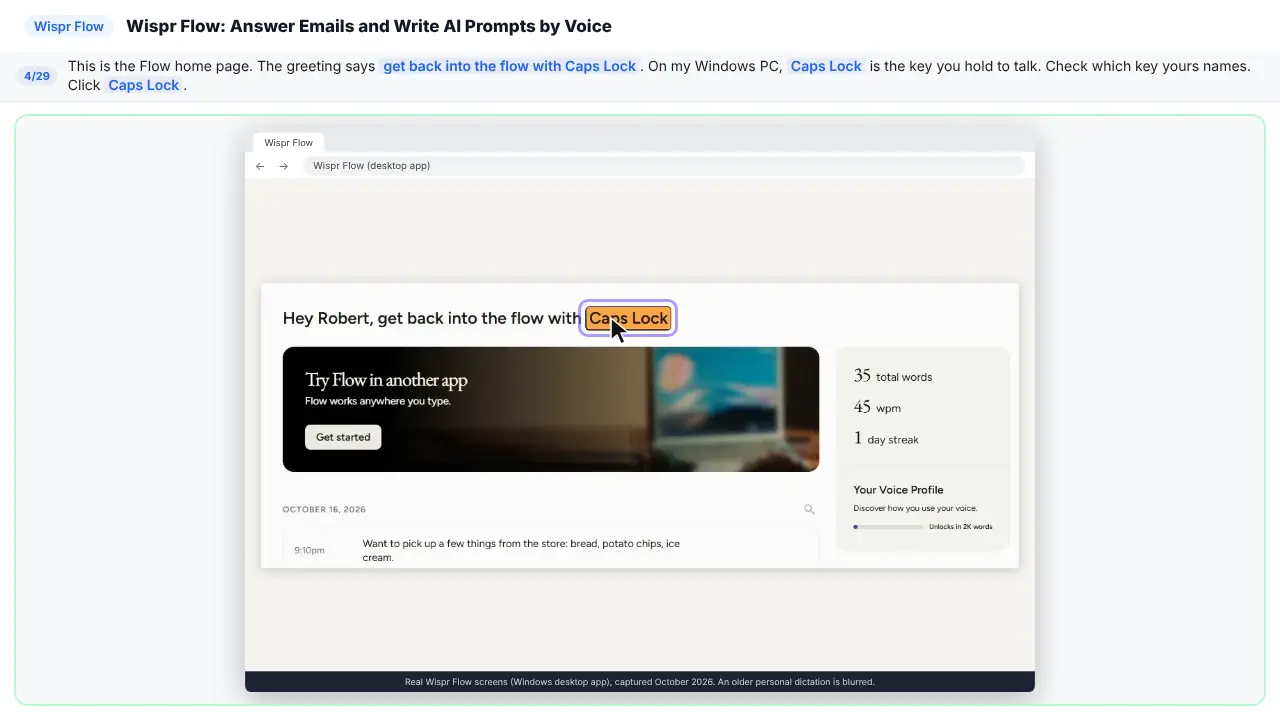
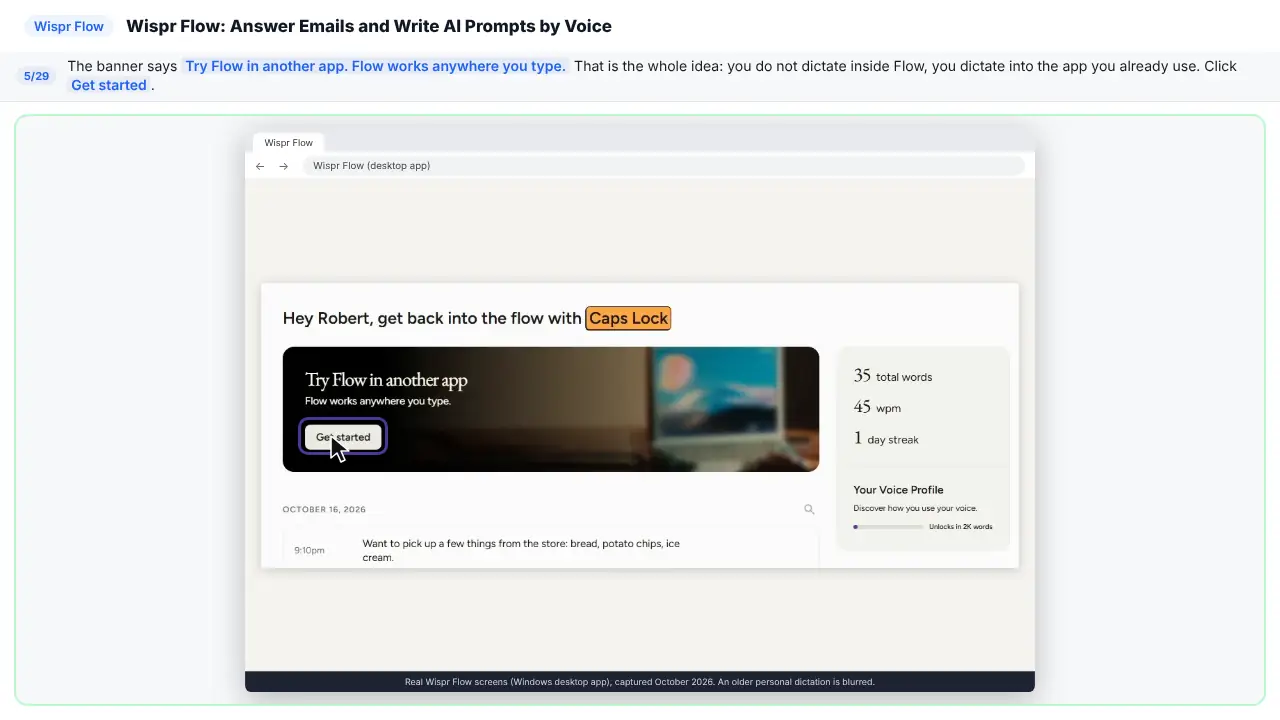
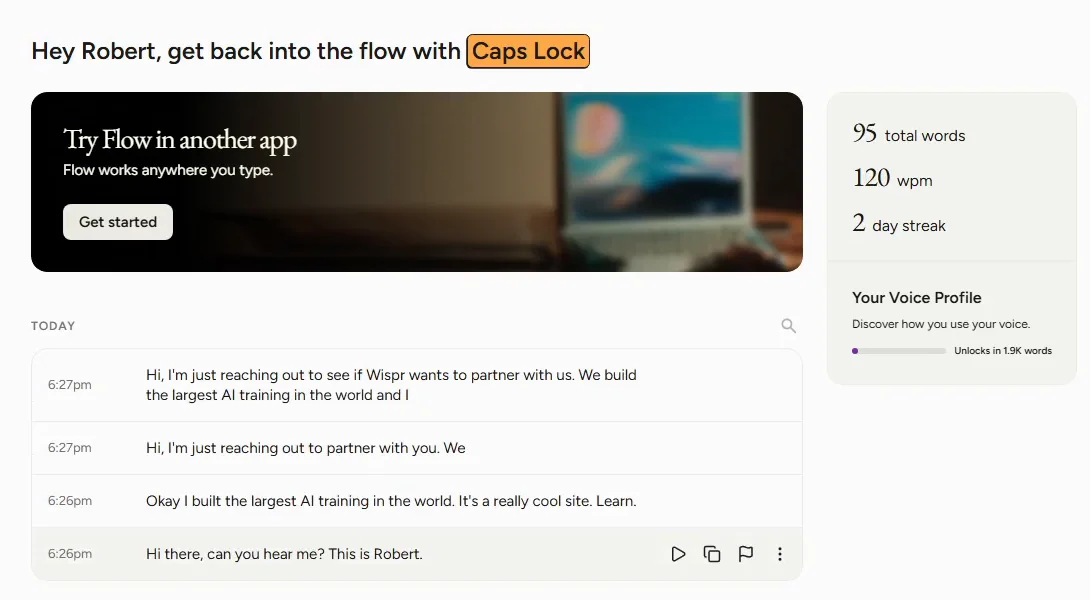
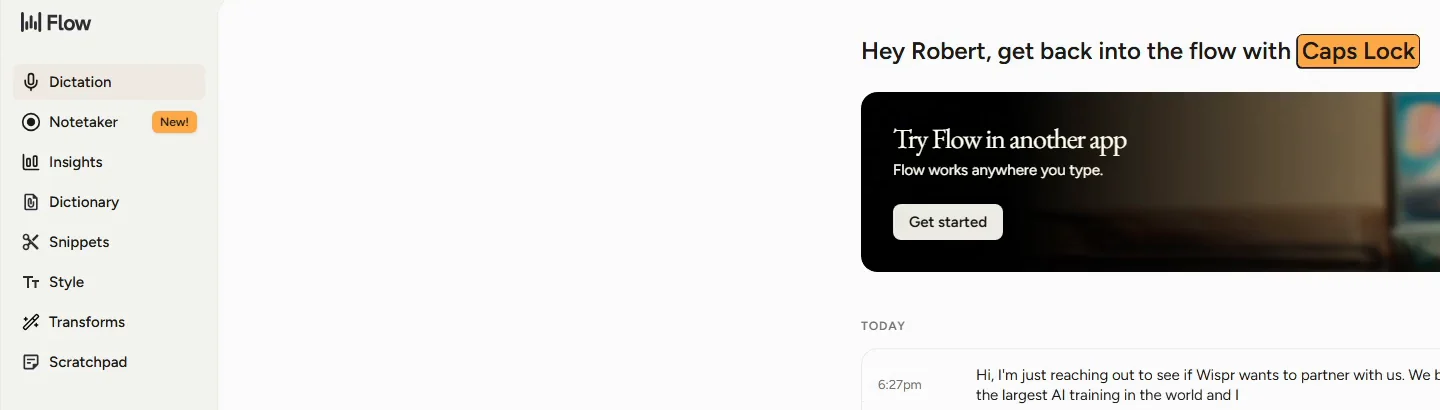
Here's the home page. Look at the greeting. Get back into the flow with Caps Lock. On my computer, Caps Lock is the key you hold to talk.
Step 5: Try Flow in another app
Flow works anywhere you type. So you don't talk inside Flow. You talk into the app you already use.
Part 3: Pick what to try first
Step 6: Choose Draft an email
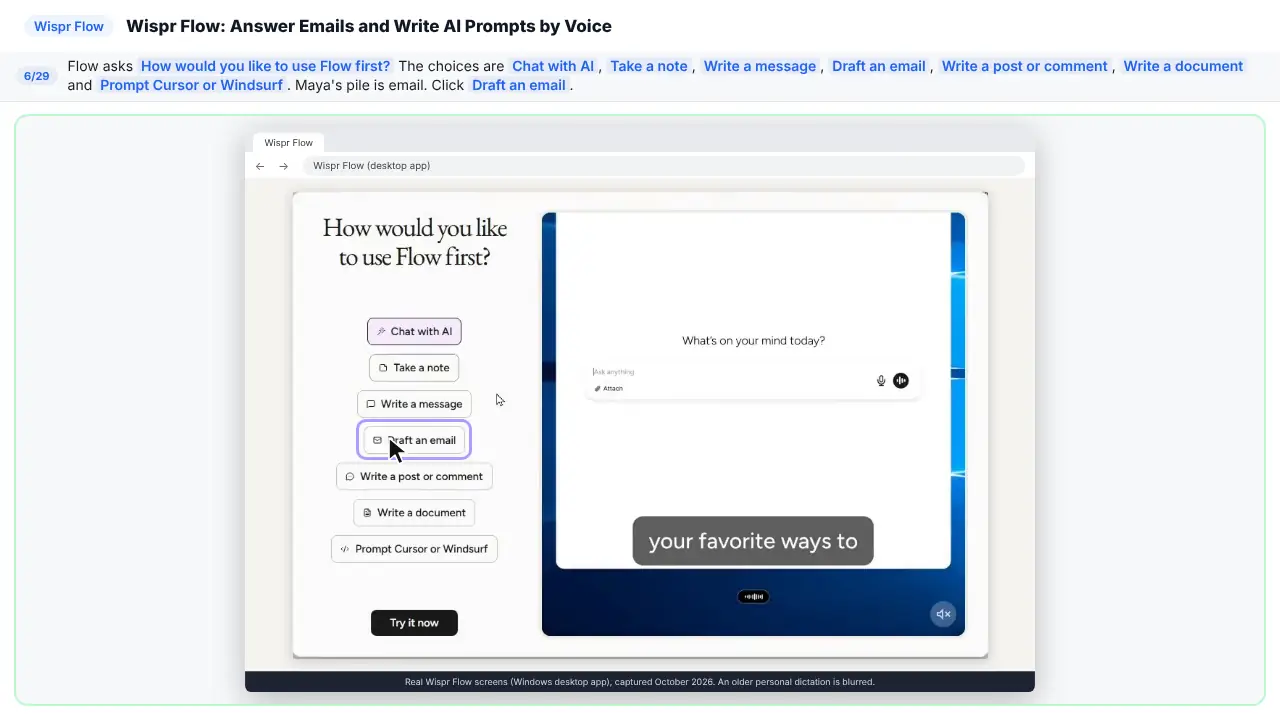
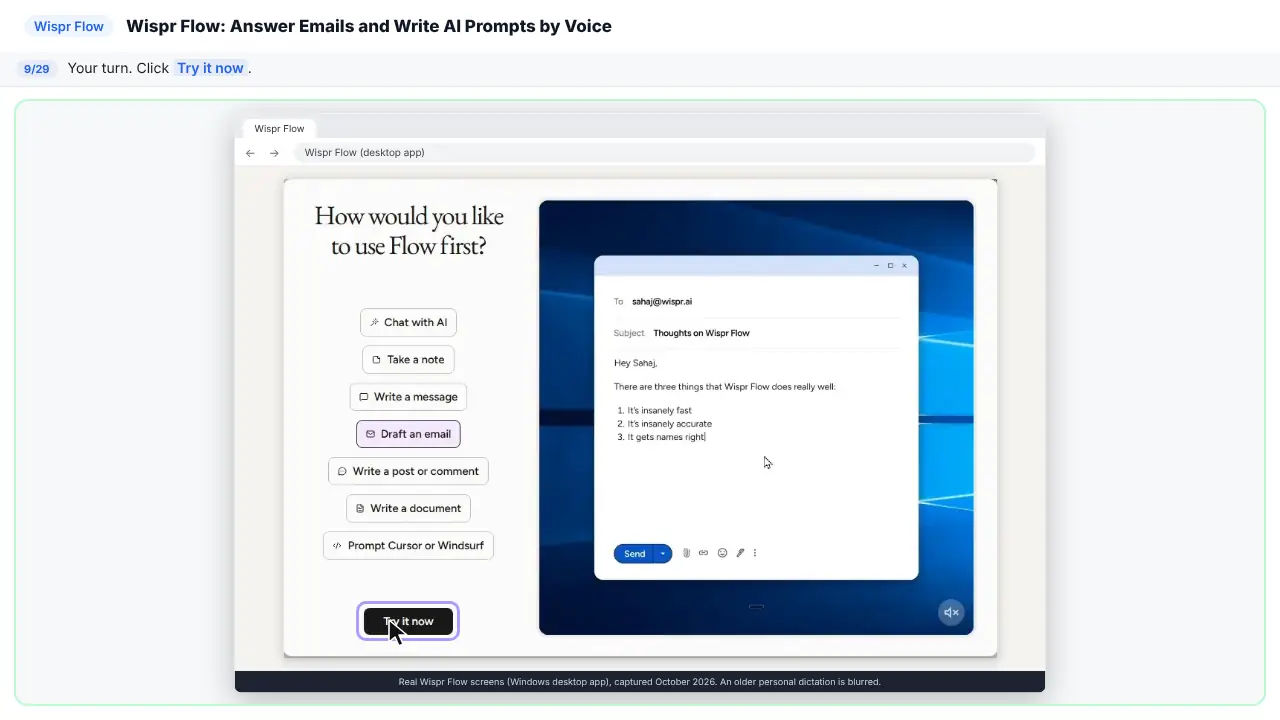
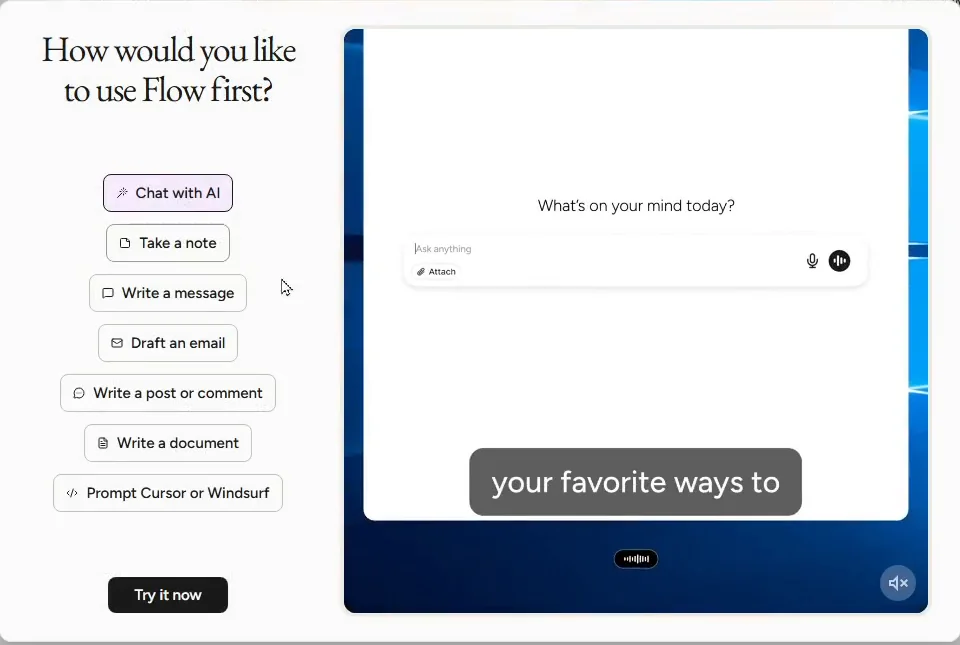
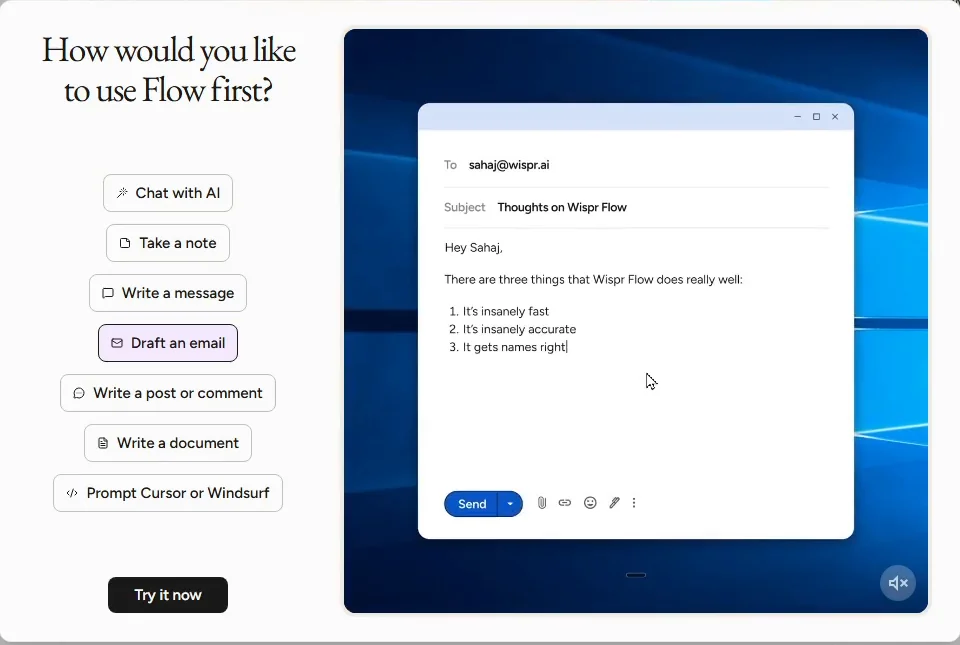
Flow asks how you want to use it first. Chat with A I. Write a message. Draft an email. Maya's pile is email, so pick draft an email.
Step 7: Watch the short demo
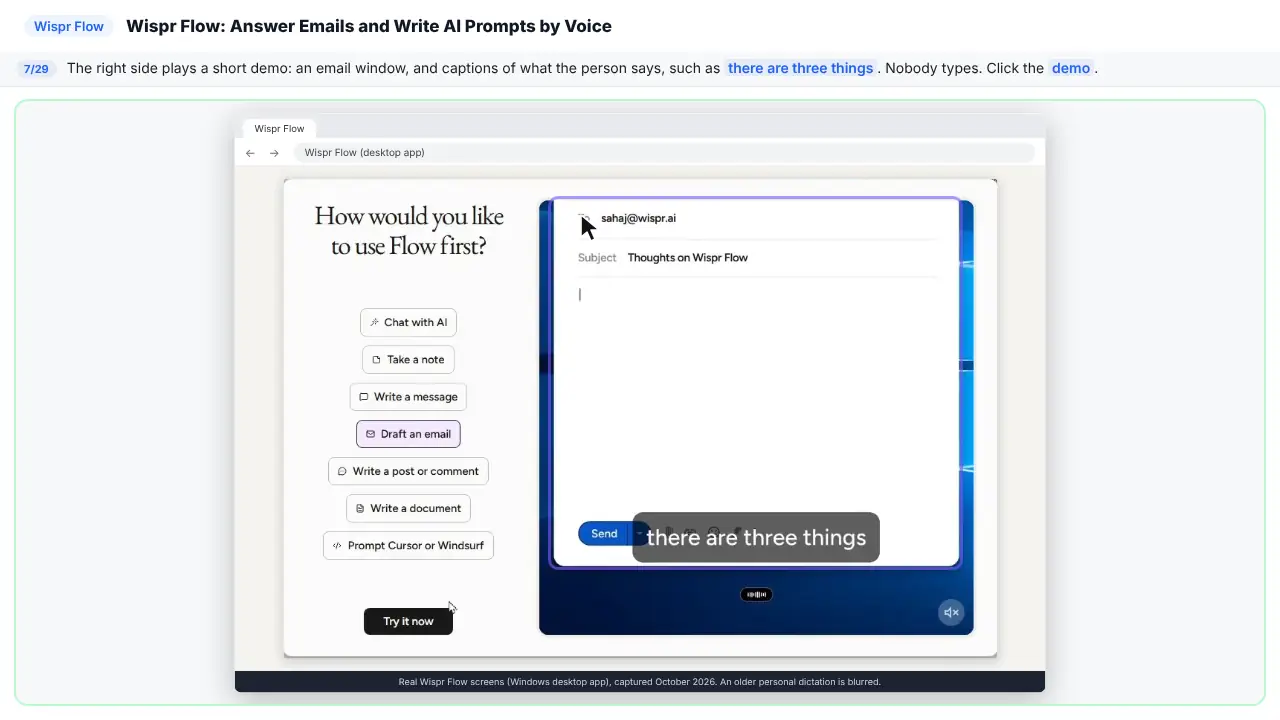
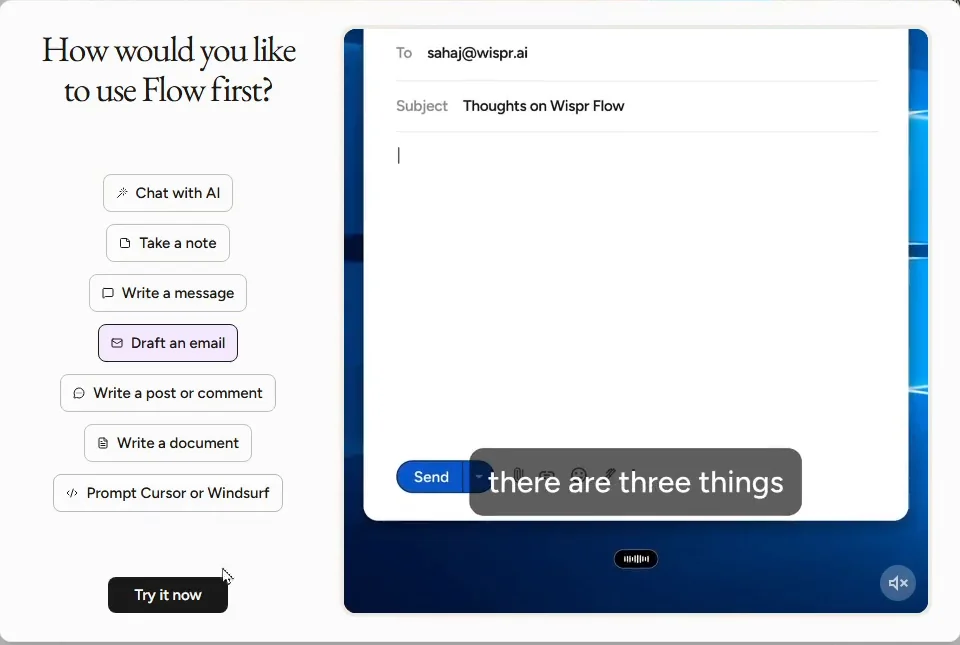
It plays a short demo. Watch the captions. Nobody is typing.
Step 8: See what came out
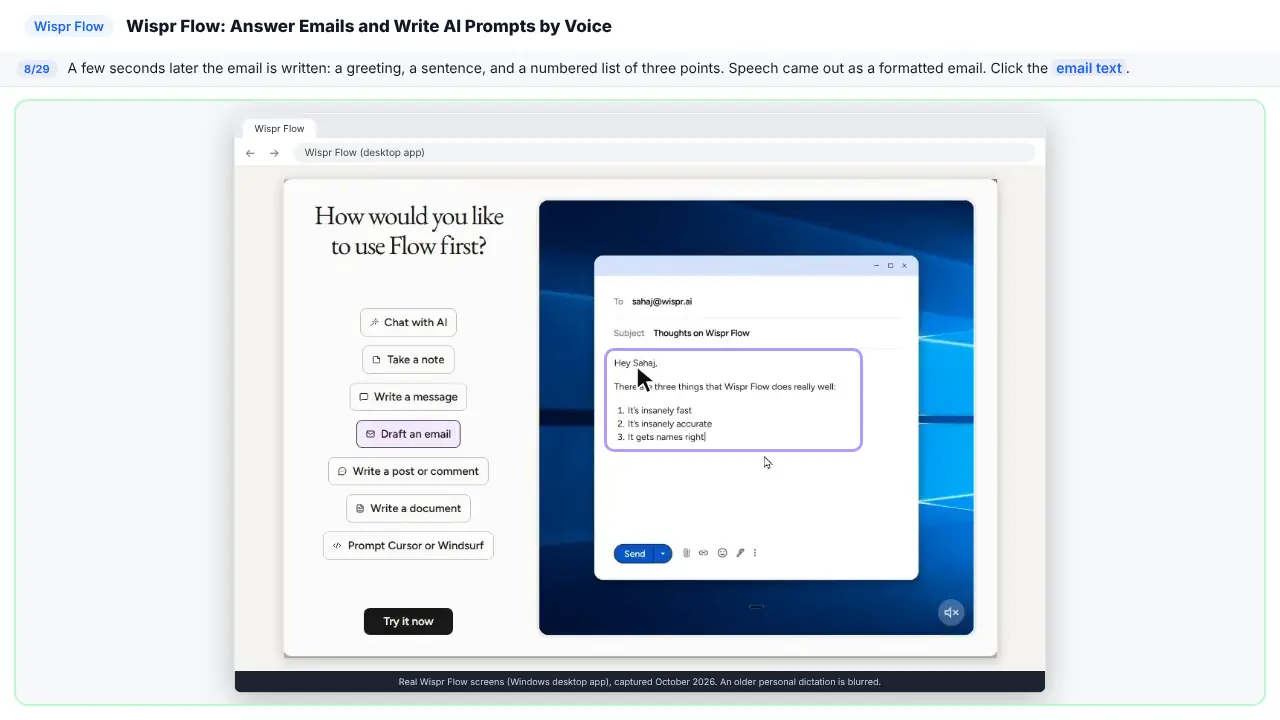
And there's the email. A greeting, a sentence, and a numbered list. All from speech.
Step 9: Try it yourself
Your turn.
Step 10: Hold the key, then talk
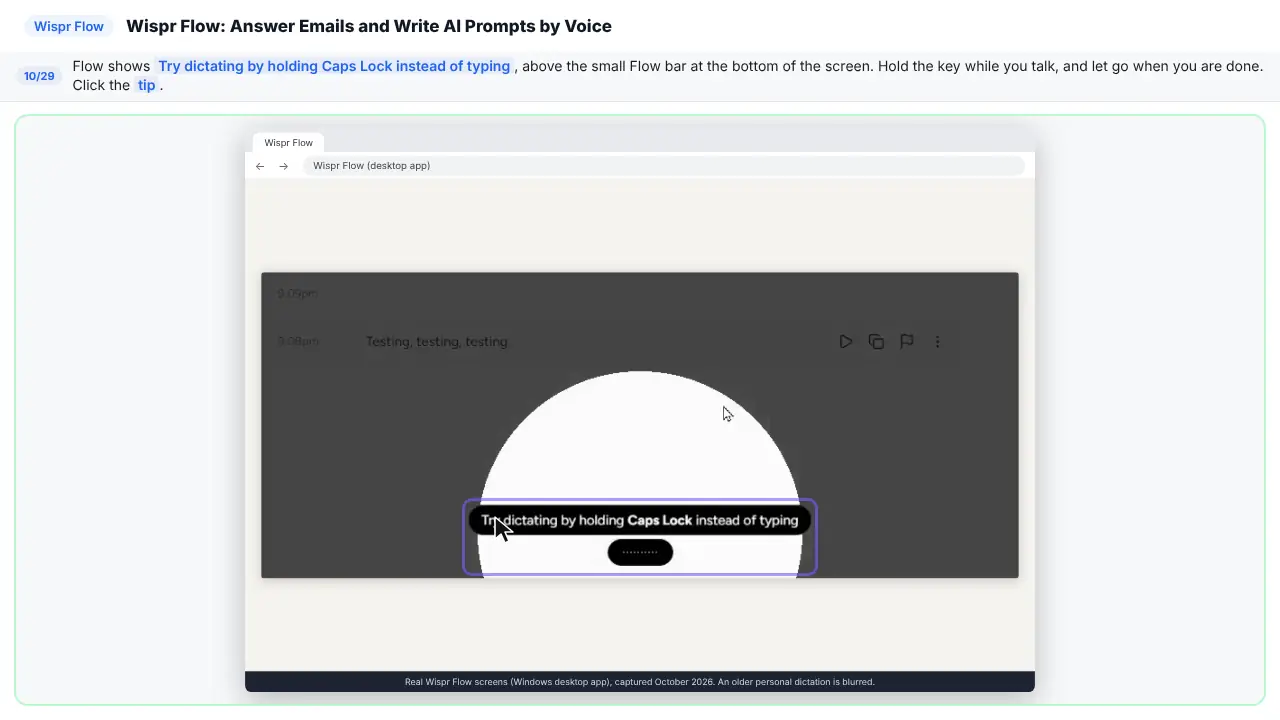
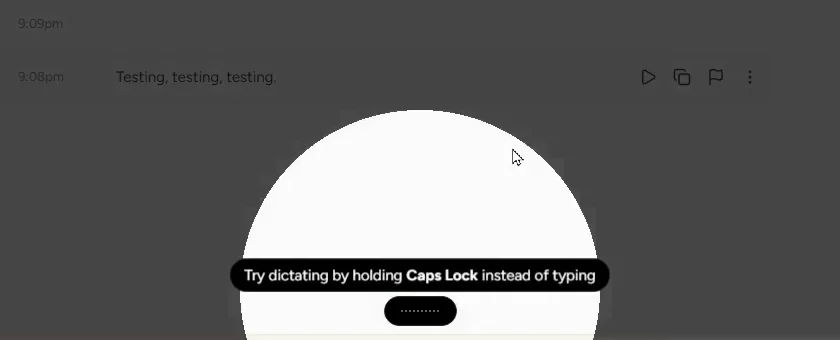
Here's the trick. Hold Caps Lock while you talk. Let go when you're done.
Step 11: Go to your inbox
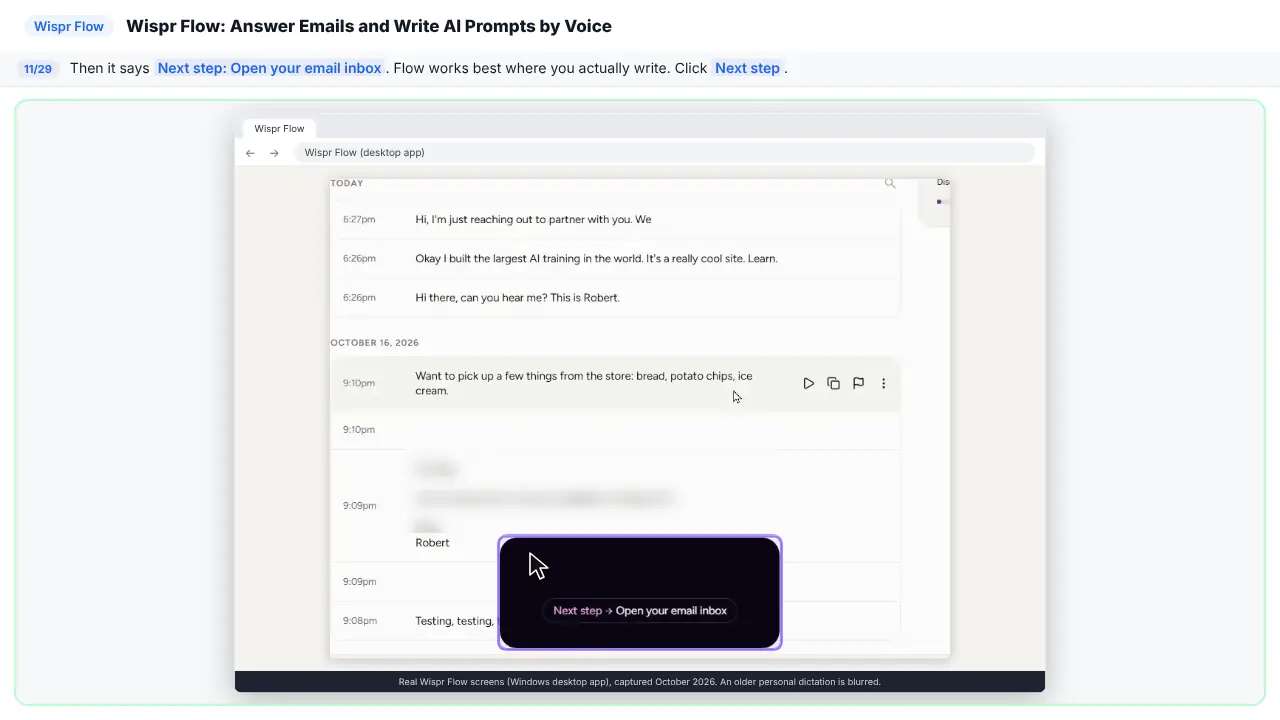
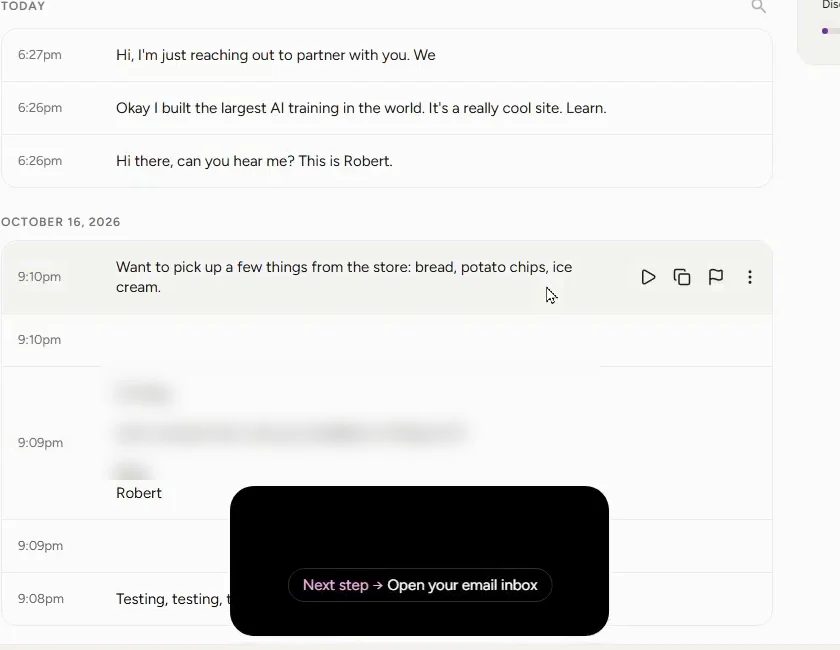
Next step. Flow works best where you actually write.
Part 4: Reply to a client email by voice
Step 12: Open the client email
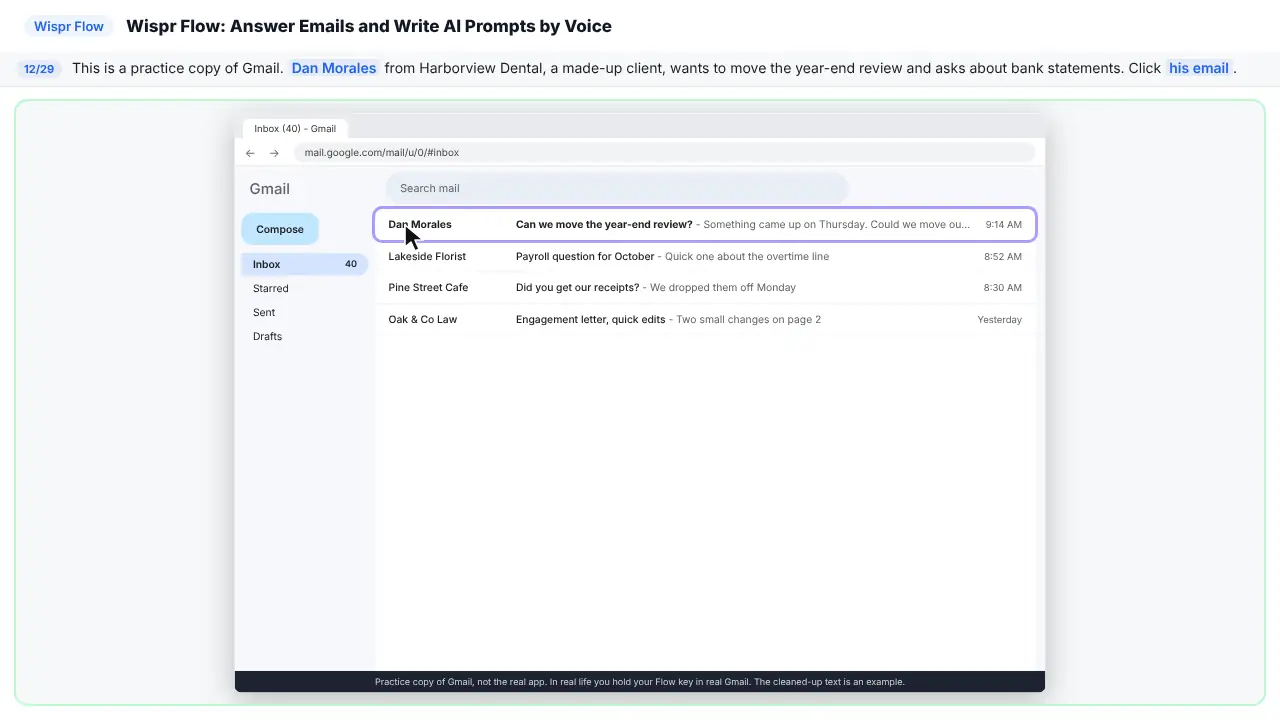
Here's a client email. Dan wants to move his year end review, and asks about bank statements.
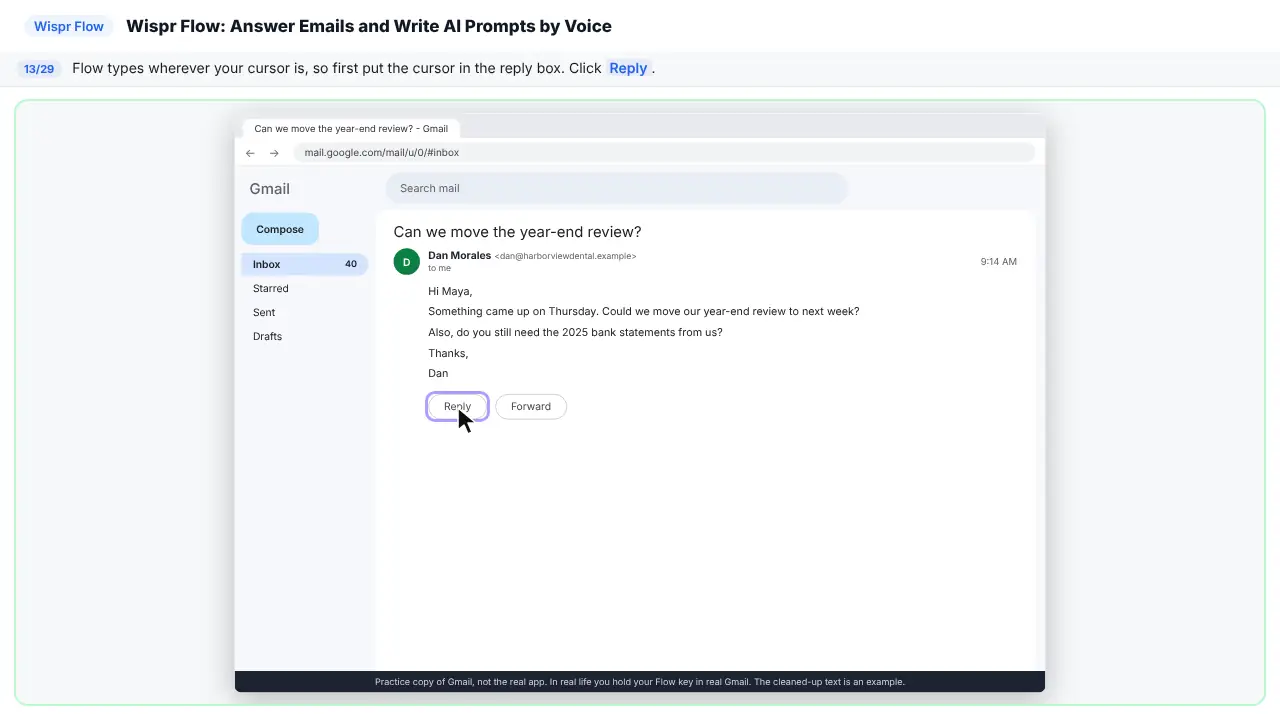
Step 13: Click Reply
Flow types wherever your cursor is.
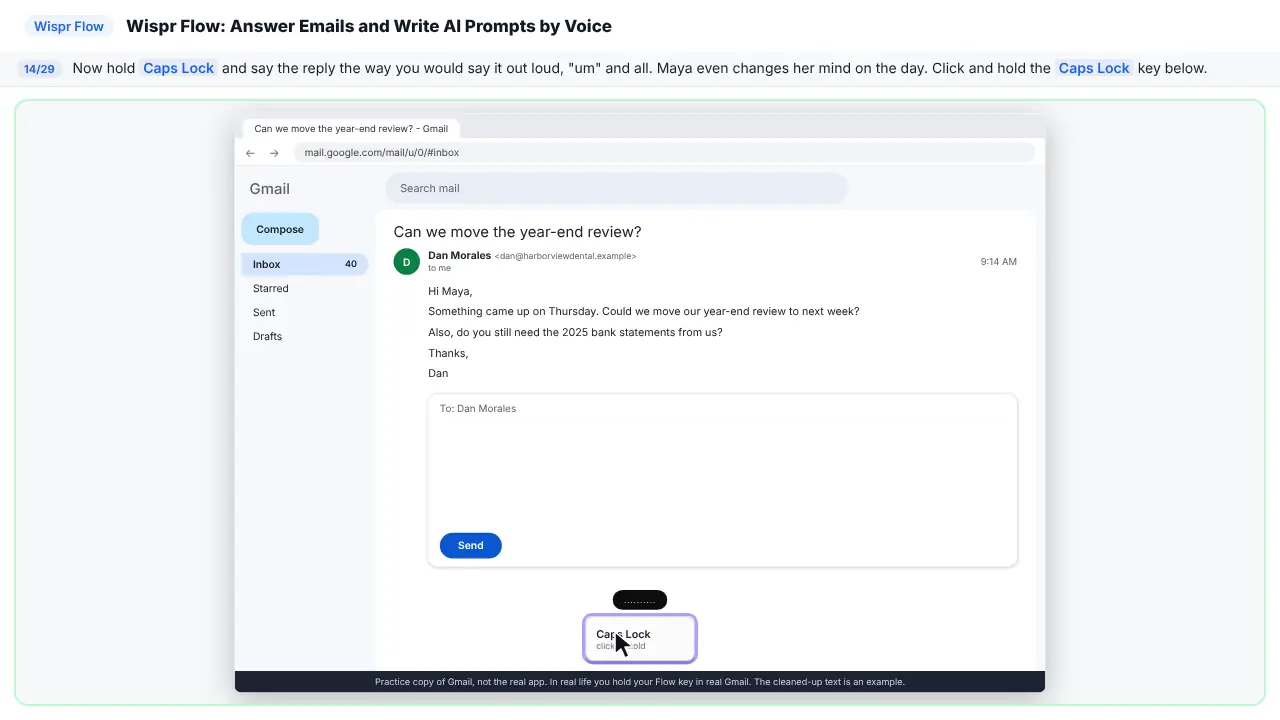
Step 14: Hold Caps Lock and talk
Now hold Caps Lock, and just talk. Say it the way you'd say it out loud. Ums and all. Maya even changes her mind on the day.
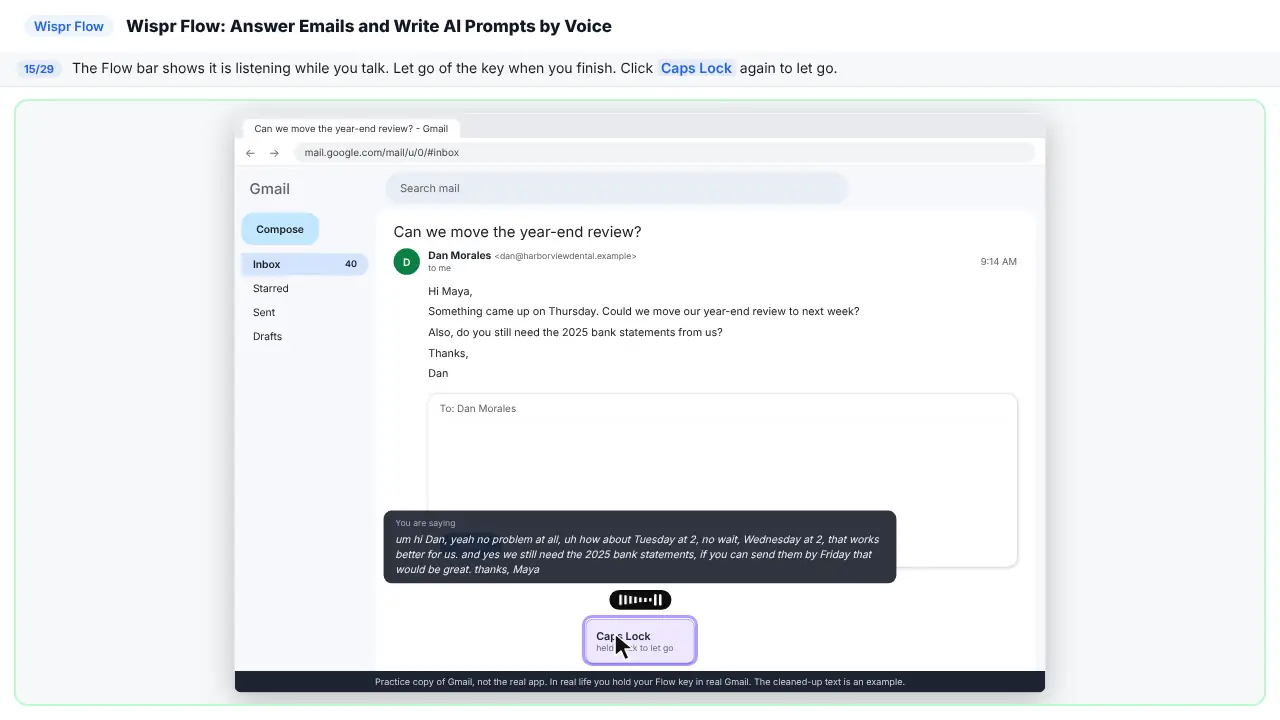
Step 15: Let go and see the text
The bar shows it's listening. When you're done, let go.
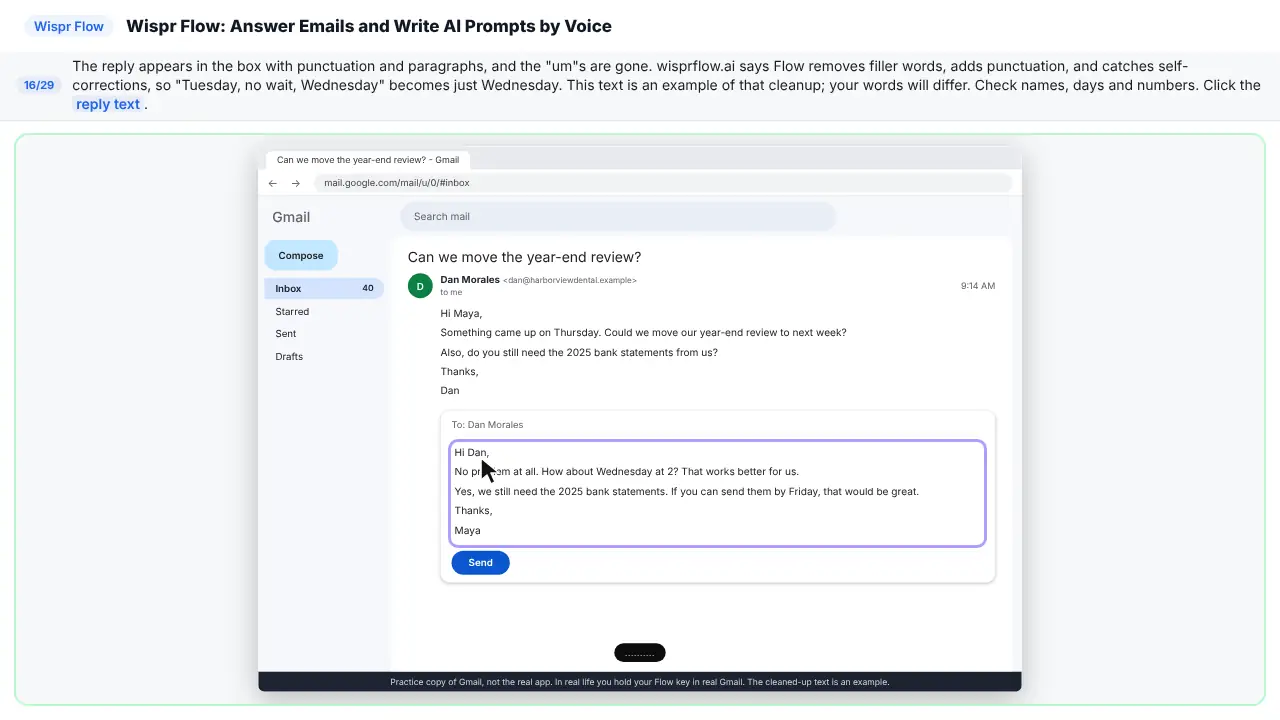
Step 16: Read it before you send
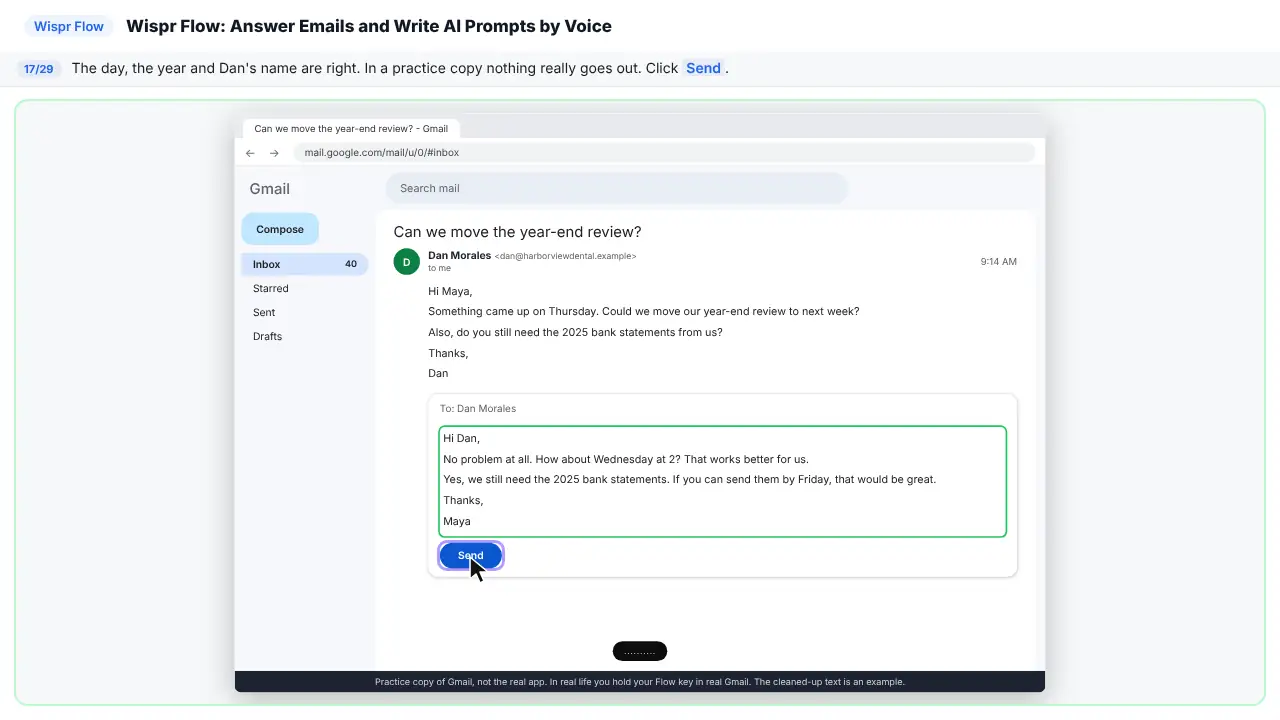
And there's the reply. Punctuation, paragraphs, and the ums are gone. She said Tuesday, then Wednesday, and only Wednesday made it in. Still, read it. Check names, days, and numbers.
Step 17: Send it
Everything checks out. Send it.
Part 5: Speak a ChatGPT prompt
Step 18: Click into the prompt box
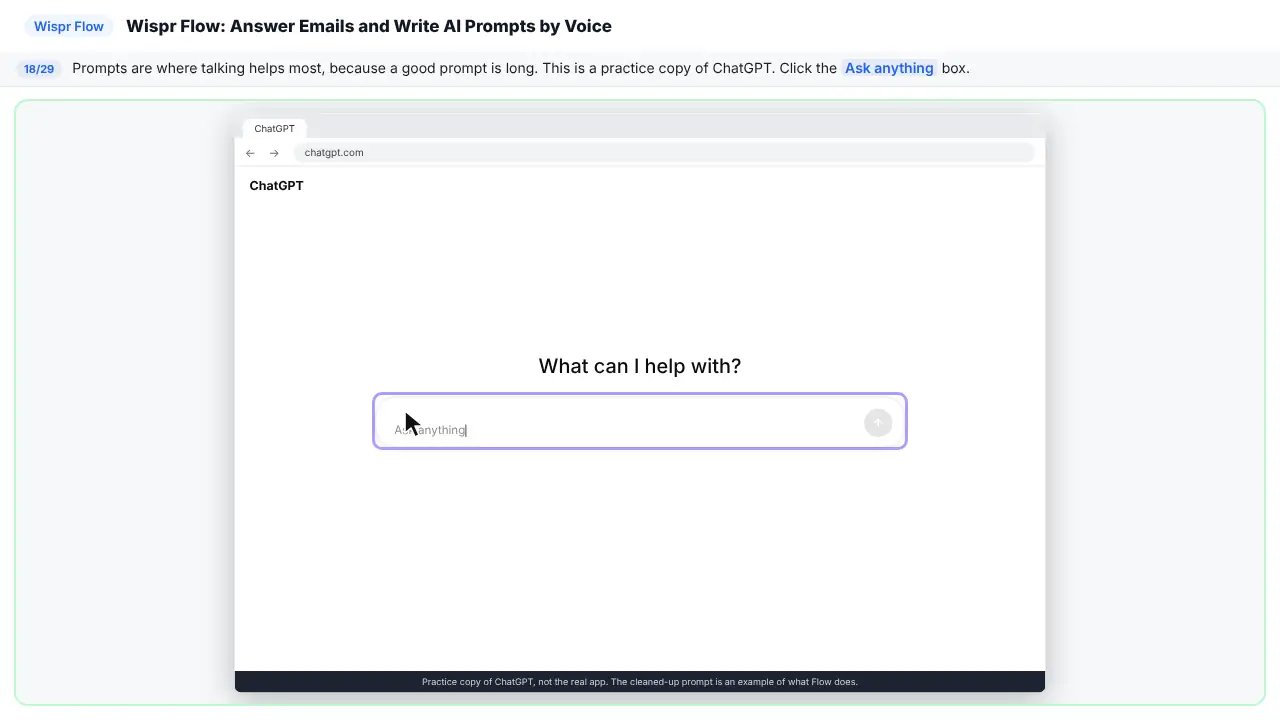
Prompts are where talking really pays off. A good prompt is long, and nobody likes typing long prompts.
Step 19: Hold Caps Lock and describe the job
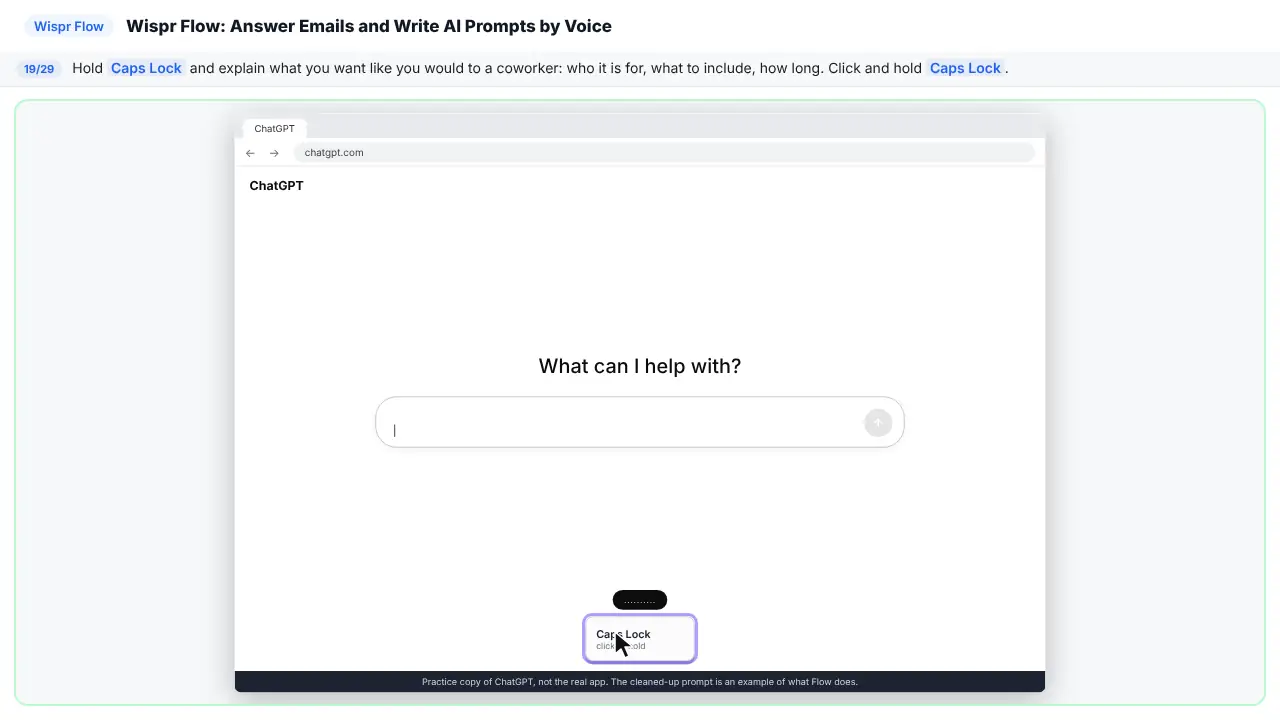
Hold Caps Lock, and explain the job like you would to a coworker. Who it's for, what to include, how long.
Step 20: Let go
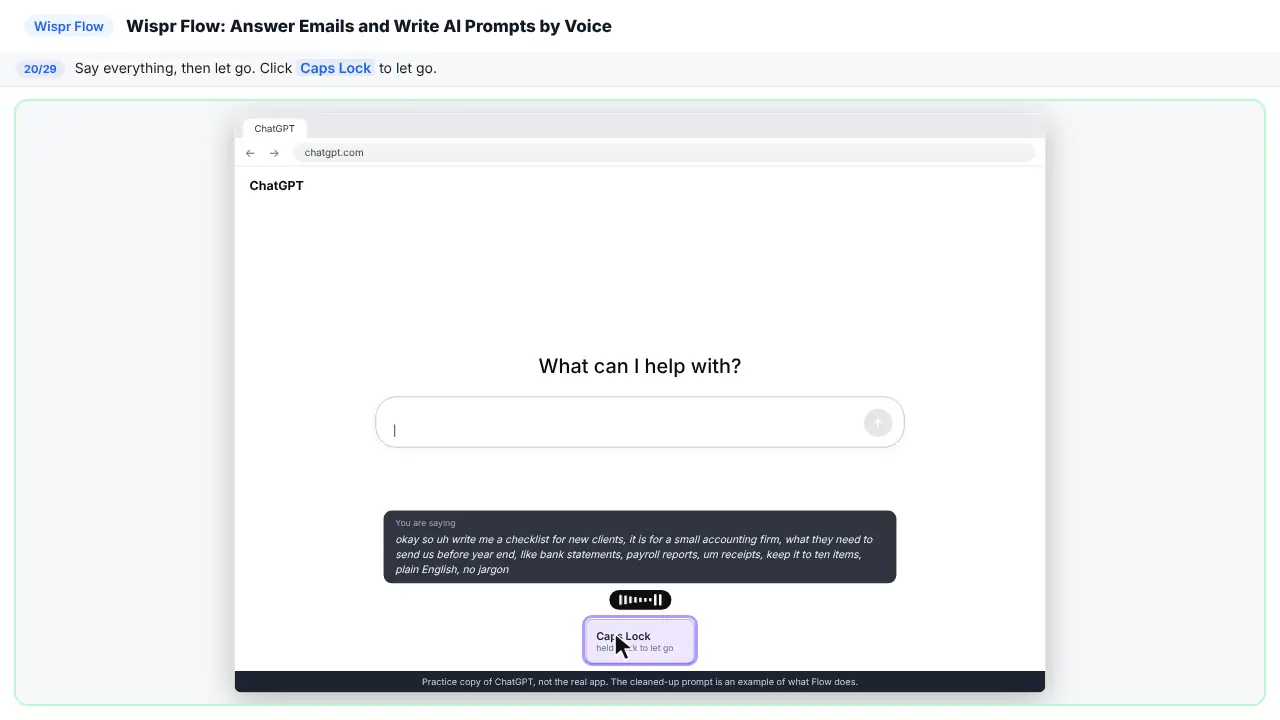
Say it all, then let go.
Step 21: Send the prompt
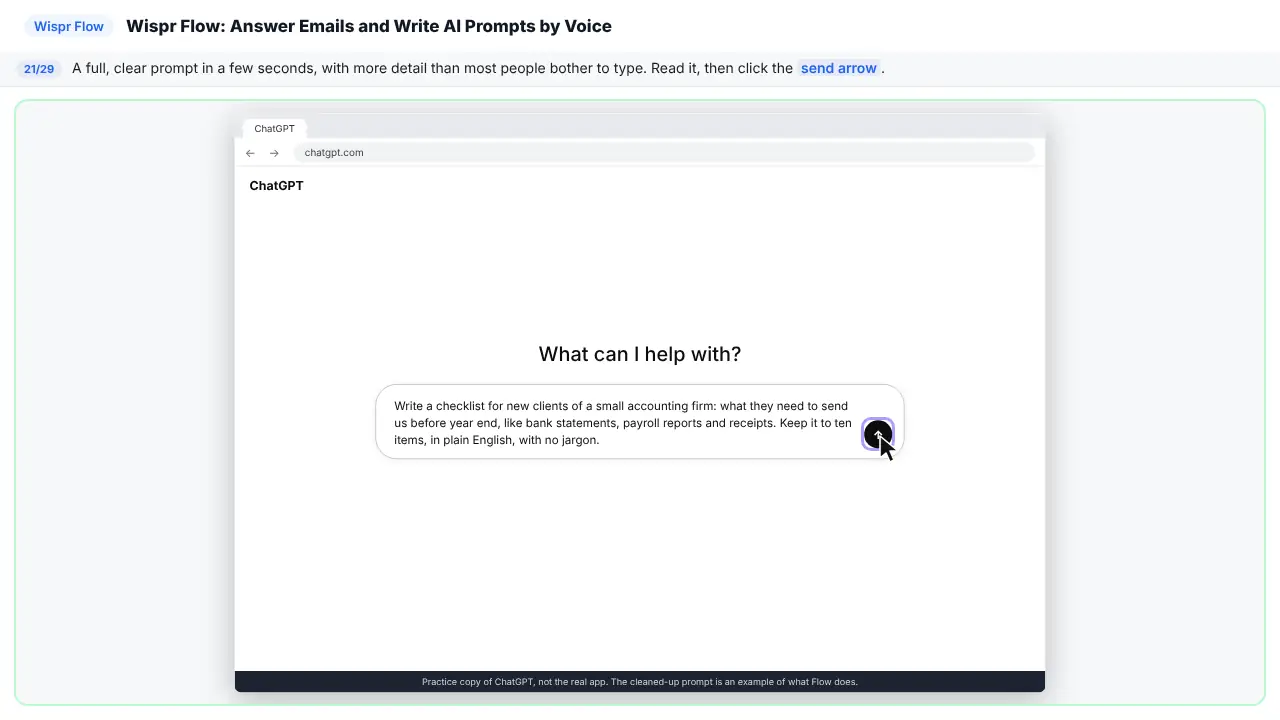
A full, clear prompt in seconds. More detail than most people would ever type. Send it.
Part 6: No text box? Copy it
Step 22: When there is no text box
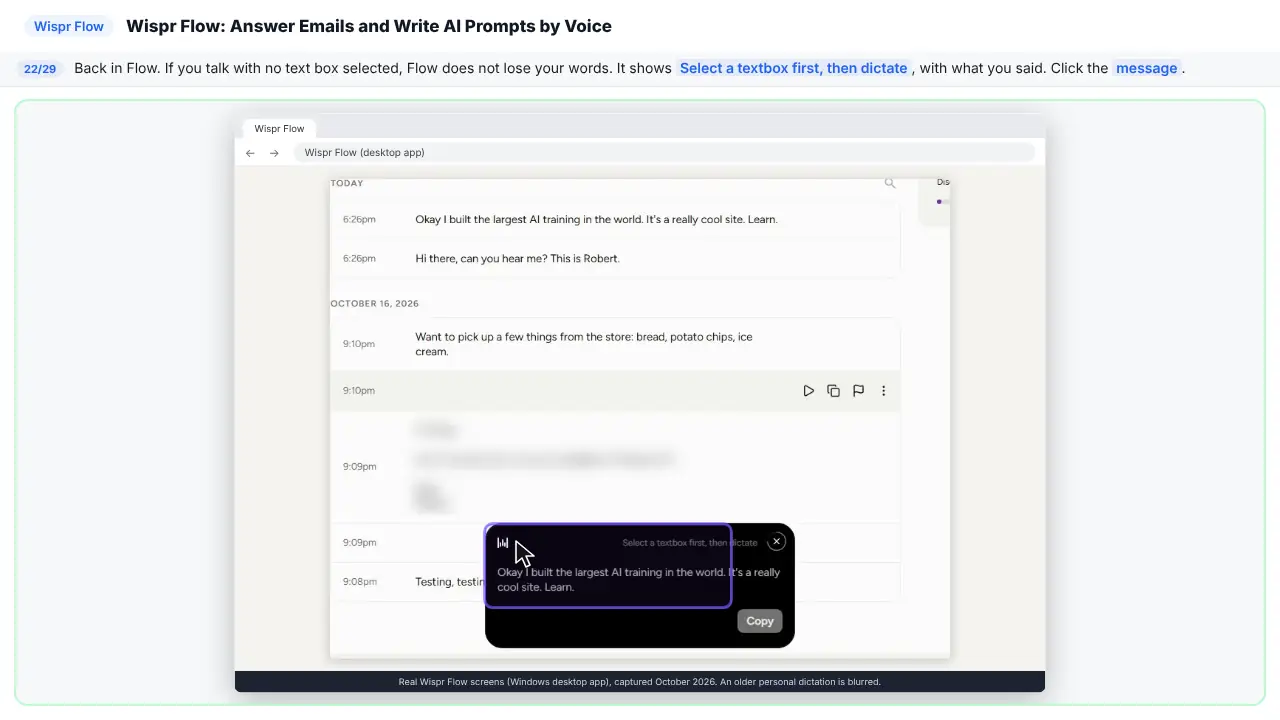
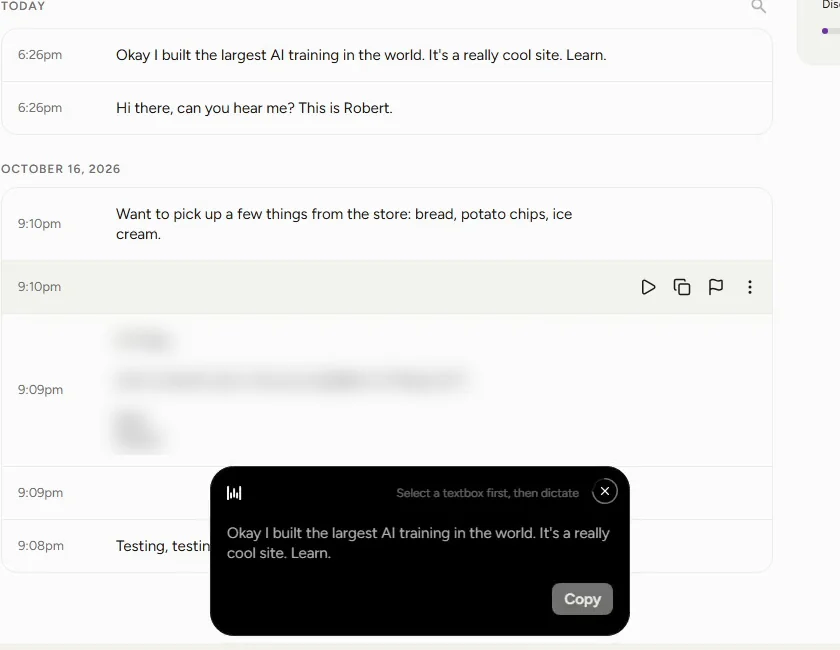
What if you forget to click into a box? Flow doesn't lose your words. It tells you to select a text box first, and shows what you said.
Step 23: Copy it and paste it
Part 7: Teach it your words
Step 24: Open the Dictionary
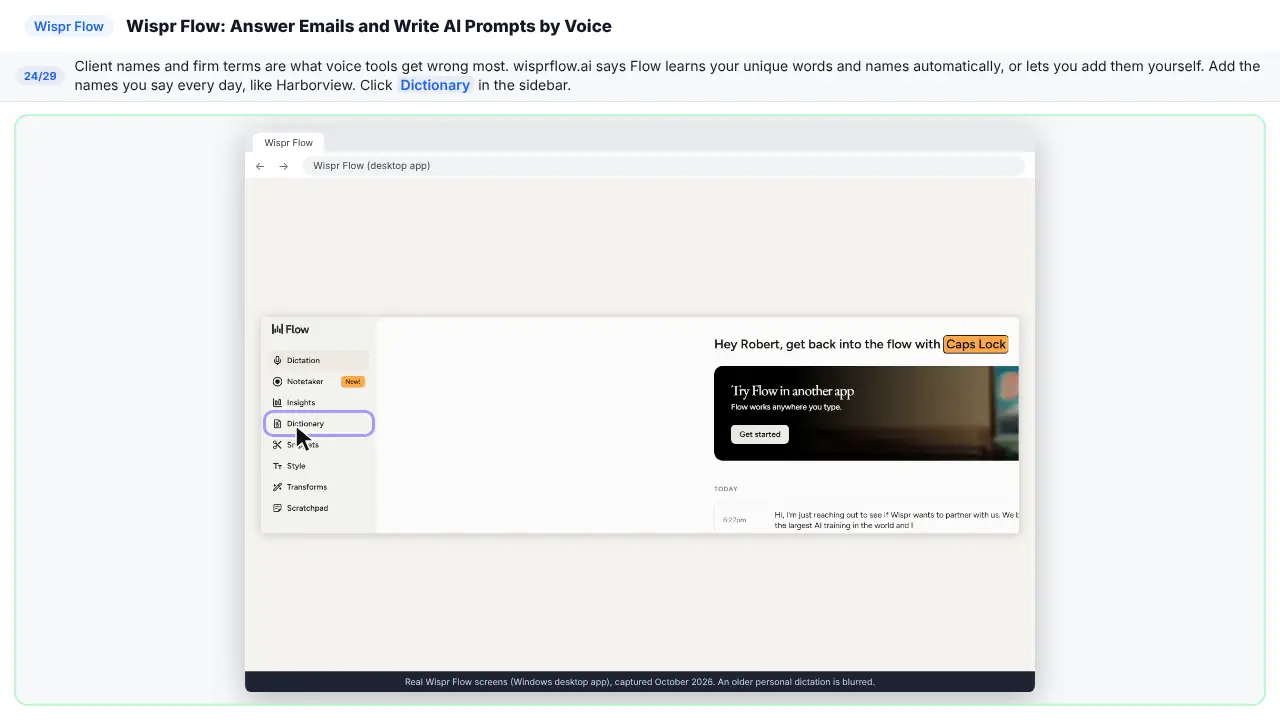
Names are what voice tools get wrong most. Flow learns your words as you go, and you can add them yourself in the dictionary. Add your client names.
Part 8: Check your numbers
Step 25: Read your numbers
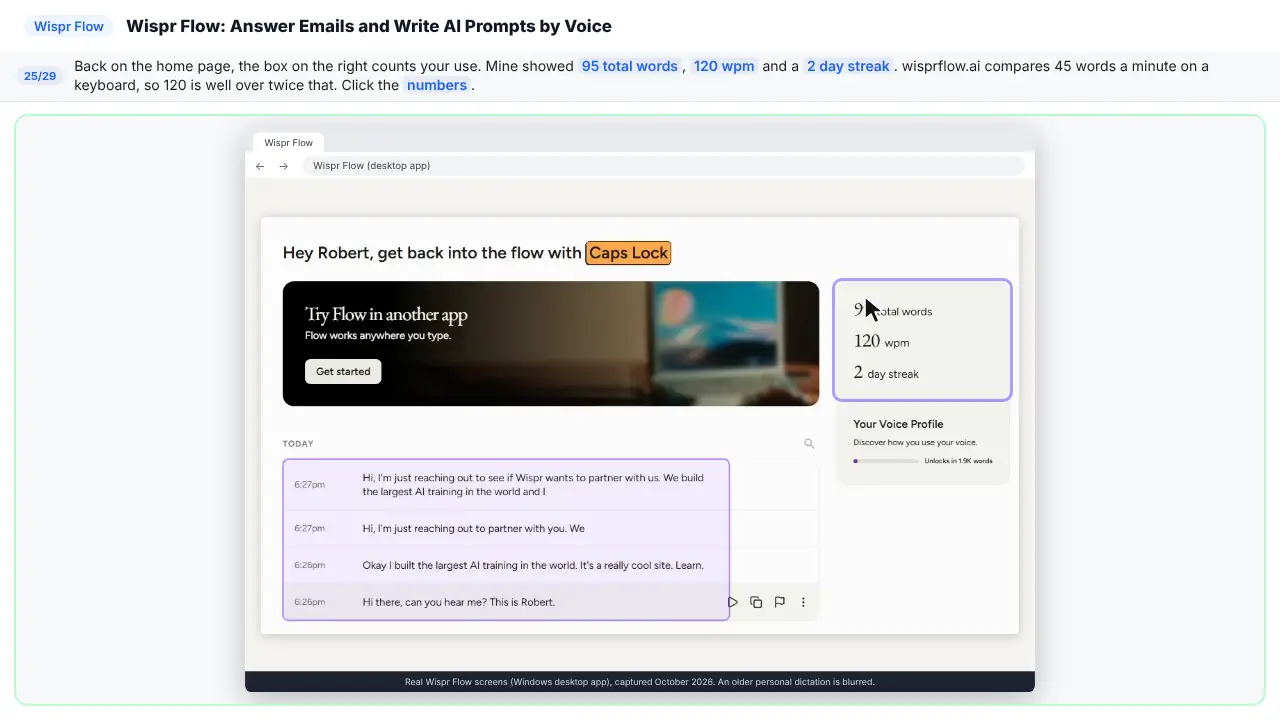
Back on the home page, Flow counts your use. Mine says one hundred twenty words a minute. Flow's own site puts keyboard typing at forty five.
Step 26: Find past dictations
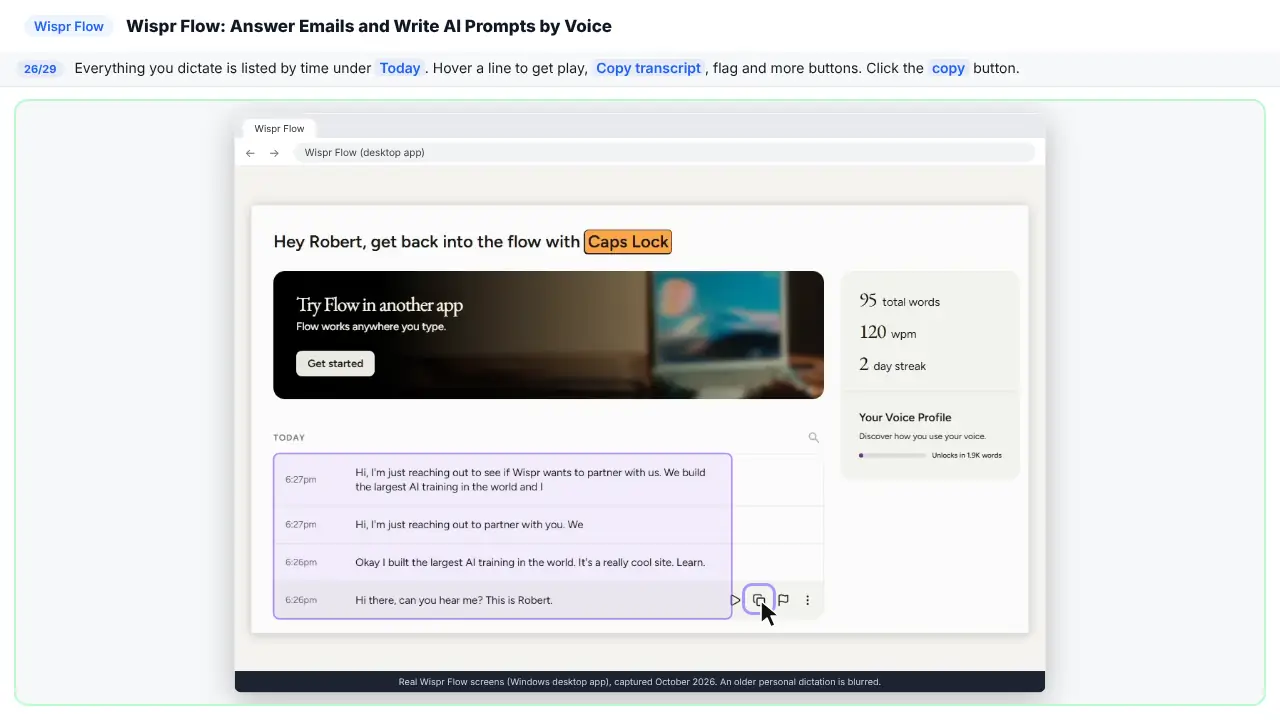
Everything you dictate is saved here, by time. Hover a line, and you can copy it again.
Step 27: Look in Insights
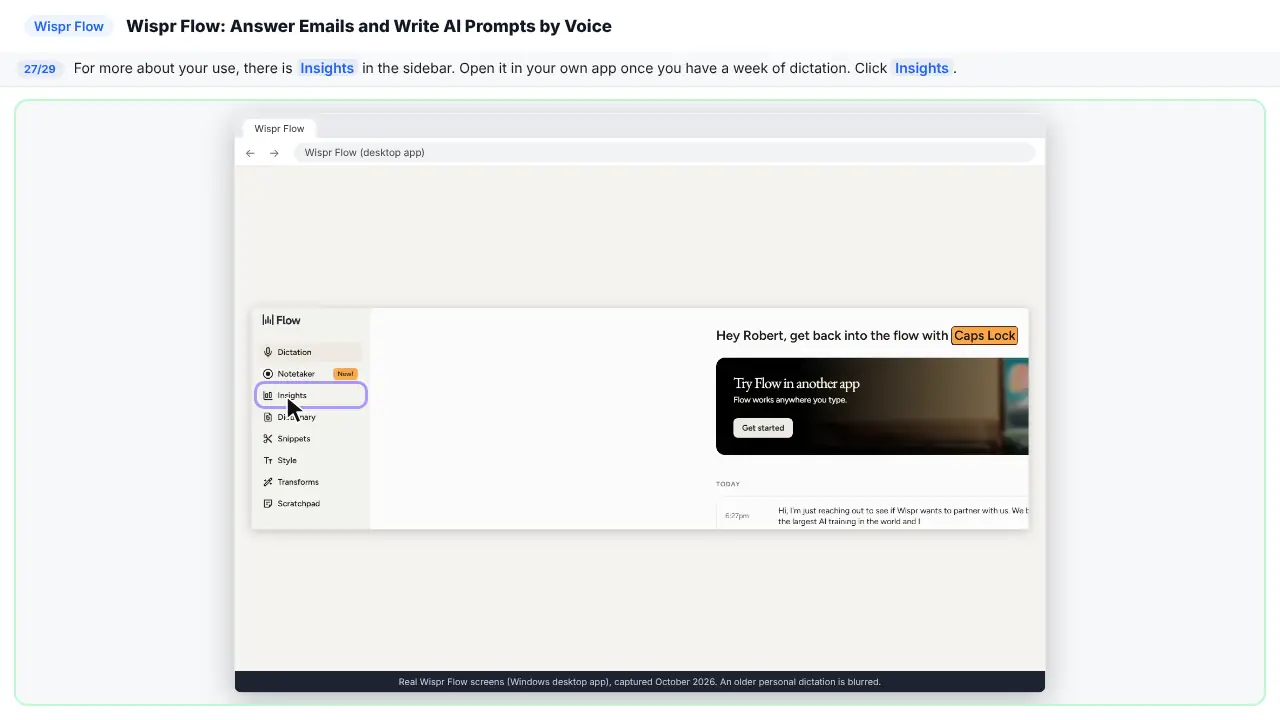
For more on how you use it, there's Insights in the sidebar.
Part 9: What it saves, and doing it for real
Step 28: What this saves you
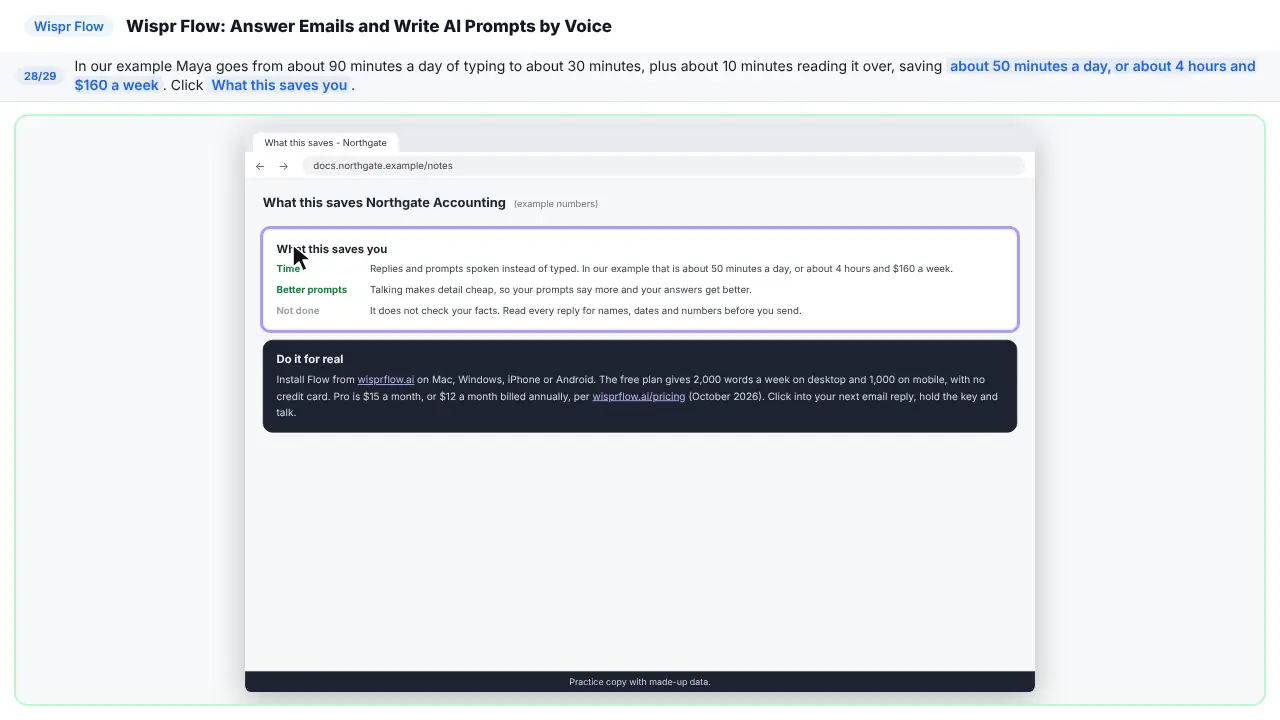
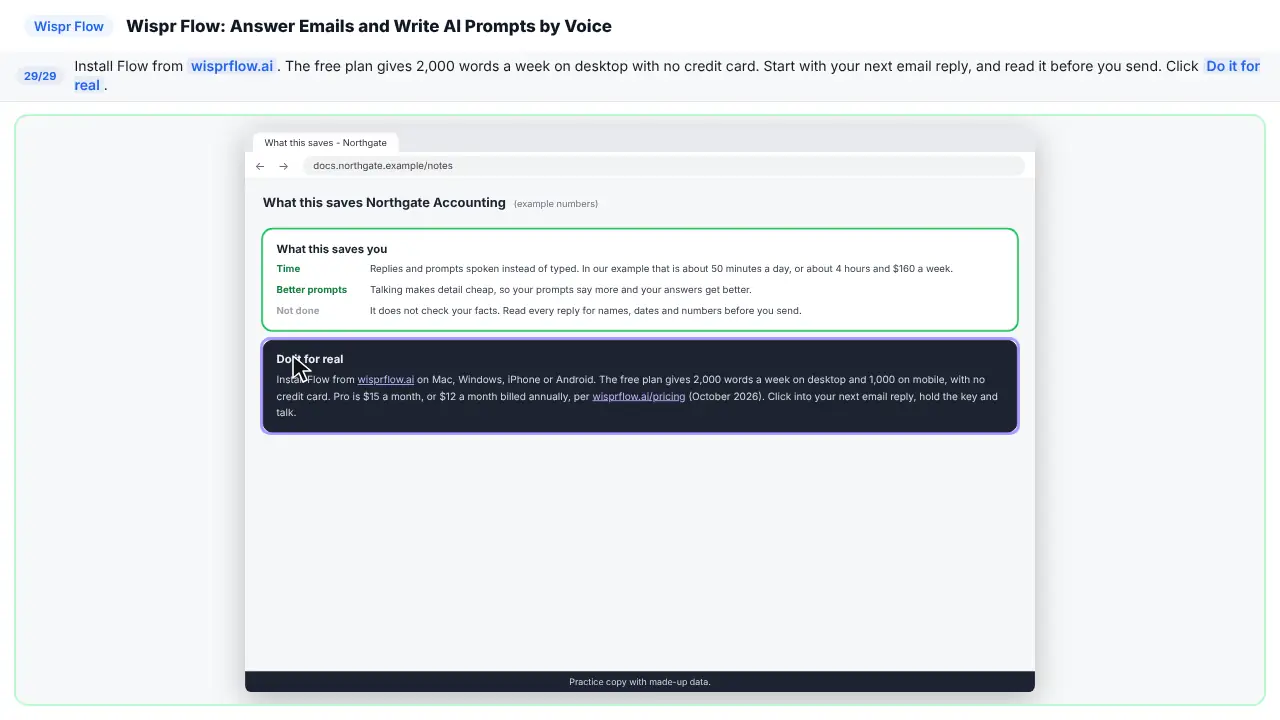
So here's what this saves you. Close to an hour a day of typing. Just keep a few minutes to read before you send.
Step 29: Do it for real
Ready to try it? Get Wispr Flow at wispr flow dot A I. The free plan gives you two thousand words a week on desktop. Start with your next email reply.
Part of these free courses: AI at Work: Start Here, AI Apps Worth Knowing, Turn Talk Into Work: Voice and Meetings AI
Now do it yourself, free
Reading the steps is a start. Doing them is how it sticks. The interactive lesson puts you in a practice copy of Wispr Flow: you do every step yourself, it checks your work, and “Do it for me” finishes any step you get stuck on. Nothing touches your real accounts.
Practice “Wispr Flow: Answer Emails and Write AI Prompts by Voice” step by step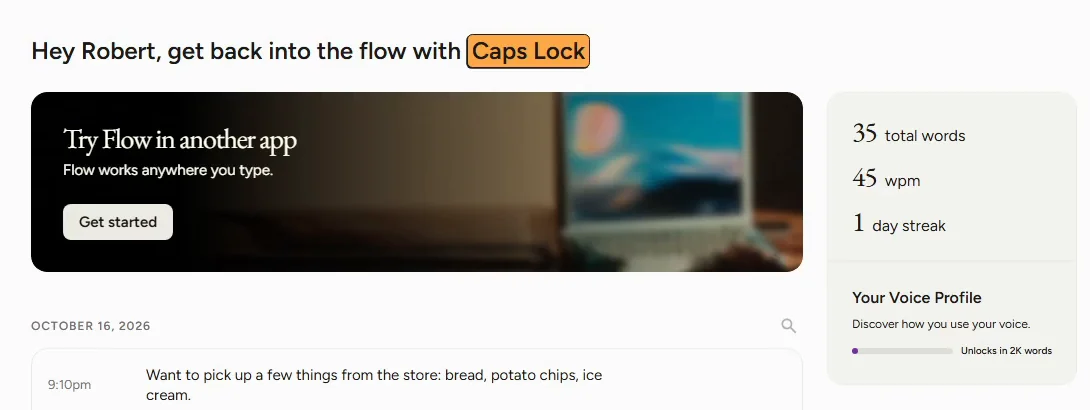
The business case: typing is the slow part
Picture Maya Chen, who runs the office at Northgate Accounting, a made-up firm. Every day she answers about 40 client emails and writes prompts for ChatGPT. She knows what to say. Typing it out, fixing typos and adding punctuation is what takes the time.
Here is the arithmetic, using example numbers you should replace with your own. Typing replies and prompts takes about 90 minutes a day. Speaking the same words takes about 30 minutes, plus about 10 minutes to read them over. At $40 an hour that saves about 50 minutes a day, or about 4 hours and $160 a week. Wispr Flow's site says it is 4x faster than your keyboard, and in my own account the home page showed 120 words a minute.
Who this is for, and what you need
Office managers, assistants, account managers and anyone who writes email and AI prompts all day. To follow along you need nothing: the lesson is a practice copy. To do it for real you need Wispr Flow installed from wisprflow.ai and a microphone.
Step 1: find your key
Open Flow. On my Windows PC the home page says "Hey Robert, get back into the flow with Caps Lock", so Caps Lock is the key you hold to talk. Check which key yours names. The banner below says "Try Flow in another app. Flow works anywhere you type." Click Get started.
Flow asks "How would you like to use Flow first?" with Chat with AI, Take a note, Write a message, Draft an email, Write a post or comment, Write a document and Prompt Cursor or Windsurf. Pick Draft an email and watch the short demo: speech turns into a formatted email with a numbered list. Click Try it now, and Flow shows "Try dictating by holding Caps Lock instead of typing", then "Next step: Open your email inbox".
Step 2: answer a client email by voice
Open the email and click Reply, so your cursor is in the reply box. Flow types wherever your cursor is. Hold the key and say the reply the way you would say it out loud, for example: "um hi Dan, yeah no problem at all, uh how about Tuesday at 2, no wait, Wednesday at 2...". Let go when you finish.
wisprflow.ai says Flow removes filler words, adds punctuation, formats your writing and catches self-corrections, so "Tuesday, no wait, Wednesday" should come out as just Wednesday. Read the reply before you send it and check names, days and numbers.
Step 3: speak your AI prompts
Prompts are where talking pays off most, because good prompts are long. Click into the ChatGPT box, hold the key and explain the job like you would to a coworker: who it is for, what to include, how long. Let go and send. You get more detail in a few seconds than most people bother to type.
Step 4: when there is no text box
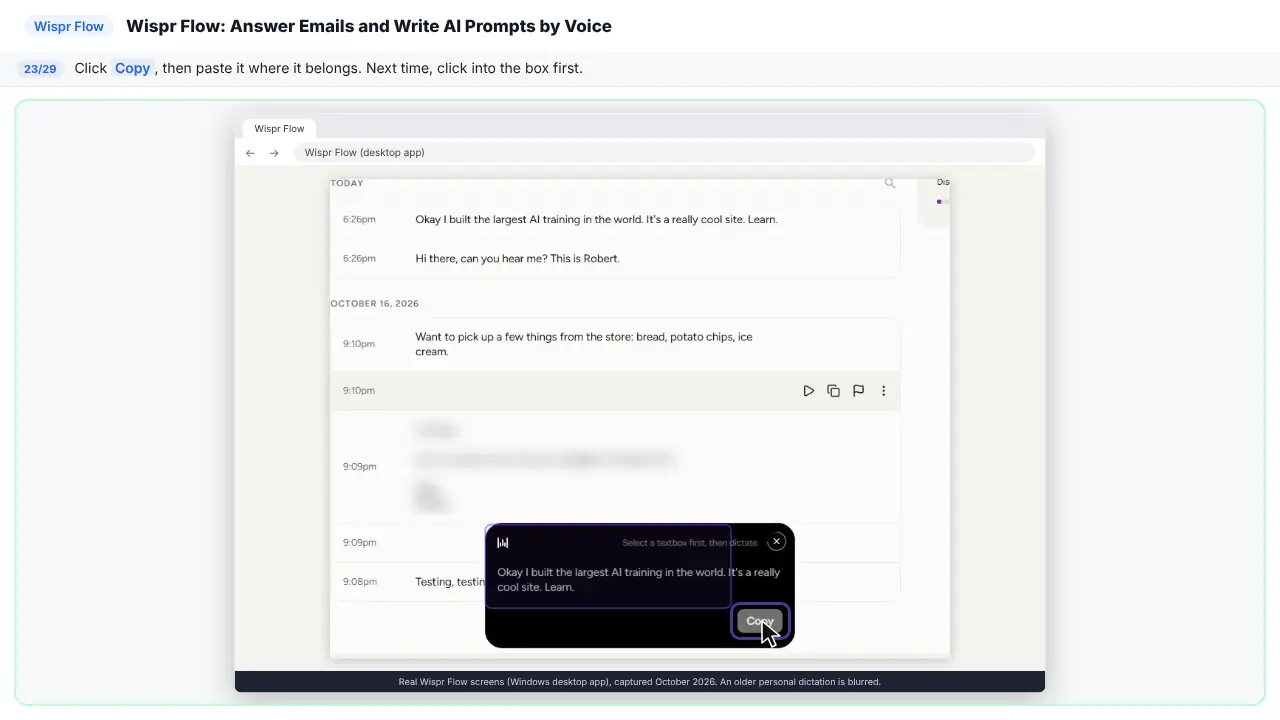
If you talk without a text box selected, Flow shows "Select a textbox first, then dictate" with your words and a Copy button. Click Copy and paste it where it belongs. Every dictation is also listed by time on the home page, where hovering a line shows a Copy transcript button.
Step 5: teach it your words, and check your numbers
Client names and firm terms are what voice tools get wrong most. wisprflow.ai says Flow learns your unique words and names automatically, or lets you add them yourself. Open Dictionary in the sidebar and add the names you say every day.
The home page counts your use: mine showed 95 total words, 120 wpm and a 2 day streak. There is also Insights in the sidebar.
Mistakes to avoid
- Talking before you click into the box. Click first, then hold the key.
- Sending without reading. Flow cleans up how you speak, not what you say.
- Skipping the Dictionary. Add client names once and stop fixing them.
- Dictating confidential details in a room full of people. Think about who can hear you.
Links
- Wispr Flow: the voice dictation app this lesson teaches. It runs on Mac, Windows, iPhone and Android.
- Wispr Flow pricing: current plans. Free gives 2,000 words a week on desktop and 1,000 on mobile with no credit card. Pro is $15 a month, or $12 a month billed annually (read 18 October 2026).
- Wispr Flow news story: what Wispr Flow is, its Notetaker, platforms and security claims.
- Voice and audio AI tools: Wispr Flow in the AI tools directory.
Try it yourself, free
Reading the steps is a start. Doing them is how it sticks. The interactive module walks you through every click in a practice copy of Wispr Flow, checks each step, and never touches your real accounts.
Start “Wispr Flow: Answer Emails and Write AI Prompts by Voice”Screenshots
Frequently asked questions
- Is this an official Wispr Flow course?
- No. This is my own lesson. Wispr Flow is a separate, third-party product. The Flow screens are real screenshots from my own Flow on Windows, captured October 2026, and Gmail and ChatGPT are practice copies.
- Is Wispr Flow free?
- It has a free plan with 2,000 words a week on desktop and 1,000 a week on mobile, and the pricing page says you never need a credit card to start. Pro is $15 a month, or $12 a month billed annually, as of 18 October 2026.
- Does Wispr Flow work in Gmail and ChatGPT?
- Yes. wisprflow.ai says Flow types wherever your cursor is, so it works in every app on your computer with no setup, and it names Gmail, Slack, Notion and ChatGPT among them.
- Which key do I hold to dictate on Windows?
- On my Windows PC the Flow home page named Caps Lock. Hold it while you talk and let go when you finish. Check the key your own Flow home page shows.
- Will it get names right?
- Check them every time. Flow learns your words as you use it, and you can add names yourself in the Dictionary.
Terms in this lesson
Plain-English definitions, each with an example from a free lesson.