Updated . Built against the tool’s current screens and checked step by step. How we check this lesson
Lamps left on overnight waste power, and in a small office someone always ends up checking, or asking who was last out. Home Assistant is free, open-source software that runs your lights, sensors and other devices on rules you set. In this free lesson on real Home Assistant screens, the office manager at a made-up architecture studio builds one rule: at 6 PM on weekdays, turn off the reception and studio lamps, then post a notification. You save it, test it without waiting for 6 PM and read it as YAML. 29 steps, about ten minutes, in the public demo with no account and no install.
At a glance
| Question | Answer |
|---|---|
| What you build | Lamps left on overnight waste power, and someone always has to check. Build a Home Assistant automation that switches the office lamps off at 6 PM on weekdays and posts a notification, on real screens from the free public demo, then test it without waiting for 6 PM. |
| Tools | Home Assistant |
| Time | About 10 minutes, 29 steps in 4 parts |
| Level | Beginner, no coding needed |
| Cost | Free |
| Ways to learn it | Practice it step by step |
The 4 parts, in short
- Open the automation editor: Count what the lamps cost you, Open Settings, Open Automations & scenes, Create an automation.
- When: 6 PM on weekdays: Add a trigger, Pick Time, Choose the Time trigger, Set the closing time, and 4 more steps.
- Then: lamps off and a notification: Add an action, Search for the action, Pick Light: Turn off light, Choose which lights, and 6 more steps.
- Save it and check it: Save the automation, Name it, Save it, Open the menu to test it, and 3 more steps.
Start here first: Build an AI Vendor Follow-Up Agent in n8n (module 1 of AI Automation for Operations)
Part of: AI for Operations Teams (step 45 of 45)
Part of: AI Apps Worth Knowing (step 184 of 186). Next up: JupyterLab: Clean a Messy Sales Export and Chart Monthly Revenue
The business case: closing time without the last-person-out job
Picture Priya, office manager at Northline Architects, a made-up 12-person architecture studio. Whoever leaves last is usually still drawing, so the reception and studio lamps stayed on 19 nights in the last two months, and about four times a week someone asks whether anyone switched them off.
A rule that runs at the same time every weekday takes that job away. Home Assistant checks the clock, switches the lamps off and posts a message, so Priya knows it happened without walking back to the office.
Who this is for, and what you need
Office managers, property managers and small-business owners whose lights or plugs are already smart, or who are thinking about it. The practice runs in your browser with no account. Everything in the lesson was done in Home Assistant's public demo at demo.home-assistant.io, which needs no account and no install. To run it for real you need Home Assistant on a small computer in the office and lamps or plugs it can control. Home Assistant itself is free and open source.
The automation as YAML
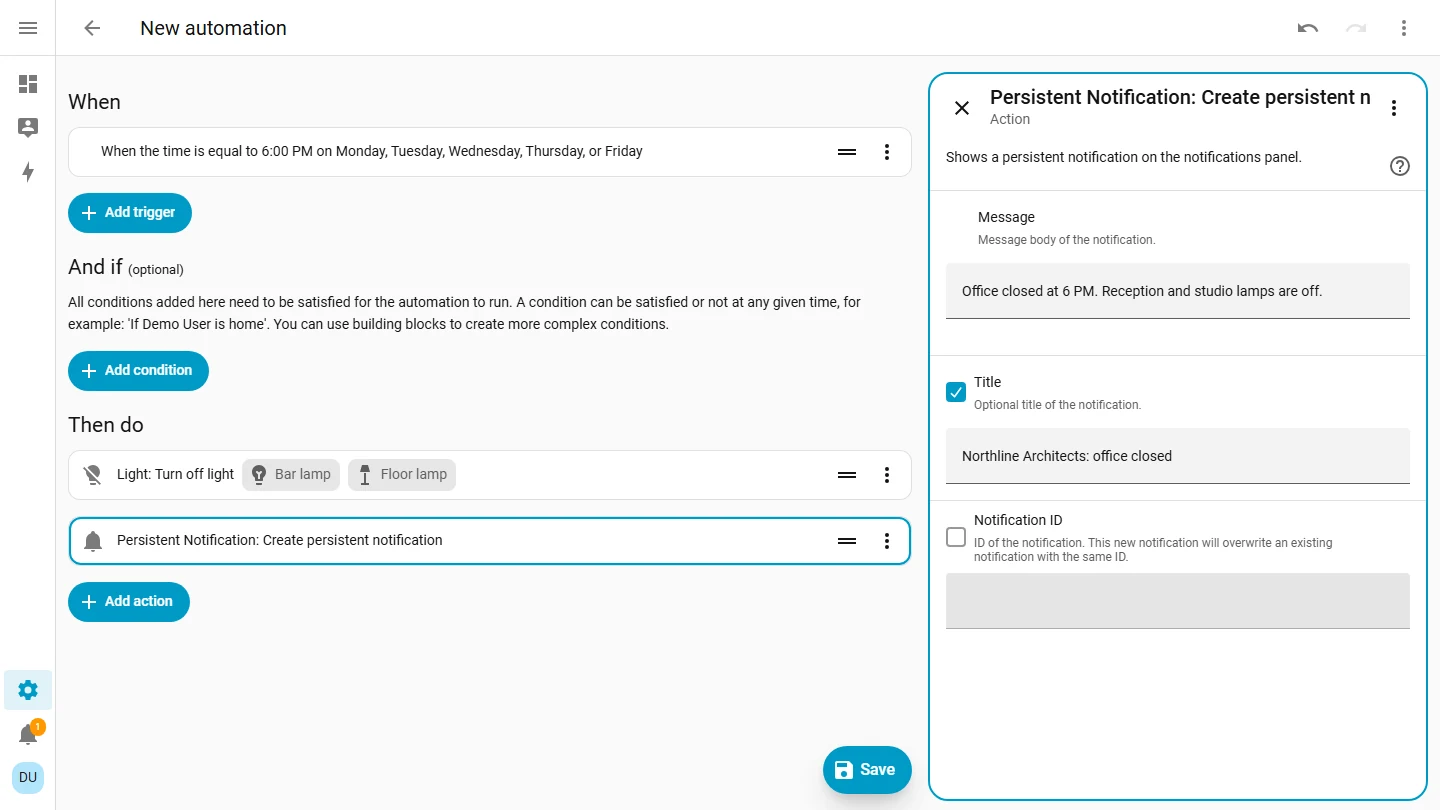
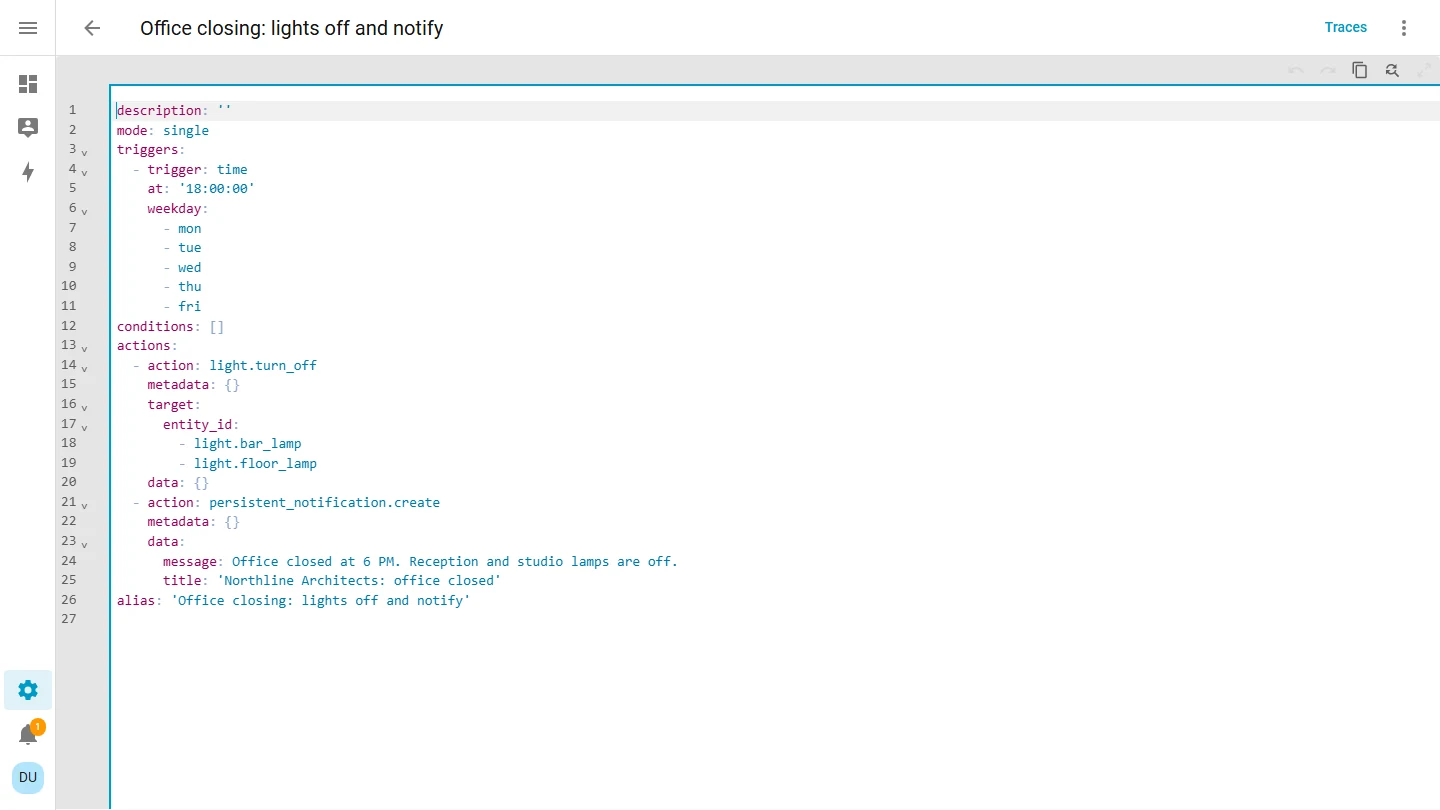
Edit in YAML showed this, unchanged: a time trigger at '18:00:00' with weekday mon, tue, wed, thu and fri; an action light.turn_off with target entity_id light.bar_lamp and light.floor_lamp; and an action persistent_notification.create with the message "Office closed at 6 PM. Reception and studio lamps are off." and the title "Northline Architects: office closed". The alias is the name you typed. You can paste YAML like this into another Home Assistant, or keep it with your office notes.
Things we ran into
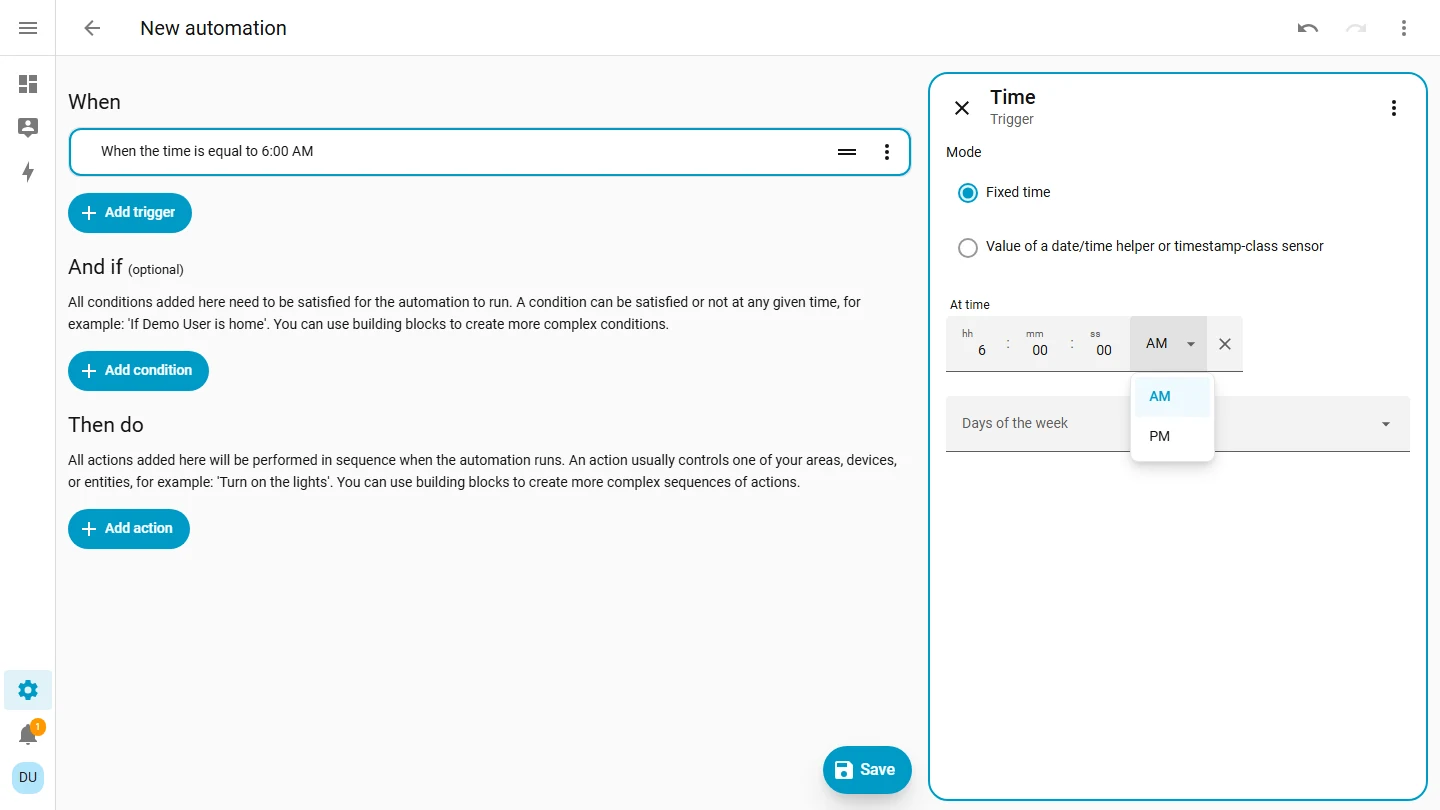
- The time box is 12-hour. After typing 6, 00 and 00 it still said AM, so switch it to PM, or your lamps go off at 6 in the morning.
- Light: Turn off light starts with No target set, which does nothing. Add every lamp, or a whole area, with Add target.
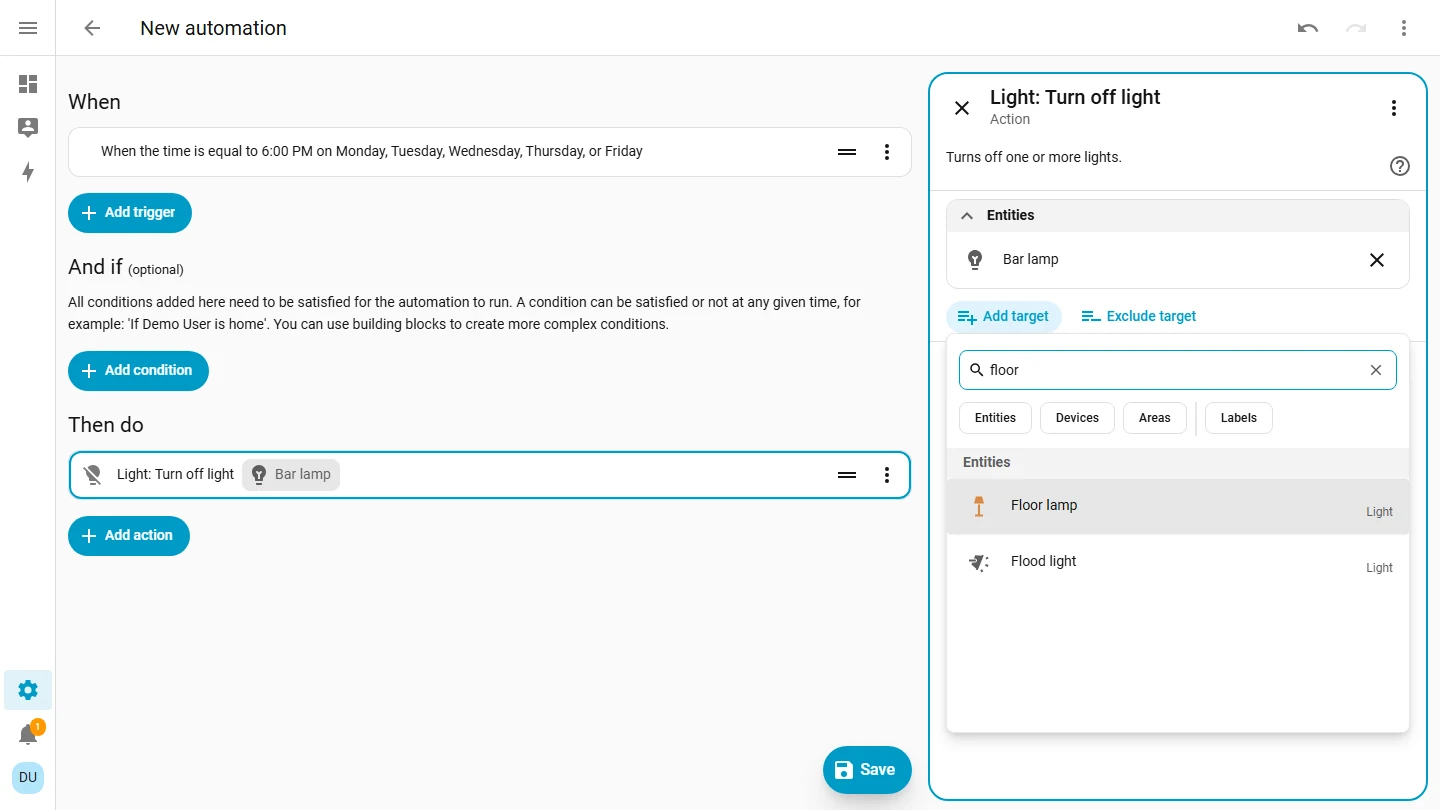
- Searching floor also finds Flood light. Read the names before you click.
- The trigger line shows times in your profile's time zone. Our first try showed 9:00 PM because the demo's server is in a different zone from our browser; the YAML still said 18:00:00. On your own system, set the time zone under Settings, System, General.
- The public demo saved the automation and logged the test run, but its lamps are pretend, so they did not switch off. Test once on your own system.
What this saves you
- The last-person-out check every weekday evening.
- The "did anyone turn the lights off?" messages.
- The power of lamps left on all night: in our made-up studio, 14 hours of lamp time each night they were forgotten.
- What it does not do: it does not know if someone is working late. Add an And if condition, such as no motion in the studio, before you rely on it.
How this lesson was built
Every practice screen is a capture of the public Home Assistant demo at demo.home-assistant.io, taken on 24 November 2026 in Chrome with no account. We built the automation in the demo exactly as shown, saved it, clicked Run actions (the list then showed it as last triggered seconds ago) and opened Edit in YAML. The demo's lamps are not real, so the lamps-off result is not shown. We set the browser to the demo server's time zone so the trigger line reads 6:00 PM. Northline Architects and its numbers are made up.
Links
- Home Assistant demo: the public demo used in this lesson. No account, nothing to install.
- Home Assistant docs: Automating Home Assistant: triggers, conditions and actions explained.
- Home Assistant docs: Automation triggers: the Time trigger, including the weekday option.
- Home Assistant integrations: Persistent Notification: the notification action used here.
Try it yourself, free
Reading the steps is a start. Doing them is how it sticks. The interactive module walks you through every click in a practice copy of Home Assistant, checks each step, and never touches your real accounts.
Start “Home Assistant: Turn the Office Lights Off at Closing Time and Get a Notification”Step by step: Home Assistant: Turn the Office Lights Off at Closing Time and Get a Notification
All 29 steps of the interactive module, in order. In the module you watch each one, then do it yourself in a practice copy that checks your work.
1. Open the automation editor
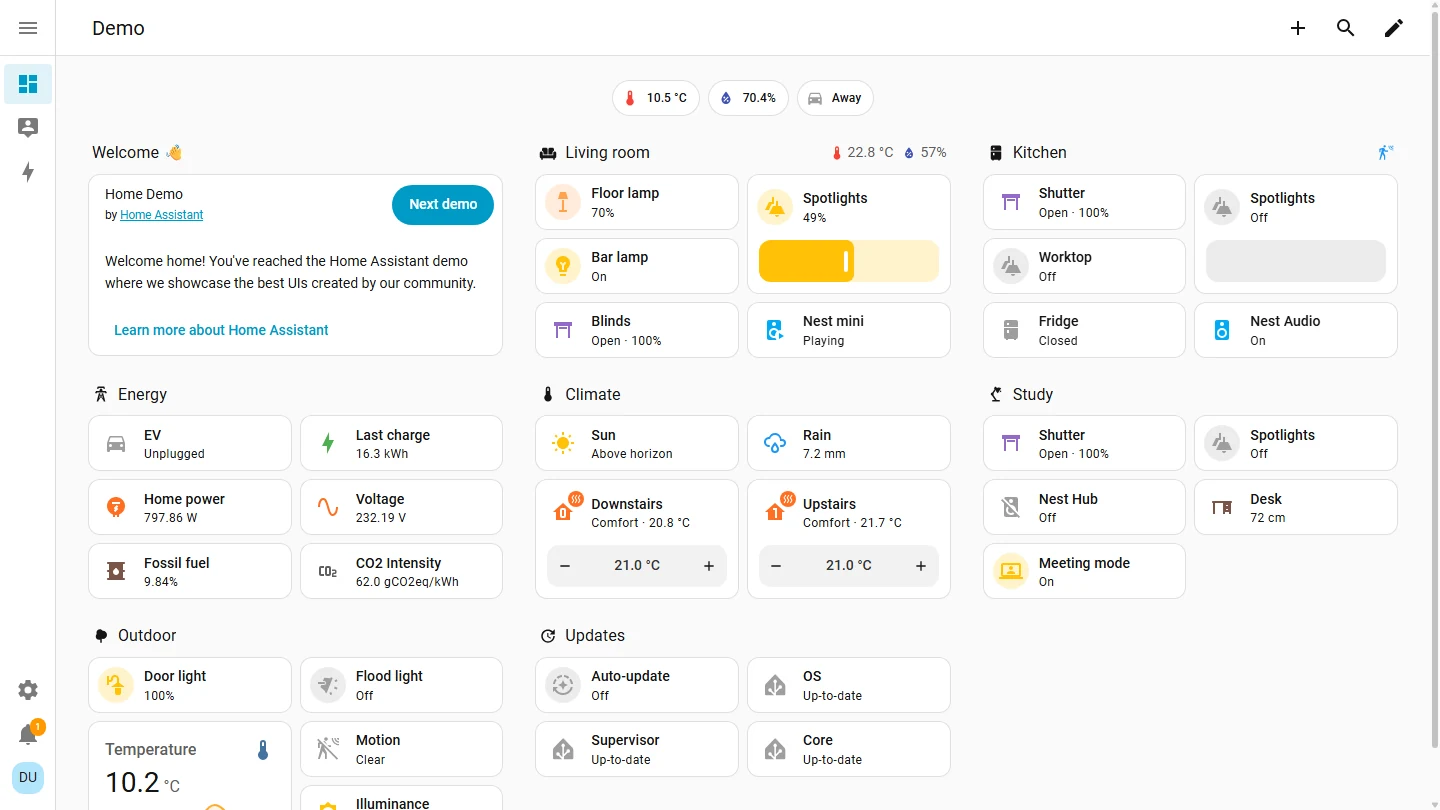
- Count what the lamps cost you. You are Priya, office manager at Northline Architects, a made-up 12-person architecture studio. Whoever leaves last is usually still drawing, and the reception and studio lamps stayed on 19 nights in the last two months. You also get a "did anyone turn the lights off?" message about four times a week. Home Assistant can switch the lamps off at closing time and tell you it happened. Click the numbers to start.
The lamps stayed on nineteen nights in two months, and you keep getting asked about it. Home Assistant can switch them off at closing time and tell you it did.
- Open Settings. This is Home Assistant's public demo at demo.home-assistant.io. It needs no account and no install, and it is set up as a home, so treat the Living room lamps as your reception and studio lamps. Floor lamp and Bar lamp are on. Click Settings, the gear at the bottom of the left sidebar.
This is Home Assistant's public demo. It needs no account. Treat the living room lamps as your office lamps.
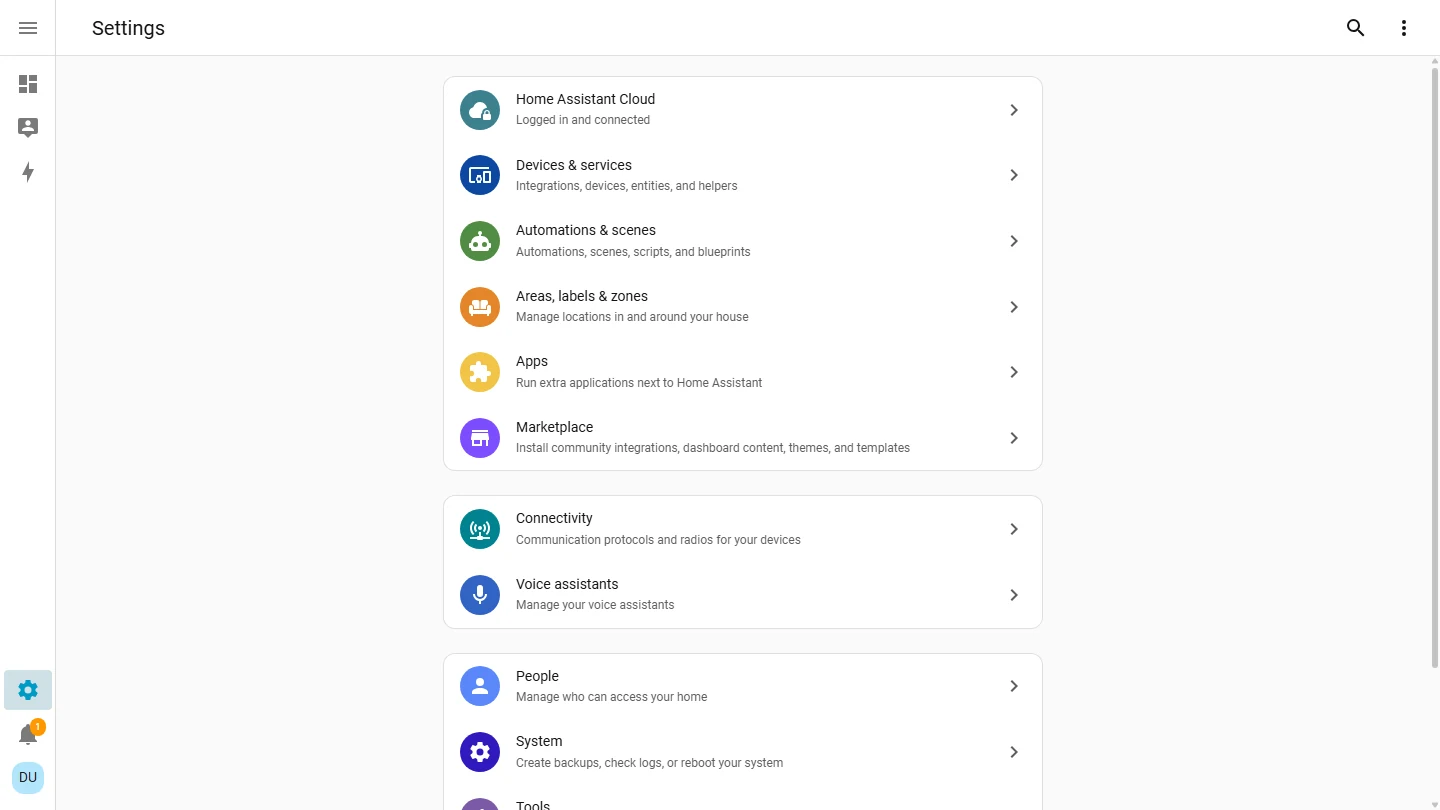
- Open Automations & scenes. Settings lists everything Home Assistant manages. Automations live under Automations & scenes. Click it.
Automations live under Automations and scenes.
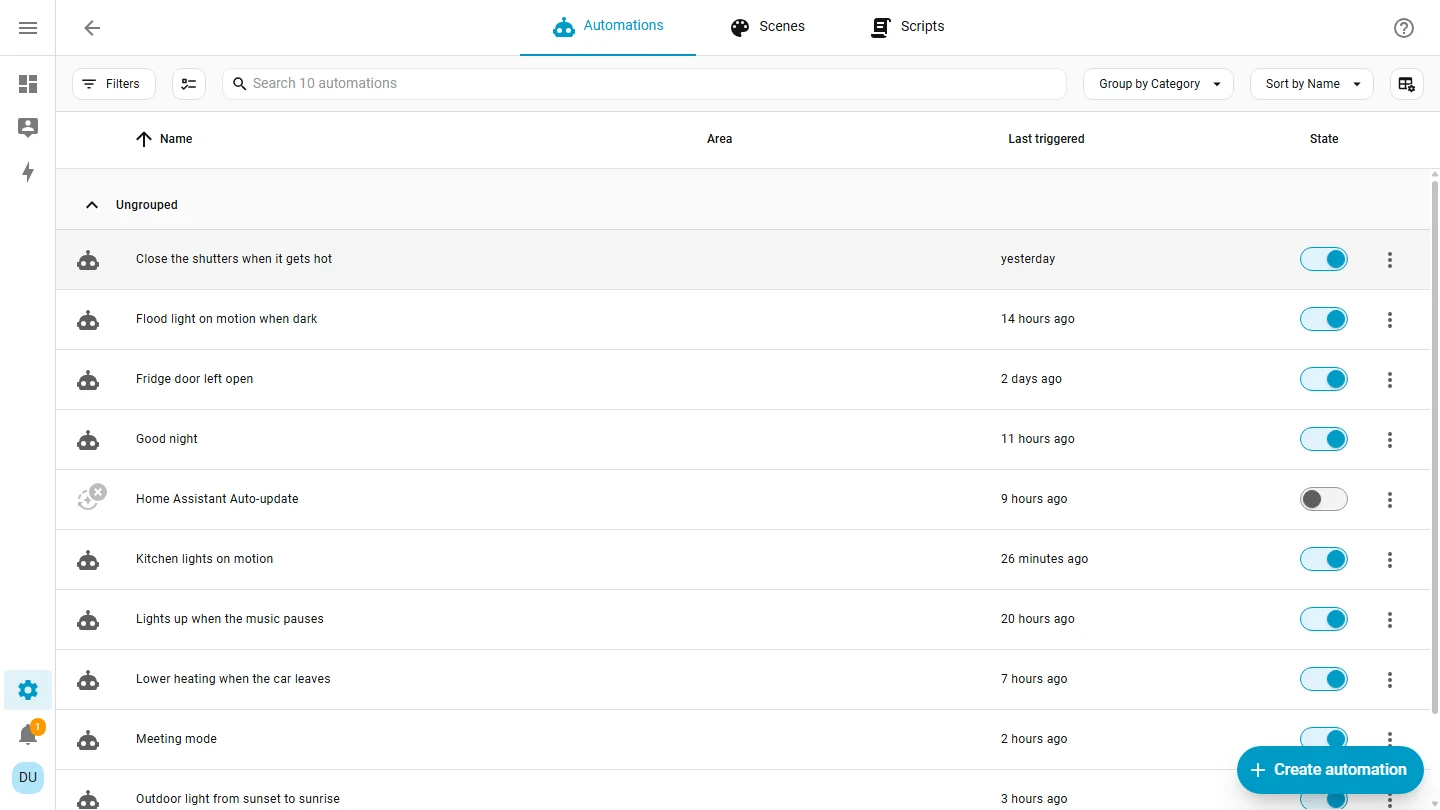
- Create an automation. The demo already has 10 automations, such as Good night and Kitchen lights on motion. Yours will join them. Click Create automation at the bottom right. On your own Home Assistant a box may ask whether to start from scratch or from a blueprint: choose Create new automation. The demo went straight to the editor.
The demo already has ten automations.
2. When: 6 PM on weekdays
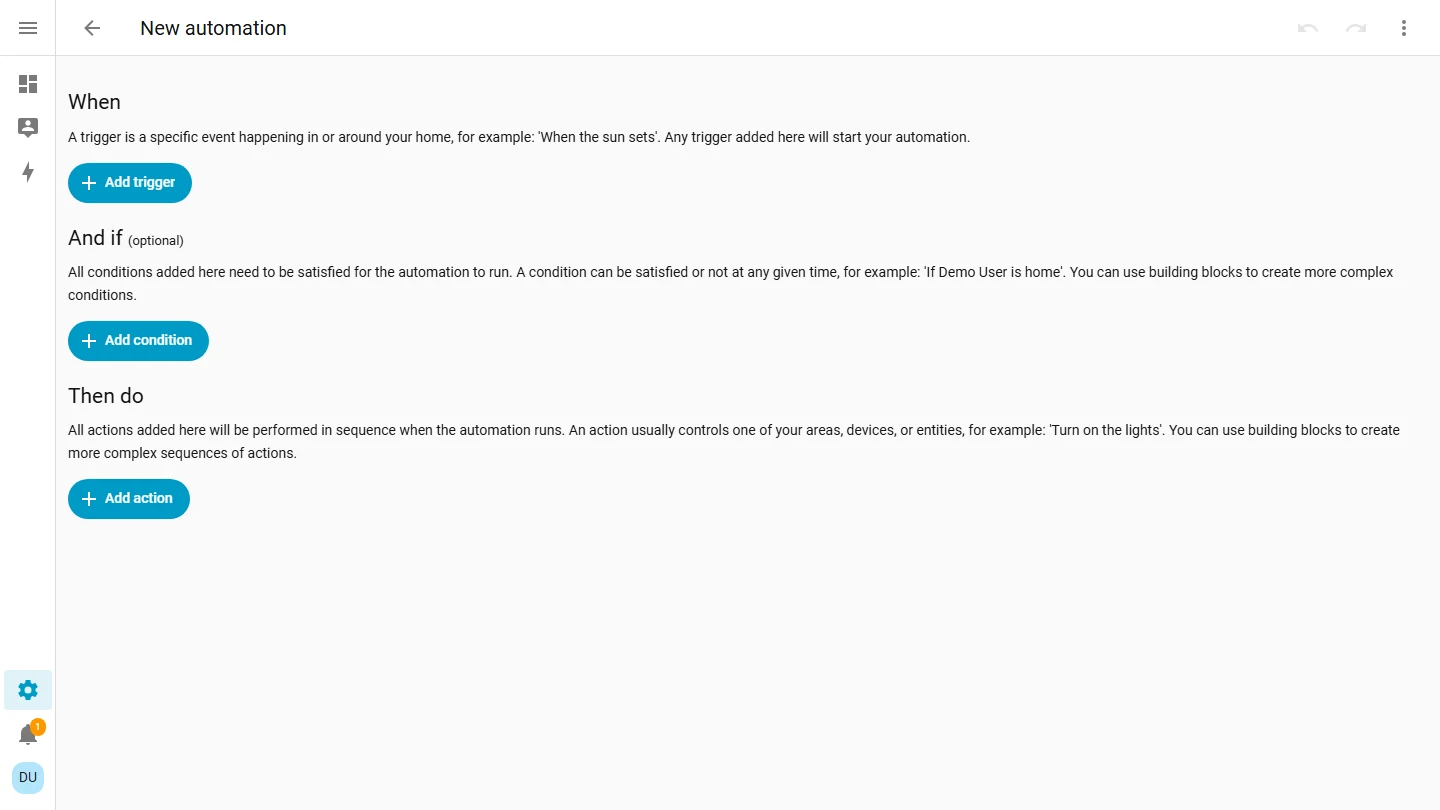
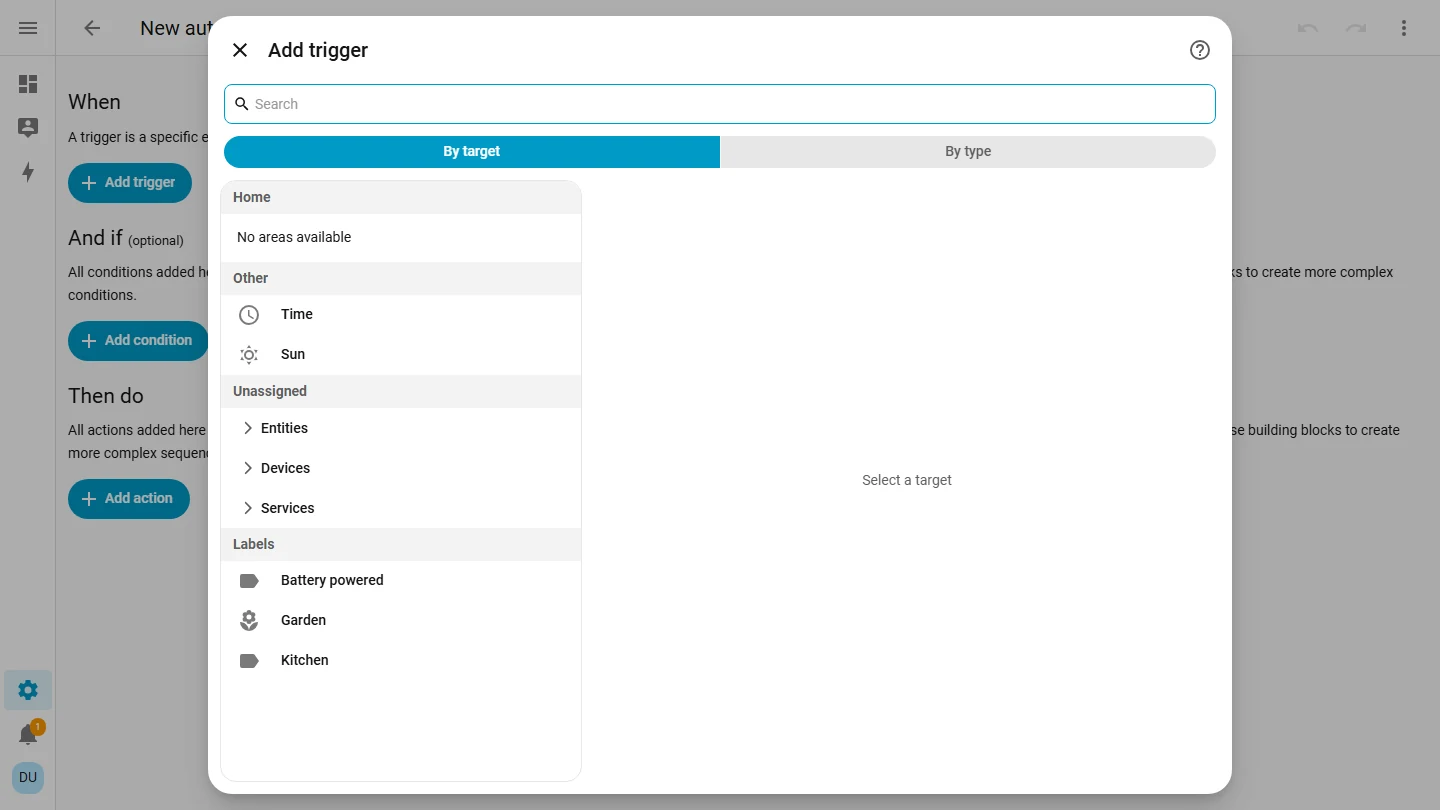
- Add a trigger. Every automation has three parts. When is the trigger, And if holds optional conditions, and Then do holds the actions. Start with when. Click Add trigger.
Every automation has three parts: when, and if, and then do. Start with when.
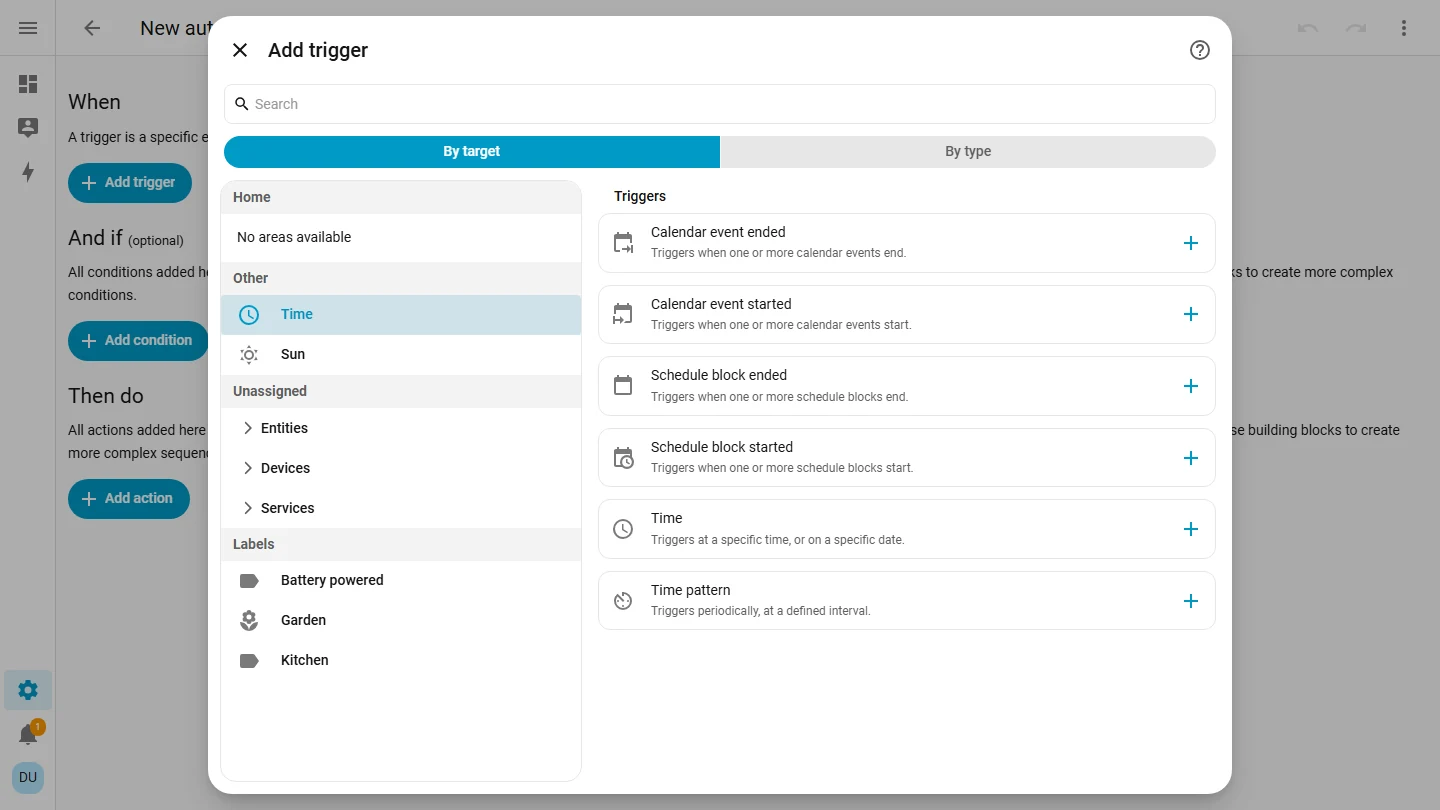
- Pick Time. The Add trigger box groups triggers by what they watch. Closing time is a clock time, so click Time under Other.
Closing time is a clock time.
- Choose the Time trigger. Six time triggers appear. Time pattern repeats on an interval, and the calendar and schedule ones follow other calendars. You want one fixed time each day. Click Time, "Triggers at a specific time, or on a specific date".
You want one fixed time each day.
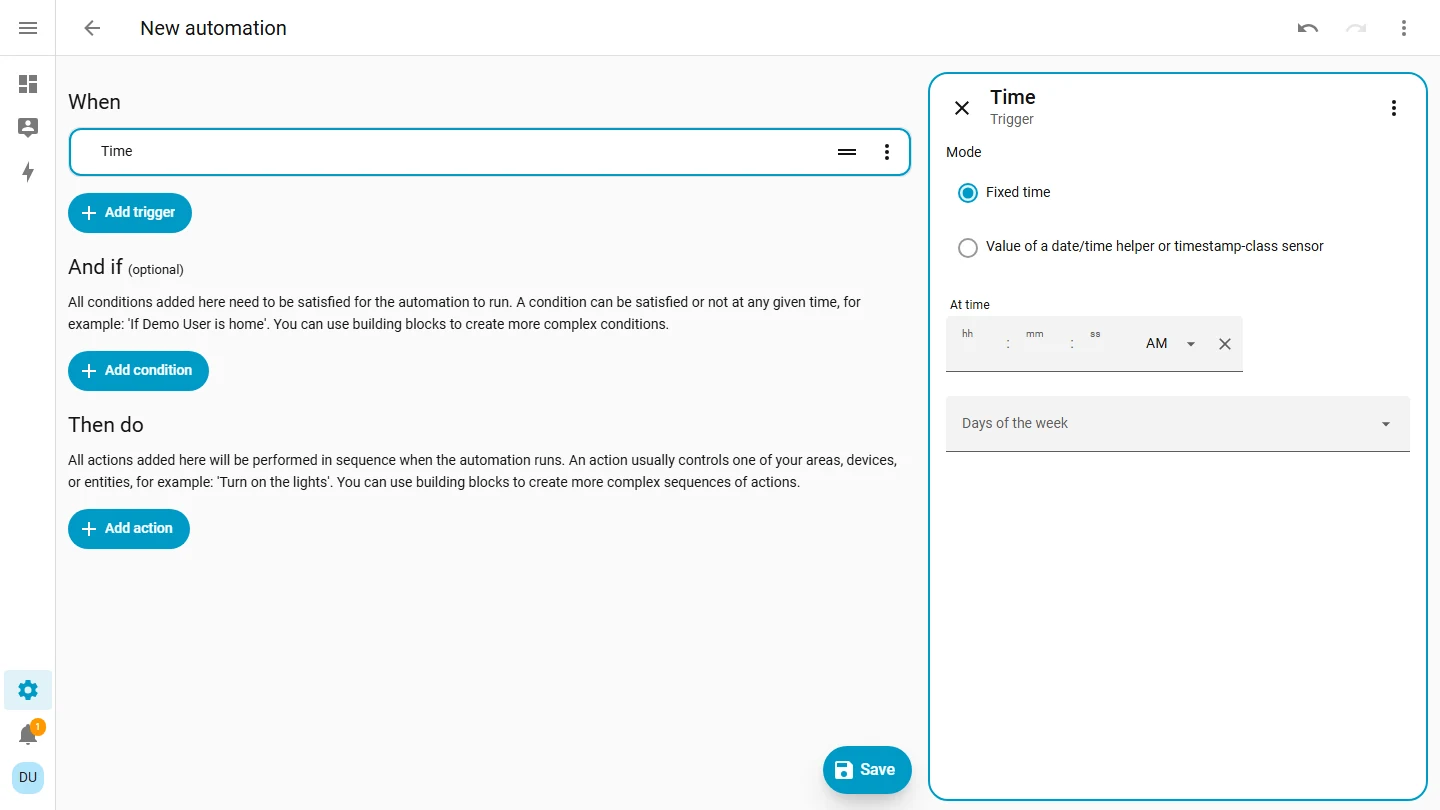
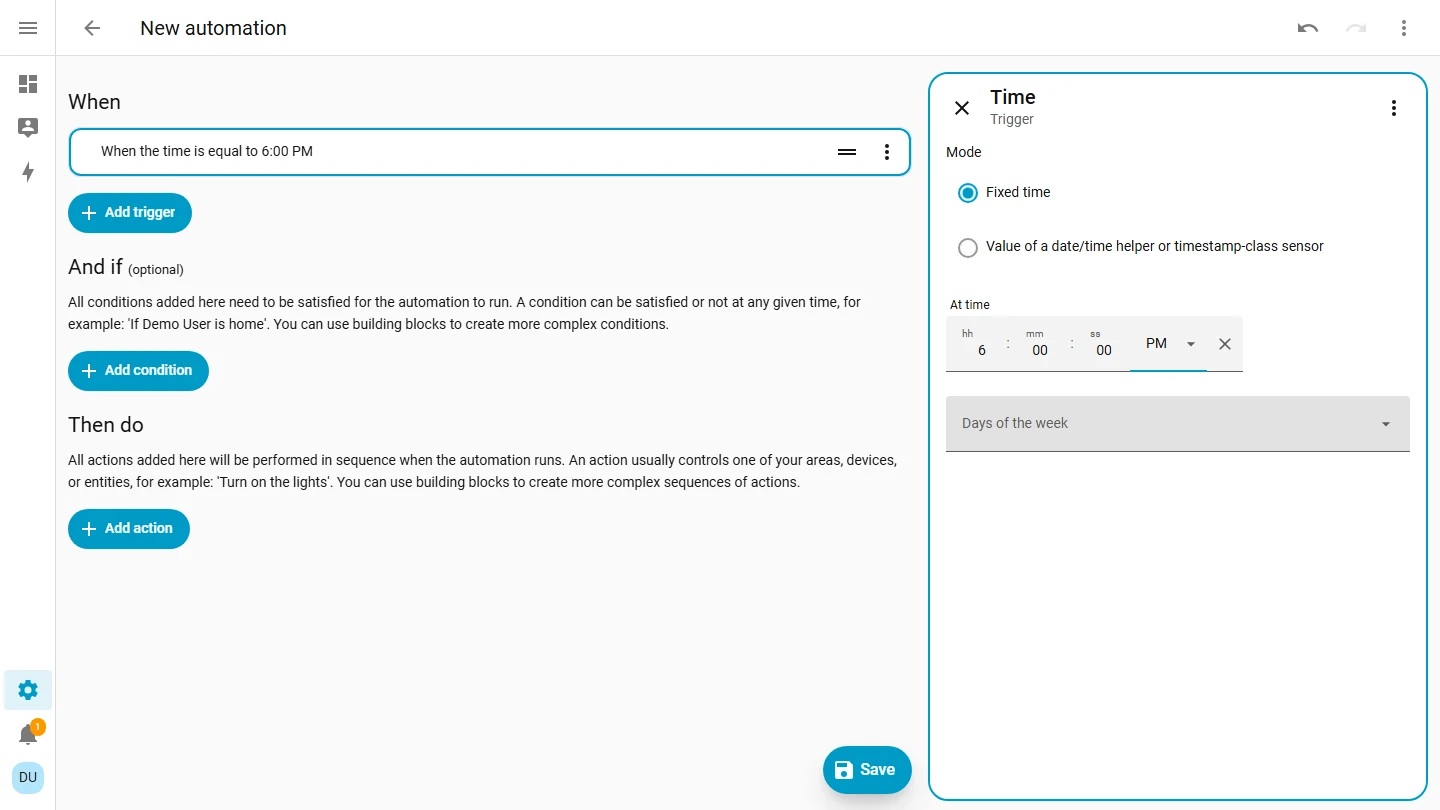
- Set the closing time. The trigger opens in a panel on the right. Mode stays on Fixed time. Under At time, type 6 in hh, 00 in mm and 00 in ss.
Mode stays on Fixed time. Under At time, type six, zero zero, zero zero.
- Switch to PM. The clock is 12-hour, so it still says AM. We clicked the AM box, and a list opened with AM and PM. Click PM.
The clock still says A M.
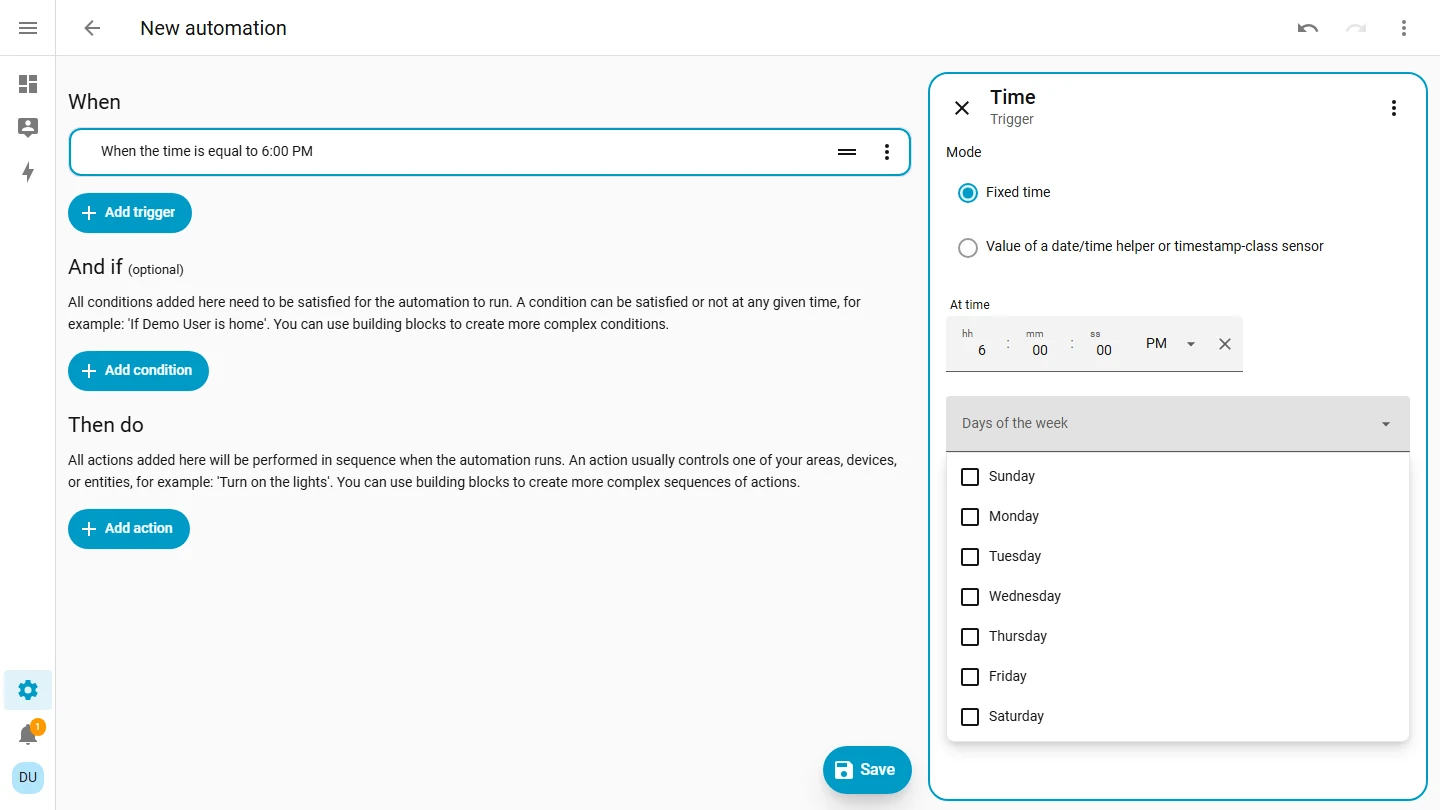
- Limit it to weekdays. The line on the left now reads When the time is equal to 6:00 PM. Nobody is in on weekends, and the lamps are already off then. Click Days of the week.
The trigger reads six P M. Nobody is in on weekends, so click Days of the week.
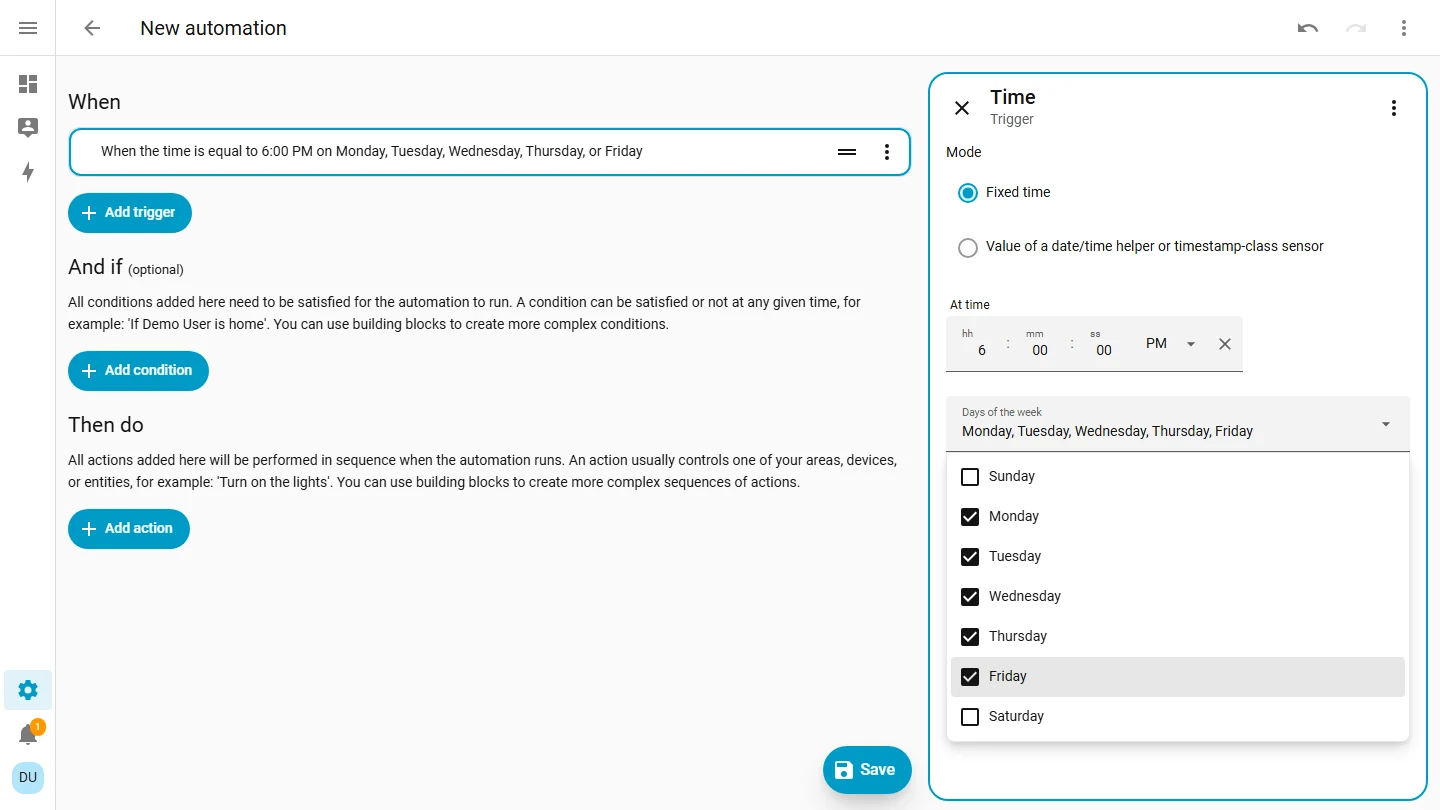
- Tick Monday to Friday. Tick Monday, Tuesday, Wednesday, Thursday and Friday. Leave Sunday and Saturday empty.
Tick Monday to Friday. Leave the weekend empty.
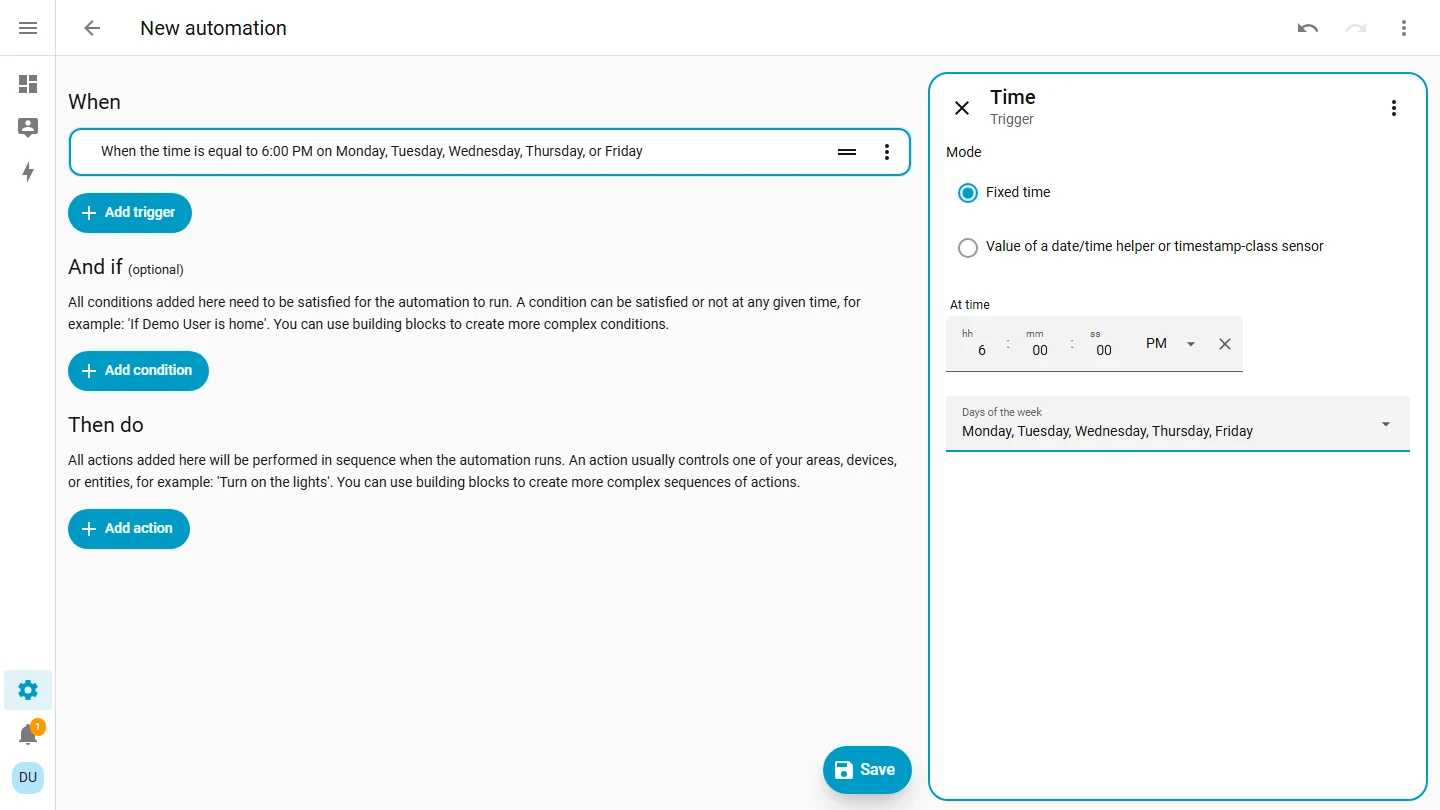
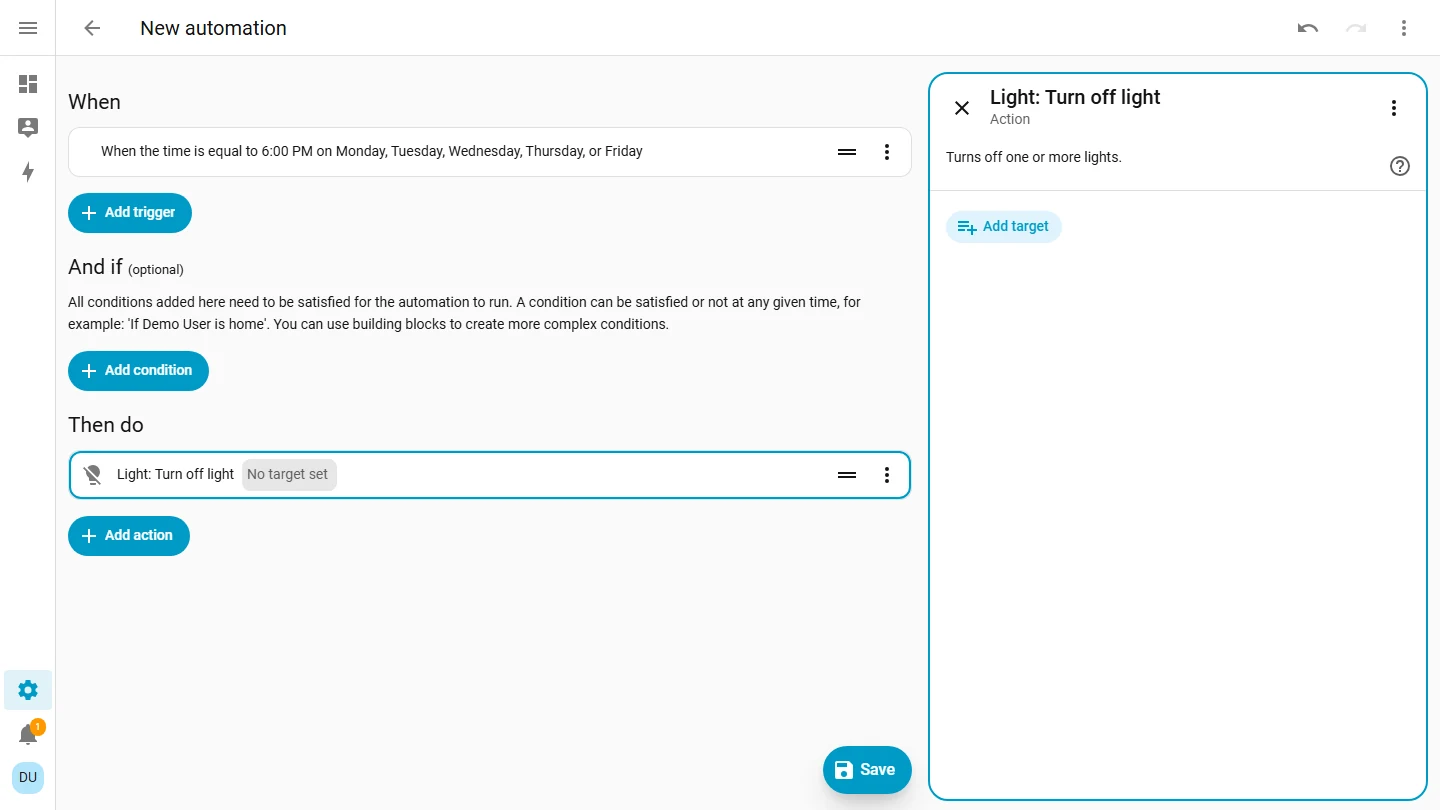
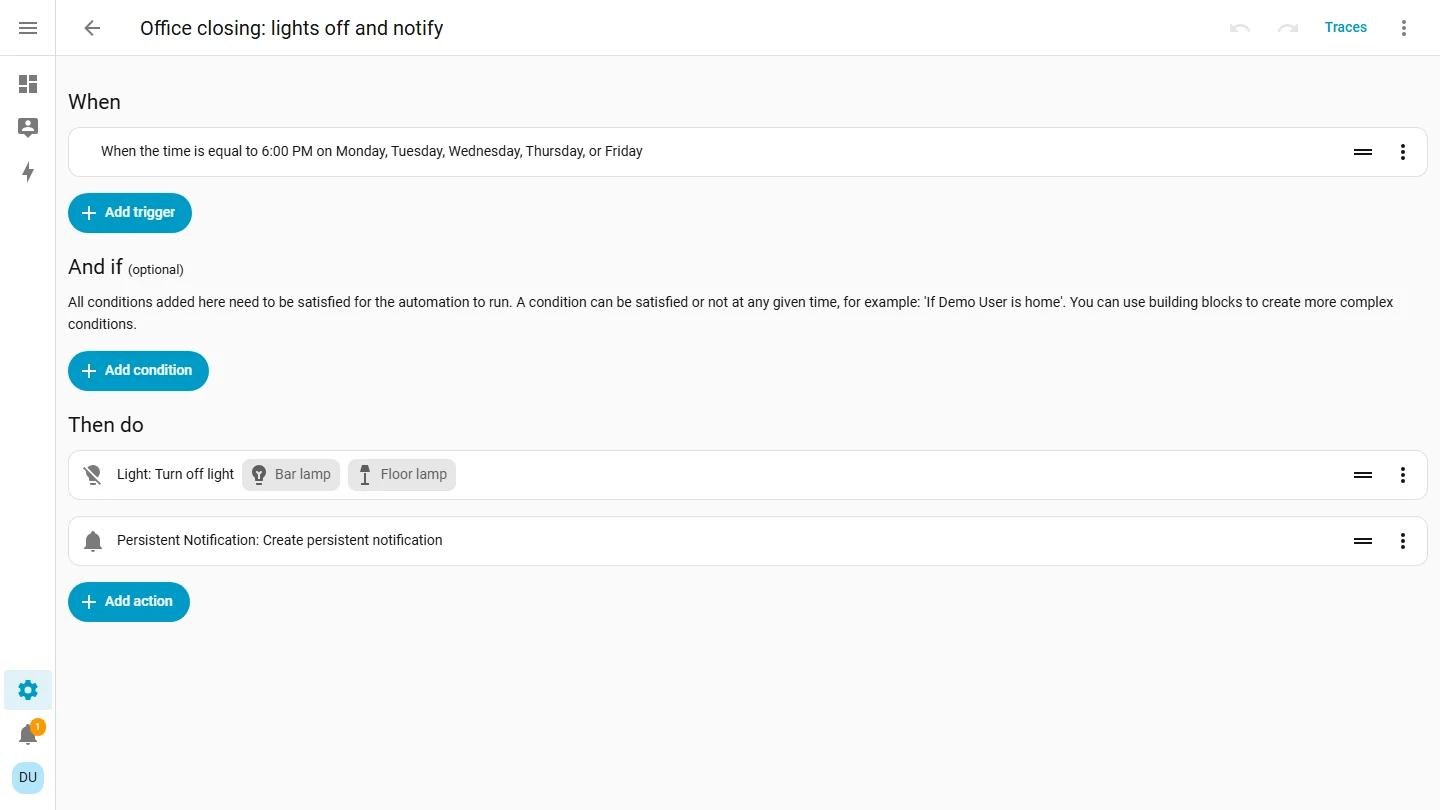
- Close the list. The trigger now reads When the time is equal to 6:00 PM on Monday, Tuesday, Wednesday, Thursday, or Friday. Read it out loud: that is your rule. Click the empty page on the left to close the list.
Read the trigger out loud: six P M, Monday to Friday. That is your rule.
3. Then: lamps off and a notification
- Add an action. Skip And if: the lamps should go off every weekday at 6 PM, no matter what. Under Then do, click Add action.
Skip And if. Under Then do, click Add action.
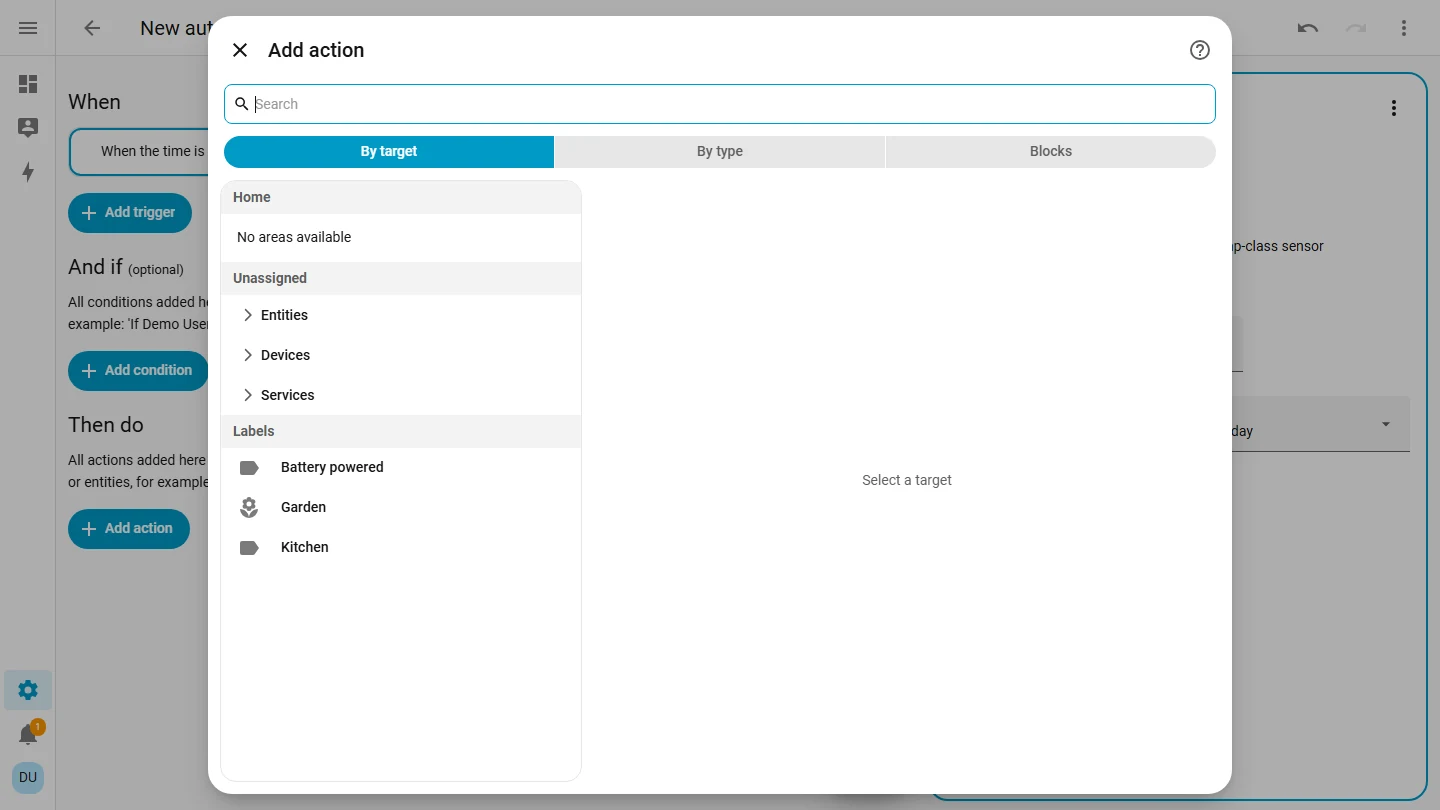
- Search for the action. The Add action box has hundreds of actions. Type light turn off in Search.
There are hundreds of actions, so search.
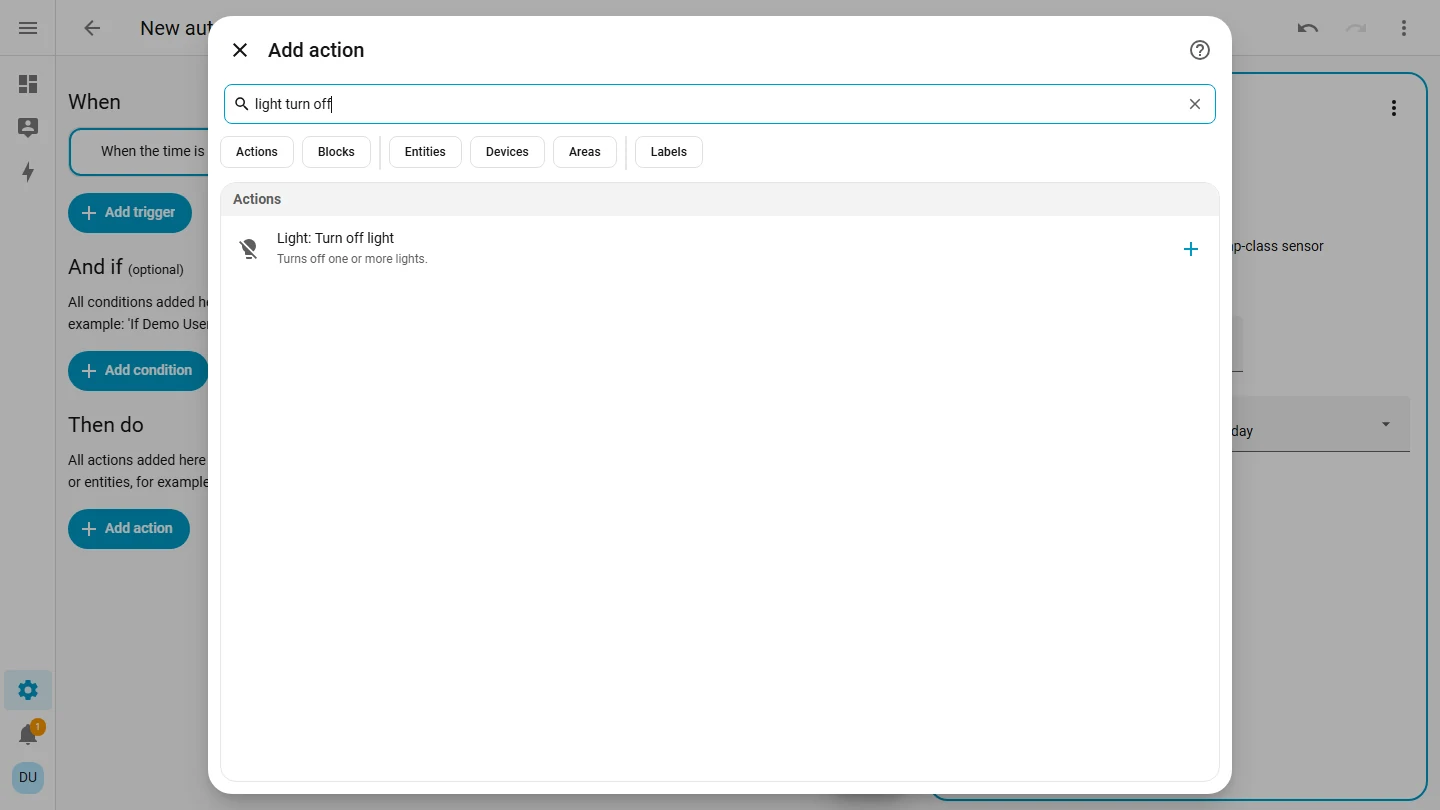
- Pick Light: Turn off light. One match: Light: Turn off light, "Turns off one or more lights." Click it.
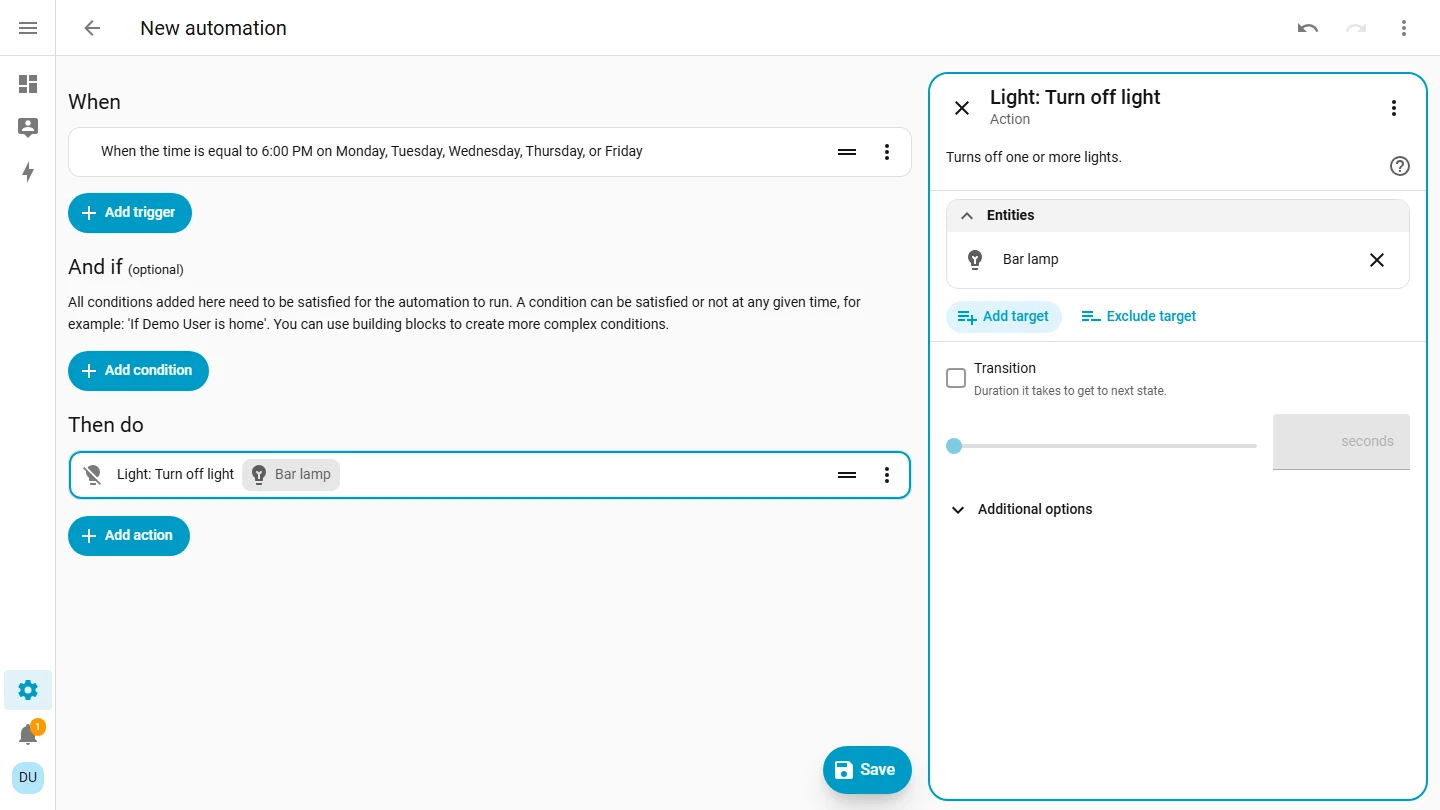
- Choose which lights. The action is on the list with No target set, which would do nothing. Tell it which lamps. Click Add target.
The action has no target yet, so it would do nothing.
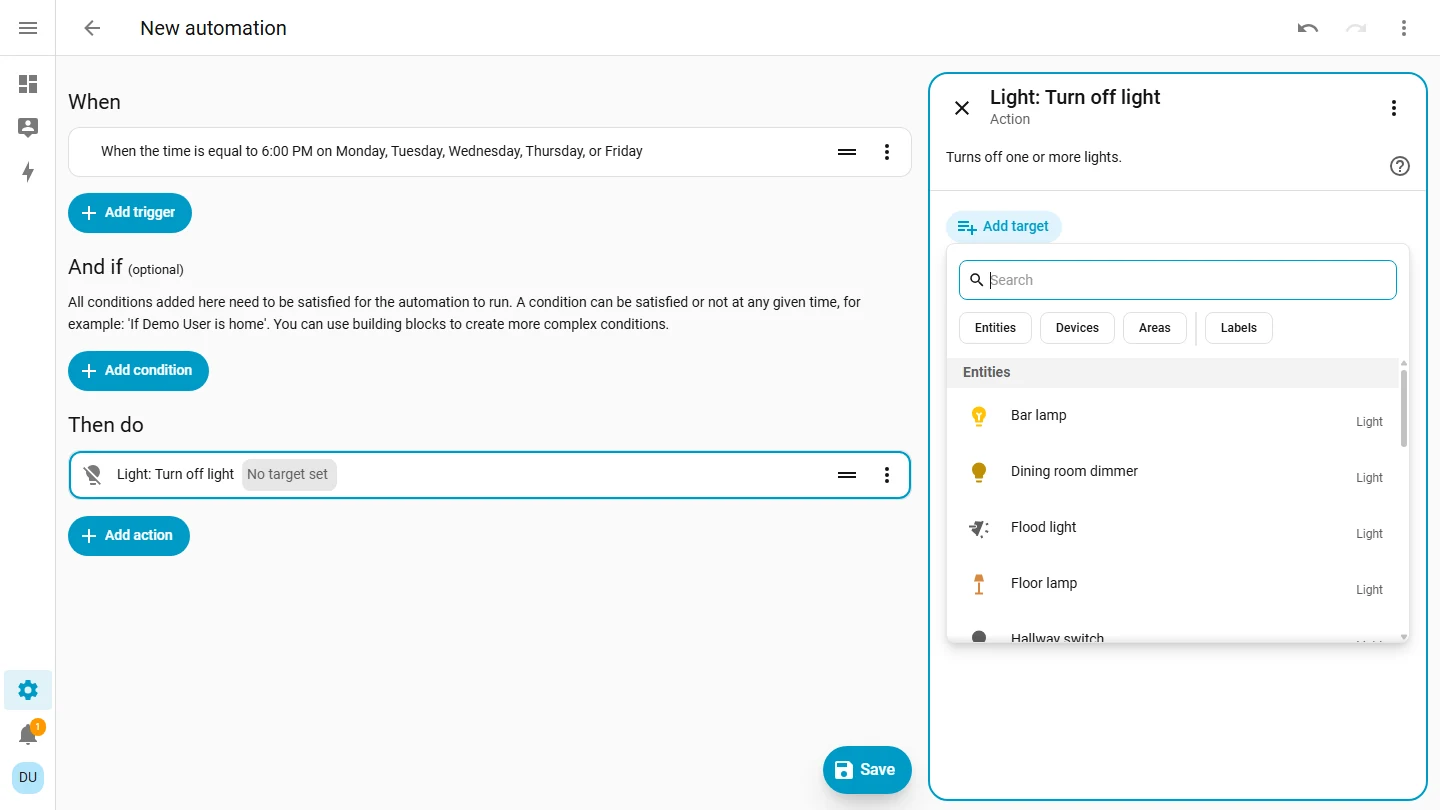
- Add the Bar lamp. A list of every light opens. You could pick a whole area or label instead; the demo has no areas, so pick lamps one by one. Click Bar lamp.
Every light is listed.
- Add another lamp. Bar lamp is under Entities. Add the second lamp the same way: click Add target again and type floor in the search box.
Add the second lamp the same way.
- Add the Floor lamp. Two matches: Floor lamp and Flood light, which is outside. Click Floor lamp.
Careful: flood light is outside.
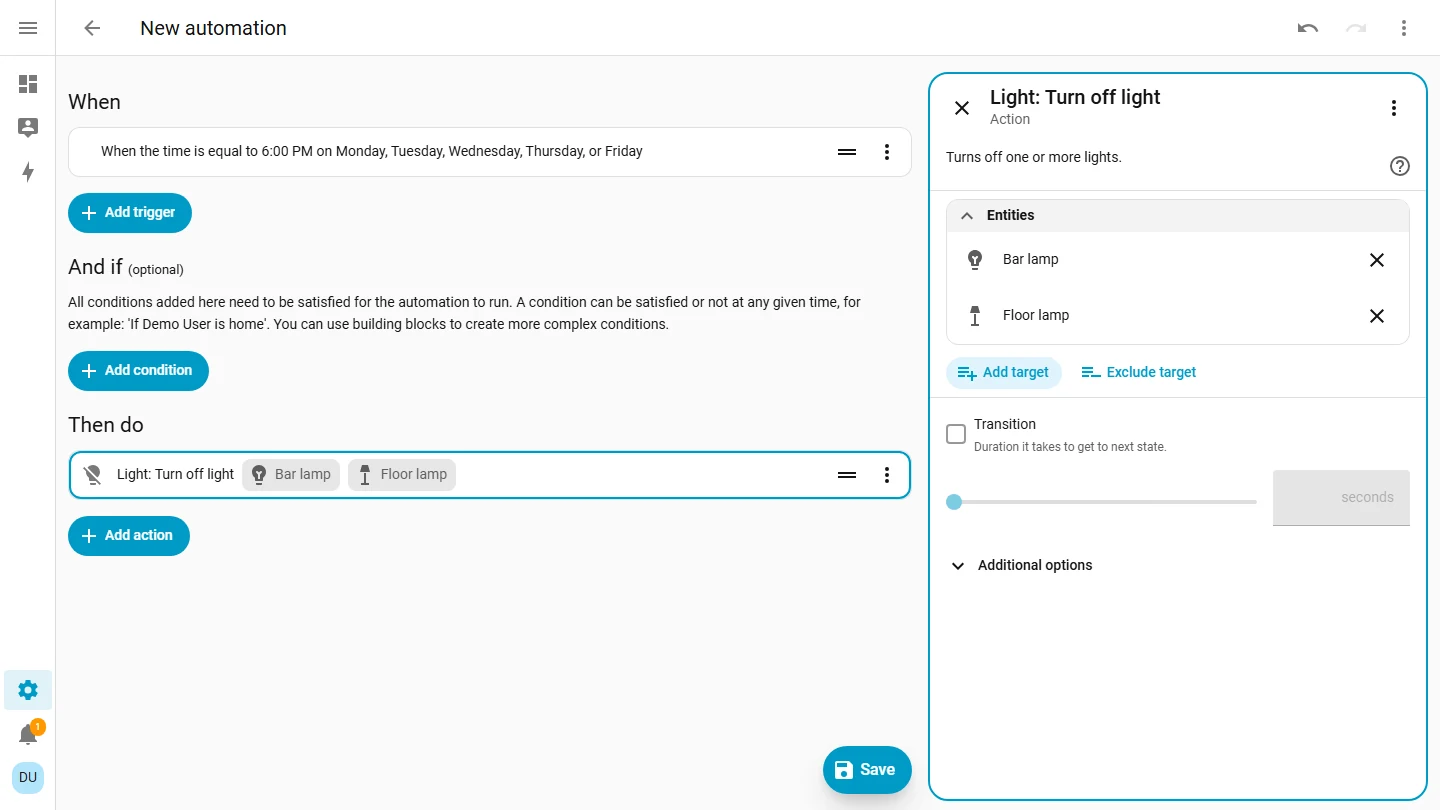
- Add the notification. The action now reads Light: Turn off light, Bar lamp, Floor lamp. In your office, add every lamp you want off. Now the message, so you know it happened. Click Add action again and type notification in Search.
Both lamps are on the action. Now the message, so you know it happened.
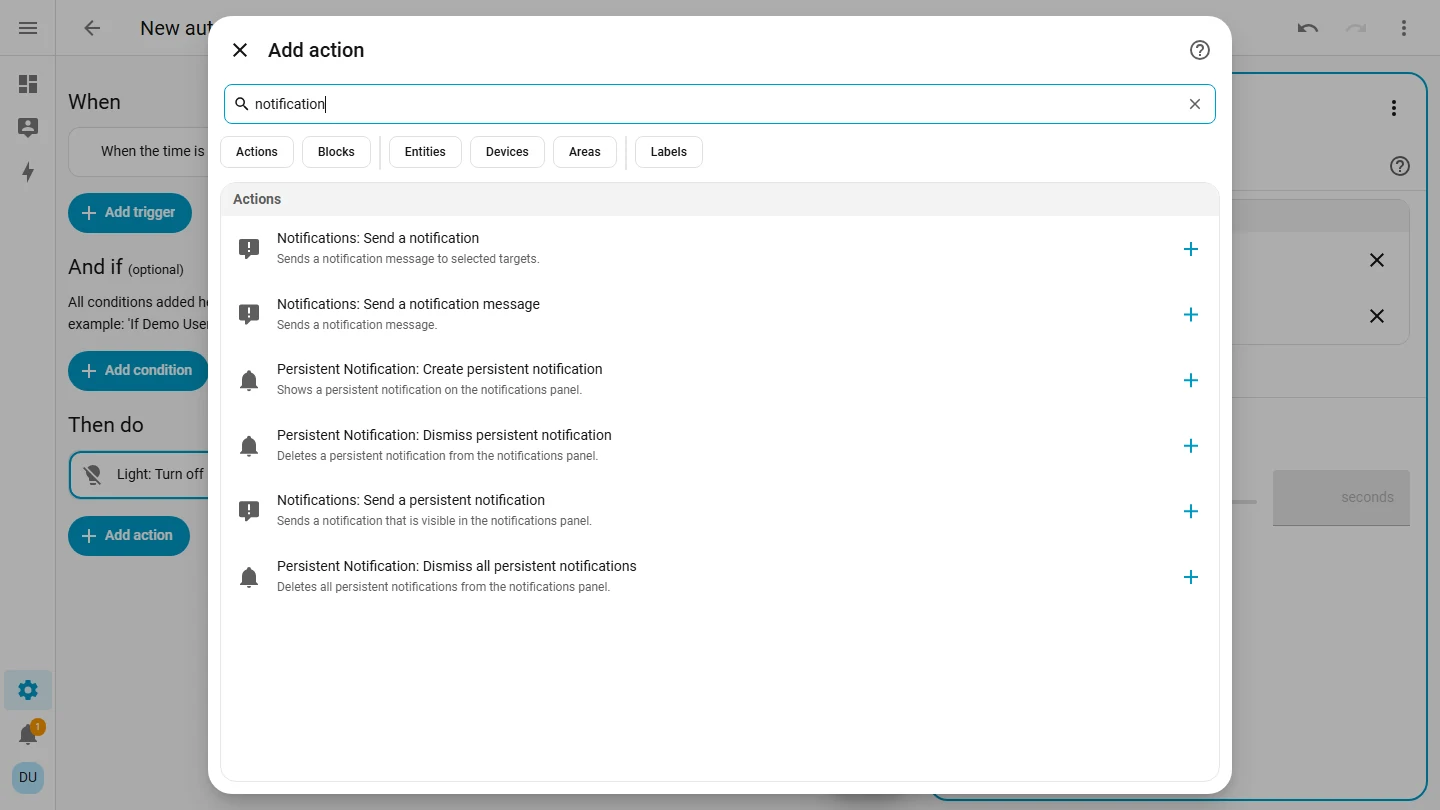
- Pick Create persistent notification. Six matches. Persistent Notification: Create persistent notification shows a message in Home Assistant's notification panel, the bell at the bottom left, and works on any install. With the Home Assistant phone app you can use Notifications: Send a notification to reach your phone instead. Click Persistent Notification: Create persistent notification.
A persistent notification waits in the bell panel until you read it. With the phone app you can send to your phone instead.
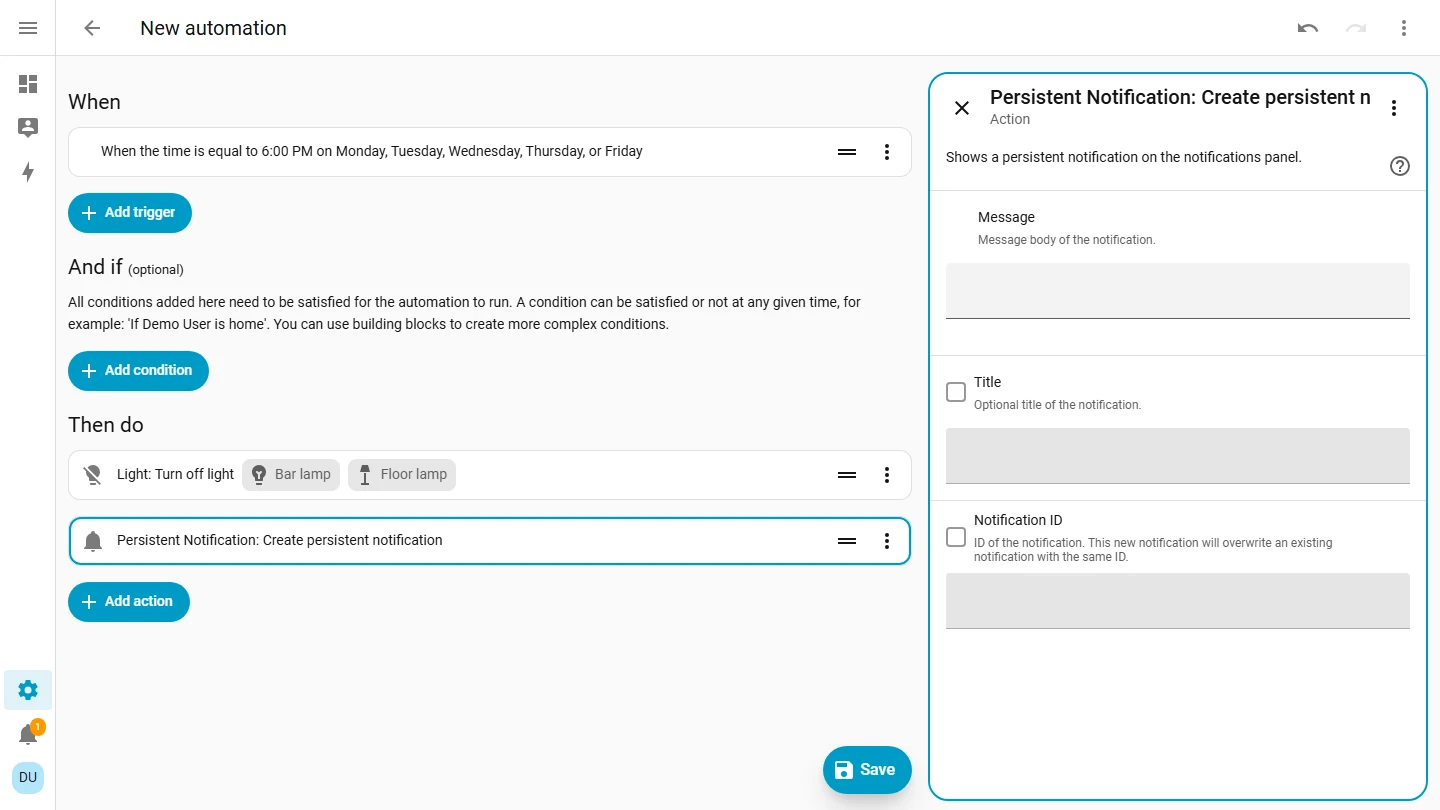
- Write the message. Type the message under Message. We also ticked Title and typed Northline Architects: office closed, so it stands out in the list.
Write the message. We also ticked Title and added the studio name.
4. Save it and check it
- Save the automation. Both actions are under Then do, in order: lamps off, then the message. Click Save at the bottom.
Lamps off, then the message.
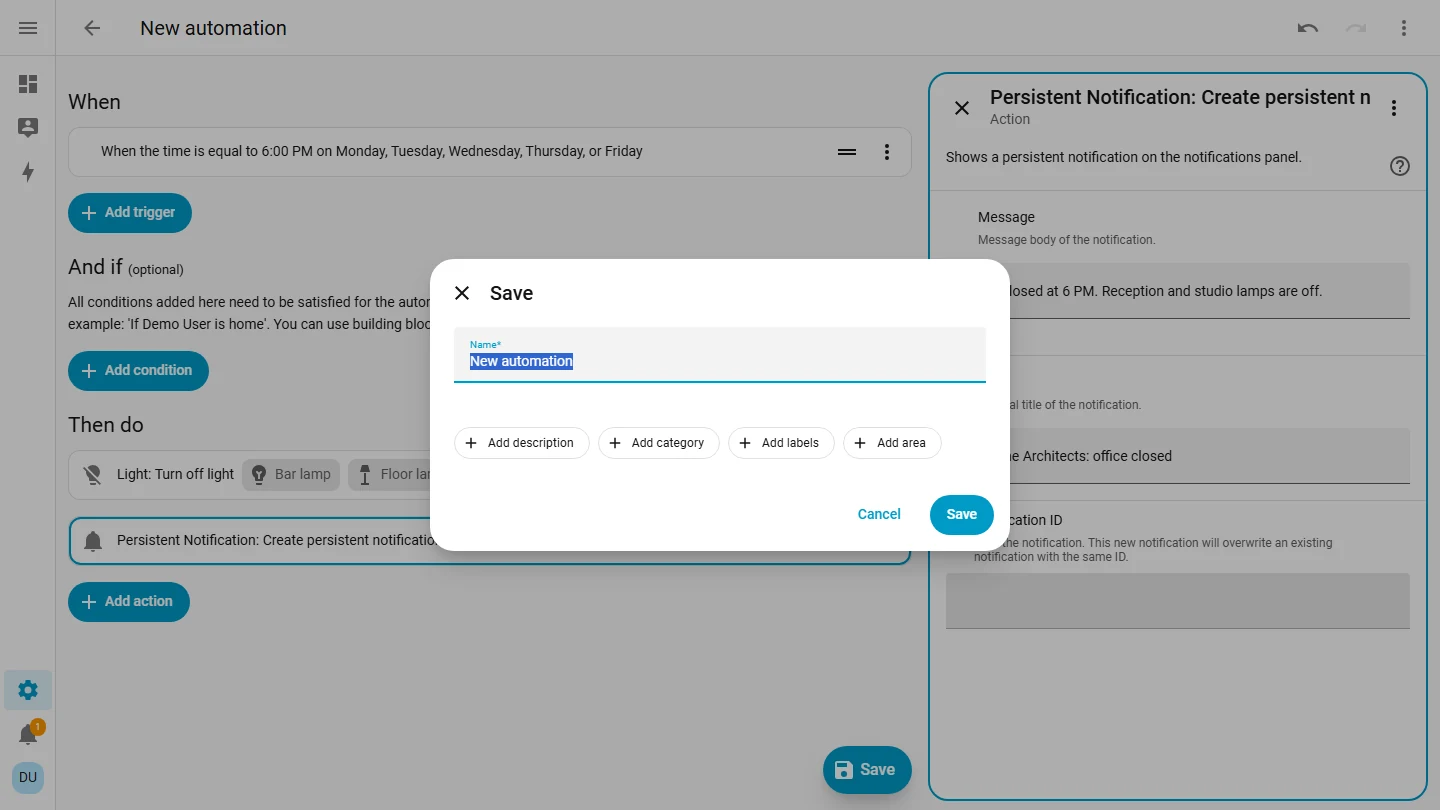
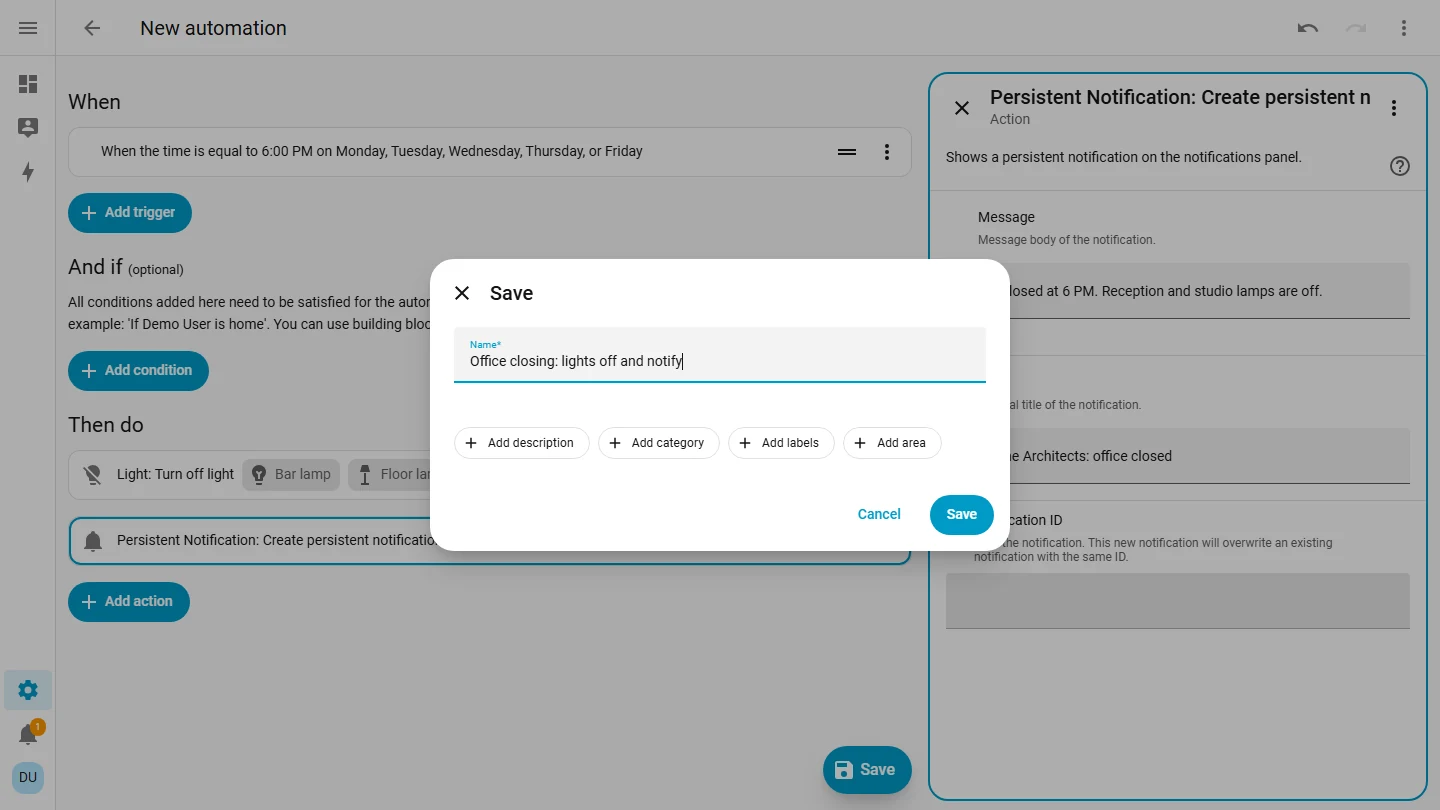
- Name it. A Save box asks for a Name. New automation is selected, so typing replaces it. Name it so a colleague knows what it does.
Give it a name a colleague would understand.
- Save it. You could add a description, category, labels or area here. Not needed. Click Save.
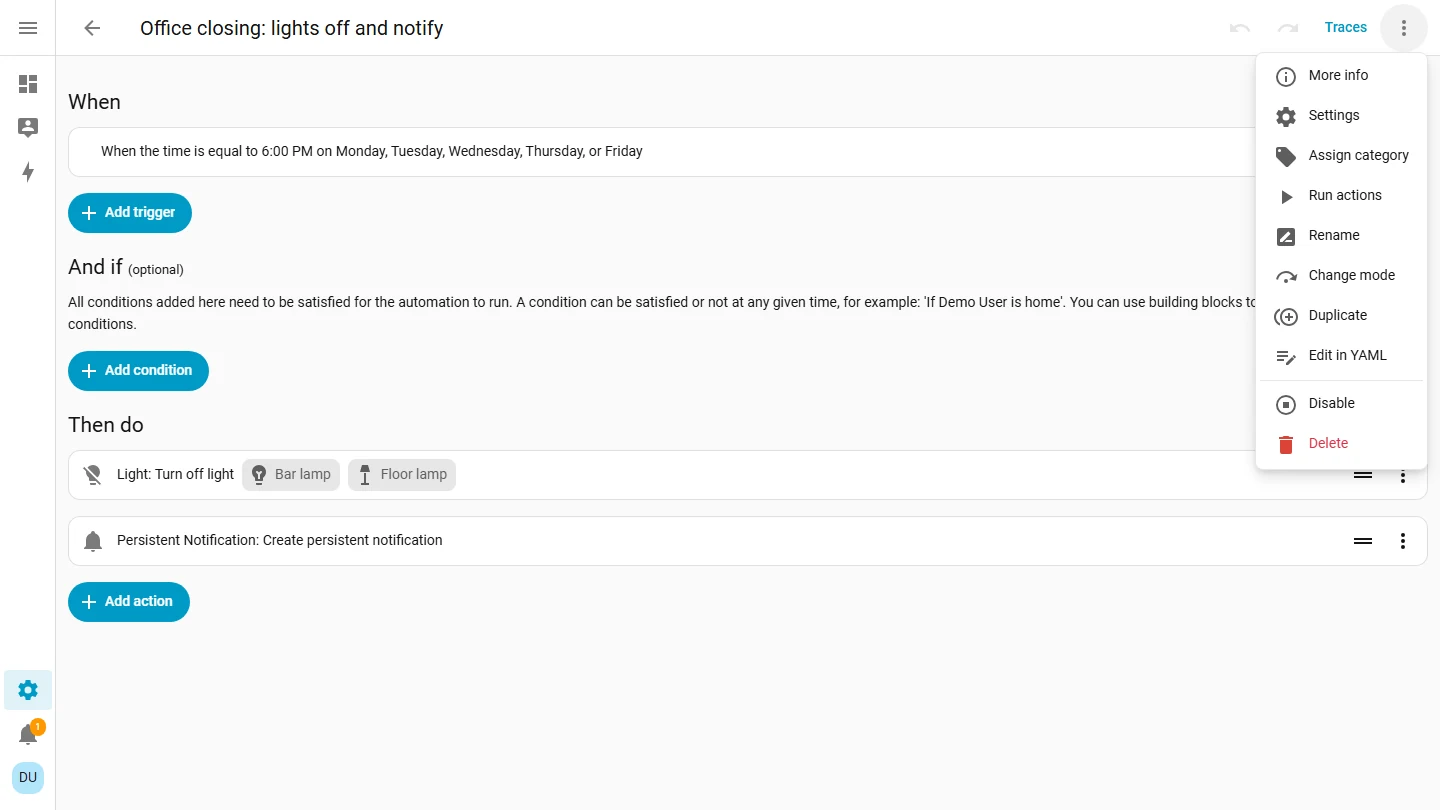
- Open the menu to test it. The editor title is now Office closing: lights off and notify, and a Traces link appeared: each time the automation runs, Home Assistant keeps a trace of what it did. Do not wait until 6 PM to find out if it works. Click the three dots at the top right.
It is saved. Do not wait until six P M to test it.
- Run the actions now. Run actions runs the Then do part right away, skipping the trigger. On your own Home Assistant the two lamps go off and the message appears under the bell. The public demo does not switch its pretend lamps, but it did log the run. Click Run actions, then go back to Automations and type Office in Search.
Run actions runs the then-do part right away. On your own system the lamps go off.
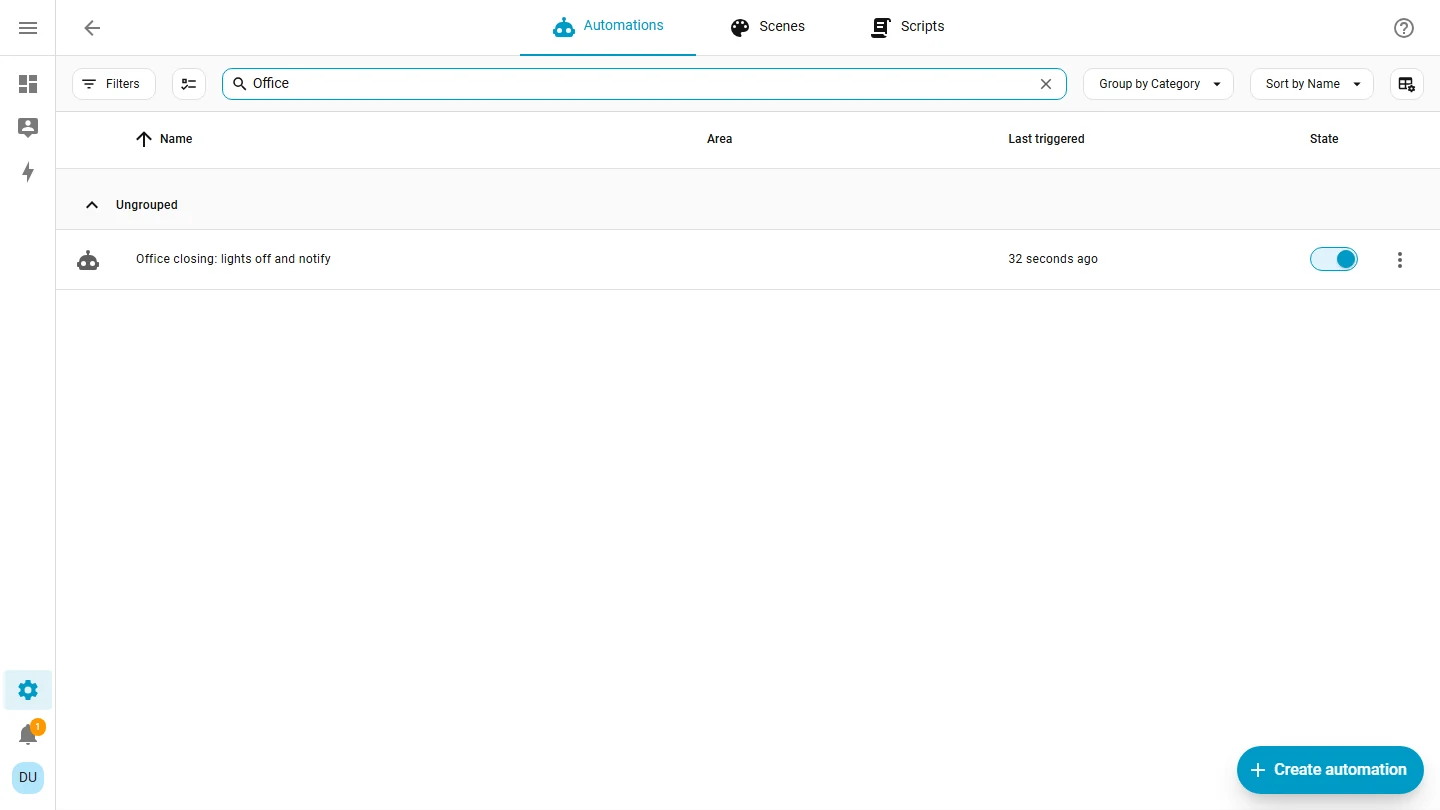
- Check it in the list. Your automation is on the list, switched on, and Last triggered says 32 seconds ago: the test run counted. From now on it runs by itself at 6 PM on weekdays. To see it as code, click the row, then the three dots, then Edit in YAML.
It is on the list, switched on, and it shows the test run. From now on it runs by itself. To see it as code, open it and choose Edit in YAML.
- Read it as YAML. This is the same automation as text: trigger: time, at: '18:00:00', the five weekdays, light.turn_off for light.bar_lamp and light.floor_lamp, then persistent_notification.create with your message. You can copy this into another Home Assistant, or into a note for whoever looks after the office next. Click the code.
This is the same automation as text. You can copy it into another Home Assistant, or keep it with your office notes.
Screenshots
Frequently asked questions
- What is Home Assistant?
- Home Assistant is free, open-source software that controls lights, plugs, sensors and other devices from one place and runs automations you set up. It usually runs on a small computer in the home or office.
- Can I try Home Assistant without installing it?
- Yes. The public demo at demo.home-assistant.io runs in your browser with no account. We built and saved the whole automation in this lesson there. Its devices are pretend, so actions do not switch anything real.
- How do I turn lights off at a set time in Home Assistant?
- Go to Settings, Automations & scenes, Create automation. Add a Time trigger with the time and, if you like, Days of the week. Then add the action Light: Turn off light and choose the lights with Add target. Save it.
- How do I get a notification when an automation runs?
- Add a second action. Persistent Notification: Create persistent notification posts a message in Home Assistant's notification panel on any install. With the Home Assistant phone app you can use Notifications: Send a notification to reach your phone.
- How do I test an automation without waiting for the trigger?
- Save it, open the three dots menu at the top right of the editor and click Run actions. It runs the Then do part straight away. The automation list then shows it under Last triggered.
- Was this lesson made in the real tool?
- Yes. Every screen is a capture of the real Home Assistant demo from 24 November 2026, and every value was entered there. Buttons and labels may move as Home Assistant changes.
More in AI Automation for Operations
 Build an AI Vendor Follow-Up Agent in n8n
Build an AI agent for Ridgeline Supply Co. that writes follow-up messages for late or pending purchase orders and saves them to Google Sheets — chat trigger, AI Agent…
Free · Live ~12 min Intermediate
 Build an AI Maintenance and IT Request Form
Build an internal maintenance and IT request form in Lovable for Ridgeline Supply Co. and connect it to n8n — the AI agent sets the priority, assigns a team, saves the…
Free · Live ~15 min Advanced
 CoHear: AI Meeting Notes from a Team Training Session
Record a team training session on your iPhone with CoHear, check the AI notes and action items against the transcript, make a one-page handout and share it behind a…
Free · Live ~8 min Intermediate
 How to Use Gamma to Create a PowerPoint Presentation from Notes
Paste rough meeting notes into Gamma, pick a theme, fix one slide by chatting with its AI, and export the deck to PowerPoint and PDF.
Free · Live ~9 min Intermediate
◷Airia for Beginners: What an AI Agent Is Made OfA five-minute map of Airia before you build: the four parts of an agent (model and instructions, data sources, Playground, Publish), three office jobs that suit one…
Free · Live ~5 min Beginner
◷How to Use Foxit: Workspace, AI Assistant and PDF Editor for BeginnersA five-minute map of Foxit before you use it: Foxit Workspace, the PDF AI Assistant and PDF Editor, which one fits a contract review, a revised contract, a flat form or…
Free · Live ~5 min Beginner
All 39 modules in AI Automation for Operations
Terms in this lesson
Plain-English definitions, each with an example from a free lesson.