Updated . Built against the tool’s current screens and checked step by step. How we check this lesson
"How much does an uncontested divorce cost, and will I keep the house?" Every family-law firm gets that email, often from someone on one of the hardest weeks of their life. A good answer quotes the right fees, says what the flat fee covers, asks for the names the firm needs for its conflict check, and does not answer the question about the house in an email. In this free, interactive lesson you set up a Claude project that knows all of it: your tone and intake rules as project instructions, and your fee schedule and engagement and intake policy as project knowledge. Then a chat inside the project writes the reply without you explaining anything.
At a glance
| Question | Answer |
|---|---|
| What you build | Create a Claude project for a family-law firm, give it your tone and intake rules, add your fee schedule and engagement policy as project knowledge, and answer a prospective client’s cost question with the right fees, the conflict-check step and no legal advice by email. |
| Tools | Claude |
| Time | About 9 minutes, 22 steps in 5 parts |
| Level | Beginner, no coding needed |
| Cost | Free |
| Ways to learn it | Practice it step by step |
The 5 parts, in short
- Create the project: Open Projects, Start a new project, Name it, Describe it, and 1 more step.
- Set the instructions: Add instructions, Write your tone and policies, Save them.
- Add project knowledge: Add files, Upload from your computer, Pick the fee schedule, Add the intake policy, and 1 more step.
- Get a quote: Start a chat in the project, Paste a prospective client’s email, Send it, See where the answer came from, and 1 more step.
- Improve it as you go: Go back to the project, Edit the instructions, Add a rule, Save the change.
Start here first: Claude Projects for Your Business: Instructions, Knowledge and Quotes. This Law Firms version follows the same build with its own example business, Harlow & Pierce Family Law.
Part of: AI for Law Firms (step 14 of 15). Next up: Build an n8n AI Agent That Turns a Lawyer's Rough Notes into Time Entries
The example: a prospective client asks about cost, and the house
Harlow & Pierce Family Law is a made-up firm, and Renee handles client intake. Tasha Greene, a made-up prospective client, writes that she and her husband have agreed to divorce, they have an 8-year-old daughter and own a house, and she wants to know what an uncontested divorce costs, whether the flat fee still applies if they need a parenting plan, and whether she will be able to keep the house.
The project's fee schedule lists a $250 consultation (credited if she hires the firm within 30 days), a $3,500 uncontested flat fee that includes one parenting plan, filing and one hearing, a $7,500 retainer for contested matters, and court fees paid separately. The intake policy says the firm runs a conflict check before booking, and that legal questions are answered only in a consultation. Claude's reply quotes the fees, says the parenting plan is covered, explains what happens if the case becomes contested, asks for both spouses' full names, says the firm isn't her lawyer until she signs, and offers a consultation with the attorney for the house question.
Who this lesson is for
Intake coordinators, legal assistants, paralegals, office managers and solo attorneys at small firms who answer the same "what will it cost?" email every week. If your firm has a fee schedule and a written intake policy, you have everything you need. No technical skills, and no Claude account to practice here.
It is part of the AI for Law Firms course, after the case-update reply and intake summary modules. The intake summary module is ChatGPT for Paralegals: Intake Call Summary and Conflict-Check List.
Why the advice rule belongs in the instructions
Almost every prospective client slips in a question about property, support or custody. Answered by intake in a quick email, it can read as legal advice, before a conflict check and before anyone has signed an engagement agreement. Writing the rule once in the project instructions means every chat answers it the same way: that is a question for a consultation with the attorney.
The conflict check works the same way. The instructions ask for both spouses' full names and nothing else about the other person, so intake never collects more than it needs before the check is done.
What to put in the project, and what to keep out
- Good project knowledge: the fee schedule, the engagement and intake policy, consultation booking steps and attorney-approved email templates.
- Keep out: matter notes, filings, financial records and anything a client told you in confidence. A project is for how the firm works, not for client files.
- Use a business plan (Team or Enterprise) that doesn't train on your data, follow your firm's AI policy and your bar's guidance, and have an attorney approve the instructions.
- Projects are on every Claude plan; the Free plan allows up to five. On Team and Enterprise you can share the project with everyone who answers intake emails.
Ways to use it after the lesson
- Fee questions for every practice area on your fee schedule, not only divorce.
- Consultation confirmations and reminders that repeat what to bring and what not to email.
- Polite replies to people the firm can't take on, after a conflict.
- A second project for existing clients, with billing and trust-account questions answered from your engagement terms.
Try it yourself, free
Reading the steps is a start. Doing them is how it sticks. The interactive module walks you through every click in a practice copy of Claude, checks each step, and never touches your real accounts.
Start “A Claude Project for Your Law Firm's Intake Desk: Fees, the Conflict Check and No Legal Advice by Email”Step by step: A Claude Project for Your Law Firm's Intake Desk: Fees, the Conflict Check and No Legal Advice by Email
All 22 steps of the interactive module, in order. In the module you watch each one, then do it yourself in a practice copy that checks your work.
1. Create the project
- Open Projects. Right now Claude starts every chat knowing nothing about your business. A project fixes that. Click Projects in the sidebar.
Right now, every new chat starts from scratch, so you'd have to explain your fees and your intake rules every time someone asks what a divorce costs. A project fixes that.
- Start a new project. This page lists all your projects. You may see an example project from Anthropic here. Click New project at the top right.
This page lists all your projects. You might also see an example project from Anthropic here.
- Name it. Under What are you working on?, type Harlow & Pierce Intake.
Under What are you working on, give the project a name.
- Describe it. Under What are you trying to achieve?, say what the project is for. Paste in the description.
Under What are you trying to achieve, say what the project is for. The description shows under the project's name, so it's easy to tell your projects apart.
Replies to prospective clients for Harlow & Pierce Family Law: fees, the conflict check and how to book a consultation, in our tone and within our intake rules.
- Create it. Click Create project.
2. Set the instructions
- Add instructions. This is the project's page. Next to the message box are Instructions, Context, Memory and Scheduled (in a narrow window they sit below it). Instructions tell Claude how to behave in every chat here. Click Add next to Instructions.
This is your project's page. Next to the message box are Instructions, Context, Memory and Scheduled. Instructions tell Claude how to behave in every chat in this project: your tone, and your rules.
- Write your tone and policies. Say who Claude is helping, the tone you want, and your intake rules: fees only from the fee schedule, ask for both spouses’ names for the conflict check, not your lawyers until they sign, and no legal advice by email. Paste in the instructions.
Write down how your firm talks to people who are thinking about hiring you, and the rules intake always follows. Quote fees only from the fee schedule. Ask for both spouses' names for the conflict check, and nothing more. Say you aren't their lawyers until they sign. And never give legal advice by email: offer a consultation instead.
You help Renee Alvarez, the intake coordinator at Harlow & Pierce Family Law, answer people who are thinking about hiring the firm. Write in a calm, kind, plain voice. Many readers are going through a hard time: no legal jargon, no pressure. Sign emails as Renee Alvarez, Client Intake.
Policies: Quote fees only from the fee schedule in this project, and say what a flat fee covers and what it doesn't. Court fees are separate. Before anyone can book a consultation we run a conflict check, so ask for the full names of both spouses and nothing else about the other person. Say we are not their lawyers until they sign an engagement agreement. Never give legal advice or predict an outcome about property, support or custody; offer a consultation with Nadia Pierce instead.
- Save them. These work alongside your own profile instructions in Settings, but only inside this project. Click Save instructions.
As the window says, these work alongside the instructions in your own profile, but they only apply inside this project.
3. Add project knowledge
- Add files. Now the facts Claude should work from: your project knowledge, under Context. Click Add next to Context.
Now give Claude the facts it should work from. That's your project knowledge. Instructions are how Claude should act, and context is what it should know.
- Upload from your computer. You can upload files, add text you paste in, or connect GitHub or Google Drive. Point at Upload from device, then click Files.
You can upload files, paste in text, or connect GitHub or Google Drive. Point at Upload from device, then click Files.
- Pick the fee schedule. Click Harlow Pierce fee schedule 2026.pdf.
Your computer’s file window opens.
- Add the intake policy. Hold Ctrl (Cmd on a Mac) and click Engagement and intake policy.pdf to select it too. Leave Okafor matter notes alone: client files don’t belong in a project.
Hold Control, or Command on a Mac, and click the engagement and intake policy, so both files are selected. Leave the matter notes alone. A client's file doesn't belong in a project.
- Upload them. Click Open.
4. Get a quote
- Start a chat in the project. Both files are now project knowledge: Context says 2 files. Every chat in this project can use them. Click the message box at the top.
Both files are now in the project. Context says two files. Every chat you start here can use them, so you never attach them again.
- Paste a prospective client’s email. Paste in the email and ask for a reply. Notice you don’t mention fees, the conflict check or your tone. Paste in the request.
Someone who is just starting a divorce wants to know what it will cost, and whether she'll keep the house. Notice you don't mention fees, the conflict check or your tone. The project already knows.
A prospective client, Tasha Greene, emailed: "Hi, my husband and I have agreed to divorce. We have one daughter, she's 8, and we own a house together. How much do you charge for an uncontested divorce? Is it still the flat fee if we need help with a parenting plan? And will I be able to keep the house?" Write my reply.
- Send it. Click the send arrow.
- See where the answer came from. The top bar shows the project name, then the chat. Click Quoting the fee schedule and checking the intake policy to see how Claude worked it out. (Claude writes this line itself, so yours will differ.)
Look at the top: this chat lives inside your project.
- Check the reply and copy it. The fees and what the flat fee covers come from your fee schedule. The conflict check, the contested rule and "not your lawyers yet" come from your intake policy and instructions, and the house question gets a consultation with Nadia, not an answer. Check it, then click the copy button on the email box.
The fees, and what the flat fee covers, came from your fee schedule. The conflict check, what happens if the case becomes contested, and the line about not being her lawyers yet came from your policy and your instructions. And Tasha's question about the house got an offer of a consultation, not a guess. Read it once, then click the copy button on the email box.
5. Improve it as you go
- Go back to the project. Click Harlow & Pierce Intake at the top to go back to the project page.
- Edit the instructions. The chat is saved in the project. After a few chats, Memory (click View) fills in with what Claude learns about this work, for this project only. When a reply misses something, fix the instructions rather than the chat. Click Edit next to Instructions.
Your chat is saved in the project. After a few chats, the Memory section fills in with what Claude has learned about this work. It stays in this project, and only you can see it. When a reply keeps missing something, don't just fix that one chat. Fix the instructions.
- Add a rule. Add one line at the end: ask people not to email documents or private details, and say the email doesn’t create an attorney-client relationship. Paste in the new rule.
Add one more rule at the end. Every email to a prospective client asks them not to send documents or private details by email, and says the email doesn't make the firm their lawyer.
End every email to a prospective client with: Please don’t send documents or private details by email. This email does not create an attorney-client relationship.
- Save the change. Click Save instructions. Every new chat in the project follows the new rule.
From now on, every new chat in this project follows the new rule, and you never have to say it again.
Frequently asked questions
- Can a Claude project answer prospective clients' fee questions?
- Yes, if your fee schedule is in the project's files and the instructions say to quote only from it and to say what each flat fee covers. Have an attorney approve the instructions, and read each reply before it goes out.
- How do I stop Claude from giving legal advice in intake emails?
- Put the rule in the project instructions: never give legal advice or predict an outcome about property, support or custody; offer a consultation instead. In the lesson, the prospective client asks whether she will keep the house and the reply offers a consultation with the attorney.
- Should I upload client files to a Claude project?
- No. Keep matter notes, filings and anything confidential out of it. Use the project for firm documents like the fee schedule and intake policy, on a business plan that doesn't train on your data, and follow your firm's policy on AI tools.
- What does the conflict-check step look like in the reply?
- The reply asks for the full names of both spouses, and nothing else about the other person, before a consultation is booked. That rule comes from the intake policy in the project.
- Is this lesson free?
- Yes. Stepthrough is completely free and the practice copy needs no accounts. To do it for real you need a Claude account; projects are on every plan, including Free, with limits.
More in AI Automation for Law Firms
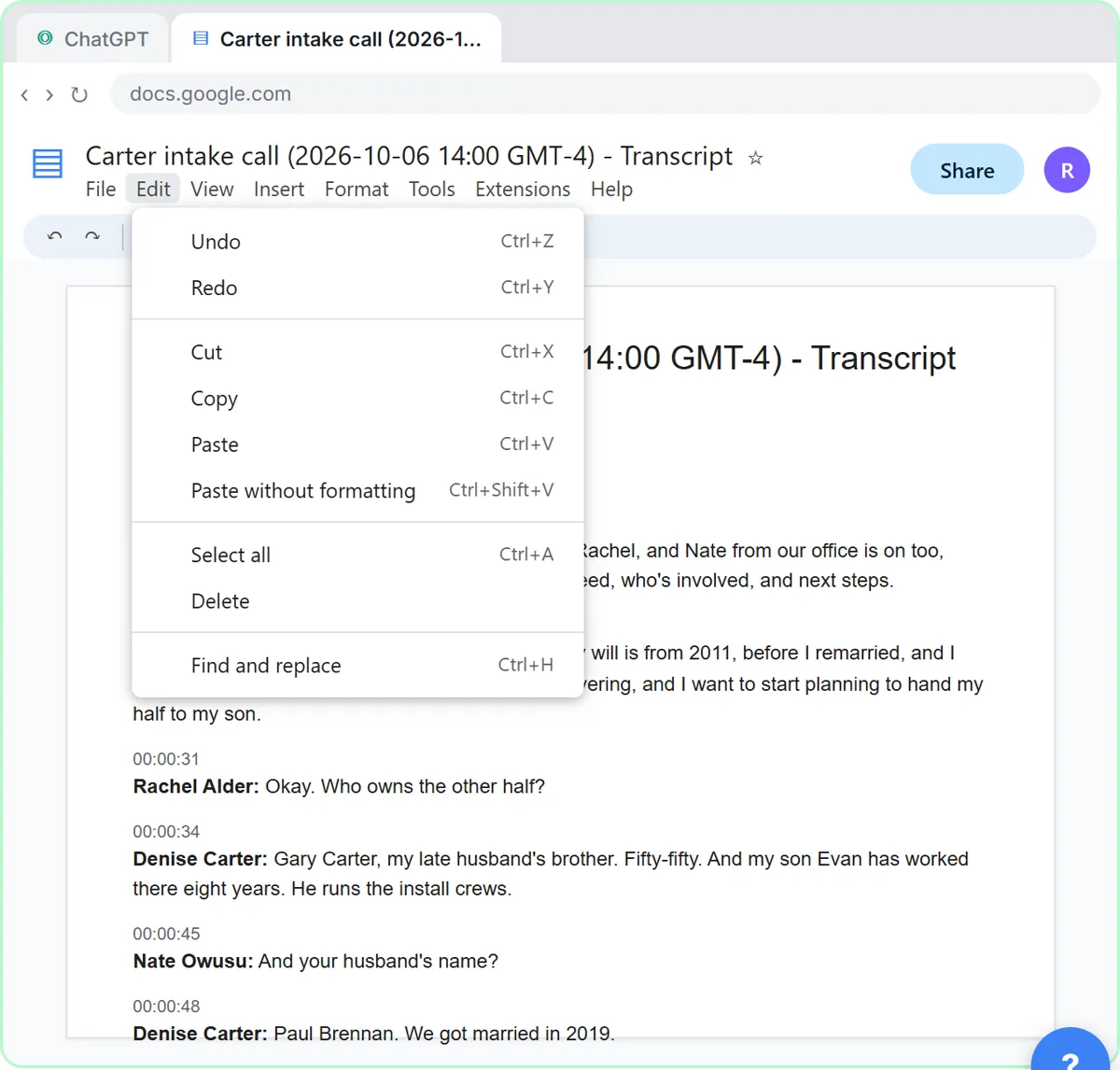 ChatGPT for Paralegals: Intake Call Summary and Conflict-Check List
Turn a new-client intake call into a summary, the engagement next steps with owners and dates, the names for your conflict check, and a follow-up email to the…
Free · Live ~9 min Beginner
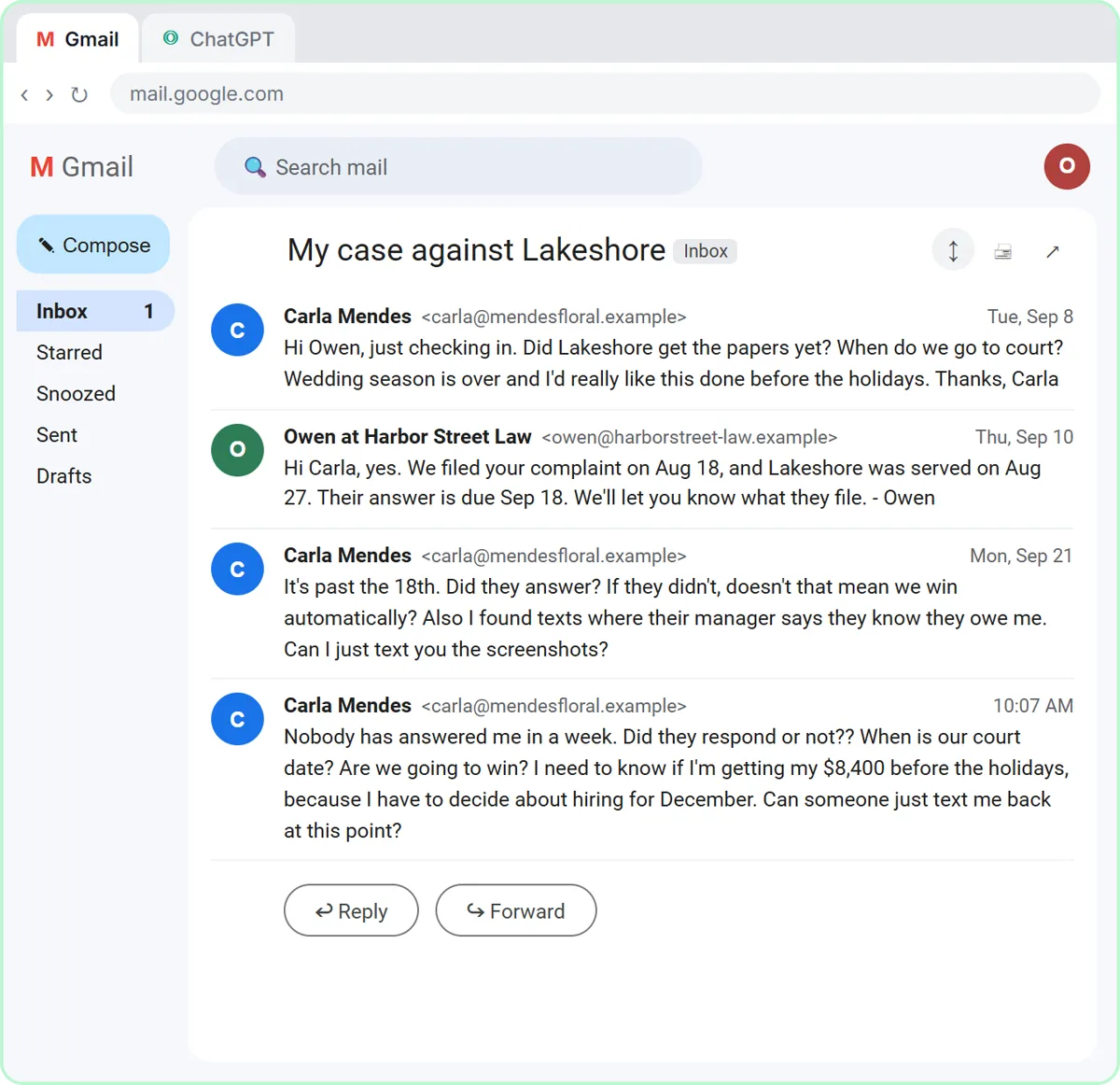 Answer Case-Update Emails Without Predicting the Outcome using ChatGPT
A client wants a court date and a promise she'll win. Give ChatGPT the thread and your firm's facts, catch the lines that predict an outcome, and send a clear, kind…
Free · Live ~10 min Beginner
◷Build an n8n AI Agent That Turns a Lawyer's Rough Notes into Time EntriesBuild an AI agent in n8n for Calloway & Brandt LLP that turns a lawyer’s rough end-of-day notes into one time entry per task in Google Sheets, with the matter, the…
Free · Live ~12 min Intermediate
◷Status 200 Uploads: Publish a Law Firm's Weekly Tip to LinkedIn and Facebook From n8nEvery Monday someone at the firm logs into LinkedIn and Facebook one at a time to paste the same short workplace-rights tip, and on busy weeks it doesn't go out…
Free · Live ~7 min Beginner
All 7 modules in AI Automation for Law Firms
More Claude tutorials
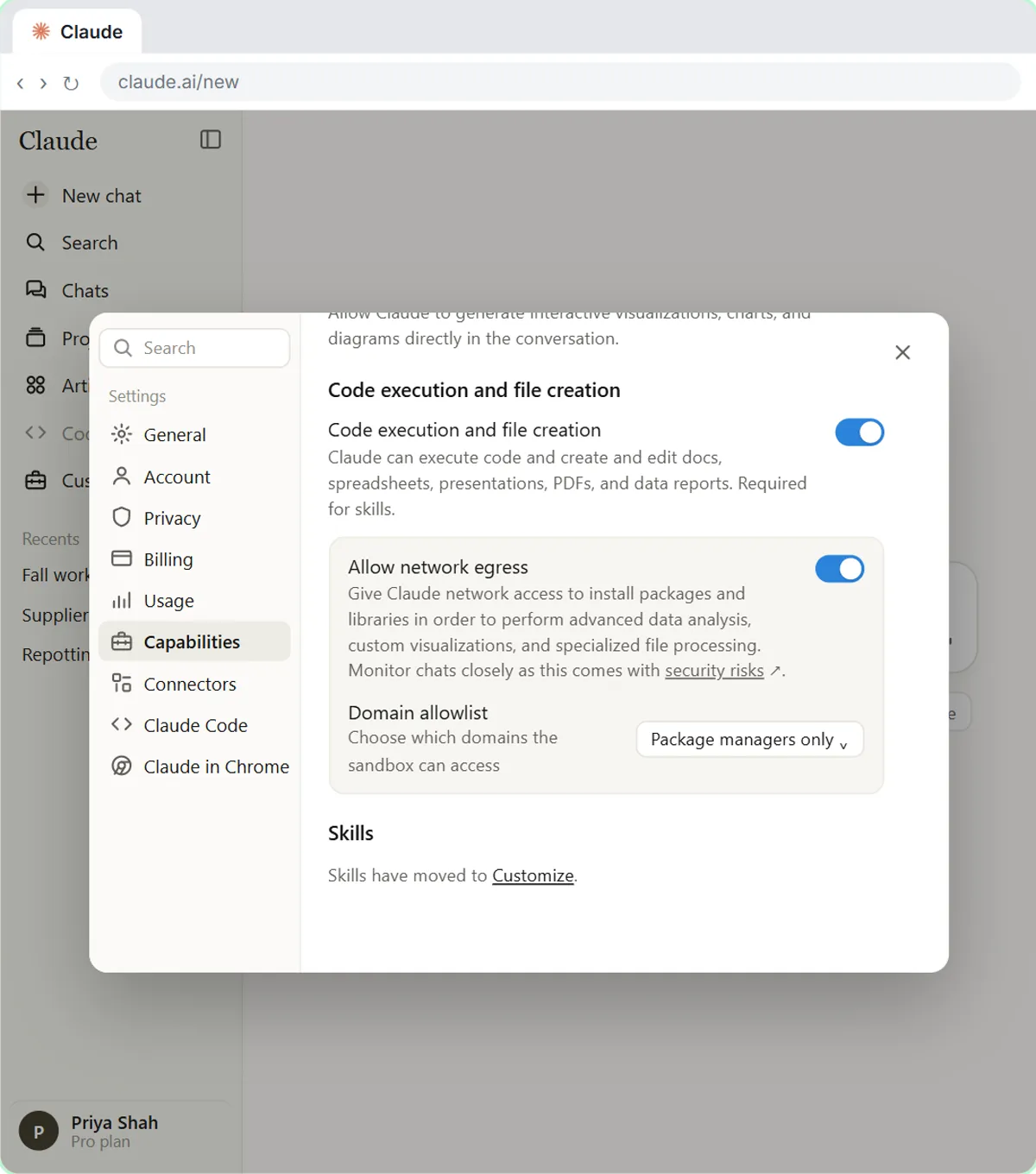
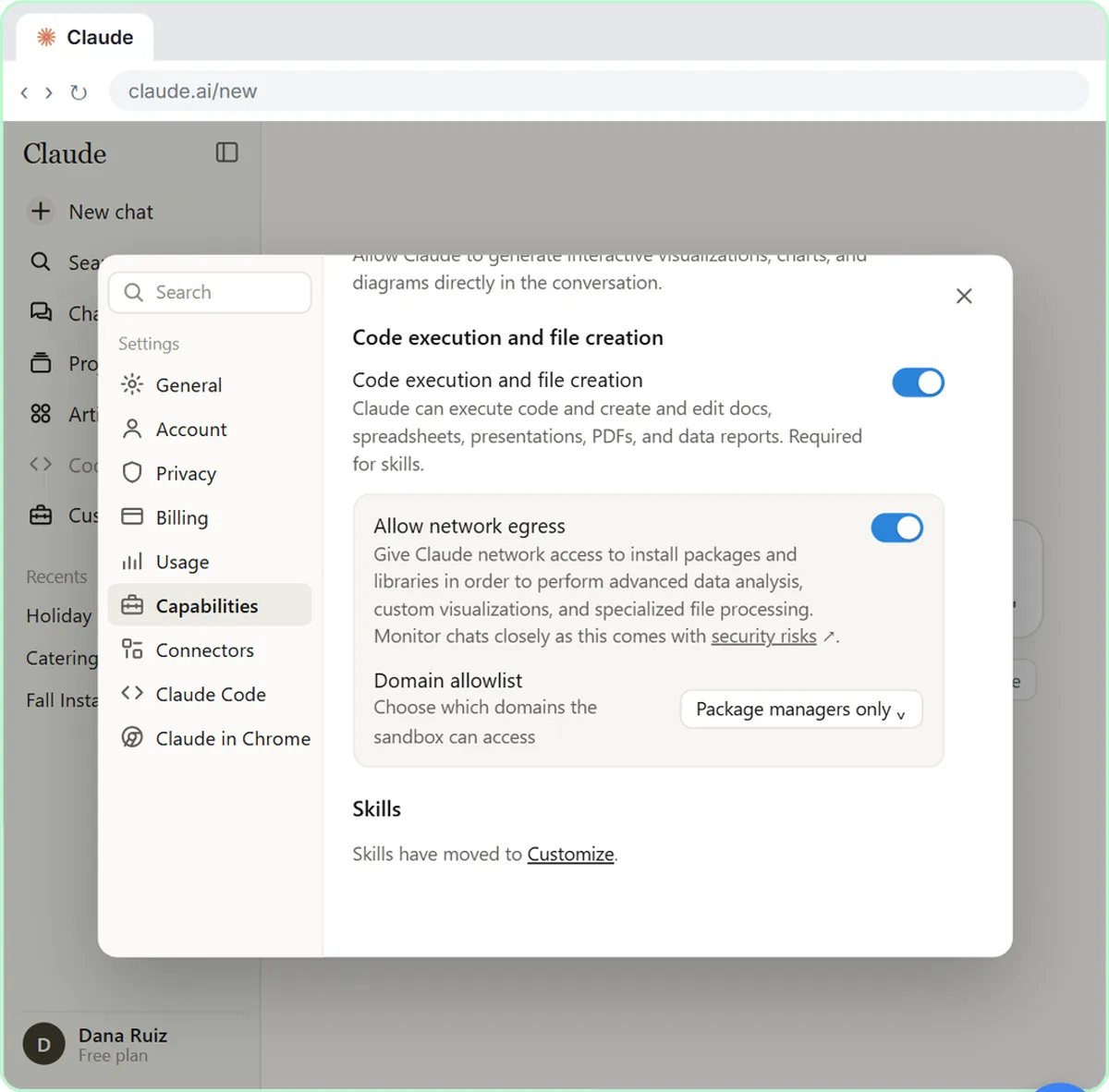 How to Find Skills in Claude: What Claude Skills Are and How to Turn One On
Learn what a Claude skill is, switch on the setting skills need, turn on an example skill in Customize, and watch Claude use its Excel and Word skills on its own.
Free · Live ~7 min Beginner
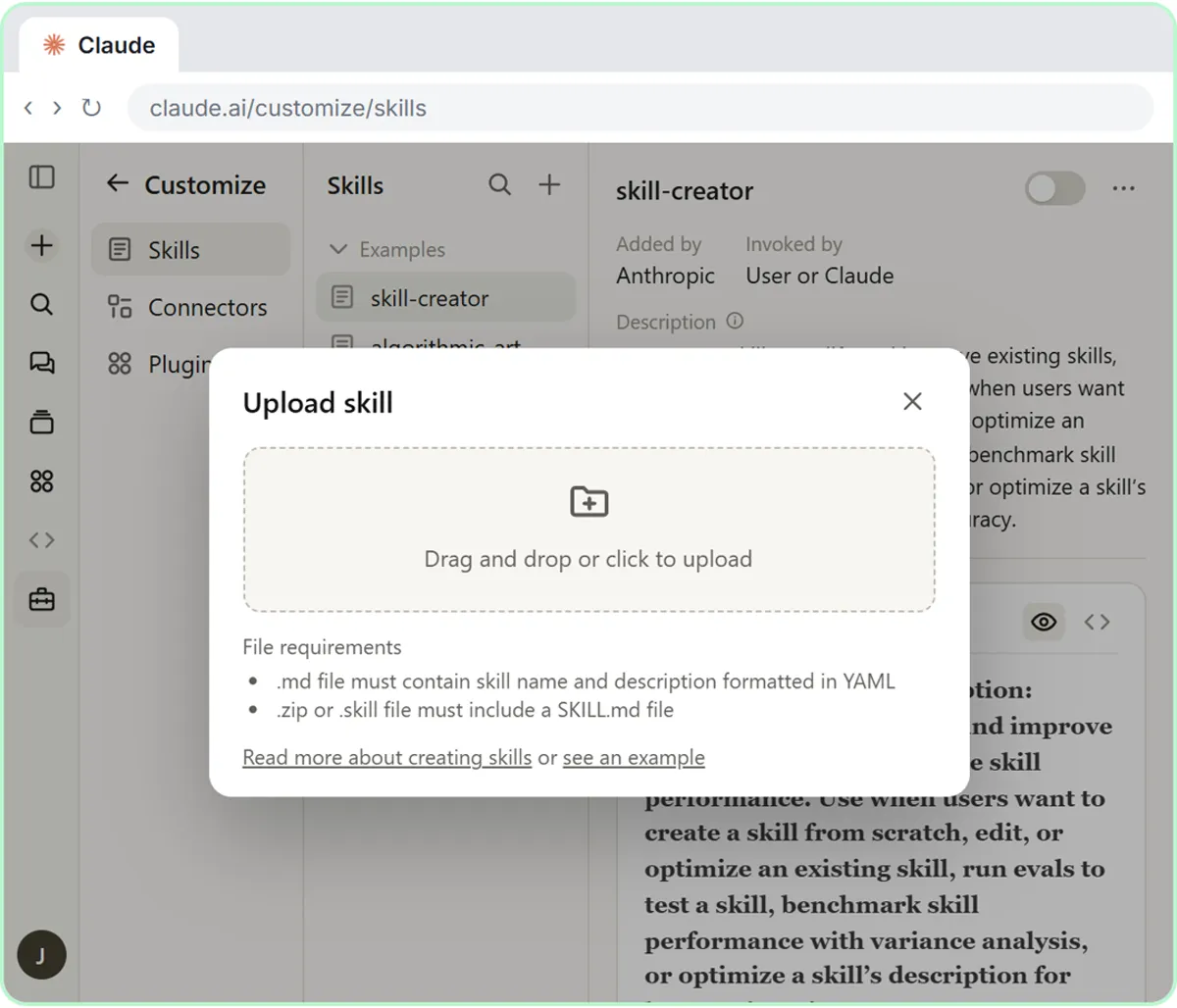 How to Install a Custom Skill in Claude (Upload a Skill .zip)
Upload your own skill to Claude as a .zip, check that it’s switched on, see what’s inside its SKILL.md, and watch Claude use it to write a landscaping quote your way.
Free · Live ~6 min Beginner
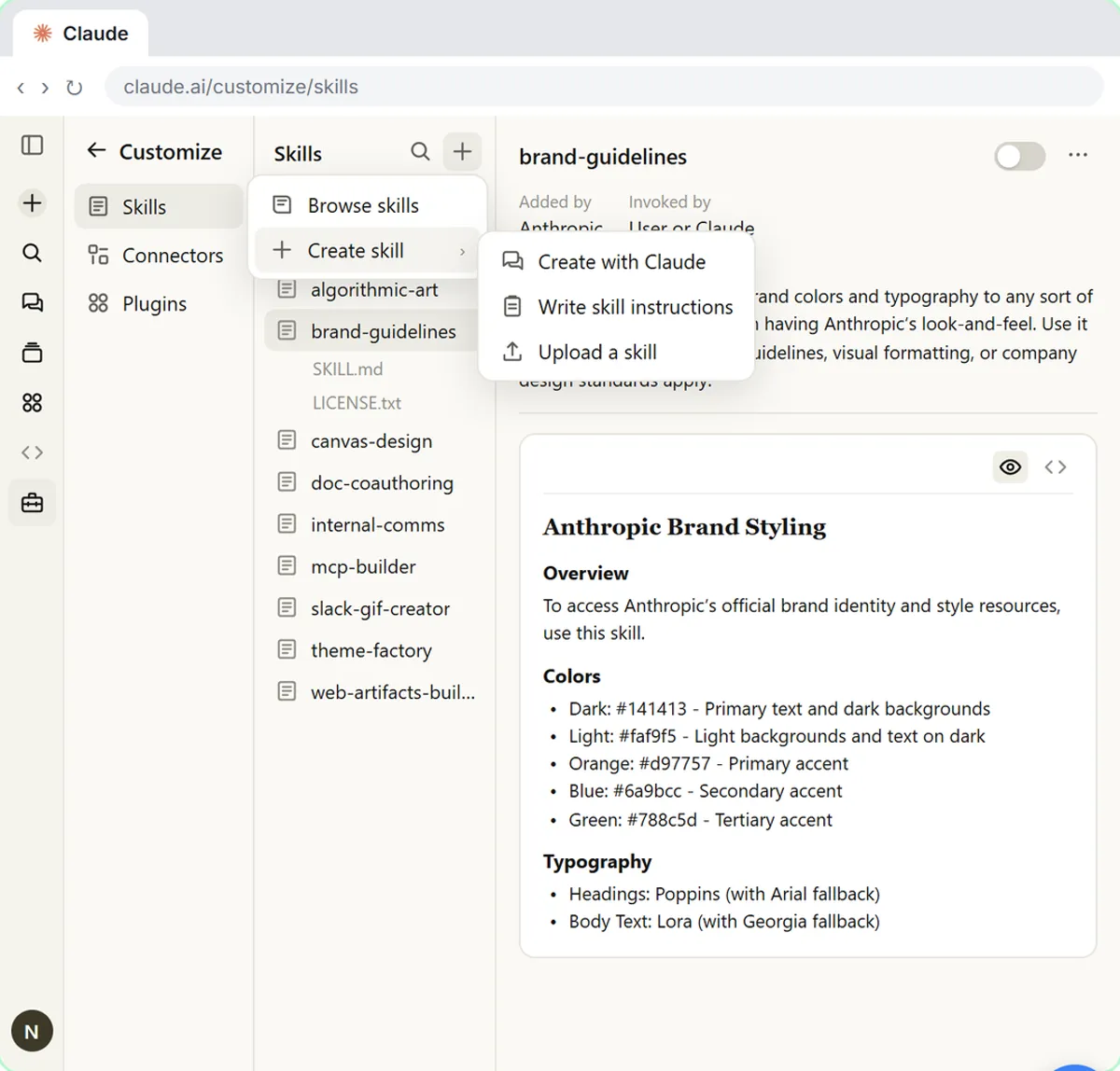 How to Create a Skill in Claude: A Brand Guidelines Skill for On-Brand Docs
Build a brand skill for a small flower shop by chatting with Claude: colors, fonts, logo placement and voice. Then ask for a proposal and a social post and watch both…
Free · Live ~7 min Beginner
 How to Use Claude with Excel: Turn a Messy Export into a Clean Workbook
Upload a messy sales export to Claude and get back a clean Excel workbook with a Data tab, a Summary tab built with formulas, and a chart, thanks to Claude's built-in…
Free · Live ~8 min Intermediate
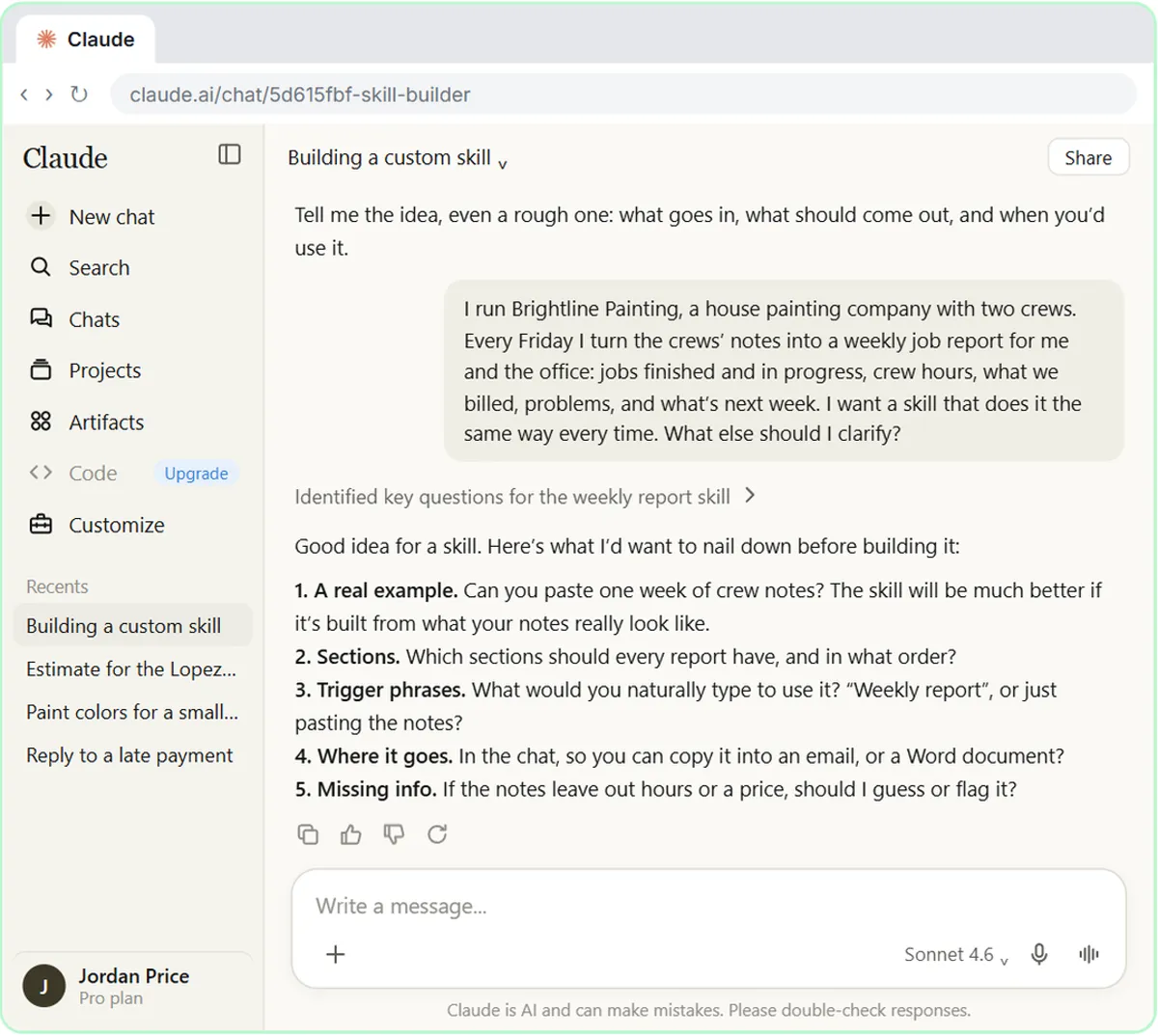 Build Your Own Claude Skill with the Skill Creator: A Weekly Report Template
Turn a report you make every week into a skill. Claude’s skill creator interviews you, drafts the skill, tests it and packages it. Then you use it on a real week…
Free · Live ~8 min Intermediate
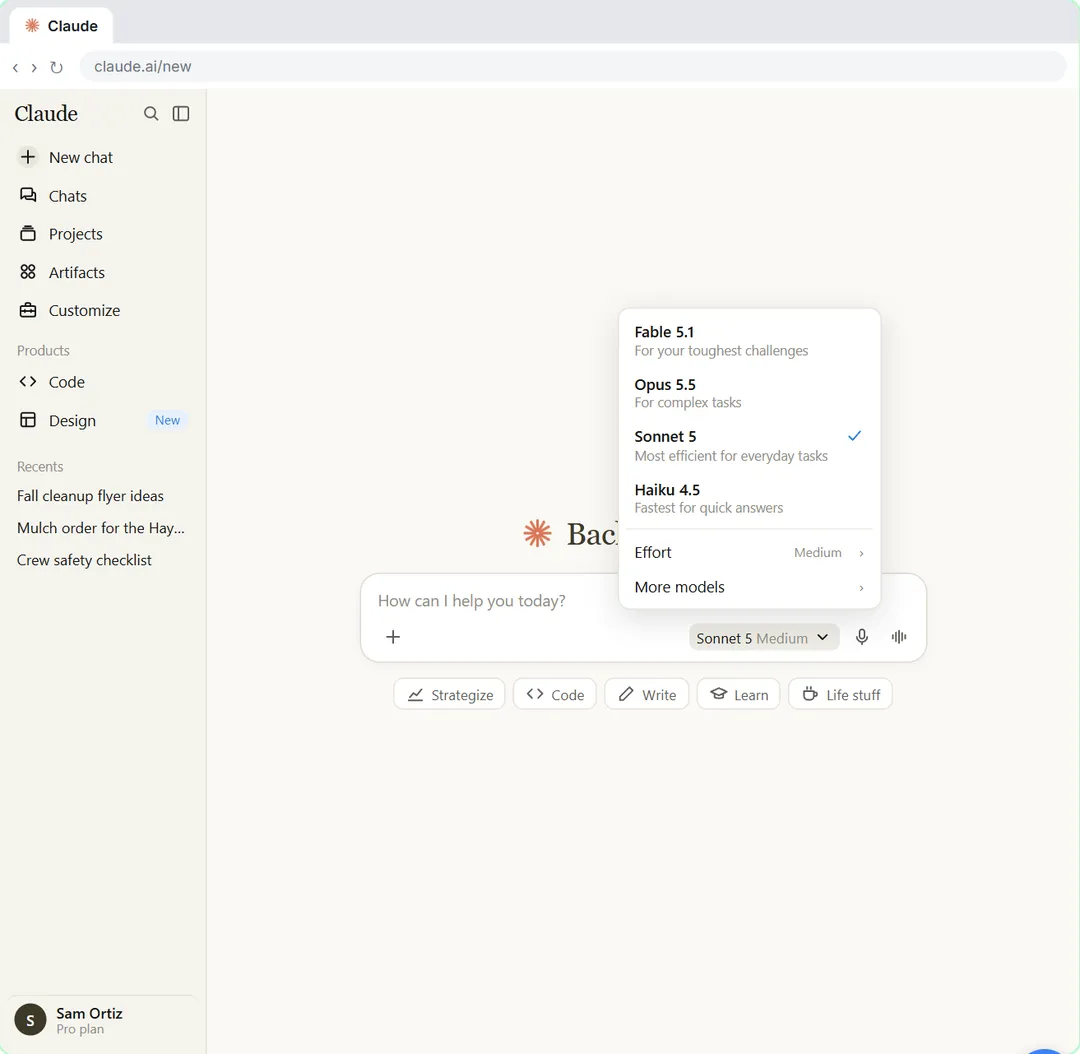 Your First Chat with Claude: Models, Files and a Great First Prompt
Pick a model, attach a customer's complaint email with the + menu, write a four-part prompt, read Claude's reply, ask a follow-up, then pin and rename the chat.
Free · Live ~7 min Beginner
From the blog
How do you answer a prospective client's fee email with a Claude project? Answers on instructions, project knowledge, the conflict check and legal advice.
Oct 21, 2026 5 min read
✎Claude Projects for Law Firm Intake: 8 Mistakes to AvoidClaude project mistakes at a law firm's intake desk: client files in the project, no advice rule, fees from memory, a skipped conflict check and more.
Oct 21, 2026 5 min read
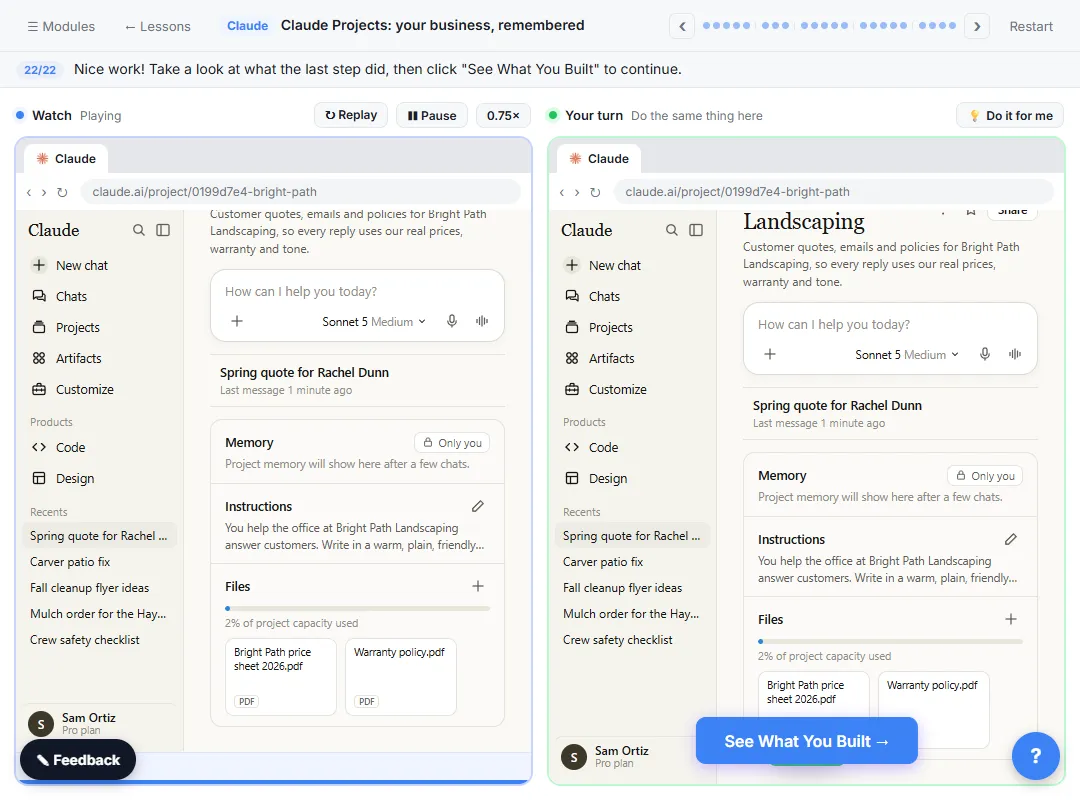 How to Use Claude Projects: Step-by-Step Guide (2026)
How to use Claude Projects: create a project, write instructions, add knowledge files, chat inside it, fix rules once. Free plan limits, October 2026.
Oct 20, 2026 6 min read
Free cheat sheets
Print it or save the PDF: the key steps and checks from this lesson on one page, free.
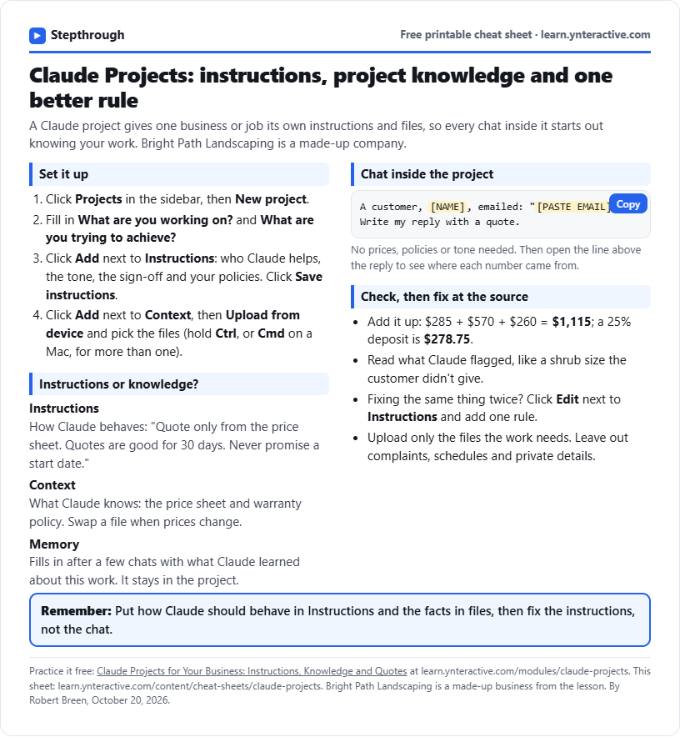 Claude Projects Cheat Sheet
A free one-page Claude Projects cheat sheet: create a project, write instructions, add files as project knowledge, chat inside it and fix rules once.
Lesson cheat sheet Free PDF
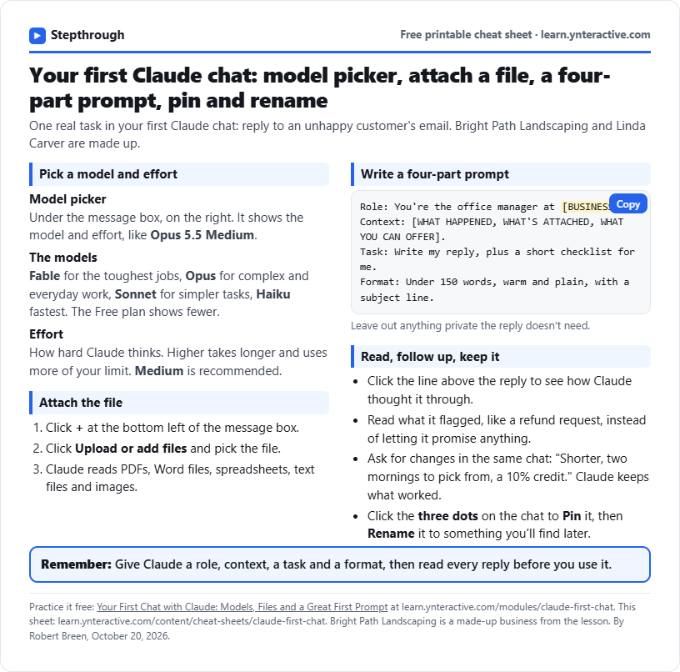 Claude First Chat Cheat Sheet: Models, Files, Prompts
A free one-page cheat sheet for your first Claude chat: the model picker and effort, attaching a file, a four-part prompt, follow-ups, pin and rename.
Lesson cheat sheet Free PDF
All free printable cheat sheets
Terms in this lesson
Plain-English definitions, each with an example from a free lesson.