Step 1:
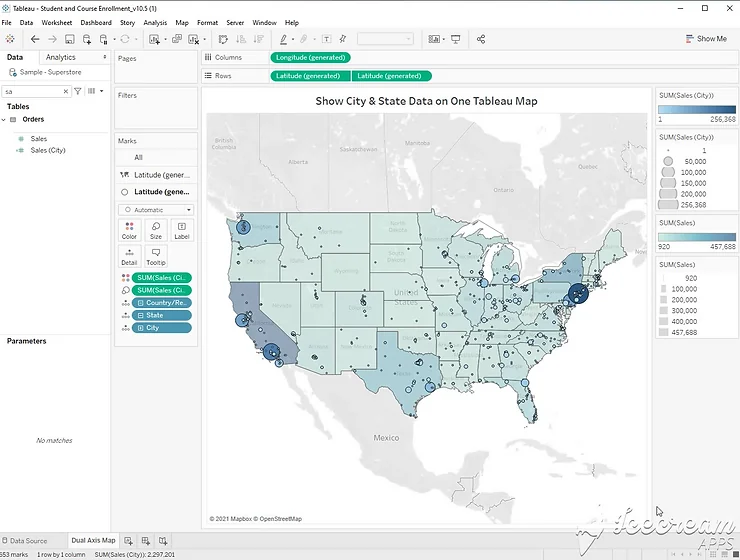
Double Click [State] to create a map. Double click [City]

Step 2:
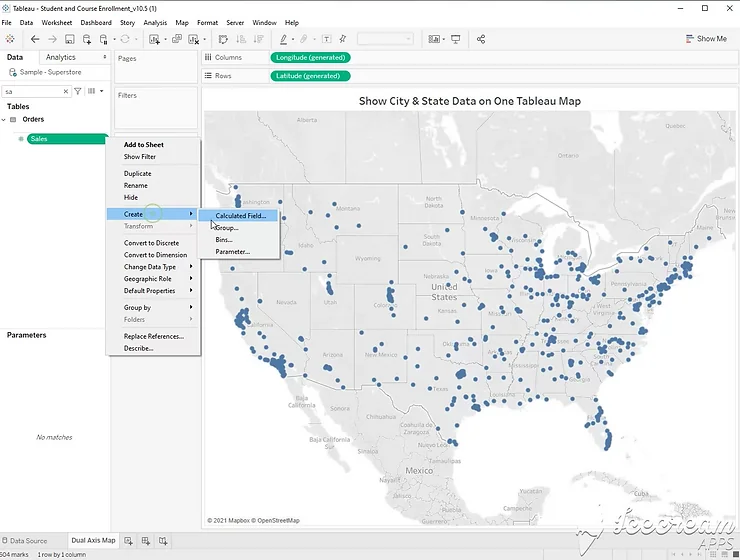
Right click [Sales] and create a calculated field. You will need a duplicate of your measure in order to show both types of map.
Step 3:
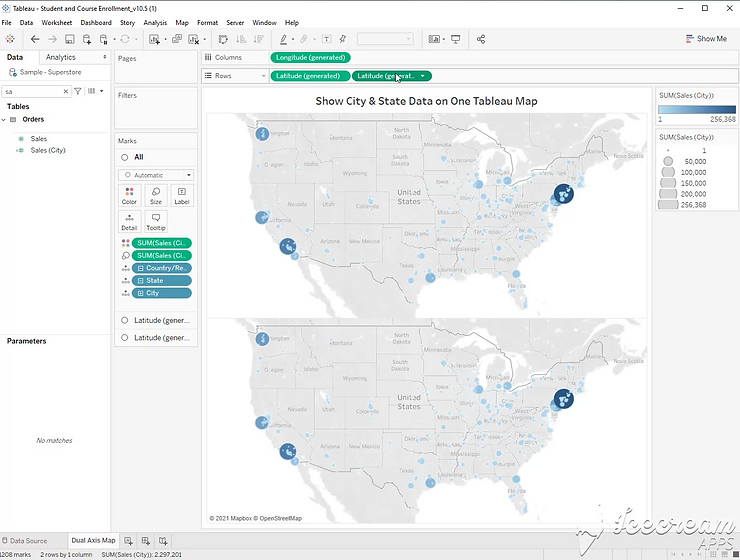
Drag the new calculated field to color, and size.

Step 4:
Hold the control button down to copy the latitude pill. This will give you a dual axis map.
Step 5:
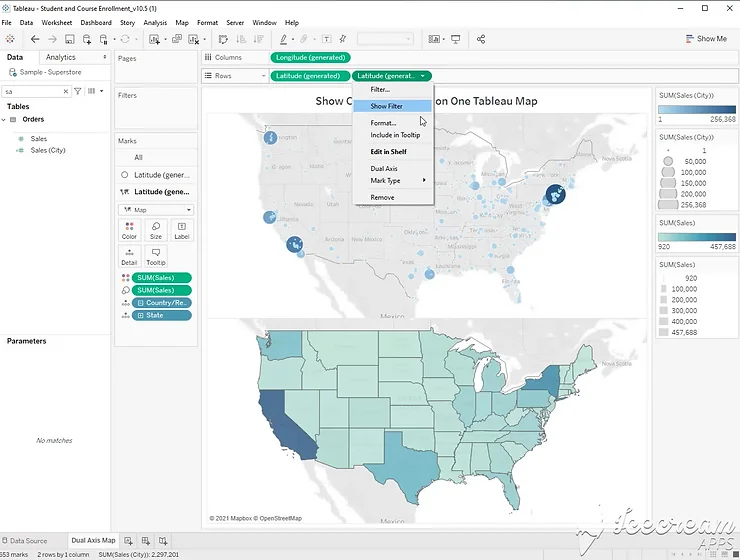
On one of your axis, remove [city], and change the mark type to filled map.
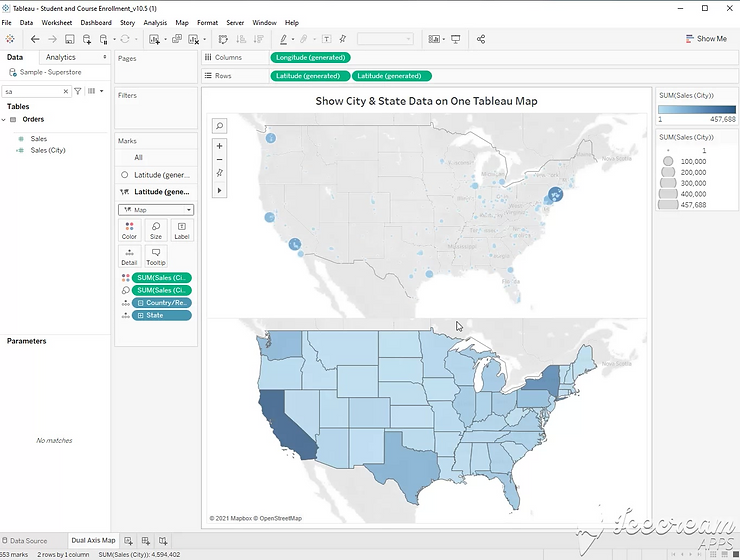
Step 6:
Replace the new calculated field with sum of sales on size and color.
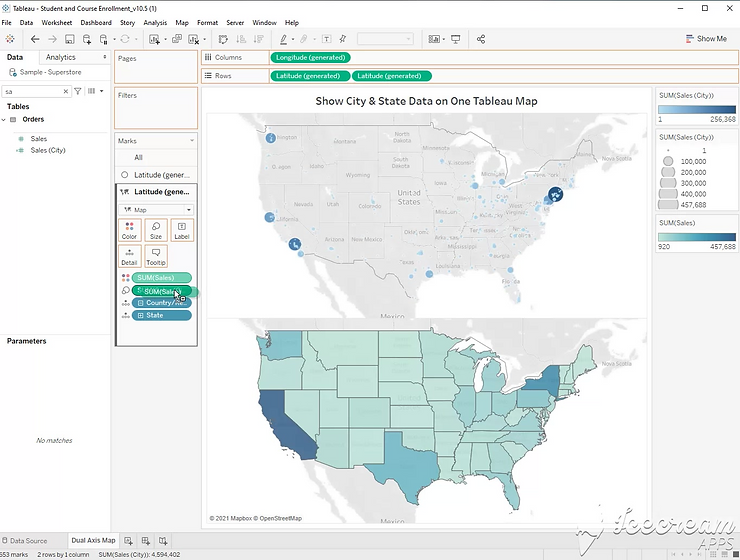
Step 7:
Click the dropdown on the second latitude pill and select “Dual Axis”