
fbpx
Ynteractive logo

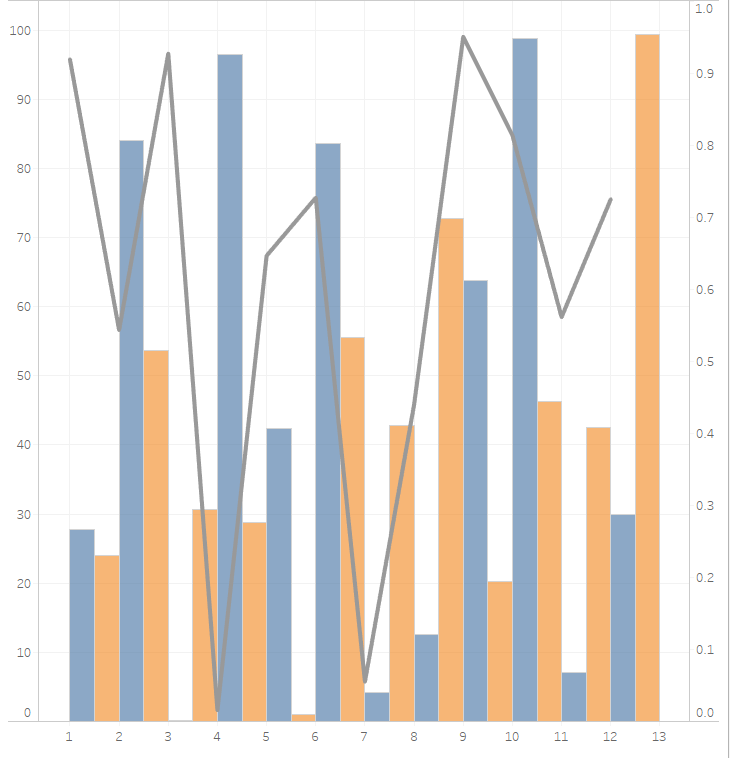
Tableau: How to create a Side by Side Bar Graph with Overlaying Line Chart

Tableau: How to create a Side by Side Bar Graph with Overlaying Line Chart - step 1 screenshot

Step 1:

Select all of your metrics. Right click one of them. Select Transform > Pivot. This will give you pivot field names and pivot field values.
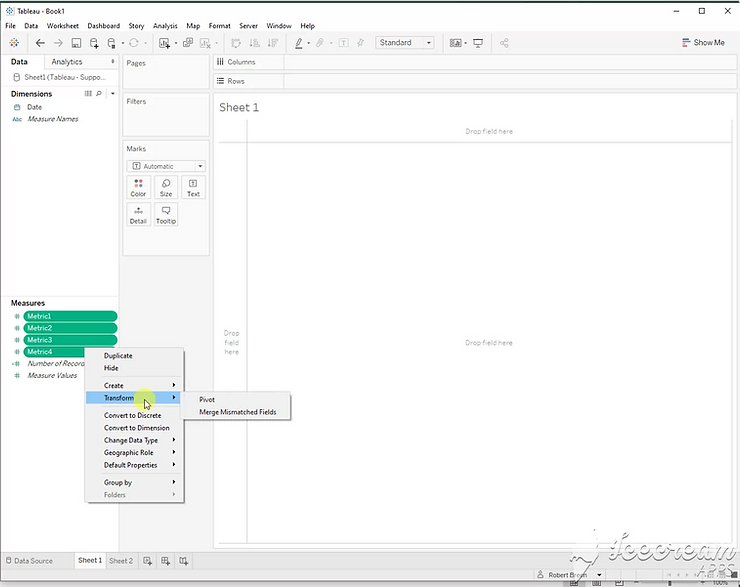
Tableau: How to create a Side by Side Bar Graph with Overlaying Line Chart - step 2 screenshot

Step 2:

Create this calculated field for your bar values.

If [Metric] = “Metric1” or [Metric] = “Metric2” then [Value] end
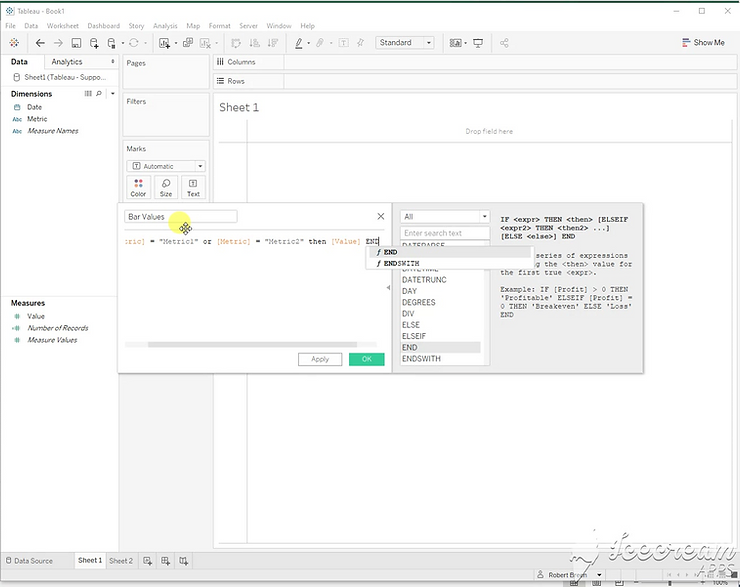
Tableau: How to create a Side by Side Bar Graph with Overlaying Line Chart - step 3 screenshot

Step 3:

Create this calculated field for your line values.

If [Metric] <> “Metric1” and [Metric] <> “Metric2” then [Value] end
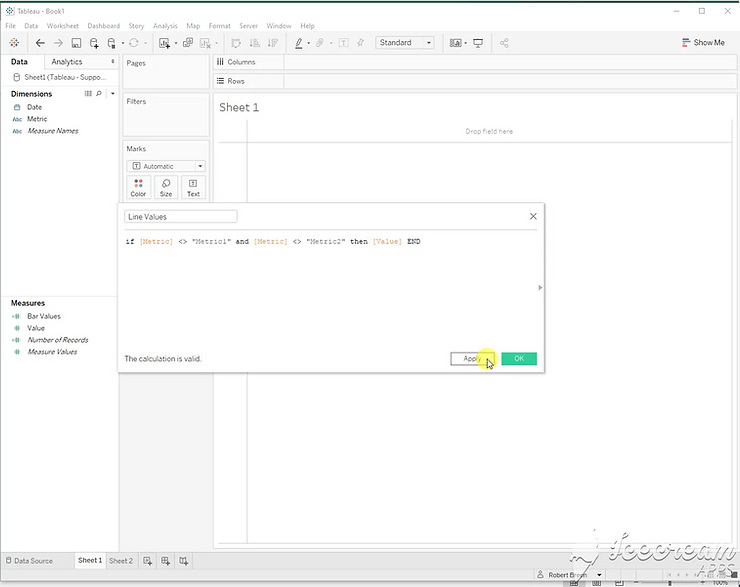
Tableau: How to create a Side by Side Bar Graph with Overlaying Line Chart - step 4 screenshot

Step 4:

Create a dual axis chart with [Bar values], [Line Values], and [Date].
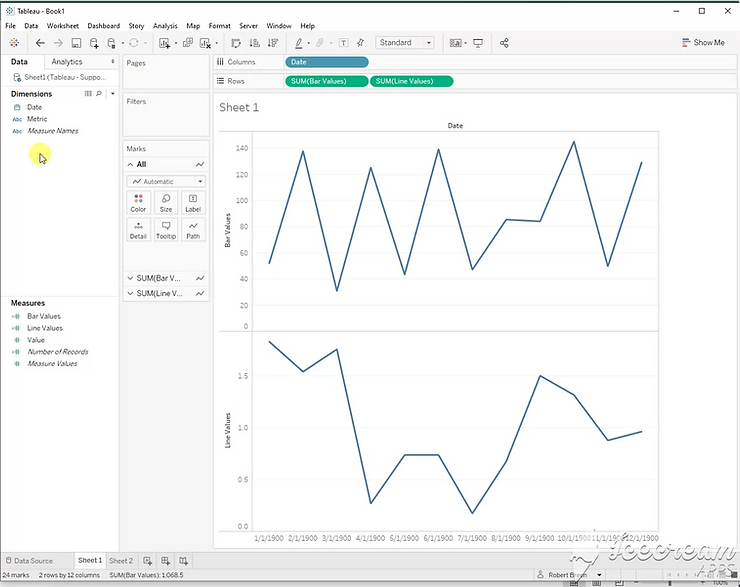
Tableau: How to create a Side by Side Bar Graph with Overlaying Line Chart - step 5 screenshot

Step 5:

To separate the stacked bar chart, use this calculation on the columns shelf.

If [Metric] = “Metric2” then month([Date])+.5 else month([Date]) end
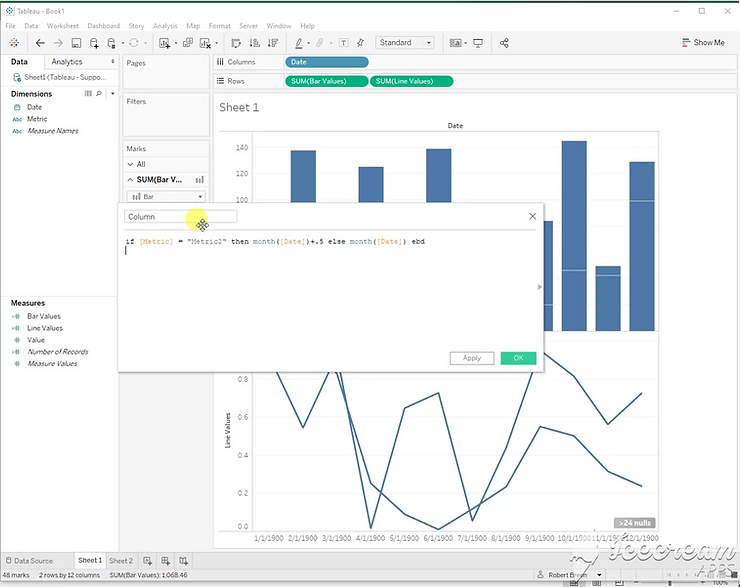
Tableau: How to create a Side by Side Bar Graph with Overlaying Line Chart - step 6 screenshot

Step 6:

Add color and set as dual axis.
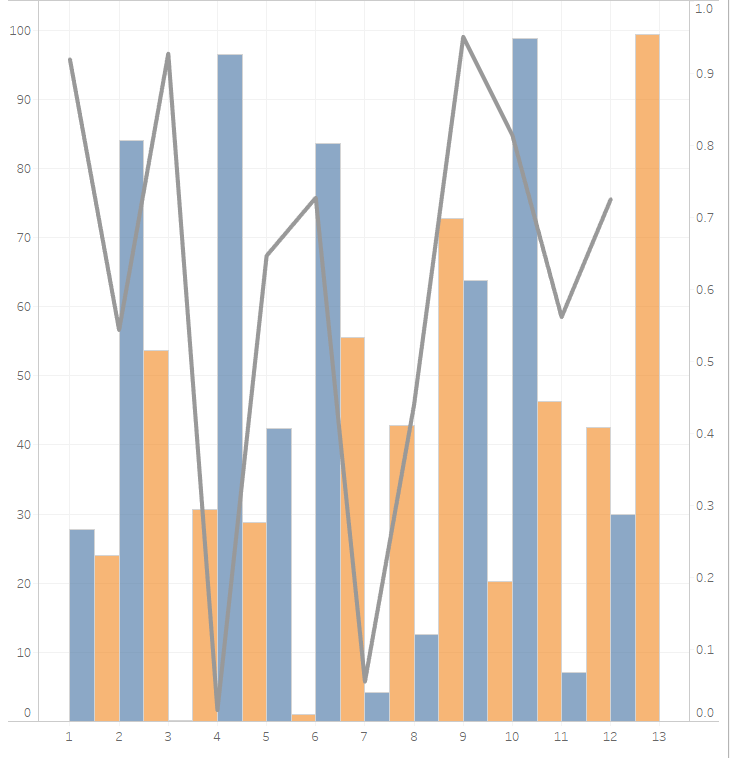
Tableau: How to create a Side by Side Bar Graph with Overlaying Line Chart - step 7 screenshot

Related tutorial: How to build a bar chart (column chart) in Tableau Desktop