Why this matters
Gmail on phones and Outlook darken emails in dark mode. A dark brand colour that looks fine on white can almost disappear on black, so a patient cannot read the phone number or tap the link in your signature, and nobody in the office knows.
Signatoro keeps one signature design for the whole company. Its Brand page checks the accent colour for dark mode and suggests one that passes, and its AI members page sets one disclosure line that every AI agent has to show. One save updates everyone.
Practice
Do every step yourself in a practice copy of the real tool. It checks your work, and “Do it for me” finishes any step you get stuck on.
What you’ll build
You are a made-up patient coordinator at a dental office. You fix an accent colour flagged as hard to read in dark mode, switch the office to a phone-friendly layout, save it for every member, set a required AI disclosure line and preview how a company AI agent will sign.
The screens are real screenshots from my own Signatoro account, captured November 2026. We stopped before Add agent, because that creates a key.
What you need
- Nothing to start the practiceThe lesson is a practice copy. The office and the coordinator are made up.
- A Signatoro company account, to do it for realBrand and AI members are under Your company. Check the current plans for how many people and agents yours includes.
- Permission to change the office signatureSaving the brand emails every member their new signature, so agree the change first.
Concepts
Check dark mode before you pick a brand colour
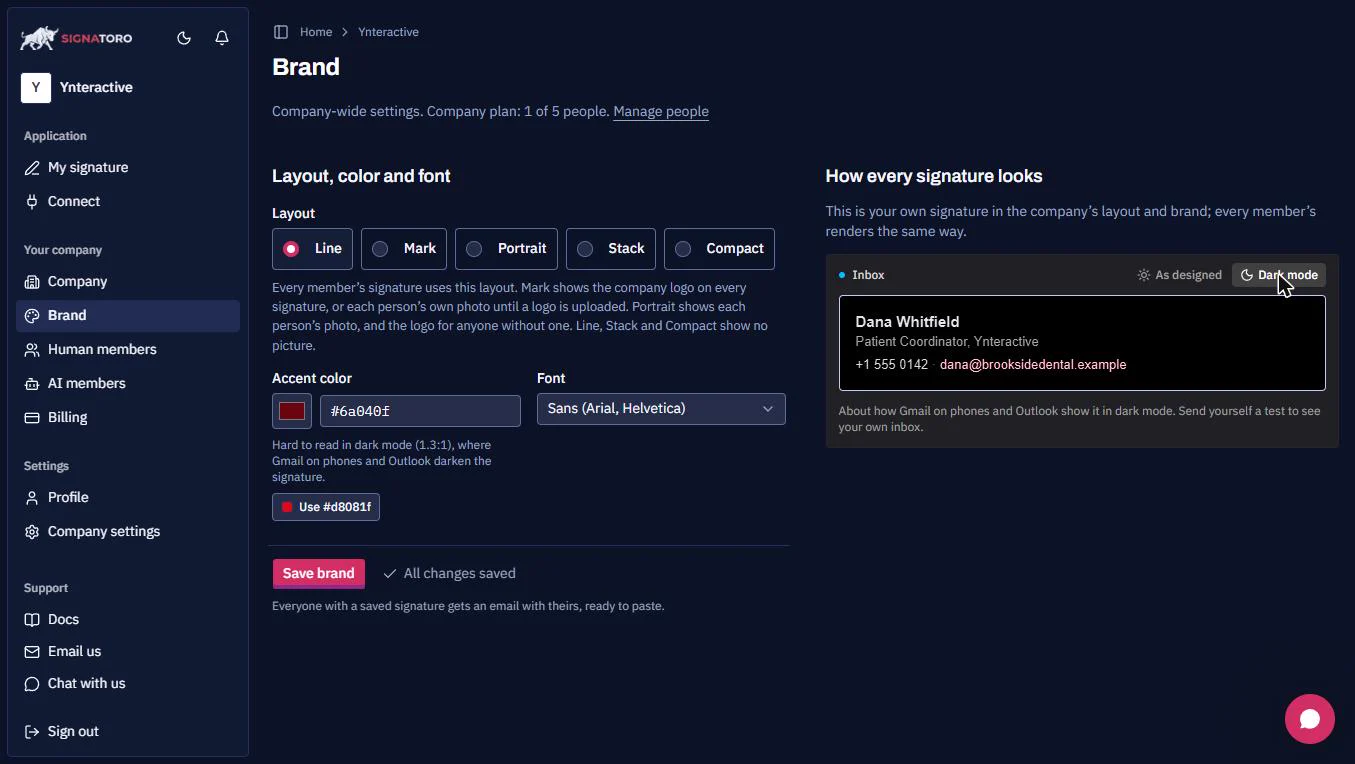
Under Accent color, Signatoro told us our dark red was hard to read in dark mode, with a contrast of 1.3:1, and offered a brighter red. After we took it the note read "Readable on white and in dark mode".
Use the As designed and Dark mode buttons above the preview to look at both before you save.
One save changes everyone
Layout, colour and font are company-wide. When you click Save brand, everyone with a saved signature gets an email with theirs, ready to paste. Make all your changes first, then save once.
Line keeps phone and email on one row. Stack gives each its own row, which is easier to tap on a phone.
Make the AI say it is an AI
Required disclosure for every agent sets one line for all company agents and members' own AI assistants. We chose "AI assistant to the person it acts for"; the preview then ended with "Sent by Ada, AI assistant for" the company.
In the New company agent form the disclosure choice is locked to the company line. Add agent creates the agent's key, so click it only when the tool that sends the emails is ready.
Do it for real
Now repeat it in your own account. Tick each step as you go.
Quick check
3 questions to check you’ve got it.
1. A brand colour looks fine in the preview. What else do you check before saving?
- The Dark mode view and the note under Accent color
- Only the font
- Nothing; the preview is enough
Show the answer
The Dark mode view and the note under Accent color. Phones and Outlook darken emails. A colour can pass on white and vanish on black.
2. Why make all brand changes before you click Save brand?
- Every save emails members a new signature to paste
- Signatoro allows one save a day
- The preview stops working after a save
Show the answer
Every save emails members a new signature to paste. Each save sends everyone their updated signature. One save means one email, not three.
3. What does a required disclosure line do?
- Puts the same AI disclosure on every agent's signature, replacing each agent's own choice
- Hides the agent's name
- Stops agents from sending email
Show the answer
Puts the same AI disclosure on every agent's signature, replacing each agent's own choice. The company sets it once, and the agent form shows it as locked.