Updated . Built from screenshots in tawk.to's own Help Center, credited under each image, not tested in a live tawk.to account. How we check this lesson
A small office closes at 5, but its website keeps getting questions: fees, hours, which software you use, how to send documents. Nobody answers until morning, and some of those people book someone else. tawk.to is free live chat for websites, and its AI Assist add-on can answer routine questions from your own material. In this free business-case lesson you create a property, add the chat widget to your site, make it look like yours, switch on AI Assist and build an AI agent from your website, answer a chat yourself, and decide what visitors see after hours. Every tawk.to screen in the lesson is a screenshot from tawk.to's own Help Center, credited and linked to its article. This is my own lesson, not an official tawk.to course.
At a glance
| Question | Answer |
|---|---|
| What you build | A business case for any small office whose website gets questions after closing: put tawk.to's free chat widget on your site, let AI Assist answer the routine questions from your own material, and decide what visitors see when nobody is there. |
| Tools | tawk.to |
| Time | About 14 minutes, 45 steps in 9 parts |
| Level | Beginner, no coding needed |
| Cost | Free |
| Ways to learn it | Practice it step by step, read the guide with screenshots |
The 9 parts, in short
- Questions that come in after hours: The questions you miss, What a missed question costs, Meet tawk.to.
- Create a property: Open the property list, Click Create Property, Name the property, Click Next, and 2 more steps.
- Add the chat widget to your site: Open Administration, Click Chat Widget, Copy the widget code, On WordPress, add the plugin, and 2 more steps.
- Make the widget look like yours: Open Widget Appearance, Pick the shape and position, Save.
- Turn on AI Assist: Open Add-ons, Click Get Started, Switch AI Assist on.
- Build your AI agent: Open Automations, Add your first agent, Tell it about your business, Choose what the agent does, and 7 more steps.
- Answer a chat yourself: Open a new chat, Join the chat, Answer from your phone.
- Set what happens after hours: Open your status, Choose Away, Find the Widget Scheduler, Pick your hours, and know the trade-off, and 4 more steps.
- What is free and what costs money: What is free, What to check before you rely on it.
Part of: AI for Accounting & Bookkeeping Firms (step 19 of 42)
Part of: AI Apps Worth Knowing (step 19 of 186)
Part of: Build Your Own AI Support Bot (step 5 of 11)
tawk.to: Answer Website Questions After Hours: step-by-step guide with screenshots
About the screenshots. They come from Stepthrough’s simulated practice environment (a practice copy of tawk.to), not the live tool, so no real account appears. The buttons and labels match the real screens the lesson was built against. Practice it yourself free at ynteractive.com.
- Tools: tawk.to
- Time: about 14 minutes, 45 steps in 9 parts
- Level: beginner, no coding needed
Part 1: Questions that come in after hours
Step 1: The questions you miss
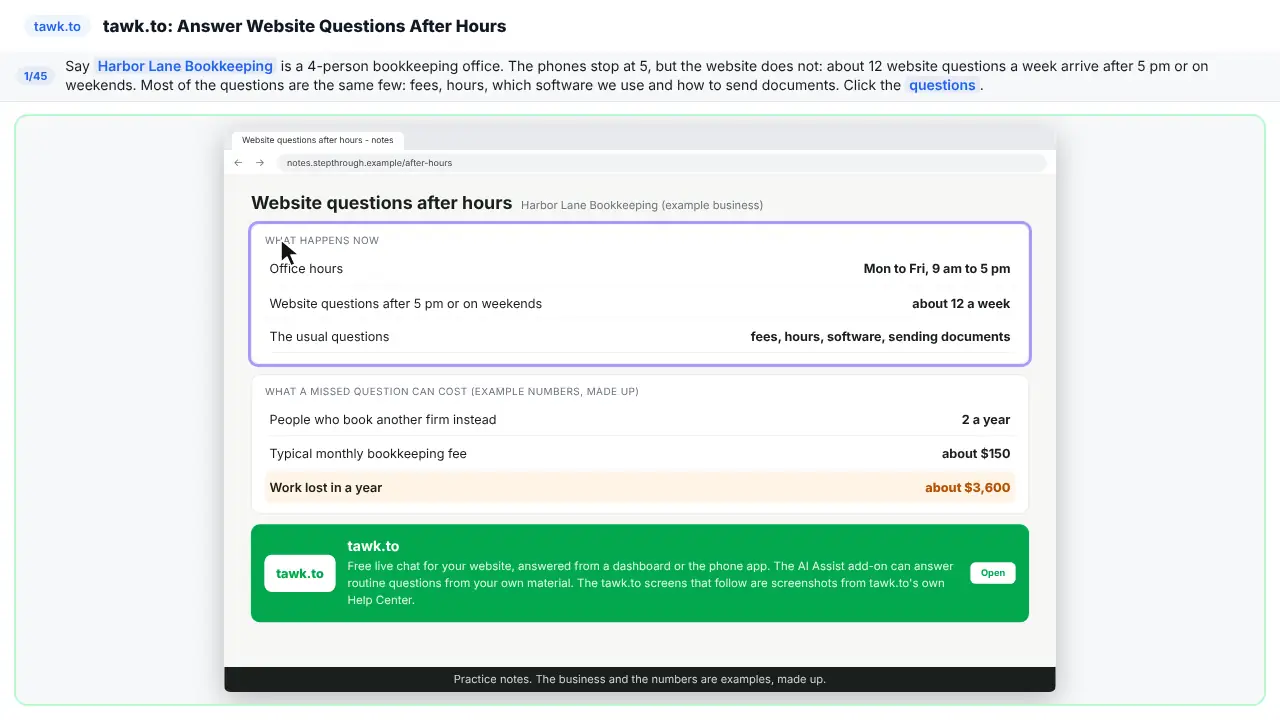
A small bookkeeping office closes at five. The website does not. About twelve questions a week come in when nobody is there.
Step 2: What a missed question costs
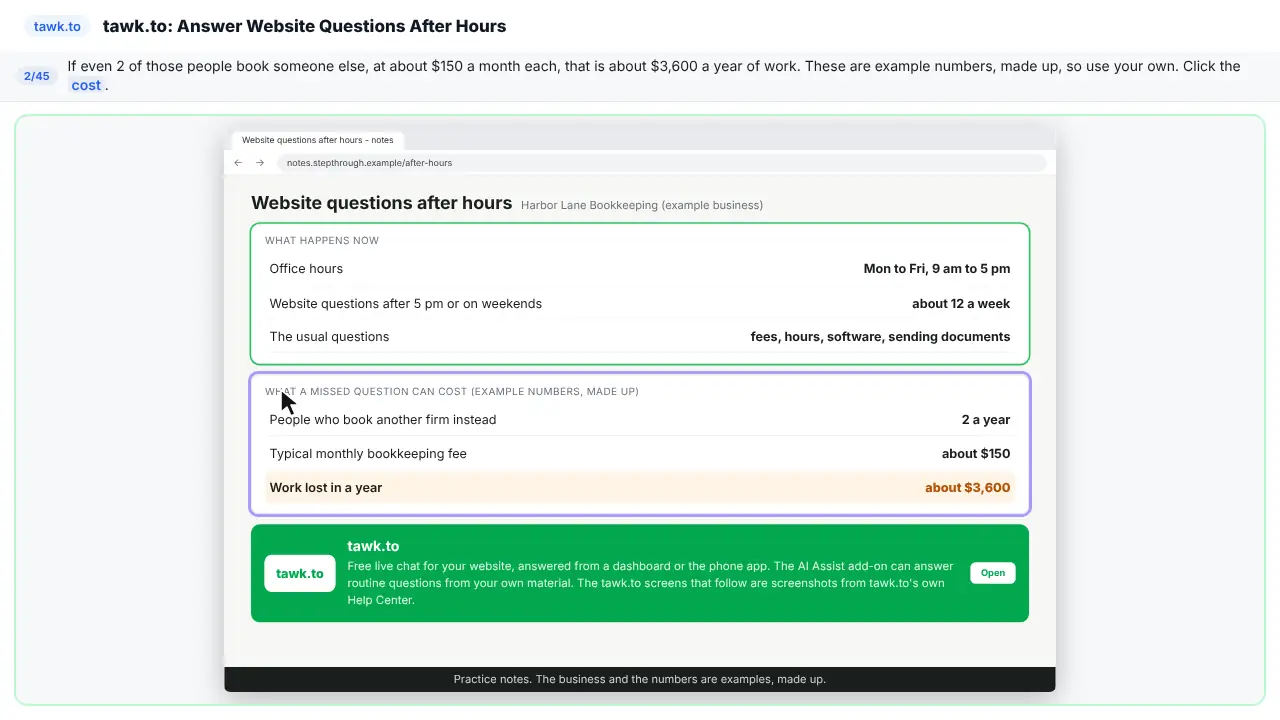
If even two of those people book someone else, that is real money. These are example numbers, so use your own.
Step 3: Meet tawk.to
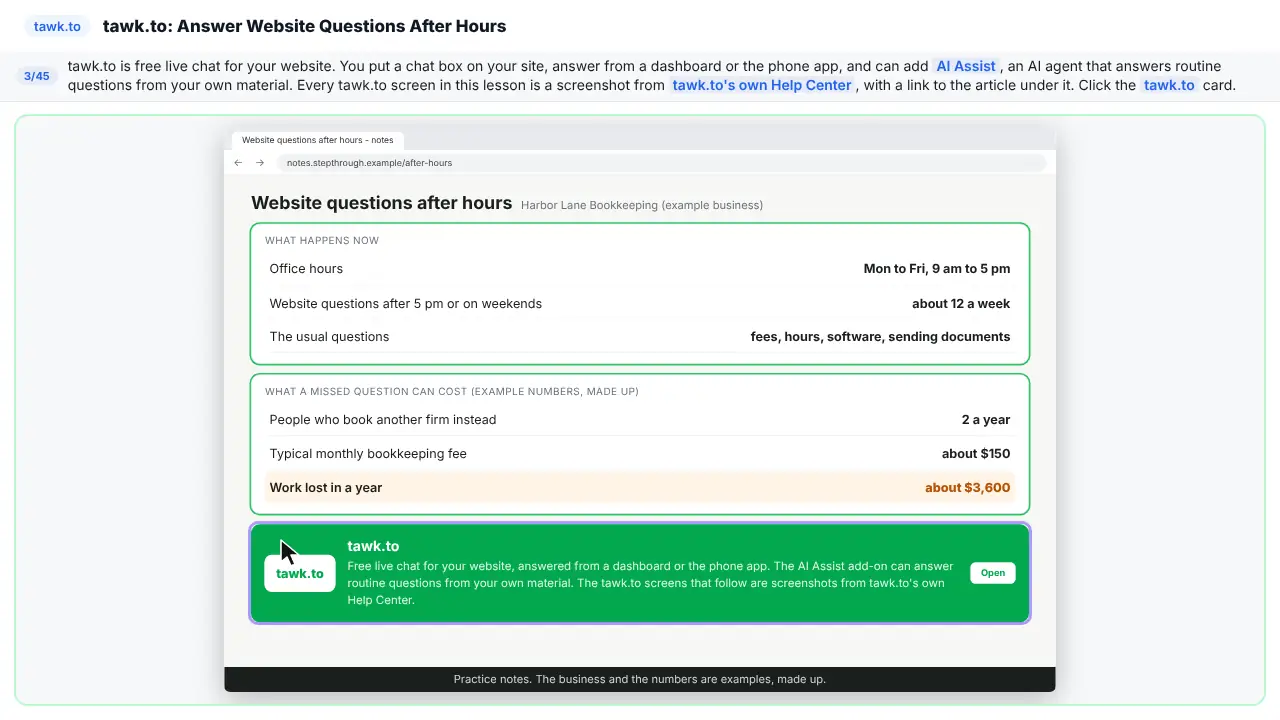
tawk. to puts a free chat box on your website. Every tawk. to screen you see here comes from tawk. to's own help center.
Part 2: Create a property
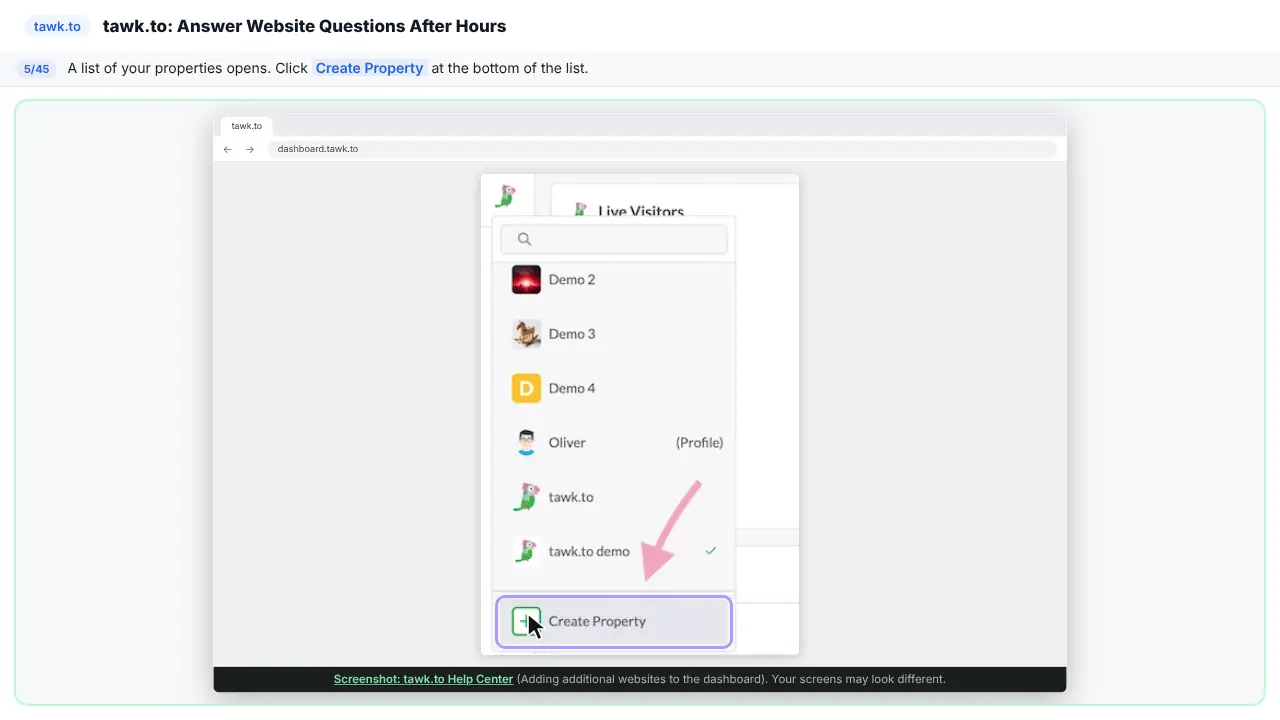
Step 4: Open the property list
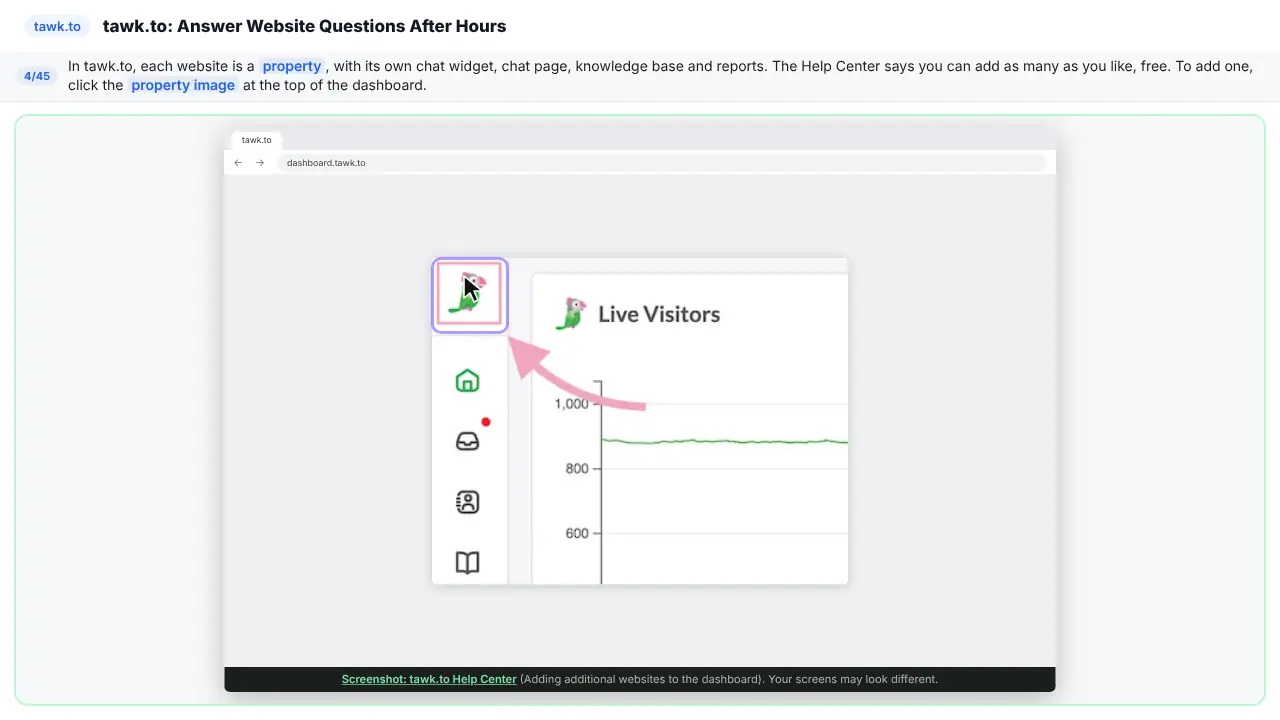
Each website is a property in tawk. to.
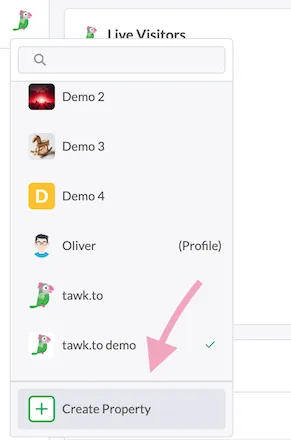
Step 5: Click Create Property
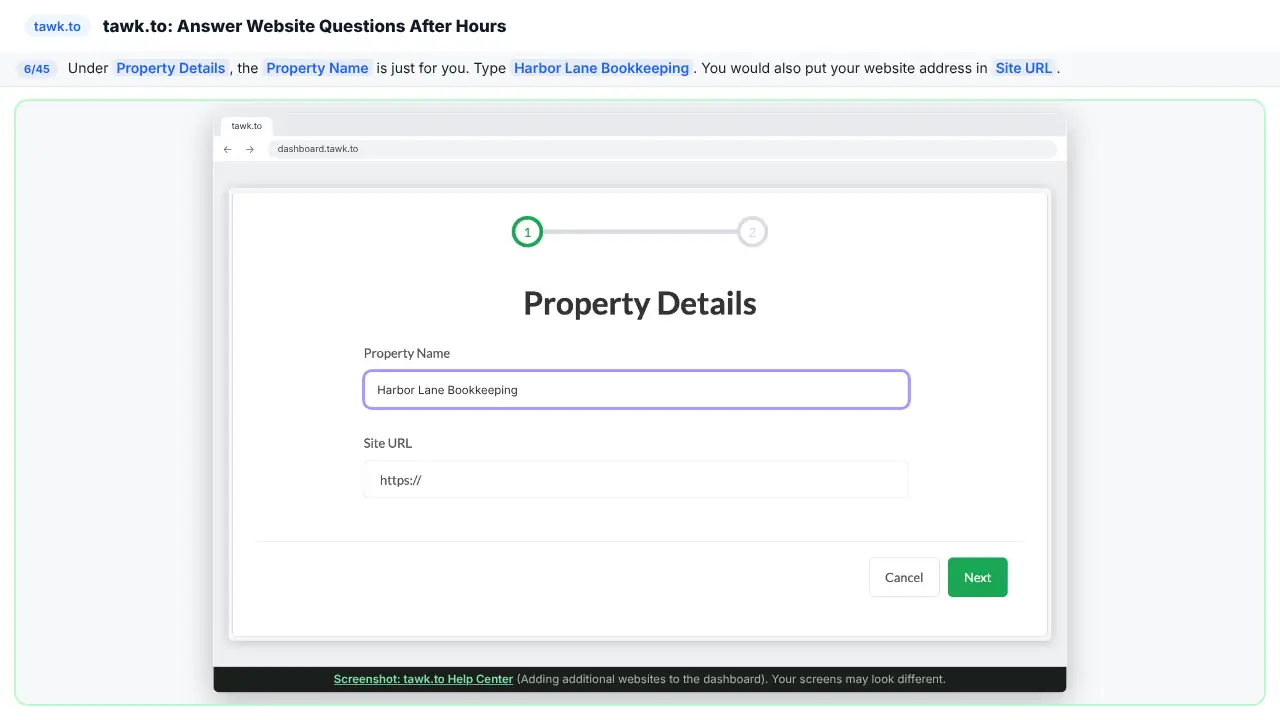
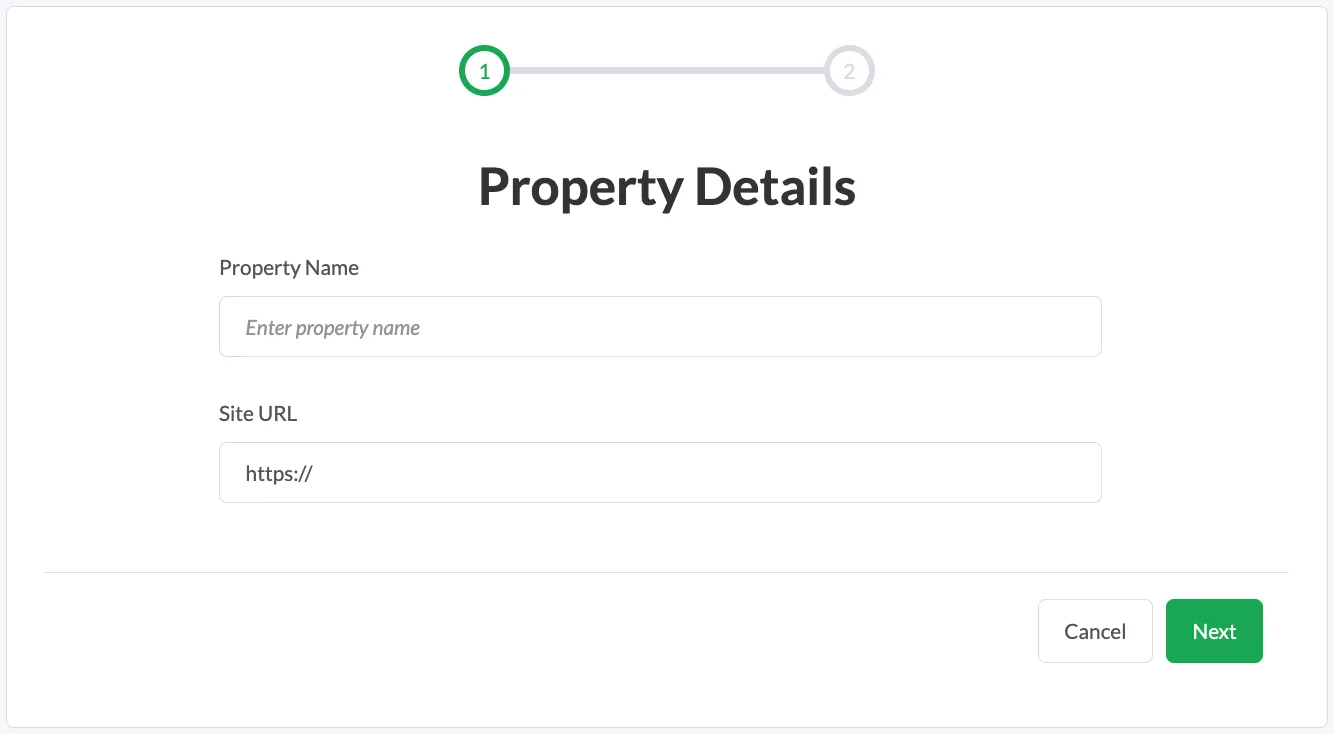
Step 6: Name the property
Give the property a name. We typed Harbor Lane Bookkeeping. Then add your website address.
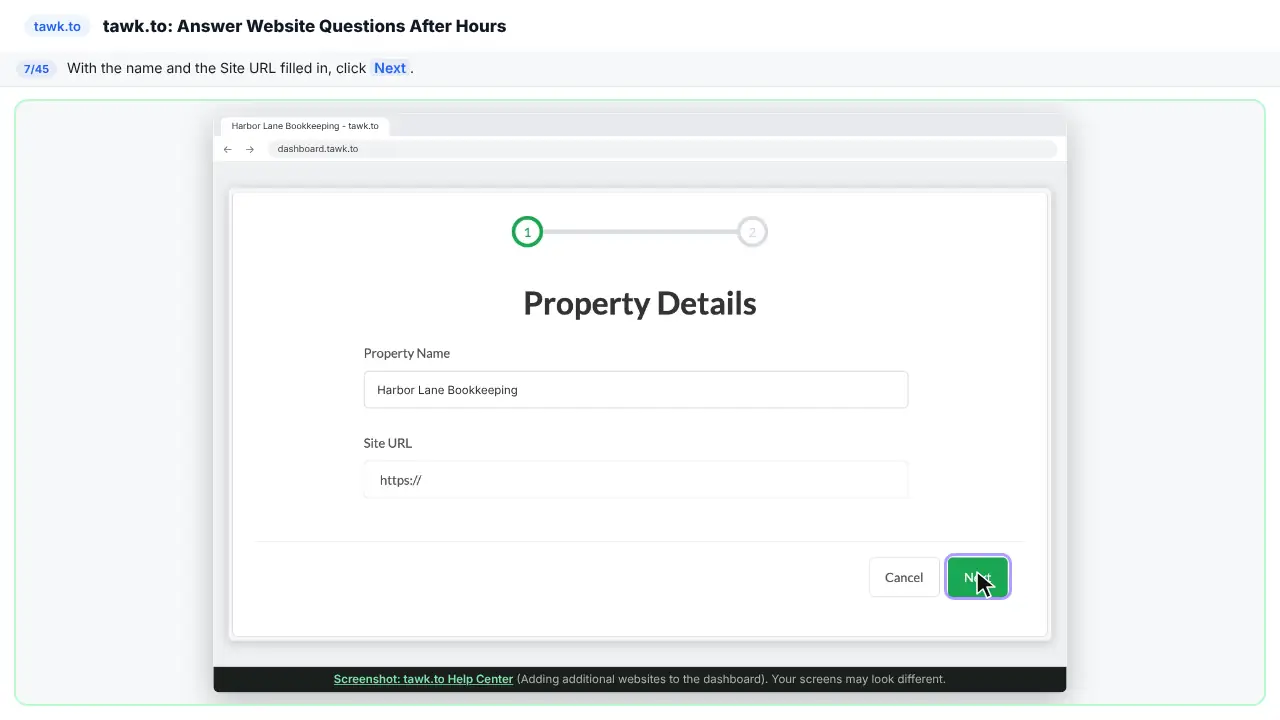
Step 7: Click Next
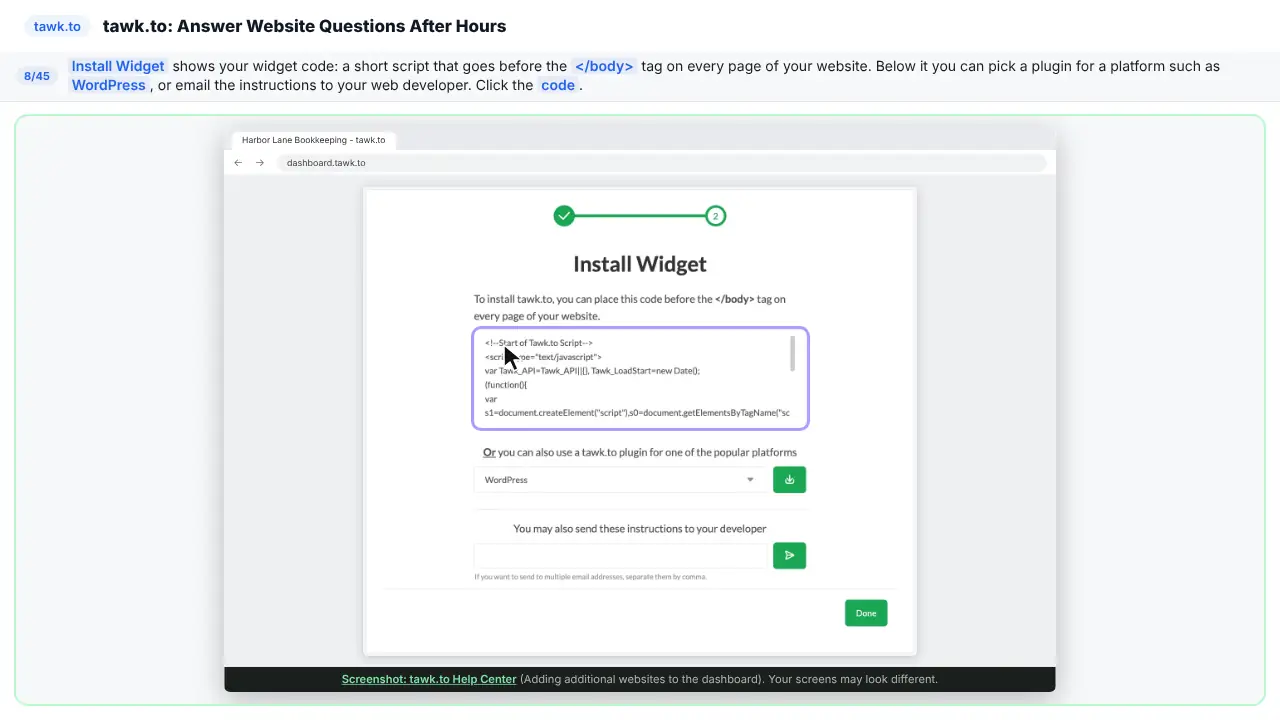
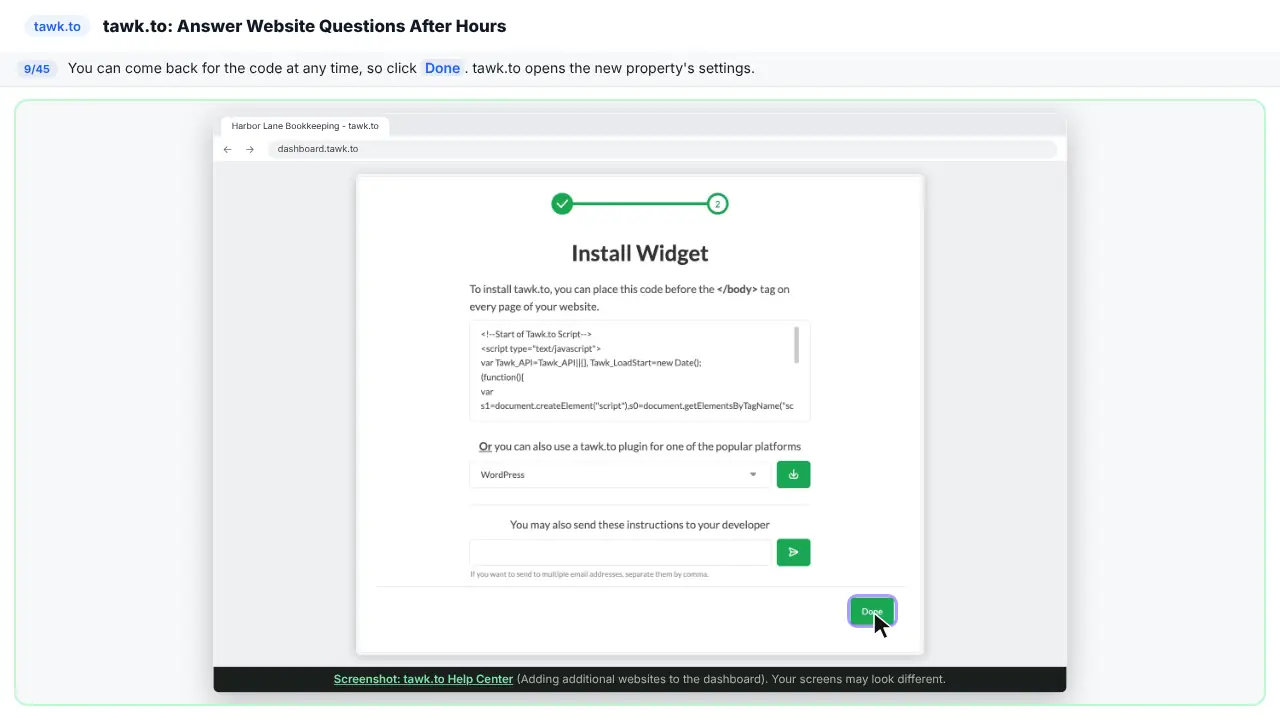
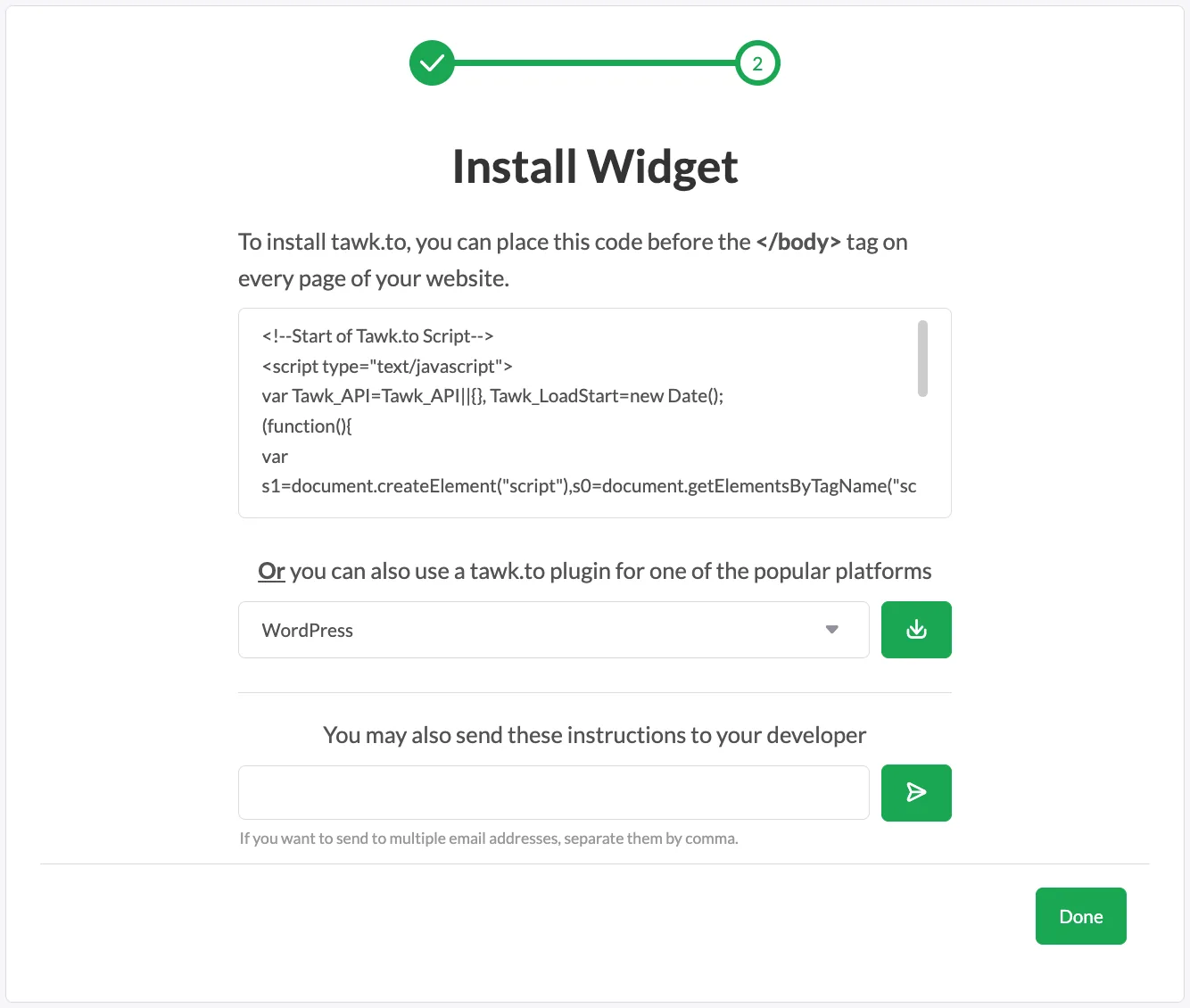
Step 8: Find your widget code
This is your widget code. It goes on every page of your site. You can also pick a plugin, or send it to your web developer.
Step 9: Click Done
You can find the code again later.
Part 3: Add the chat widget to your site
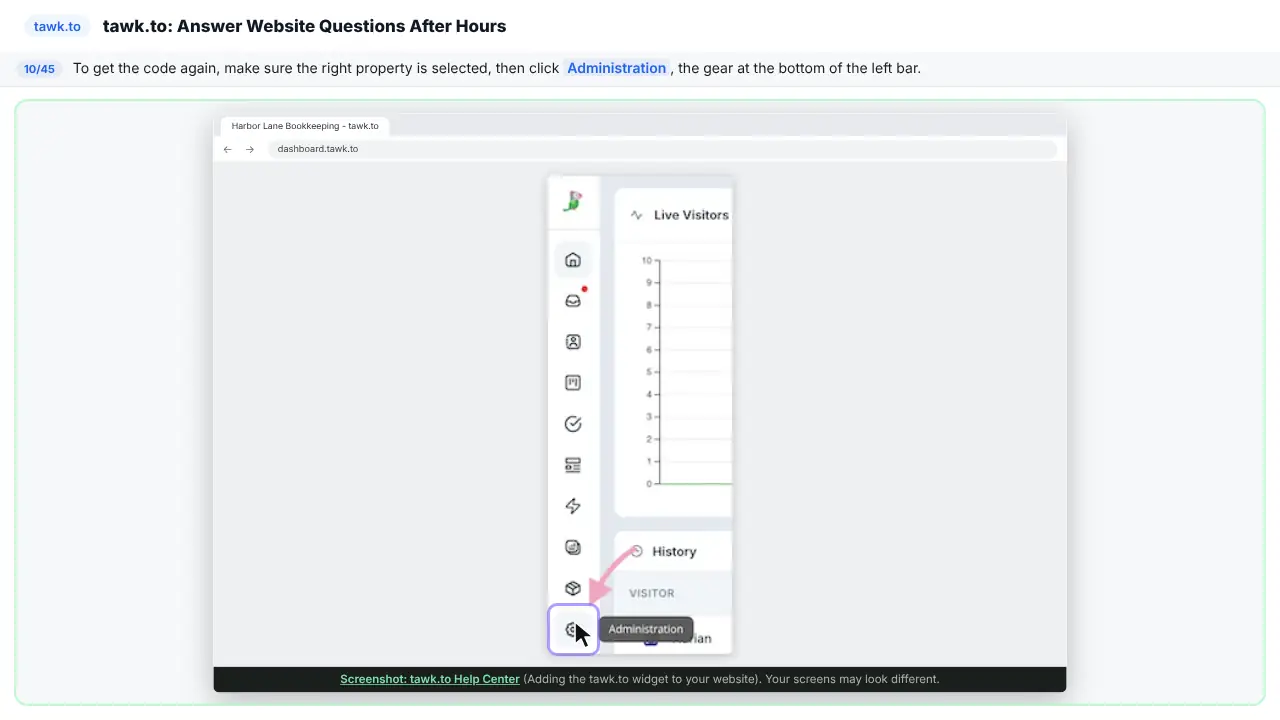
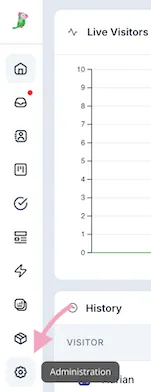
Step 10: Open Administration
To find the code again, click Administration, the gear at the bottom left.
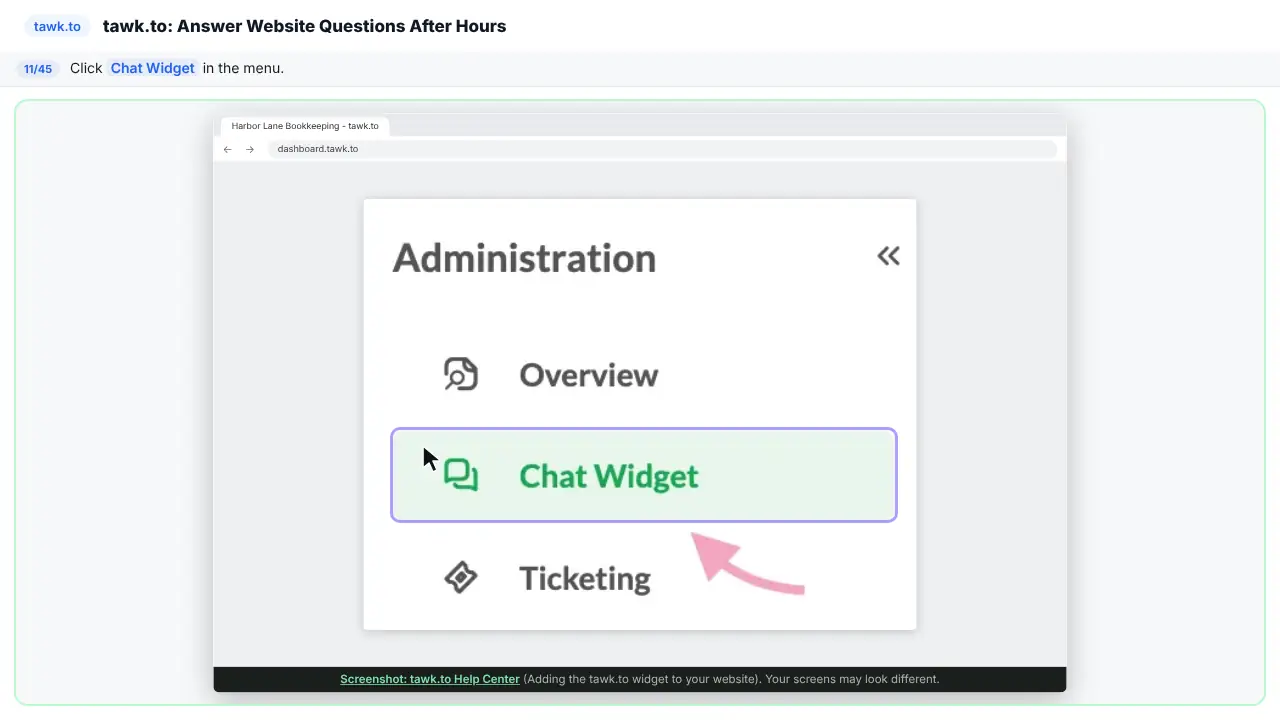
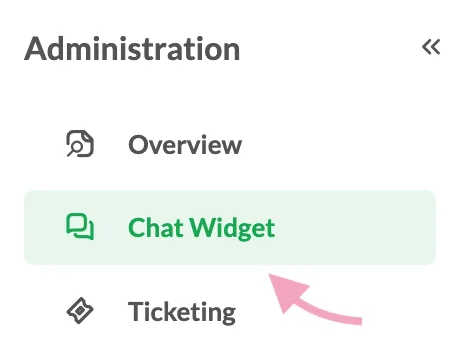
Step 11: Click Chat Widget
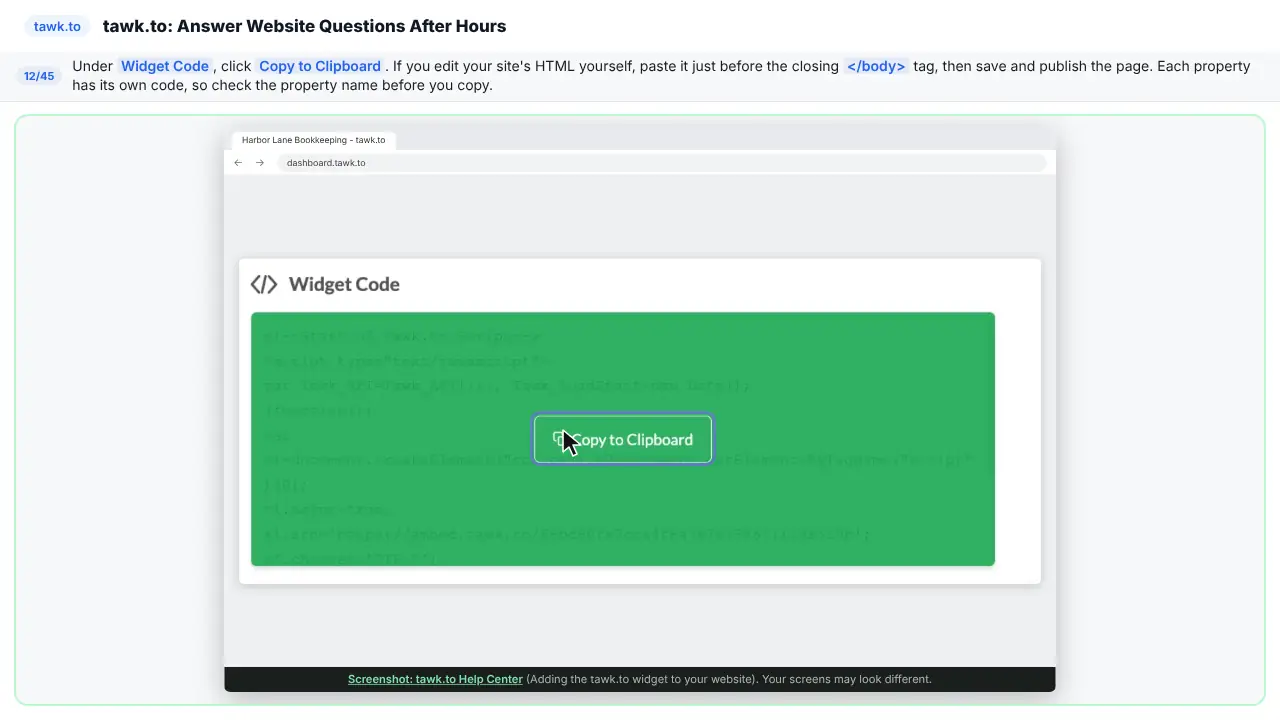
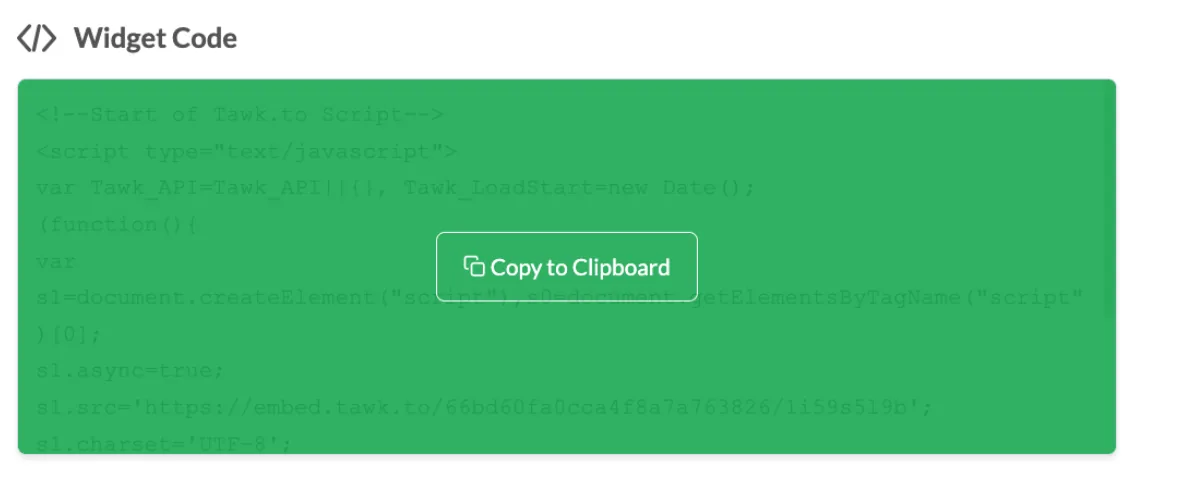
Step 12: Copy the widget code
Copy the widget code.
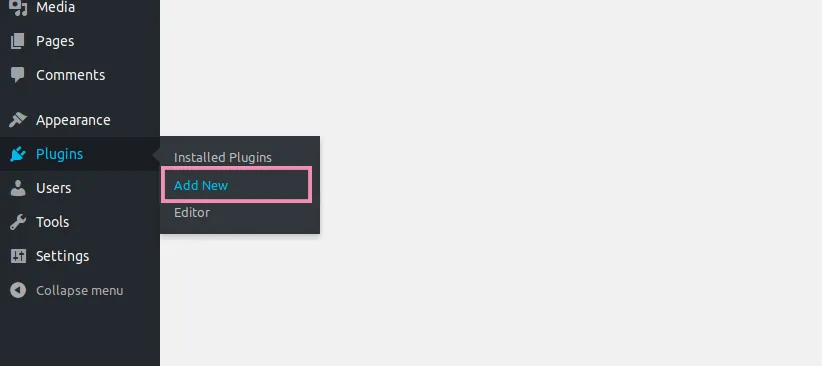
Step 13: On WordPress, add the plugin
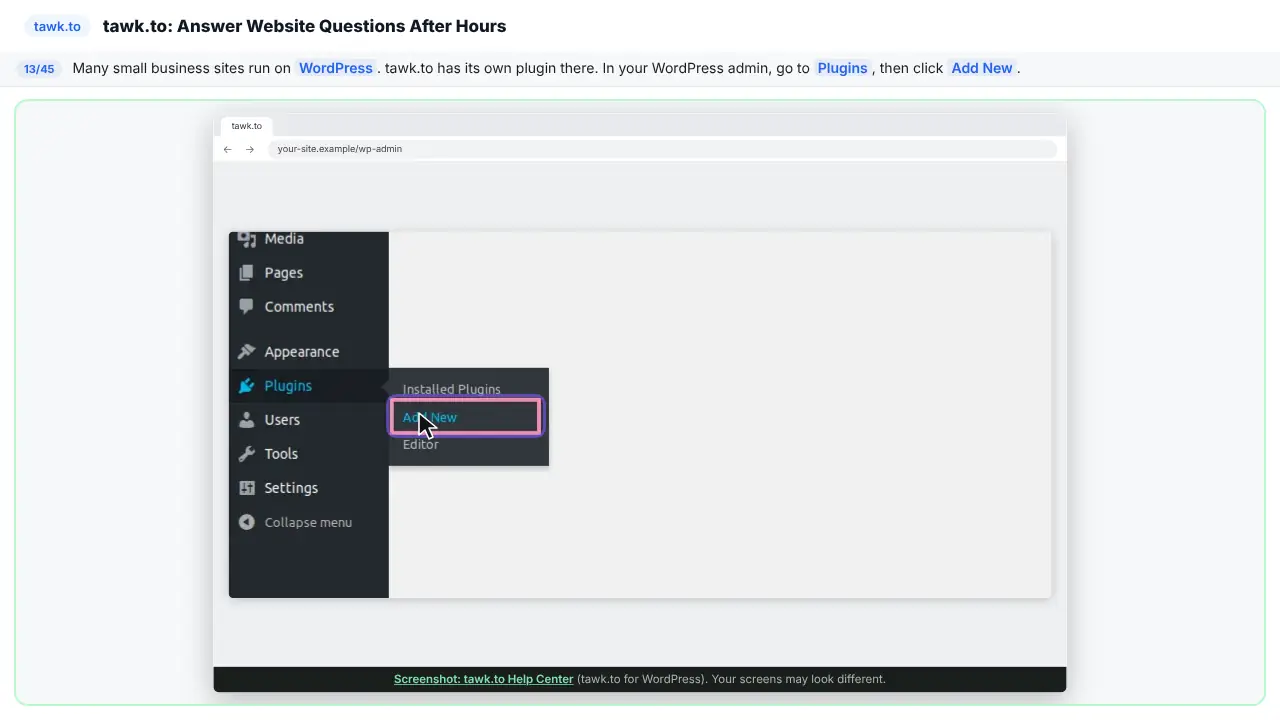
If your site is on WordPress, there is a tawk. to plugin. In WordPress, go to Plugins, then Add New.
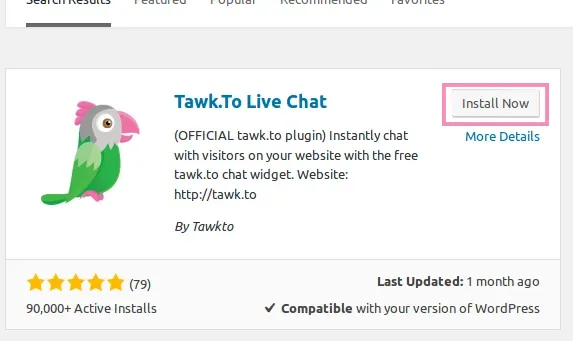
Step 14: Install Tawk.To Live Chat
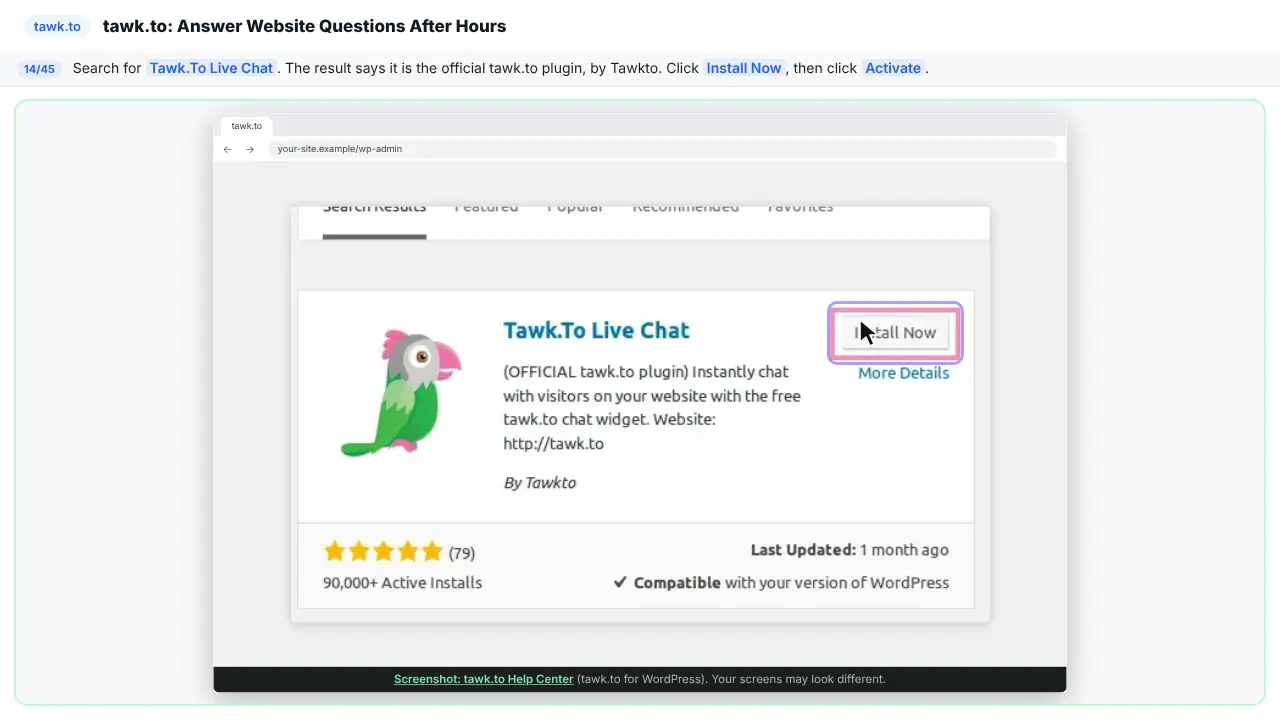
Search for Tawk dot to Live Chat, click Install Now, then Activate.
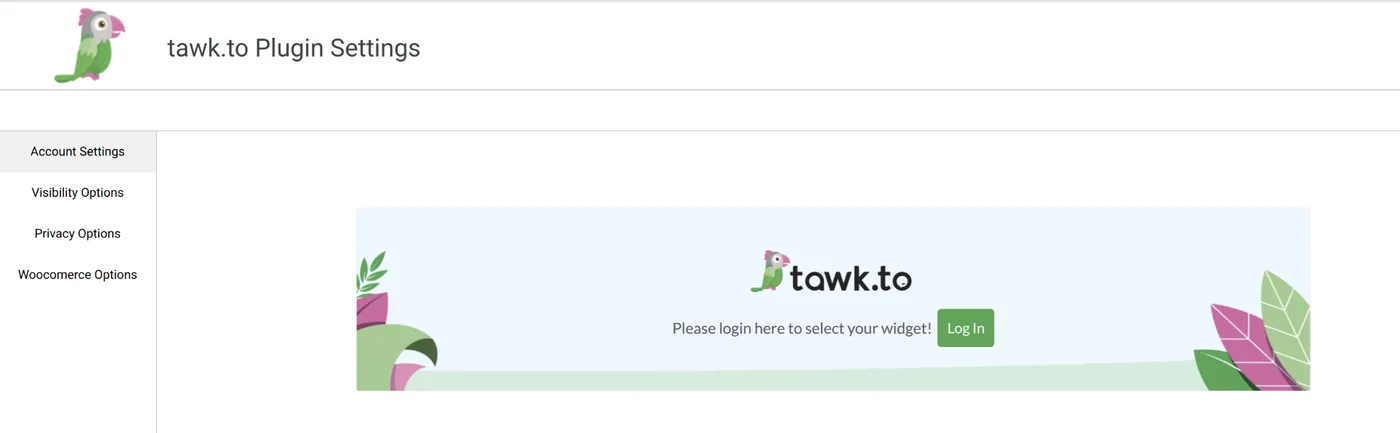
Step 15: Connect your tawk.to account
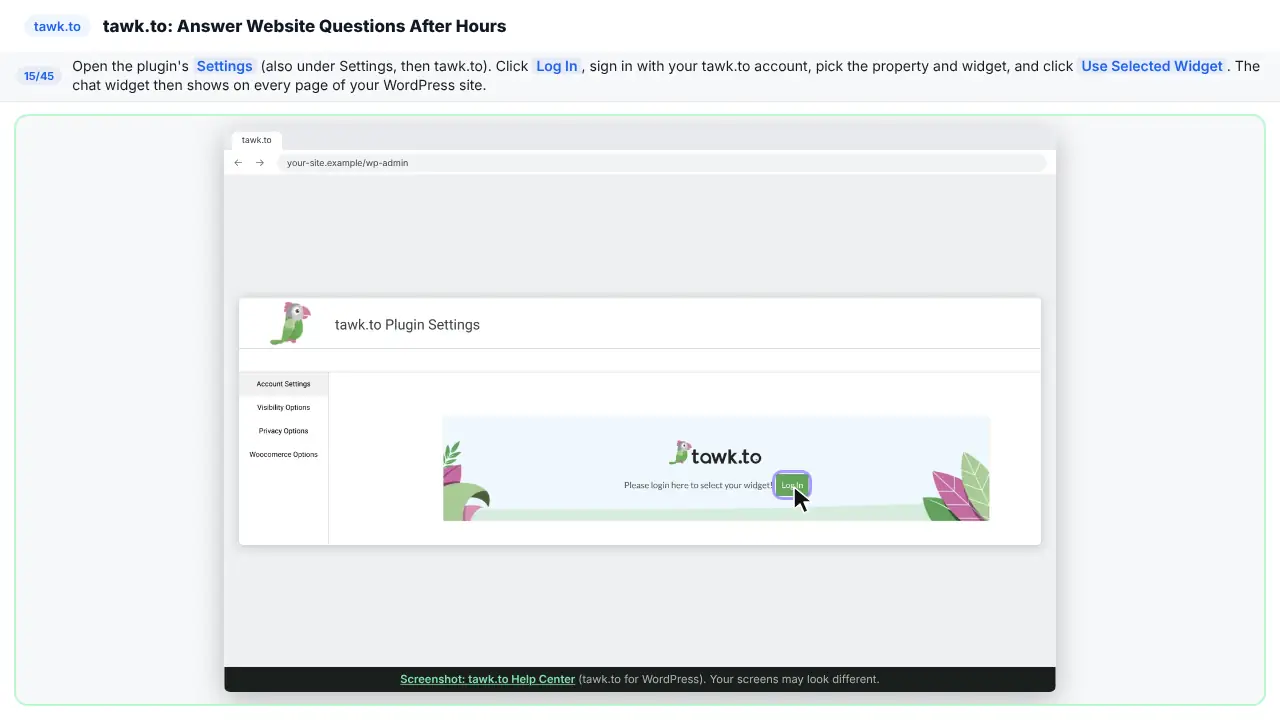
In the plugin settings, log in, pick your property and widget, and click Use Selected Widget.
Part 4: Make the widget look like yours
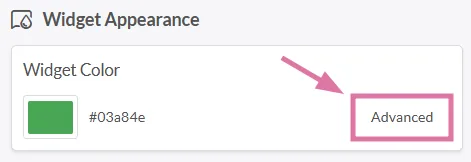
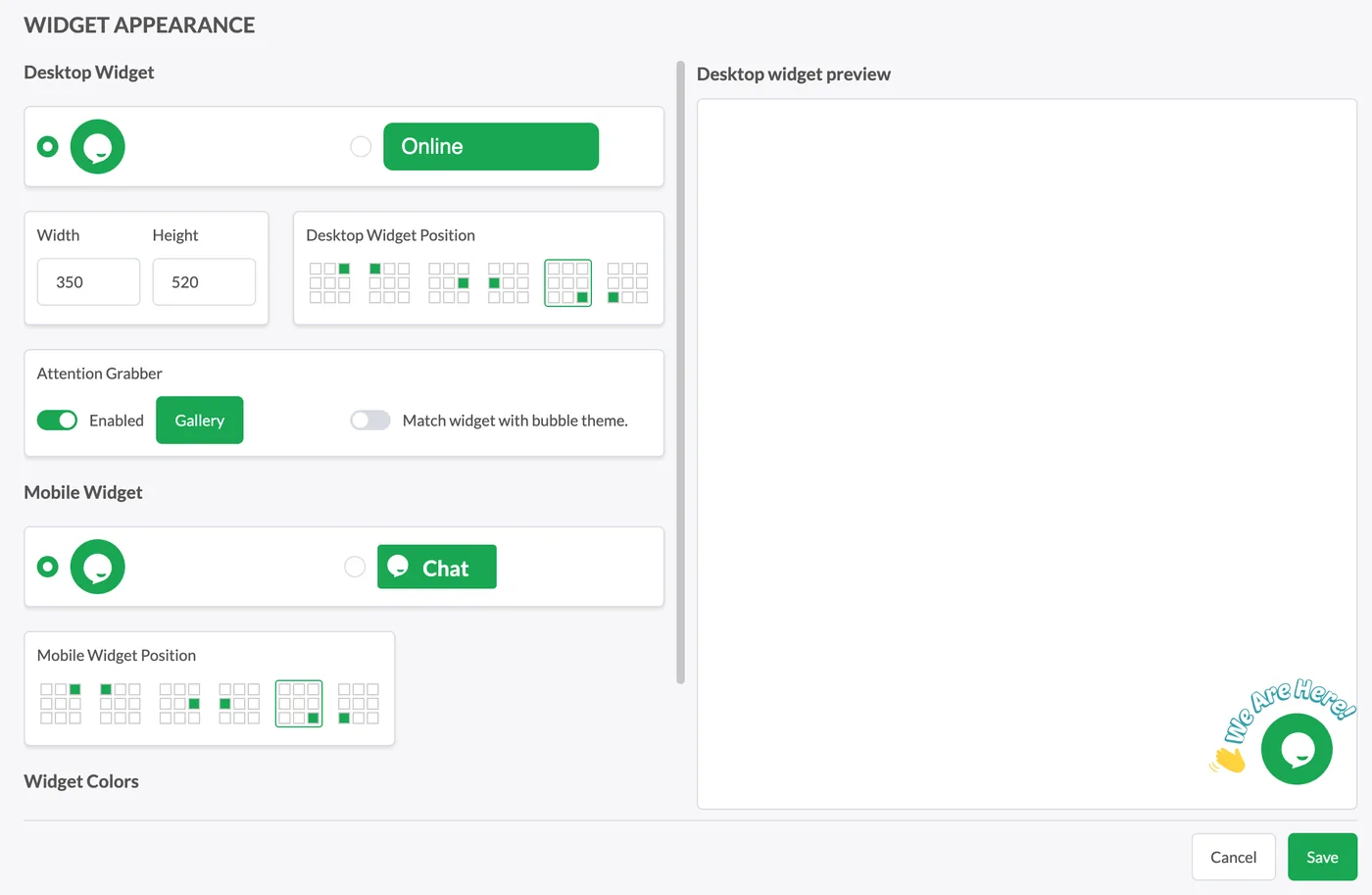
Step 16: Open Widget Appearance
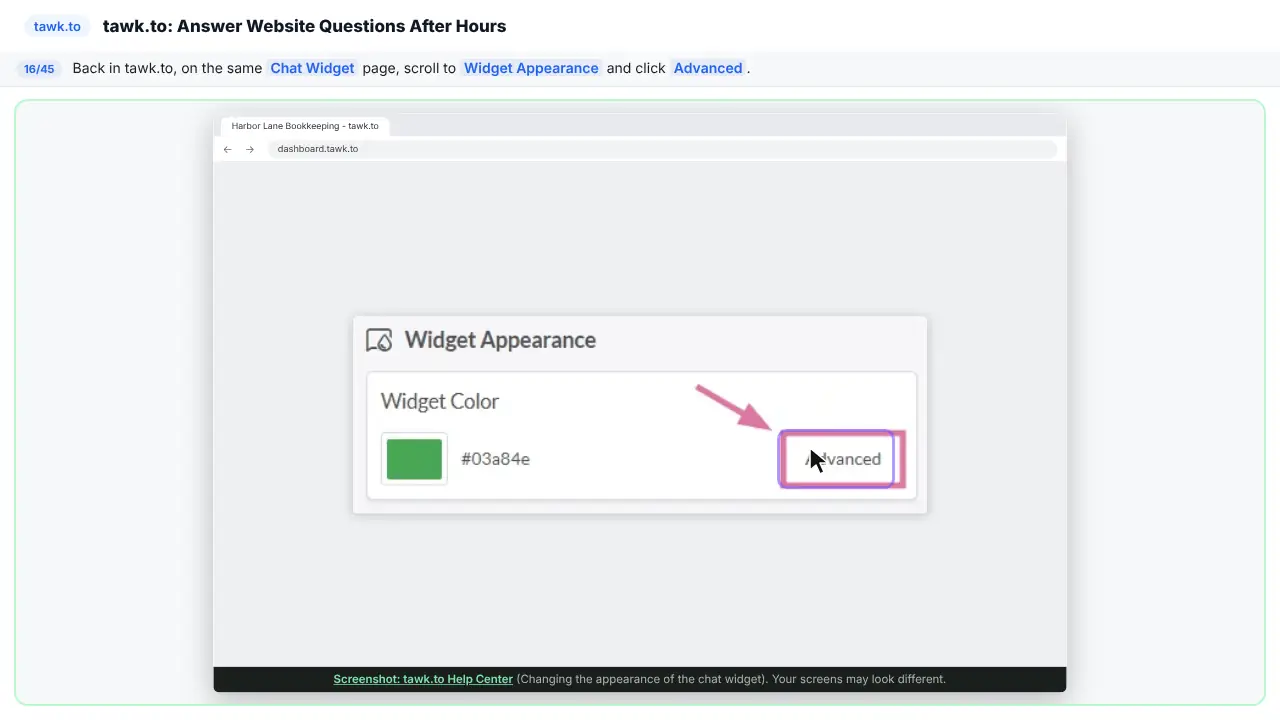
On the Chat Widget page, find Widget Appearance and click Advanced.
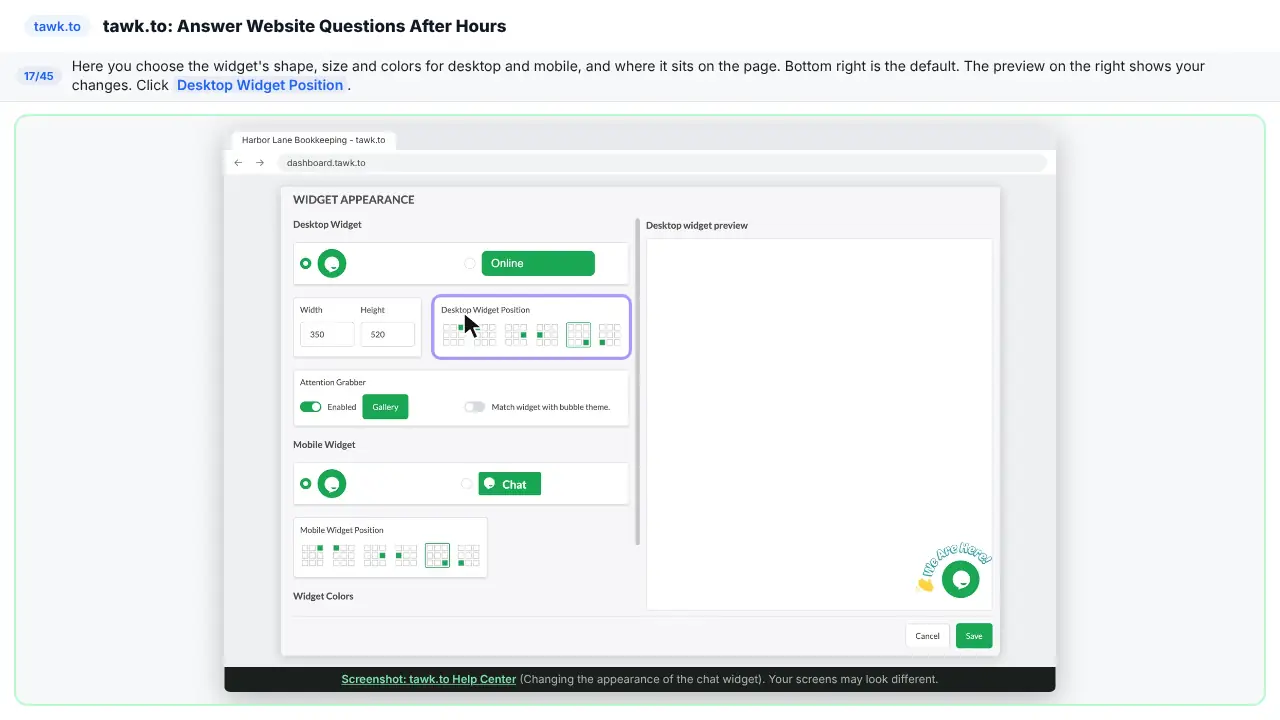
Step 17: Pick the shape and position
Pick the shape, size, colors and position. The preview on the right shows how it looks.
Step 18: Save
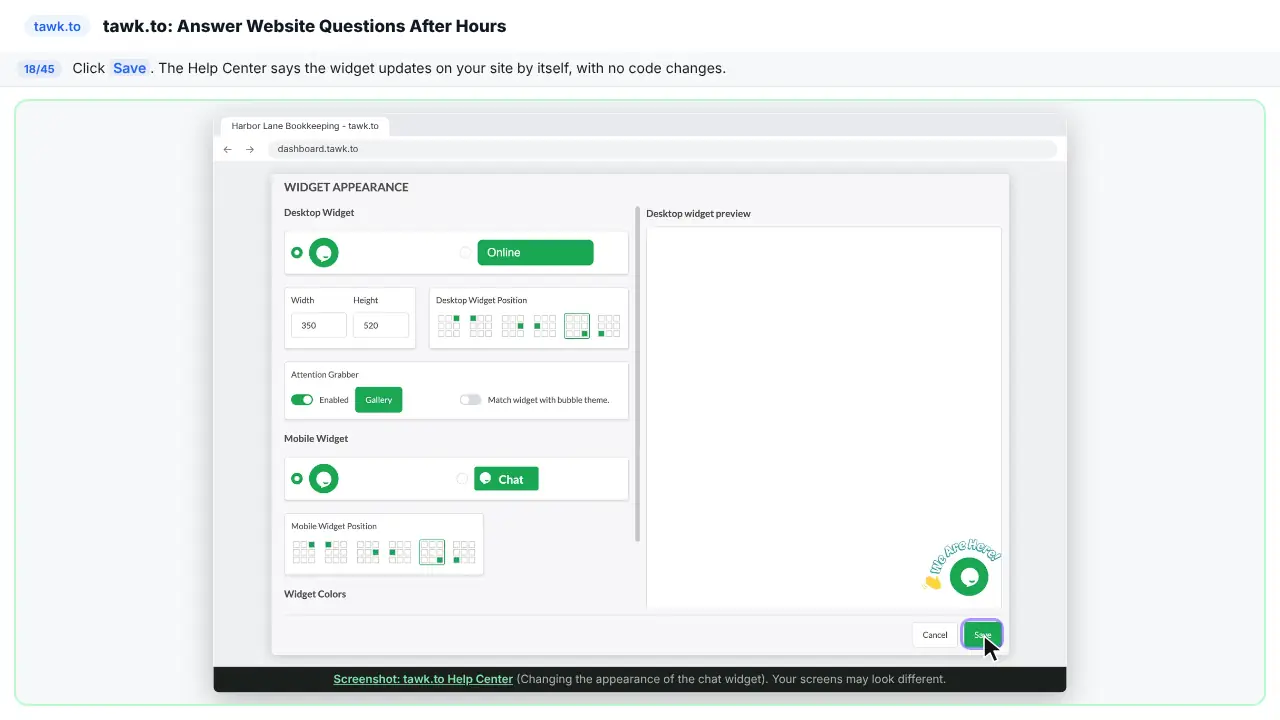
The widget on your site updates by itself.
Part 5: Turn on AI Assist
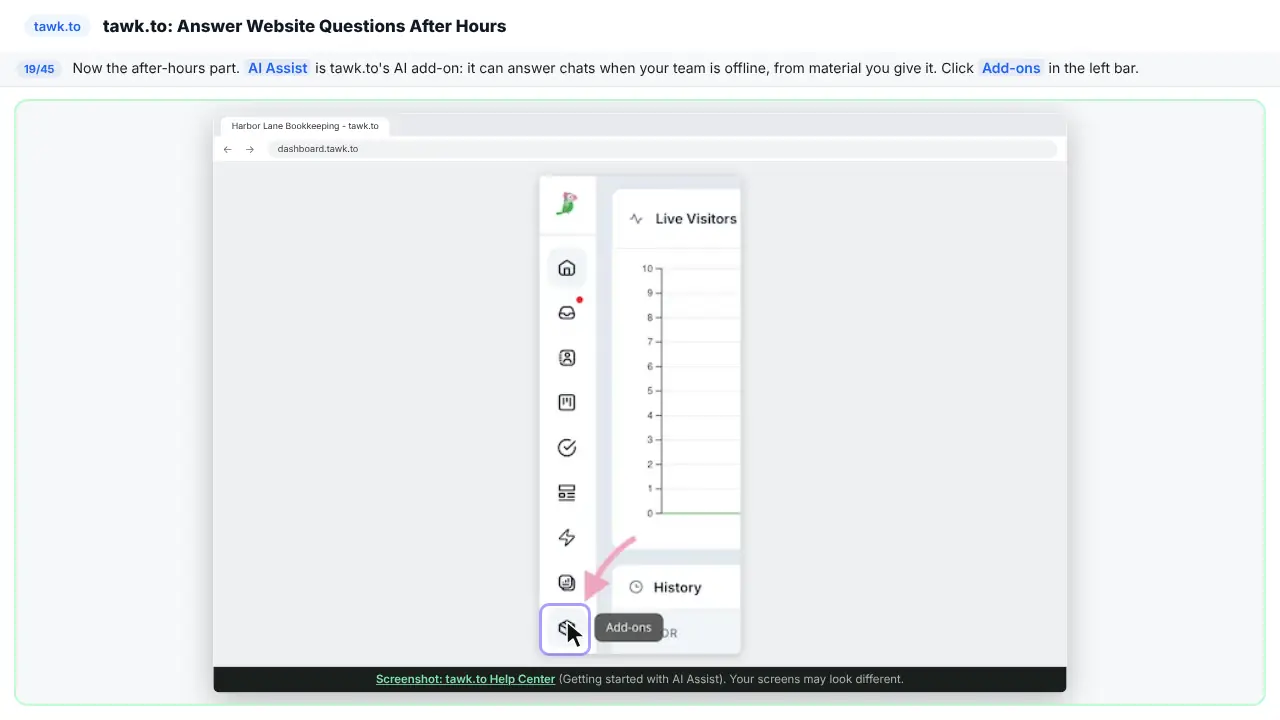
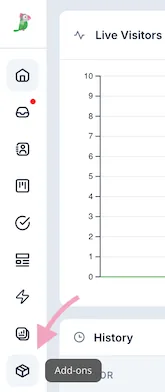
Step 19: Open Add-ons
Now the after hours part. AI Assist is tawk. to's A I add on.
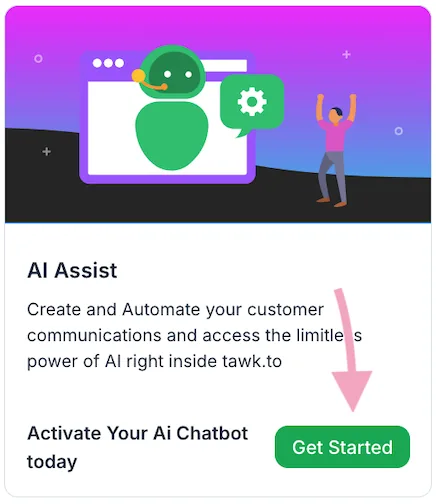
Step 20: Click Get Started
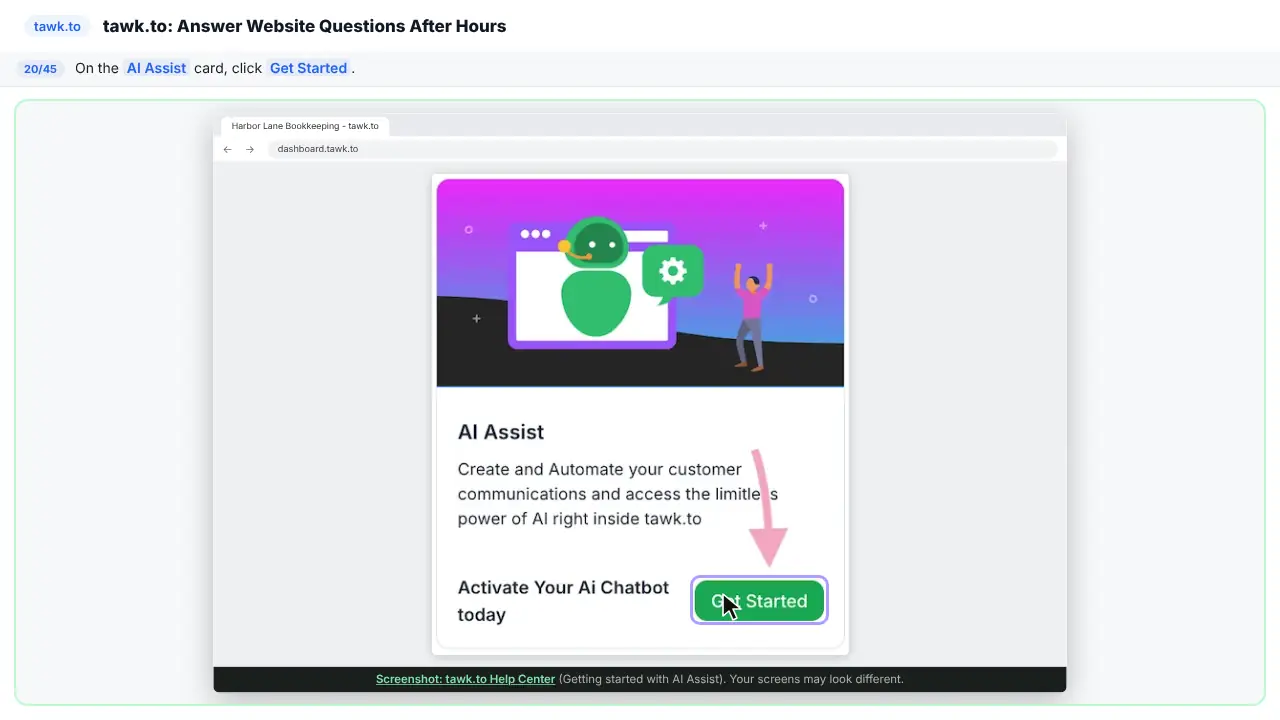
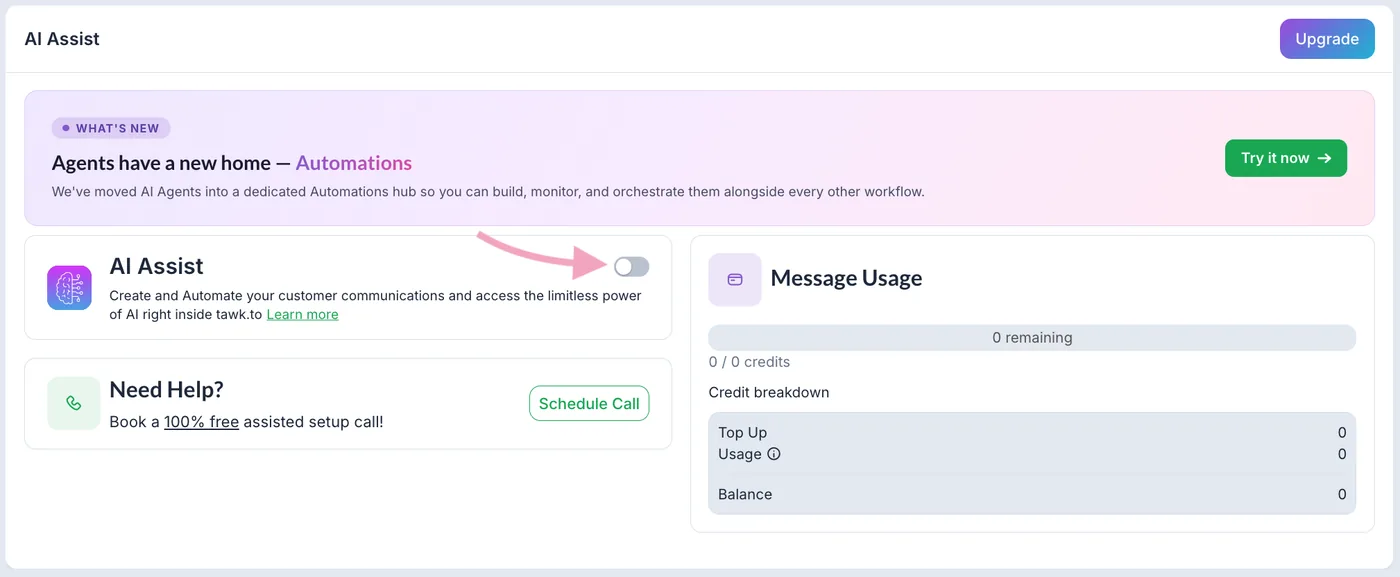
Step 21: Switch AI Assist on
Switch AI Assist on. There is a free plan for sites with limited chat volume, and paid plans from twenty nine dollars a month.
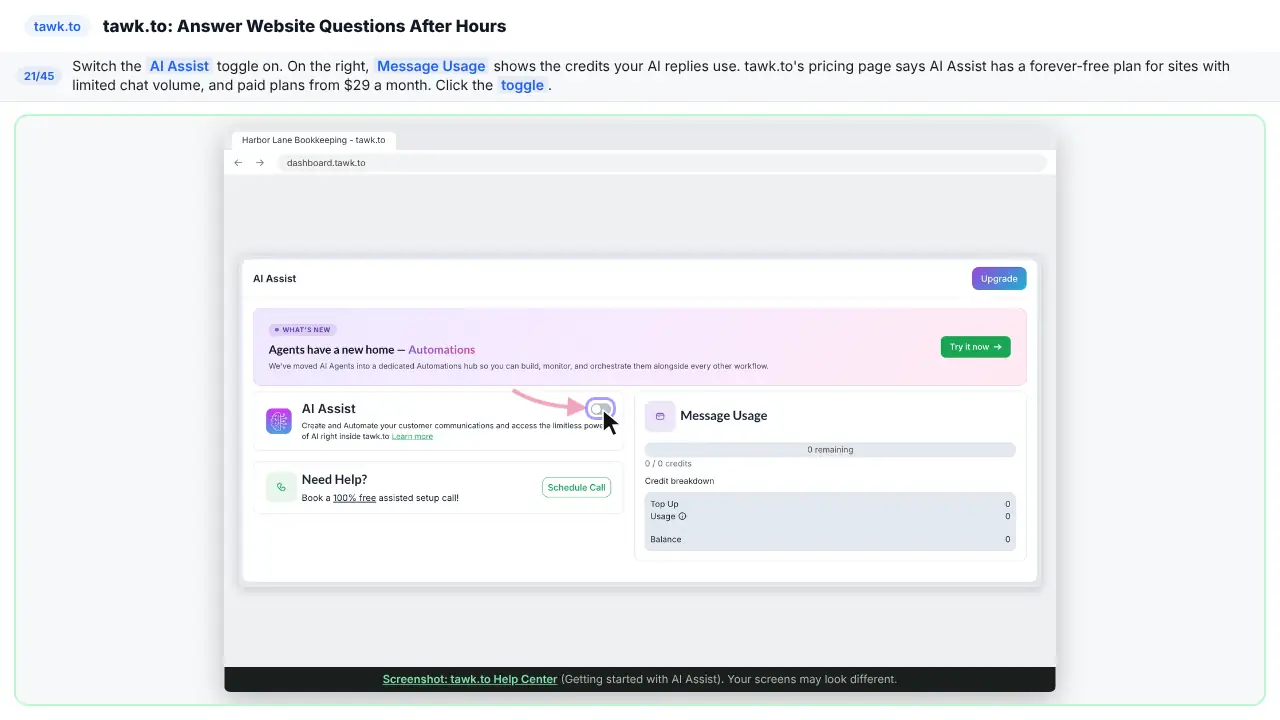
Part 6: Build your AI agent
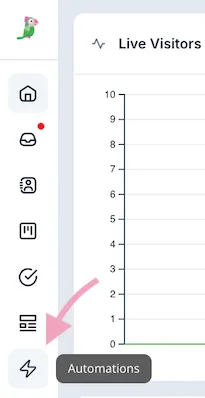
Step 22: Open Automations
Your AI agent lives under Automations.
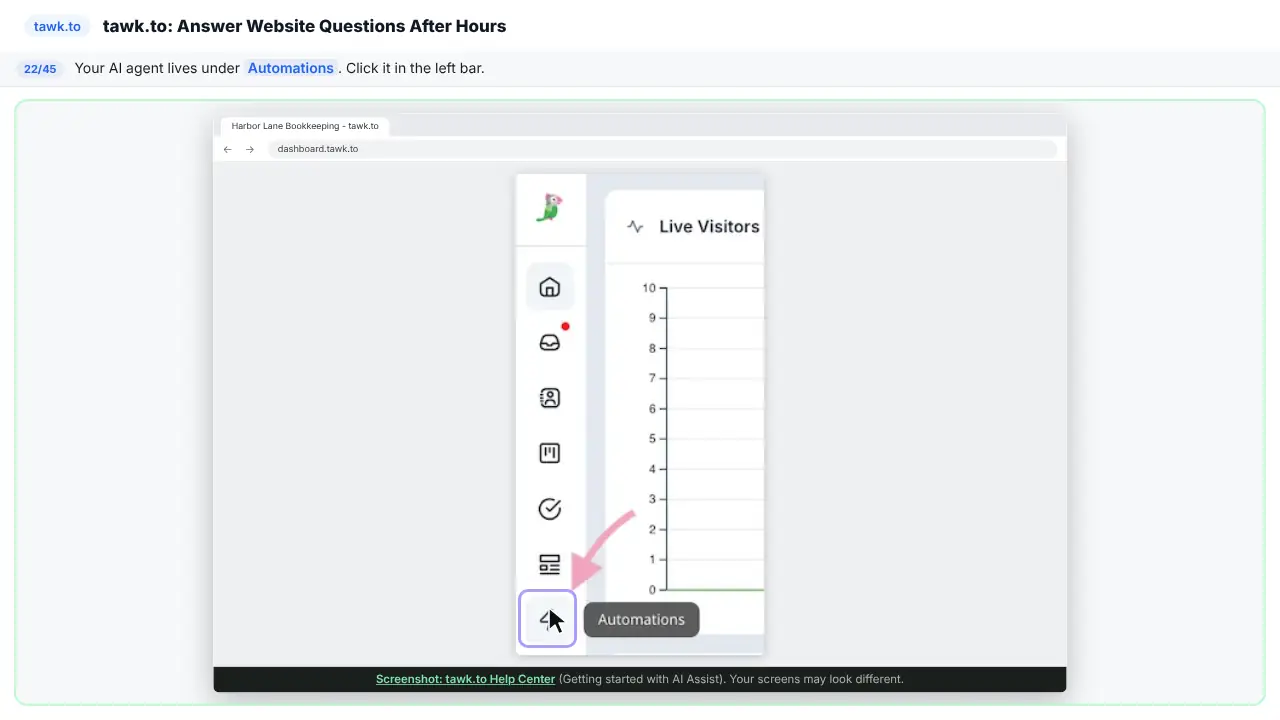
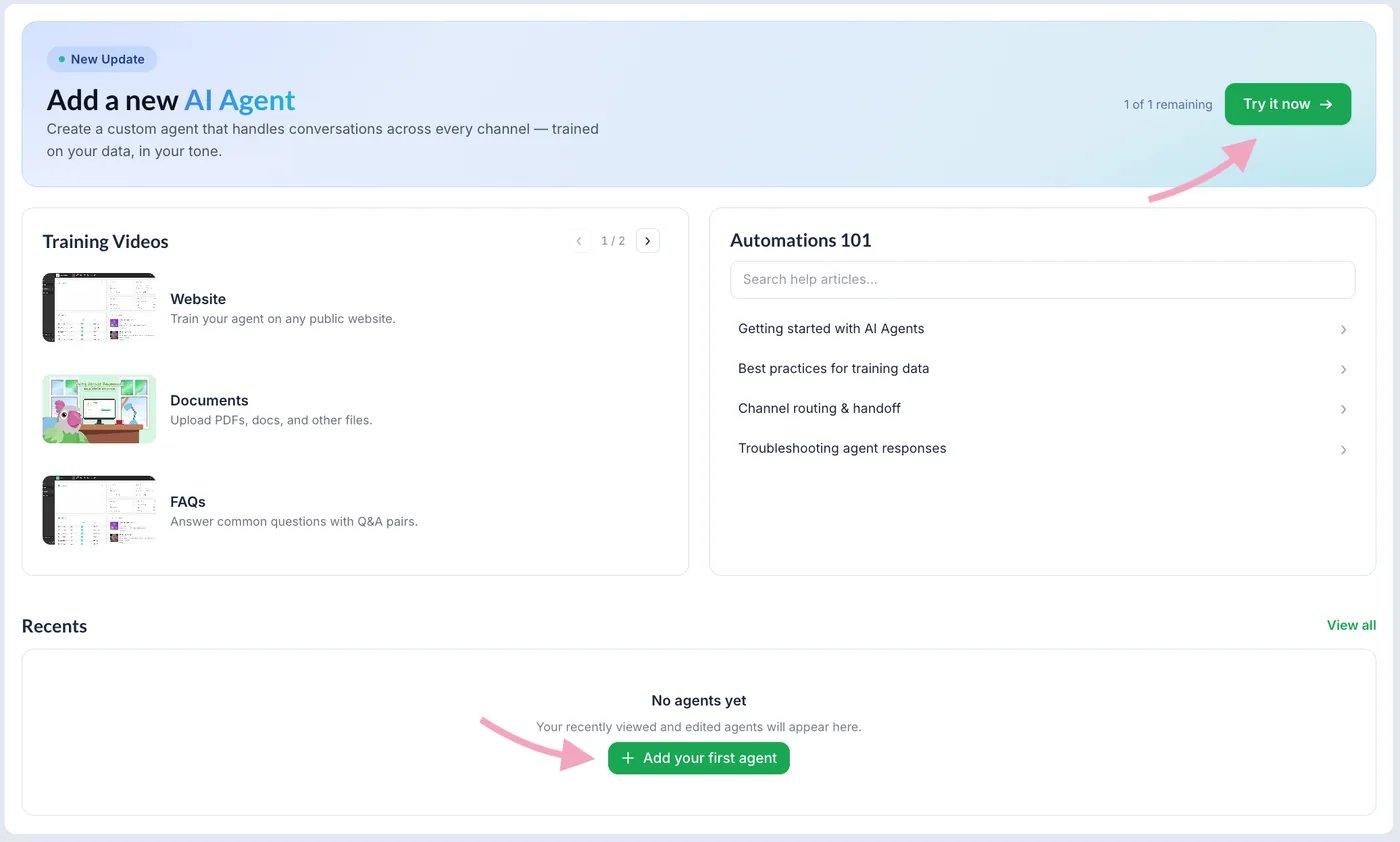
Step 23: Add your first agent
A setup wizard starts.
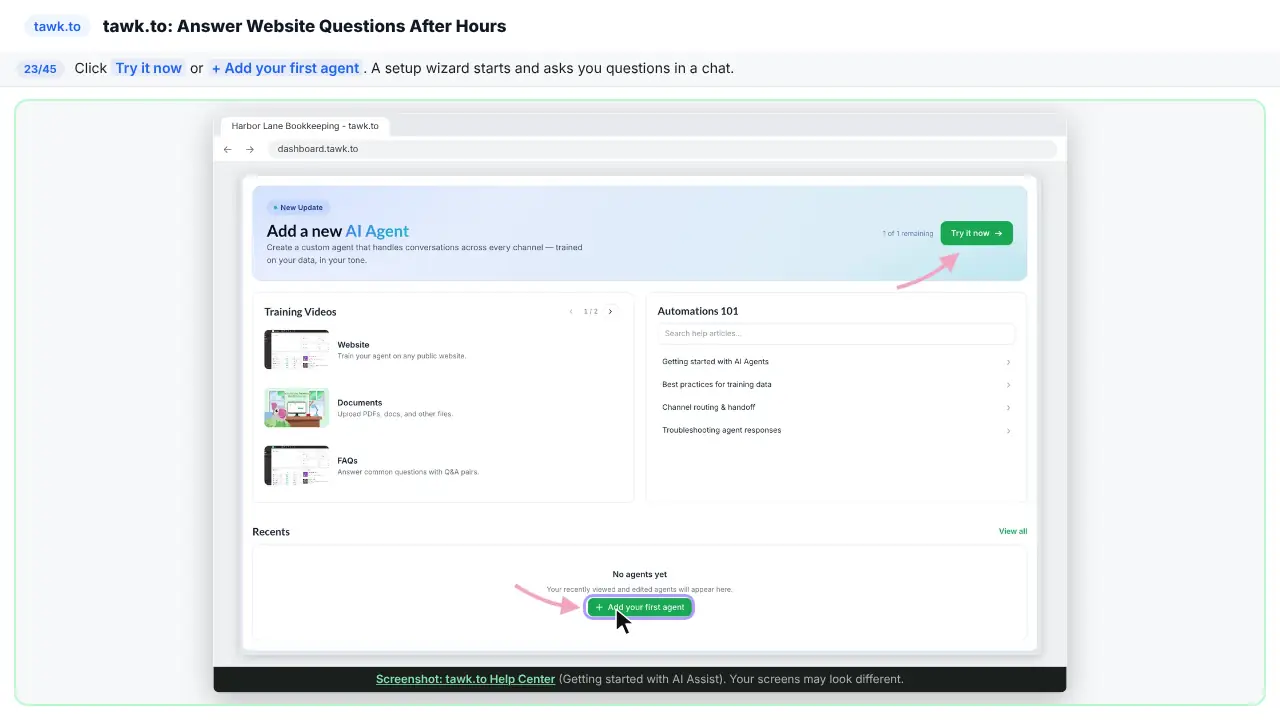
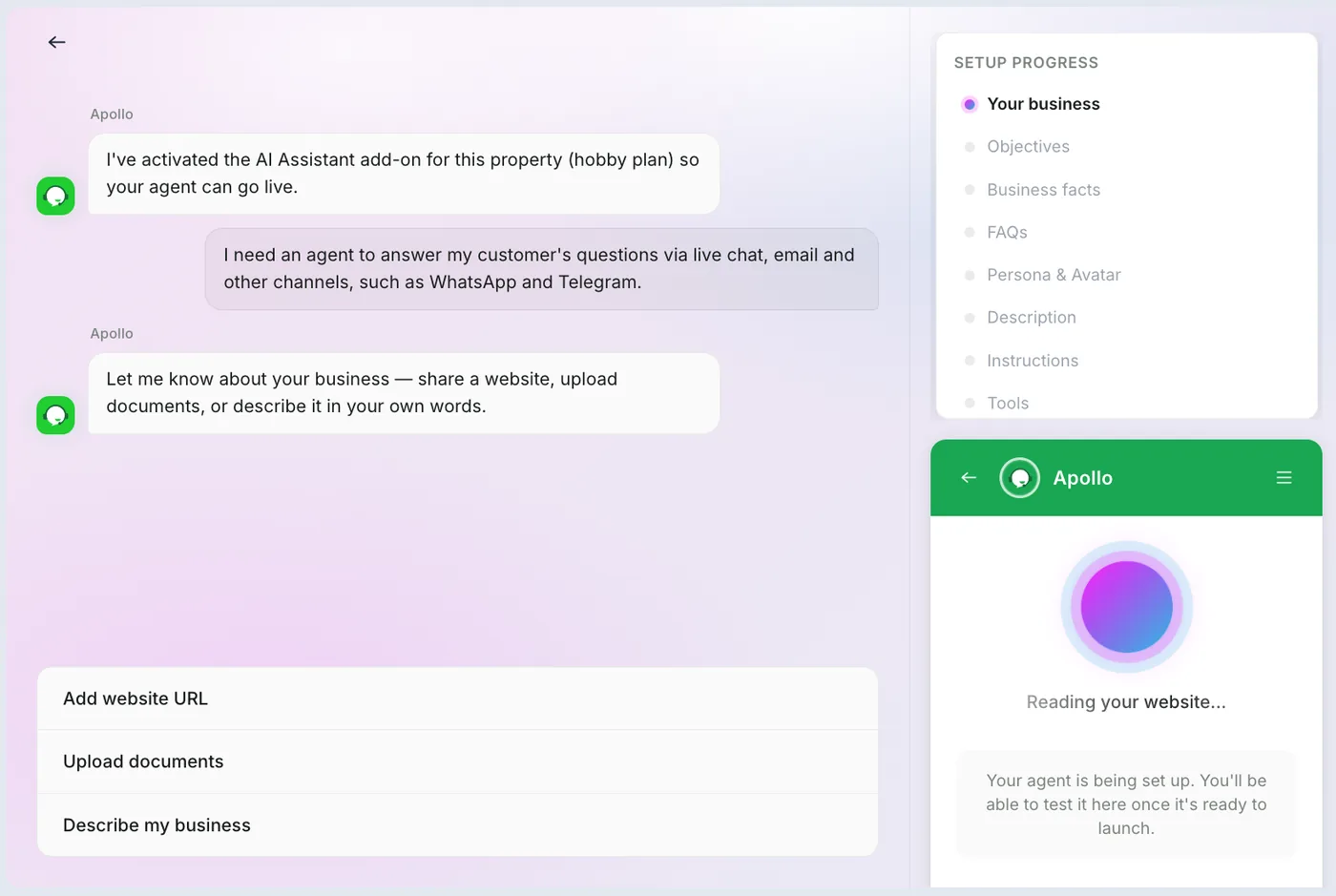
Step 24: Tell it about your business
Tell it about your business. You can add your website, upload documents, or describe it. We picked the website.
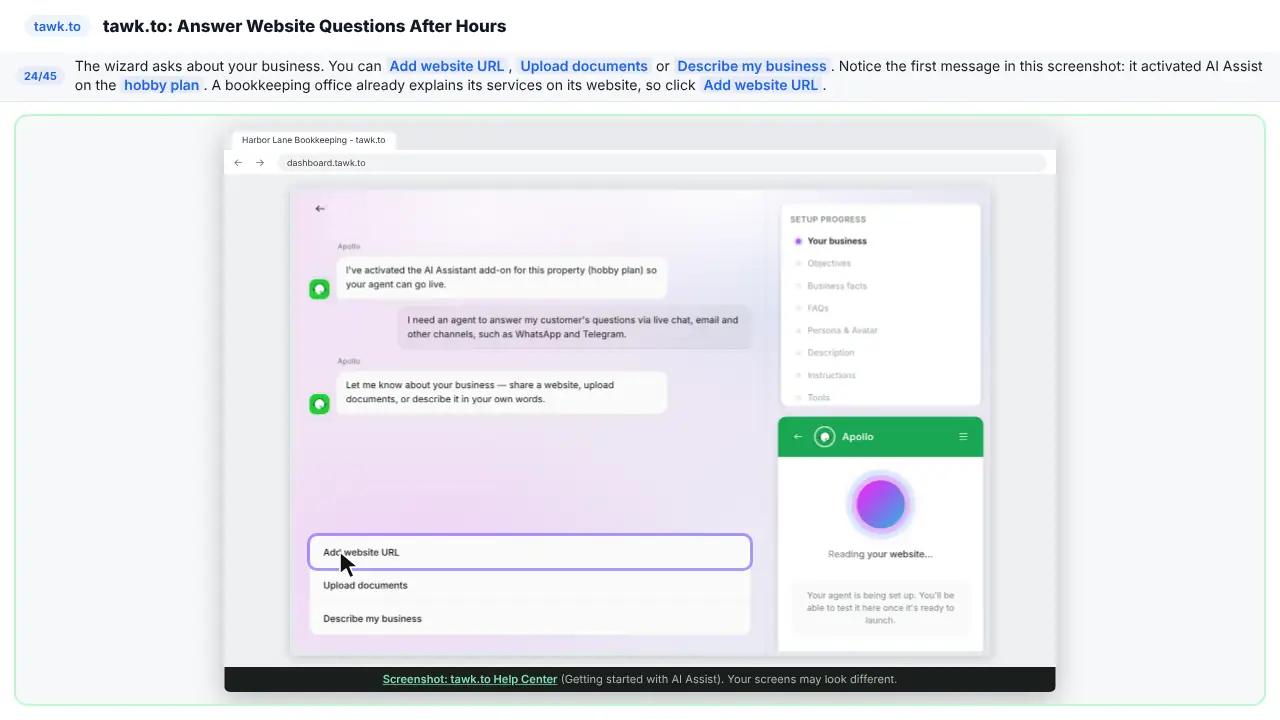
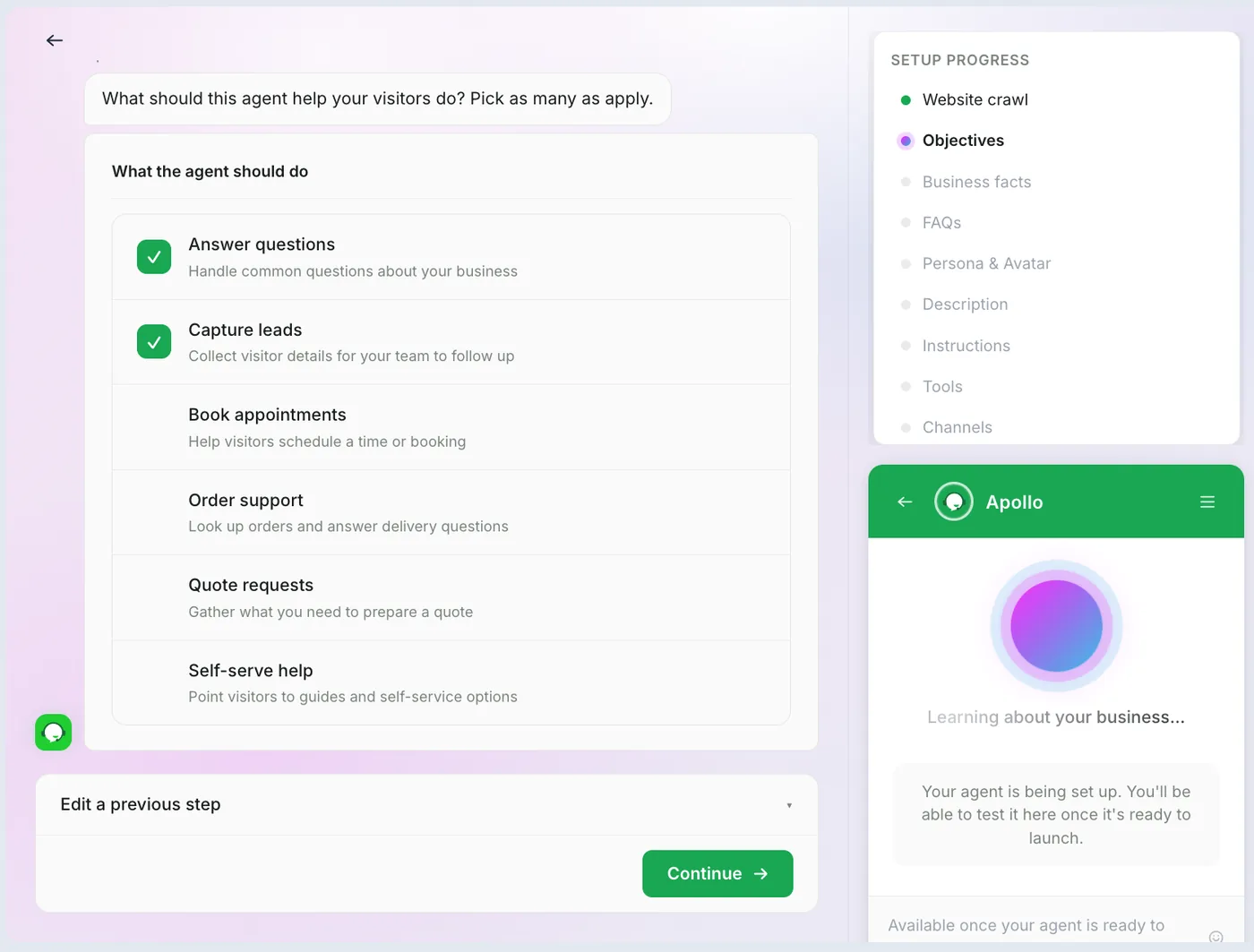
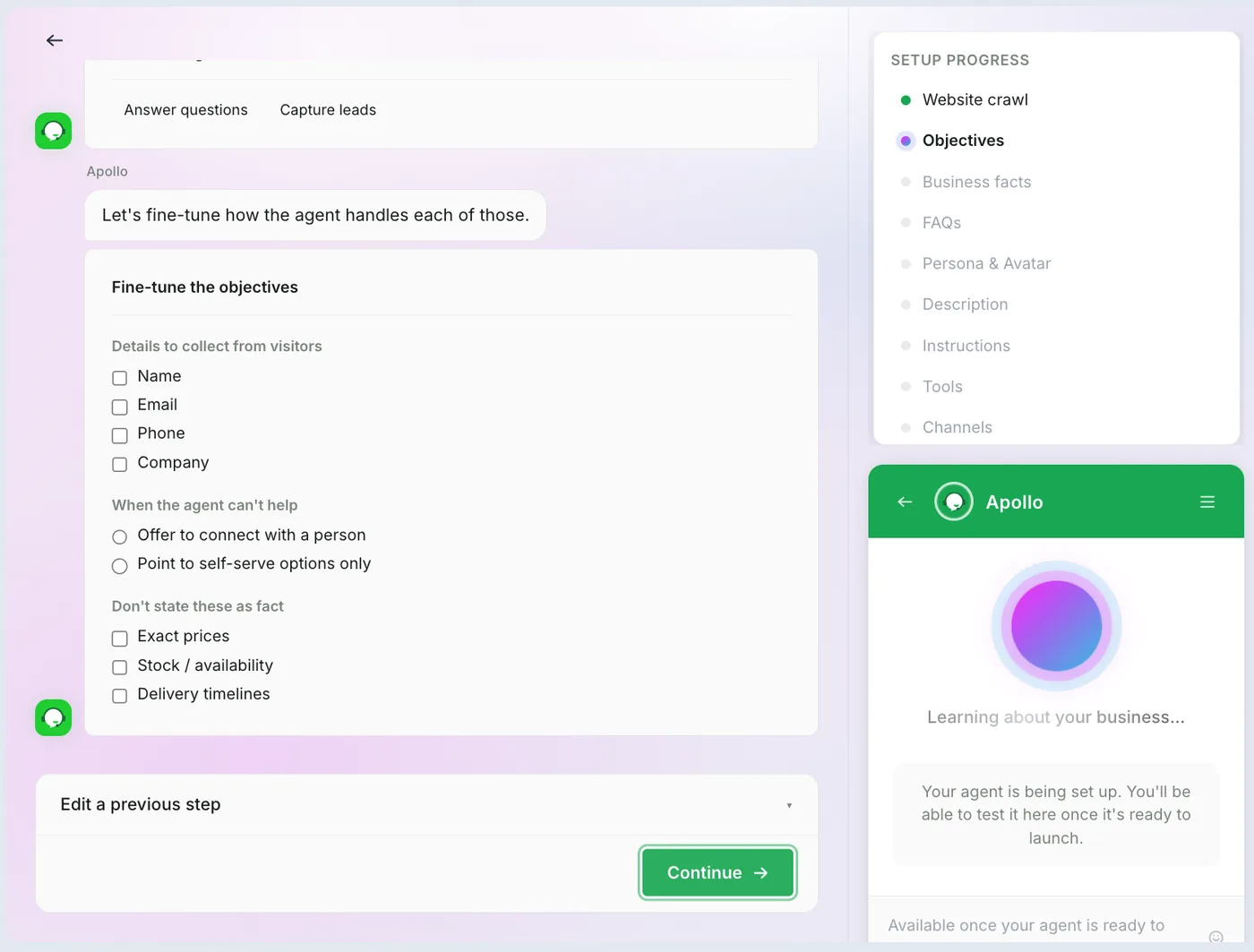
Step 25: Choose what the agent does
Pick what the agent should do. For after hours questions, choose Answer questions.
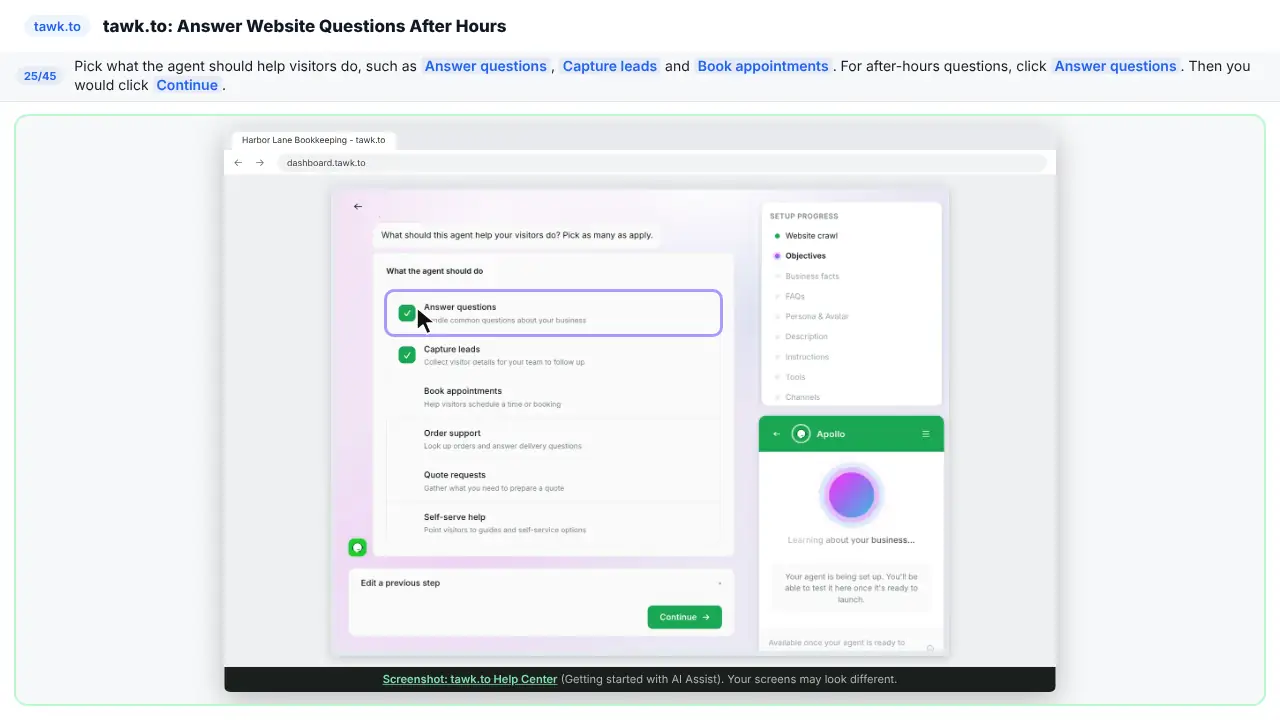
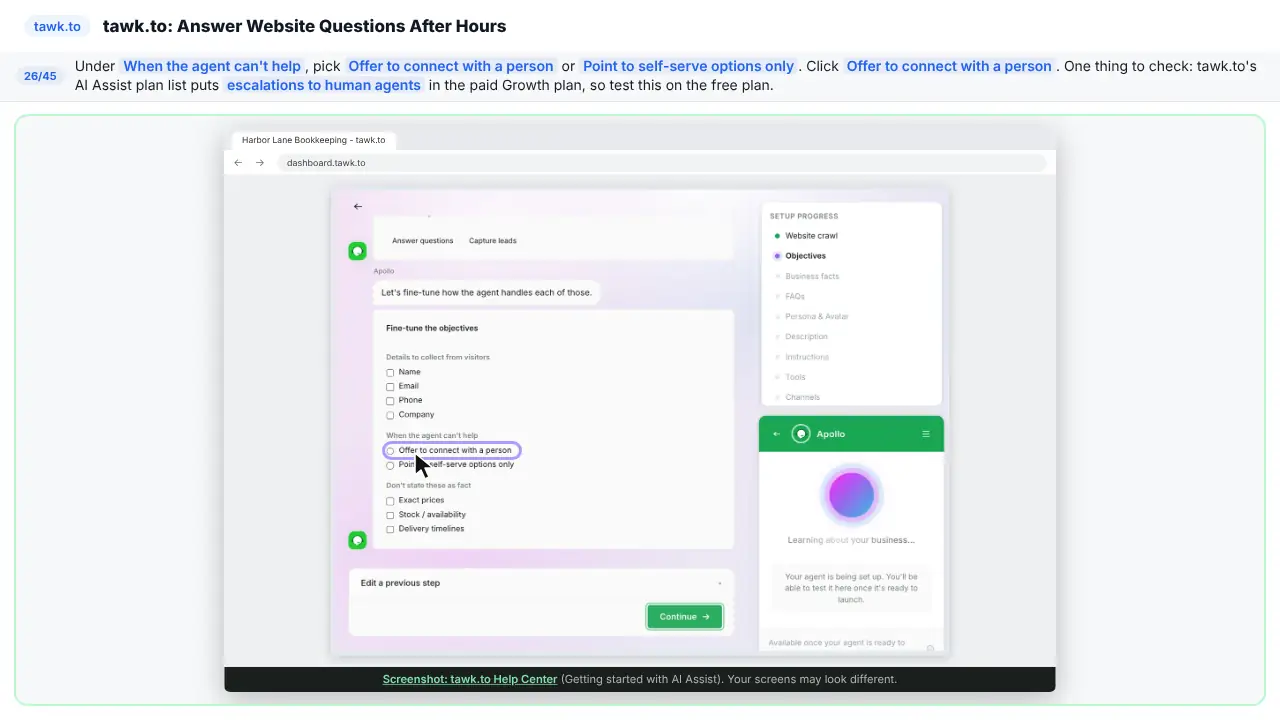
Step 26: Decide what happens when it cannot help
We picked: offer to connect with a person. Check how that works on your plan.
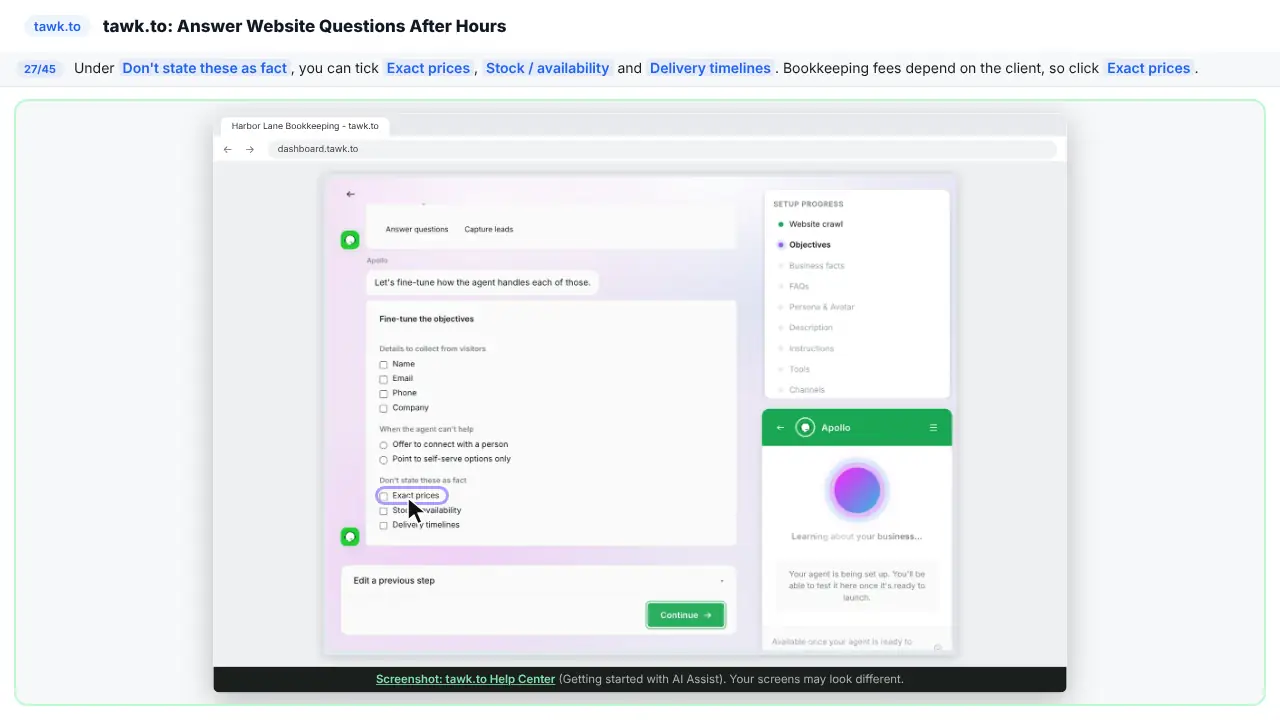
Step 27: Keep it from quoting prices
Tell it not to state exact prices as fact. Fees depend on the client.
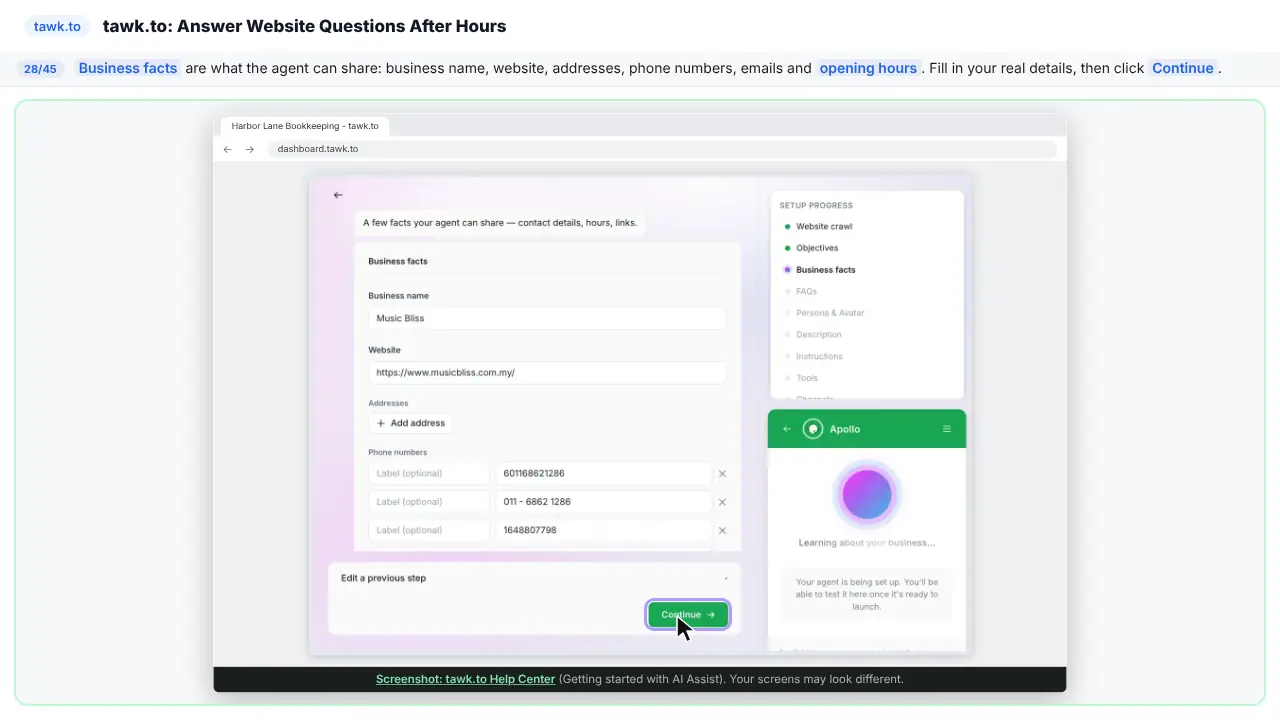
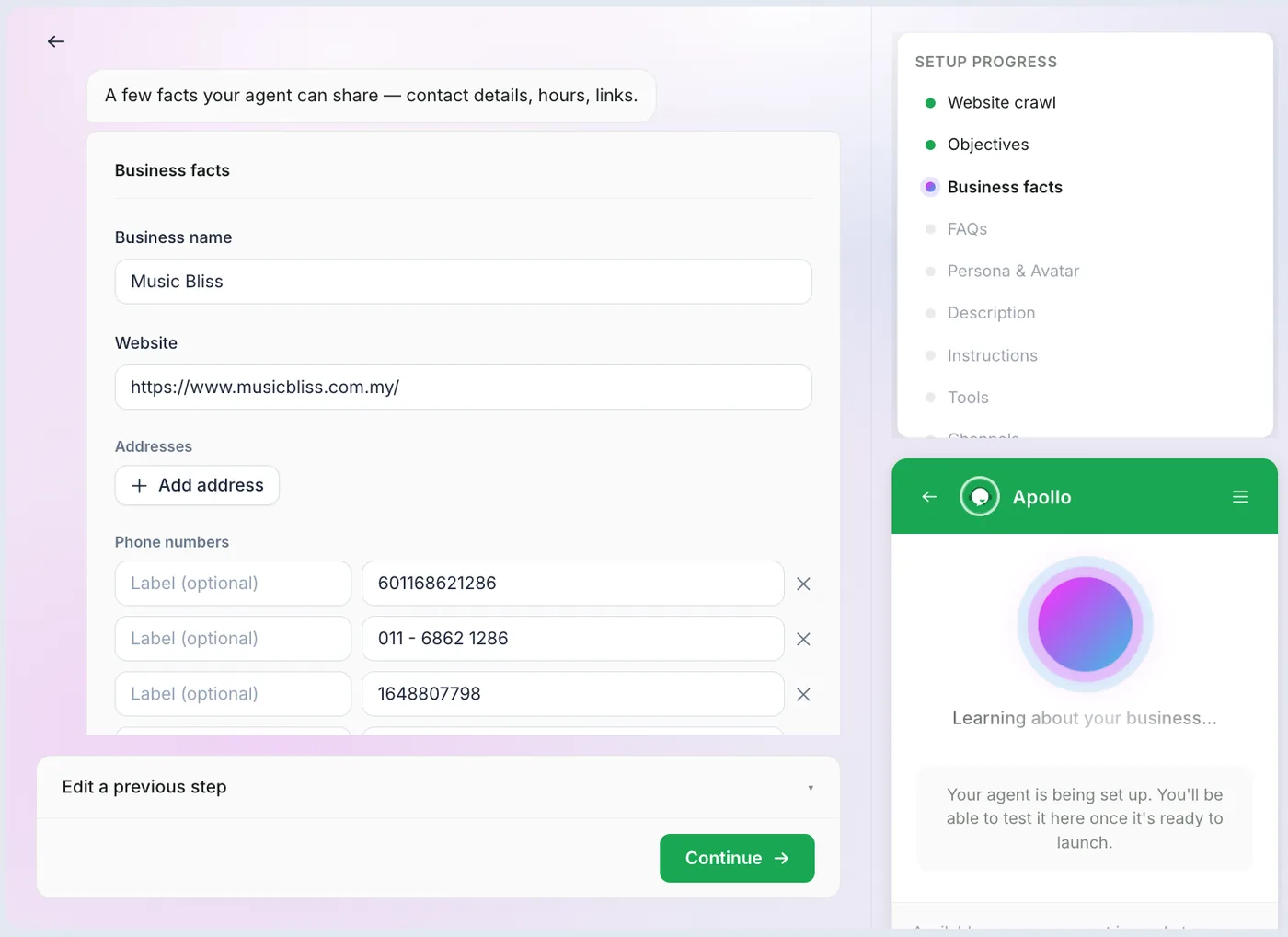
Step 28: Add your business facts
Add your business facts, like your phone number and opening hours.
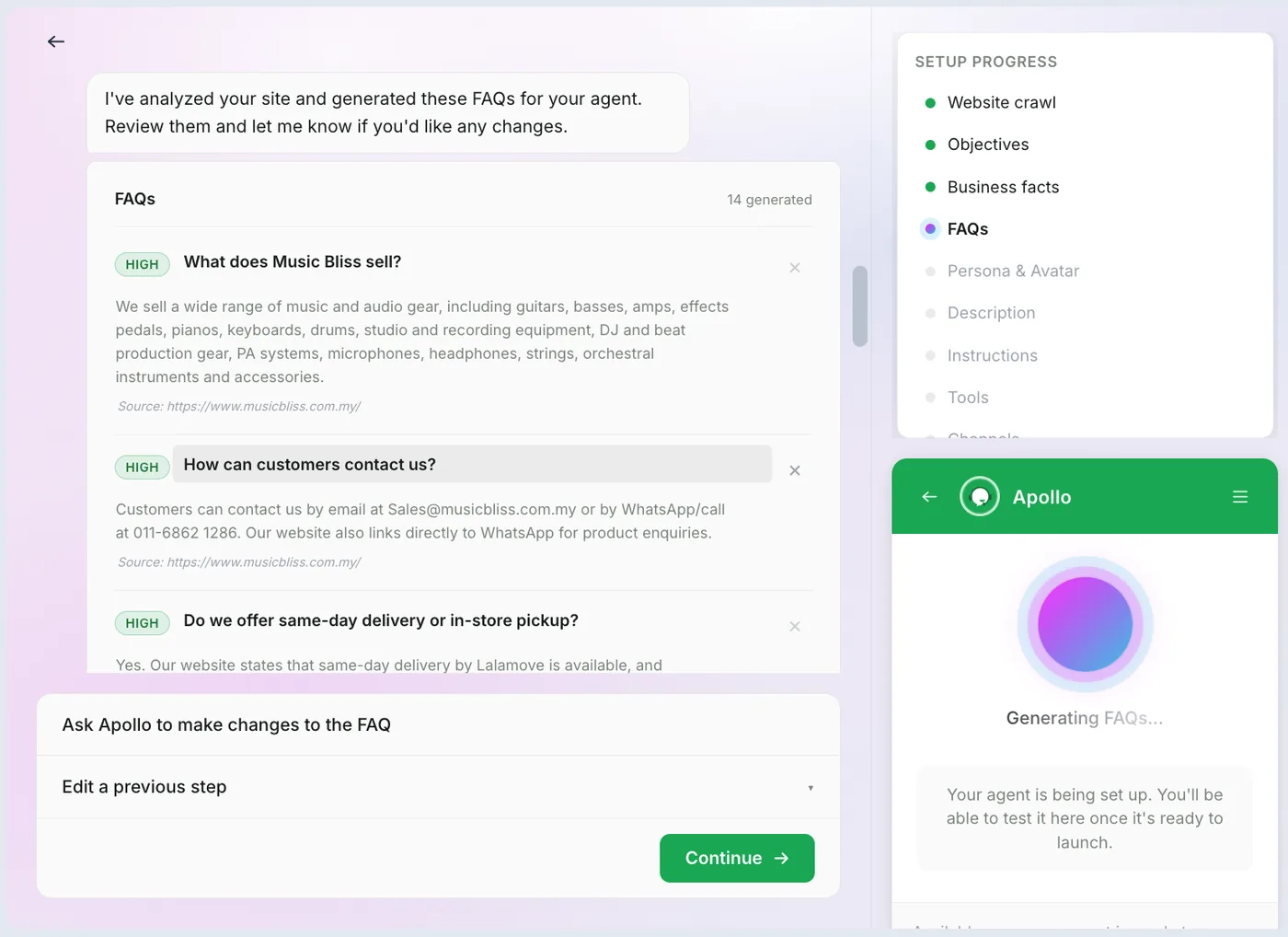
Step 29: Check the FAQs it wrote
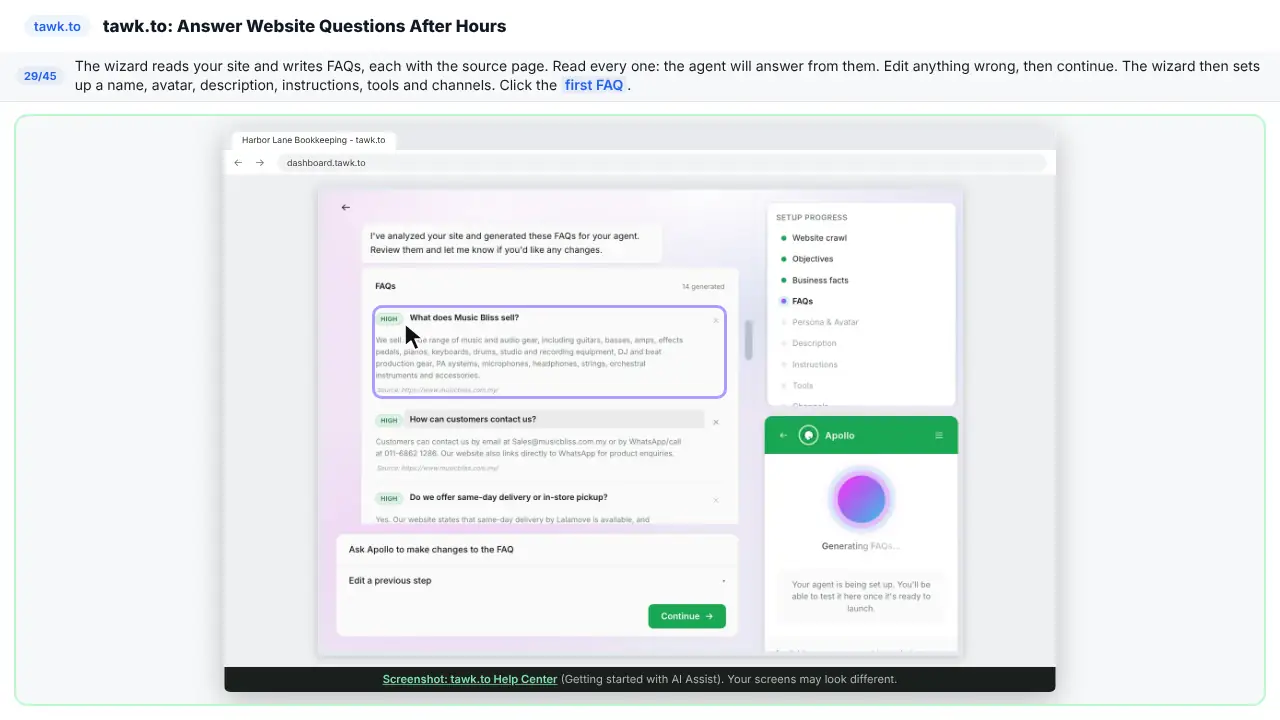
It writes FAQs from your website. Read every one, because the agent answers from them.
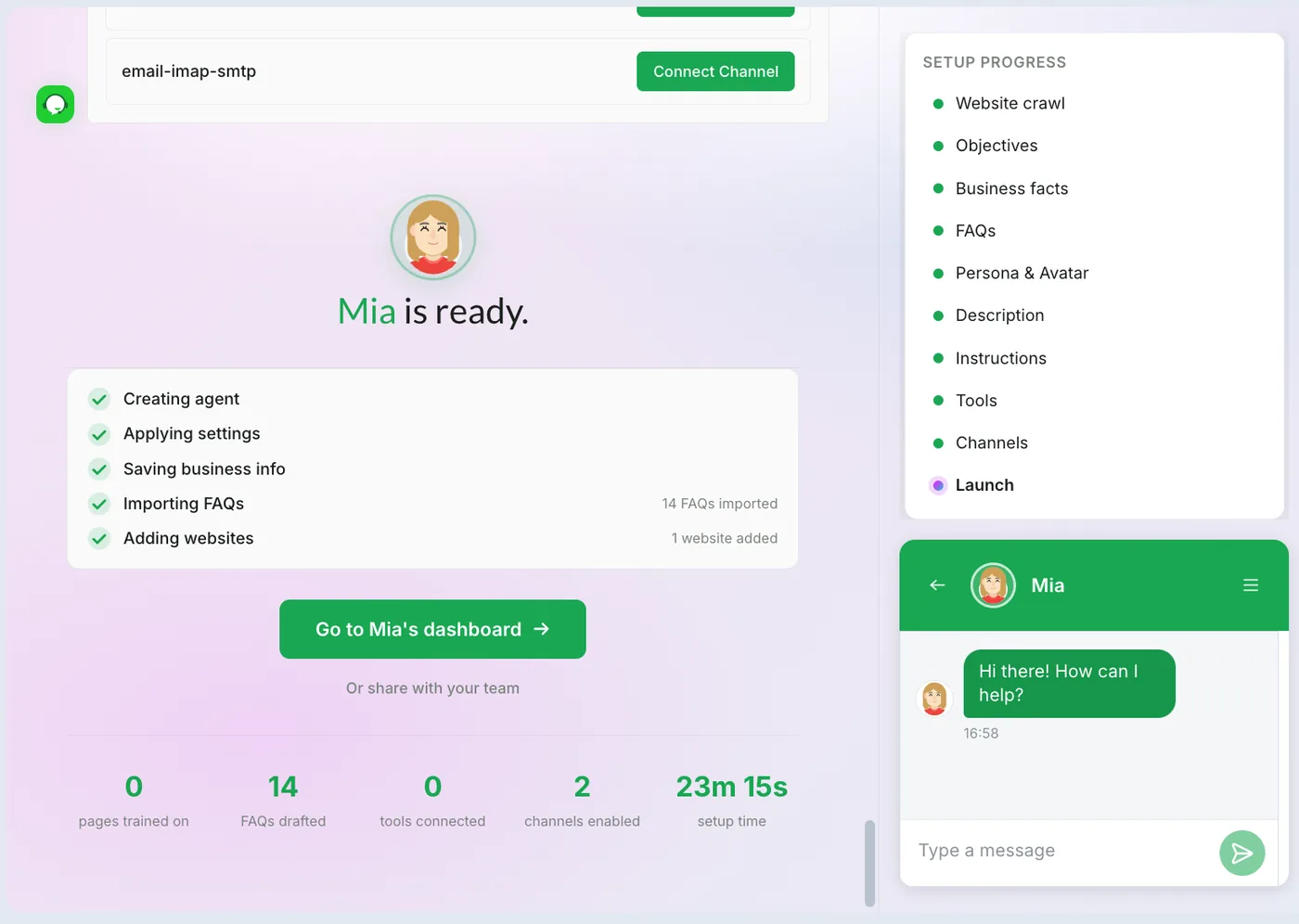
Step 30: Test the agent
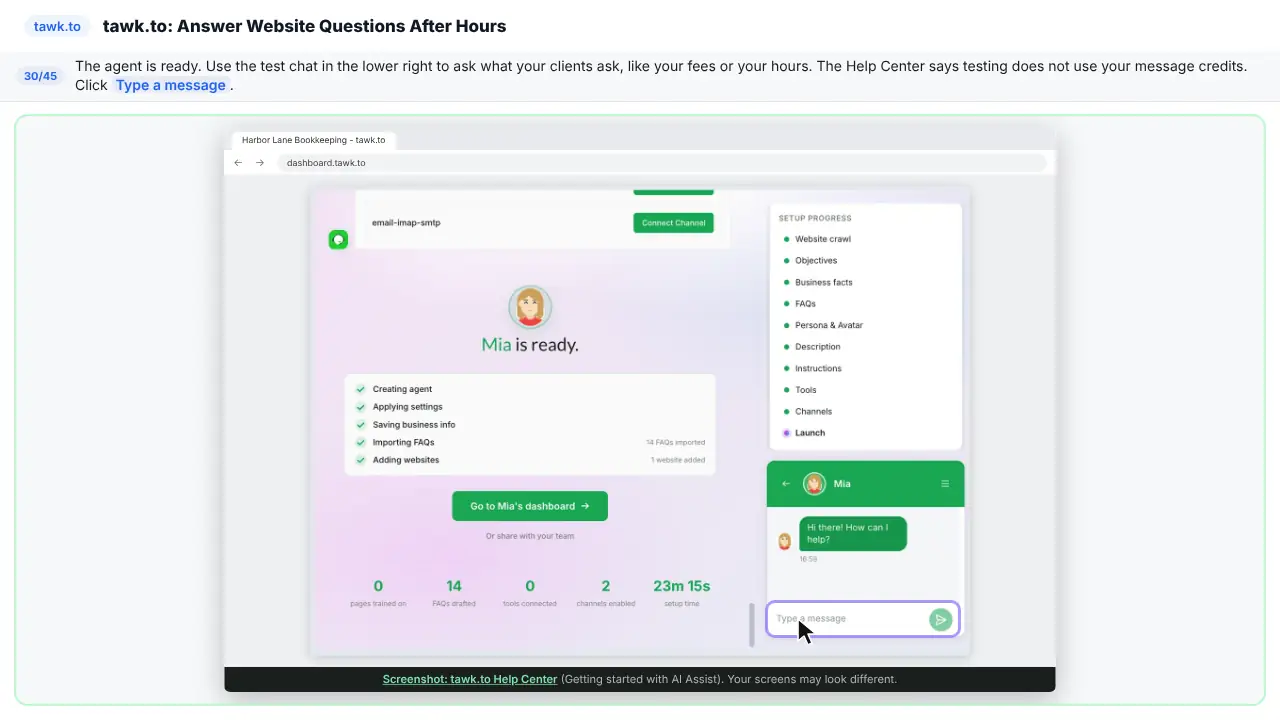
Now test it. Ask what your clients ask. The help center says testing does not use your credits.
Step 31: Add more answers later
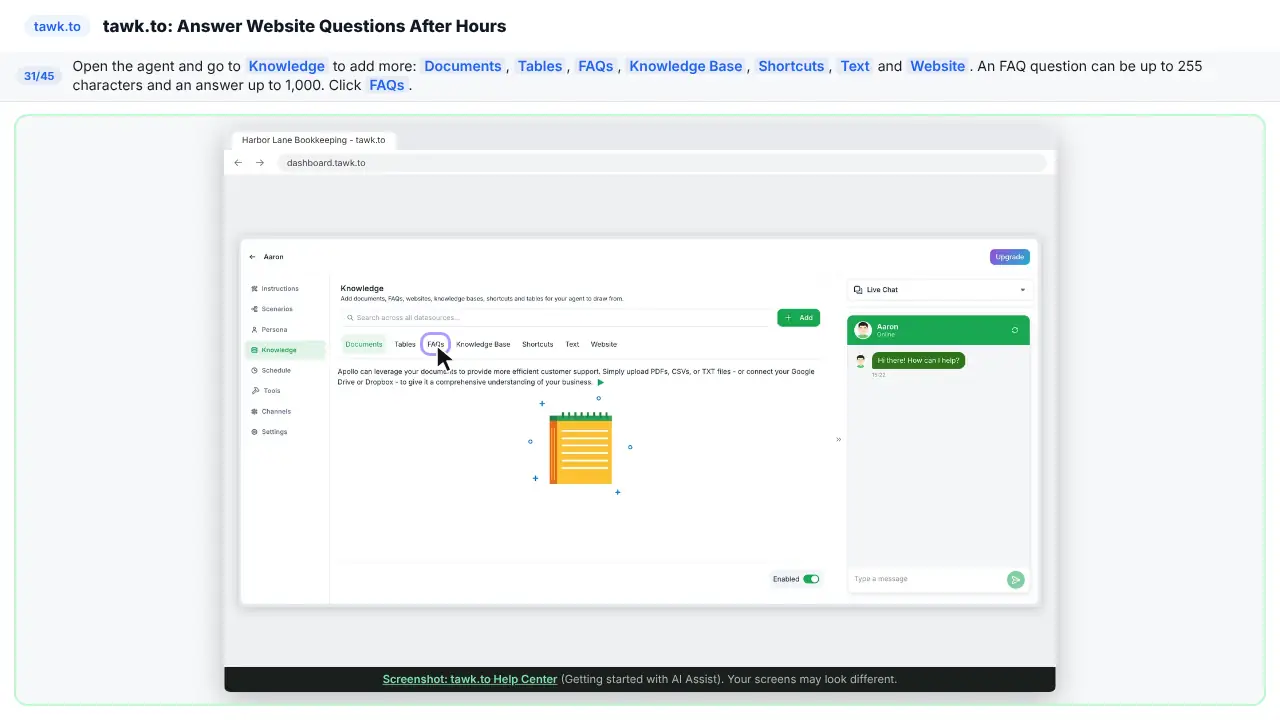
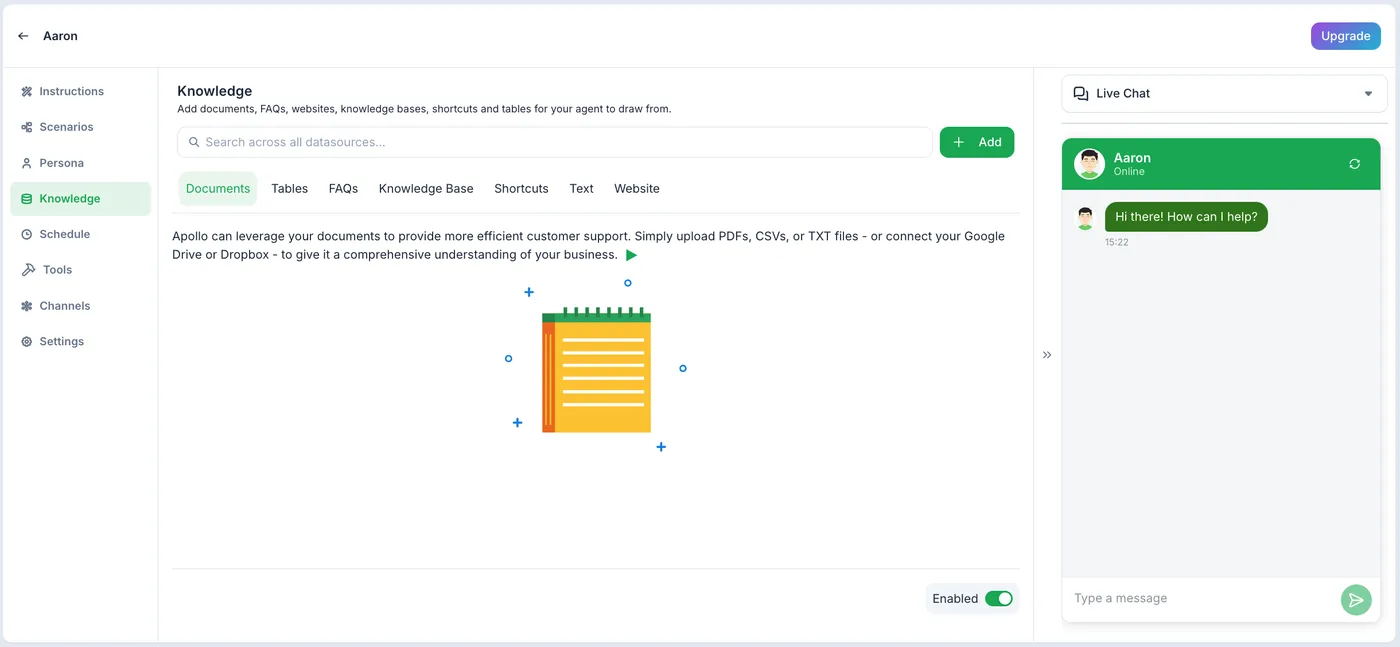
In Knowledge, add more FAQs, documents, or your website. Keep them up to date.
Step 32: Know what Schedule needs
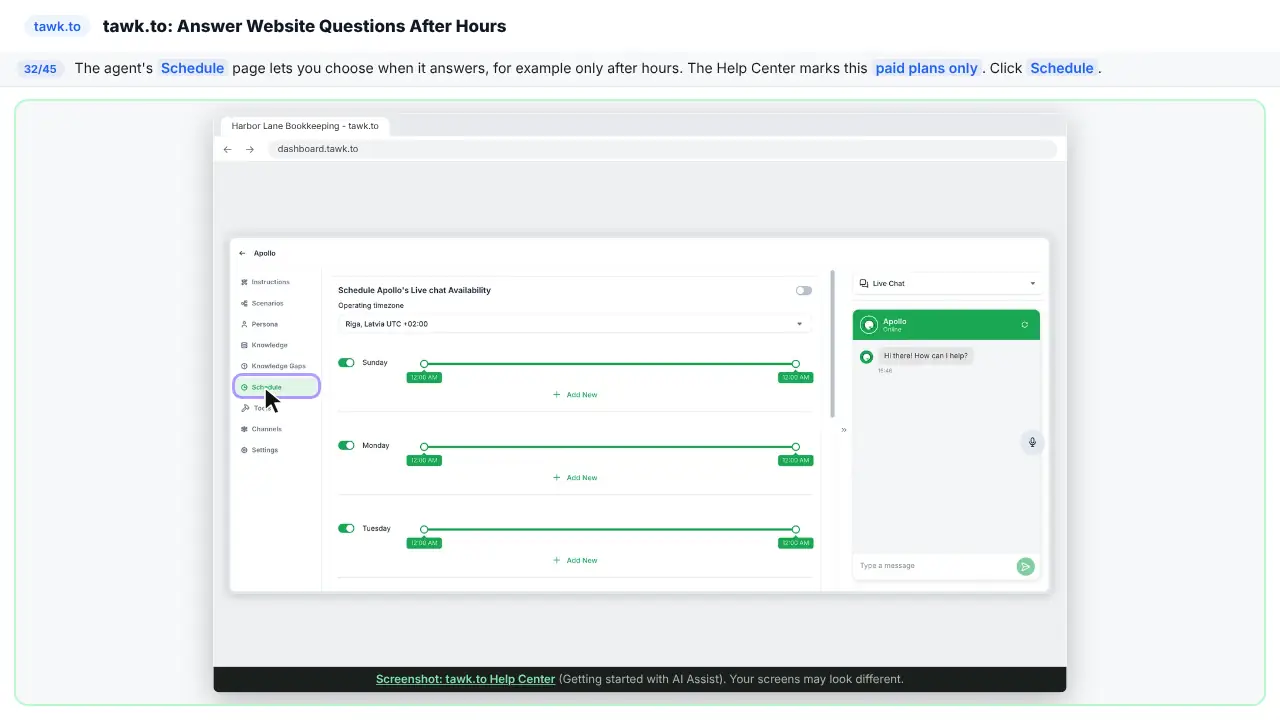
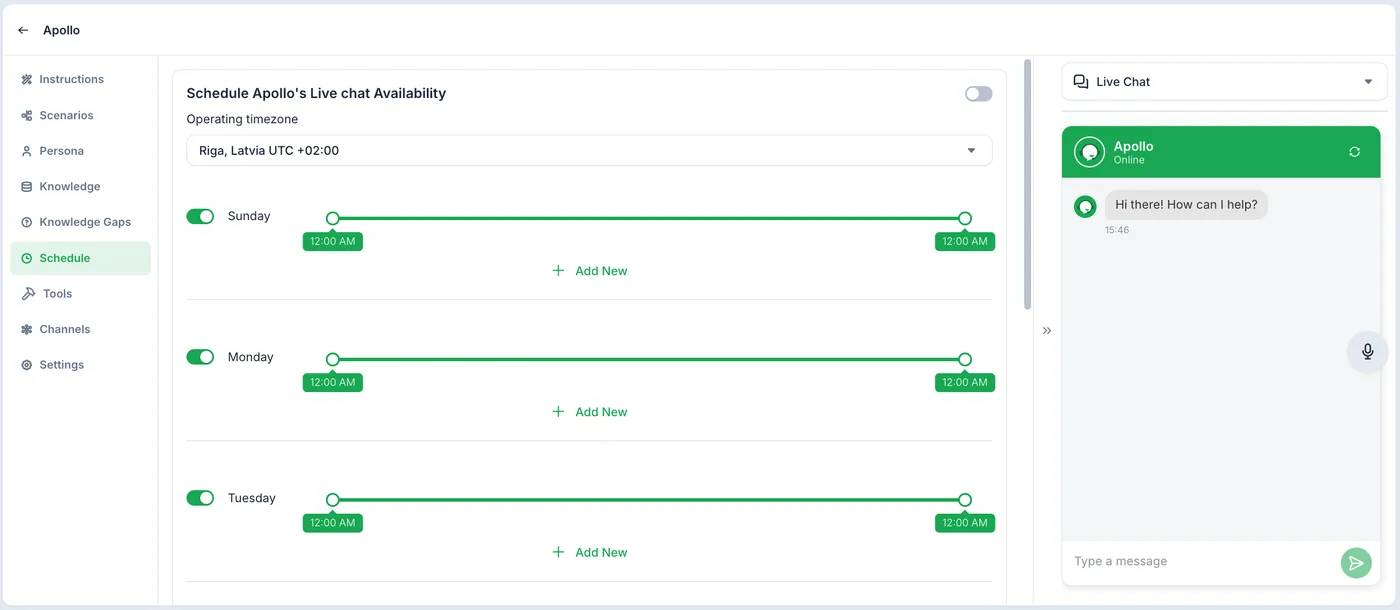
The agent's Schedule page sets when it answers. The help center says that is for paid plans only.
Part 7: Answer a chat yourself
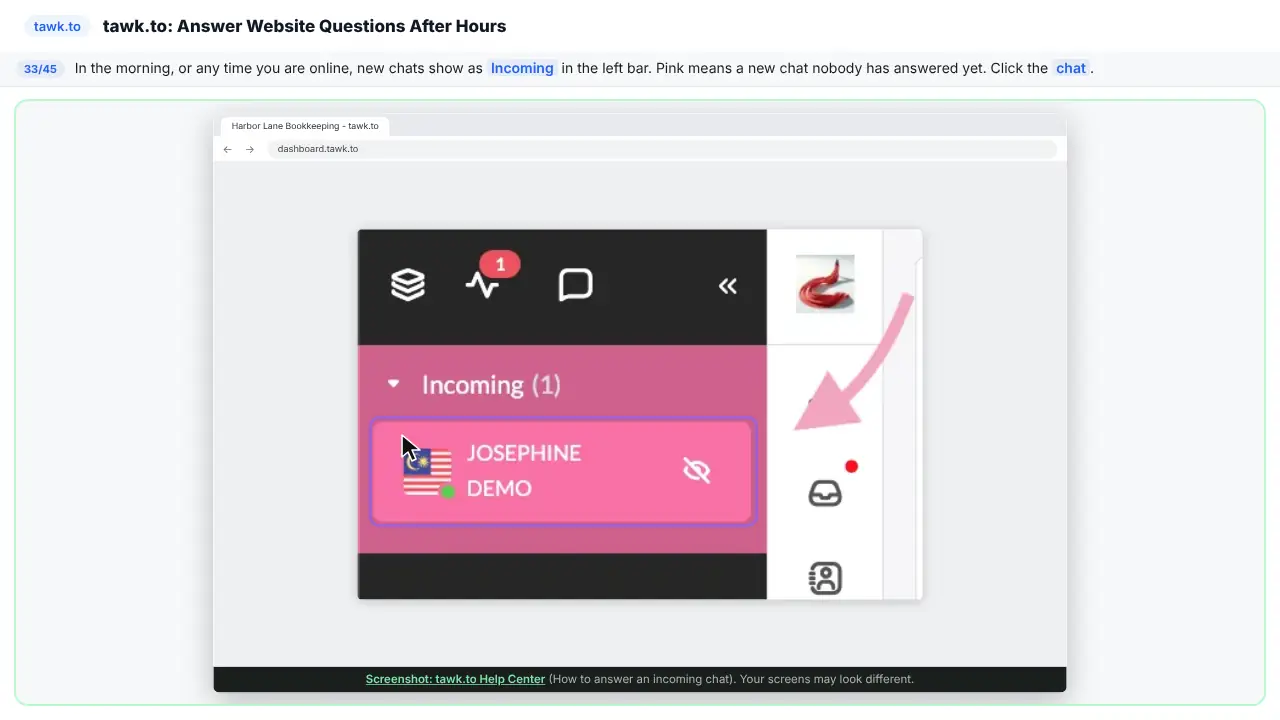
Step 33: Open a new chat
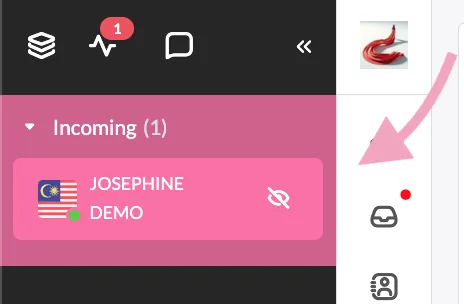
New chats show as Incoming. Pink means nobody has answered yet.
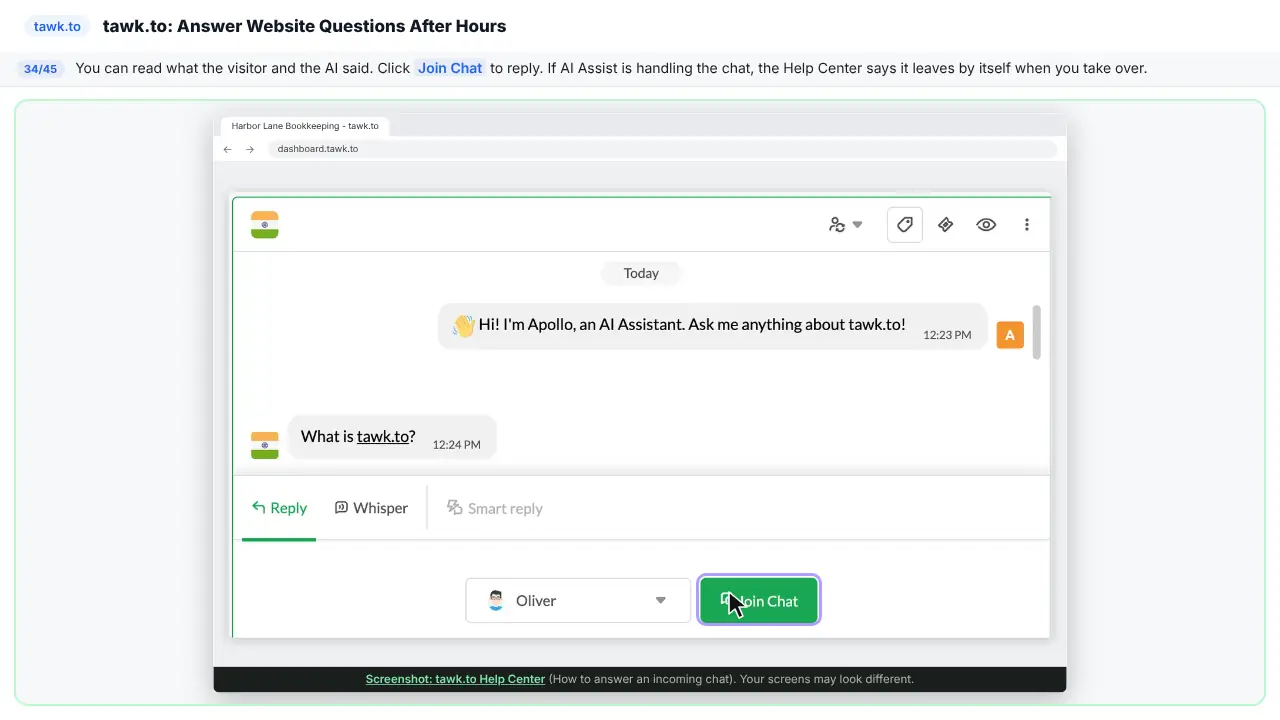
Step 34: Join the chat
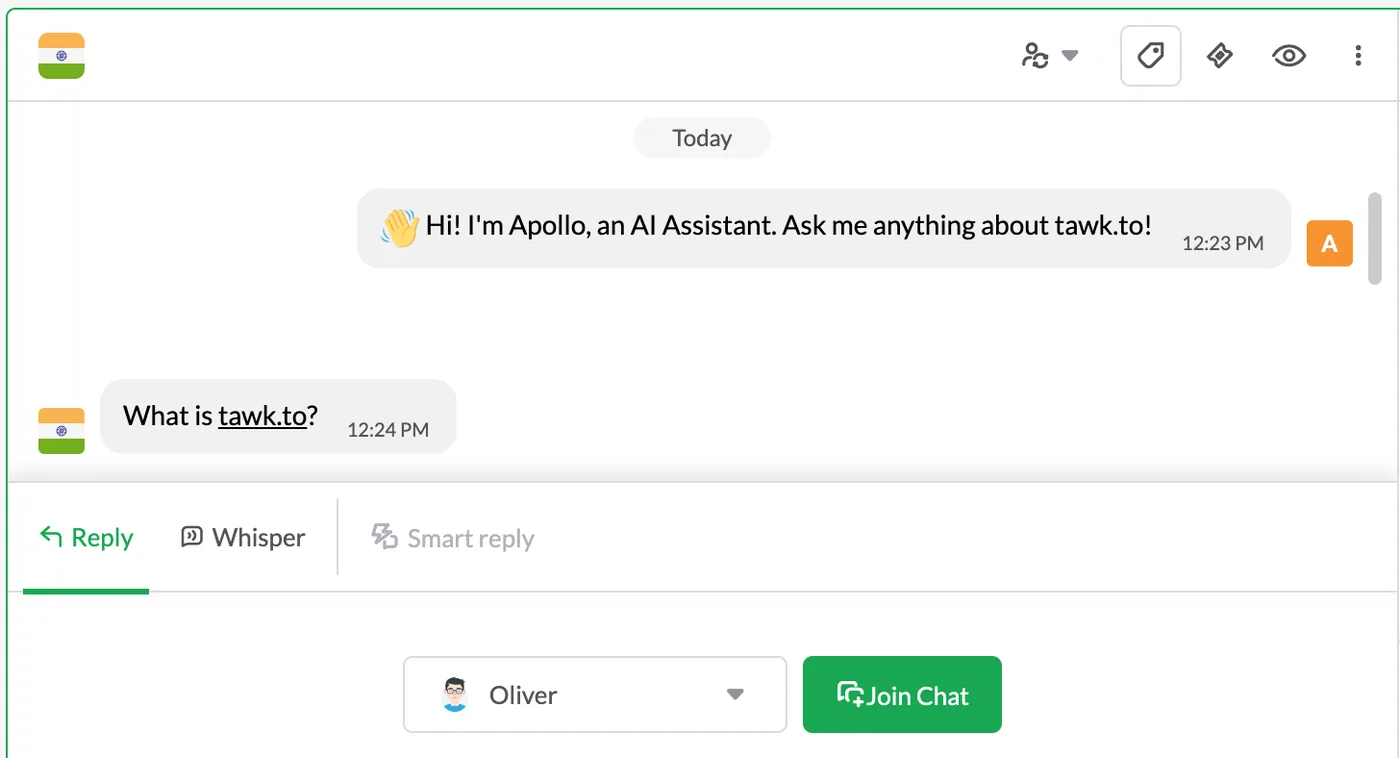
If the A I is in the chat, it leaves when you take over.
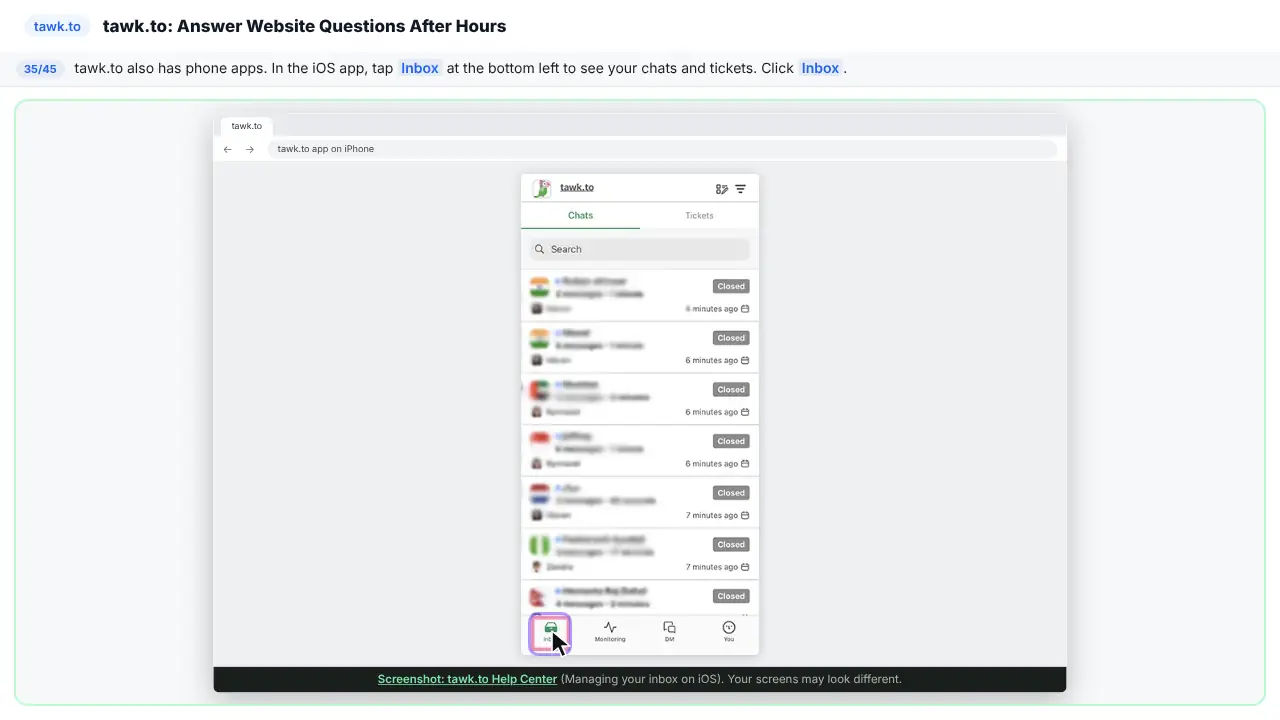
Step 35: Answer from your phone
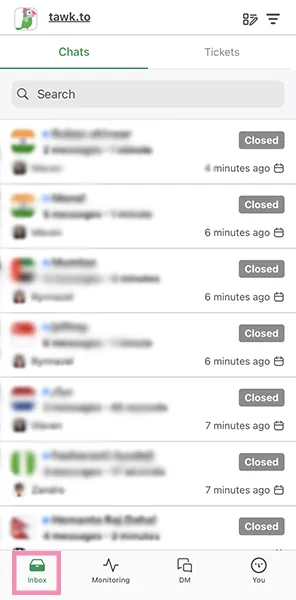
You can also answer from the tawk. to phone app.
Part 8: Set what happens after hours
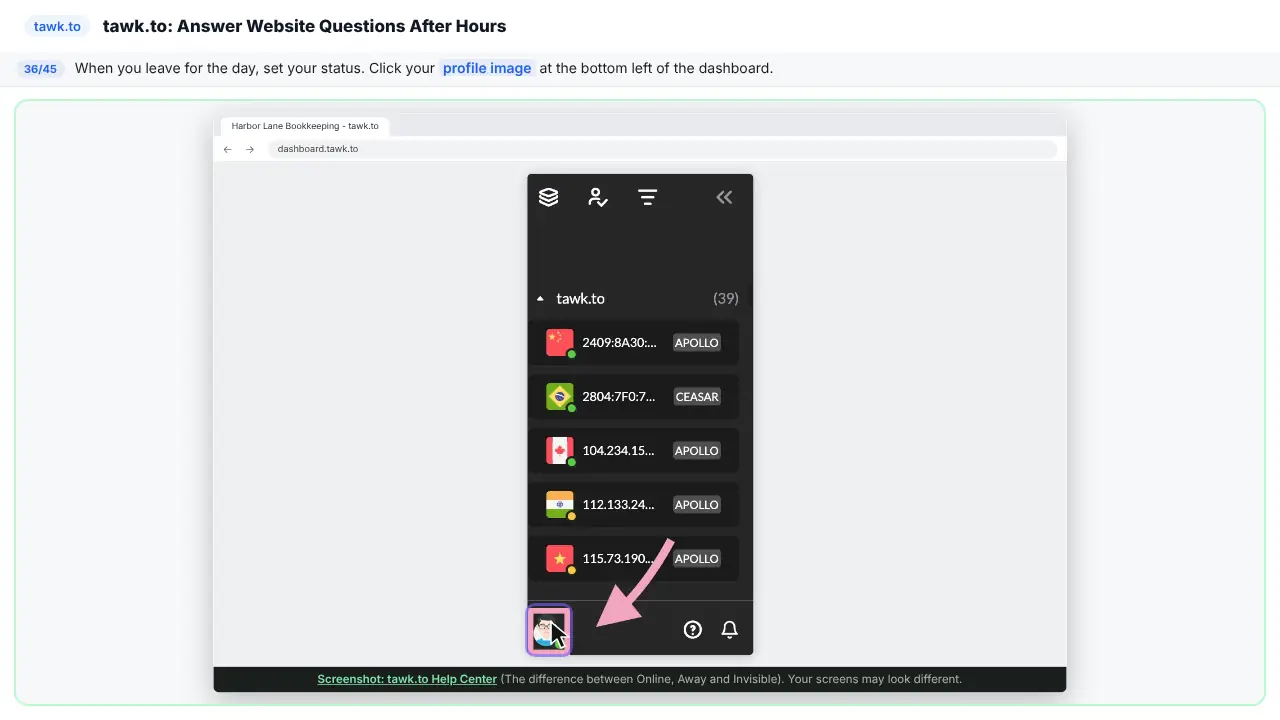
Step 36: Open your status
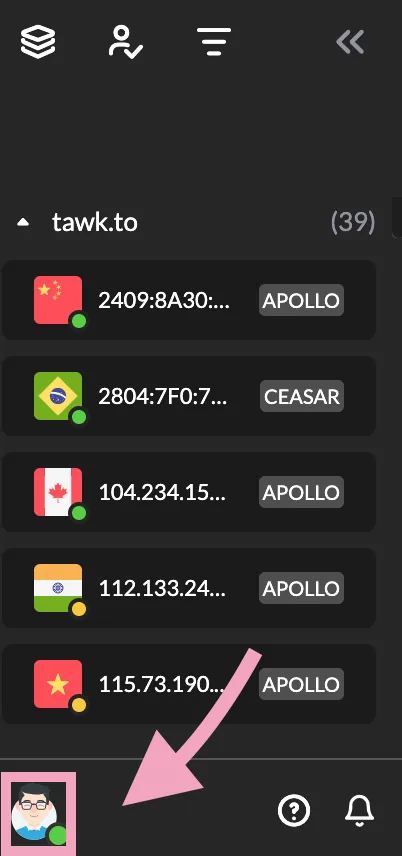
When you leave for the day, click your profile image at the bottom left.
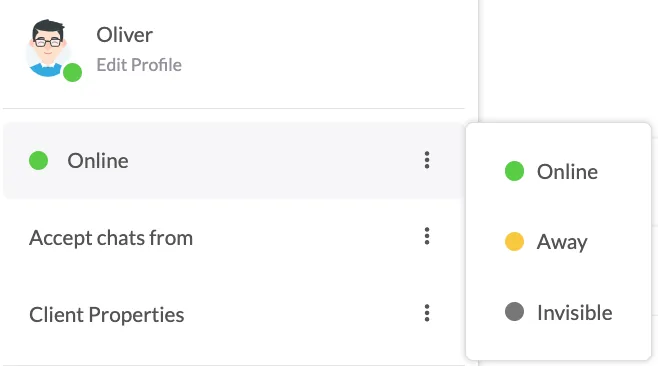
Step 37: Choose Away
Pick Away, so visitors know you may not answer right away.
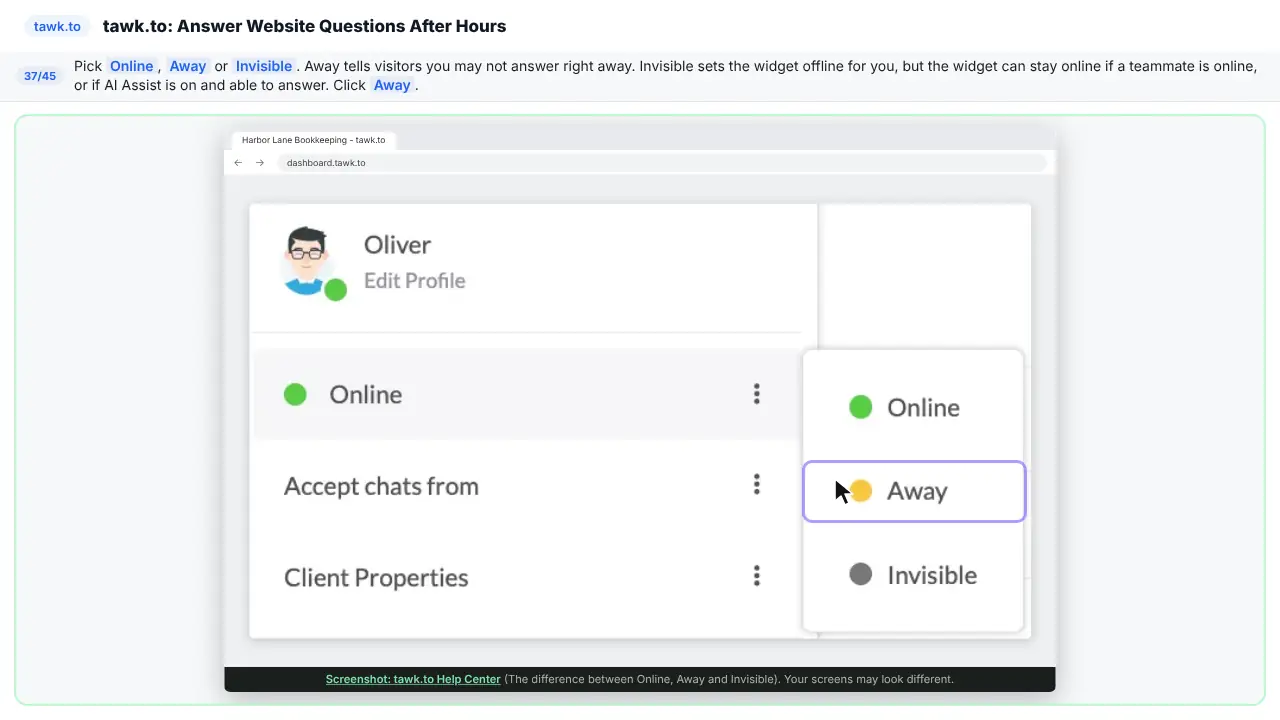
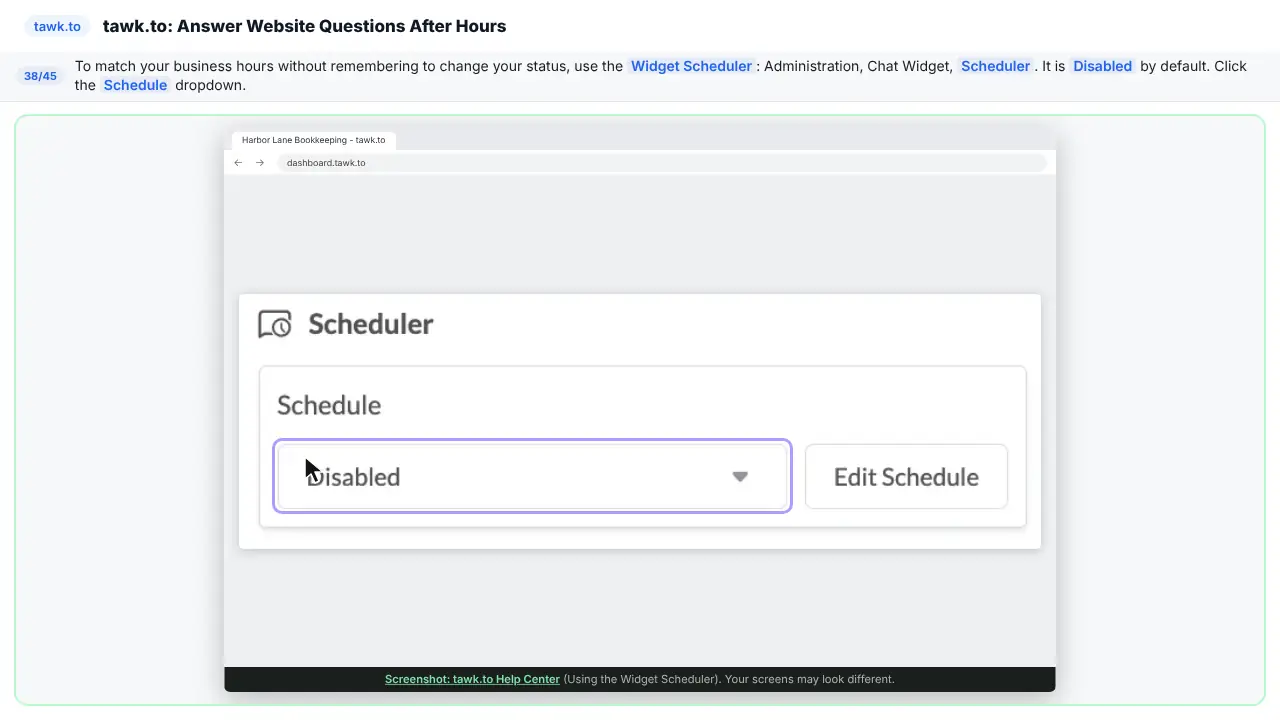
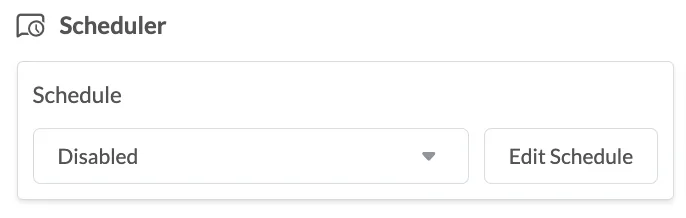
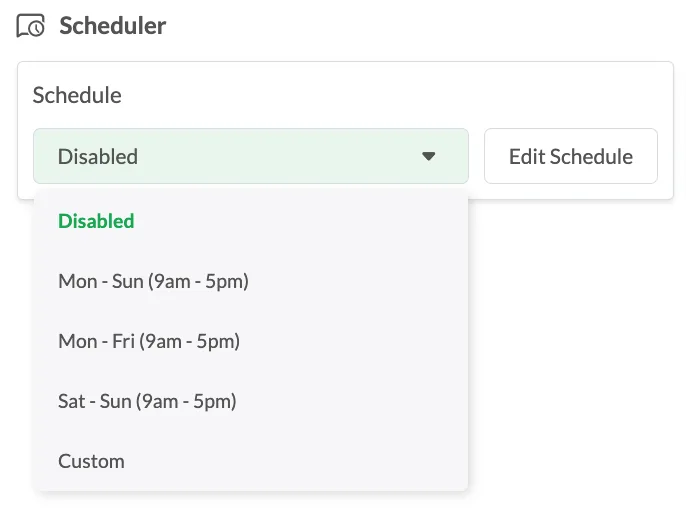
Step 38: Find the Widget Scheduler
The Widget Scheduler matches your business hours.
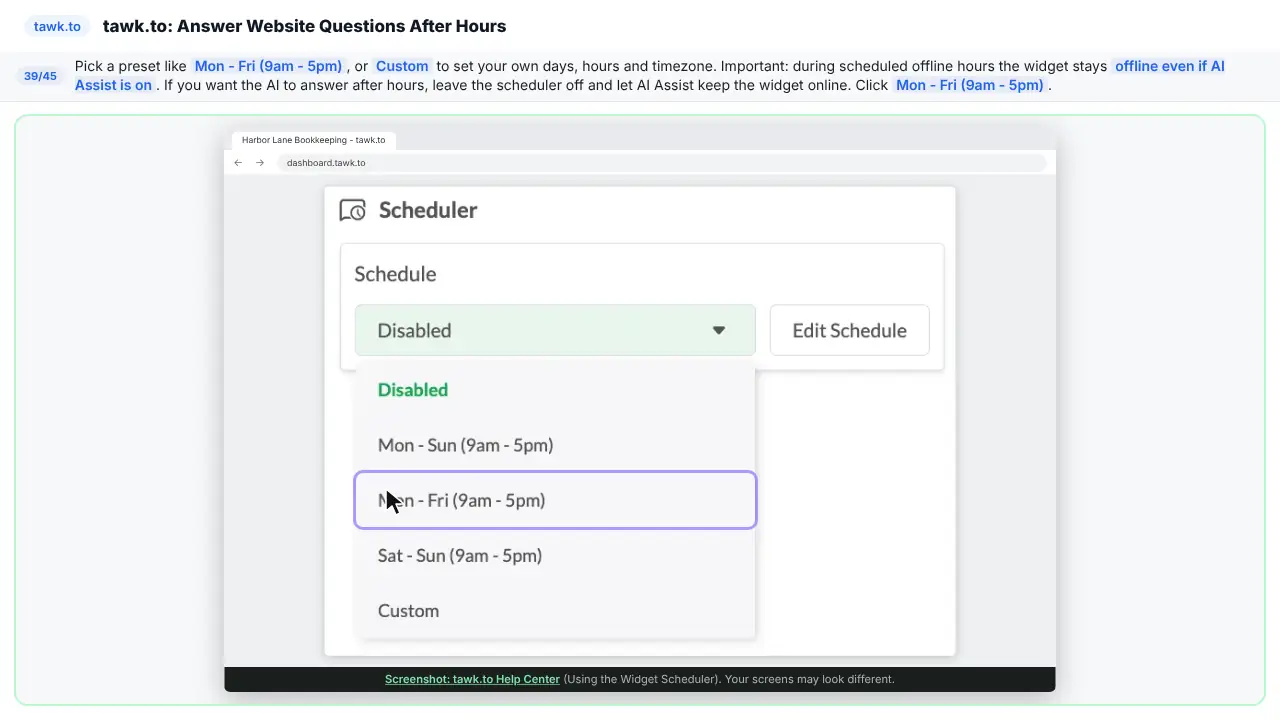
Step 39: Pick your hours, and know the trade-off
Pick your hours. But note: when the scheduler says offline, the widget stays offline, even with A I Assist on.
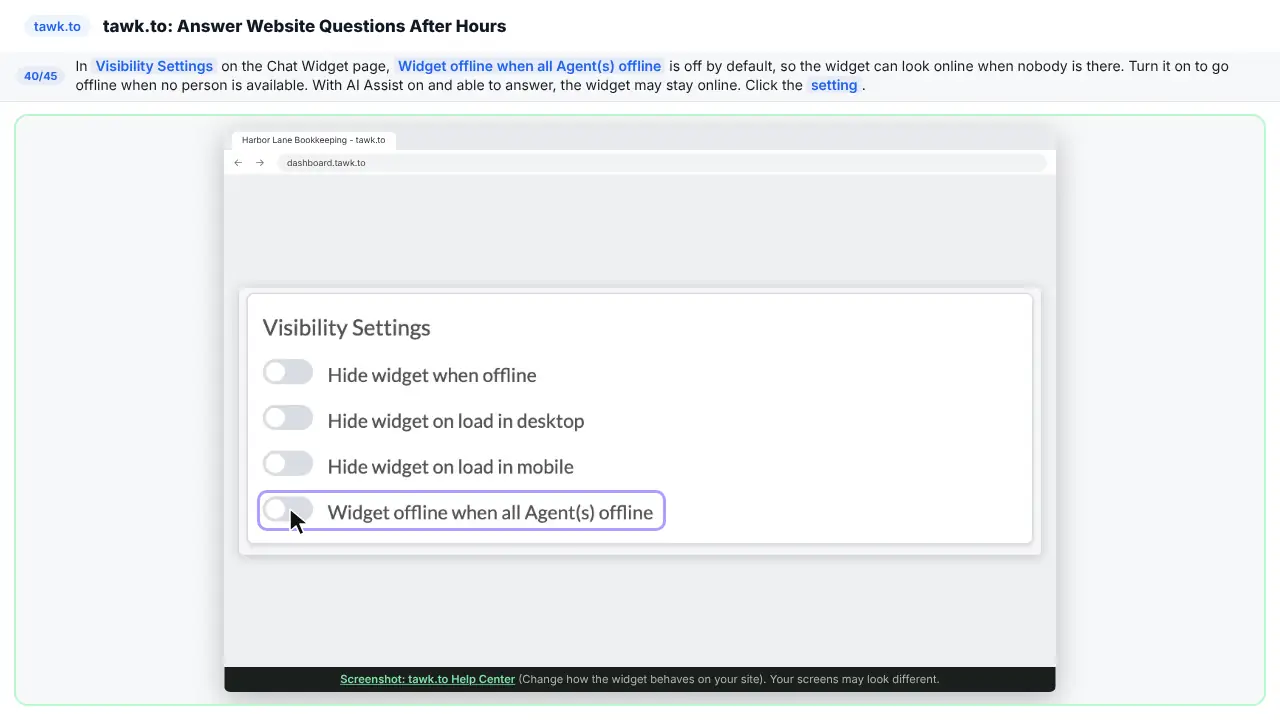
Step 40: Go offline when nobody is there
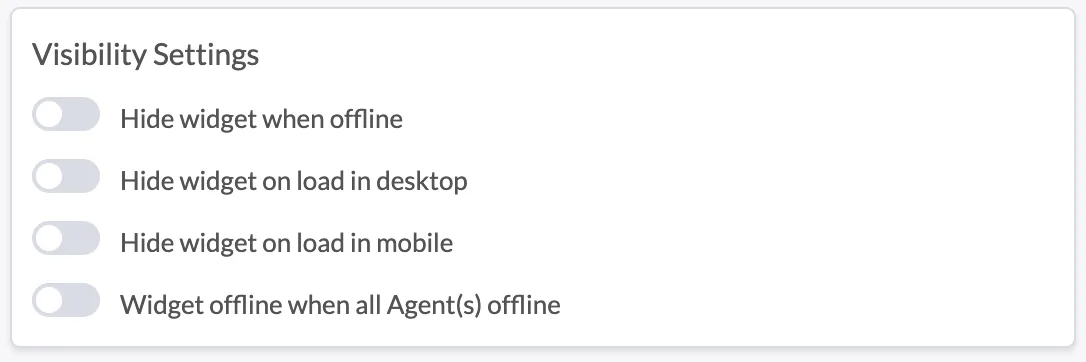
Turn on Widget offline when all agents offline, so the widget does not look online when nobody is there.
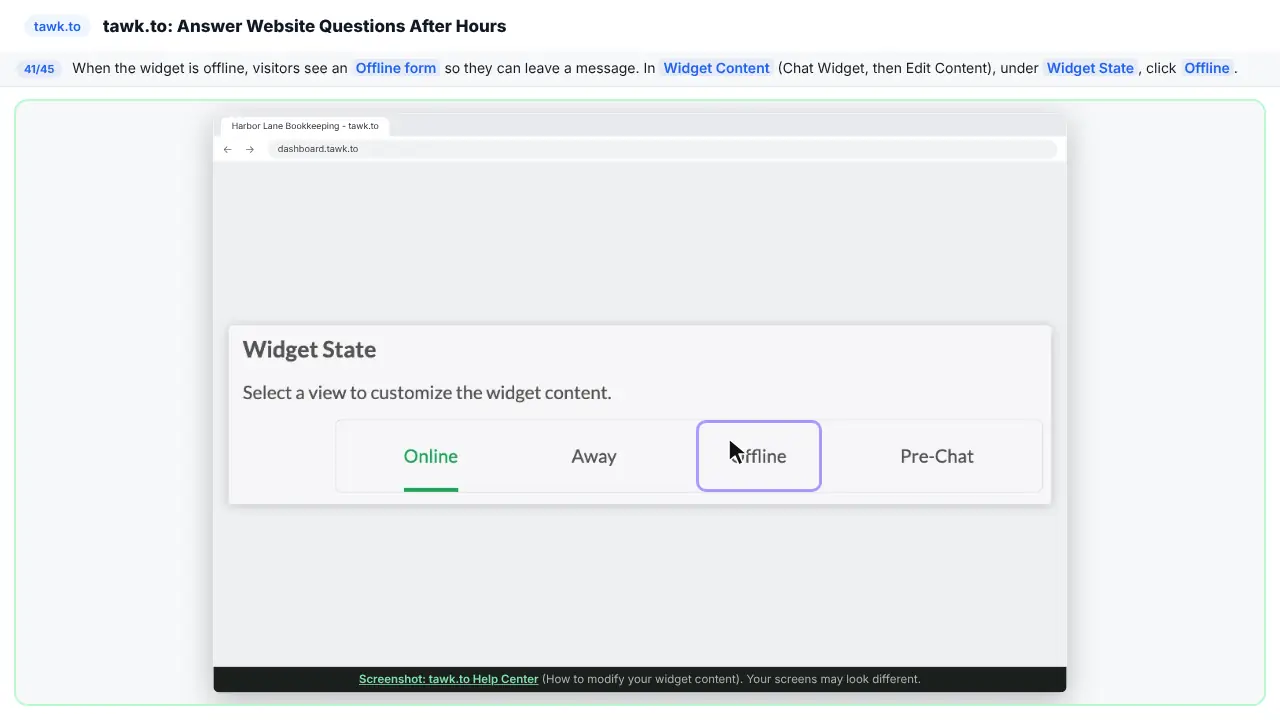
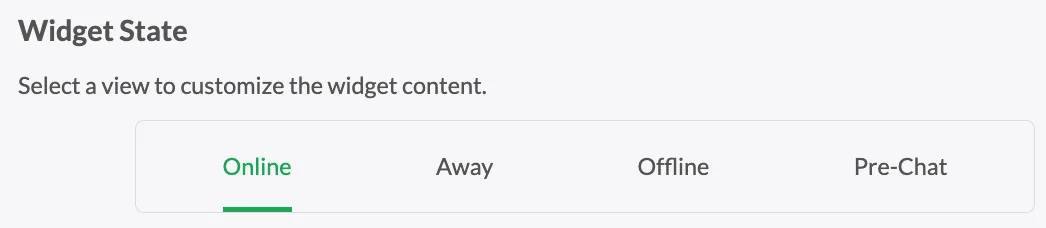
Step 41: Edit the Offline view
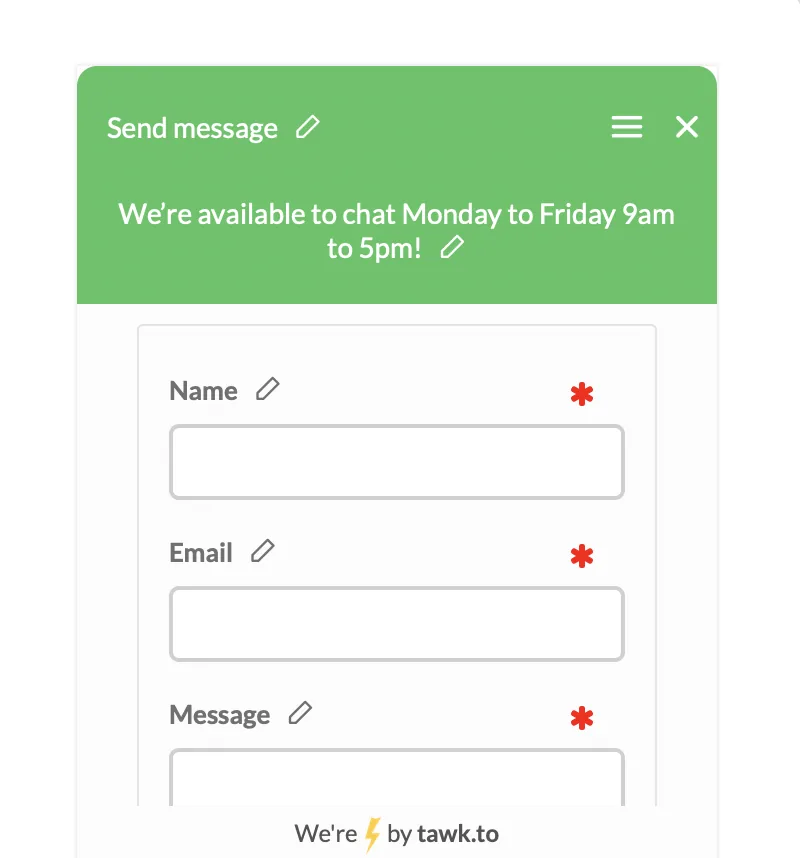
When the widget is offline, visitors see a form. In Widget Content, click Offline.
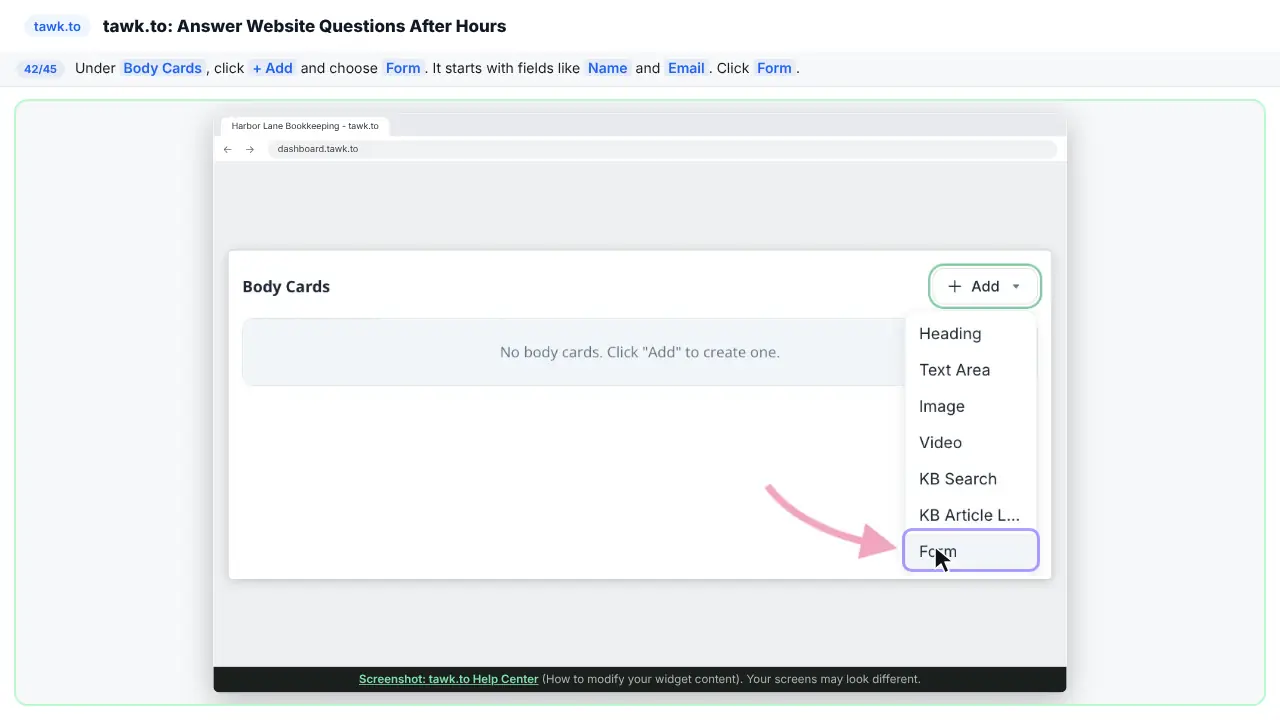
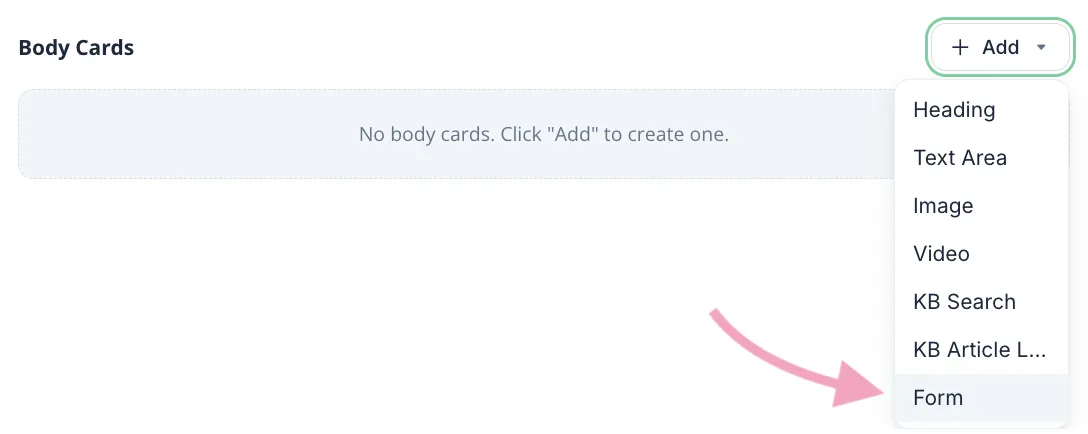
Step 42: Add the form
Add a Form card. It starts with name and email.
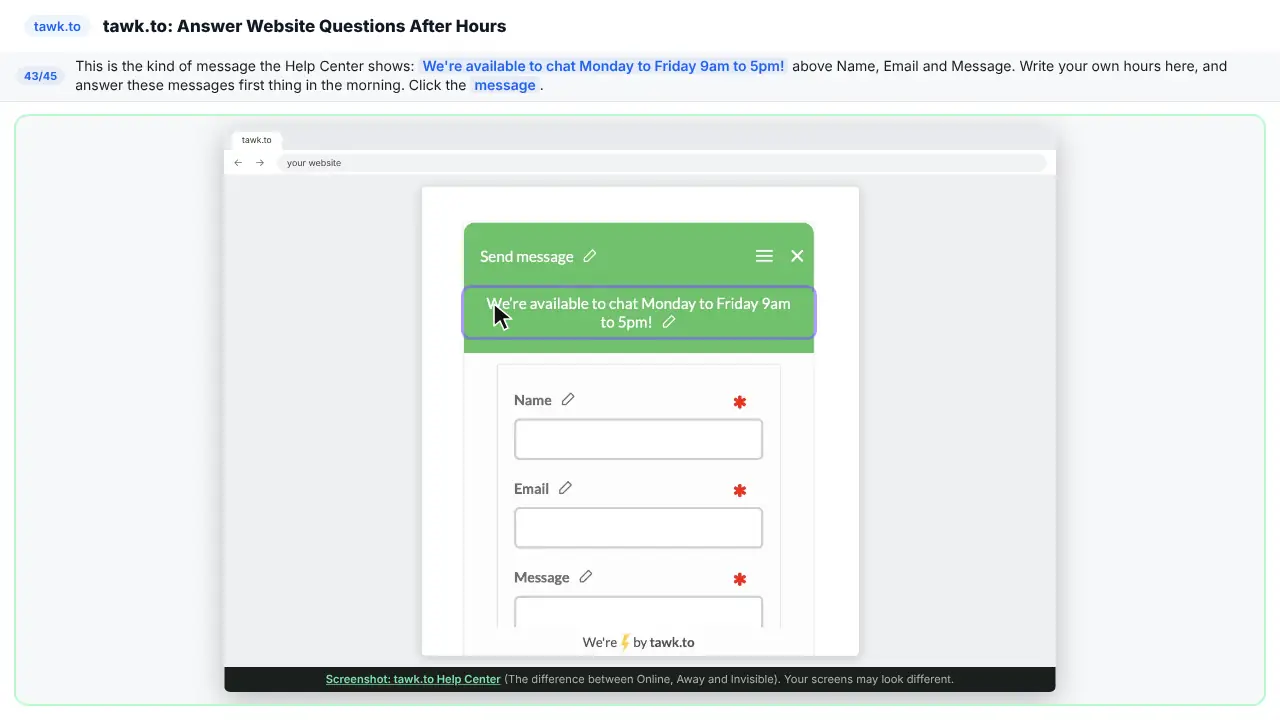
Step 43: Tell visitors when you are back
Tell visitors when you are back, and collect their name, email and question. Answer them first thing in the morning.
Part 9: What is free and what costs money
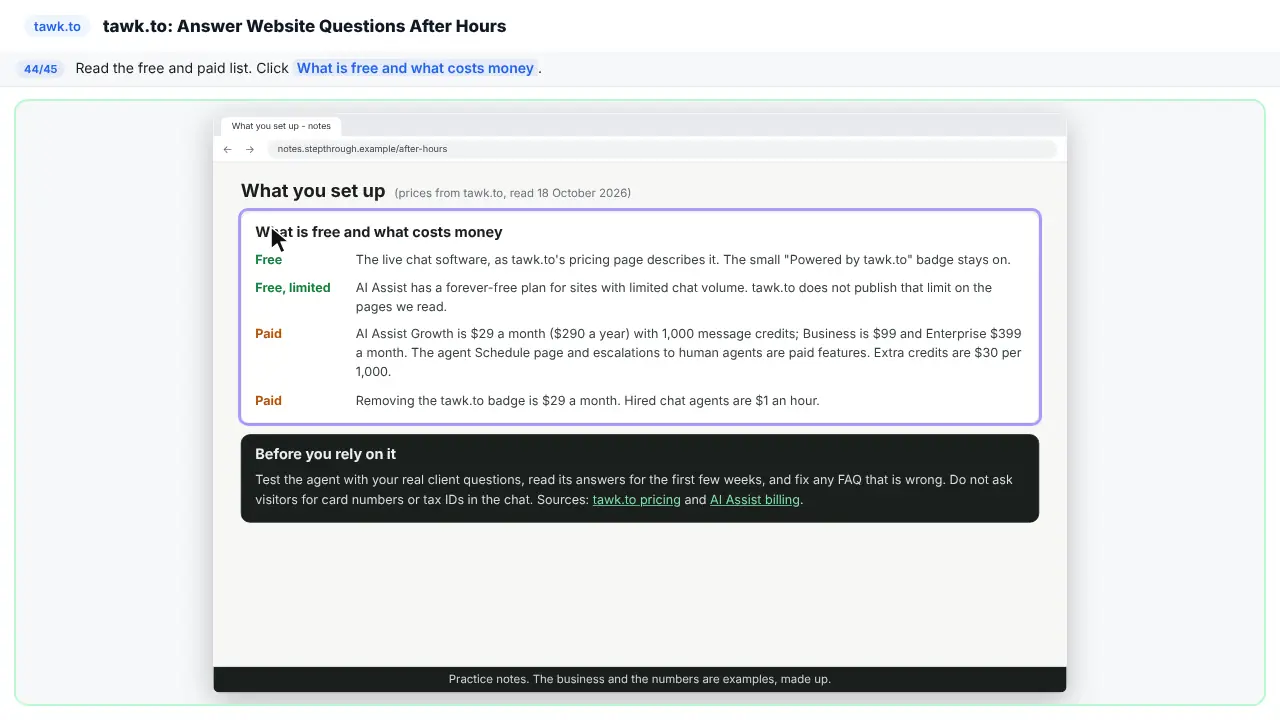
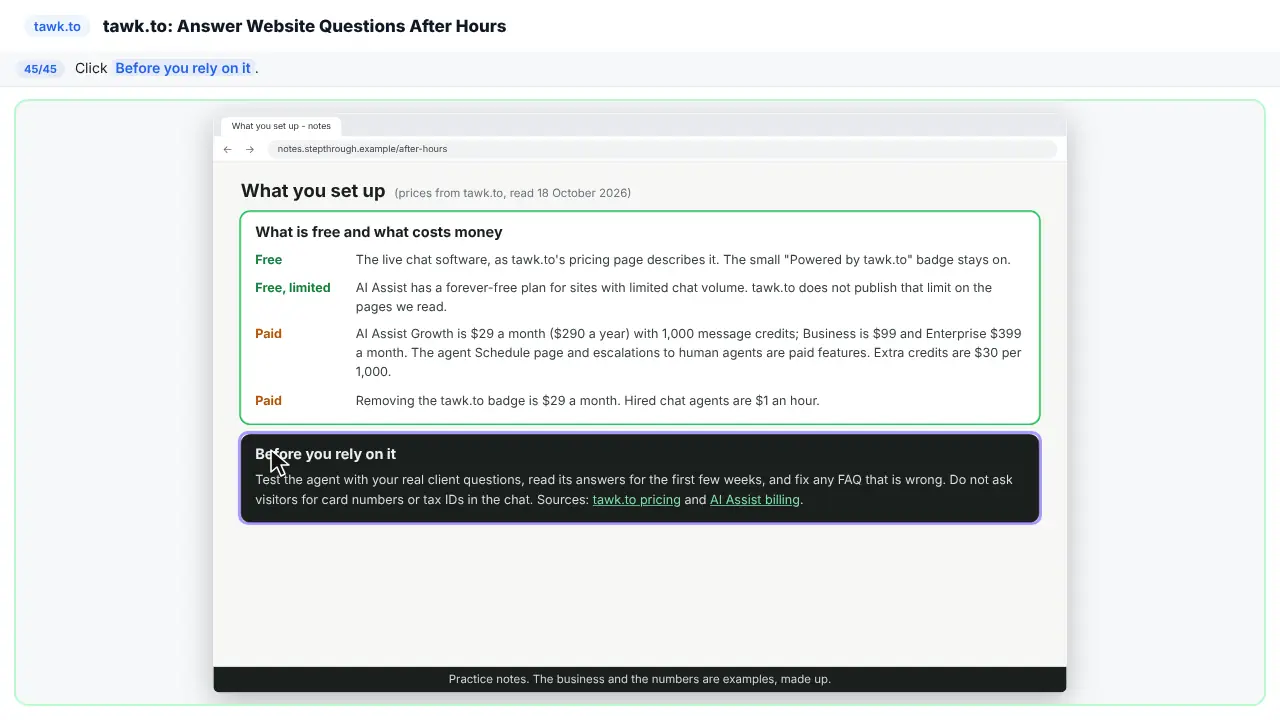
Step 44: What is free
Here is what is free, and what costs money.
Step 45: What to check before you rely on it
Before you rely on it, test the agent with your real questions, and read its answers for the first few weeks.
Part of these free courses: AI Apps Worth Knowing, AI for Customer Support, Build Your Own AI Support Bot
Now do it yourself, free
Reading the steps is a start. Doing them is how it sticks. The interactive lesson puts you in a practice copy of tawk.to: you do every step yourself, it checks your work, and “Do it for me” finishes any step you get stuck on. Nothing touches your real accounts.
Practice “tawk.to: Answer Website Questions After Hours” step by step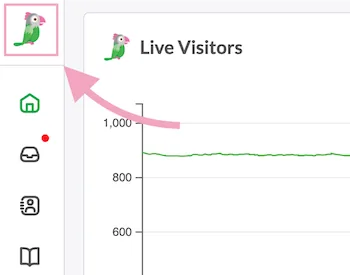
The business case: questions that arrive after 5
A bookkeeping office answers its phone from 9 to 5, but its website is open all night. People look for an accountant in the evening and on weekends, and they have quick questions: what do you charge, which software do you use, how do I send you my documents, are you taking new clients. If nobody answers, some of them book the next firm they find.
Here is the arithmetic, with example numbers you should replace with your own. Say about 12 website questions a week arrive after hours, and only 2 people a year book someone else because nobody answered. At about $150 a month in fees each, that is about $3,600 a year of work. Most of those questions are the same few, so they can be answered well without you.
A live chat box gives those visitors a place to ask. tawk.to's AI Assist can answer the routine questions from your own website, FAQs and business facts, and anything else waits for a person, with the whole conversation saved.
About the screens in this lesson
Every tawk.to screen in the practice is a screenshot that tawk.to publishes in its Help Center at help.tawk.to. Under each one is a credit, "Screenshot: tawk.to Help Center", linking to the article it comes from. I could not get the tawk.to dashboard to load in my browser, so this lesson follows tawk.to's docs instead of my own account. Your screens may look a little different, and some screenshots show tawk.to's demo businesses rather than a bookkeeping office.
Step 1: create a property and find the widget code
In tawk.to, each website is a property, with its own chat widget, chat page, knowledge base and reports. The Help Center says you can add unlimited properties for free. Click the property image, then Create Property, enter a Property Name and your Site URL, and click Next.
The Install Widget screen shows your widget code, a short script that goes before the closing body tag on every page of your site. You can also pick a plugin for a platform such as WordPress, or email the instructions to your web developer. To find the code later, go to Administration, then Chat Widget, and copy the Widget Code.
Step 2: add the widget to your website
If you edit your site's HTML, paste the code just before the closing body tag, then save and publish. If your site runs on WordPress, go to Plugins, then Add New, search for Tawk.To Live Chat, click Install Now and Activate. In the plugin's settings, log in with your tawk.to account, pick the property and widget, and click Use Selected Widget. The widget then shows on every page.
Step 3: make the widget look like yours
On the Chat Widget page, find Widget Appearance and click Advanced. You can set the shape, size, colors and position for desktop and mobile, with a live preview. Click Save, and the widget on your site updates by itself, with no code changes.
Step 4: switch on AI Assist and build an AI agent
Click Add-ons, then Get Started under AI Assist, and switch AI Assist on. Then click Automations and add your first agent. A setup wizard asks about your business: add your website URL, upload documents or describe it. Choose what the agent does, such as Answer questions, and what happens when it can't help.
You can tell the agent not to state some things as fact, such as exact prices. Add your business facts, including your phone number and opening hours, and review the FAQs the wizard writes from your site. Read every one, because the agent answers from them. Then test the agent in the preview chat. The Help Center says testing does not use your message credits.
Later, the agent's Knowledge page takes more sources: documents, tables, FAQs, Knowledge Base articles, shortcuts, text and websites. An FAQ question can be up to 255 characters and its answer up to 1,000.
Step 5: answer a chat yourself
New chats show as Incoming in the left bar of the dashboard, in pink until someone answers. Open the chat and click Join Chat. If AI Assist is handling the chat, the Help Center says it leaves by itself when you take over. You can also answer from the tawk.to phone apps; in the iOS app, Inbox is at the bottom left.
Step 6: choose what visitors see after hours
Set your status from your profile image: Online, Away or Invisible. The Widget Scheduler, under Administration and Chat Widget, sets your online hours, with presets such as Mon - Fri (9am - 5pm) or a custom schedule. In Visibility Settings, Widget offline when all Agent(s) offline is off by default, so turn it on if you do not want the widget to look online when nobody is there.
When the widget is offline, visitors see the Offline form, which you edit under Widget Content: Widget State, Offline, then add a Form card with fields such as Name and Email. Write your hours above it, and answer those messages first thing in the morning.
The after-hours trade-off to get right
This is the judgement call the lesson is built around. tawk.to's Help Center says the Widget Scheduler takes priority over both your status and AI Assist: during scheduled offline hours, the widget stays offline even if AI Assist is on. Outside those hours, with AI Assist on and able to answer, the widget may stay online even when every person is offline.
So pick one plan for after hours. If you want the AI to answer at night, do not schedule the widget offline at night. If you would rather collect a message and answer it yourself, schedule your hours and set up the Offline form. Either is better than a chat box that looks online while nobody answers. The AI agent's own Schedule page, which sets when the agent answers, is on paid plans only.
What is free and what costs money
- Free: the tawk.to live chat software, as its pricing page describes it, with the small "Powered by tawk.to" badge.
- Paid: removing the badge is $29 a month.
- Free, with a limit: AI Assist has a forever-free plan for sites with limited chat volume. The pages I read do not publish that limit.
- Paid: AI Assist Growth is $29 a month ($290 a year) with 1,000 message credits, Business is $99 a month and Enterprise is $399 a month. Extra credits are $30 per 1,000. The default Auto model uses 3 credits per reply.
- Paid plans only: the AI agent's Schedule page and escalation settings. The plan list puts escalations to human agents in Growth.
- Optional services: hired chat agents are $1 an hour.
Mistakes to avoid
- Letting the AI answer from FAQs nobody read. Check every answer the wizard writes, and fix it when your fees or hours change.
- Letting the AI quote exact fees. Mark exact prices as something it should not state as fact.
- A widget that looks online when nobody is there. Choose the AI plan or the offline plan for after hours.
- Asking visitors for card numbers, tax IDs or other sensitive details in the chat.
- Treating this lesson's numbers as yours. Count your own after-hours questions first.
Links
- tawk.to: the free live chat tool this lesson teaches.
- tawk.to pricing: the live chat software is free with the tawk.to badge; removing the badge is $29 a month; AI Assist has a forever-free plan for sites with limited chat volume and paid plans from $29 a month (read 18 October 2026).
- tawk.to Help Center: Getting started with AI Assist: tawk.to's own guide to switching on AI Assist and building an AI agent, where most of the screenshots come from.
- tawk.to Help Center: How to manage billing for AI Assist: the AI Assist plans, message credits and prices.
Try it yourself, free
Reading the steps is a start. Doing them is how it sticks. The interactive module walks you through every click in a practice copy of tawk.to, checks each step, and never touches your real accounts.
Start “tawk.to: Answer Website Questions After Hours”Screenshots
Frequently asked questions
- Is tawk.to really free?
- The live chat software is free, according to tawk.to's pricing page, as long as you keep the small "Powered by tawk.to" badge. Removing it is $29 a month. AI Assist has a forever-free plan for sites with limited chat volume and paid plans from $29 a month. Prices were read on 18 October 2026, so check the page before you rely on them.
- Can tawk.to's AI answer questions when I am closed?
- Yes, that is what AI Assist is for. It answers from your website, FAQs, documents and business facts. Keep in mind that during scheduled offline hours in the Widget Scheduler the widget stays offline even with AI Assist on, and the agent's own Schedule page is on paid plans only.
- How do I add tawk.to to a WordPress site?
- Install the Tawk.To Live Chat plugin from Plugins, Add New, activate it, then in its settings log in with your tawk.to account, pick your property and widget, and click Use Selected Widget. Or paste the widget code before the closing body tag yourself.
- Why do the screens look different from my dashboard?
- The screens in this lesson are screenshots from tawk.to's own Help Center, and some show tawk.to's demo businesses. tawk.to updates its dashboard, so your screens may look a little different. Follow the button names.
- Is this an official tawk.to course?
- No. This is my own lesson. tawk.to is a separate, third-party product, and the screenshots are tawk.to's, credited and linked to the Help Center article each one comes from.
From the blog
How Does Live Chat Work on a Website? Plain GuideHow live chat works on a website, from the chat widget to the agent's inbox, when an AI chatbot should answer instead, and how to set one up.
Oct 22, 2026 5 min read
Terms in this lesson
Plain-English definitions, each with an example from a free lesson.