Updated . Built against the tool’s current screens and checked step by step. How we check this lesson
A small office usually tracks purchase orders in email threads and one shared spreadsheet, so a vendor that runs late is found out after the deadline. SunSed (sunsed.com) is a website where you describe an app in plain words and it builds the pages, the database and the logins. In this free business-case lesson you use a practice copy built from real SunSed screenshots, captured October 2026, to price what chasing orders costs a made-up office, describe a purchase order tracker, answer three quick choices, watch it build, add made-up sample orders, filter to what is overdue and check who can get in. This is my own lesson, not an official SunSed course. SunSed will not build the same app twice, so your screens and credit counts will differ from ours.
At a glance
| Question | Answer |
|---|---|
| What you build | A business case for small offices that track purchase orders in email and spreadsheets: price the cost of a missed late vendor, then describe a purchase order tracker to SunSed in plain words, add made-up sample orders, filter to what is overdue and check who can get in. |
| Tools | SunSed |
| Time | About 12 minutes, 23 steps in 7 parts |
| Level | Beginner, no coding needed |
| Cost | Free |
| Ways to learn it | Practice it step by step, read the guide with screenshots |
The 7 parts, in short
- The cost of tracking orders in email: Read the vendor email, Put a price on it, Meet SunSed.
- Describe the app in plain words: Describe the tracker, Continue, Name it and create it.
- Answer three quick choices: Answer the questions.
- Watch it build, then add sample data: Watch it work, Look at the first build, Ask for fake sample data, Check the table.
- Use the tracker: Spot the late vendors, Open the Status filter, Show only overdue, Add an order, and 2 more steps.
- Check it before you share it: Open the Team page, Check who is on the list, Test it as a stranger, See what a stranger gets.
- Try it for real: What this saves you, Try SunSed for real.
Part of: AI for Operations Teams (step 28 of 45)
Part of: AI Apps Worth Knowing (step 45 of 186)
Part of: AI Back Office for Small Business (step 6 of 22)
SunSed: Build a Purchase Order Tracker App by Describing It: step-by-step guide with screenshots
About the screenshots. They come from Stepthrough’s simulated practice environment (a practice copy of SunSed), not the live tool, so no real account appears. The buttons and labels match the real screens the lesson was built against. Practice it yourself free at ynteractive.com.
- Tools: SunSed
- Time: about 12 minutes, 23 steps in 7 parts
- Level: beginner, no coding needed
Part 1: The cost of tracking orders in email
Step 1: Read the vendor email
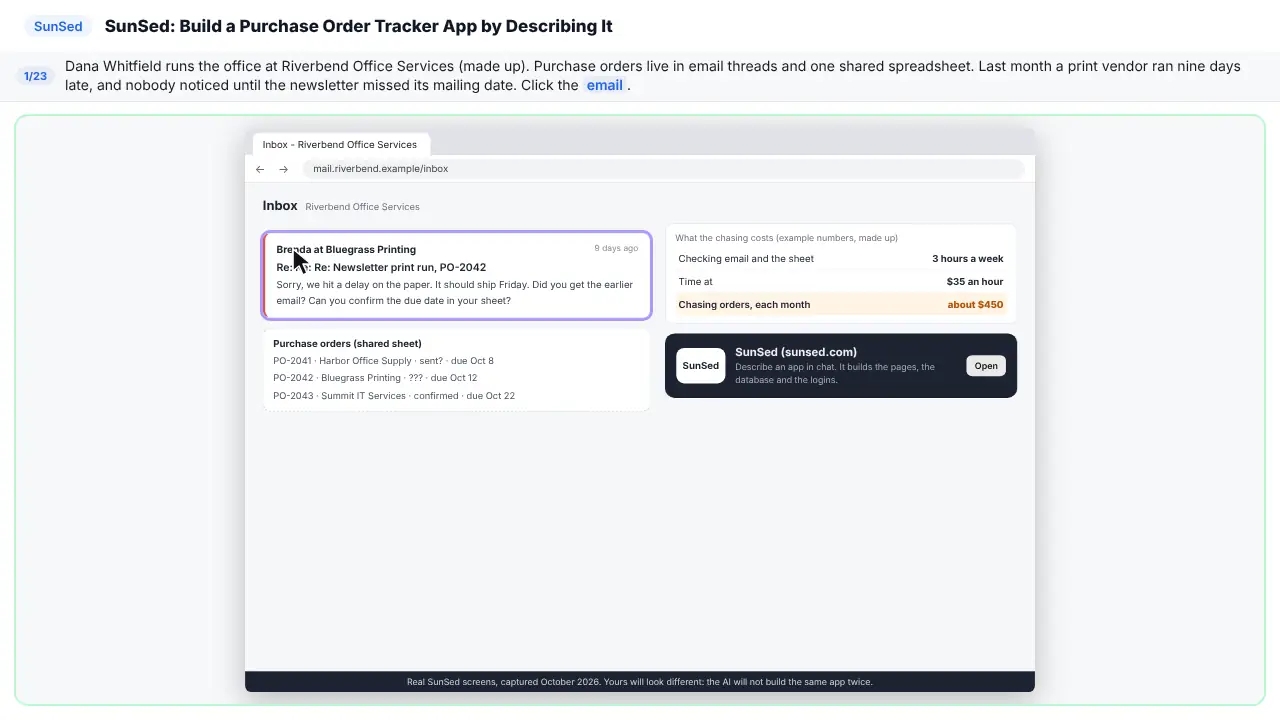
Meet Dana. She runs the office at Riverbend. Purchase orders live in email, and one shared spreadsheet. Last month, a late vendor went unnoticed for nine days.
Step 2: Put a price on it
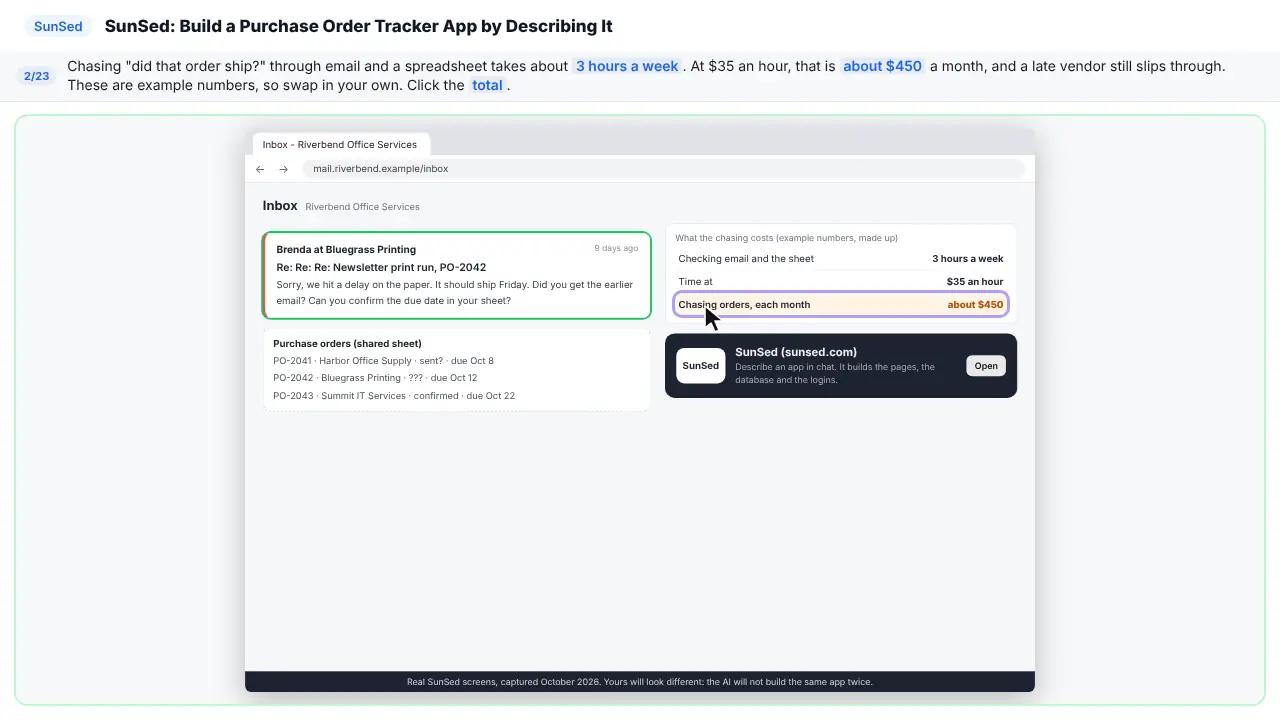
Chasing orders this way takes about three hours a week. At thirty-five dollars an hour, that's about four hundred fifty dollars a month. Use your own numbers here.
Step 3: Meet SunSed
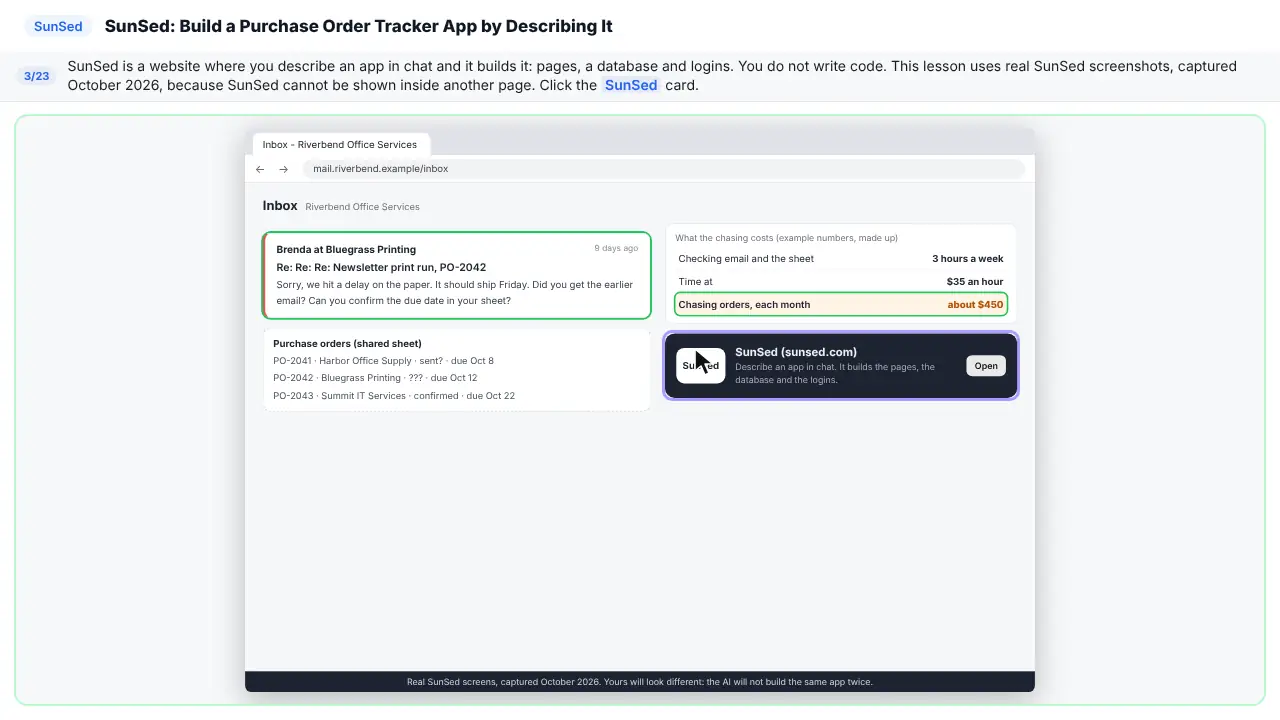
SunSed builds an app from a plain description. Pages, a database, and logins. No code. These are real SunSed screenshots.
Part 2: Describe the app in plain words
Step 4: Describe the tracker
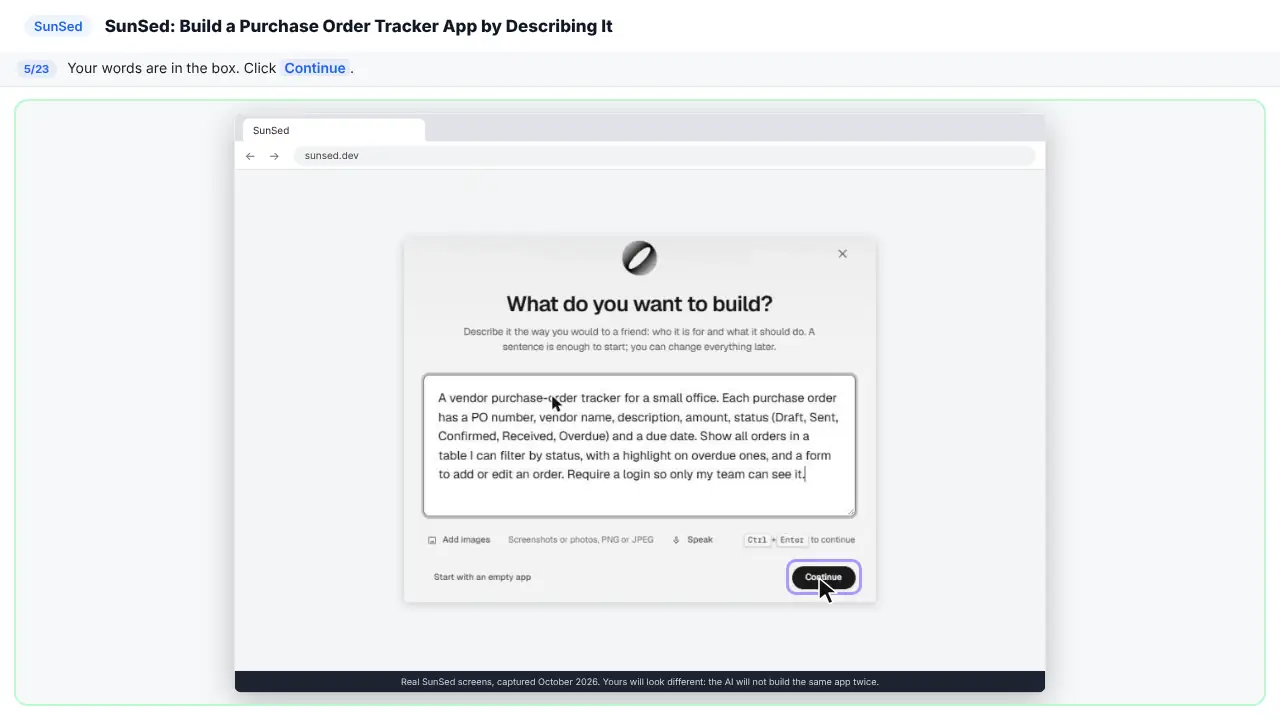
A new app starts with one question. What do you want to build? Describe it like you would to a friend.
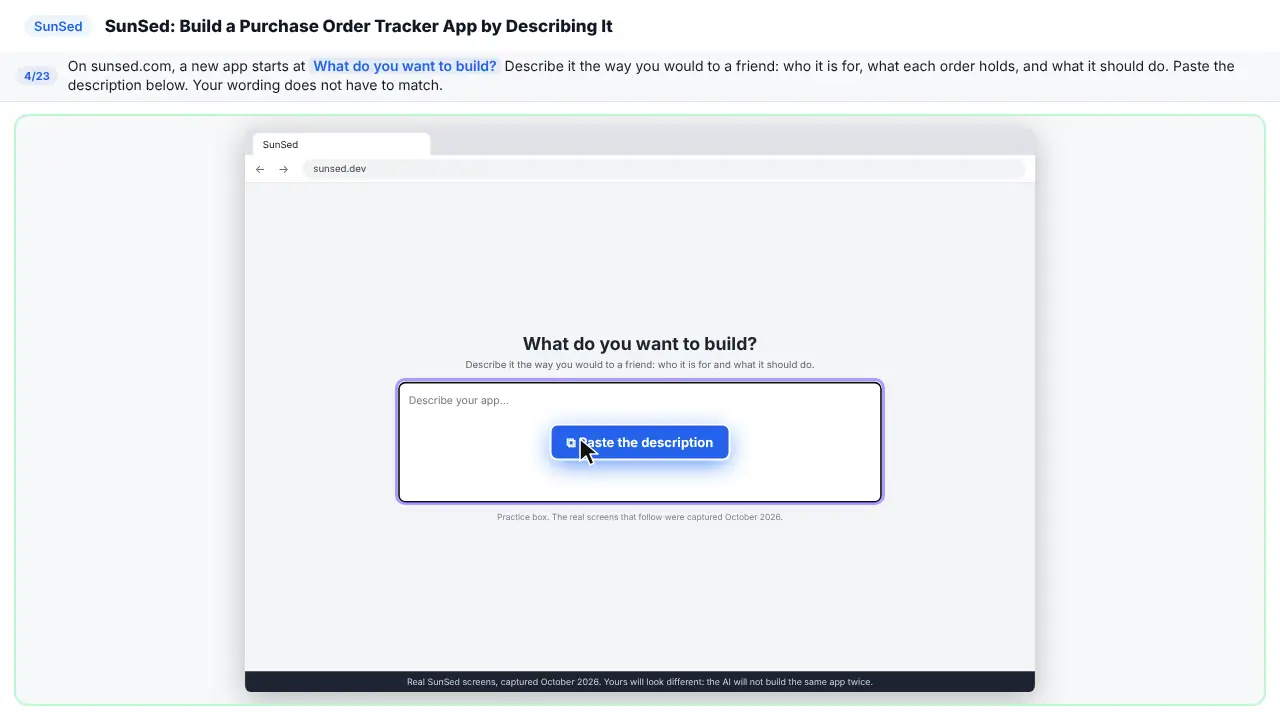
A vendor purchase-order tracker for a small office. Each purchase order has a PO number, vendor name, description, amount, status (Draft, Sent, Confirmed, Received, Overdue) and a due date. Show all orders in a table I can filter by status, with a highlight on overdue ones, and a form to add or edit an order. Require a login so only my team can see it.
Step 5: Continue
Your words are in the box.
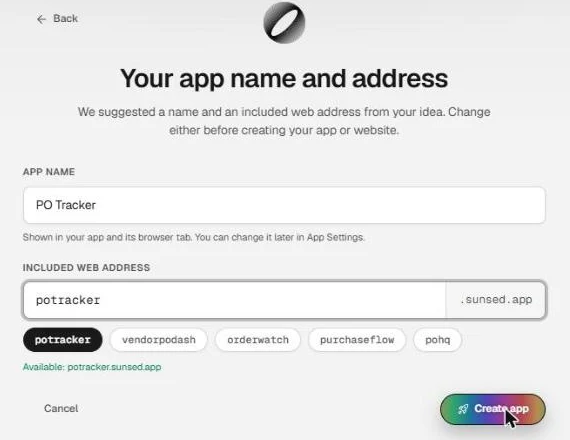
Step 6: Name it and create it
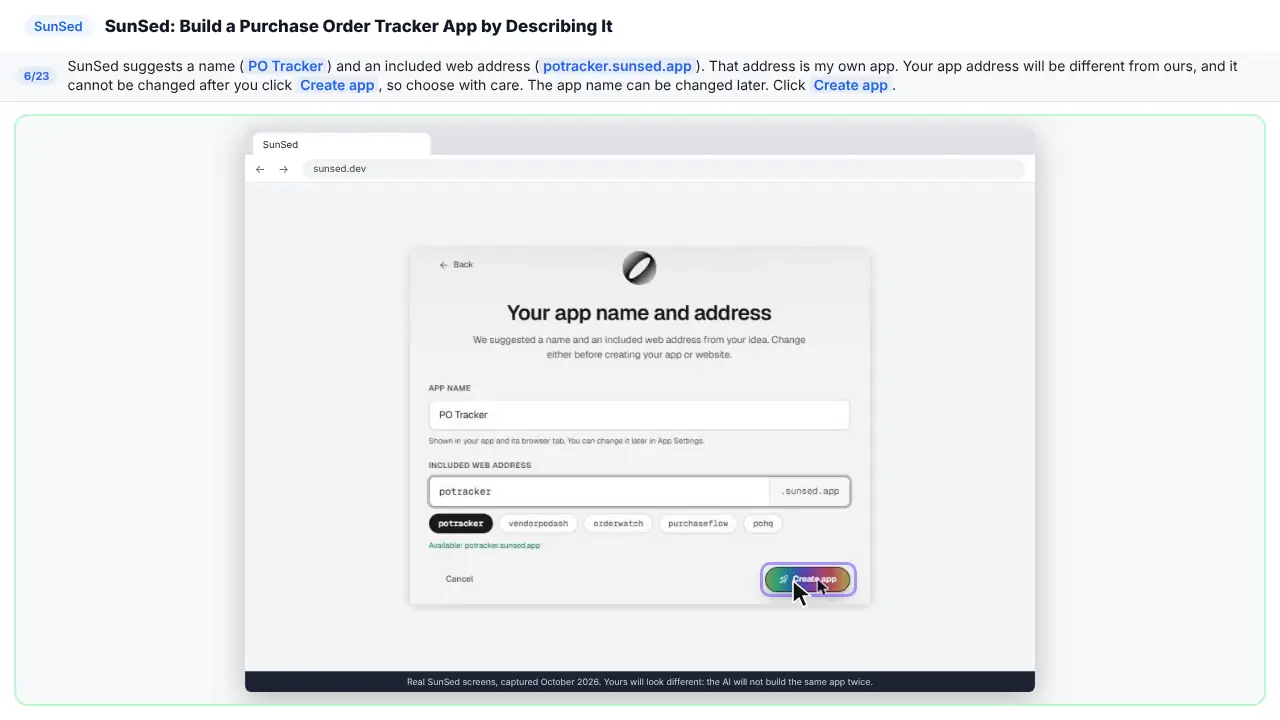
SunSed suggests a name, and a web address. Your address will be different from ours. And you can't change it later, so choose with care.
Part 3: Answer three quick choices
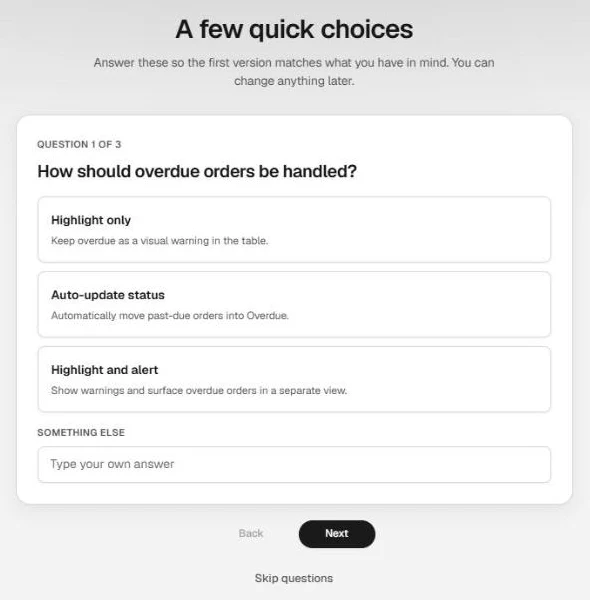
Step 7: Answer the questions
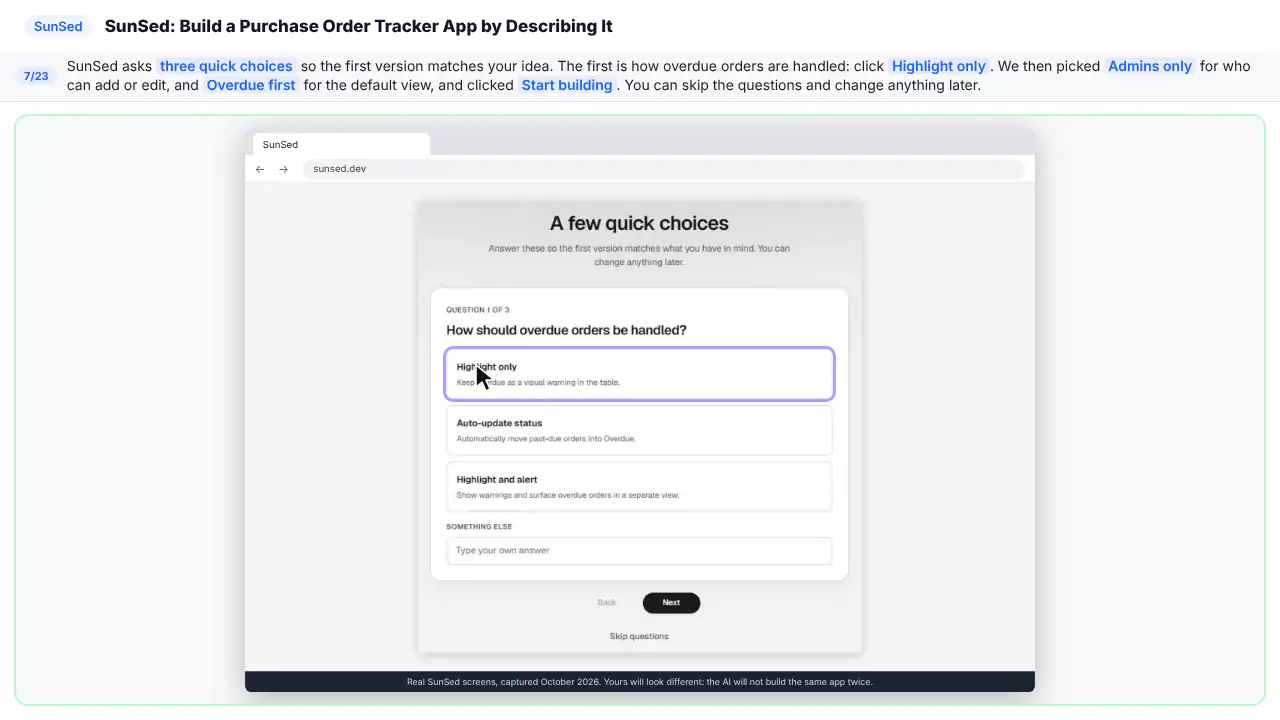
SunSed asks three quick choices. For overdue orders, click Highlight only. We also picked admins only, and overdue first.
Part 4: Watch it build, then add sample data
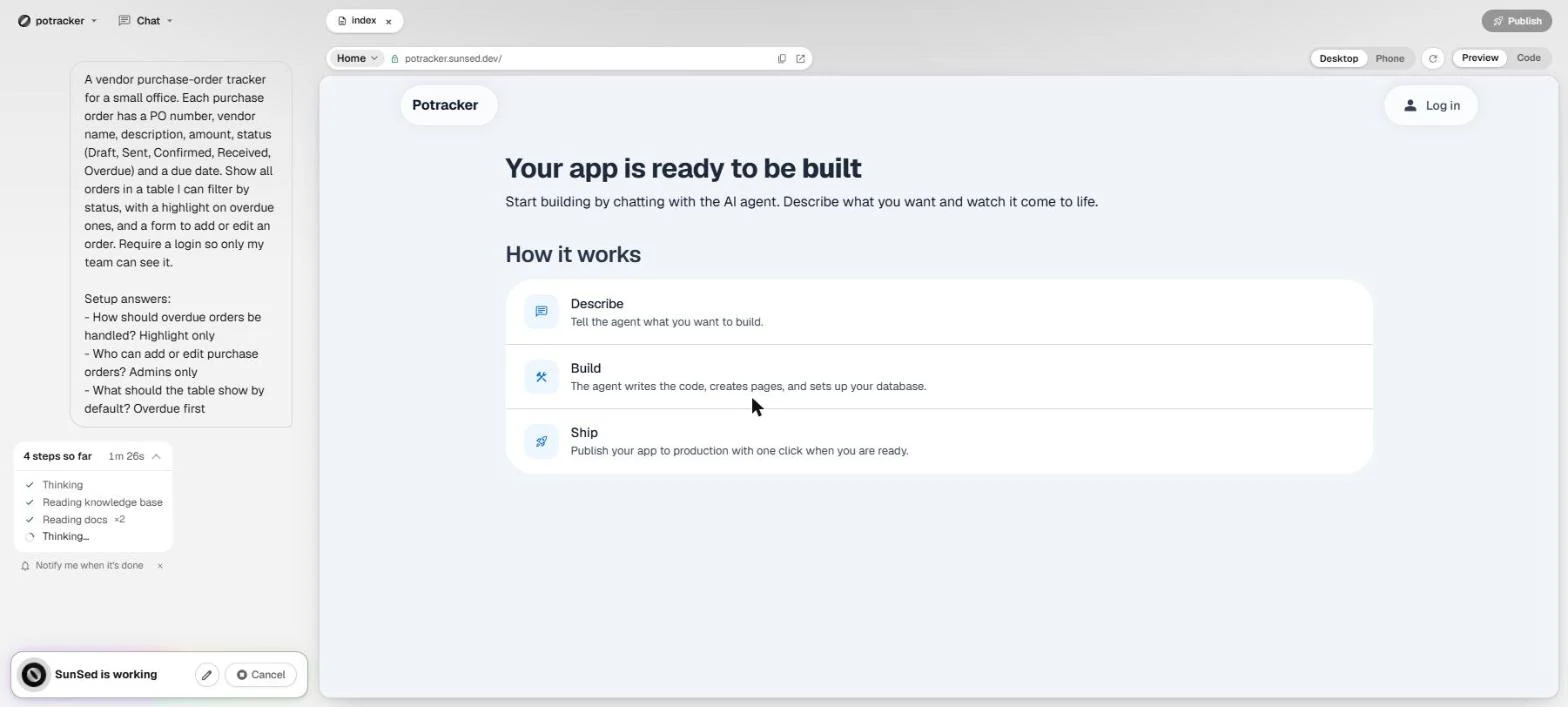
Step 8: Watch it work
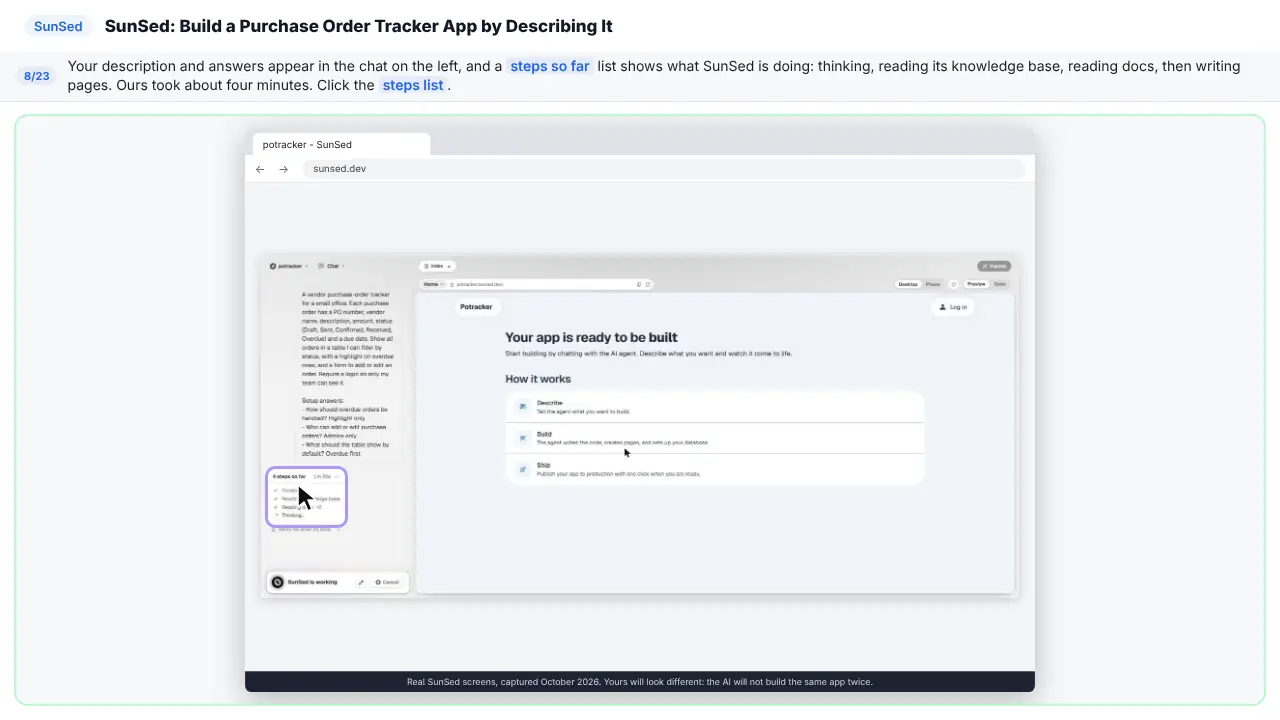
Now SunSed gets to work. The steps list shows what it's doing. Ours took about four minutes.
Step 9: Look at the first build
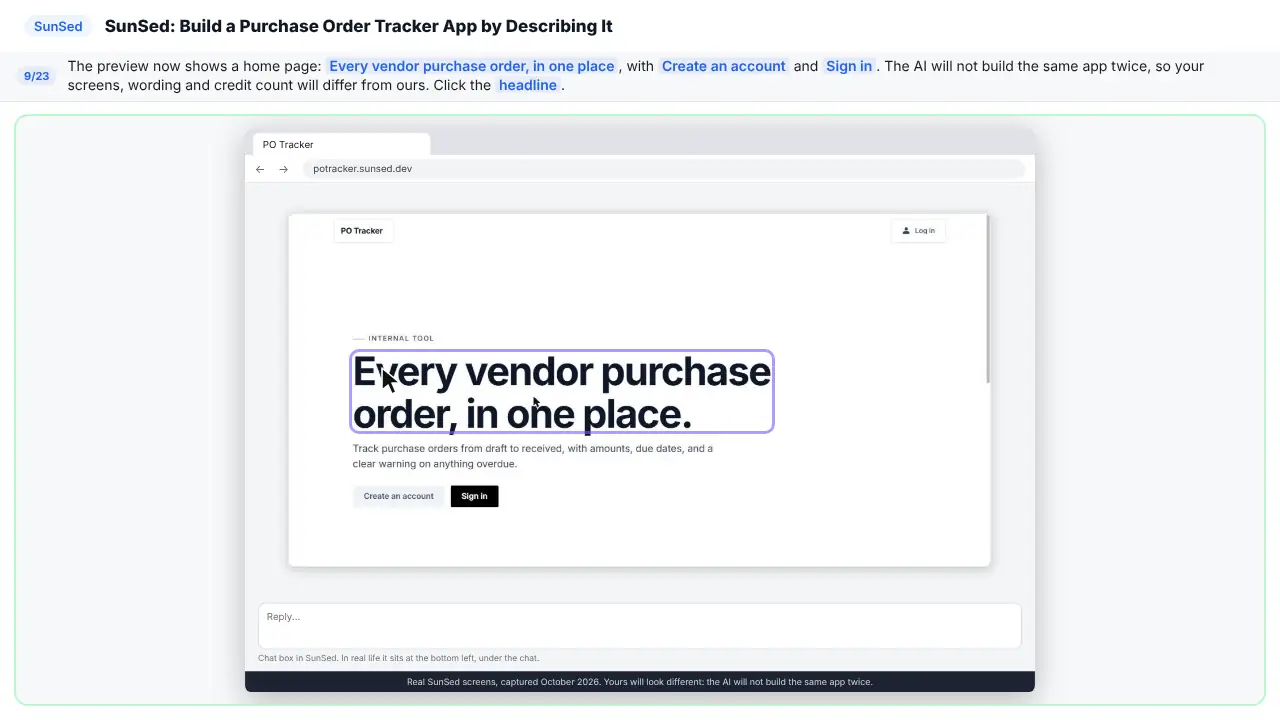
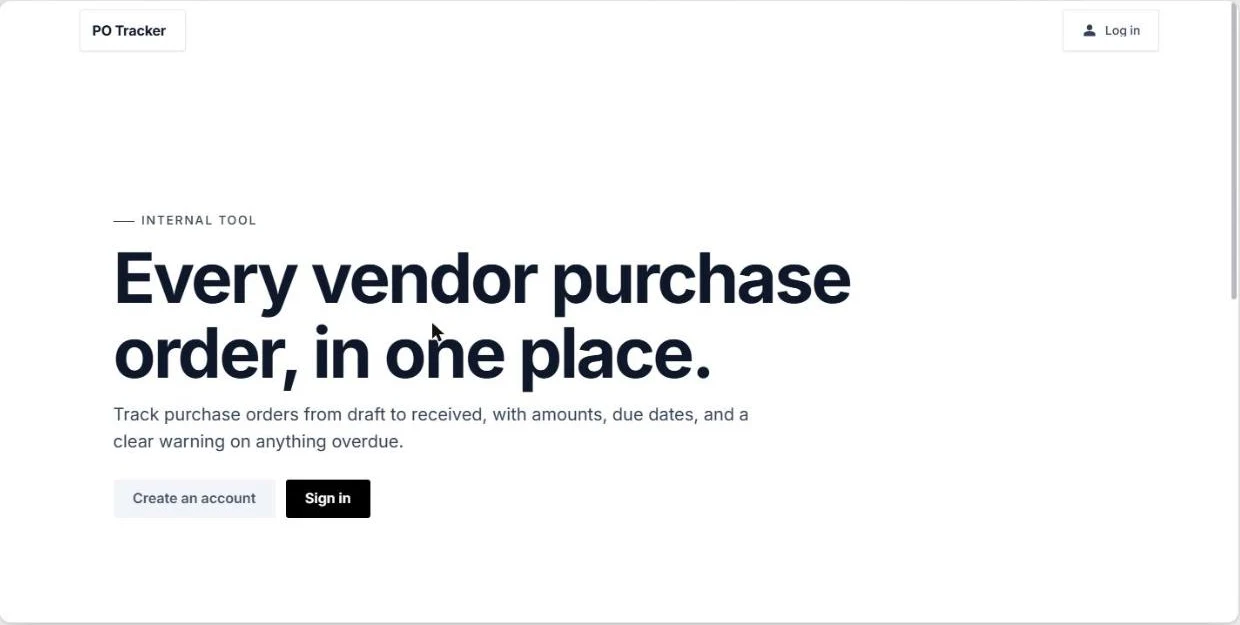
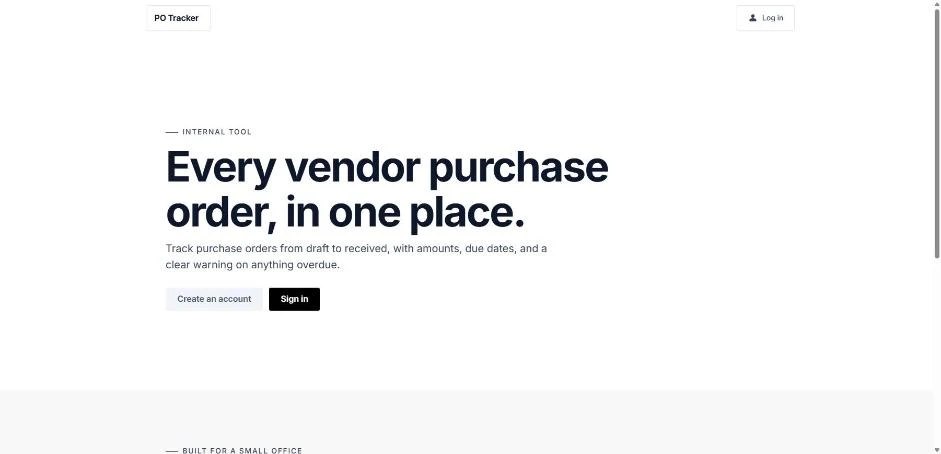
Here's the first build. A home page, with sign up and sign in. Your version will look a little different from ours.
Step 10: Ask for fake sample data
An empty tracker is hard to judge. So ask for made-up orders only. Never use real data while you're testing.
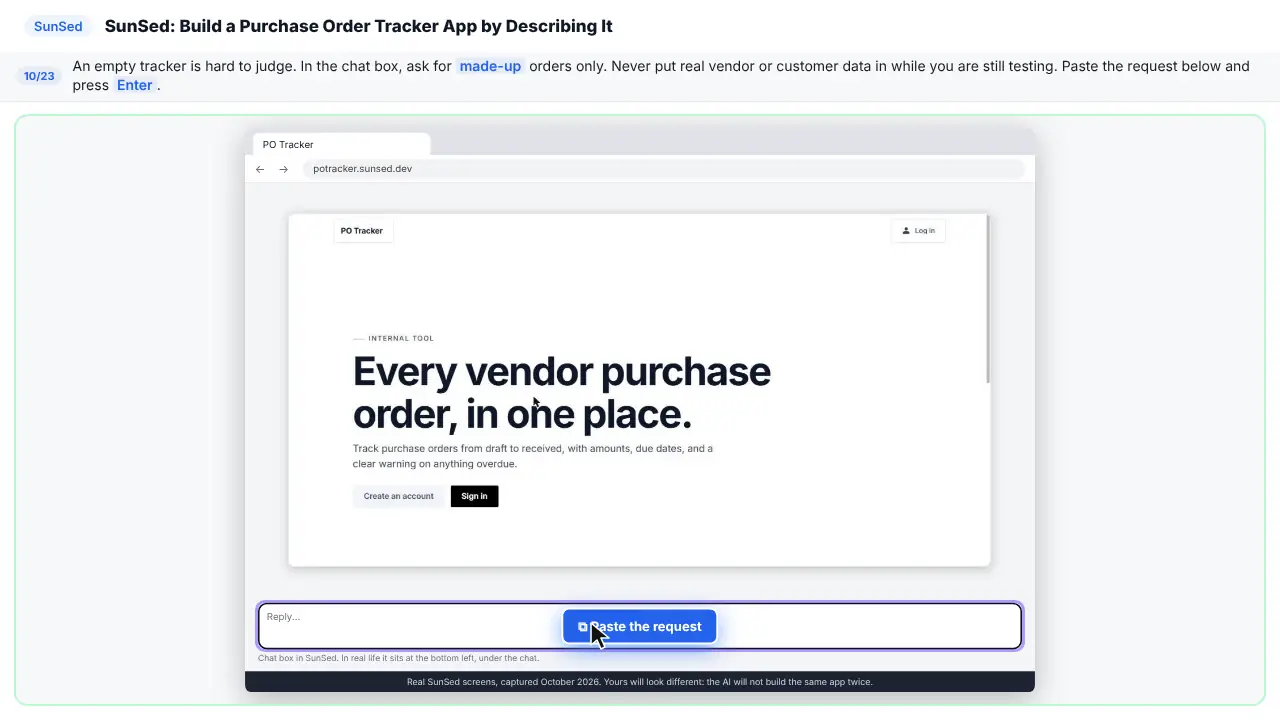
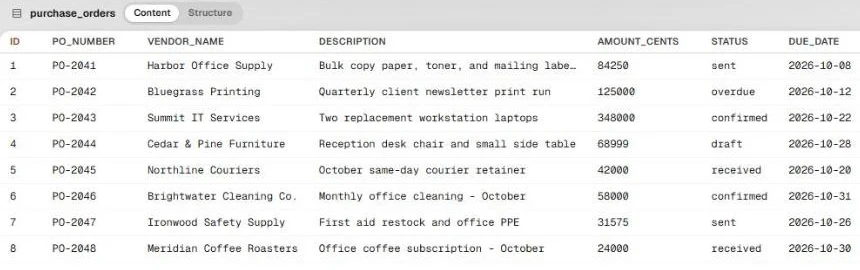
Add 8 fake sample purchase orders so the table has data. Use made-up vendors only (for example Harbor Office Supply, Bluegrass Printing, Summit IT Services) with realistic amounts, a mix of all five statuses, and due dates around late October 2026, with two of them past due.
Step 11: Check the table
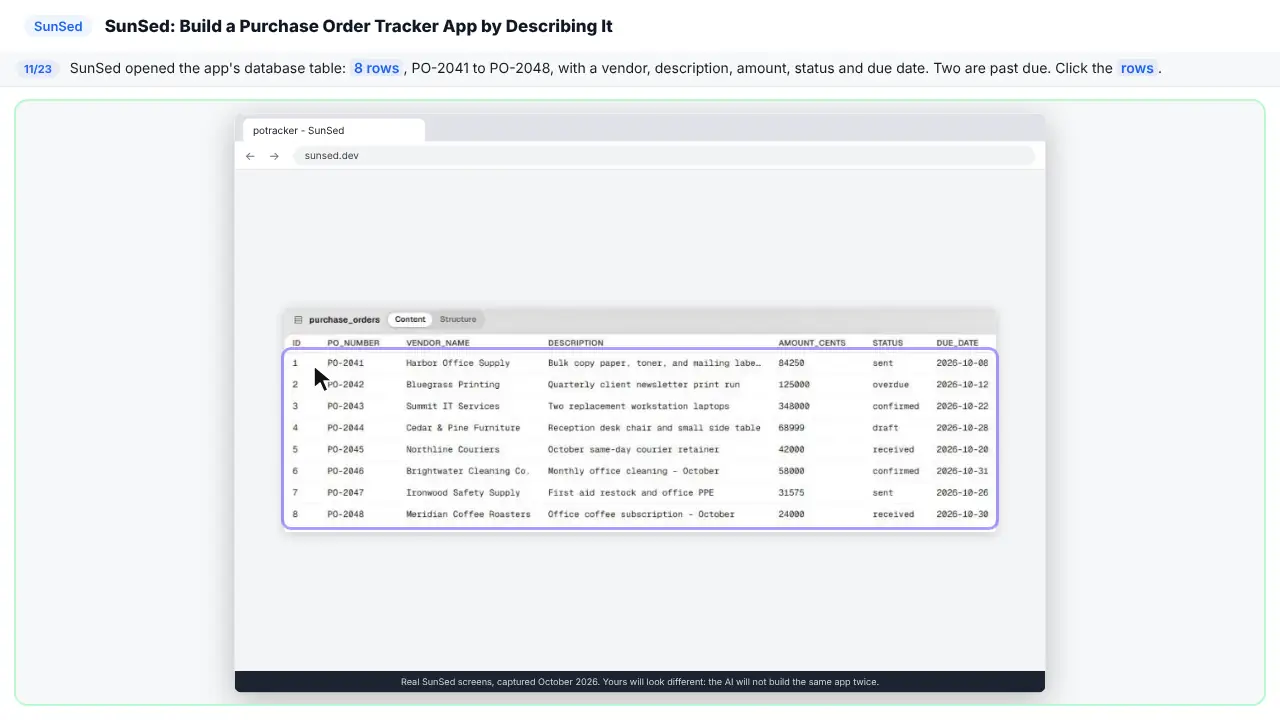
SunSed filled the table with eight fake orders. Two are past due.
Part 5: Use the tracker
Step 12: Spot the late vendors
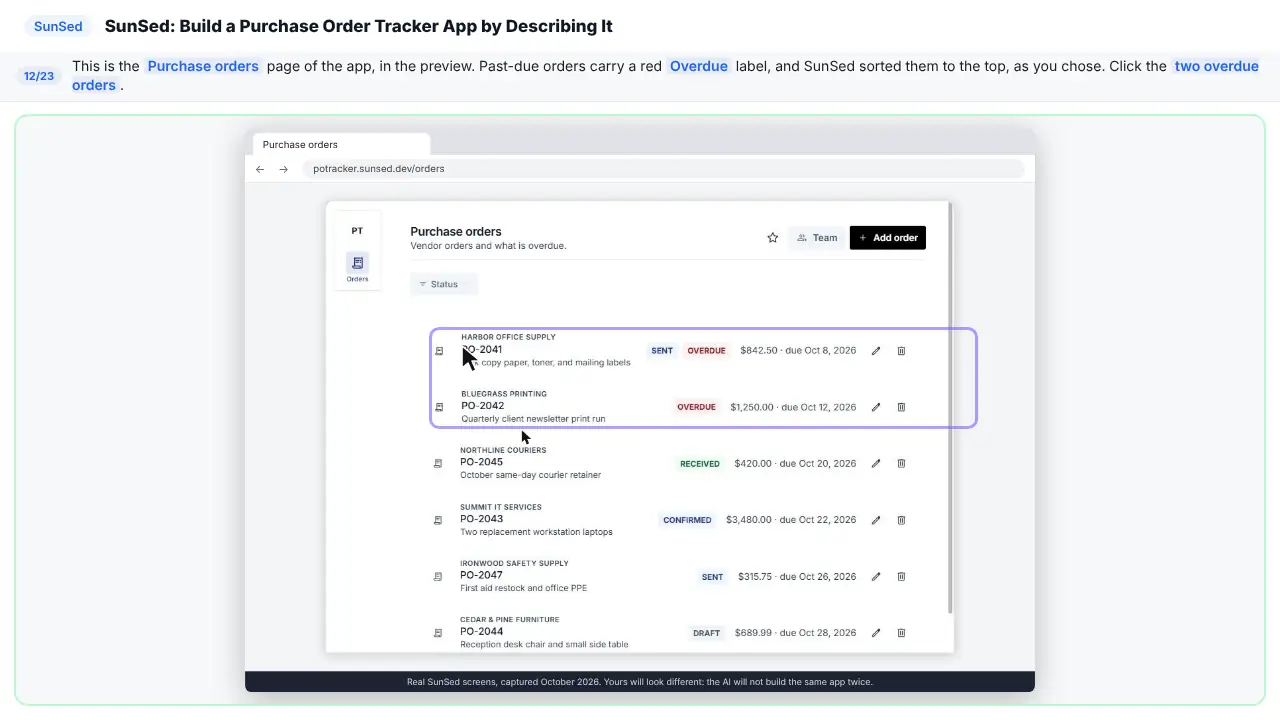
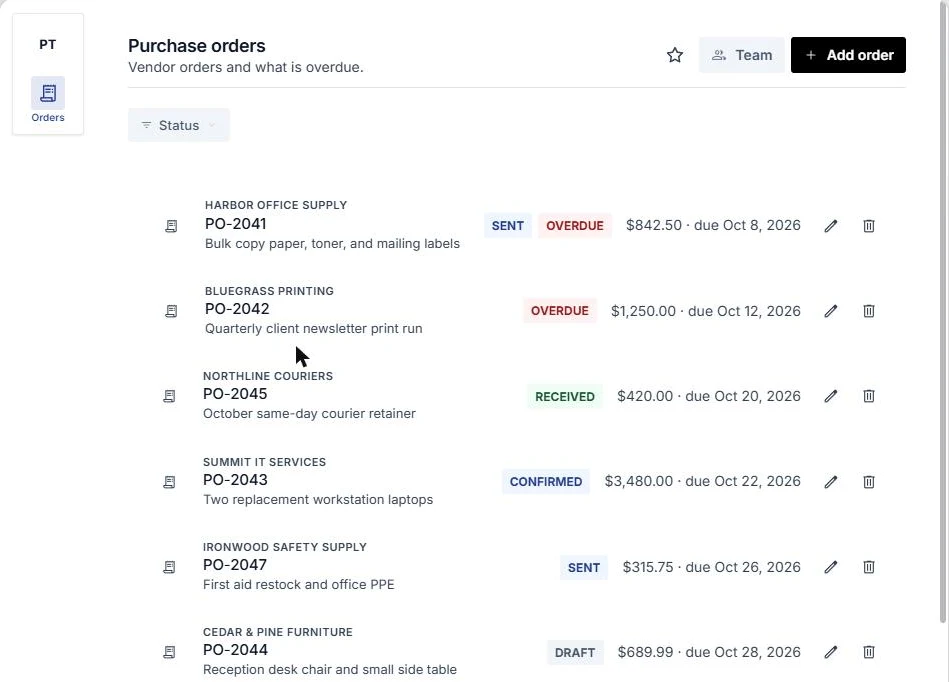
This is the purchase orders page. Late orders get a red Overdue label, and sit at the top.
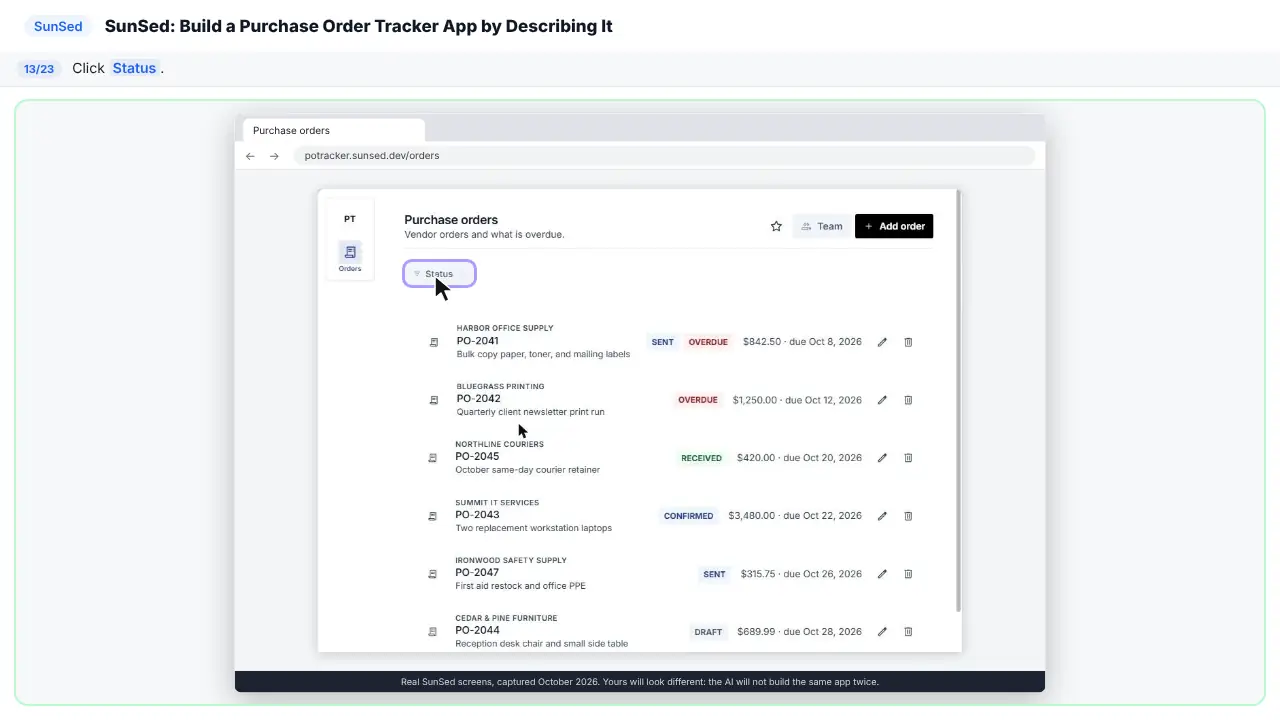
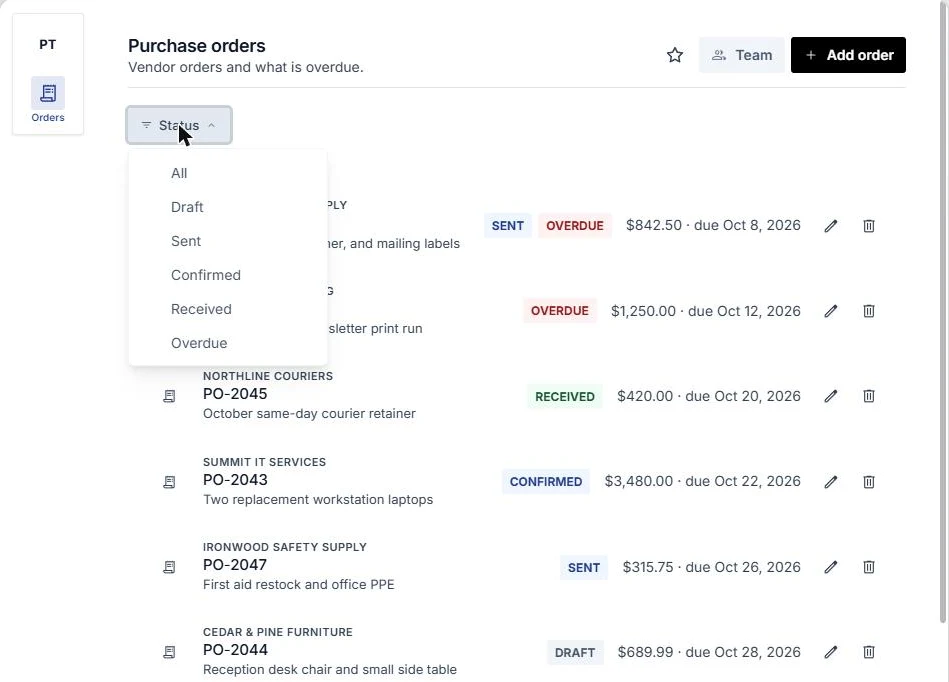
Step 13: Open the Status filter
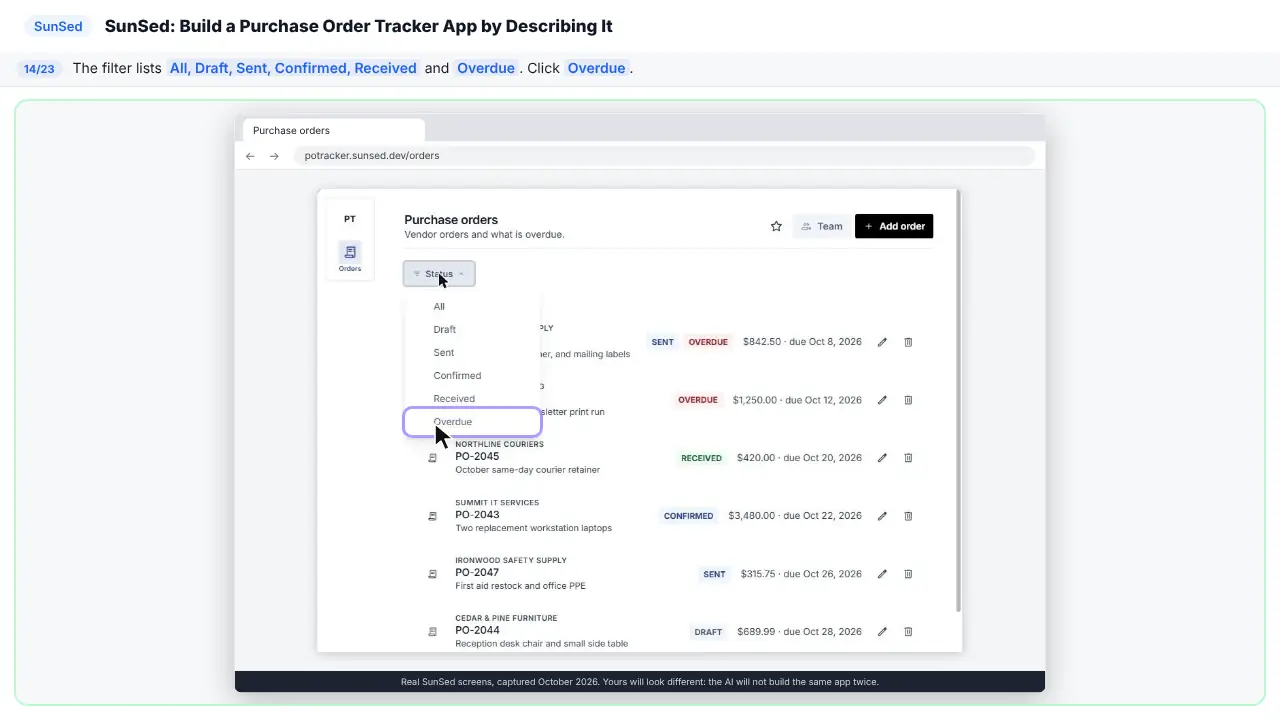
Step 14: Show only overdue
The filter lists every status.
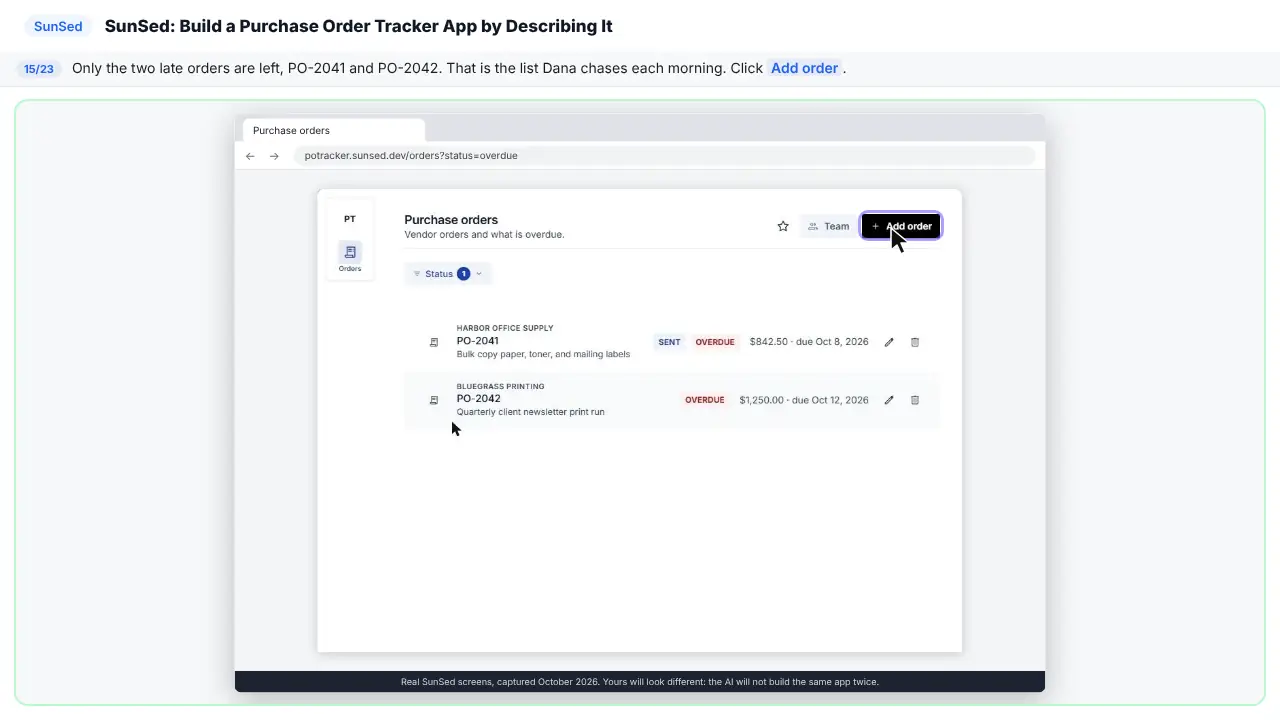
Step 15: Add an order
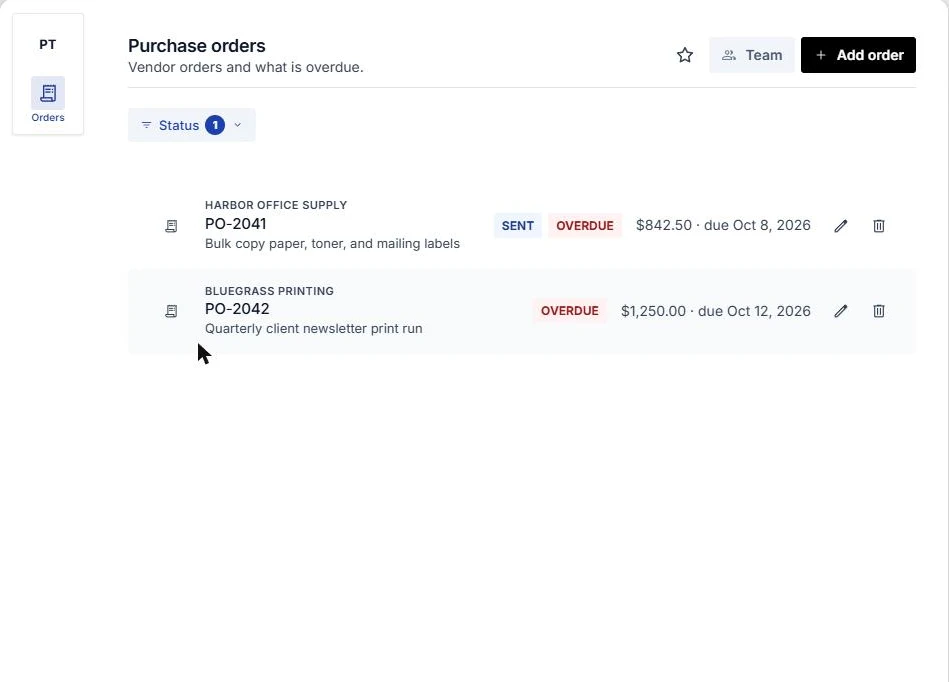
Now only the two late orders are left. That's Dana's morning chase list.
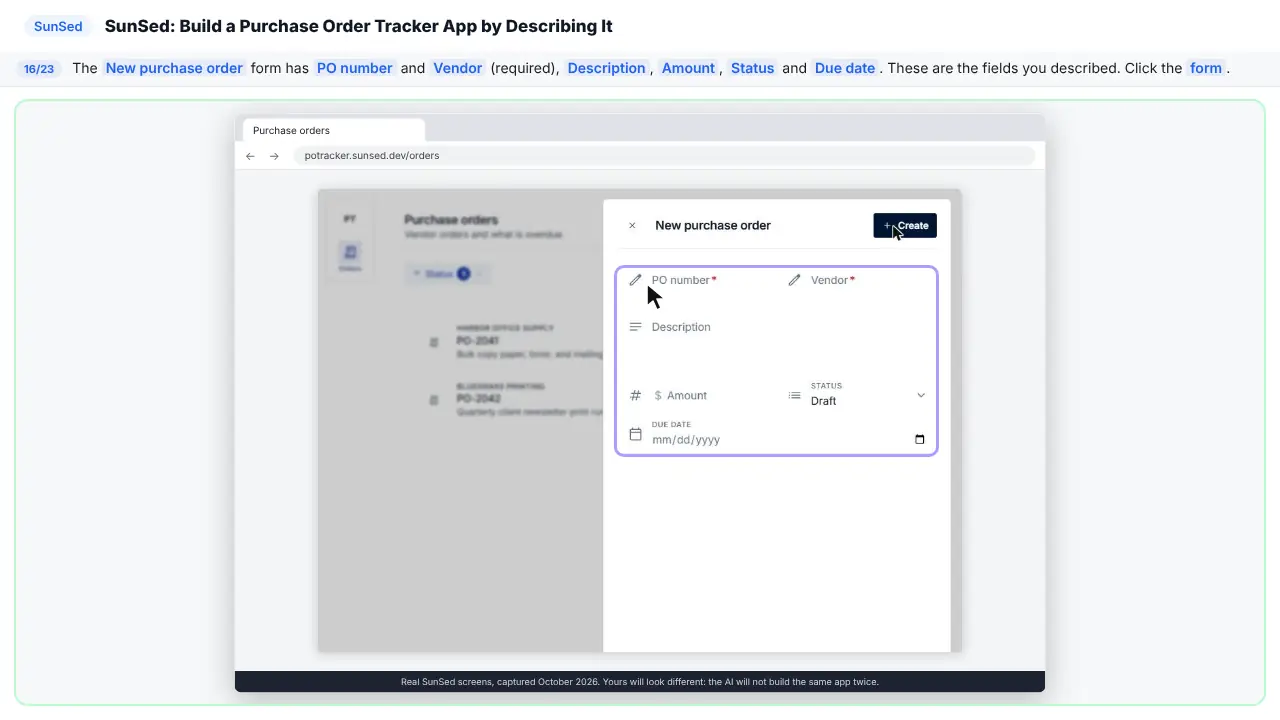
Step 16: Look at the form
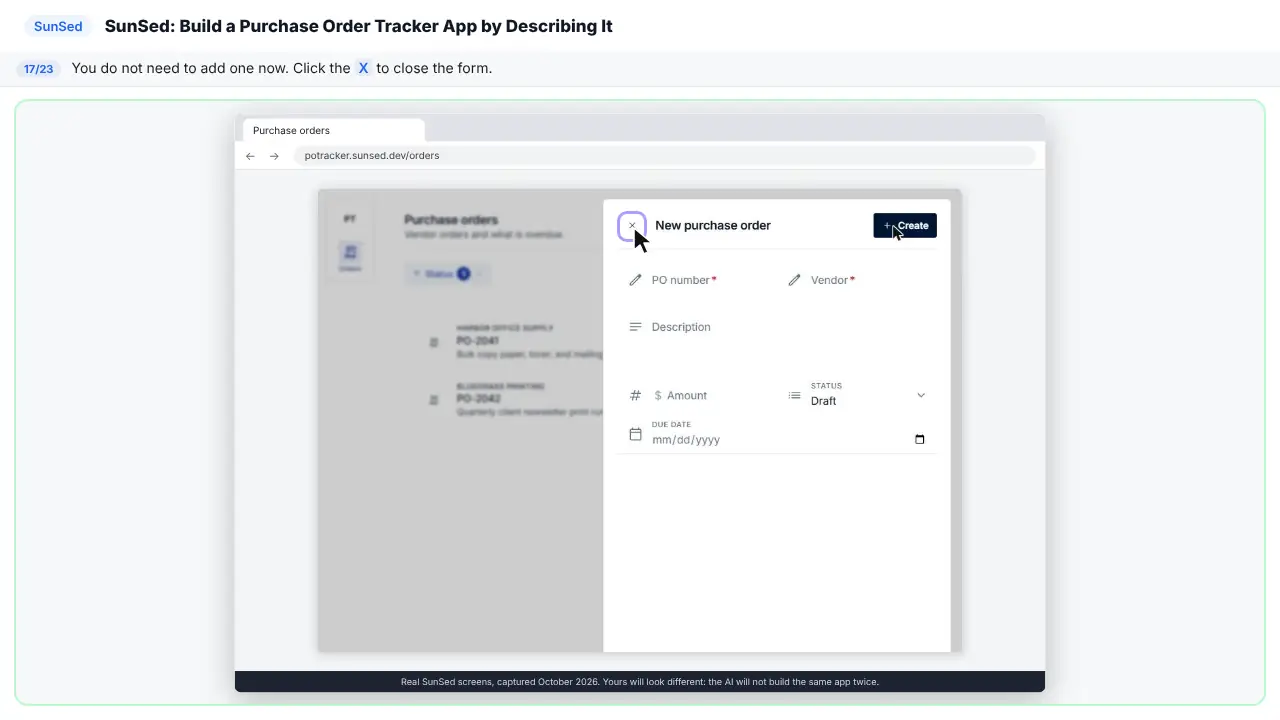
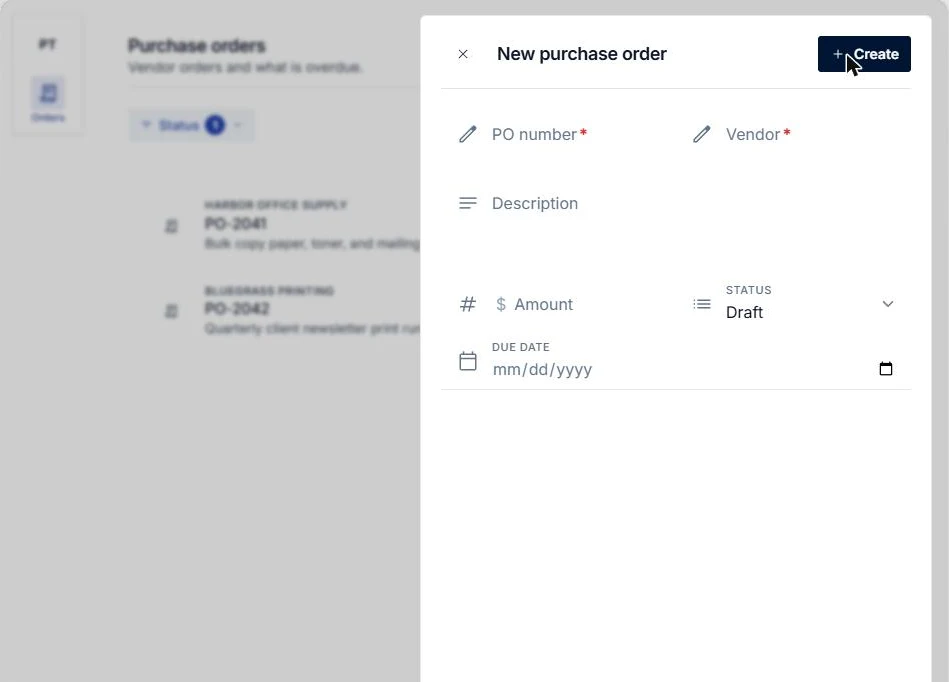
The new order form has the fields you described. PO number, vendor, amount, status, and due date.
Step 17: Close the form
You don't need to add one now.
Part 6: Check it before you share it
Step 18: Open the Team page
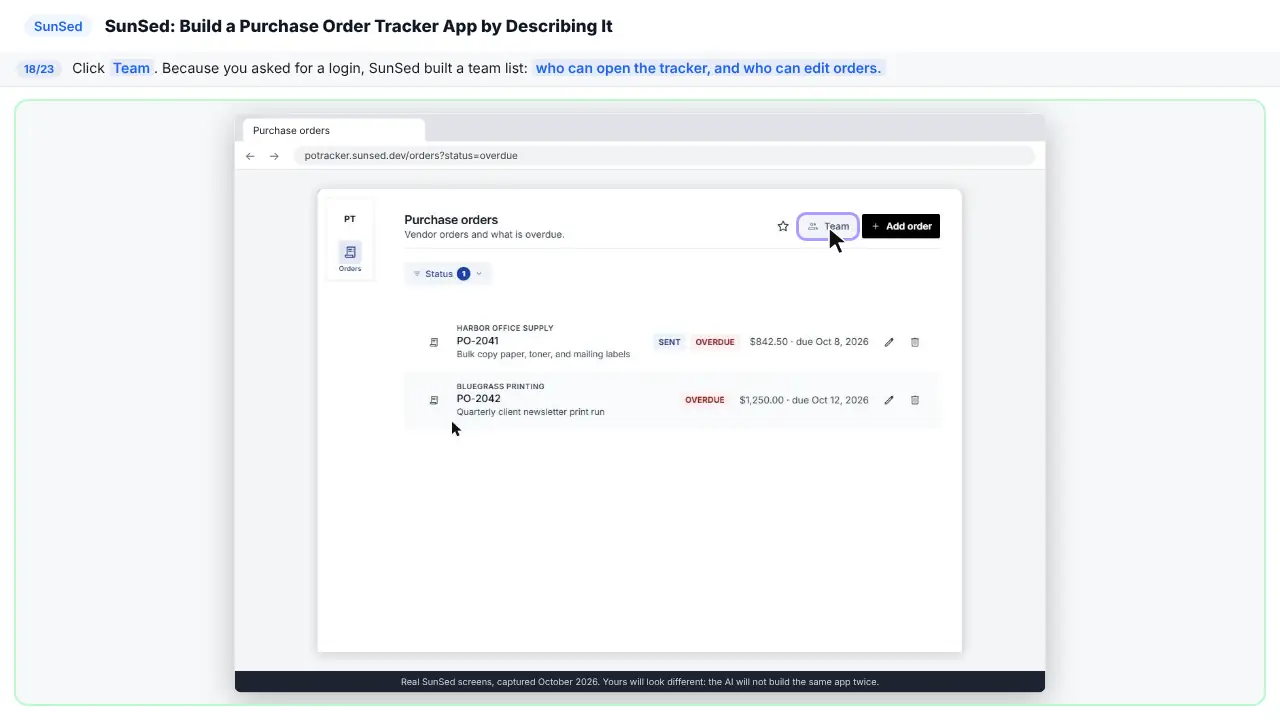
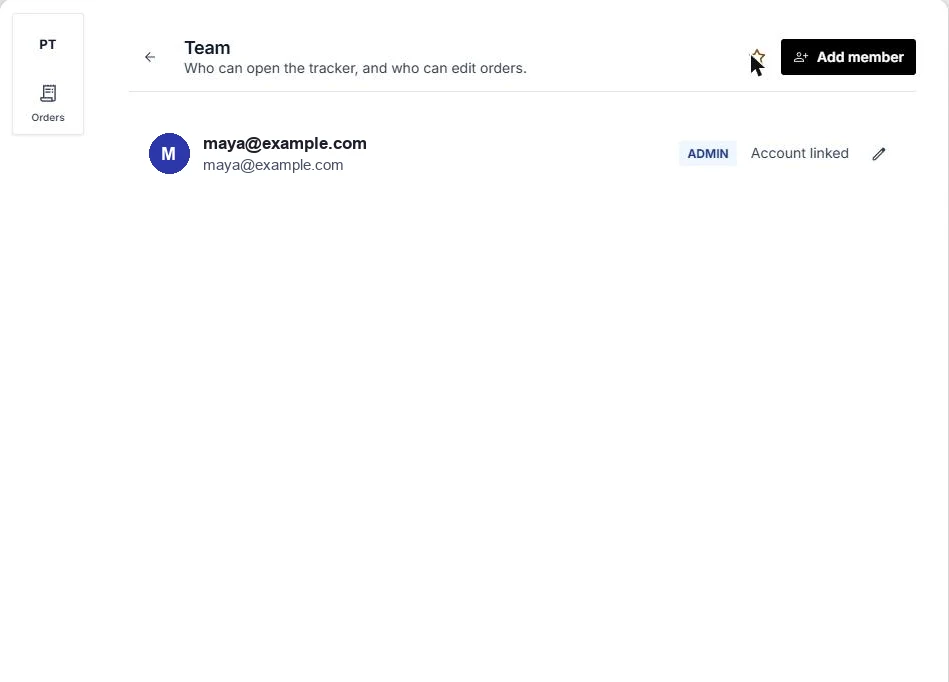
Because you asked for logins, SunSed built a team list. It controls who can see and edit orders.
Step 19: Check who is on the list
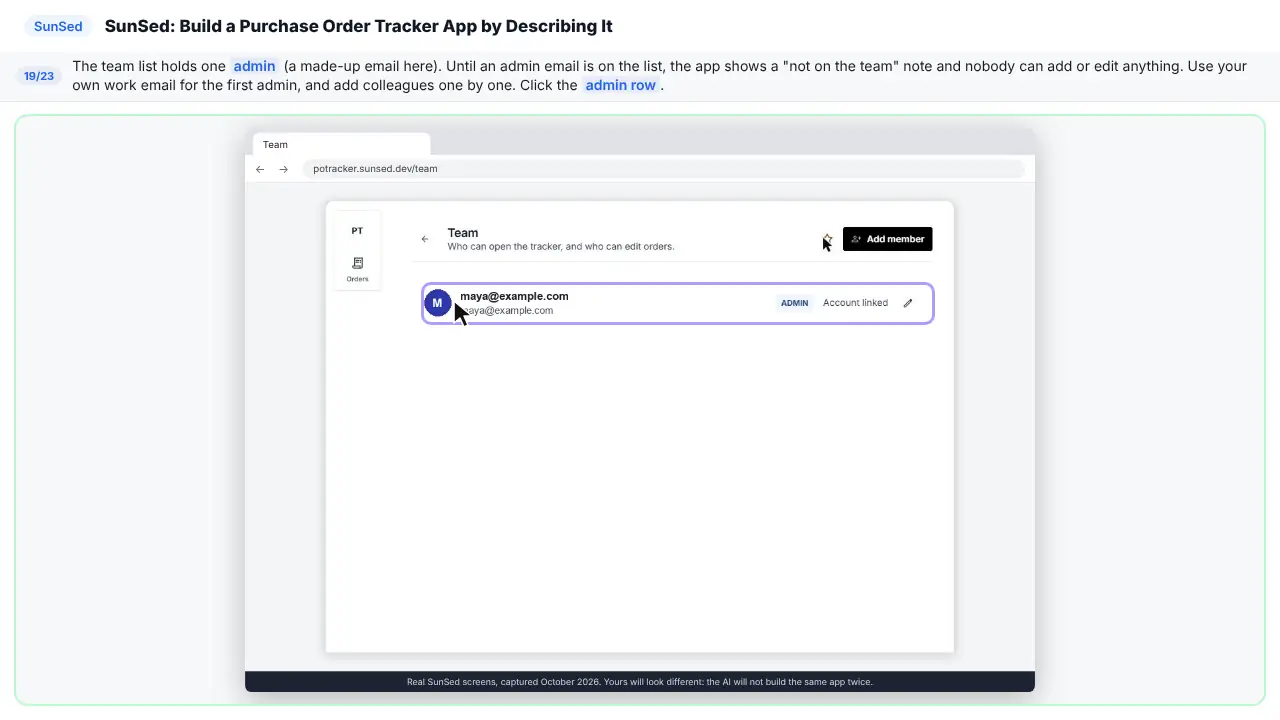
The list has one admin. Use your own work email for the first admin. Then add colleagues one by one.
Step 20: Test it as a stranger
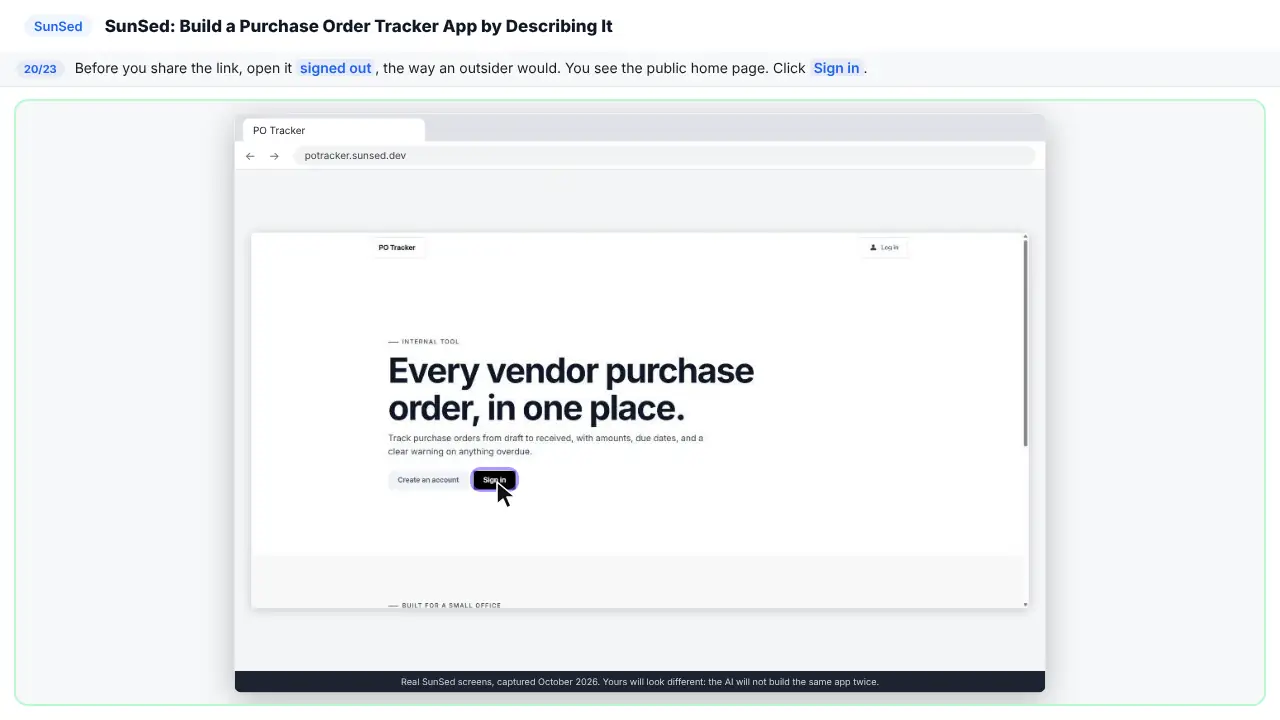
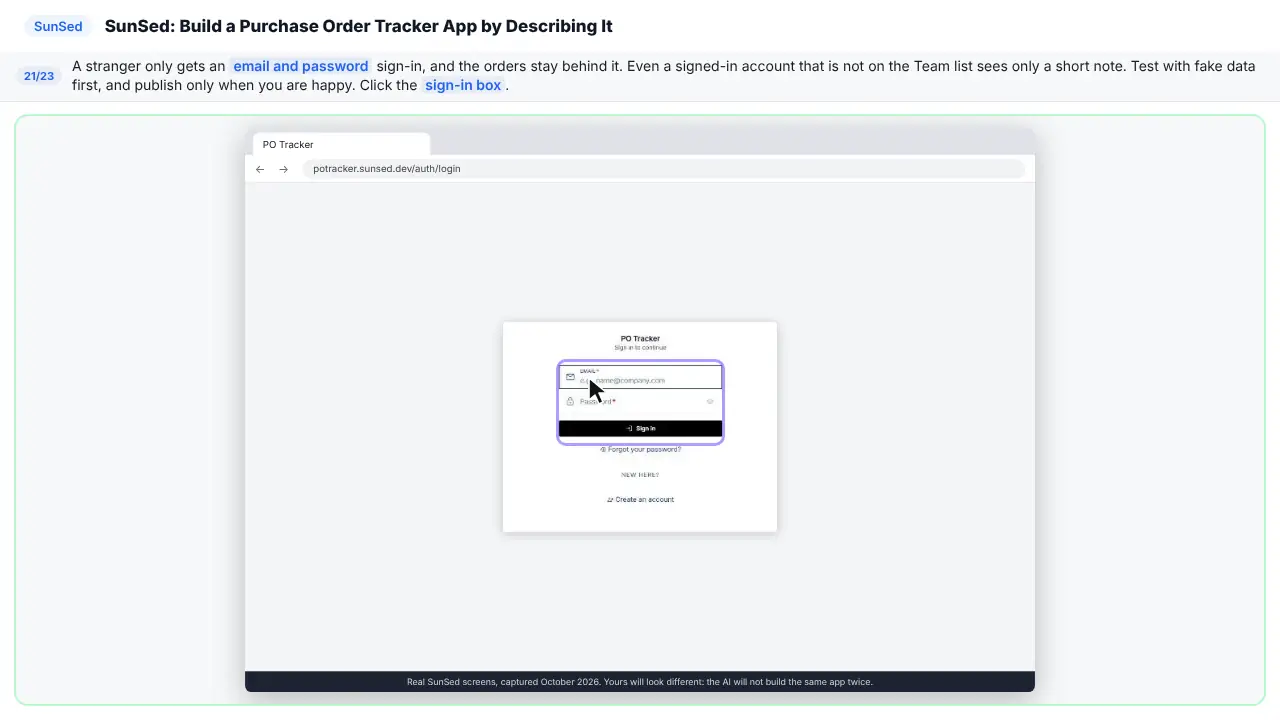
Before you share the link, open it signed out, like a stranger would. You see the public home page.
Step 21: See what a stranger gets
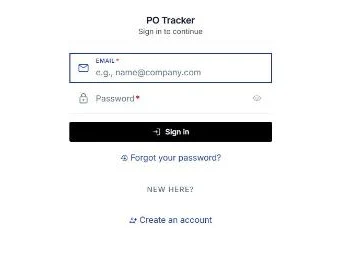
A stranger only gets a sign-in box. The orders stay hidden behind it. Test with fake data first, then publish when you're happy.
Part 7: Try it for real
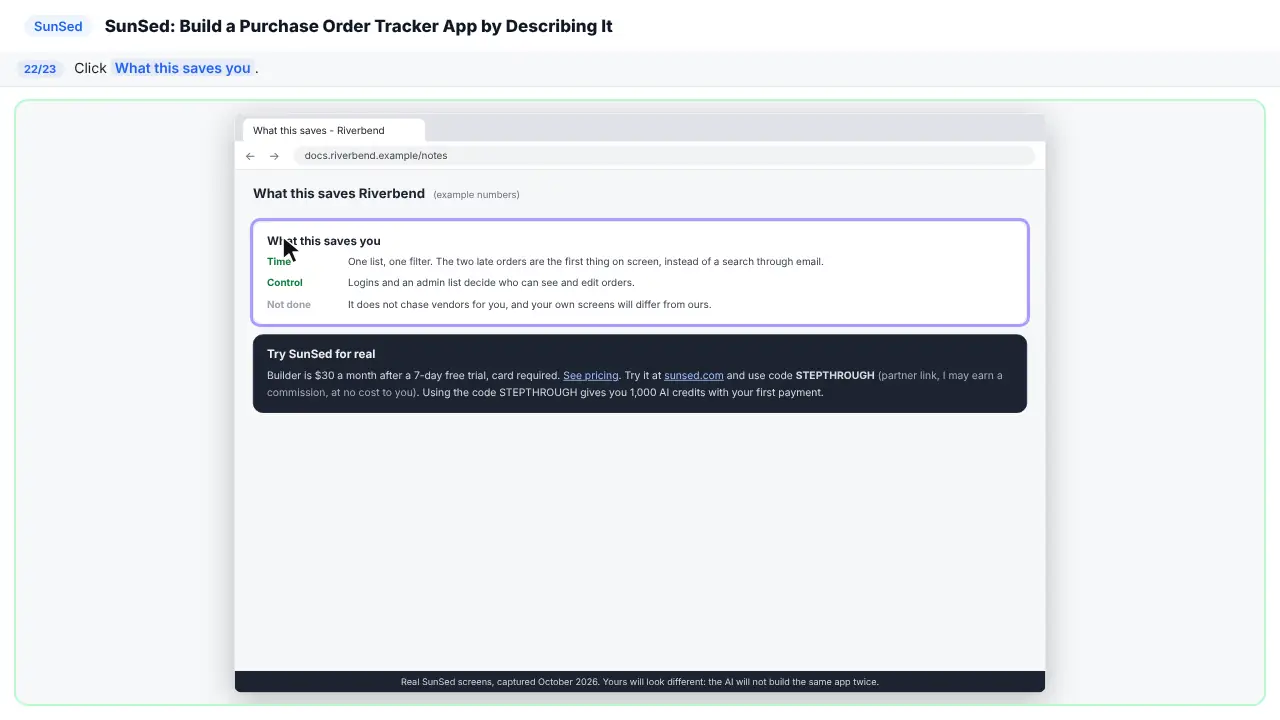
Step 22: What this saves you
Step 23: Try SunSed for real
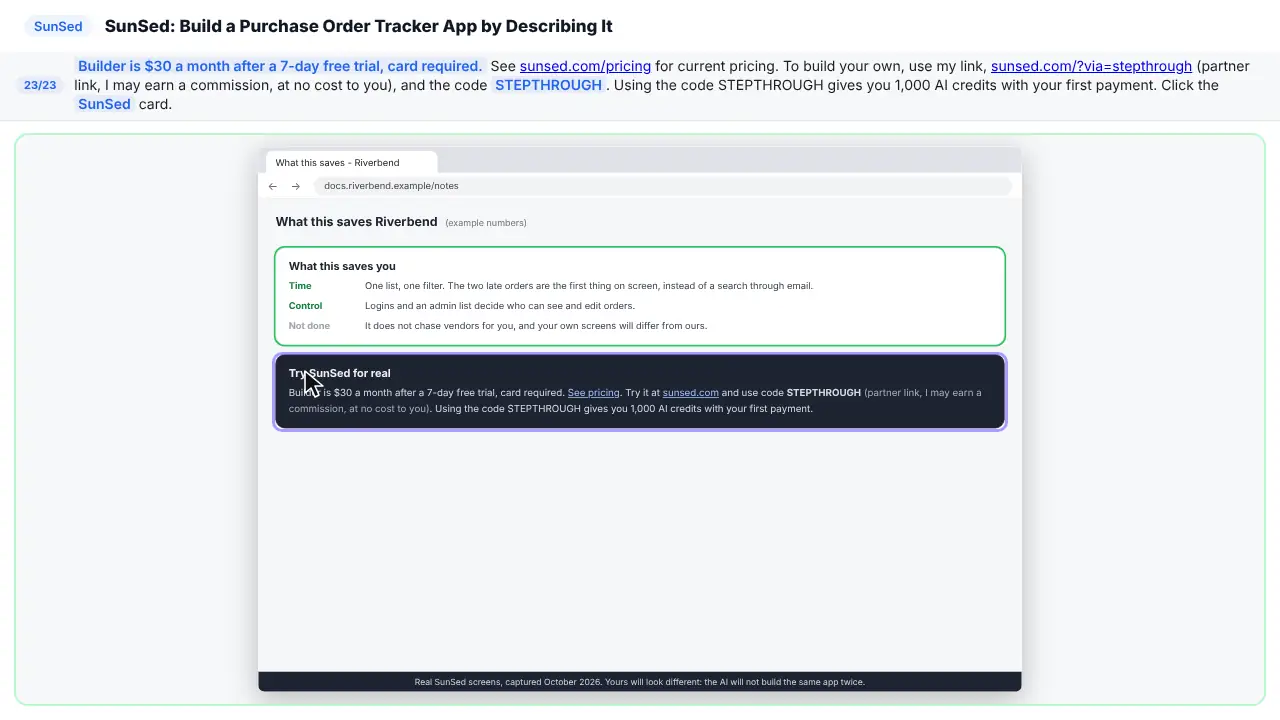
SunSed Builder is thirty dollars a month, after a seven-day free trial. A card is required. To try it, use my partner link, and the code STEPTHROUGH, for bonus AI credits.
Part of these free courses: AI Apps Worth Knowing, AI for Operations Teams, AI Back Office for Small Business, Vibe Coding for Business, Stop Losing Requests: Run Office Operations with AI Apps and Document Tools
Now do it yourself, free
Reading the steps is a start. Doing them is how it sticks. The interactive lesson puts you in a practice copy of SunSed: you do every step yourself, it checks your work, and “Do it for me” finishes any step you get stuck on. Nothing touches your real accounts.
Practice “SunSed: Build a Purchase Order Tracker App by Describing It” step by step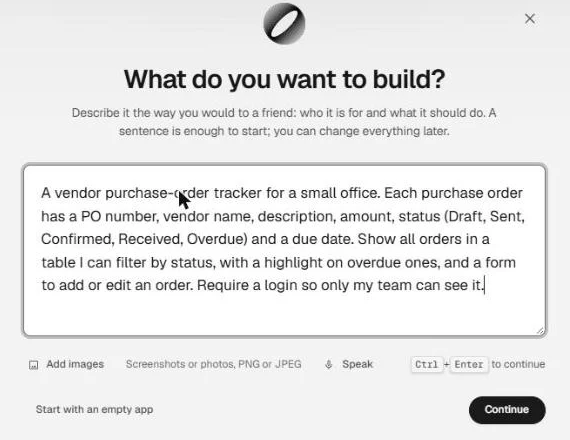
The business case: what tracking orders in email costs
Picture Dana Whitfield, who runs the office at Riverbend Office Services, a made-up company. Purchase orders live in email threads and one shared spreadsheet. A vendor replies that the paper is delayed, someone updates the sheet, someone forgets to. Last month a print vendor ran nine days late, and nobody noticed until the newsletter missed its mailing date.
Here is the arithmetic, using example numbers you should replace with your own. Say that checking email and the sheet for who is late takes about 3 hours a week. At $35 an hour that is about $450 a month, and a late vendor still slips through. What Dana needs is one list where every order has a status and a due date, and the overdue ones jump out.
Who this is for, and what you need
Office managers, operations people and small business owners who want a simple internal tool and do not write code. To follow along you need nothing: the lesson is a practice copy. To build your own you need a SunSed account. You can start on Free with no card while free spots last (when they run out there is a waitlist). Putting your app on the internet needs a paid plan, from Startup at $10 a month. Current pricing is at sunsed.com/pricing, and each build uses credits.
A note on screens: the AI will not build the same app twice. Your pages, wording and credit count will differ from the screenshots, which show our build only.
Step 1: describe the app in plain words
A new app starts at "What do you want to build?". Describe it the way you would to a friend. Ours read: a vendor purchase-order tracker for a small office, where each purchase order has a PO number, vendor name, description, amount, status (Draft, Sent, Confirmed, Received, Overdue) and a due date, shown in a table you can filter by status with a highlight on overdue ones, a form to add or edit an order, and a login so only your team can see it.
SunSed then suggests an app name (PO Tracker) and an included web address. You can change the app name later, but the address that ends in .sunsed.app cannot be changed after you click Create app. The address in our screenshots, potracker.sunsed.app, is Robert's own app, so yours will be different. Click Create app.
Step 2: answer three quick choices
SunSed asks three questions so the first version matches your idea: how overdue orders are handled (we chose Highlight only), who can add or edit purchase orders (Admins only), and what the table shows by default (Overdue first). You can skip the questions and change anything later by chatting.
Step 3: watch it build, then add made-up data
Your description and answers appear in a chat on the left. A steps list shows what SunSed is doing, such as thinking, reading its knowledge base, reading docs and writing pages. Ours took about four minutes and used some of our credits (your count will differ). The preview on the right then showed a home page headed "Every vendor purchase order, in one place" with Create an account and Sign in buttons.
An empty tracker is hard to judge, so ask for eight fake orders with made-up vendors, a mix of all five statuses and two past due. SunSed opened its database table with PO-2041 to PO-2048. Never put real vendor or customer data in while you are still testing.
Step 4: use the tracker
The Purchase orders page lists each order with its vendor, description, amount and due date, and a status label. Past-due orders carry a red Overdue label and sit at the top. Open the Status filter, which offers All, Draft, Sent, Confirmed, Received and Overdue, and choose Overdue to see only the late orders: in ours, PO-2041 and PO-2042.
Add order opens a New purchase order form with PO number and Vendor (both required), Description, Amount, Status and Due date. These are the fields you described.
Step 5: check who can get in before you share it
Because we asked for a login, SunSed built a Team page, "who can open the tracker, and who can edit orders". Until an admin email is on the list, the app shows a "not on the team" note and nobody can add or edit anything, so put your own work email on it first. The email in our Team page screenshot is replaced with a made-up address.
Then open the app signed out, the way an outsider would. You see the public home page, and a sign-in that asks for an email and password. Our test app was not published, and publishing is a separate step. Test with fake data first, and clear the sample orders before you enter real ones.
Step 6: try it for real
To build your own, use my link, sunsed.com/?via=stepthrough (partner link, I may earn a commission, at no cost to you), and the code STEPTHROUGH. You can start on Free with no card while free spots last (when they run out there is a waitlist). Putting your app on the internet needs a paid plan, from Startup at $10 a month. If you type the code STEPTHROUGH when you sign up, even on Free, it stays on your account and gives you 1,000 AI credits with your first payment. Current pricing is at sunsed.com/pricing.
Mistakes to avoid
- Putting real vendor or customer data into a test app before you have checked who can sign in.
- Forgetting to add your own email as the first admin, then seeing only the "not on the team" note.
- Expecting your screens to match ours. The AI does not build the same app twice.
- Publishing before you have tested the app signed out with fake data.
- Treating our credit counts as typical. They were for our build only; judge yours against what you described.
Links
- SunSed (affiliate link): the app builder this lesson teaches. You can start on Free with no card while free spots last (when they run out there is a waitlist). Putting your app on the internet needs a paid plan, from Startup at $10 a month. Pricing is at sunsed.com/pricing. Partner code STEPTHROUGH (partner link, I may earn a commission, at no cost to you). If you type the code STEPTHROUGH when you sign up, even on Free, it stays on your account and gives you 1,000 AI credits with your first payment.
Disclosure: links marked "affiliate link" are partner links. If you sign up through one, Stepthrough may earn a commission at no extra cost to you. The lesson is free either way and does not depend on it.
Try it yourself, free
Reading the steps is a start. Doing them is how it sticks. The interactive module walks you through every click in a practice copy of SunSed, checks each step, and never touches your real accounts.
Start “SunSed: Build a Purchase Order Tracker App by Describing It”Screenshots
Frequently asked questions
- Is this an official SunSed course?
- No. This is my own lesson. SunSed is a separate, third-party product from sunsed.com, and the screens are real SunSed screenshots captured October 2026.
- What does SunSed cost?
- You can start on Free with no card while free spots last (when they run out there is a waitlist). Putting your app on the internet needs a paid plan, from Startup at $10 a month. Check sunsed.com/pricing for current pricing before you start. To sign up, use my link, sunsed.com/?via=stepthrough (partner link, I may earn a commission, at no cost to you), and the code STEPTHROUGH, which gives you 1,000 AI credits with your first payment.
- Will my app look like the one in the lesson?
- No. The AI will not build the same app twice, so your pages, wording and credit count will differ. The credits shown in our screenshots were for our build only.
- Do I need to write code?
- No. You describe the app in chat and SunSed builds the pages, the database and the logins. You still decide who is allowed in, and you should test it with fake data before real data.
- Who can see the app I build?
- In our build the whole tracker was behind a sign-in, and a signed-in account that was not on the Team list saw only a short note. Check the Team page and open the app signed out before you share a link.
Terms in this lesson
Plain-English definitions, each with an example from a free lesson.