Updated . Built from Qind’s official docs and help center. Screens may differ slightly in your account. How we check this lesson
Consultants lose an hour before every client meeting hunting for the article or interview quote that backs up a slide. Qind is an AI knowledge base: you save web pages, PDFs, notes and recordings to one library, it tags and files them, and Ask Qind answers questions from your items with citations. In this free starter lesson, built from Qind's public site and docs, you save an industry article with the Qind Web Clipper into a client collection for Halvorsen Pike Advisory, a made-up management consulting firm, upload store manager interview notes, move a stray link out of Unsorted, and ask a question inside the collection that comes back citing source 1 and source 2. 8 steps, about seven minutes, no account needed to practice.
At a glance
| Question | Answer |
|---|---|
| What you build | Client research ends up in downloads, inboxes and browser tabs, and finding the one quote you need takes an hour. Save articles and interview notes into one Qind collection, let it tag and file them, and ask a question that comes back with numbered citations, all from Qind's own site. |
| Tools | Qind |
| Time | About 7 minutes, 8 steps in 2 parts |
| Level | Beginner, no coding needed |
| Cost | Free |
| Ways to learn it | Practice it step by step |
The 2 parts, in short
- Save the research: Open the clipper on an article, Pick the collection and add tags, Save, then upload the interview notes, Upload the PDF.
- Organize and ask: File the stray link out of Unsorted, Open the client collection, Type the question, Ask Qind, then try it in your own account.
Next: take the full free AI Research for Work: Cited Briefs with ChatGPT Deep Research, Gemini, NotebookLM and Felo course, or browse every AI for Consulting & Agencies tutorial.
The business case: client research scattered across tabs, downloads and chat
Picture Priya, senior associate at Halvorsen Pike Advisory, a made-up management consulting firm, two weeks into an operations review for a regional grocery client. Industry articles sit in browser tabs, store manager interview notes are PDFs in her downloads, and teammates paste links into chat. With example numbers you should replace with your own, she spends about an hour before each steering committee finding the source behind a slide, and a partner question about where a number came from can stall the meeting.
Qind's site describes the alternative. The Web Clipper saves a page, a PDF, a highlight or a screen area into a collection with tags. Uploads take PDFs, Office files, Markdown, images, audio and video. Auto-tag and Auto-file are on by default, items Qind is unsure about wait in Unsorted, and Ask Qind answers from your saved items with numbered citations, across everything or inside one collection.
Who this is for, and what you need
Consultants, analysts, researchers and anyone who builds recommendations from a pile of articles and notes. The practice runs in your browser with no account. To do it for real you need a Qind account and the Qind Web Clipper for Chrome, Edge or Firefox; the site says Safari is not supported.
What the docs say about filing and citations
Qind's features page says Auto-tag adds tags to each item and Auto-file moves items Qind is confident about into a collection; anything it is not sure about waits in Unsorted until you file it. You can change any tag, move any item, or turn these off. Summaries are optional and off by default.
The same page says Ask Qind answers from your saved items with numbered citations, such as source 1 and source 2, that link to the items used, and that you can limit a chat to one collection, shown as Asking in followed by the collection name. A digest of what you saved arrives weekly by default, or monthly, by email and in the app.
What this saves you
- The hunt for the source behind each slide before a client meeting.
- Answers that link straight to the interview notes or article, so a partner can check the source in one click.
- What it does not do: it does not check whether a source is right or write the recommendation; it finds what you saved and shows where each answer came from.
How this lesson was built
This is a starter lesson based on Qind's public site and docs (the three pages linked above), read on 13 November 2026. The practice screen is a plain frame that uses the labels from those pages; where the site gives no button name, such as the control for moving an item, the lesson says so. It is not a copy of Qind's own screens, and the lesson was not run in a Qind account. A full lesson on real Qind screens is planned.
Links
- Qind features: saving with the web clipper, uploads, notes and MCP; Auto-tag and Auto-file on by default; Unsorted; optional summaries; Ask Qind with numbered citations and the Asking in label for one collection; the weekly or monthly digest; and worked examples of each.
- Qind Web Clipper: Page Clipper for Chrome, Edge & Firefox: installing and signing in, saving a page, PDF, highlight or screen area, the upload view with a drop zone, collection and tags, and picking a recent collection or Unsorted.
- Qind Help Center: how saving works, how the AI organizes items, finding things again, voice notes, export and account questions.
Try it yourself, free
Reading the steps is a start. Doing them is how it sticks. The interactive module walks you through every click in a practice copy of Qind, checks each step, and never touches your real accounts.
Start “Qind: Ask Your Client Research a Question and Get Cited Answers”Step by step: Qind: Ask Your Client Research a Question and Get Cited Answers
All 8 steps of the interactive module, in order. In the module you watch each one, then do it yourself in a practice copy that checks your work.
1. Save the research
- Open the clipper on an article. You are Priya, senior associate at Halvorsen Pike Advisory, a made-up management consulting firm, two weeks into an operations review for a grocery client. Her research is spread across tabs, PDFs and chat links. An industry article is open in the browser. Click the Qind icon to open the Web Clipper.
You are Priya, senior associate at Halvorsen Pike Advisory. Her client research is spread across tabs, PDFs and chat links. An industry article is open.
- Pick the collection and add tags. In the save view, pick a collection from your recent collections or leave it in Unsorted: choose Harlow Market ops review, the made-up client collection. Then type two tags of your own. Auto-tag and Auto-file are on by default; Summaries are optional and off by default.
In the save view, pick the client collection, Harlow Market ops review. Auto-tag and Auto-file are on by default.
- Save, then upload the interview notes. Click Save. The clipper also has an upload view with a drop zone, a collection and tags. The interview notes PDF is in the drop zone with the client collection picked.
Then use the upload view to add the interview notes to the same collection.
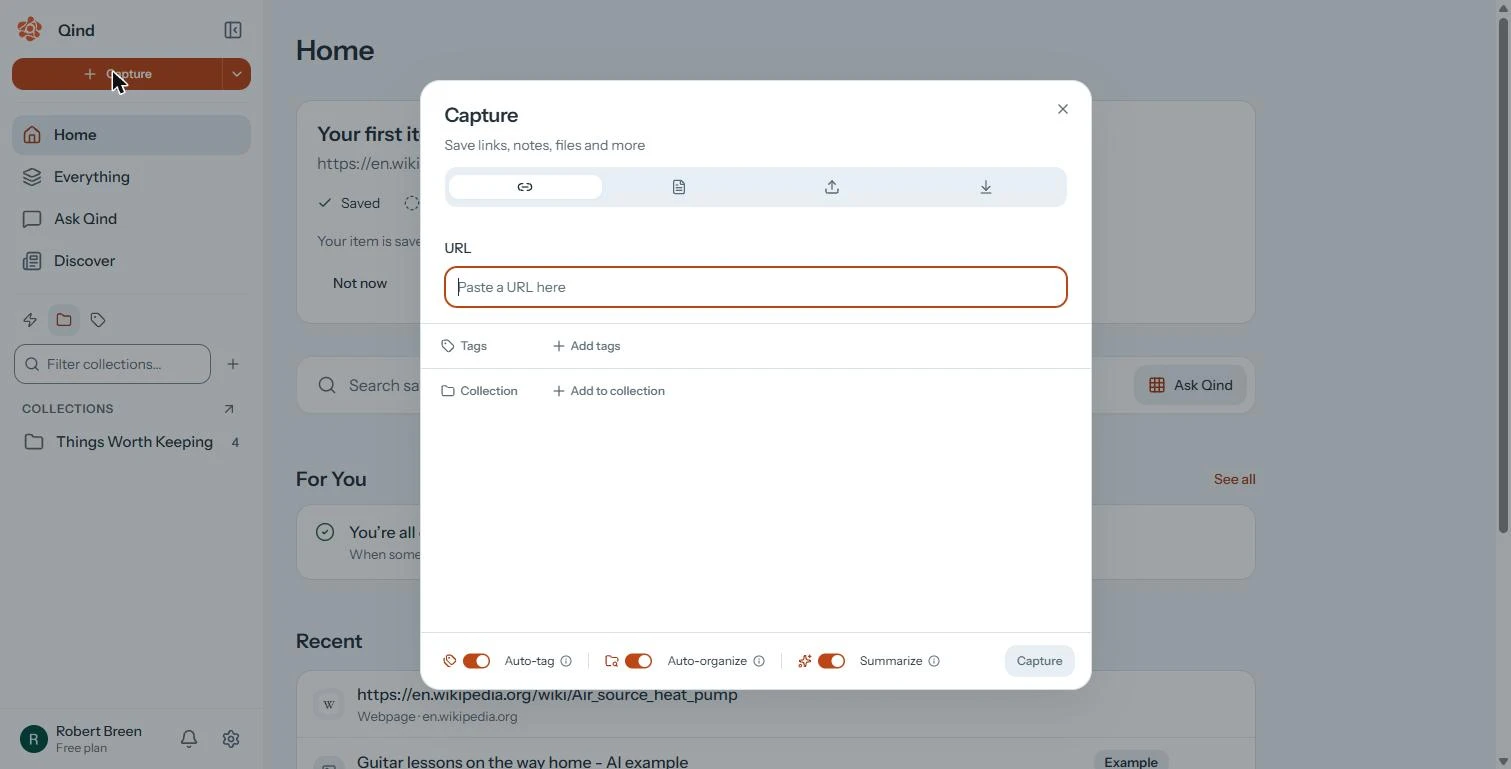
- Upload the PDF. Click the upload button. Qind reads the PDF, tags it and files it. The site says it accepts PDFs, Office files, Markdown, images, audio and video.
Qind reads the PDF, tags it and files it.
2. Organize and ask
- File the stray link out of Unsorted. In All items, each item shows its tags and where it was Filed to. A link shared from the team chat had no context, so it waits in Unsorted. Qind's site says you can move any item; the exact menu name is not given, so here it is one button. Move it to the client collection.
Each item shows its tags and where it was filed. A link with no context waits in Unsorted. Move it to the client collection.
- Open the client collection. Open the Harlow Market ops review collection in the sidebar. The chat now reads Asking in followed by the collection name, so the answer comes only from this client's items.
The chat reads Asking in, followed by the collection name.
- Type the question. Ask the question the steering committee will ask. Write it the way you would say it; Qind searches by meaning as well as keyword.
Qind searches by meaning as well as keyword.
- Ask Qind, then try it in your own account. Click Ask Qind. The answer comes from your saved items with numbered citations, like source 1 and source 2, that link to the items used. This lesson was built from Qind's public site, not run in an account: in yours, install the Qind Web Clipper from your browser's store and sign in.
The answer cites source 1 and source 2, and each links to the item it came from. In your own account, install the Qind Web Clipper and sign in.
Frequently asked questions
- How do I save a web page or PDF to Qind?
- Qind's site says to install the Qind Web Clipper for Chrome, Edge or Firefox and sign in. Click the Qind icon on a page, or right-click a page, link, image or selection, pick a collection or Unsorted, add tags and save. The clipper also has an upload view with a drop zone for files.
- Does Qind organize items on its own?
- Yes. Auto-tag and Auto-file are on by default. Qind files items it is confident about into a collection, and anything it is unsure about waits in Unsorted. You can change any tag, move any item, or turn auto-filing off.
- Can I ask a question about just one client's material?
- Yes. The features page says you can limit a chat to one collection; it then reads Asking in followed by the collection name, and the answer cites the items it used with numbered citations.
- Was this lesson tested in a real Qind account?
- No. It is a free starter lesson built from Qind's public site and docs. The practice frame is generic and the labels come from those pages; check them against your own account.
Keep going: AI Research for Work: Cited Briefs with ChatGPT Deep Research, Gemini, NotebookLM and Felo, the free 13-module course this lesson leads into.
More in AI Automation for Consulting & Agencies
Build a client quarterly review deck with Beautiful.ai Create with AI: brief it with the real numbers, fix the outline before generating, check every figure and share a…
Free · Live ~6 min Beginner
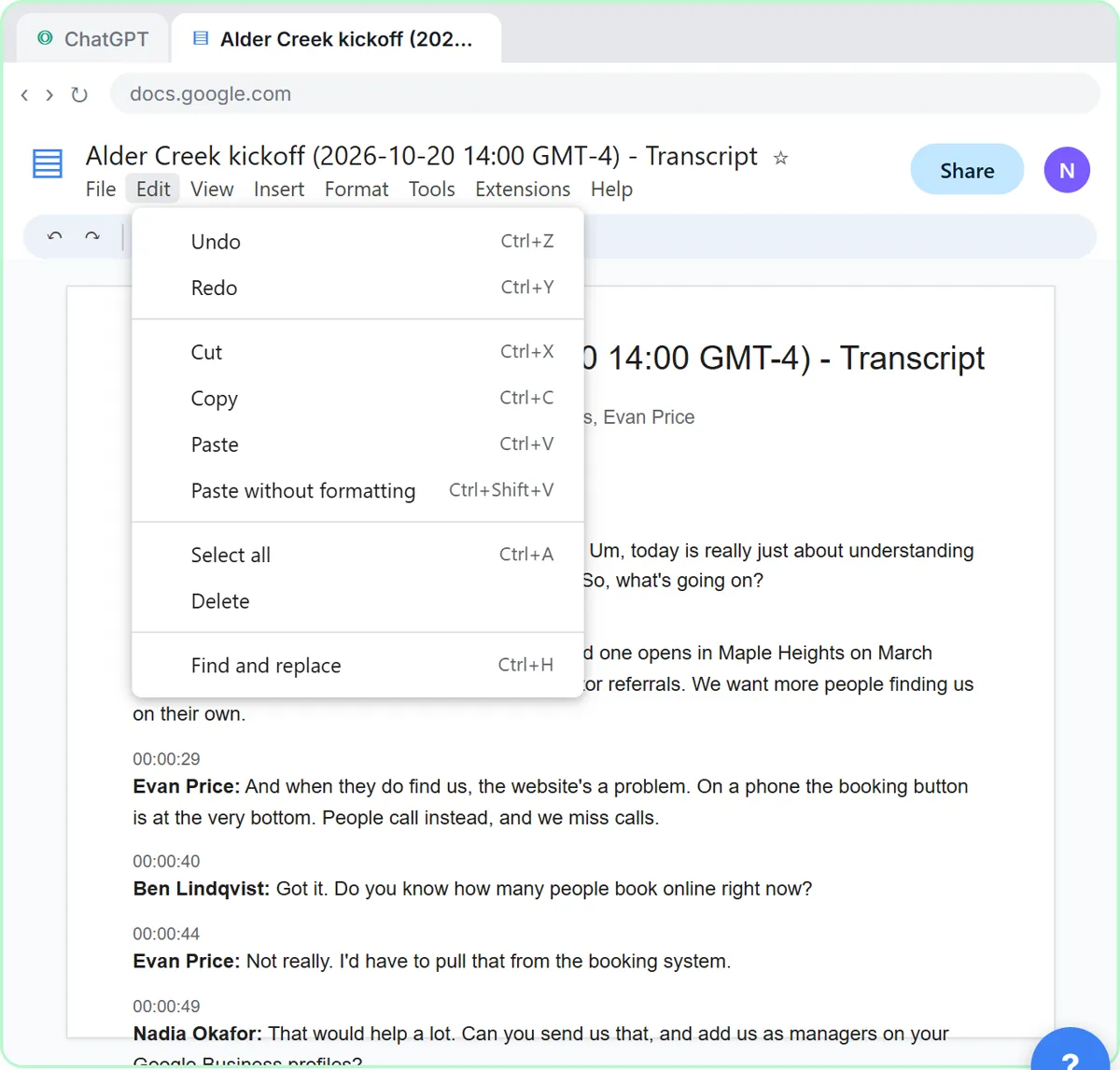 Turn a Client Kickoff Call into a Proposal Outline with ChatGPT (Agencies & Consultants)
Turn the transcript of a client kickoff call into the scope, budget and timeline the client stated, an action items table, open questions, and a recap email with a…
Free · Live ~10 min Beginner
◷Handle Scope Creep Without Losing the Client using ChatGPTA client asks for "one small extra" and a new language, and wants the launch date to hold. Give ChatGPT the thread and the project facts, catch the free work and the…
Free · Live ~9 min Beginner
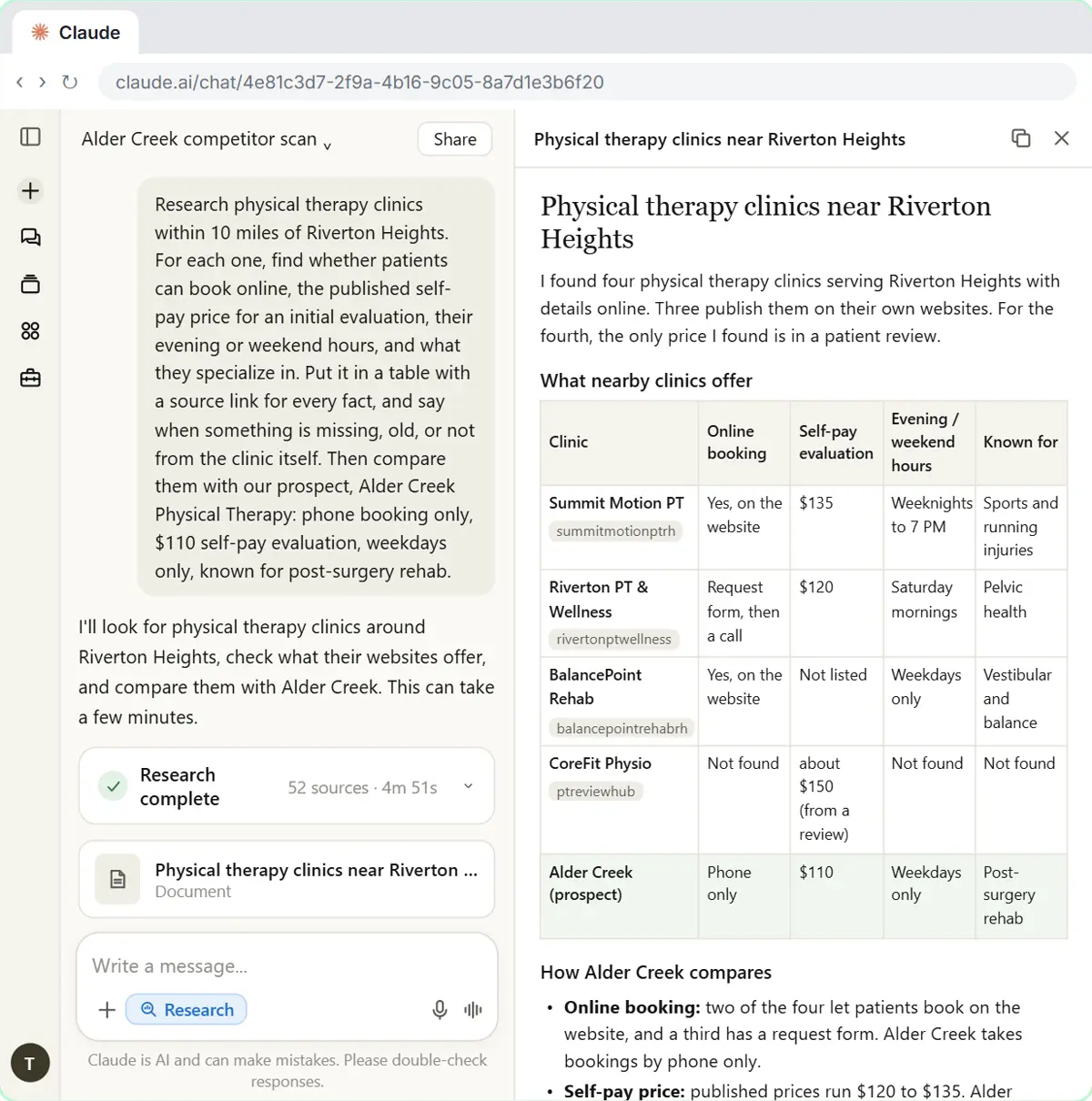 Research a Prospect's Market with Claude Research Before a Pitch (Consultants & Agencies)
Turn on Research before a pitch, have Claude check what a prospect's competitors offer online, read the cited report, check a source and turn it into talking points for…
Free · Live ~7 min Beginner
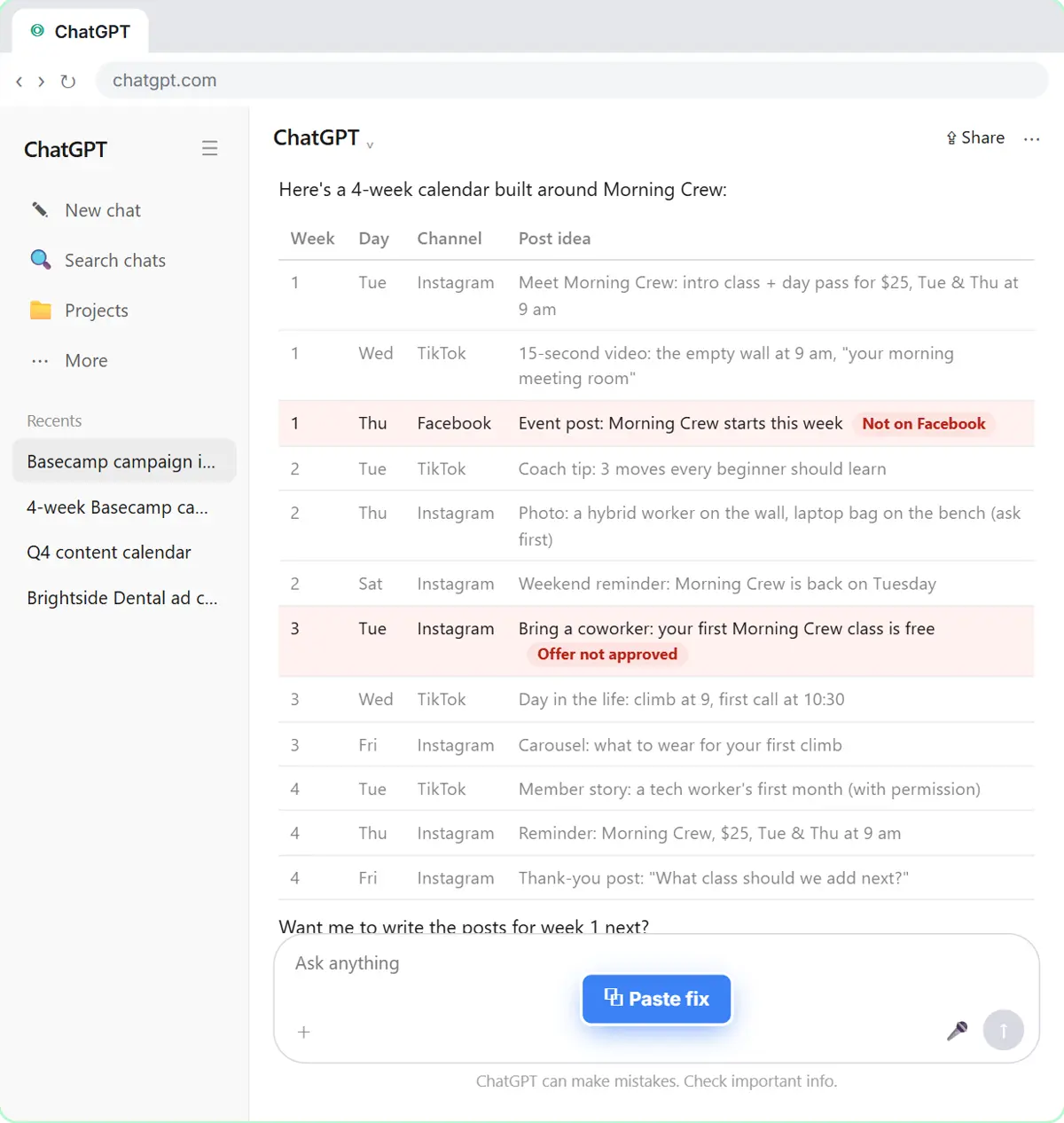 Prompt Chaining for a Client Campaign Plan: Build It in Steps with ChatGPT (Agencies)
Ask ChatGPT for a client's whole 4-week campaign in one prompt, then build a better one in four steps: audiences, offers, a calendar table checked against the client's…
Free · Live ~7 min Beginner
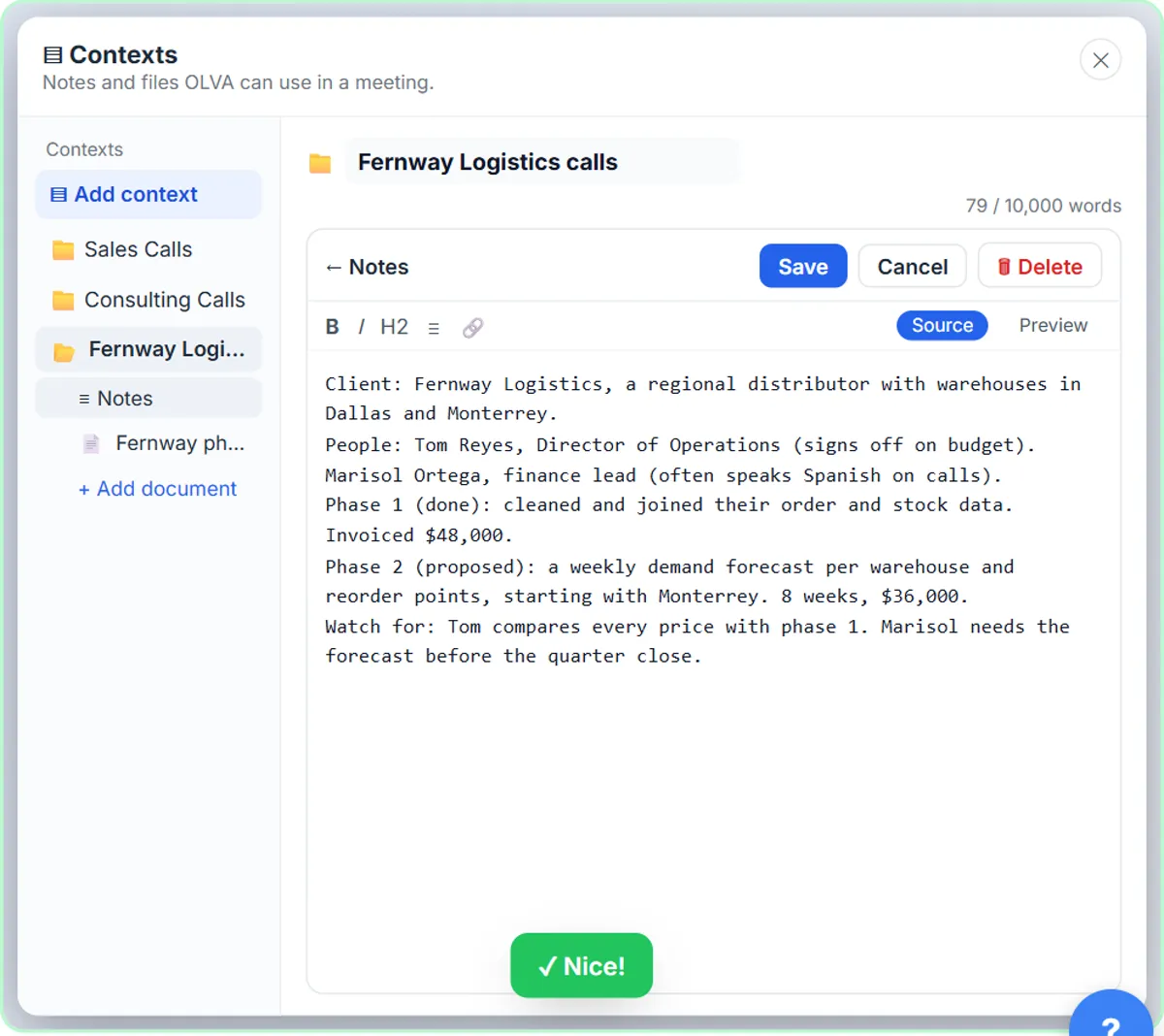 OLVA: A Private AI Assistant on Your Client Calls
Give OLVA your client notes, get private answers and fact checks during a Zoom call, then turn the meeting into minutes, a follow-up email and a PowerPoint deck.
Free · Live ~9 min Intermediate
All 22 modules in AI Automation for Consulting & Agencies
More Qind tutorials
Terms in this lesson
Plain-English definitions, each with an example from a free lesson.