Updated . Built against the tool’s current screens and checked step by step. How we check this lesson
Many sales managers rebuild the same quarterly review deck by hand every quarter: copy the numbers out of the reports, rebuild the charts, rewrite the account notes. Presentations.AI (presentations.ai) builds a slide deck from a prompt, your notes or a file. In this free business-case lesson you use a practice copy built from real Presentations.AI screenshots, captured October 2026 on a free account, to price the quarterly rebuild for a made-up sales team, turn a short brief and the quarter's numbers into a 7-slide deck, and check every number on it. In our run the AI put Q1 and Q2 revenue on a chart that we never gave it, and the lesson shows you where. This is my own lesson, not an official Presentations.AI course.
At a glance
| Question | Answer |
|---|---|
| What you build | A business case for sales managers who rebuild the same quarterly review deck every quarter: price that, then have Presentations.AI turn your notes into a 7-slide draft, and check every number it puts on a slide. |
| Tools | Presentations.AI |
| Time | About 12 minutes, 26 steps in 7 parts |
| Level | Beginner, no coding needed |
| Cost | Free |
| Ways to learn it | Practice it step by step, read the guide with screenshots |
The 7 parts, in short
- The same deck, rebuilt every quarter: See the quarterly routine, Put a price on it, Meet Presentations.AI.
- Describe the deck: Check your credits, Start a new deck, Describe your deck, Give it the facts, then create.
- Answer its questions: Name the company, Pick the audience, Open the notes box, Paste your numbers, and 1 more step.
- Read the first draft: See the title slide, Look over all 7 slides, See what it cost, Read its suggestions.
- Check every number: Open slide 2, Spot the numbers you never gave it, Check the words too, Open slide 3, and 1 more step.
- Getting the file out: Try to download it, Read the export note, Close it for now.
- What it saves, and doing it for real: What this saves you, Do it for real.
Start here first: Presentations.AI for Beginners: Prompt, Brand and Export Explained (module 1 of AI Automation for Sales)
Part of: AI for Sales Teams (step 20 of 30)
Part of: AI Apps Worth Knowing (step 54 of 186). Next up: Presentations.AI for Beginners: Prompt, Brand and Export Explained
Part of: AI Presentations & Client Decks (step 4 of 12). Next up: Presentations.AI for Beginners: Prompt, Brand and Export Explained
Part of: AI Presentations and Visual Content (step 2 of 8)
Presentations.AI: Build a Quarterly Sales Review Deck from Your Notes: step-by-step guide with screenshots
About the screenshots. They come from Stepthrough’s simulated practice environment (a practice copy of Presentations.AI), not the live tool, so no real account appears. The buttons and labels match the real screens the lesson was built against. Practice it yourself free at ynteractive.com.
- Tools: Presentations.AI
- Time: about 12 minutes, 26 steps in 7 parts
- Level: beginner, no coding needed
Part 1: The same deck, rebuilt every quarter
Step 1: See the quarterly routine
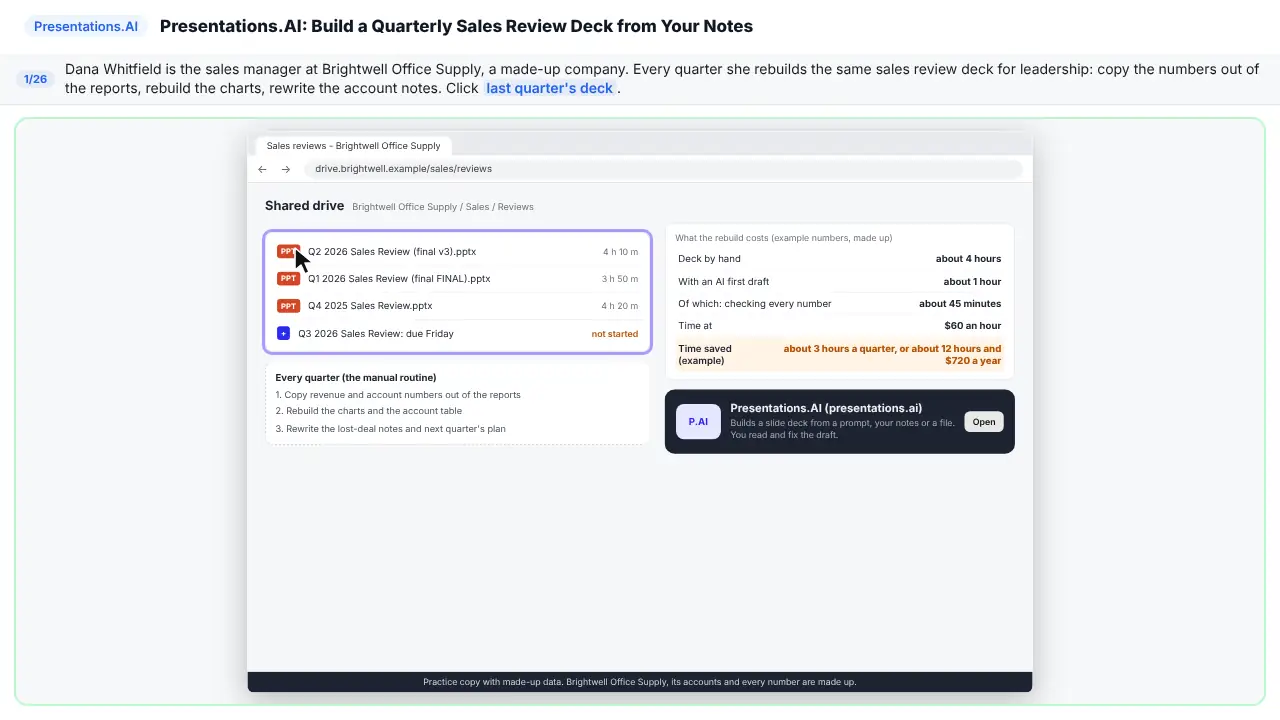
Meet Dana. She runs sales at a small office supply company. Every quarter, she rebuilds the same sales review deck. Same slides. New numbers. Hours of copy and paste.
Step 2: Put a price on it
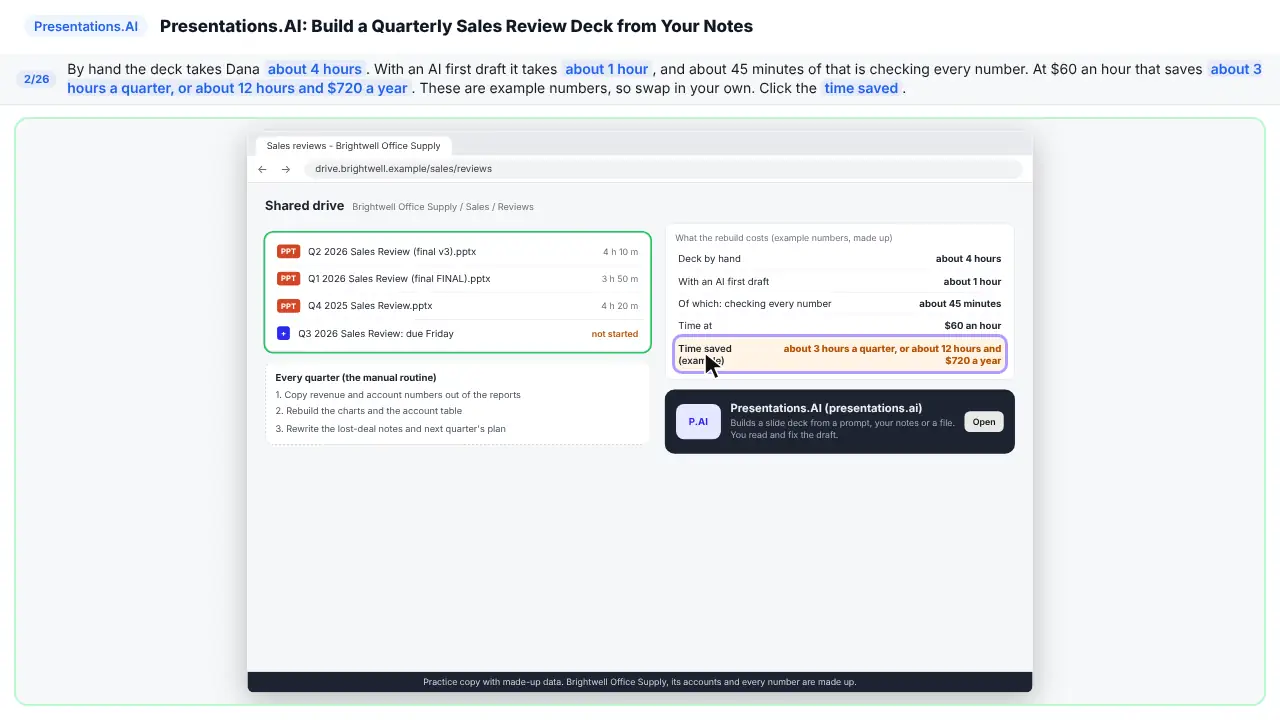
Let's put a price on that. About four hours by hand. About one hour with an AI first draft, and most of that hour is checking numbers. That saves around twelve hours a year. These are example numbers. Use your own.
Step 3: Meet Presentations.AI
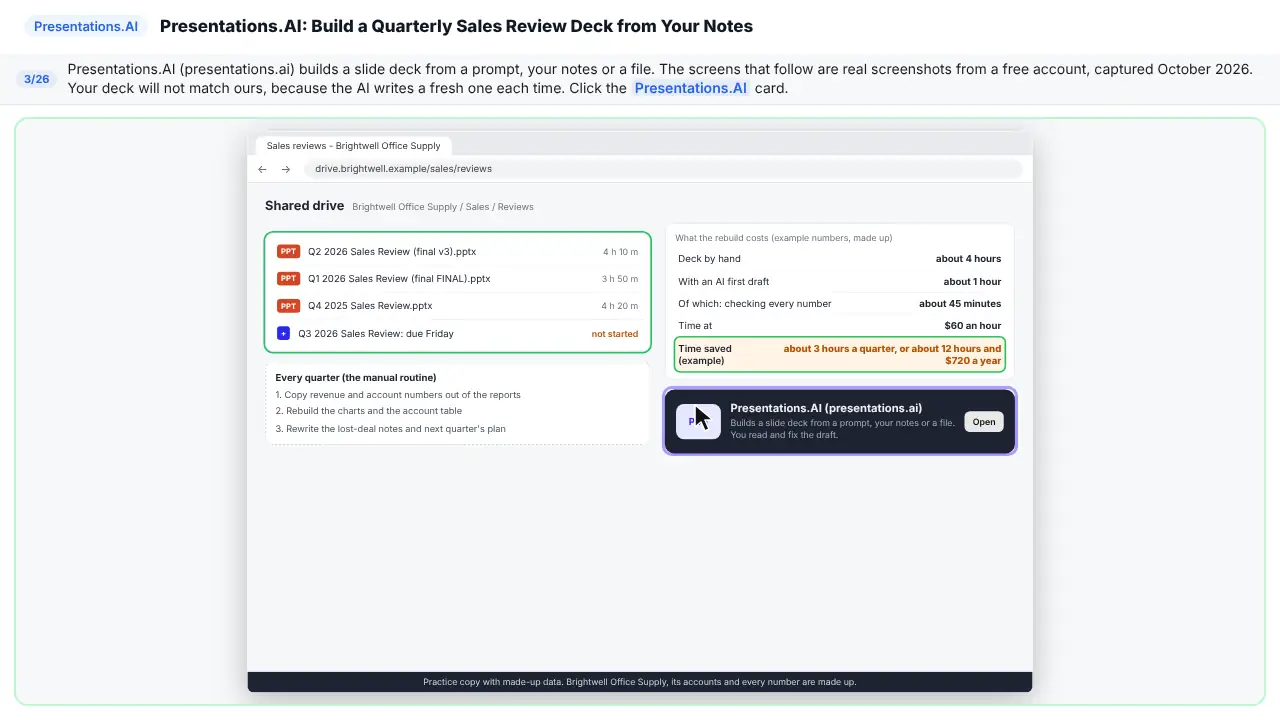
This is Presentations dot A I. It builds a slide deck from a prompt, your notes, or a file. These are real screens from a free account. Your deck will look different from ours.
Part 2: Describe the deck
Step 4: Check your credits
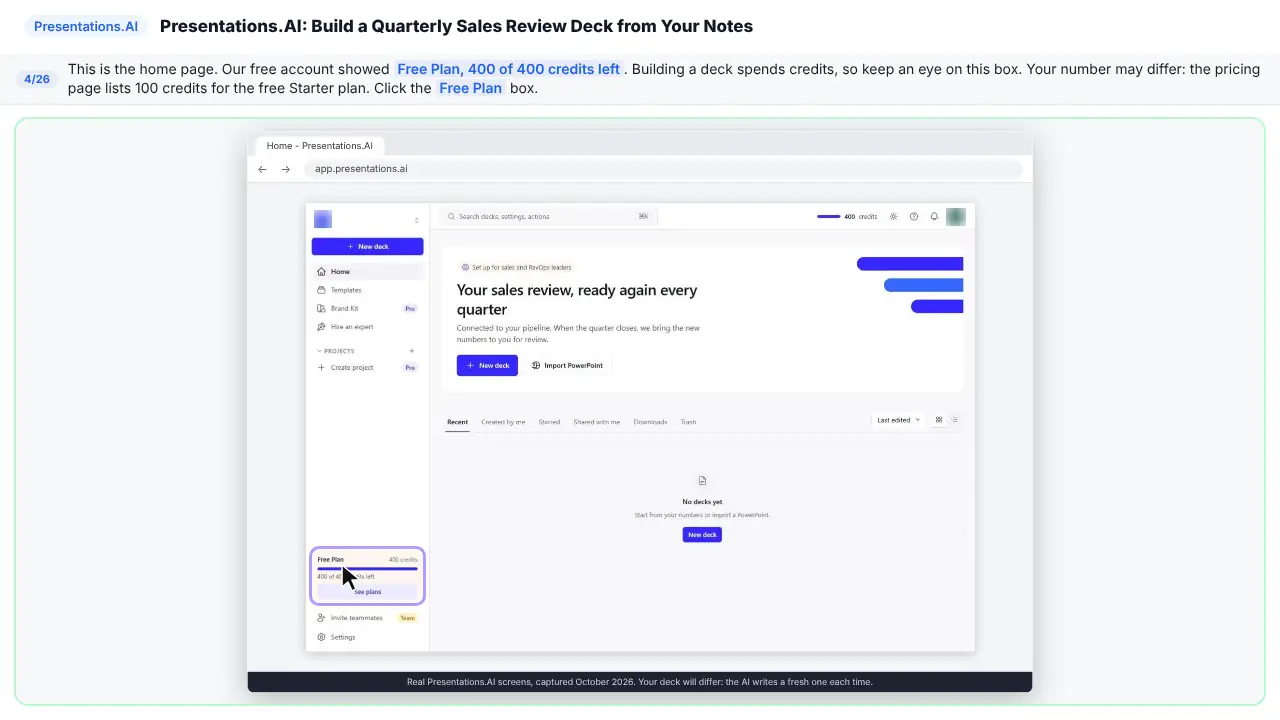
Here's the home page. Our free account had four hundred credits. Making a deck spends credits, so keep an eye on this box.
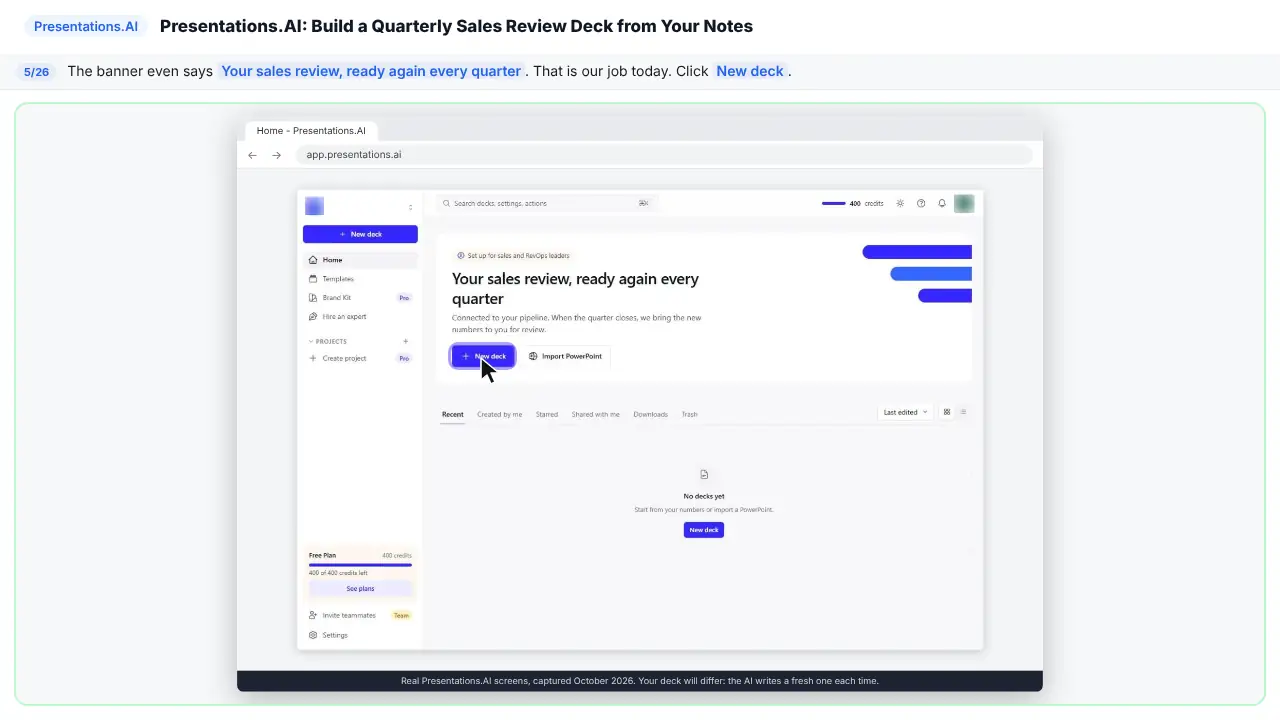
Step 5: Start a new deck
The banner even says, your sales review, ready again every quarter. That's our job today.
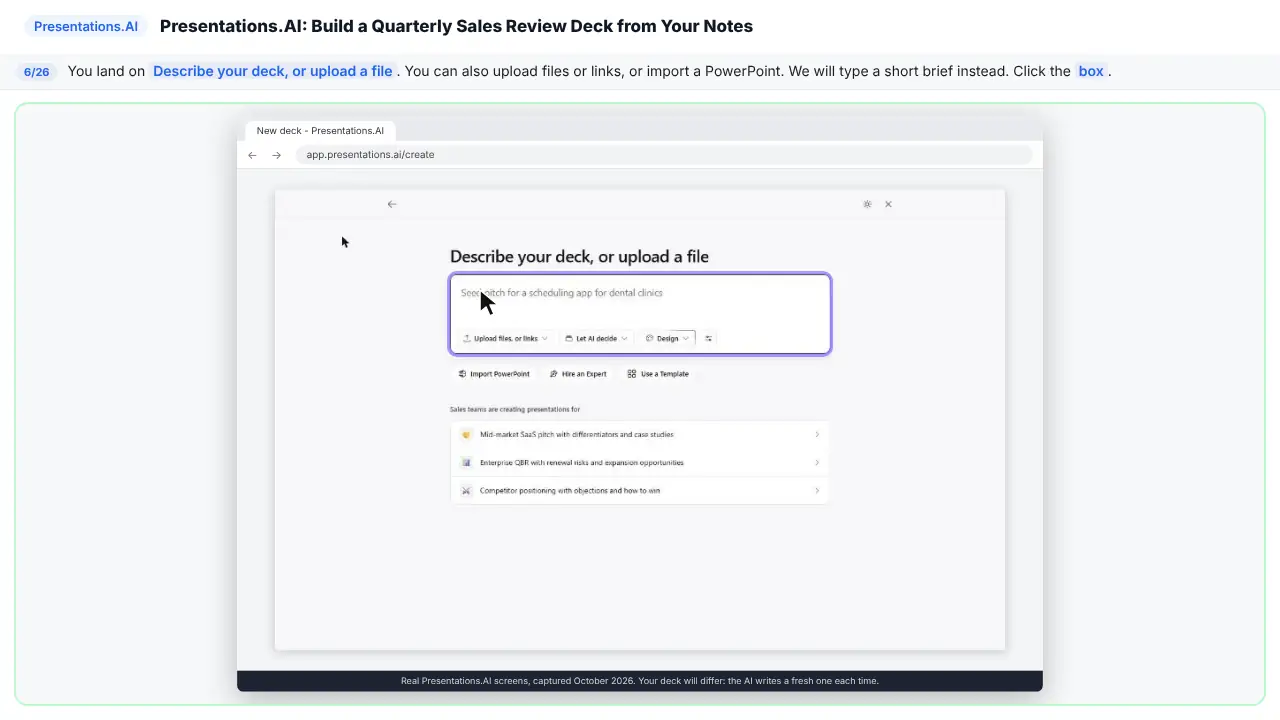
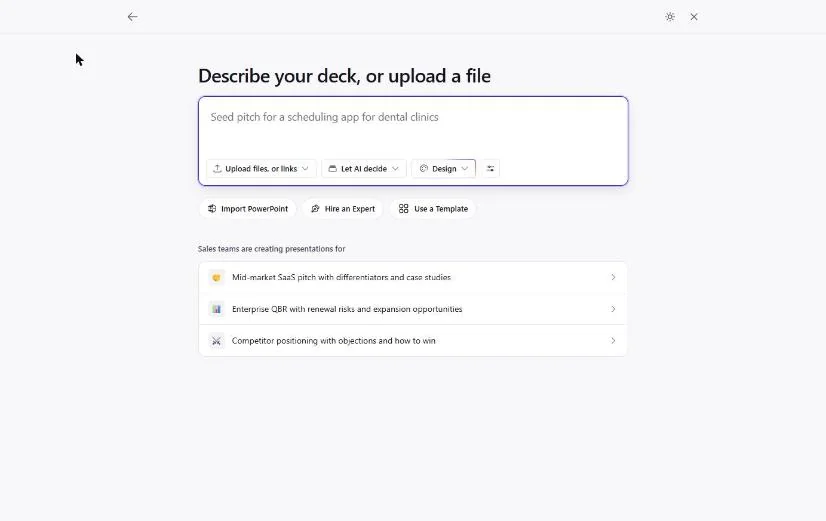
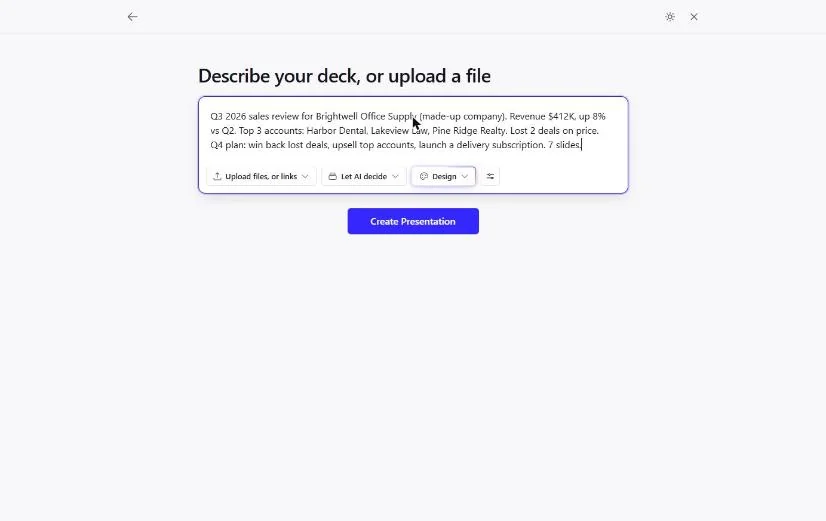
Step 6: Describe your deck
Now describe the deck you want. You could upload a file instead. We'll type a short brief.
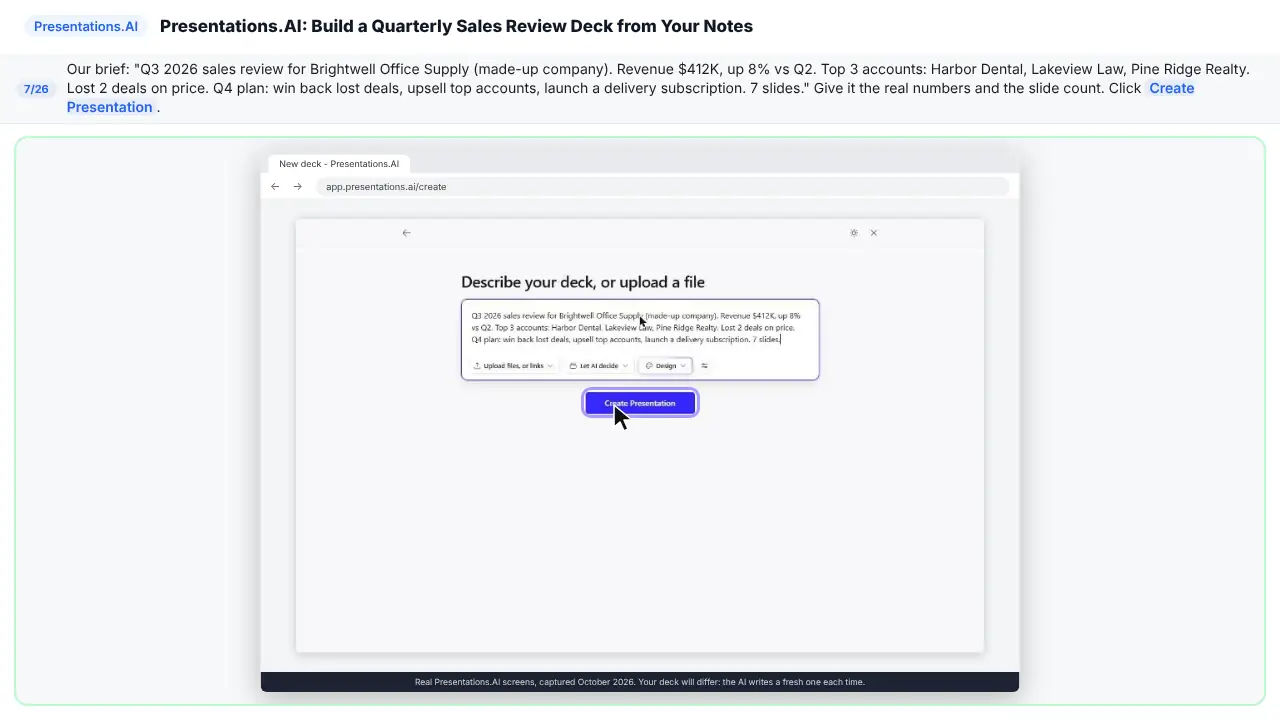
Step 7: Give it the facts, then create
Give it the facts. The company, the revenue, the top accounts, what you lost, and the plan for next quarter. And say how many slides. Then create.
Part 3: Answer its questions
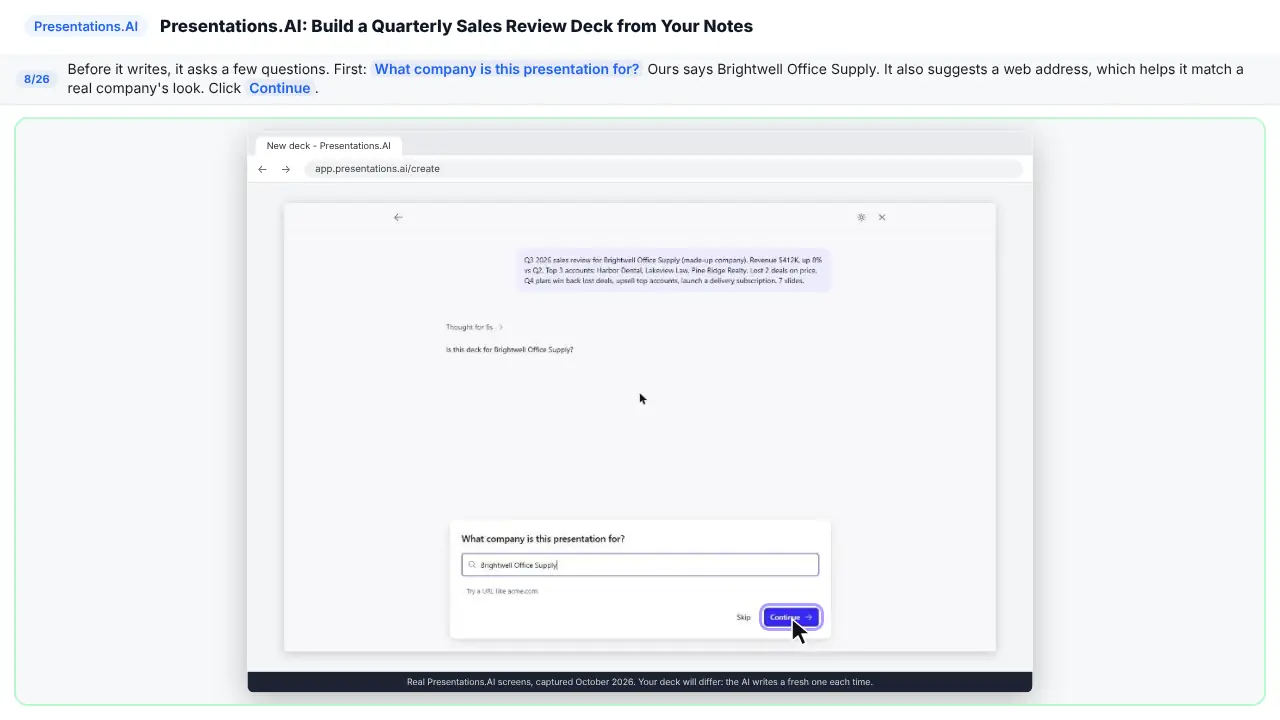
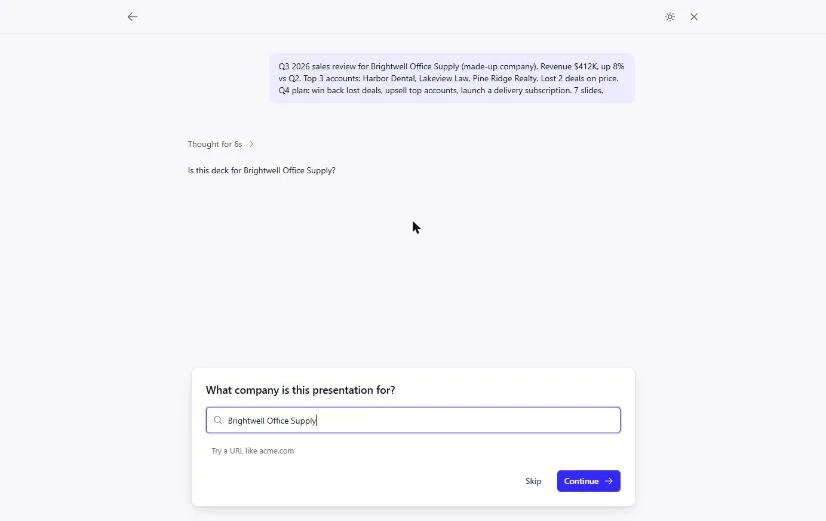
Step 8: Name the company
Before it writes, it asks a few questions. First, what company is this for?
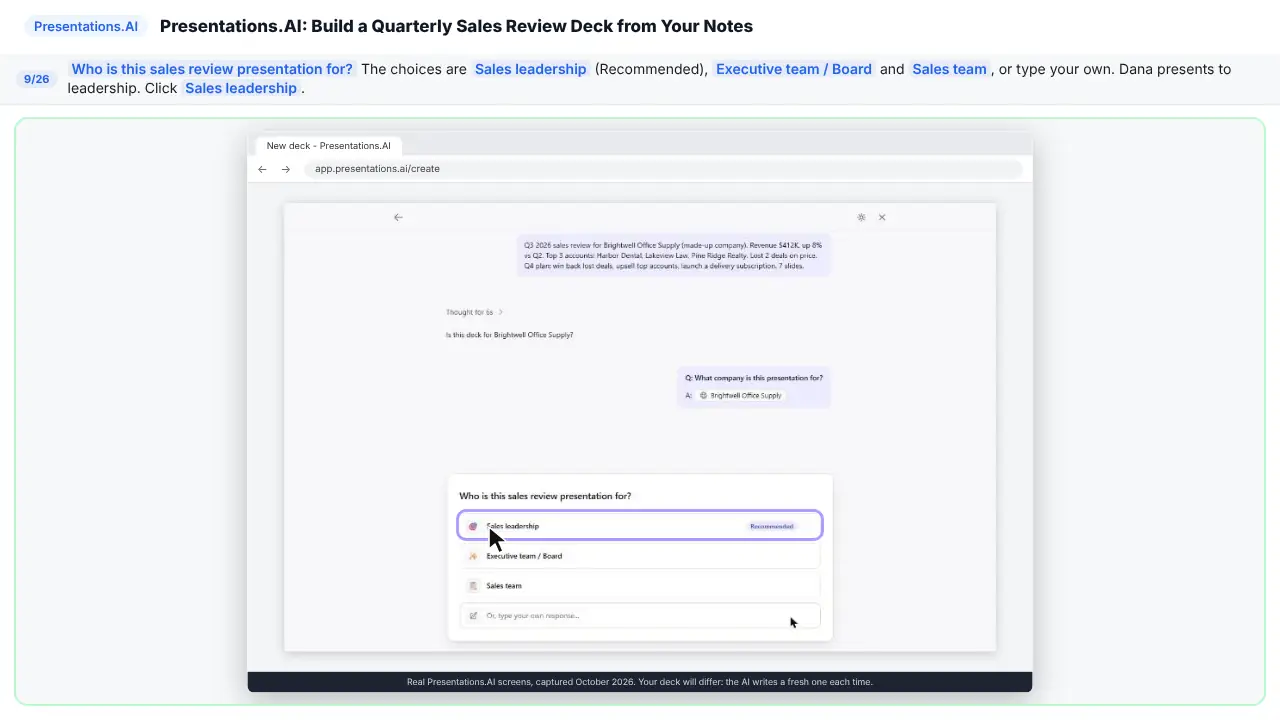
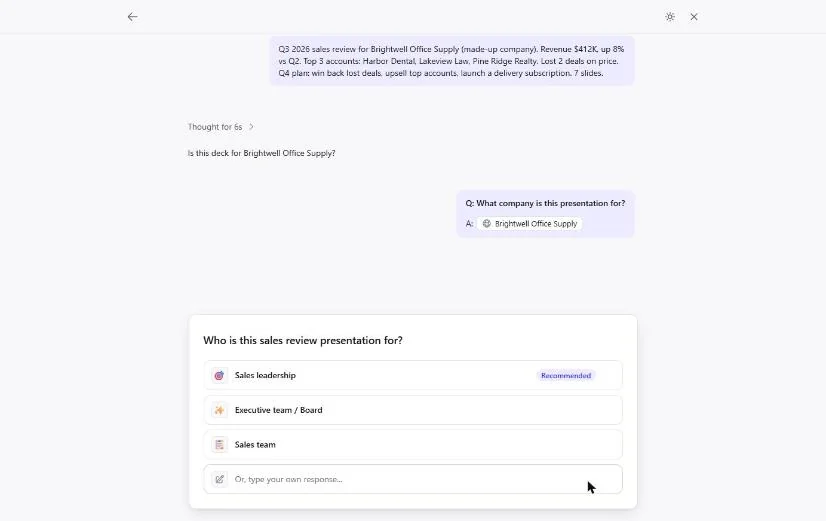
Step 9: Pick the audience
Next, who is the audience? Dana presents to sales leadership.
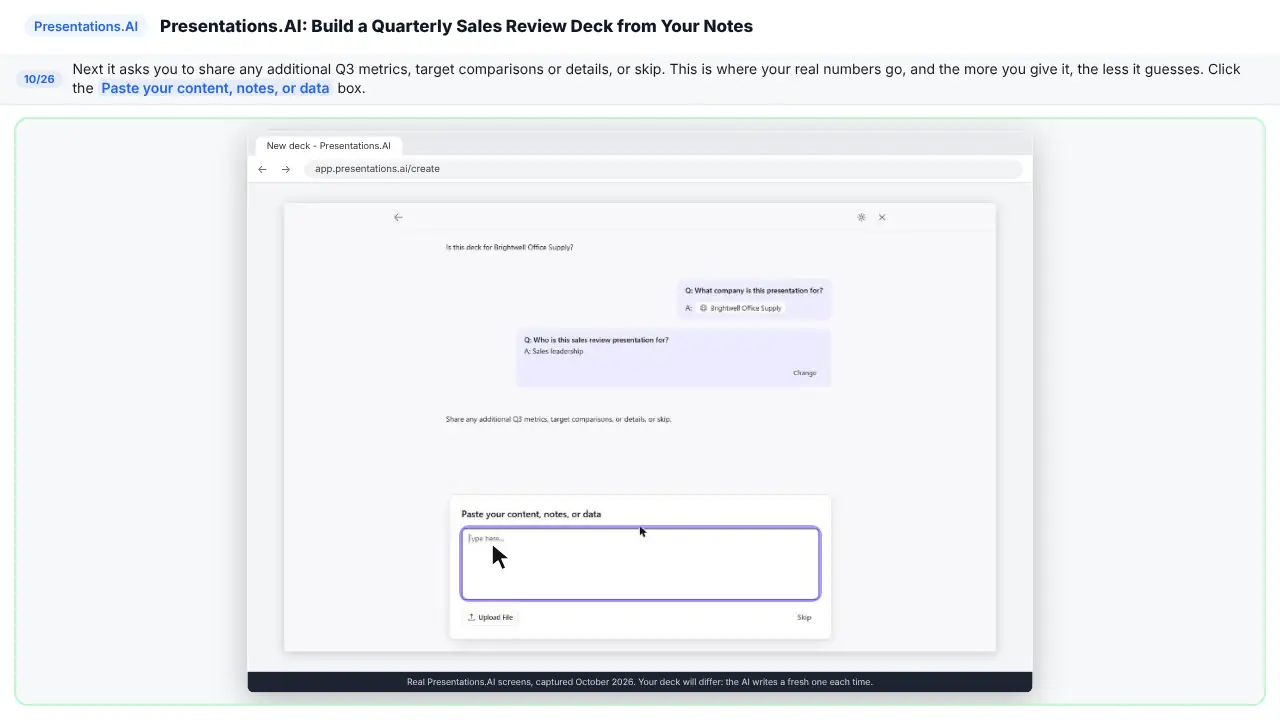
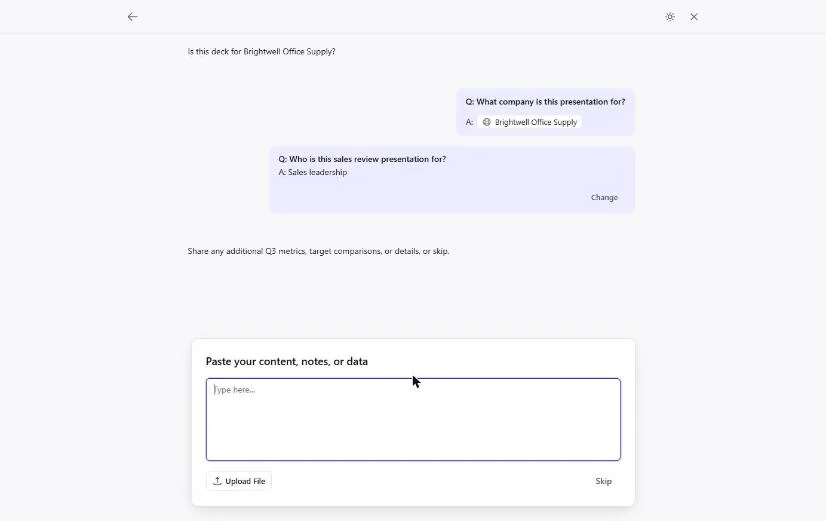
Step 10: Open the notes box
Now it asks for more numbers. This is where your real data goes. The more you give it, the less it guesses.
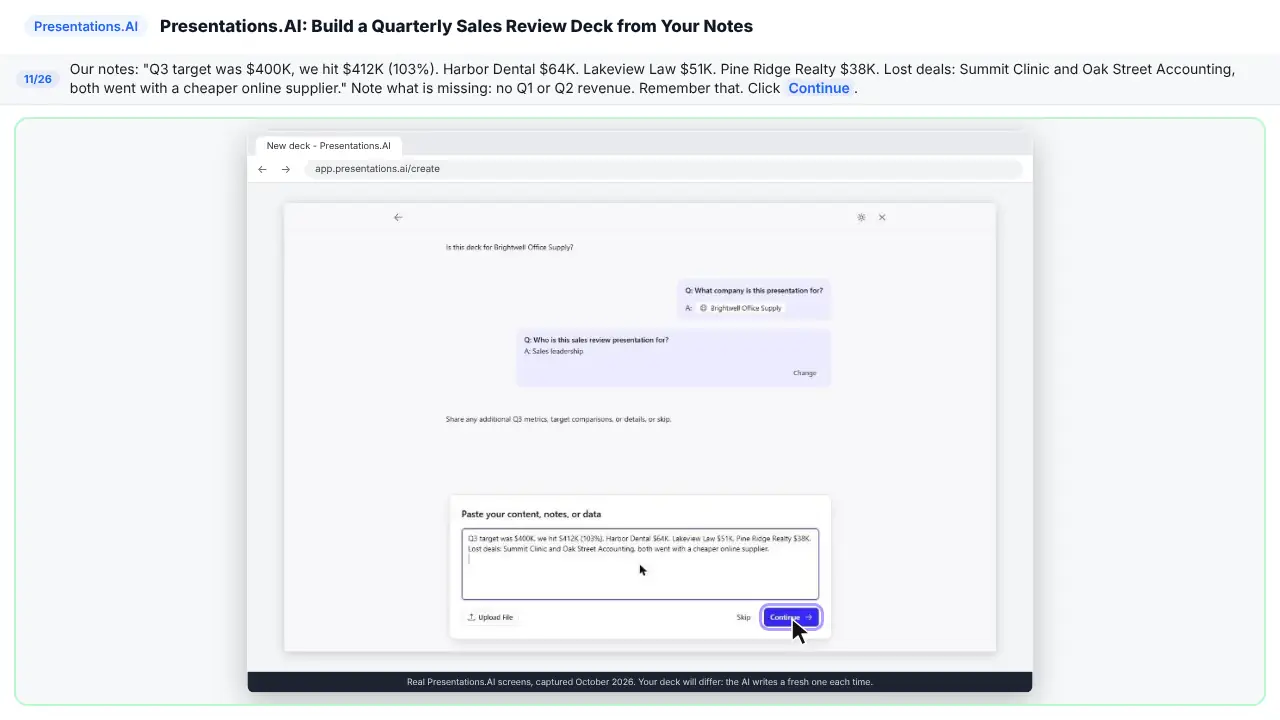
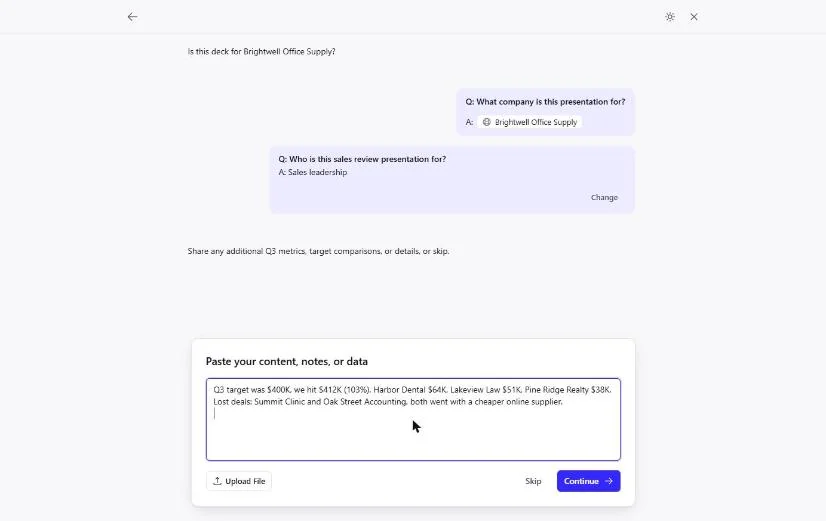
Step 11: Paste your numbers
We paste the target, the result, the three accounts, and the two lost deals. Notice what's missing. We never gave it Q1 or Q2 revenue. Remember that.
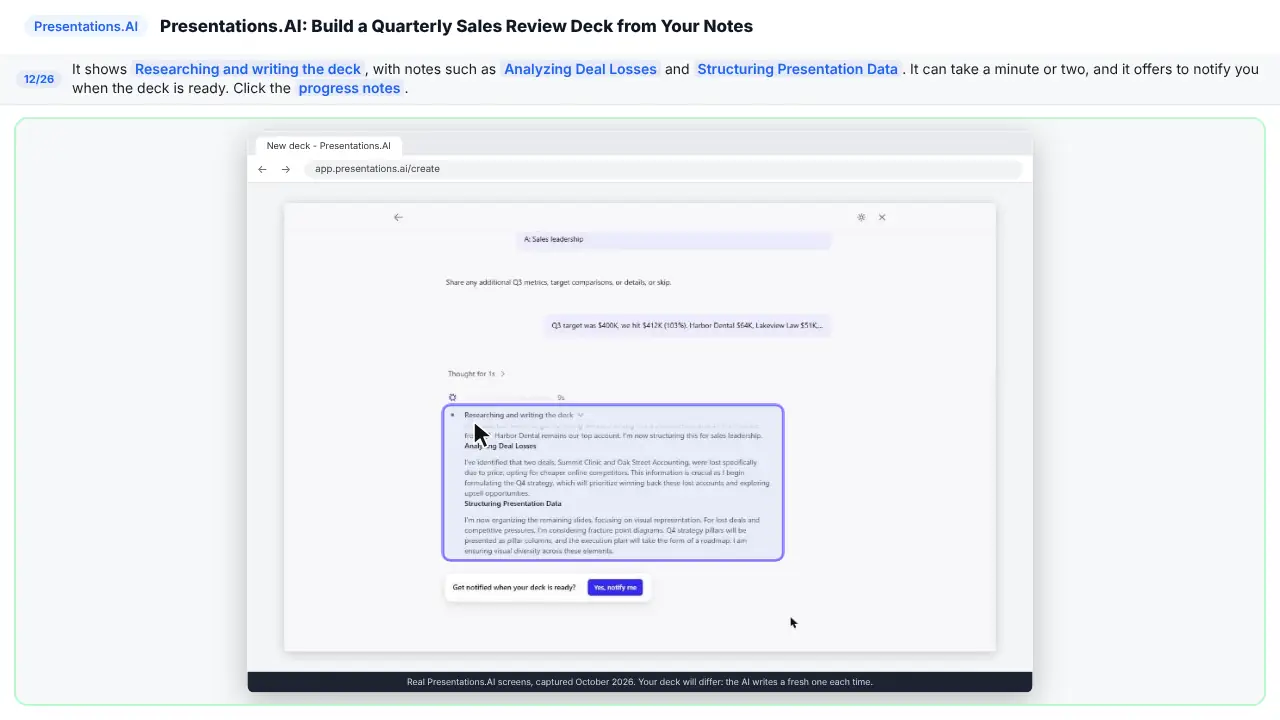
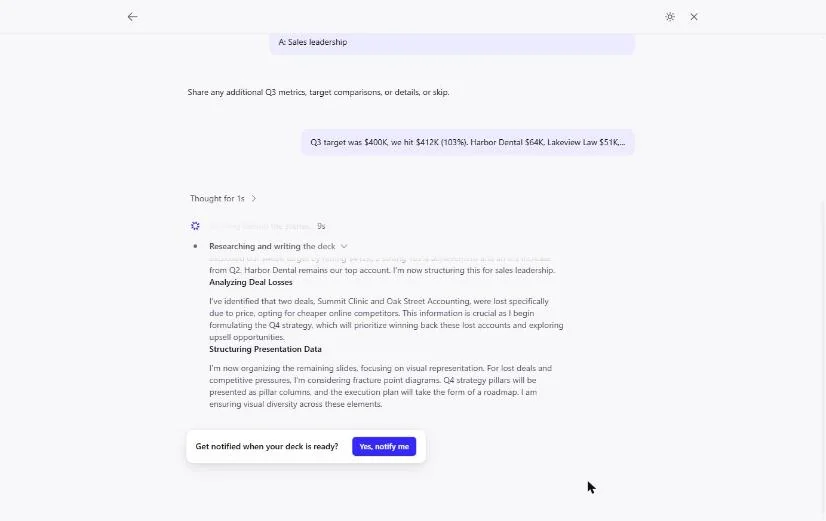
Step 12: Let it research and write
Now it researches and writes. It takes a minute or two.
Part 4: Read the first draft
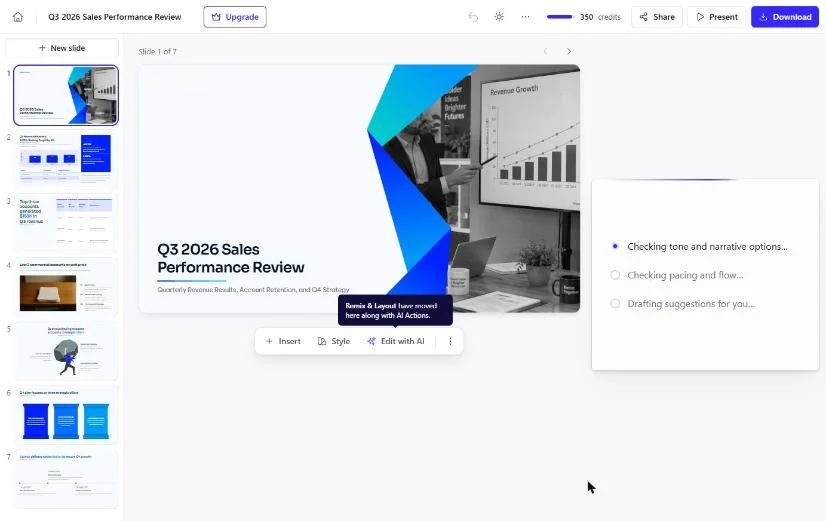
Step 13: See the title slide
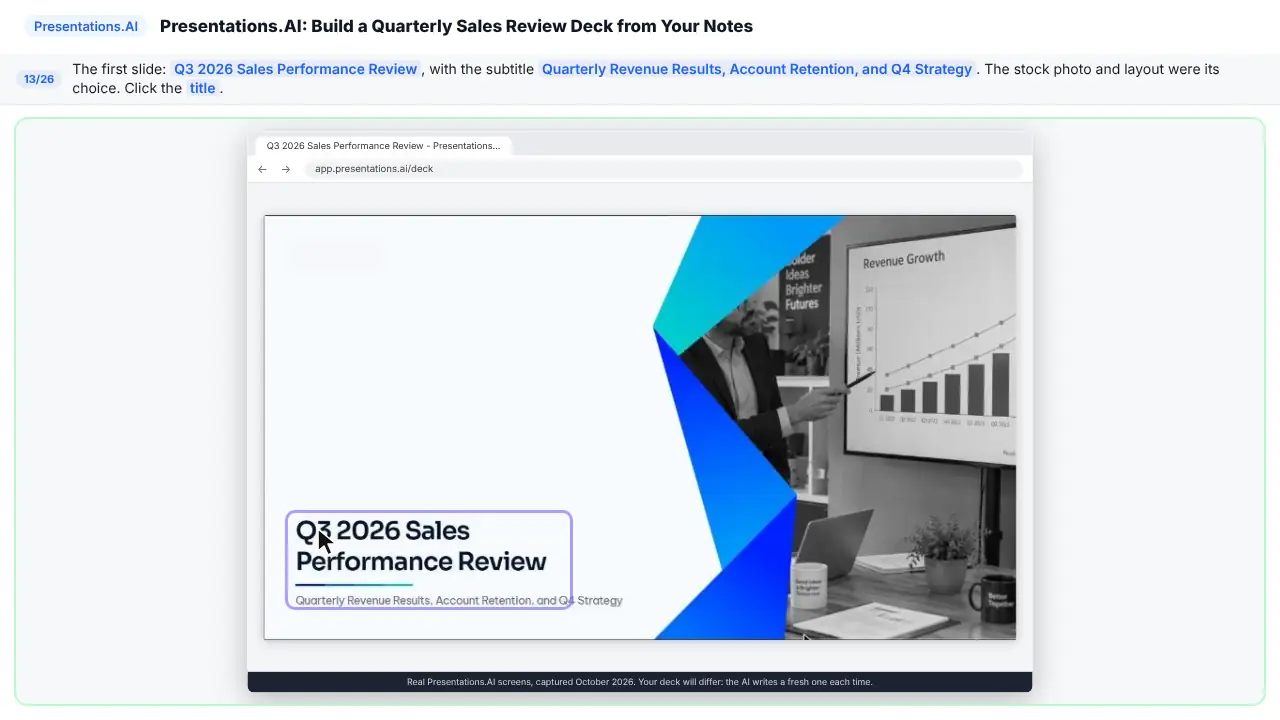
And here's the title slide. Clean, and ready to present. The photo and layout were its choice.
Step 14: Look over all 7 slides
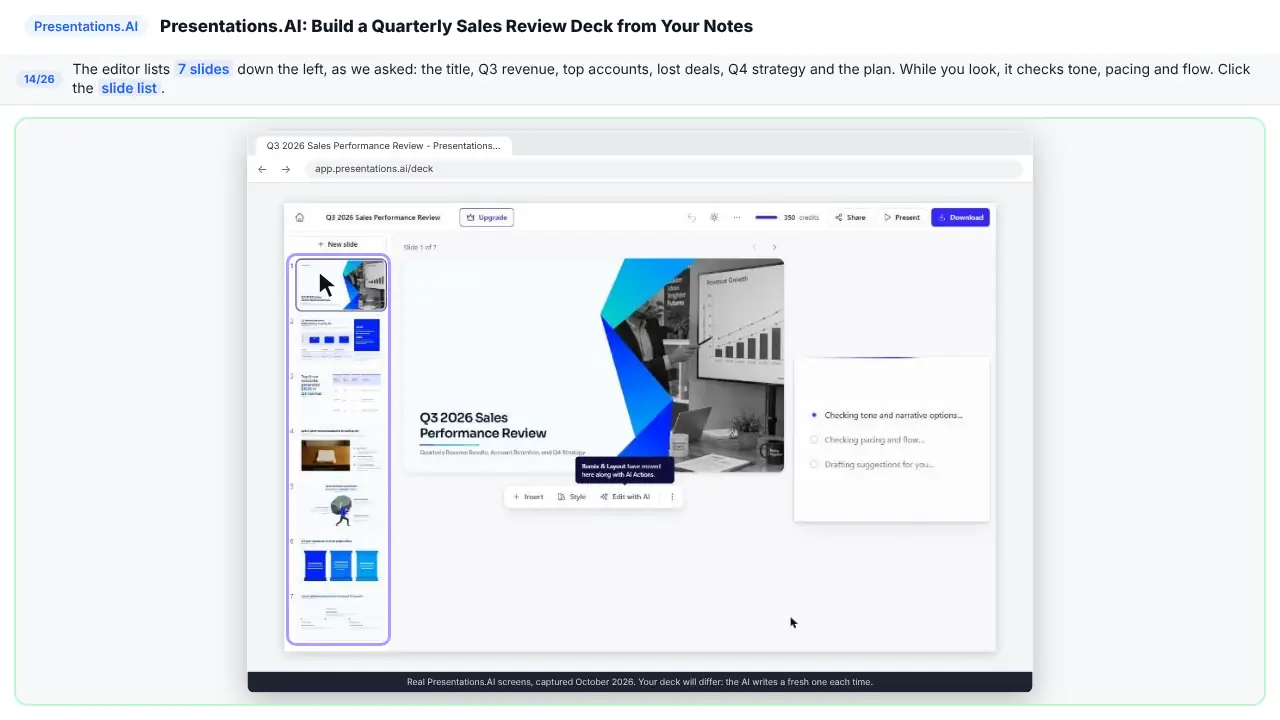
All seven slides are here, just like we asked. Revenue, accounts, lost deals, and the plan.
Step 15: See what it cost
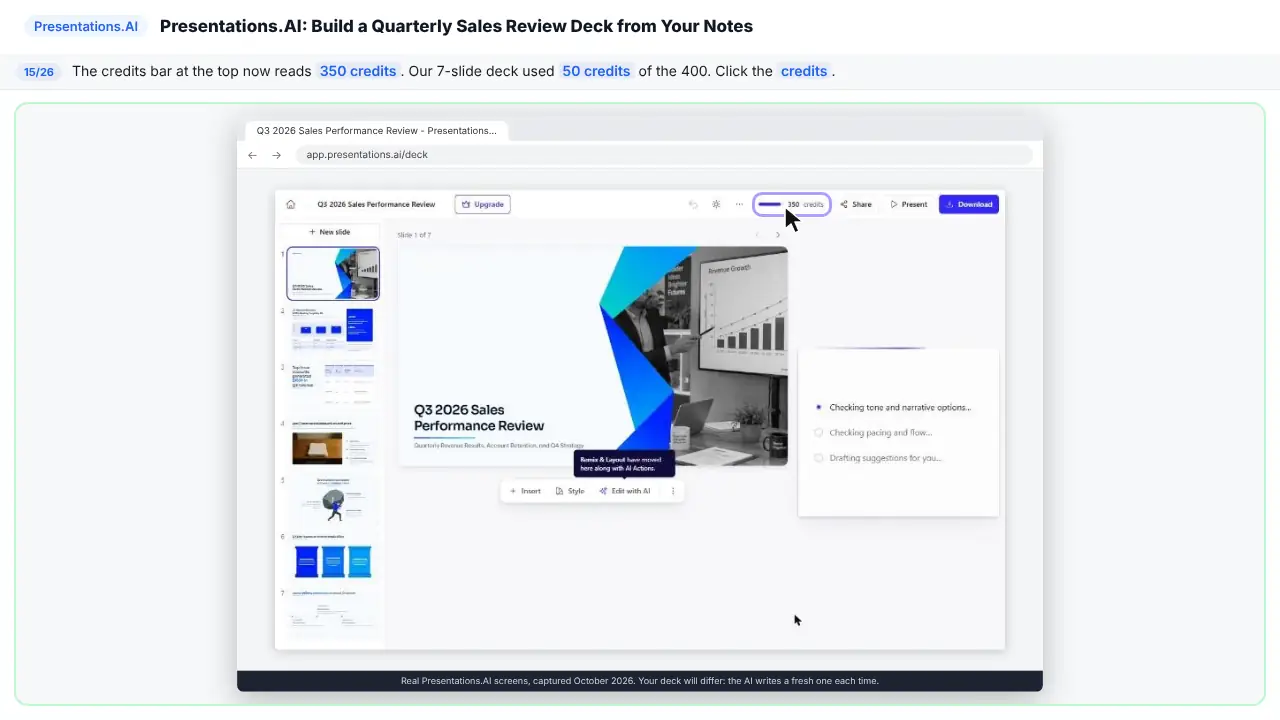
Look at the credits. Four hundred went down to three fifty. This deck cost fifty credits.
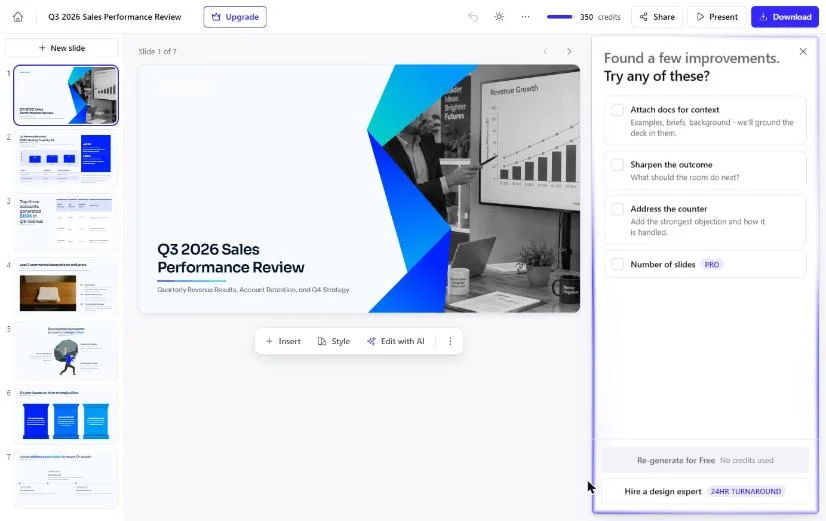
Step 16: Read its suggestions
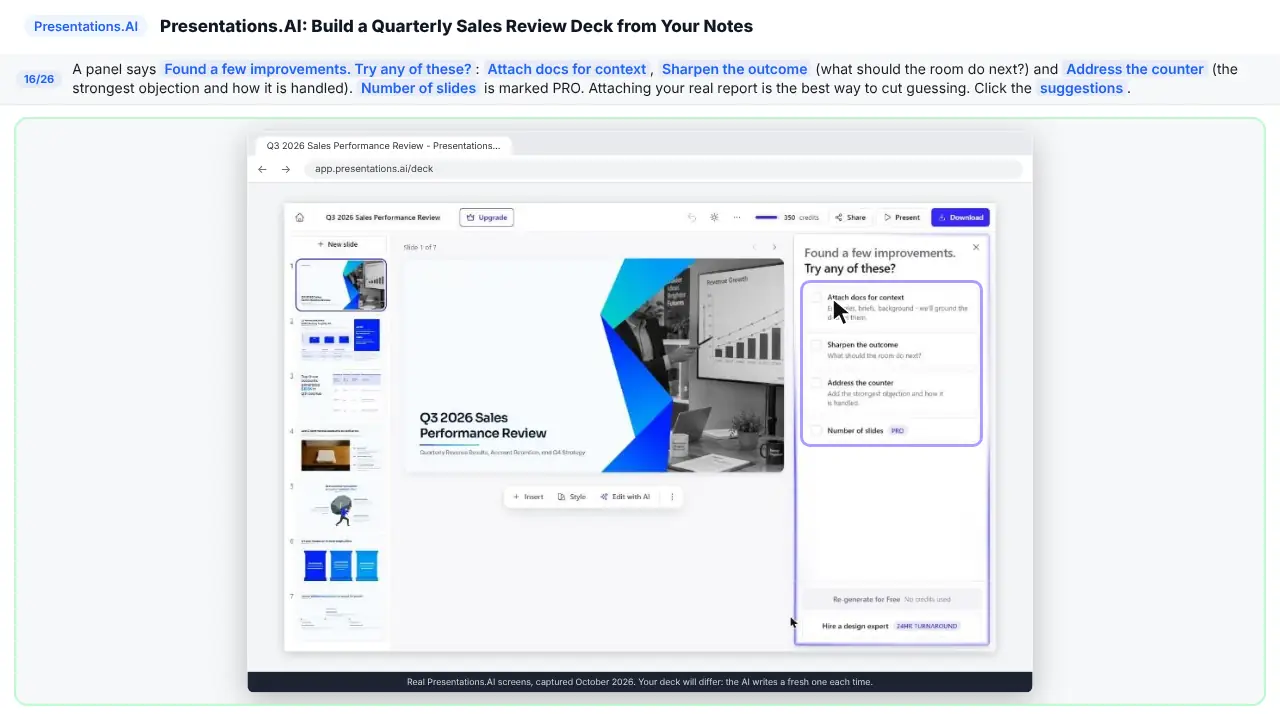
It also suggests improvements. Attach your docs. Sharpen the outcome. Address the objection. Attaching your real report is the best way to cut down the guessing.
Part 5: Check every number
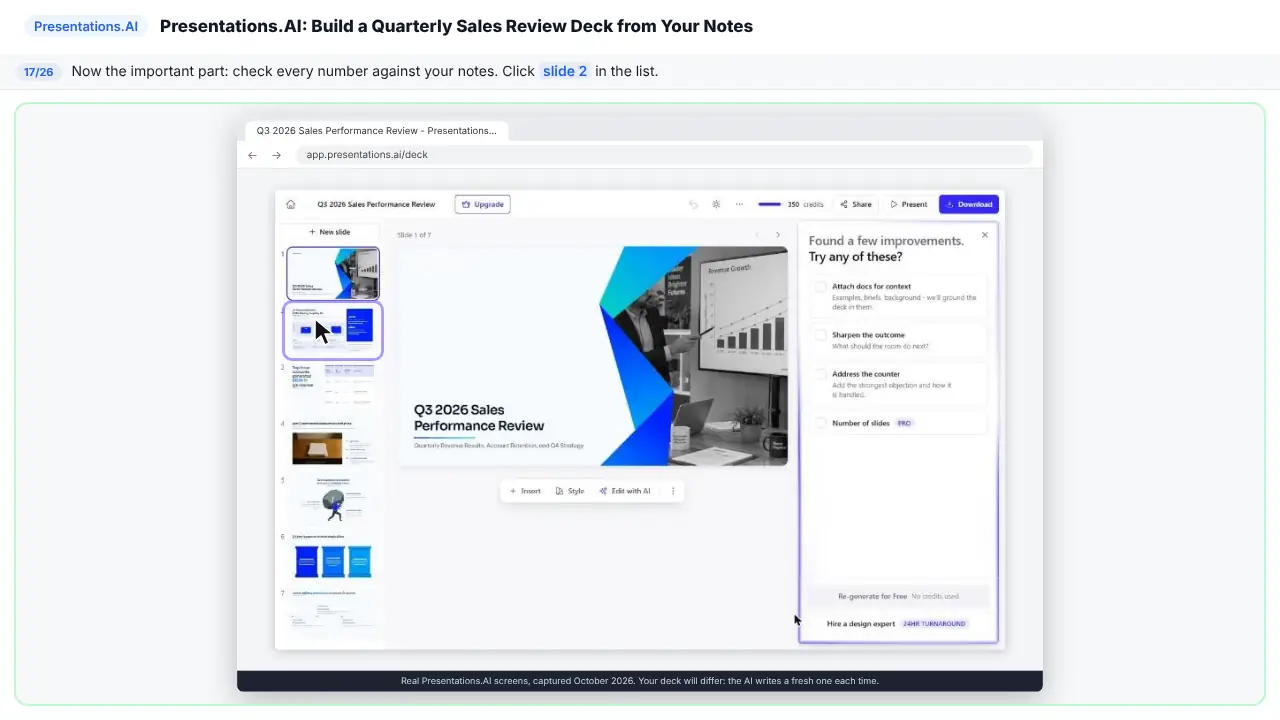
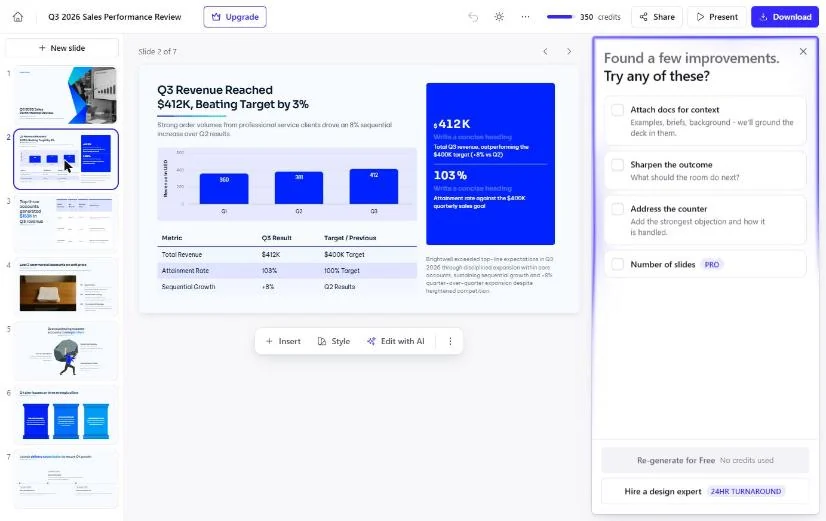
Step 17: Open slide 2
Now the most important part. Check every number.
Step 18: Spot the numbers you never gave it
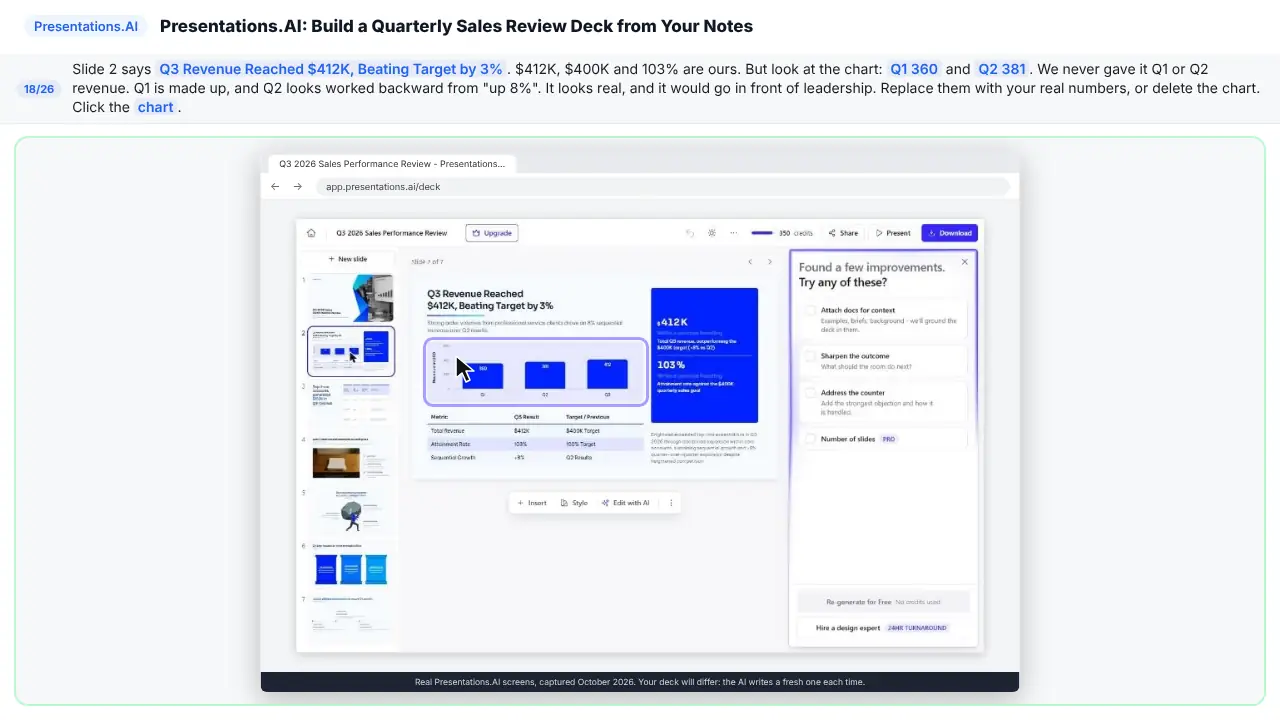
The headline is right. Four twelve, beating target by three percent. But look at the chart. Q1, three sixty. Q2, three eighty one. We never gave it those numbers. It filled them in. They look real, and they would go straight to leadership. Fix them, or delete the chart.
Step 19: Check the words too
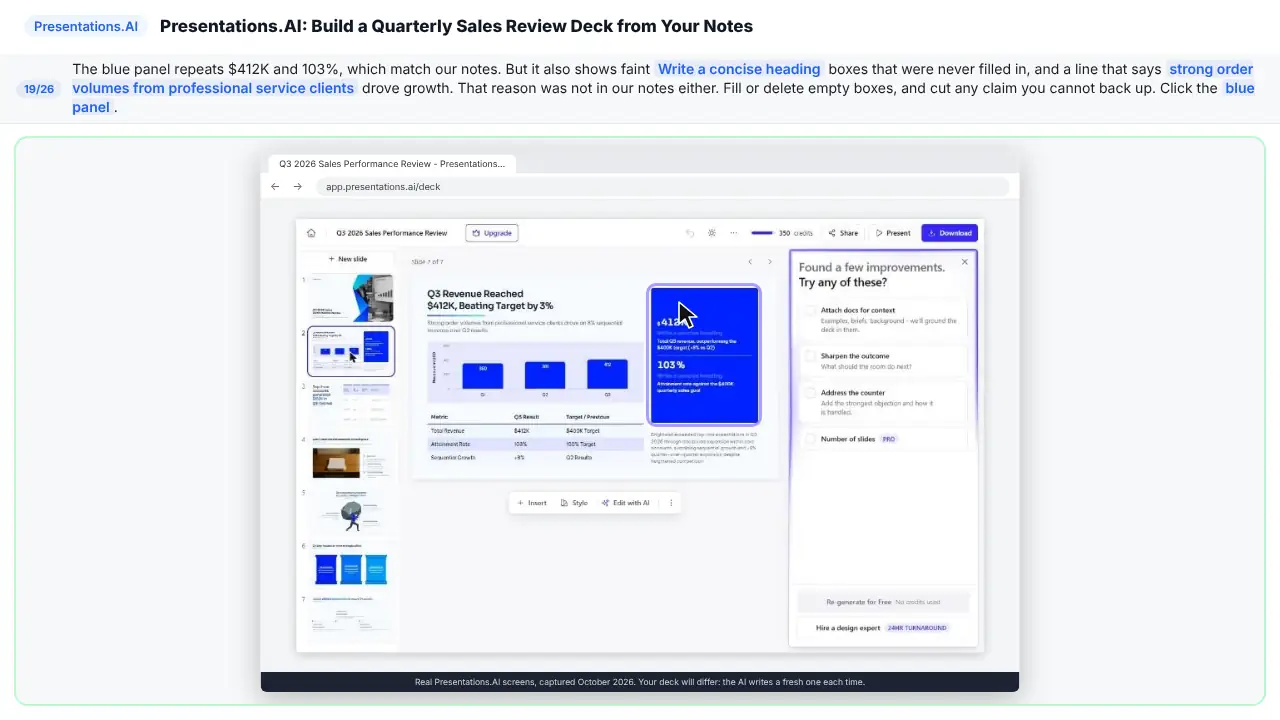
Check the words too. There are empty heading boxes, and a reason for the growth that we never gave it. If you can't back it up, cut it.
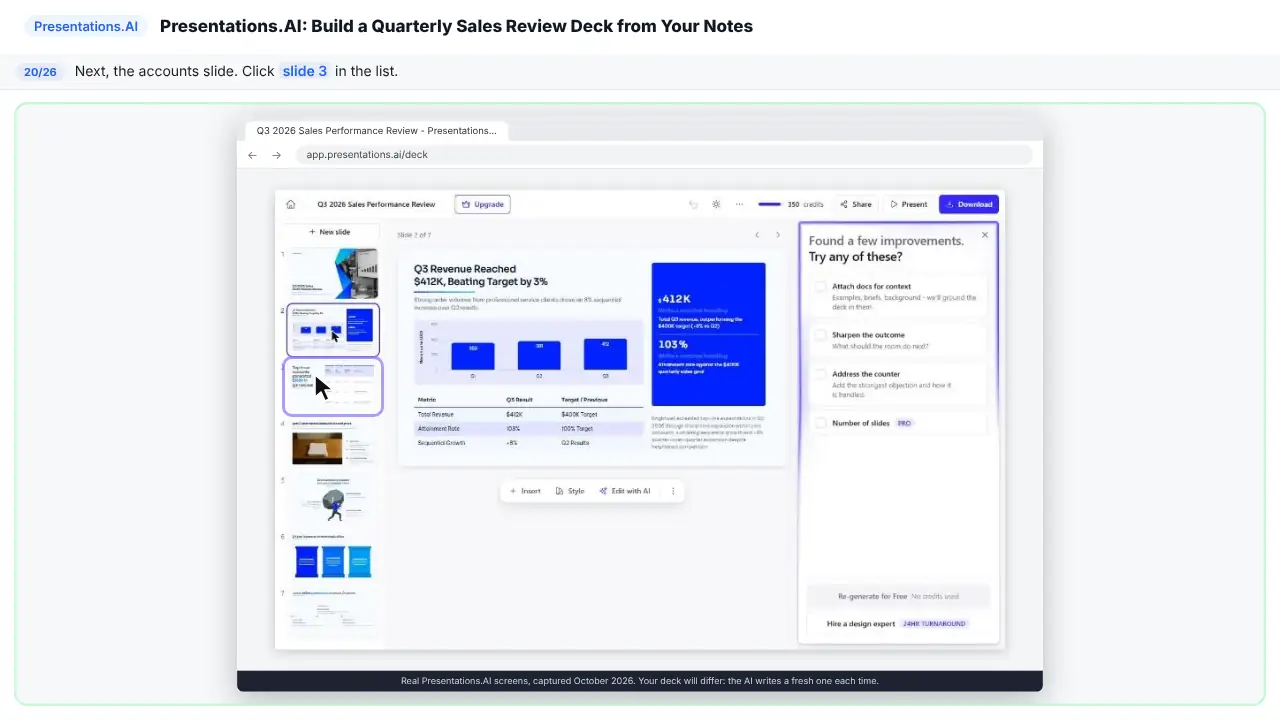
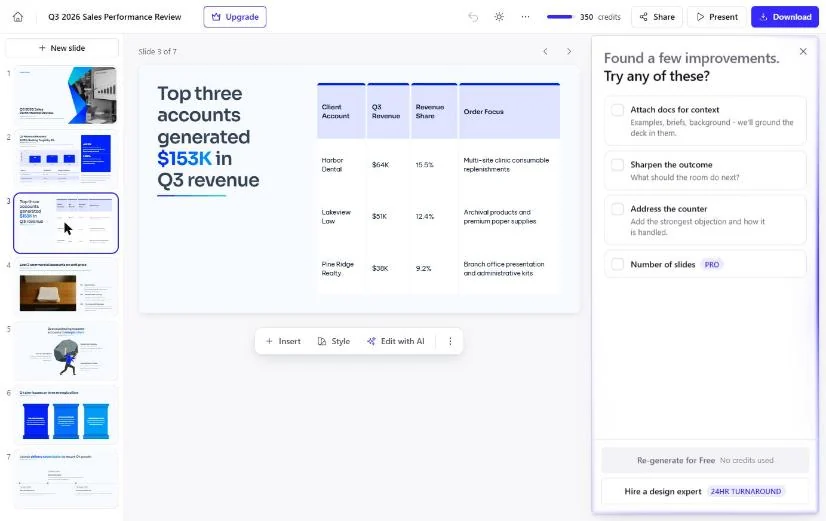
Step 20: Open slide 3
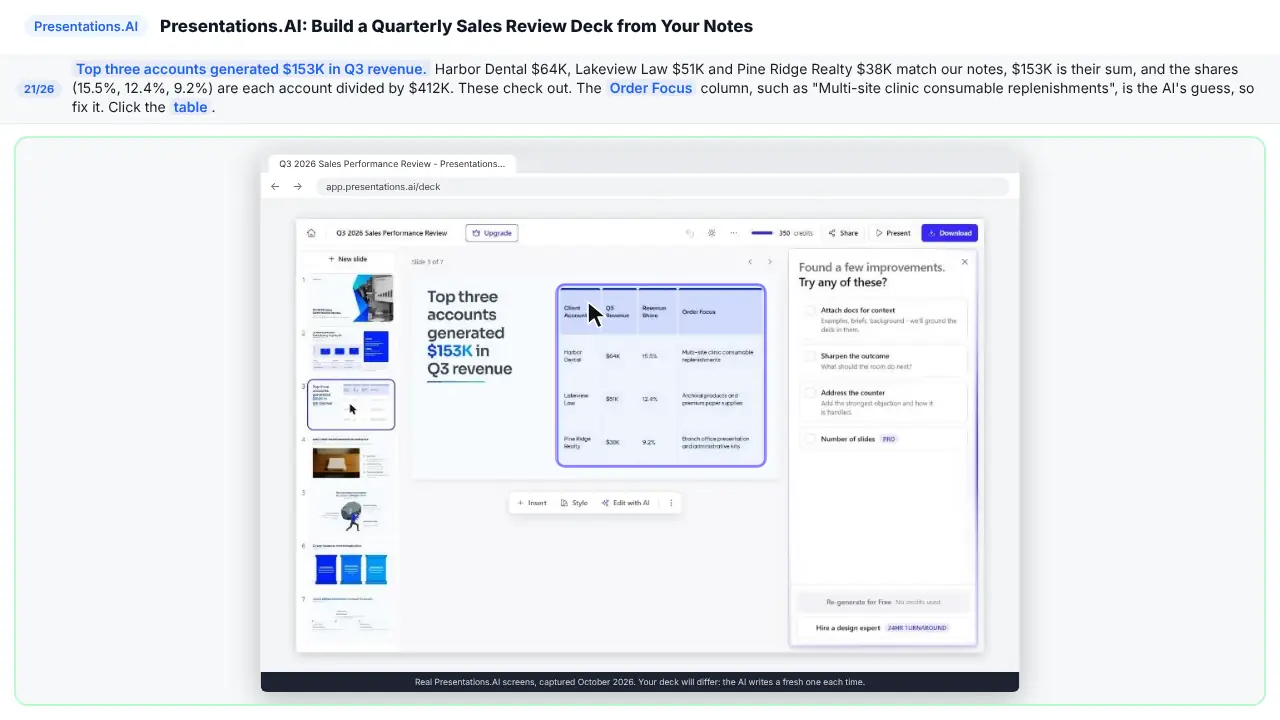
Step 21: Check the accounts table
This one checks out. The three accounts match our notes, and the total adds up. But the order focus column is a guess. Fix that too.
Part 6: Getting the file out
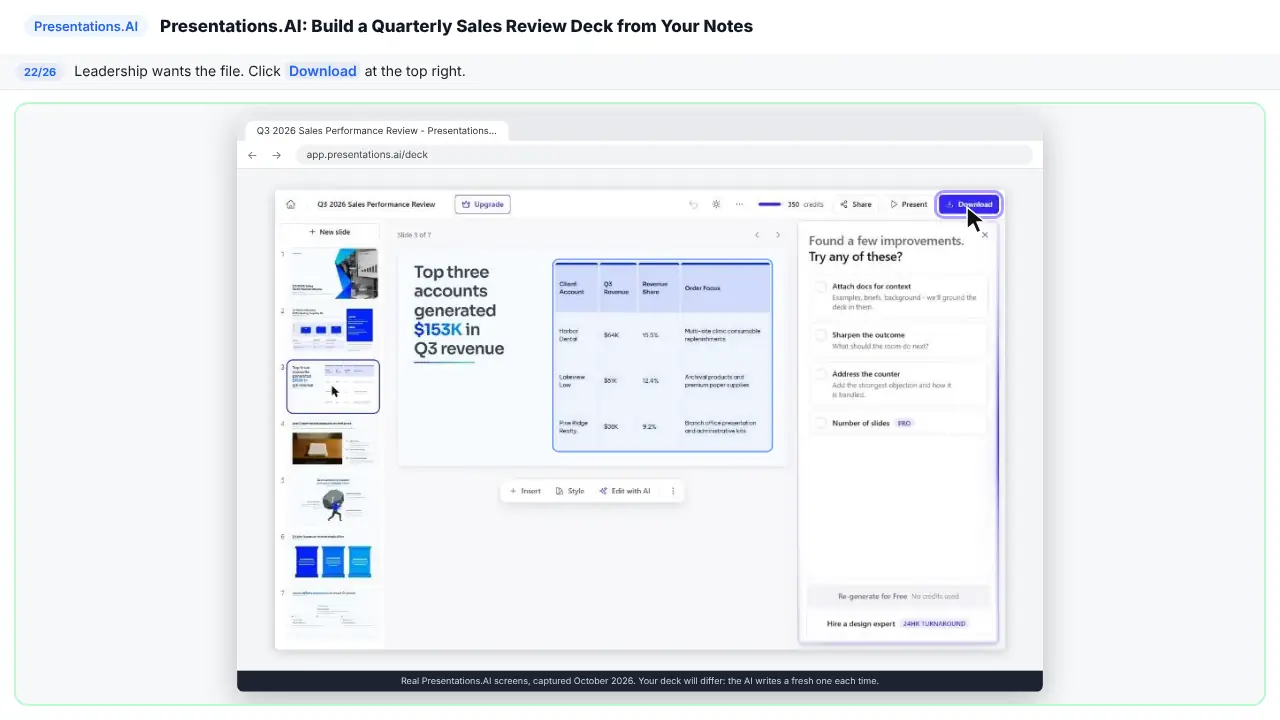
Step 22: Try to download it
Now let's get the file.
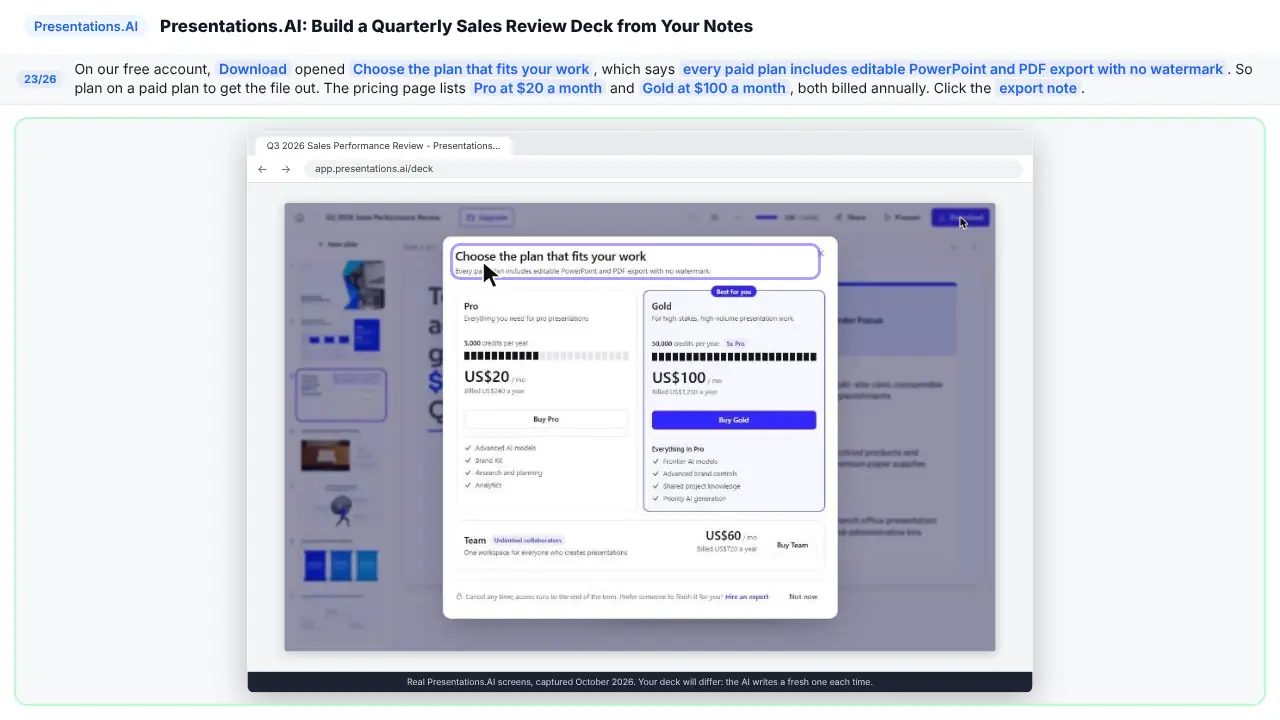
Step 23: Read the export note
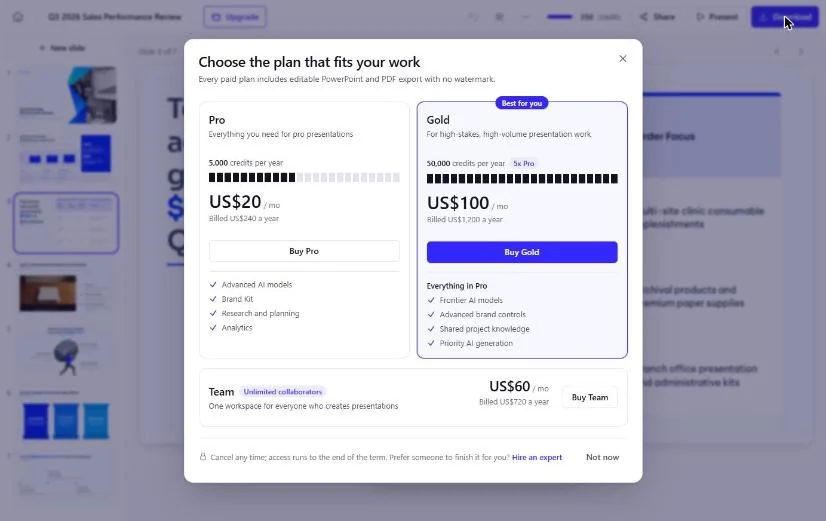
On our free account, download opened the plans. Every paid plan includes PowerPoint and PDF export. Pro is twenty dollars a month, billed yearly.
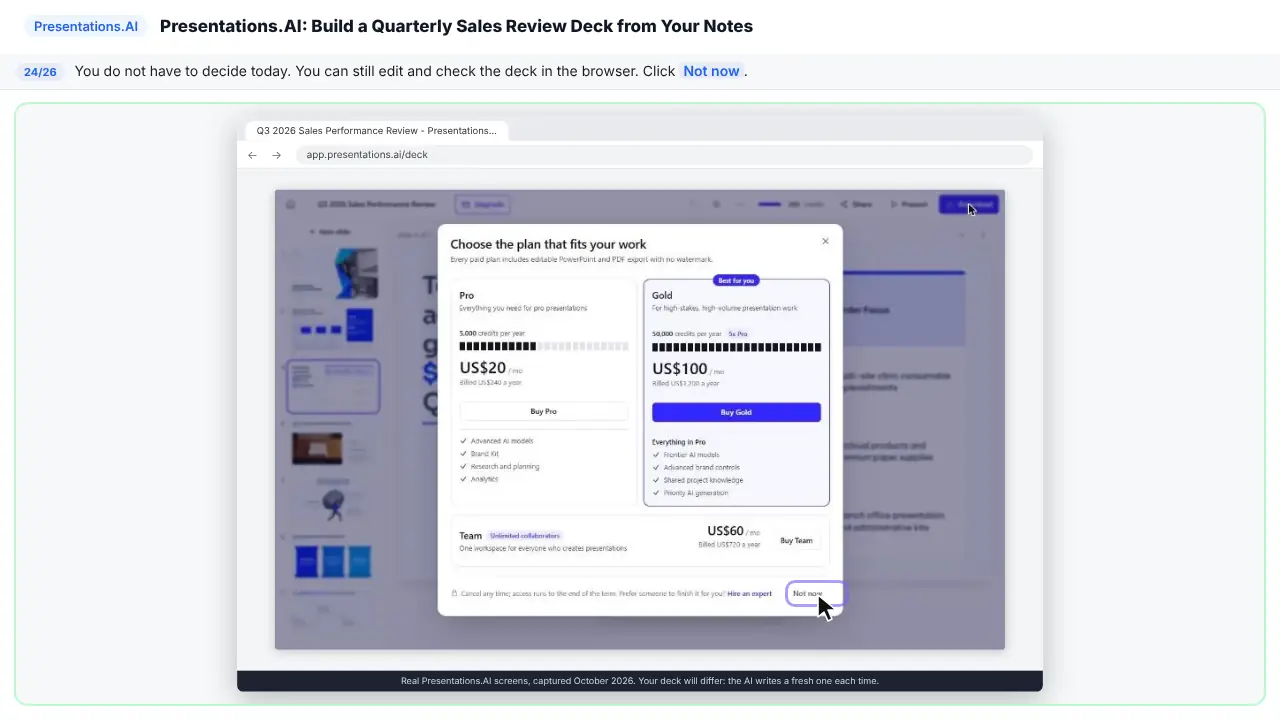
Step 24: Close it for now
You don't have to decide today. Close it for now.
Part 7: What it saves, and doing it for real
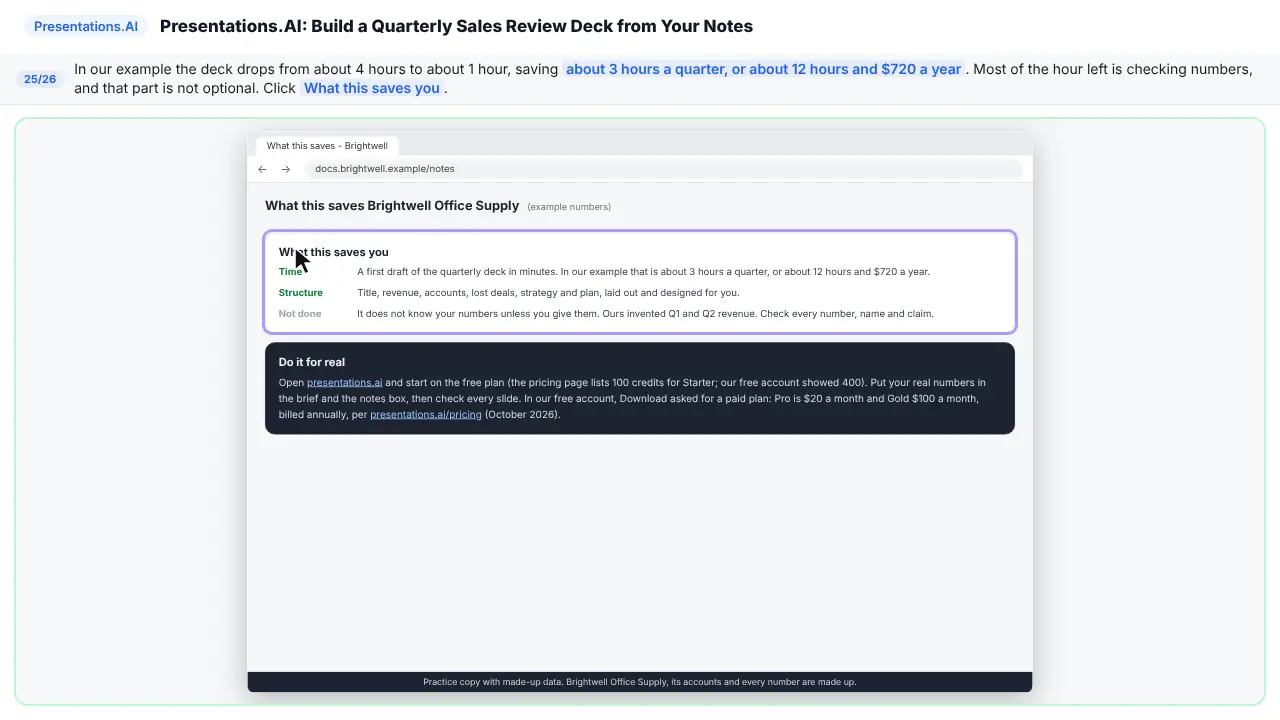
Step 25: What this saves you
So here's what this saves you. A first draft in minutes, instead of hours. Just spend the time you save checking the numbers.
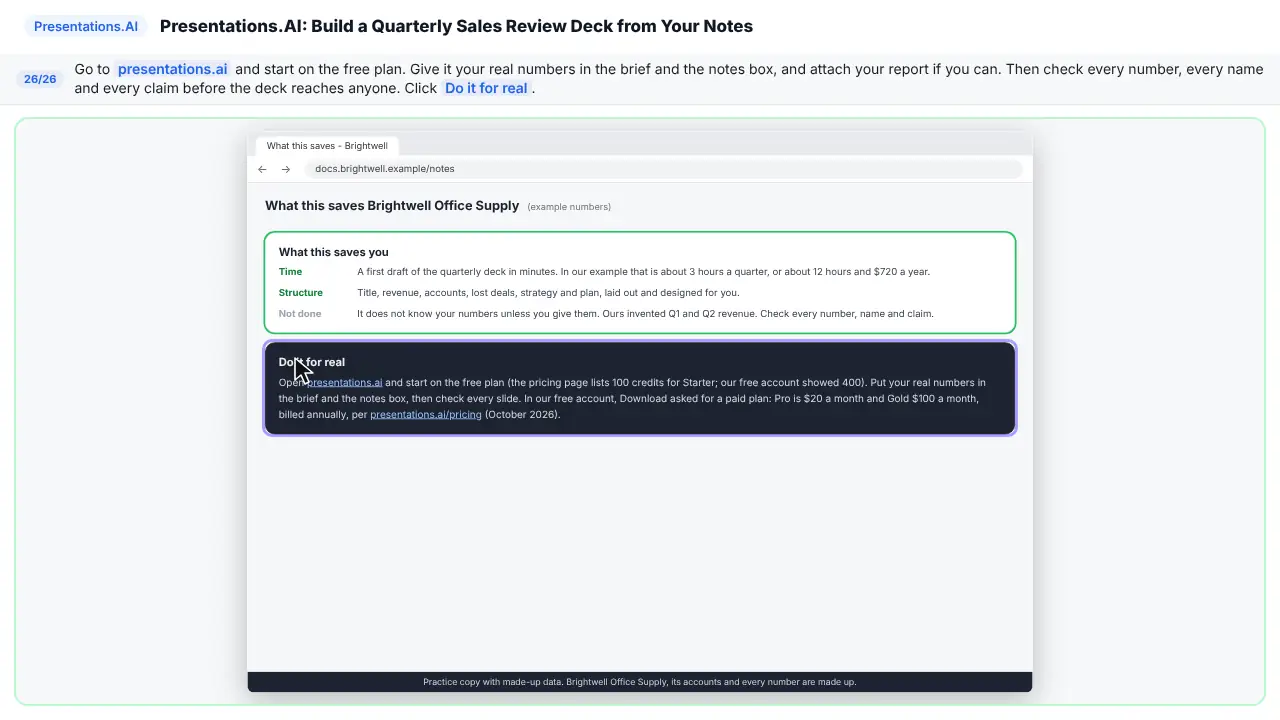
Step 26: Do it for real
Ready to try it with your own numbers? Head to presentations dot A I. Give it real data, then check every number before anyone sees it.
Part of these free courses: AI Apps Worth Knowing, AI for Sales Teams, AI Presentations & Client Decks, AI for a Small Sales Team: Find the Right Accounts, Work Every Call and Report the Quarter
Now do it yourself, free
Reading the steps is a start. Doing them is how it sticks. The interactive lesson puts you in a practice copy of Presentations.AI: you do every step yourself, it checks your work, and “Do it for me” finishes any step you get stuck on. Nothing touches your real accounts.
Practice “Presentations.AI: Build a Quarterly Sales Review Deck from Your Notes” step by step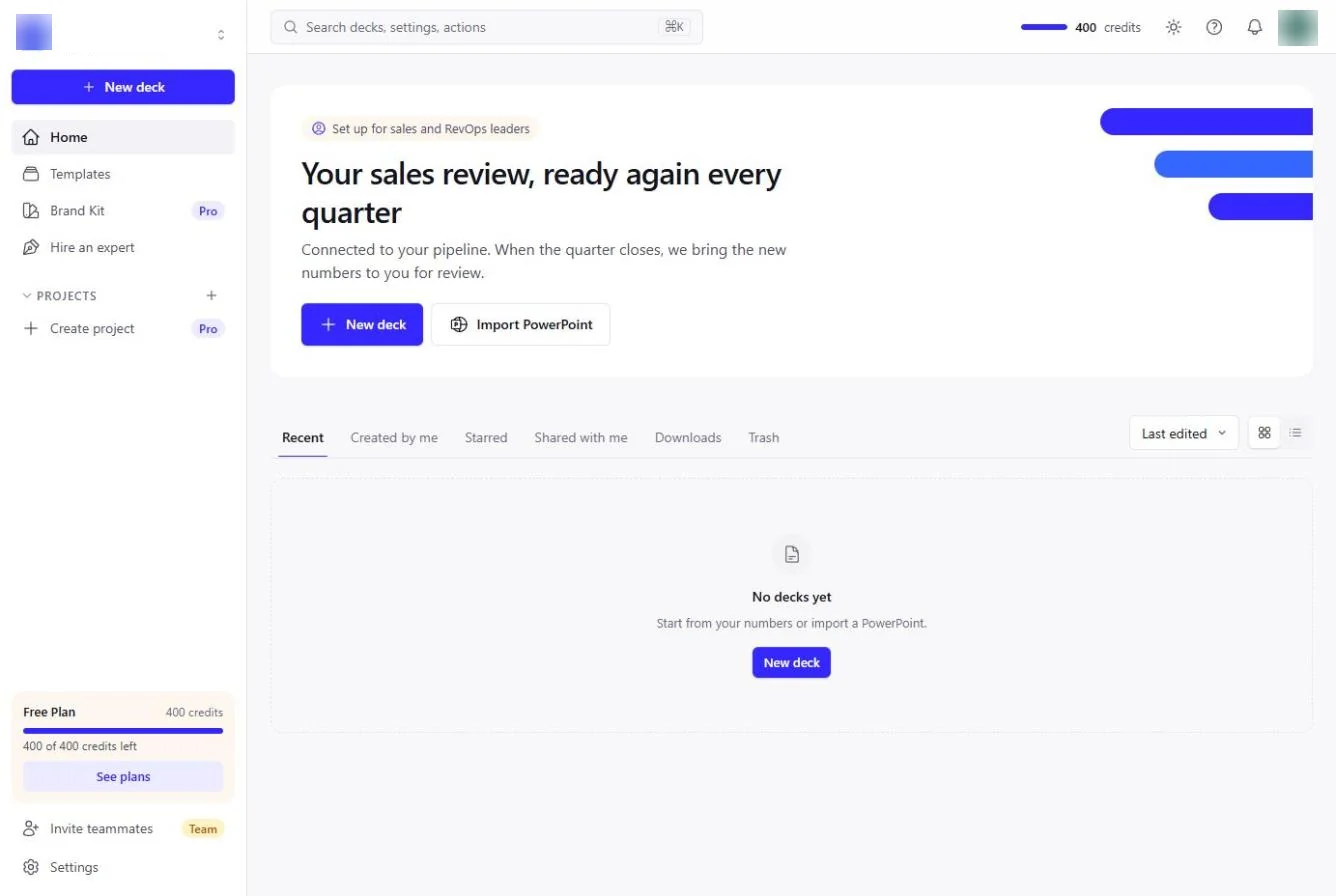
The business case: the deck you rebuild every quarter
Picture Dana Whitfield, the sales manager at Brightwell Office Supply, a made-up company. Every quarter she rebuilds the same sales review deck for leadership: revenue against target, the top accounts, the deals lost, and the plan for next quarter. The layout barely changes. The numbers do, and copying them in by hand takes most of an afternoon.
Here is the arithmetic, using example numbers you should replace with your own. By hand the deck takes about 4 hours. With an AI first draft it takes about 1 hour, and about 45 minutes of that is checking every number. At $60 an hour that saves about 3 hours a quarter, or about 12 hours and $720 a year.
Who this is for, and what you need
Sales managers, RevOps people and team leads who present the same review every quarter. To follow along you need nothing: the lesson is a practice copy. To do it for real you need a Presentations.AI account and your quarter's numbers.
A note on screens: these were captured in October 2026, and the AI writes a fresh deck each time, so yours will look and read differently from ours.
Step 1: describe the deck
On the home page, click New deck. Our free account showed Free Plan, 400 of 400 credits left. Under Describe your deck, or upload a file, type a short brief with the real facts. Ours was: "Q3 2026 sales review for Brightwell Office Supply (made-up company). Revenue $412K, up 8% vs Q2. Top 3 accounts: Harbor Dental, Lakeview Law, Pine Ridge Realty. Lost 2 deals on price. Q4 plan: win back lost deals, upsell top accounts, launch a delivery subscription. 7 slides." Then click Create Presentation.
Step 2: answer its questions
Before it writes, it asks: What company is this presentation for? Then: Who is this sales review presentation for? (Sales leadership, Executive team / Board or Sales team). Then it asks for any additional metrics in a Paste your content, notes, or data box.
Give it everything you have. Our notes were: "Q3 target was $400K, we hit $412K (103%). Harbor Dental $64K. Lakeview Law $51K. Pine Ridge Realty $38K. Lost deals: Summit Clinic and Oak Street Accounting, both went with a cheaper online supplier." Notice we gave no Q1 or Q2 revenue.
Step 3: read the draft
After a minute or two of Researching and writing the deck, ours had 7 slides: a title slide (Q3 2026 Sales Performance Review), Q3 revenue, the top three accounts, lost deals, the Q4 strategy and the plan. The credits went from 400 to 350, so this deck used 50 credits.
A Found a few improvements panel offered Attach docs for context, Sharpen the outcome and Address the counter. Attaching your real report is the best way to cut the guessing.
Step 4: check every number
Slide 2 was titled Q3 Revenue Reached $412K, Beating Target by 3%, which matches our notes. But its bar chart showed Q1 at 360 and Q2 at 381. We never gave it Q1 or Q2 revenue: Q1 was made up, and Q2 looks worked backward from "up 8%". The chart looked finished and would have gone straight to leadership. It also gave a reason for the growth that was not in our notes, and left faint Write a concise heading boxes unfilled.
Slide 3 checked out: Harbor Dental $64K, Lakeview Law $51K and Pine Ridge Realty $38K add up to the $153K in its headline, and the revenue shares are each account divided by $412K. Its Order Focus column was the AI's guess. Read every slide this way: every number back to your source, every claim you cannot back up cut.
Step 5: getting the file out, and what it costs
On our free account, clicking Download opened a Choose the plan that fits your work window, which says every paid plan includes editable PowerPoint and PDF export with no watermark. So plan on a paid plan to get the file out. (The pricing page's comparison table also ticks PowerPoint / PDF Export for Starter, so check what you see in your own account.)
The pricing page lists Starter at $0 with 100 credits and up to 20 slides, Pro at $20 a month billed annually with 5,000 credits, and Gold at $100 a month billed annually with 50,000 credits. It says prices are for the US and may vary by country.
Mistakes to avoid
- Trusting a chart because it looks finished. Trace every number back to your report.
- Leaving out numbers you have. The less you give it, the more it fills in.
- Keeping reasons and details it guessed, such as why revenue grew or what an account buys.
- Presenting with empty placeholder boxes still on a slide.
- Promising leadership a PowerPoint file before checking your plan can export one.
Links
- Presentations.AI: the AI deck builder this lesson teaches.
- Presentations.AI pricing: current plans. Starter is $0 with 100 credits and up to 20 slides, Pro is $20 a month billed annually ($240 a year) with 5,000 credits, and Gold is $100 a month billed annually ($1,200 a year) with 50,000 credits (read 17 October 2026).
Try it yourself, free
Reading the steps is a start. Doing them is how it sticks. The interactive module walks you through every click in a practice copy of Presentations.AI, checks each step, and never touches your real accounts.
Start “Presentations.AI: Build a Quarterly Sales Review Deck from Your Notes”Screenshots

Frequently asked questions
- Is this an official Presentations.AI course?
- No. This is my own lesson. Presentations.AI is a separate, third-party product, and the screens are real screenshots from a free account captured October 2026.
- What does Presentations.AI cost?
- Its pricing page lists Starter at $0 with 100 credits, Pro at $20 a month billed annually ($240 a year) and Gold at $100 a month billed annually ($1,200 a year), as of 17 October 2026. Our free account showed 400 credits, and our 7-slide deck used 50.
- Can I download the deck as PowerPoint on the free plan?
- On our free account, Download opened the plan window, which says every paid plan includes editable PowerPoint and PDF export with no watermark. The pricing page's table also ticks export for Starter, so check what your own account offers before you promise anyone a file.
- Will the AI make up numbers?
- It can. Our deck's revenue chart showed Q1 and Q2 figures we never gave it. Give it all the real numbers you have, attach your report if you can, and check every number on every slide.
- Will my deck look like this one?
- No. The AI writes a fresh deck each time, so your slides, wording and layout will differ from ours.
Terms in this lesson
Plain-English definitions, each with an example from a free lesson.
Related prompts
- Quarterly report summary prompt: A quarterly report summary template as a ChatGPT prompt: results against target and last quarter, top accounts, losses and why…