Updated . Built against the tool’s current screens and checked step by step. How we check this lesson
A small business records a 5-minute webinar or tips video, then needs short clips for TikTok, Reels, Shorts and LinkedIn. Cutting them by hand takes hours. Opus Clip (opus.pro) finds the best moments, adds captions, makes the clips vertical and ranks them with a virality score. In this free business-case lesson you use a practice copy built from real Opus Clip screenshots, captured October 2026 in my free account with my own AI tips video: upload the video, tell Opus Clip which moments to look for, pick a caption style and 9:16, then read the 12 ranked clips and check the top one before you post. Clips and scores differ per video. This is my own lesson, not an official Opus Clip course.
At a glance
| Question | Answer |
|---|---|
| What you build | A business case for any small team that records webinars or tips videos: upload one video, tell Opus Clip what to look for, pick captions and 9:16, and get ranked, captioned vertical clips in minutes, then check each one before you post. |
| Tools | Opus Clip |
| Time | About 10 minutes, 24 steps in 7 parts |
| Level | Beginner, no coding needed |
| Cost | Free |
| Ways to learn it | Practice it step by step, read the guide with screenshots |
The 7 parts, in short
- One video, a week of shorts: Start with one video, Compare the time, Meet Opus Clip.
- Upload your video: Check your credits, Click Upload, Read the credit cost, Tell it what to look for.
- Pick captions and shape: Pick a caption style, Choose 9:16, Click Get clips in 1 click.
- Let it find the clips: Watch it process, See the credits used, Open the project.
- Read the ranked clips: See what it found, Read the Auto headline note, Read the virality score, Find the buttons, and 2 more steps.
- Check a clip before you post: Read the clip title, Read the scene analysis, Read the transcript.
- What it costs: What this gives you, Check the pricing.
Part of: AI for Marketing Teams (step 16 of 55)
Part of: AI Apps Worth Knowing (step 55 of 186)
Part of: AI Presentations and Visual Content (step 8 of 8)
Part of: AI Video & Audio for Marketing (step 3 of 10)
Opus Clip: Turn One Video into Ranked Social Clips: step-by-step guide with screenshots
About the screenshots. They come from Stepthrough’s simulated practice environment (a practice copy of Opus Clip), not the live tool, so no real account appears. The buttons and labels match the real screens the lesson was built against. Practice it yourself free at ynteractive.com.
- Tools: Opus Clip
- Time: about 10 minutes, 24 steps in 7 parts
- Level: beginner, no coding needed
Part 1: One video, a week of shorts
Step 1: Start with one video
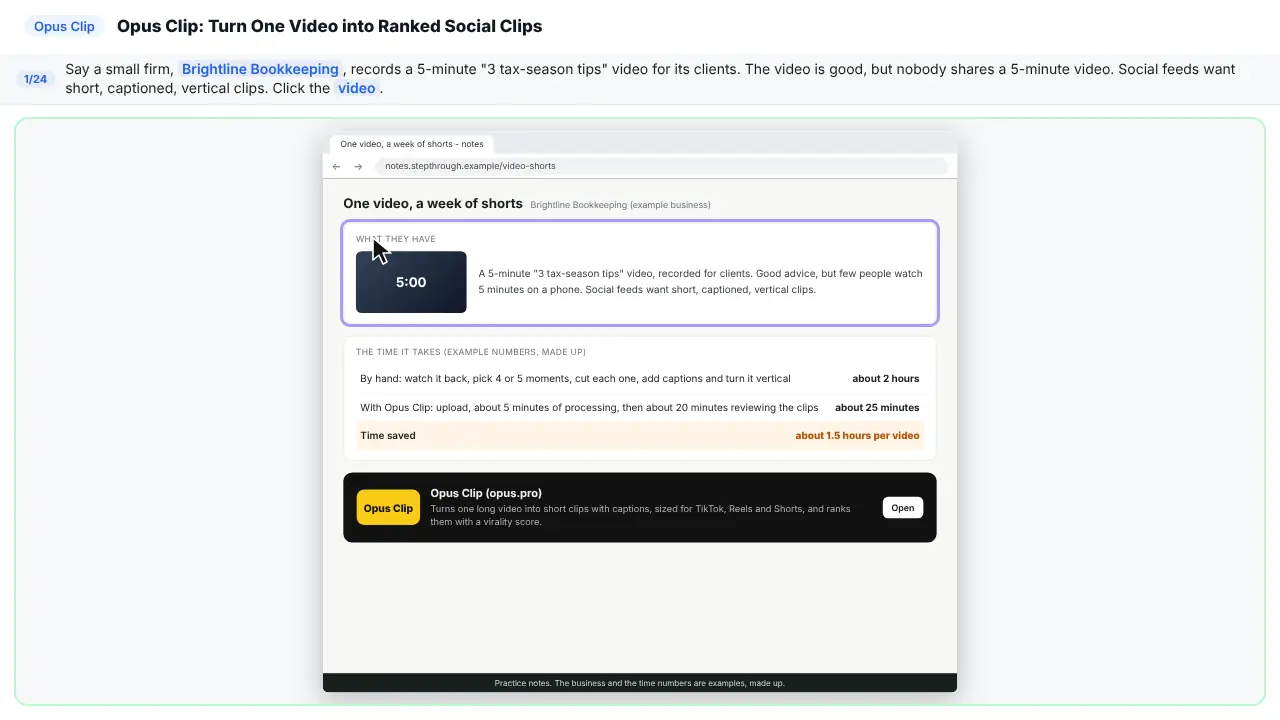
A small business records a five minute tips video. Social feeds want short, captioned, vertical clips.
Step 2: Compare the time
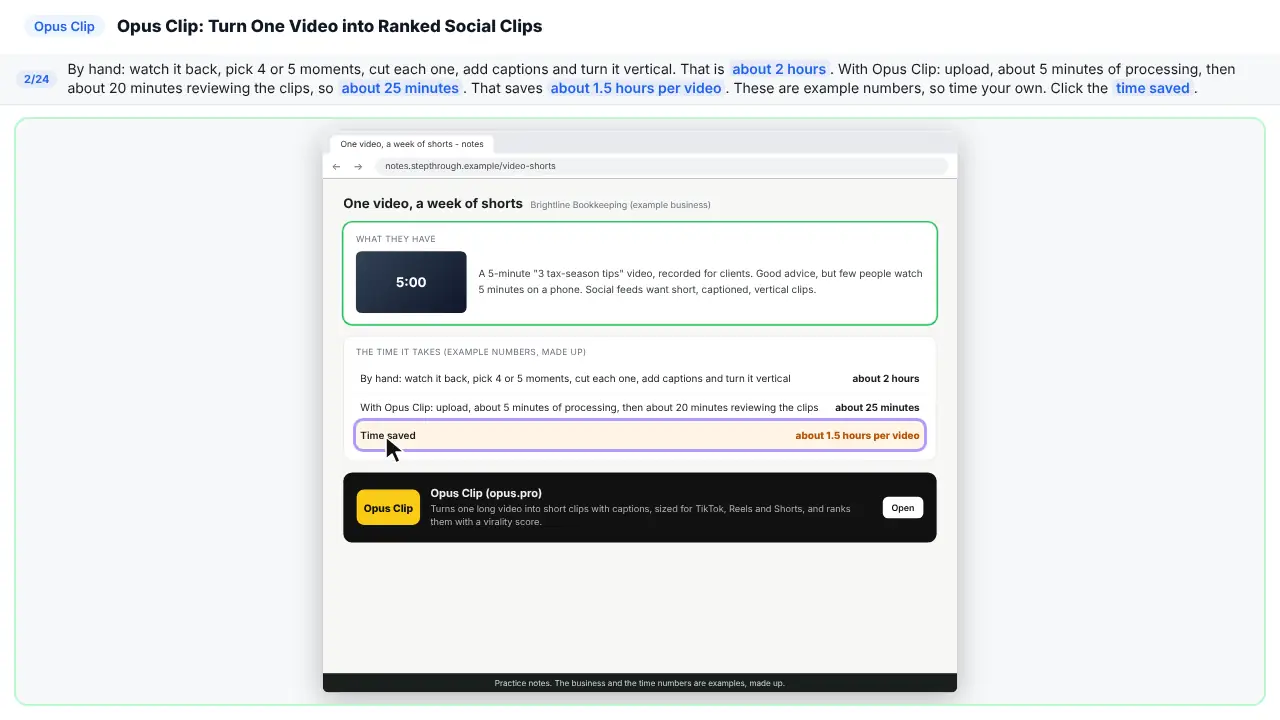
By hand, that is about two hours of cutting. With Opus Clip, about twenty five minutes. Those are example numbers.
Step 3: Meet Opus Clip
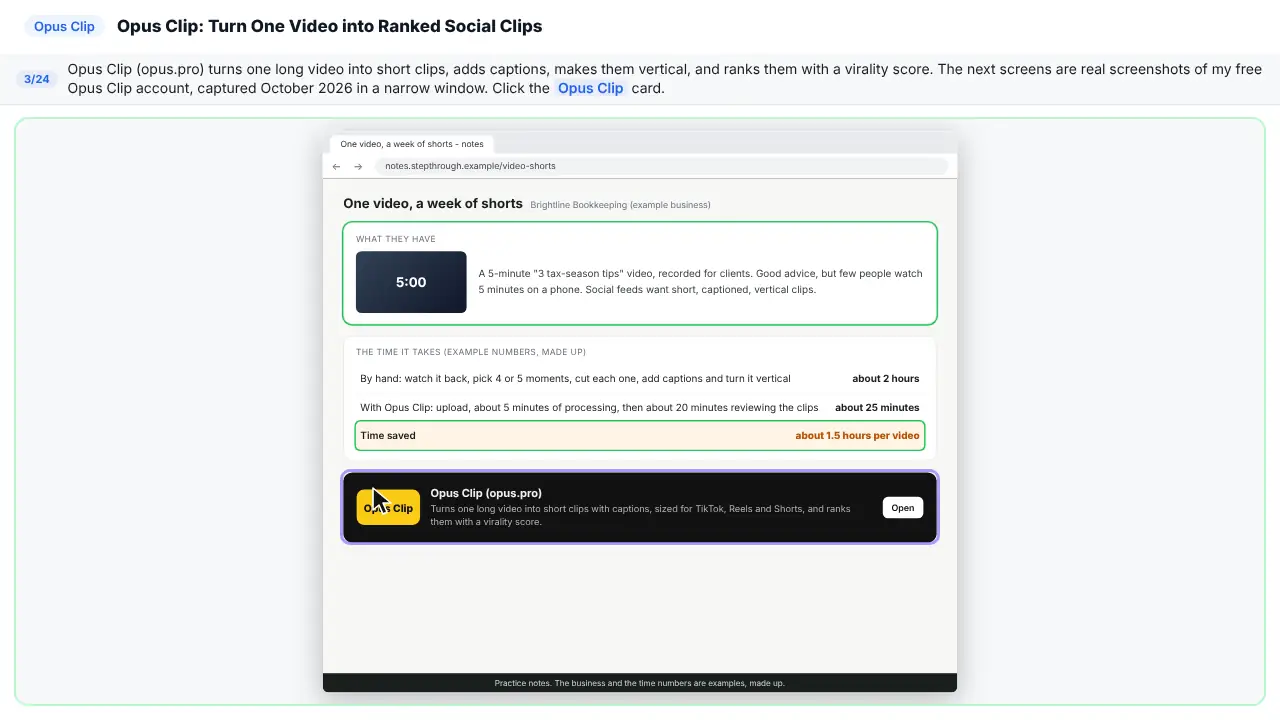
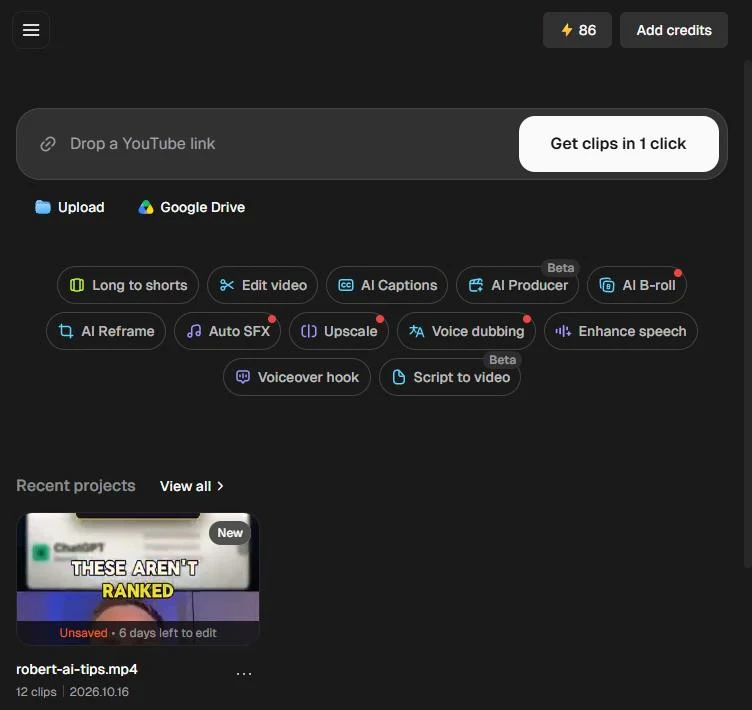
Opus Clip turns one video into ranked, captioned, vertical clips. Here are the real screens.
Part 2: Upload your video
Step 4: Check your credits
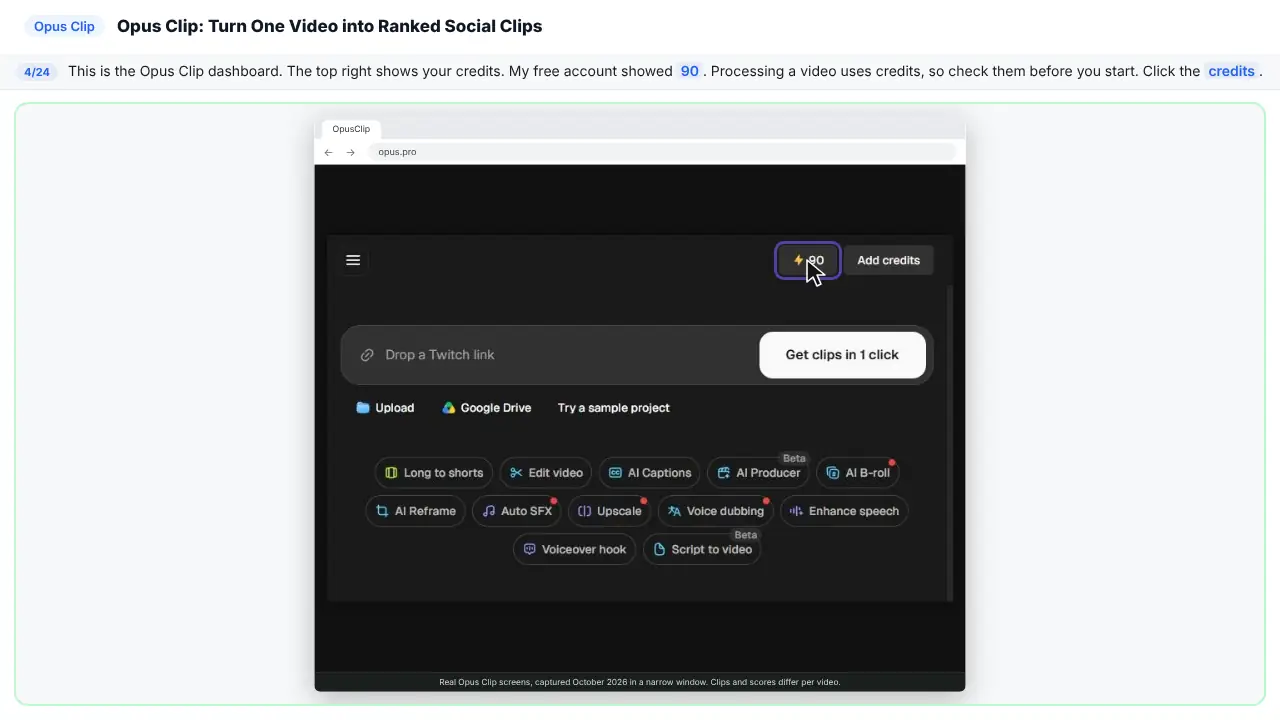
The top right shows your credits. My free account had ninety.
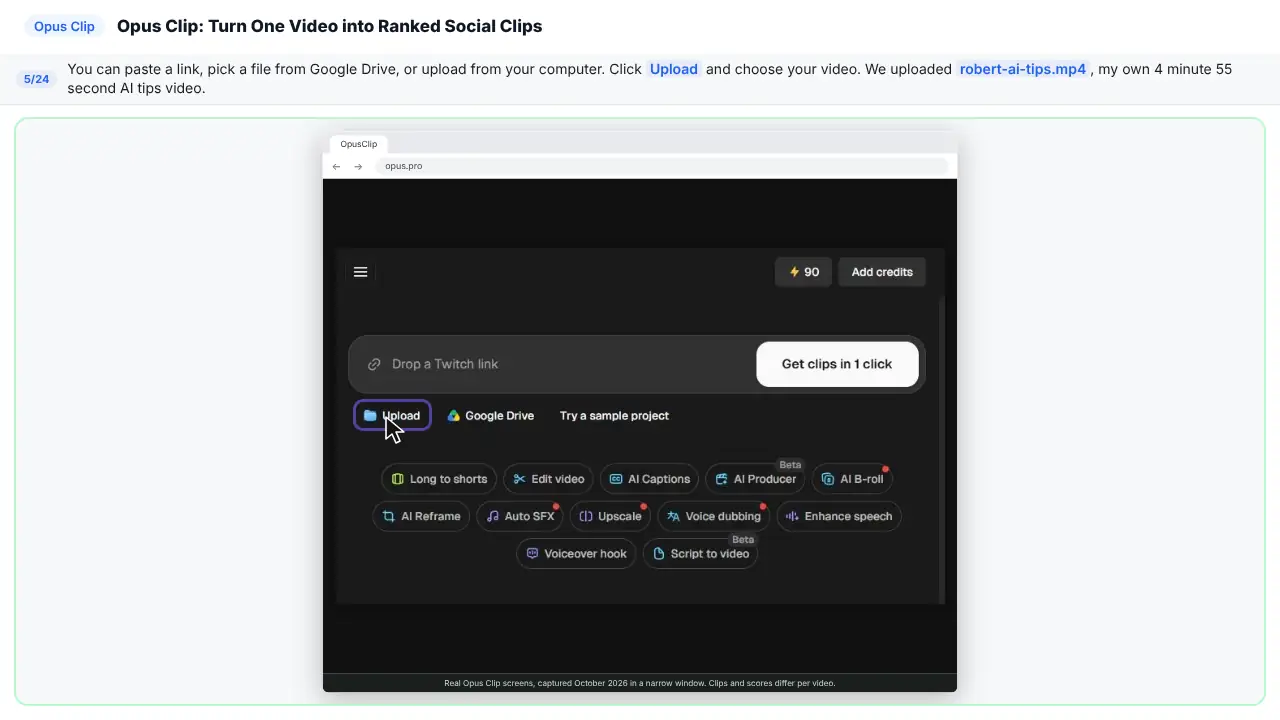
Step 5: Click Upload
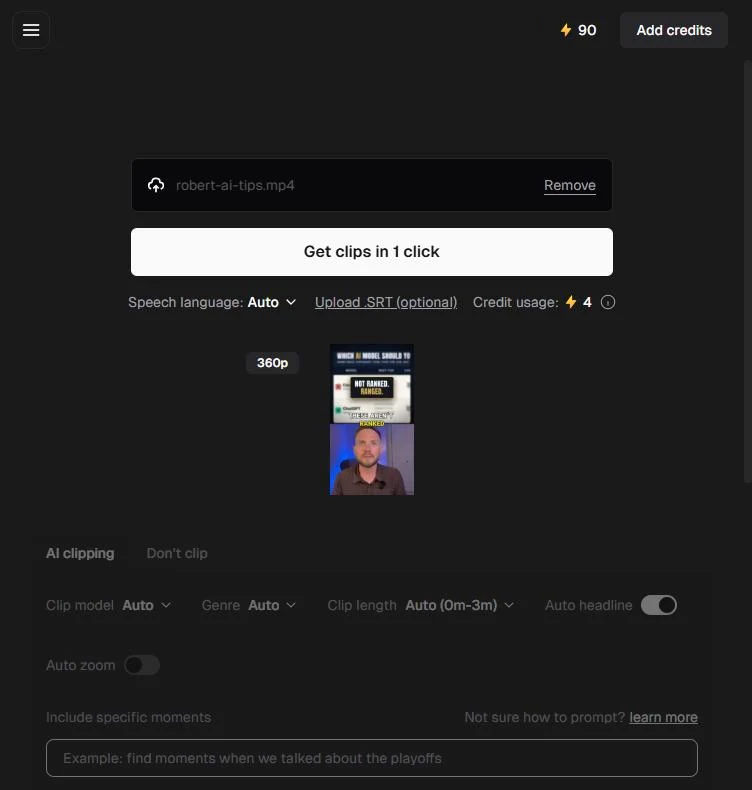
We used my own AI tips video.
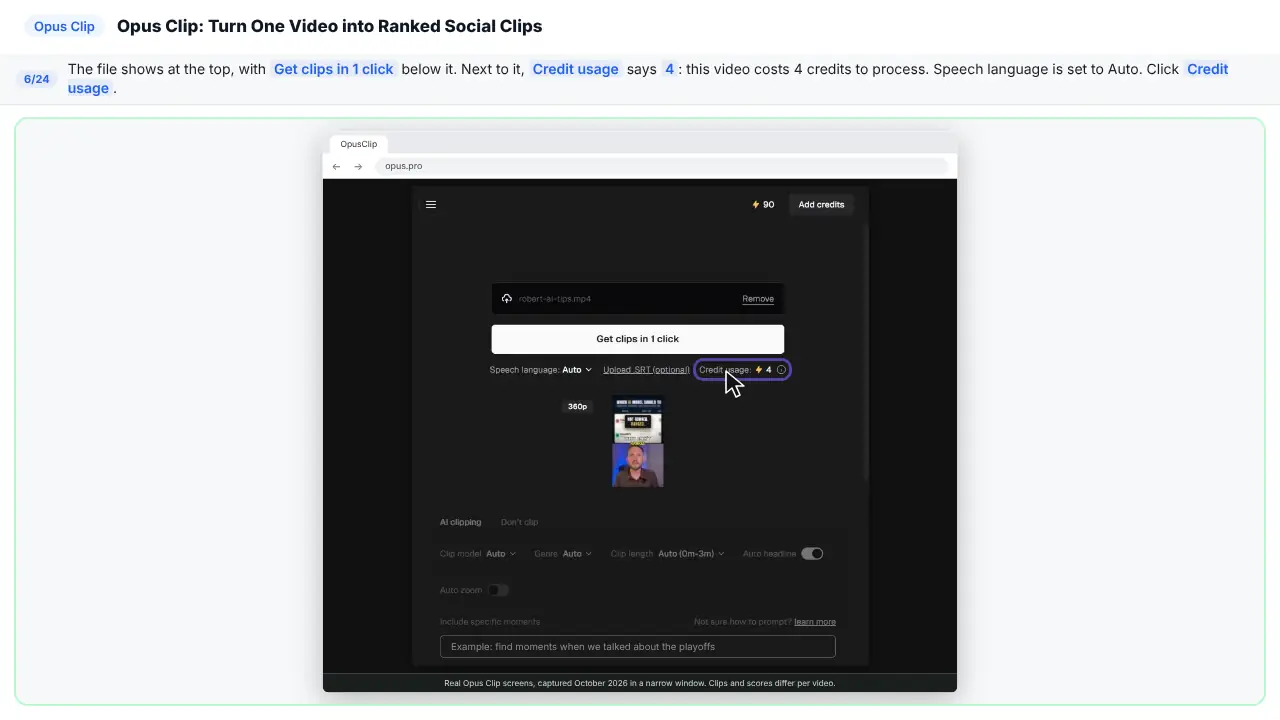
Step 6: Read the credit cost
Credit usage shows what this video will cost. Ours was four credits.
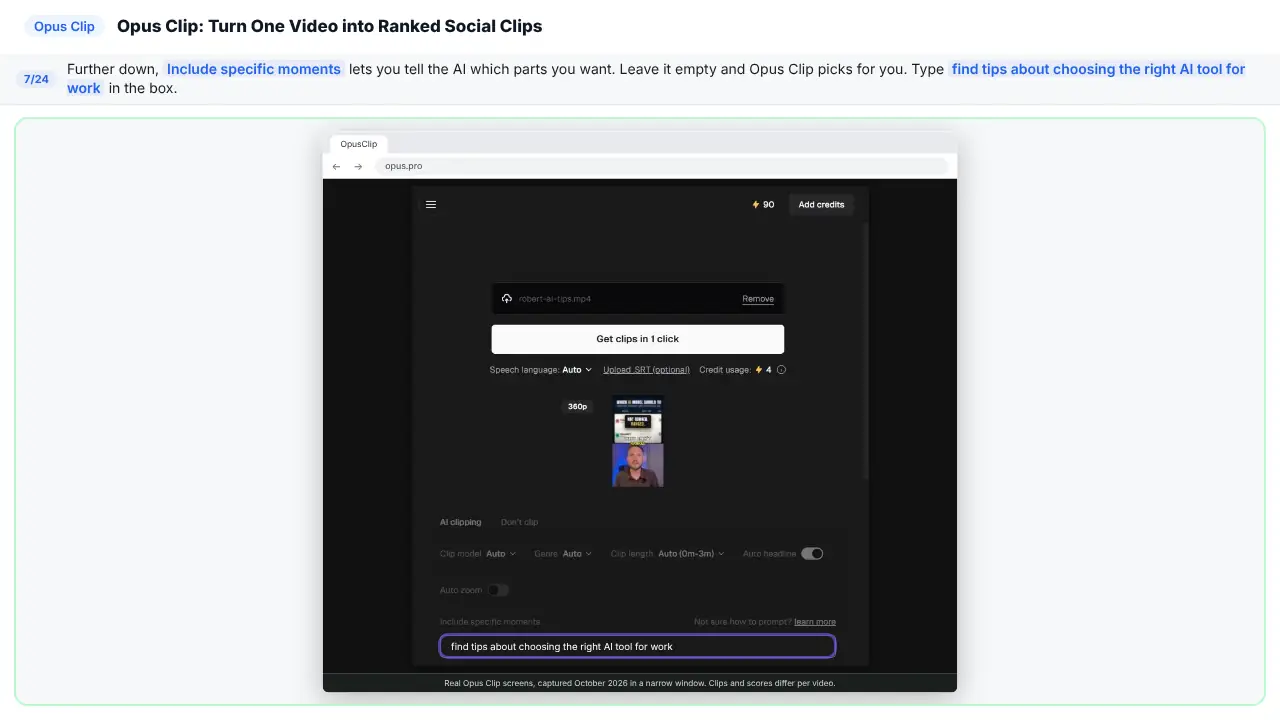
Step 7: Tell it what to look for
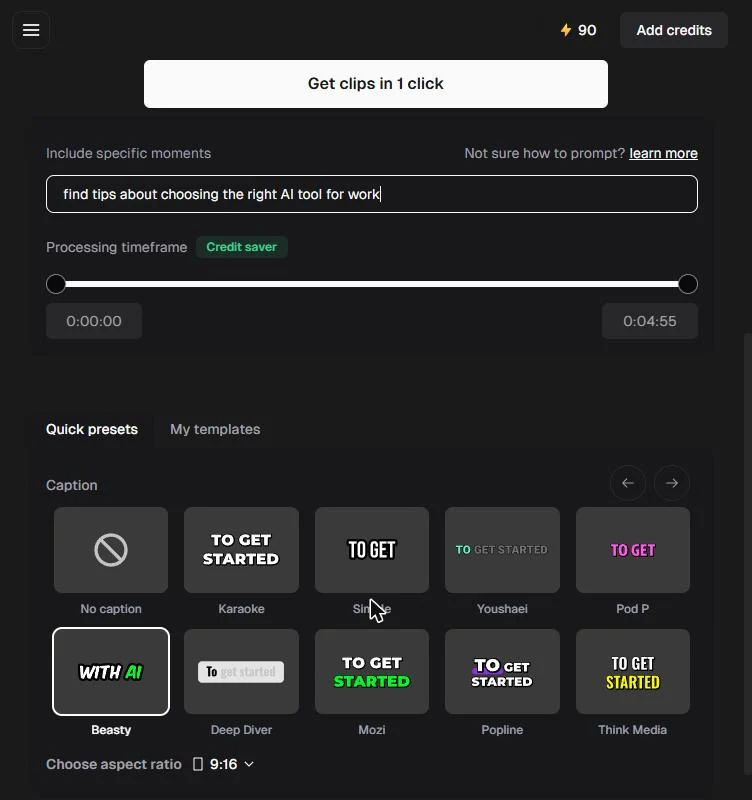
In Include specific moments, tell it what to look for. We typed: find tips about choosing the right AI tool for work.
Part 3: Pick captions and shape
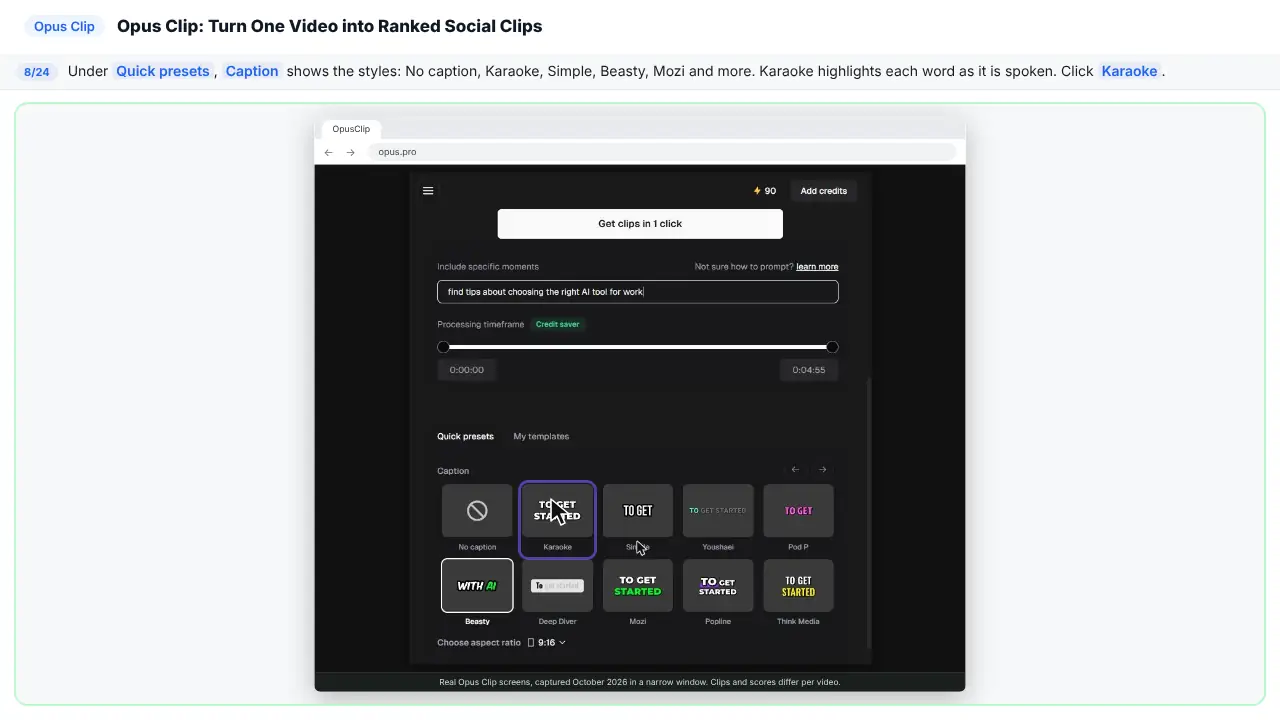
Step 8: Pick a caption style
Pick a caption style. We chose Karaoke, which highlights each word as it is spoken.
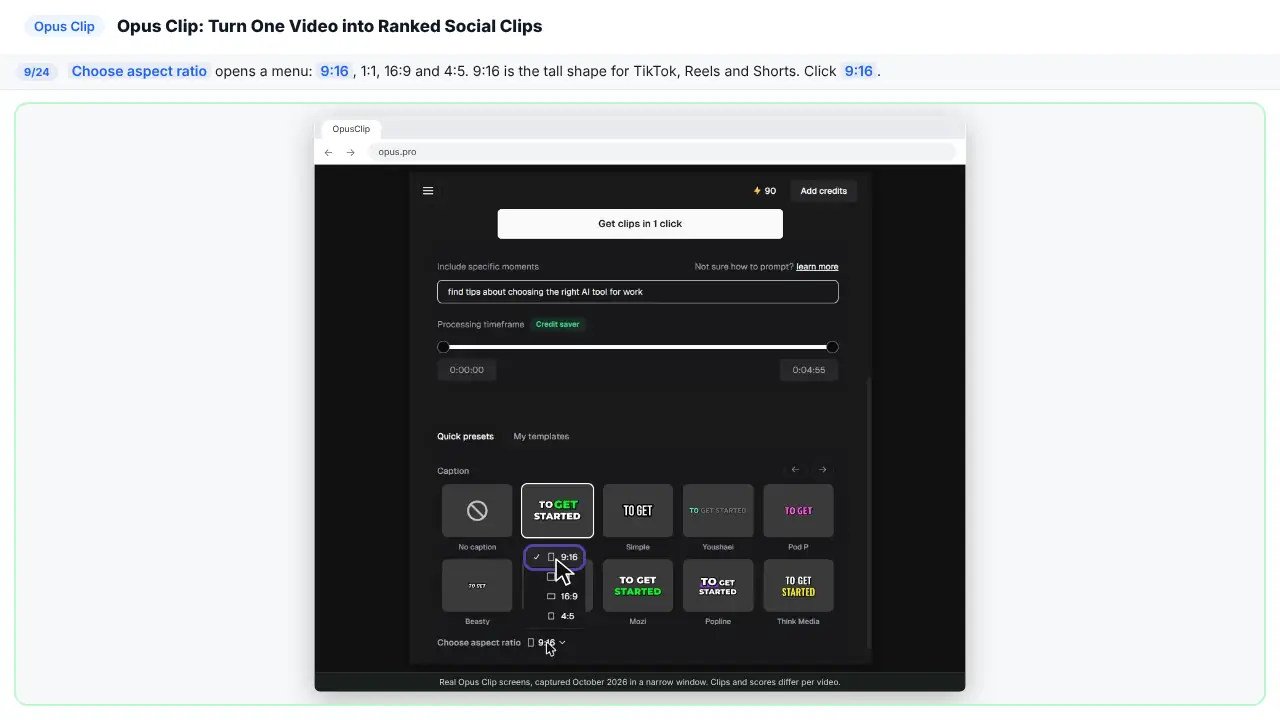
Step 9: Choose 9:16
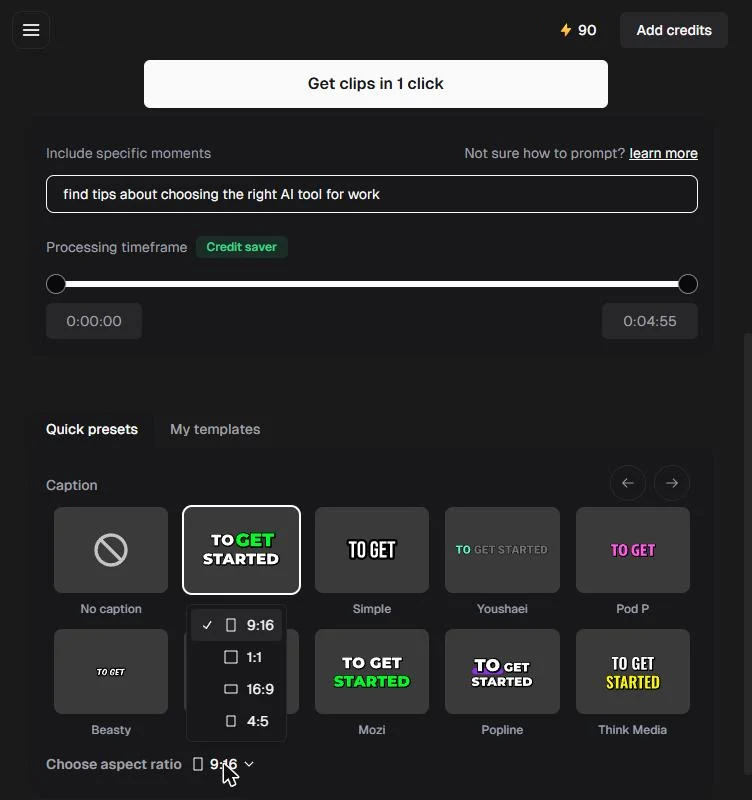
For TikTok, Reels and Shorts, choose nine by sixteen.
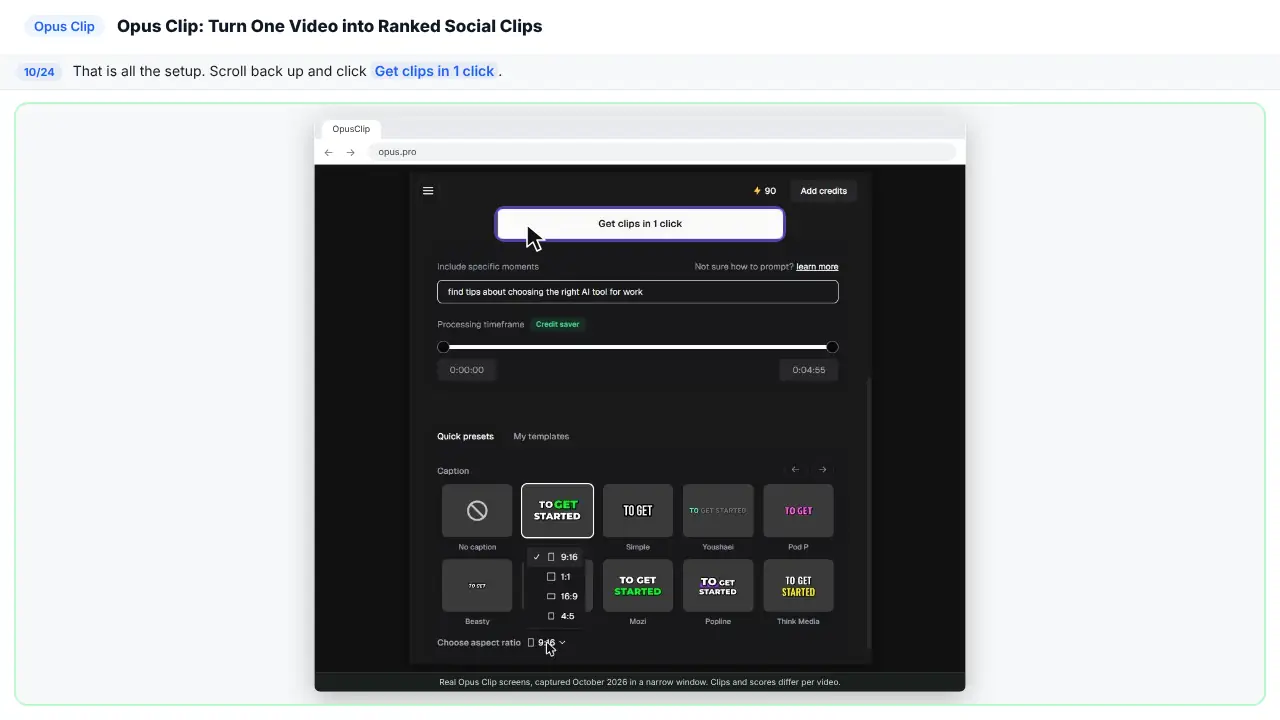
Step 10: Click Get clips in 1 click
Part 4: Let it find the clips
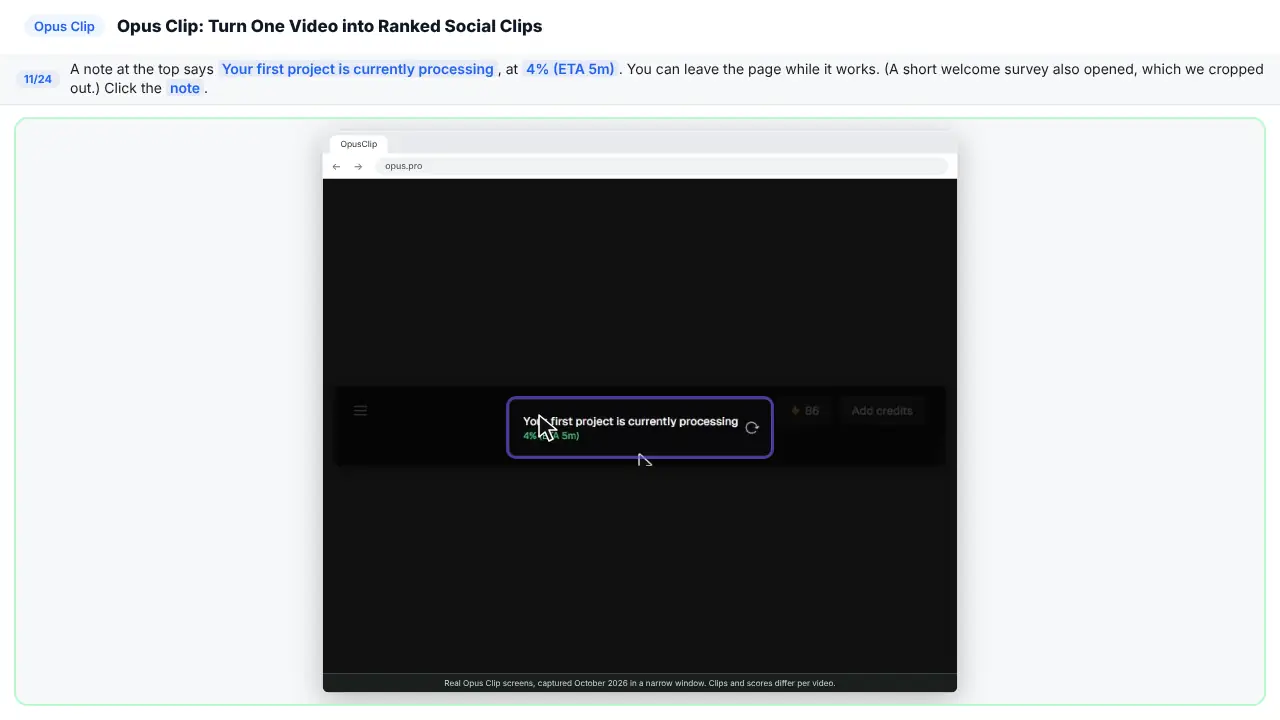
Step 11: Watch it process
It starts processing. Ours said about five minutes.
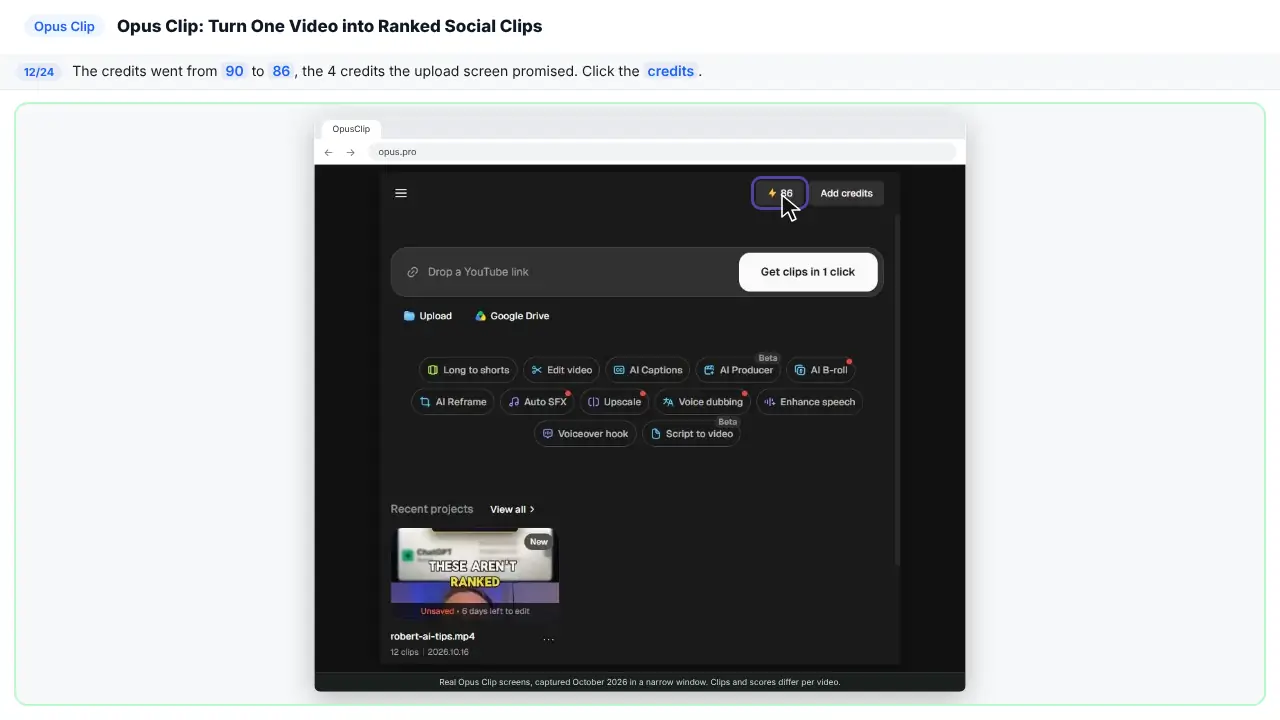
Step 12: See the credits used
The credits dropped from ninety to eighty six. That is the four credits it said.
Step 13: Open the project
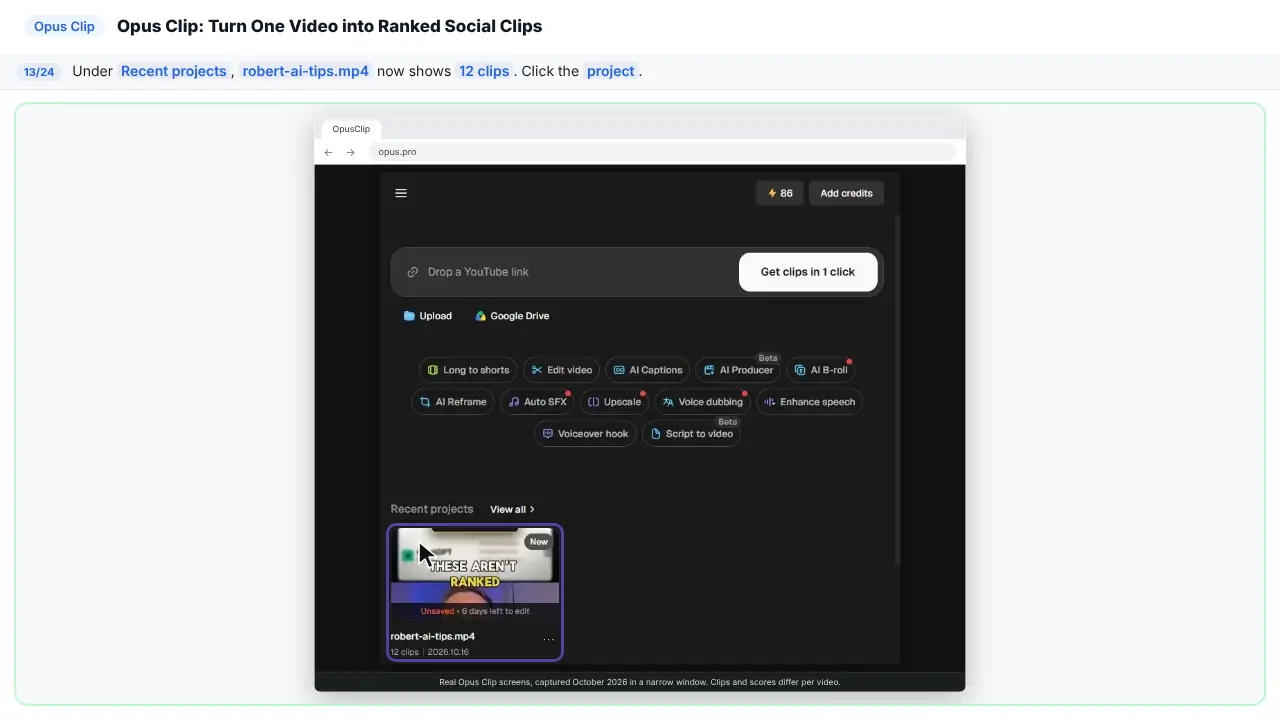
When it is done, the project shows twelve clips.
Part 5: Read the ranked clips
Step 14: See what it found
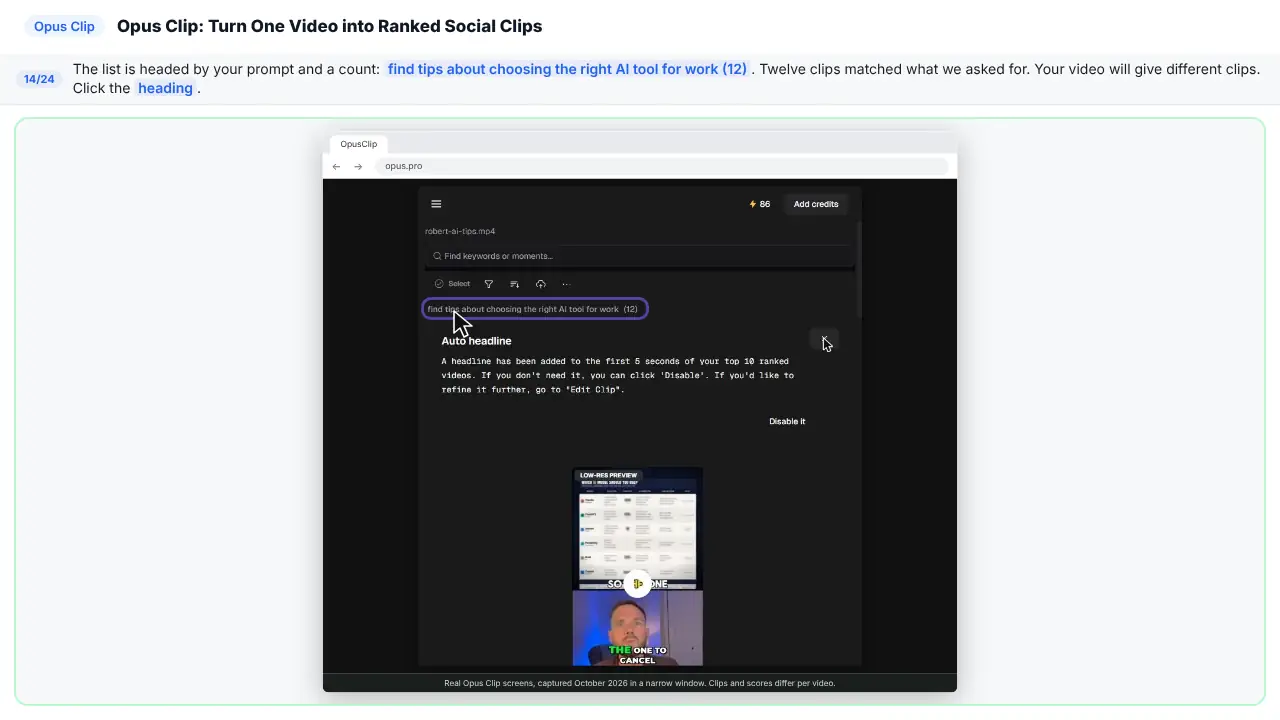
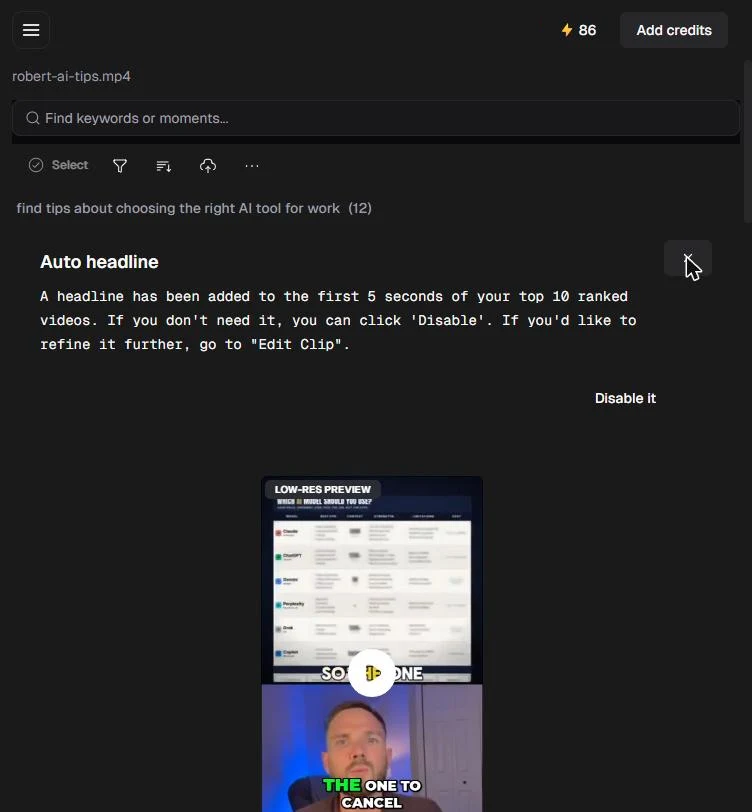
Twelve clips matched our prompt. Your video will give different clips.
Step 15: Read the Auto headline note
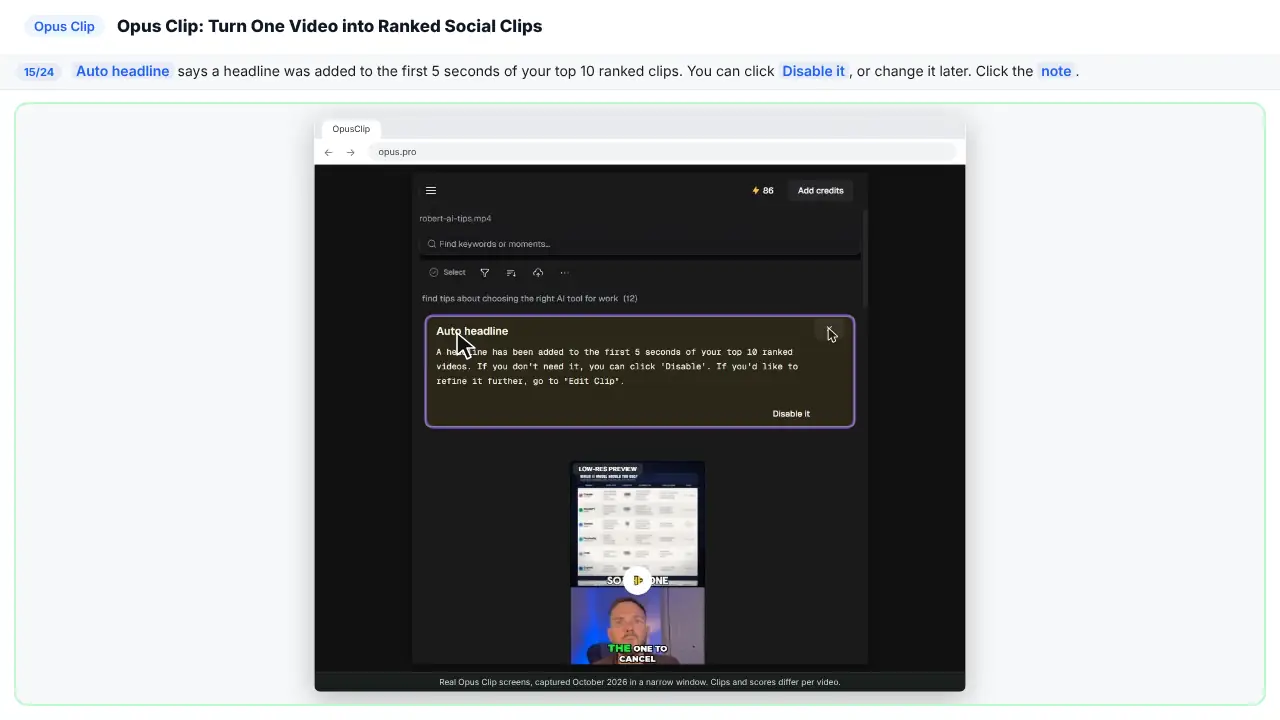
Opus Clip also added a headline to the start of the top ten clips. You can turn that off.
Step 16: Read the virality score
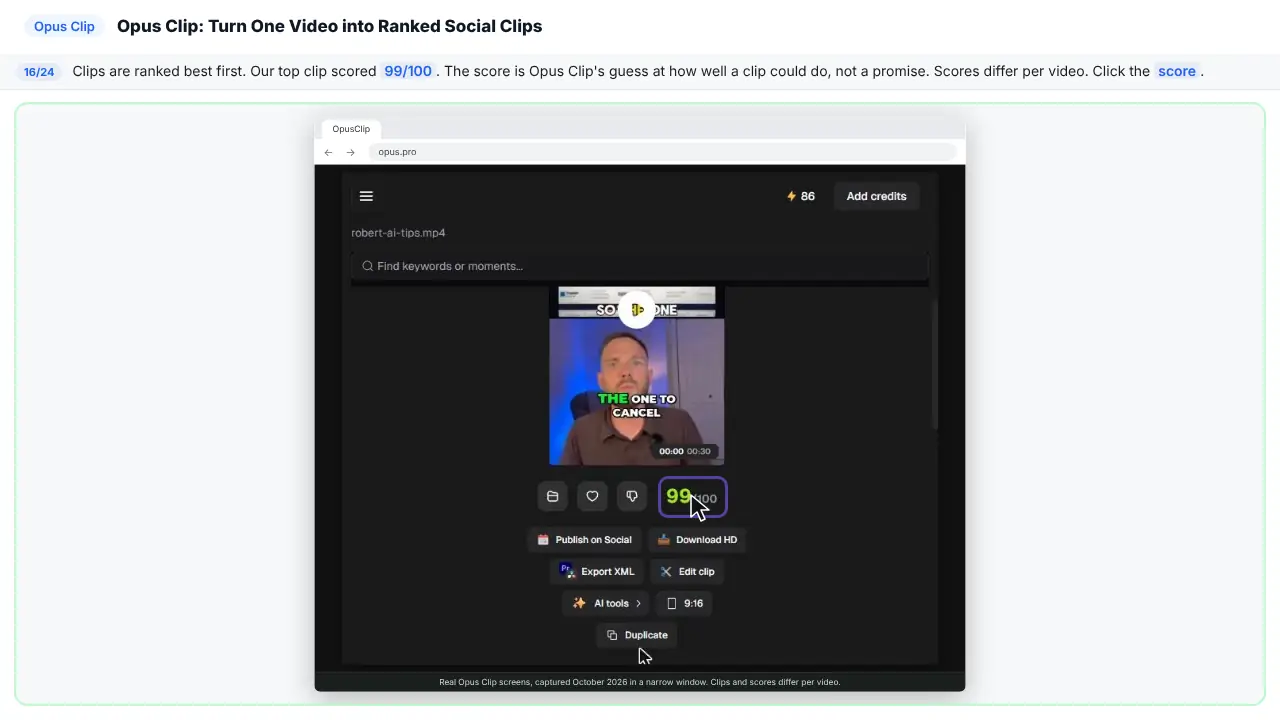
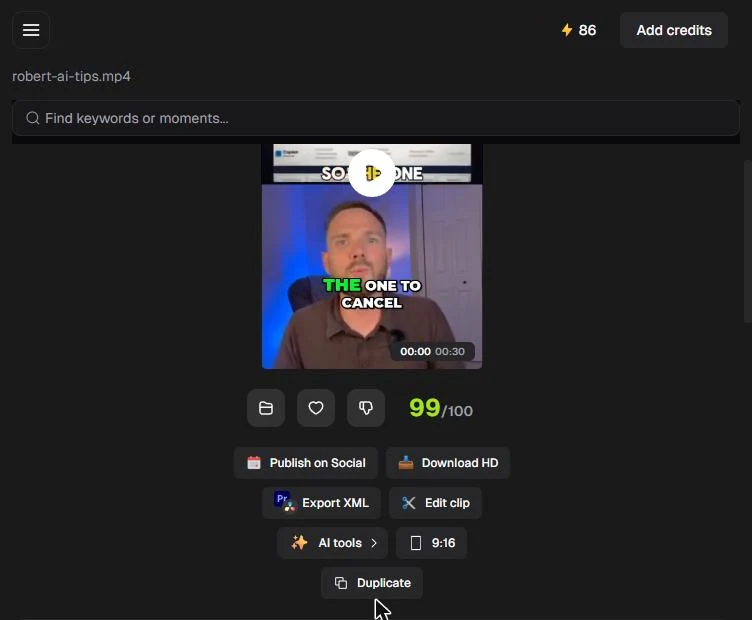
Our top clip scored ninety nine out of a hundred. It is a guess, not a promise.
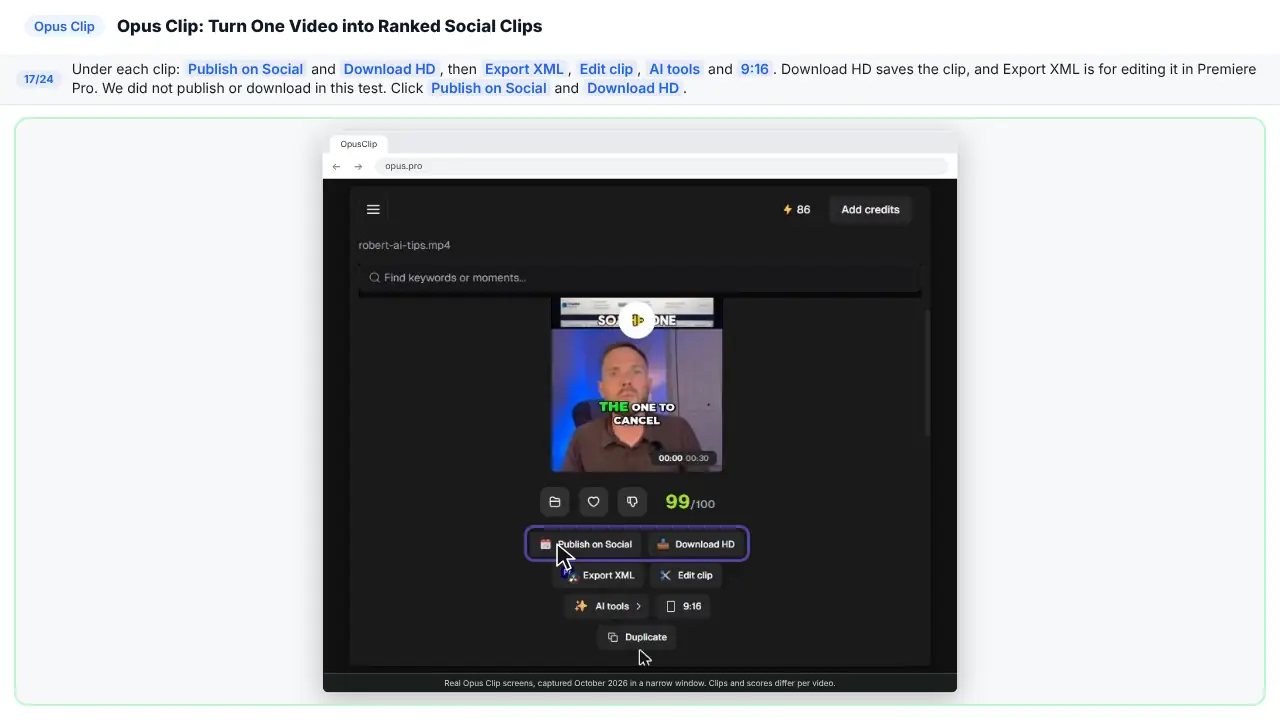
Step 17: Find the buttons
Under each clip you can publish, download, export or edit it.
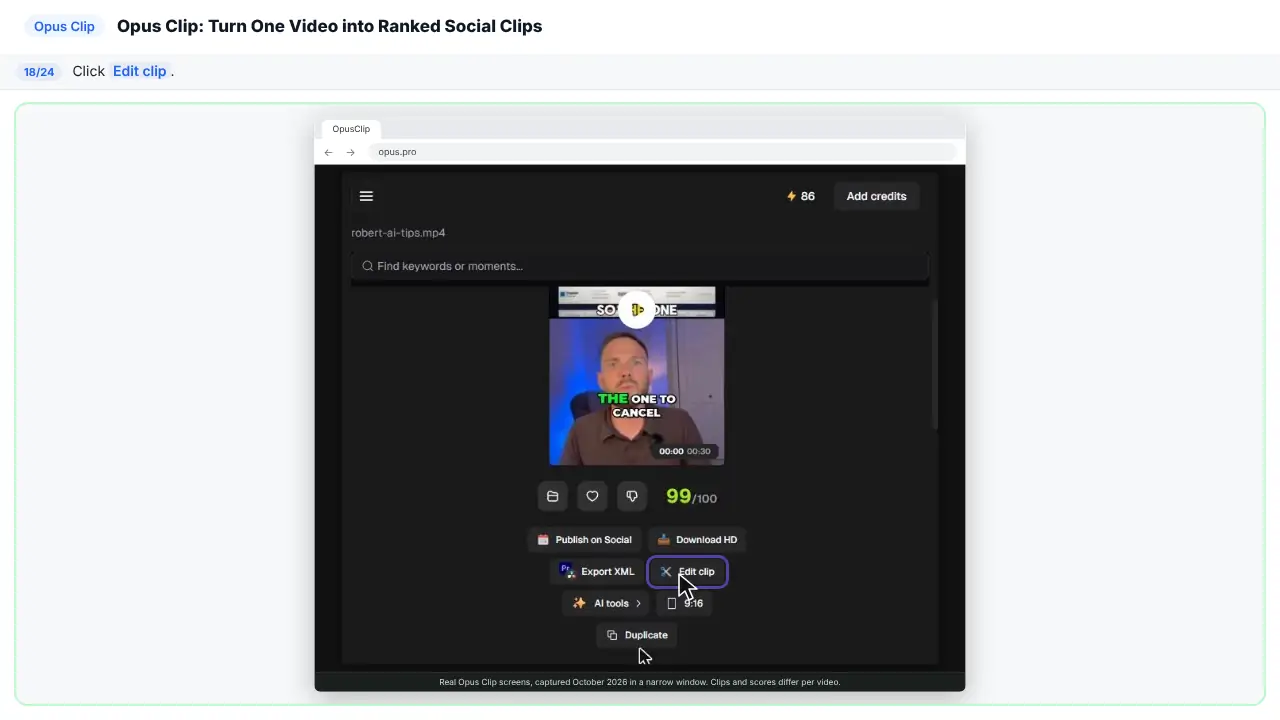
Step 18: Click Edit clip
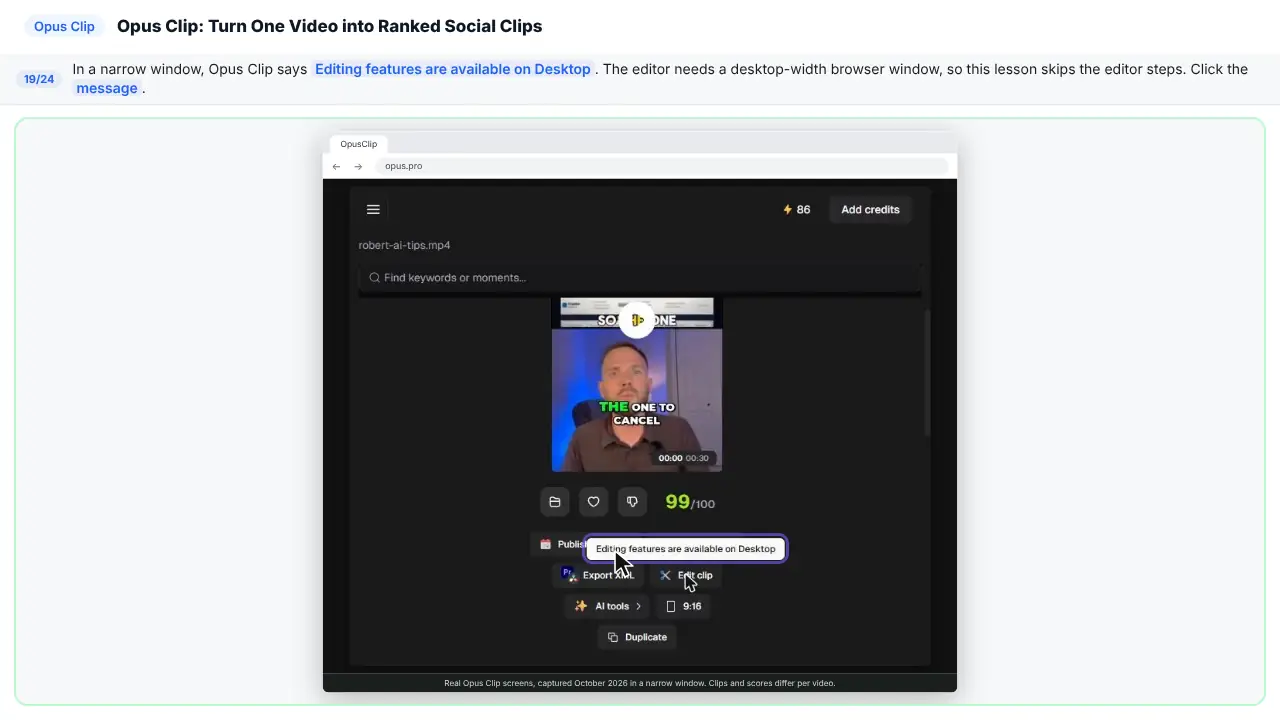
Step 19: Use a desktop-width window
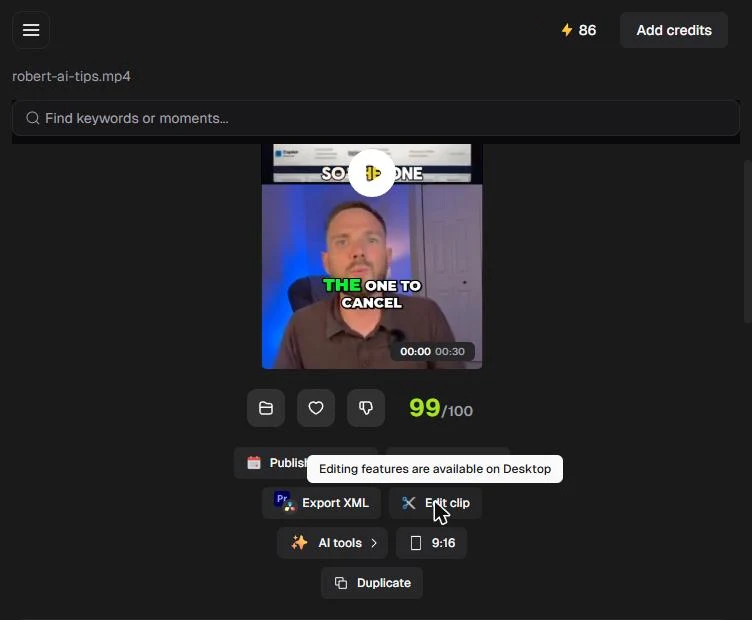
In a narrow window, the editor will not open. Use a full width desktop window to edit.
Part 6: Check a clip before you post
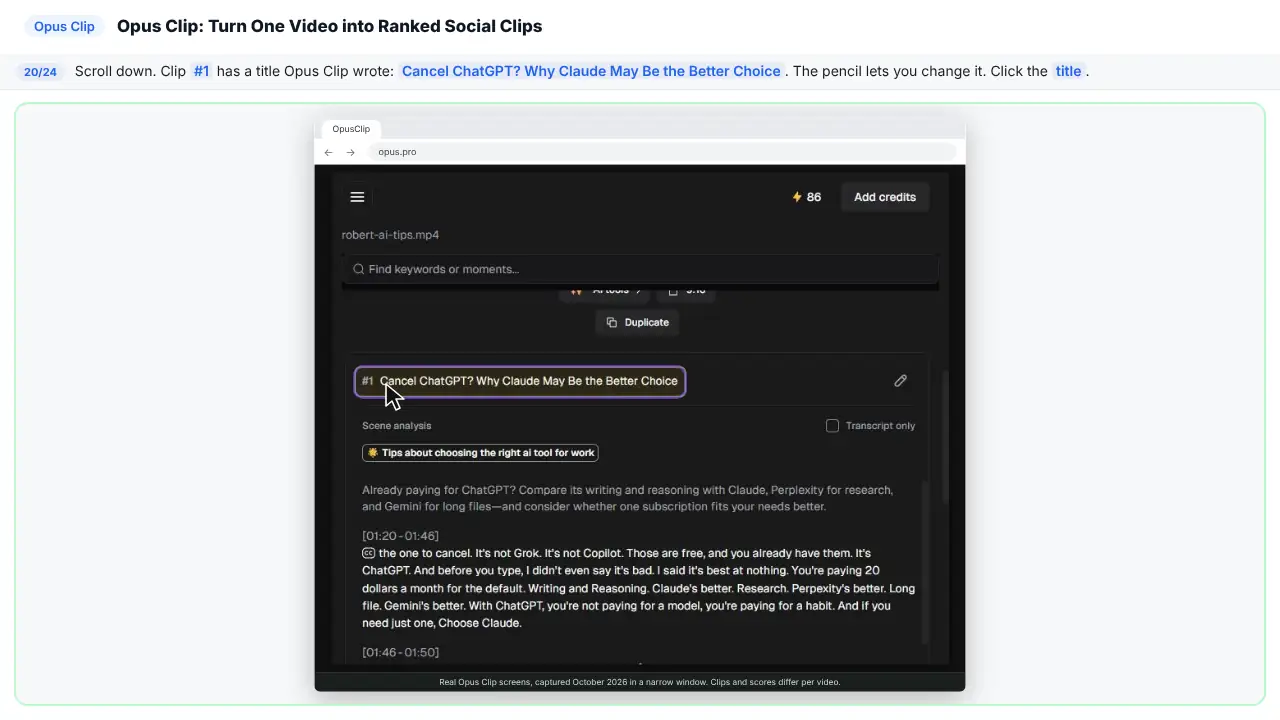
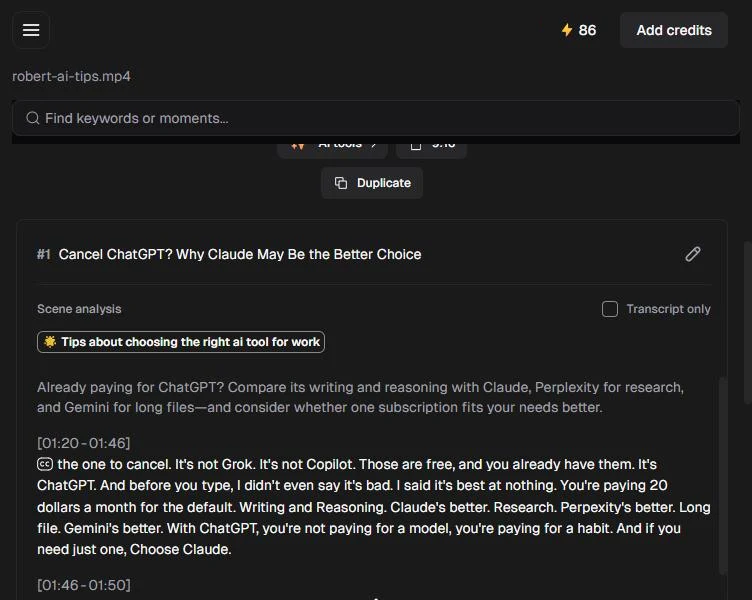
Step 20: Read the clip title
Each clip gets a title. You can edit it with the pencil.
Step 21: Read the scene analysis
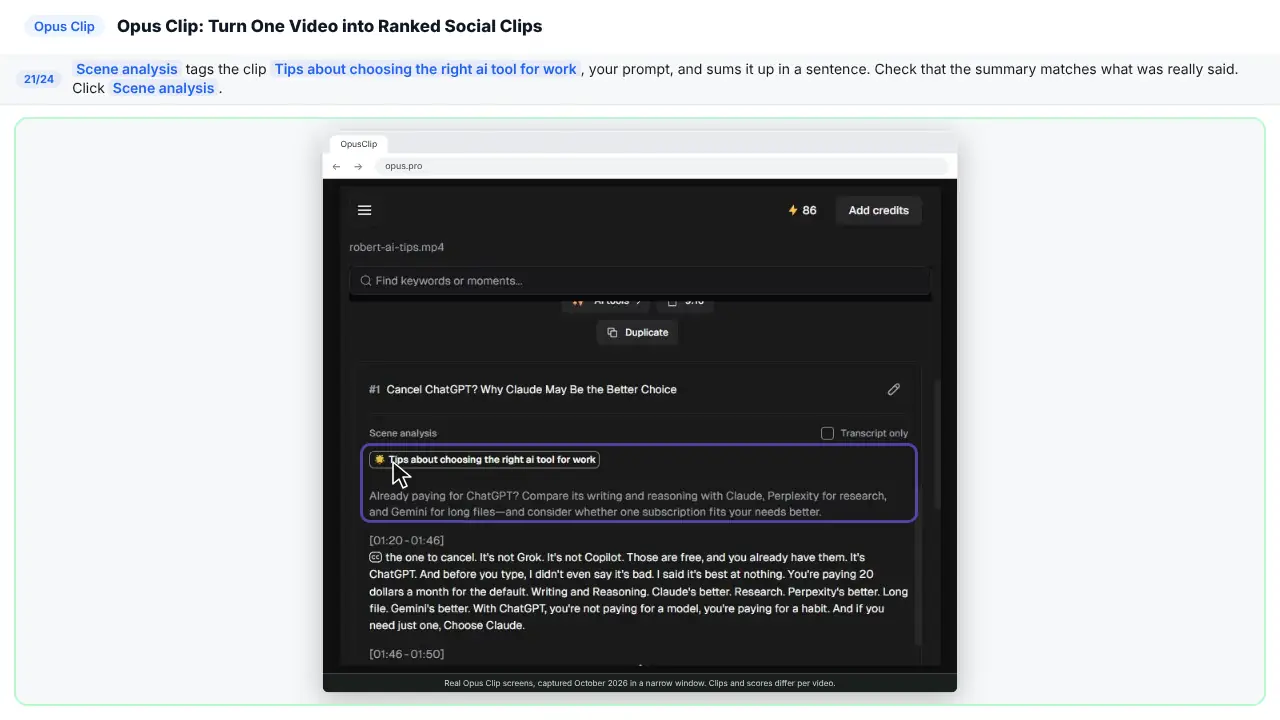
Scene analysis shows why it picked the clip, tied back to your prompt.
Step 22: Read the transcript
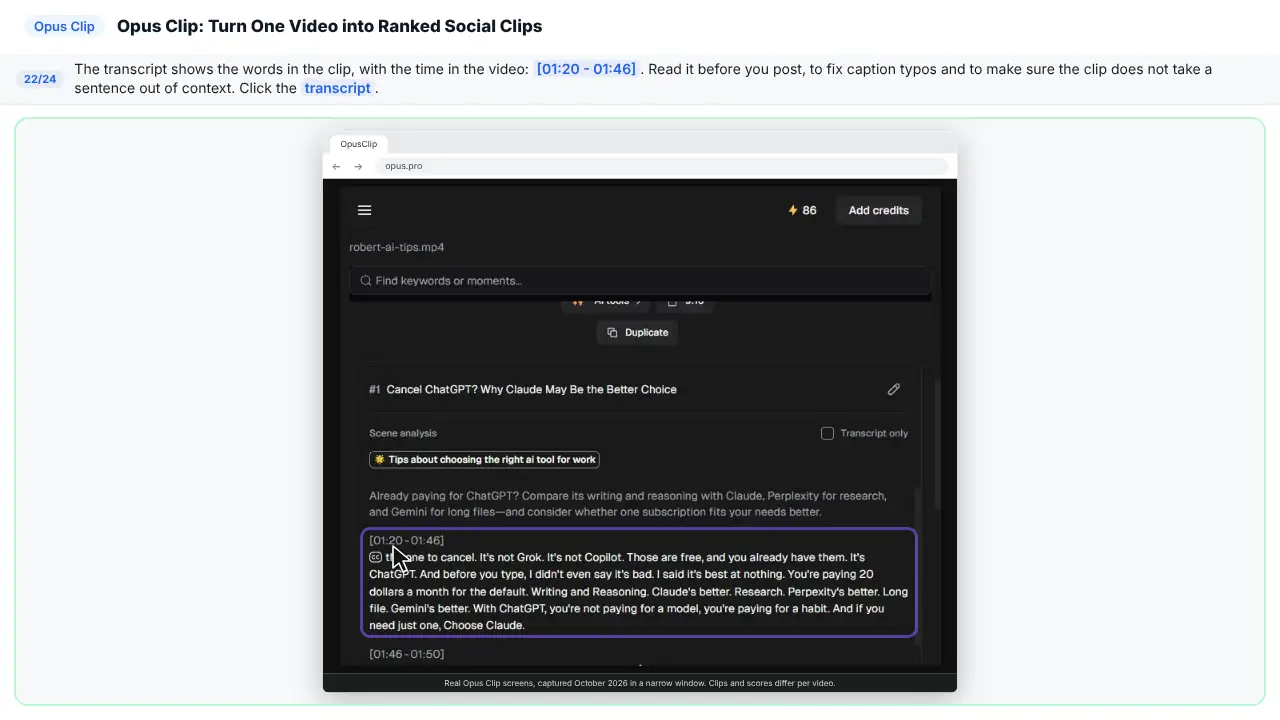
Read the transcript before you post. Fix typos and make sure nothing is out of context.
Part 7: What it costs
Step 23: What this gives you
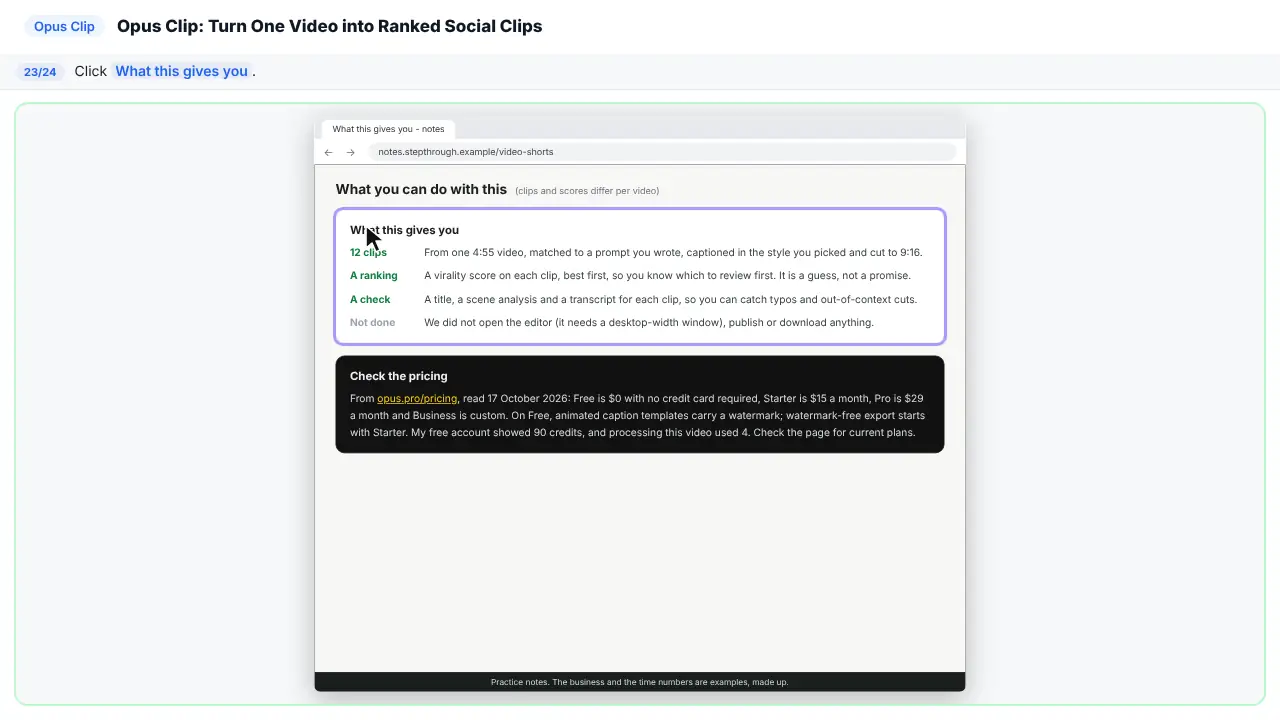
Here is what you get, and what we did not test.
Step 24: Check the pricing
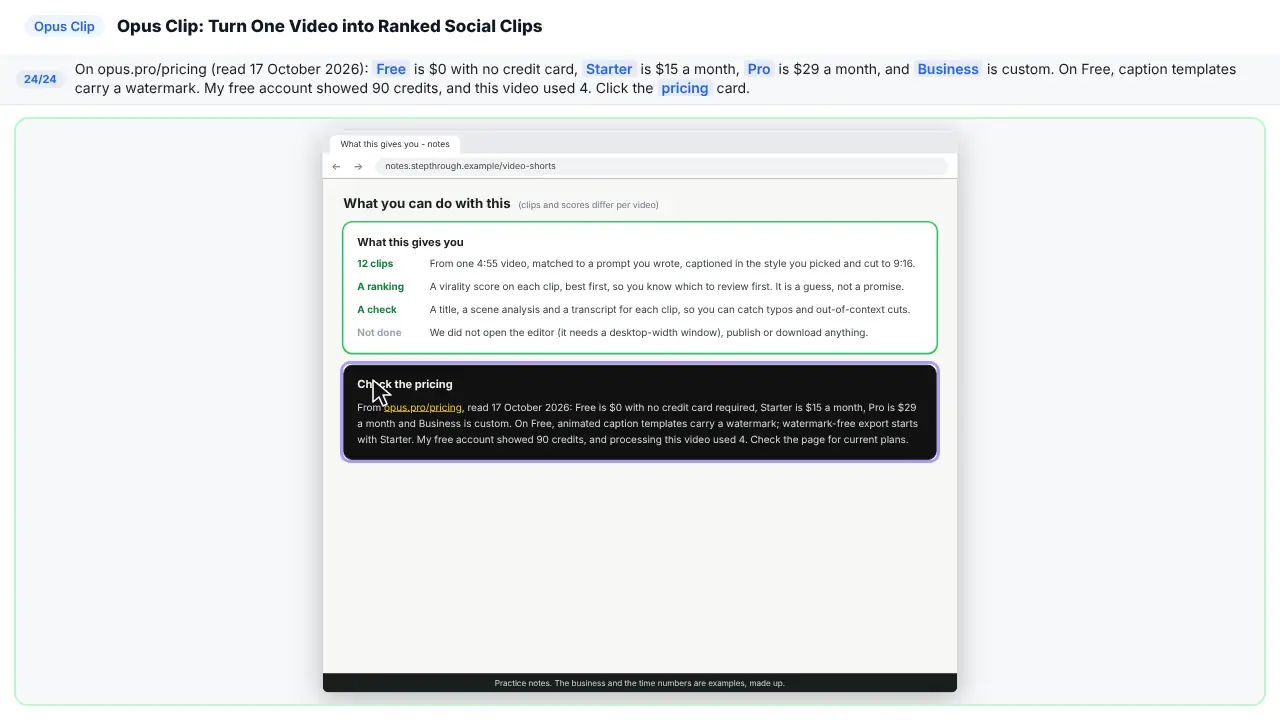
There is a free plan. Starter is fifteen dollars a month, and Pro is twenty nine. Check opus dot pro slash pricing.
Part of these free courses: AI Apps Worth Knowing, AI for Marketing Teams, AI Presentations & Client Decks, AI Video & Audio for Marketing
Now do it yourself, free
Reading the steps is a start. Doing them is how it sticks. The interactive lesson puts you in a practice copy of Opus Clip: you do every step yourself, it checks your work, and “Do it for me” finishes any step you get stuck on. Nothing touches your real accounts.
Practice “Opus Clip: Turn One Video into Ranked Social Clips” step by step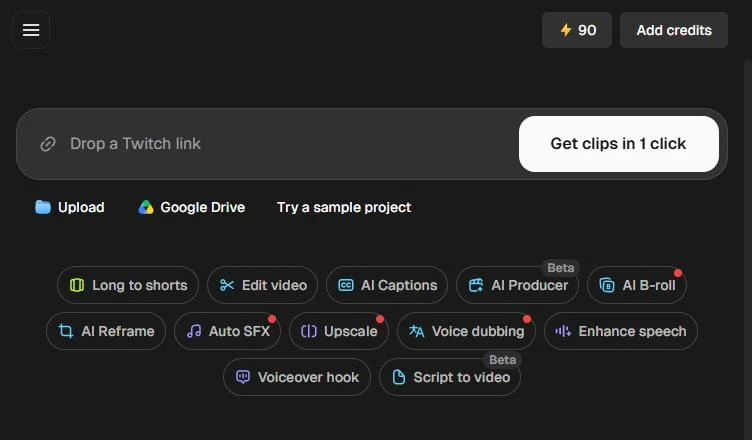
The business case: one video, a week of shorts
Most small businesses already have good video: a webinar, a client Q&A, a 5-minute tips video. Few people watch 5 minutes on a phone, though. Social feeds want short, captioned, vertical clips, and each one is a chance to be seen.
Here is the arithmetic, using example numbers you should replace with your own. Say a bookkeeping firm records a 5-minute "3 tax-season tips" video. By hand, watching it back, picking 4 or 5 moments, cutting each one, adding captions and turning it vertical takes about 2 hours. With Opus Clip, it is an upload, about 5 minutes of processing and about 20 minutes reviewing the clips, so about 25 minutes. That saves about 1.5 hours per video.
We ran Opus Clip on my own 4:55 AI tips video in October 2026. It returned 12 clips that matched our prompt, and the top one scored 99 out of 100. Your video will give different clips and scores.
Who this is for, and what you need
Owners, marketers and assistants who record webinars, tips or client videos and want social clips without a video editor. To follow along you need nothing: the lesson is a practice copy built from real screenshots. To do it for real you need an Opus Clip account and a video. The free plan is enough to try it.
A note on screens: these were captured in a narrow browser window, so Opus Clip shows its narrow layout. Editing a clip needs a desktop-width window, so the editor is not covered here.
Step 1: upload your video and check the credits
The Opus Clip dashboard shows your credits at the top right. My free account showed 90. You can paste a link, pick a file from Google Drive, or click Upload. After the upload, the screen shows the file name, a Get clips in 1 click button and Credit usage. Our 4:55 video cost 4 credits.
Step 2: tell it which moments to find
Include specific moments lets you tell the AI what you want. Leave it empty and Opus Clip picks for you. We typed "find tips about choosing the right AI tool for work". Processing timeframe lets you clip only part of the video, which the screen marks as a credit saver.
Step 3: pick captions and 9:16
Under Quick presets, Caption shows the styles, such as No caption, Karaoke, Simple, Beasty and Mozi. We picked Karaoke, which highlights each word as it is spoken. Choose aspect ratio offers 9:16, 1:1, 16:9 and 4:5. 9:16 is the tall shape for TikTok, Reels and Shorts. Then click Get clips in 1 click.
Step 4: read the ranked clips
A note at the top says your project is processing, with a percentage and an estimate. Ours started at 4% with an ETA of 5 minutes, and the credits went from 90 to 86. When it finished, the project showed 12 clips.
Inside, the list is headed by your prompt and the clip count. An Auto headline note says a headline was added to the first 5 seconds of the top 10 ranked clips, with a Disable it option. Clips are ranked best first, each with a score out of 100. Our top clip scored 99. The score is Opus Clip's guess, not a promise of views.
Under each clip are Publish on Social, Download HD, Export XML (for Premiere Pro), Edit clip, AI tools and the aspect ratio. In a narrow window, Edit clip says "Editing features are available on Desktop", so widen the window to edit.
Step 5: check a clip before you post
Each clip gets a title Opus Clip wrote, which you can change with the pencil. Ours was "Cancel ChatGPT? Why Claude May Be the Better Choice". Scene analysis tags the clip with your prompt and sums it up in one sentence. The transcript shows the words in the clip with the time in the video, 01:20 to 01:46 for ours. Read it to fix caption typos and to make sure the clip does not take a sentence out of context.
Mistakes to avoid
- Posting the top clip without watching it. The score is a guess, so check every clip yourself.
- Skipping the transcript. Auto captions can misspell names and products.
- Posting someone else's face or words without permission.
- Trying to edit in a narrow window. The editor needs a desktop-width browser window.
- Treating the example numbers in this lesson as yours. Time your own videos.
Links
- Opus Clip: the AI clipping tool this lesson teaches.
- Opus Clip pricing: current plans. Free is $0 with no credit card required, Starter is $15 a month, Pro is $29 a month and Business is custom; on Free, animated caption templates carry a watermark (read 17 October 2026).
Try it yourself, free
Reading the steps is a start. Doing them is how it sticks. The interactive module walks you through every click in a practice copy of Opus Clip, checks each step, and never touches your real accounts.
Start “Opus Clip: Turn One Video into Ranked Social Clips”Screenshots

Frequently asked questions
- Is this an official Opus Clip course?
- No. This is my own lesson. Opus Clip is a separate, third-party product from opus.pro, and the screens are real Opus Clip screenshots captured October 2026 in my free account, with my own video.
- What does Opus Clip cost?
- From opus.pro/pricing on 17 October 2026: Free is $0 with no credit card required, Starter is $15 a month, Pro is $29 a month and Business is custom. On Free, animated caption templates carry a watermark, and watermark-free export starts with Starter. My free account showed 90 credits, and processing a 4:55 video used 4. Check the page for current plans.
- Can I tell Opus Clip which moments to pick?
- Yes. Type what you want in Include specific moments before you click Get clips in 1 click, for example "find tips about choosing the right AI tool for work". Leave it empty and Opus Clip picks for you.
- Why can't I open the editor?
- In a narrow browser window, Edit clip shows "Editing features are available on Desktop". Make the window desktop-width and try again.
- Will my clips look like these?
- No. The 12 clips, the 99/100 score and the titles here come from my own video. Your video will get its own clips, titles and scores.
Terms in this lesson
Plain-English definitions, each with an example from a free lesson.