Updated . Built against the tool’s current screens and checked step by step. How we check this lesson
Every showing ends with feedback from the buyer's agent, in a text, an email or a quick call, and by Friday the seller wants to know what people are saying. Pulling it together takes an hour, and the comment that matters most, a buyer about to write an offer, is easy to miss. In this free, interactive lesson you build an AI agent in n8n that turns a week of feedback into one row per showing in a Google Sheet: the interest level, what was said about the price in the agent's own words, and the next step. It never tells you to cut the price.
At a glance
| Question | Answer |
|---|---|
| What you build | Build an AI agent in n8n for Meridian Realty Group that turns buyer agents’ showing feedback into one row per showing in Google Sheets, with interest, price feedback and the next step, so the weekly seller update writes itself. Chat trigger, AI Agent, system prompt, model, memory and the Sheets tool. |
| Tools | n8n |
| Time | About 12 minutes, 72 steps in 12 parts |
| Level | Intermediate |
| Cost | Free |
| Ways to learn it | Practice it step by step |
The 12 parts, in short
- Get n8n: Go to n8n.io, Enter your email, Sign up.
- API key: Add credit first, Ten dollars is plenty, Now the key, Create a secret key, and 4 more steps.
- New workflow: Start a new workflow.
- Chat trigger: Add the first step, Trigger on a chat message, Back to the canvas.
- AI Agent: Add the next node, Open the AI nodes, Add the AI Agent.
- System prompt: Open the options, Add a system message, Write the system prompt, Back to the canvas.
- Chat model: Give the agent a brain, Pick OpenAI, Open the credentials, Create a new credential, and 5 more steps.
- Memory: Add memory, Simple Memory, Back to the canvas.
- Sheets tool: Add a tool, Search for Sheets, Add Google Sheets.
- Create the spreadsheet: Back to the canvas, Open Google Sheets, Name the spreadsheet, Type the first column header, and 6 more steps.
- Configure Sheets: Add a credential, Create a new credential, Sign in with Google, Choose your account, and 16 more steps.
- Test the agent: Open the chat, Paste this week's feedback, Send the message, Save to the sheet, and 1 more step.
Start here first: How to Create an AI Agent in n8n That Saves Ideas to Google Sheets. This Real Estate version follows the same build with its own example business, Meridian Realty Group.
Part of: AI for Real Estate (step 13 of 18)
The example: three showings at 14 Orchard Lane
Meridian Realty Group is a made-up brokerage, and 14 Orchard Lane is its made-up listing. Three buyer's agents send feedback: one says their buyers loved the kitchen but worry about road noise and think the home is about $15,000 high; one says their buyers are coming back and plan to write an offer this week, but want to know how old the roof is; and one says the house is nice but their buyers need four bedrooms.
The agent turns that into three entries: Some interest with the price comment quoted, High interest with "send the roof age today" as the follow-up, and None with no follow-up needed. Then it saves all three to the Showing Feedback Log sheet, one row per showing, ready for the weekly seller update.
Who this lesson is for
Listing agents, real-estate assistants, transaction coordinators and team leads who send sellers a weekly update. You don't need to code: you click through n8n's editor, paste a system prompt and map five columns. The practice copy needs no n8n, OpenAI or Google account.
It is part of the AI for Real Estate course.
The two rules that keep sellers' trust
The system prompt says to record only what was said, and never to recommend a price change. "About $15,000 high" is one buyer's agent's opinion, and the log keeps it in their words. The price conversation belongs to the listing agent and the seller.
It also says never to include buyers' names or personal details. The log names the buyer's agent and their brokerage, and nothing about the buyers themselves.
Why an agent and not just a chat
- The fixed interest levels (High, Some, None, Unclear) make the sheet quick to read, and vague feedback is flagged as Unclear instead of guessed.
- Memory lets you say "save those" after it sorts the feedback.
- The Google Sheets tool writes the rows itself, so the log fills in without copying and pasting.
- The same workflow works for every listing: paste the week's feedback, check the rows, share the sheet.
Try it yourself, free
Reading the steps is a start. Doing them is how it sticks. The interactive module walks you through every click in a practice copy of n8n, checks each step, and never touches your real accounts.
Start “Build an n8n AI Agent That Turns Showing Feedback into a Seller Update”Step by step: Build an n8n AI Agent That Turns Showing Feedback into a Seller Update
All 72 steps of the interactive module, in order. In the module you watch each one, then do it yourself in a practice copy that checks your work.
1. Get n8n
- Go to n8n.io. Start at n8n.io. Click Get started free.
Every showing ends with feedback from the buyer's agent, in a text, an email or a quick call. By Friday your seller wants to know what people are saying, and the one comment that matters most, a buyer about to make an offer, is easy to lose. We are going to build an AI agent that logs every showing in a spreadsheet for you. First, you need an n8n account.
- Enter your email. Type any email address — this is practice, so a fake one is fine.
This is just practice, so anything works — it won't actually send anything.
- Sign up. Click Continue. n8n emails you a code, then asks for a name and password — do that part on your own and come back here.
In the real n8n, it sends you a six digit code, then asks for a name, a password, and an account name. Go do that in your own browser later, then come back and we will build.
2. API key
- Add credit first. Practice only: no card, no charge. Your agent needs a model to think with, and in the real world that is an OpenAI key with a little credit behind it. This is platform.openai.com → Billing. Click Add to credit balance. (Rather not spend anything later? New n8n accounts include free credits: pick Gateway credits on the model step instead of a key.)
Your agent needs a brain, and that means an API key from OpenAI. Go to platform dot openai dot com — that is the developer side, not ChatGPT, and it bills completely separately. Before you make a key, put some money on the account. A brand new key with a zero balance just returns errors. If you would rather not spend anything yet, n8n gives every new account free credits. In your own n8n, you can pick gateway credits on the model step and skip the key.
- Ten dollars is plenty. Ten dollars goes a long way — you pay per request, not per month. Click Continue. In your own account you add a card here.
Ten dollars goes a very long way. You are charged per request, not per month, and logging a week of showings costs fractions of a cent.
- Now the key. Balance sorted. Click API Keys in the left menu.
Balance sorted. Now go to API keys in the left menu.
- Create a secret key. Click + Create new secret key.
- Name the key. Name it after what will use it. Type n8n agent.
Name it after whatever is going to use it. Future you, staring at a list of forty keys, will thank you. I am calling this one n8n agent.
- Create it. Leave Project and Permissions alone and click Create secret key.
Default project, all permissions — that is fine for this. Create the key.
- Copy it now. This is the only time OpenAI shows you the key. Click Copy, then paste it somewhere safe.
Now pay attention, because this is the only time you will ever see this key. Copy it and paste it into n8n, or into your password manager. If you lose it, you do not get it back — you delete it and make another.
- Back to n8n. Click Done. Treat that key like a password — never paste it into a chat, a repo, or a screen recording.
One last warning — this key can spend your money. Never commit it to code, never paste it into a chat, and if it ever shows up on screen while you are recording, revoke it before you publish.
3. New workflow
- Start a new workflow. This is your n8n home. Click Create workflow in the top right.
Now you are inside n8n. This overview page lists every workflow you have. Top right, click create workflow, and you land on an empty canvas.
4. Chat trigger
- Add the first step. Every workflow starts with a trigger. Click Add first step…
Every workflow needs a trigger — the thing that kicks it off. We want a chat trigger so you can paste in the week's showing feedback.
- Trigger on a chat message. The trigger panel opened on the right. Pick On chat message near the bottom.
A panel slides in with every way a workflow can start — manually, on a schedule, on a webhook. We want on chat message, so we can have a conversation with the agent.
- Back to the canvas. n8n opens the node so you can configure it. Nothing to change here — click the × in the top right.
n8n opens the node so you can configure it. There is nothing we need to change here, so close it with the X in the top right and get back to the canvas.
5. AI Agent
- Add the next node. Click the + on the right edge of the trigger node.
Now we decide what happens when a message comes in.
- Open the AI nodes. The What happens next? panel opens with categories. Click AI at the top.
A panel opens and asks what happens next. The agent lives under AI, right at the top.
- Add the AI Agent. In AI Nodes, click AI Agent — it makes a plan and carries it out using the tools you give it.
There it is — AI Agent. This is the piece that can plan and then carry out actions using whatever tools you give it. You give it the feedback, and it can sort each showing and save it to a spreadsheet — all in one step.
6. System prompt
- Open the options. The agent has no personality yet. Click + Add Option under Options.
Right now this agent has no personality and no orders. It does not know it works for Meridian Realty, or what a showing entry looks like.
- Add a system message. Choose System Message. This is the standing instruction the agent follows every time.
Pick system message. This is the standing instruction the agent reads before every request. It is where we tell it who Meridian is, how to log a showing, and what it must never do.
- Write the system prompt. The box starts with You are a helpful assistant. Replace it with the standing instruction: it is long, so just Paste in the system prompt on the box.
Here is the actual prompt. It tells the agent what each entry needs: the date, the buyer's agent, an interest level, the price feedback in the agent's own words, and the next step. Vague feedback gets marked unclear. And two rules matter most: record only what was said, and never recommend a price change. That's your call, with your seller.
You are the showing feedback assistant for Meridian Realty Group.

Meridian Realty Group is a small residential brokerage. Its listing agents send sellers a feedback update every week while a home is on the market.

The audience is the listing agent, who reads every entry before sharing anything with the seller.

The tone should be plain, neutral and factual.

Your job is to turn each piece of showing feedback the user gives you into one entry.

For each showing, return:
- Date
- Buyer's agent (name and brokerage only)
- Interest: High, Some, None, or Unclear
- Price feedback: what the buyer's agent said about the price, in their words, or "None given"
- Follow-up: one sentence on what the listing agent should do next, like answer a question or expect an offer

If the feedback is vague or mixed, use Unclear and say why.

When the user asks you to save the feedback, use the Google Sheets tool to store each entry.

Record only what was said. Do not guess what a buyer will offer, and do not recommend a price change; the listing agent and the seller decide that. Never include buyers' names, phone numbers or personal details.
- Back to the canvas. That tells the agent who it works for and how to log a showing. Close the node with the ×.
That gives the agent everything it needs to know about logging showings for Meridian. Close the node.
7. Chat model
- Give the agent a brain. The agent has a red warning: it has no model. Click the + under Chat Model.
See that red triangle on the agent? It is complaining because it has no model. An agent can plan, but it cannot think without a language model underneath it.
- Pick OpenAI. Click OpenAI Chat Model.
OpenAI chat model. This is where that API key finally gets used.
- Open the credentials. Here is where that key goes. Click the Credential dropdown.
And here is where that key you copied finally goes.
- Create a new credential. Click + Create new credential at the bottom of the list. (Free credits instead? Pick Gateway credits in your own n8n.)
You want create new credential, right at the bottom. In your own n8n, if you skipped the key, you would pick gateway credits here instead.
- Paste the key. Paste in the API key on the field to drop in the key you copied from OpenAI.
This is the one moment it matters that you copied it — remember, OpenAI never shows it to you again.
- Save the credential. Click Save. n8n tests the connection and stores the key for every future node.
n8n tests the connection straight away, and from now on this credential is available to every node in every workflow — you only do this once.
- Open the model list. A new credential leaves Model on Select a model.... Click the Model dropdown.
Now the model dropdown.
- Choose the model. Pick gpt-5-mini — fast and cheap, plenty for this. (The list is long: type gpt-5-mini in Search... to find it.)
GPT five mini. Fast, cheap, and plenty for sorting showing feedback. Do not reach for the expensive model until you have a reason.
- Back to the canvas. The model is wired up. Close the node with the ×.
That is the brain wired in. Close it up.
8. Memory
- Add memory. Without memory the agent forgets each message. Click the + under Memory.
Next, memory. Without this, every message starts from nothing — you could not say save those, because it would not remember which showings you meant.
- Simple Memory. Pick Simple Memory. It keeps the recent conversation in n8n itself.
Simple memory is fine here — it keeps the recent conversation inside n8n, no database, no extra credentials.
- Back to the canvas. n8n opens Simple Memory so you can set it up. The defaults are fine (it keeps the last 5 messages). Close it with the ×.
n8n opens simple memory so you can set it up. The defaults are fine. It keeps the last five messages. Close it with the X.
9. Sheets tool
- Add a tool. Tools are how the agent acts on the world. Click the + under Tool.
And now the good part — tools. This is what separates an agent from a chatbot. A chatbot just talks. An agent does things. We are going to give it Google Sheets so it can save every showing into a spreadsheet you can go through with your seller.
- Search for Sheets. Google Sheets is not in Recommended Tools. In Search nodes..., type sheets.
Google Sheets is not in the recommended tools, so search for it.
- Add Google Sheets. Click Google Sheets Tool — read, update and write data to Google Sheets.
Google Sheets tool. Now the agent can write rows into a real spreadsheet, with columns matching what the system prompt tells it to return. When you say save those, each showing becomes a row.
10. Create the spreadsheet
- Back to the canvas. Before we configure this node, we need a spreadsheet for the agent to write to. Close the node — we will come back.
Before we set this up, we need to actually create the spreadsheet. Close this node for now — we are going to hop over to Google Sheets and make one.
- Open Google Sheets. Click the Google Sheets tab to create a new blank spreadsheet.
Switch to Google Sheets. You need to create the spreadsheet that this node will write to.
- Name the spreadsheet. Click the title and rename it to Showing Feedback Log.
First, name it so you can find it later.
- Type the first column header. In cell A1, type Date.
Now set up the column headers. These need to match what the system prompt tells the agent to return. In A1, type Date.
- Buyer's agent. In cell B1, type Buyer's agent.
B1 — Buyer's agent.
- Interest. In cell C1, type Interest.
C1 — Interest.
- Price feedback. In cell D1, type Price feedback.
D1 — Price feedback.
- Follow-up. In cell E1, type Follow-up. That is all five columns — matching the system prompt.
And E1 — Follow-up. Five columns, matching exactly what the system prompt tells the agent to return. Each showing becomes a row in this sheet.
- Back to n8n. The spreadsheet is ready. Click the n8n tab to go back and connect it.
The spreadsheet is ready. Switch back to n8n and connect the Google Sheets node to it.
- Open the Sheets node. Double-click the Google Sheets node (n8n named it Get row(s) in sheet in Google Sheets) to configure it.
Double click the Google Sheets node to open it back up. Now we can connect it to the spreadsheet we just made.
11. Configure Sheets
- Add a credential. The Sheets node needs a Google account. Click the Credential dropdown.
Now we need to connect this to a real Google account.
- Create a new credential. Click + Create new credential to sign in with Google.
Create new credential — this one uses Google OAuth instead of an API key, so it is going to open a sign-in window.
- Sign in with Google. Click Sign in with Google to connect your account.
This opens the Google account chooser so you can pick which account to connect.
- Choose your account. Click your Google account to continue.
Pick the Google account you want n8n to use. This is the account that owns the spreadsheet.
- Allow Sheets access. Google needs permission. Check See, edit, create, and delete all your Google Sheets spreadsheets.
Google is asking what n8n is allowed to do. Check the first box — this lets n8n read and write your spreadsheets.
- Allow Drive access. Check See, edit, create, and delete all of your Google Drive files.
Second box — n8n needs Drive access so it can find your spreadsheets by name.
- Allow external service. Check Connect to an external service.
Last one — this lets Google connect to n8n as an external service. Check it.
- Sign in. All three are checked. Click Continue to complete the Google sign-in.
All three checked.
- Pick the operation. Now tell n8n what to do with the sheet. Click the Operation dropdown.
Now we tell the node what to do. By default it reads rows, but we want to add rows.
- Append Row. Pick Append Row — the agent will add a new row for each showing.
Append row. Every showing the agent logs gets added as a new row at the bottom of the sheet.
- Choose the spreadsheet. Click the Document dropdown to pick which spreadsheet to write to.
Now pick the spreadsheet.
- Showing Feedback Log. Click Showing Feedback Log — the sheet we set up for Meridian.
Showing Feedback Log — the sheet we set up with columns for the date, the buyer's agent, interest, price feedback, and follow-up.
- Pick the sheet tab. Click the Sheet dropdown to choose which tab inside the spreadsheet.
Now pick which tab inside that spreadsheet.
- Sheet1. Click Sheet1.
Sheet one — it is the only tab, so this is simple.
- Map the Date column. Under Values to Send, click the ✦ button next to Date — the AI agent will fill this in automatically.
Now the columns. Each column has a purple button — click it and the AI agent figures out what data goes there.
- Map the Buyer's agent column. Click the ✦ button next to Buyer's agent.
Buyer's agent. Same thing — click the purple button.
- Map the Interest column. Click the ✦ button next to Interest.
Interest.
- Map the Price feedback column. Click the ✦ button next to Price feedback.
Price feedback.
- Map the Follow-up column. Click the ✦ button next to Follow-up.
And follow-up. Each one is now set to defined automatically by the model — the agent reads your column headers and figures out what goes where.
- Back to the canvas. Google Sheets is fully configured. Close the node with the ×.
The sheets tool is fully wired up — credential, operation, spreadsheet, sheet, and column mapping. Close it and let us test this thing.
12. Test the agent
- Open the chat. Time to test. Click Open chat at the bottom of the canvas.
Everything is connected. Time to see if it works.
- Paste this week's feedback. Type a prompt — give the agent three showings of feedback for 14 Orchard Lane.
Give it this week's feedback for 14 Orchard Lane, the way it actually arrives: three buyer's agents, three different messages.
Log this feedback for 14 Orchard Lane: Oct 14, Dana Ruiz of Keystone Homes: buyers loved the kitchen and the yard, worried about road noise, think it is about $15,000 high. Oct 15, Marcus Hill of Hill & Co.: second showing, his buyers plan to write an offer this week and asked how old the roof is. Oct 15, Priya Shah of Open Door Realty: nice house, but her buyers need four bedrooms, so it is not a fit.
- Send the message. Click the send arrow to talk to the agent.
Send it off. The agent reads your system prompt and turns each showing into one entry, with an interest level, the price comment in the agent’s own words, and the next step.
- Save to the sheet. Marcus Hill’s buyers plan to write an offer this week, and the agent flagged it. Now tell the agent to save the showings to Google Sheets.
Three showings: some interest with a price comment, a buyer ready to write an offer, and one that's simply not a fit. The agent flagged the one that needs you today: send Marcus the roof age. And notice it didn't suggest cutting the price. Now tell it to save them. This is where the Google Sheets tool kicks in.
- Send it. Click the send arrow — the agent will use the Google Sheets tool to write the rows.
Send it. The agent uses the Google Sheets tool to write each showing as a row — date, buyer's agent, interest, price feedback, and follow-up.
Frequently asked questions
- Can an AI agent organize showing feedback for sellers?
- Yes. In the lesson an n8n AI agent turns pasted feedback into one entry per showing (date, buyer's agent, interest, price feedback, follow-up) and saves each one as a row in Google Sheets. You read every row before sharing it.
- Will the agent tell me to lower the price?
- No. The system prompt says to record only what was said and never recommend a price change. Price feedback is quoted in the buyer's agent's own words.
- What do I need to build it for real?
- An n8n account (the cloud trial or self-hosted), an OpenAI API key with a few dollars of credit, and a Google account for the sheet. Logging a week of showings costs fractions of a cent.
- What should I leave out of the feedback I paste?
- Buyers' names, phone numbers and personal details. Follow your brokerage's rules on what you share with sellers.
- Is this lesson free?
- Yes. Stepthrough is completely free and the practice copy needs no accounts.
More n8n tutorials
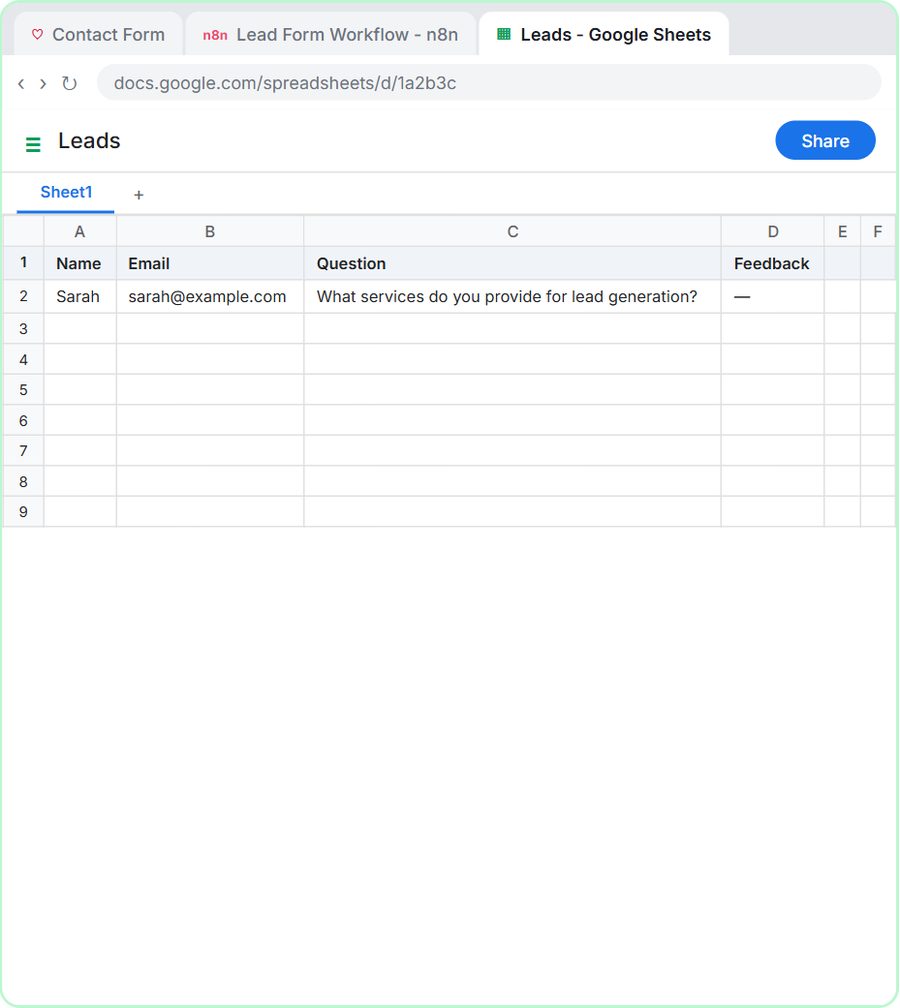 How to Build in Lovable: A Web App with an n8n AI Backend
Build a contact form in Lovable and connect it to an n8n workflow — webhook trigger, AI Agent, Google Sheets, Gmail, and a Respond node that ties it all together.
Free · Live ~15 min Advanced
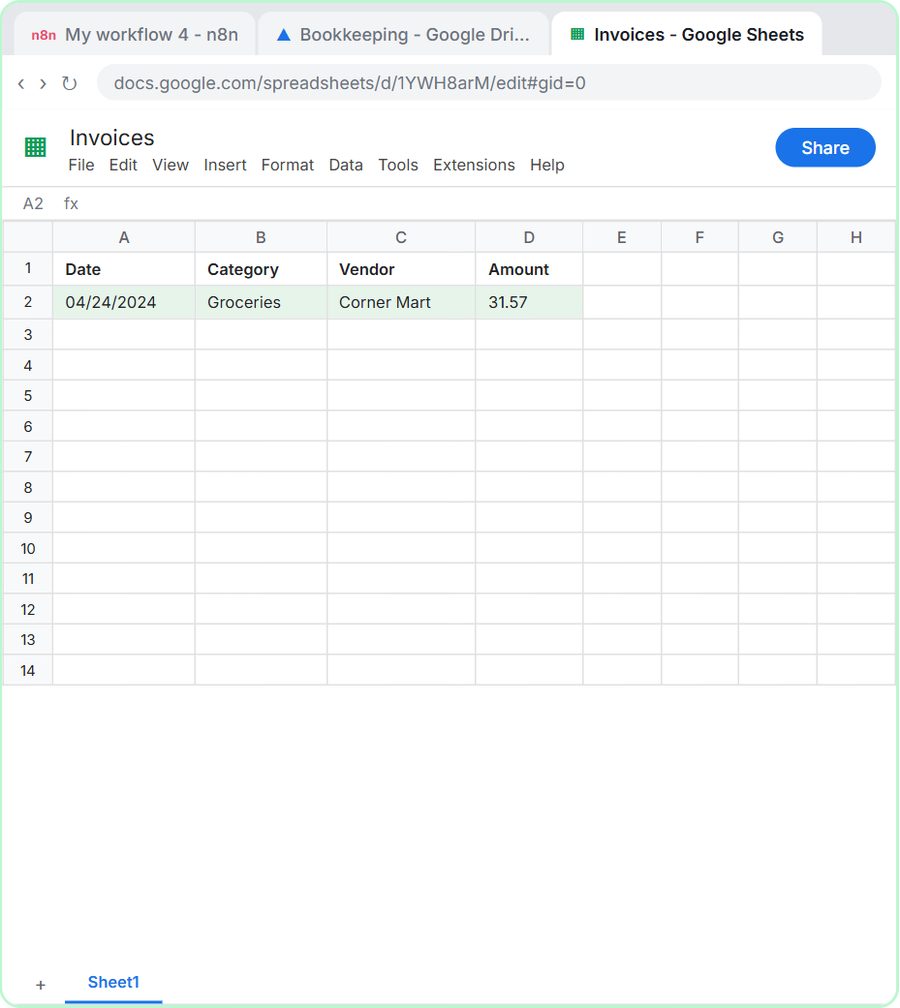 How to Do OCR in n8n: Read Receipt Photos into Google Sheets with AI
Drop a photo of a receipt into an n8n chat. An AI agent reads it, pulls out the date, vendor and amount, picks a category, and adds a row to Google Sheets.
Free · Live ~12 min Intermediate
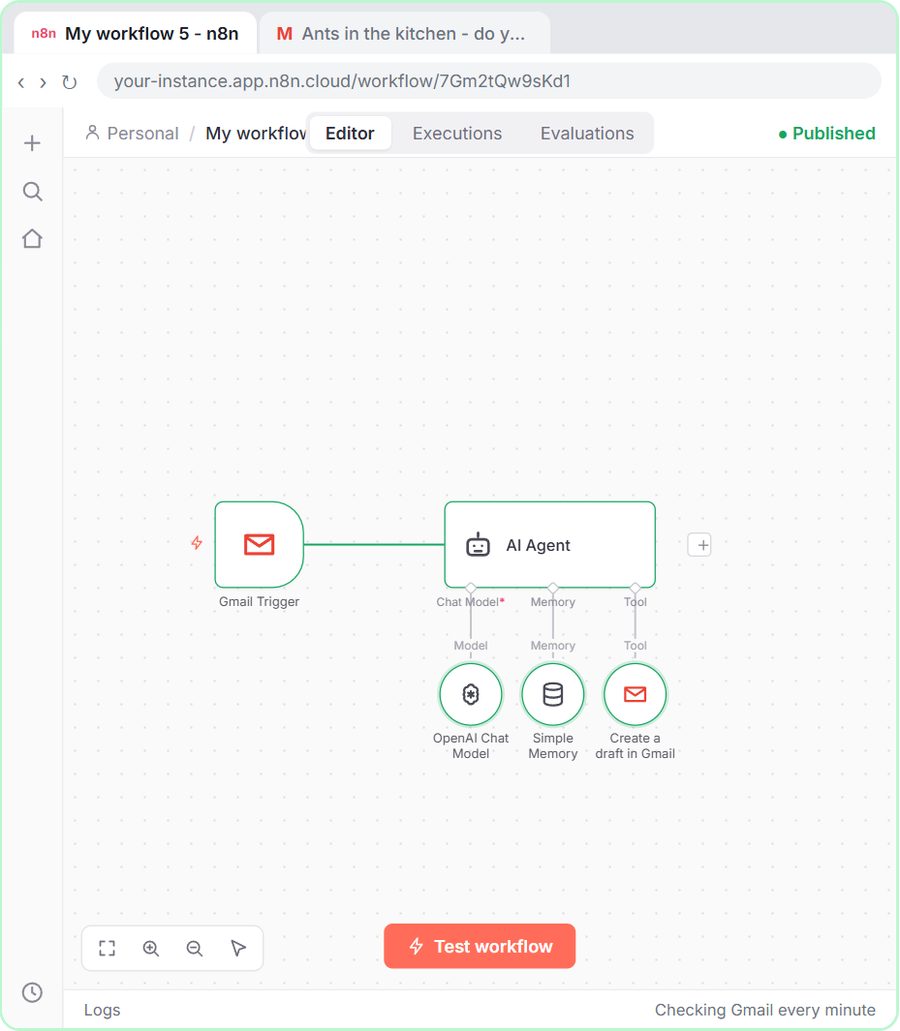 n8n AI Email Responder: Draft Gmail Replies Automatically
Build an n8n agent that watches your Gmail, reads each new customer email, and writes a reply as a draft in the same thread, ready for you to check and send.
Free · Live ~12 min Intermediate
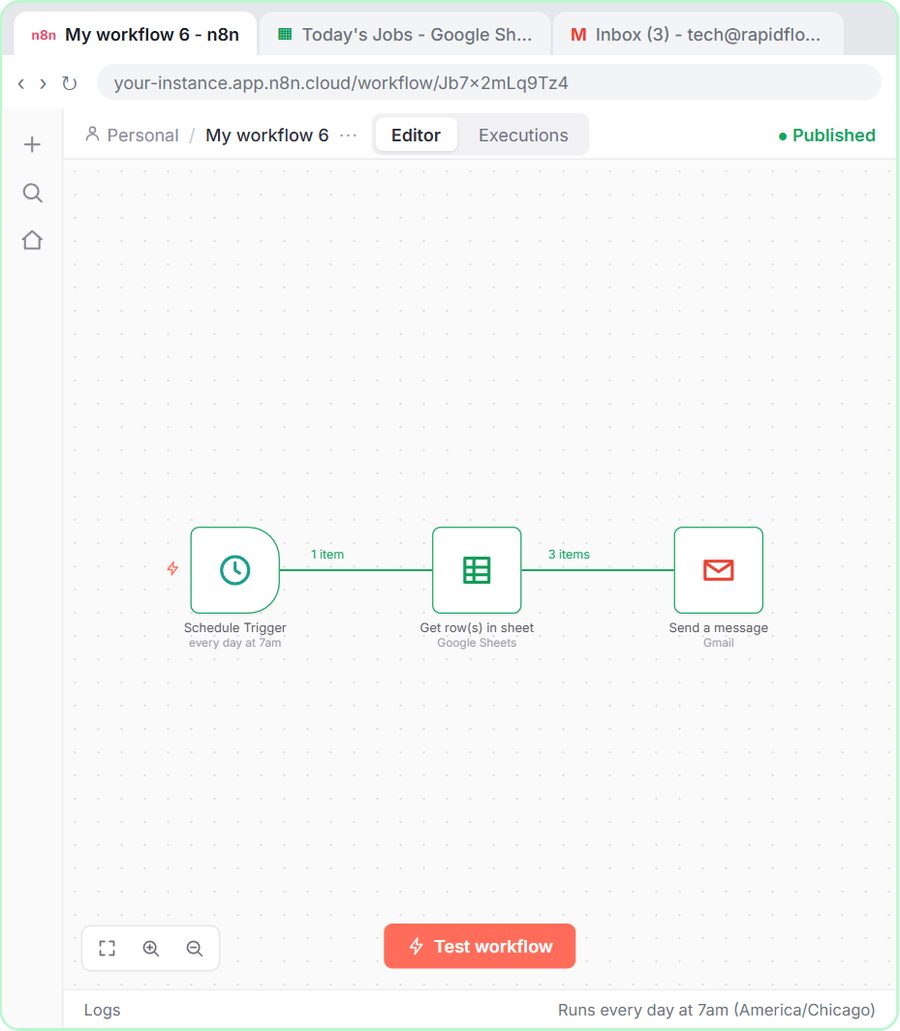 How to Make an n8n Workflow That Emails Each Tech Their Jobs from Sheets
Every morning at 7, n8n reads a plumbing company's jobs sheet, skips anything not assigned yet, and emails each job to the tech it's assigned to — customer, address…
Free · Live ~10 min Intermediate
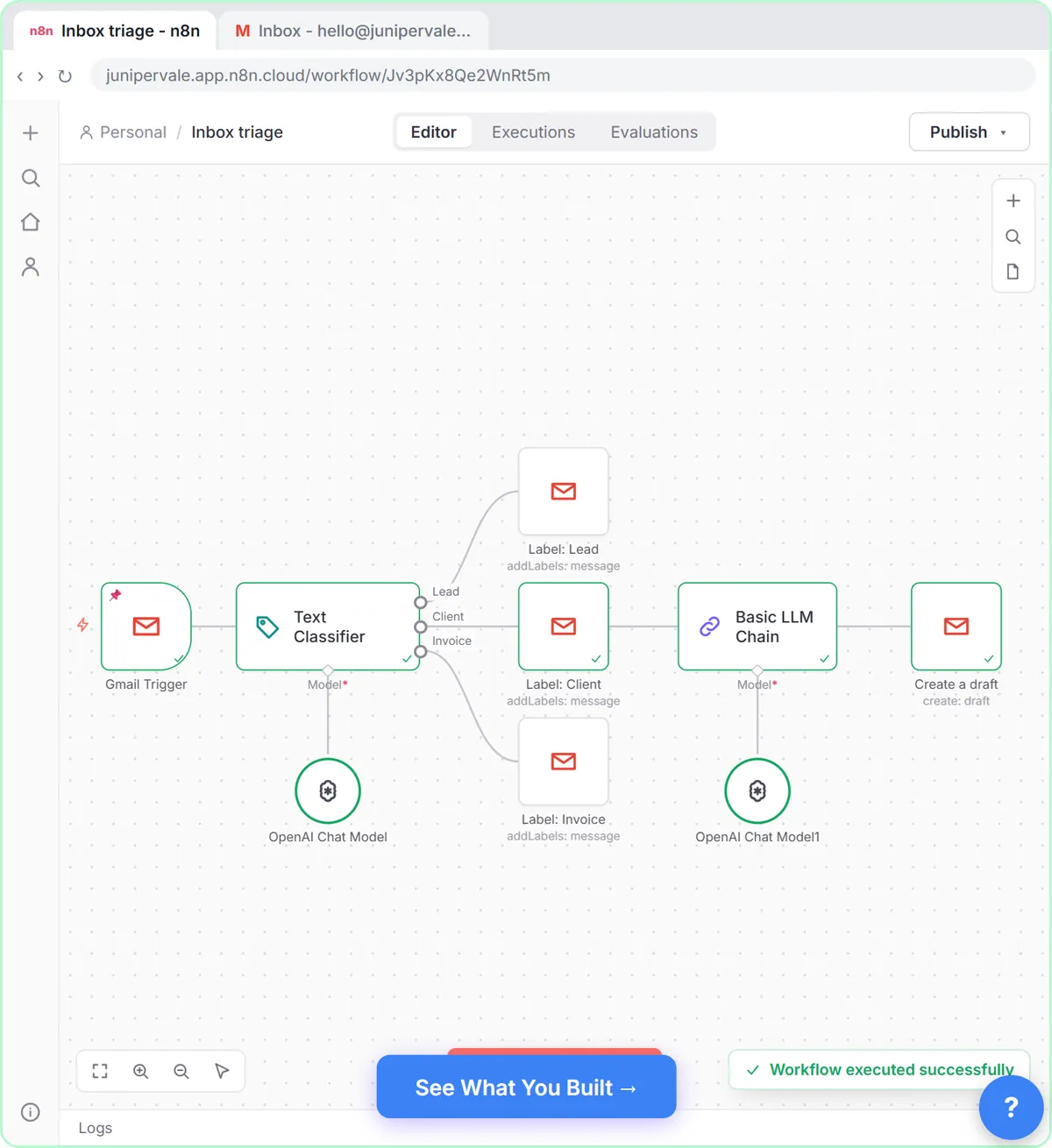 Gmail AI Triage: Auto-Label Every Email and Draft Replies
Build an n8n workflow that reads each new email, sorts it as a lead, a client or an invoice with a Text Classifier, adds the matching Gmail label, and drafts a reply to…
Free · Live ~18 min Advanced
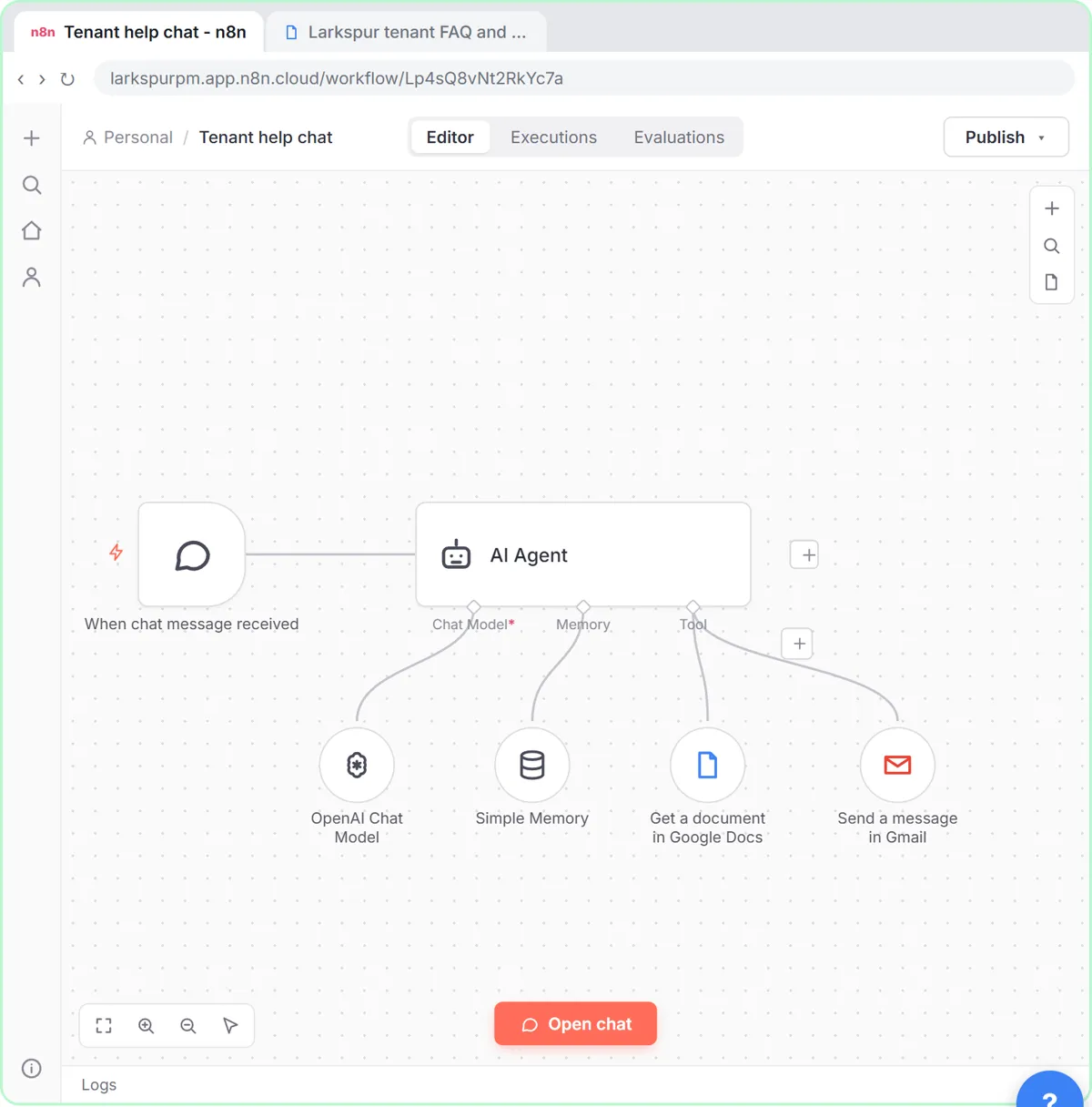 How to Use n8n to Build AI Agents: A Support Agent That Answers from Your Docs
Turn an n8n chat agent into a support agent that answers only from your policies in a Google Doc, refuses what it should, and hands off to a person by email.
Free · Live ~13 min Advanced
From the blog
Plain answers about an n8n AI agent that turns buyer agents' showing feedback into one row per showing in Google Sheets for the weekly seller update.
Oct 21, 2026 5 min read
✎n8n Showing Feedback Agent: 9 Mistakes to AvoidMistakes that hurt an n8n showing feedback agent for listing agents, from price advice and buyers' names to mismatched columns and missing memory.
Oct 21, 2026 5 min read
Visual guides
This lesson’s key ideas as quick visual guides: swipe through the slides, or read the same guide as text.
 Build your first AI agent in n8n
ChatGPT answers. An agent does something with the answer.
Quote from a lesson One graphic
 5 Steps to an n8n AI Agent That Saves to Google Sheets
A visual guide: build an n8n AI agent that writes social media ideas and saves each one as a Google Sheets row, in 5 steps from the free lesson.
Step-by-step guide 7 slides
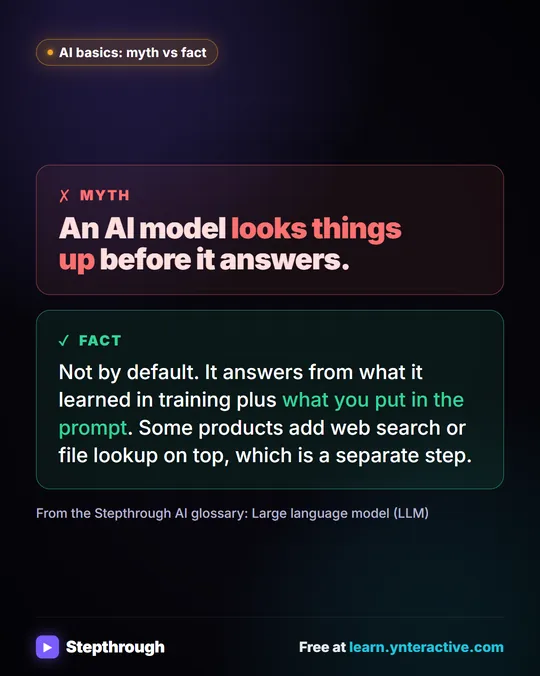 Myth: An AI Model Looks Things Up Before It Answers
Myth vs fact: by default a large language model answers from its training plus your prompt. Web search or file lookup is a separate step.
Myth vs fact One graphic
Free cheat sheets
Print it or save the PDF: the key steps and checks from this lesson on one page, free.
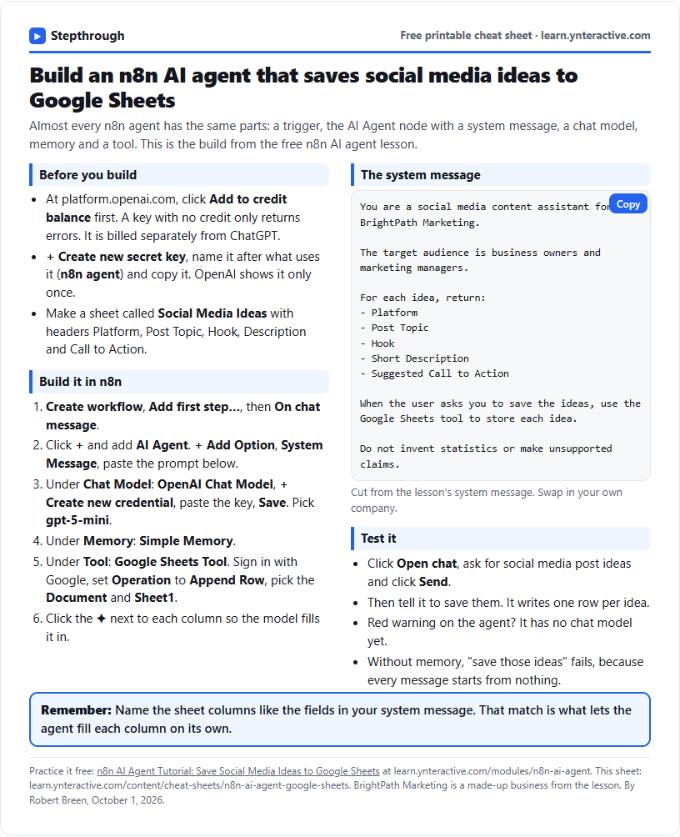 n8n AI Agent to Google Sheets Cheat Sheet
A free one-page cheat sheet for an n8n AI agent: chat trigger, AI Agent, system message, OpenAI model, Simple Memory and a Google Sheets tool.
Lesson cheat sheet Free PDF
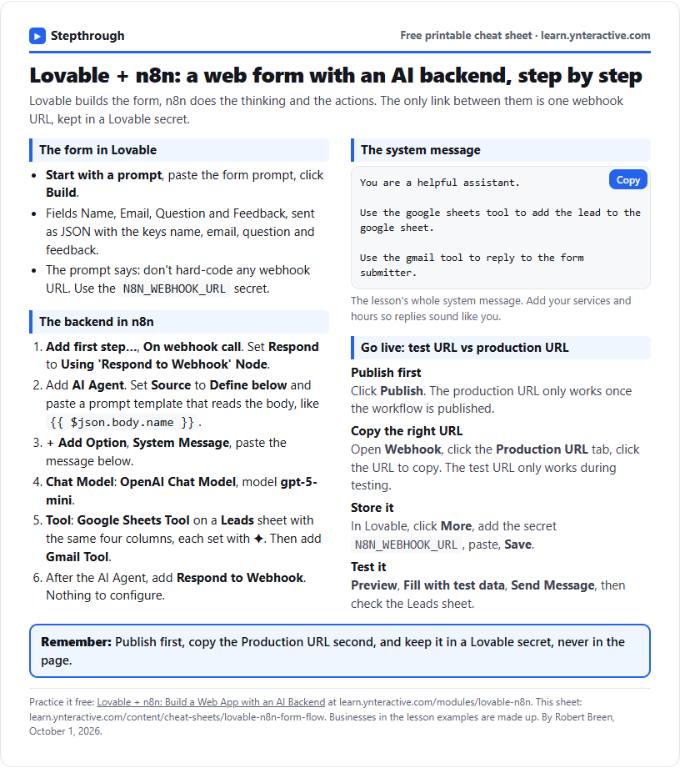 Lovable + n8n Form Flow Cheat Sheet
A free one-page cheat sheet: a Lovable form posts to an n8n webhook, and an AI Agent logs it in Google Sheets and replies by Gmail.
Lesson cheat sheet Free PDF
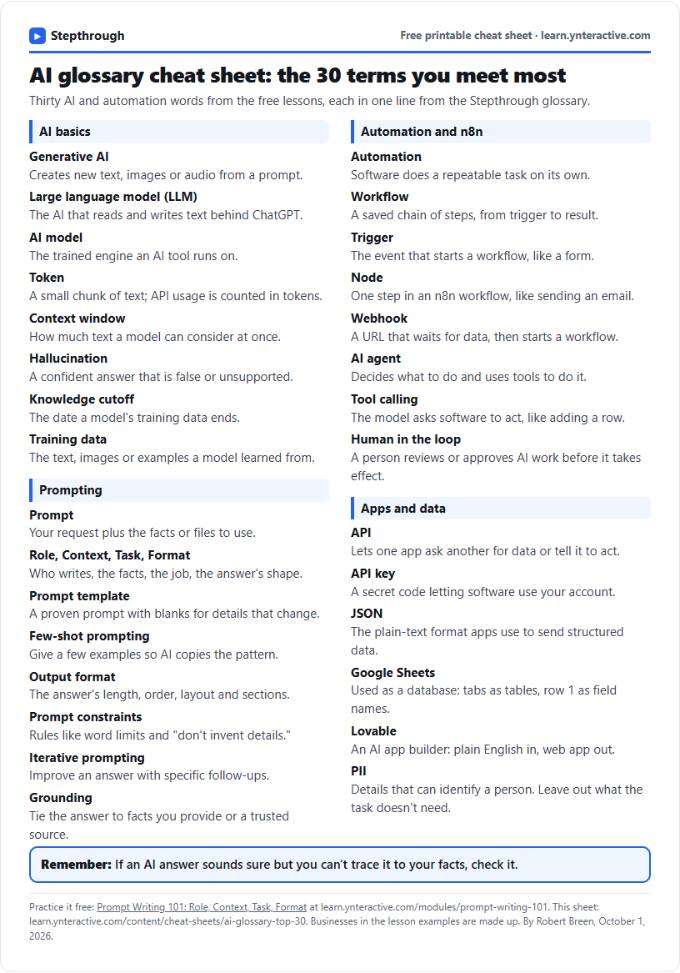 AI Glossary Cheat Sheet: 30 Terms in Plain English
A free one-page cheat sheet of 30 AI and automation terms in plain English: models, prompts, n8n workflows, apps and data.
Topic cheat sheet Free PDF
All free printable cheat sheets
Terms in this lesson
Plain-English definitions, each with an example from a free lesson.
Related prompts
- Case study interview questions prompt: Plan a client interview that gets a case study's before, during and after story in their own words, with follow-up probes and…
- Email subject lines prompt: Get ten honest subject lines for a finished email, each with preview text and a character count, grouped by approach so you can…
- SEO meta description prompt: Write short search-result descriptions for your web pages: what the page offers, who it is for and one reason to click, inside…
- Social post ideas prompt: A four-part ChatGPT prompt for social post ideas built on your services and real customer questions: platform, hook and call to…