Updated . Built from Flow XO’s official docs and help center. Screens may differ slightly in your account. How we check this lesson
Local service businesses lose quote requests that arrive after the office closes. Flow XO is a chatbot and automation platform: you put a chat on your website with its Web Messenger, and flows decide what the bot asks and where the answers go. In this free lesson, built from Flow XO's help center, the office manager at a made-up moving company creates the website chat, builds a flow that asks for the move details and a valid email, saves each lead as a row in Google Sheets and tests it in the Test Console. 9 steps, about eight minutes, no account needed to practice.
At a glance
| Question | Answer |
|---|---|
| What you build | Quote requests come in after hours and nobody answers. Put a Flow XO chat on your website that asks the move details, checks the email and saves every lead to a Google Sheet. |
| Tools | Flow XO |
| Time | About 8 minutes, 9 steps in 3 parts |
| Level | Intermediate |
| Cost | Free |
| Ways to learn it | Practice it step by step |
The 3 parts, in short
- Put a chat on your website: Create a web bot, Write the welcome message, Get the embed code.
- Capture the lead: Start a quote flow, Listen for the quote button, Check the email address, Save the lead to Google Sheets.
- Test before it goes live: Turn the flow on, Test it in the Test Console.
Start here first: How to Do OCR in n8n: Read Receipt Photos into Google Sheets with AI (module 1 of Business Automations)
In the course: Part 9 · n8n Automation Toolkit (Module 154 of the full course)
Part of: AI Apps Worth Knowing (step 186 of 186)
Part of: Build Your Own AI Support Bot (step 11 of 11)
The business case: quote requests that arrive after 5 pm
Picture Dana, office manager at Cedar Point Movers, a made-up local moving company with three crews. Families plan moves in the evening and on weekends, but the office phone stops at 5 pm. Requests go to voicemail or a contact form nobody reads until Monday, and some of those families have already booked another mover.
A website chat that asks the same three questions Dana would ask, checks the email while the visitor is still there and drops each request into one Google Sheet means the team starts every morning with a clean list of leads to quote, without anyone working late.
Who this is for, and what you need
Office managers, owners and front-desk staff at local service businesses (movers, cleaners, clinics, studios, agencies) who answer quote and booking requests. To do it for real you need a Flow XO account, a Google account with a sheet for the leads, and someone who can paste one script tag into your website.
Set up the Google Sheet before you connect it
Flow XO's Google Sheets guide asks for a worksheet with column headings in row 1 and one example row before you connect it. It warns that changing the worksheet's structure afterwards (new columns, removed rows) breaks existing flows, and that hyphens, double braces, accents and numbers at the end of column names cause problems.
For every Google Sheets method except Add a Row, Flow XO supports up to 1,000 rows, so a lead list that only ever adds rows is a good fit.
What Flow XO's pages say about cost
The Free Forever plan includes Flow XO for Chat and for Workflow, 5 bots or active flows and 100 interactions a month. The Standard plan is $25 a month with 5,000 interactions, 15 bots or active flows and 5 team members, with add-ons for more (as of November 2026).
What this saves you
- Quote requests captured at any hour, in one sheet, instead of voicemails and scattered emails.
- A real email for every lead, because the chat checks the address before it moves on.
- What it does not do: it does not price the move. Someone still reviews each row and sends the quote.
How this lesson was built
This lesson is built from Flow XO's public help center articles and pricing page, read on 24 November 2026. The practice screen is a plain frame, not a copy of Flow XO's own screens, and only uses labels Flow XO's docs show. It was not run in a live Flow XO account, so check each step in your own account.
Links
- Flow XO: Creating a Web Messenger: the web bot fields, welcome choices and the Authorize tab embed code.
- Flow XO: A Simple Example: building a first flow with a New Message trigger, Ask a Question and the Test Console.
- Flow XO: Ask a Question: question types, validation and expiry settings.
- Flow XO: Google Sheets: the sheet actions and how to set up your worksheet first.
- Flow XO pricing: the Free Forever and Standard plans.
- Flow XO in the AI tools directory: our directory listing.
Try it yourself, free
Reading the steps is a start. Doing them is how it sticks. The interactive module walks you through every click in a practice copy of Flow XO, checks each step, and never touches your real accounts.
Start “Flow XO: Turn Website Chats Into Moving-Quote Leads in a Google Sheet”Step by step: Flow XO: Turn Website Chats Into Moving-Quote Leads in a Google Sheet
All 9 steps of the interactive module, in order. In the module you watch each one, then do it yourself in a practice copy that checks your work.
1. Put a chat on your website
- Create a web bot. You are Dana, office manager at Cedar Point Movers, a made-up local moving company. Quote requests that arrive after 5 pm wait until morning, or get lost. In Flow XO you start from Bots in the left sidebar. Click + New and choose Web as the platform.
You are Dana at Cedar Point Movers. In Bots, click New and choose Web.
- Write the welcome message. The Title defaults to "Let's Chat!". The Welcome Message is the first thing visitors see, so say what the chat can do. Two Welcome Choices are set up as Quick Reply buttons: Get a moving quote and Ask a question.
Write a welcome message that says what the chat can do.
- Get the embed code. Click the Authorize tab. It has the script tag to paste just before
</body>on your site, and a hosted chat link you can share. Your web person adds the tag once; after that you change the bot in Flow XO, not on the website.
2. Capture the lead
- Start a quote flow. Click Flows in the menu. You create the flow with New, then Flow, then Blank Flow. It starts with a New Message trigger, which Flow XO says is how most flows start, and keeps the default Connect to all bots.
- Listen for the quote button. In Words or Phrases, enter the phrases that should start this flow, one per line, then click Next. Use the welcome choice text, so clicking the button starts the flow.
Enter the phrases that start this flow, one per line, including the welcome choice.
- Check the email address. The flow asks two Ask a Question steps: the move details, then the email. On the email question, set Validation to Email Address, so a typo doesn't leave you with a lead you can't reply to.
Set the email question to Email Address validation.
- Save the lead to Google Sheets. Add a Google Sheets step and choose Add a Row. The first time, you click to authorize your Google account. Flow XO says the sheet needs column headings in row 1 before you connect it. Map each column to an answer: type
{{or click the Flow XO icon in a field to insert it.Add a Google Sheets step, choose Add a Row and map each column to an answer.
3. Test before it goes live
- Turn the flow on. Enable the flow. A flow only runs when it is on, and it counts toward your active flows.
Enable the flow.
- Test it in the Test Console. Click the chat bubble at the bottom of the screen to open the Test Console, type "Get a moving quote" and answer like a customer. Check the new row in your sheet. Free Forever includes 5 bots or active flows and 100 interactions a month; Standard is $25 a month (as of November 2026). This lesson was built from Flow XO's help center, not run in the live app: try each step in your own account.
Frequently asked questions
- What is Flow XO?
- A platform for building chatbots and automated workflows. Bots run on your website through the Web Messenger and on channels such as WhatsApp, Telegram and Facebook Messenger, and flows decide what the bot asks and which apps the answers go to.
- How do I add a Flow XO chatbot to my website?
- Create a bot under Bots, choose Web as the platform, then copy the script tag from the Authorize tab and paste it just before </body> on your site with your connection token. The Authorize tab also gives you a hosted chat link you can share.
- Can Flow XO send chatbot answers to Google Sheets?
- Yes. Add a Google Sheets step with the Add a Row action and map each column to an answer from the chat. Set up the column headings in row 1 first and don't change the columns afterwards.
- How do I make sure the bot collects a real email address?
- On the Ask a Question step for the email, set Validation to Email Address. The bot asks again when the answer isn't a valid email, and Number of Invalid Answers sets how many tries the visitor gets.
- Is Flow XO free?
- There is a Free Forever plan with 5 bots or active flows and 100 interactions a month. The Standard plan is $25 a month for 5,000 interactions, as of November 2026.
- Was this lesson tested in a real Flow XO account?
- No. It is a free lesson built from Flow XO's help center. The practice frame is generic; check each step in your own Flow XO account.
More in Business Automations
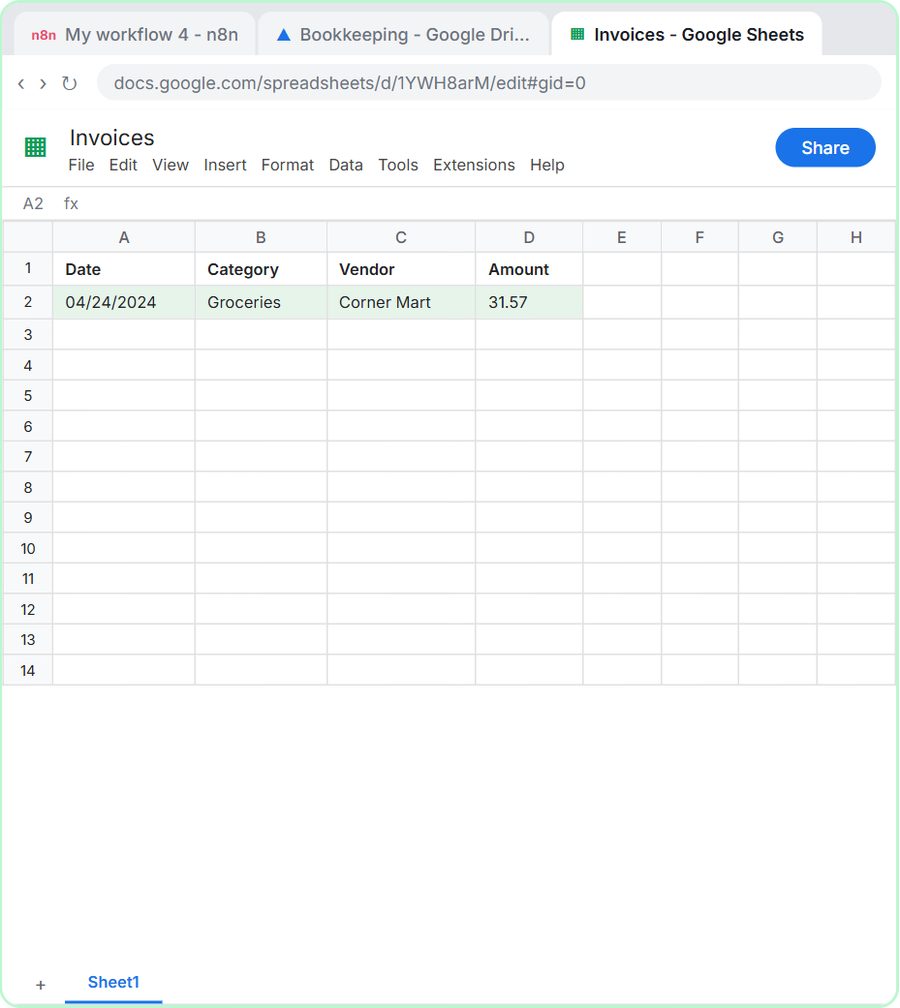 How to Do OCR in n8n: Read Receipt Photos into Google Sheets with AI
Drop a photo of a receipt into an n8n chat. An AI agent reads it, pulls out the date, vendor and amount, picks a category, and adds a row to Google Sheets.
Free · Live ~12 min Intermediate
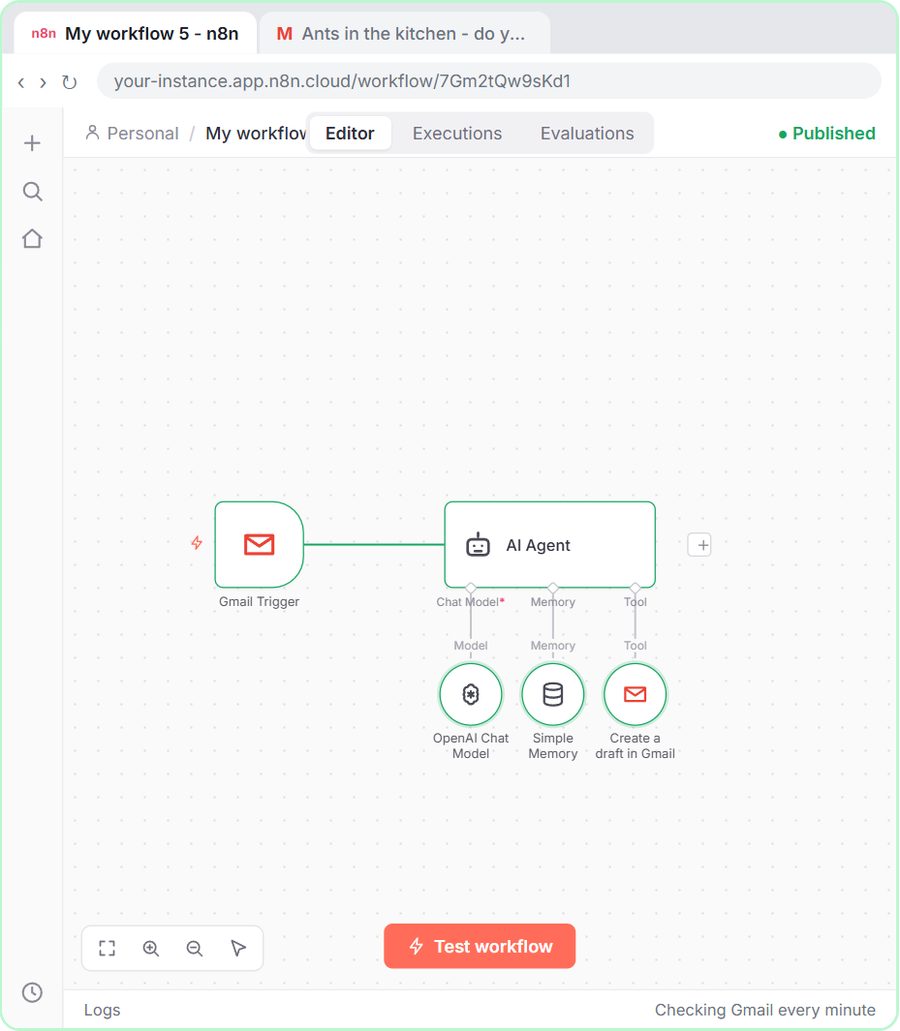 n8n AI Email Responder: Draft Gmail Replies Automatically
Build an n8n agent that watches your Gmail, reads each new customer email, and writes a reply as a draft in the same thread, ready for you to check and send.
Free · Live ~12 min Intermediate
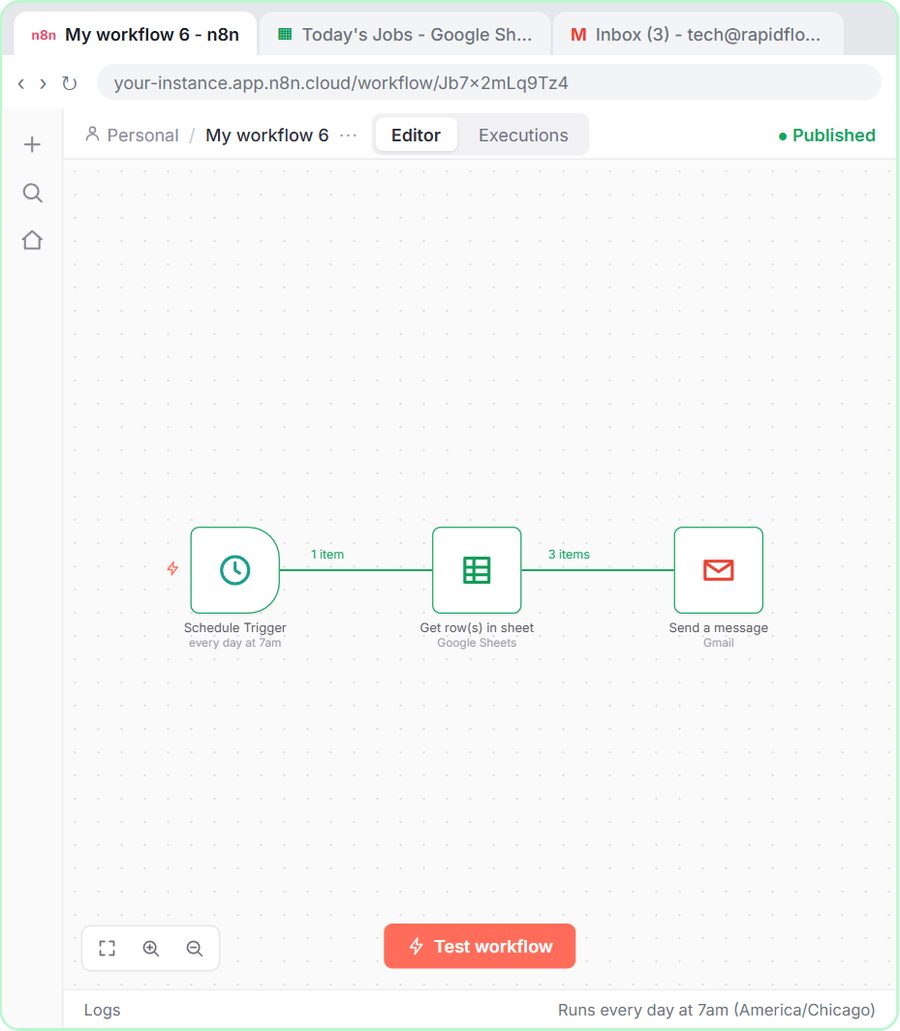 How to Make an n8n Workflow That Emails Each Tech Their Jobs from Sheets
Every morning at 7, n8n reads a plumbing company's jobs sheet, skips anything not assigned yet, and emails each job to the tech it's assigned to — customer, address…
Free · Live ~10 min Intermediate
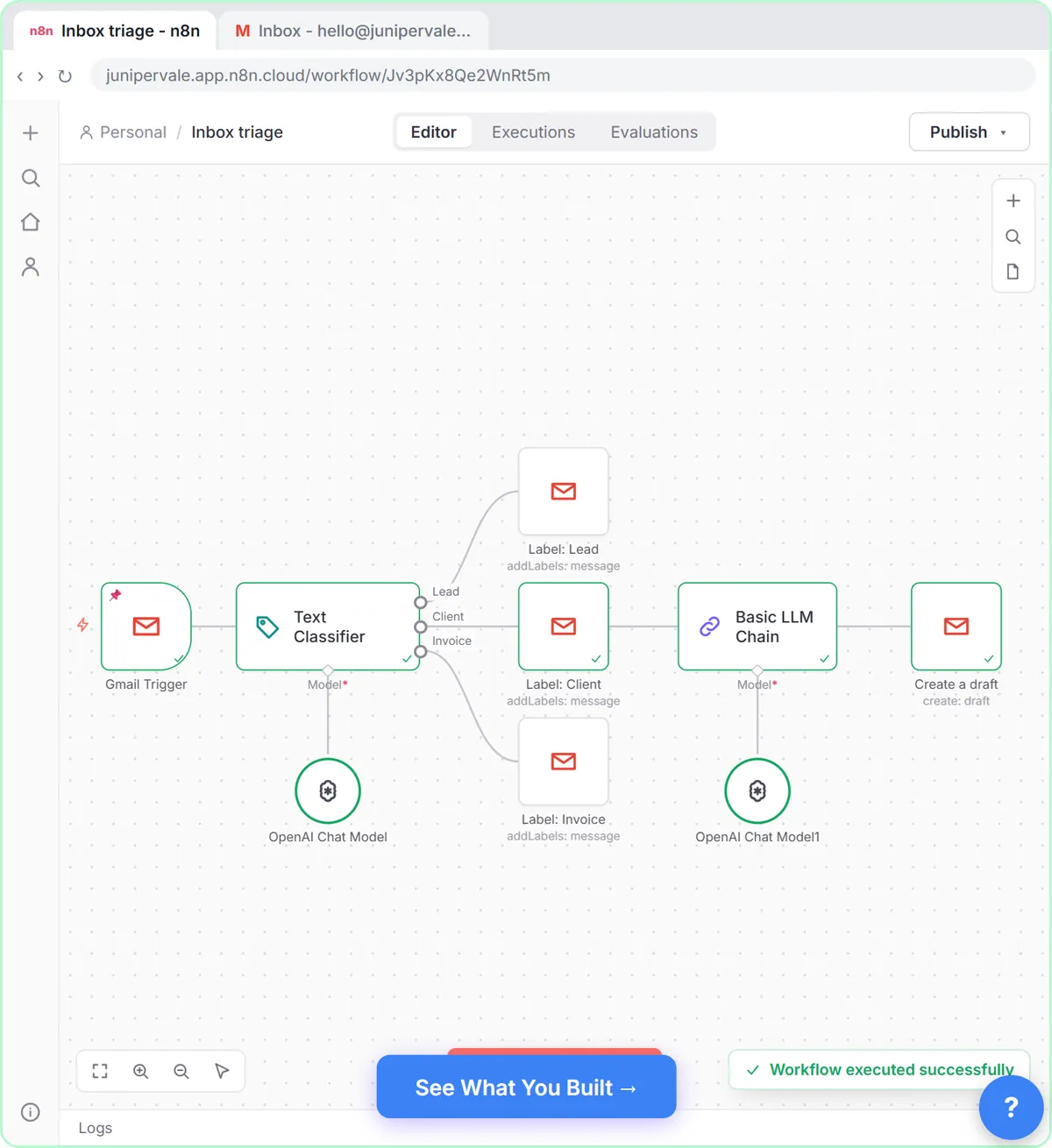 Gmail AI Triage: Auto-Label Every Email and Draft Replies
Build an n8n workflow that reads each new email, sorts it as a lead, a client or an invoice with a Text Classifier, adds the matching Gmail label, and drafts a reply to…
Free · Live ~18 min Advanced
 How to Use n8n to Build AI Agents: A Support Agent That Answers from Your Docs
Turn an n8n chat agent into a support agent that answers only from your policies in a Google Doc, refuses what it should, and hands off to a person by email.
Free · Live ~13 min Advanced
 Chatbase: Answer Customer FAQs with an AI Agent
A business case for a small firm that answers the same customer questions every week: build a Chatbase AI agent on your FAQ in the real app, make it say when it does…
Free · Live ~15 min Beginner
All 62 modules in Business Automations
Terms in this lesson
Plain-English definitions, each with an example from a free lesson.