Updated . Built against the tool’s current screens and checked step by step. How we check this lesson
Many bookkeepers and office managers still retype vendor invoices: open the PDF, copy the vendor, the invoice number, the date and the total into a spreadsheet, check for typos, and do it again for the next one. Docparser (docparser.com) reads your PDFs and pulls the same fields out of each one into rows you can download as one spreadsheet. In this free business-case lesson you use a practice copy built from real Docparser screenshots, captured October 2026 on a free trial, to price the weekly retyping for a made-up accounting firm, make a parser from the Invoices template, check what it found, add the vendor name it missed, and download everything as a CSV. You can download the three made-up sample invoices we used and try the same steps on your own trial. This is my own lesson, not an official Docparser course.
At a glance
| Question | Answer |
|---|---|
| What you build | A business case for bookkeepers and office managers who retype vendor invoices every week: have Docparser pull the vendor, invoice number, date and total out of each PDF, then download them all as one spreadsheet. |
| Tools | Docparser |
| Time | About 10 minutes, 36 steps in 7 parts |
| Level | Beginner, no coding needed |
| Cost | Free |
| Ways to learn it | Practice it step by step, read the guide with screenshots |
The 7 parts, in short
- Retyping invoices every week: See the weekly pile, Put a price on it, Meet Docparser.
- Make a parser from the Invoices template: Check your credits, Create a document parser, Pick the Invoices template, Name the parser, and 1 more step.
- Upload the vendor PDFs: Add your invoices, Continue.
- Check what it pulled out: See the rules it made, Open the Invoice Number rule, Close the help offer, Check the invoice number, and 2 more steps.
- Add the vendor name: Add a rule for the vendor, Search the rule types, Pick Text Fixed Position, Name the rule, and 4 more steps.
- Download the spreadsheet: Prepare for export, Answer a few questions, Open Downloads, Pick CSV, and 5 more steps.
- What it saves, and doing it for real: See where it can send data, What this saves you, Do it for real.
Part of: AI for Accounting & Bookkeeping Firms (step 30 of 42)
Part of: AI for Finance Teams (step 18 of 24)
Part of: AI Apps Worth Knowing (step 59 of 186)
Part of: AI That Reads Your Documents (step 7 of 10)
Docparser: Pull Invoice Data from PDFs into a Spreadsheet: step-by-step guide with screenshots
About the screenshots. They come from Stepthrough’s simulated practice environment (a practice copy of Docparser), not the live tool, so no real account appears. The buttons and labels match the real screens the lesson was built against. Practice it yourself free at ynteractive.com.
- Tools: Docparser
- Time: about 10 minutes, 36 steps in 7 parts
- Level: beginner, no coding needed
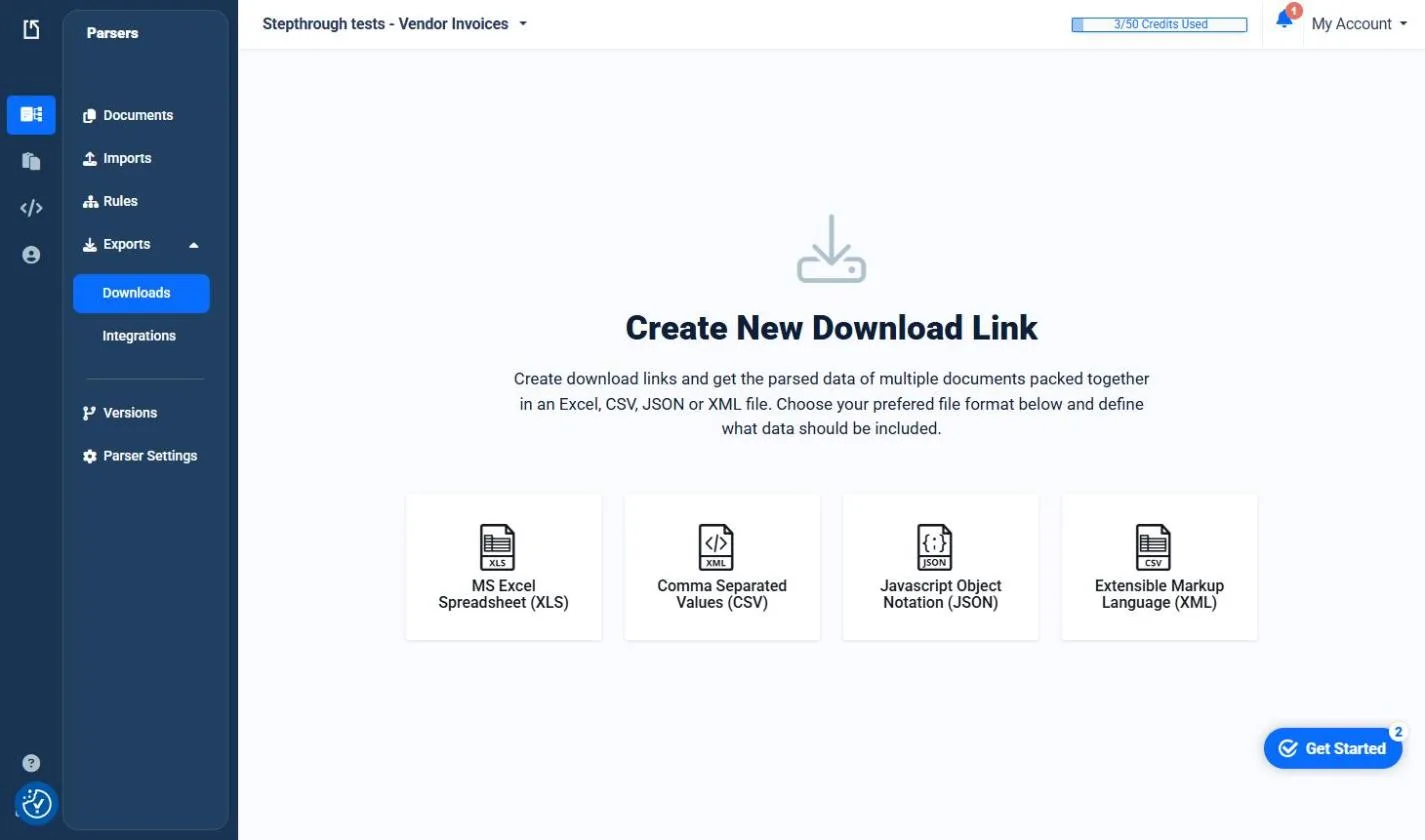
Part 1: Retyping invoices every week
Step 1: See the weekly pile
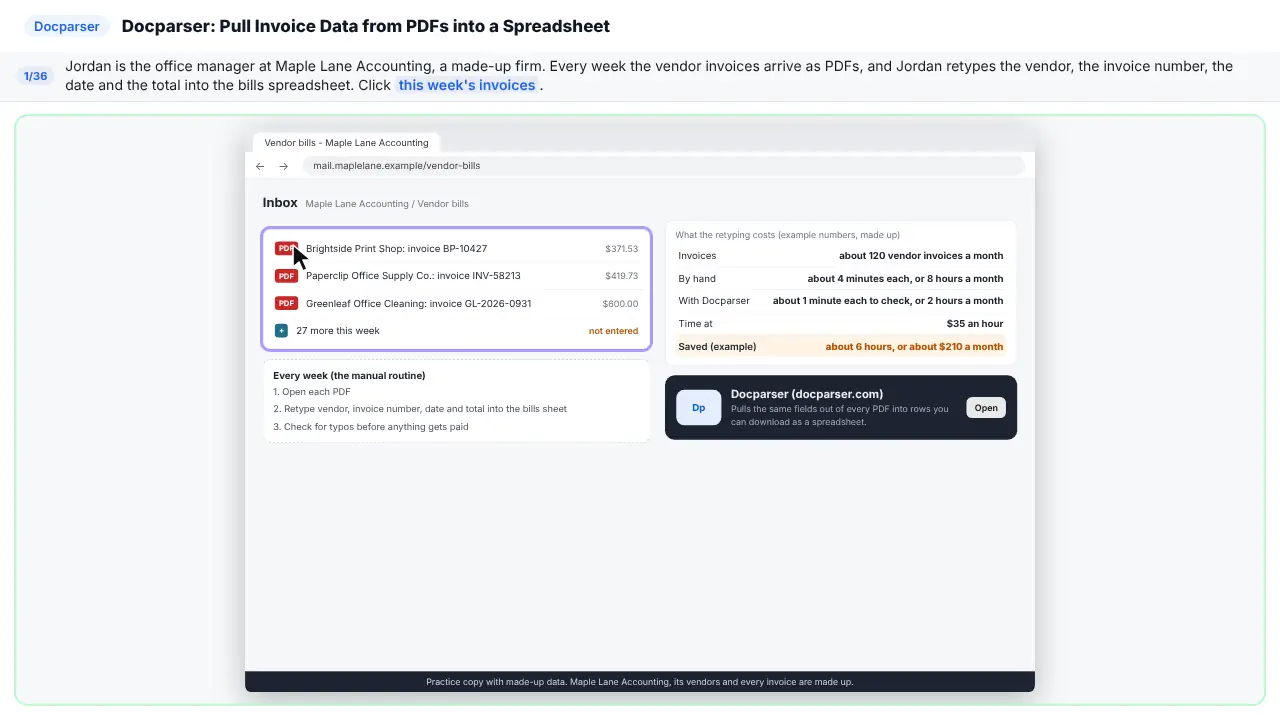
Meet Jordan. Jordan runs the office at a small accounting firm. Every week, the vendor invoices come in as PDFs. And every week, Jordan retypes them into a spreadsheet.
Step 2: Put a price on it
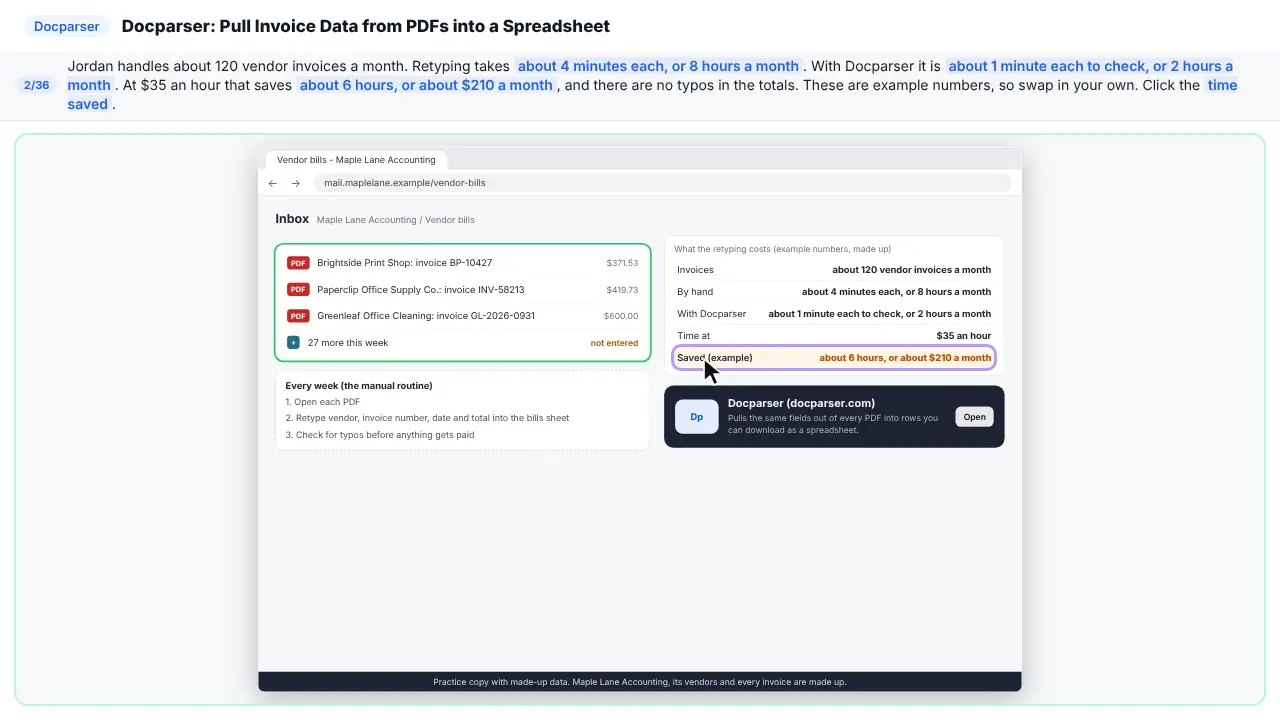
Let's put a price on that. About a hundred and twenty invoices a month. Four minutes each by hand. One minute each to check, with Docparser. That's about six hours back every month. These are example numbers. Use your own.
Step 3: Meet Docparser
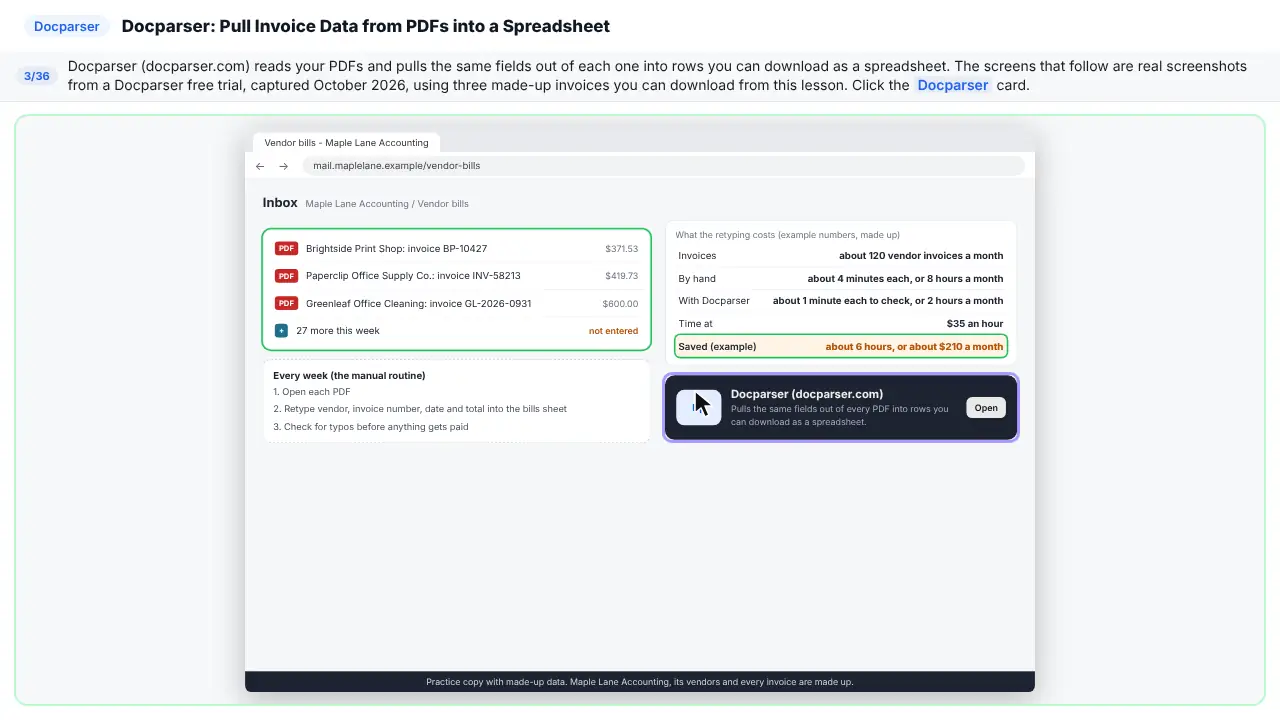
This is Docparser. It reads your PDFs, and pulls the same fields out of each one. These are real screens from a free trial.
Part 2: Make a parser from the Invoices template
Step 4: Check your credits
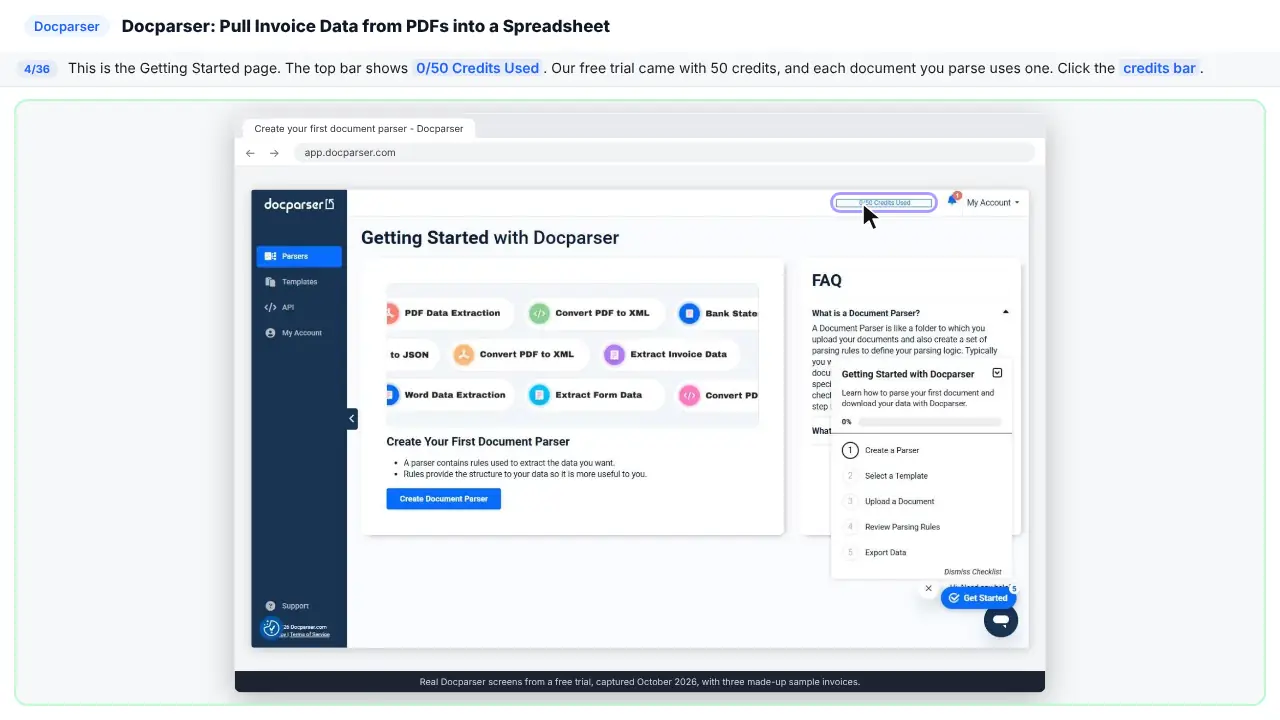
Here's the start page. Our trial came with fifty credits. Each document you parse uses one.
Step 5: Create a document parser
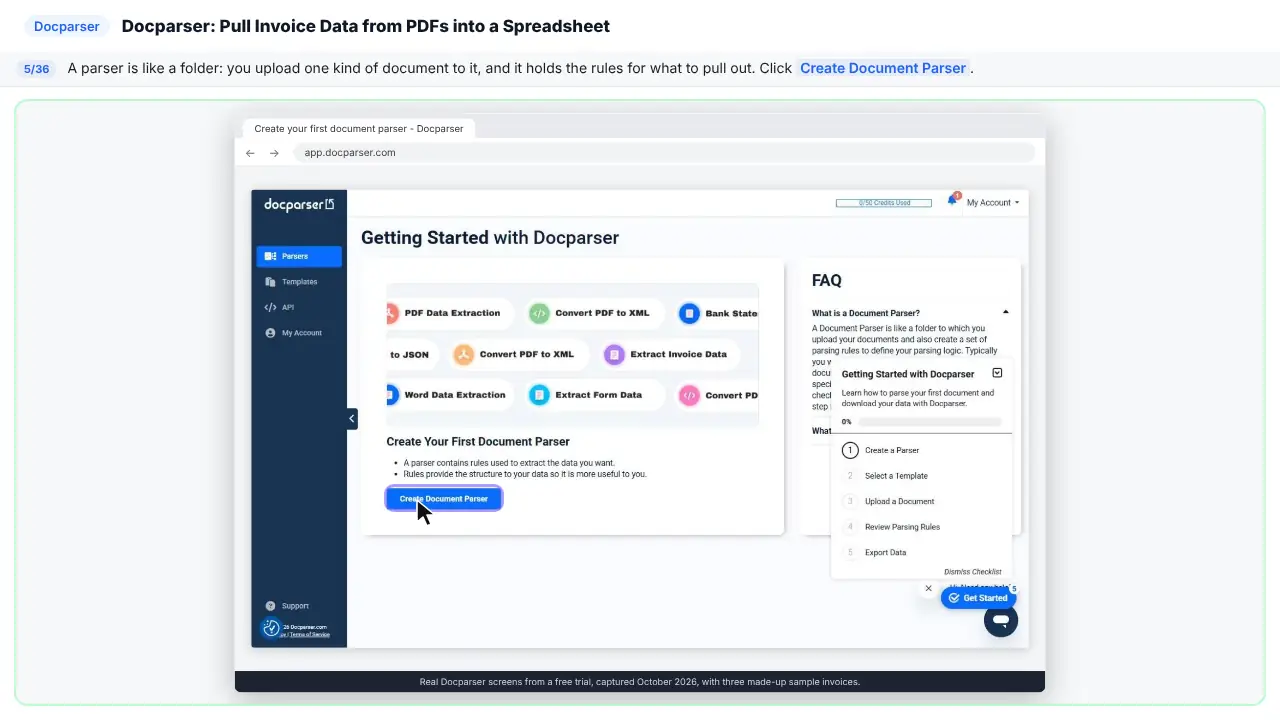
A parser is like a folder for one kind of document.
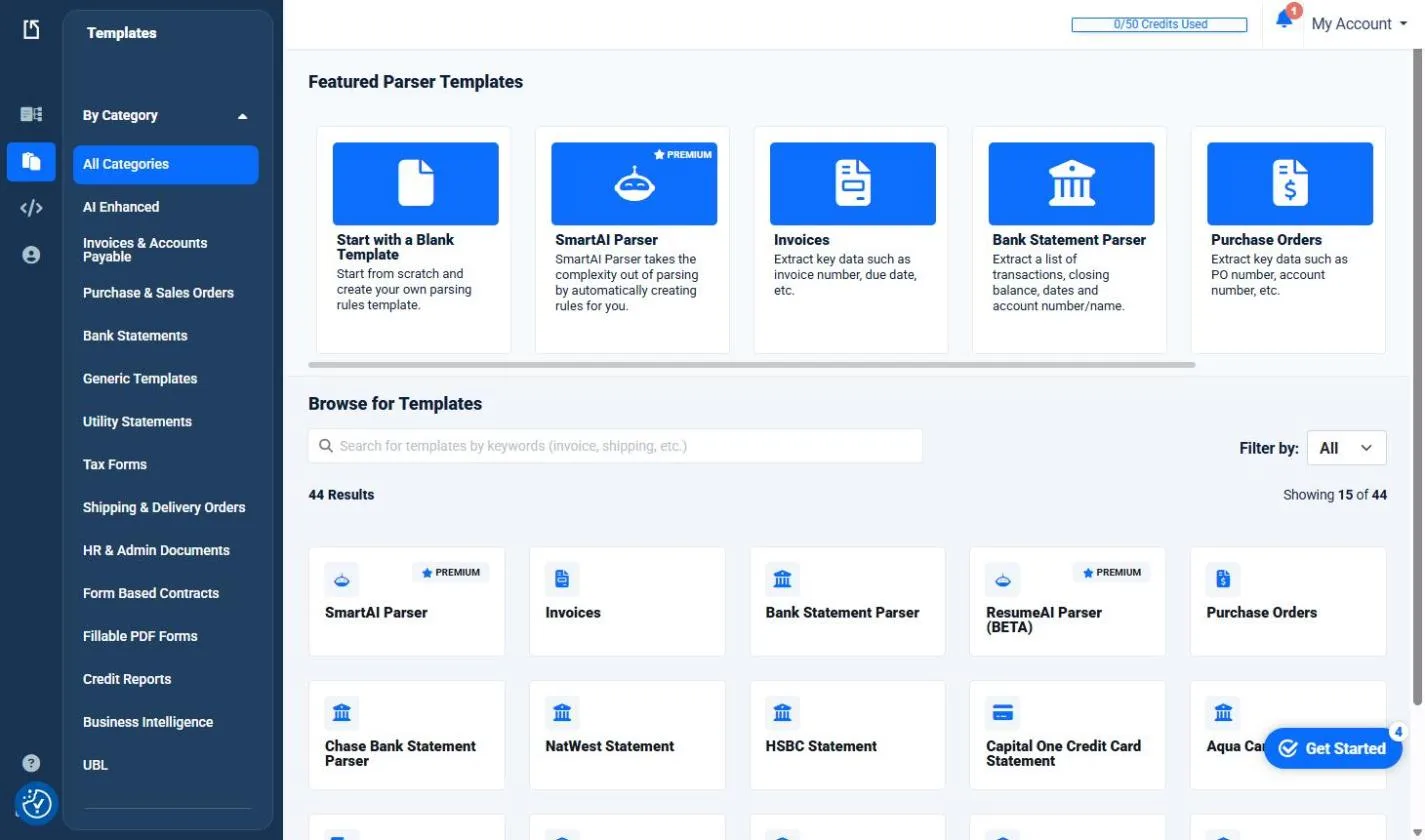
Step 6: Pick the Invoices template
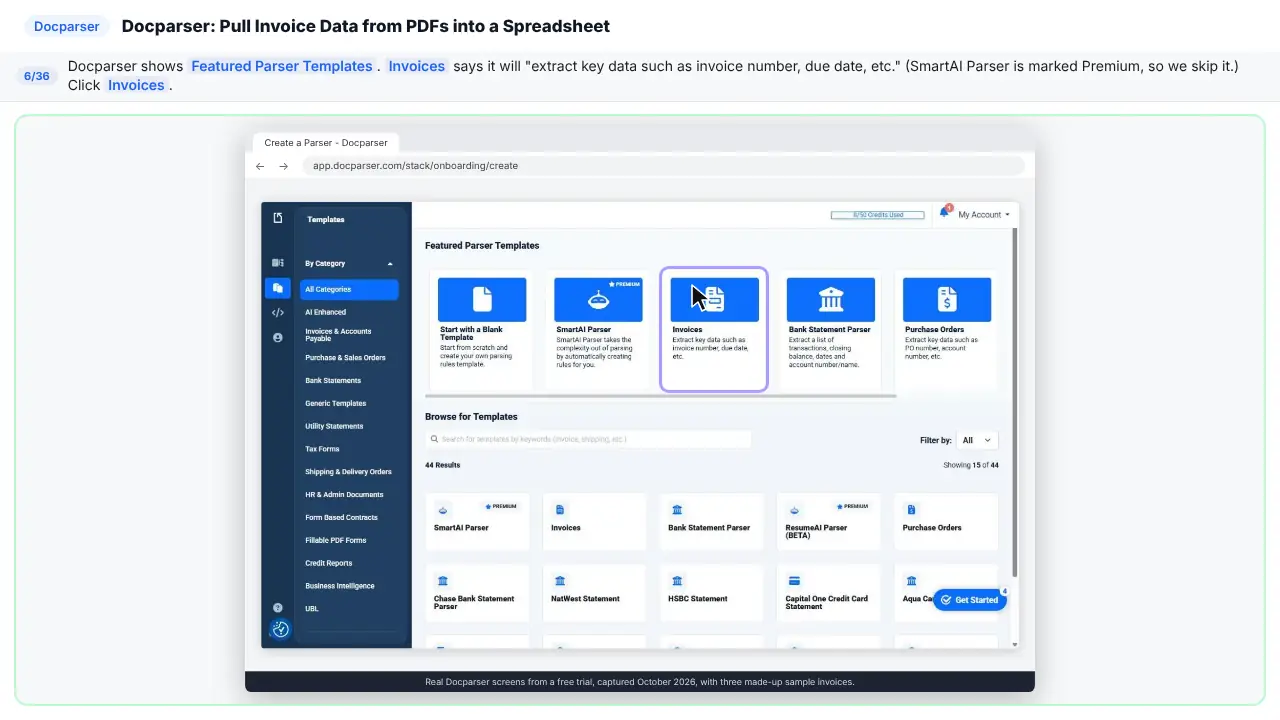
Pick the invoices template. It already knows how to find invoice numbers, dates and totals.
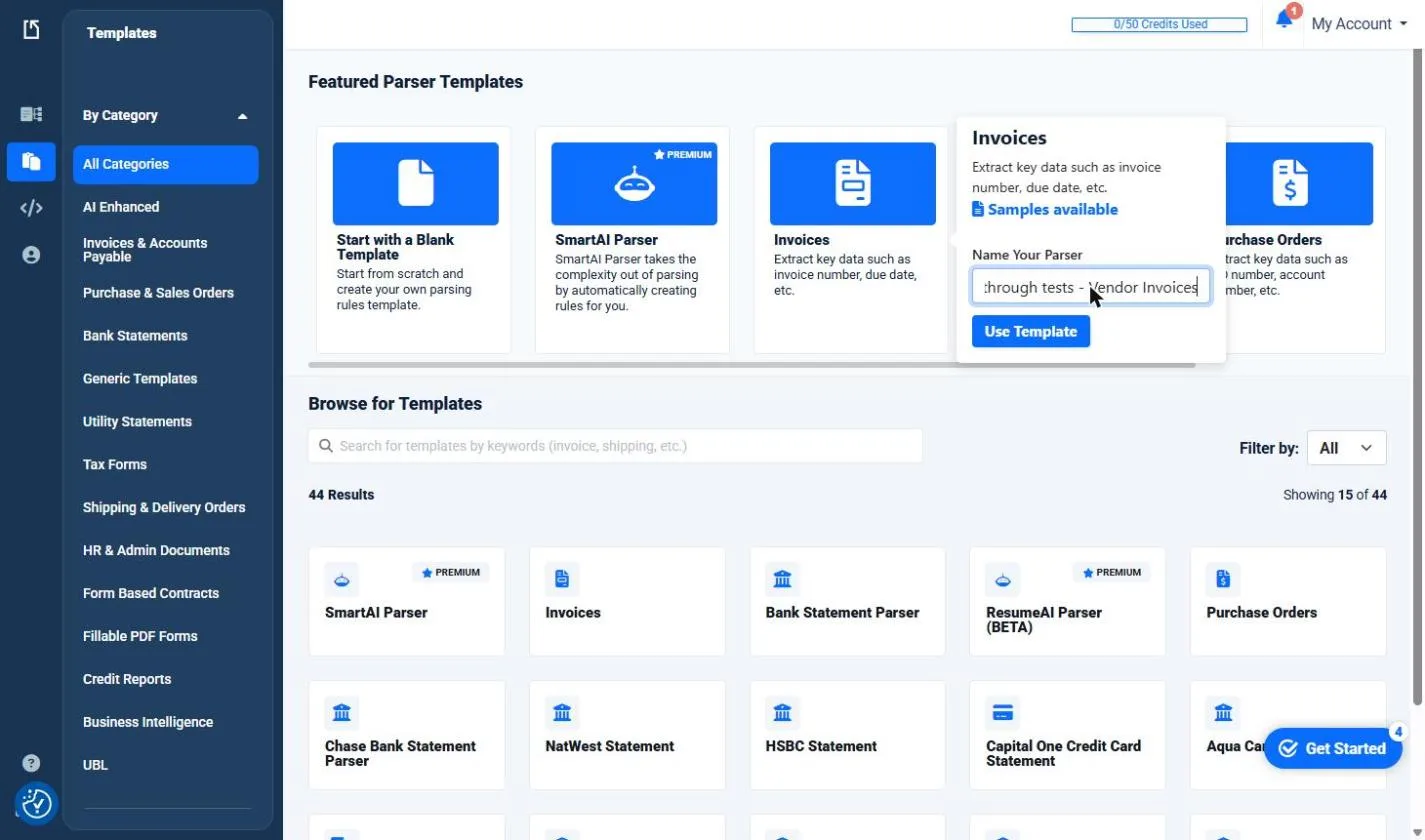
Step 7: Name the parser
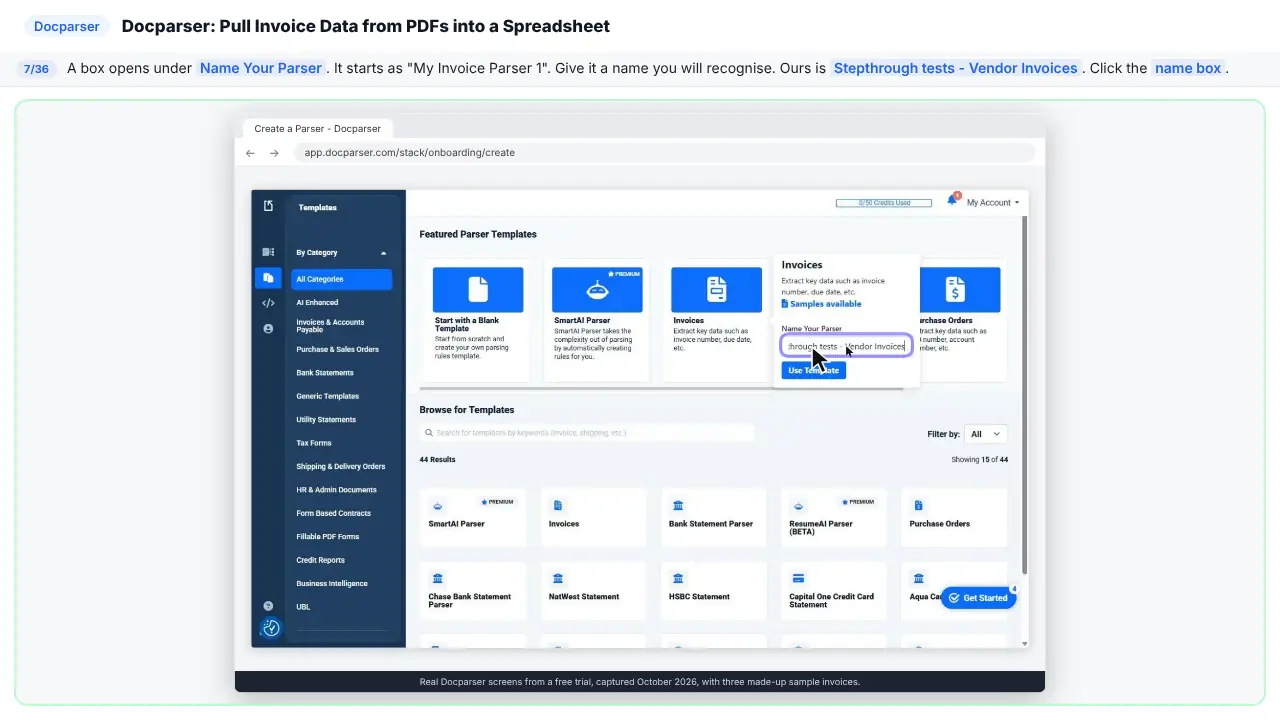
Give the parser a name you'll recognise.
Step 8: Use the template
Part 3: Upload the vendor PDFs
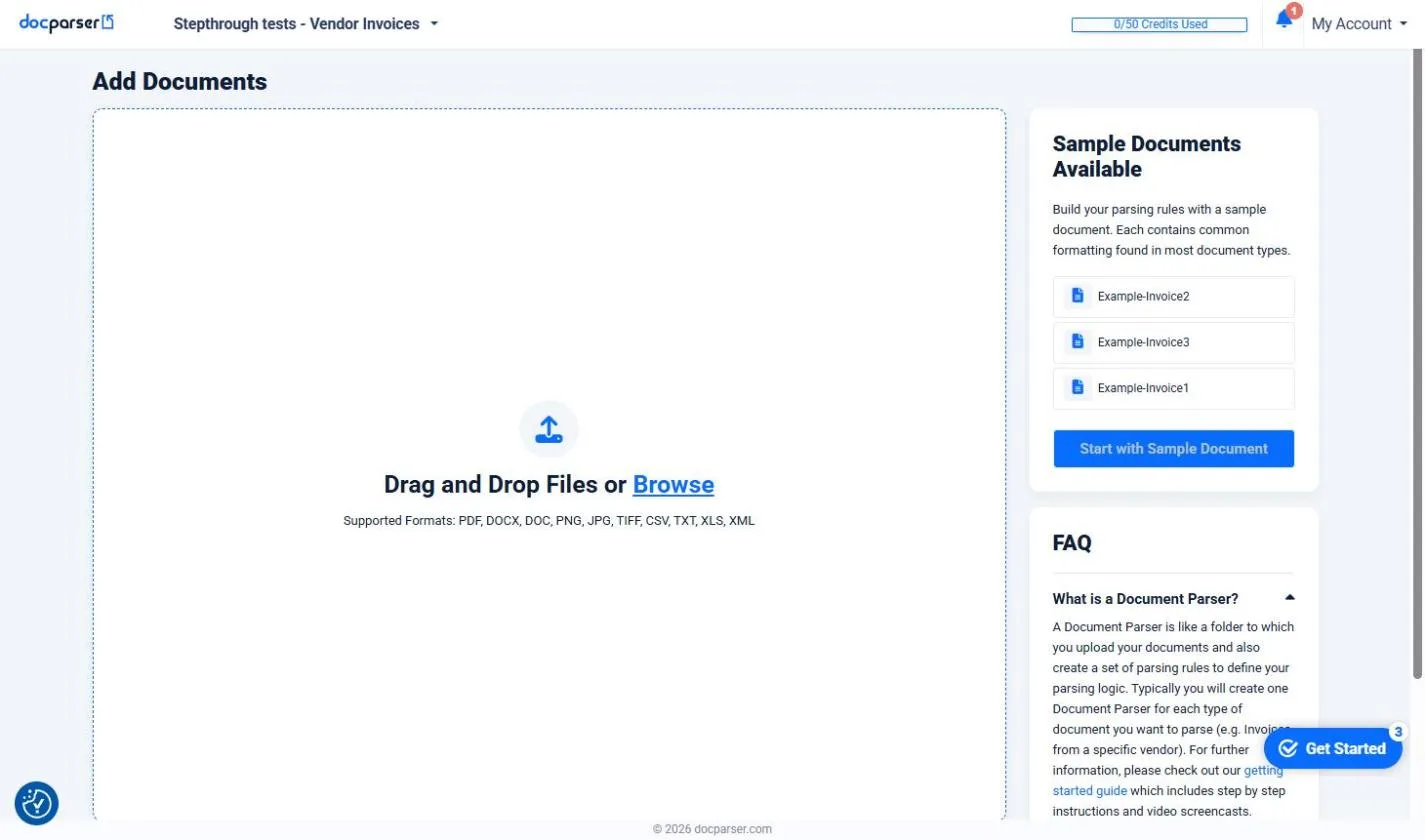
Step 9: Add your invoices
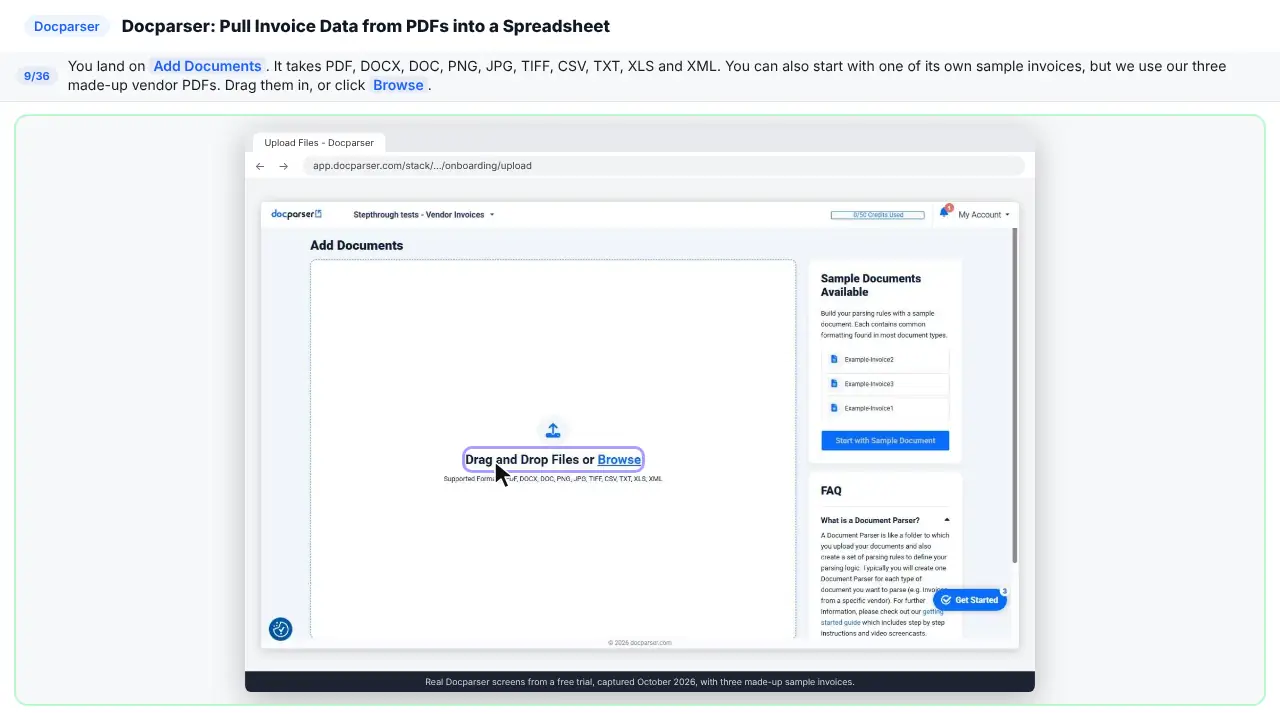
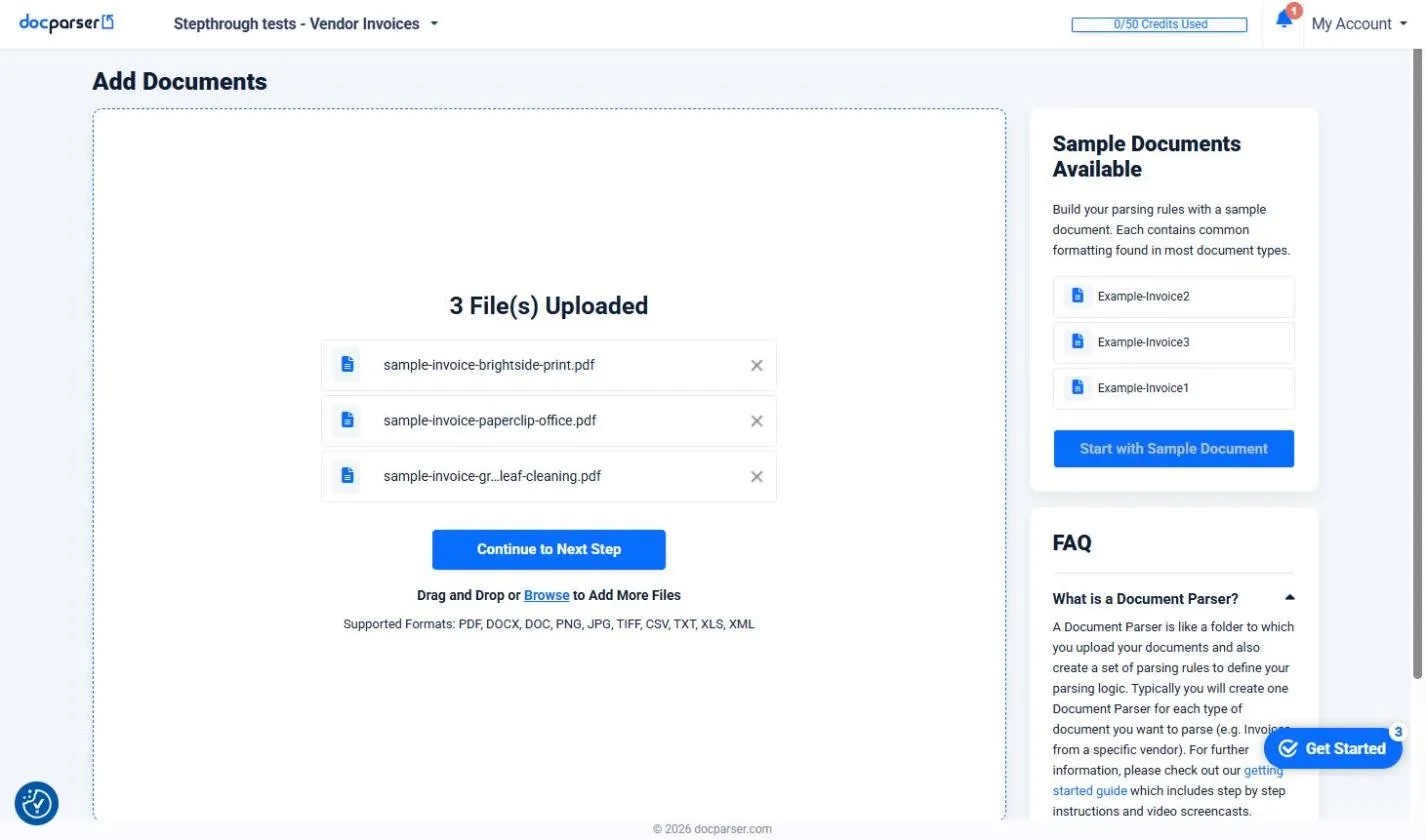
Now add the invoices. We use three made up vendor PDFs. You can download them from this lesson.
Step 10: Continue
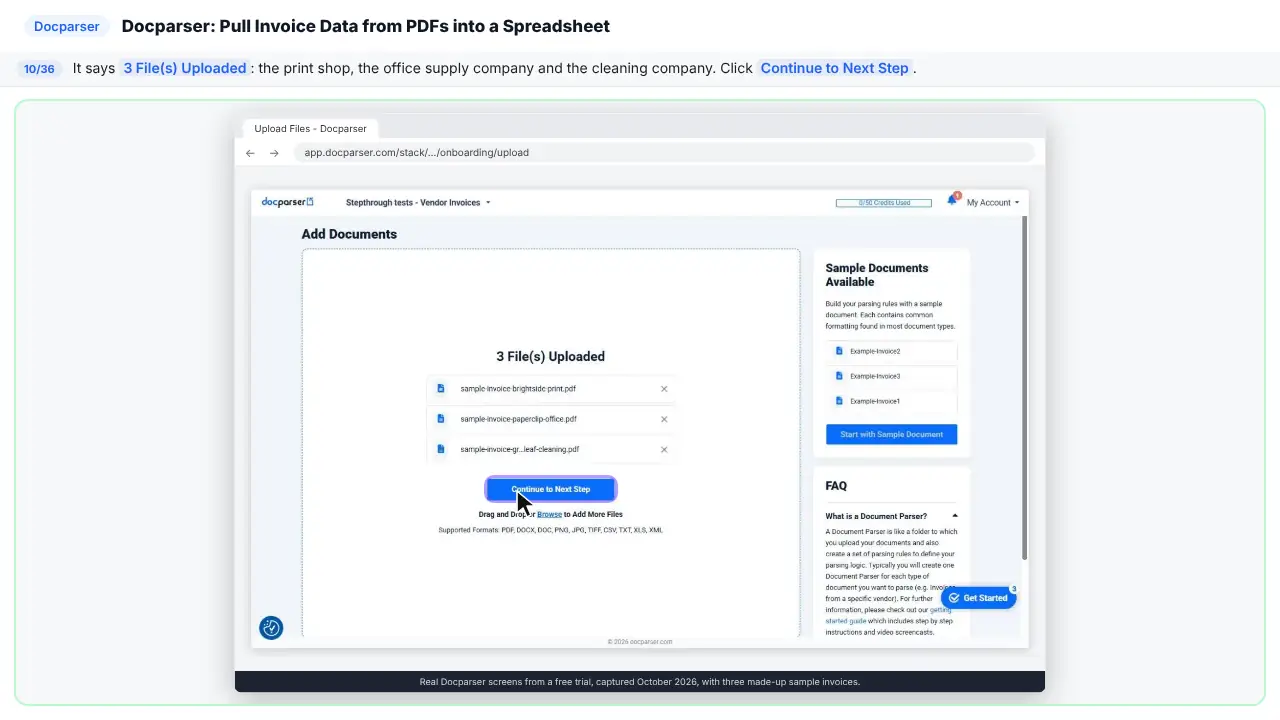
Three files uploaded. Continue.
Part 4: Check what it pulled out
Step 11: See the rules it made
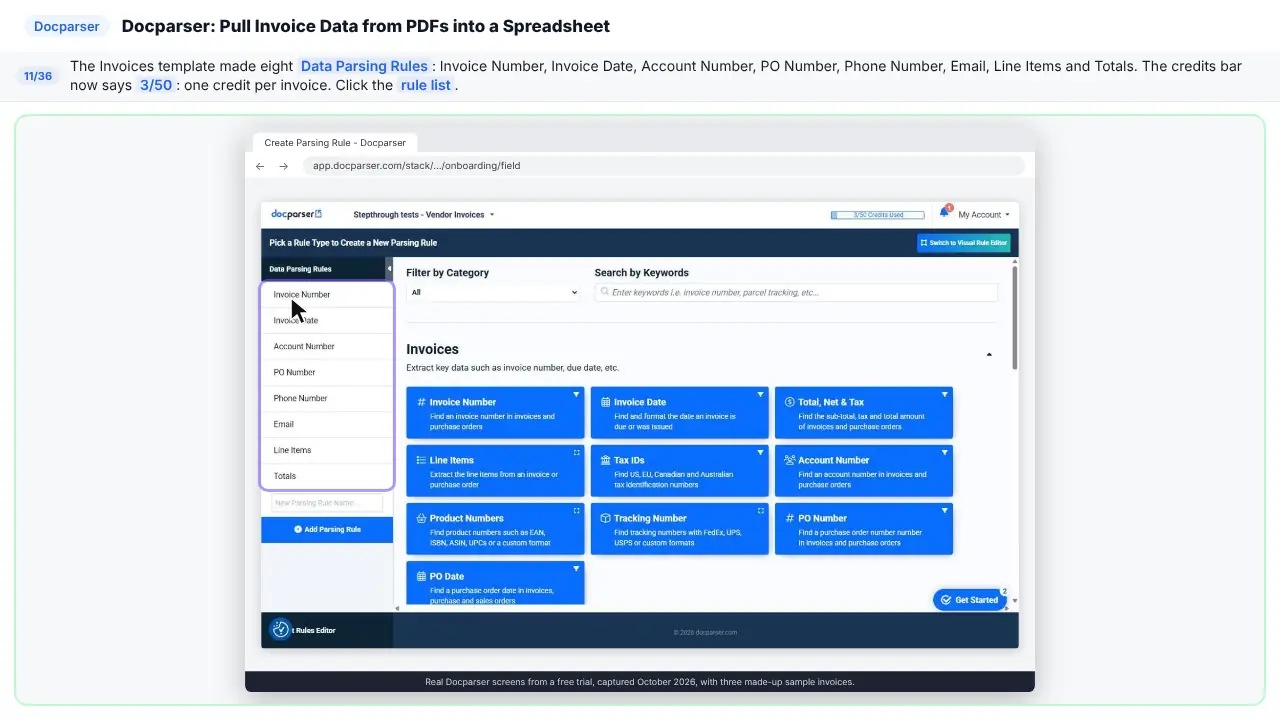
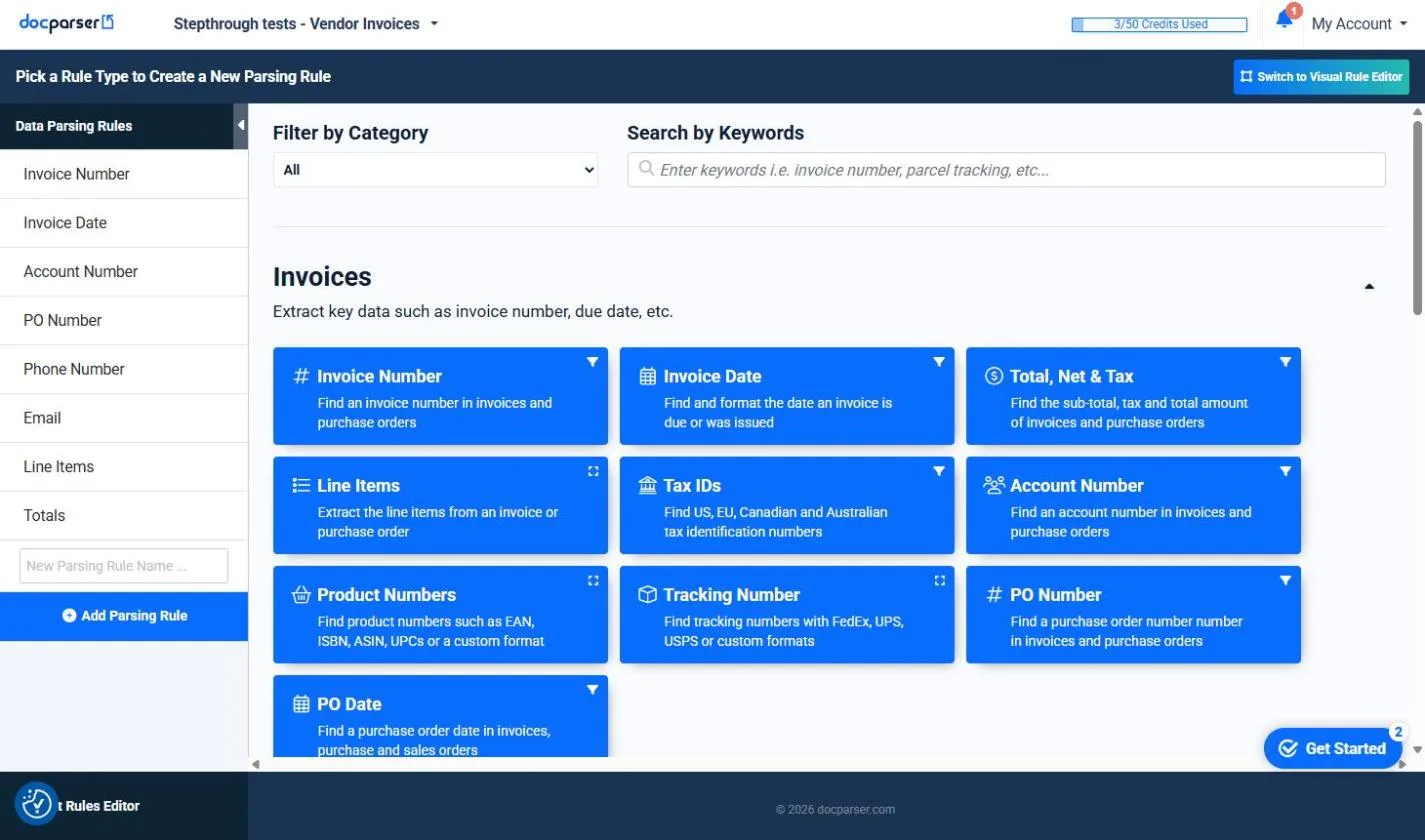
The template made eight rules. Invoice number, date, totals, and more. And the credits went from zero to three. One per invoice.
Step 12: Open the Invoice Number rule
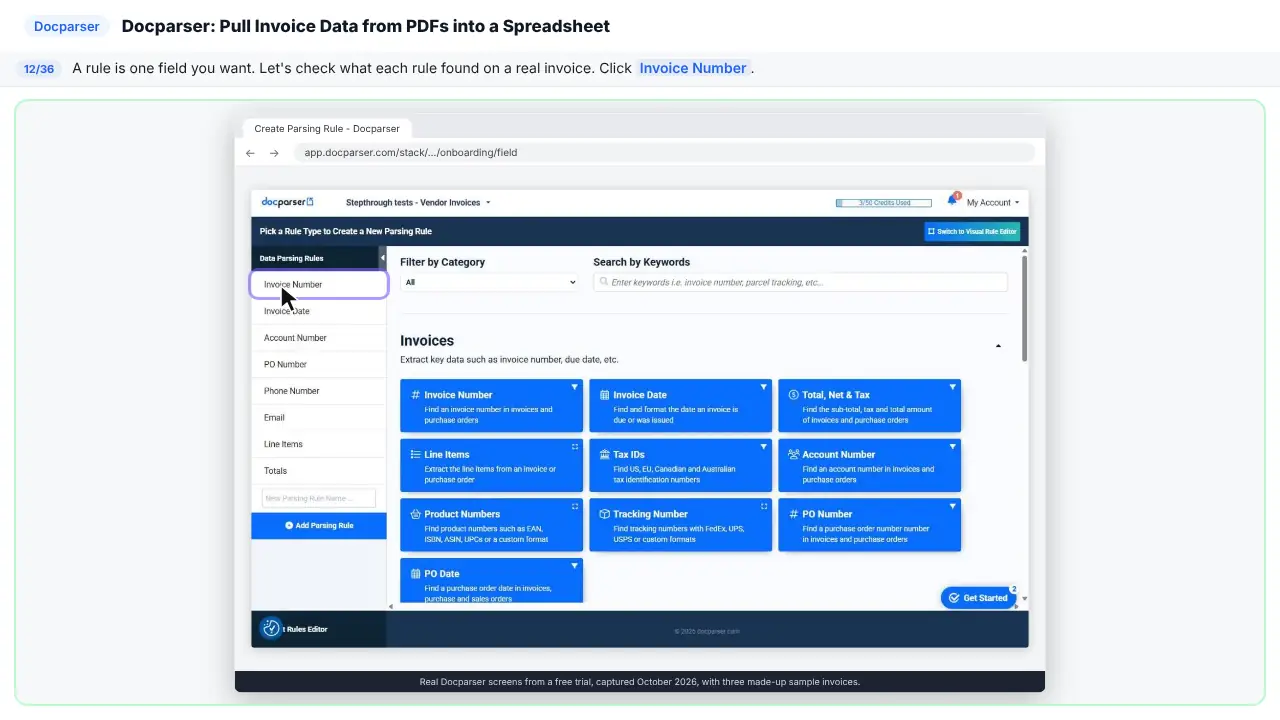
Let's check what each rule found.
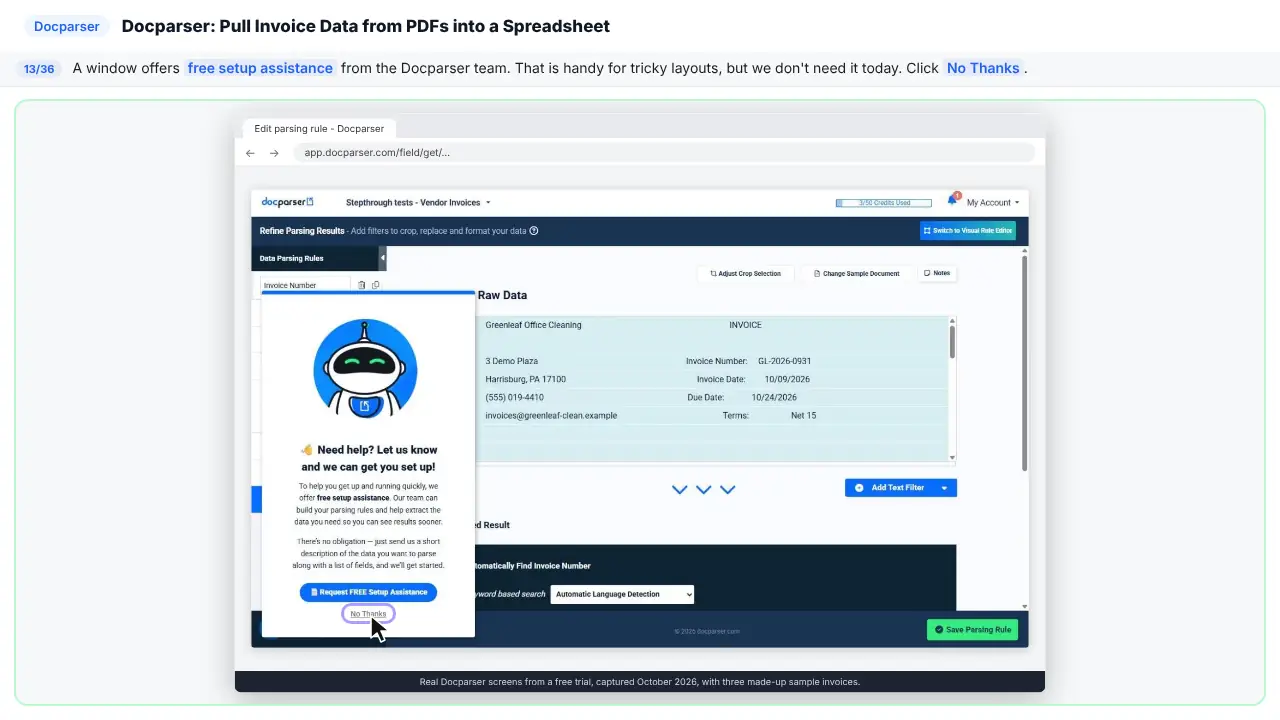
Step 13: Close the help offer
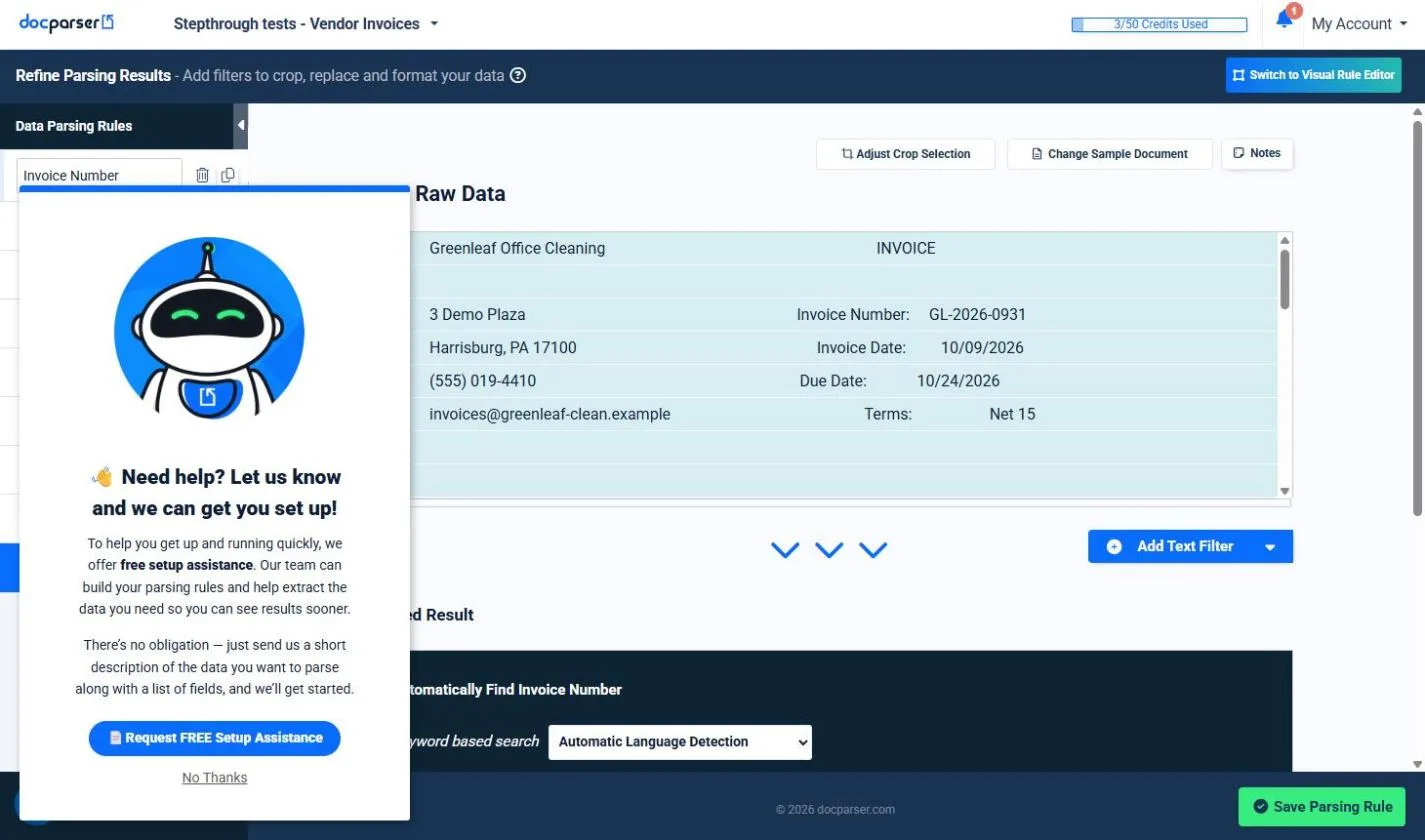
A help window pops up. Close it for now.
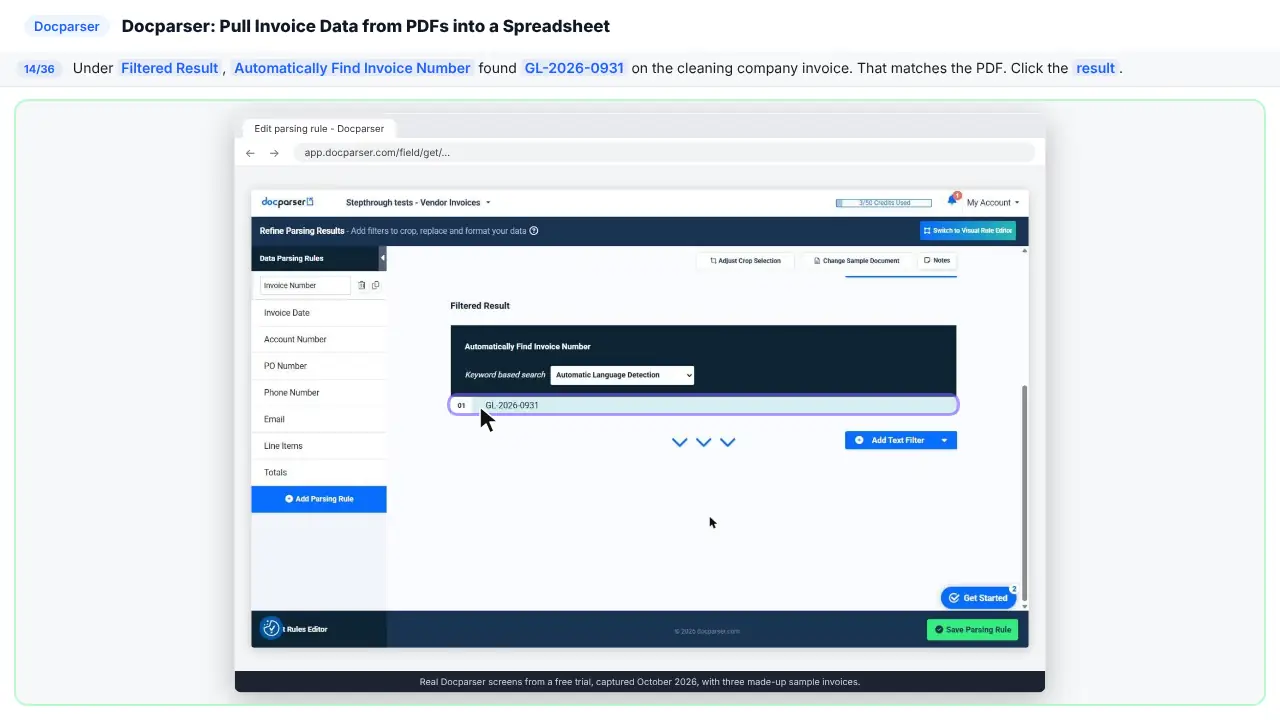
Step 14: Check the invoice number
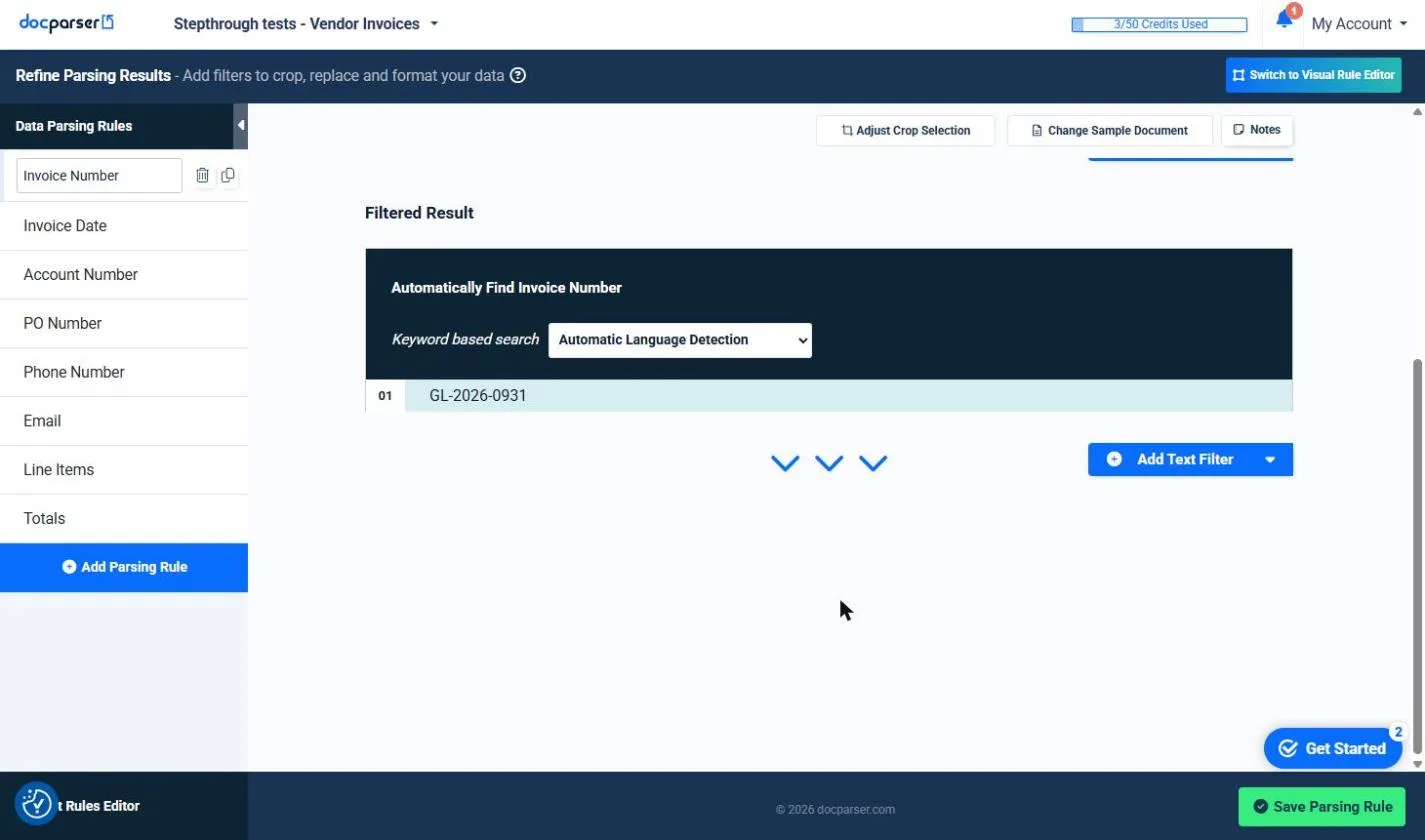
It found the invoice number. And it matches the PDF.
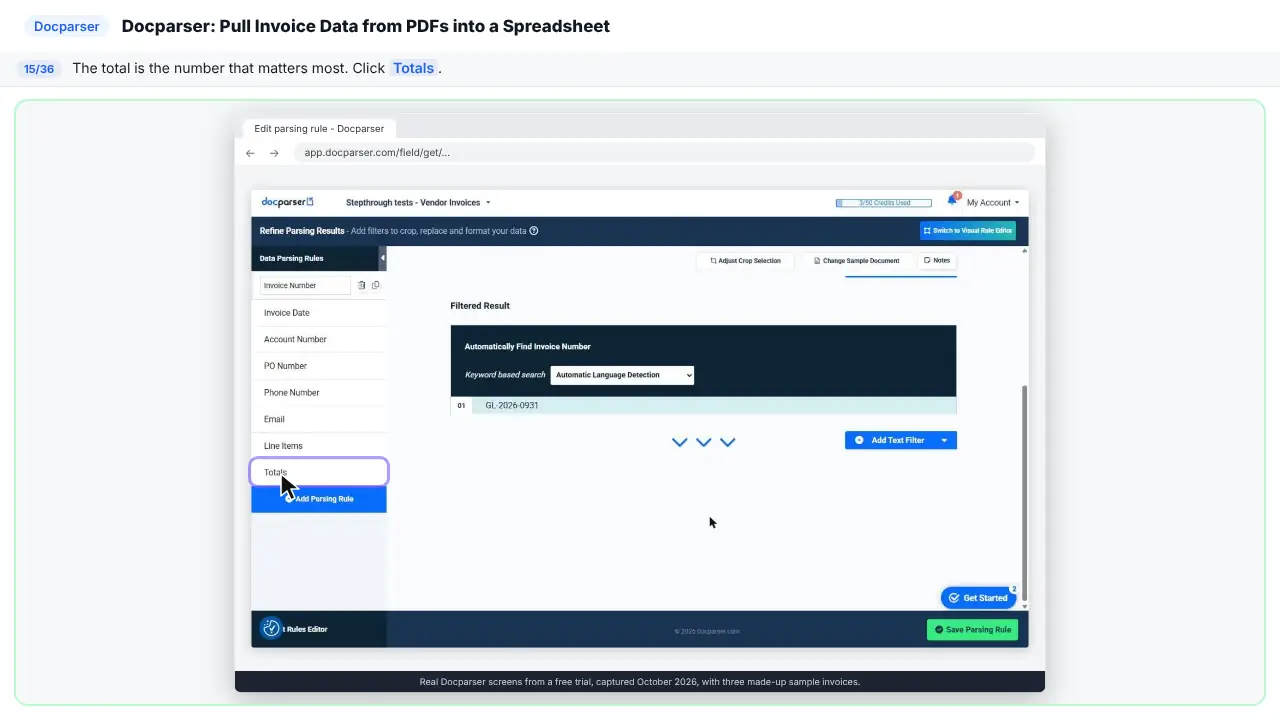
Step 15: Open the Totals rule
That's the number that matters most.
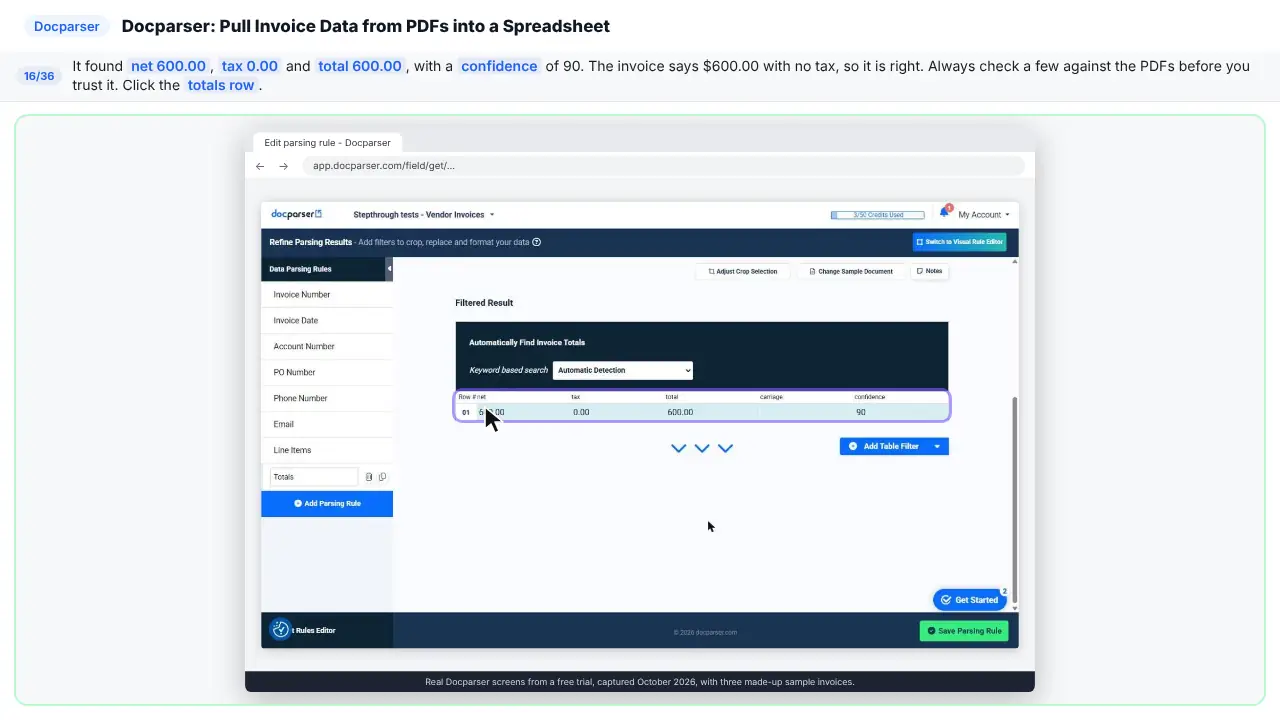
Step 16: Check the totals
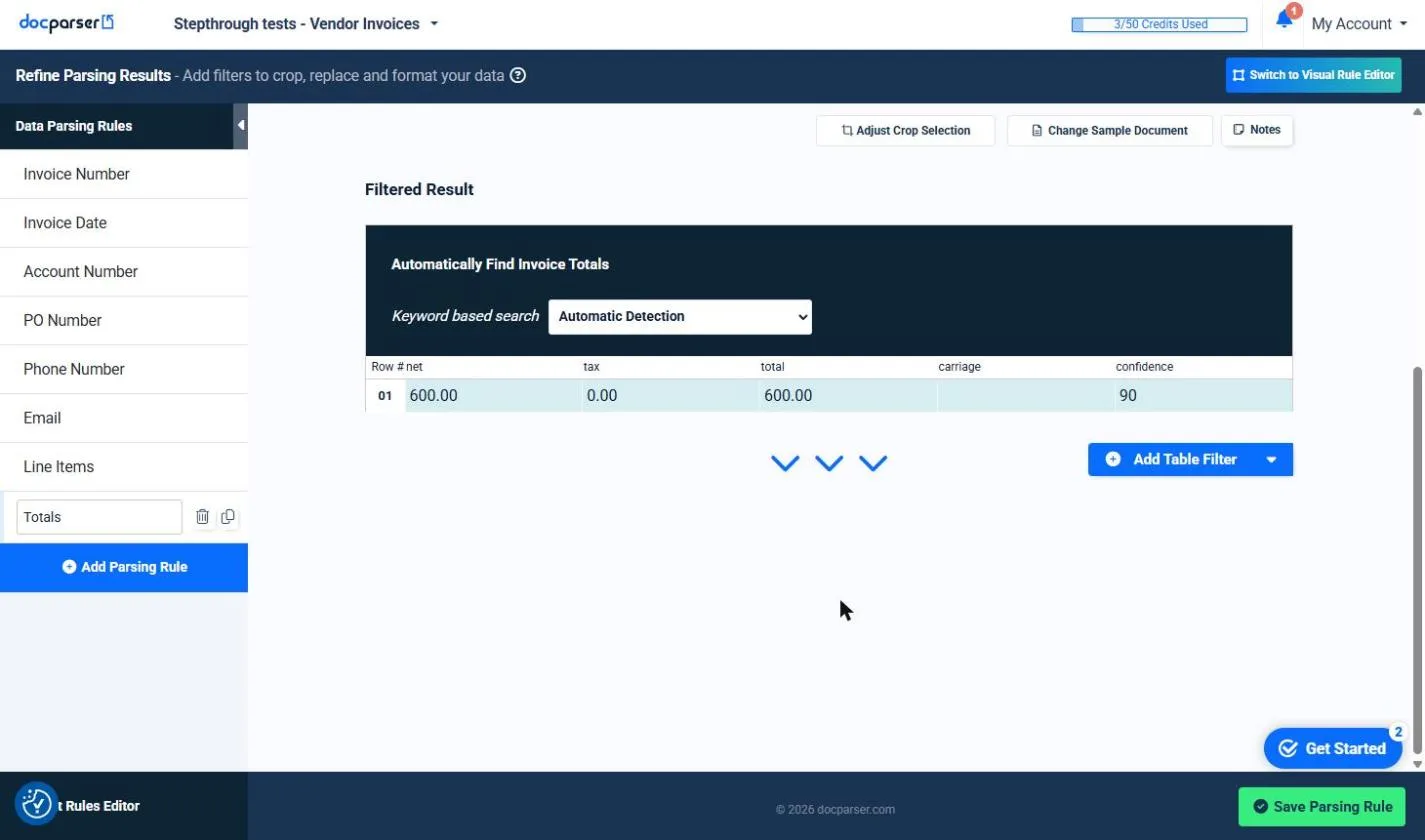
Net, tax and total. Six hundred dollars, no tax. That's right. Still, check a few against the PDFs before you trust it.
Part 5: Add the vendor name
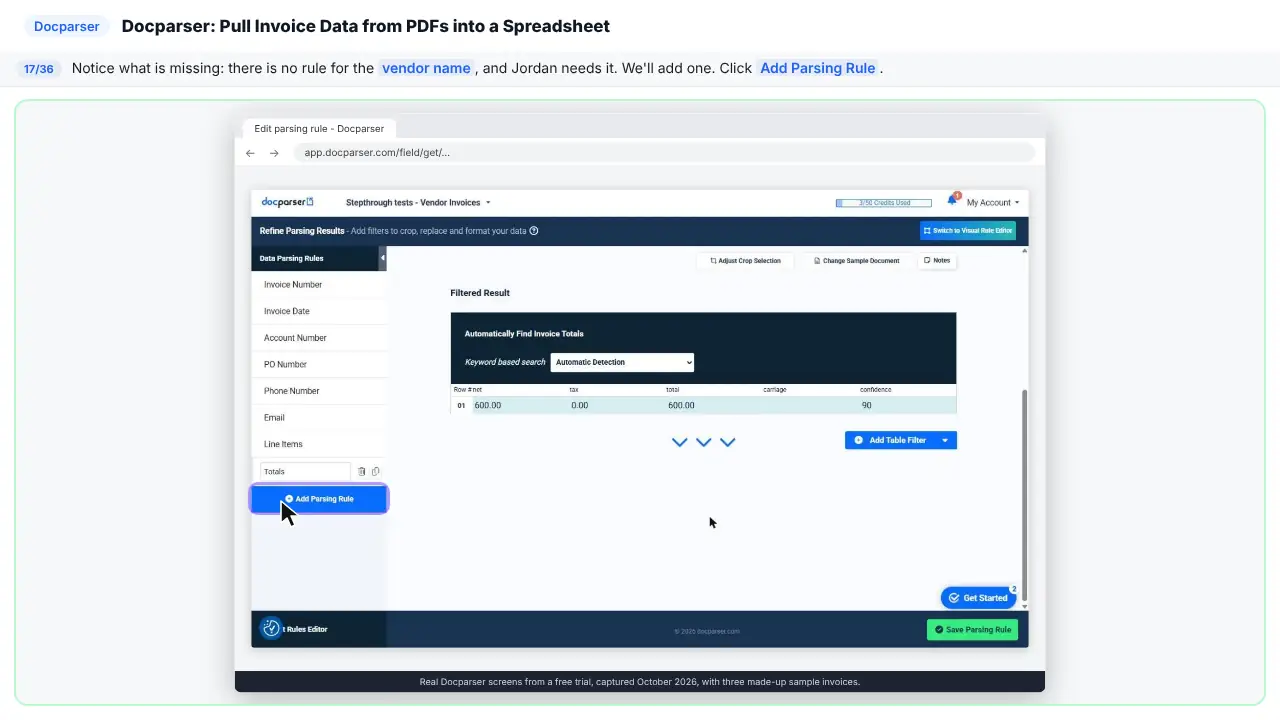
Step 17: Add a rule for the vendor
But something's missing. There's no vendor name. Let's add a rule.
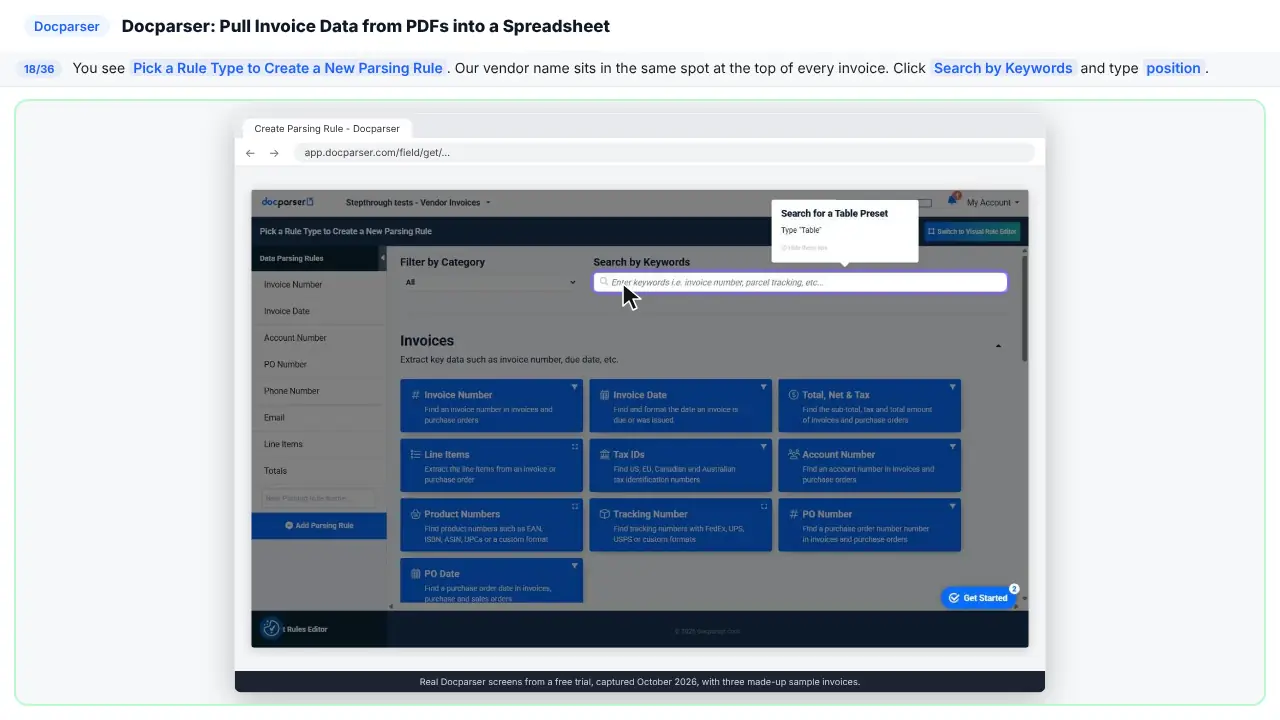
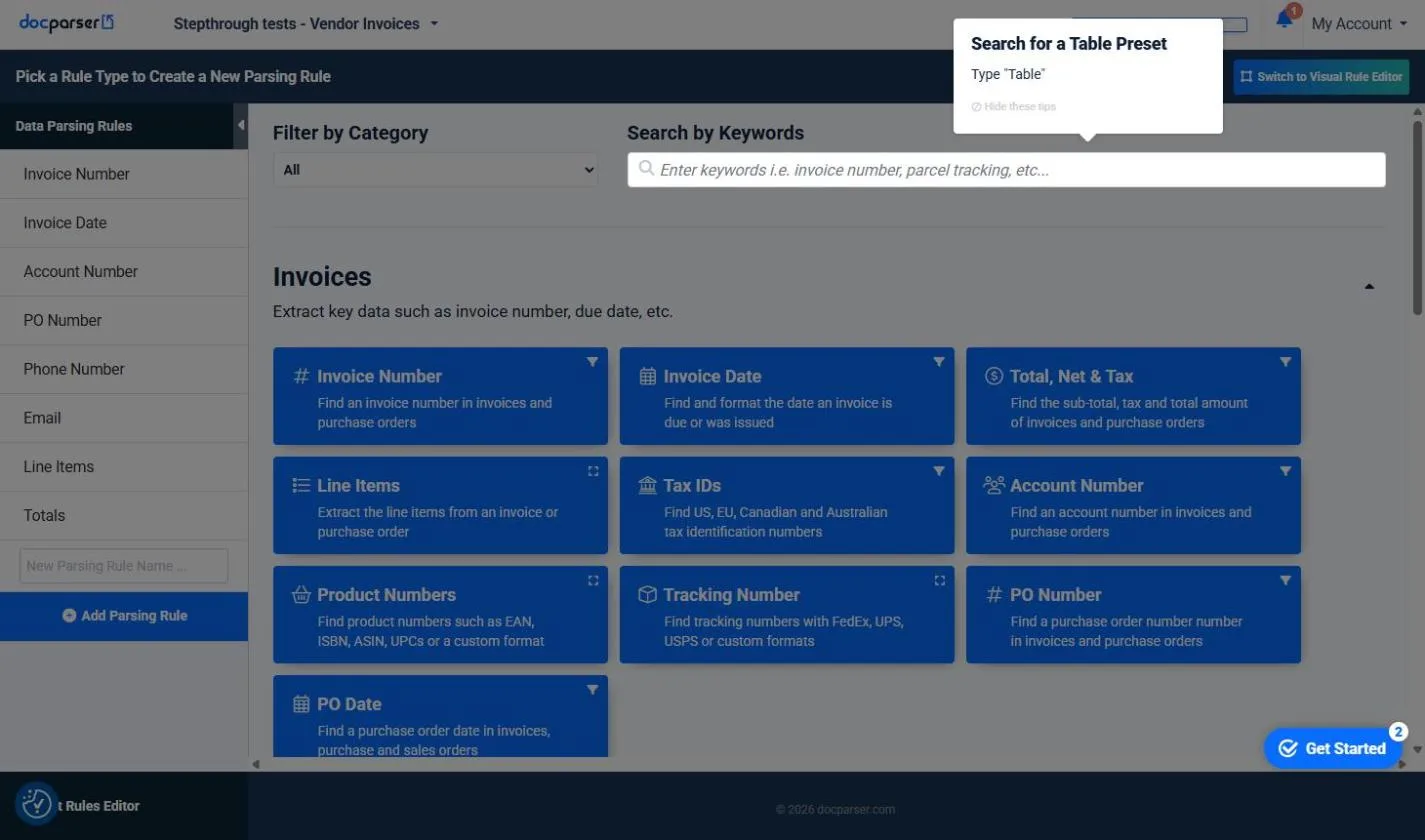
Step 18: Search the rule types
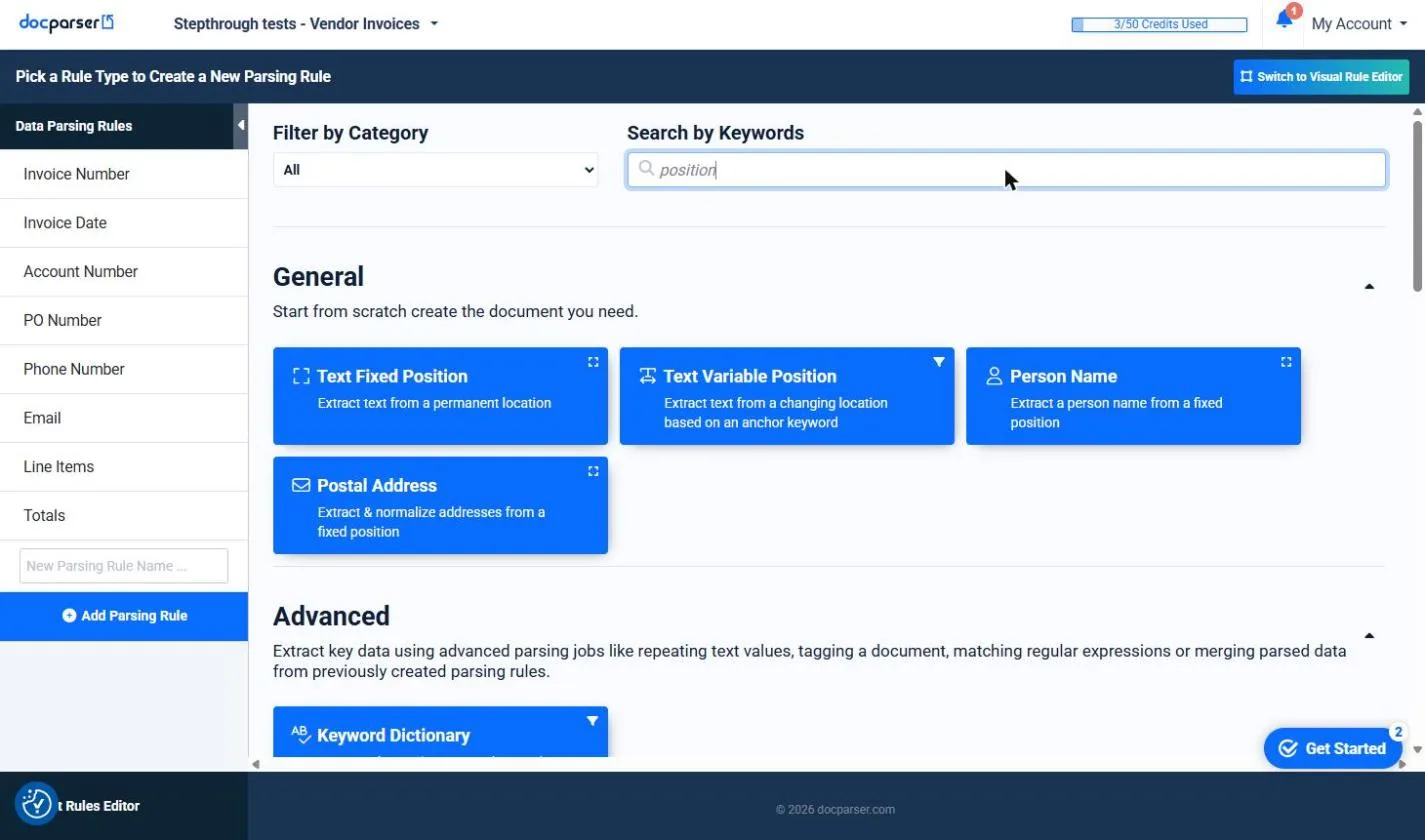
Search the rule types for position.
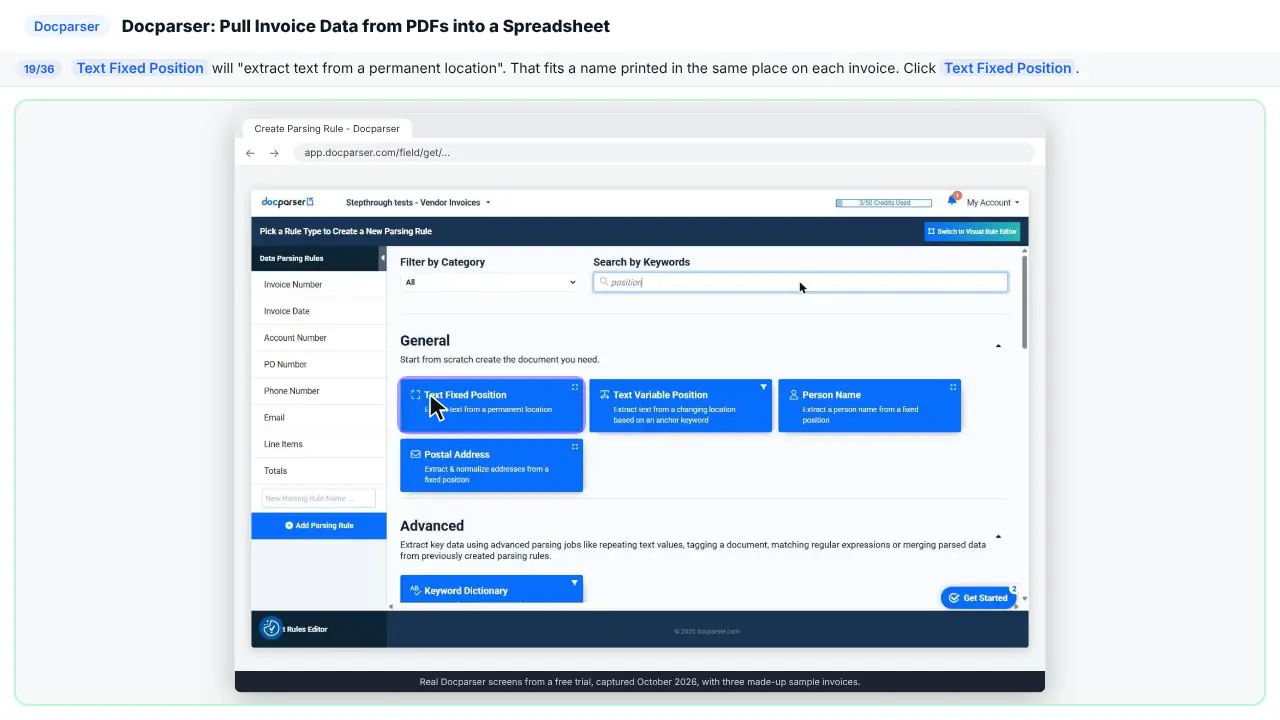
Step 19: Pick Text Fixed Position
Pick text fixed position. It reads text from the same spot on every page.
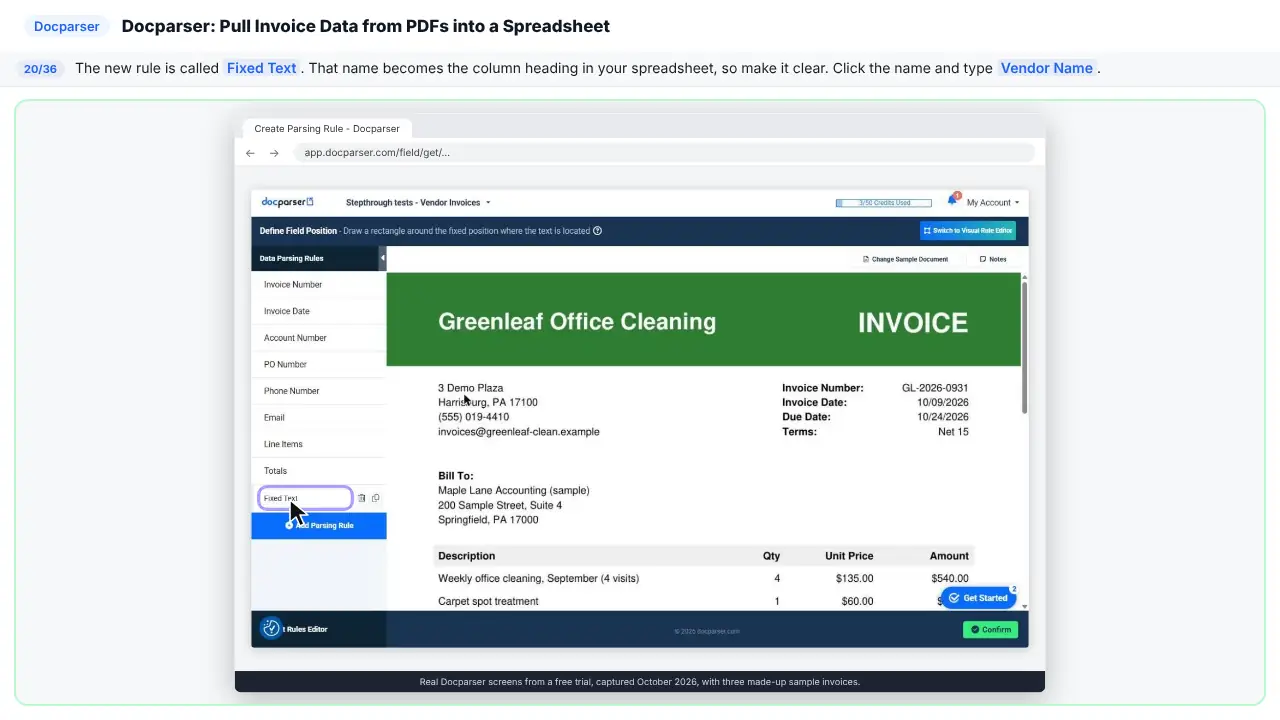
Step 20: Name the rule
Name the rule vendor name. That becomes the column heading.
Step 21: Draw a box around the vendor
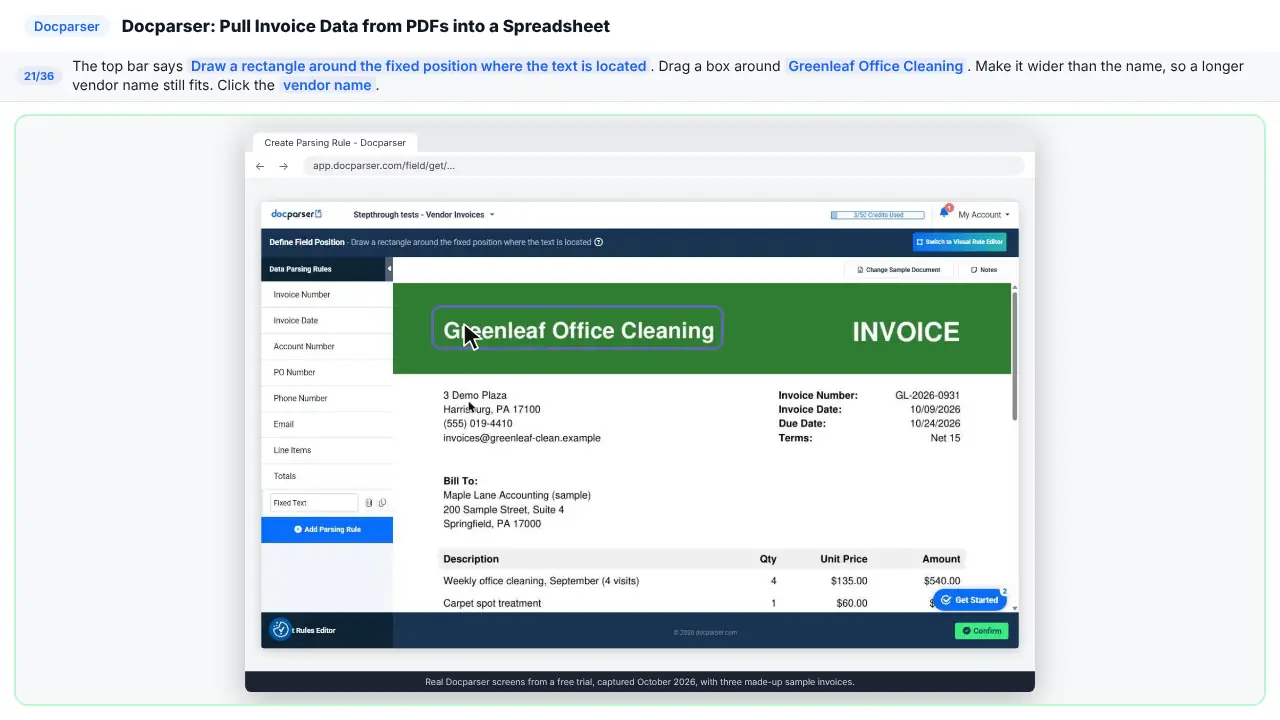
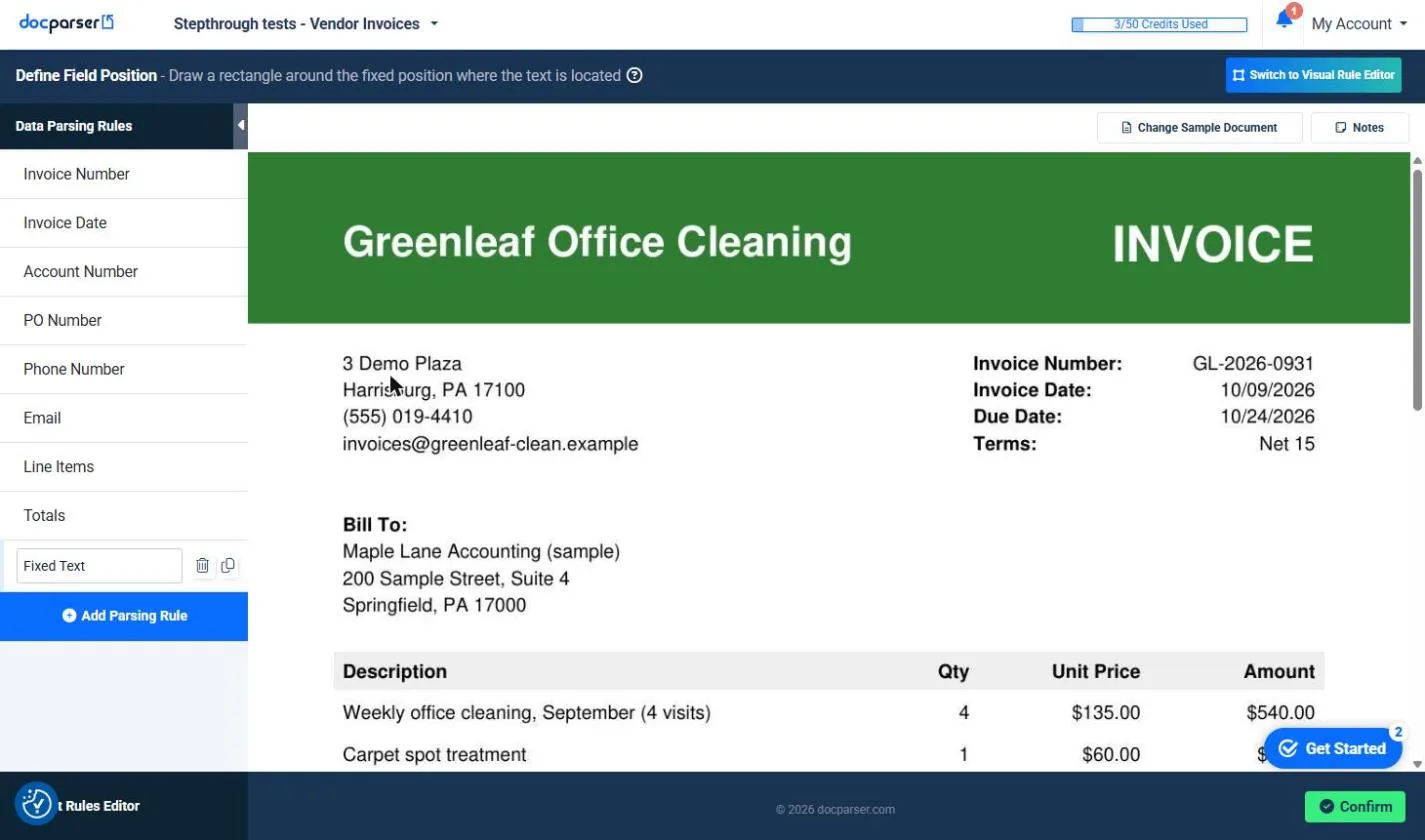
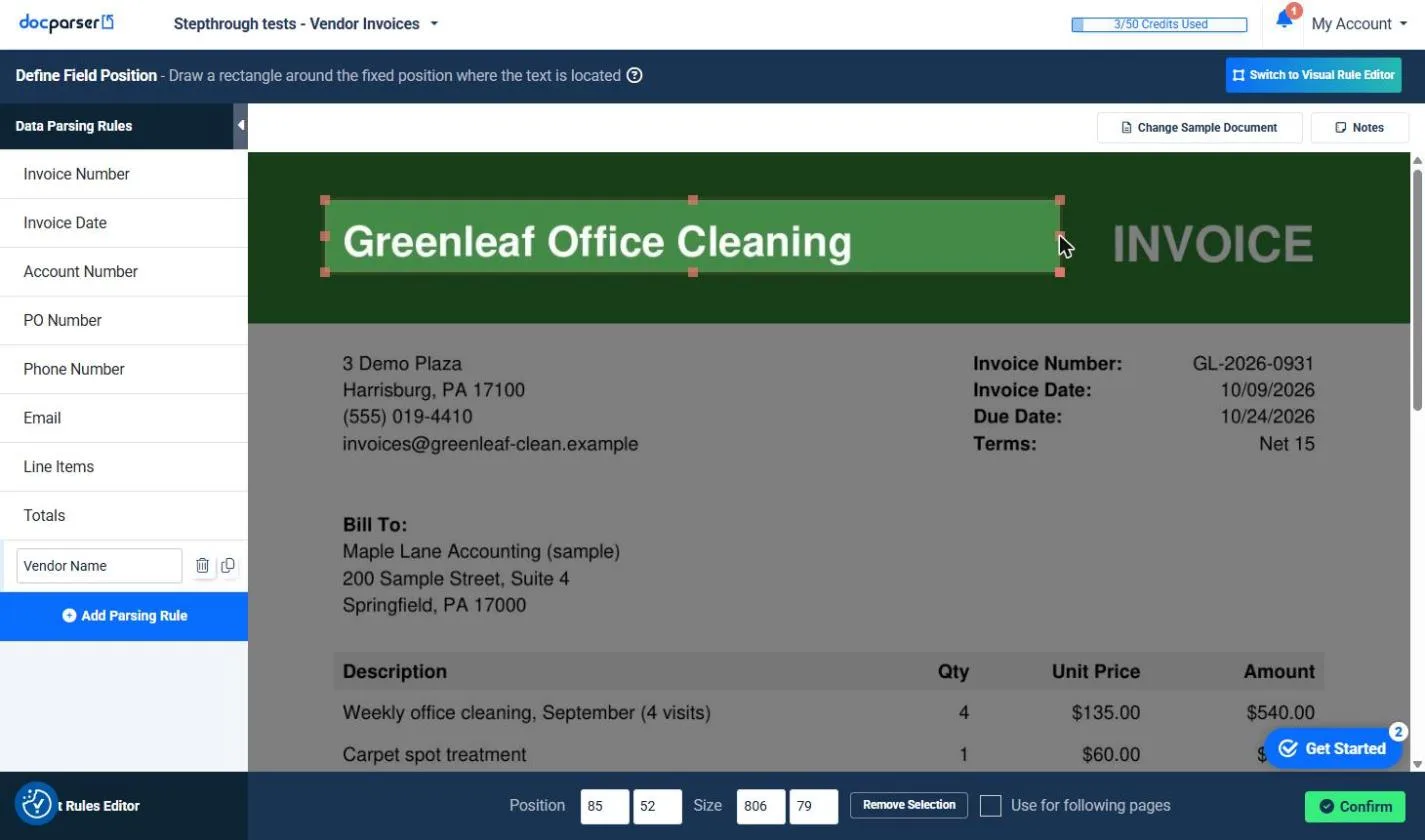
Now draw a box around the vendor name. Make it a bit wider, so longer names still fit.
Step 22: Confirm the box
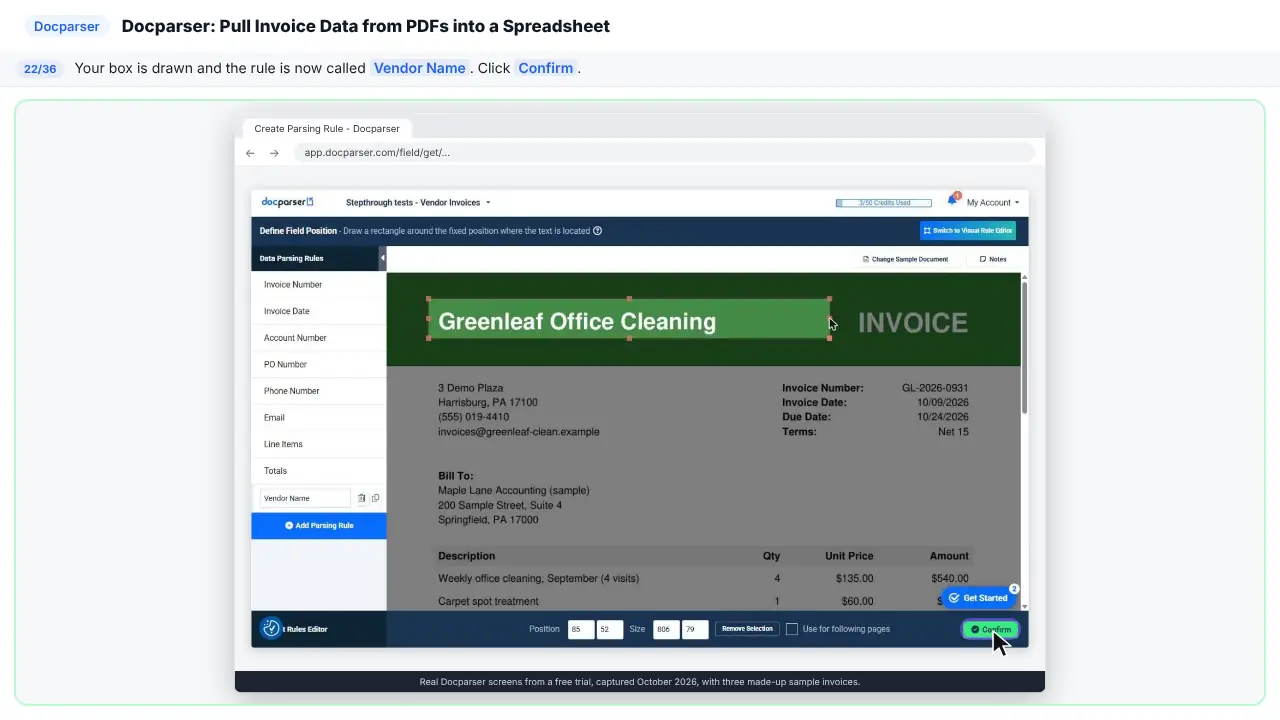
Confirm the box.
Step 23: Check the vendor name
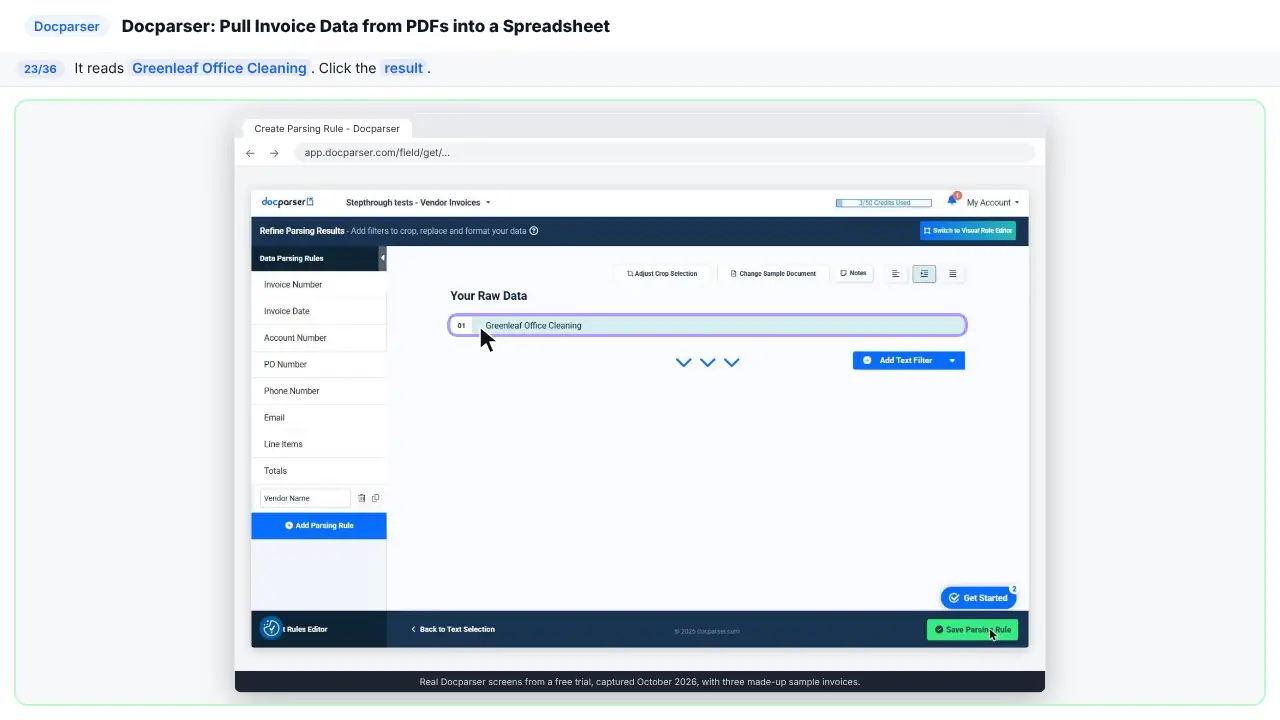
It reads the vendor name. Perfect.
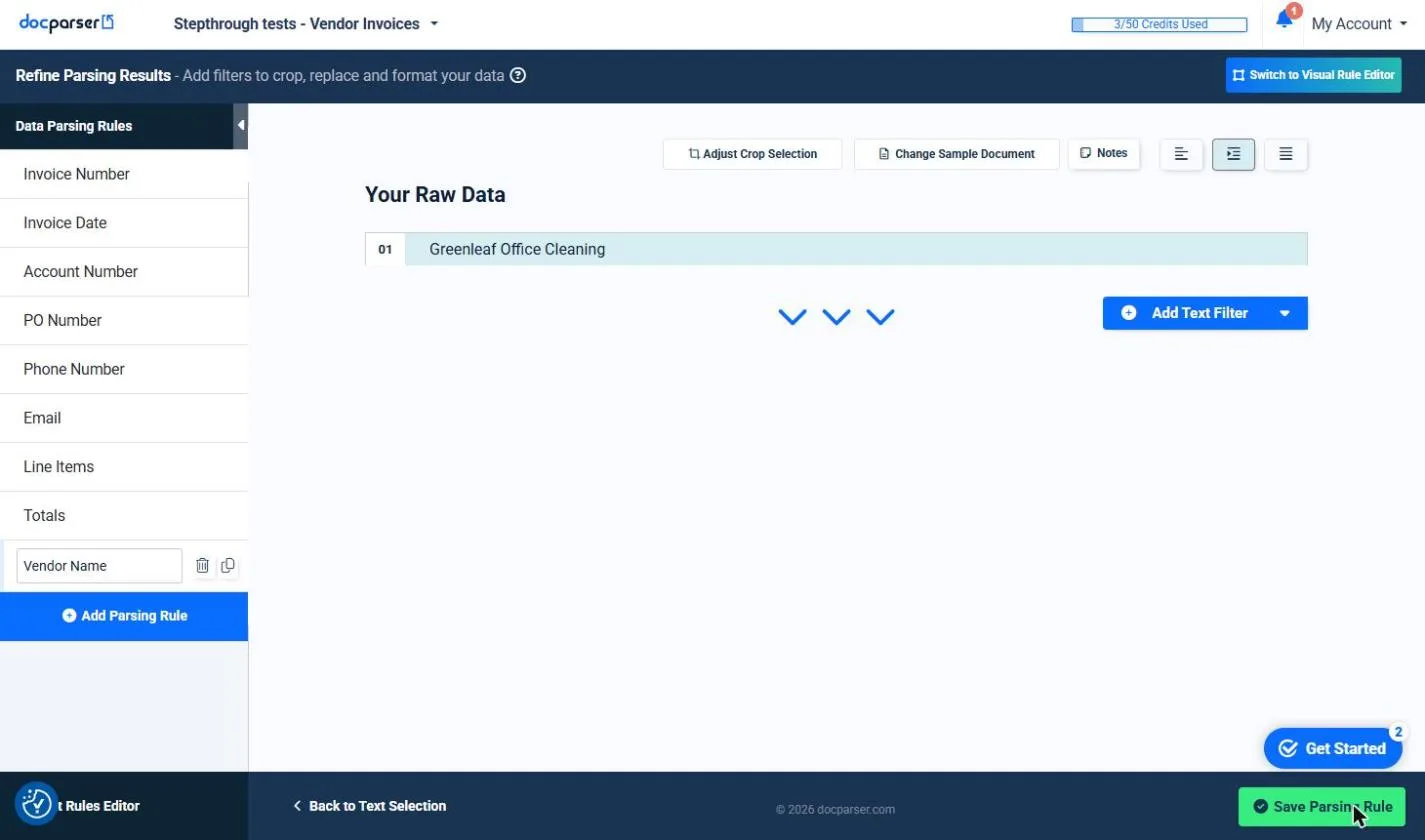
Step 24: Save the rule
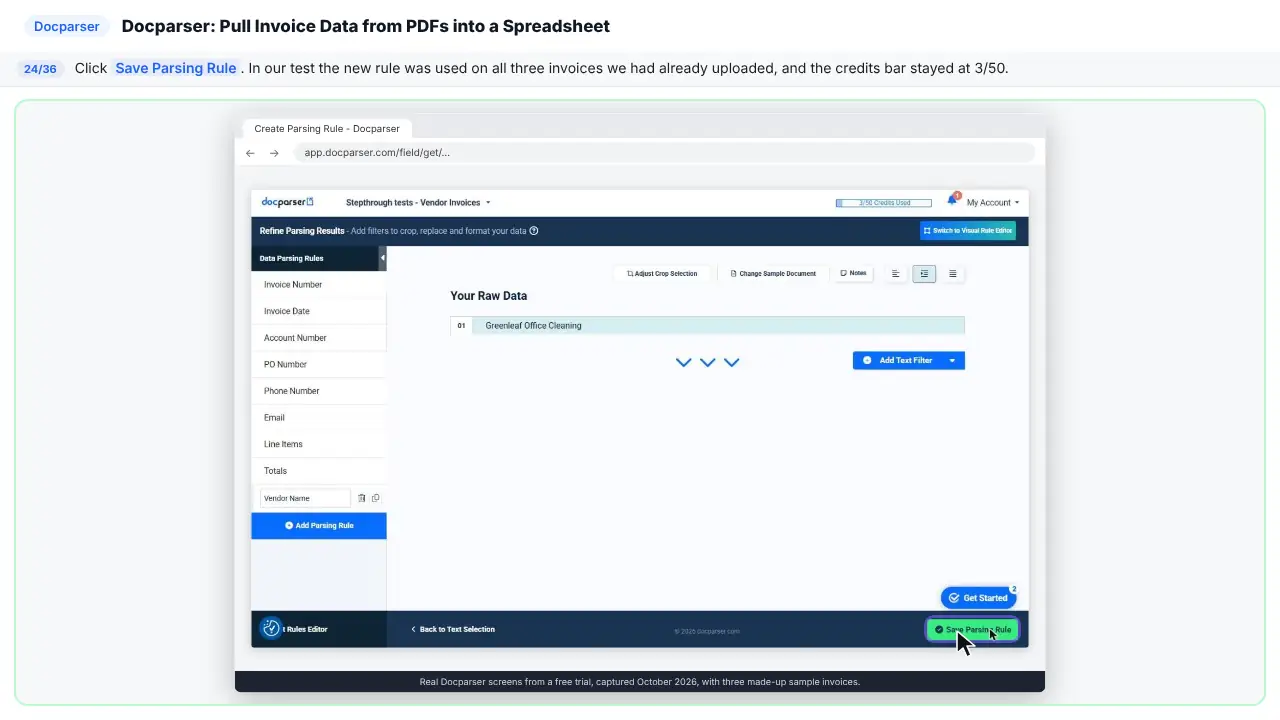
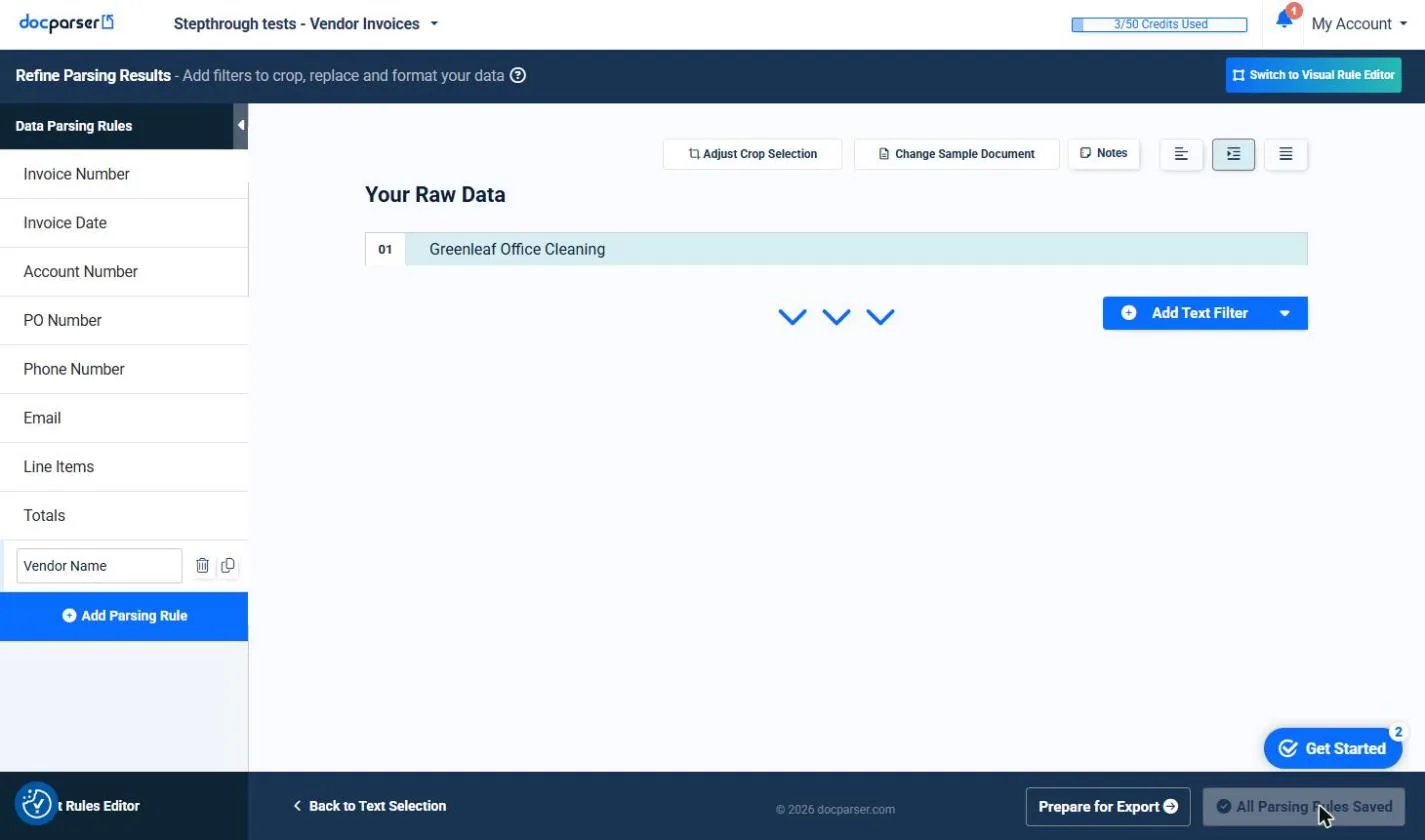
Save the rule. It ran on all three invoices we already had.
Part 6: Download the spreadsheet
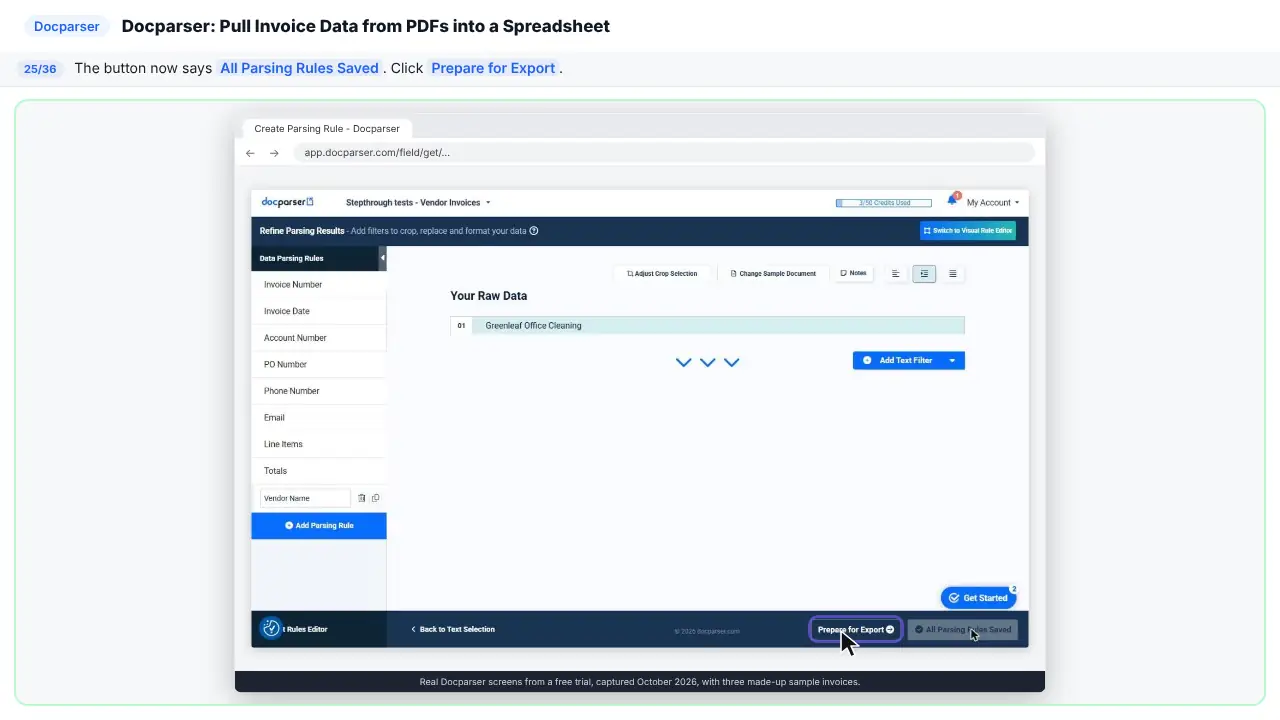
Step 25: Prepare for export
Now let's get the data out. Prepare for export.
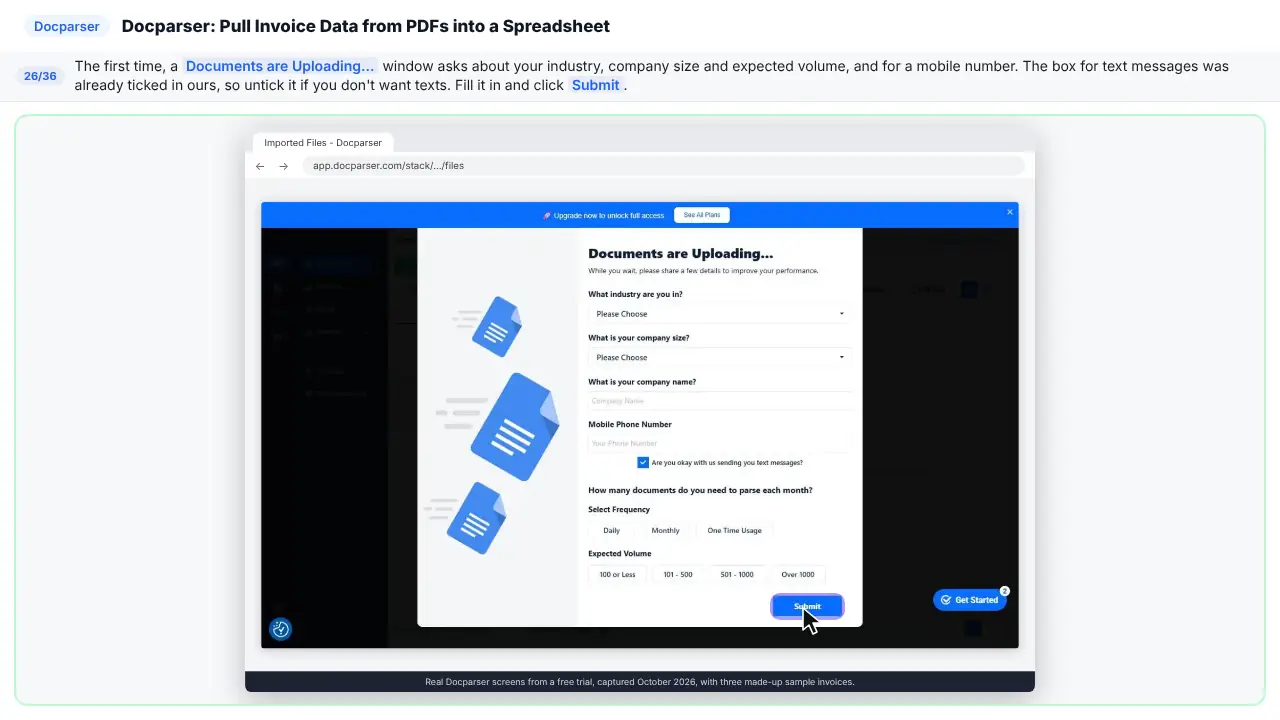
Step 26: Answer a few questions
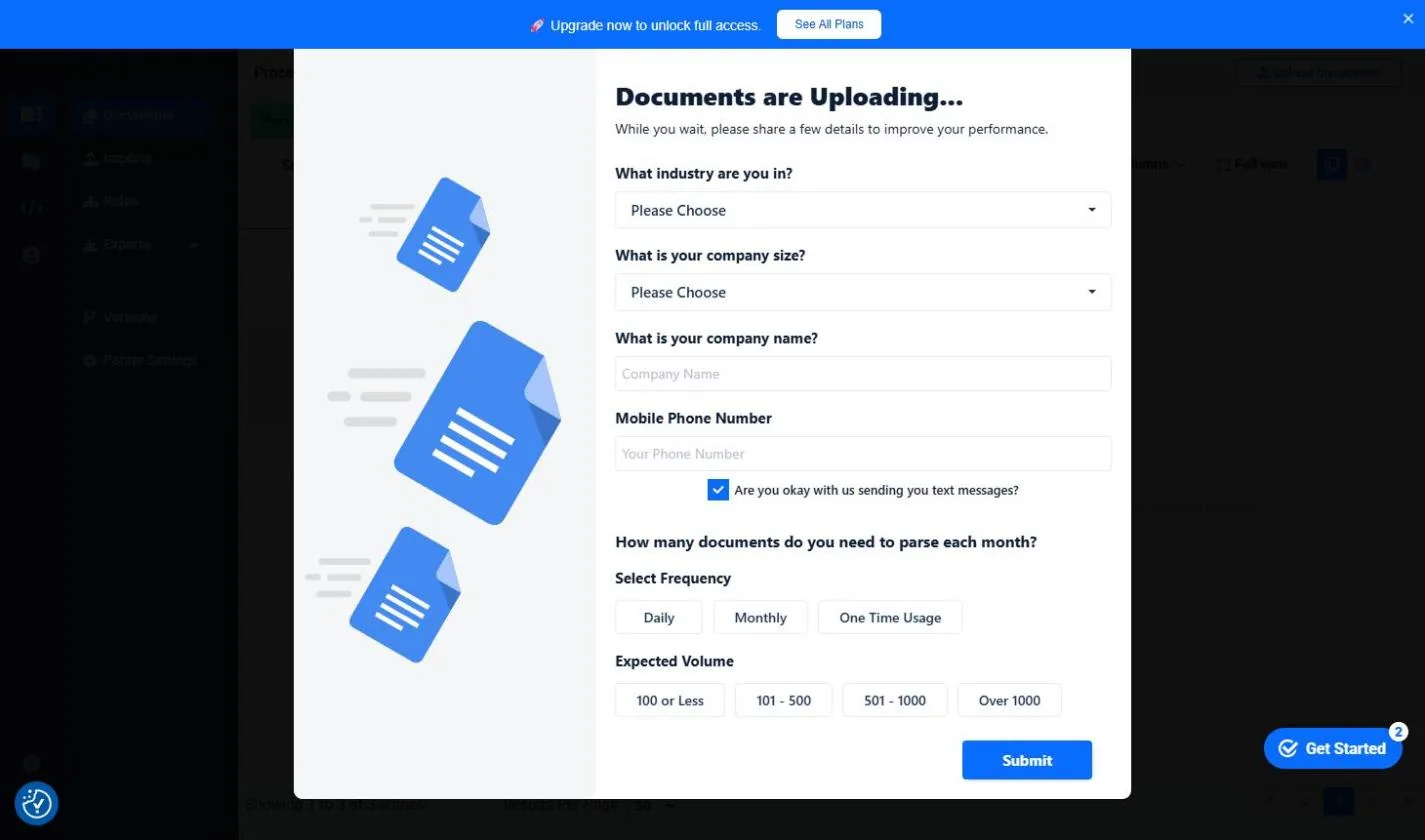
The first time, it asks a few questions about your company. Untick text messages if you don't want them. Then submit.
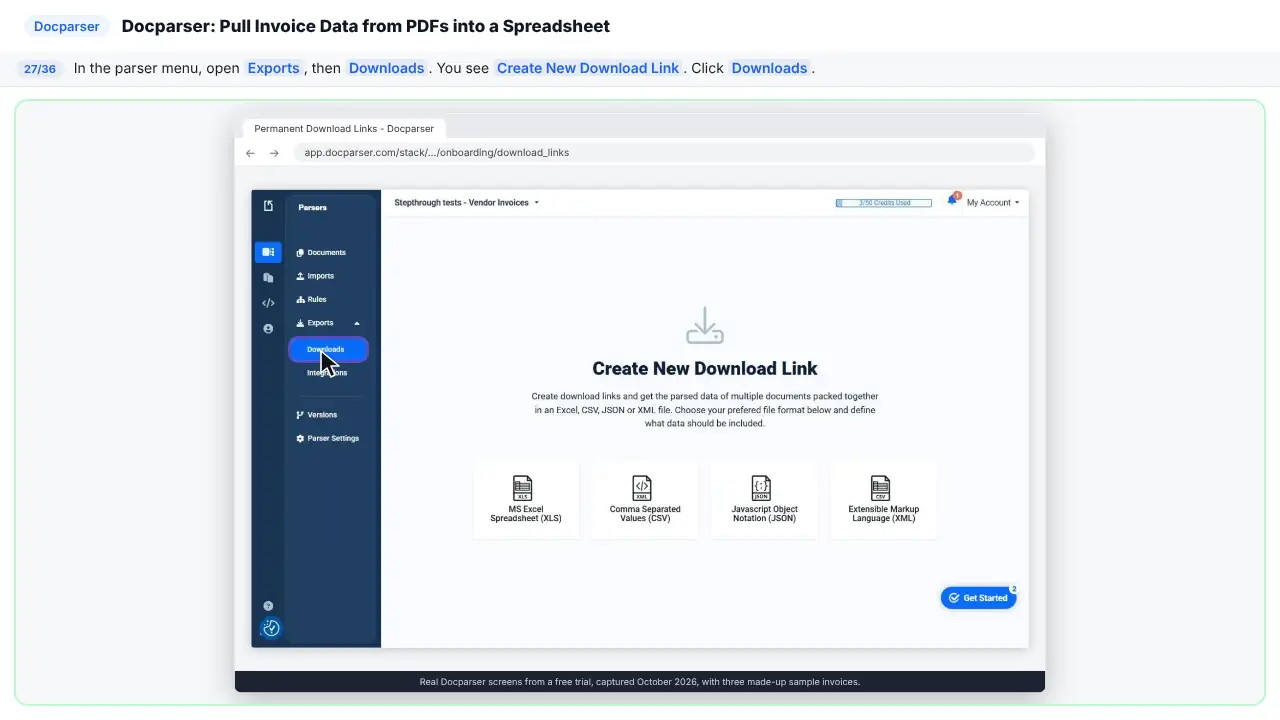
Step 27: Open Downloads
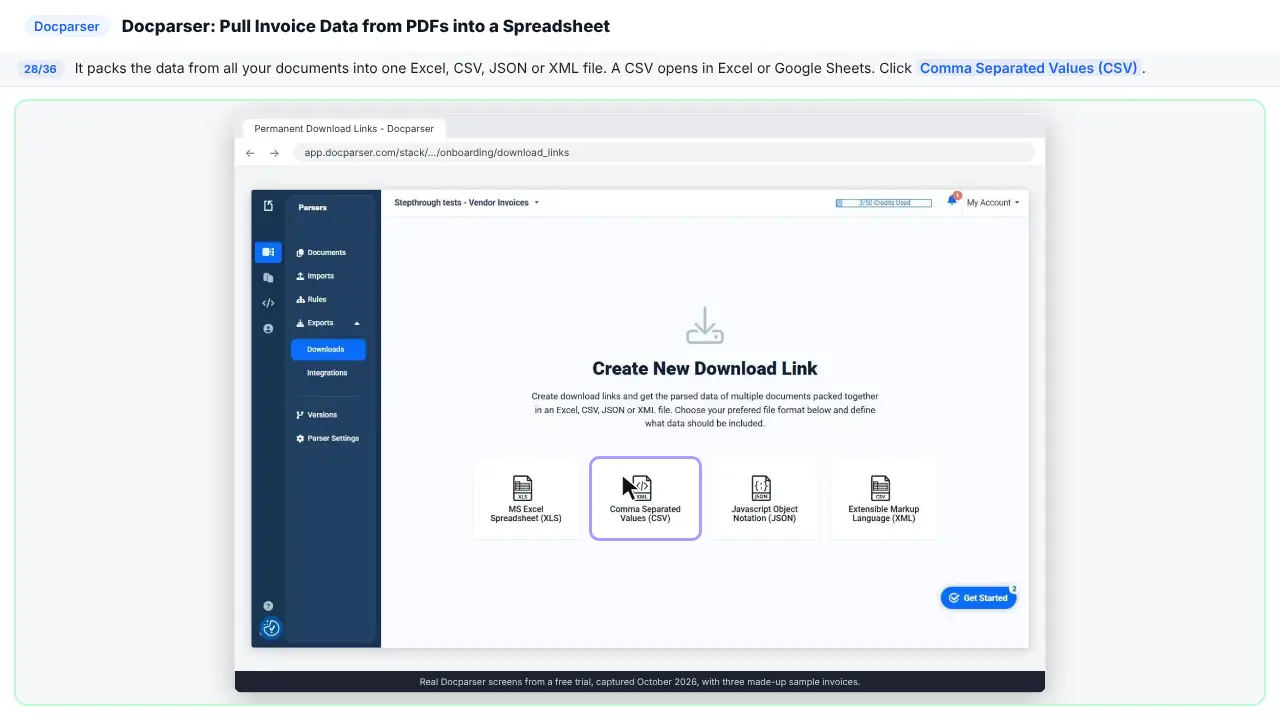
Step 28: Pick CSV
Pick CSV. It opens in any spreadsheet.
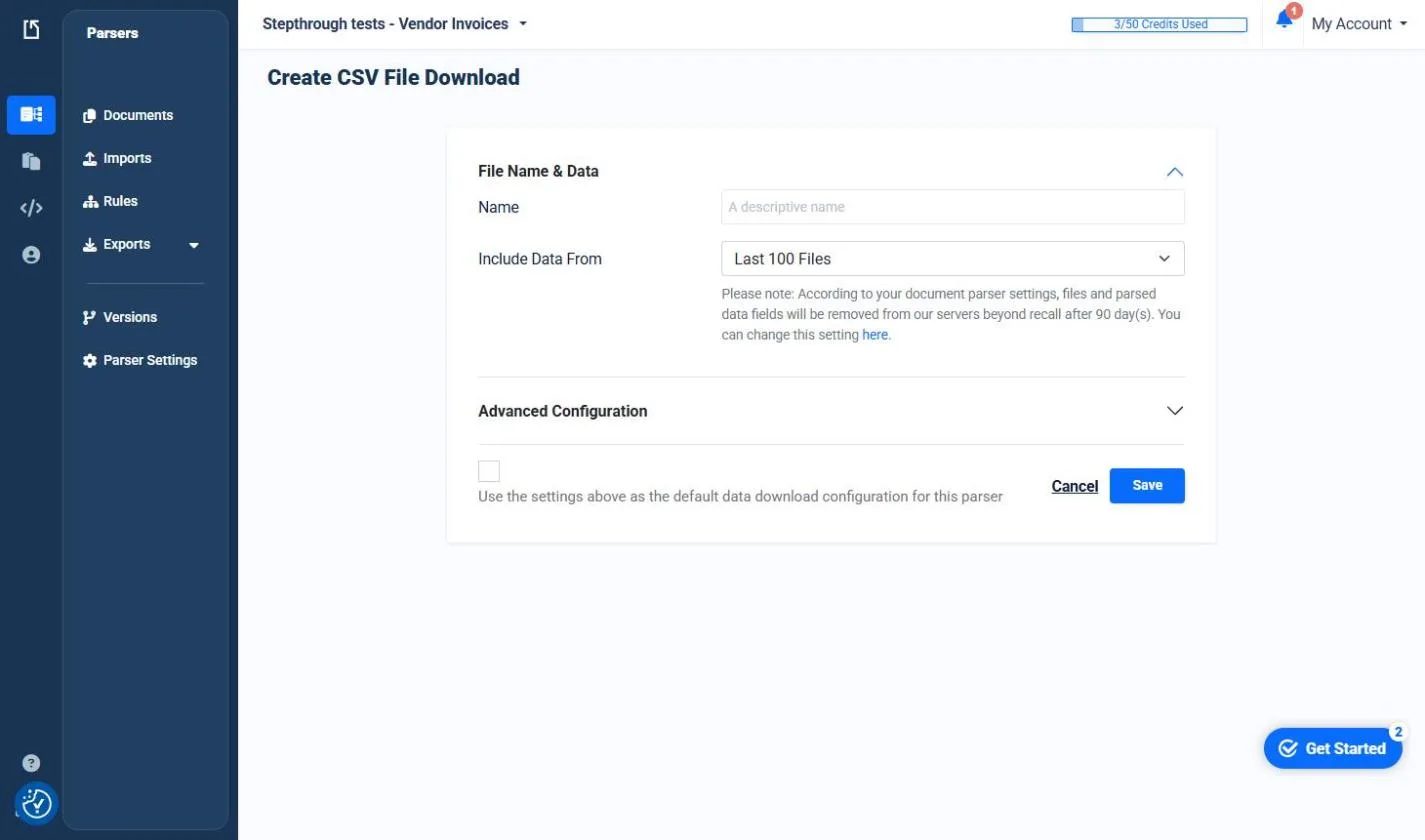
Step 29: Name the download
Give the download a name.
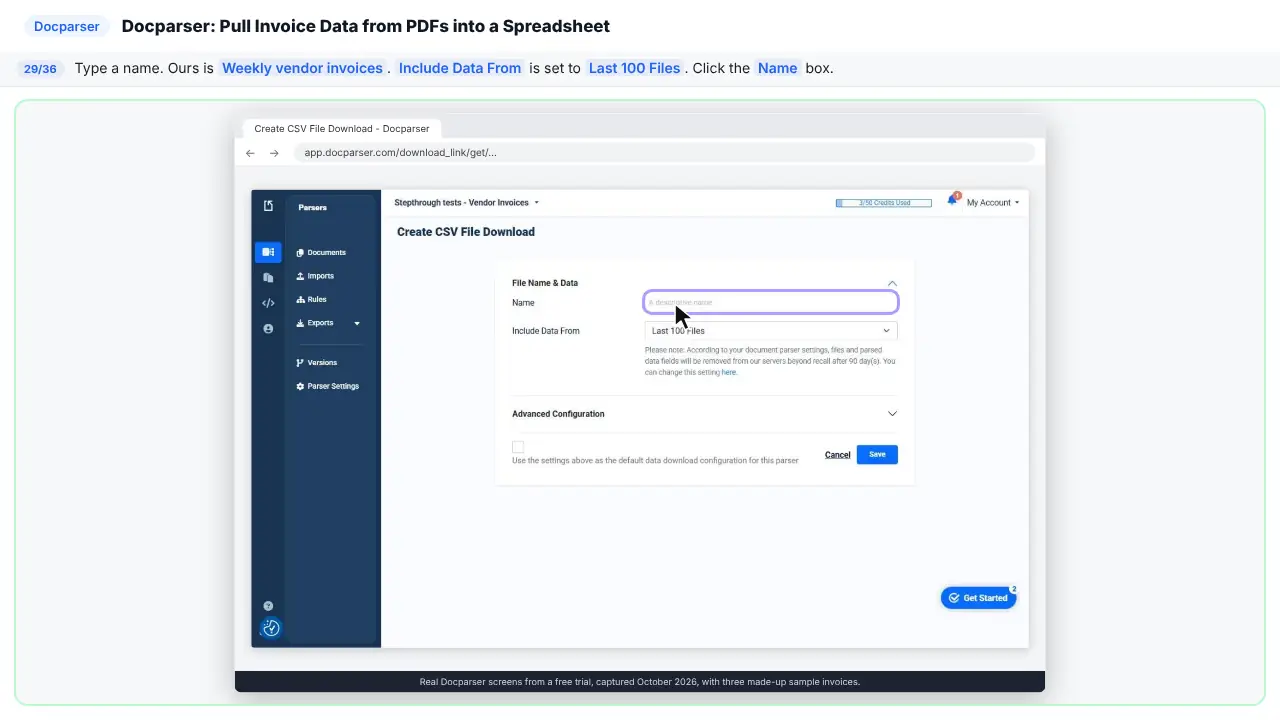
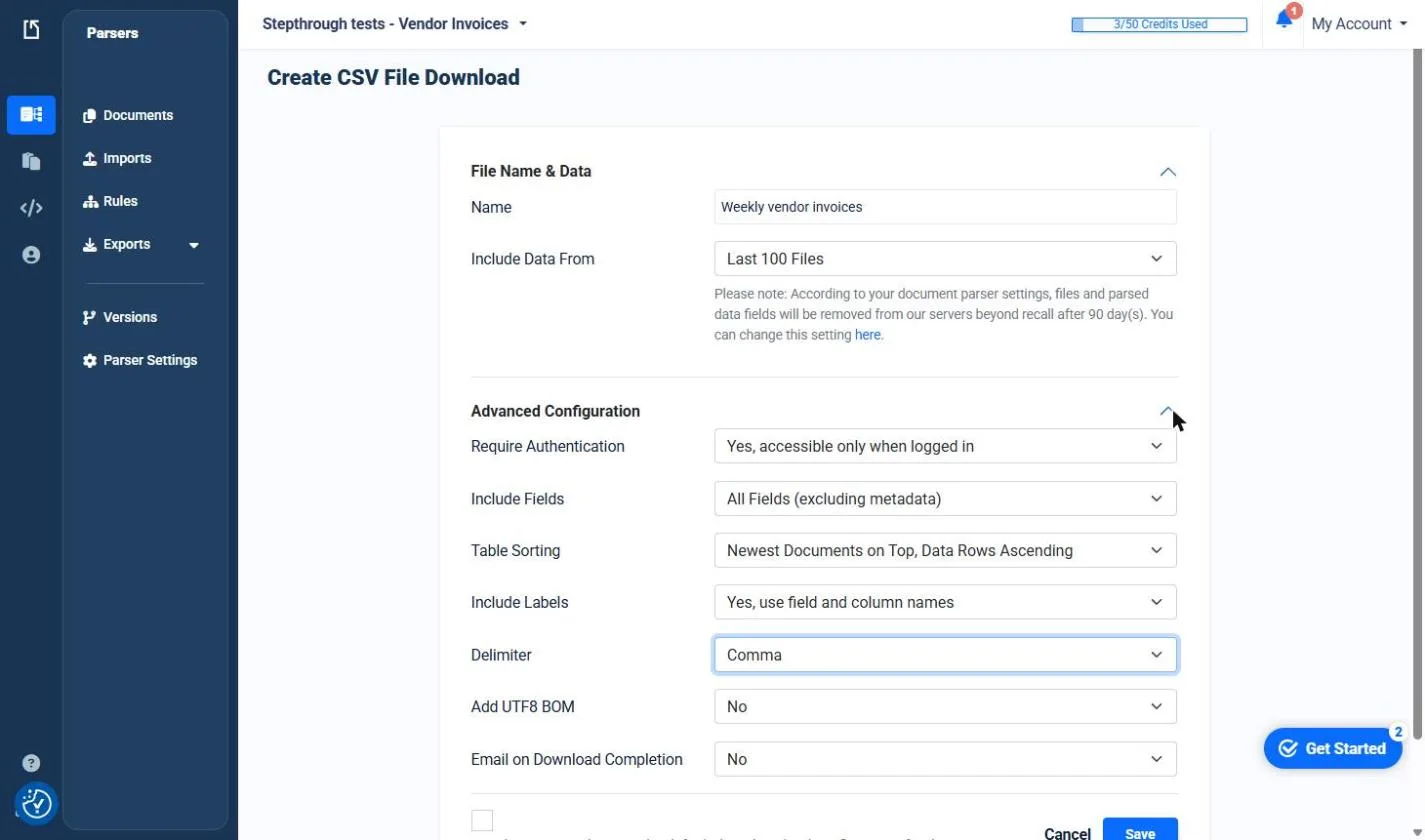
Step 30: Use commas
Change the delimiter to comma, so the columns split properly.
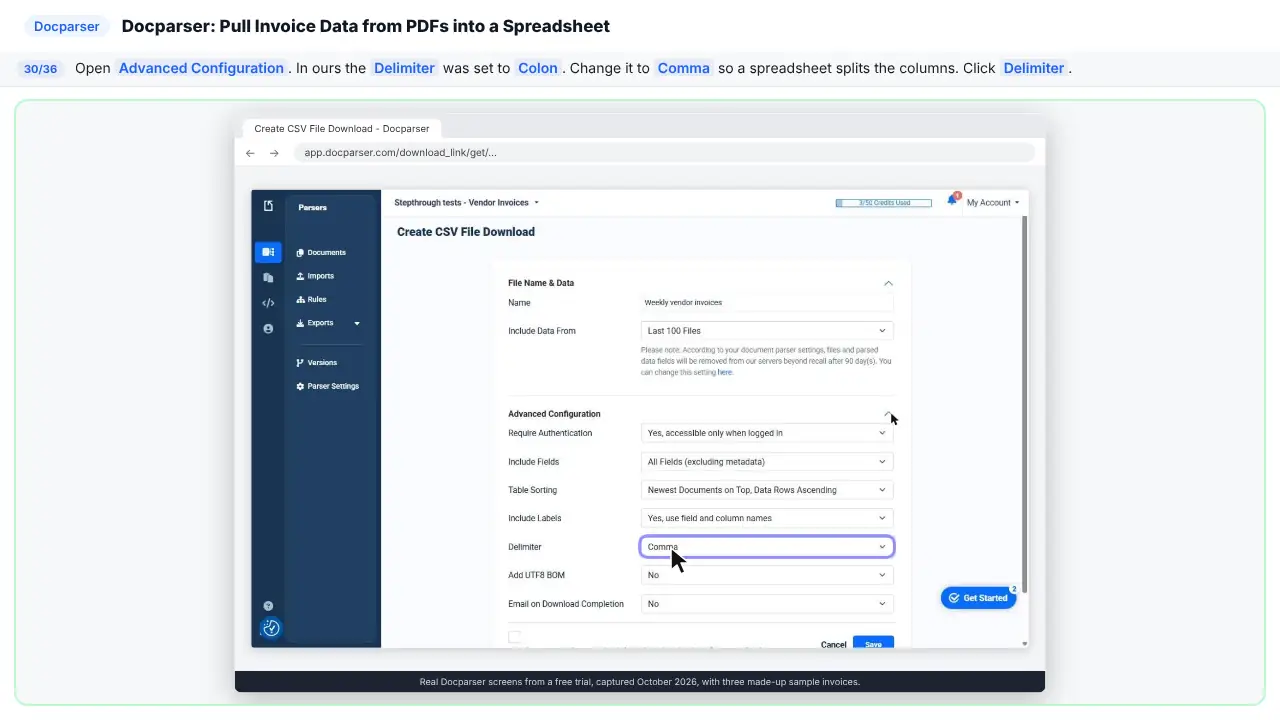
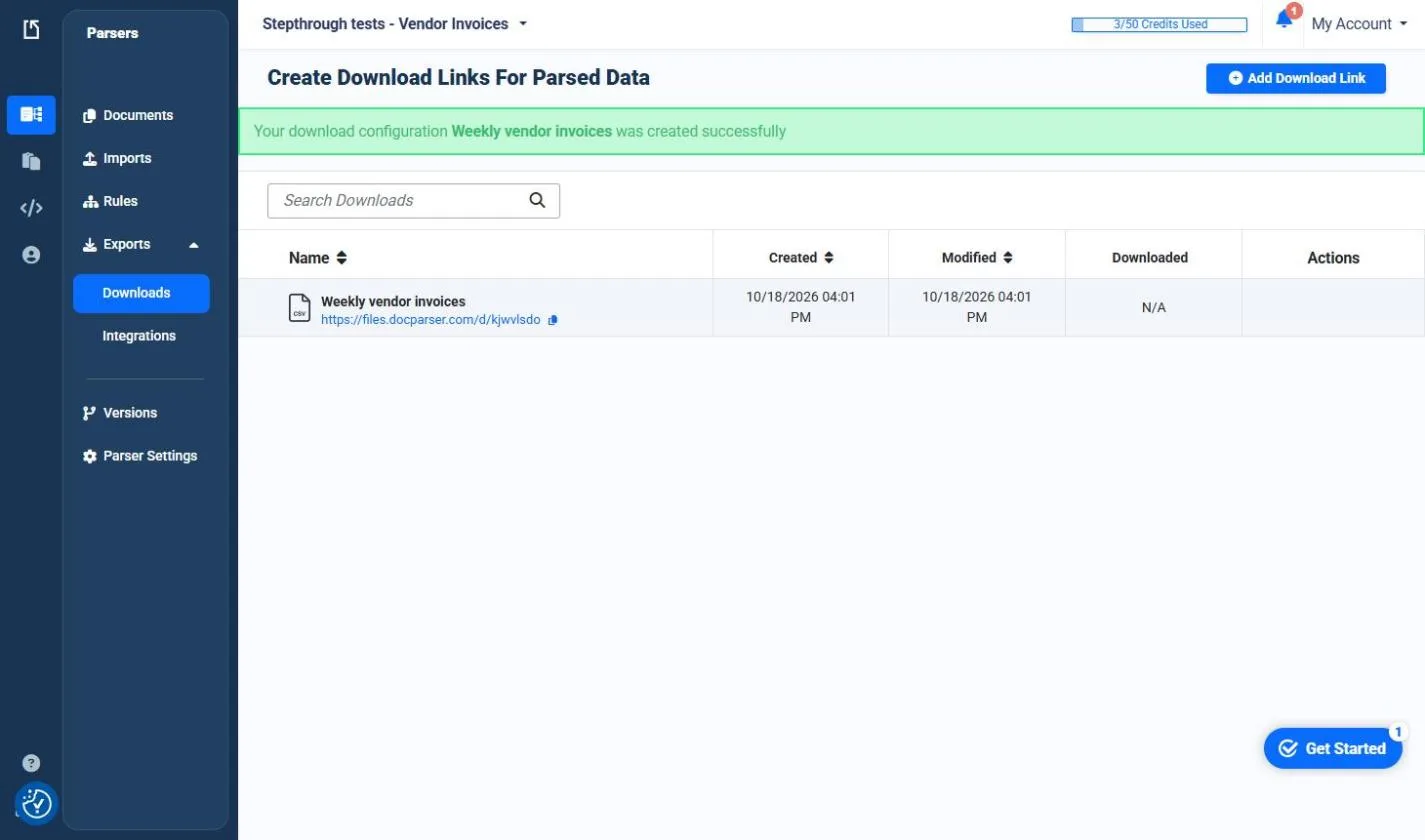
Step 31: Save the download
Save it.
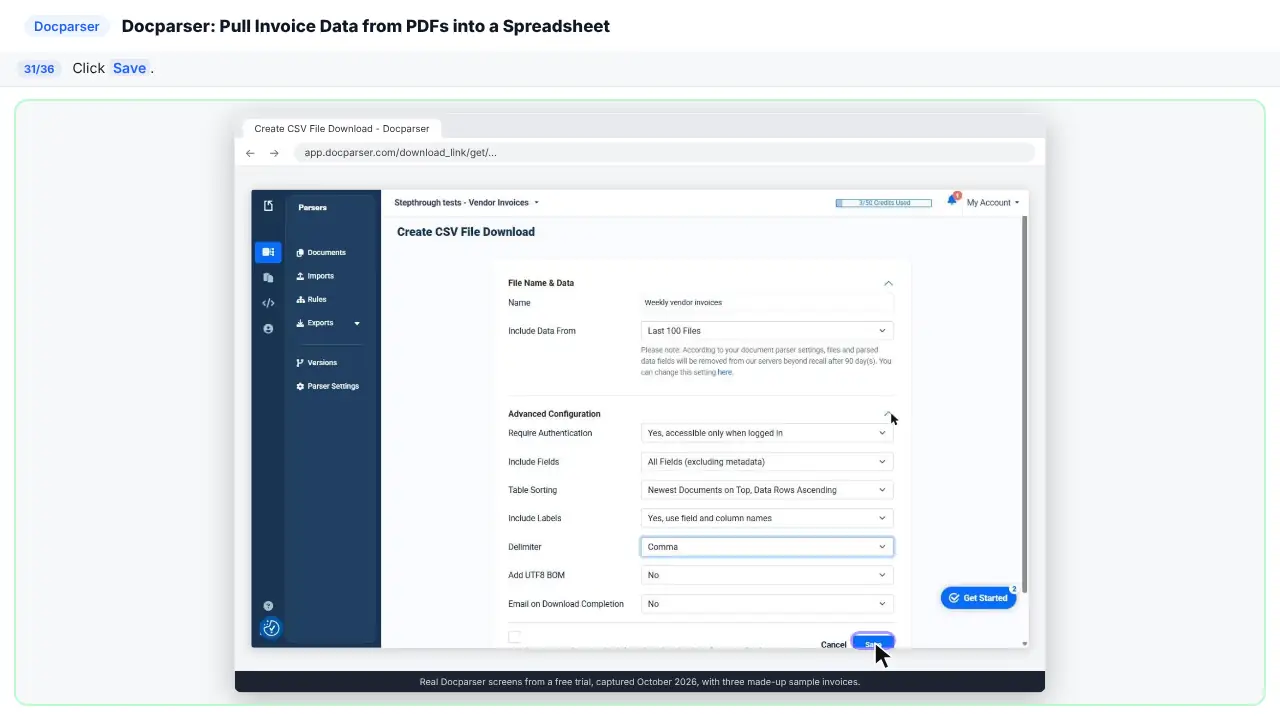
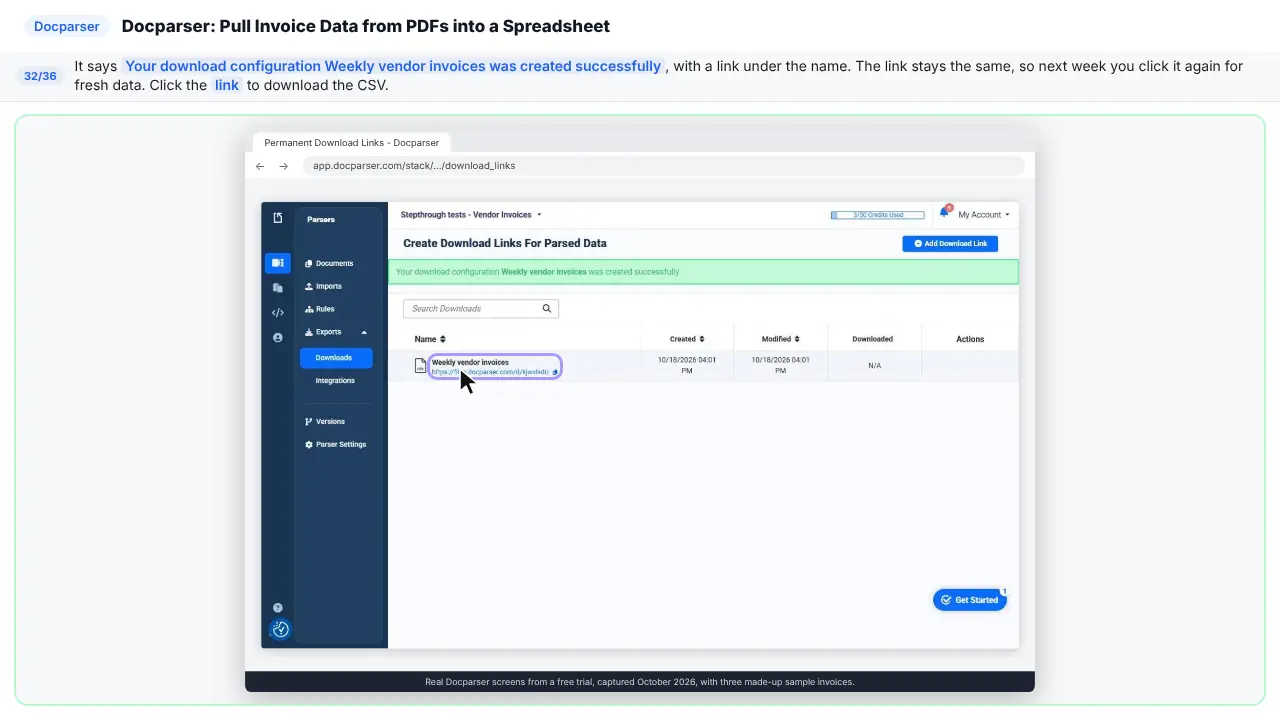
Step 32: Download the file
Here's your download link. Next week, click the same link again.
Step 33: Check the spreadsheet
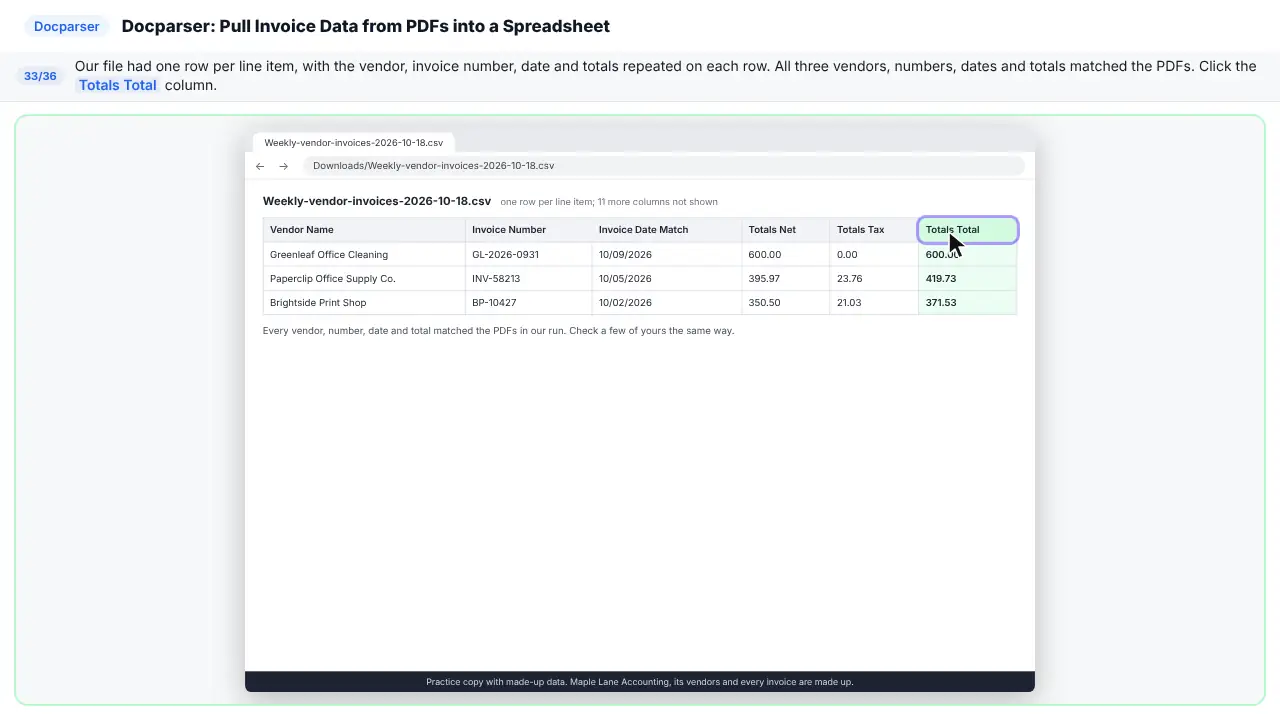
And here's the spreadsheet. Every vendor, invoice number, date and total. All of them matched the PDFs.
Part 7: What it saves, and doing it for real
Step 34: See where it can send data
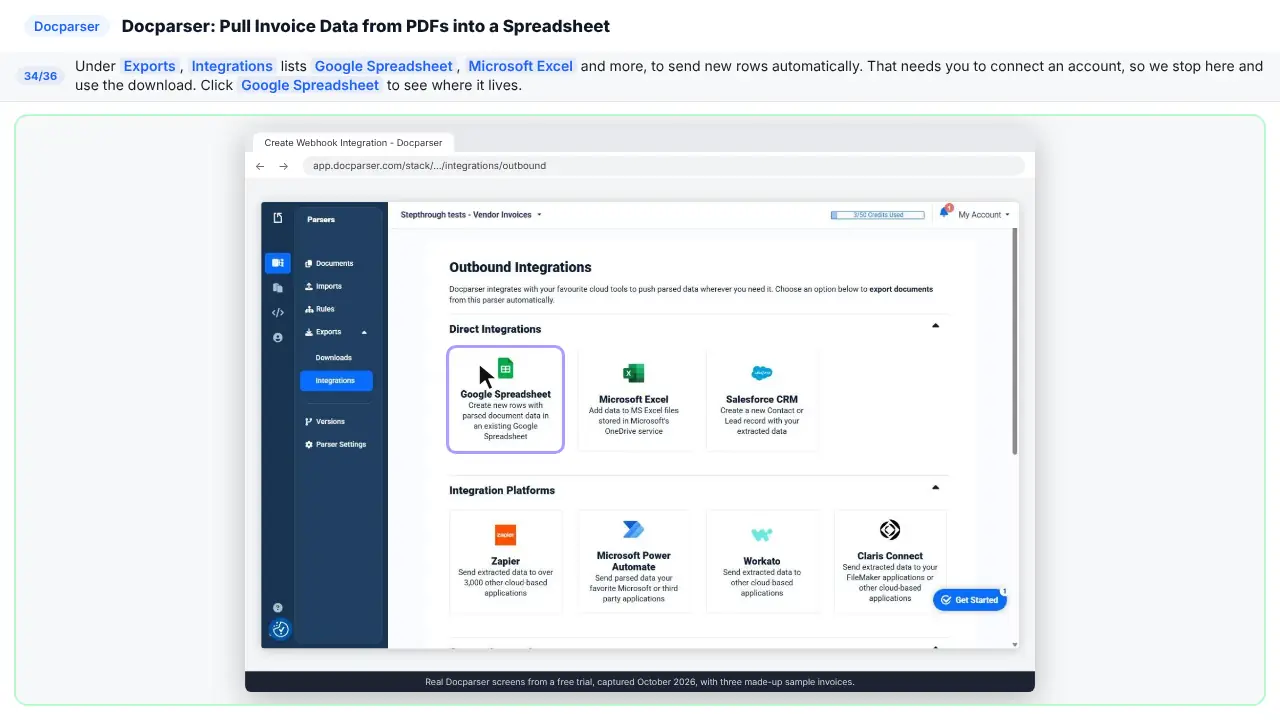
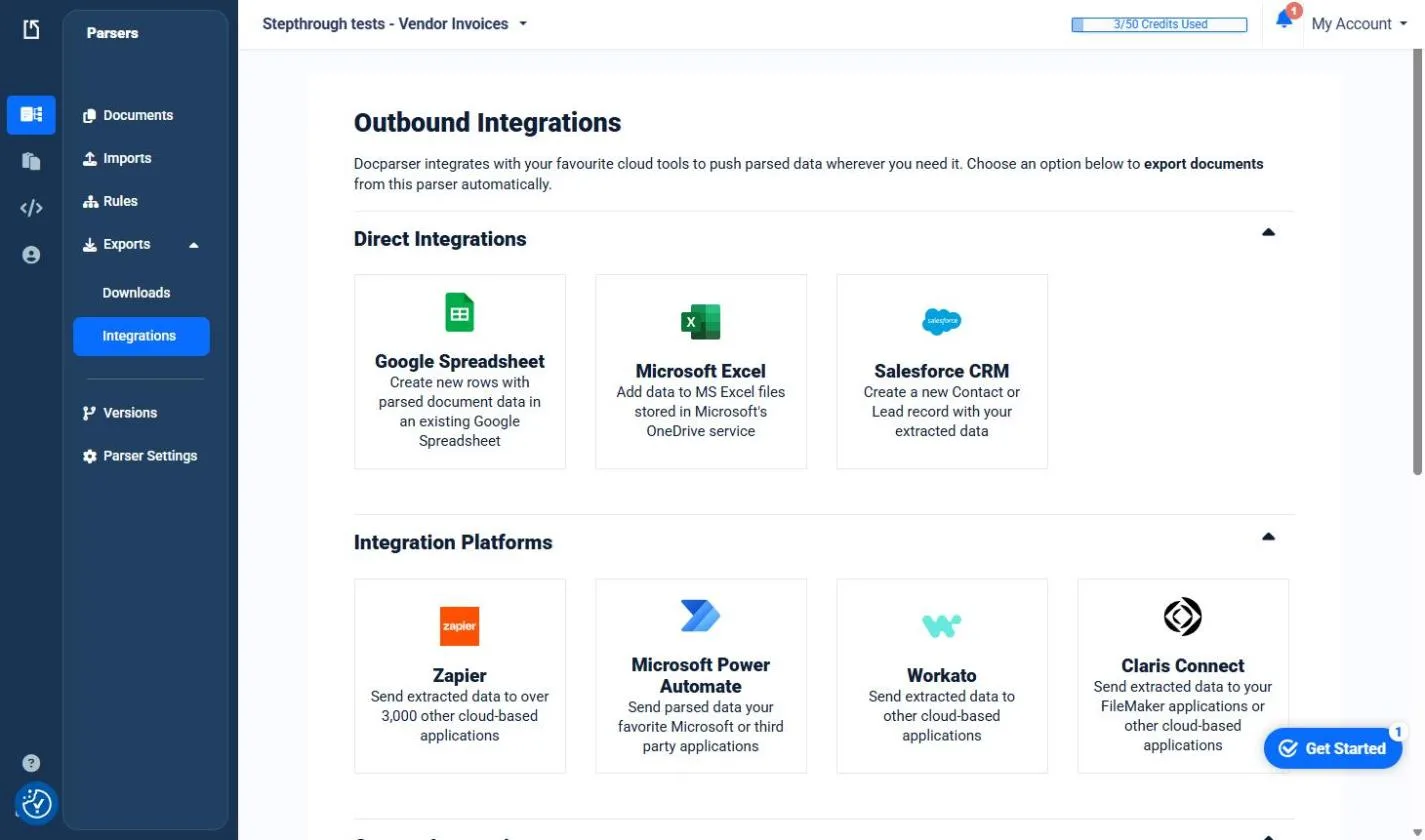
Docparser can also send rows straight to Google Sheets or Excel. That means connecting an account, so we'll just show you where it is.
Step 35: What this saves you
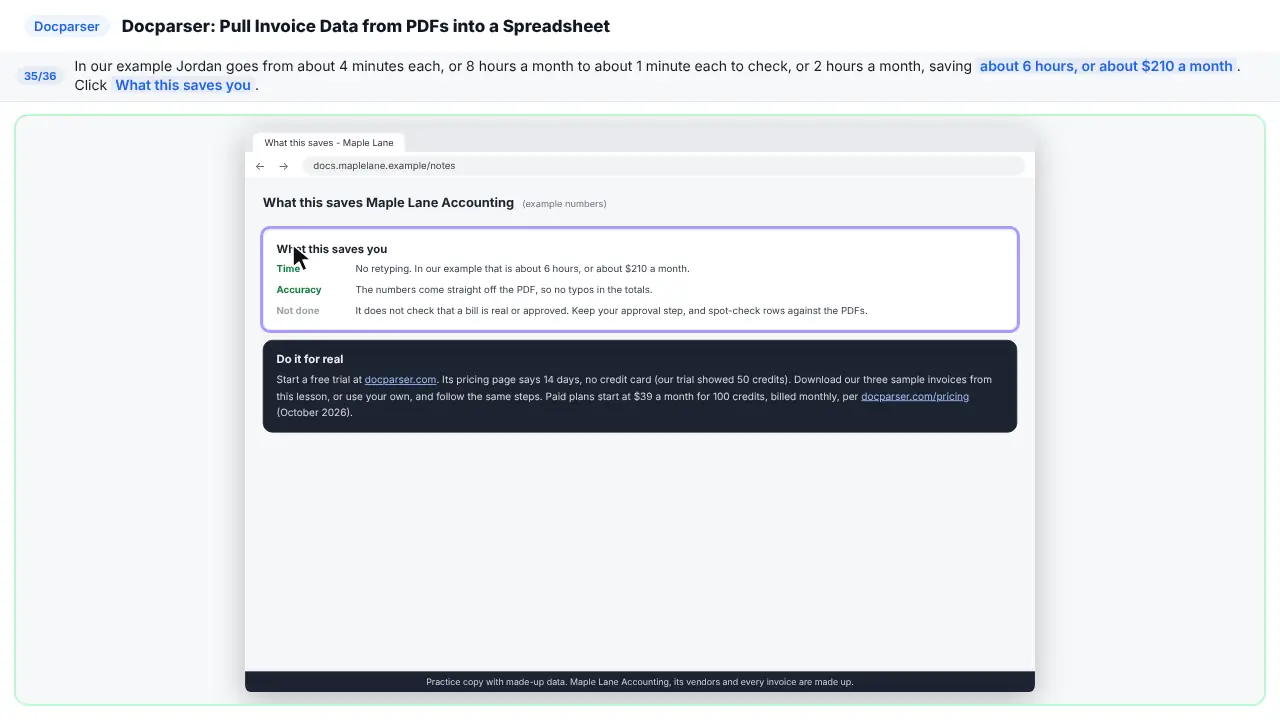
So here's what this saves you. Hours of retyping every month, and no more typos in the totals.
Step 36: Do it for real
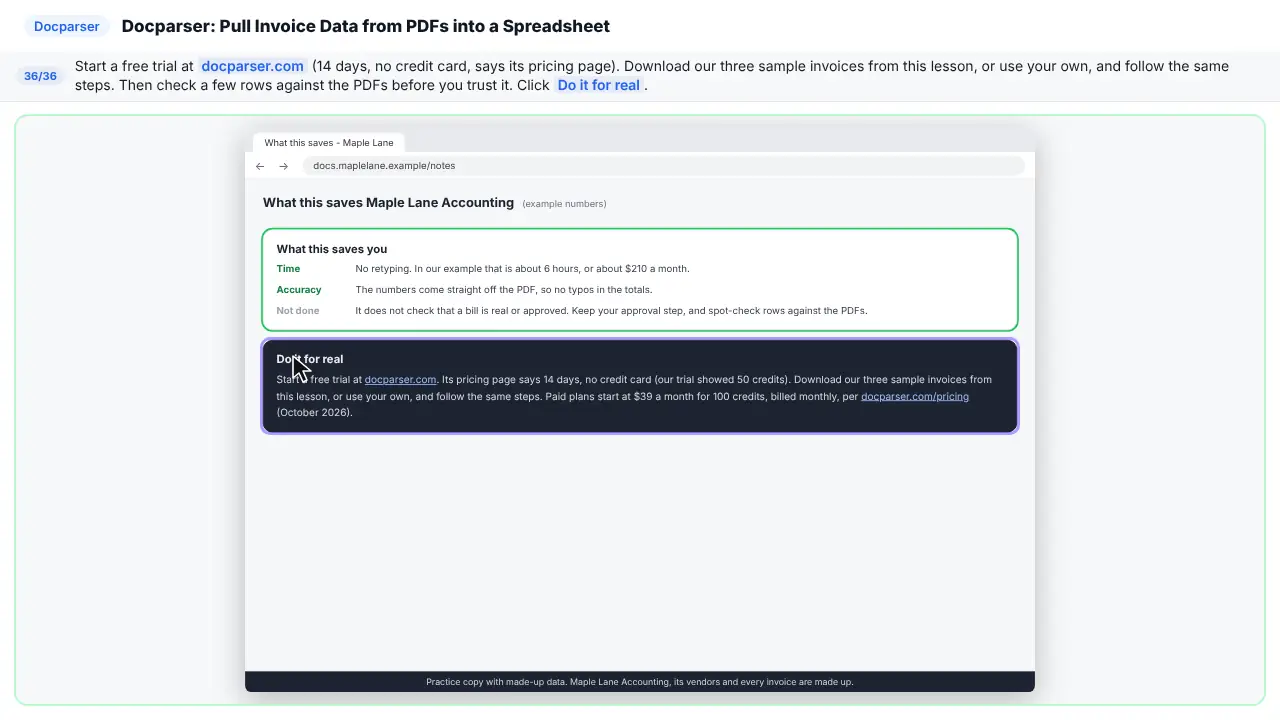
Ready to try it? Start a free trial at docparser dot com. Use our sample invoices, or your own. And check a few rows before you trust it.
Part of these free courses: AI Apps Worth Knowing, AI for Accounting & Bookkeeping Firms, AI for Finance Teams, AI That Reads Your Documents
Now do it yourself, free
Reading the steps is a start. Doing them is how it sticks. The interactive lesson puts you in a practice copy of Docparser: you do every step yourself, it checks your work, and “Do it for me” finishes any step you get stuck on. Nothing touches your real accounts.
Practice “Docparser: Pull Invoice Data from PDFs into a Spreadsheet” step by step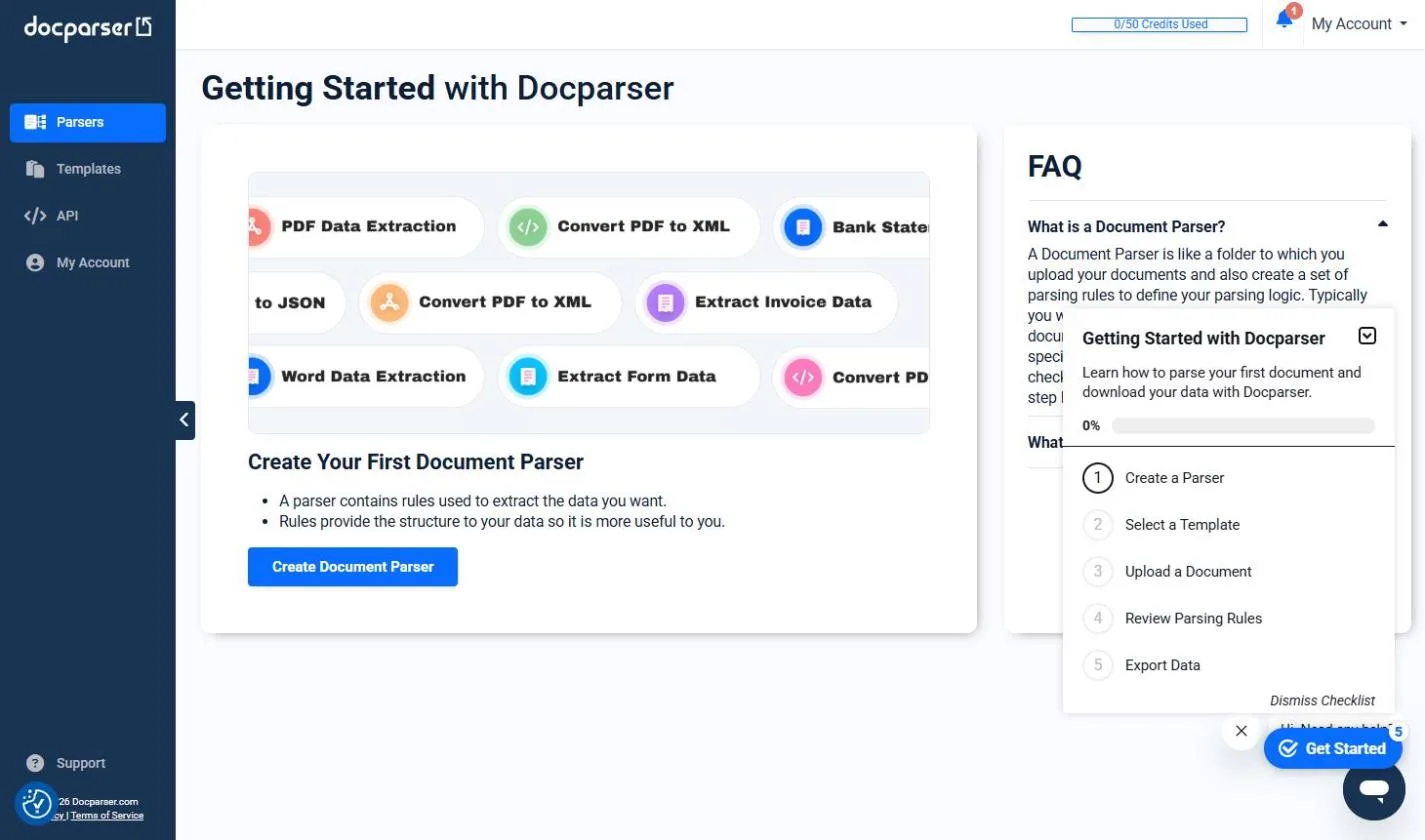
The business case: retyping vendor invoices every week
Picture Jordan, the office manager at Maple Lane Accounting, a made-up firm. Every week the vendor invoices arrive as PDFs: the print shop, the office supply company, the cleaners. Jordan opens each one and retypes the vendor, the invoice number, the date and the total into the bills spreadsheet, then checks for typos before anything is paid.
Here is the arithmetic, using example numbers you should replace with your own. About 120 vendor invoices a month at about 4 minutes each is 8 hours a month. With Docparser, checking the spreadsheet takes about 1 minute an invoice, or 2 hours. At $35 an hour that saves about 6 hours, or about $210 a month, and the totals come straight off the PDF instead of being retyped.
Who this is for, and what you need
Bookkeepers, office managers and finance assistants who key in invoices, bills or statements by hand. To follow along you need nothing: the lesson is a practice copy. To do it for real you need a Docparser account (the free trial is enough) and a few invoices. You can use our three made-up sample invoices, linked above.
A note on screens: these were captured in October 2026 on a free trial. Docparser changes its screens from time to time, so yours may look a little different.
Step 1: make a parser from the Invoices template
A parser is like a folder: it holds one kind of document and the rules for what to pull out of it. On the Getting Started page, click Create Document Parser. Our trial's top bar showed 0/50 Credits Used. Under Featured Parser Templates, click Invoices ("extract key data such as invoice number, due date, etc."). The SmartAI Parser next to it is marked Premium.
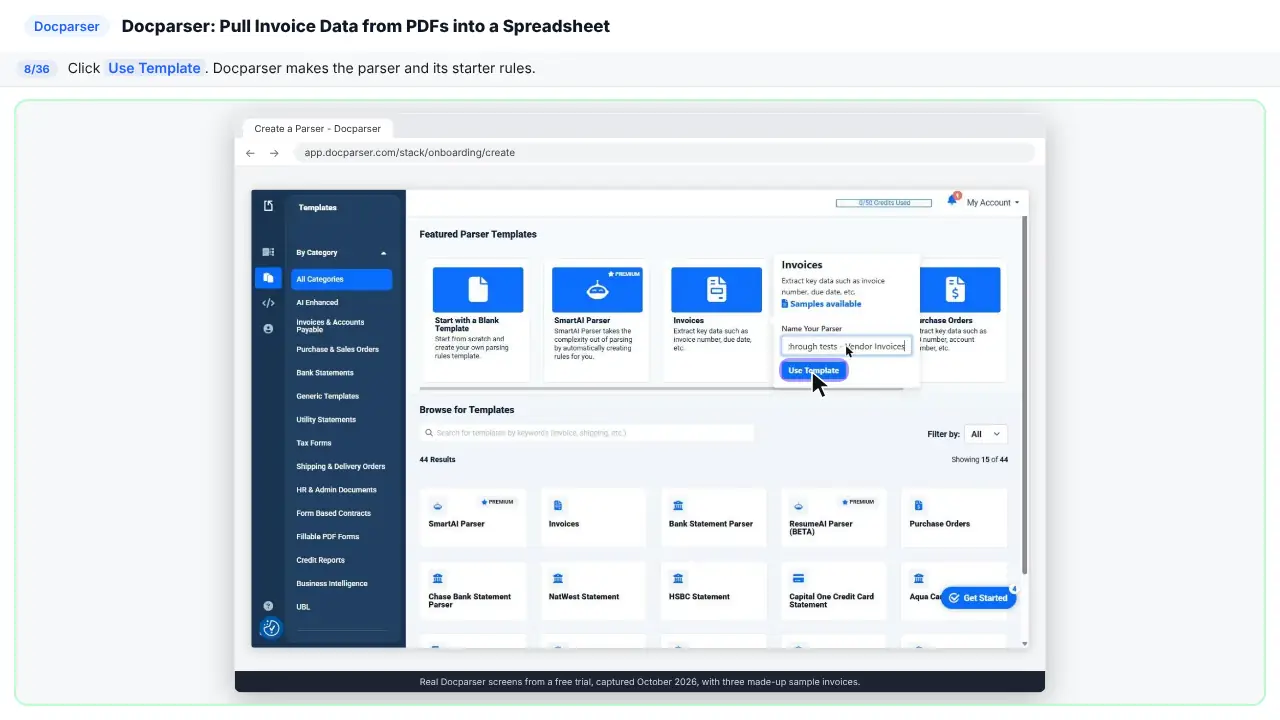
Give the parser a name under Name Your Parser, then click Use Template.
Step 2: upload the invoices
On Add Documents, drag your PDFs in or click Browse. It lists PDF, DOCX, DOC, PNG, JPG, TIFF, CSV, TXT, XLS and XML as supported formats. We uploaded the three sample invoices, saw 3 File(s) Uploaded, and clicked Continue to Next Step. The credits bar went to 3/50: one credit per document.
Step 3: check what it pulled out
The Invoices template made eight parsing rules: Invoice Number, Invoice Date, Account Number, PO Number, Phone Number, Email, Line Items and Totals. Open a rule to see its Filtered Result. Invoice Number found GL-2026-0931 on the cleaning invoice. Totals found net 600.00, tax 0.00 and total 600.00, with a confidence of 90. Both matched the PDF.
A window offering free setup assistance popped up the first time we opened a rule. No Thanks closes it. Check two or three results against the PDFs before you trust the whole parser.
Step 4: add the field it missed
The template had no rule for the vendor name. Click Add Parsing Rule, search the rule types for position, and pick Text Fixed Position ("extract text from a permanent location"). Rename the rule from Fixed Text to Vendor Name, because the rule name becomes the column heading. Then drag a box around the vendor name at the top of the invoice, a little wider than the name so longer names still fit, and click Confirm. Ours read Greenleaf Office Cleaning. Click Save Parsing Rule.
In our test the new rule also ran on the three invoices we had already uploaded, and the credits bar stayed at 3/50. Text Fixed Position works when the field sits in the same place on every document. If it moves around, Docparser also offers Text Variable Position, which looks near an anchor word.
Step 5: download the spreadsheet
Click Prepare for Export. The first time, a Documents are Uploading window asks for your industry, company size, company name, a mobile number and expected volume. The box agreeing to text messages was already ticked in ours, so untick it if you do not want texts.
Then open Exports, then Downloads, and pick Comma Separated Values (CSV). Name the download, open Advanced Configuration and change the Delimiter from Colon to Comma, then Save. Docparser shows a download link that stays the same, so next week you click it again for fresh data. Our file had one row per line item, with the vendor, invoice number, date and totals repeated on each row, and every value matched the PDFs.
Sending rows to Google Sheets or Excel automatically
Under Exports, Integrations lists Google Spreadsheet, Microsoft Excel and other destinations that receive new rows as documents are parsed. Each one asks you to connect an account, so the lesson stops at showing where it is and uses the download instead. To send invoice PDFs from Gmail into Google Sheets with AI and an approval step, see How to Put PDF Invoices in Google Sheets with n8n. Docparser's pricing page lists the Google Sheets export on every plan.
Mistakes to avoid
- Trusting the parser before checking a few rows against the PDFs.
- Leaving the rule name as Fixed Text. It becomes your column heading.
- Drawing the fixed-position box exactly around one vendor name, so a longer name gets cut off.
- Keeping the Colon delimiter, so the whole row lands in one spreadsheet column.
- Skipping your approval step. Docparser reads the invoice; it does not decide whether the bill should be paid.
Links
- Docparser: the document data extraction app this lesson teaches.
- Docparser pricing: current plans. The page lists a 14-day free trial with no credit card, then Starter at $39 a month for 100 credits, Professional at $74 for 250 and Business at $159 for 1,000, billed monthly. One credit is one document of up to 5 pages (read 18 October 2026).
- Docparser in the AI tools directory: where it sits among the other data and spreadsheet tools.
- Sample invoice: Brightside Print Shop (.pdf): a made-up vendor invoice, safe to upload to your own Docparser trial.
- Sample invoice: Paperclip Office Supply Co. (.pdf): a made-up vendor invoice with four line items and sales tax.
- Sample invoice: Greenleaf Office Cleaning (.pdf): a made-up vendor invoice with no sales tax.
- What the samples should give you (.csv): the vendor, invoice number, dates and totals on each sample, to check your download against.
- Our Docparser download (.csv): the real CSV our trial produced from the three samples, one row per line item.
Try it yourself, free
Reading the steps is a start. Doing them is how it sticks. The interactive module walks you through every click in a practice copy of Docparser, checks each step, and never touches your real accounts.
Start “Docparser: Pull Invoice Data from PDFs into a Spreadsheet”Screenshots
Frequently asked questions
- Is this an official Docparser course?
- No. This is my own lesson. Docparser is a separate, third-party product, and the screens are real screenshots from a free trial captured October 2026.
- What does Docparser cost?
- Its pricing page lists a 14-day free trial with no credit card. After that, Starter is $39 a month for 100 credits, Professional $74 for 250 and Business $159 for 1,000, billed monthly, with lower prices billed yearly. One credit is one document of up to 5 pages (read 18 October 2026). Our trial showed 50 credits.
- Can Docparser find the vendor name on an invoice?
- Not with the Invoices template alone in our test: it had rules for the invoice number, date, totals and more, but not the vendor. We added a Text Fixed Position rule around the name, and it read all three vendors correctly.
- Can I get the data into Excel or Google Sheets?
- Yes. The simplest way is Exports, then Downloads, which makes an Excel, CSV, JSON or XML file. Under Integrations it can also send rows to Google Sheets or Excel automatically once you connect an account.
- Does it work on scanned invoices?
- Docparser says it has a built-in OCR engine for scanned documents. We only tested typed PDFs, so try a few of your own scans on the trial first.
Terms in this lesson
Plain-English definitions, each with an example from a free lesson.