Which Google Sheets operation should I use?
| Operation | What it does | Example from the lessons |
|---|---|---|
| Get row(s) in sheet | Returns every row (or filtered rows) as items | Read 8 content requests; read 5 client rows |
| Append row in sheet | Adds one new row per item | Add 7 action items from two meetings |
| Append or update row | Updates the row whose match column has this value, otherwise appends | Add Jordan Lee once, even when the workflow runs twice |
| Update row in sheet | Changes existing rows matched by a column | Write an AI description into each row, matched on Email |
| Delete rows or columns | Removes rows | Clean-up only, test on a copy |
| Clear sheet | Empties the sheet | Rebuilding a report from scratch |
What are Credential, Document and Sheet?
Credential is the Google login n8n uses. Document is the spreadsheet. Sheet is the tab inside it.
Pick all three from the lists. A credential for another Google account will not list your spreadsheet. A template brings no login, so the box is empty until you choose one, and it may carry a tab code from the author's sheet: in the lesson's test that gave "Sheet with ID gid=0 not found" until the tab was picked from the list. Connect Google Sheets and Gmail to n8n covers the credential.
What does Get row(s) return?
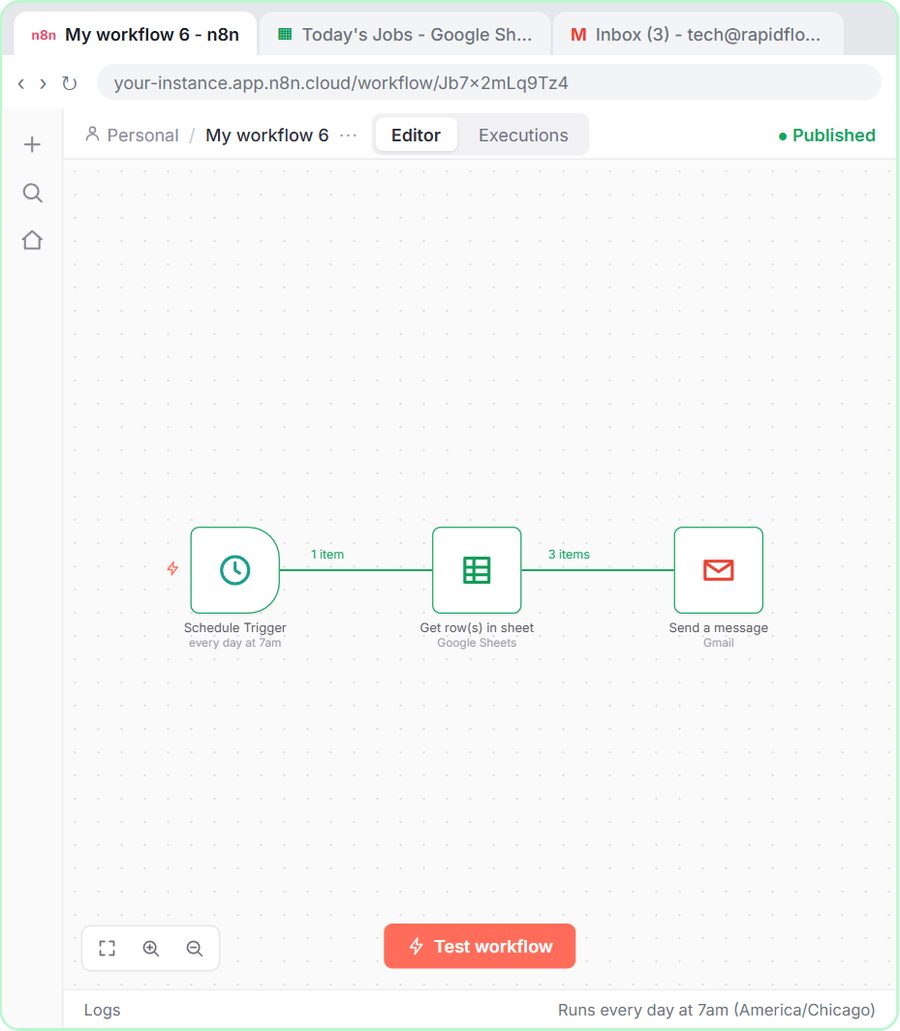
One item per row, with your header names as field names. In the lessons the OUTPUT shows 8 items for eight content requests, 5 items for five clients, 6 items for six jobs. Row 1 must hold the column names, and the data starts in row 2. Each item also gets a row_number field.
When should I use Append or update row?
Whenever the same record might arrive twice, like a form that can be resubmitted or a workflow that runs more than once.
In the lesson the original template used plain Append row, so every run added the same person again. Switching to Append or update row with Column to match on set to Email fixed it: run the workflow twice, and the sheet still has nine rows, with one Jordan Lee. Pick a column that is unique per record. Email works for people; an invoice number works for invoices. n8n Append or Update Row goes deeper.
How does Update row know which row to change?
Through Column to match on. n8n looks for the row whose match column equals the value you give it and updates the other mapped columns.
In the lesson, Update Sheets data matches on Email, reading each row's Email from Get Rows from Google Sheets, and fills Description with the AI's sentence. 9 items in, nine rows updated. A row with a blank Email can't be matched.
Map Each Column Manually or Map Automatically?
Map Automatically matches incoming field names to column names; Map Each Column Manually lets you put an expression in each column.
In the meeting notes lesson the AI returns fields called task, owner and due, and the Action Items sheet's headers are exactly task, owner and due, so Map Automatically works. If the names differ even by a capital letter, use manual mapping. Leaving manual mapping empty fails with "At least one value has to be added under Values to Send".
Try it free, step by step
How to Connect n8n to Google Sheets: Read, Add and Update Rows with AI. Learn n8n's three core Google Sheets moves on a made-up request list: read the rows, add a new one without duplicates, then let an AI step write a description and update each row. You do every step yourself in a practice copy of n8n, it checks your work as you go, and “Do it for me” finishes any step you get stuck on. Free, and nothing touches your real accounts.
Start the free lessonQuick expressions for sheet columns
| Column | Expression |
|---|---|
| A simple field | {{ $json.Email }} |
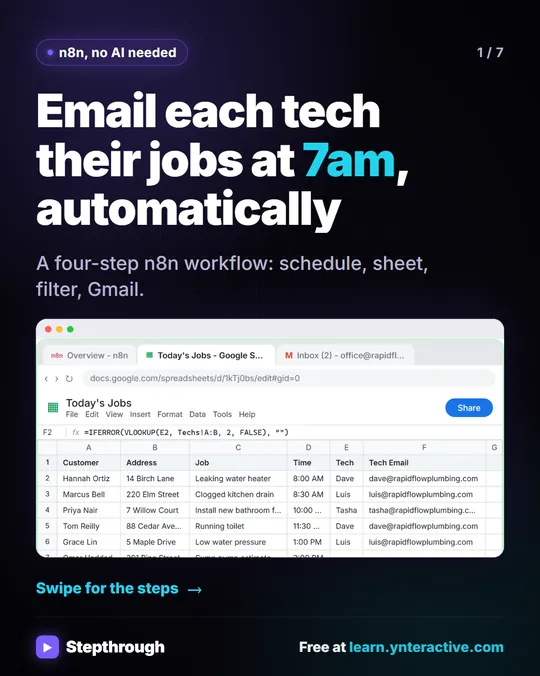
| A header with a space | {{ $json["Tech Email"] }} |
| From an earlier node | {{ $('Get row(s) in sheet').item.json.Email }} |
| AI output | {{ $json.output.description }} |
| A timestamp | {{ $now.toFormat('yyyy-MM-dd HH:mm') }} |
Key takeaways
- Get row(s) gives one item per row; every later node runs once per item.
- Use Append or update row with a unique Column to match on to avoid duplicates.
- Always pick Credential, Document and Sheet from the lists.
- Map Automatically only works when field names equal the column headers exactly.
Frequently asked questions
- How do I read a Google Sheet in n8n?
Add Google Sheets, choose Get row(s) in sheet, pick your credential, document and sheet, then click Execute step. The OUTPUT shows one item per row.
- How do I stop n8n adding duplicate rows?
Use Append or update row and set Column to match on to a unique column, such as Email.
- Can n8n update a single cell?
Update row changes the columns you map on the rows it matches, so mapping only one column changes only that cell in each matched row.
- Which course covers this?
n8n Jump Start and n8n Intermediate both include the Google Sheets lesson. Also see Google Sheets as a Database.